by Contributed | Mar 29, 2021 | Technology
This article is contributed. See the original author and article here.
Scenario:
In the browser, if you send a request to your Azure API management service, sometimes you might get the CORS error, detailed error message like:
Access to XMLHttpRequest at ‘https://xxxxx.azure-api.net/123/test’ from origin ‘https:// xxxxx.developer.azure-api.net’ has been blocked by CORS policy: No ‘Access-Control-Allow-Origin’ header is present on the requested resource.

This blog is intended to wrap-up the background knowledge and provide a troubleshooting guide for the CORS error in Azure API Management service.
Background Information:
What is CORS?
https://developer.mozilla.org/en-US/docs/Web/HTTP/CORS
Cross-Origin Resource Sharing (CORS) is an HTTP-header based mechanism that allows a server to indicate any other origins (domain, scheme, or port) than its own from which a browser should permit loading of resources.
An example in my case, when I try to test one of my API in my APIM developer portal. My developer portal ‘https://coolhailey.azure-api.net’ uses XMLHttpRequest to make a request for my APIM service ‘https://coolhailey.developer.azure-api.net’, two different domains.
How does CORS work?
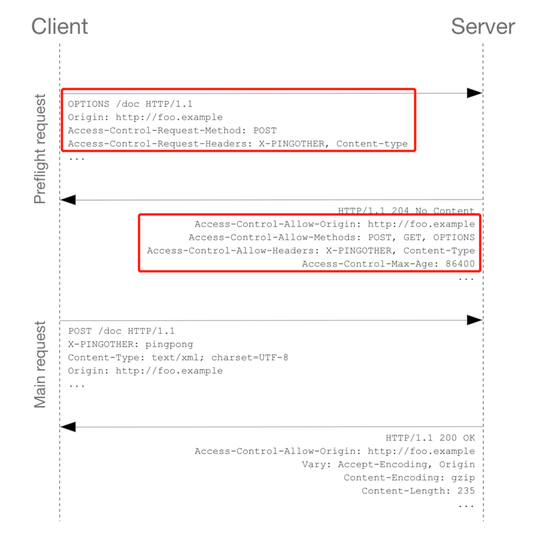
CORS relies on a mechanism by which browsers make a “preflight” request to the server hosting the cross-origin resource, in order to check that the server will permit the actual request. In that preflight, the browser sends headers that indicate the HTTP method and headers that will be used in the actual request. https://developer.mozilla.org/en-US/docs/Web/HTTP/CORS#preflighted_requests
Preflight: “preflighted” requests the browser first sends an HTTP request using the OPTIONS method to the resource on the other origin, in order to determine if the actual request is safe to send. Cross-site requests are preflighted like this since they may have implications to user data.
An example of valid CORS workflow:
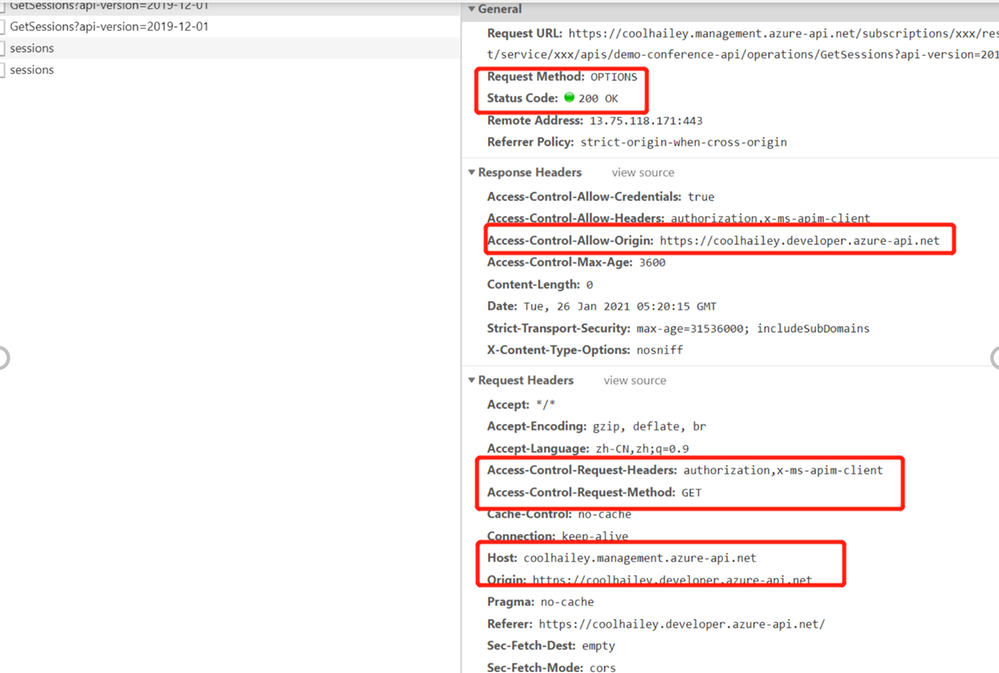
Step 1: There will be an Options request first.
In the request header, the ‘Access-Control-Request-Headers’ and ‘Access-Control-Request-Method’ has been added.
Please pay attention to the response header: Access-Control-Allow-Origin. You might need to make sure the request origin URL has been added here. In my case, I am sending a request from my developer portal, so ‘https://coolhailey.developer.azure-api.net‘ needs to be added to the Access-Control-Allow-Origin field.
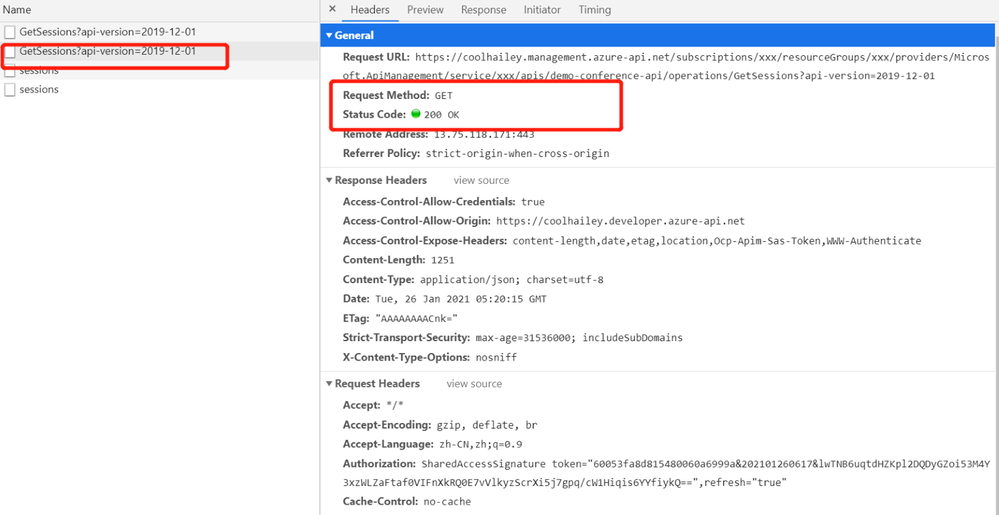
Then go to the real request, step 2.
Step 2: The real request starts.
Troubleshooting:
To troubleshoot the CORS issue with the APIM service, usually we need to prepare ourselves with the following aspects.
Checking if you have the CORS policy added to the inbound policy
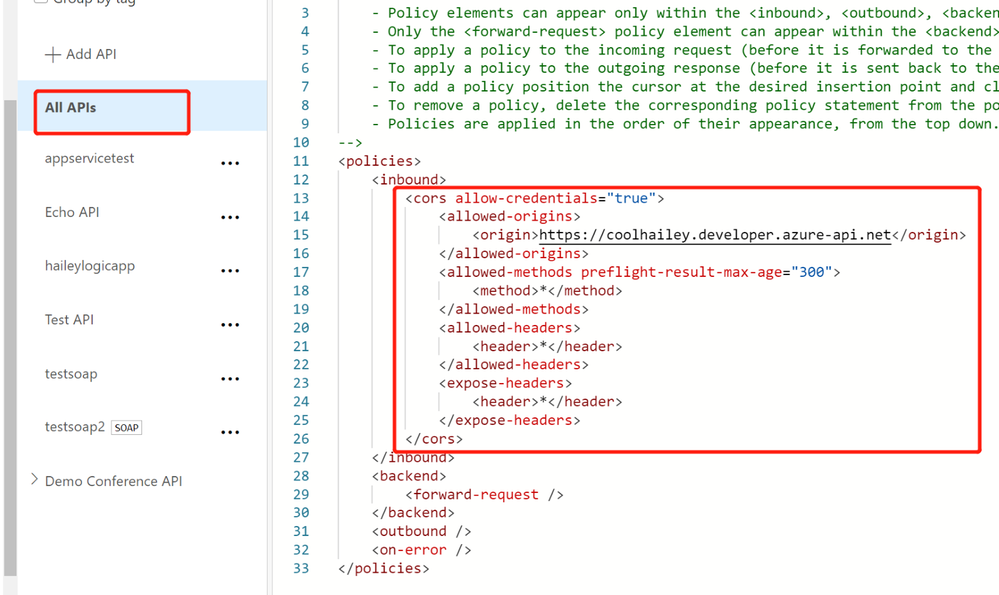
You will need to navigate to the inbound policy and check if you have this <cors> element added.
Some example as the snapshot below:
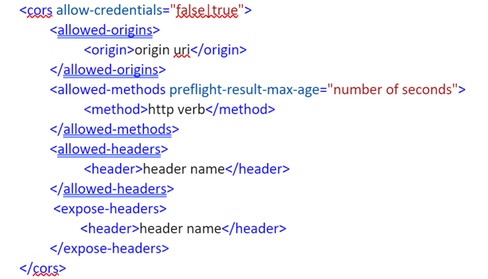
here is a document for the CORS policy in APIM service
Understanding how CORS policy work in different scopes
If you have been using APIM policy before, you will notice that CORS policy can be added into the global level(All APIs) or the specific API level(An operation), which means that there are policies in APIs and there are also policies in specific operations. How does these policies work in different scopes?
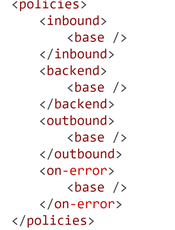
The answer is that specific APIs and operations inherited the policies from their parent APIs, by using the <base/> element. By default, the <base/> element is added to all the sub APIs and operations. However by manually removing the <base/> from specific APIs and operations, the policies from the parent APIs won’t be inherited.
A default policy for an API and operation:
Calculating Effective Policies
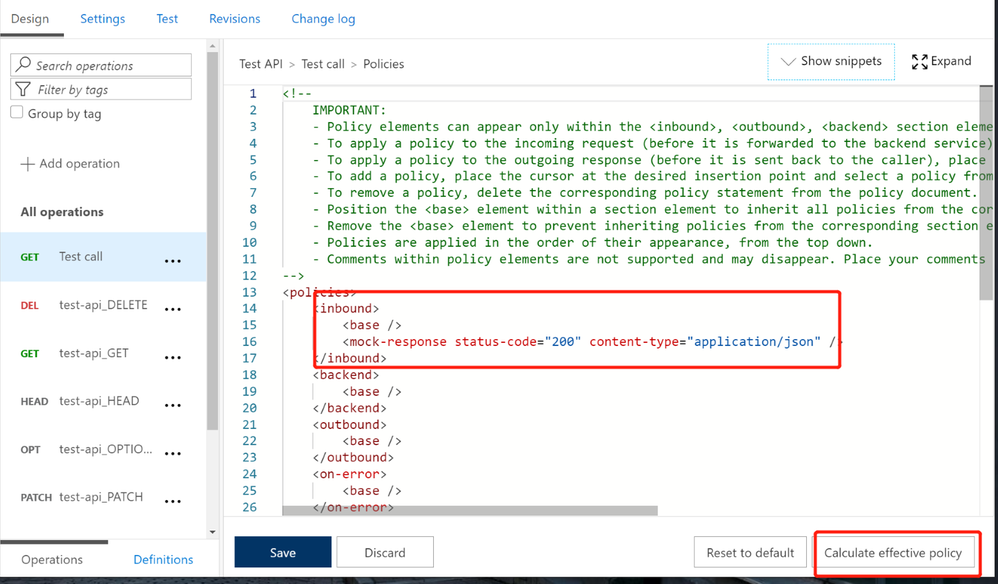
We can use the tool ‘Calculate effective policy’, to get the current effective policies for a specific API/operation.
Navigate to the inbound policy for the specific API or operation, you will find the ‘Calculate effective policy’ button on the bottom right. Snapshot below:
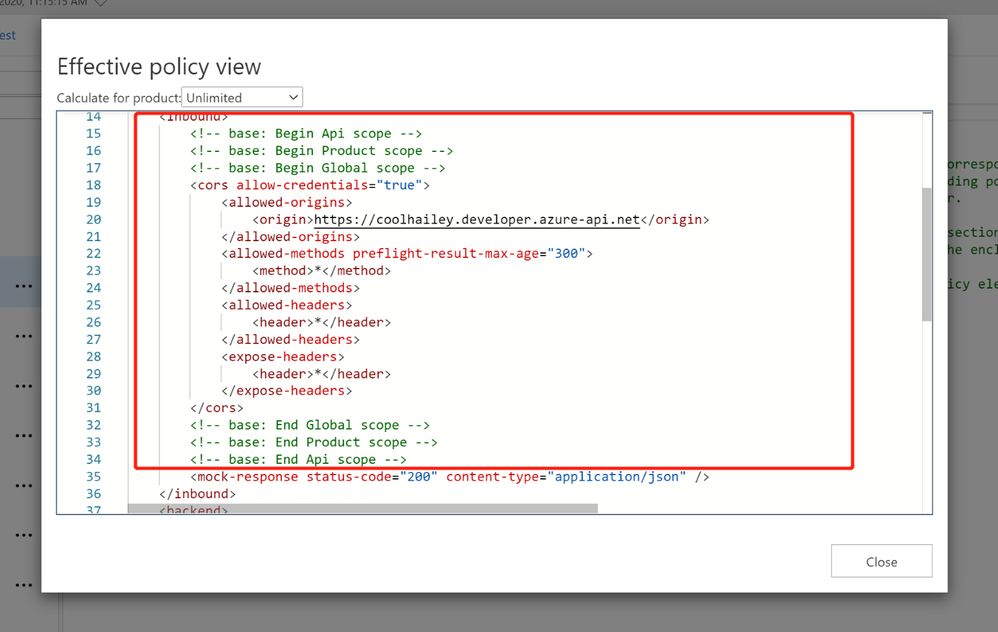
Clicking on the botton, and choose the product you want to check, then you will find all the effective policies for the current API/Operation.
Common Scenarios:
Scenario 1: no <cors> policy enabled
If you want to apply the cors policy into the global level, you can add the <cors> policy at the ‘All APIs’ level.
In the allowed origins section, please make sure the origin URL which will call your APIM service, has been added.
<cors allow-credentials="true">
<allowed-origins>
<origin>the origin url</origin>
</allowed-origins>
<allowed-methods preflight-result-max-age="300">
<method>*</method>
</allowed-methods>
<allowed-headers>
<header>*</header>
</allowed-headers>
<expose-headers>
<header>*</header>
</expose-headers>
</cors>
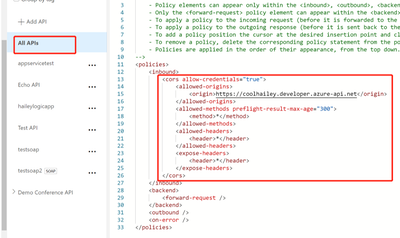
In some cases, you may only want to apply <cors> policy to the API or Operation level. In this case, you will need to navigate to the API or Operation, add the <cors> policy into the inbound policy there.
Scenario 2: missing the <base> element into the inbound policyat different scopes
If you have enabled the <cors> policy at the global level, you would suppose all the child APIs or operations can work with cross region requests properly. However, things are not as expected if you’ve missed the <base> element for one of the child level policy.
For example, I have <cors> at the global level enabled, but for the ‘Get Test call’ Operation, the cors is not working.
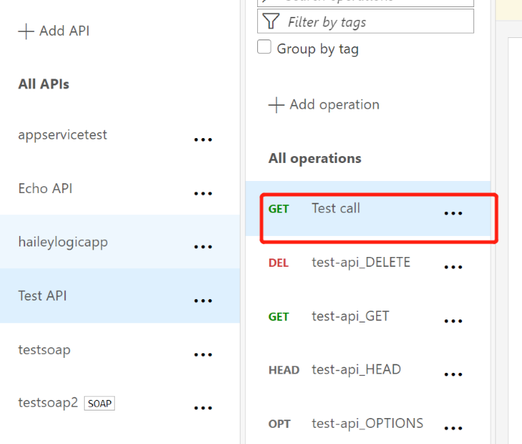
In this case, your need to check the inbound policy for this specific Operation ‘Get Test call’ , and see if you have the <base> element here. If no, you will need to add it back into the inbound policy.
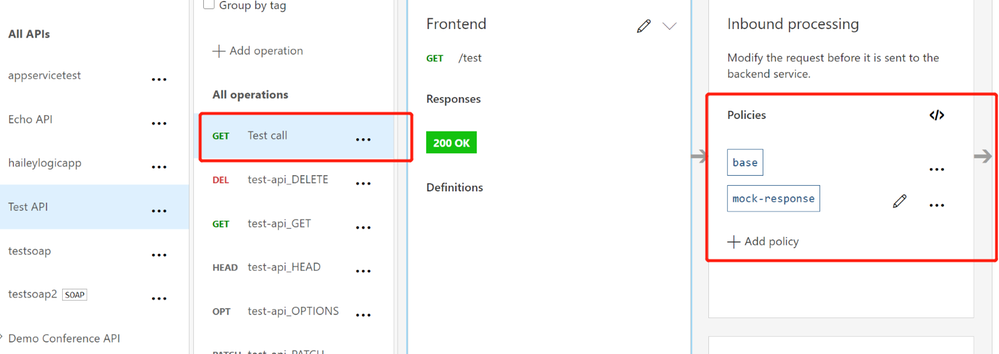
At the same time, you will need to check the inbound policy at the API level, which you can click the ‘All operations’, and make sure the <base> element is added at this different scope.
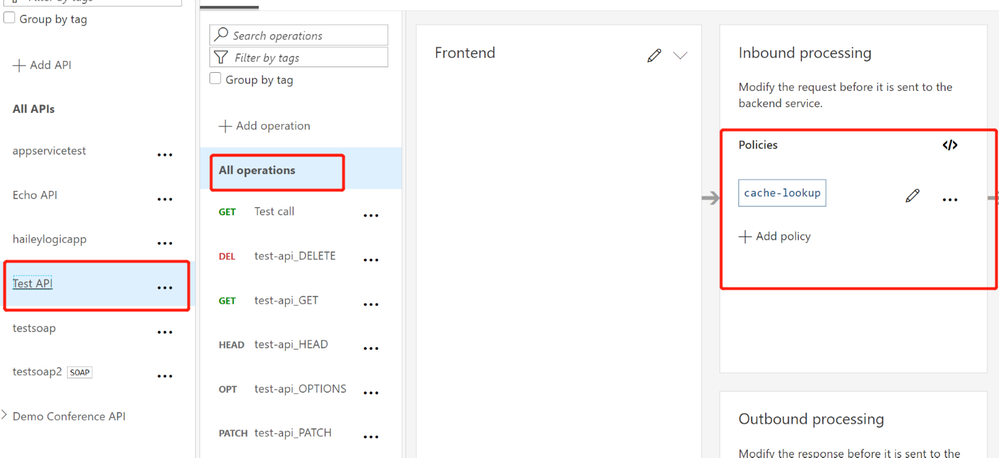
In my case, I find that I am missing the <base> element in the ‘Test API’ level, so my solution would be adding the <base> element here.
Scenario 3: <cors> policy after other policies
In the inbound policy, if you have other policies before the <cors> policy, you might also get the CORS error.
For example, in my scenario, navigate to the effective policy for the operation, there is a <rate-limit> policy right before the <cors> policy. The CORS setting won’t work as expected, since the rate-limit policy will be executed first. Even though I have <cors>, but it cannot work effectively.
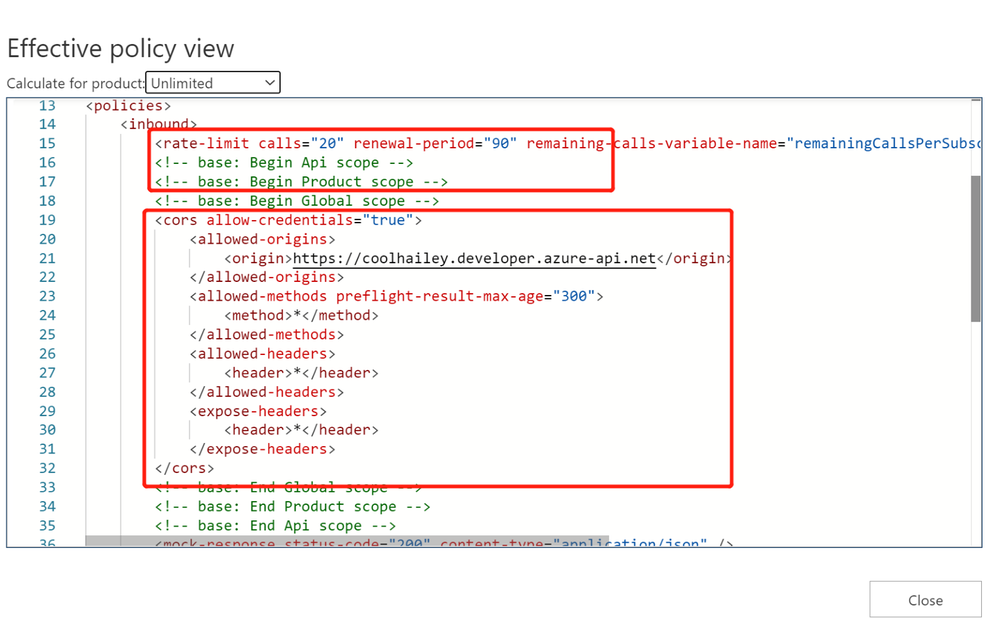
In this case, I need to change the order of the inbound policy and make sure the <cors> is at the very beginning of my inbound policy, so that it will be executed first.
Scenario 4: product level CORS setting
Your product level policy setting can also affect your <cors> policy.
Please be noted that: when CORS policy applied at the product level, it only works when subscription keys are passed in query strings.
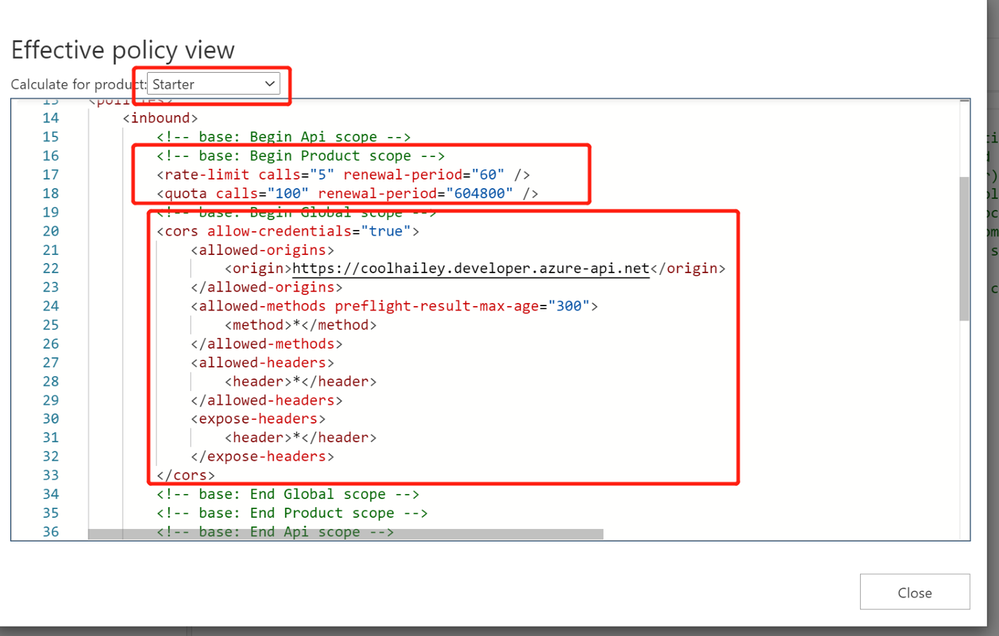
For one of my API, when I navigate to the calculate effective policies, and if I choose different Products, the inbound policies are completely different.
- When I choose Contoso product, I see <cors> setting working fine.
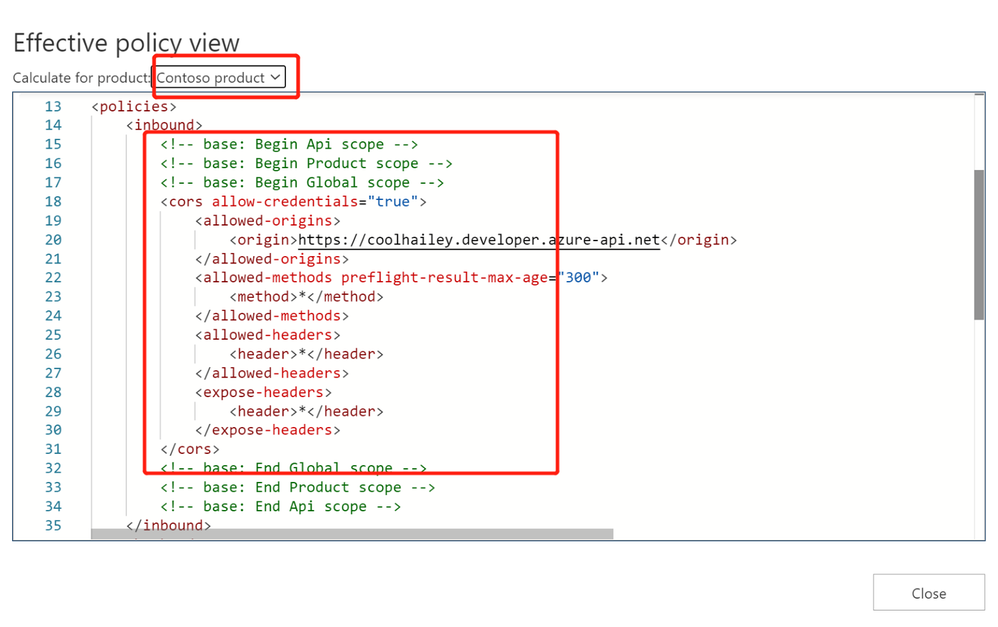
- However, when I choose a different product ‘Starter’, I have <rate-limit> and <quota> setting at the product level. These rate limit policies will be executed before the <cors> policy, which will result in the CORS error when I reach to the rate limit. This is actually a fake CORS error message, since the real problem comes with the rate limit.
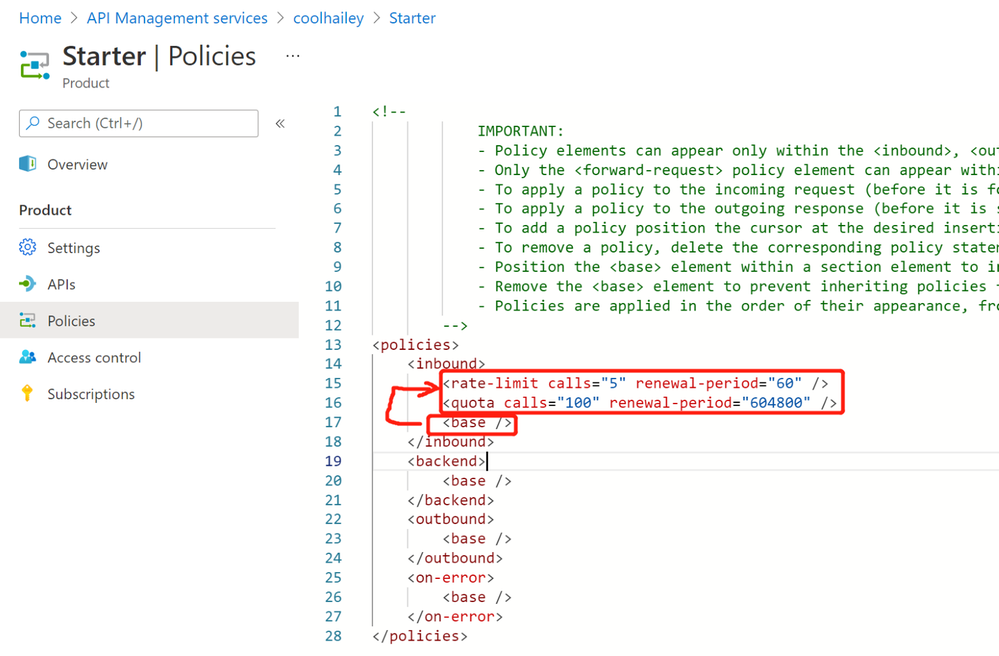
- To avoid this kind of fake CORS error, you can navigate to the Starter product, and go to the Policies blade, then change the order of the inbound policies.
In my case, I just moved the <base/> element to the beganing of the inbound policy.

by Contributed | Mar 29, 2021 | Technology
This article is contributed. See the original author and article here.
Microsoft Teams is a rich collaboration platform used by millions of people every day. By building custom apps for Teams you can help them work more effectively and connect them with even more knowledge and insights. Here are some resources to help you get started.
What kind of apps can you build on Teams
The Microsoft Teams platform offers you several extensibility points for building apps. On Teams you can build:
- tabs that allow you to expose your whole web app inside Teams to let users conveniently access it without leaving Teams
- bots that help people complete tasks through conversations. Bots are a great way to expose relevant features of your app and guide users through the scenario like a personal assistant
- messaging extensions to help people complete tasks in a visually-compelling way. Messaging extensions are similar to bots but are more visually oriented and ideal for showing rich data
- webhooks to bring notifications from external systems into conversations
If you have an existing web or mobile app, you can also bring information from Teams into your app.
Resources for getting started with building apps for Teams
Sounds interesting? Here are some resources to help you get started building apps for Teams.
If you learn in a structured way and like to understand the concepts before getting to code, this is the best place to start. This learning path will teach you the most important pieces of building apps for Teams. You will learn what types of apps you can build for Teams and how to use the available tools. This learning path is a part of preparation for a Microsoft 365 developer certification.
View the learning path
Another great place to start is the developer documentation. It’s a complete reference of the different development capabilities on the Teams platform. You will find in there everything from a high-level overview of what you can build on Teams to the detailed specification of the different features. What’s cool about learning from the docs is that you can choose your own path and which topics you want to learn first.
View Microsoft Teams developer documentation
One way to learn is to see what’s possible and what others build. If you want to get inspired, see what’s possible or look at how you could implement a specific scenario, you should check out the Teams app templates. There are over 40 sample ready-to-use apps including their source code for you to explore!
A part of the docs are tutorials for the Teams developer platform. If you want to get hands-on, this is a great place to start. You can find tutorials showing apps built using different technologies like Node.js or C#. And don’t forget to check out code samples too!
View tutorials for the Teams developer platform
Microsoft 365 has a vibrant community that supports each other in building apps on Microsoft 365. We share our experiences through regular community calls, offer guidance, record videos, share sample apps, and build tools to speed up development. You can find everything we have to offer at aka.ms/m365pnp.
Start building apps for Teams today
Over 250 million users work with Microsoft 365 and Microsoft Teams plays a key role in people’s workdays. By integrating your app with Teams you bring it to where people already are and make it a part of their daily routine.
Give Teams a try and I’m curious to hear what you’ve built. And if you have any questions, don’t hesitate to ask them on our community forums at aka.ms/m365pnp-community.
by Contributed | Mar 28, 2021 | Technology
This article is contributed. See the original author and article here.
See how the latest updates to Azure Migrate provide one unified environment to discover and assess your servers, databases, and apps, and easily migrate them to Azure. Jeremy Chapman is joined by Abhishek Hemrajani, Group PM Manager for Azure Migration, to explore how we’ve merged three different tool sets for discovery and assessment into one unified, at scale, agentless discovery and assessment experience.
Discovery: Track multiple SQL server instances on the same server, and discover the different user databases within those instances.
Assessment: Understand the compatibility of various applications running on the server for successful migration. Assess for Azure SQL, Azure VMware Solution or AVS.
Issues & warnings: Understand the readiness and any potential migration concerns.
Cost details: Review compute and storage costs for every instance that has been assessed. Estimate monthly compute and storage costs when you run your SQL server databases on Azure SQL.
Experiment & modify assessments: Modify your assessment properties at any time, and recalculate the assessment. Compare assessments across different dimensions that were used to create them.
QUICK LINKS:
02:01 — Discovery
04:32 — Assessment
06:28 — Issues & warnings
09:27 — Cost details
09:59 — Experiment & modify
10:47 — How to start
11:54 — Wrap up
Link References:
For more on migration, go to https://aka.ms/LearnAzureMigration
Unfamiliar with Microsoft Mechanics?
We are Microsoft’s official video series for IT. You can watch and share valuable content and demos of current and upcoming tech from the people who build it at Microsoft.
Video Transcript:
– Up next on this special edition of Microsoft Mechanics we’re joined by Azure Migration and Business Continuity Engineering Lead, Abhishek Hemrajani to explore the latest updates to Azure Migrate to provide one unified environment to discover and assess your servers, databases, apps and migrate them to Azure. So Abhishek, welcome to Microsoft Mechanics.
– It’s great to be here, Jeremy, thank you for having me on your show.
– And thanks for joining us today. So about a year ago, you and the team actually set out to provide a centralized hub and unified tool set for migrating to Azure. And since then on Mechanics, we’ve actually shown how you can use Azure Migrate for everything from agentless discovery and assessment of your VMs and even bare metal physical servers, right through to right-sizing them and lifting and shifting them into Azure. We’ve also covered migration of VMware workloads, databases and apps, but what have you and the team been focused on lately with the latest round of updates?
– So we’ve been really focused on making it easy for you to migrate your VMs, your databases and your apps to Azure with Azure Migrate. Now with every release we set out to make these three primary migration scenarios as seamless as possible. Since discovery and assessment is the most important and critical phase of a migration project, we are now merging the three different tool sets for discovery and assessment into one unified, at-scale agentless discovery and assessment experience. First up in this experience is unified discovery and assessment for Windows server, Linux, and SQL Server. And soon we’ll expand capabilities to include .Net web apps that you could migrate over to Azure App Service.
– And that’s pretty significant because until recently you could do agentless discovery and assessment of your virtual machines and bare metal servers with Azure Migrate. But you would use integrations with things like Database Migration Assistant and App Service Migration Assistant to discover and assess your data in web apps. So, what have you done then to unify this experience? And can you walk us through an example of this?
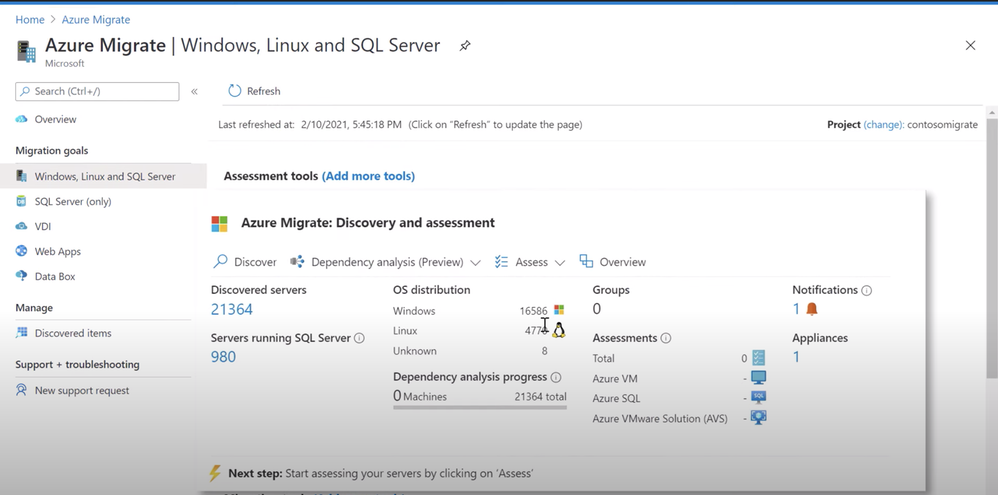
– Absolutely Jeremy, let’s dive right into a demo and I’ll show you how things have gotten better. I’m going to start from the point at which you’ve set up the Azure Migrate appliance to discover your VMware VMs. These can be Windows or Linux VMs. Of course you can also discover bare metal servers with Azure Migrate. Now, if you provide us VM credentials we can inventory installed software and help you perform application dependency analysis without installing any agents. That allows you to discover network paths that originate and terminate on different VMs and the associated processes. Importantly, these credentials are never sent to Microsoft and remain on your Azure Migrate appliance running in your data center. With this release, we can now model servers running SQL Server and various instances and databases. Soon, we’ll do the same for IAS web servers. Azure Migrate supports both Windows and SQL authentication for discovering properties of SQL instances. Once the appliance is configured and discovery is initiated, Azure Migrate will be able to collect the required information to help you assess your SQL estate for migration to Azure SQL Managed Instance or Azure SQL Database. Here, you can see that we’ve discovered 21,364 servers. 980 are running SQL server. I can also see the OS distribution across my on-premise state. In the discovery view I can see servers which are running SQL server and how many instances are on each of the servers. So if you’re running multiple instances on the same server we’ll be able to capture that information.
– All right. So let me get this right. You can track multiple SQL server instances on the same server, but can you discover the different user databases within those instances?
– Yeah, absolutely. I can dive deeper into the instances to see the SQL version, the SQL edition, the count of the user databases and other SQL specific details. For example, here I can see that VM HRSQLVM04 is running five SQL server instances. I can see the various instances, SQL versions, count of user databases, SQL editions, and other details. We are adding support for SQL Server 2008 through SQL Server 2019. We will support the Enterprise, Standard, Developer, and Express editions. I can also go deeper into each instance and see the various user databases, their size, compatibility level, etc.
– Right. And previously, like you mentioned, you’d have to jump into quite a few different tools to achieve these types of results.
– That’s right. But to be clear, Data Migration Assistant as part of Azure Migrate is already a very powerful tool to assess your databases. What we are doing now is capturing the best of its capabilities to build a unified, at-scale discovery and assessment experience for SQL server. In addition to the discovery features there are also newer assessment types available for you. Now, we’ve always had Virtual Machine assessments, but you can now assess for Azure SQL, Azure VMware Solution or AVS, and very soon you’ll be able to perform application compatibility assessments for Windows Server. Now Jeremy, application compatibility is very important when you’re considering upgrading the operating system of your Windows Server, as part of the migration that helps you understand the compatibility of the various applications running on the server. Let’s create an assessment for Azure SQL. As I mentioned before, when you create an assessment for Azure SQL, we are assessing for both SQL Managed Instance and SQL Database. When you create an assessment most settings are applied automatically, but you can review and edit assessment properties. You can select the target location. In my case, I’ll stick with Southeast Asia. You can select the deployment type, which I’ll keep as the default recommended. I could choose Azure SQL Managed Instance or Azure SQL Database, if I want to go all in on one or the other. You can also select the options for reserved capacity, service tier and the performance history, which helps you better right-size your SQL workloads. I can then give this assessment a name and group the servers that need to be included. I’ll create a group and name it, ContosoVMSQL. Now I need to select my servers to assess. I will find all servers with SQLVM in their name and select all of those. Azure Migrate will ensure that servers running SQL instance are automatically included. Finally, I can review the details and create the assessment.
– Okay, so once you’ve run the assessment, what type of information do you get? And I remember with VM assessments you could get right-sizing, readiness, virtual machine sku and cost recommendations. Is that similar then for SQL servers?
– It absolutely is. For SQL, we’ll tell you the Azure SQL Managed Instance or Azure SQL Database Service tier that is the most optimal for your workloads. It takes only a few minutes for the assessment to get created. Once the assessment is created you can start understanding the Azure SQL readiness and Azure SQL cost details for your instances. You can see that in this case we assessed 57 servers running 207 SQL Server instances with 2,925 databases. You can see that the assessment gives you information about the readiness of your instances for SQL Managed Instance, SQL Database or where you may want to consider an Azure SQL VM. You’ll also get the aggregate compute and storage costs. So let’s go deeper into the Azure SQL readiness report. And you’ll see that for every instance you get readiness for SQL Managed Instance or SQL Database. We will also recommend which one might be a better target. And for that recommended target we’ll also tell you the optimal configuration.
– So how does Azure Migrate then determine these types of recommendations?
– That’s the magic Jeremy. Let’s look at the assessment for the instances for one of our Vms: HRSQLVM01. In this case, the VM is running three SQL instances. The first instance, MSSQLSERVER, is not ready for SQL Managed Instance. If you click on the recommendation detail we’ll tell you the rationale behind it. We classify migration information into issues and warnings. Issues are blocking conditions. For example, MSSQLSERVER has a database with multiple log files, which is not supported by Azure SQL Managed Instance. Warnings, on the other hand, are non-critical changes that may be needed to ensure that your applications run optimally post migration. In this case, you can see that there is a PowerShell job that you should review. Once I understand that Azure SQL DB is in fact the right deployment type for the instance, I can click on review Azure SQL DB configuration and get a consolidated view of all the databases along with the recommended SQL server tier for each of the user databases. Next, let’s look at the DMS2016SQL instance. This instance is ready for both SQL Managed Instance and SQL Database. I’m going to dive deeper into this instance to understand the reasoning behind the recommendation. The recommendation, in this case, is based on the configuration that will be the most cost effective. I can also see information related to total database size, CPU utilization, memory allocation and utilization, and IOPS. For this instance, there are no blocking issues but there are some warnings that I should be aware of.
– And that’s a lot of rich information and detail really to understand the readiness and any potential migration issues, but do you get similar details for cost?
– Absolutely Jeremy. Let’s look at the Azure SQL cost details. As you can see here, you can review compute and storage costs for every instance that has been assessed. This information allows you to estimate monthly compute and storage costs when you run your SQL server databases on Azure SQL. These cost components are calculated based on the assessment properties that you specify when creating the assessment, such as target Azure region, offers and important benefits such as the Hybrid Benefit.
– And it’s really great to see all the details and these assessments and the recommendations. But what if you want to maybe experiment and do different types of assessments, maybe you want to play around with what you might need in terms of compute or storage for specific workloads. Is there an easy way to kind of experiment and run different assessments against two groups?
– That’s a very important point Jeremy. You can modify your assessment properties at any time and recalculate the assessment. For example, here I’ll edit the properties and I can change the target deployment to Azure SQL MI and recalculate the assessment. Another useful feature is that once you’ve discovered your servers and have grouped them, there’s really no limit to the number of assessments that you can run on the same group. You can then compare the assessments across the different dimensions that were used to create them.
– Right. I can really see this information being super useful when you’re building out your business case. But what advice would you give people who are watching maybe starting out with their first discoveries and assessments?
– First start by prioritizing your discovery and assessment. Discovery and assessment is the most critical phase of a migration project, and will help you arrive at key decisions related to your migration. You also want to anticipate and start mitigating complexities. Think about architectural foundation and your management and governance approach in the cloud. And finally use an iterative approach to perform your migration. It’s all about creating the right size VMs that can help you execute more effectively.
– Cool stuff. Great progress since the last time we checked in on Azure Migrate but what are you and the team then working on next?
– So today we showed you unified discovery and assessment for SQL Server. Very soon, we’ll add capabilities for discovery, assessment and migration for .Net web apps over to Azure App Service with Azure Migrate. Also available in preview, is Azure Migrate App Containerization, which can help you containerize your .Net or Java web apps and deploy them over to Azure Kubernetes Service.
– Really looking forward to these capabilities. And thank you so much Abhishek for joining us today for the latest updates to Azure Migrate, but where could folks go who are watching learn more?
– So everything that they showed you today is available in preview. So you can try it out for yourself. You can also learn all things migration on aka.ms/LearnAzureMigration
– Thanks again Abhishek, and of course keep checking back to Microsoft Mechanics for the latest tech updates, subscribe if you haven’t yet and thanks for watching.
by Contributed | Mar 28, 2021 | Technology
This article is contributed. See the original author and article here.
In last blog, I introduced how SSL/TLS connections are established and how to verify the whole handshake process in network packet file. However capturing network packet is not always supported or possible for certain scenarios. Here in this blog, I will introduce 5 handy tools that can test different phases of SSL/TLS connection so that you can narrow down the cause of SSL/TLS connection issue and locate root cause.
curl
Suitable scenarios: TLS version mismatch, no supported CipherSuite, network connection between client and server.
curl is an open source tool available on Windows 10, Linux and Unix OS. It is a tool designed to transfer data and supports many protocols. HTTPS is one of them. It can also used to test TLS connection.
Examples:
1. Test connection with a given TLS version.
curl -v https://pingrds.redis.cache.windows.net:6380 –tlsv1.0
2. Test with a given CipherSuite and TLS version
curl -v https://pingrds.redis.cache.windows.net:6380 –ciphers ECDHE-RSA-NULL-SHA –tlsv1.2
Success connection example:
curl -v https://pingrds.redis.cache.windows.net:6380 --tlsv1.2
* Rebuilt URL to: https://pingrds.redis.cache.windows.net:6380/
*   Trying 13.75.94.86...
* TCP_NODELAY set
* Connected to pingrds.redis.cache.windows.net (13.75.94.86) port 6380 (#0)
* schannel: SSL/TLS connection with pingrds.redis.cache.windows.net port 6380 (step 1/3)
* schannel: checking server certificate revocation
* schannel: sending initial handshake data: sending 202 bytes...
* schannel: sent initial handshake data: sent 202 bytes
* schannel: SSL/TLS connection with pingrds.redis.cache.windows.net port 6380 (step 2/3)
* schannel: failed to receive handshake, need more data
* schannel: SSL/TLS connection with pingrds.redis.cache.windows.net port 6380 (step 2/3)
* schannel: encrypted data got 4096
* schannel: encrypted data buffer: offset 4096 length 4096
* schannel: received incomplete message, need more data
* schannel: SSL/TLS connection with pingrds.redis.cache.windows.net port 6380 (step 2/3)
* schannel: encrypted data got 1024
* schannel: encrypted data buffer: offset 5120 length 5120
* schannel: received incomplete message, need more data
* schannel: SSL/TLS connection with pingrds.redis.cache.windows.net port 6380 (step 2/3)
* schannel: encrypted data got 496
* schannel: encrypted data buffer: offset 5616 length 6144
* schannel: sending next handshake data: sending 3791 bytes...
* schannel: SSL/TLS connection with pingrds.redis.cache.windows.net port 6380 (step 2/3)
* schannel: encrypted data got 51
* schannel: encrypted data buffer: offset 51 length 6144
* schannel: SSL/TLS handshake complete
* schannel: SSL/TLS connection with pingrds.redis.cache.windows.net port 6380 (step 3/3)
* schannel: stored credential handle in session cache
Fail connection example due to either TLS version mismatch. Not supported ciphersuite returns similar error.
curl -v https://pingrds.redis.cache.windows.net:6380 --tlsv1.0
* Rebuilt URL to: https://pingrds.redis.cache.windows.net:6380/
*   Trying 13.75.94.86...
* TCP_NODELAY set
* Connected to pingrds.redis.cache.windows.net (13.75.94.86) port 6380 (#0)
* schannel: SSL/TLS connection with pingrds.redis.cache.windows.net port 6380 (step 1/3)
* schannel: checking server certificate revocation
* schannel: sending initial handshake data: sending 144 bytes...
* schannel: sent initial handshake data: sent 144 bytes
* schannel: SSL/TLS connection with pingrds.redis.cache.windows.net port 6380 (step 2/3)
* schannel: failed to receive handshake, need more data
* schannel: SSL/TLS connection with pingrds.redis.cache.windows.net port 6380 (step 2/3)
* schannel: failed to receive handshake, SSL/TLS connection failed
* Closing connection 0
* schannel: shutting down SSL/TLS connection with pingrds.redis.cache.windows.net port 6380
* Send failure: Connection was reset
* schannel: failed to send close msg: Failed sending data to the peer (bytes written: -1)
* schannel: clear security context handle
curl: (35) schannel: failed to receive handshake, SSL/TLS connection failed
Failed due to network connectivity issue.
curl -v https://pingrds.redis.cache.windows.net:6380 --tlsv1.2
* Rebuilt URL to: https://pingrds.redis.cache.windows.net:6380/
*   Trying 13.75.94.86...
* TCP_NODELAY set
* connect to 13.75.94.86 port 6380 failed: Timed out
* Failed to connect to pingrds.redis.cache.windows.net port 6380: Timed out
* Closing connection 0
curl: (7) Failed to connect to pingrds.redis.cache.windows.net port 6380: Timed out
openssl
Suitable scenarios: TLS version mismatch, no supported CipherSuite, network connection between client and server.
openSSL is an open source tool and its s_client acts as SSL client to test SSL connection with a remote server. This is helpful to isolate the cause of client.
- On majority Linux machines, OpenSSL is there already. On Windows, you can download it from this link: https://chocolatey.org/packages/openssl
- Run Open SSL
- Windows: open the installation directory, click /bin/, and then double-click openssl.exe.
- Mac and Linux: run openssl from a terminal.
- Issue s_client -help to find all options.
Command examples:
1. Test a particular TLS version:
s_client -host sdcstest.blob.core.windows.net -port 443 -tls1_1
2. Disable one TLS version
s_client -host sdcstest.blob.core.windows.net -port 443 -no_tls1_2
3. Test with a given ciphersuite:
s_client -host sdcstest.blob.core.windows.net -port 443 -cipher ECDHE-RSA-AES256-GCM-SHA384
4. Verify if remote server’s certificates are trusted.
Success connection example:
CONNECTED(000001A0)
depth=1 C = US, O = Microsoft Corporation, CN = Microsoft RSA TLS CA 02
verify error:num=20:unable to get local issuer certificate
verify return:1
depth=0 CN = *.blob.core.windows.net
verify return:1
---
Certificate chain
 0 s:CN = *.blob.core.windows.net
   i:C = US, O = Microsoft Corporation, CN = Microsoft RSA TLS CA 02
 1 s:C = US, O = Microsoft Corporation, CN = Microsoft RSA TLS CA 02
   i:C = IE, O = Baltimore, OU = CyberTrust, CN = Baltimore CyberTrust Root
---
Server certificate
-----BEGIN CERTIFICATE-----
MIINtDCCC5ygAwIBAgITfwAI6NfesKGuQGWPYQAAAAjo1zANBgkqhkiG9w0BAQsF
ADBPMQswCQYDVQQGEwJVUzEeMBwGA1UEChMVTWljcm9zb2Z0IENvcnBvcmF0aW9u
pK8hqxL0zc4NQLRTq9RNpdPwnNmGn5SZ4Nu5ktUgWokR97THzgs6a/ErHH2tigLF
jwkgB8UuV/hhu3vEa0jxstSBgbjQPgSNexAl7XwgawaucIF+wkRpPW2w0VTcDWtT
1bGtFCpewAo=
-----END CERTIFICATE-----
subject=CN = *.blob.core.windows.net

issuer=C = US, O = Microsoft Corporation, CN = Microsoft RSA TLS CA 02

---
No client certificate CA names sent
Peer signing digest: MD5-SHA1
Peer signature type: RSA
Server Temp Key: ECDH, P-256, 256 bits
---
SSL handshake has read 5399 bytes and written 293 bytes
Verification error: unable to get local issuer certificate
---
New, TLSv1.0, Cipher is ECDHE-RSA-AES256-SHA
Server public key is 2048 bit
Secure Renegotiation IS supported
Compression: NONE
Expansion: NONE
No ALPN negotiated
SSL-Session:
    Protocol  : TLSv1.1
    Cipher    : ECDHE-RSA-AES256-SHA
    Session-ID: B60B0000F51FFB7C9DDB4E58CD20DC20987C13CFD31386BE435D612CF5EFDBF9
    Session-ID-ctx:
    Master-Key: DA402F6E301B4E4981B7820CAF6E0AF3C633290E85E2998BFAB081788488D3807ABD3FF41FF48DA55DB56281C024C4F4
    PSK identity: None
    PSK identity hint: None
    SRP username: None
    Start Time: 1615557502
    Timeout   : 7200 (sec)
    Verify return code: 20 (unable to get local issuer certificate)
    Extended master secret: yes
Fail connection example due to TLS mismatch:
OpenSSL> s_client -host sdcstest.blob.core.windows.net -port 443 -tls1_3
CONNECTED(0000017C)
write:errno=10054
---
no peer certificate available
---
No client certificate CA names sent
---
SSL handshake has read 0 bytes and written 254 bytes
Verification: OK
---
New, (NONE), Cipher is (NONE)
Secure Renegotiation IS NOT supported
Compression: NONE
Expansion: NONE
No ALPN negotiated
Early data was not sent
Verify return code: 0 (ok)
---
error in s_client
Fail connection example due to network connectivity:
OpenSSL> s_client -host sdcstest.blob.core.windows.net -port 7780
30688:error:0200274C:system library:connect:reason(1868):crypto/bio/b_sock2.c:110:
30688:error:2008A067:BIO routines:BIO_connect:connect error:crypto/bio/b_sock2.c:111:
connect:errno=0
error in s_client
Online tool
https://www.ssllabs.com/ssltest/
Suitable scenarios: TLS version mismatch, no supported CipherSuite.
This is a free online service performs a deep analysis of the configuration of any SSL web server on the public Internet. It can list all supported TLS versions and ciphers of a server. And auto detect if server works fine in different types of client, such as web browsers, mobile devices, etc.
Please note, this only works with public access website. For internal access website will need to run above curl or openssl from an internal environment. And it only supports domain name and does not work with IP address.
Web Browser:
Suitable scenarios: Verify if server certificate chain is trusted on client.
Web Browser can be used to verify if remote server’s certificate is trusted or not locally:
- Access the url from web browser.
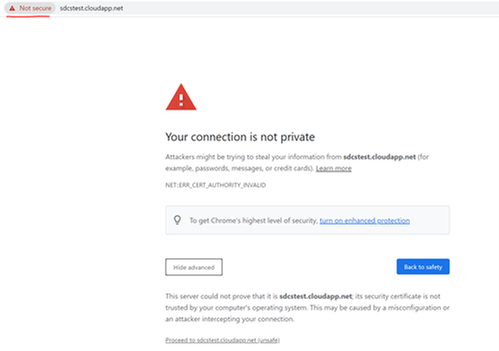
- It does not matter if the page can be load or not. Before loading anything from the remote sever, web browser tried to establish SSL connection.
- If you see below error returned, it means certificate is not trusted on current machine.
Certutil
Suitable scenarios: Verify if server certificate on client, verify client certificate on server.
Certutil is a tool available on windows. It is useful to verify a given certificate. For example verify server certificate from client end. If mutual authentication is implemented, this tool can also be used to verify client certificate on server.
The command auto verifies trusted certificate chain and certificate revocation list (CRL).
Command:
certutil -verify -urlfetch <client cert file path>
https://docs.microsoft.com/en-us/windows-server/administration/windows-commands/certutil#-verify
Next blog, I will introduce solutions for common causes of SSL/TLS connection issues.
by Contributed | Mar 27, 2021 | Technology
This article is contributed. See the original author and article here.
These are the web parts you’re looking for.
The PnP Modern Search web parts, out of all of the hundreds of samples available as a part of the PnP initiative, are some of the most complicated web parts to get configured.
Between the four of them, there’s somewhere around 100 different configuration options, which can be configured into countless combinations; and if you want to make the most out of them, you’re also going to need to be somewhat familiar with SharePoint Search topics such as managed and crawled properties, refiners, result sources, etc…
Point is, these web parts are not meant for the masses and can be a challenge even for the most super of super users.
The aim of this post is to, hopefully, lessen that challenge a bit. And to do that, we’re going to be using these web parts to build a page for searching a SharePoint list of the top 999 video games (by # of units shipped).
We’re not going to be deep diving into every option or combination of setting. Instead, we’re going for the classic “Minimal Path to Awesome”…with a few detours throughout.
Getting the Web Parts
The latest version of the PnP Modern Search web parts can be found using this link.
For the purposes of this blog, we’re looking at v4.1.0, which can be found using this link (in case it’s no longer the latest).
Just scroll down to the bottom of the page and download the .SPPKG file.
Once you have those, you can follow along with the installation guide to get them in your tenant.
Setting up for the demo
If you’re interested in following along with the demo in your own environment, there’s a bit of behind-the-scenes work that was done to stage things.
I’ve included a PnP Site template and a README in the github repository for this blog to help get you up to speed.
Configuring the Search Box web part
In keeping with the spirit of our “Minimal Path to Awesome” approach, the Search Box web part will be the easiest to configure of the lot. We can just drop it on the page somewhere and be done.

That doesn’t mean, however, that it has to be that simple. Version 4 has introduced more advanced features than we’ll be making use of, but that doesn’t mean we can’t take a peek.
Panel 1 – Search box settings
The first configuration panel initially offers two settings.
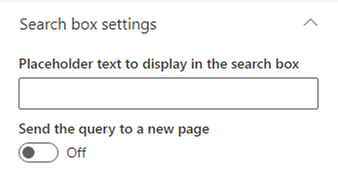
The first setting will replace the default “Enter your search terms…” placeholder text with whatever you type here.
The second setting – Send the query to a new page – will be off by default (and will stay that way for this example). If you enable it, you’ll see some new options appear that allow you send the user’s query to a new page/tab.
This can be incredibly useful if you want to create “Search Results” page like what we’re currently doing, but also want to provide a search box on other pages. Using this we could, for example, include a Search box web part on the home page of our site and, when a user submits a query, the query is passed to the page we’re building, and search results are shown.
Panel 2 – Query Suggestions
It’s possible to provide users with some search suggestions (you know, the things that appear beneath what you’re typing in search engines like Bing or Google) to help speed them along their search journey.
As users search for a particular term or phrase and click on search results, SharePoint will (supposedly) make a correlation between the two. In our example, if a user searched for World of Warcraft and clicked on the result World of Warcraft: Legion six times, SharePoint would begin suggesting World of Warcraft: Legion as a potential query.
NOTE: I used the word supposedly earlier because I never saw this feature working in my example. I assume this is either because the search results we’re creating aren’t clickable, or that the Search suggestions are only curated when you’re using the built-in search boxes, such as the Microsoft Search bar.
Panel 3 – Available Connections
The last panel of options includes configurations that allow us to pull queries from other sources.
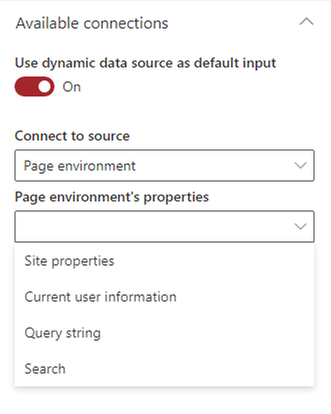
Again, we’re not going to be dealing with these on our MPA. However, referring to the example of having a search box on a home page sending queries to the page we’re currently building, we would want to select the “Query string” option here and specify our parameter name. Once configured, we could pass query information from one page and pull it in here.
Configuring the Search Verticals web part
Verticals allow users to limit their search results to a specific kind of result. If you’ve been around SharePoint long enough, you’ve no doubt seen the standard All, Files, People, Sites, etc… verticals that SharePoint shows when you search for stuff.
Well, the Search Verticals web part allows us to create our own verticals that enable our users to see results for specific platforms.
In terms of difficulty, the Search Verticals web part comes in second place in our example, although it’s probably the easiest to configure overall if you count the Search Box features we’re not making use of.

While the other three web parts in this package saw new features (and added complexity) with the latest version, this web part is actually became much easier to use. There’s only one configuration panel to deal with, so let’s take a look.
Panel 1 – Search verticals configuration
When you open the Search Verticals web part, you’ll be greated with a singular button that says Configure Verticals.
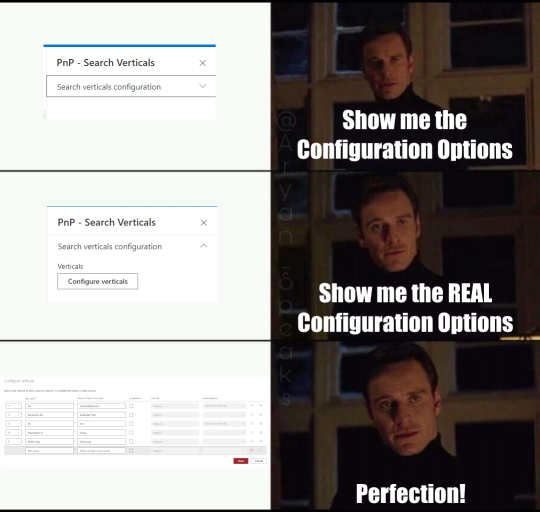
When clicked, you get the real deal…
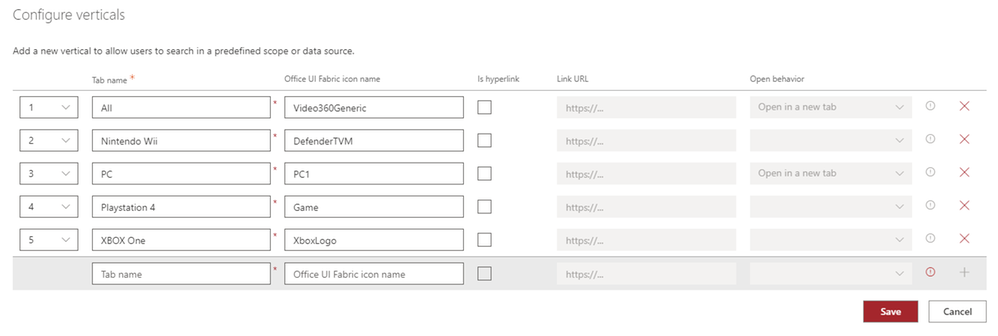
We can add any number of verticals simply by giving them a name and setting an order. We can also make use of the standard Fabric icons if we wish (and we do!) and, if we choose, we can make verticals a link that opens a new page when clicked.
Since we want our users to stay on the same page, we’re not going to bother with hyperlinks, but we will go ahead and create verticals for the latest generation of platforms available in our dataset, as well as an “All” vertical.
Search Verticals Summary
That’s all there is to it, really. However, one important thing to keep in mind is that each vertical you choose to add will require a separate instance of the Search Results web part. For those that are familiar with previous versions of these web parts, this is a deparature from what we’re used to.
Configuring the Search Refiners web part
Once a user gets to searching, they may want to be able to filter the results by certain criteria. We can use the Search Filters web part to fulfil that demand.
Panel 1 – Available Connections
For refiners to show, they’ll need search results to refine. The “Available connections” settings will allow you select one or more Search Results web parts. If you haven’t already added one, there won’t be any options, so make sure you’ve added one first. Once you’ve got one, select it here.
Later, you’ll see that we end up with multiple Search Results web parts, so we’ll revisit this after that point to update it so our refiners respect that.
Panel 1 – Filter Settings
The other section has two different settings we can configure.
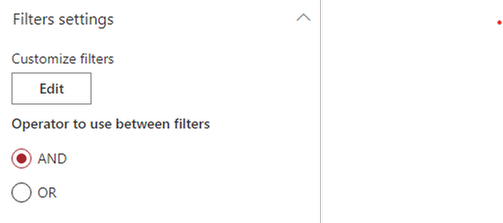
Clicking the edit button will, again, open a meme-worthy panel. Unlike the last panel, though, this new panel is far more involved.
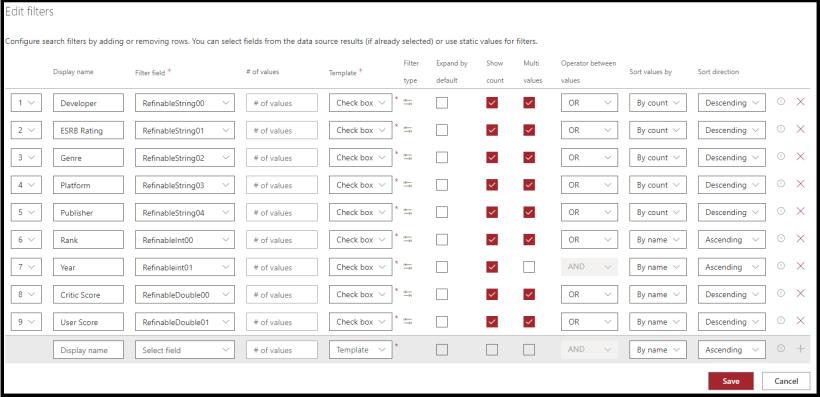
Most of the settings are, I think, self explanatory and you can see the settings used for the demo in the above screenshot.
However, it’s important to note that the values you use in the “Filter field” column MUST map to a managed property that has been marked as Refinable. In our case, we’ve already gone into our search schema and mapped the columns we wanted to filter by to the provided Refinable managed properties.
NOTE: If you’ve applied the PnP template referenced earlier, these settings will have already been mapped for you.
Panel 2 – Available Layouts
We have three pre-canned layouts available to us, as well as a Custom option which you can use to present your filters in any way you can imagine.
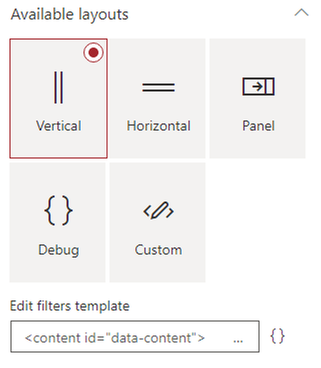
The Vertical and Horizontal options are self-descriptive, while the Panel option will cause a panel to flyout from the right (like how the web part properties do).
Since our Filter web part is in a vertical column, we’ll just stick with that option.
Configuring the Search Results web part.
The Search Results web part is, as the name implies, the component we use to show search results for the things users are searching for. It’s also where things start getting little more involved.
Unlike the previous web parts, there are a lot of different settings, combinations, and customization potential in this web part. Since we’re focused on just getting a quick win, we’ll mostly be sticking to the basics.
Panel 1 – Available data sources
The first section we must deal with is choosing where we will pull search results from: SharePoint or Microsoft Search?
As was mentioned in the at the beginning of this blog, all our data is in SharePoint, so we’re just going to go with that. We could, of course, use Microsoft Search to get the data as well…but we’ll leave that for another time. Just note that if you decide to go forward with Microsoft Search, some of the configuration options will change based on that context.
Panel 1 – Layout slots
If you click the Customize button, you’ll be presented with another flyout panel with a bunch of default entries. There’s a brief description at the top that tries to explain what these are, but honestly didn’t make much sense to me in the beginning.
Search results are, behind the scenes, being rendered using Handlebars templates. Each one of these Slots will create a variable that can be referenced in a template and is tied back to a property returned in the search results.

Considering the above, there will be a property exposed in the Handlebars template called “Author” that is mapped to the “AuthorOWSUSER” managed property.
For those of us walking the minimalist path, this isn’t necessary. However, the search results shown in screenshots does make use of custom templates and does rely on some custom layout slots to tie into the managed properties associated with our list of video games. Below is a table of the mappings for those following along.
Slot name |
Slot field |
|---|
Developer |
DeveloperOWSCHCS |
Rating |
ESRBRatingOWSCHCS |
Genre |
GenreOWSCHCS |
IMGURL |
imgurlOWSURLH |
Platform |
PlatformOWSCHCS |
Publisher |
PublisherNameOWSCHCS |
Rank |
RankOWSN |
Year |
YearOWSNMBR |
Panel 1 – SharePoint Search
This section has a lot going on and is our first real chance to influence what search results are surfaced for the user.
Query Template
The first option is the Query template text box. By default, it will simply have {searchTerms} loaded into it, which acts as a token to represent whatever search query is being fed to the web part. In our case, that will be whatever the user has typed into the Search Box web part. You can enter your KQL query here, which can enable you to restrict search results to, say, a particular content type ID like so…
{searchTerms} ContentTypeId:0x01004527A5975C6A534DAE7EBFD57E41A633*
In this case, the content type ID being used is for a “Video Game Data” content type that is used for items in our list. So, by doing this, we’re limiting our search results to only those that match our content type.
This also gives the benefit of displaying default search results when the user enters the page, which is pretty useful in our example.
Result source ID
Immediately below that is the Result source ID field, which allows you select a SharePoint Search Result Source. By default, it will be set to LocalSharePointResults. If you’re using the method above, you can leave it there. The other option is to create your own custom Search Results type to limit results to our content type and supply the GUID for that here. The end result is the same, ultimately.
Selected Properties
Next up is the Selected Properties dropdown. The web part will have several properties selected by default, and if you’re just wanting to leverage the default layout options, you can leave this alone as well. If, however, you want to display different properties on your search results you can (de)select as many options as you need. You won’t be able to make use of any property you haven’t included here though, so bear that in mind.
Our search results don’t need any of the default options. Instead, you can just copy & paste the below string into the text box to get going.
DeveloperOWSCHCS,ESRBRatingOWSCHCS,GenreOWSCHCS,imgurlOWSURLH,PlatformOWSCHCS,PublisherNameOWSCHCS,RankOWSNMBR,Title,YearOWSNMBR
Each one of those values points to a managed property that was created when our site columns were provisioned and allows us to show that data on our result cards.
Sort order
I think this one is fairly self explanatory. You select a managed property (or properties), things get sorted as you specify.

The only thing to keep in mind here is that the property you select must be marked as being sortable in the Search schema, which they won’t be by default and is why we’re referencing RefinableInt00 in the screenshot above, which has been mapped to the Rank column in our list.
Refinement filters
You can add additional filters to search results here. This is another way, like the Query text example above, to limit what results are returned.
We could totally add our ContentTypeId:0x01004527A5975C6A534DAE7EBFD57E41A633* filter here, if we chose, instead of the Query text box above.
The biggest difference would be that we wouldn’t see any search results until the user actually searched for something.
The other options…
There are five other options available in this section which are somewhat self explantory. The only exception to the rule might be the Enable query rules options, which is more than we’re going to get into here (and honestly not something I’m familiar with).
Panel 1 – Paging options
This section, as the name implies, allows you to configure paging options. They’re all straight forward and the only one we changed for the demo was the Number of items per page, which we set to 9 – the idea being that we wanted to show three cards per row (which left a straggler if we lef it at the default 10).
Panel 2 – Available layouts
This panel is more straight forward that the last. Select a layout and configure any common or layout specific options you want.
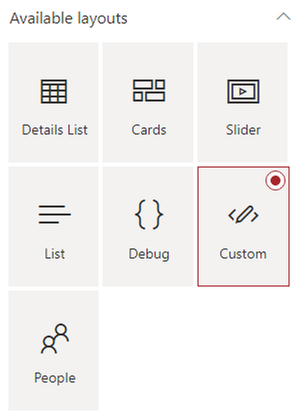
The complexity will come in when you want to customize the visual appearance of the search results. Many of the non-custom layouts have configuration options that allow you to influence the appearance, but all of them will require some familiarity with Handlebars to get the most out of them.
If you’re just using these web parts to surface standard SharePoint content, such as Pages or Documents, the non-custom layouts should suit your needs perfectly.
For the hardcore, you can also go full custom and get as creative as you’d like. We’re using the custom layout in our Search Results web parts, the source for which can be found on github.
NOTE: For the custom layout to function, you will need to ensure that you’ve defined the custom Slots referenced earlier in the blog.
Panel 3 – Available Connections
The last panel of options allows us to connect the other web parts we have on our page which, in turn, allows them to influence our search results.
The first option is whether to Use input query text, which is Off by default. This setting basically controls whether we want to allow search queries.
Leaving it off might seem odd, but if we didn’t want users to search via text and instead use verticals, refiners, or just browse through result pages of the query we specified back on the first panel’s Query template, that’s how we’d do it.
However, we definitely want to flip that on, otherwise our Search Box web part will be about as useful as a glass nail. Once on, you can select Dynamic Value and select the PnP – Search Box option.

We’ll also want to go ahead and connect our filters web part, which is as simple as toggling the switch and selecting the only item in the dropdown.
Lastly, we’ll want to connect to our verticals web part, which is only slightly more complicated than the refiners. As you’ll see, we have a second dropdown that is labeled Display data only when the following vertical is selected.
To start with, just select the All option. Once that’s done, in order to support all of our verticals, we’ll need to actually duplicate the web part we just configured for each additional vertical (4 times, in our example) and update each one to show during a different vertical. It’s a bit heavy handed for our example, but extremely useful if you intend to display different layouts for different verticals.
Once you’ve duplicated your Search Results web part, be sure to update the Available Connections setting in your Search Refiners web part to include these additions.
Conclusion
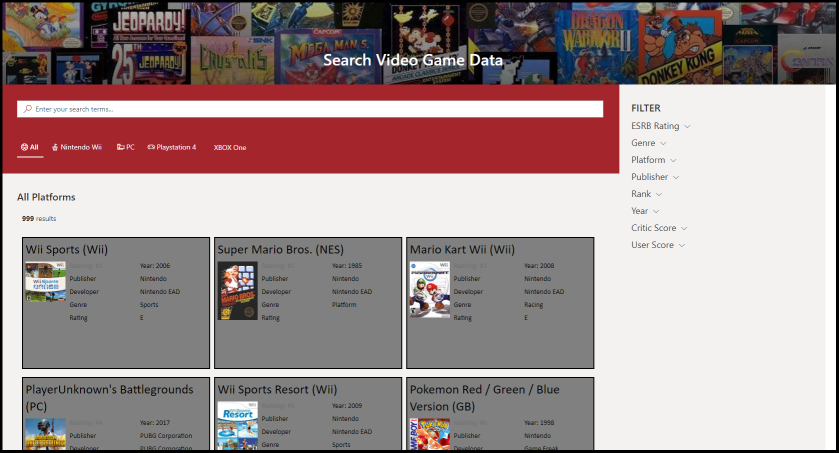
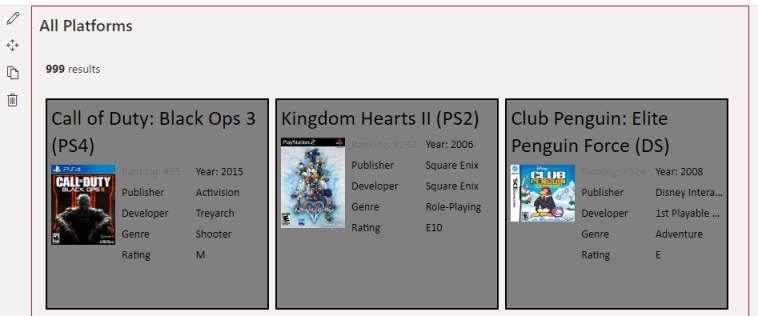
If you’ve followed along with everything, you should have a page that looks something like the below…
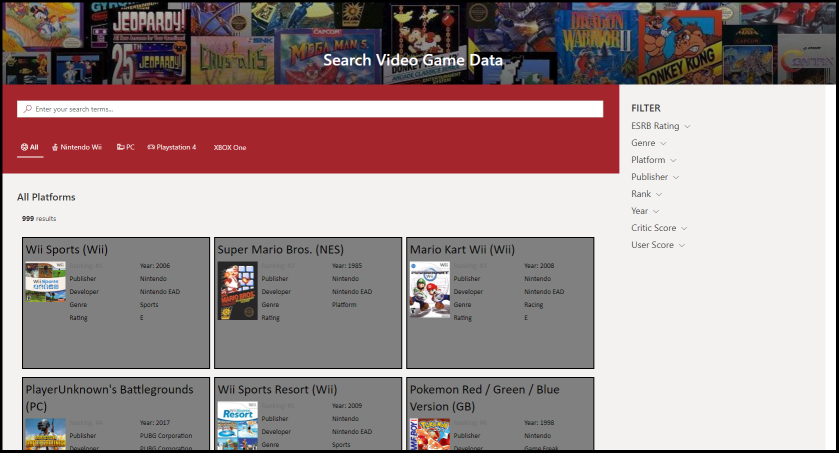
These web parts are amazingly cool, extremely powerful, and can be leveraged to create a lot of awesome experiences for our users.
It’s also one of the most complicated web parts out there. While this blog post was (mostly) focused on that “minimal path to awesome”, it’s still REALLY long, which speaks to some of that complexity. However, hopefully this has helped make it more accessible to get started.
At a minimum, you’ve at least learned that Wii Sports is the most shipped game of all time…so you’ve got that going for you, which is nice.


Recent Comments