
by Contributed | Apr 8, 2021 | Technology
This article is contributed. See the original author and article here.
Welcome back to Reconnect, the biweekly series that catches up with former MVPs and their current activities.
This week we are thrilled to be joined by none other than two-time titleholder Volodymyr Bezmalyi!
Based in Ukraine, Volodymyr describes himself as a “security evangelist” since he trains people and larger companies about cybersecurity, with a special focus on remote and mobile security.
Security is Volodymyr’s pet subject, with the expert named an MVP in Windows Security from 2006 to 2016, and a Windows Insider MVP from 2016 to 2020.
Now, Volodymyr says Reconnect offers an important way to stay in touch with his Microsoft family and hone his tech knowledge.
Volodymyr is a regular writer with multiple articles and publications to his name, including his own book series titled “Safety Tales.” In fact, Volodymyr was named “Outstanding Blogger of the Year” in 2015 and 2016 by Security Lab.
For more, visit his blog and Twitter.
by Contributed | Apr 8, 2021 | Technology
This article is contributed. See the original author and article here.
While many blogs talk about capturing memory dump for .NET application on Windows platform, this blog introduces one way of collecting .NET Core dump on Linux Web App with dotnet-dump tool.
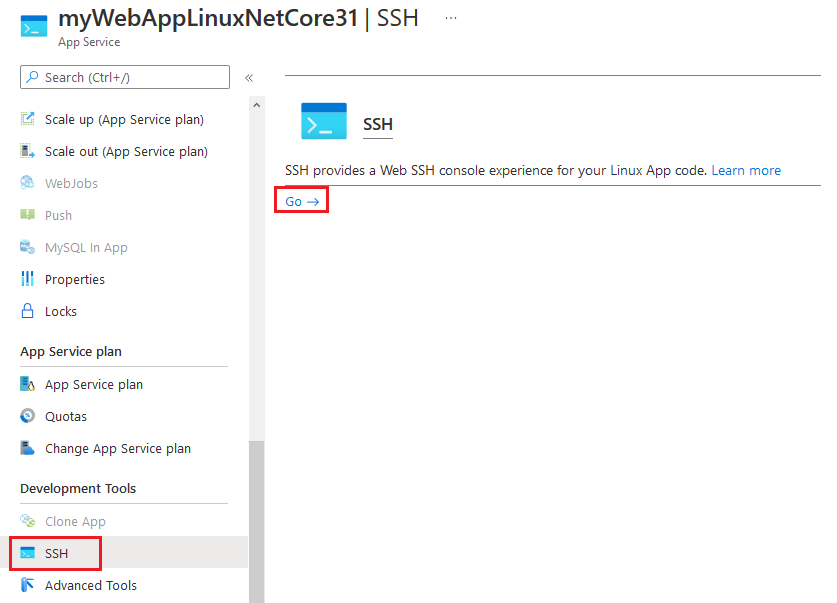
1. SSH to web app.
2. Install .NET Core SDK with following commands. Here we use Debian 10 distribution as an example. For installing .NET Core SDK on other Linux distributions, you may refer to document at https://docs.microsoft.com/en-gb/dotnet/core/install/linux.
apt-get update
apt-get install -y wget
wget https://packages.microsoft.com/config/debian/10/packages-microsoft-prod.deb -O packages-microsoft-prod.deb
dpkg -i packages-microsoft-prod.deb
apt-get update
apt-get install -y apt-transport-https
apt-get update
apt-get install -y dotnet-sdk-3.1
3. Install dotnet-dump tool.
dotnet tool install –global dotnet-dump –version 3.1.141901
4. Refresh SSH session window to enable dotnet-dump command.
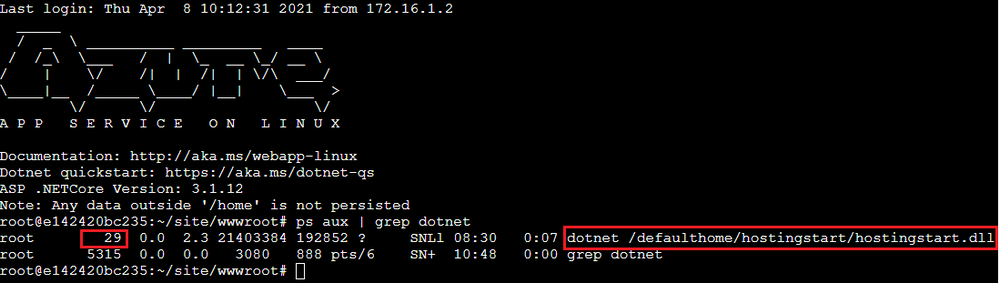
5. Check dotnet process id. In example below, process id of the web app is 29.
ps aux | grep dotnet
6. Change directory to persistent storage.
cd /home/LogFiles
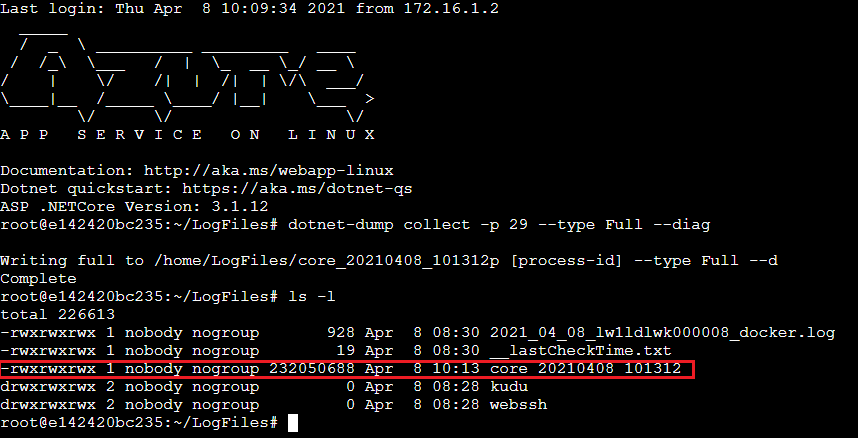
7. Capture dotnet core dump.
dotnet-dump collect -p [process-id] –type Full –diag
-p|–process-id <PID>
Specifies the process ID number to collect a dump from.
–type <Full|Heap|Mini>
Specifies the dump type, which determines the kinds of information that are collected from the process. There are three types:
Full – The largest dump containing all memory including the module images.
Heap – A large and relatively comprehensive dump containing module lists, thread lists, all stacks, exception information, handle information, and all memory except for mapped images.
Mini – A small dump containing module lists, thread lists, exception information, and all stacks.
–diag
Enables dump collection diagnostic logging.
8. Once capture completed, we should be able to see dump file in the “/home/LogFiles” directory.
References:
https://docs.microsoft.com/en-us/dotnet/core/diagnostics/dotnet-dump

by Contributed | Apr 8, 2021 | Technology
This article is contributed. See the original author and article here.
Hosted by Nik Charlebois, this month’s call covered topics including the Microsoft Graph Java SDK version 3, project Kiota and an overview of what’s new with the Microsoft Graph Toolkit.
Topics:
Microsoft Graph Java SDK version 3
Maisa Rissi from the Microsoft Graph SDK team delivers an update on Microsoft Graph Java SDK version 3 – new features including a streamlined authentication with Azure Identity and improved batch support. To learn more about enhanced capabilities with the release of version 3, go to https://developer.microsoft.com/en-us/microsoft-365/blogs/microsoft-graph-java-sdk-v3-adds-enhanced-capabilities-with-general-availability/.
Project Kiota
Vincent Biret from the Microsoft Graph team introduced Project Kiota, a new project to project to build an OpenAPI based code generator for creating SDKs for HTTP APIs. To learn more about the project or to get involved, go to https://GitHub.com/Microsoft/Kiota
What’s New with the Microsoft Graph Toolkit
Elisa Yang and Amrutha Srinivasan from the Microsoft Graph Toolkit team gave an overview of new features being rolled out and worked on in the Graph toolkit, including a new electron provider. To learn more about the Microsoft Graph Toolkit, go to: https://aka.ms/MGT
Microsoft Graph TAP program
As part of our TAP program for Microsoft Graph, we are looking for additional partners and customers to join. Benefits to participation in the program include:
- Monthly TAP calls with workload deep dives
- Early access / notification of upcoming features
- Case studies and keynote showcases
- Share feedback and feature requests
Complete the submission for our review at https://aka.ms/GraphTAPForm.
Actions:
Resources:
General Resources:
Stay connected:
by Contributed | Apr 8, 2021 | Technology
This article is contributed. See the original author and article here.
Introduction
Hello everyone, this is Andrew Coughlin and I am a Customer Engineer at Microsoft focusing on Azure IaaS. In this blog I will be discussing an issue I came across while working with one of my customers.
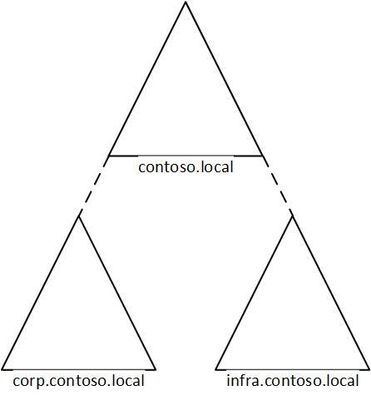
I was working with a customer to setup Active Directory authentication for Azure Files over smb for a storage account in their environment. Below shows a generic layout of how the domain is setup. The domain had a single forest with multiple domains inside that forest:
Domain
|
Resource Type
|
contoso.local
|
Domain controllers
|
corp.contoso.local*
|
users, workstations, groups, domain controllers
|
infra.contoso.local*
|
servers, service accounts, domain controllers
|
*AD Connect Sync is configured
The storage account was going to be joined to infra.contoso.local, and admin account the user was logged into the workstation running the commands was part of the corp.contoso.local domain.
Prerequisites
- Ensure these steps have been completed before setting up the storage account.
- Create a storage account as documented here, then create a Azure File Share as documented here.
Troubleshooting Steps
We started following the documentation as noted here, for setting up Authentication for Active Directory Domain Services authentication over SMB for Azure file shares. However, when we ran the Join-AzStorageAccountForAuth, it would fail with the following error message:
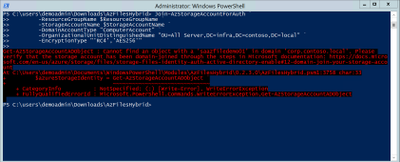
While reviewing the error message I noticed something strange, it is looking at corp.contoso.local, instead of infra.contoso.local, even though we specified the OU that the storage account should be joined to. The reason behind this is because the admin account we are logged into the system with is part of corp.contoso.local. After doing some research I then noticed there was a -Domain switch in the Join-AzStorageAccountForAuth.
We then ran the command with the -Domain “infra.contoso.local” switch and once completed we received a success status which showed the storage account had been joined.
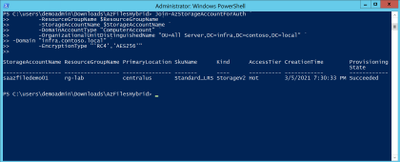
Next, we want to verify the storage account had been joined and checked the OU that I specified in the join command and confirmed the storage account was in the correct OU.
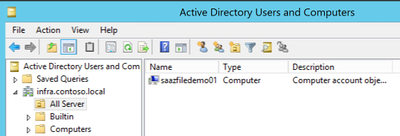
Then we proceeded with the rest of the steps as outlined in the documentation.
Conclusion
If you have ran into this issue, I hope you find this blog helpful and reduces the time in troubleshooting this error when joining a storage account to your Active Directory Domain. Thank you for taking the time to read this blog and have a great day!
Disclaimer
The sample scripts are not supported under any Microsoft standard support program or service. The sample scripts are provided AS IS without warranty of any kind. Microsoft further disclaims all implied warranties including, without limitation, any implied warranties of merchantability or of fitness for a particular purpose. The entire risk arising out of the use or performance of the sample scripts and documentation remains with you. In no event shall Microsoft, its authors, or anyone else involved in the creation, production, or delivery of the scripts be liable for any damages whatsoever (including, without limitation, damages for loss of business profits, business interruption, loss of business information, or other pecuniary loss) arising out of the use of or inability to use the sample scripts or documentation, even if Microsoft has been advised of the possibility of such damages.
by Contributed | Apr 8, 2021 | Technology
This article is contributed. See the original author and article here.
Hello Folks,
I’ve been working with some colleagues on a shared demo environment, and one issue came up during a session with customers that highlighted a problem. If any of us change the local admin password of the servers or redeploys the environment with a password of their own. We no longer can access it without contacting the group and request the new password.
I started to look a way to regularly update the password from a location that is built specifically for storing passwords and other secrets. Namely, Azure Key Vault.
And, I had just read the PowerShell’s Team blog announcing the general availability of their SecretManagement and SecretStore modules. That seemed like the best candidates to help. The SecretManagement module helps users manage secrets by providing a common set of cmdlets to interface with secrets across vaults. IT utilizes an extensible model where local and remote vaults (including Azure Key Vaults) can be registered and unregistered for use in accessing and retrieving secrets.
The module provides the following cmdlets for accessing secrets and managing SecretVaults:
- Get-Secret
- Get-SecretInfo
- Get-SecretVault
- Register-SecretVault
- Remove-Secret
- Set-Secret
- Set-SecretInfo
- Set-SecretVaultDefault
- Test-SecretVault
- Unregister-SecretVault
The solution
To address our issue, we took the following steps.
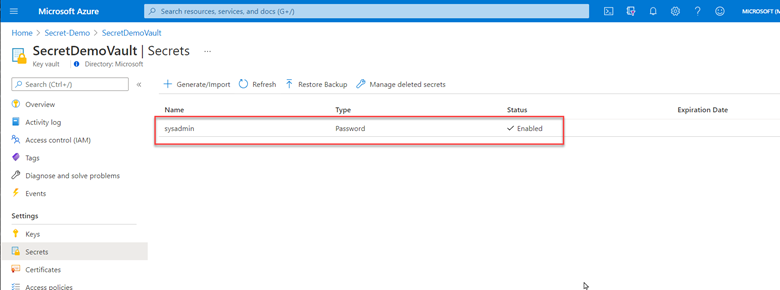
1- Created a key vault and created/stored a secret with a complex password. (because it’s in the demo resource group, we can all retrieve the secret when needed)
2- Deployed Azure Automation in our environment and created a Run as account to provide authentication for managing resources in Azure with the Azure cmdlets.
3- Created a new Runbook that would get the secret from Key vault using PowerShell Microsoft.PowerShell.SecretManagement module and using the Azure VMAccess extension would update the local admin password to the one retrieved from Key vault. (The sample code available below). Of course, this is proof of concept at this point and needs to be worked on. However, it does open the door to other usage. This could be re-used and modified to run on a schedule to generate a new complex password and store it in Key Vault, then update all the servers in your environment with the new password on a regular basis.
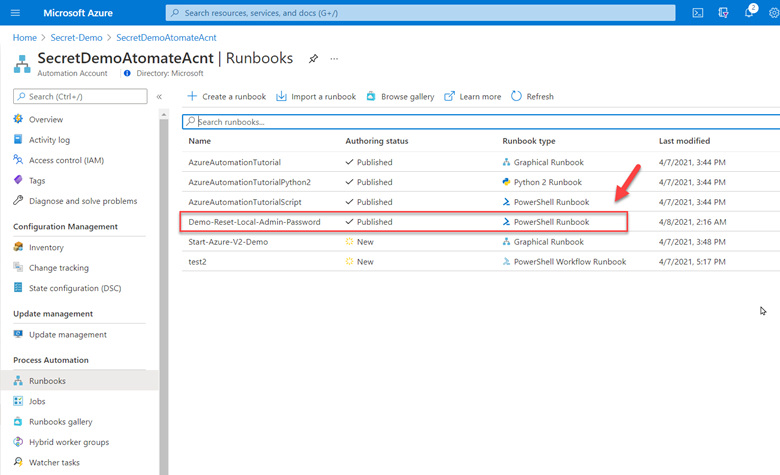
4- Here is the sample code.
param(

    [string]$ResourceGroupName = "Secret-Demo",
    [string]$vaultname = "SecretDemoVault"

)
Disable-AzContextAutosave -Scope Process

$VERSION = "1.0"
$currentTime = (Get-Date).ToUniversalTime()

Write-Output "Runbook started. Version: $VERSION at $currentTime"
Write-Output "---------------------------------------------------"

# Authenticate with your Automation Account
	$connection = Get-AutomationConnection -Name AzureRunAsConnection
    # Wrap authentication in retry logic for transient network failures
    $logonAttempt = 0
    while(!($connectionResult) -and ($logonAttempt -le 10))
    {
        $LogonAttempt++
        # Logging in to Azure...
        $connectionResult = Connect-AzAccount `
                                -ServicePrincipal `
                                -Tenant $connection.TenantID `
                                -ApplicationId $connection.ApplicationID `
                                -CertificateThumbprint $connection.CertificateThumbprint

        Start-Sleep -Seconds 30
    }

    $AzureContext = Get-AzSubscription -SubscriptionId $connection.SubscriptionID
    $SubID = $AzureContext.id
    Write-Output "Subscription ID: $SubID"
    Write-Output "Resource Group: $ResourceGroupName"
    Write-Output "VaultName: $vaultname"

# Get Secret from KeyVault
    Register-SecretVault -Name AzKeyVault -ModuleName Az.KeyVault -VaultParameters @{ AZKVaultName = $vaultname; SubscriptionId = $SubID }
    $secret = Get-Secret -Vault AzKeyVault -Name sysadmin
    Write-Output "SecretValue :  $secret"
    $Credential = New-Object -TypeName PSCredential -ArgumentList "sysadmin", $secret

# Get a list of all virtual machines in subscription
    $VMList = Get-AzVM -ResourceGroupName $ResourceGroupName
    foreach ($vm in $VMList)
    {
        Write-Output "Reseting password on $vm.name"
        Set-AzVMAccessExtension -ResourceGroupName $ResourceGroupName -VMName $Vm.Name -Credential $Credential -typeHandlerVersion "2.0" -Name VMAccessAgent
    }
The code above required me to import some PowerShell Modules into our Automation environment. The modules I imported from the gallery
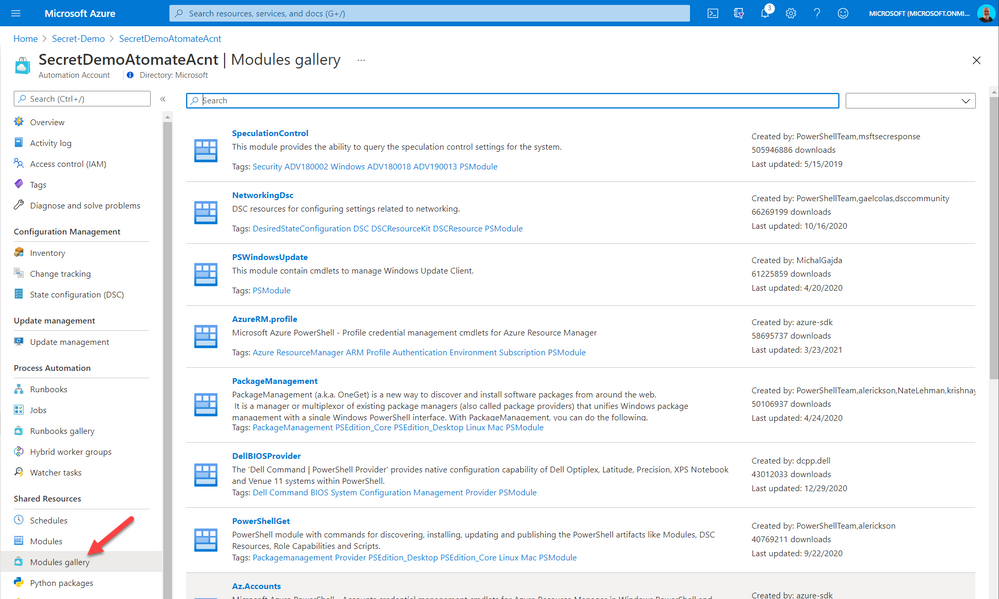
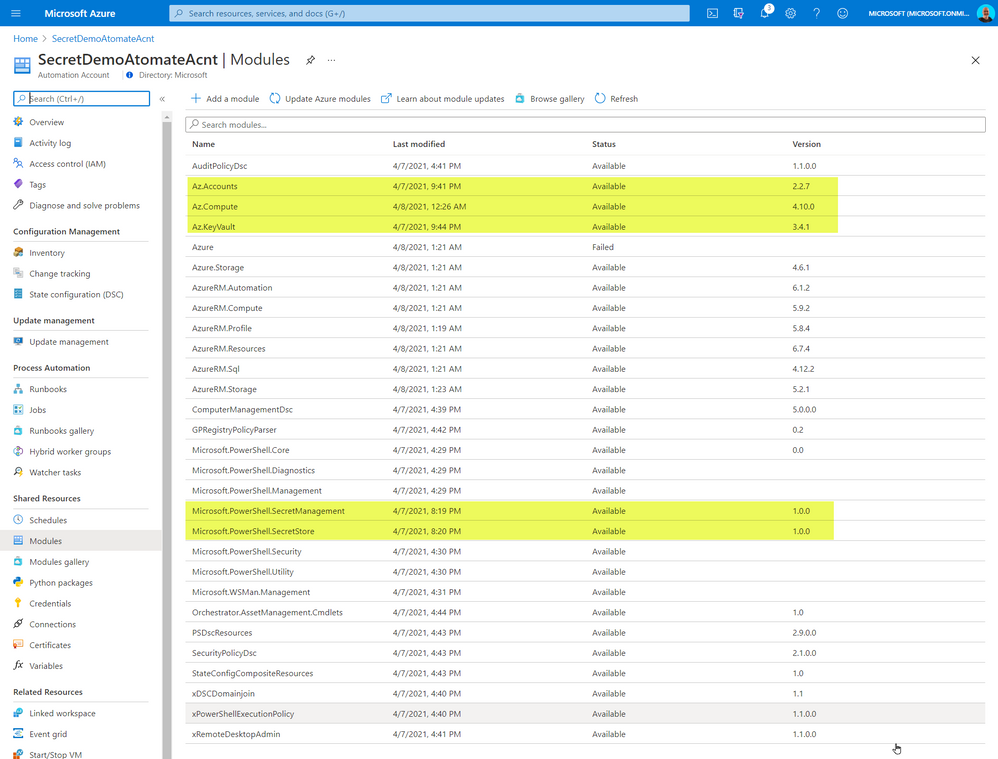
The added modules were the following:
- Az.Accounts
- Az.Compute
- AZ.KeyVault
- Microsoft.PowerShell.SecretManagement
- Microsoft.PowerShell.SecretStore
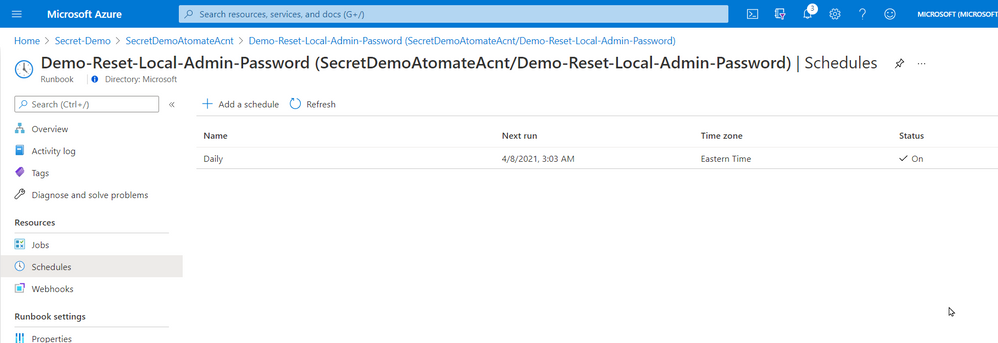
5- Once created and published I linked the Runbook to a schedule that will execute the script nightly.
That’s it! a simple solution based on a new PowerShell module that provides us with loads of value. Maybe it will be of value for you too.
Cheers!
Pierre


Recent Comments