by Contributed | Apr 14, 2021 | Technology
This article is contributed. See the original author and article here.
This blog post is the second in a series of three that examines the results of a recent IDC study, Leveraging Microsoft Learning Partners for Innovation and Impact.* The first post, New study shows the value of Microsoft Learning Partners, provides a high-level look at the benefits of using a Learning Partner to meet your technical skilling needs.
We commissioned IDC researchers to explore the value of Microsoft Learning Partners, a worldwide network of authorized training providers that work with organizations to fill skill gaps and meet their strategic learning and business goals. In the first post, we explored how Microsoft Learning Partners can play a key role in delivering learning results that make a measurable difference in organizations’ cloud initiatives and digital transformation efforts.
Among the findings, four areas consistently stood out as essential capabilities. In this post, we dive into two of them—specifically, that organizations benefit from working with a Learning Partner which provides:
- An end-to-end solution that starts with consultation to identify needs and wraps up by evaluating the program’s success.
- Value-added services that support learners, such as hands-on labs and custom content.
The study identified two other top-of-mind areas that we’ll cover in our third post—the quality of the training content and delivery, and the flexibility, scale, and speed of the partner.
To learn more about all four qualities, download Top reasons to get IT training from a Microsoft Learning Partner.
Customized, end-to-end services help you assess gaps, simplify learning, and meet goals
Learning initiatives are usually complex, involving many people and moving parts. Rather than spin out various tasks to different providers, organizations can benefit from working with one provider that can deliver an end-to-end training solution.
Microsoft Learning Partners provide a range of capabilities that help enterprises build and execute successful training initiatives, including:
- Identifying an organization’s skill gaps. As consultants, Learning Partners work with their clients to offer proactive guidance and solutions. They work with organizations to identify the requirements and then align their services to meet a client’s specific needs, coordinating and delivering the resources that meet the objectives.
- Simplifying the learning initiative. By shifting the task to a Learning Partner, organizations can efficiently move their training programs forward. Learning Partners take care of the details, aligning the curriculum to the requirements, coordinating activities, and managing learning outcomes for their clients.
A mix of value-added services meet learners’ needs and deliver results
People learn best from a variety of tools and approaches, and flexibility is important, as Dan O’Brien notes. O’Brien is the President, United States and Canada, of Fast Lane, a worldwide provider of advanced IT education for leading technical vendors. “When we train [a large professional services firm], many of their staff are billable resources who can’t sit in a five-day class. We built a tailored training model specifically for this use case: We trained one day a week over five weeks, minimizing the impact on work performance.”*
Learning Partners make a difference in their scope of offerings, including hands-on labs, a mix of self-paced and instructor-led training, custom content, role-based learning paths, mentoring and discussion groups, and assessments before, during, and after the training. Services may also extend to preparation for certification exams.
Learning Partners give organizations the tools they need to successfully meet their business and learning goals through:
- Customized learning programs. Authorized Microsoft Learning Partners make training programs as relevant as possible for learners. They can use standard courses and learning paths, and they can tailor the content or flow to suit an organization’s unique situation.
- Training delivery aligned to client requirements. Some organizations want instructor-led training and boot camps, and some prefer e-learning. Learning Partners are experts at finding the right delivery model and experience for their customers.
Next step: Get the training program that’s right for you
Microsoft Learning Partners can help organizations get the most impact from their learning initiatives. The key is to find providers that offer end-to-end solutions and value-added services for learners of all types.
Find a Microsoft Learning Partner

Related posts
Sharpen your technical skills with instructor-led training
Leading Learning Partners Association—a unique organization for delivering Microsoft training
Need another reason to earn a Microsoft Certification?
Technical certifications could help drive business optimization
by Contributed | Apr 14, 2021 | Technology
This article is contributed. See the original author and article here.
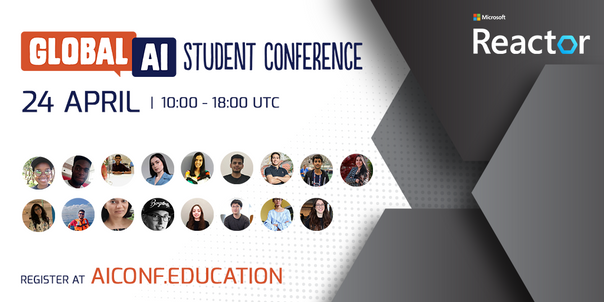
Global AI Student Conference is an online streaming event, organized by Global AI Community and Microsoft Learn Student Ambassadors. The conference is being held for a second time; last time it was attended by more than 2500 people from all around the globe. You can check our sessions from the previous conference to get inspired to the upcoming event.
The main audience for this conference are students: both those who are just doing their first steps in AI, as well as more experienced ones. In fact, we call it “a conference organized for students, by students” – because it is largely organized by Microsoft Learn Student Ambassadors community.
All conference sessions are 30 minutes each, to accommodate comfortable online viewing. They can be grouped into 3 categories:
- 9 introductory sessions on AI, ranging from different ML algorithms, to Low Code/No Code ways to train your neural network model using visual tools. This section is coordinated by Kunal Kushwaha, founder or “Code for Cause” YouTube channel, where you can find a lot of introductory materials on AI and ML.
- 5 research sessions, in which students will describe their own projects in the area of AI and ML. You can check out complete schedule.
- 2 roundtables:
- In “How students can start with research, and why it is important” session we will discuss the best ways for students to start their research career. We will hear stories from students, doing research internships at large IT companies, as well as from university professors.
- A session “Grow your skills and empower others as a Microsoft Learn Student Ambassador” will focus more on Student Ambassador program. You will hear from Global program director, Pablo Veramendi, as well as from student ambassadors themselves.
We believe this conference is a good way for students both to make their first steps into the world of AI, and to get inspired by what other students are doing. Therefore we encourage our readers to share this news with students, and we would welcome them to join the conference as well. It is recommended to register, but one can also join live streaming on conference site on Saturday, April 24th!
by Contributed | Apr 14, 2021 | Technology
This article is contributed. See the original author and article here.
I recently had a need for a web part for a frequently asked questions list that was a bit more interactive than what I could find on the internet. So I decided to build one and once it was finished I thought it was a great resource to share.
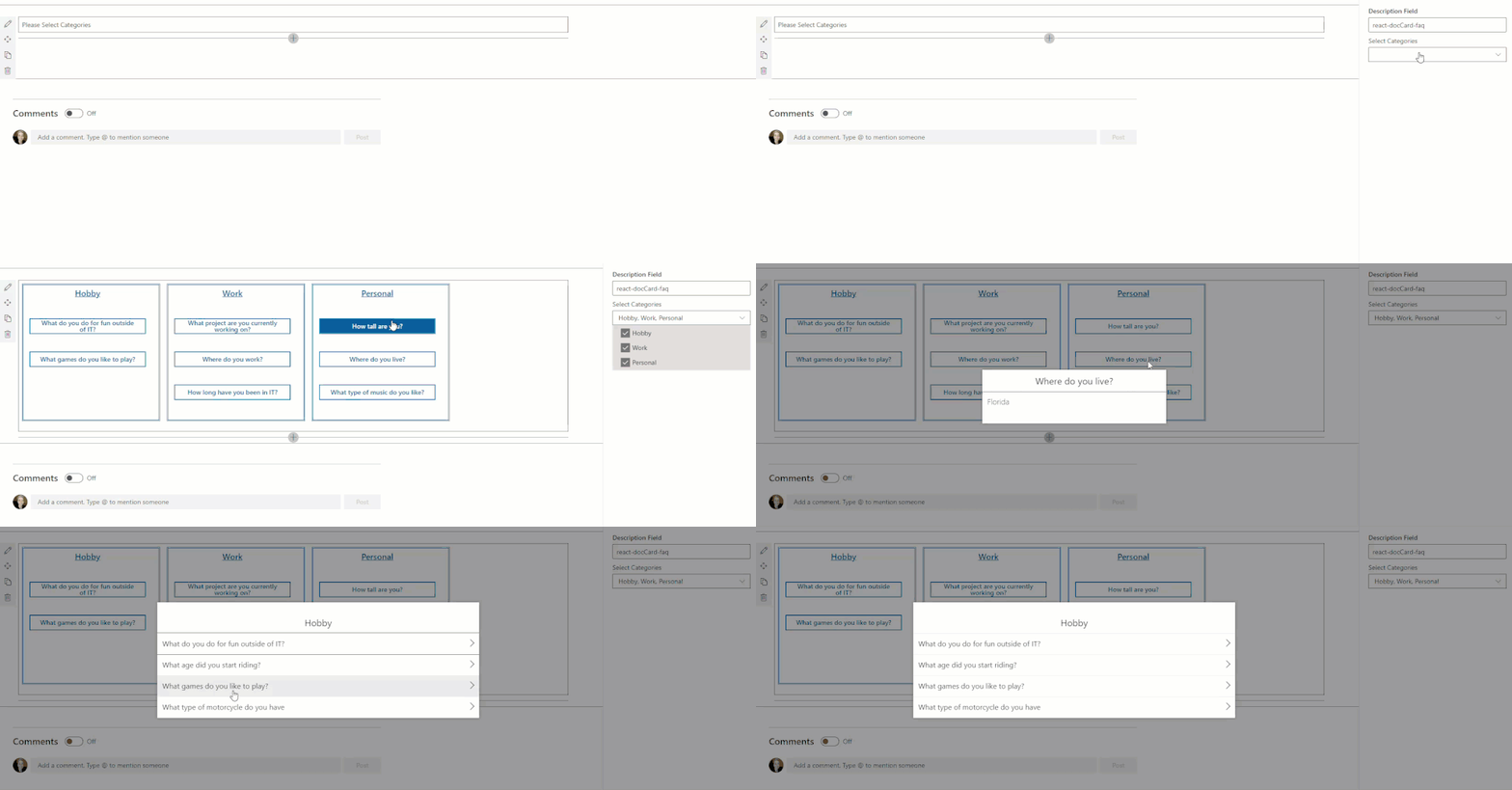
Here’s what the web part looks like and an idea how it functions
TLDR: For a tutorial of how to build the whole thing from scratch check out this video: https://www.youtube.com/watch?v=oIr-rgGvUUk
A main driver for creating this web part was wanting something that didn’t look like SharePoint or an intranet. I spent some time looking for examples and inspiration from code samples, the Look Book, and intranet examples but I felt like I kept landing on the same accordion look and feel. Don’t get me wrong, I appreciate the accordion, I’ve even added it into my web part when you’re viewing all questions under a specific category – but was this really my only option? So I started looking at external sites and finally found something I thought was cool enough to build and the react-docCard-faq idea was born!
Now that I had a general idea of my data (questions and answers) and I’ve picked a layout I need to break out my questions into sub groups, something to separate them out by. That’s where the categories comes in, questions are grouped into categories. But I wasn’t finished there, what if, you don’t want to show every category. It could be that open enrollment questions only need displayed around that time or you’re launching a new product and only want to highlight it for a short period of time! So instead of always displaying every category in the FAQ list you can select which categories you want to view from the property pane when you add the web part to the page.
Use cases:
- A site can host a single FAQ list and only display certain categories on specific pages.
- Season change, Holiday’s, Enrollment time – all reasons you might want to change which categories (or how many) you’re showing
Once I had the idea that you might want to change which categories are showing and not just always display the same categories, the featured toggle came in. Adding an additional boolean column let’s us not only select which questions will be showing in main display, but it makes it incredibly easy for anyone managing the list (not the site) to add or change which questions will display in the document card.
Why in the world did I do a document card for FAQ? A few reasons for the specific design that includes so much white space.
First, I wanted something that doesn’t look like a standard intranet/internal site. The layout gives a modern, professional feel that could be on any external facing site.
Second, not every department/group/team knows what to share on their site or page but everyone needs FAQ’s! Because you control how many categories and questions are on the page, it can take up more or less depending on how you lay it out.
Third, it’s a great way to drive adoption to your questions. Tired of answering the same 3-6 questions over and over? Direct questions to your SharePoint site where all the answers are! Added bonus, no one has to wait on you to get back from vacation for an 1 sentence answer
Lastly, it drives whoever’s maintaining the list to keep it up to date. It’s not a set of boring questions and answers to go stale. With category options, a featured toggle, and the ability to write beautiful answers using rich text you’re empowered to take your FAQ to the next level!
I hope I’ve inspired you to think outside of the box and get creative!
Code: https://github.com/pnp/sp-dev-fx-webparts/tree/master/samples/react-doccard-faq
by Contributed | Apr 14, 2021 | Technology
This article is contributed. See the original author and article here.
In this technical blogpost we’re going to talk about the powerful combination of Azure Live Video Analytics (LVA) 2.0 and Intel OpenVINO DL Streamer Edge AI Extension. In our sample setup we will use an Intel NUC device as our edge device. You can read through this blogpost to get an understanding of the setup but it requires some technical skills to repeat the same steps so we rely on existing tutorials and samples as much as possible. We will show the seamless integration of this combination where we will use LVA to create and manage the media pipeline on the edge device and extract metadata using the Intel OpenVINO DL – Edge AI Extension module which is also managed through a single deployment manifest using Azure IoT Edge Hub. For this blogpost we will use an Intel NUC from the 10th generation but it can run on any Intel device. We will look at the specifications and performance of this little low power device and how well it performs as an edge device for LVA and AI inferencing by Intel DL Streamer. The device will receive a simulated camera stream and we will use gRPC as the protocol to feed images to the inference service from the camera feed at the actual framerate (30fps).
The Intel OpenVINO Model Server (OVMS) and Intel Video Analytics Serving (VA Serving) can utilize the iGPU of the Intel NUC device. The Intel DL Streamer – Edge AI Extension we are using here is based on Intel’s VA Serving with native support for Live Video Analytics. We will show you how easy it is to enable iGPU for the AI inferencing thanks to this native support from Intel.
Live Video Analytics (LVA) is a platform for building AI-based video solutions and applications. You can generate real-time business insights from video streams, processing data near the source and applying the AI of your choice. Record videos of interest on the edge or in the cloud and combine them with other data to power your business decisions.
LVA was designed to be a flexible platform where you can plugin AI services of your choice. These can be from Microsoft, the open source community or your own. To further extend this flexibility we have designed the service to allow integration with existing AI models and frameworks. One of these integrations is the OpenVINO DL Streamer Edge AI Extension Module.
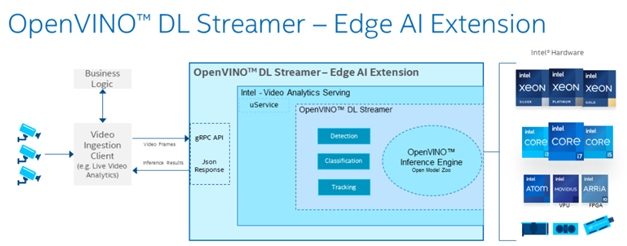
The Intel OpenVINO™ DL Streamer – Edge AI Extension module is a based on Intel’s Video Analytics Serving (VA Serving) that serves video analytics pipelines built with OpenVINO™ DL Streamer. Developers can send decoded video frames to the AI extension module which performs detection, classification, or tracking and returns the results. The AI extension module exposes gRPC APIs.
Setting up the environment and pipeline
We will walk through the steps to set up LVA 2.0 with Intel DL Streamer Edge AI Extension module and set it up on my Intel NUC device. I will use the three different pipelines offered by the Intel OpenVINO DL Streamer Edge AI Extension module. These include Object Detection, Classification and Tracking.
Once you’ve deployed the Intel OpenVINO DL Streamer Edge AI Extension module you will be able to use the different pipelines by setting environment variables, PIPELINE_NAME, PIPELINE_VERSION in the deployment manifest. The supported pipelines are:
PIPELINE_NAME |
PIPELINE_VERSION |
object_detection |
person_vehicle_bike_detection |
object_classification |
vehicle_attributes_recognition |
object_tracking |
person_vehicle_bike_tracking |
The hardware used for the demo
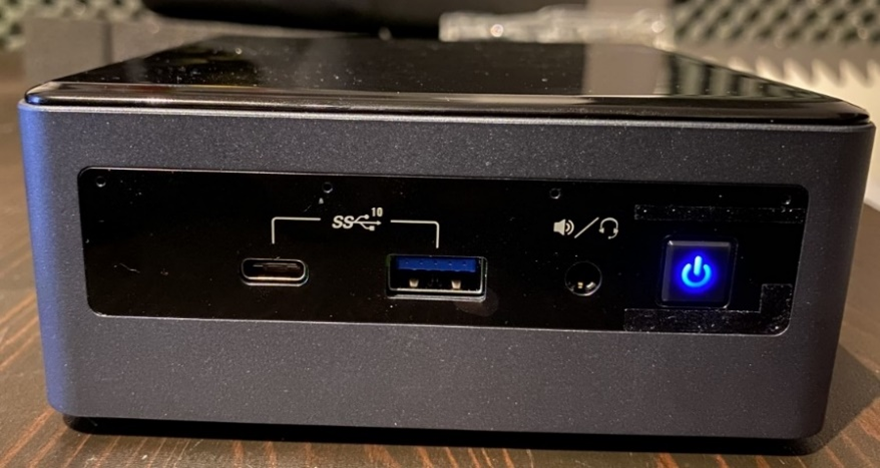
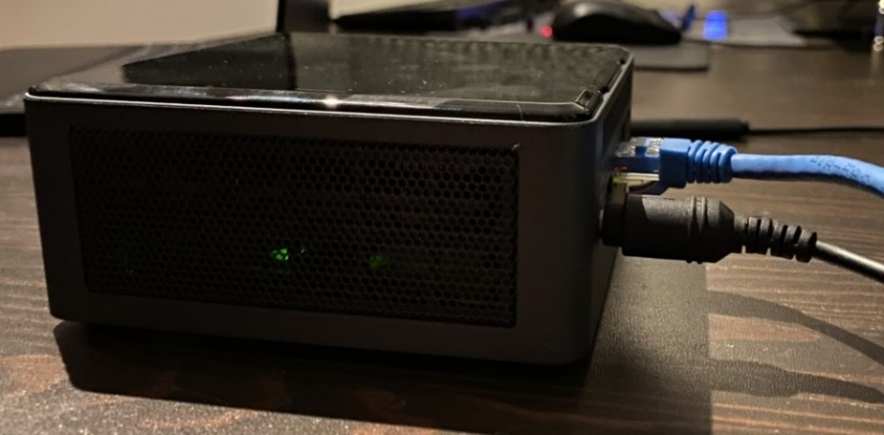
For this test I purchased an Intel NUC Gen10 for around $1200 USD. The Intel NUC is a small form device with good performance to power ratio. It puts full size PC power in the palm of your hands, so it is convenient as a powerful edge device for LVA. It comes in different configurations so you can trade off performance vs costs. In addition, it comes as a ready-to-run, Performance Kit or just the NUC boards for custom applications. I went for the most powerful i7 Performance Kit and ordered the maximum allowed memory separately. The full specs are:
- Intel NUC10i7FNH – 6 cores at 4.7Ghz
- 200GB M.2 SSD
- 64GB DDR4 memory
- Intel® UHD Graphics for 10th Gen Intel® Processors
Let’s set everything up
These steps expect that you have already set up your LVA environment by using one of our quickstart tutorials. This includes:
- Visual Studio Code with all extensions mentioned in the quickstart tutorials
- Azure Account
- Azure IoT Edge Hub
- Azure Media Services Account
In addition to the prerequisites for the LVA tutorials, we also need an Intel device where we will run LVA and extend it with the Intel OpenVINO DL Streamer Edge AI Extension Module.
- Connect your Intel device and install Ubuntu. In my case I will be using Ubuntu 20.10
- Once we have the OS installed follow these instructions to set up IoT Edge Runtime
- Install Intel GPU tools: Intel GPU Tools: sudo apt-get install intel-gpu-tools (optional)
- Now install LVA. Assuming you already have a LVA set up, you can start with this step
When you’re done with these steps your Intel device should be visible in your IoT Extension in VS Code.
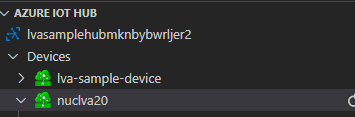
Now I’m going to follow this tutorial to set up the Intel OpenVINO DL Streamer Edge AI Extension module: https://aka.ms/lva-intel-openvino-dl-streamer-tutorial
Once you’ve completed these steps you should have:
- Intel edge device with IoT Edge Runtime connected to IoT Hub
- Intel edge device with LVA deployed
- Intel OpenVINO DL Streamer Edge AI Extension module deployed
The use cases
Now that we have our setup up and running Let’s go through some of the use cases where this setup can help you. We’ll use the sample videos we have available to us and observe the results we get from the module..
Since the Intel NUC is a very small form factor it can easily be deployed in close proximity to a video source like an IP camera. It is also very quiet and does not generate a lot of heat. You can mount it above a ceiling, behind a door, on top or inside a bookshelf or underneath a desk to name a few examples. I will be using sample videos like a recording of a parking lot and a cafeteria. You can imagine a situation where we have this NUC located at these venues to analyze the camera feed.
Highway Vehicle Classification and Event Based Recording
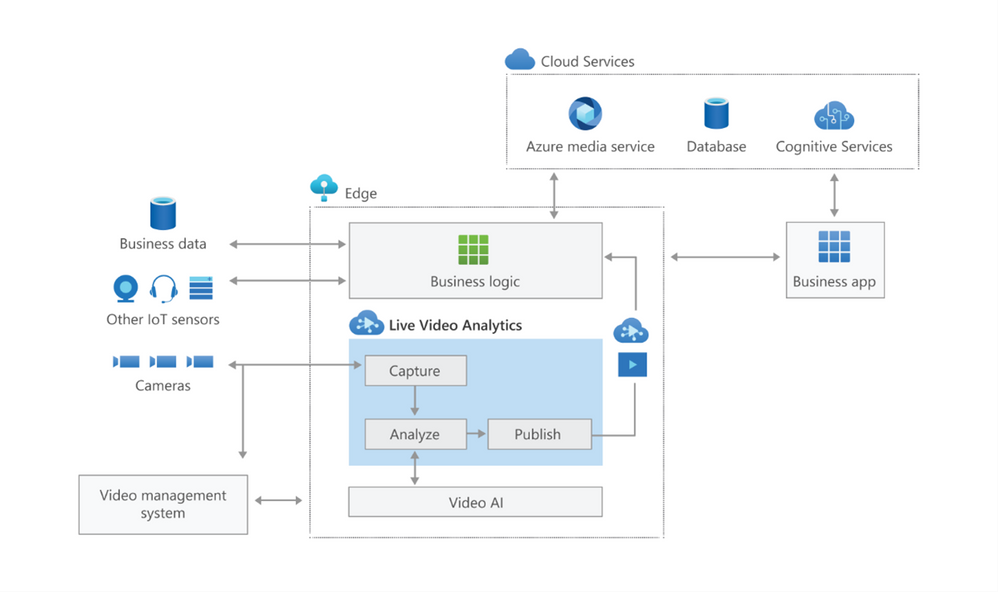
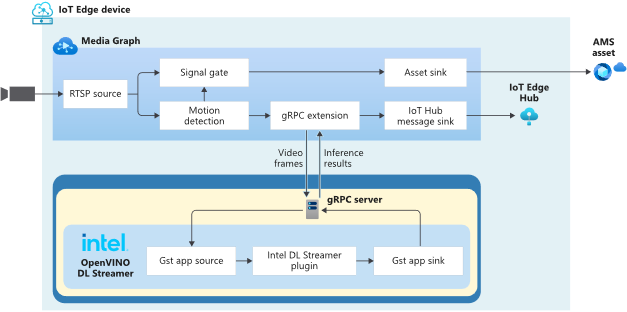
Let’s imagine a use case where I’m concerned about the specific vehicle type and color using a specific piece of highway and want to know and see the video frames where these vehicles appear. We can use LVA together with the Intel DL Streamer – Edge AI Extension module to analyze a highway and trigger on a specific combination of vehicle type, color and confidence level. For instance a white van with a confidence above 0.8. Within LVA we can deploy a custom module like this objectsEventFilter module. The module will create a trigger to the Signal Gate node when these three directives are met. This will create an Azure Media Services asset which we can playback from the cloud. The diagram looks like this:
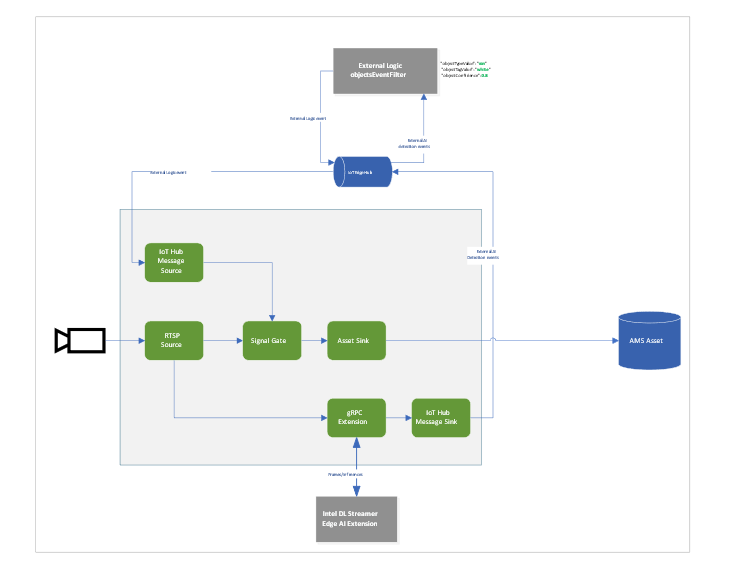
When we run the pipeline the rtsp source is split into the signal gate node that will hold a buffer of the video and it is send to the gRPC Extension node. The gRPC Extension will create images out of the video frames and feed into the Intel DL Streamer – Edge AI Extension module. When using the classification pipeline it will return inference results containing type attributes. These are forwarded as IoT messages and will feed into the objectsEventFilter module. We can filter on specific attributes to send a IoT message trigger the Signal Gate node with an Azure Media Services Asset as result.
In the inference results you will see a message like this:
{
      "type": "entity",
      "entity": {
        "tag": {
          "value": "vehicle",
          "confidence": 0.8907926
        },
        "attributes": [
          {
            "name": "color",
            "value": "white",
            "confidence": 0.8907926
          },
          {
            "name": "type",
            "value": "van",
            "confidence": 0.8907926
          }
        ],
        "box": {
          "l": 0.63165444,
          "t": 0.80648696,
          "w": 0.1736759,
          "h": 0.22395049
        }
      }
This is meeting our objectsEventFilter module thresholds which will give the following IoT Message:
[IoTHubMonitor] [2:05:28 PM] Message received from [nuclva20/objectsEventFilter]:
{
  "confidence": 0.8907926,
  "color": "white",
  "type": "van"
}
This will trigger the Signal Gate to open and forward the video feed to the Asset Sink node.
[IoTHubMonitor] [2:05:29 PM] Message received from [nuclva20/lvaEdge]:
{
  "outputType": "assetName",
  "outputLocation": "sampleAssetFromEVR-LVAEdge-20210325T130528Z"
}
The Asset Sink Node will store a recording on Azure Media Services for cloud playback.
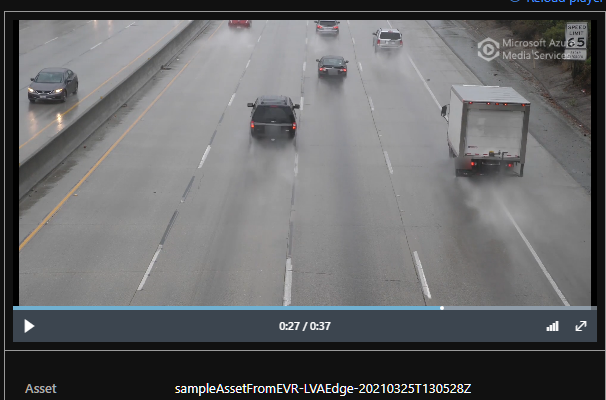
Deploying objectsEventFilter module
You can follow this tutorial to deploy a custom module for Event Based Recording. Only this time we will use the objectsEventFilter module instead of the objectCounter. You can copy the module code from here. The steps are the same to build and push the image to your container registry as with the objectCounter tutorial.
I will be using video samples that I upload to my device in the following location: /home/lvaadmin/samples/input/
Now they are available through the RTSP simulator module by calling rtsp://rtspsim:554/media/{filename}
Next we deploy a manifest to the device with the environment settings that specify the type of model. In this case I want to detect and classify vehicles that show up in the image.
"Env":[
                    "PIPELINE_NAME=object_classification",
                    "PIPELINE_VERSION=vehicle_attributes_recognition",
Next step is to change the “operations.json” file of the c2d-console-app to reference the rtsp file. For instance if I want to use the “co-final.mkv” I set the operations.json file to:
{
  "name": "rtspUrl",
  "value": "rtsp://rtspsim:554/media/co-final.mkv"
}
Now that I have deployed the module to my device I can invoke the media graph by executing the c2d-console-app (i.e. press F5 in VS Code)
Note: Remember to listen for event messages by clicking on “Start Monitoring Built-in Event Endpoint” in the VS Code IoT Hub Extension.
In the output window of VS Code we will see messages flowing in a json structure. For the co-final.mkv using the object tracking for vehicles, persons and bikes we see output like this:
Timestamp: of the media, we maintain the timestamp end to end so you can always relate messages across media timespan.
Entity tag: Which type of object was detected (vehicle, person or bike)
Entity Attributes: The color of the entity (white) and the type of the entity (van)
Box: The box size and location on the picture where we detected this entity.
Let’s have a look at the CPU load of the device. When we SSH into the device we can type the command “sudo htop”. This will show details of the device load like CPU/Memory.

We see a load of ~32% for this model on the Intel NUC. It is extracting and analyzing at 30fps. So we can safely say we can run multiple camera feeds on this small device as we have plenty of headroom. We could also trade off fps to a allow even more camera feeds density per device.
iGPU offload support
- Right-click on this template and “generate a deployment manifest”. The deployment manifest is now available in the “edge/config/” folder
- Right click the deployment manifest and deploy to single device, select your Intel device
- Now execute the same c2d-console-app again (press F5 in VS Code). After about 30 seconds you will see the same data again in your output window.


Here you can see the iGPU is showing a load of around ~44% to run the AI tracking model. At the same time we see a 50% decrease of CPU usage compared to the first run which was using only CPU. We still observe some CPU activity because the LVA media graph still uses the CPU.
To summarize
In this blogpost and during the tutorial we have walked through the steps to:
- Deploy IoT Edge Runtime on an Intel NUC.
- We connected the device to our IoT Hub so we can control and manage the device using the IoT Hub together with the VS Code IoT Hub Extension.
- We used the LVA sample to deploy LVA onto the Intel device.
- In addition we took the Intel OpenVINO – Edge AI Extension Module and deployed this onto the Intel Device using IoT Hub.
This enables us to use the combination of LVA and Intel OpenVINO DL Streamer Edge AI Extension module to extract metadata from the video feed using the Intel pre-trained models. The Intel OpenVINO DL Streamer Edge AI Extension module allows us to change the pipeline by simply changing variables in the deployment manifest. It also enables us to make full use of the iGPU capabilities of the device to increase throughput, inference density (multiple camera feeds) and use more sophisticated models. With this setup you can bring powerful AI inferencing close to the camera source. The Intel NUC packs enough power to run the model for multiple camera feeds with low power consumption, low noise and in a small form factor. The inference data can be used for your business logic.
Call to actions
by Contributed | Apr 14, 2021 | Technology
This article is contributed. See the original author and article here.
We all sometimes create presentations with some PowerShell demos. And often, we need to use credentials to log in to systems for example PowerShell when delivering these presentations. This can lead that we don’t use very strong passwords because we don’t want to type them during a presentation, you see the problem? So, here is how you can use the PowerShell SecretManagement and SecretStore modules to store your demo credentials on your machine.
Doing this is pretty simple:
Install the SecretManagement and SecretStore PowerShell modules.
Install-Module Microsoft.PowerShell.SecretManagement, Microsoft.PowerShell.SecretStore
Register a SecretStore to store your passwords and credentials. I this example we are using a local store to do that. Later in this blog post, we will also have a look at how you can use Azure Key Vault to store your secrets. This is handy if you are working on multiple machines.
Register-SecretVault -Name SecretStore -ModuleName Microsoft.PowerShell.SecretStore -DefaultVault
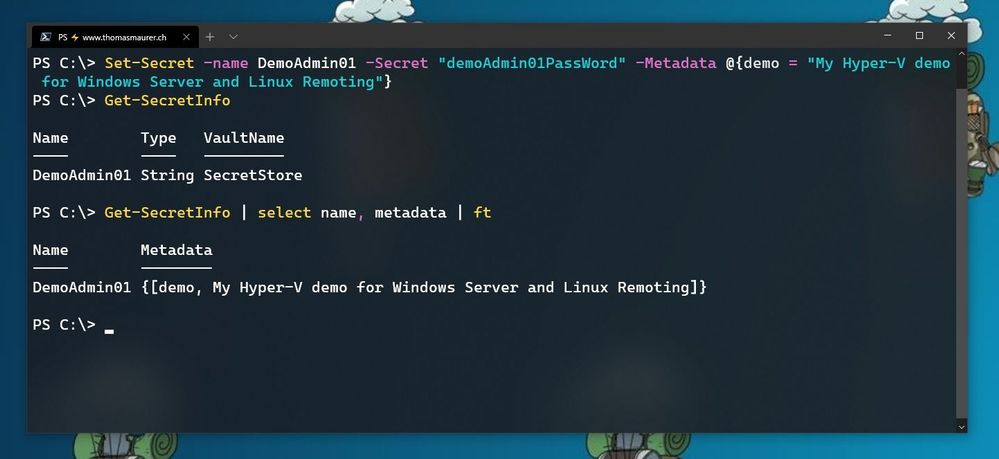
Now we can store our credentials in the SecretStore. In this example, I am going to store the password using, and I will add some non-sensitive data as metadata to provide some additional description.
Set-Secret -name DemoAdmin01 -Secret "demoAdmin01PassWord" -Metadata @{demo = "My Hyper-V demo for Windows Server and Linux Remoting"}
Store Secret in PowerShell SecretStore
Now you can start using this secret in the way you need it. In my case, it is the password of one of my admin users.
$DemoAmdin01secret = Get-Secret -Vault SecretStore -Name DemoAdmin01
$DemoAmdin01Cred = New-Object -TypeName PSCredential -ArgumentList "DemoAdmin01", $DemoAmdin01secret
These two lines, I could also store in my PowerShell profile I use for demos, or in my demo startup script. In this case, the credential object is available for you to use.
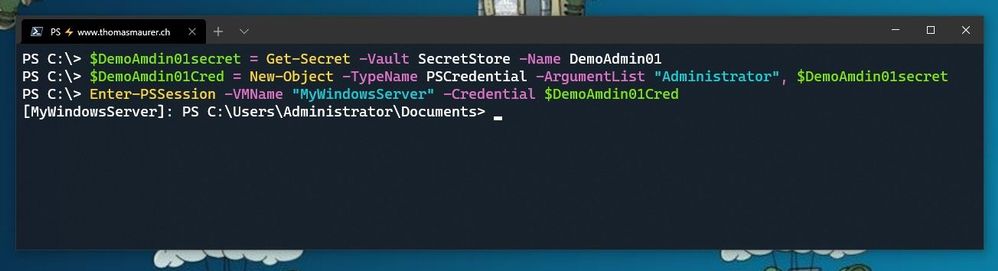 Use SecretStore crednetials
If you are using multiple machines and you want to keep your passwords in sync, the Azure Key Vault extension.
Install-Module Az.KeyVault
Register-SecretVault -Module Az.KeyVault -Name AzKV -VaultParameters @{ AZKVaultName = $vaultName; SubscriptionId = $subID}
Now you can store and get secrets from the Azure Key Vault and you can simply use the -Vault AzKV parameter instead of -Vault SecretStore.
I hope this blog provides you with a short overview of how you can leverage PowerShell SecretManagement and SecretStore, to store your passwords securely. If you want to learn more about SecretManagement check out Microsoft Docs.
I also highly recommend that you read @Pierre Roman blog post on leveraging PowerShell SecretManagement to generalize a demo environment.


Recent Comments