by Contributed | Apr 15, 2021 | Technology
This article is contributed. See the original author and article here.
Yanelis Lopez, Security Software Engineer, Cloud & AI Security Green Team
A common tactic we observe used by adversaries against customers running Linux Virtual Machines (VMs) in Azure is password-based attacks. This article will explain how to help protect Linux VMs in Azure from these types of attacks at every step of the deployment pipeline.
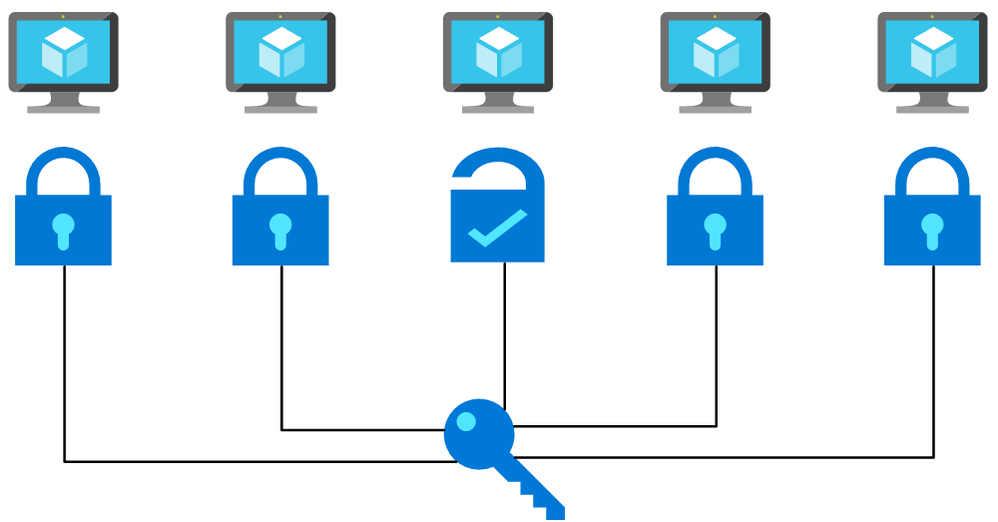
Flow chart picturing a password being used on multiple machines and working with one. This is a simplified depiction of a password spray attack.
Many tools exist that are commonly used to brute force user account passwords over SSH, including those used in cases of Linux brute force compromise in Azure. A specific example is password spray attacks, where an attacker uses one or a few passwords against multiple well-known user accounts in an environment. These attacks typically attempt common passwords hoping one or more accounts can be compromised across multiple virtual machines. Attackers limit the number of password guess attempts to avoid account lockout and detection by defenders.
Although mitigating controls such as password complexity, routine password rotations, disallowing common passwords, etc. help, using password-less authentication is the safer approach.
On Linux, authentication via SSH can be password-less, using SSH key-based authentication instead. SSH keys, are non-human generated, inherently unique, and significantly harder to be brute forced or guessed.
Below, we will show you how to use SSH key-based authentication pre-deployment, enforce it during deployment, and detect non-compliance post-deployment.
Pre-Deployment – Secure from the start: Creating Linux virtual machines
In Azure, there are a few methods for creating Linux VMs: via the Azure Portal, Azure CLI, Powershell, or Azure Resource Manager (ARM) Templates. All have the ability (and document how) to deploy a Linux VM with SSH key as a default option for authentication. To update an ARM template that uses password authentication to instead use SSH keys, follow the below steps.
How to transform your ARM template to use SSH key
Replace the admin password parameter with the ‘adminSSHKey’ parameter
“parameters”: {
…
    “adminUsername”: {
        “type”: “string”,
        “metadata”: {
            “description”: “Username for the Virtual Machine.”
        }
    },
    “adminPassword”: {
        “type”: “securestring”,
        “metadata”: {
            “description”: “Admin password on all VMs.”
        }
    },
    “adminSSHKey”: {
        “type”: “securestring”,
        “metadata”: {
            “description”: “SSH Key for the Virtual Machine.”
        }
    }
…
}
Next, add the ‘linuxConfiguration’ property to the variables of the template
“variables”: {
…
  “linuxConfiguration”: {
    “disablePasswordAuthentication”: true,
    “ssh”: {
      “publicKeys”: [
        {
          “path”: “[concat(‘/home/’, parameters(‘adminUsername’), ‘/.ssh/authorized_keys’)]”,
          “keyData”: “[parameters(‘adminSSHKey’)]”
        }
      ]
    }
  },
…
}
Finally, add the ‘linuxConfiguration’ property to the VM resource in the template. In the ‘osProfile’ property remove the ‘adminPassword’ property and add the following ‘linuxConfiguration’ property
“properties”: {
…
  “osProfile”: {
  …
    “adminPassword”: “[parameters(‘adminPassword’)]”
    “linuxConfiguration”: “[variables(‘linuxConfiguration’)]”
  }
…
}
Now that the template is updated to use SSH key authentication, generate a SSH key using the following command
ssh-keygen -m PEM -t rsa -b 4096
Check out this documentation for more information about generating SSH keys on Windows.
Pass the public key of the SSH key as the value for the ‘adminSSHKey’ parameter described above. Now all VMs deployed using these transformed ARM templates will be safer from password-based attacks.
You can find many examples of ARM templates that deploy VMs with SSH key-based authentication online. When searching for ARM Template examples for Linux VMs, one of the top results is the Azure Quickstart GitHub Repo. These templates are used as starting points for deployments by many individuals. Almost 200 templates in this 800-template repo, deploy a VM or VMSS and previously had SSH authentication configured as password only, making VMs deployed with these templates vulnerable to password-based attacks. We updated these sample templates to disable password-based authentication by default, adding SSH key as the default option.
At Deployment – SSH key enforcer: Using Azure Policy
As part of Microsoft’s quest to get rid of passwords, we have published an Azure Policy which helps ensure Azure Linux VMs use SSH key authentication instead of passwords. You can deploy this policy to your subscription or management group to prevent creation of Linux VMs with password as the SSH authentication type. As seen below, this policy blocks the deployment if the ‘disablePasswordAuthentication’ property in a VM is not defined or is set to ‘false’ when the VM image publisher and offer are well-known Linux offerings. After deploying this policy, any new deployments which include a Linux VM with password-based authentication fail.
"policyRule": {
  "if": {
    "allOf": [
      {
        "field": "type",
        "equals": "Microsoft.Compute/virtualMachines"
      },
      {
        "anyof": [
          {
            "field": "Microsoft.Compute/virtualMachines/osProfile.linuxConfiguration.disablePasswordAuthentication",
            "exists": "False"
          },
          {
            "field": "Microsoft.Compute/virtualMachines/osProfile.linuxConfiguration.disablePasswordAuthentication",
            "equals": "false"
          }
        ]
      },
      {
        "anyOf": [
          {
            "allOf": [
              {
                "field": "Microsoft.Compute/imagePublisher",
                "equals": "Canonical"
              },
              {
                "field": "Microsoft.Compute/imageOffer",
                "in": [
                  "UbuntuServer",
                  "Ubuntu_Core"
                ]
              }
            ]
          },
          ...
          {
            "allOf": [
              {
                "field": "Microsoft.Compute/imagePublisher",
                "equals": "RedHat"
              },
              {
                "field": "Microsoft.Compute/imageOffer",
                "in": [
                  "osa",
                  "RHEL",
                  "rhel-byos",
                  "rhel-ocp-marketplace",
                  "RHEL-SAP",
                  "RHEL-SAP-APPS",
                  "RHEL-SAP-HANA"
                ]
              }
            ]
          }
        ]
      }
    ]
  },
  "then": {
    "effect": "deny"
  }
}
Post-Deployment – Staying Secure: Azure Security Center Recommendation
We have discussed solutions for new deployments, but what if you have VMs already deployed which use password-based SSH authentication? A new Azure Security Center (ASC) recommendation, “Authentication to Linux machines should require SSH keys”, checks for the use of SSH authentication after a VM has been deployed. This recommendation is part of the ASC Secure Score* and follows Azure Security Benchmark best practices. The recommendation is a built-in Guest Configuration policy that monitors changes made to the SSH password authentication setting on the machine itself; if a VM was originally deployed with SSH key-based authentication and later password-based authentication is enabled in the SSH settings, this recommendation will report the VM as non-compliant.
For the recommendation to run, the Guest Configuration extension must be installed. You can follow this documentation for installing the prerequisite Guest Configuration extension. There is also an ASC recommendation suggesting downloading the extension that includes a Quick Fix capability named “Guest Configuration extension should be installed on your machines”. It can be found under the “Manage access and permissions” control. Likewise, the Linux SSH policy recommendation can be found under the “Manage access and permissions” control. The figure below shows this Linux SSH policy recommendation:
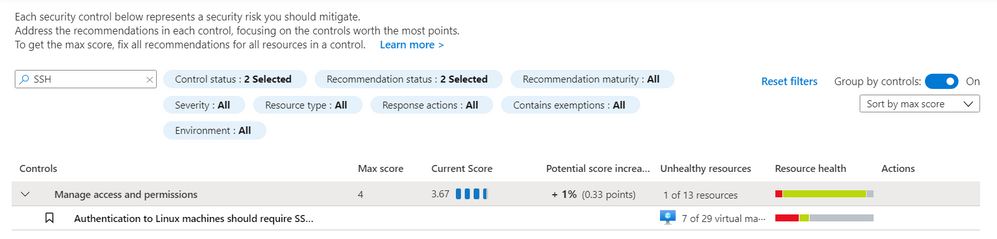 ASC Linux SSH Recommendation – Screenshot of the recommendation in the Azure Security Center blade in the Azure Portal. You can find the recommendation by searching for “ssh” in the search bar.
The policy can also be found in the virtual machine resource under the Policies blade. This can be useful for understanding the Compliance state, Compliance reason, and Last evaluated time. The figure below shows a Non-compliant machine using password authentication:
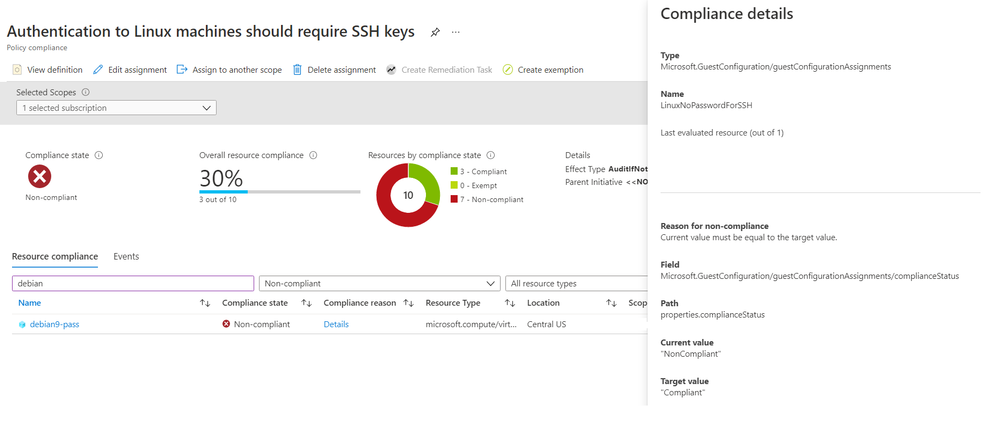 ASC Linux SSH Policy – Screenshot of the Azure Portal showing the Compliance information for the ASC recommendation. This example shows a VM as non-complaint for this recommendation.
To remediate this recommendation, you must add an SSH key to the non-compliant VM and disable password authentication by following the below steps.
- SSH into the existing VM
- Copy the SSH public key from your host into ~/.ssh/authorized_keys
- Edit /etc/ssh/sshd_config (with sudo) and update the value of “PasswordAuthentication” to “no”.
- Restart the SSH service on the VM
Azure Active Directory (Azure AD) alternative
An alternative to SSH keys is using Azure Active Directory (Azure AD) authentication. This allows for the use of Azure AD credentials to log in to Azure Linux VMs; this feature is currently in public preview.
Conclusion
Password-based attacks on Azure Linux VMs is an active problem, but solutions are available to help protect against these attacks. We’ve demonstrated how to fix ARM templates to use SSH Key instead of passwords, how to deploy a security gate using Azure Policy which disallows Linux VMs that use passwords, and how to detect and remediate existing VMs that have password authentication enabled. Together, these recommendations provide a solid defense against password-based attacks on Azure Linux VMs. Take action and do all you can to be as secure as possible!
Footnotes:
*The policy does not impact the ASC Secure Score during public preview. Secure Score will only be impacted when the policy becomes Generally Available (GA).
Reviewers
Johnathon Mohr, Security Software Engineer, Cloud & AI Security Green Team
by Contributed | Apr 15, 2021 | Technology
This article is contributed. See the original author and article here.
Are you bewildered by the possibilities of the Microsoft Cloud when it comes to SharePoint? You’re not alone.
The Microsoft Cloud brings a huge range of opportunities for how users can leverage Azure with SharePoint – and one father-daughter duo is preparing to educate and elevate other developers on how Azure fits into their Office 365 and SharePoint world.
Office Apps & Services MVP David Patrick is set to present with daughter Sarah Patrick at this week’s Global Azure 2021. Over three days from April 15-17, communities around the world are organizing localized live streams for anyone and everyone to learn about Azure from best-in-class community leaders.
David says he is excited to share the virtual stage with his daughter, a student at the University of Maryland, and share all the tips and tricks the pair has learned. “[My learning journey started] in Visual Basic a long time ago,” David says. “Then I moved on to C# when .NET came out and now I’m learning, along with my daughter, all the good cloud technologies like SharePoint Online and Power Apps and how to integrate everything using Flows in Power Automate.”
“All along the way, Microsoft’s great community support has always enabled Sarah and me to quickly learn new technologies without a lot of financial investment,” David adds. “Tools like the Learning Paths, Quick Starts, Tutorials and free Azure Sandboxes available from Microsoft Learn are extremely helpful in getting up to speed on things like Azure SQL and Web Apps really quickly.”
David says his daughter is very active in learning new technologies and sharing that knowledge with others. For example, Sarah has taken part in internships with the Project Management Institute and the Smithsonian Institution and regularly instructs at conferences like SharePoint Saturdays and Teams Day Online.
“Sarah started young, she gave her first talk at age 16 to a group of middle school girls during a workshop called TechGirlz,” David says. “She was ‘bitten’ by the speaking bug because she continues to lead these workshops today five years later!”
Going forward, David suggests other MVPs can help spread the word about all things tech by directly working with and inspiring young people. “They can volunteer at colleges, like a bunch of MVPs did when we organized a ‘College Tour’ in 2018 for Towson University, or they can partner with an organization like TechGirlz, which always needs volunteers to help lead and run their workshops,” David says.
“Sarah and I have been doing these for the last five years and they continue to be a source of energy and enthusiasm.”
In their session titled Intro to Azure for the SharePoint Developer, the duo is set to offer an overview of how cloud computing relates to Azure and Office 365, give tips on deploying SharePoint on-premises to Azure, and demonstrate how to quickly stand up multiple versions of SharePoint in Azure using Azure templates.
For more, check out Sarah’s Twitter @sarahepatrick or David’s Twitter @DavidEPatrick
by Contributed | Apr 15, 2021 | Technology
This article is contributed. See the original author and article here.
Throughout my career as both an IT Pro and supporting customers as a vendor, my most challenging projects (and causes of sleep deprivation) were always tied to migration. I have been personally responsible for migrating applications and data – and data centers – from one physical location to another. Between homogeneous and heterogeneous platforms. Physical and virtual. SAN and NAS. On-premises to Cloud. Anything and everything. Anywhere and everywhere.
The Azure Migrate team has done a tremendous job of building an extensible service platform that gives our customers and partners the ability to migrate the vast majority of servers, applications, and databases to Azure quickly, reliably, and safely. Within the Azure Storage team we have invested time and resources in developing solutions like Azure Data Box, AzCopy, and Azure File Sync to help our customers migrate file data to Azure from on-premises and Cloud-based Windows File Servers, NAS devices, and object storage platforms.
As I know personally, there are cases where additional tools are necessary when you migrate between heterogeneous storage platforms. This can be due to your business uptime requirements, the technical details of the source and target systems, complexity requiring expertise from specialists, or risk management and mitigation.
Migration Session during Azure Storage Day
If you are considering, planning, or executing a migration to Azure I would encourage you to attend our upcoming Azure Storage Day on April 29th. I will be delivering a session covering migration best practices, an overview of validated partner solutions, and a few demos that provide a complete solution for migrating all your current data sets. We will be following that session with a series on data migration process and solution best practices right here on Tech Community!
Want to get started building your foundation prior to the 29th?
Start with the excellent new overview document from my friend and colleague Niko Dukic. What types of solutions will you see and hear about as we kick off a deep dive on data migration during Azure Storage Day? You can get a sneak preview by taking a look at our list of verified storage migration partners and viewing demo videos from these partners and more on the Storage Bytes channel in the Azure Video Resource Center.
Partners are key and our partner ecosystem can help you to address data sets that are not covered with our native tools.
Here are some examples:
- Assess your current storage and backup environments to get ready for the migration to Azure and set your company up for success with Datavoss
- Migrate Files and Objects to Azure Blob Storage with Scality Zenko
- Move your big data held in HDFS to Azure Data Lake Storage with WANDisco LiveData Migrator for Azure
- Transfer multipath attached LUNs (and a LOT more from SANs) to Azure disks or Azure SAN Partners like Pure Storage with Cirrus Data Galaxy
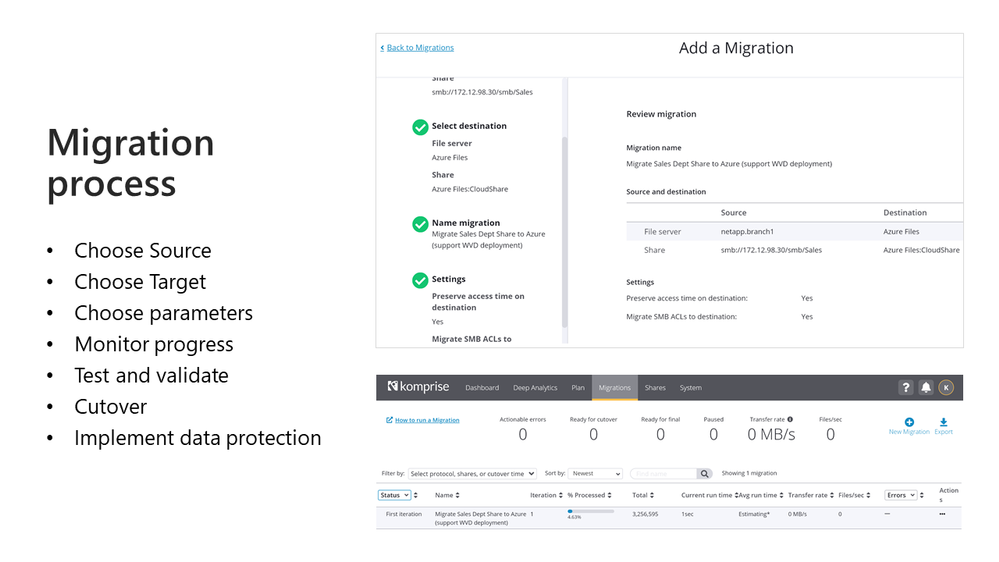
- Move enterprise NAS volumes (NFS/SMB/Multiprotocol) to Azure Files, Azure NetApp Files, or Azure NAS Partners with Datadobi, Data Dynamics, or Komprise
- Niko also compiled the comparison of file migration solutions represented during Storage Day that you can view here.
But wait, there’s more!
I know, you are dying for a tech deep dive covering these migration solutions and migration methodology. Watch this space for more following the Azure Storage Day event including interviews with industry experts, tech deep dives, and longer demos than I will have time for on the 29th!
More coming soon!
Karl
by Contributed | Apr 15, 2021 | Technology
This article is contributed. See the original author and article here.
Azure Purview now supports registering your Azure synapse workspace as a data source. You can scan all the Dedicated and Serverless SQL databases within your workspace in a matter of a few clicks. You can also choose to scan your Synapse workspace under a subscription or resource group data source that you have already registered.
Setting up authentication to enumerate resources within your Synapse workspace
Navigate to the Resource group or Subscription that the Synapse workspace is in, in the Azure portal and select Access Control (IAM) from the left navigation menu. You must be owner or user access administrator to add a role on the Resource group or Subscription. Select +Add button and set the Reader Role and enter your Azure Purview account name (which represents its MSI) under Select input box. Follow the same steps as above to also add Storage blob data reader Role for the Azure Purview MSI on the resource group or subscription that the Synapse workspace is in.
Now, navigate to your Synapse workspace, and under the Data section, click on one of your Serverless SQL databases. Click on the ellipses icon and start a New SQL script. Add the Azure Purview account MSI (represented by the account name) as sysadmin on the serverless SQL databases by running the command below in your SQL script:
CREATE LOGIN [PurviewAccountName] FROM EXTERNAL PROVIDER;
ALTER SERVER ROLE sysadmin ADD MEMBER [PurviewAccountName];
You must also set up authentication on your Dedicated and Serverless databases to run scans on them. To learn how, read our full documentation here.
Register and scan your Azure Synapse data source
You can register all your Azure Synapse Analytics (multiple) workspaces.
You can set up scans on your Synapse workspace using our secure credential mechanism for authentication.
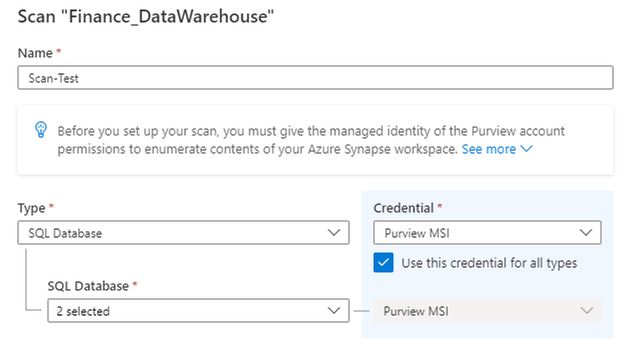
You can also select a scan rule set and set up a schedule for your scans.
Once your scan completes successfully, you can navigate to source details to view all relevant information pertaining to that source and its scans.
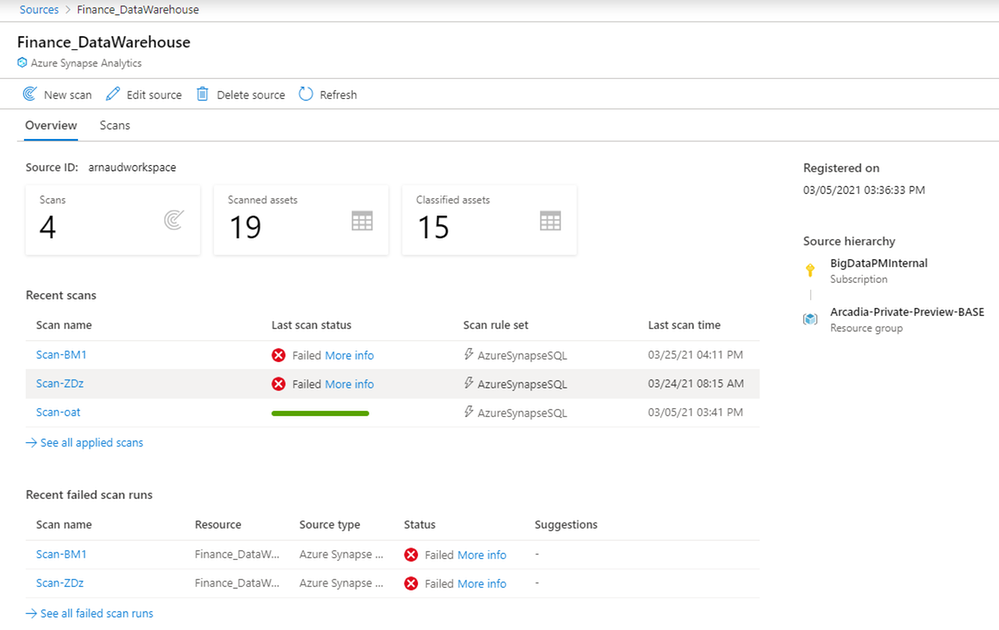

And you can discover assets along with their metadata, schema, and classifications because of these scans on your Synapse workspace, via the Purview catalog.

Get started today!
Read our full documentation here today!


Recent Comments