by Contributed | Apr 16, 2021 | Technology
This article is contributed. See the original author and article here.
Today wraps up Hannover Messe 2021, one of the world’s leading industrial trade shows. This annual event attracts more than 200,000 visitors and highlights the latest in technology across six topic areas: Automation, Motion & Drive, Digital Ecosystems, Logistics, Energy Solutions, Engineered Parts & Solutions, and Future Hub. With over 6,500 exhibitors, and 1,400 events spread across five days, the show is an incredible opportunity to showcase our technology, learn from those in the industry and hear from our customers.
Due the on-going global pandemic, this year the trade show was hosted virtually and featured as “HM Digital Edition”. As much as the Microsoft team missed joining with our customers and partners in Germany to participate, the team was excited to still host virtual sessions showcasing several innovative solutions.
The IoT team walked customers through how to build more agile factories through the use of Industrial IoT, Cloud, AI and Mixed Reality solutions. The current challenge for many organizations is to create safer, more secure and agile “factories of the future.” To provide insight into this transformation, we had our customers and partners talk about how they are scaling their solutions with the Microsoft cloud and edge platforms and describe their best practices as they prepare for the “new normal” across hundreds of factories worldwide.
We also had a joint session with McKinsey where we were able to share the learnings from work on the World Economic Forum’s Global Lighthouse Network and the accelerating adoption of digital technologies in daily manufacturing and supply chain operations. Digital transformation as explored in these sessions is powered by the intelligent edge and intelligent cloud. These technologies can be quickly and easily integrated into your Windows IoT devices with our upcoming General Availability of Azure IoT Edge for Linux on Windows.
Azure IoT Edge for Linux on Windows, also often referred to as ‘EFLOW’, allows organizations to deploy production Linux-based cloud-native workloads on Windows IoT and retain existing Windows management assets at the edge. This opens a world of capabilities for commercial IoT as well as AI/ML with the availability of pre-built modules from the Azure Marketplace such as Live Video Analytics, SQL Edge, and OPC Publisher as a few examples. Customers can benefit from the power of Windows IoT for applications that require an interactive UX and high-performance hardware interaction without having to choose between Windows or Linux and leverage the best of Windows and Linux together.
A lot of customers want to deploy these Linux workloads but do not want to introduce a new operating system in their environment that they are unable to manage with existing infrastructure or expertise. To learn more about EFLOW, check out the following blog, video and documentation.
by Contributed | Apr 16, 2021 | Technology
This article is contributed. See the original author and article here.
The following two procedures guide on how to properly collect a memory dump to study a process crash. This post complements my article about how exceptions are handled and how to collect memory dumps to study them.
Both tools below – ProcDump and DebugDiag – work similarly: they can attach themselves as debuggers to a process, then monitor and log exceptions for that process. Optionally, these tools can collect a memory dump for the monitored process under certain conditions – such as when specific exceptions occur.
Both tools need administrative rights to be run.
DebugDiag is the preferred tool, since it automates some steps, adds more explicit context, and includes automated memory dump analysis capabilities too.
Using the command-line ProcDump
ProcDump does not require installation. But one needs to be specific about the PID to which it is attaching. That PID needs to be determined prior to starting ProcDump. This may be tricky when the respective process is crashing and restarting frequently, with a different PID; such as when Asp.Net apps are causing their w3wp.exe to crash and restart. If the w3wp.exe is crashing very fast, then it is advisable to use the DebugDiag method.
- Download the tool and copy it on a disk folder, for example D:Temp-Dumps
https://docs.microsoft.com/en-us/sysinternals/downloads/procdump
- Open an administrative console from where to run commands.
Navigate to the disk folder above (D:Temp-Dumps).
- Find the process ID, the PID, of the IIS w3wp.exe worker process executing your application.
Use the AppCmd IIS tool to list processes for application pools:
C:WindowsSystem32InetSrvappcmd.exe list wp
- Execute the following command to collect dump(s):
D:Temp-Dumps> procdump.exe -accepteula -ma -e 1 -f “ExceptionNameOrCodeOrMessageExcerpt” [PID]
You may want to redirect the console output of ProcDump to a file, to persist the recording of the encountered exceptions:
D:Temp-Dumps> procdump.exe -accepteula -ma -e 1 -f “ExceptionNameOrCodeOrMessageExcerpt” [PID] > Monitoring-log.txt
Replace [PID] with the actual Process ID integer number identified at the step 2.
Please make sure that there is enough disk space on the drive where dumps are collected. Each process dump will take space in the disk approximately the same size the process uses in memory, as seen in Task Manager. For example, if the process’ memory usage is ~1 GB, then the size of a dump file will be around 1 GB.
- Start reproducing the problem: issue a request from the client (browser) that you know it would trigger the exception.
Or simply wait or make requests to the IIS/Asp.Net app until the exception occurs.
You should end up with a memory dump file (.DMP) in the location where ProcDump.exe was saved (example: D:Temp-Dumps).
- Compress the dump file(s) – .DMP – before uploading the dumps to share for analysis.
Using the UI tool DebugDiag, Debug Diagnostics Collection
DebugDiag requires installation, but it is able to determine itself the whatever process instance – PID – happens to execute for an application pool at some point in time; even when that process may occasionally crash, hence restart with different PID.
1.
Download Debug Diagnostic and install it on IIS machine:
https://www.microsoft.com/en-us/download/details.aspx?id=49924 v2.2 (if 32-bit system)
https://www.microsoft.com/en-us/download/details.aspx?id=102635 v2.3.1 (only supports 64-bit)
2.
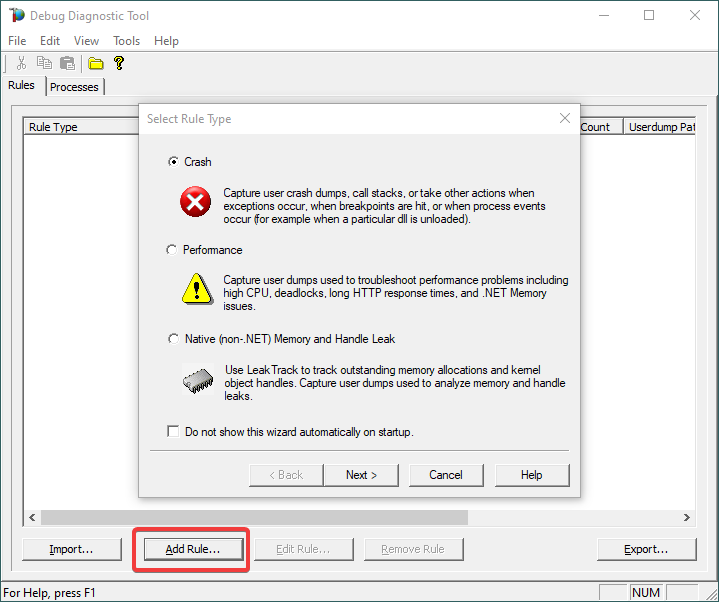
Open Debug Diagnostic Collection.
If a wizard does not show up, click Add Rule.
3.
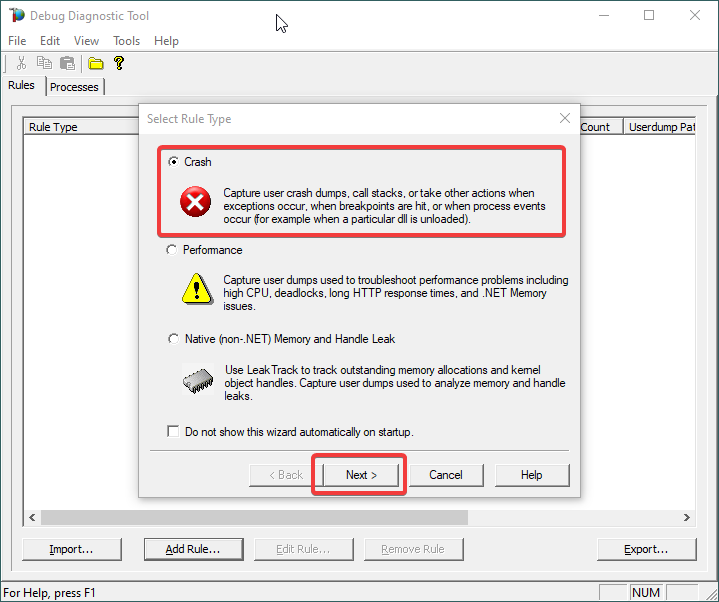
Choose Crash and click Next.
4.
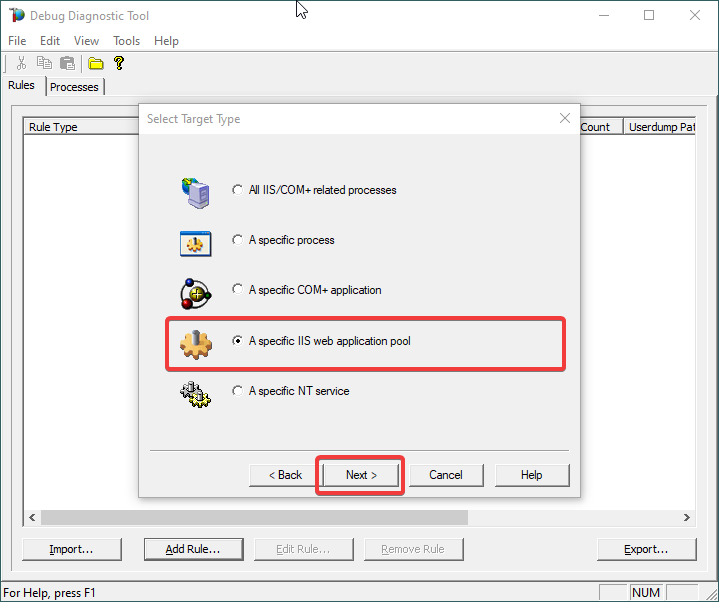
Choose “A specific IIS web application pool” and Next.
5.
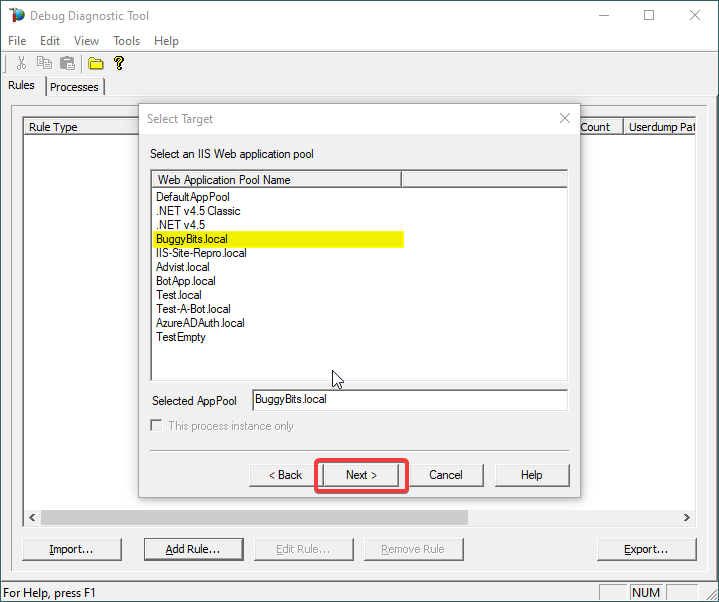
Select the application pool which runs the problematic application and then click Next.
6.
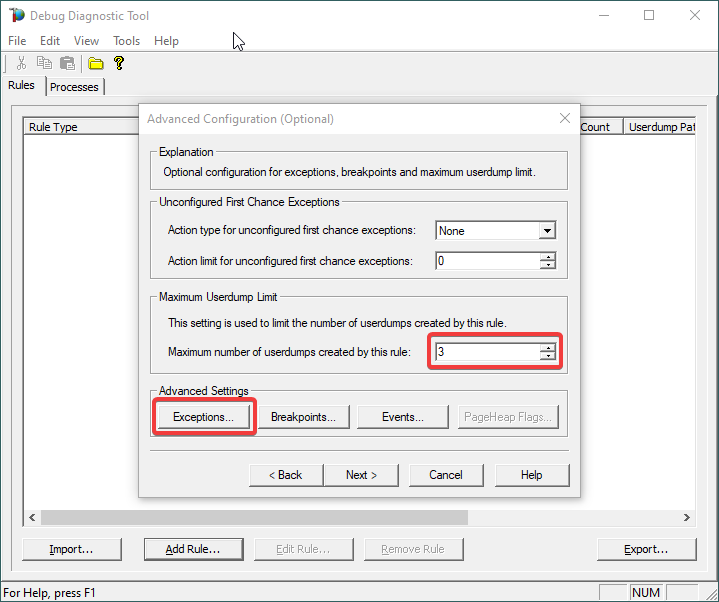
Lower the Maximum number of userdumps created by the rule to 3 (up to 5; there is no need to collect more).
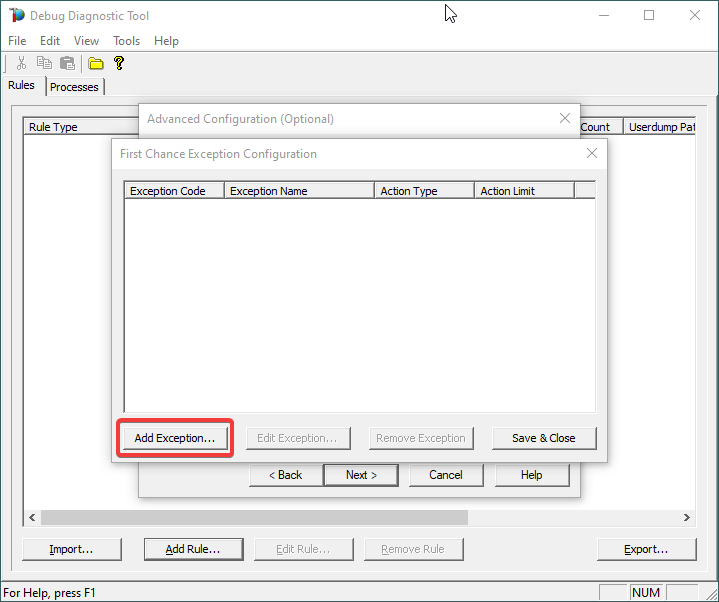
Then click on Exceptions under Advanced Settings, to add the one(s) we are interested in for analyzing.
7.
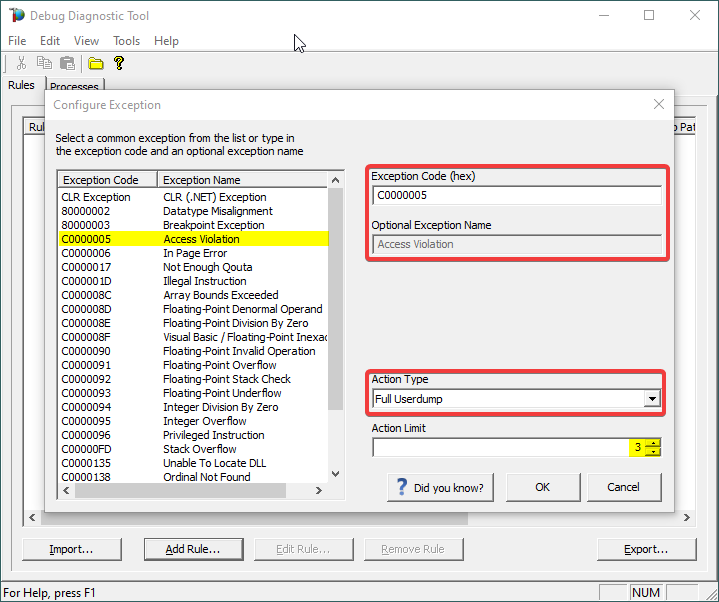
A list of common native exceptions is presented; all managed (C#/.NET exceptions) would be under the CLR Exception umbrella.
Select the native exception that affects our app/process or simply type its hex code: C0000005 Access Violation.
Notice that the exception code does not include the hexadecimal prefix “0x“.
Or
Select CLR (.NET) Exception and type its fully qualified name (Exception Type Equals…).
Make sure you’re not including any prepended or trailing space characters. Case is sensitive!
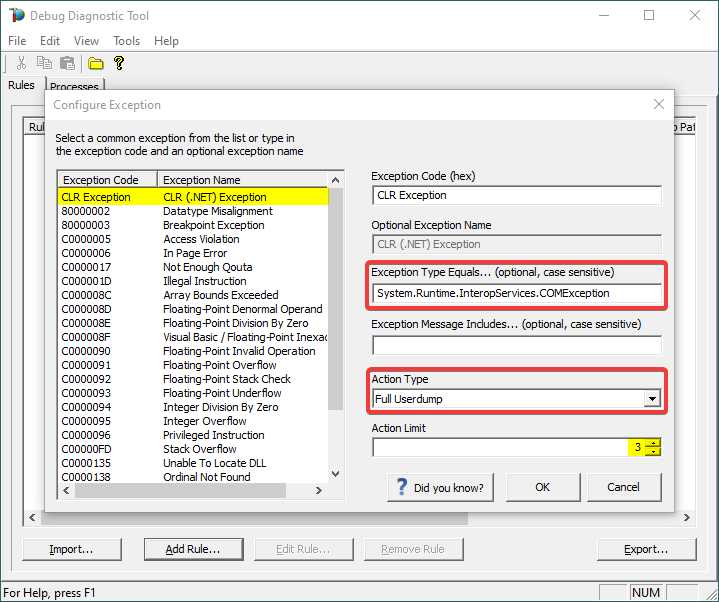
We need full memory dumps, so select the according value in Action Type.
It is always better if we get more than one memory dump, so you may increase the Action Limit field value.
8.
Confirm that our exception of interest is added, then click Save & Close:
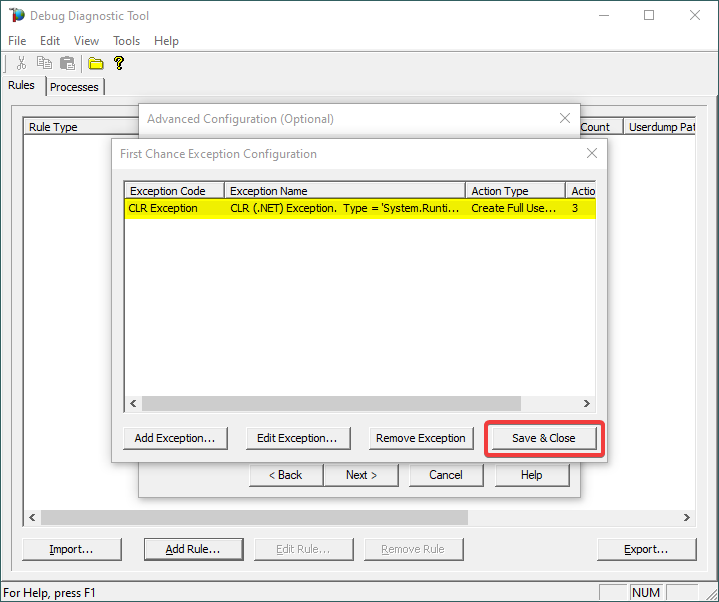
9.
Click Next…
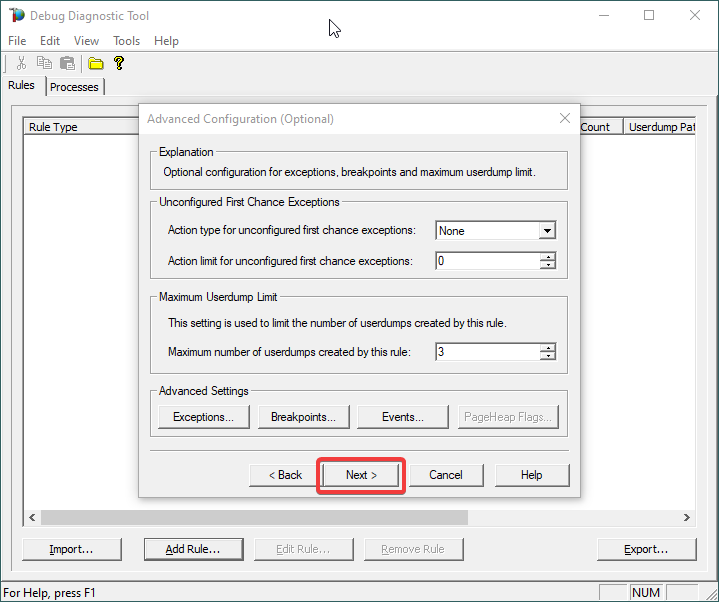
10.
Configure the file location where the dump file(s) will be generated/written.
Please note that a dump file is a snapshot of the process memory, written in disk; size will be similar to process memory as seen in the Task Manager. For example, if you see that w3wp.exe uses around 5 GB of memory in Task Manager, then the dump of that process will be around 5 GB on the disk; if you multiply by number of dumps, then… choose a disk with enough free space.
Please do not choose a disk in network/UNC; choose a local disk.
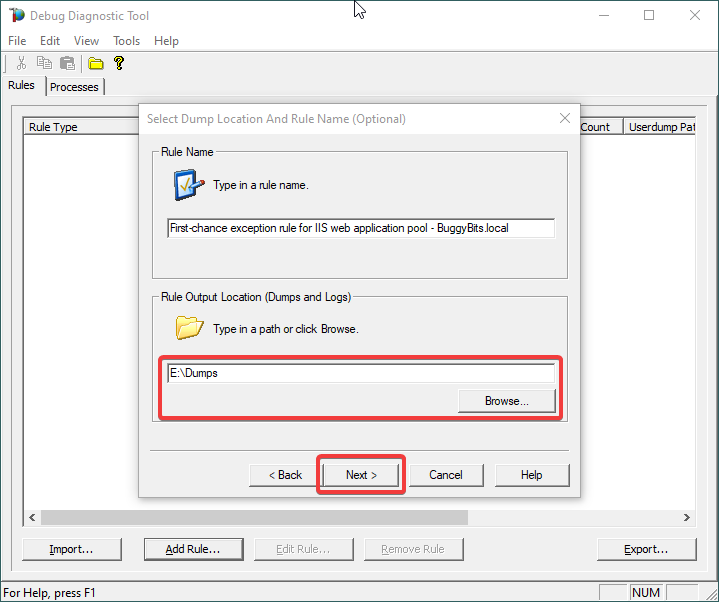
11.
Click Next and Finish by selecting to Activate the rule now.
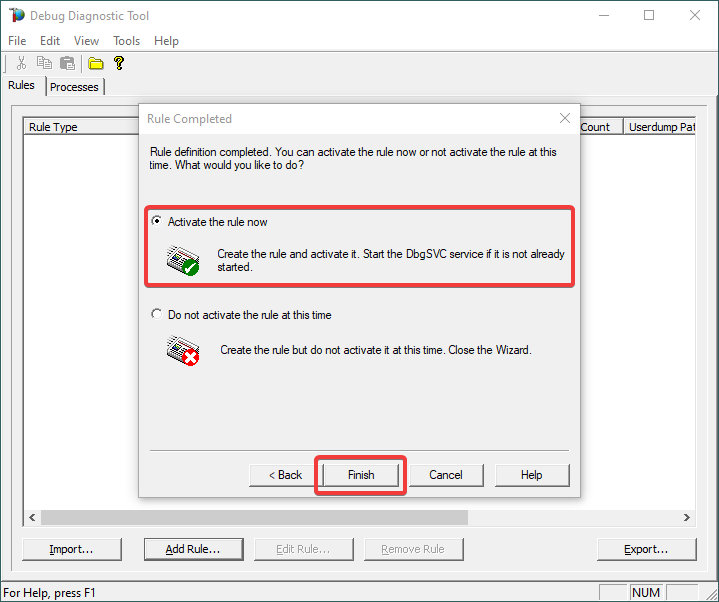
12.
When the configured exception occurs, a dump file (or files) should be created in the user-dump location selected above.
Please archive in a ZIP and prepare to hand over to the support engineer; upload in a secure file transfer space.
If we don’t get dumps, then we probably don’t have the configured first-chance memory occurring. Remember my article about how exceptions are handled and how to collect memory dumps to study them.

by Contributed | Apr 16, 2021 | Technology
This article is contributed. See the original author and article here.
Step by Step Manage Windows Server in Azure with Windows Admin Center
Robert Smit is a EMEA Cloud Solution Architect at Insight.de and is a current Microsoft MVP Cloud and Datacenter as of 2009. Robert has over 20 years experience in IT with experience in the educational, health-care and finance industries. Robert’s past IT experience in the trenches of IT gives him the knowledge and insight that allows him to communicate effectively with IT professionals. Follow him on Twitter at @clusterMVP

Create your classroom lab with Azure Lab Services!
Sergio Govoni is a graduate of Computer Science from “Università degli Studi” in Ferrara, Italy. Following almost two decades at Centro Software, a software house that produces the best ERP for manufacturing companies that are export-oriented, Sergio now manages the Development Product Team and is constantly involved on several team projects. For the provided help to technical communities and for sharing his own experience, since 2010 he has received the Microsoft Data Platform MVP award. During 2011 he contributed to writing the book: SQL Server MVP Deep Dives Volume 2. Follow him on Twitter or read his blogs in Italian and English.

Backing up all Azure Key Vault Secrets, Keys, and Certificates
Tobias Zimmergren is a Microsoft Azure MVP from Sweden. As the Head of Technical Operations at Rencore, Tobias designs and builds distributed cloud solutions. He is the co-founder and co-host of the Ctrl+Alt+Azure Podcast since 2019, and co-founder and organizer of Sweden SharePoint User Group from 2007 to 2017. For more, check out his blog, newsletter, and Twitter @zimmergren

Azure: Deploy Bastion Host Using Terraform
George Chrysovalantis Grammatikos is based in Greece and is working for Tisski ltd. as an Azure Cloud Architect. He has more than 10 years’ experience in different technologies like BI & SQL Server Professional level solutions, Azure technologies, networking, security etc. He writes technical blogs for his blog “cloudopszone.com“, Wiki TechNet articles and also participates in discussions on TechNet and other technical blogs. Follow him on Twitter @gxgrammatikos.

Teams Real Simple in Pictures: Disabling List Item Comments in the Web App and in Teams
Chris Hoard is a Microsoft Certified Trainer Regional Lead (MCT RL), Educator (MCEd) and Teams MVP. With over 10 years of cloud computing experience, he is currently building an education practice for Vuzion (Tier 2 UK CSP). His focus areas are Microsoft Teams, Microsoft 365 and entry-level Azure. Follow Chris on Twitter at @Microsoft365Pro and check out his blog here.
by Contributed | Apr 16, 2021 | Technology
This article is contributed. See the original author and article here.
We are pleased to announce the enterprise-ready release of the security baseline for Microsoft Edge, version 90!
We have reviewed the new settings in Microsoft Edge version 90 and determined that there are no additional security settings that require enforcement. The settings from the Microsoft Edge version 88 package continues to be our recommended baseline. That baseline package can be downloaded from the Microsoft Security Compliance Toolkit.
Microsoft Edge version 90 introduced 9 new computer settings, 9 new user settings. We have attached a spreadsheet listing the new settings to make it easier for you to find them.
As a friendly reminder, all available settings for Microsoft Edge are documented here, and all available settings for Microsoft Edge Update are documented here.
Please continue to give us feedback through the Security Baselines Discussion site or this post.
by Contributed | Apr 16, 2021 | Technology
This article is contributed. See the original author and article here.
Azure Synapse Analytics provides multiple query runtimes that you can use to query in-database or external data. You have the choice to use T-SQL queries using a serverless Synapse SQL pool or notebooks in Apache Spark for Synapse analytics to analyze your data.
You can also connect these runtimes and run the queries from Spark notebooks on a dedicated SQL pool.
In this post, you will see how to create Scala code in a Spark notebook that executes a T-SQL query on a serverless SQL pool.
Configuring connection to the serverless SQL pool endpoint
Azure Synapse Analytics enables you to run your queries on an external SQL query engine (Azure SQL, SQL Server, a dedicated SQL pool in Azure Synapse) using standard JDBC connection. With the Apache Spark runtime in Azure Synapse, you are also getting pre-installed driver that enables you to send a query to any T-SQL endpoint. This means that you can use this driver to run a query on a serverless SQL pool.
First, you need to initialize the connection with the following steps:
- Define connection string to your remote T-SQL endpoint (serverless SQL pool in this case),
- Specify properties (for example username/password)
- Set the driver for connection.
The following Scala code contains the code that initializes connection to the serverless SQL pool endpoint:
// Define connection:
Class.forName("com.microsoft.sqlserver.jdbc.SQLServerDriver")

val hostname = "<WORKSPACE NAME>-ondemand.sql.azuresynapse.net"
val port = 1433
val database = "master" // If needed, change the database
val jdbcUrl = s"jdbc:sqlserver://${hostname}:${port};database=${database}"

// Define connection properties:
import java.util.Properties

val props = new Properties()
props.put("user", "<sql login name>")
props.put("password", "<sql login password>")

// Assign driver to connection:
val driverClass = "com.microsoft.sqlserver.jdbc.SQLServerDriver"
props.setProperty("Driver", driverClass)
This code should be placed in some cell in the notebook and you will be able to use this connection to query external T-SQL endpoints. In the following sections you will see how to read data from some SQL table or view or run ad-hoc query using this connection.
Reading content of SQL table
The serverless SQL pool in Azure Synapse enables you to create views and external tables over data stored in your Azure Data Lake Storage account or Azure CosmosDB analytical store. With the connection that is initialized in the previous step, you can easily read the content of the view or external table.
In the following simplified example, the Scala code will read data from the system view that exists on the serverless SQL pool endpoint:
val objects = spark.read.jdbc(jdbcUrl, "sys.objects", props).
objects.show(10)
If you create view or external table, you can easily read data from that object instead of system view.
You can easily specify what columns should be returned and some conditions:
val objects = spark.read.jdbc(jdbcUrl, "sys.objects", props).
                            select("object_id", "name", "type").
                            where("type <> 'S'")
objects.show(10)
Executing remote ad-hoc query
You can easily define T-SQL query that should be executed on remote serverless SQL pool endpoint and retrieve results. The Scala sample that can be added to the initial code is shown in the following listing:
val tsqlQuery =
"""
select top 10 *
from openrowset(
    bulk 'https://pandemicdatalake.blob.core.windows.net/public/curated/covid-19/ecdc_cases/latest/ecdc_cases.parquet',
    format = 'parquet') as rows
"""

val cases = spark.read.jdbc(jdbcUrl, s"(${tsqlQuery}) res", props)
cases.show(10)
The text of T-SQL query is defined the variable tsqlQuery. Spark notebook will execute this T-SQL query on the remote serverless Synapse SQL pool using spark.read.jdbc() function.
The results of this query are loaded into local data frame and displayed in the output.
Conclusion
Azure Synapse Analytics enables you to easily integrate analytic runtimes and run a query from the Apache Spark runtime on the Synapse SQL pool. Although Apache Spark has built-in functionalities that enable you to access data on Azure Storage, there some additional Synapse SQL functionalities that you can leverage in Spark jobs:
- Accessing storage using SAS tokens or workspace managed identity. This way you can use serverless SQL pool to access Azure Data Lake storage protected with private endpoints or time limited keys.
- Using custom language processing text rules. Synapse SQL contains text comparison and sorting rules for most of the world language. If you need to use case or accent insensitive searches or filter text using Japanese, France, German, or any other custom language rules, Synapse SQL provides native support for text processing.
The samples described in this article might help you to reuse functionalities that are available in serverless Synapse SQL pool to load data from Azure Data Lake storage or Azure Cosmos DB analytical store directly in your Spark Data Frames. Once you load your data, Apache Spark will enable you to analyze data sets using advanced data transformation and machine learning functionalities that exist in Spark libraries.


Recent Comments