by Contributed | Apr 29, 2021 | Technology
This article is contributed. See the original author and article here.
CLI for Microsoft 365
Manage Microsoft 365 and SharePoint Framework projects on any platform
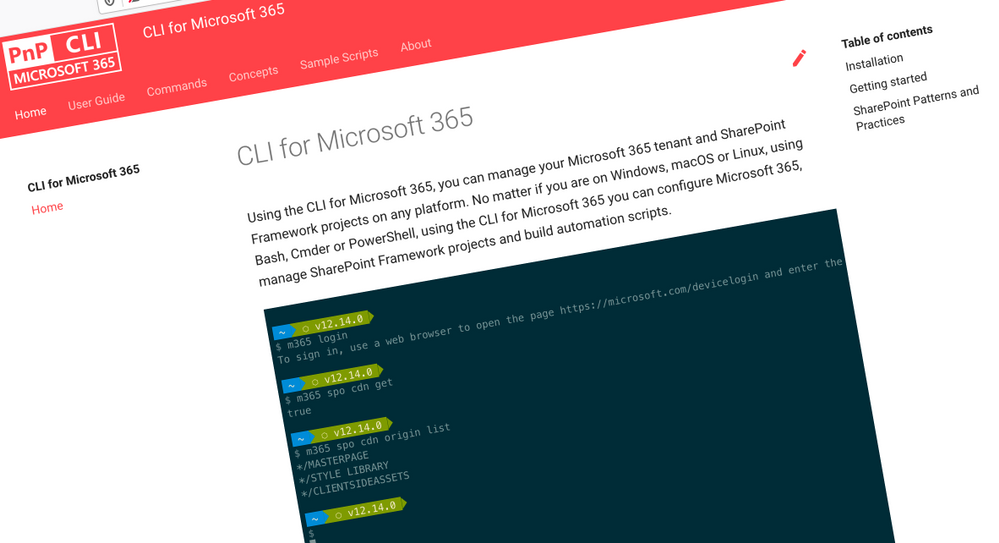
CLI for Microsoft 365 is a cross-platform CLI that allows you to manage various configuration settings of Microsoft 365 and SharePoint Framework projects no matter which operating system or shell you use.
While building solutions for Microsoft 365 expands beyond the Windows operating system, managing many of the platform settings is possible only through PowerShell on Windows. As more and more users work on non-Windows machines, it’s inconvenient for them to have to use a Windows virtual machine to configure their tenants. With the CLI for Microsoft 365, you can configure your tenant no matter which operating system you use. Additionally, using CLI for Microsoft 365, you can manage your SharePoint Framework projects.
New version of CLI for Microsoft 365 – v3.9
Following our monthly release cadence, we’ve released a new version of the CLI for Microsoft 365 with some new capabilities. Here are a few of the most noteworthy additions.
Changes
We’ve continued improving CLI building upon the changes we’ve introduced in the previous version.
Support for upgrading SharePoint Framework (SPFx) projects to beta versions
With the new
public preview release of SharePoint Framework 1.12.1 and a new public quality assurance model that was announced with it, we are delighted to announce that we have added support for upgrading your SharePoint Framework projects to the latest beta release candidate.
To upgrade your SharePoint Framework project to the latest preview version, execute:
m365 spfx project upgrade –preview
As part of our beta release cadence, when new release candidates are made available in npm, we will release support for upgrading to that new version as soon as they are available.
Support for creating Azure Active Directory (AAD) applications from a manifest
As part of our efforts to make development easier in Microsoft 365, we have released support for creating Azure Active Directory application registrations from an app manifest file.
A typical scenario for developers and administrators is to create app registrations in the Azure Portal manually through the friendly user interface, however this can be time-consuming and error prone to repeat for multiple environments.
This update will enable you to copy the app manifest file that is generated in the Azure Portal and pass it into the command to confidently recreate app registrations.
m365 aad app add –manifest @manifest.json
Support for using relative URLs in SharePoint Online (SPO) commands
CLI for Microsoft 365 contains a number of commands for managing SharePoint Online. Each of these commands requires you to specify the site or web on which you want to execute the command. For example, to get information about a site collection located at https://contoso.sharepoint.com/sites/contoso, you’d execute:
m365 spo site get --url https://contoso.sharepoint.com/sites/contoso
If you executed an spo command previously, CLI for Microsoft 365 already knows the hostname of your SharePoint Online tenant. In such case, you can use a server-relative URL as well:
m365 spo site get --url /sites/contoso
If you try to use a server-relative URL but CLI for Microsoft 365 doesn’t know of your SharePoint Online URL yet, you will see an error prompting you to either use an absolute URL or set the SPO URL using the spo set command:
m365 spo set --url https://contoso.sharepoint.com
You can also execute a command like m365 spo site list that will automatically detect your SharePoint Online tenant URL for you.
To check if CLI detected the SPO URL previously, use the m365 spo get command.
Moved from adal-node to msal-node
CLI for Microsoft 365 up to this point has been using the Microsoft Azure Directory Authentication Library for nodejs (adal-node) for handling authentication requests between the CLI and Microsoft 365, however the ADAL library was put into maintenance mode and stopped receiving updates on June 30th 2020.
With this release we have moved to use the Microsoft Authentication Library for nodejs (msal-node) which replaces adal-node, ensuring that the CLI for Microsoft 365 is able to receive updates and take advantage of new authentication features added to msal-node going forwards.
New Commands
Add a role to a specified Azure Active Directory (AAD) app registration
Role-based access control (RBAC) is a popular mechanism to enforce authorization in applications. When using RBAC, an administrator grants permissions to roles, and not to individual users or groups. The administrator can then assign roles to different users and groups to control who has access to what content and functionality.
To add a role to the Azure AD application registration specified by its name, execute:
m365 aad app role add --appName "My app" --name Managers --description "Managers" --allowedMembers usersGroups --claim managers
Add a new Microsoft Planner plan
All teams need to track tasks, a quick and easy way to do that in Microsoft 365 is to create a shared plan in Planner to manage and assign those tasks to team members.
To add a new Microsoft Planner plan to a Microsoft 365 Group, execute:
m365 planner plan add --title "My Planner Plan" --ownerGroupName "My Planner Group"
Add a specific application permissions to a SharePoint Online site
On Feb 11, Microsoft announced support for resource-specific consent in SharePoint via Microsoft Graph in this release we have added a new command to support adding permissions to SharePoint Online sites.
To add a specific application permissions to a SharePoint Online site, execute:
m365 spo site apppermission add –siteUrl https://contoso.sharepoint.com/sites/project-x –permission read –appDisplayName Foo
Return the User Profile properties of a specific SharePoint Online user
To return the user profile properties of specific user, execute:
m365 spo userprofile get --userName 'john.doe@mytenant.onmicrosoft.com'
Create the Microsoft Viva Connections desktop app package to upload to Microsoft Teams
Microsoft Viva Connections was the first part of the Viva Employee Experience features to be be made Generally Available to all Microsoft 365 tenants on 31st March 2020, however to enable Viva Connections in your tenant a number of deployment steps that needed to be followed, which includes the creation of the desktop app package that is deployed to Microsoft Teams. So we have added a new command which simplifies the creation of this app package for you.
To create the app package, execute:
m365 viva connections app create --portalUrl https://contoso.sharepoint.com --appName Contoso --description "Contoso company app" --longDescription "Stay on top of what's happening at Contoso" --companyName Contoso --companyWebsiteUrl https://contoso.com --coloredIconPath icon-color.png --outlineIconPath icon-outline.png
To upload the app package to your Microsoft Teams app catalog, execute:
m365 teams app publish --filePath ./contoso.zip
New script samples
CLI for Microsoft 365 is a great tool both for quick adjustments to the configuration of your Microsoft 365 tenant as well as automating more complex tasks. Because CLI for Microsoft 365 is cross-platform you can use it on any OS and in any shell. To help you get started using the CLI for Microsoft 365 for automation scenarios, we started gathering some sample scripts.
If you have any scripts that you use frequently, please share them with us so that we can learn more about the common automation scenarios.
Cleanup completed Microsoft To Do tasks
Microsoft To Do is the go to personal task management tool of choice in Microsoft 365, however completed tasks can sometimes get in the way.
Create a Microsoft Teams team and bulk add members from CSV file
Microsoft Teams is core to collaboration in Microsoft 365, but creating several teams and adding new members to those Teams can be time consuming.
Setup an example SharePoint Online site
When creating SharePoint Online sites, generally you want to make some immediate changes after its creation.
Upload local files and folders to SharePoint Online
Bulk add members to Microsoft Teams team from CSV file
Copy files to another SharePoint Library in another site
This script helps you copy files across different sites in SharePoint Online, it shows you how you can copy all files and folders from source library to a different library in different SharePoint site keeping the same folder and subfolder structure and copy all files from all folders and subfolders from source library to a different library to a root folder in different SharePoint
Remove a Site Collection Admin User from all Site Collections
When employees leave organisations or change job roles it is important that access is removed where it is no longer required.
Replace an owner in a Microsoft 365 Group or Microsoft Team
Add a SharePoint Site Collection Administrator using CSV file
Contributors
This release wouldn’t be possible without the help of (in alphabetical order)
Thank you all for the time you chose to spend on the CLI for Microsoft 365 and your help to advance it!
Work in progress
Here are some things that we’re currently working on.
More commands, what else
Microsoft 365 is evolving and new capabilities are being released every day. With CLI for Microsoft 365, we aim to help you manage your tenant on any platform in a consistent way, no matter which part of Microsoft 365 you interact with. While we keep adding new commands to CLI for Microsoft 365 each release, we still barely scratched the surface with what’s possible in Microsoft 365. In the upcoming versions of the CLI for Microsoft, you can expect us to add more commands across the different workloads in Microsoft 365.
Improved managing SharePoint pages
Microsoft keeps investing in modern SharePoint pages continuously introducing new capabilities to let us publish rich content. We’re looking into extending our support for managing modern SharePoint pages to let you use them to their full potential.
Improved creating Azure AD apps
Recently, we’ve introduced a command to easily create Azure AD app registrations. Because they’re backbone of every app you’d build on Microsoft 365, we think you should be able to create them as easily as possible. So with CLI for Microsoft 365, you can create a fully configured Azure AD app for the most common scenarios with just one line of code.
In the future versions of CLI for Microsoft 365 you can expect us extend the capabilities with additional scenarios and features supported by Azure AD.
Script examples
In every release of the CLI for Microsoft 365, we introduce new commands for managing Microsoft 365. With over 350 commands across the different Microsoft 365 services, the CLI for Microsoft 365 has become a powerful tool, not just for managing your tenant but also for automating your daily work.
We’d love to show you how you can use the CLI for Microsoft 365 to build automation scripts in PowerShell Core and Bash. If you have any scripts using SPO or PnP PowerShell that you use frequently, please share them with us so that we can learn more about the common automation scenarios.
‘ensure’ commands
We’ve just shipped our first ensure command – an easy way to help you that a site with specific settings exists. If it doesn’t, CLI creates it for you, if it does, CLI ensures it has the right properties. All in one line of code. We’d love to hear from you how you like it and if it’s something you’d like us to implement for other commands as well.
Try it today
Get the latest release of the CLI for Microsoft 365 from npm by executing:
npm i -g @pnp/cli-microsoft365
Alternatively, you can get the latest release from Docker by executing:
docker run --rm -it m365pnp/cli-microsoft365:latest
If you need more help getting started or want more details about the commands, the architecture or the project, go to aka.ms/cli-m365.
If you see any room for improvement, please, don’t hesitate to reach out to us either on GitHub or twitter.
by Contributed | Apr 29, 2021 | Technology
This article is contributed. See the original author and article here.
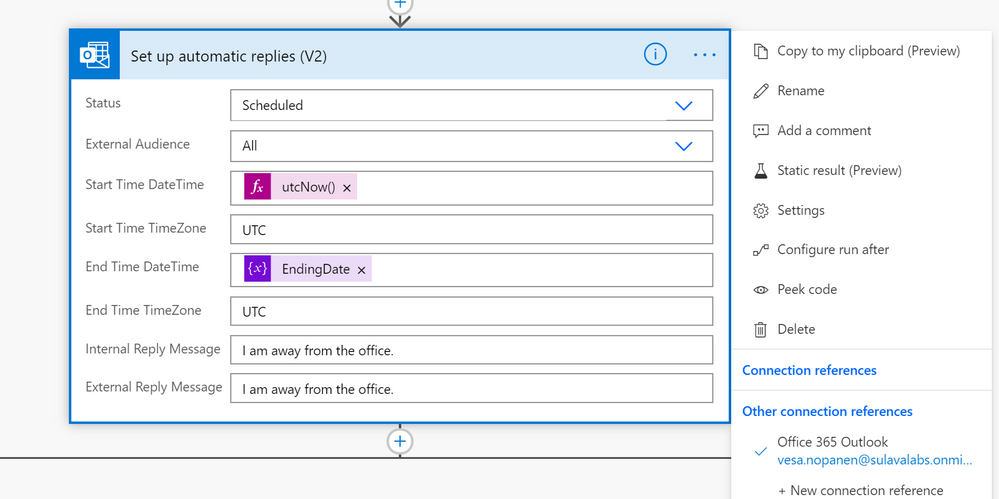
It is always interesting to hit the wall with limitations when you are working with Power Automate. Some limits are due to licensing but some are due to other good reasons. I was running a PoC where a person interacting with a Power Virtual Agent bot required to do actions on behalf of that person. And after digging some information out (Thank you @Tomasz for helping there! ) it was clear that I had reached the wall when I was trying to make my little bot to set up Out of Office for the interacting user. Using the Office 365 Set Automatic Replies action always works on the connection user only. And since you can not act on behalf of that user it required to go beyond the wall and say “there is no spoon”. And I found it there wasn’t a spoon- just the miracle world of Graph API.
From that phase I advanced to create
- Azure Logic Apps that uses Graph API to set the Out of Office / Automatic replies to a specific user.
- Setting up a Azure API Management service so that Azure Logic App can be called from the Cloud Flow running inside Power Virtual Agent – and still keep on using standard licensing (no need to go to premium)
First it was necessary to create the Azure App Registration (applicationid, secret) with suitable set of API permissions. After that it was all about figuring out the Graph API call & JSON to set the Automatic Reply / Out of Office. Read the documentation (& about permissions) from Docs here.
Next I built a Azure Logic Apps that uses HTTP Request trigger (get) to retrieve user email and number of away days in parameters.
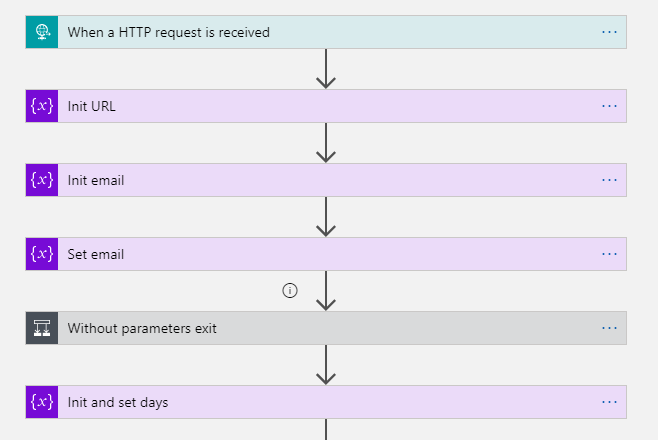
This is the format to exclude parameters from the GET request. triggerOutputs()[‘queries’][‘FileID’]
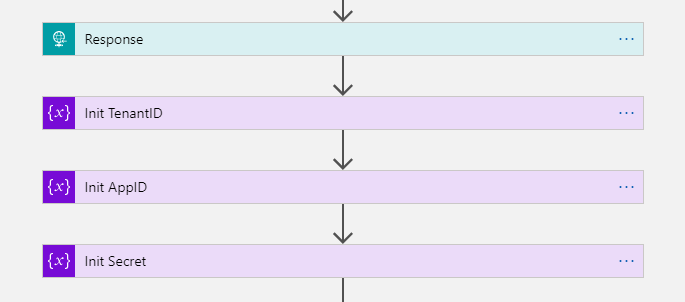
After those steps I have user email and number of days that needs to be set Out of Office. I returned the HTTP-request and prepared variables with Application ID, TenantID and App Secret information to be able to call Graph API with application permissions.
The key is of course setting the Out of Office information JSON.
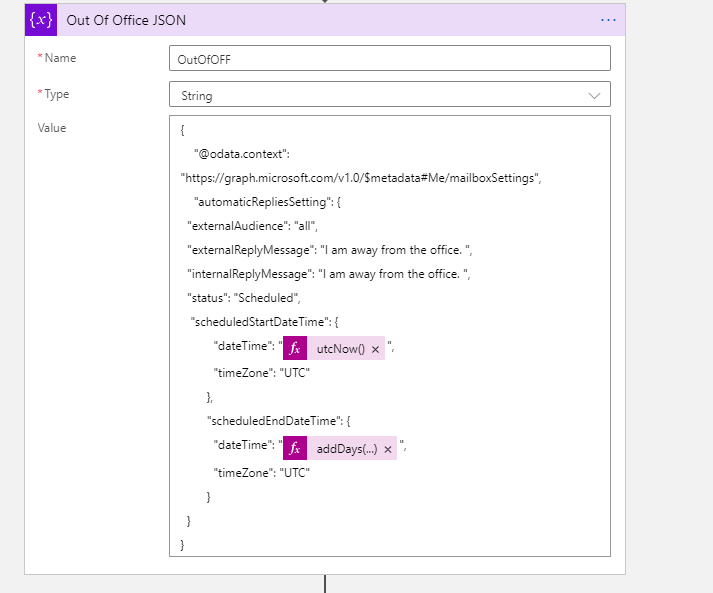
The Graph API call URL and example JSON I used to test this are:
https://graph.microsoft.com/v1.0/users/useremail/mailboxsettings

{
    "@odata.context": "https://graph.microsoft.com/v1.0/$metadata#Me/mailboxSettings",
     "automaticRepliesSetting": {
     "externalAudience": "all",
      "externalReplyMessage": "I am away from the office. ",
      "internalReplyMessage": "I am away from the office. ",
      "status": "Scheduled",
      "scheduledStartDateTime": {
          "dateTime": "2021-04-17T18:00:00.0000000",
          "timeZone": "UTC"
        },
       "scheduledEndDateTime": {
          "dateTime": "2021-04-18T18:00:00.0000000",
          "timeZone": "UTC"
        }
  }
}
Then it was just the case of patching the information
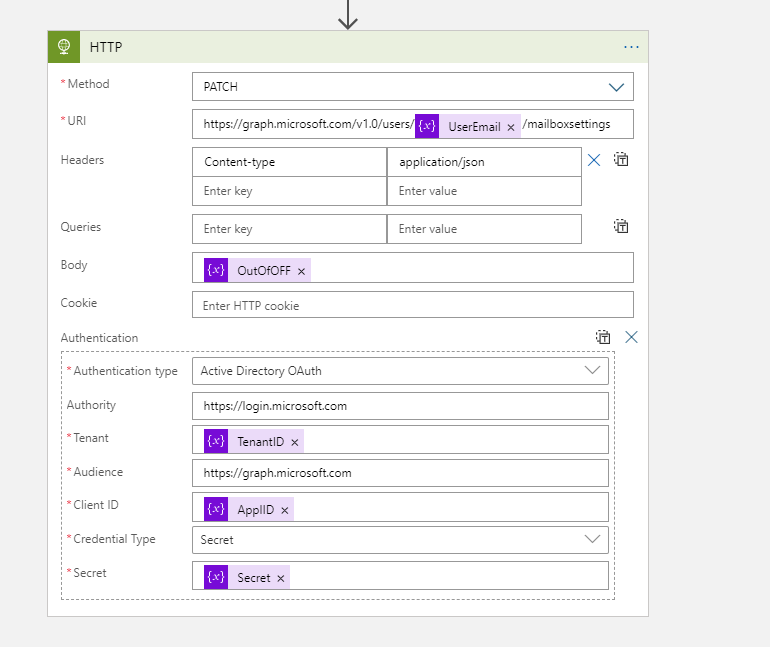
The next step was to create the Azure API Management Service and define the API call there. There are two ways to handle the information transportation: in the body (as JSON) or as parameters. I put the Username and Days in this Proof of Concept to parameters.
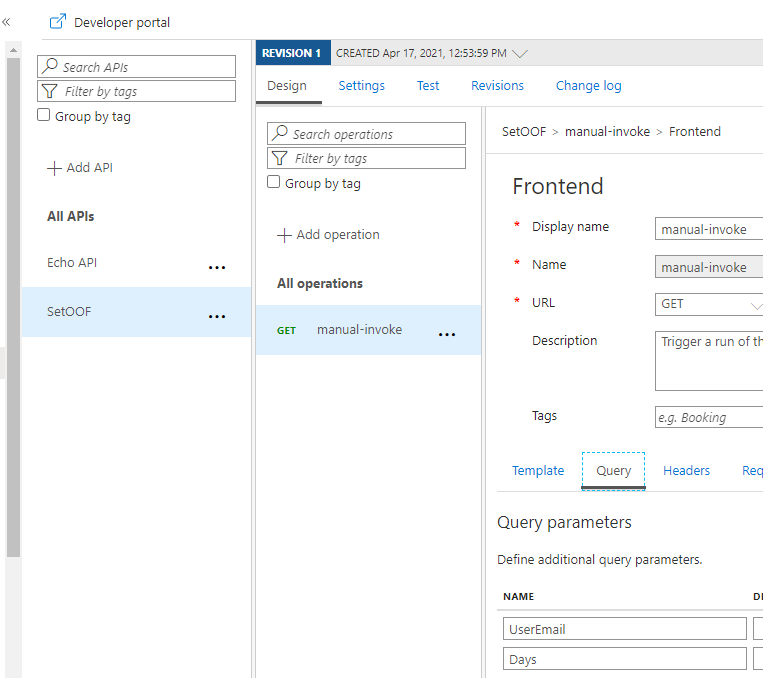
For how to create and set up Azure API Management you can find information in this URL. It is good to keep in mind that Azure API Management has a cost involved – it is not a free one. I created the one with Developer (No SLA) tier to keep costs lower. And it still estimated to be over 40€ per month. For production use the price will be higher.
Another alternative would have been to put the “set these to Out of Office” information to a SharePoint List (for example) and use a Azure Logic Apps trigger to read that list and make those API Calls. That would have some delay, but since Out of Office is rarely requiring an instant response it would be a better one for the real world scenario in this case. However if you are already using Azure API management then using it for this as well is a good idea. But setting it up solely for a single purpose does not get a good ROI for most cases.
After setting the API up into the Azure you can export it directly to the Dataverse for Teams environment – so it is there for the bot to use without any Premium licensing.
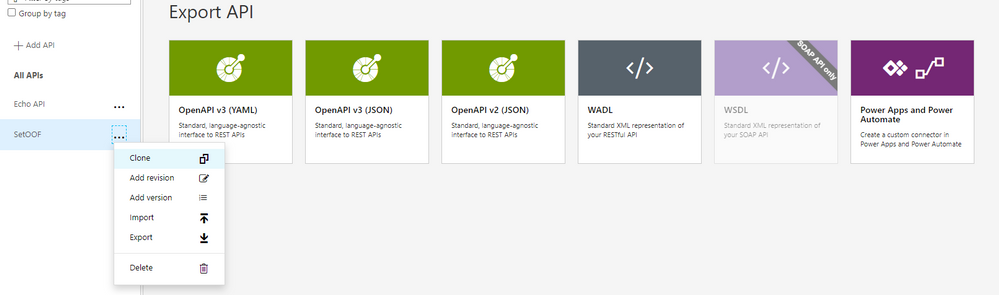
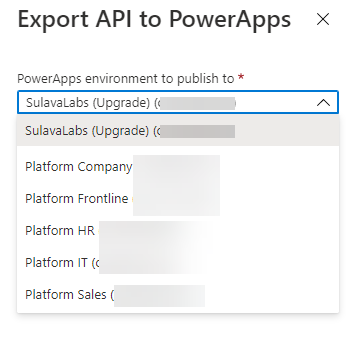
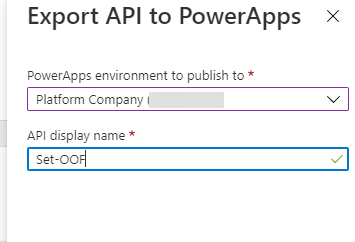
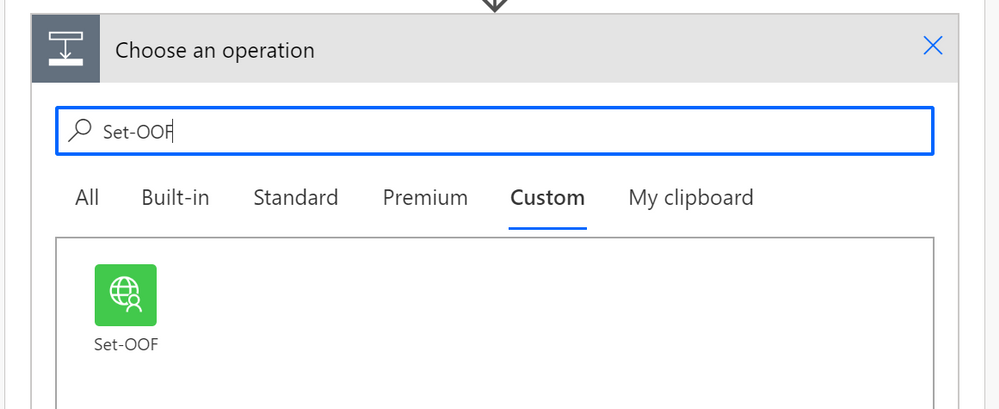
When adding an action to your Cloud Flow in the Dataverse for Teams environment where your bot runs you can find the custom action in the menu.
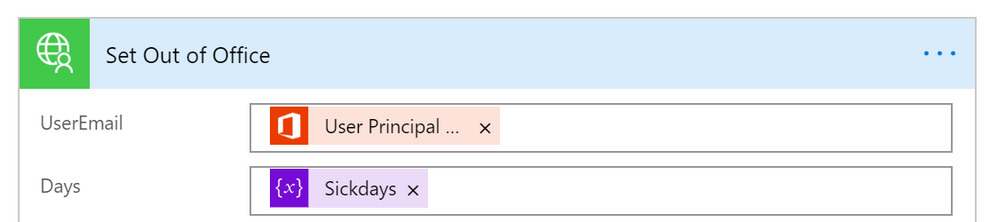
Cool – what about the test-run side?
And when running this one from the PVA of the acting user I can see the results via Teams easily
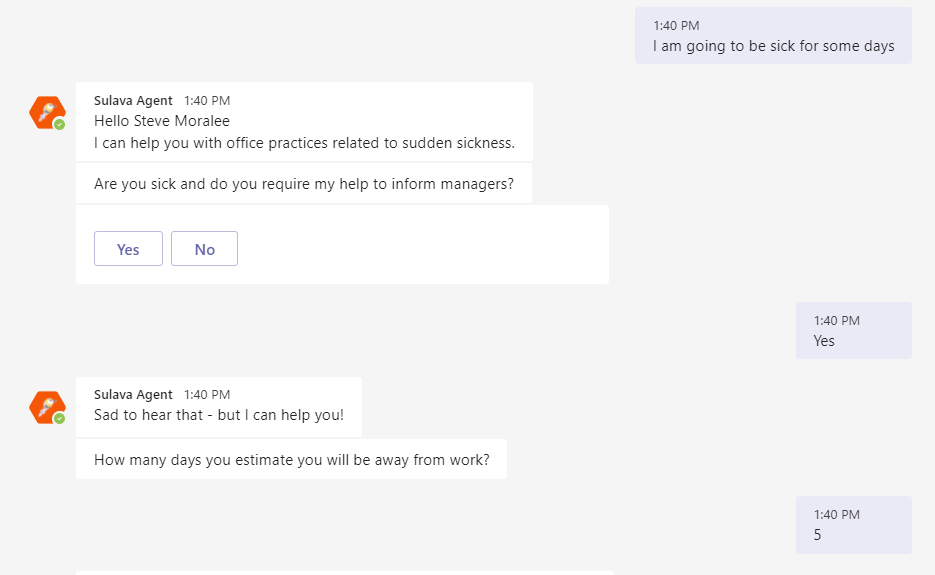
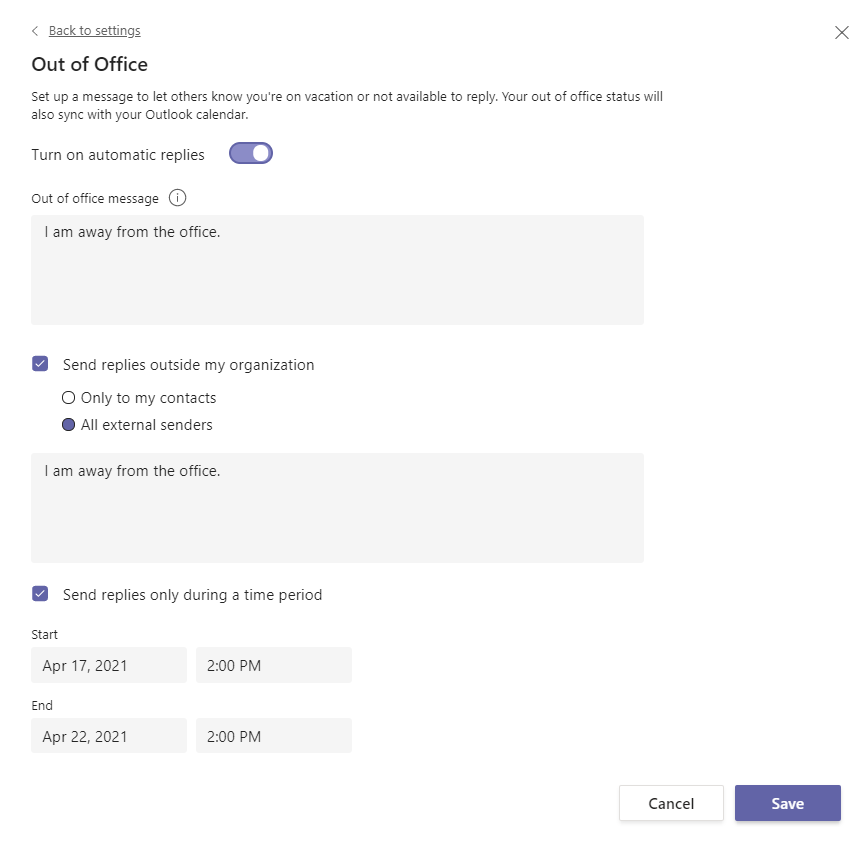
There are of course other steps as well in that PoC conversation & flow but setting up the Out of Office proved to require a bit more steps than I originally thought. I have to say that this was also a great learning experience about updating user mailbox settings via Graph API and as well about using Azure API management to create a custom connector to Power Automate.
With Azure API Management & Graph API you can quite easily go beyond the walls what you have with Dataverse for Teams bots and applications.
This article is a repost of my blog post in my own blog at MyTeamsDay.Com.
by Contributed | Apr 29, 2021 | Technology
This article is contributed. See the original author and article here.
The Office Add-ins developer platform team has new updates to share this month on Office Add-ins Patterns and Practices. PnP is a community effort, so if you are interested in contributing, see our good first issue list.
Use Outlook event-based activation to set the signature (preview)
This sample uses event-based activation to run an Outlook add-in when the user creates a new message or appointment. The add-in can respond to events, even when the task pane is not open. It also uses the setSignatureAsync API. If no signature is set, the add-in prompts the user to set a signature, and can then open the task pane for the user.
Contributors
Thank you to our contributors who are actively helping each month with the PnP-OfficeAddins community effort.
Want to contribute?
PnP is a community effort by developers like you. Check out our good first issue list as a great place to help with some samples. Feel free to contribute to existing samples or create new ones.
About Office Add-ins Patterns & Practices (PnP)
Office Add-ins PnP is a Microsoft-led, community driven effort that helps developers extend, build, and provision customizations on the Office platform the right way by providing guidance and help through official documentation and open-source initiatives. The source is maintained in GitHub where anyone can participate. You can provide contributions to the samples, reusable components, and documentation. Office Add-ins PnP is owned and coordinated by Office engineering teams, but the work is done by the community for the community.
You can find code samples for Office Add-in development in the Office Add-ins PnP repo. Some samples are also documented in the Office Add-ins docs, such as Open in Excel.
Additional resources
Learn more by joining the monthly Office Add-ins community call.
by Contributed | Apr 29, 2021 | Technology
This article is contributed. See the original author and article here.
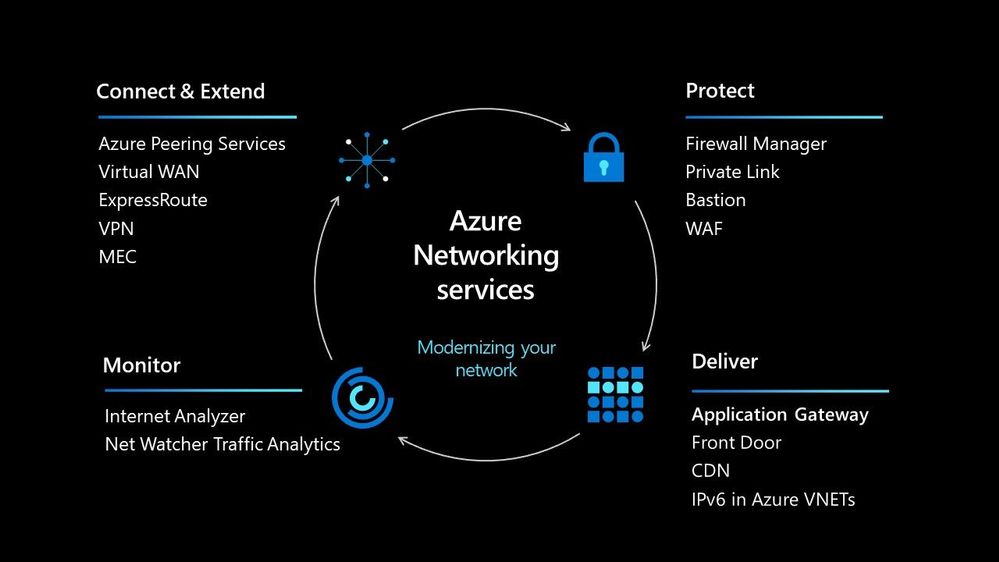
In today’s world we must be able to scale our workloads, whether that be dealing with an internal workload or an external workload serving your organisations’ customers. There are lots of options available to you to implement that scale and deal with the traffic to your workload, let’s walk through some of the options within Azure and help you understand their use cases.
Azure Load Balancer
The Azure Load Balancer is one of the first options that you have to help deal with scaling your workload. It supports TCP/UDP based protocols such as HTTP, HTTPS and SMTP and other protocols used within real-time voice and video messaging applications. It helps you distribute traffic to your backend virtual machines and is a fully managed service.
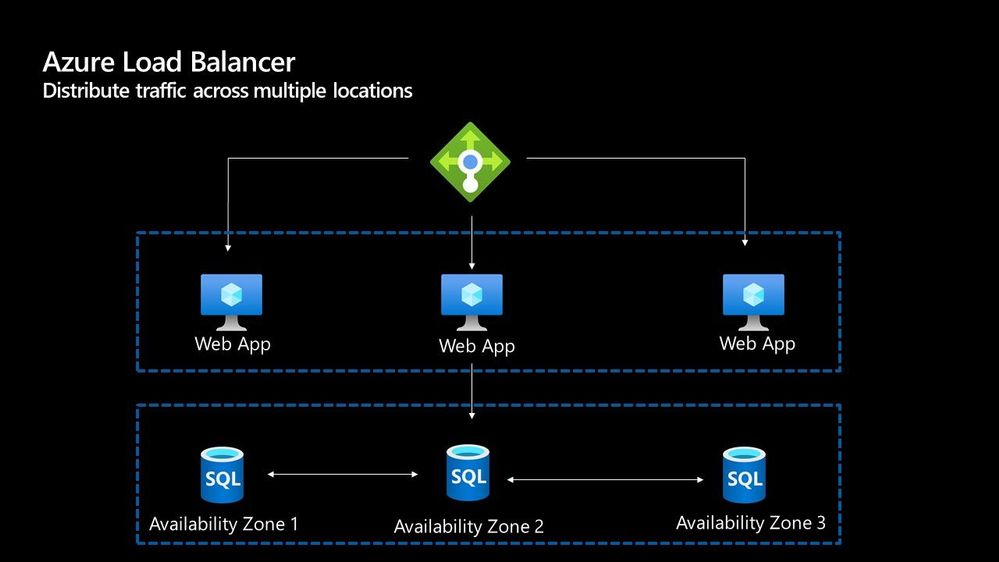
With the load balancer you can distribute traffic either from external traffic or for internal traffic. The Azure Load balancer works on Layer 4 of the OSI model and is a transparent load balancer. Meaning it won’t do anything to the packets that it receives and just sends to them onto the endpoint should depend on the routing algorithm. The Azure Load Balancer has a lot of features, one that I love is the outbound connection feature, which allows you to configure all outbound traffic from your virtual network to the Internet to be displayed as from the frontend IP of the load balancer.
Azure Application Gateway
The Azure Application Gateway is an HTTP or HTTPs load balancer and behaves differently to the networking load balancer. It will take the connection coming into it, terminate and start a new connection to the backend endpoint based on its routing algorithms. This opens new possibilities such as redirections or URL rewrites or header changes.
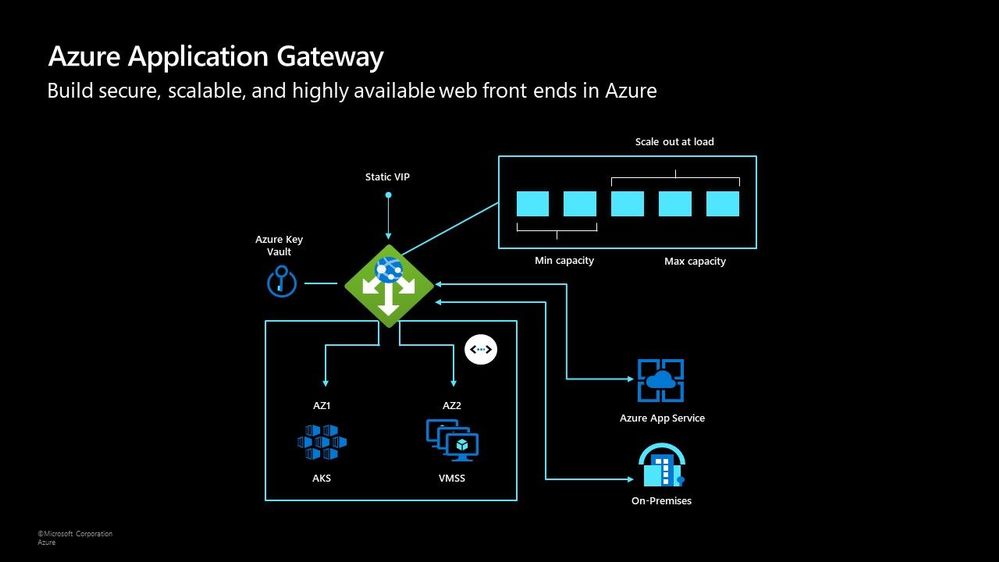
Two of my favourite features of the Azure Application Gateway are connection draining and autoscaling. Both help give you confidence of running your environment and help save on operational costs.
With connection draining it helps you to gracefully remove backend endpoints to carry out planned maintenance or upgrades. With autoscaling it can start to scale out or in based on the traffic pattern to your Application Gateway. This not only helps to eliminate the guessing game of over provisioning workloads and helps to avoid your operations teams having to manually scale out or in when traffic spikes.
Azure Traffic Manager
The Azure Traffic Manager is a DNS-based load balancer, it allows you to distribute traffic across your public facing applications. With the traffic manager it will use DNS to direct requests from your users to the appropriate endpoint based on the traffic-routing method that you have configured. Your endpoints can be any Internet-facing service hosted inside OR outside of Azure.
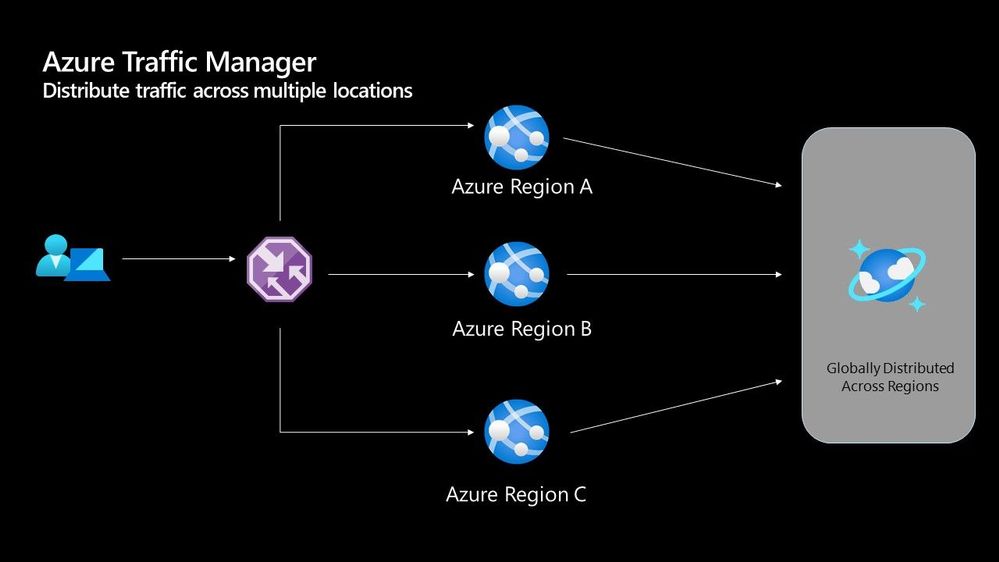
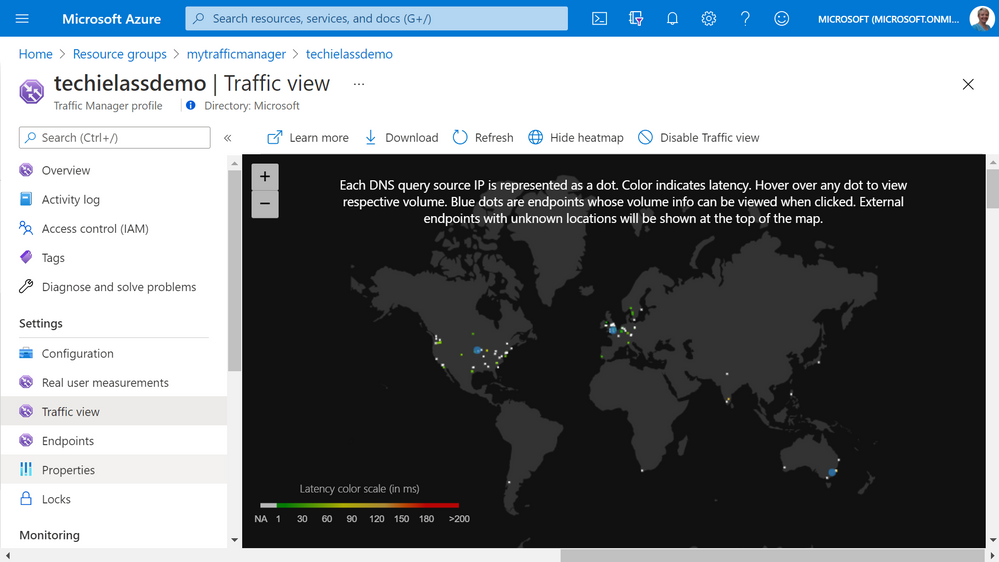
With Traffic Manager you can help to provide great performance to your end users with distributed endpoints through out the globe. The features that I really enjoy is the Real User Measurements and Traffic View features. They can be used to give you a real insight into where your users are based and the performance they are experiencing. And the data that is collected can really help you make informed decisions on how to develop your application in the future.
Azure Front Door
Azure Front Door works at Layer 7 of the OSI model and based on your routing method you can ensure that your customer is routed to the fastest and most available endpoint on offer. Like Traffic Manager, Front Door is resilient to failures, including failures to an entire Azure region. With Front Door you can offload SSL and certificate management, define a custom domain, and provide application security with integrated Web Application Firewall (WAF), with a ton of other features as well.
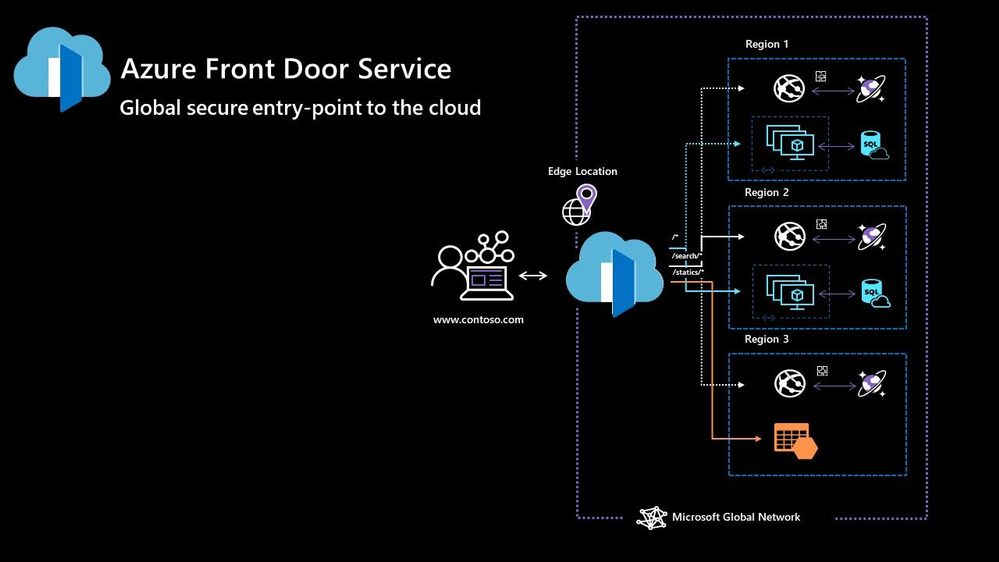
Your end points can be based within Azure or elsewhere. No matter where or what your endpoints are Front Door will help provide the best experience for your end user.
Azure DDoS Protection Basic is integrated into the Front Door platform by default and helps to defend against the most common and frequently occurring Layer 7 DNS query floods and layer 3 and 4 volumetric attacks that target public endpoints.
Azure Web Application Firewall
Azure Web Application Firewall (WAF) can also be used to protect your Front Door and Application Gateway implementations. Because the WAF policies are “global resources” you can apply the same policy to your Front Door and Application Gateway implementations and have a consistent approach to prevention and detection.
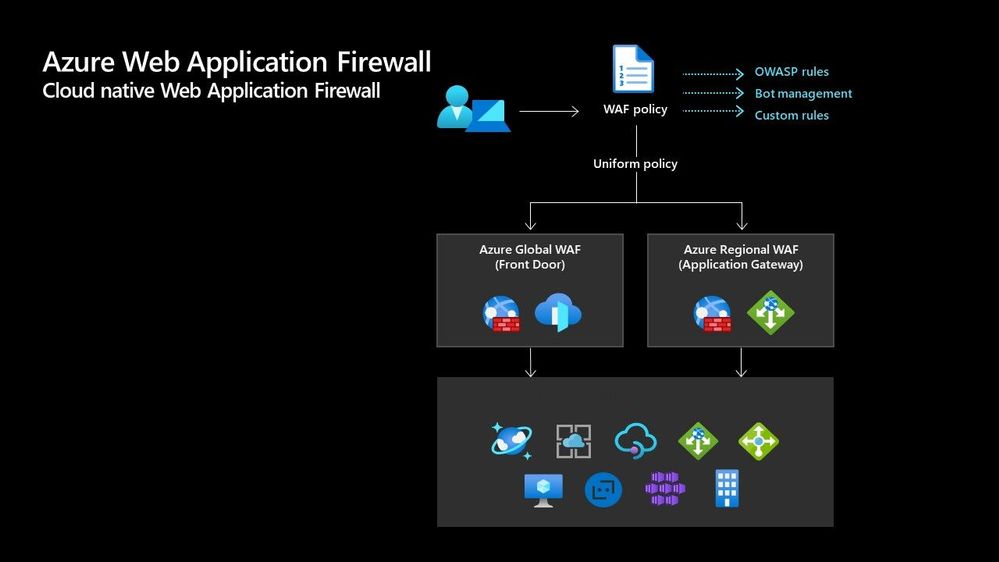
Which one?
There are times when it’s not a question of which one should I use, as there are scenarios when you would use two of these options together to provide the best experience all round. In preview there is a feature within the Azure Portal where it will walk you through some questions and give some advice on the best options for you – Load Balancing – help me choose.
Each of the load balancer have unique features and unique use cases, and as I said can often be used in combination together. For examples of how to use them in different scenarios be sure to check out the Azure Architecture Centre for reference architecture diagrams to get your imagination sparked!
by Contributed | Apr 28, 2021 | Technology
This article is contributed. See the original author and article here.
Hi All,
After 5 public previews I am thrilled to announce the release candidate build of AKS on Azure Stack HCI! If you have not tried out AKS on Azure Stack HCI there is no better time than the present. You can evaluate the AKS on Azure Stack HCI release candidate by registering for the Public Preview here: https://aka.ms/AKS-HCI-Evaluate (If you have already downloaded AKS on Azure Stack HCI – this evaluation link has now been updated with the release candidate).
The release candidate build has a number of fixes and improvements in response to the feedback that we have been receiving from y’all over the past months.
There is a lot to cover – but here are some highlights:
Networking improvements –
We have further extended our networking configuration options, so that you can now configure separate networks for each Kubernetes cluster you want to deploy. You can even place separate Kubernetes clusters on separate VLANs. With this release we are also now providing full support for Calico networking (in addition to our previous support for Flannel).
Storage improvements –
We are now including a new CSI storage driver that allows you to use SMB & NFS shares for read-write many storage. This is in addition to our existing driver for VHDX based storage. We have also made updates to our Linux worker nodes to enable the use of OpenEBS on top of AKS on Azure Stack HCI.
Updated Kubernetes Versions –
In this update we have updated the supported Kubernetes versions to:
- Linux: 1.17.13, 1.17.16, 1.18.10, 1.18.14, 1.19.6, 1.19.7
- Windows: 1.18.10, 1.18.14, 1.19.6, 1.19.7
We have done a lot of work “behind the scenes” to increase the reliability of deployment – and made numerous improvements to the usability of our PowerShell and Windows Admin Center based experiences.
Once you have downloaded and installed the AKS on Azure Stack HCI release candidate – you can report any issues you encounter, and track future feature work on our GitHub Project at https://github.com/Azure/aks-hci. And, like with past releases, if you do not have the hardware handy to evaluate AKS on Azure Stack HCI you can follow our guide for evaluating AKS-HCI inside an Azure VM: https://aka.ms/aks-hci-evalonazure.
I look forward to hearing from you all!
Cheers,
Ben


Recent Comments