by Contributed | Apr 29, 2021 | Technology
This article is contributed. See the original author and article here.
The popular response to our call for stories at #ProudToBeCertified has been inspiring. Anyone who’s taken a certification exam knows that passing takes dedication and an intensive time commitment. That’s just one of the reasons why these personal stories are worth sharing. In the coming weeks, we’ll be highlighting how Microsoft Certification has encouraged and empowered so many people around the world.
The perks of certification
When you expand and maintain your career by getting Microsoft-certified, the opportunities that become available are enough to make anyone proud. It increases confidence, income, professional credibility, and happiness. A study by Pearson VUE found that 67% of technical professionals say certification builds confidence; about 35% of technical professionals say getting certified led to salary or wage increases; and 41% said they’re happier in their jobs.1
Organizations also benefit from continuous learning. IDC has found that trained and certified teams responsible for core IT activities are almost 20% more productive than less proficient staff, with Microsoft-certified IT professionals performing 26% better across all roles than uncertified IT professionals with the same responsibilities.2
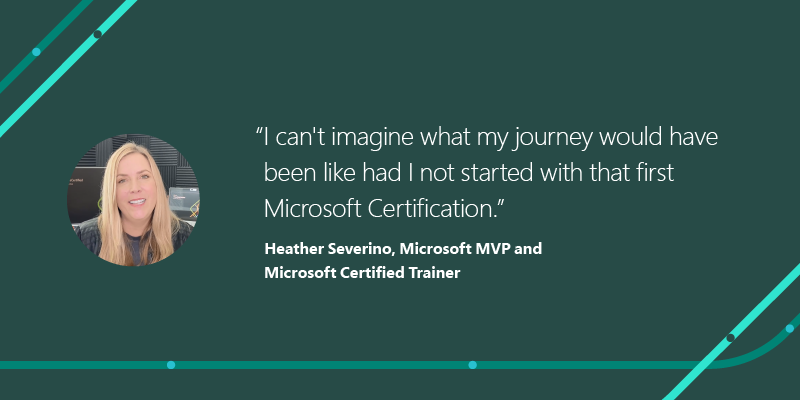
In other words, certification is a great investment in yourself, and in your team. It’s a game-changer. As Microsoft MVP and Microsoft Certified Trainer Heather Serverino said in her Proud to be Certified story, “I can’t imagine what my journey would have been like had I not started with that first Microsoft Certification.”
Microsoft Certification benefits
When you, your team, and your organization maintain a culture that celebrates learning and achievement, everyone wins. Certification supports a forward-looking culture that values up-to-date knowledge and a constant striving for the next, most useful capabilities, not only as proof of skills and expertise, but with real benefits to individuals and companies.
Microsoft Certification helps you:
- Get recognized. Build confidence and be recognized as a leader, unlock new opportunities, and share your credentials with your professional network.
- Get ahead. Stay ahead of the curve, increase your productivity, and take your career to the next level.
- Get hired. Certified technical skills help you prepare for job opportunities by proving to employers you have the skills they want.
Microsoft Certification helps your organization:
- Increase performance. Certified employees are more productive, more efficient in their roles, and bring more creative solutions to complex technical problems.
- Increase value. Organization’s benefits include improved productivity, faster troubleshooting, and fewer skills gaps.
- Increase the talent pool. By simplifying talent identification and recruiting through certification you make your screening process easier.
This is just the start
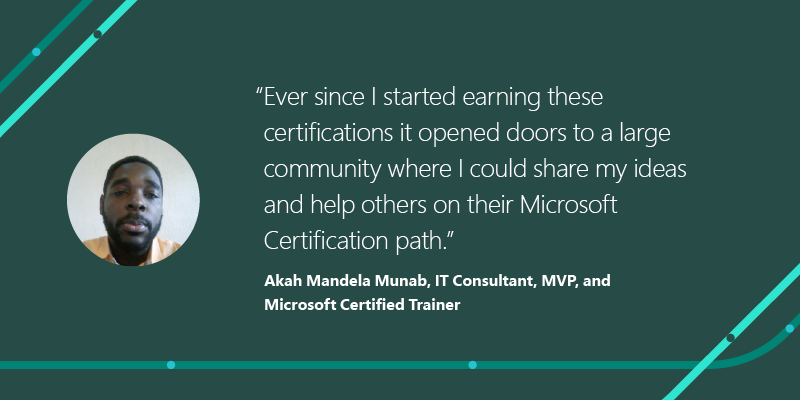
When you check out the #ProudToBeCertified videos and stories, you’ll see that certification is a continual and rewarding journey. You might even be surprised by the opportunities certification has provided for individuals around the world. IT Consultant, MVP, and Microsoft Certified Trainer Akah Mandela Munab said in his story that certifications “opened doors to a large community where I could share my ideas and help others on their Microsoft Certification path.”
This is the first in a series of posts where we’ll be sharing the personal stories, business benefits, and latest insights on creating and maintaining a personal attitude of continual learning. Plus, we’ll highlight how organizational culture encourages and supports the extra effort and time it takes for every team member to keep advancing.
Already certified? We want to hear from you – because we believe the more professionals who share their accomplishments, the more encouraged others will be to join Microsoft’s growing community dedicated to continuous improvement. You are our certification community. Now, it’s time to celebrate it.
Watch more #Proud to be Certified videos and submit your story as a video or post on Twitter, LinkedIn, or your preferred platform with #ProudToBeCertified.
Related posts:
1Pearson VUE, “2018 Value of IT Certification”
2IDC white paper sponsored by Microsoft, “Benefits of Role-based Certifications,” June 2020
by Contributed | Apr 29, 2021 | Technology
This article is contributed. See the original author and article here.
Click here to learn more about the agenda and presenters, and to register for this Microsoft Business Applications Summit (MBAS) event scheduled for May 4th, 2021.
https://mymbas.microsoft.com/sessions/777efc99-8bb4-48b1-a9fb-461375360b52?source=sessions
by Contributed | Apr 29, 2021 | Technology
This article is contributed. See the original author and article here.
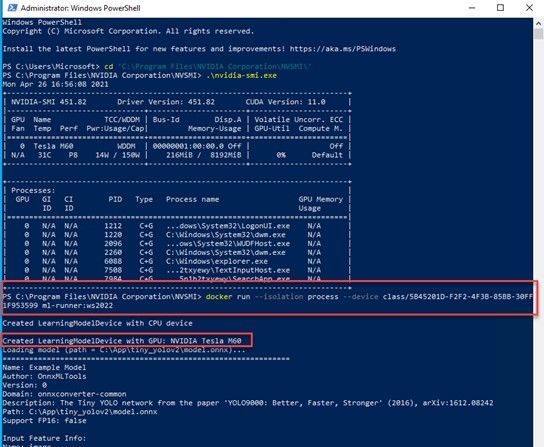
Today we are very pleased to announce a new Windows Server base OS container image preview built from Windows Server 2022 with Desktop Experience. To try it out, on a Windows Server 2022 Insider Build 20344 as the container host, run this command to start:
docker pull mcr.microsoft.com/windows/server/insider:10.0.20344.1
The direct link of the image repo on Docker Hub is here https://hub.docker.com/_/microsoft-windows-server-insider/.
Why did we build this new image?
There are 3 Windows Base OS container images today that nicely cover the broad spectrum of customer needs: Nano Server – ultralight, modern Windows offering for new app development; Server Core – medium size, best fit for Lift and Shift Windows Server apps; Windows – largest size, almost full Windows API support for special workloads. Nano Server and Server Core container image adoption has been steadily growing and widely used for a while. In the last year or so, we are also seeing uptake of the Windows image adoption. Meanwhile, in the Windows Container community on GitHub and through our Customer Support, we have received feedback regarding constraints when using that Windows base OS container image. For example,
Some of the constraints are by design because that Windows container image is built from a full Windows Client edition and enabled to run on Windows Server. As we are committed to invest in the Windows containers business, we believe it is a right thing at this right time to build a new image based on a “full” Windows Server edition to enable more capabilities. “Full” in the sense that we choose to use the Windows Server 2022 with Desktop Experience edition. Some of you may refer this as “Server Core” + “Desktop UI” informally. That’s how this new container image was born and built. It will be added to all the relevant repos on Microsoft Container Registry (MCR) and Docker Hub pages. I should note, though this image is built from an edition with Desktop Experience, Windows containers today by design do not have GUI. That’s not changed with this new image.
What’s the name again?
Windows containers by themselves are not stand-alone products. They are considered features of Windows Server. Whatever name we choose needs to show that connection but also avoid potential confusion or duplication. That leaves us limited room for creativity  . As you can see, with the path on MCR, “mcr.microsoft.com/windows/server”, this image is referred as “Windows Server base OS image”, or just short like this, “Server base image”, or “Server image”.
What about this new image?
This new image will be available with Windows Server 2022 release only. For those of you who are using the Windows images from previous releases that are still in support such as Windows Server SAC v1809, SAC v1909, SAC v2004 and SAC v20H2, those images are not changed and have their respective support cycles. This new image is not available with those previous releases. We encourage you to adopt Windows Server 2022 and move to use this new Server image.
Here is a quick comparison between all the 4 images:
Container Image
|
Main Use Case
|
Compressed Size
|
Supported Versions today *
|
Windows Server 2022
|
Windows Server 2016, 2019
|
Windows Server SAC v1809**, v1909, v2004, v20H2
|
Nano Server
|
Mainly for modern apps such as .NET Core apps;
Limited App Compatibility
|
112MB
|
X
|
|
X
|
Server Core
|
Mainly for .NET Framework apps;
Better App Compatibility
|
1.2GB
|
X
|
X
|
X
|
Windows
|
Mainly for .NET Framework apps;
Best App Compatibility with by-design constraints
|
3.4GB
|
|
|
X
|
Server
|
Mainly for .NET Framework apps;
Best App Compatibility
|
3.1GB
|
X
|
|
|
Note:
* “Supported Version today” lists the Windows Server releases that the container image was or will be released and is or will be supported. For example, with the first row, it means, Nano Server image was released with Windows Server SAC v1809, v1909, v2004 and v20H2 releases and will be in Windows Server 2022 release. That list can change as some releases reach their end of support.
**In the release wave of Windows Server 2019 and SAC v1809, Nano Server container and Windows container images were only shipped as an SAC with 18 months support cycle. Based on customer feedback, last year we have extended Nano Server container in the SAC v1809 release to be supported for 5 years. This Windows container image currently will reach its end-of-life support (EOL) in May hence we will be sure to share the update on the extension in May before the EOL. On the other hand, Server Core container image in that release wave was shipped both as an LTSC and an SAC. In an oversimplified way, you can think all the 3 images released during Windows Server 2019 and SAC v1809 wave are now being made aligned to be supported for 5 years to Jan 2024. We understand this is a confusing topic. We’ll come back with details in future blogs.
What are the key benefits and capabilities of the new image?
Compared to the current Windows image:
- Size Smaller: slightly smaller, from 3.4GB down to 3.1GB.
- Performance and Reliability Improved: Over the years we have improved performance and reliability of the Server Core container images thanks to the large adoption internally and externally. This image inherits all the improvements from Server Core.
- LTSC Support from the get-go: we are planning to support this image as an LTSC with 5 years mainstream support.
- Server functionality: we are still validating so the list here is not complete but we expect this image will enable more Server scenarios/features.
- IIS Connection: as mentioned earlier, there was a 10 connection limit. This new image should no longer have this limit. We have customers validating with their scenarios.
- Web APIs e.g. Web Management Services (WMSVC): in that same GitHub issue related to IIS, it was reported this feature is not supported. We are yet to validate but we believe this should be supported.
- Fuller API support
OK, that’s interesting. How do I get started?
Step 1: Install a Windows Server 2022 Insider
To get started, you’ll need a Windows Server 2022 installation based on the Insiders preview build 20344. You can download the bits from the Insiders page here: Download Windows Server Insider Preview. Once you download the ISO (or VHD), create a new VM based on this image.
Step 2: Install Docker
Once you have a working Windows Server 2022 Preview deployment, follow this to install Docker:
Install-Module -Name DockerMsftProvider -Repository PSGallery -Force
Install-Package -Name docker -ProviderName DockerMsftProvider
Restart-Computer -Force
Once the machine is restarted, run ‘docker info’ to ensure Docker was correctly installed.
Step 3: Pull the new image
docker pull mcr.microsoft.com/windows/server/insider:10.0.20344.1
Step 4: Run the new image
docker run -it mcr.microsoft.com/windows/server/insider:10.0.20344.1 cmd
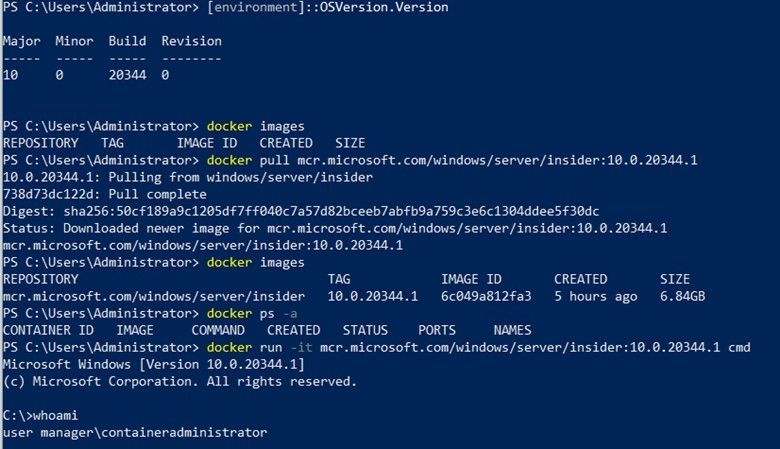
Here is a screenshot for your reference:
Note:
- On a Windows Server host, containers are by default run in the process-isolation mode. You can find more at this doc page Windows Server Container Isolation Modes.
- If you would like to try out on a Windows 10 machine, please follow the instructions here Use Containers with Windows Insider Program. Be sure to use the latest Insider release. For example, I used a Windows 10 21364 Insider build. On a Windows 10 host, containers are by default run in the Hyper-V isolation mode.
References:
Closing
It’s been such a great journey since we started working on making this new image early this year. Your feedback really propelled us on the direction and innovations. We are so excited to share this with the community. We may get it right or we may get it wrong. Fail fast if needed. But we are in !
As always, we love to see you try it out, and give us feedback. You can share your feedback at our GitHub community, or contact us directly.
Weijuan
Twitter: @WeijuanLand
Email: win-containers@microsoft.com
by Contributed | Apr 29, 2021 | Technology
This article is contributed. See the original author and article here.
Hi all,
A customer of mine recently reported an issue that some workstations sporadically lock while the user is working and asked if we could figure out the culprit. Here is the story.
First let me mention that Konstantin Chernyi, a Microsoft CE colleague from Russia, contributed greatly here. So credits also go to him (thanks, Konstantin).
Before we start you need to understand a few basics. A workstation is usually locked by calling the User32.dll function User32dll!LockWorkStation (https://docs.microsoft.com/en-us/windows/win32/api/winuser/nf-winuser-lockworkstation). There may be other options but most applications rely on this function. LockWorkStation creates the LogonUI.exe process to display the Logon Screen and the Lock Screen (if configured). It’s also important to know the Lock events can be traced using the Microsoft-Windows-WinLogon provider. You can get a list of all installed providers by running the command
XPerf.exe -providers i
XPerf is a good choice to narrow down this type of sporadic issue. It supports circular file mode, which means it can overwrite old events to keep the file size at a specified maximum (important for long runs). It can also capture the stack to support stackwalking, so we can see functions that processes call (if symbols are loaded). XPerf is part of the Windows Performance Toolkit, which in turn is part of the Windows Assessment and Deployment Kit (Windows ADK). You can download the ADK here: https://docs.microsoft.com/en-us/windows-hardware/get-started/adk-install.
In Windows 10, Windows Performance Recorder (wpr.exe) is built-in and could be an alternative to XPerf (https://docs.microsoft.com/en-us/windows-hardware/test/wpt/author-a-custom-recording-profile). In this blog, however, I’m going with XPerf.
1. Create the trace
I asked the customer to run the following command in an elevated command prompt on a client that was affected by the sporadic locks:
xperf -on proc_thread+loader+profile+interrupt+dpc+dispatcher+cswitch -stackwalk profile+cswitch+readythread -buffersize 1024 -minbuffers 256 -maxbuffers 256 -maxfile 256 -filemode circular -start wl -on microsoft-windows-winlogon -buffersize 1024 -minbuffers 256 -maxbuffers 256 -maxfile 32 -filemode circular
This starts two ETW sessions: A kernel trace with some kernel providers to capture process and thread creation, image load and unload events, CPU samples, and the stack. The output file should stay at 256 MB (-maxfile, -filemode circular). The second trace captures events of the Microsoft-Windows-WinLogon provider which includes the Lock event.
After that the customer created a scheduled task, which triggers on the lock workstation event (luckily, we have this predefined trigger) with a delay of 3 seconds. This task runs the command to stop the trace and merge the trace files.
XPerf -stop -stop wl -d %TEMP%Lock.etl
Note that the two subsequent “-stop” are not a mistake. Remember that we created two ETW sessions?
2. Analyze the trace
To open the Lock.etl file, I use Windows Performance Analyzer (WPA). I originally worked with the Lock.etl file uploaded by the customer, but for this blog post I simulated this issue to avoid posting screenshots with customer data. The simulation was done by calling RunDLL32.exe User32.dll,LockWorkStation, which makes RunDLL32.exe the “evil” process.
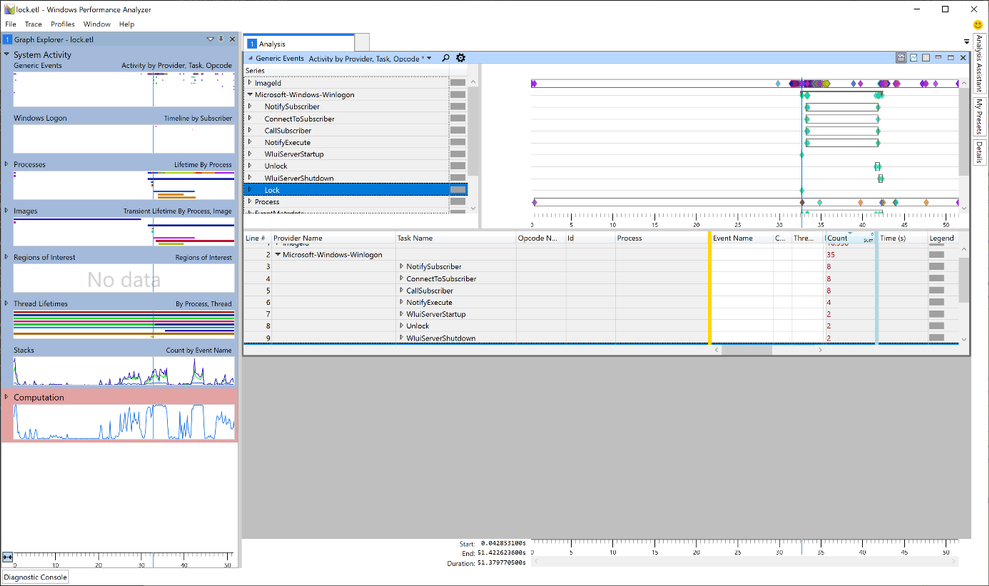
In WPA, I started with the Generic Events graph. Here we can find the event providers we traced next to the kernel trace (in our case the Microsoft-Windows-Winlogon provider).
Taking a closer look, we can see that the Lock event is also part of the trace (Yeah, we caught the fish). Now, as we learned earlier, we know that a workstation lock triggers the LogonUI.exe process so I tried to find the start of this process in WPA. For this, I needed another graph: Lifetime by Process.
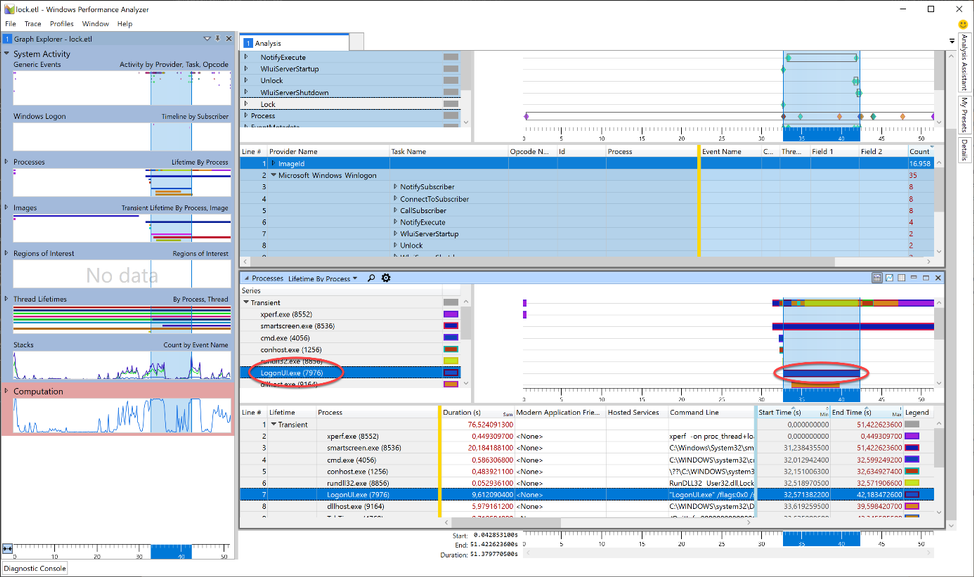
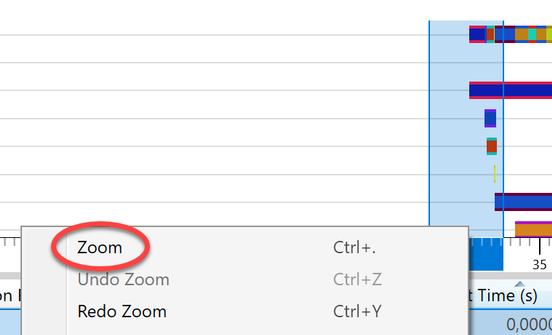
The image shows the LoginUI.exe process in the timeline. The call to the LockWorkStation function must have happened shortly before the LogonUI.exe process was created. To get rid of unnecessary information we Zoom to the area starting at approx. 3 seconds before and ending about a second after the start of LogonUI.exe. I highlighted those 4 seconds in the graph, right-clicked in the highlighted section and selected “Zoom”.
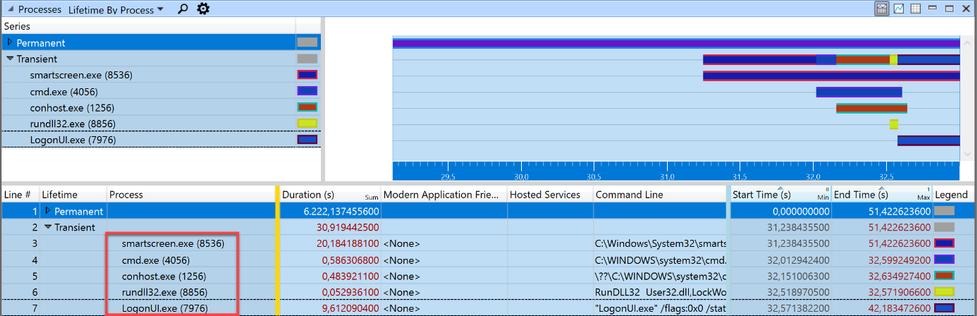
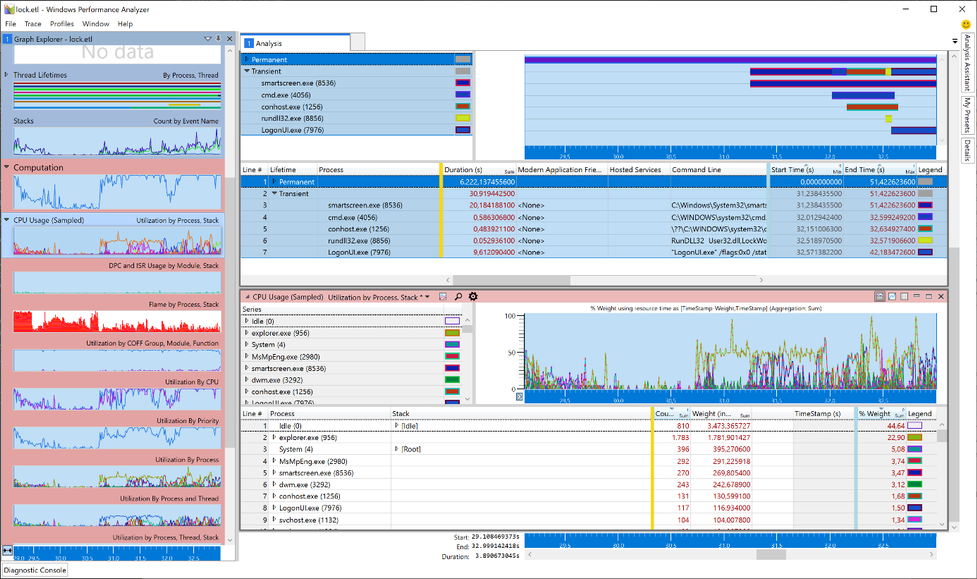
Somewhere in this section the call to LockWorkStation happens. The “Transient” process list showed five processes were started within those 4 seconds. But it’s possible that a process started earlier than this zoomed-in-view made the call to User32!LockWorkStation. The processes started before the beginning of the zoomed area, are grouped into the “Permanent” Lifetime.
To finally find the caller to LockWorkStation I need to search the stack of all running processes (Permanent and Transient) for the expression LockWorkStation. To do this, I added another graph to view the stack: CPU Usage (Sampled). This new graph automatically adopts to the zoomed timeline and only displays processes running in those 4 seconds.
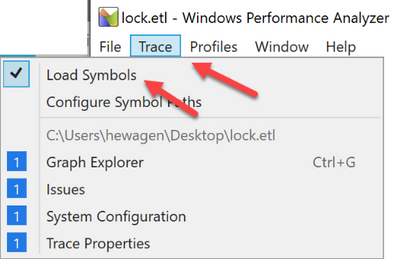
Now it’s time to load the debug symbols to. Otherwise we cannot search for the function name. I made sure that my PC had an Internet connection and, in the menu bar of the Windows Performance Analyzer, I clicked Trace -> Load Symbols. It could take a while when symbols are first loaded.
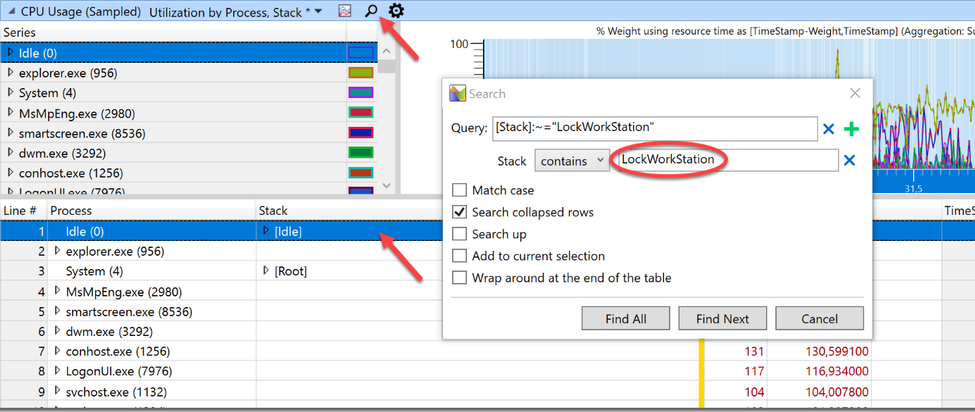
I highlighted the first line of the process table in the CPU Usage (Sampled) graph (to make sure to search all processes) and clicked on the small magnifier icon to open the search dialog. After that I clicked the three dots to expand the dialog and typed “LockWorkStation” into the field after “contains” (the query is constructed automatically so this box can be left empty).
Clicking “Find All” unmasked our culprit.
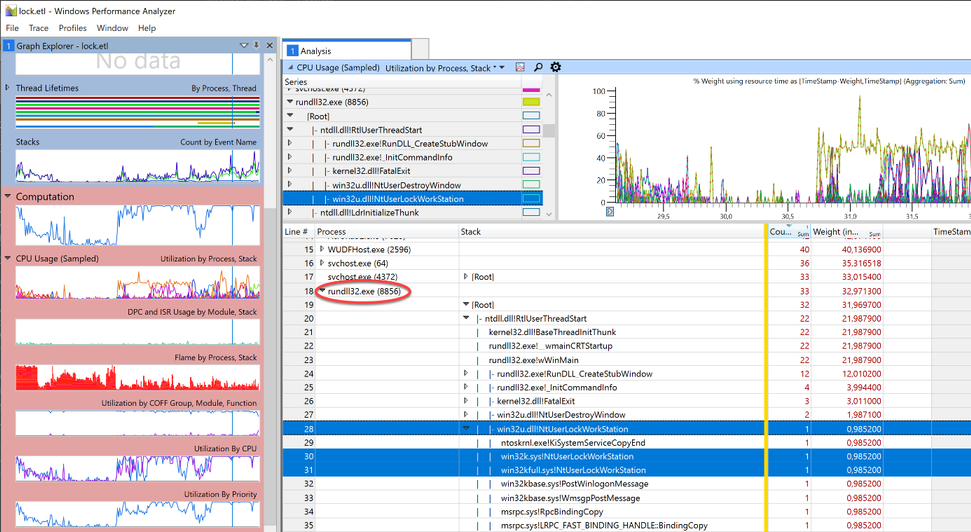
Rundll32.exe was quickly identified as the calling process. Handcuffs, conduct under escort. Case closed.
by Contributed | Apr 29, 2021 | Technology
This article is contributed. See the original author and article here.
Today, we are happy to announce that the Exchange Health Checker PowerShell script has a new home: it is now part of the Microsoft CSS-Exchange repository on GitHub!
With the new home comes a new versioning specification. Before the move, the version schema was structured like this:
MAJOR.MINOR.PATCH (e.g. 3.1.2)
The new version uses the following specification:
YEAR.MONTH.DAY.HOURMINUTE (e.g. 21.04.21.1135)
We auto generate the version number during our script build process. This will be updated every time we change any file that the Health Checker uses, to show the latest commit. Because the Health Checker is within a large collection of scripts, each release that is posted might not include a new change for the Health Checker.
We strongly recommend checking for a new version before running the Health Checker script to make sure to benefit from the latest checks and improvements. The script does the update check automatically in case the system has connectivity to the internet and tries to update itself independently.
If your system does not have any connectivity to the internet, simply download the latest version from: https://aka.ms/ExchangeHealthChecker.
We did lots of code optimizations with the latest version (initially released in November 2020). This code optimization makes it easier to add things to the main report output and the HTML report and helps keep them in sync. If you were running older versions of Health Checker, you (hopefully) noticed a large difference in the formatting output to help make the report look more organized and cleaner.
Please note that Health Checker no longer supports Exchange 2010 (End of Life since 10/13/2020). So, if you still running Exchange 2010 (or Exchange 2013 on Windows Server 2008 R2, talking about EOL products), you should move to a supported Exchange and/or operating system version or consider moving to Exchange Online.
A long-term goal is to have Pester testing being built with the script. The breakout of the script and new organization of code provides the foundation for unit testing with Pester. Results will be more efficient checks and fewer False-Positives (FP) / False-Negatives (FN), or bugs.
If you are interested to track our open work items, you can find them here.
Last but not the least, all scripts on Microsoft CSS-Exchange repository are digitally signed when they are released. You can verify the signature by running the Get-AuthenticodeSignature cmdlet. Example:
Get-AuthenticodeSignature -FilePath “C:TempHealthChecker.ps1”
Some of the checks performed by the Exchange Health Checker script
- General information about the server
- Server name
- Exchange version
- Build number
- Support state of the Exchange version in use
- Server role
- MAPI/HTTP status
- DAG Name
- AD Site
- Server maintenance state
- Operating system information
- Version
- Uptime
- Time zone
- Dynamic daylight time status
- .NET Framework version in use and recommended version
- Page file size and recommended size
- Power plan
- HTTP proxy settings
- Processor/Hardware Information
- Multiple information and recommendations for physical or virtual environments
- Processor recommendations
- Memory recommendations
- Network interface controller (NIC) settings, grouped by adapter
- Check if Visual C++ redistributable is current
- TCP KeepAliveTime configuration
- RPC minimum connection timeout settings
- LmCompatibilityLevel
- FIPS algorithm policy status
- CtsProcessorAffinityPercentage settings
- Credential Guard state
- TLS settings for TLS 1.0, 1.1 and 1.2 and check if the configuration is correct
- Certificates on the system and their validity (for example: lifetime, revocation status…)
- Certificate used in Auth configuration
- We check if Exchange Web App Pools GC server mode is enabled or not and display the state of each App Pool
- Exchange vulnerabilities and weak server configuration (for example: SMBv1 settings)
Roadmap… features to come
We are working on more features to make the Exchange Health Checker even better. Here are some of our major improvements which are in development right now and will be available in the Exchange Health Checker in near future:
- Include more documentation on GitHub pages as a one-stop shop (work in progress). GitHub pages will contain information about every check and cover the why, how the check is done, and how to resolve the issue (if applicable). They will also provide links to relevant Microsoft resources for each specific topic.
- Unit tests by using Pester framework.
- Provide the ability to pass multiple servers to the script (aka Pass Server List) instead of running the script for each server.
- Ability to write out a HTML load balancing report.
- Check for Exchange hybrid setup.
- Continue to add checks for additional cases that can be quickly collected.
I have some feedback for you. How can I get in contact with the developer team?
There are several ways to provide feedback. The best one is to file a work item (issue) on GitHub. Just go this way and let us know.
You can also drop us an email to: extoolsfeedback [AT] Microsoft [DOT] com
Finally, there is the comment section at the bottom of this blog post. In case of a feature request or issue report, options above are the fastest/best to bring those to our attention.
We hope you like our script, and we are looking forward to your feedback!
David Paulson and Lukas Sassl


Recent Comments