by Contributed | Apr 29, 2021 | Technology
This article is contributed. See the original author and article here.
With Azure SQL Managed Instance, you don’t need MS DTC to run distributed transactions! You can now migrate to Azure or build distributed applications with Managed Instance which natively supports cross-instance T-SQL and .NET distributed transactions.
With recent modernization, distributed transactions are supported between Managed Instances as the only supported transaction participants. If your application runs .NET or T-SQL distributed transactions on SQL Server and of course requires MS DTC for that, you can now migrate to Azure SQL Managed Instance and distributed transactions will simply work. Also, if you need to build a multi-server environment in the cloud that needs to run queries in a transactionally consistent fashion, Managed Instance with native support for distributed transactions is a great place for your app.
Distributed transactions on Managed Instance can easily be setup with two simple steps:
- Create Server trust group.
- Ensure there is network connectivity between your instances.
In the rest of the blog, you will get more info on how to easily setup your Managed Instance to run distributed transactions.
Creating a Server trust group
Server trust group (STG) is an entity that manages security requirements for running distributed transactions. You can create it in Azure Portal, or via Azure PowerShell or Azure CLI.
Here is an example of Azure PowerShell script that creates STG for two Managed Instances.
Login-AzAccount
Select-AzSubscription -SubscriptionId “c829c89a-0931-4310-a49c-fa8f42a8cff2”
$managedInstanceList = @()
$managedInstanceList += Get-AzSqlInstance -Name “sqlmi1” -ResourceGroupName “rg1”
$managedInstanceList += Get-AzSqlInstance -Name “sqlmi2” -ResourceGroupName “rg1”
New-AzSqlServerTrustGroup -ResourceGroupName “rg1” -Location “West Europe” -Name “stg1” -GroupMember $managedInstanceList -TrustScope “GlobalTransactions”
Network connectivity
For distributed transactions to work, there must be a network connectivity between Managed Instances. If instances are on different virtual networks, VNET peering needs to be setup.
Additionally, port 5024 and port range 11000-12000 need to be allowed for outbound and inbound VNET traffic in the Network Security Groups assigned to Subnets that host Managed Instances.
Note: when Server trust group is not created, or there is no network connectivity between instances, distributed transaction will fail with following error message.
Msg 8510, Level 20, State 3, Line 14
Enlist operation failed: Global Transaction failed. SQL Server could not register with Microsoft Distributed Transaction Coordinator (MS DTC) as a resource manager for this transaction. The transaction may have been stopped by the client or the resource manager.
Distributed Transaction examples
With STG and network settings in place, you can run distributed transactions across Managed Instances with linked servers.
Here’s an example with two SELECT queries against master database.
SET XACT_ABORT ON

BEGIN DISTRIBUTED TRANSACTION

	— select from local server

	SELECT * FROM master.sys.databases

	— select from remote, linked server

	SELECT * FROM [linked_server_02].master.sys.databases

COMMIT
Here is another example with INSERT queries against user databases.
SET XACT_ABORT ON

BEGIN DISTRIBUTED TRANSACTION

	— insert into local server

	INSERT INTO db01.dbo.t01 (tag, utc_time)

		VALUES (‘distributed_transaction_tag’, GETUTCDATE())

	— insert into remote, linked server

	INSERT INTO [linked_server_02].db01.dbo.t01 (tag, utc_time)

		VALUES (‘distributed_transaction_tag’, GETUTCDATE())

COMMIT
Additional examples with .NET TransactionScope are available in the documentation.
by Contributed | Apr 29, 2021 | Technology
This article is contributed. See the original author and article here.
Microsoft is pleased to announce the final release of the recommended security configuration baseline settings for Microsoft 365 Apps for enterprise, version 2104. Please download the content from the Microsoft Security Compliance Toolkit, test the recommended configurations, and implement as appropriate. If you have questions or issues, please let us know via the Security Baseline Community or this post.
This baseline builds on the previous Office baseline we released mid-2019. The highlights of this baseline include:
- Restrict legacy JScript execution for Office to help protect remote code execution attacks while maintaining user productivity as core services continue to function as usual.
- Expanded macro protection requiring application add-ins to be signed by a trusted publisher. Also, turning off Trust Bar notifications for unsigned application add ins and blocking them to silently disable without notification.
- Block Dynamic Data Exchange (DDE) entirely.
Also, see the information at the end of this post regarding updates to Security Policy Advisor and Office Cloud Policy Services.
The downloadable baseline package includes importable GPOs, a script to apply the GPOs to local policy, a script to import the GPOs into Active Directory Group Policy, updated custom administrative template (SecGuide.ADMX/L) file, all the recommended settings in spreadsheet form and a Policy Analyzer rules file. The recommended settings correspond with the administrative templates version 5146, released March 22, 2021.
Changes since the Draft
A couple small changes were made since the Draft baseline released last month.
- Naming – We were reminded shortly after the Draft released (which was actually reviewed) that we no longer call the product Office 365 ProPlus, it will now be referred to as Microsoft 365 Apps for enterprise.
- GPO changes – We removed the Application Guard settings, while secure, there are conditions where preventing users from exiting App Guard may have an unacceptable end-user productivity impact as Application Guard continues to evolve to handle more file types and active content.
GPOs included in the baseline
Most organizations can implement the baseline’s recommended settings without any problems. However, there are a few settings that will cause operational issues for some organizations. We’ve broken out related groups of such settings into their own GPOs to make it easier for organizations to add or remove these restrictions as a set. The local-policy script (Baseline-LocalInstall.ps1) offers command-line options to control whether these GPOs are installed.
The “MSFT M365 Apps for enterprise 2104” GPO set includes “Computer” and “User” GPOs that represent the “core” settings that should be trouble free, and each of these potentially challenging GPOs, each of which is described later:
- “Legacy JScript Block – Computer” disables the legacy JScript execution for websites in the Internet Zone and Restricted Sites Zone.
- “Legacy File Block – User” is a User Configuration GPO that prevents Office applications from opening or saving legacy file formats.
- “Require Macro Signing – User” is a User Configuration GPO that disables unsigned macros in each of the Office applications.
- “DDE Block – User” is a User Configuration GPO that blocks using DDE to search for existing DDE server processes or to start new ones.
Restrict legacy JScript execution for Office Apps
The JScript engine is a legacy component in Internet Explorer which has been replaced by JScript9. Some organizations may have Office applications and workloads relying on this component, therefore it’s important to determine whether legacy JScript is being used to provide business-critical functionality before you enable this setting. Blocking the legacy JScript engine will help protect against remote code execution attacks while maintaining user productivity as core services continue to function as usual. As a security best practice, we recommend you disable legacy JScript execution for websites in Internet Zone and Restricted Sites Zone. We’ve enabled a new custom setting called “Restrict legacy JScript execution for Office” in the baseline and provided it in a separate GPO “MSFT M365 Apps for enterprise 2104 – Legacy JScript Block – Computer” to make it easier to deploy. Learn more about Restrict JScript at a Process Level.
Note: It can be a challenge to identify all applications and workloads using the legacy JScript engine, it’s often used by a webpage by setting the script language attribute in HTML to Jscript.Encode or Jscript.Compact, it can also be used by the WebBrowser Control (WebOC). After the policy is applied, Office will not execute legacy JScript for the internet zone or restricted site zone websites. Therefore, applying this Group Policy can impact the functionalities in an Office application or add-ins that require the legacy JScript component and users aren’t notified by the application that legacy JScript execution is restricted. Modern JScript9 will continue to function for all zones.
Important: If you disable or don’t configure this Group Policy setting, legacy JScript runs without any restriction at the application level.
Comprehensive blocking of legacy file formats
In the last Office baseline we published, we blocked legacy file formats in a separate GPO that can be applied as a cohesive unit. There are no changes to the legacy file formats recommended to block.
Blocking DDE entirely
Excel already disabled Dynamic Data Exchange (DDE) as an interprocess communication method, and now Word added a new setting “Dynamic Data Exchange” that we have configured to a disabled state. Because of the new addition from Word the existing GPO has been renamed to “MSFT M365 Apps for enterprise 2104 – DDE Block – User”.
Macro signing
The “VBA Macro Notification Settings” policy has been updated for Access, Excel, PowerPoint, Publisher, Visio, and Word with a new option. To further control macros we now recommend that macros also need to be signed by a Trusted Publisher. With this new recommendation macros not digitally signed by a Trusted Publisher will be blocked from running. Learn more at Upgrade signed Office VBA macro projects to V3 signature.
Note: Enabling “Block macros from running in Office files from the Internet” continues to be considered part of the main baseline and should be enforced by all security-conscious organizations.
Other changes in the baseline
- New policy: “Control how Office handles form-based sign-in prompts” we recommend enabling and blocking all prompts. This results in no form-based sign-in prompts displayed to the user and the user is shown a message that the sign-in method isn’t allowed.
- New policy: We recommend enforcing the default by disabling “Disable additional security checks on VBA library references that may refer to unsafe locations on the local machine” (Note: This policy description is a double negative, the behavior we recommend is the security checks remain ON).
- New policy: We recommend enforcing the default by disabling “Allow VBA to load typelib references by path from untrusted intranet locations”. Learn more at FAQ for VBA solutions affected by April 2020 Office security updates.
- New dependent policy: “Disable Trust Bar Notification for unsigned application add-ins” policy had a dependency that was missed in the previous baseline. To correct, we have added that missing policy, “Require that application add-ins are signed by Trusted Publisher”. This applies to Excel, PowerPoint, Project, Publisher, Visio, and Word.
- Removed from the baseline: “Do not display ‘Publish to GAL’ button”. While this setting has been there for a long time, after further research, we believe this setting is used to ensure good deployment practices and not to mitigate security concerns.
Deploy policies from the cloud, and get tailored recommendations for specific security policies
Deploy user-based policies from the cloud to any Microsoft 365 Apps for enterprise client through the Office cloud policy service. The Office cloud policy service allows administrators to define policies for Microsoft 365 Apps for enterprise and assign these policies to users via Azure Active Directory security groups. Once defined, policies are automatically enforced as users sign in and use Microsoft 365 Apps for enterprise. No need to be domain joined or MDM enrolled, and it works with corporate-owned devices or BYOD. Learn more about Office cloud policy service.
Security Policy Advisor can help give you insights on the security and productivity impact of deploying certain security policies. Security Policy Advisor provides you with tailored recommendations based on how Office is used in your enterprise. For example, in most customer environments, macros are typically used in apps such as Excel and only by specific groups of users. Security Policy Advisor helps you identify groups of users and applications where macros can be disabled with minimal productivity impact, and optionally integrate with Microsoft Defender for Office to provide you details on who is being attacked. Learn more about Security Policy Advisor.
When can I expect the next release of M365 Apps for enterprise Security Baseline?
In the future we will align the release of new security baselines with the M365 Apps for enterprise semi-annual channel releases, every 6 months usually in June and December. If there are no new policies to consider at that time, we will evaluate again 6 months later.
As always, please let us know your thoughts by commenting on this post.
by Contributed | Apr 29, 2021 | Technology
This article is contributed. See the original author and article here.
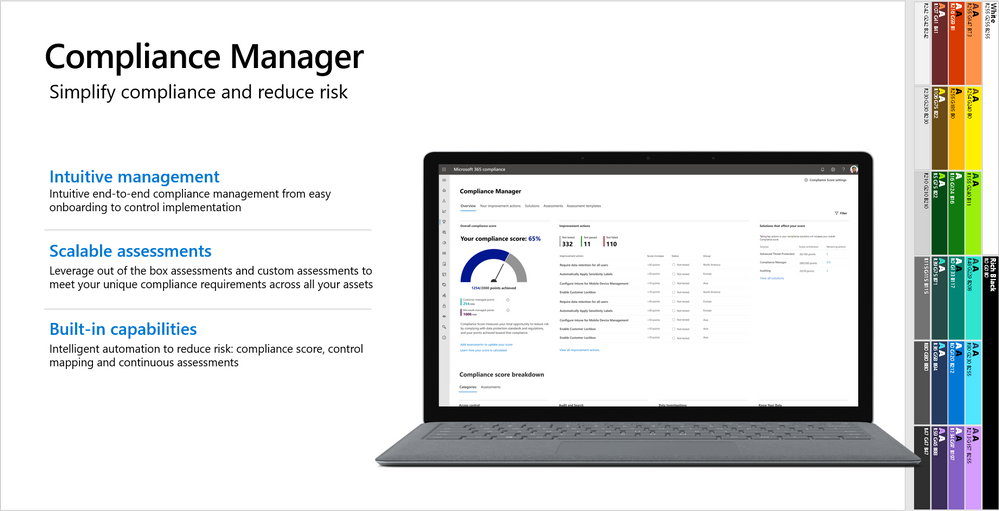
This webinar covers the exciting announcements made at Ignite, as well as what’s next for Compliance Manager.
Watch on-demand
Resources:
Microsoft Compliance Manager – Microsoft 365 Compliance | Microsoft Docs
Announcing general availability of Microsoft Compliance Manager – Microsoft Tech Community
This webinar was presented on April 20, 2021, and the recording can be found here .
Attached to this post are:
- The FAQ document that summarizes the questions and answers that came up over the course of both webinars.
- A PDF copy of the presentation.
Thanks to those of you who participated during the two sessions and if you haven’t already, don’t forget to check out our resources available on the Tech Community.
Thanks!
@Robin_Baldwin on behalf of the MIP and Compliance CXE team
by Contributed | Apr 29, 2021 | Technology
This article is contributed. See the original author and article here.
Protection on shared devices, Setup Assistant with modern authentication, and insights into OS health – What’s New in Microsoft Endpoint Manager – 2104 (April) Edition
This month, we’re releasing new capabilities that update the user experience across multiple platforms. You can view the complete list of What’s New in the 2104 (April) release for details. I previewed a few of these new capabilities at Ignite; now, they are here for you to use! As usual, I appreciate your feedback. Please feel free to comment on this post, connect with me on LinkedIn, or tag me @RamyaChitrakar on Twitter.
Protect privacy and data on Android Enterprise-managed devices shared by frontline workers
Frontline workers that share dedicated devices perform critical jobs like maintaining supply chains, serving as first responders, and caring for patients. This month we’re announcing general availability for IT to configure and enable users to enroll Android Enterprise dedicated devices into Azure AD Shared device mode. Organizations can now protect privacy and data on Android Enterprise managed devices shared between workers. I’m excited for the value the team is delivering to ensure that frontline workers have access to the tools and technology they need with the appropriate level of security, regardless of the device they may be on.
Shared device mode on Android Enterprise devices offers single sign-in, single sign-out, and data clearing across applications written to support multiple users. This manageability provides privacy between users and reduces the number of steps frontline workers need to take to work in their apps. Today, Microsoft applications optimized for Shared device mode include Microsoft Teams and Managed Home Screen.
Here’s a frontline worker day in the life shared device experience from starting their shift to ending their day, all the while collaborating on Microsoft Teams:
More apps are coming soon; this is just the beginning. You can optimize your company’s private applications for Shared device mode by following our guide. When you configure an Android device with Shared device mode, you can also apply additional security measures such as Conditional Access policies to reduce the risk of unauthorized access to company data from shared devices while optimizing the experience for users. For example, you can manage the requirement for multi-factor authentication for users who may not carry their primary device during shifts.
Setup Assistant with modern authentication for Automated Device Enrollment on iOS/iPadOS/macOS
Many of you shared that you want a quick, secure, and easy authentication method that won’t stop employees from immediately starting to work for your purpose-driven iOS/iPadOS and macOS devices. This month, we released a public preview of Setup Assistant with modern authentication for Automated Device Enrollment. This new enrollment method allows your employees to start using these managed devices right after enrollment without waiting for the Company Portal to install on a locked down device.
With the security that comes with modern authentication, you can now configure your Azure AD settings within a Conditional Access policy to require multi-factor authentication either during enrollment in the Setup Assistant or upon authentication in the Company Portal. For apps that support it, you have a single sign-on experience while layering on your security and compliance requirements, if desired. Additionally, as part of this secure enrollment flow, if your user lands on the home screen post-enrollment and tries to open a resource protected by Conditional Access before signing into the Company Portal, we’ve added a user experience that will guide them through authentication. You can read more on how to configure these scenarios in this post.
Let’s look at Setup Assistant with modern authentication:
Windows restart frequency report in Endpoint Analytics
Finally, I previewed the Windows restart frequency feature in the Ignite Edition of What’s New. Since this is such a frequently asked for feature, I thought it important to share that this capability is generally available now for you to fully configure.
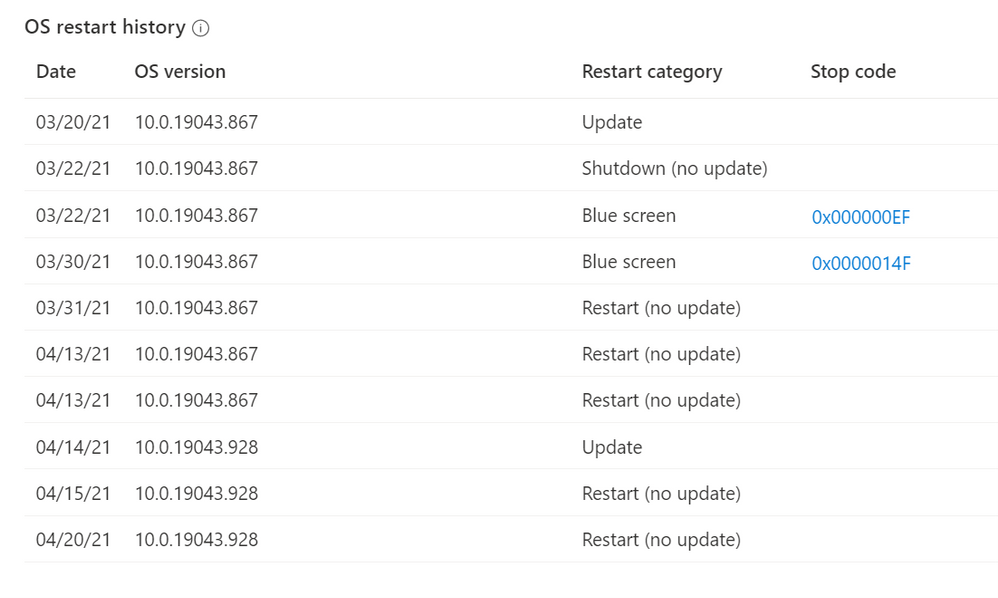
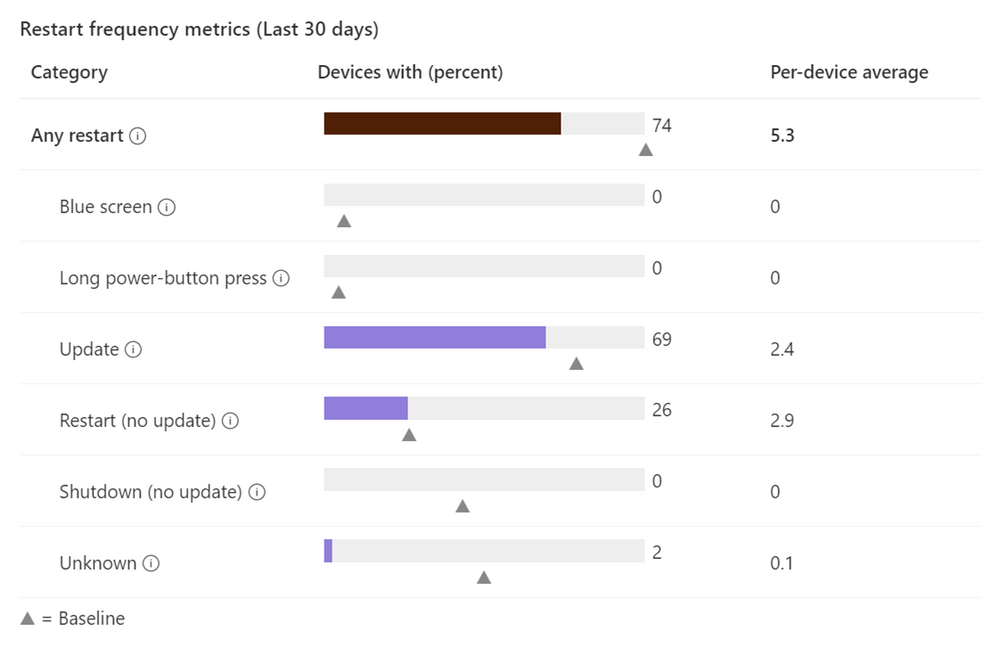
Use Endpoint analytics to measure and review device start-up time, restart frequency, and drill down on disruptive restarts, such as those caused by blue screens. The full power of analytics can also help you determine if a user has an abnormally high number of unexpected restarts, enabling you to more quickly troubleshoot and take appropriate action.
Here’s what the restart frequency looks like in the Microsoft Endpoint Manager admin center, and the following screen shot shows additional OS restart history:
We are always working with our customers’ needs top of mind. We listen to your feedback and make changes and investments based on your goals to improve the user experience as well as help simplify IT administration. Next month I expect you’ll see more focus on capabilities that improve the administrator experience. Questions? Feedback? Comment on this post, connect with me on LinkedIn, or tag me @RamyaChitrakar on Twitter.
by Contributed | Apr 29, 2021 | Technology
This article is contributed. See the original author and article here.
At the Microsoft Business Applications Summit (MBAS) this year. Join the Power BI team and be inspired by exciting new features, see amazing demos, learn about our roadmap, see real world stories and connect with your peers from the awesome Power BI Community!
The official event starts at 8:00 AM PDT, however, the Power BI sessions begin at 10:45 AM PDT.
https://powerbi.microsoft.com/en-us/blog/join-us-for-microsoft-business-applications-summit-may-4th-2021/


Recent Comments