
Mastering Configuration in Defender for Office 365 – Part Two
This article is contributed. See the original author and article here.
This blog is part two of a three-part series detailing the journey we’re on to simplify the configuration of threat protection capabilities in Office 365 to enable best-in class protection for our customers.
In the previous blog in this series, we described how we have made it easier for customers to understand configurations gaps in their environment with recently launched features including Preset Security Policies, Configuration Analyzer, and Override Alerts. In this blog, we’ll take a closer look at additional capabilities we are enabling in the product as we continue forward on our journey to block malicious emails from being delivered to end users.
Secure by Default: Tackling the Legacy Override Problem
One of the challenges we are addressing is the legacy override problem. As we covered in the first blog, legacy overrides are tenant level or user level configuration that instruct Office 365 to deliver mail even when the system has determined that the message is suspicious or contains malicious content. As a result of these aging and overly permissive overrides, we get poorly protected pockets with the organization and enable malicious emails to be delivered to end users.
To combat this, we here at Microsoft believe it’s critical to keep our customers “secure by default”. We have determined that legacy overrides such as allowed sender and allowed domain lists in anti-spam policies and Safe Senders in Outlook tend to be too broad and cause more harm than good. As a security service, we believe it’s imperative that we act on your behalf to prevent your users from being compromised. That means these legacy overrides are no longer honored for email messages we believe are malicious. We already apply this approach with malware messages and now we are extending it to messages with high confidence phish verdicts. Our data also indicates that the false positive rate (good messages marked as bad) for high confidence phishing messages is extremely low, adding to our conviction about this approach.
This feels like a critical step, given how dangerous and voluminous phishing messages have become. To learn more about the current threat landscape, please check out our annual security intelligence report, the Microsoft Digital Defense Report.
Ensuring that users cannot interact with malicious emails
As part of our secure by default focus, we’ve also taken additional steps to eliminate the risk of email borne threats. Essentially, when Microsoft is confident that an email contains malicious content, we will not deliver the message to users, regardless of tenant configuration. These messages will be delivered to quarantine, not the junk folder. (In the junk folder, there is always the risk that the user might inadvertently release them to the inbox).
Only admins can manage malware or high confidence phish messages that are quarantined, because our data indicates that a user is 30 times more likely to click a malicious link in messages in the junk email folder versus quarantine.
Rolling out these secure by default changes
We’ve taken a very deliberate approach to rolling out these changes in phases to ensure customers are not surprised and there are no negative side effects. We began to rollout Secure by Default for high confidence phishing messages by the override type starting in December of last year.
Today, we’re at a point in our Secure by Default journey where the following overrides are not honored for malicious emails (malware or high confidence phish emails):
- Allowed sender lists or allowed domain lists (anti-spam policies)
- Outlook Safe Senders
- IP Allow List (connection filtering)
In addition, all malicious emails are delivered to quarantine by default.
Learn more about how we are keeping customers secure by visiting our documentation.
The Next Phase of Secure by Default rollout – Tackling transport rules
In June, we will extend Secure by Default to cover high confidence phishing messages for the remaining legacy override type, Exchange mail flow rules (also known as transport rules or ETRs).
ETRs represent roughly 60% of the high confidence phish message override volume we see, making this phase essential in achieving our Secure by Default goal for customers. For more on ETRs, check out our documentation on mail flow rules.
While ETRs represent a large problem space, it is complicated by the fact that customers and vendors have come to rely on it as a way to achieve two specific scenarios where the ‘override’ of malicious messages is quite deliberate and intentional.
- Phish simulation campaigns: These are messages that Defender for Office 365 routinely detects as being malicious, so customers put ETR rules in place to direct the system to not block delivery of these messages to end users.
- Security Operations mailboxes: These are special mailboxes customers setup to support the ability for end users to report malicious emails to SecOps teams.
In both these cases, customers do legitimately want the malicious emails delivered to achieve a very specific business goal.
So, in our effort to eliminate the unintentional ETR overrides of malicious emails, we needed to first make sure there was a say way for customers to achieve the above two goals without having to rely on ETRs as a blunt instrument.
Introducing Advanced Delivery for Phishing Simulations and Security Operations Mailboxes
As we covered above, there are special scenarios where security teams may want to explicitly direct that high confidence phish are delivered.
- Third-party phish simulations
- Security operations mailbox
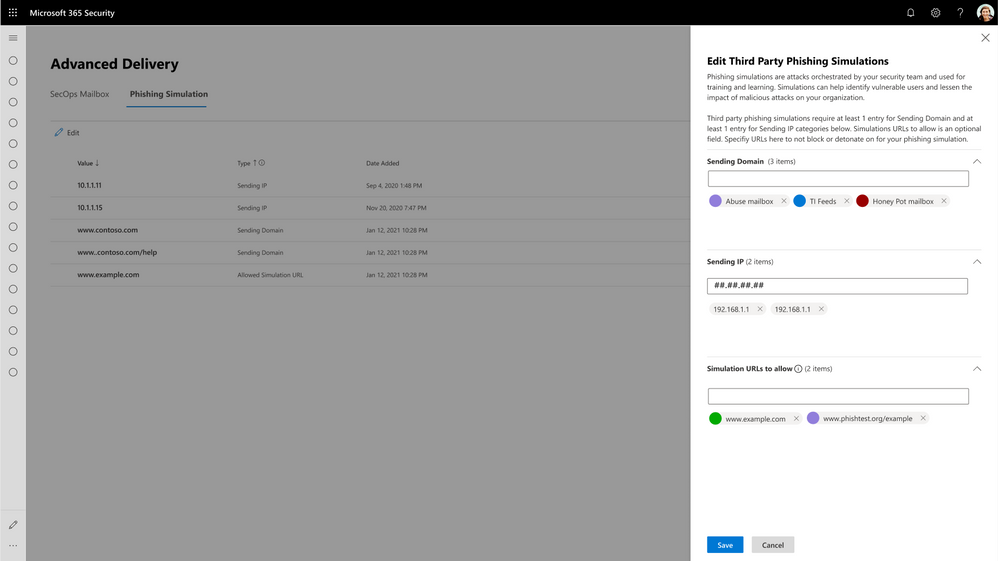
Customers have asked us for a method to explicitly configure message delivery for these scenarios and for the ability to view and filter these messages across our admin experiences. In June, we will launch the new Advanced Delivery capability for these scenarios, providing a method for security admins to explicitly configure for these in-product.
Figure 1: Configuring Third-Party Phishing Simulation Campaigns with Advanced Delivery.
With Advanced Delivery, we will ensure messages configured as part of these scenarios are handled correctly across the product. The protection filters will respect these configurations and not block these messages. And we will also show off these messages with the appropriate annotations in all of the reporting, investigation and security experiences in the product, so security teams and admins are not confused about the true nature of these messages.
Since these do not represent a real threat to your organization, we will, for example, not flag the messages as malicious and inadvertently remove them from your inbox, and we’ll skip things like triggering alerts, detonation, and automated investigations. However, admins will have the ability to filter, analyze and understand messages delivered due to these special scenarios.
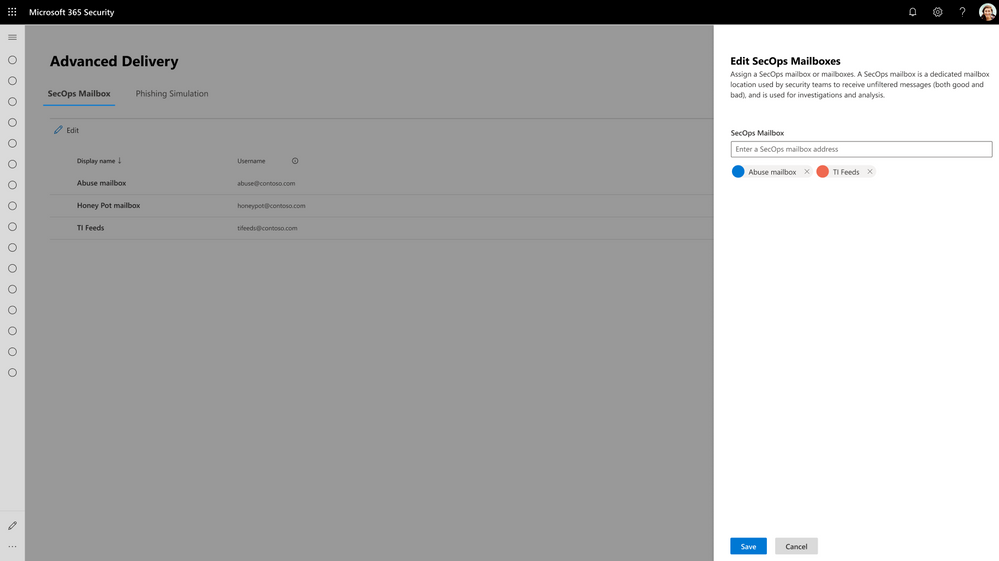 Figure 2: Configuring Security Operations Mailboxes with Advanced Delivery.
It will be important for customers who are utilizing ETRs to configure third-party party phishing simulation campaigns or delivery for security operation mailboxes today to start configuring these with the new Advanced Delivery policy when the feature is launched in June.
After the last phase of Secure by Default is enabled in July, Defender for Office 365 will no longer deliver high confidence phish, regardless of any explicit ETRs.
To learn more about the new advanced delivery policy, learn more on Microsoft Docs.
Making it easy for customers
This new way of handling phishing simulations from 3rd party vendors and security operations mailboxes is cleaner and offers a great deal of predictability for security teams. We’ve seen numerous occasions where security admins and SecOps members have been stirred into action inadvertently because of lack of clarity in this regard. This new capability above eliminates all that confusion.
Most significantly, this feature makes it easier for security and messaging admins to rest assured that their ETR rules cannot impact the protection of their users, and prevents them from having to manually inspect all of their ETR rules (a daunting task) to guarantee that.
Stay tuned…
We covered here additional changes we’ve made to help customers understand configuration gaps and the capabilities we’ve launched to eliminate the legacy override problem. In the next blog, we will share details about additional features we are building to further eliminate the configuration gap problem in the case where customers may be unaware of security policy features available to them and have not turned these on.
Do you have questions or feedback about Microsoft Defender for Office 365? Engage with the community and Microsoft experts in the Defender for Office 365 forum.

Recent Comments