by Contributed | Apr 30, 2021 | Technology
This article is contributed. See the original author and article here.
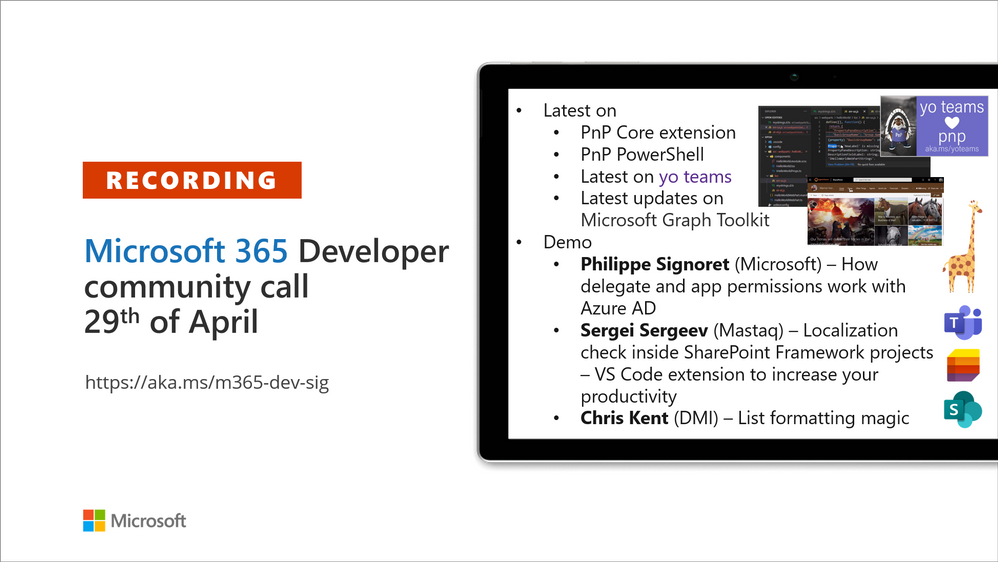
Recording of the Microsoft 365 – General M365 development Special Interest Group (SIG) community call from April 29, 2021.
Call Summary
Latest news from Microsoft 365 engineering and updates on open-source projects: PnP .NET libraries, PnP PowerShell, modernization tooling, on yo Teams, on Microsoft Graph Toolkit, and on Microsoft Teams Samples.
Announcing the release of SharePoint Framework v1.12.1, check out the new Microsoft 365 Extensibility look book gallery, visit the Microsoft Teams samples gallery to get started with Microsoft Teams development, please complete the Microsoft 365 developer community survey, and register now for May trainings on Sharing-is-caring. Open-source project activity is focused on prepping for May releases.
Open-source project status:
Project |
Current Version |
Release/Status |
PnP .NET Libraries – PnP Framework |
v1.4.0 |
Bug fixes, Prepping for v1.5.0 (May) |
PnP .NET Libraries – PnP Core SDK |
v1.1.0 |
Bug fixes, Prepping for v1.2.0 (May) |
PnP PowerShell |
v1.5.0 |
Prepping for v1.6.0 (May) |
Yo teams – generator-teams |
v3.0.3 GA, v3.1.0 Preview |
Preview with Viva Connections support |
Yo teams – yoteams-build-core |
v1.1.0 |
|
Yo teams – msteams-react-base-component |
v3.1.0 |
|
Microsoft Graph Toolkit (MGT) |
v2.1.0 GA, v2.2.0 Preview |
Bug fixes and v2.2.0 preview updates |
Additionally, one new Teams sample delivered. The host of this call was Vesa Juvonen (Microsoft) | @vesajuvonen. Q&A takes place in chat throughout the call.
Actions:
- Last week to complete the Microsoft 365 Developer Community Survey – https://aka.ms/m365pnp/survey
- Try the public beta of SPFx v1.12.1.
- Reserve date – SharePoint Monthly community call – 11th of May 8 AM PDT | https://aka.ms/sp-call
- Register for Sharing is Caring Events:
- First Time Contributor Session – May 24th (EMEA, APAC & US friendly times available)
- Community Docs Session – April
- PnP – SPFx Developer Workstation Setup – May 13th
- PnP SPFx Samples – Solving SPFx version differences using Node Version Manager – May 20th
- AMA (Ask Me Anything) – Power Platform Samples – May 5th
- AMA (Ask Me Anything) – Tech Community – May 11th
- First Time Presenter – May 25th
- More than Code with VS Code – May 27th
- Maturity Model Practitioners – May 18th
- PnP Office Hours – 1:1 session – Register
- Download the recurrent invite for this call – http://aka.ms/m365-dev-sig
- Call attention to your great work by using the #PnPWeekly on Twitter.
Microsoft Teams Development Samples: (https://aka.ms/TeamsSampleBrowser)
- Document manager sample app using messaging – Sathya Raveendran, Varaprasa…

Thank you for being part of the community and for helping others to succeed. You are awesome!
Demos delivered in this session
Delegated and application permissions in the Microsoft Identity Platform – demystifies the identity model with a clearly delivered 100 level overview of app permissions – operation and terminology, i.e., delegation, requests, grants, consent, tokens, etc. How app/services permission delegation works, how tokens are aligned to a machine or to a person. Is the app or person authorized to access resources? How and when machines dynamically/statically request permissions and more.
Localization check inside SharePoint Framework projects – VS Code extension to increase your productivity – a VS Code and Node.js extension that keeps resources in sync by making sure all localization labels inside SharePoint Framework project files across organization are consistent. The extension is automatically activated for your SPFx solutions and checks, whether localization resource files (en-us.js, nl-nl.js, etc.) follow the pattern, defined in the corresponding strings.d.ts. Prevents accidental or refactoring errors in SPFx solutions.
Using field lookups with list formatting – Field Type = “Lookup.” Lookups get values from a list and have limited formatting options. Of horse, this limitation does not deter Chris from showing crazy, crazier, craziest formatting options for lookups. Approach = format the lookup column into which content from the list will flow. Use advanced forEach property. In this demo, Chris shows formatting capabilities available in a referenced sample.
Thank you for your work. Samples are often showcased in Demos.
Topics covered in this call
- PnP .NET library updates – Bert Jansen (Microsoft) | @O365bert – 6:59
- PnP PowerShell updates – Bert Jansen (Microsoft) | @O365bert – 8:43
- yo Teams updates – Wictor Wilén (Avanade) | @wictor – 9:53
- Microsoft Graph Toolkit updates – Beth Pan (Microsoft) | @beth_panx – 11:10
- Microsoft Teams Samples – Vesa Juvonen (Microsoft) | @vesajuvonen – 12:33
Demo: Delegated and application permissions in the Microsoft Identity Platform – Philippe Signoret (Microsoft) | @psignoret – 14:48
Demo: Localization check inside SharePoint Framework projects – VS Code extension to increase your productivity – Sergei Sergeev (Mastaq) | @sergeev_srg – 30:22
Demo: Using field lookups with list formatting – Chris Kent (DMI) | @theChrisKent – 42:48
Resources:
Additional resources around the covered topics and links from the slides.
General resources:
Upcoming Calls | Recurrent Invites:
General Microsoft 365 Dev Special Interest Group bi-weekly calls are targeted at anyone who’s interested in the general Microsoft 365 development topics. This includes Microsoft Teams, Bots, Microsoft Graph, CSOM, REST, site provisioning, PnP PowerShell, PnP Sites Core, Site Designs, Microsoft Flow, PowerApps, Column Formatting, list formatting, etc. topics. More details on the Microsoft 365 community from http://aka.ms/m365pnp. We also welcome community demos, if you are interested in doing a live demo in these calls!
You can download recurrent invite from http://aka.ms/m365-dev-sig. Welcome and join in the discussion. If you have any questions, comments, or feedback, feel free to provide your input as comments to this post as well. More details on the Microsoft 365 community and options to get involved are available from http://aka.ms/m365pnp.
“Sharing is caring”
Microsoft 365 PnP team, Microsoft – 30th of April 2021
by Contributed | Apr 30, 2021 | Technology
This article is contributed. See the original author and article here.
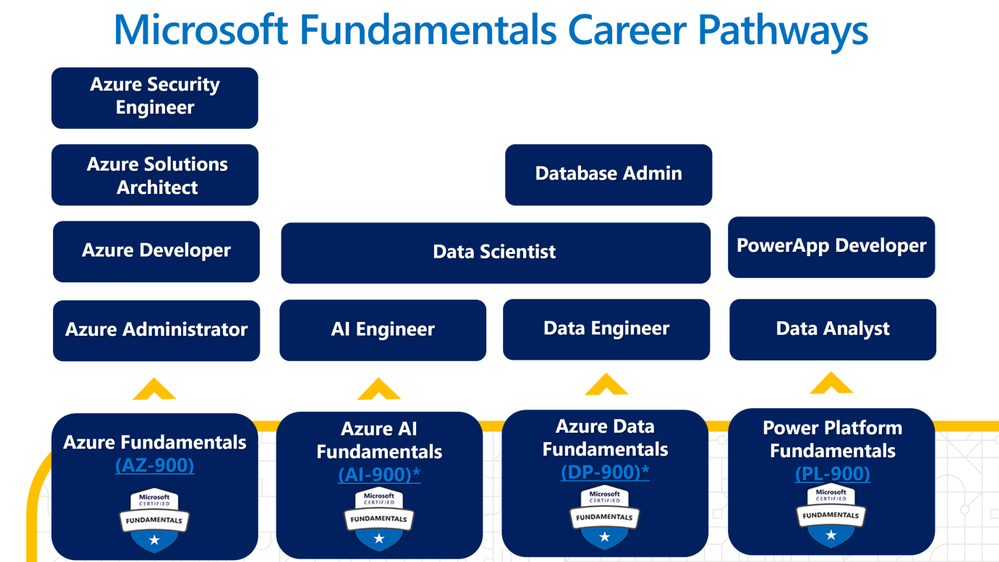
Millions of users are looking to you, the developers, to build engaging and unique application experiences by leveraging the wealth of data and intelligence made accessible through Microsoft technologies. If you’re a educator, student, business user, or beginning technical professional, this certification can accelerate your progress and give your career a boost, as you use your Microsoft skills to improve your team’s productivity.
No experience is necessary to train for any of the fundamentals, basic familiarity with computer technology, data analytics, cloud computing, and the internet. Think of a fundamentals certification as the first step in growing your skill set and advancing to other certifications.
Azure Course in a Box Resources
Curriculum resources
• MSLearn for Educators Program
•Microsoft Learn Self-Study
LMS Integration
•MSLearn Catalog API
•MSLearn LTI Application
Hands on Learning
•Microsoft Learn
•Azure for Students
•Microsoft Students Ambassadors
•Azure Devtools for Teaching
•Azure Lab Services (PAID)
•Github for EDU (PAID)
•LinkedInLearning (PAID)
Power Platform Fundamentals
Learn the business value and product capabilities of Power Platform. Create simple Power Apps, connect data with Microsoft Dataverse, build a Power BI Dashboard, automate a process with Power Automate, and build a chatbot with Power Virtual Agents.
The Microsoft Power Platform Fundamentals certification could be a great fit for you, if you’d like to:
- Build solutions with Microsoft Power Platform.
- Automate basic business processes with Power Automate.
- Perform data analysis with Power BI.
- Create simple Power Apps experiences.
- Build practical chatbots with Power Virtual Agents.
This certification has no prerequisites. However, if you’d like to gain some more experience, you could:
- Shadow a person on your team who works with Microsoft Power Platform.
- Explore available learning paths on Microsoft Learn.
- Sign up for an instructor-led training course.
Power Platform Fundamentals PL-900
Power Platform Fundamentals Learning Pathway Microsoft Learn
Ready for more advanced development
If you feel your ready to take on the next challenge I would suggest you watch the session on demand Learn Together: Building Apps with Microsoft Graph | Channel 9 (msdn.com)
The Session covers:
- Why you should consider building apps with Microsoft Graph
- How to get started building apps using the Microsoft Graph Toolkit
- What the top 5 features are to make your application stand out
Quickly get started learning how to build these apps and stick around to connect with your developer community!
- Graph Learn Challenge: aka.ms/challenge-graph
- Enter the challenge for a chance to win prizes!
- Complete learn modules and test your knowledge about Microsoft Graph
- Microsoft Graph docs: aka.ms/docs-graph
- Overview documentation for Microsoft Graph with tutorials, reference docs, and more information to get started building apps with Graph
- Microsoft Graph Fundamentals learning path: aka.ms/learn-graph
- New to Graph? Start your dev journey with an introductory Learning Path.
- Microsoft Graph Toolkit module: aka.ms/learn-mgt
- Love how east the toolkit makes things? Learn more on Learn!
Additional Resources
by Contributed | Apr 30, 2021 | Technology
This article is contributed. See the original author and article here.
A lot of news surrounding Azure Service updates this week. News the team will be covering includes Azure Monitor – Stateful and 1 minute frequency Log Alerts, New Azure VMs for general purpose and memory intensive workloads now in public preview, Azure Cost Management and Billing updates – April 2021, Microsoft acquires Kinvolk to accelerate container-optimized innovation and the Microsoft Learn module of the week.
Stateful and 1-miute frequency Log Alerts in Azure Monitor
Log alerts, one of the alert types that are supported in Azure Monitor, allow users to use a log analytics query to evaluate resources logs every set frequency followed by sharing an alert based on the results. Rules can trigger one or more actions using action groups. Two of the most requests features of log alerts are now available in public preview:
- Stateful log alerts – With this feature enabled, fired alerts should automatically resolve once the condition is no longer met. This is like the default behavior in metric alerts.
- 1-minute Frequency – With this feature enabled, the alert query will be evaluated every minute to check the condition. Reducing the overall time to fire of a log alert.
There are currently no additional charges for 1-minute log alerts while in preview. Pricing for features that are in preview will be announced in the future and a notice provided prior to start of billing. Using 1-minute frequency log alerts after the notice period, will be billed at the applicable rate. Stateful log alerts is planned to not incur additional charge when GA.
Visit log alerts in Azure Monitor to learn more.
New Azure VMs for general purpose & memory intensive workloads in public preview
The new in preview Dv5, Dsv5, Ddv5, Ddsv5, and Ev5, Edv5 series Azure Virtual Machines (VMs) are based on the 3rd Generation Intel® Xeon® Platinum 8370C (Ice Lake) processor in a hyper-threaded configuration. This custom processor can reach an all-core Turbo clock speed of up to 3.5GHz and features Intel® Turbo Boost Technology 2.0, Intel® Advanced Vector Extensions 512 (Intel® AVX-512) and Intel® Deep Learning Boost. These new offerings deliver a better value proposition for general-purpose, and memory intensive workloads compared to the prior generation (e.g., increased scalability and an upgraded CPU class) including better price to performance.
Read the entire announcement here: Upgrade your infrastructure with the latest Dv5/Ev5 Azure VMs in preview
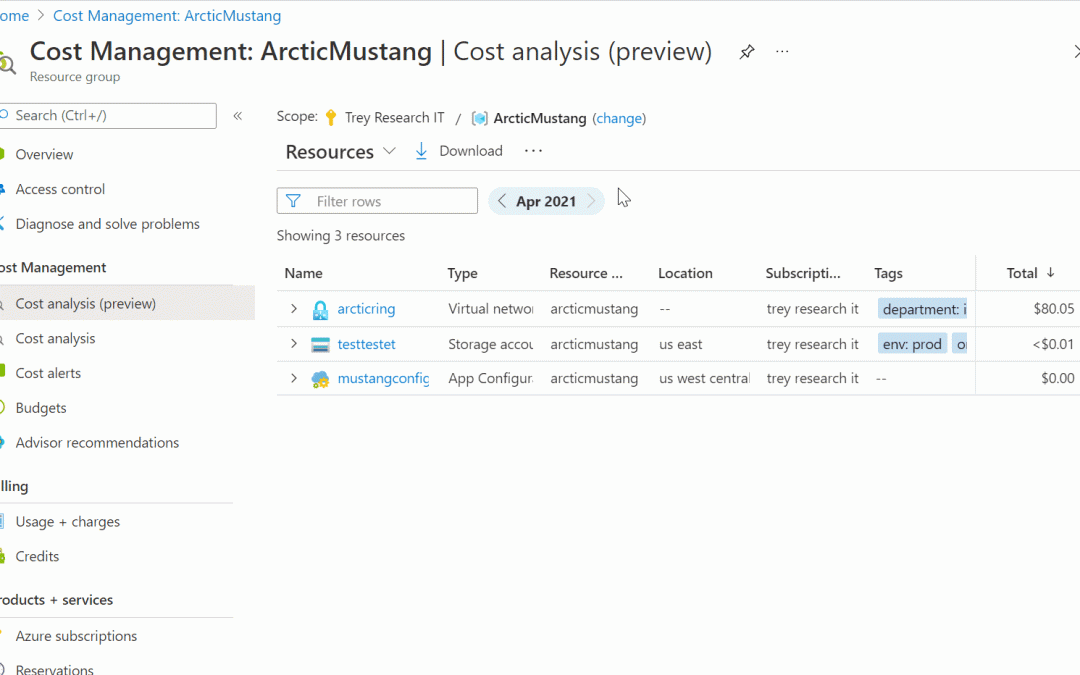
Azure Cost Management and Billing updates for April 2021
No organization wants a surprise when it comes to their cloud compute bill, and this is where Azure Cost Management and Billing can help.
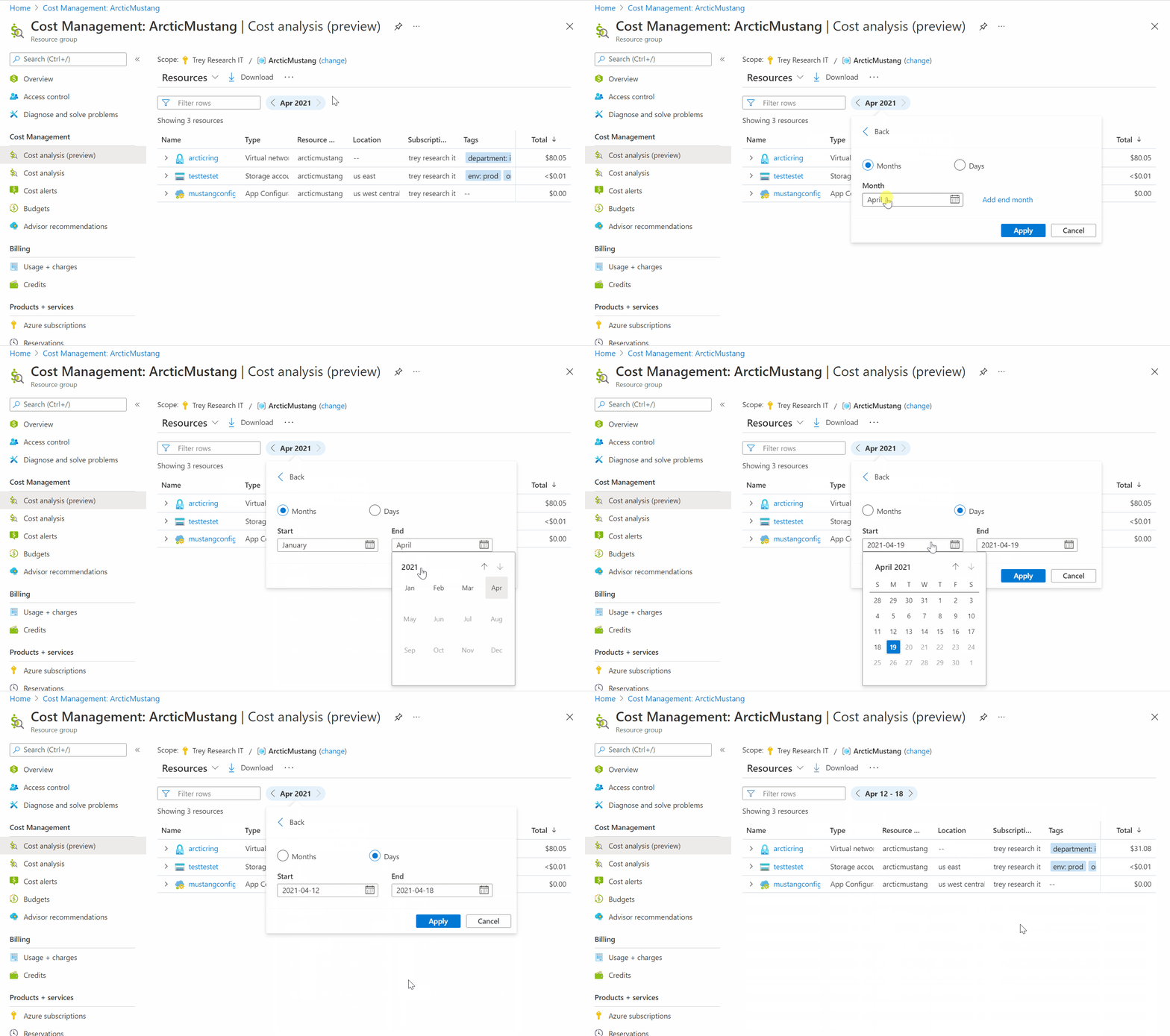
Microsoft is always looking for ways to learn more about how Azure Cost Management and Billing can help better understand where you’re accruing costs in the cloud, identify and prevent bad spending patterns, and optimize costs to empower you to do more with less. Here are a few of the latest improvements and updates based on your feedback:
Microsoft acquires Kinvolk to accelerate container-optimized innovation
Microsoft is excited to bring the expertise of the Kinvolk team to Azure and having them become key contributors to the engineering development of Azure Kubernetes Service (AKS), Azure Arc, and future projects that will expand Azure’s hybrid container platform capabilities and increase Microsoft’s upstream open source contributions in the Kubernetes and container space.
Microsoft is also committed to maintaining and building upon Kinvolk’s open source culture. The Kinvolk team will continue to remain active in their existing open source projects and will be essential to driving further collaboration between Azure engineering teams and the larger open source container community.
Further information can be found here: Microsoft acquires Kinvolk
Community Events
MS Learn Module of the Week

Use Azure Lighthouse with your managed service business
Build strategies around security and compliance that enable you to authenticate and authorize your users, handle sensitive information, and enforce proper governance.

Modules include:
- Explore what Azure Lighthouse is
- Understand the features of Azure Lighthouse
- See how to use Azure Lighthouse for cross tenant management
- See how to use Azure Resource Manager templates
- Set up Security Center with Alerting
- Create a managed service offer on the Azure Marketplace
Learn more here: Use Azure Lighthouse with your managed service business

Let us know in the comments below if there are any news items you would like to see covered in the next show. Be sure to catch the next AzUpdate episode and join us in the live chat.
by Contributed | Apr 30, 2021 | Technology
This article is contributed. See the original author and article here.
Welcome to the April edition of What’s new in Teams – the monthly post where we’re keeping you updated on all the new features and innovation that we have made available in Microsoft Teams.
This month we’re also excited to announce we’ve launched our new Microsoft Teams Instagram account. Go check it out for fun updates and new ways to engage with the product.
Let’s check out all the new features we have delivered this month:
Meetings and webinars
Devices
Chat and Collaboration
Management
Frontline worker
Government
Meetings and webinars
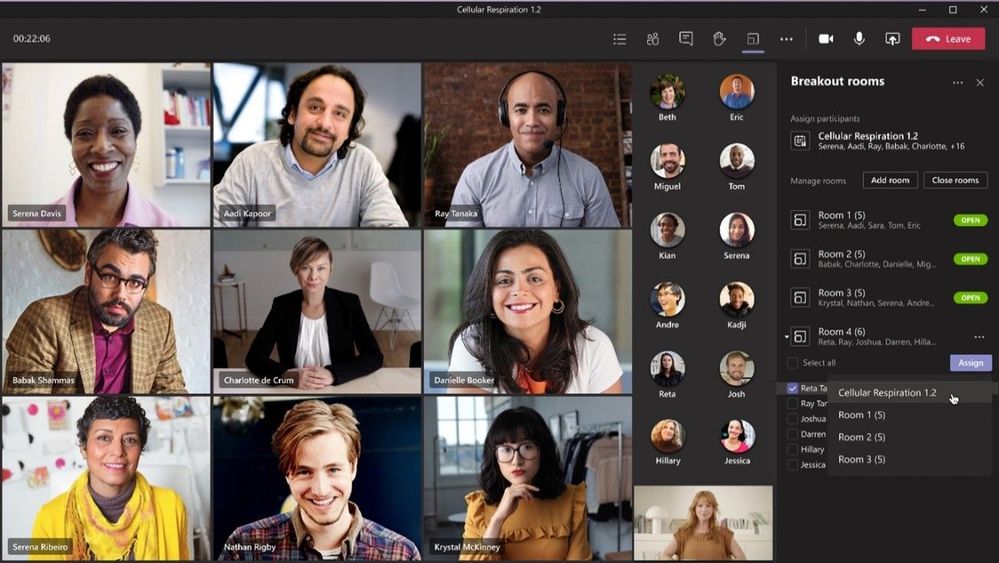
Breakout room retention and participant reassignment
Organizers can now reassign participants even when rooms are opened. Previously, you could only reassign when rooms were closed. Breakout room assignments also now persist over multiple sessions. These features are useful for efficiently managing discussions and ensuring the right participants are in each breakout. Learn more
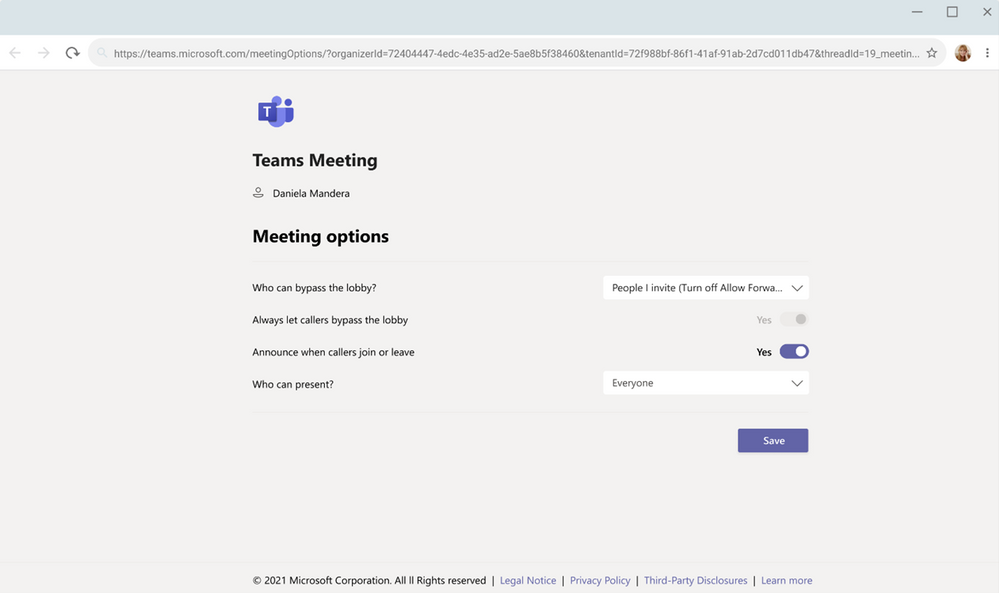
Invite-only meeting options
A new meeting setting is now available in Teams meeting options that automatically sends those who were not originally invited by the organizer to the lobby. For example, if an invitee forwards a meeting invitation to a colleague, when that person tries to join, they’ll be directed to wait in the lobby until the host selects to admit them. This helps prevent those uninvited from joining the meeting. Learn more
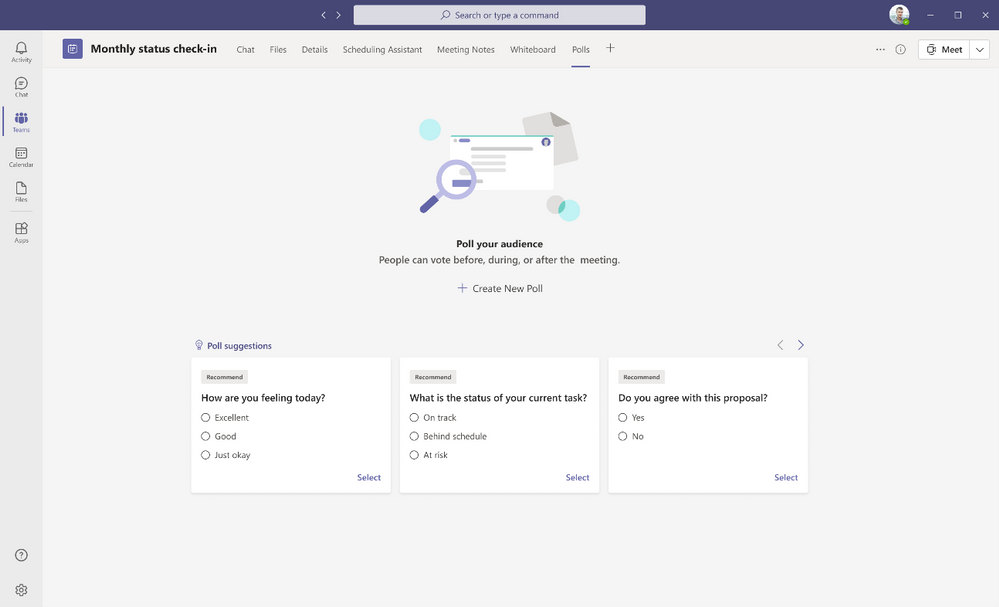
Polls in Teams meetings has advanced capabilities for expanded options, intelligent suggestions and analytics
Attendees and guest attendees on mobile devices can now participate in Polls in Teams meetings. Also, discover intelligent poll suggestions to prepare relevant poll questions quickly and analyze responses to take swift action post-meeting. Learn More
Enhanced meeting creation and expiration policies
For added security and compliance, Teams meetings and join links are disabled for users whose scheduling permissions have been revoked. Previously, a user could continue to reuse their old meeting join links after their scheduling capabilities have been disabled. This policy update automatically expires those old meeting links so they can’t be reused.
Improvements to audio permissions settings for attendees
As a meeting presenter and organizer, you can now manage attendee audio permissions with greater flexibility. Attendees no longer need to request to speak for you to allow them to unmute, and you also have the ability to prevent individual attendees from unmuting. Learn more
External presenter support for Live Events
For Live Events created in Teams, you can allow anonymous users who do not have an Microsoft Service Account (MSA) or Azure Active Directory (AAD) identity to be a presenter. This makes it easier for people outside of your organization to deliver presentations for your Live Events. Learn more
Producer Management in Teams Live Events
You can now manage a live event as a Producer in a separate Teams window, so you can simultaneously support the event, while still collaborating with others on Teams.
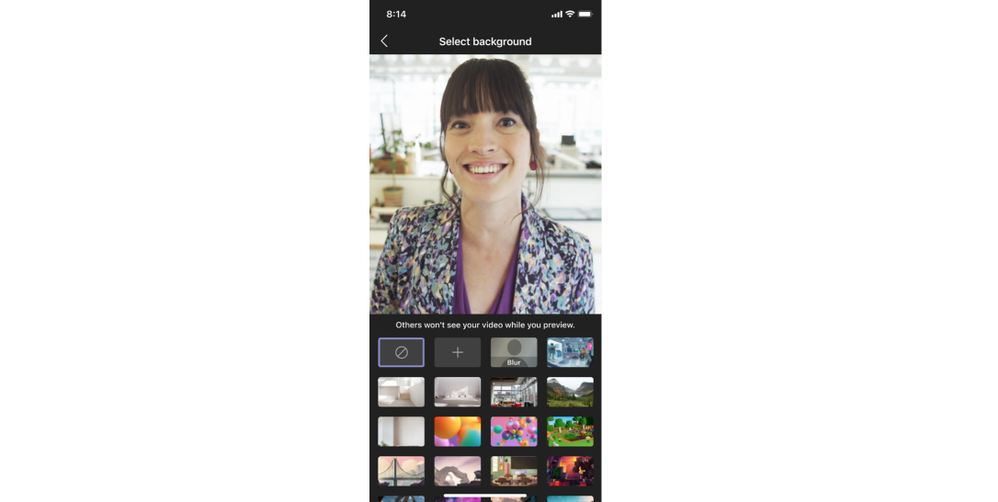
Custom Backgrounds on iOS for Teams meetings
Custom backgrounds are now available on iOS. Select from Microsoft provided backgrounds or one of your own directly from your iOS mobile device. Now you can make your video meetings more fun and personal while you’re on the go. Learn more
Teams casting from Android and iOS Teams App
For quick ad-hoc meetings that don’t require a formal scheduled meeting, users can leverage Teams casting to wirelessly connect to a Teams Room and display content from their mobile device. Users can broadcast their screen and share content stored locally on their device or accessible via Teams or OneDrive. Learn more
Devices
Microsoft Teams Rooms on Windows updates
Microsoft Teams Rooms on Windows, version 4.8.19.0, is available in the Teams Admin Center. The latest update includes:
- Improved meeting join experience – Customers using Advanced Threat Protection safe link service can now reliably offer external users a seamless meeting join experience. Organizations using a third-party URL rewrite service just need to add teams.microsoft.com domain to their exception list.
Microsoft Teams Rooms on Android updates
- Center of room meeting console support – Meeting participants can now control the center of room touch control console the same way they do on Windows devices, using directional keys to navigate. The touch console includes calendar functionality to view current and upcoming meetings, ability to view participants or add more, and features the most common meeting and calling functionalities. Currently available with Poly TC8 and Yealink CTP18 devices.
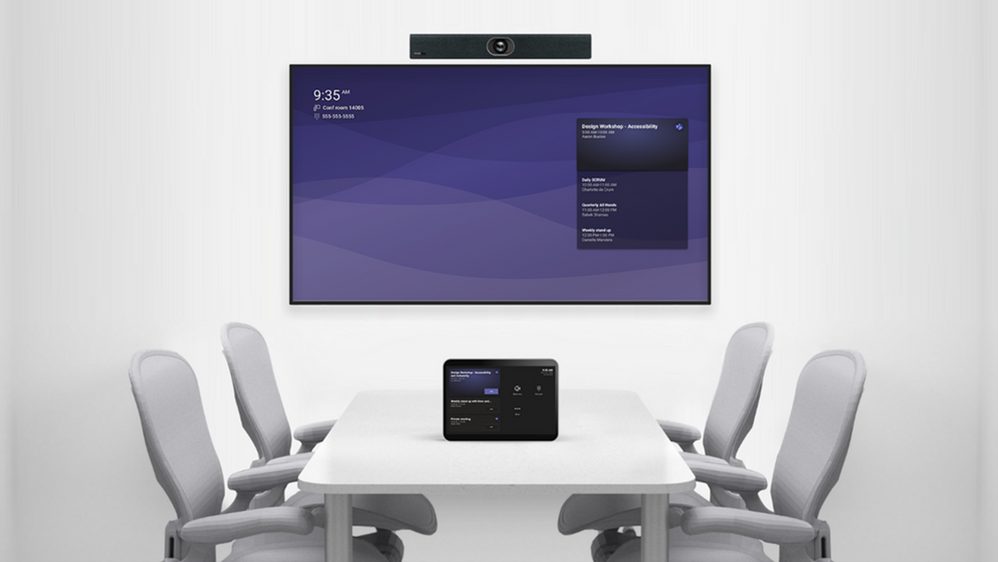
Improved display experience in Microsoft Teams Rooms
Get a full view of a conference room’s daily schedule, join a meeting, and interact with common features like calling—right from the easy-to-navigate, front of-room display screen.
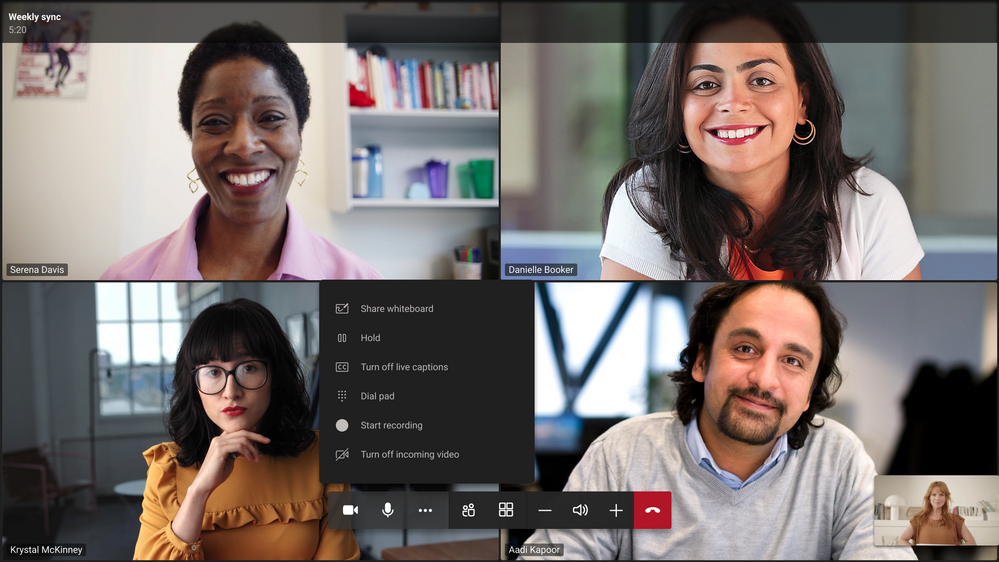
Join meetings from the room console in personal mode
Bring more Microsoft Teams Rooms experiences to meetings by signing in with your personal credentials and navigating from the center-of-room touchscreen console. From the console, you can apply background effects, record the meeting, and initiate whiteboarding to share with both in room and remote participants.
Intelligent detection and remediation for Microsoft Teams Rooms
The service in Microsoft Teams Rooms Premium uses Microsoft Defender for Endpoint to provide advanced threat protection capabilities that can detect incidents, vulnerabilities, and missing security KBs. The service will take action based on these detections to apply necessary updates, keeping your rooms secure and ready to go. Learn more
Threat detection and security update management for Microsoft Teams Rooms
The service in Microsoft Teams Rooms Premium uses Microsoft Defender for Endpoint to provide advanced threat protection capabilities that can detect incidents, vulnerabilities, and missing security KBs. The service will take action based on these detections to apply necessary updates, keeping your rooms secure and ready to go.
Microsoft and Surface Accessories Certified for Teams
The first line up of Microsoft and Surface devices certified for Teams include the Microsoft Modern USB & Wireless headsets, providing both a wired and wireless option for headsets that keep Teams call controls at user’s fingertips. Additionally, we have the first Surface audio device certified for Teams. This premium headset has a dedicated Teams button and an advanced microphone system to provide great voice clarity in your meetings.

For users who prefer audio to be amplified by speakerphone, the new Microsoft Modern USB-C Speaker captures and delivers sound such that users are heard clearly in their calls and meetings. A convenient Teams button brings up the interface and a simple USB-C wire keeps users connected all day.

The new Microsoft Modern Webcam lets you be seen clearly in their video calls and meetings and activates Teams features like background blur and replacement. It can be easily attached to a laptop, monitor, or tripod and connected to a PC or docking station via USB cable. 1080p video, 78 degree field of view, and True Look technology makes this device great for personal office use. And when you don’t want to be on video, a privacy shutter slides closed with an LED indicator letting you know when you are and are not seen in meetings.

New web cameras from Poly and Yealink
The Yealink UVC20 is a personal web camera designed for easy plug and play functionality. Connect to a laptop or monitor, a privacy shutter lets you switch off video when you need to and a powerful 5 megapixel camera let’s you be seen even in low or backlit conditions.
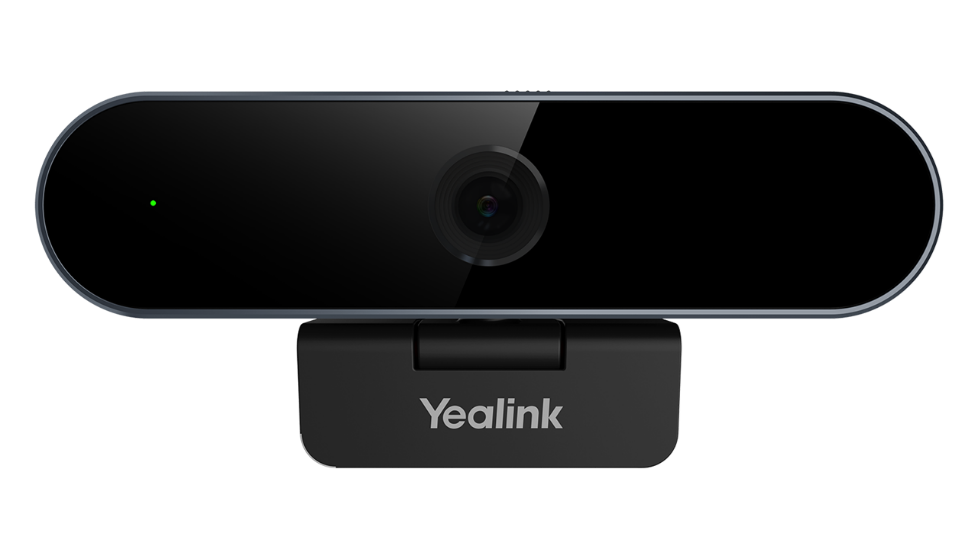
The Poly Studio P5 is the first web camera from the brand designed entirely with the personal office in mind. It’s compact form factor, exceptional camera optics, and digital zoom technology work for where users work, allowing you to show up to your video calls and meetings with confidence and clarity.

Lower-cost phones from Audiocodes and Yealink
The Audiocodes C435HD and the Yealink MP52 are two new phones with a lighter weight experience bringing them to a lower price point. Now you can experience the same richness of a Teams call with devices better suited for your budget.

Chat and collaboration
Product feedback tool in Microsoft Teams
We are here to listen for your feedback. Teams automatically reviews the feedback that you submit, and provide help documentation related to the topic, if available. Additionally, once enabled by Teams administrator, you have the option to share your email address when submitting feedback in Teams, to allow for Microsoft to follow-up with you.
Windows 10 native notifications in Teams
You can now choose the style of your notifications: built-in Teams or Windows native notifications. The latter brings a suite of benefits, like respecting focus assist mode which enables you to avoid distracting notifications when you need to focus, and integrating with Windows 10 action center to helps you review your notifications in one place. If you have a Windows build 10.0.17763.288 or higher, you can make this change in Teams notifications settings.
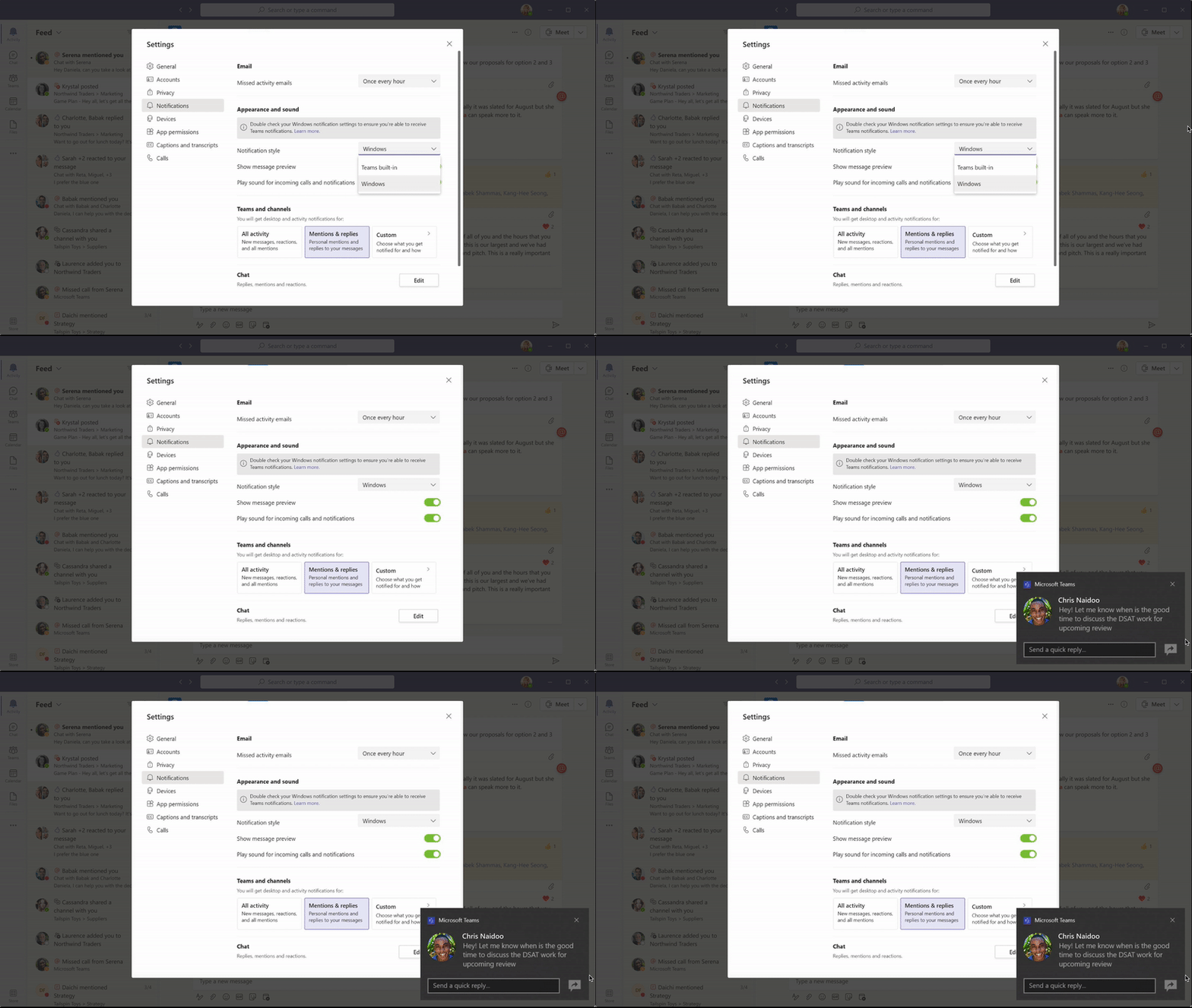
Visual update to Microsoft Teams mobile app on Android and iOS
The Teams mobile app has a new visual look and feel that delivers new headers, icons, and styling along with the ability to automatically switch to dark theme when you set your device to dark.
Organize chats in mobile app
In the Teams mobile app, you are now able to pin chats and filter the Chat list. This is great for when you quickly want to get back into important conversations! Pinned chats are also rolling out on Android shortly.
Emoji library and GIFs in mobile app on Android and iOS
In the Teams mobile app, there is an expanded library of emojis, and the ability to trim GIFs directly in the app.
Management
Preconfigured website tab in Team Templates
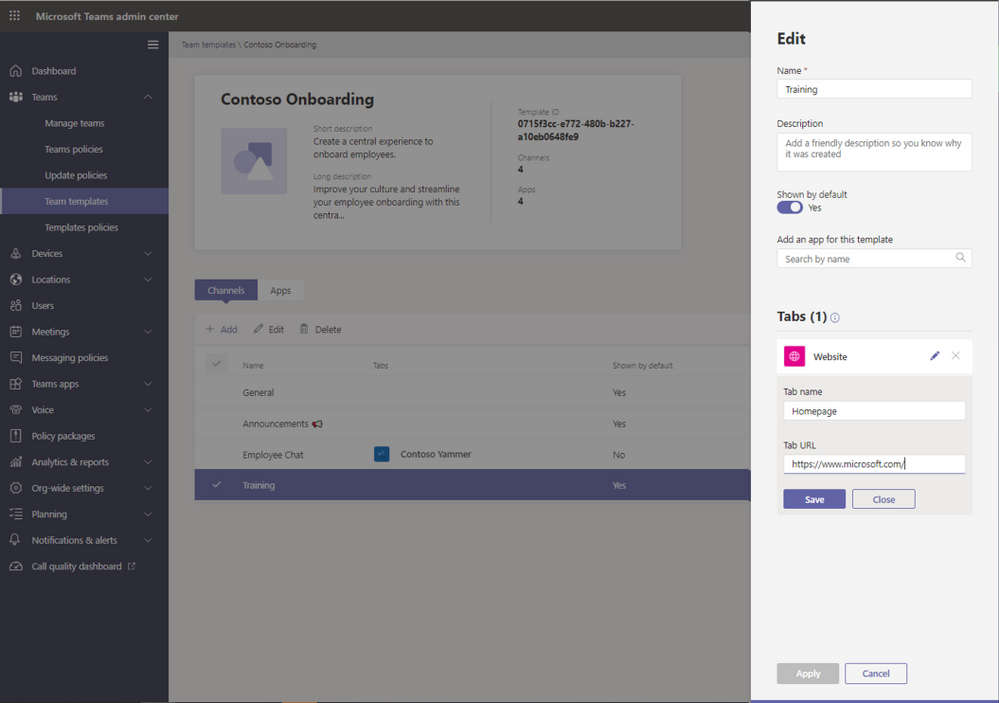
As an admin you can now add a URL of their choice to the website tab in a team template. When the end-user creates a team using the pre-built template, it will include the preset website you specified, making it easier to distribute standardized content to the entire organization. End-users can access important web resources, such as company sites, commonly visited pages, online documents, from their team with minimal manual set up.
App customization and branding
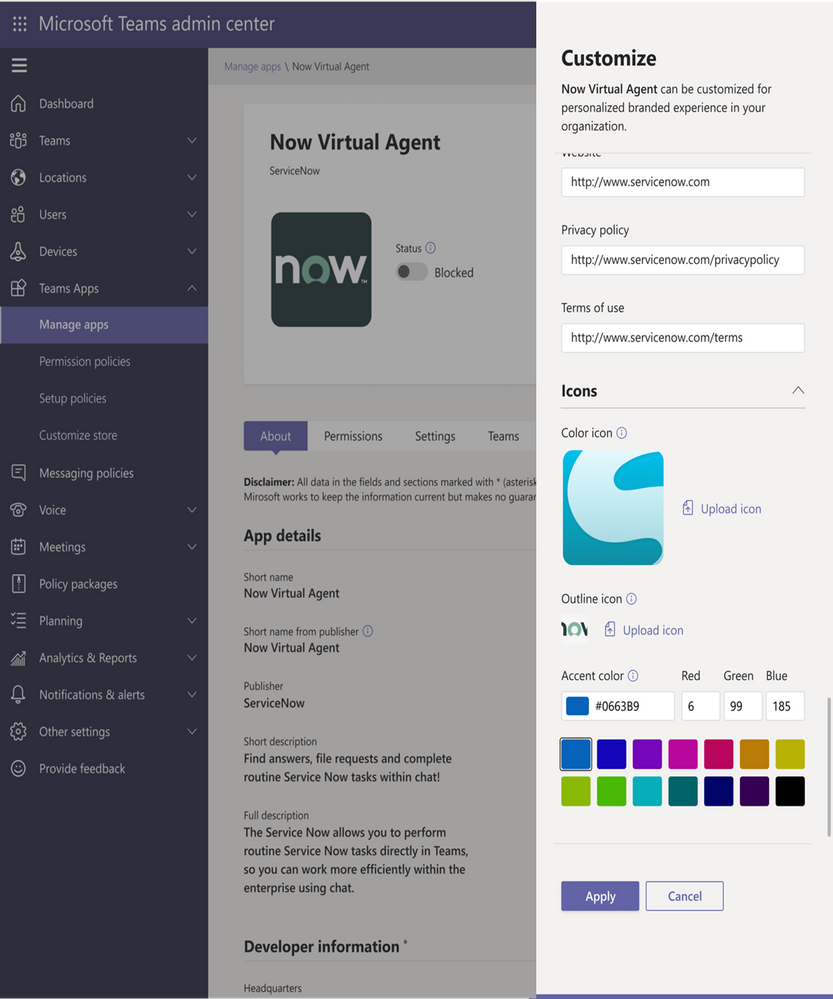
With the app customization and branding capability, app developers are able to specify if they want to provide the option for their customers to customize the app. If the developers provide this option, admins are able to customize app properties like app name, descriptions, icons and more to deliver a branded app experience right within Teams.
Teams user usage report in Teams client
The Teams user usage report provides you a view into your Teams activities and usage. You can generate insights and metrics on a per-team and cross-team basis to understand your interaction with peers and across the organization. The reports are generated with privacy in mind, so only you can your own data.
Anonymous user usage reports
As a Teams admin you have the option to anonymize user data, protecting user privacy while viewing, downloading, sharing, and accessing the Teams usage report data. Once enabled, personally identifiable information like username, email addresses, and Active Directory IDs are anonymized.
Custom policy packages
Custom policy packages enable Teams admins to configure their own set of policy packages tailored to users with similar roles in their organization. We have also added the capability to assign policy packages to a group so you can assign multiple policies to a group of users.
Frontline worker
Time Clock APIs
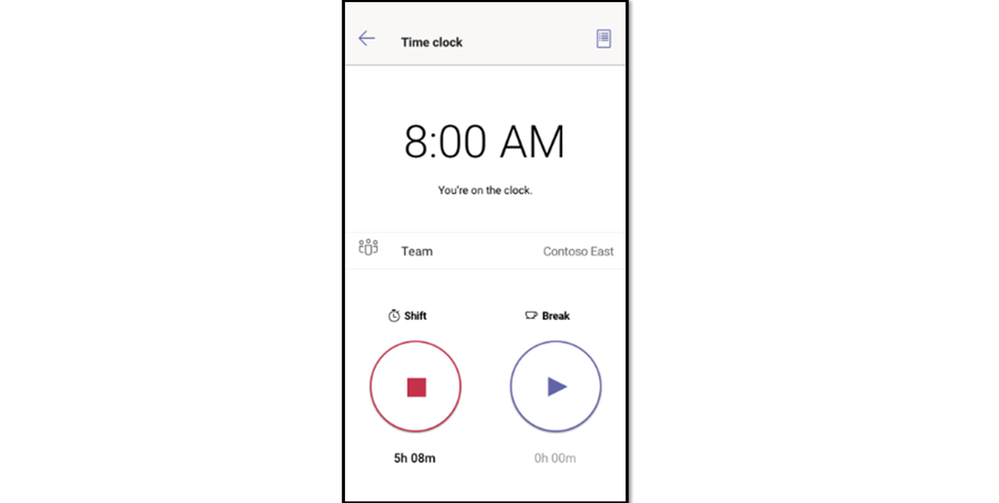
New APIs (Application Programming Interface) for Time Clock allows integrations into your organization’s Time & Attendance system. to enable rules for how early or late someone can clock-in/out and new processes like a health screening survey that must be completed before clocking-in for the day. Learn more
Shift Settings & Permissions
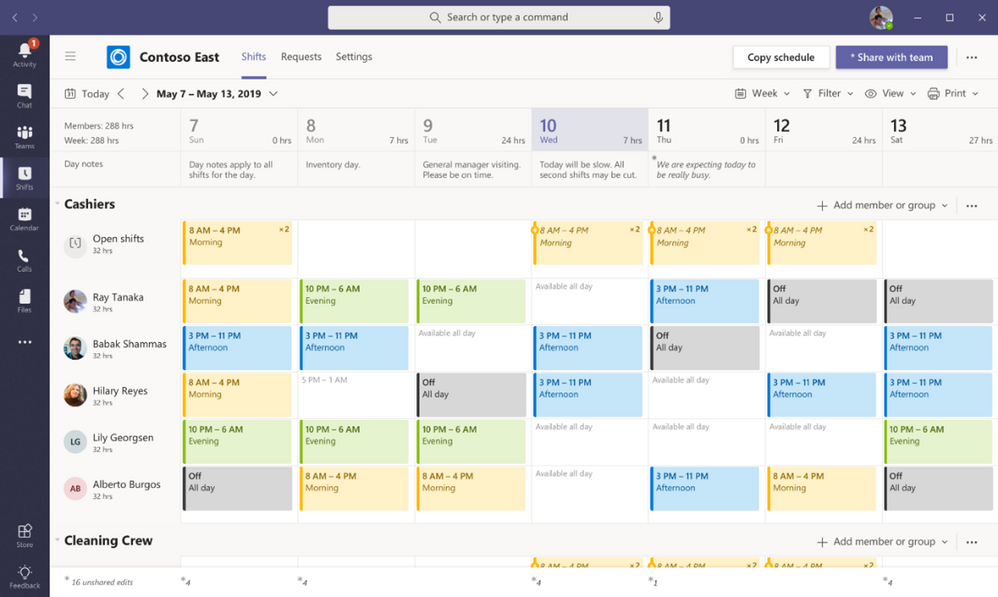
With the Teams Shifts Policy, an organization can now allow users who aren’t the owner of a Teams site to be able to edit and manage Shift schedules, approve swaps, and authorize time off requests. This enables you as a managers or supervisor to have schedule ownership without having to be the owners of the entire Teams site, reducing instances of accidentally deleting or modifying the Teams site. Learn more
Enhanced tasks publishing capabilities
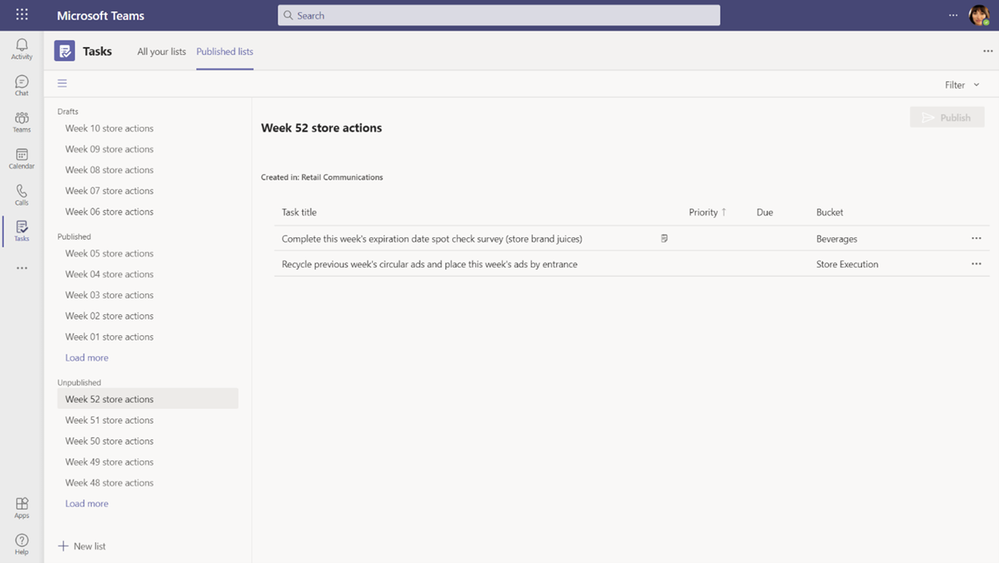
We have enhanced task publishing so operations and corporate teams can more clearly manage and plan their task distribution to frontline locations. As a member of a publishing team you can now see separate Drafts, Published, and Unpublished sections to easily see which task lists are at which stage of their lifecycle. We’ve also made it easier to see the impact of publishing tasks at a glance with an updated summary that displays the number of tasks and the number of recipient teams, so you can easily confirm that everything looks right before sending. Learn more
Government
These features currently available to Microsoft’s commercial customers in multi-tenant cloud environments are now rolling out to our customers in US Government Community Cloud (GCC), US Government Community Cloud High (GCC-High), and/or United States Department of Defense (DoD).
Manage meeting options
Organizers are now able to modify the user experience across desktop, mobile, and web by using the new Meeting Options to customize their meeting safety and security settings. Meeting Options can be accessed in the Teams meeting invitation details in Outlook and Teams Calendar. Available in GCC-High.
Invite-only meeting options
A new meeting setting is now available in Teams meeting options that automatically sends those who were not originally invited by the organizer to the lobby. For example, if an invitee forwards a meeting invitation to a colleague, when that person tries to join, they’ll be directed to wait in the lobby until the host selects to admit them. This helps prevent those uninvited from joining the meeting. Available in GCC. Learn more
Enhanced meeting creation and expiration policies
For added security and compliance, Teams meetings and join links are disabled for users whose scheduling permissions have been revoked. Previously, a user could continue to reuse their old meeting join links after their scheduling capabilities have been disabled. This policy update automatically expires those old meeting links so they can’t be reused. Available in GCC.
Improvements to audio permissions settings for attendees
Meeting presenters and organizers can now manage attendee audio permissions with greater flexibility. Attendees no longer must request to speak for the organizer or presenters to allow them to unmute, and presenters and organizers can prevent individual attendees from unmuting instead of all attendees at once. Available in GCC. Learn more
More labels in Planner
Labels are a quick, visual way to categorize similar tasks in Planner and we’ve increased the number of labels to help you get even more organized. You can now add up to 25 labels in all different colors to your tasks in Planner web, mobile, and in Microsoft Teams. Available in GCC, GCC-High and DoD. Available for GCC, GCC-High and DoD. Learn more
New way to update the Teams Rooms app
You can now use Teams meetings and calling functionality in your Teams Rooms on Windows. IT Admins can easily perform a manual update. Simply download and run an offline app update PowerShell script to your Teams Rooms devices. Follow the steps in this article to get started. Available in GCC-High.
Out of Office Setting
Let others know that you are not available by scheduling your Out of Office in Teams. During this time, your presence status changes to “Out of Office” and your status message is displayed when someone reaches out to you via chat. Additionally, your Outlook calendar and automatic replies are updated accordingly. Available for GCC.
by Contributed | Apr 29, 2021 | Technology
This article is contributed. See the original author and article here.
I received this great content from our partner team at NetApp. I felt it will be good to post this as Moodle is a very popular platform, and widely used all over the globe.
Thanks for your great contribution :
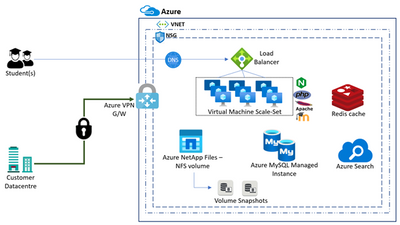
Moodle is one of the most popular and widely adopted free, open-source learning management systems written in PHP. Acquiring more than 30% market share globally, there are more than 180,000 Moodle customers worldwide. Moodle customers vary across industry verticals spanning Education Institutions, Enterprises, IT companies, FSI Institutions, etc.
Azure NetApp Files is an Azure service for migration and running the most demanding enterprise file-workloads in the cloud: native SMBv3.0 and NFS(v3.0 and v4.1) file shares, databases, SAP, and high-performance computing applications, with no code, changes.
Moodle architecture relies on NFS storage for content storage.
With Azure NetApp Files, we can set up native NFS v3 or NFS v4.1 volume. Steps for the same are listed here:
Pre-requisites
- You need to have access to Azure portal and active subscription to provision resources
- You must have already set up a capacity pool.
- A subnet must be delegated to Azure NetApp Files.
- The NFS client should be in the same VNet or peered VNet as the Azure NetApp Files volume. Connecting from outside the VNet is supported; however, it will introduce additional latency and decrease overall performance.
- Ensure that the NFS client is up-to-date and running the latest updates for the operating system.
Create an Azure NFS volume
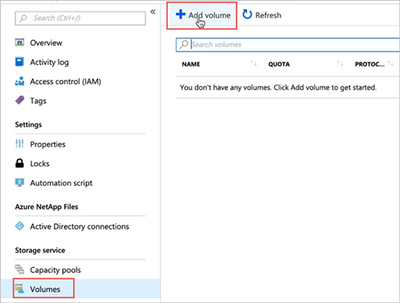
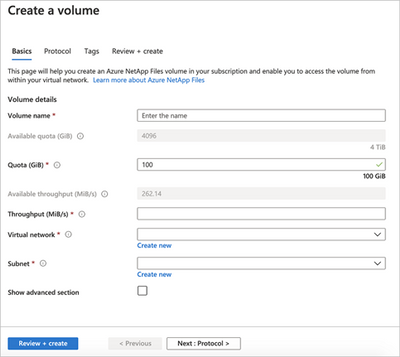
- Click the Volumes blade from the Capacity Pools blade. Click + Add volume to create a volume.
- In the Create a Volume window, click Create, and provide information for the following fields under the Basics tab:
- Volume name
Specify the name for the volume that you are creating.
A volume name must be unique within each capacity pool. It must be at least three characters long. You can use any alphanumeric characters.
You cannot use default or bin as the volume name.
- Capacity pool
Specify the capacity pool where you want the volume to be created.
- Quota
Specify the amount of logical storage that is allocated to the volume.
The Available quota field shows the amount of unused space in the chosen capacity pool that you can use towards creating a new volume. The size of the new volume must not exceed the available quota.
- Throughput (MiB/S)
If the volume is created in a manual QoS capacity pool, specify the throughput you want for the volume.
If the volume is created in an auto QoS capacity pool, the value displayed in this field is (quota x service level throughput).
- Virtual network
Specify the Azure virtual network (VNet) from which you want to access the volume.
The VNet you specify must have a subnet delegated to Azure NetApp Files. The Azure NetApp Files service can be accessed only from the same VNet or from a VNet that is in the same region as the volume through VNet peering. You can also access the volume from your on-premises network through Express Route.
- Subnet
Specify the subnet that you want to use for the volume.
The subnet you specify must be delegated to Azure NetApp Files.
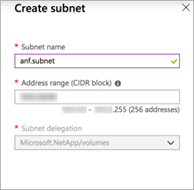
If you have not delegated a subnet, you can click Create new on the Create a Volume page. Then in the Create Subnet page, specify the subnet information, and select Microsoft.NetApp/volumes to delegate the subnet for Azure NetApp Files. In each VNet, only one subnet can be delegated to Azure NetApp Files
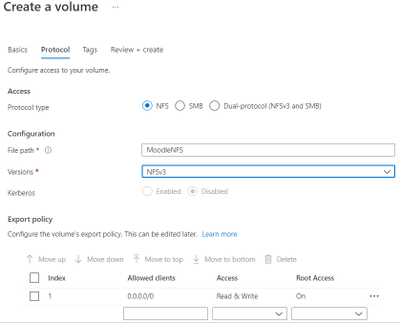
- Click Protocol, and then complete the following actions:
- Select NFS as the protocol type for the volume.
- Specify the file path that will be used to create the export path for the new volume. The export path is used to mount and access the volume.
The file path name can contain letters, numbers, and hyphens (“-“) only. It must be between 16 and 40 characters in length. The file path must be unique within each subscription and each region
- Click Review + Create to review the volume details. Then click Create to create the volume.
The volume you created appears in the Volumes page.
Azure NetApp Files NFS v3 volumes support NFS multipathing with nconnect in many Linux Client OS. For Best performance, it is recommended to size the VM SKUs correctly to support Azure accelerated networking and nconnect while deploying VMs in the Scale-Set, in addition to checking guest OS support for nconnect.
Instructions for mounting ANF NFS volumes on Moodle application server(s) are as below:
You can mount or unmount a volume for Windows or Linux virtual machines as necessary. The mount instructions for Linux virtual machines are available on Azure NetApp Files:
Requirements
- You must have at least one export policy to be able to access an NFS volume.
- To mount an NFS volume successfully, ensure that the following NFS ports are open between the client and the NFS volumes:
- 111 TCP/UDP = RPCBIND/Portmapper
- 635 TCP/UDP = mountd
- 2049 TCP/UDP = nfs
- 4045 TCP/UDP = nlockmgr (NFSv3 only)
- 4046 TCP/UDP = status (NFSv3 only)
Steps
- Click the Volumes blade, and then select the volume for which you want to mount.
- Click Mount instructions from the selected volume, and then follow the instructions to mount the volume.
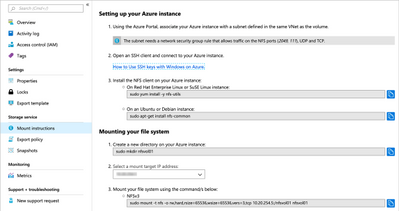
- If you are mounting an NFS volume, ensure that you use the vers option in the mount command to specify the NFS protocol version that corresponds to the volume you want to mount.
- If you are using NFSv4.1, use the following command to mount your file system: sudo mount -t nfs -o rw,hard,rsize=65536,wsize=65536,vers=4.1,tcp,sec=sys $MOUNTTARGETIPADDRESS:/$VOLUMENAME $MOUNTPOINT
Note
If you use NFSv4.1, ensure that all VMs mounting the export use unique hostnames.
- If you want to have an NFS volume automatically mounted when an Azure VM is started or rebooted, add an entry to the /etc/fstab file on the host.
For example: $ANFIP:/$FILEPATH /$MOUNTPOINT nfs bg,rw,hard,noatime,nolock,rsize=65536,wsize=65536,vers=3,tcp,_netdev 0 0
- $ANFIP is the IP address of the Azure NetApp Files volume found in the volume properties blade.
- $FILEPATH is the export path of the Azure NetApp Files volume.
- $MOUNTPOINT is the directory created on the Linux host used to mount the NFS export.
NFS storage with Moodle application typically hosts a large number of files and folders. Azure NetApp Files snapshot capabilities can be very useful with quick recovery of these files or folders or entire volumes or revert the entire volume from snapshot state.


Recent Comments