by Contributed | May 21, 2021 | Technology
This article is contributed. See the original author and article here.
General
- Copy tiles on Azure dashboards
Intune
- Updates to Microsoft Intune
Let’s look at each of these updates in greater detail.
General
Copy tiles on Azure dashboards
You can now copy any tile on a dashboard onto the same dashboard, another existing dashboard, or even to a new dashboard.
Demo Steps:
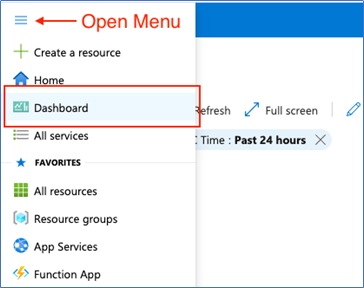
- Navigate to dashboards by opening the menu from the top left of the portal and select “Dashboard”. This should bring you to the dashboard experience.
- Hover over the tile you want to copy, and you should see an ellipses show up on the top right of the tile. Click into the ellipses to open the tile’s context menu.
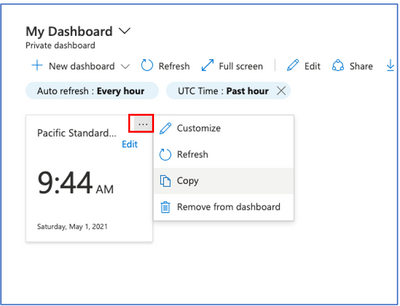
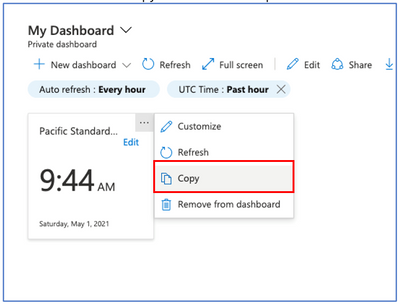
- Select “Copy” from the listed options.
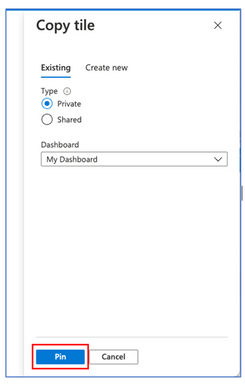
- Select the dashboard you would like to pin to. A pane will open to the right of the screen where you can select which dashboard to pin to. By default, the current dashboard you are on should be selected. If you want to copy to a dashboard that is shared with you, you will need edit permissions in order to pin to that dashboard.
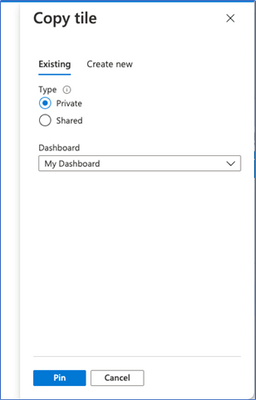
- Click “Pin” to copy the dashboard.
INTUNE
Updates to Microsoft Intune
The Microsoft Intune team has been hard at work on updates as well. You can find the full list of updates to Intune on the What’s new in Microsoft Intune page, including changes that affect your experience using Intune.
Azure portal “how to” video series
Have you checked out our Azure portal “how to” video series yet? The videos highlight specific aspects of the portal so you can be more efficient and productive while deploying your cloud workloads from the portal. Check out our most recently published videos:
Next steps
The Azure portal has a large team of engineers that wants to hear from you, so please keep providing us your feedback in the comments section below or on Twitter @AzurePortal.
Sign in to the Azure portal now and see for yourself everything that’s new. Download the Azure mobile app to stay connected to your Azure resources anytime, anywhere. See you next month!
by Contributed | May 21, 2021 | Technology
This article is contributed. See the original author and article here.
Microsoft Viva Topics is our newest addition to Microsoft Knowledge and Content Services – helping you automatically organize and discover knowledge and expertise across your organization.
At Microsoft Ignite in March, we spotlighted a handful of our continuing enhancements to Viva Topics, including our vision for topic management. Today, we’re announcing our next feature to help you manage topics.
Topic management dashboard
Viva Topics was built to scale. Many of our early customers have discovered tens of thousands of topics in their content. Managing thousands of suggested and published topics over time is crucial to their success with Viva Topics.
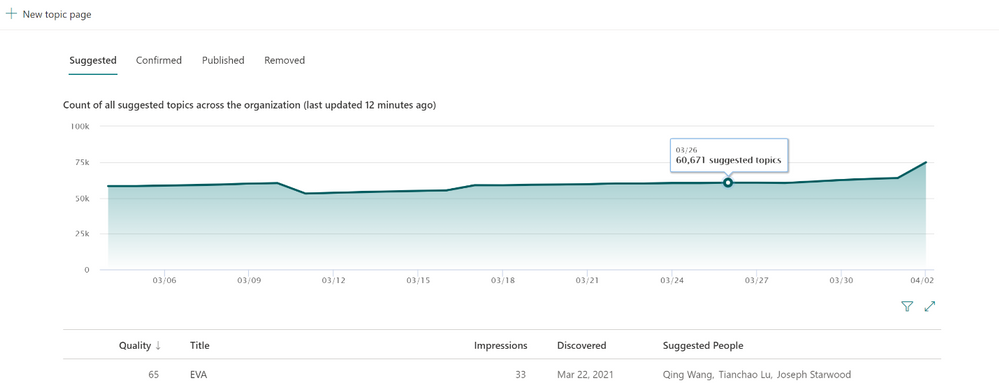
With the topic management dashboard, knowledge managers can track topics discovered by Viva AI, as well as how topics are progressing through the topic lifestyle stages: Suggested, Confirmed, Published, and Removed. You’ll find the dashboard on the Manage Topics tab of the topic center.
Topic management dashboard
This feature will begin rolling to Targeted Release in May 2021, and is being tracked under Roadmap ID 81977.
Roadmap
We’re continuing to listen to and work with our customers to deliver new features and drive transformational user experiences. Check back with us in June to see what new capabilities and features we’ve added to Viva Topics. You can also visit the Microsoft 365 Public Roadmap for a full view of what’s coming soon to Microsoft Viva.
And to read about recent enhancements to SharePoint Syntex, check out our SharePoint Syntex Blog.
by Contributed | May 21, 2021 | Technology
This article is contributed. See the original author and article here.
We have released an update to Microsoft.Data.SqlClient, version 2.1.3. The update addresses a couple of issues that are important to our customers.
Updates in Microsoft.Data.SqlClient 2.1.3 include:
Fixed
- Fixed wrong data blended with transactions in .NET Core by marking a connection as doomed if the transaction completes or aborts while there is an open result set #1051
- Fixed race condition issues between SinglePhaseCommit and TransactionEnded events #1049
To get the new package, add a NuGet reference to Microsoft.Data.SqlClient in your application.
For the list of changes in Microsoft.Data.SqlClient 2.1.3, you can also see the Release Notes.
If you encounter any issues or have any feedback, head over to the SqlClient GitHub repository and submit an issue.
David Engel
![[ANNOUNCEMENT] Community Mentors App Update: Introducing the Mentorship Activity Report](https://www.drware.com/wp-content/uploads/2021/05/fb_image-1345.png)
by Contributed | May 21, 2021 | Technology
This article is contributed. See the original author and article here.
Introducing the Mentorship Activity Report
Interested in earning the Most Valuable Mentor designation? Enhance your application by including your community mentorship Activity Report.
Time and time again we hear that measuring the impact of mentorship is a challenge and often does not include a full overview of the experiences of both the mentor and the mentee. And since we believe that both the mentor and mentee are impacted when mentorship is done right and now, we have an activity report that highlights the metrics that matter.
The activity report includes the number of mentorships you have participated in as well as the feedback from your mentors and mentees. This gives you a 360 view of how you have helped develop yourself and others.
Check your report out now – it can be accessed from your mentorship and profile pages.
As always you can continue to use the Teams App, desktop, or mobile versions as well. The login instructions are outlined below.
1) Teams App
Instructions:
Step 1: Sign up for Microsoft’s Humans of IT Community
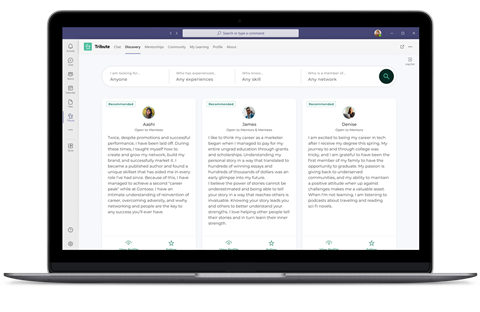
Step 2: Click the ‘apps’ button in the bottom left side of the Teams navigation & search for Tribute, then select add.
Step 3: Use your HoIT login credentials to login to the Community Mentors App. Note: In the field that says “Enter Your Organization Name”, please fill in “Microsoft Humans of IT”.
2) Desktop Version
Instructions:
Step 1: Sign up for Microsoft’s Humans of IT Community
Step 2: Visit site for Desktop version: https://aka.ms/CMPdesktop
Step 3: Use your HoIT login credentials to login to the Community Mentors App. Note: In the field that says “Enter Your Organization Name”, please fill in “Microsoft Humans of IT”.
3) Mobile Application
Click to download on iOS and Android, or simply scan the QR codes below!
Important Note: Make sure you’re on the latest version to get access to all the newest features. The latest version is 3.1.
Instructions:
Step 1: Sign up for Microsoft’s Humans of IT Community
Step 2: Download app
Step 3: Use your HoIT login credentials to login to the Community Mentors App. Note: In the field that says “Enter Your Organization Name”, please fill in “Microsoft Humans of IT”.
Scan these QR codes to get the direct link to download our Community Mentors mobile app
Thanks everyone for your interest in the Community Mentors Program! As you know, a big part about mentorship is about the fit – that is why we’ve launched the Community Mentors mobile app so that you’re in the driver’s seat of your own mentorship journey.
Become a mentor/mentee on our Community Mentors app today!
- Go to https://aka.ms/communitymentors and download our mentorship app.
- Watch our newly released Community Mentors App: Walkthrough Demo
- Once you’re in the app, explore new featured stories, mentorship enhancements, reactions, and notifications.
We hope that you enjoy exploring these new features!
Happy Mentoring!
#HumansofIT
#TechforGood
#CommunityMentors
by Contributed | May 21, 2021 | Technology
This article is contributed. See the original author and article here.
Hello everyone, here is part 4 of a series focusing on Endpoint Protection integration with Configuration Manager. This series is recorded by @Steve Rachui, a Microsoft principal premier field engineer.
This tutorial focuses on how Configuration Manager can be used to manage the integrated Windows Firewall settings.
Next in the series Steve focuses on how Configuration Manager can be used facilitate onboarding of a Windows device into Defender Advanced Threat Protection.
Posts in the series
Go straight to the playlist


Recent Comments