
by Contributed | Jun 1, 2021 | Technology
This article is contributed. See the original author and article here.
On May 27th, 2021 we released MRTK 2.7, so you know we had to be up to something special. This release brings official support for OpenXR as we move the Mixed Reality Toolkit to Unity 2020.3 LTS. In addition, we’ve packed in a bunch of new features and bug fixes to improve the developer experience for Mixed Reality Devs.
Like what you see? Download MRTK today from the Mixed Reality Feature Tool or from Github.
MRTK 2.7.0 Release Highlights
Wondering what’s new? Here’s a snapshot:
- Official support for Unity 2020.3 LTS
- A redesigned Configurator now makes it easier to create a new project in Unity
- You can now use the same profiles for both LegacyXR and XR SDK
- The eye Dwell feature graduated from experimental. This makes it easier to activate buttons with eyes.
- Ported TextToSpeech from HTK to MRTK
- Support for system-provided motion controller models on OpenXR
- Support for WinMR gestures (select, hold, manipulation, navigation) on OpenXR
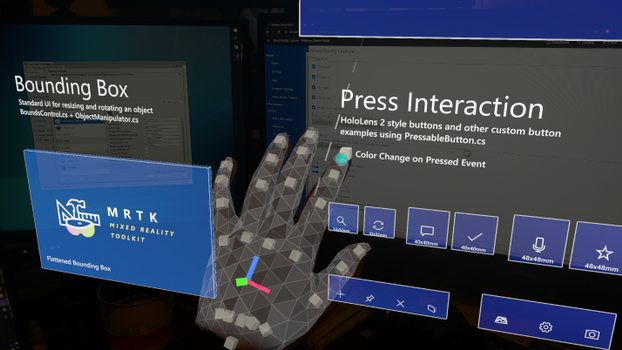
- Support for HoloLens 2 articulated hand mesh on OpenXR
- And much more.
- Btw, we’ve restructured our full release notes with more notable fixes and known issues. Tell us what you think!
Legacy XR and XR SDK data providers can now be used within the same profile
Data providers will now also only be loaded when the appropriate pipeline is selected, allowing both Legacy XR and XR SDK data providers to co-exist within the same profile. To accommodate this, Legacy XR and XR SDK Data Providers are now organized under different tabs within the profile view, helping users determine whether they have the correct profile for their targeted XR pipeline. #9681
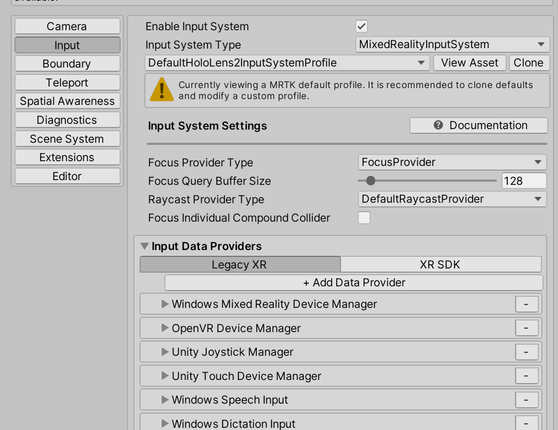
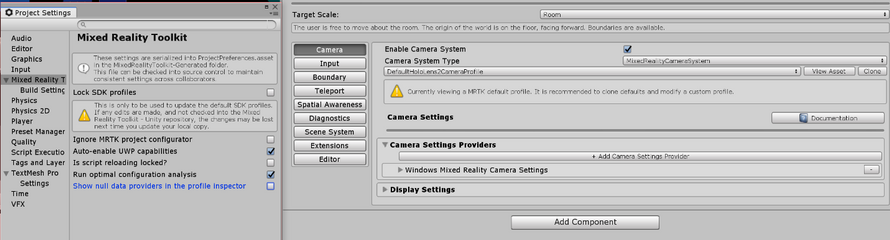
To accommodate this, null data providers will now no longer be loaded and displayed in the profile inspector. Users can toggle Show null data providers in the profile inspector under Edit -> Project Settings -> Mixed Reality Toolkit to debug unexpected behaviors with missing data providers.
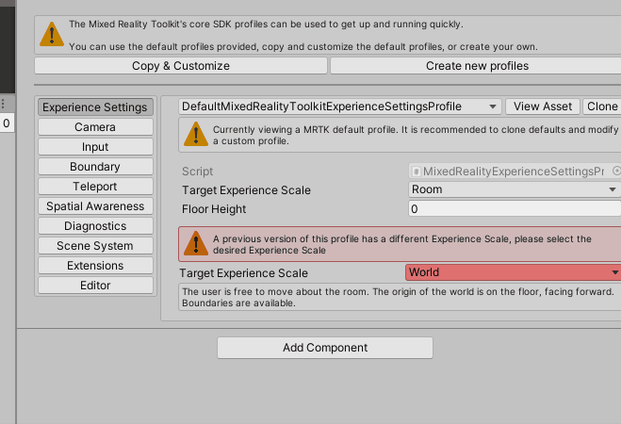
Added Experience Settings and an associated Mixed Reality Scene Content behavior
Users can now configure Experience Settings, which will allow MRTK to display Mixed Reality Scene Content appropriately based on the targeted experience.
If user’s previous Experience Scale settings do not match the new Experience Settings Profile, they will be prompted to correct it in the inspector. #9428
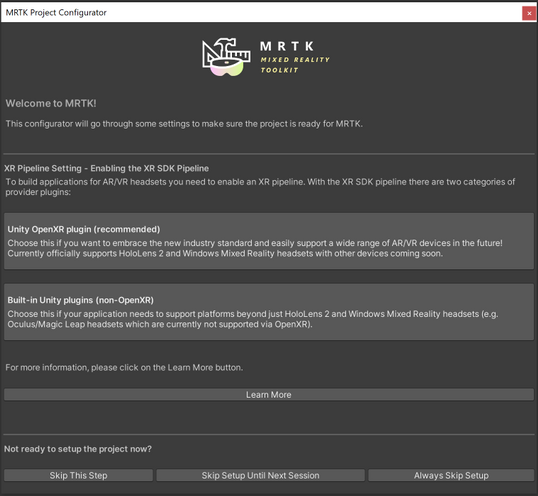
The Redesigned Configurator now guides the user through the setup process
The new MRTK configurator provides users step-by-step guidance to properly configure the project for XR development and use with MRTK. It covers the selection of XR pipeline, getting the platform specific plugins, importing TextMeshPro, displaying the examples (when using UPM) and other previously included recommended settings for the project. #9652
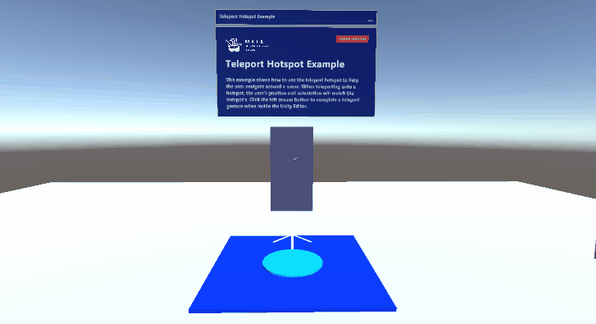
Graduated Teleport Hotspot
A new teleport hotspot component has been graduated. You can add a teleport hotspot to your gameobject to ensure that the user is in a certain position and orientation when they teleport to that location.
The Dwell Feature Graduated from Experimental
The dwell feature and example is now graduated from experimental. New examples of volumetric HoloLens 2 style buttons are included in the sample scene. #9538

Added support for Leap Motion Unity Modules version 4.6.0, 4.7.0, 4.7.1 and 4.8.0
Support for the latest versions of the Leap Motion Unity Modules is now compatible with MRTK 2.7.0. See How to Configure MRTK for Leap Motion for more information.
Big thanks to @jackyangzzh for contributing the new LeapMotionOrientationExample scene!
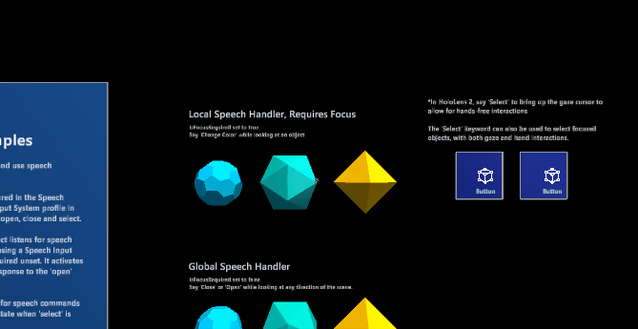
Targeted speech events raised no longer restricted to gaze pointers
Previously, targeted speech events could only be raised on objects which were focused on with the gaze pointer. Now, objects can receive speech events if they are focused by any pointer.
Ported TextToSpeech from HTK to MRTK
The beloved TextToSpeech script is now finally available in MRTK to help you generate speech from text on the UWP platform using SpeechSynthesizer. Also added a sample scene to demonstrate the feature. #9506
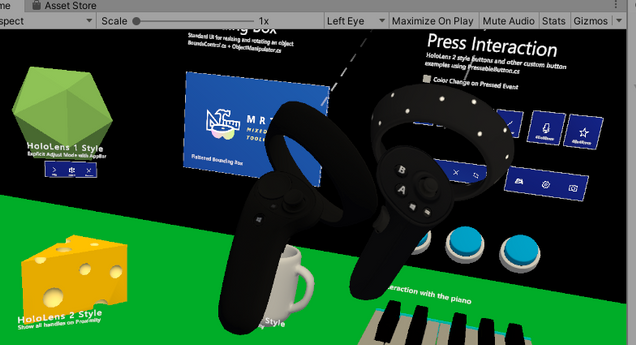
Support for the system-provided motion controller model on OpenXR
Added support, both in-editor and at runtime, for the system-provided motion controller model on OpenXR.
Support for HoloLens 2 articulated hand mesh on OpenXR
Support for controller haptics across legacy WMR, Windows XR Plugin, and OpenXR
Added support for controller haptics across legacy WMR, Windows XR Plugin, and OpenXR. #9735
Support for spatial mapping on OpenXR on HoloLens 2
Added support for spatial mesh when using OpenXR on HoloLens 2. #9567 and #9827
Support for eye tracking on Windows XR Plugin
Added support for eye gaze when using Windows XR Plugin minimum versions of 2.7.0 (Unity 2019), 4.4.2 (Unity 2020), and 5.2.2 (Unity 2021). #9609
Support for WinMR gestures (select, hold, manipulation, navigation) on OpenXR
Added support for WinMR gestures (select, hold, manipulation, navigation) on OpenXR. #9843.
——
For more information on other notable bugfixes, changes and known issues, see the full release notes.
Try it out!
Want to use the MRTK? Download MRTK with the MR Feature Tool or from the Github release page.
Don’t forget to tell us what you think. File bugs and feature requests on the MRTK Github.
Thanks,
The MRTK Team
by Contributed | Jun 1, 2021 | Technology
This article is contributed. See the original author and article here.
Collaboration is a critical part of virtual work. At Microsoft, we’ve seen firsthand that the way people work together has fundamentally changed over the past year. More people are using Microsoft 365 applications like Teams, OneDrive, and SharePoint to connect with internal team members across their organizations and with external colleagues than ever before. The Share dialog appears in more than 40 areas of Microsoft 365 and is accessed about 400 million times a month. That’s why we’ve been gathering feedback and capturing data to understand how you collaborate—and more specifically, how you share and work together with teammates on files—so we can make the right investments to make sharing options more intuitive across Microsoft 365 apps and make collaborating easier for you.
What we’ve learned
Based on our research, we discovered five key areas we wanted to address:
- You want an easier way to change link permissions for viewing, commenting on, or editing files.
- You want seamless sharing with external colleagues.
- Having a clear, at-a-glance view into who you’ve provided shared access to a file is invaluable.
- Many of you are unaware you can share files directly via Office apps. Instead, you attach files to an email or open another application like Teams to upload and share files.
- With more than 250 million monthly active users like you on Teams, you want to share Word documents, PowerPoint decks, and Excel spreadsheets directly to Teams without switching apps.
Introducing the Year of Sharing
Over the next year, we’re using an incremental, data-driven approach for rolling out updates to improve the sharing experience across all Microsoft 365 and Office applications for all platforms (desktop, web, and mobile). We’ll be making those incremental changes gradually, so we can continue to collect feedback and learn from you, improving the experience as we go to ensure we’re making it easier for you to collaborate with your colleagues in ways that work best for you.
Quick permissions & Link settings
Setting access control is critical to sharing content with people within or outside your organization. A quick and robust way to grant access to files for easier collaboration has been a top priority for us, so we’re excited to announce new functionality for
Quick permissions.
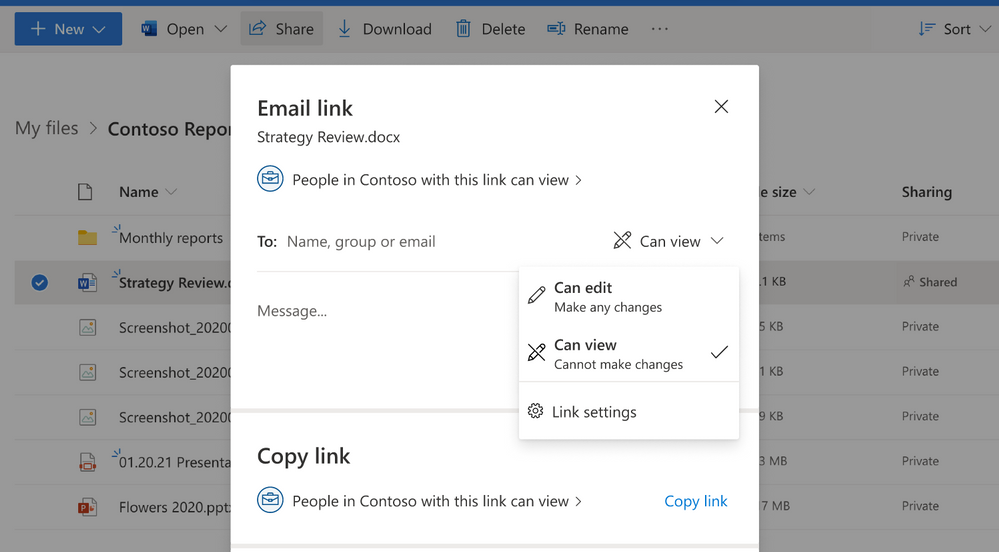
Now when you select Share and enter a recipient’s name or email address in the to field, you no longer have to go into the link settings to select their permission level. Instead, you can quickly select it from a more intuitive and discoverable drop-down menu next to their name. You can select a permission level: Can edit, or Can view (read only). When you select send, you get a confirmation showing you have shared the file.
Quick permissions
We’ve also added an additional entry point to Link settings from the Quick permissions dropdown that provide more granular sharing control, so you easily can change link types and sharing permissions.
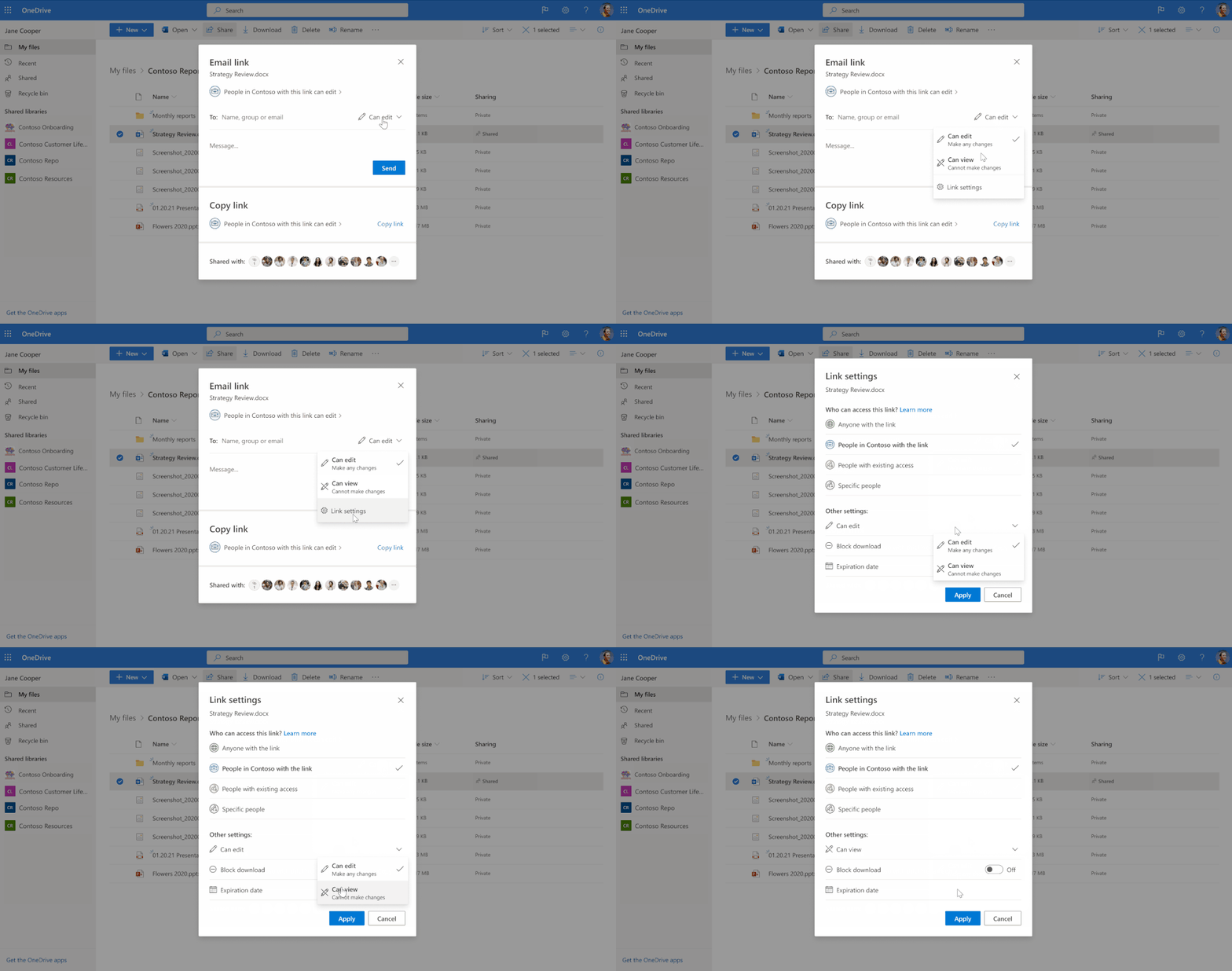 Link settings entry point to update link types and sharing permissions
Quick permissions (Roadmap ID: 70806 ) and Link settings (Roadmap ID : 81958 ) are available now.
Copy link
Currently, after setting link permissions, when you select the Copy link button, you see a confirmation window that displays an auto-generated link that you can copy and share with your team. However, to change the link permissions, you must recreate a new link. Now, we’ve changed this flow to make it more user friendly.
Instead of a Copy link button, you’ll see a footer where you can set permissions for the link and then copy it to share it with recipients. If you need to update the link permissions, you can do it directly from the Link Created dialog box as well.
Copy link will be rolling out later this year. Please follow the roadmap entry 83728 for further updates.
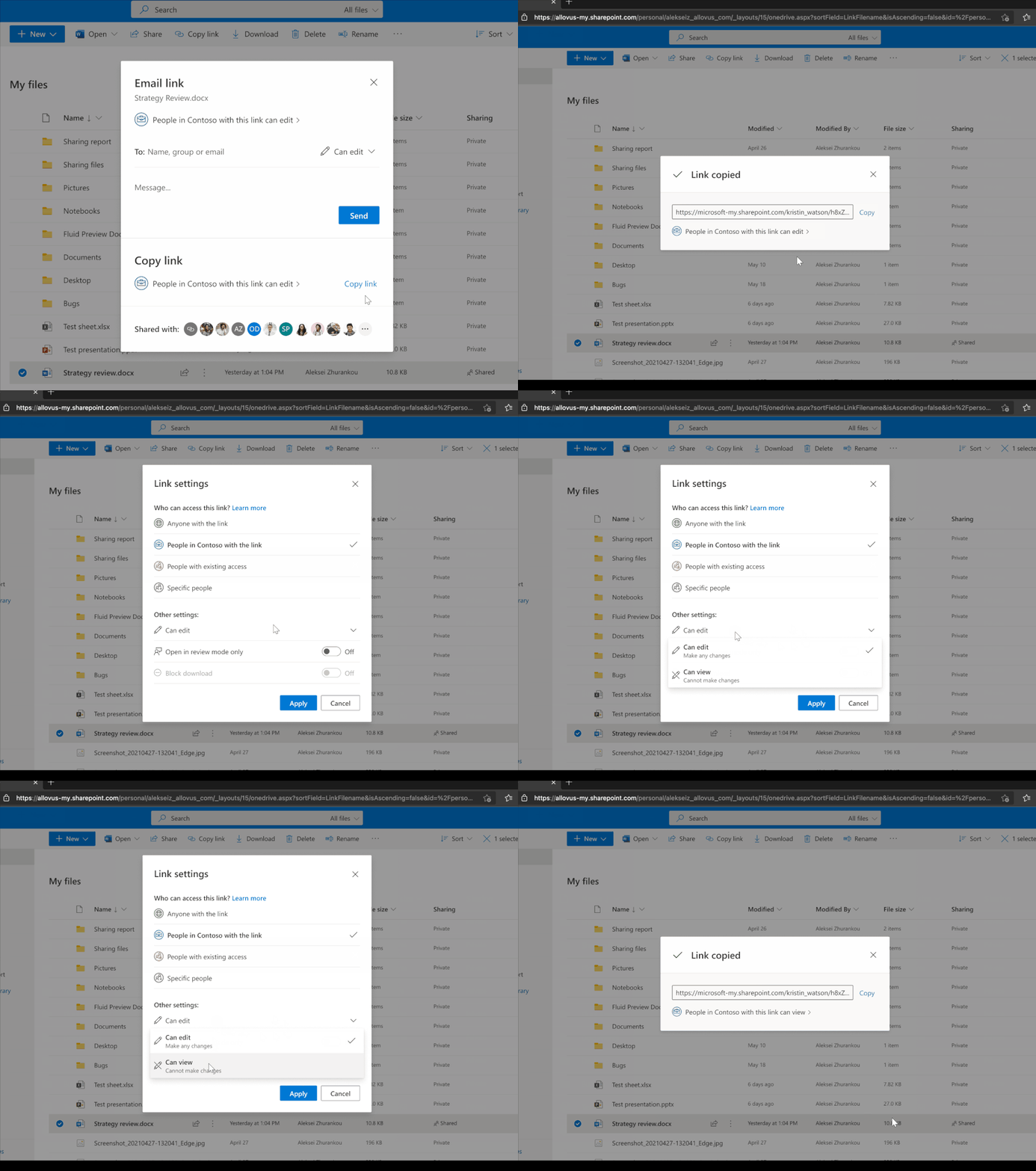 Updated Copy link experience
Shared with & Manage access
At the bottom of the Share dialog, the Shared with list gives you an at-a glance view of everyone you’ve given access to the file. You will now have the ability to see who has access and how many people have access to your shared file. Selecting that list takes you to the Manage Access settings, which offers you additional controls for how recipients access files you’ve shared. After sharing a file with someone, you will also have the ability to see visual confirmation of who you’ve just sent it to.
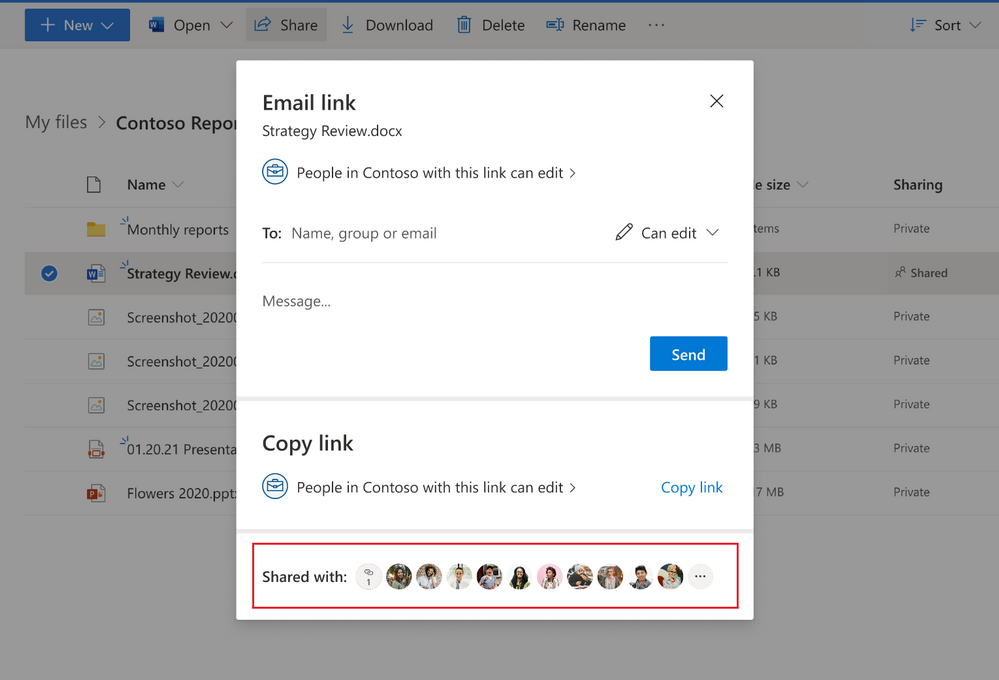 Shared with list gives you an at-a glance view of everyone you’ve given access to the file
We’ll be updating our Manage Access experience to make it more efficient and easily accessible.
By default, you can see the list of People you’ve granted access to this file. You can also view the Groups who have access, as well as the various types of Links you might have shared for this file with distinct sharing permissions and from different applications like Teams, OneDrive, SharePoint, or Office.
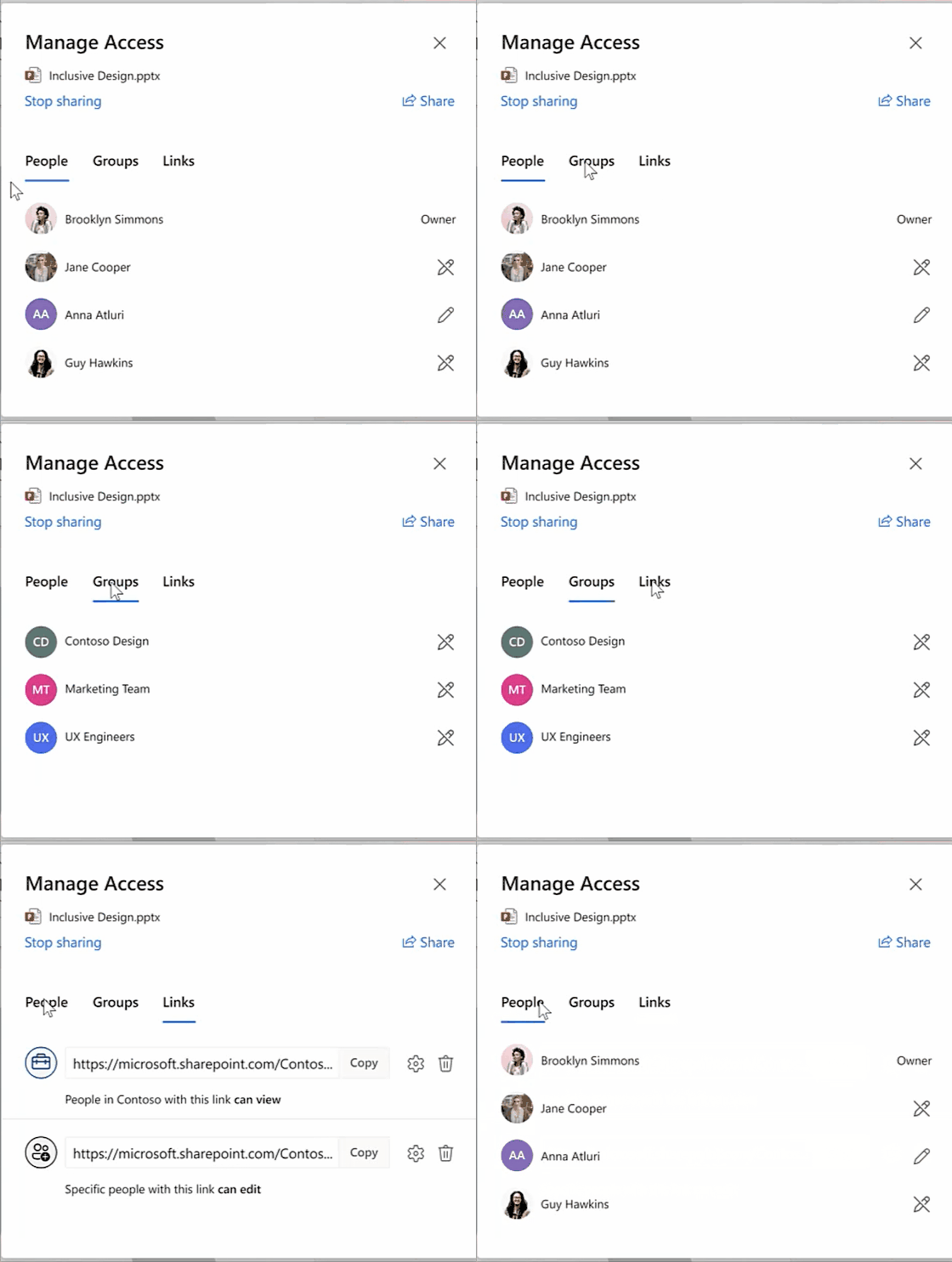 Updated manage access experience
You can view the permissions for each person directly from the People list. When you select a name, you can see the access summary describing all the way this person has been granted access: via direct access, groups, or links. You can change direct access permissions via a drop down, allowing recipients to edit the shared file or restricting it to view-only access.
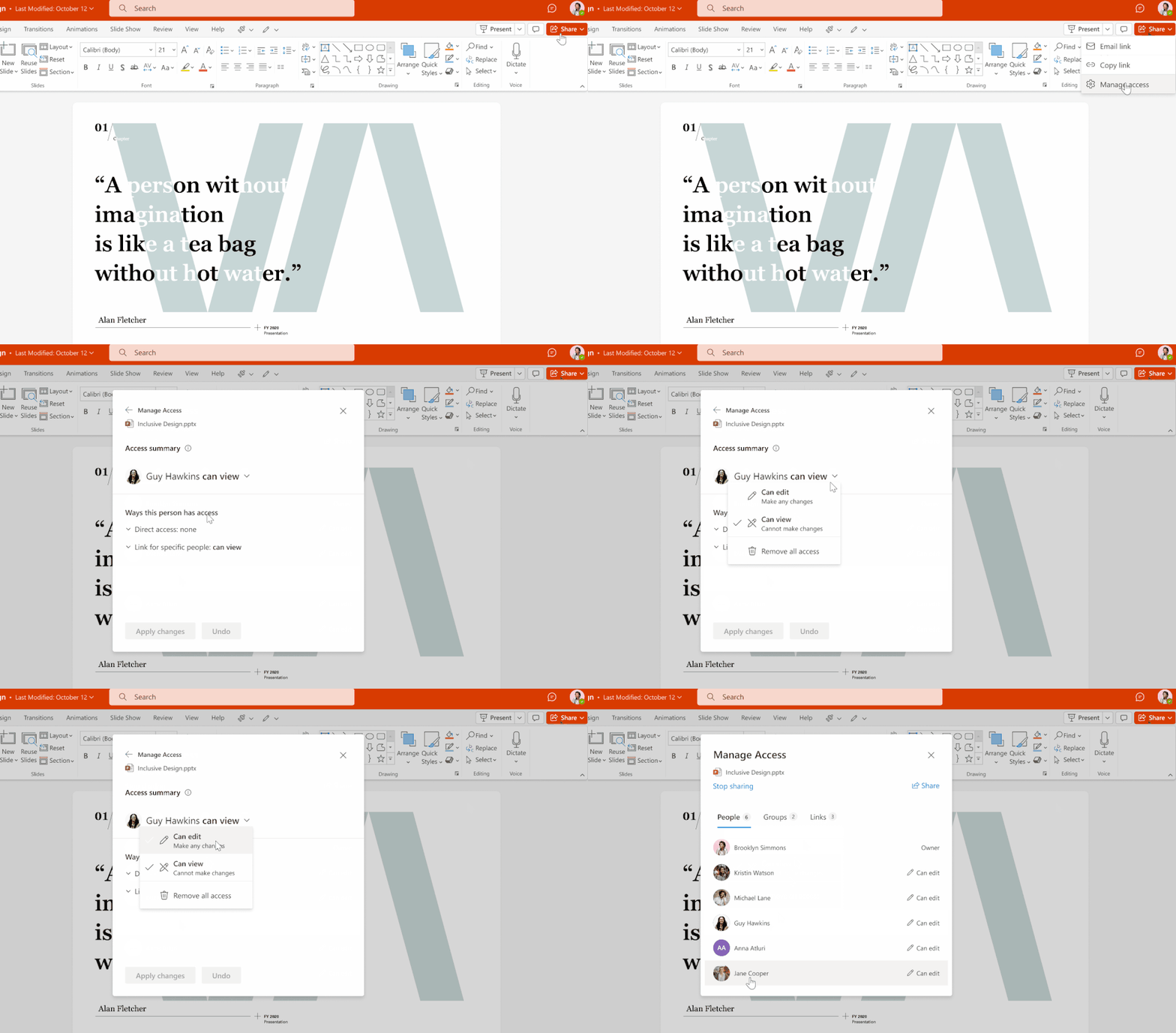 View and update the permissions for each person directly from the People list
You can also drill down into the group or link information to see exactly which group that person belongs to, or which links have been shared with them and their respective sharing permissions.
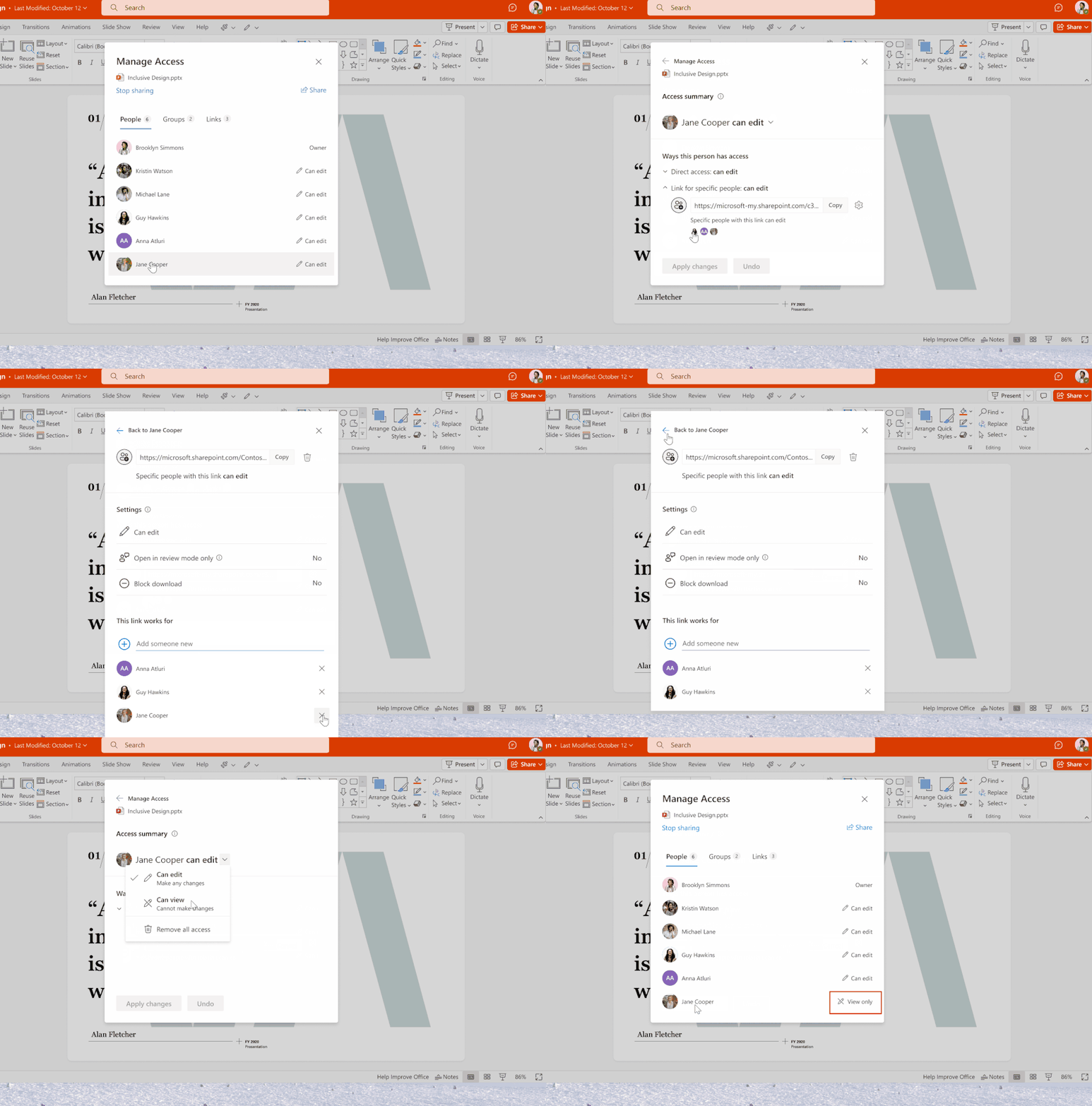 Drill down into the group or link information to view or change the sharing permissions
You can also revoke all access to the file and stop sharing entirely.
We’ve redesigned the Share dialog to give you easier access to the Manage Access view and give you more visibility into who has access to your content.
Shared With and Manage Access will be rolling out later this year. Please follow the roadmap entries 83725 and 83726 for further updates.
Share menu dropdown
We’re updating the Share button to provide easy access to additional sharing options. Soon, when you select Share in OneDrive, SharePoint, or Teams (at the top of the page) or in an Office app (top-right corner), you’ll see a contextual menu with all choices available to you for sharing files or folders with your teammates:
- Email: Email the file directly to a one or more recipients.
- Copy link: Copy a link to share with recipients directly.
- Teams: Share the file directly to Teams.
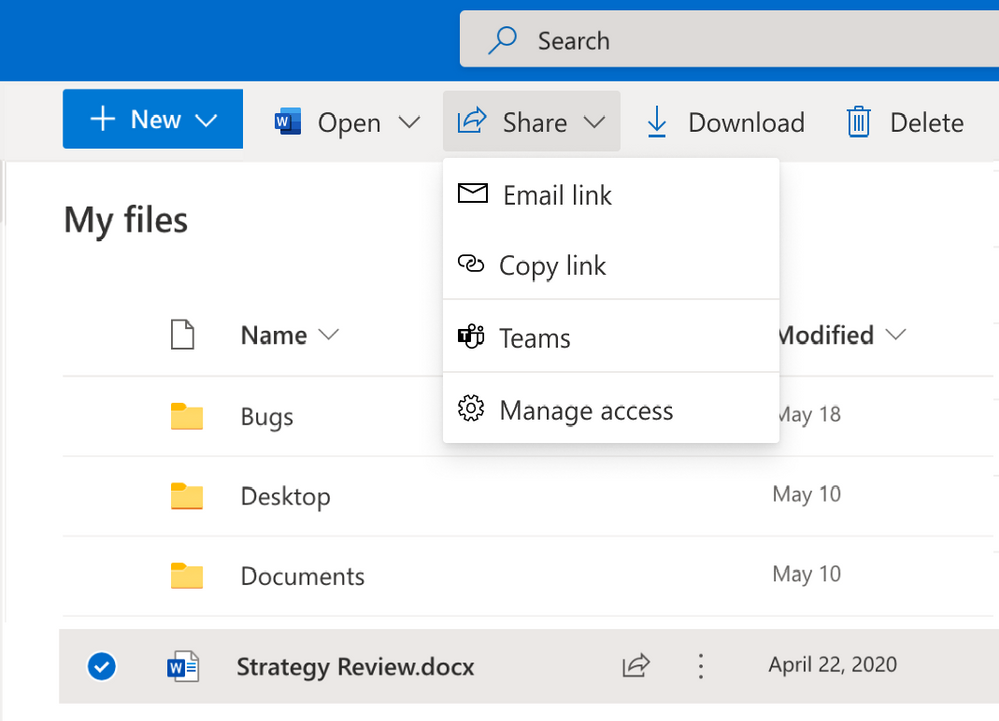 Dropdown menu for Share function in command bar
Post sharing, the contextual menu will also display an option to select the the Manage access settings for additional sharing controls as explained above.
Share menu dropdown will be rolling out later this year. Please follow the roadmap entry 83727 for further updates.
Learn more and stay engaged…
We continue to evolve OneDrive as a place to access, share, and collaborate on all your files in Office 365, keeping them protected and readily accessible on all your devices, anywhere.
Check out the documentation on how to share and collaborate with stakeholders within and outside your organization as well as how to manage internal and external sharing.
To learn more about OneDrive,
Thank you again for your support of OneDrive. We look forward to your continued feedback and hope to connect with you at another upcoming Microsoft or community-led event.
Thanks for your time reading all about OneDrive,
Ankita Kirti | OneDrive
by Contributed | Jun 1, 2021 | Technology
This article is contributed. See the original author and article here.
New Features:
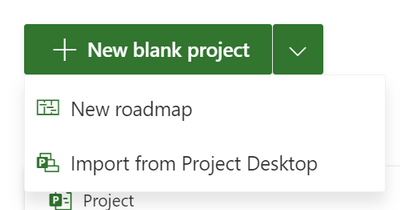
- Import Project desktop to Project for the web: This feature is rolling out now! Import your .mpp files to Project for the web through Project home.
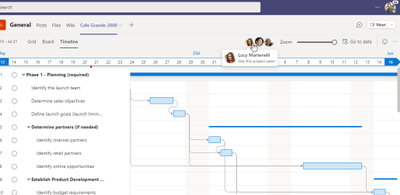
- Collaboration Corner Presence: See who else is viewing your project in real time when you’re editing a project on Project for the web.
- Filtering on the Board & Timeline views: Find your tasks quickly in Board and Timeline by filtering by keyword or assignee. This is rolling out now and should be available to all users by the middle of June.
- Scheduling modes: Project Admins can now change the default scheduling mode of your projects. Users in Named environments can change the scheduling mode of specific projects to match their scheduling needs.
- Project Language Settings: Set your Project language directly by opening Settings and clicking on Change your language.
Upcoming Features:
- Dropdown types in Custom Fields: Add custom fields with drop down options so you can control the information added to those custom fields on your tasks.
- Rollup Custom Fields: Add summary, average, max, or minimum calculations to your numeric custom fields. See the rollup value of all your subtasks in your summary task field.
Licensing Updates
In Project Plan 1, Project for the web has had some recent updates to its licensing. You can learn more about the licensing updates in our blog post here.
Microsoft Project Trivia!
Last Month:
- Question: Users with Project Plan 3 or 5 can create roadmaps including all their project information. What year did Roadmap in Microsoft Project first become available to users?
- Answer: Microsoft Project released Roadmap in 2018. It has been almost three years since this product has been available to users; what is your favorite part of Roadmap?
This Month:
- Question: In project management, milestones often represent significant events that happen during the project process. How can you create milestones in Project for the web?

by Contributed | Jun 1, 2021 | Technology
This article is contributed. See the original author and article here.
Welcome to the next edition in our series highlighting Microsoft Learn Student Ambassadors who achieved the Gold milestone and have recently graduated from their university. Each blog will feature a different student and highlight their accomplishments, their experience with the Student Ambassadors community, and what they’re up to now.
Today we’d like to introduce Yash Yadav who is from India and graduated a few months ago from Bhagwan Mahaveer College of Engineering and Management in Jadgishpur, India.
Responses have been edited for clarity and length.
When you became a Student Ambassador in 2017, did you have any specific goals you wanted to reach? What were they? Did you achieve them?
In the beginning, I focused on getting into my hands into IoT. That was my major goal, and I was more than able to accomplish it. I also got to know more about Azure and its service–I just love all the cognitive services. I used a lot of them in the hackathons.
Apart from the tech skills, another major part was the public speaking. In the beginning, I didn’t expect that I would become a major speaker with 200 attendees.
What was the one accomplishment that you’re the proudest of and why?
Before I was a Student Ambassador, I was a participant in an event, First Tech Challenge, organized every year by the organization US FIRST (For Inspiration & Recognition of Science & Technology). With the help of our coach and mentors, I led the team in designing a robot, and we received the Inspire Award and qualified internationally. After becoming a Student Ambassador, I started coaching the teams so that high school children can learn robotics and how they can use Microsoft tools and technologies in CAD designing & programming to improve and bring productivity to their team.
How has being a part of the Student Ambassador community impacted you in general? How has it helped you prepare for the next chapter of your life?
In the beginning I only worked as a participant of a team, and later on as time progressed, I then realized how a participant in a team may become the leader. I didn’t even realize how I managed to become the leader for 150 associates. Then later on, I looked back, and I know the reason–it was the program that impacted me.
If you could go back to 2017 and redo things, is there anything you would have done differently as a Student Ambassador?
There are some ups and downs in the process when you do something new. There were a few things, like how I approached organizations in the beginning for event sponsorships. In the beginning, it was a very light approach, but later on we tried more because we needed sponsorships. That was OK because that was a part of learning. We can’t change how we learn because you have to fail first, and then you have to learn from it and then go ahead. So there’s not much to change.
So you graduated a few months ago. What’s the next chapter in the book?
I’m currently working as an assistant system engineer trainee in Tata Consultancy Services. I lead the teams. Their major role is to design systems for asset management, the complete life cycle for industrial solutions. There are many assets so we have to completely program or create systems that can be managed easily because there’s no place for downtime when fixing.
The weekends are for my personal projects, as I’m planning for my own startup. The aim is to establish a robust community creating model rockets. Due to the expenses involved in this domain, not everyone can afford it. In this community, people can explore this domain, and in turn we’ll bring awareness it as a niche. Later on, we’ll switch to a proper scale rocket, but that is really, really far off from now.
If you were to describe the Student Ambassadors community to a student who is considering joining but hasn’t decided yet, what would you say to convince them to join?
I would definitely tell them that there’s a program over here you really want to get your hands on because you first get to learn so many things. You might be thinking OK, I will learn these things without the program, but that’s not going to happen because people procrastinate a lot. By being part of the community, you get a community that keeps you motivated. Self-motivation is a huge thing to accomplish anything because we need passion to drive something, a driver to drive ourselves.
Then, you can stand alone and make things better because you actually get a different kind of skill set after a few years, and you can become a problem solver.
Let’s say the student then becomes a Student Ambassador. What advice would you give to them?
In the beginning, volunteer a lot with the Student Ambassadors who are already doing something. By doing that, you get the essence of taking responsibilities. Volunteer first, then do some combined events. Later on, the important thing is don’t just do it because the Student Ambassador program is saying that you have to do it. Do it for yourself and for the others because if you don’t educate the crowd around you, then that community is not going up, and that’s a major thing. Don’t just do it for the sake of rules.
What is your guiding principle in your life? Your motto? What drives you day-to-day through the days, weeks, months?
The core principle of my life is a simple concept of putting in 100% of myself in every activity I’m doing. That too gets synergized when it’s my subject of interest. Keep on doing stuff, and then improvise from the failures.
Good luck to you in all your endeavors, Yash!

by Contributed | Jun 1, 2021 | Technology
This article is contributed. See the original author and article here.
May 2021 brought some great new offerings: Yammer conversation highlights, Immersive Reader for SharePoint documents, content migration from Dropbox and Google Workspace into Microsoft 635, Microsoft Lists: Export to CSV, Microsoft Lists: Updated sharing experience, Microsoft Lists: Turn comments on/off, and more. Details and screenshots below, including our audible, “migratory” companion: The Intrazone Roadmap Pitstop: May 2021 podcast episode – all to help answer, “What’s rolling out now for SharePoint and related technologies into Microsoft 365?”
In the podcast episode, I chat with Yogesh Ratnaparkhi (LinkedIn | Twitter), principal program manager on the SharePoint team at Microsoft focused on the migration of content into Microsoft 365. This month, Yogesh and team release updates to Migration Manager in the SharePoint admin center, further integrating Mover technology to move content from third-party cloud providers like Box, Dropbox and Google Workspace into Microsoft 365. We talk about this within the broader view of how Microsoft supports migration of content from multiple sources – cloud-to-cloud and from on-premises SharePoint Servers and file shares.
Yogesh Ratnaparkhi, principal program manager at Microsoft [Intrazone guest].
All features listed below began rolling out to Targeted Release customers in Microsoft 365 as of May 2021 (possibly early June 2021).
Inform and engage with dynamic employee experiences
Build your intelligent intranet on SharePoint in Microsoft 365 and get the benefits of investing in business outcomes – reducing IT and development costs, increasing business speed and agility, and up-leveling the dynamic, personalized, and welcoming nature of your intranet.
Yammer conversation insights
Analytics and data are key to understand engagement impact. Over the last few months, we’ve shipped new ways to measure activity happening in Yammer across Communities, Knowledge, and Live Events. These insights empower authors and community managers to measure the reach of their conversations and announcements – to understand what content resonates best, and what doesn’t.
As you analyze these insights, you’ll see discussion impressions and engagement more clearly, you’ll recognize trends, and see how people react specifically and over time.
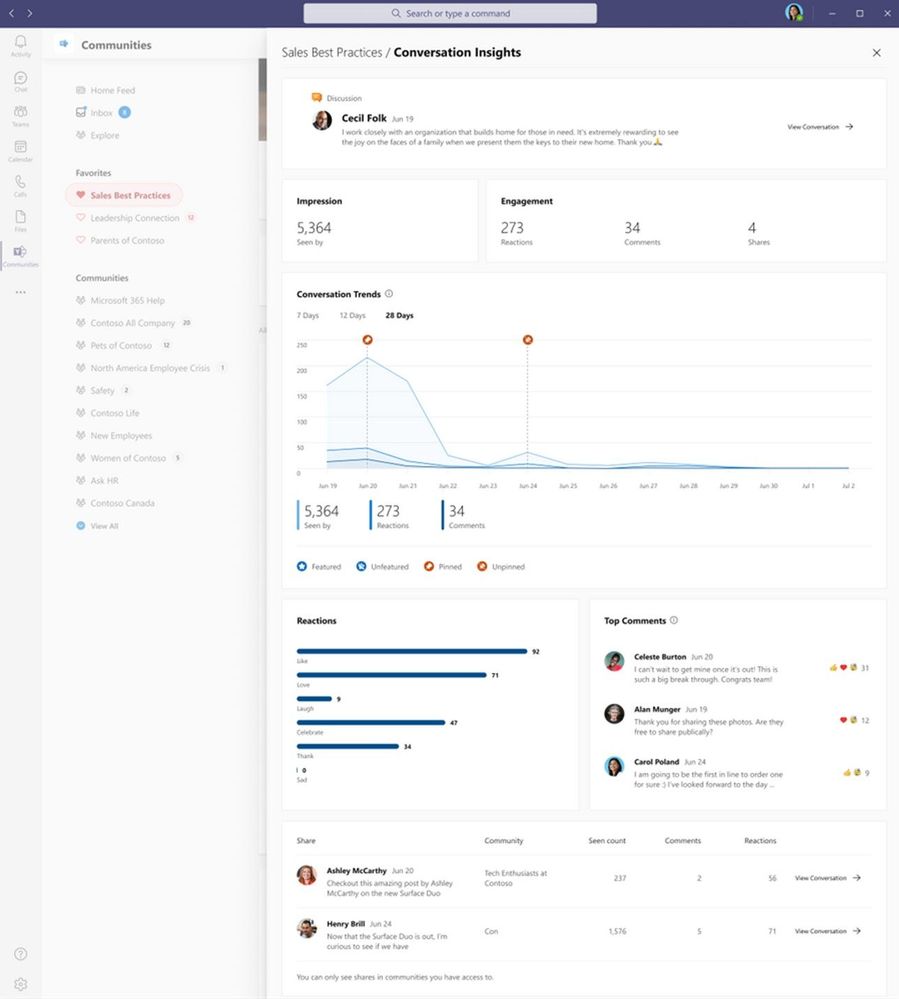 For important internal conversations in Yammer, get better insights into impressions, engagement, trends, reactions and more.
Conversation Insights is available on Yammer.com on the web, and through the Yammer Communities app in Microsoft Teams.
Immersive Reader is now available in OneDrive and SharePoint for documents
The Microsoft Immersive Reader technology, currently built into Word, OneNote, Outlook, Teams, and other Microsoft apps, will soon be available for documents stored in SharePoint. The Immersive Reader uses proven techniques to improve reading and writing for people regardless of their age or ability.
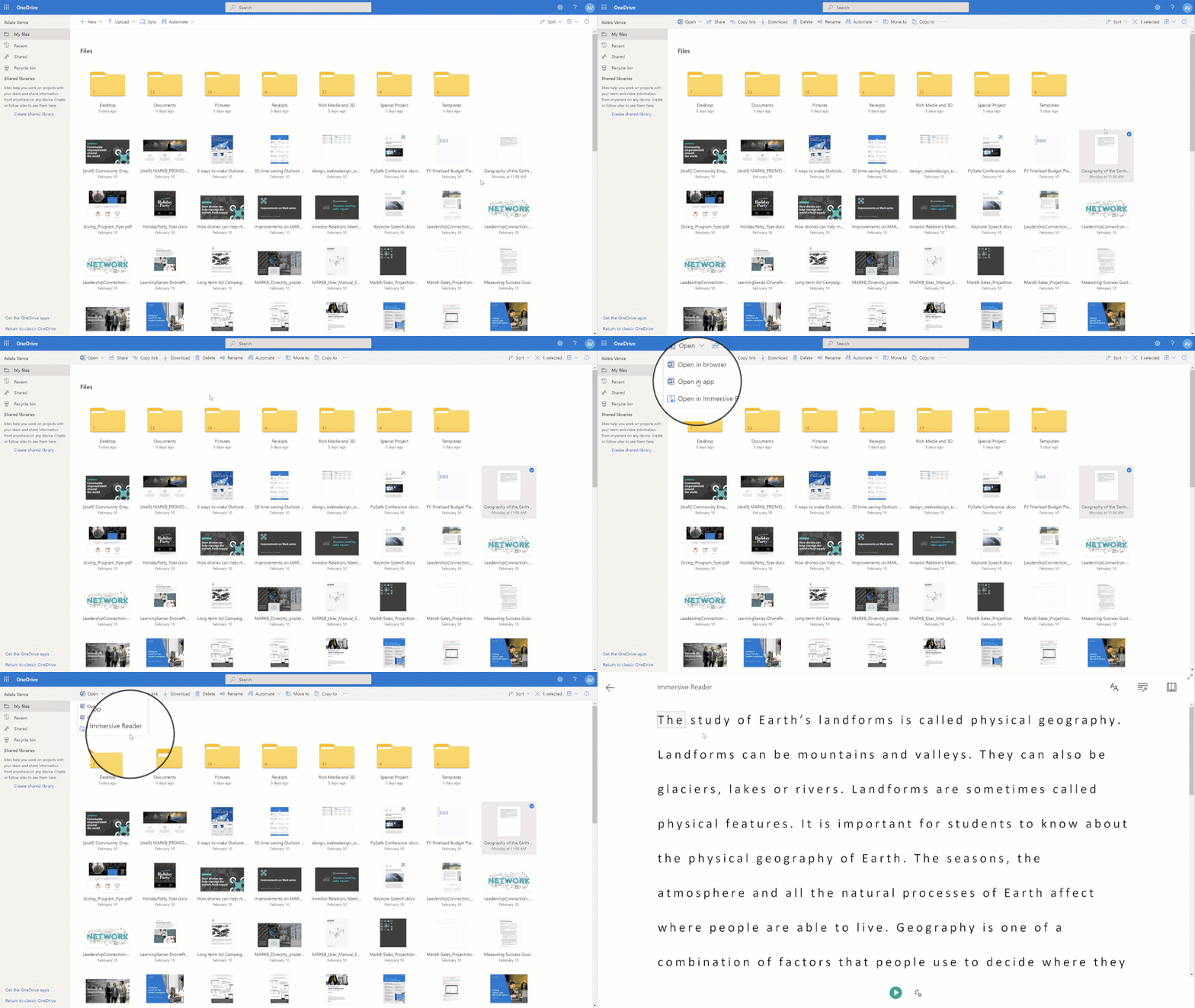 Open Word documents and text files directly into Immersive Reader from OneDrive and SharePoint libraries.
Migrate content from Dropbox & Google Workspace into Microsoft 365
Follow up the release for migrating Box content into Microsoft 365, now you can migrate your Dropbox and Google Workspace folders and files into OneDrive, SharePoint, and Teams in Microsoft 365. Collaborate all in one place with feature gains, productivity enhancements and a more centralized governance and compliance approach. The outcome puts you one step closer to a modern workplace that works for you, your peers and the collective content that is core to your business.
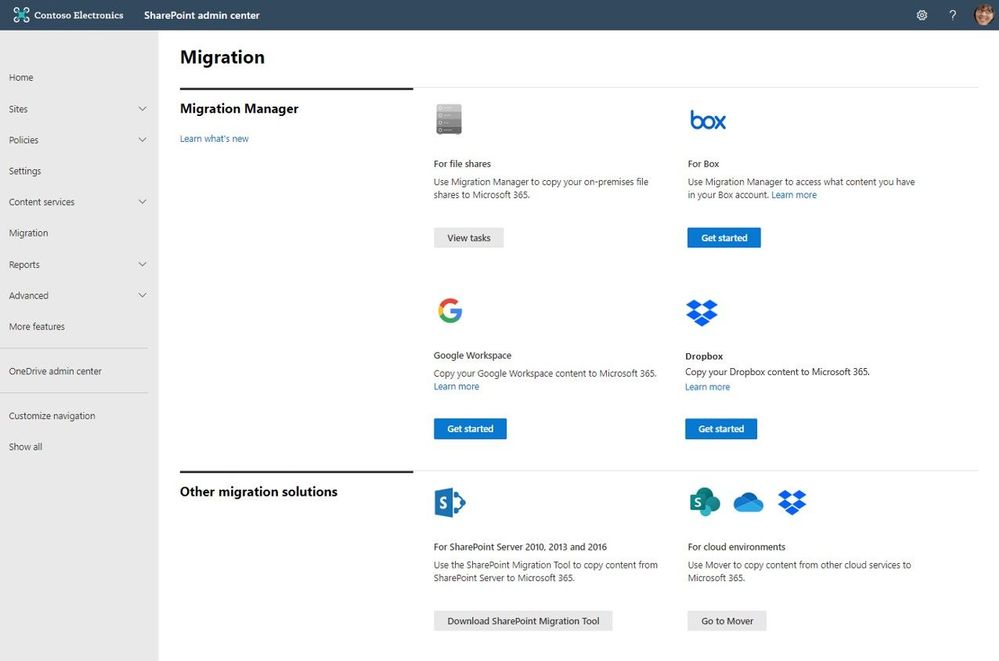 Connect your Box, Dropbox, or Google Workspace account to Microsoft 365 to move files and folder into OneDrive, SharePoint, and Microsoft Teams.
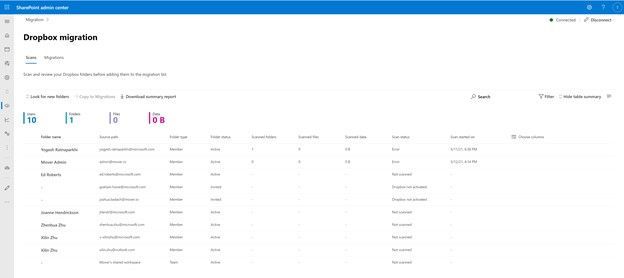 After clicking “Get Started” from the main Migration Manager page, Dropbox files and folders are scanned automatically. You can also review reports and logs pre-migration to investigate any possible issues that might block your migration.
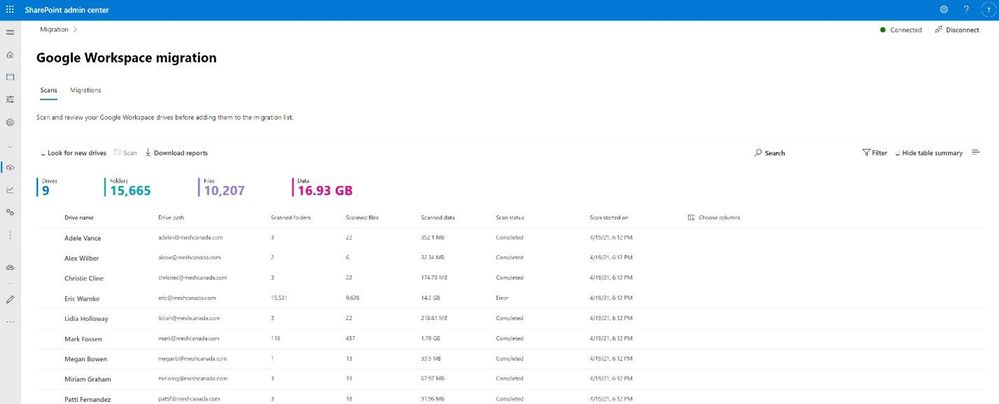 After clicking “Get Started” from the main Migration Manager page, Google Workspace files and folders are scanned automatically. You can also review reports and logs pre-migration to investigate any possible issues that might block your migration.
As an admin, you connect to a Dropbox or Google Workplace account, the service begins discovering users and their files. The service will automatically map to an individual’s OneDrive accounts, and you can manually map to specific OneDrive accounts, SharePoint site, or a Teams channel as you design and configure your preferred end state; aka, decide where and how you want content to land – especially if you are also working to establish an updated information architecture plan – no better time to do this than during migration.
Note: To use these migration capabilities, you must be a global admin or OneDrive/SharePoint admin to the Microsoft 365 tenant where you want to migrate your content.
- Learn more:
- Roadmap IDs: 82015 (migrate from Dropbox) and 82014 (migrate from Google Workspace)
Teamwork updates across SharePoint team sites, OneDrive, and Microsoft Teams
Microsoft 365 is designed to be a universal toolkit for teamwork – to give you the right tools for the right task, along with common services to help you seamlessly work across applications. SharePoint is the intelligent content service that powers teamwork – to better collaborate on proposals, projects, and campaigns throughout your organization – with integration across Microsoft Teams, OneDrive, Yammer, Stream, Planner and much more.
Microsoft Lists: Export lists to CSV
This is one of those features you might think has always been there – and you’d be half right in thinking that. Lists has always had, and maintained, integration with Excel – to either bring table data in, or to export to analyze your list data back in Excel. The limiting factor was the different experience for Mac – which, for some time, was not an option.
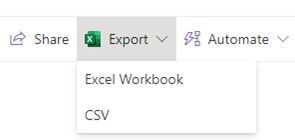 The Export to Excel button has been changed to say Export, with two options: 1) Excel Workbooks, and 2) CSV.
On Windows machines, the Export to Excel button has been changed to say Export, with two options underneath:
- Excel Workbooks, which is the export feature that’s always been there.
- CSV, which is new and brings the export closer to a native format in Excel – moving beyond the temporary .iqy file format.
On Macs, you can only Export to CSV – meaning that people accessing Lists on Mac can now complete the flow of being able to bring list data into Excel for analysis.
Note: even though lists power the rows and columns of SharePoint document libraries, this new export to CSV is currently only supported inside Lists; the team is aware of this design issue and working on it.
Updated sharing experience for Microsoft Lists
Since Microsoft Lists launch, you’ve been able to share both lists and list items – the latter being a powerful feature to share discreet portions of a list in a targeted fashion for your recipient. And we started with the basics of sharing – granting access.
With this update, users can now share entire lists using sharing links with more granular control options, leveraging the same sharing capabilities you might be familiar with when sharing files and folders, which brings to Lists the ability to share with everyone, only certain people, view/edit and the ability to set sharing expiration.
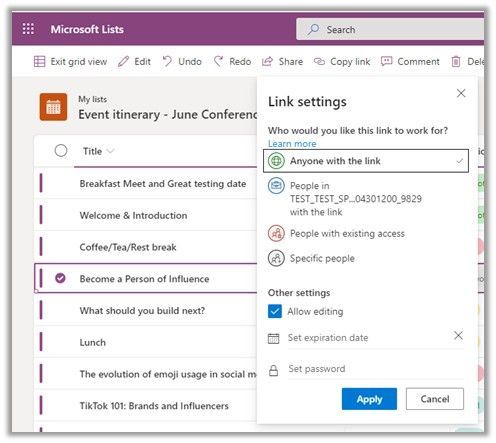 Updated sharing options when sharing lists or list items.
Note: The same admin controls that manage sharing for files and folders will also apply to lists and list items.
New management settings for Microsoft Lists (turn off/on comments)
This new feature will allow you to turn off/on comments for individual lists. Any user with manage list permission on the list will be able to access this setting in Advanced settings. Admins can already turn off or turn on comments for their entire organization in the admin center.
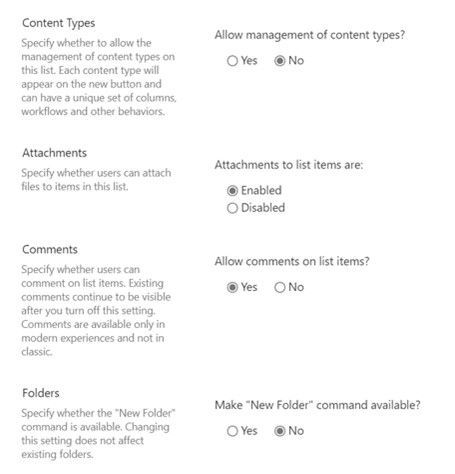 Admins can turn comments on or off for Microsoft Lists.
This new setting allows a finer-grained control for organizations that want to disallow commenting on specific lists. If an admin had previously turned off commenting for the entire organization, they can now turn on commenting for the organization and then turn off commenting for specific lists.
Recommended Files in Office on Windows: Excel, Word, and PowerPoint in Microsoft 365
Microsoft Office displays a list of recommended files on the File tab, or start page, of Word, Excel, or PowerPoint on Windows. This list allows you to keep track of work around you and quickly access files with activity you value most such as edits, mentions, comments by people you interact with.
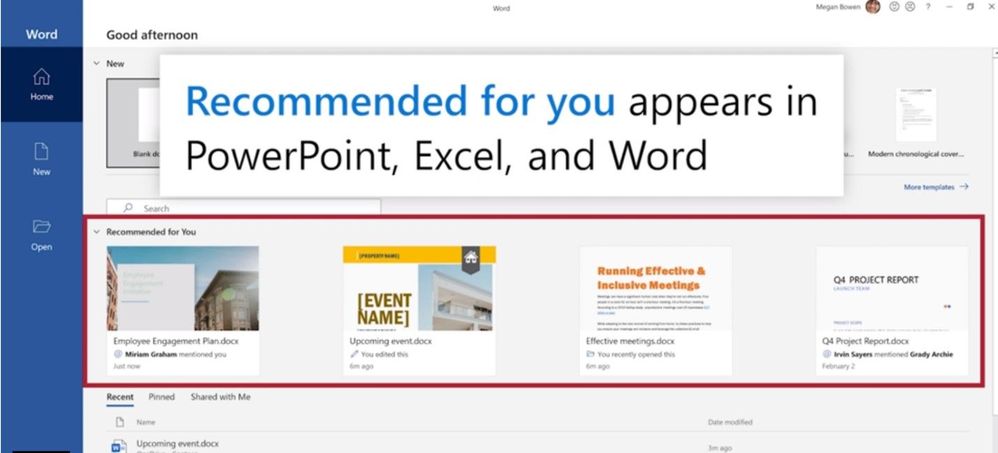 View Recommended for you file in the backstage of Word on Windows.
Behind the scenes, machine learning predicts which files you’re most likely to want to work on next and presents those as a set of cards you can choose from. Recommended files in Office has been available on Office.com and Office for Mac and is now coming to Office on Windows.
Note: This feature is currently available on Windows to Office Insiders on business or enterprise subscriptions, and then will release more broadly in the coming months.
OneDrive sync admin reports (Public Preview)
These reports provide visibility into who in your organization is running OneDrive sync and any errors they might be experiencing. OneDrive sync is a lot like electricity – people tend to take it for granted until they have a problem and they’re in the middle of an important project. Lights out is bad for business. This is even more the case now with so many people working from home and relying on cloud capabilities like OneDrive and SharePoint Online.
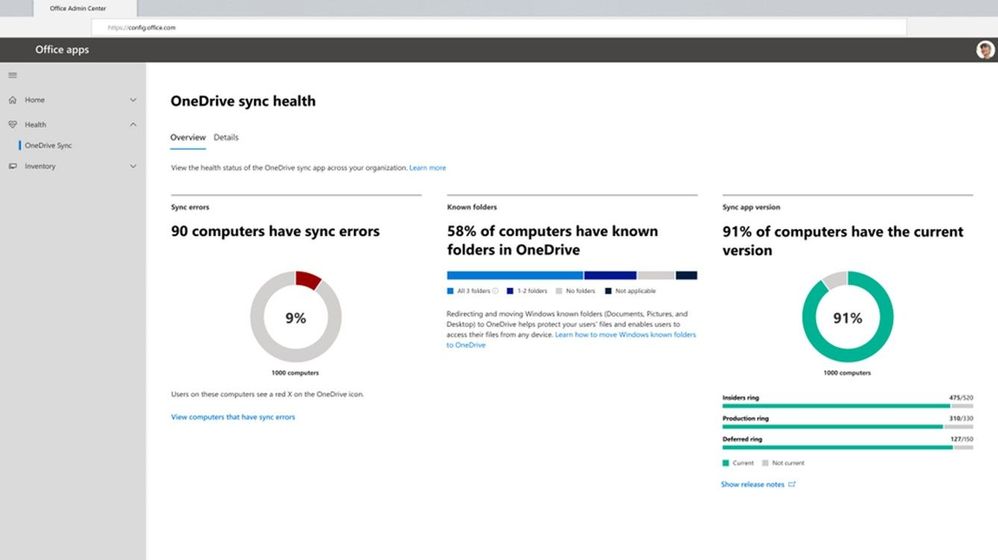 OneDrive sync admins reports let you see who in your organization is running OneDrive sync and any errors they might be experiencing.
Having insights into what’s happening with OneDrive sync across your organization gives you to the tools to educate people, to resolve common issues, and improve user experience to help increase and maintain OneDrive adoption.
And here’s a 7-min ‘how to’ video from Office Insider, Amesh Mansukhani:
Related technology
Build 2021 announcements
The Build conference opened the flood gates on what’s to come for developers. There’s a lot more than what I’ve highlighted – mainly spotlighting important ones below as they relate to Microsoft 365 (links go to related depth blogs or Build session videos):
Apps with Microsoft Edge: most notably: WebView2. PWAs FTW!
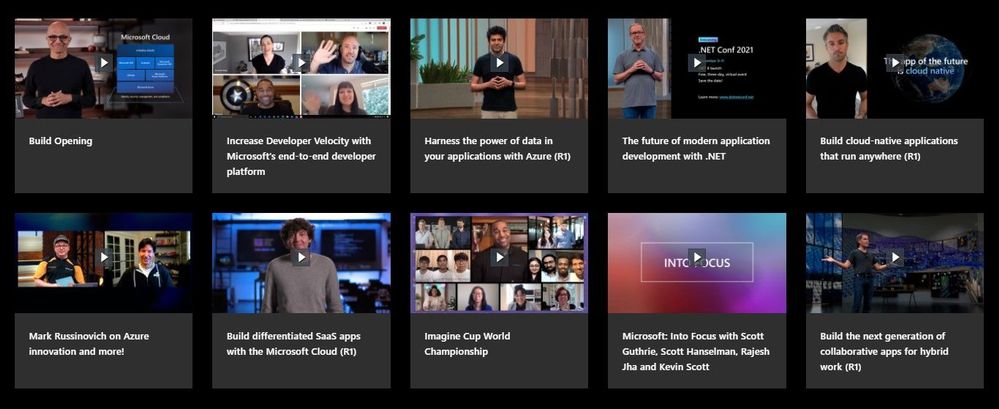 Highlights of Build 2021 on-demand sessions.
Check out all the goodness in the broader blog post, “What’s New for the Microsoft 365 Developer | Build 2021.” Plus, review all Build 2021 sessions now on-demand.
June 2021 teasers
Psst, still here? Still scrolling the page looking for more roadmap goodness? If so, here is a few teasers of what’s to come to production next month…
- Teaser #1: Power Apps can now display images from Microsoft Lists [Roadmap ID: 70606]
- Teaser #2: SharePoint admin center: homepage insights dashboard [Roadmap ID: 82014]
… shhh, tell everyone.
Helpful, ongoing change management resources
- ESPC21 (June.1-2, 2021) – Virtual | Jeff Teper keynote, numerous Microsoft and MVP sessions + workshops
- Microsoft 365 Collaboration Summit (June.8-10, 2021) – Hybrid | Dan Holme, Karuana Gatimu, and Charles Lamanna keynotes, plus numerous Microsoft and MVP sessions + workshops
- Follow me to catch news and interesting SharePoint things: @mkashman; warning, occasional bad puns may fly in a tweet or two here and there, plus my new blog on Substack: The Kashbox.
Thanks for tuning in and/or reading this episode/blog of the Intrazone Roadmap Pitstop – May 2021 (blog/podcast). We are open to your feedback in comments below to hear how both the Roadmap Pitstop podcast episodes and blogs can be improved over time.
Engage with us. Ask those questions that haunt you. Push us where you want and need to get the best information and insights. We are here to put both our and your best change management foot forward.
Stay safe out there on the road’map, and thanks for listening and reading.
Thanks for your time,
Mark Kashman – senior product manager (SharePoint/Lists) | Microsoft)
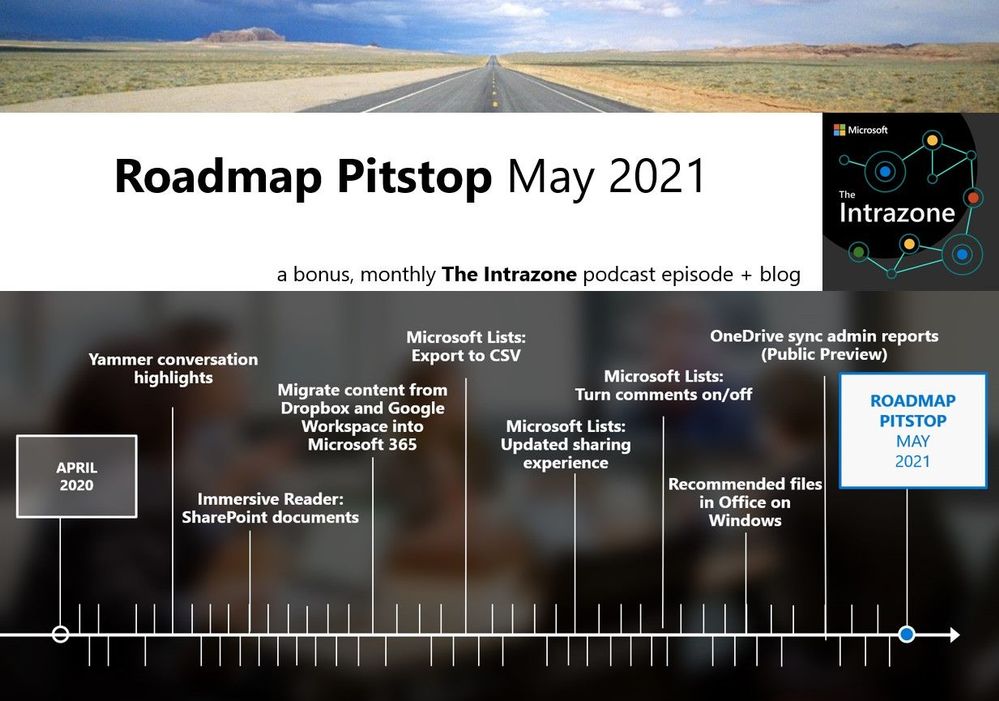 The Intrazone Roadmap Pitstop – May 2021 graphic showing some of the highlighted release features.


Recent Comments