by Contributed | Jun 1, 2021 | Technology
This article is contributed. See the original author and article here.
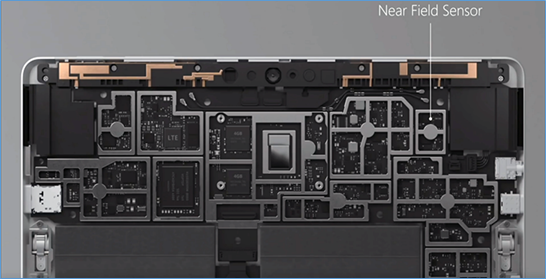
As a fan of Surface Go and Surface Go 2, I sometimes get asked about a little-known capability: Near field communication (NFC), the technology behind card readers. Even though we have only limited support for NFC, there are a growing number of third-party solutions that take advantage of the card reading capability.
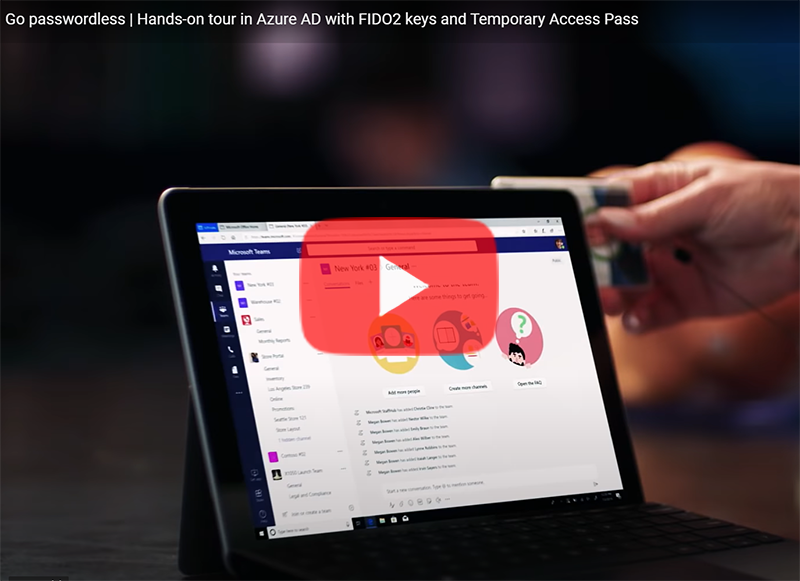
All Surface Go for Business and Surface Go 2 for Business devices are equipped to take advantage of greater third-party support for passwordless authentication. Azure AD now supports FIDO2 security keys as an authentication method for signing into operating systems, applications, and services. Organizations can issue these keys to everyday information workers.
And we’re seeing more innovations in the marketplace that build on the NFC capabilities in Surface Go:
AuthenTrend Technology ATKey.Card
Our friends in Azure recently partnered with AuthenTrend Technology in using its ATKey.Card Smart Badge type security card with Surface Go 2. To learn more, check out this recent Ignite session:
Imprivata OneSign
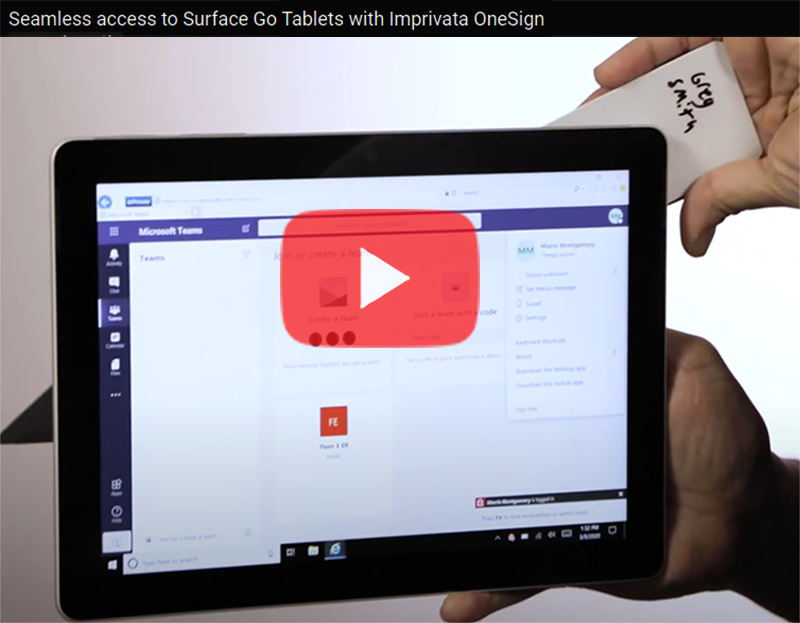
The increasing use of Surface Go as a shared mobile device in health care settings means protecting personal medical information has never been more critical. To meet this challenge, Imprivata OneSign provides an NFC solution that enables health care providers to simply tap their badge (instead of typing a username and password) to access the device and applications, which protects private health information with minimal disruption to the user.
“There’s tons of sensitive data on these devices that need to be secured but protecting these devices can’t be disruptive for the end-user clinicians focused on patient care,” Imprivata explains in the following video. The “seamless process gives them access to that tablet without having to enter a username or password or having to put a call into IT because they forgot those passwords.”
The Joy Factory aXtion Pro MPA NFC for Surface Go
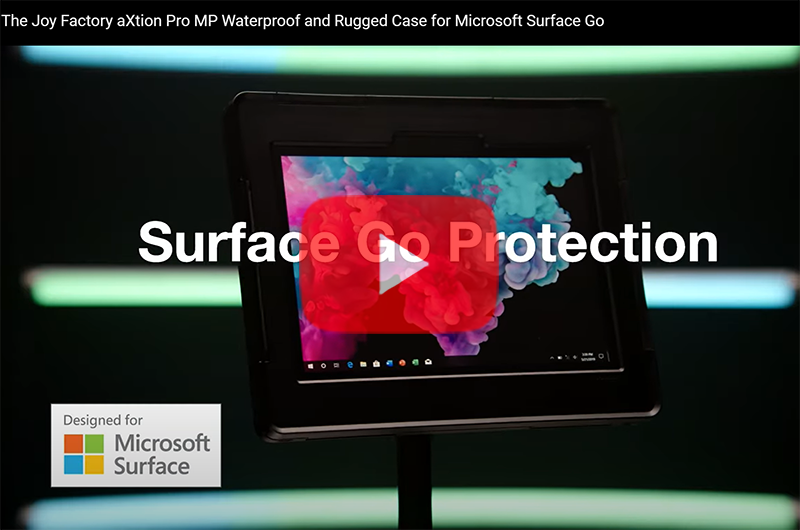
This waterproof case features an NFC range extender for use in health care settings. Infused with an antimicrobial agent to help prevent against bacteria and mold growth, the military-grade certified aXtion Pro MPA for Surface Go features a built-in rotating module with hand strap and non-slip kickstand. To learn more, see this short demo:
FAQ
Here are some answers to questions that typically come up when talking about the NFC functionality in Surface Go.
Is NFC available on all Surface Go and Surface Go 2 devices?
- NFC is only available on Surface Go for Business and Surface Go 2 for Business devices.
Can the NFC be disabled through UEFI or DFCI?
Can Go NFC be used to issue (digital wallet) or process (point of sale) payments?
- No. The NFC component does not include a secured element and the interface is not HID but a simple I2C.
Is multi factor authentication on Surface Go compliant with FIDO2.0 standards?
- Yes, when combined with compliant authentication solutions and server, such as using Authentrend Key Card, Windows Hello and Azure AD.
Can I access and use NFC from the front of the device?
- Yes, but only if the card has an independent power source like Authentrend. Passive cards can only be read from the back of the device — at very close proximity of ~10mm.
How can I troubleshoot multiple failed read attempts?
- Recall the location of the effective read area on the device.
- Remove any other NFC tags or NFC-enabled cards in the vicinity. limited NFC support is available for ISO/IEC 14443-A tag types 1 and 2 with antenna diameter between 15mm to 17mm.
- We recommend using the Mifare Classic 1K card type.
- Try keeping your badge in a nylon sleeve rather than a hard plastic case.
- You might find this tool useful for troubleshooting: Springcard.
What are some other commercial uses?
- Proximity-based apps. Applications that take advantage of proximity and location by using the RFID capability in Surface Go and a proximity sensor in Windows 10.
- Consumer apps. RFID-enabled apps capable of directing consumers to target websites. For example, users can swipe an RFID-enabled prescription container that opens relevant product information.
Learn more
by Contributed | Jun 1, 2021 | Technology
This article is contributed. See the original author and article here.
Visualizations & Workbooks are a key component of the App Insights experience. They enable customers to monitor performance / failure trends & debug issues as they occur.
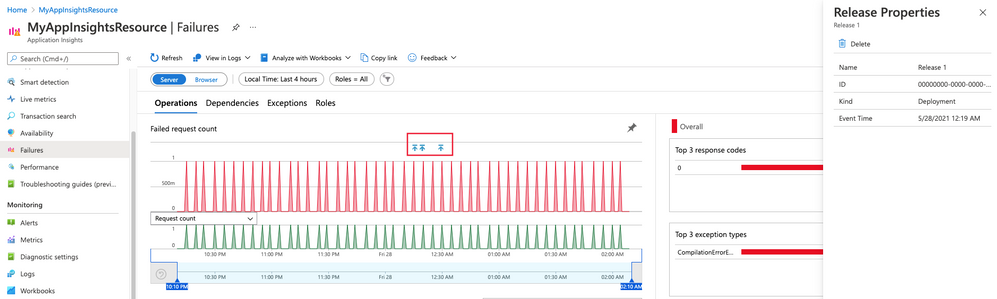
While performance data is critical to understanding the health of your application by itself it lacks the full context to help you understand why performance issues may be happening. Release Annotations are a simple way to add context & quantify the impact of an Azure DevOps release on your metrics.
Annotations can be automatically created by the Azure Pipelines build system. You can also create annotations to flag any event you like by creating them from PowerShell.
If your subscription has an Application Insights resource linked to it and you use one of the following deployment tasks, then you don’t need to configure anything else.
by Contributed | Jun 1, 2021 | Technology
This article is contributed. See the original author and article here.
Microsoft focuses on providing a seamless move to Microsoft 365 with as much expertise and tooling we and our ecosystem can offer – across the globe. Our goal is to help move to the cloud with confidence.
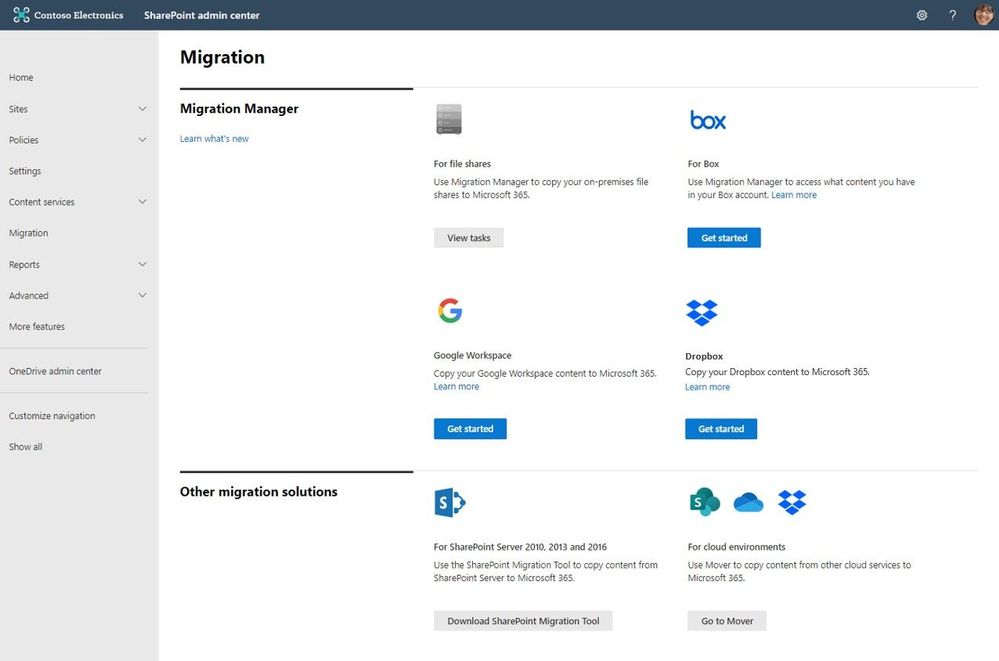
At times, you need to move content cloud-to-cloud. We’re pleased to highlight Mover integration progress, to bring more of their technology directly inside the SharePoint admin center in Microsoft 365. Now, the Migration Manager admin tab is the home to manage all content migrations into Microsoft 365 (primarily into OneDrive, SharePoint, and Microsoft Teams) – without leaving the service.
Connect your Box, Dropbox, or Google Workspace account to Microsoft 365 to move files and folder into OneDrive, SharePoint, and Microsoft Teams.
Microsoft offers numerous content migration tools and services to assist your migration into Microsoft 365 – from assessment, to planning and onboarding. And we work closely with our 3rd-party migration partners to optimize their offerings as well.
Migrate your files and folder from Box [roadmap ID: 68816]
SharePoint and Microsoft 365 admins require support to migrate content from Box into Microsoft 365; that’s Box files and folders as well as conversion of Box notes into Word documents – to where you choose as destination into OneDrive, SharePoint, and Teams. Now it’s more centrally located and fewer clicks to discover content and move it into Microsoft 365.
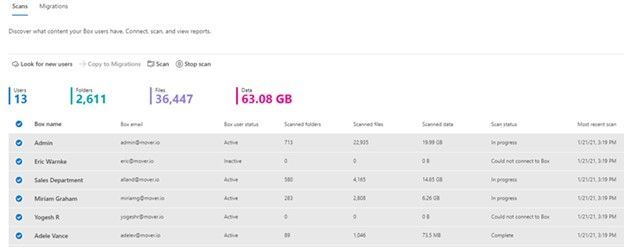 After clicking “Get Started” from the main Migration Manager page, Box users are scanned automatically. You can also review reports and logs pre-migration to investigate any possible issues that might block your migration.
When you connect to a Box enterprise account, the service discovers users and their files. The service will automatically map to an individual’s OneDrive accounts, and you can manually map to a specific OneDrive user account, or route to SharePoint sites or a Teams channel for content meant to be in shared spaces.
See Migrate Box to Microsoft 365 with Migration Manager to learn more.
Migrate your files and folder from Dropbox [roadmap ID: 82015]
Similar to the Box movement of content into Microsoft 365, this release makes it so you can take that same action – to migrate Dropbox folders, files, and users to OneDrive, SharePoint, and Teams in Microsoft 365, enabling collaboration take place on a single platform closer to where you manage much of your work and productivity.
As you connect to a Dropbox for Business account, the service begins discovering users and their files. The service will automatically map to an individual’s OneDrive accounts, and you can also manually map to a specific OneDrive user account, SharePoint site, or a Teams channel.
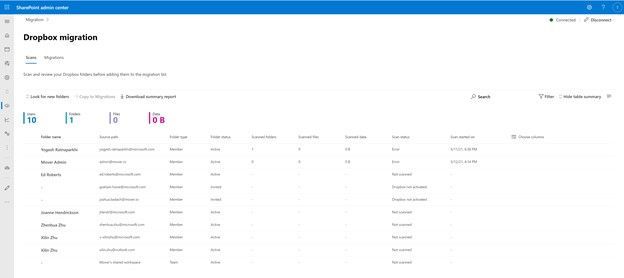 After clicking “Get Started” from the main Migration Manager page, Dropbox files and folders are scanned automatically. You can also review reports and logs pre-migration to investigate any possible issues that might block your migration.
Note: To access, you must be a global admin or OneDrive/SharePoint admin to the Microsoft 365 tenant where you want to migrate your content.
Migrate Dropbox to Microsoft 365 with Migration Manager to learn more.
Migrate your files and folder from Google Workspace [roadmap ID: 82014]
To cover the spectrum of customer needs, we, too, have released the ability to move content from Google Workspace – helping you move documents, data, and users to OneDrive, SharePoint, and Teams in Microsoft 365 and collaborate all in one place.
As you connect to a Google enterprise account, the service begins discovering drives and their files. The service will automatically map to an individual’s OneDrive accounts, and you can also manually map to a specific OneDrive user account, SharePoint site, or a Teams channel.
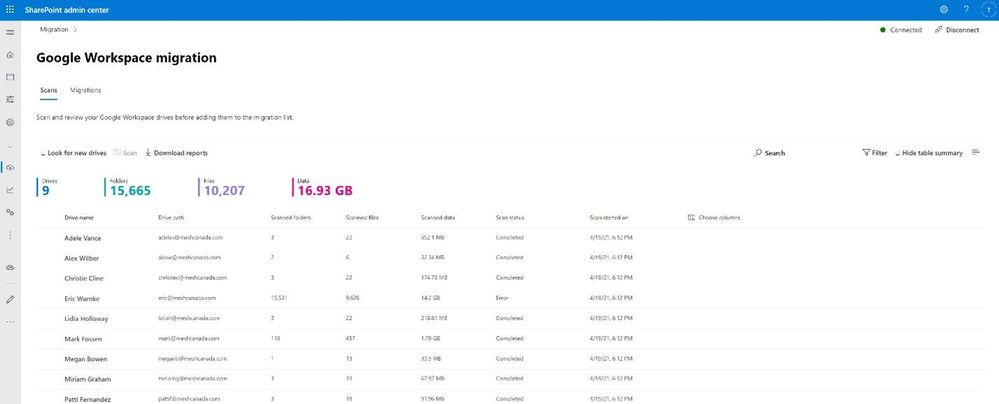 After clicking “Get Started” from the main Migration Manager page, Google Workspace files and folders are scanned automatically. You can also review reports and logs pre-migration to investigate any possible issues that might block your migration.
Note: To access, you must be a global admin or OneDrive/SharePoint admin to the Microsoft 365 tenant where you want to migrate your content.
Migrate Google Workspace to Microsoft 365 with Migration Manager to learn more.
Additional resources
What’s next…
As we continue to invest across the migration offerings, we are excited to expand our cloud-to-cloud capabilities to allow moving content from Egnyte into Microsoft 365 [roadmap ID: 82016]. And before you move any file or folder from on-premises into Microsoft 365, you need to discover content and plan for the migration. Soon, Migration Manager will provide content discovery so admins can best understand what content they have, decide what to migrate and what to remediate. If you are interested, you can complete this form for the Migration discovery preview.
Regardless of your organization’s size, data scale or information complexity, you can migrate documents and sites into OneDrive, SharePoint, and Teams in Microsoft 365 successfully. And we are here to help.
Use more of what SharePoint and Microsoft 365 offer, and let us know what you think
In addition to the above updates now rolling out to Microsoft 365, we encourage you to learn more about all migration offerings. Mover supports numerous cloud-to-cloud migration scenarios alongside our the SharePoint Migration Tool (SPMT) which targets migrating content from on-premises SharePoint sites and file shares to Microsoft 365, FastTrack planning and onboarding, and a strong migration partner ecosystem – collectively the broadest set of offerings to assist your migration into Microsoft 365.
Our goal is to empower you and every person on your team to achieve, and move, more. Let us know what you need next. We are always open to feedback via UserVoice and continued dialog in the SharePoint community within the Microsoft Tech Community —and we always have an eye on tweets to @SharePoint. Let us know.
Thanks, Mark Kashman, senior product manager – Microsoft
by Contributed | Jun 1, 2021 | Technology
This article is contributed. See the original author and article here.
Microsoft partners like Datadog, Datometry, and Sycomp deliver transact-capable offers, which allow you to purchase directly from Azure Marketplace. Learn about these offers below:
|
Datadog: Datadog is a SaaS monitoring and security platform for cloud applications. It integrates and automates infrastructure monitoring, application performance monitoring, and log management to provide unified, real-time observability of your entire technology stack. Enable digital transformation, drive collaboration across teams, secure applications and infrastructure, and more.
|
 |
Datometry Hyper-Q for Azure Synapse Analytics: Datometry Hyper-Q is a virtualization platform that makes existing Teradata applications interoperate with Microsoft Azure Synapse Analytics at a fraction of the time, cost, and risk associated with a conventional migration. Gain an edge over your competition by using Hyper-Q to rapidly move to the cloud without leaving any applications or business logic behind.
|
 |
Sycomp Storage Fueled by IBM Spectrum Scale: Sycomp’s solution deploys IBM Spectrum Scale storage clusters with Red Hat Enterprise Linux 7.8 based on your business needs. The offer is intended for customers seeking a resilient, performance-oriented storage platform, such as Microsoft Azure HPC, Azure AI, and Azure Machine Learning clients, along with those moving Hadoop workloads to the cloud.
|
|
by Contributed | Jun 1, 2021 | Technology
This article is contributed. See the original author and article here.
This blog post talks about simplifying bot deployments especially in scenarios where the root bot and skill bot architecture is implemented.
Prerequisites
- Understanding of Azure Bot Framework.
- Understanding of Dapr on Kubernetes.
- A kubernetes cluster such as Minikube, Docker-Desktop with Kubernetes or Azure Kuberenetes Service with ingress configured for SSL/TLS termination.
Introduction
In this blog post we are going to focus on simplifying bot deployments especially in scenarios where the root bot and skill bot architecture is implemented. With this type of architecture, bot functionality is extended by using another bot (a skill). A skill then is a bot that can perform a set of tasks for another bot and hence a bot can be both a skill and a user-facing bot.
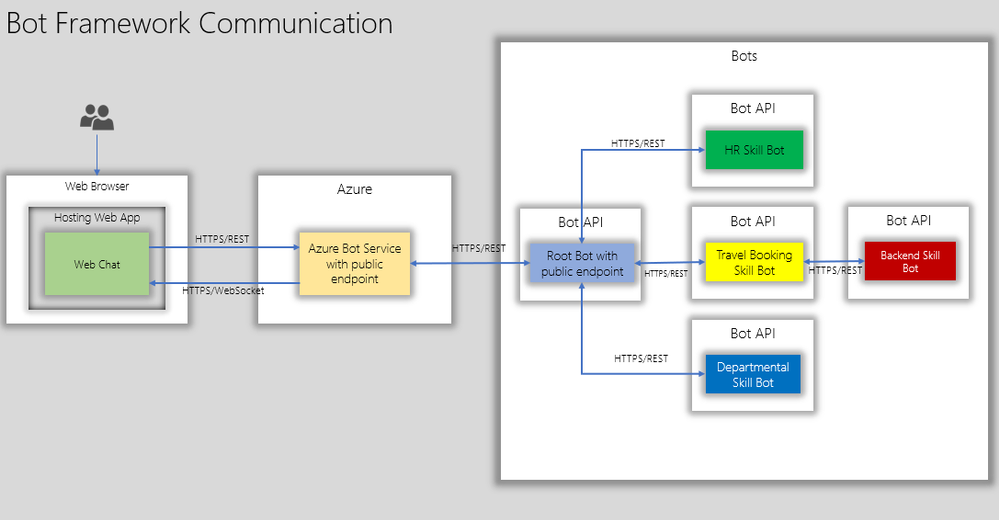
The below diagram shows how end users interact with root bot and specific skill bots such as a travel booking bot.
The root bot has a public endpoint but if it needs to be in an isolated network, it can be deployed using Direct Line App Service Extension. This is a topic for another blog post.
The skill bot can have public endpoints or private endpoints( not accessible publicly) depending on how the skill bot is consumed. But in the diagram above the skill bots do not have a public endpoint.
Here are a few considerations:
- The skills bots are typically developed by different teams and deployed at different milestones in the projects.
- Some skill bots will have to be live tested(A/B testing) in production to test usage and adoption.
- Each Skill bots can have different scale requirements. For. e.g Travel Booking bot can have higher scale requirements than an FAQ bot.
- From IT point of view, the bots will have to managed from network isolation, authentication, domain names to name a few.
With the above considerations, we shall see how Dapr helps to fast track some of the development aspects and also aide IT to manage bot deployment in a more stream lined manner.
Dapr – Distributed application runtime enables developers to build a cloud-native application that can be deployed as microservices on-premises, in the cloud or edge devices. Here we are going to treat skill bots as micro services that can be deployed, updated and managed independently just like any other micro service.
Here is what the bot APIs with Dapr can look like on Kubernetes:
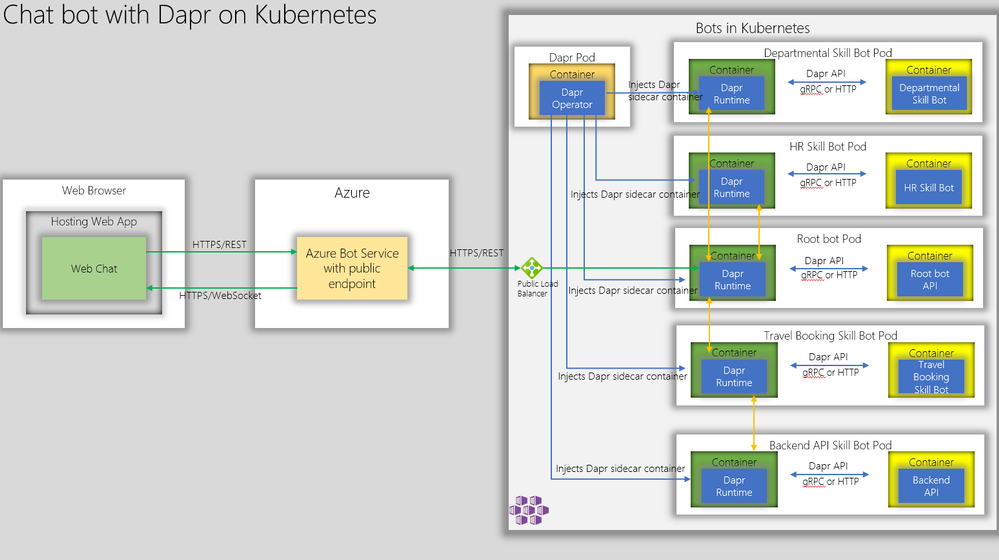
Firstly, we have Dapr operator deployed on the Kubernetes. The Dapr operator injects Dapr runtime as sidecar containers whenever a bot api container is deployed. Next, we create kubernetes deployment manifest with Dapr annotation as shown below and deploy the bot APIs as containers.
  annotations:
        dapr.io/enabled: "true"
        dapr.io/app-id: "simplerootbotapp"
        dapr.io/app-port: "3978"
This essentially instructs Dapr sidecar container to communicate with root bot API on its container port 3978.
This is a huge benefit for hosting Bot APIs as it obviates the need for determining unique ports for the Bot APIs and hence the bot ports can be standardized across the board.
Now, to communicate with the the Root Bot, the Azure Bot Services can connect to the Dapr Endpoint which is:
https://root-bot-domain-name/v1.0/invoke/simplerootbotapp/method/api/messages
Notice that we are using TLS between Azure Bot Service and bot api ensuring end-to-end TLS – from web browser to bot api hosted on kubernetes.
In order for the above endpoint to work, the kubernetes needs have the ssl termination configured using ingress controller with the backend serviceport pointing to the dapr port 3500.
An example ingress configuration is shown below.
apiVersion: extensions/v1beta1
kind: Ingress
metadata:
  name: root-bot-ingress
  namespace: root-bot
  annotations:
    kubernetes.io/tls-acme: "true"
    kubernetes.io/ingress.class: "nginx"
spec:
  tls:
  - hosts:
    - root-bot-domain.com
    secretName: root-bot-ingress-tls
  rules:
  - host: root-bot-domain.com
    http:
      paths:
      - path: /
        backend:
          serviceName: root-bot-service
          servicePort: 3500
Now, we can test the root bot with bot emulator and you should get a response as shown below. In the example below, we have a simple root bot that communicates with the end user and simple echo skill bot that echoes user input.
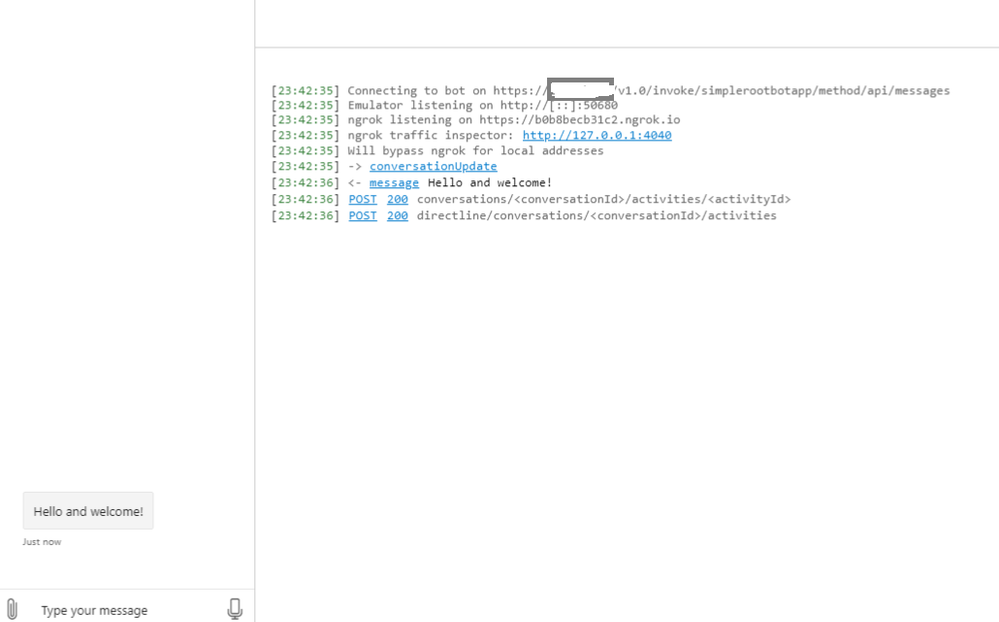
Great! Now we are able to communicate with the root bot that is configured with Dapr. Notice in the first log message above, that the bot emulator is connected to the rootbot over https.
Now, if we test a skill, we get the below response.
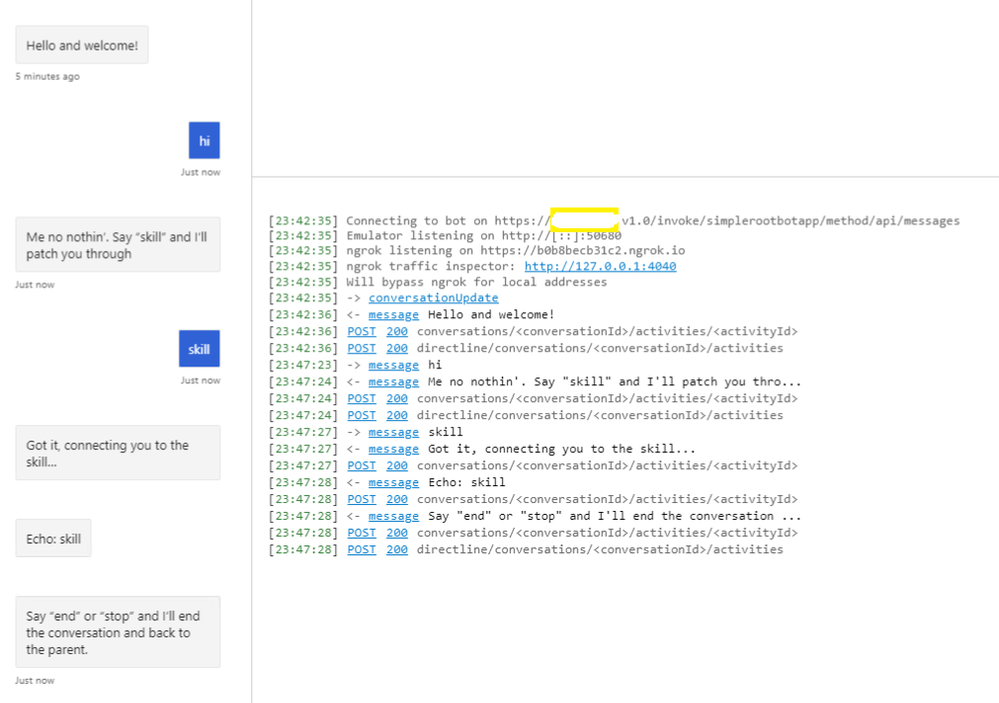
Yes. We are also able to communicate with the skill bot through the root bot.
Now, if development teams need to create a new skill bot they would just add a skill manifest configuration as shown below.
{
  "MicrosoftAppId": "",
  "MicrosoftAppPassword": "",
  "SkillHostEndpoint": "http://localhost:3500/v1.0/invoke/simplerootbotapp/method/api/skills/",
  "BotFrameworkSkills": [
    {
      "Id": "travelbot",
      "AppId": "85be21ea-3bbf-4ae6-a9bc-084718be67fb",
      "SkillEndpoint": "http://localhost:3500/v1.0/invoke/travelbot/method/api/messages"
    },
    {
      "Id": "HRSkillBot",
      "AppId": "85be21ea-3bbf-4ae6-a9bc-084718be67fb",
      "SkillEndpoint": "http://localhost:3500/v1.0/invoke/hrskillbot/method/api/messages"
    },
    {
      "Id": "DepartmentBot",
      "AppId": "85be21ea-3bbf-4ae6-a9bc-084718be67fb",
      "SkillEndpoint": "http://localhost:3500/v1.0/invoke/departmentbot/method/api/messages"
    }
  ]
}
Notice that the SkillHostEndpoint and SkillEndpoint are both pointing to localhost:3500 which is dapr runtime(sidecar container) injected by Dapr operator.
Thus for the development teams, they don’t need to worry about conflicting ports. They just need to provide a unique skill bot api url and dapr runtime would route to the correct skill endpoint.
For IT, they would expose 443/TLS on kubernetes thus making sure the communication channel is encrypted end-to-end.
In summary, dapr simplifies chatbot deployment comprising of root bot and multiple skill bots and kubernetes provides the scaling capabilities for bot APIs through node pools autoscaling and A/B testing through ingress controllers.
Getting Started
You can test this if you like to see this in action. The artifacts are available in this git repo. This repo has a simple root bot and and an echo bot configured with Dapr. You just to build the containers, publish them to container registry and deploy kubernetes manifest files that describe the bots.


Recent Comments