'Lock request time out period exceeded' when connecting to the database from SSMS

'Lock request time out period exceeded' when connecting to the database from SSMS

This article is contributed. See the original author and article here.


When you connect to the database using SQL Server Management Studio (SSMS), It will perform several queries to gather the information necessary for the user interface. If one of the queries performed by SSMS is blocked, you may face a lock time-out in the connection:


Thamires_Lemes_0-1621442395428.png


You can use the PowerShell script below, while attempting to connect, to identify the session that is causing the block:


Note: It is necessary to set values for the highlighted variables. It will create CSVs with the result of the queries in the $OutputFolder.


#Connect to SQL and run QUERY


$SQLServer = “”


$SQLDBName = “”


$SQLUsername = “”


$SQLPassword = “”


$OuputFolder = “C:”


#To get information about sessions that are blocking and being blocked


$SqlQuery = “SELECT current_timestamp as [CURRENT_TIMESTAMP]


       , DB_NAME(dtl.resource_database_id) AS database_name


       , req.session_id AS blocked_sessionID


       , ses.program_name blocked_programName


       , ses.host_name blocked_hostname


       , ses.login_name blocked_login


       , CASE ses.transaction_isolation_level


              WHEN 1 THEN ‘ReadUncomitted’


              WHEN 2 THEN ‘ReadCommitted’


              WHEN 3 THEN ‘Repeatable’


              WHEN 4 THEN ‘Serializable’


              WHEN 5 THEN ‘Snapshot’


       END blocked_isolation_level


       , REPLACE(REPLACE(sqltext.TEXT, CHAR(13), ‘ ‘), CHAR(10), ‘ ‘) AS blocked_last_query


       , req.status AS [blocked_status]


       , req.command AS blocked_command


       , req.cpu_time AS blocked_cpuTime


       , req.total_elapsed_time AS blocked_totalElapsedTime


       , blocked_tran.transaction_id blocked_transaction_id


       , osw.blocking_session_id AS blocker_SessionID


       , blocker_ses.program_name blocker_programName


       , blocker_ses.host_name blocker_hostName


       , blocker_ses.login_name blocker_login


       , CASE blocker_ses.transaction_isolation_level


              WHEN 1 THEN ‘ReadUncomitted’


              WHEN 2 THEN ‘ReadCommitted’


              WHEN 3 THEN ‘Repeatable’


              WHEN 4 THEN ‘Serializable’


              WHEN 5 THEN ‘Snapshot’


       END blocker_isolation_level


       , REPLACE(REPLACE(iif(blocker_sqltext.TEXT is NULL,blocker_sqltext2.event_info,blocker_sqltext.TEXT), CHAR(13), ‘ ‘), CHAR(10), ‘ ‘) AS blocker_last_query


       , blocker_req.status AS [blocker_status]


       , blocker_req.command AS blocker_command


       , blocker_req.cpu_time AS blocker_cpuTime


       , blocker_req.total_elapsed_time AS blocker_totalElapsedTime


       , blocker_proc.lastwaittype blocker_last_waittype


       , blocker_proc.last_batch blocker_last_batch


       , blocker_proc.open_tran blocker_open_tran


       , blocker_tran.transaction_id blocker_transaction_id


       , blocker_proc.cmd blocker_command


       , dtl.request_mode AS lockRequestMode


       , dtl.resource_type AS lockResourceType


       , dtl.resource_subtype AS lockResourceSubType


       , osw.wait_type AS taskWaitType


       , osw.resource_description AS taskResourceDescription


       , osw.wait_duration_ms


FROM sys.dm_exec_requests req


INNER JOIN sys.dm_exec_sessions ses on ses.session_id = req.session_id


CROSS APPLY sys.dm_exec_sql_text(req.sql_handle) AS sqltext


INNER JOIN sys.dm_tran_locks dtl on dtl.request_session_id = req.session_id


INNER JOIN sys.dm_os_waiting_tasks osw on osw.session_id = req.session_id


LEFT JOIN sys.dm_tran_session_transactions blocked_tran on blocked_tran.session_id =req.session_id


INNER JOIN dbo.sysprocesses blocker_proc on osw.blocking_session_id = blocker_proc.spid


LEFT JOIN sys.dm_exec_requests blocker_req on blocker_req.session_id = osw.blocking_session_id


LEFT JOIN sys.dm_exec_sessions blocker_ses on blocker_ses.session_id = osw.blocking_session_id


LEFT JOIN sys.dm_tran_session_transactions blocker_tran on blocker_tran.session_id =osw.blocking_session_id


OUTER APPLY sys.dm_exec_sql_text(blocker_req.sql_handle) AS blocker_sqltext


OUTER APPLY sys.dm_exec_input_buffer(osw.blocking_session_id,0) as blocker_sqltext2;”


#To get the locks that are being held by the sessions that are blocking and being blocked


$SqlQuery2 = “


select DB_NAME(locks.resource_database_id) AS database_name


 , locks.request_session_id


 , locks.resource_type, locks.resource_subtype


 , locks.resource_description


 , locks.resource_associated_entity_id


 , locks.resource_lock_partition


 , locks.request_mode


 , locks.request_type


 , locks.request_status


 , locks.request_reference_count


 , locks.request_lifetime


 , locks.request_exec_context_id


 , locks.request_request_id


 , locks.request_owner_type


FROM sys.dm_exec_requests req


INNER JOIN sys.dm_os_waiting_tasks osw on osw.session_id = req.session_id


INNER JOIN sys.dm_tran_locks locks on osw.blocking_session_id = locks.request_session_id or (osw.session_id = locks.request_session_id and osw.blocking_session_id is not null)


order by locks.request_session_id;”


#Dummy query to test if queries are running successfully, in case the previous ones do not return data


$SqlQuery3 = “select CURRENT_TIMESTAMP as timestamp, @@SERVERNAME as server_name, DB_NAME() as database_name, @@SPID as session_id;”


#Connect to SQL Server


$SqlConnection = New-Object System.Data.SqlClient.SqlConnection


$SqlConnection.ConnectionString = “Server = $SQLServer; Database = $SQLDBName; User ID = $SQLUsername; Password = $SQLPassword”


$SqlCmd = New-Object System.Data.SqlClient.SqlCommand


$SqlCmd.Connection = $SqlConnection


#Create the objects that will be used to run the queries


$SqlAdapter = New-Object System.Data.SqlClient.SqlDataAdapter


#Run 1st query


$DataSet = New-Object System.Data.DataSet


$SqlCmd.CommandText = $SqlQuery


$SqlAdapter.SelectCommand = $SqlCmd


$SqlAdapter.Fill($DataSet)


#Output RESULTS of 1st query to CSV


$DataSet.Tables[0] | Export-Csv -Delimiter ‘;’ -Path “$OuputFolderlock_waits_$(get-date -f yyyy-MM-dd-HH.mm.ss).csv” -NoTypeInformation


#Run 2nd query


$DataSet = New-Object System.Data.DataSet


$SqlCmd.CommandText = $SqlQuery2


$SqlAdapter.SelectCommand = $SqlCmd


$SqlAdapter.Fill($DataSet)


#Output RESULTS of 2nd query to CSV


$DataSet.Tables[0] | Export-Csv -Delimiter ‘;’ -Path “$OuputFolderlock_list_$(get-date -f yyyy-MM-dd-HH.mm.ss).csv” -NoTypeInformation


#Run 3rd query


$DataSet = New-Object System.Data.DataSet  


$SqlCmd.CommandText = $SqlQuery3


$SqlAdapter.SelectCommand = $SqlCmd


$SqlAdapter.Fill($DataSet) 


#Output RESULTS of 3rd query to CSV


$DataSet.Tables[0] | Export-Csv -Delimiter ‘;’ -Path “$OuputFoldertest_connection_$(get-date -f yyyy-MM-dd-HH.mm.ss).csv” -NoTypeInformation


#Close the connection


$SqlConnection.Close()


In the CSV files, you should be able to see the last queries of the sessions involved in the block, their isolation level, if they are inside a transaction and the locks they are holding. This should help you understand why the block is happening.


This PowerShell script uses two queries from this blog post. Please refer to this blog post for additional information.


References:


https://techcommunity.microsoft.com/t5/azure-database-support-blog/troubleshooting-high-lock-wait-time-and-lock-time-out/ba-p/2368875


Experiencing Alerting failure for Log Search Alerts – 05/19 – Resolved

This article is contributed. See the original author and article here.

Final Update: Wednesday, 19 May 2021 15:58 UTC

We’ve confirmed that all systems are back to normal with no customer impact as of 05/19, 15:45 UTC. Our logs show the incident started on 05/19, 14:30 UTC and that during the 1 hour 15 minutes that it took to resolve the issue customers may have experienced issues with missed or delayed alerts in Fairfax.
  • Root Cause: Engineering team has determined that part of the backend workflow for processing Log Search Alerts became unhealthy after it had reached an operational threshold.
  • Incident Timeline: 1 Hour & 15 minutes – 05/19, 14:30 UTC through 05/19, 15:45 UTC

We understand that customers rely on Log Search Alerts as a critical service and apologize for any impact this incident caused.

-Vincent


Cisco Releases Security Updates for Multiple Products  

This article is contributed. See the original author and article here.

Cisco has released security updates to address vulnerabilities in multiple Cisco products. A remote attacker could exploit some of these vulnerabilities to take control of an affected system. For updates addressing lower severity vulnerabilities, see the Cisco Security Advisories page.

CISA encourages users and administrators to review the following Cisco advisories and apply the necessary updates:

Troubleshooting high lock wait time and lock time-out

Troubleshooting high lock wait time and lock time-out

This article is contributed. See the original author and article here.


Locks are held in the database to ensure data consistency. If there are errors due to lock time-out or performance issues due to lock waits, the recommendation is to review the transactions that are involved in the locks to check if it is possible to change anything in their logic or isolation level to improve concurrency and avoid the blocks. Blocks can also be caused by transactions taking longer than expected and, in this case, it may require query tuning.


We can use T-SQL while the issue is happening to identify the queries involved in the block and the applications that are running them.


With the query below, we can see the sessions involved in the block, last query they ran, and which one is the head of the block. It might already give us enough information to identify where the issue is:


–Blocking tree


SET NOCOUNT ON
GO
SELECT SPIDBLOCKEDREPLACE (REPLACE (T.TEXTCHAR(10), ‘ ‘), CHAR (13), ‘ ‘ ) AS BATCH
INTO #T
FROM sys.sysprocesses R CROSS APPLY sys.dm_exec_sql_text(R.SQL_HANDLET
GO
WITH BLOCKERS (SPIDBLOCKEDLEVELBATCH)
AS
(
SELECT SPID,
BLOCKED,
CAST (REPLICATE (‘0’4LEN (CAST (SPID AS VARCHAR))) + CAST (SPID AS VARCHARAS VARCHAR (1000)) AS LEVEL,
BATCH FROM #T R
WHERE (BLOCKED OR BLOCKED SPID)
AND EXISTS (
SELECT FROM #T R2 WHERE R2.BLOCKED R.SPID AND R2.BLOCKED <> R2.SPID)
UNION ALL
SELECT R.SPID,
R.BLOCKED,
CAST (BLOCKERS.LEVEL RIGHT (CAST ((1000 R.SPIDAS VARCHAR (100)), 4AS VARCHAR (1000)) AS LEVEL,
R.BATCH FROM #T AS R
INNER JOIN BLOCKERS ON R.BLOCKED BLOCKERS.SPID WHERE R.BLOCKED AND R.BLOCKED <> R.SPID
)
SELECT N’    ‘ REPLICATE (N’|         ‘LEN (LEVEL)/– 1) +
CASE WHEN (LEN(LEVEL)/– 10
THEN ‘HEAD –  ‘
ELSE ‘|——  ‘ END
CAST (SPID AS NVARCHAR (10)) + N’ ‘ BATCH AS BLOCKING_TREE
FROM BLOCKERS ORDER BY LEVEL ASC
GO
DROP TABLE #T
GO


If the information provided by the last query is not enough and we have to look deeper into the sessions that are part of the block, we can run the query below:


–Details about the sessions that are blocking and being blocked:


SELECT current_timestamp as [CURRENT_TIMESTAMP]


       , DB_NAME(dtl.resource_database_id) AS database_name


       , req.session_id AS blocked_sessionID


       , ses.program_name blocked_programName


       , ses.host_name blocked_hostname


       , ses.login_name blocked_login


       , CASE ses.transaction_isolation_level


              WHEN 1 THEN ‘ReadUncomitted’


              WHEN 2 THEN ‘ReadCommitted’


              WHEN 3 THEN ‘Repeatable’


              WHEN 4 THEN ‘Serializable’


              WHEN 5 THEN ‘Snapshot’


       END blocked_isolation_level


       , REPLACE(REPLACE(sqltext.TEXT, CHAR(13), ‘ ‘), CHAR(10), ‘ ‘) AS blocked_last_query


       , req.status AS [blocked_status]


       , req.command AS blocked_command


       , req.cpu_time AS blocked_cpuTime


       , req.total_elapsed_time AS blocked_totalElapsedTime


       , blocked_tran.transaction_id blocked_transaction_id


       , osw.blocking_session_id AS blocker_SessionID


       , blocker_ses.program_name blocker_programName


       , blocker_ses.host_name blocker_hostName


       , blocker_ses.login_name blocker_login


       , CASE blocker_ses.transaction_isolation_level


              WHEN 1 THEN ‘ReadUncomitted’


              WHEN 2 THEN ‘ReadCommitted’


              WHEN 3 THEN ‘Repeatable’


              WHEN 4 THEN ‘Serializable’


              WHEN 5 THEN ‘Snapshot’


       END blocker_isolation_level


       , REPLACE(REPLACE(iif(blocker_sqltext.TEXT is NULL,blocker_sqltext2.event_info,blocker_sqltext.TEXT), CHAR(13), ‘ ‘), CHAR(10), ‘ ‘) AS blocker_last_query


       , blocker_req.status AS [blocker_status]


       , blocker_req.command AS blocker_command


       , blocker_req.cpu_time AS blocker_cpuTime


       , blocker_req.total_elapsed_time AS blocker_totalElapsedTime


       , blocker_proc.lastwaittype blocker_last_waittype


       , blocker_proc.last_batch blocker_last_batch


       , blocker_proc.open_tran blocker_open_tran


       , blocker_tran.transaction_id blocker_transaction_id


       , blocker_proc.cmd blocker_command


       , dtl.request_mode AS lockRequestMode


       , dtl.resource_type AS lockResourceType


       , dtl.resource_subtype AS lockResourceSubType


       , osw.wait_type AS taskWaitType


       , osw.resource_description AS taskResourceDescription


       , osw.wait_duration_ms


FROM sys.dm_exec_requests req


INNER JOIN sys.dm_exec_sessions ses on ses.session_id = req.session_id


CROSS APPLY sys.dm_exec_sql_text(req.sql_handle) AS sqltext


INNER JOIN sys.dm_tran_locks dtl on dtl.request_session_id = req.session_id


INNER JOIN sys.dm_os_waiting_tasks osw on osw.session_id = req.session_id


LEFT JOIN sys.dm_tran_session_transactions blocked_tran on blocked_tran.session_id =req.session_id


INNER JOIN dbo.sysprocesses blocker_proc on osw.blocking_session_id = blocker_proc.spid


LEFT JOIN sys.dm_exec_requests blocker_req on blocker_req.session_id = osw.blocking_session_id


LEFT JOIN sys.dm_exec_sessions blocker_ses on blocker_ses.session_id = osw.blocking_session_id


LEFT JOIN sys.dm_tran_session_transactions blocker_tran on blocker_tran.session_id =osw.blocking_session_id


OUTER APPLY sys.dm_exec_sql_text(blocker_req.sql_handle) AS blocker_sqltext


OUTER APPLY sys.dm_exec_input_buffer(osw.blocking_session_id,0) as blocker_sqltext2;


This query will provide information about the last queries on both sides, the isolation level of each and if they are inside a transaction.


Locks are held for the duration of the transaction (between commits/rollbacks), so the lock might be being held due to a previous query of the current transaction. Said that, there may be cases in which the block does not make sense when looking at both sessions last query, but it does when we look at the whole transaction. However, we cannot see the previous queries the transaction ran using T-SQL.


In the cases where the blocks are happening due to a lock acquired for a previous statement, we can use the query below to see which locks are being held by the sessions involved in the block. It won’t give us the previous queries in the transactions, but it might help us understand why the block is happening and assist in the investigation.


–Details about the locks that are being held by the sessions that are blocking and being blocked:


select DB_NAME(locks.resource_database_id) AS database_name


 , locks.request_session_id


 , locks.resource_type, locks.resource_subtype


 , locks.resource_description


 , locks.resource_associated_entity_id


 , locks.resource_lock_partition


 , locks.request_mode


 , locks.request_type


 , locks.request_status


 , locks.request_reference_count


 , locks.request_lifetime


 , locks.request_exec_context_id


 , locks.request_request_id


 , locks.request_owner_type


FROM sys.dm_exec_requests req


INNER JOIN sys.dm_os_waiting_tasks osw on osw.session_id = req.session_id


INNER JOIN sys.dm_tran_locks locks on osw.blocking_session_id = locks.request_session_id or (osw.session_id = locks.request_session_id and osw.blocking_session_id is not null)


order by locks.request_session_id;


For Azure SQL Database, if the database has auditing enabled in the Portal, we can find all the queries that were run by the transaction in the audit logs by filtering by session ID and transaction ID provided in the second query.


For both Azure SQL Database and Azure SQL Managed Instance, we can create an XEvents session to see which queries are being run by the applications and filter by the transaction ID and session returned by the second query.


Both XEvents and Auditing will only assist in the investigation of locks that happened after they were enabled/started.


Examples:


1. Using Extended Events:


For this example, I created an XEvents session in a Managed Instance for the events sql_statement_starting and sql_statement_completed filtering by the database name and adding the global fields sessionID and transaction_id. You may also want to include other global fields to help you in the investigation, such as client_app_name, client_hostname and username.


Note: For more information about XEvents, please refer to the extended events documentation.


After the Extended Events is active, we have a block in our database with the following blocking tree:


Thamires_Lemes_1-1621439559912.png


As you can see, the head (session 98) last statement was an alter in the table Person and It is blocking the session 97 (insert in the table Person), which we can understand just looking at the queries.


However, the session 97 last statement was an insert into the table Person and It is blocking the session 115, that is trying to insert into the table Person2. If it is a different table, how can they this block happen?


We can understand when we look at the information collected by the XEvents:


Thamires_Lemes_2-1621439585985.png


We see the session 97 ran 2 queries in this same transaction (same transaction_id) and the first one was an alter in the table Person2.


It may be difficult to find the information right away if there is high activity on the database, so you can filter by the session_id and transaction_id, provided by the second query in this article to find all the statements that were executed within the same transaction.


2.  Using Azure SQL DB Auditing


If you have auditing enabled for your Azure SQL DB server/database, you can use the audit log to see the statements that were run by the transaction(s).


If we have the same scenario as the previous example, but now in an Azure SQL DB with auditing enabled:


Thamires_Lemes_3-1621439607209.png


As you can see above, the head (session 102) last statement was an alter in the table Person and It is locking the session 104 (insert in the table Person), which we can understand just looking at the queries.


However, the session 104 which last statement was the insert into Person is blocking the session 100 that is trying to insert into the table Person2. If it is a different table, how can they this block happen?


If we open the audit log and add the columns session_id and transaction_id, we can see the session 104 ran in this same transaction (same transaction_id) an alter in the table Person2:


Thamires_Lemes_4-1621439622694.png


We cannot see in the audit log the statements that are blocked, because it only shows the statements that have been completed. We can use the session_id and transaction_id returned by the second query of this article to filter the audit information and see the previous queries ran by the transaction(s).


References:


https://blog.sqlauthority.com/2015/07/07/sql-server-identifying-blocking-chain-using-sql-scripts/


Best practices for using global navigation in the SharePoint app bar

Best practices for using global navigation in the SharePoint app bar

This article is contributed. See the original author and article here.

CroppedHeaderAppBar.png


Your tenant just got the new SharePoint app bar, and you are probably wondering how it should fit in with the rest of your intranet architecture. You may be asking yourself, what should be in the global navigation and what should be home site navigation? What if my home site is also a hub site? In this blog, we’ll share best practices on how to think about global navigation, how to align with existing home site and hub navigation, and how to prepare for the app bar. 


What’s the SharePoint app bar?


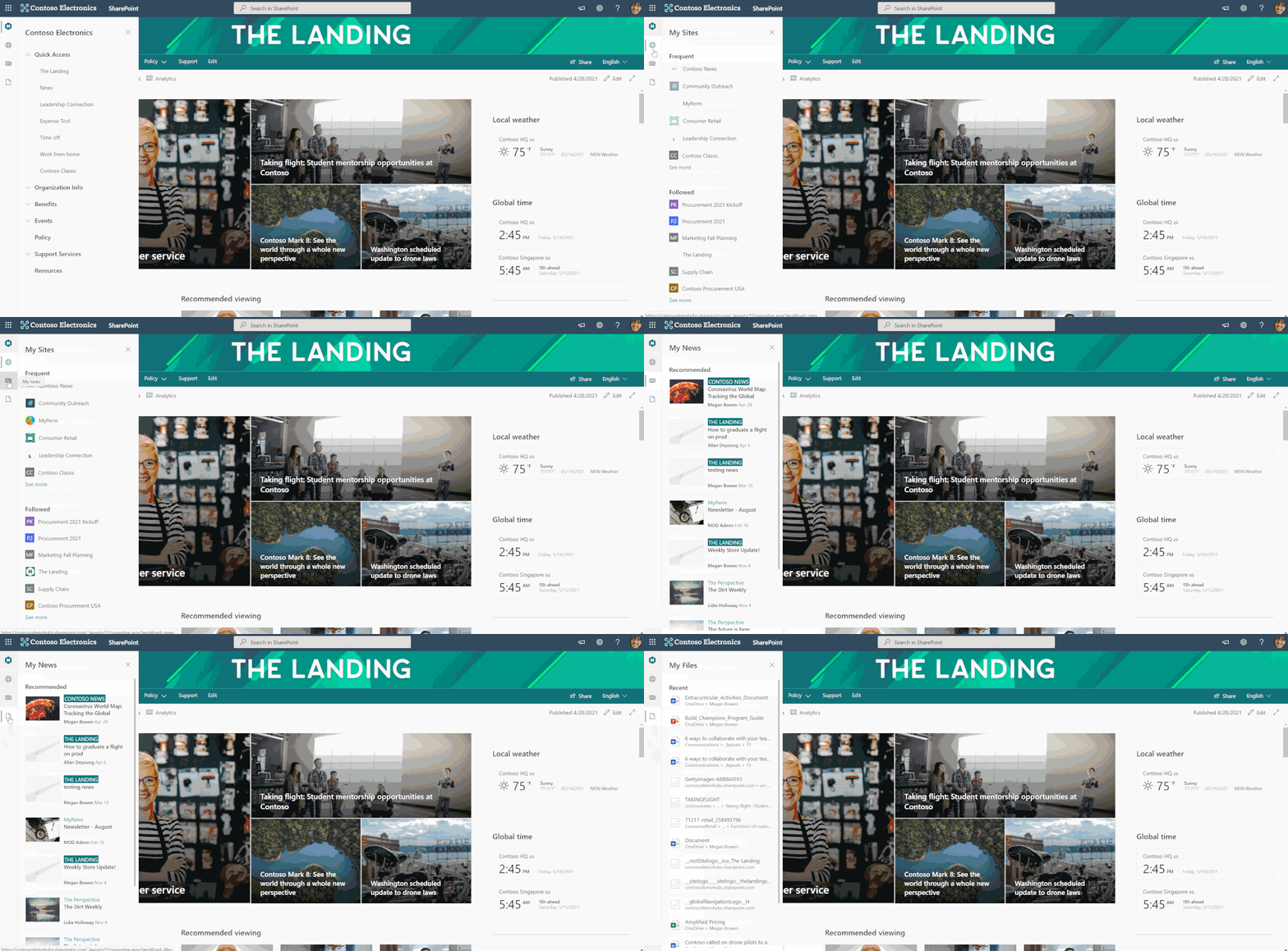
First, let’s review the SharePoint app bar. The SharePoint app bar is a fixed navigation experience across all modern SharePoint sites that provides quick access to the most important sites, news, and files as well as the organization’s global navigation.


The SharePoint app bar can be broken down into two main parts:


  • Global navigation – Enable and customize the global navigation tab to display universally relevant links and use audience targeting to surface important content to specific audiences.

  • Personalized content – The remaining tabs in the SharePoint app bar consist of My sites, My news, and My files and dynamically displays personalized content based on insights from Microsoft Graph.


SharePoint App BarSharePoint App Bar


SharePoint global navigation and Viva Connections


Earlier this year, Microsoft announced a new product offering called Microsoft Viva, an employee experience platform that brings together communications, knowledge, learning, resources, and insights. 


One of the four pillars of Microsoft Viva is Viva Connections which uses SharePoint and Microsoft Teams to engage and connect your organization on a whole new level. To take full advantage of Viva Connections for desktop, make sure your organization has a home site and enable global navigation in the SharePoint app bar. When global navigation is enabled, your organization’s most important intranet resources will display in Microsoft Teams. 


Re-thinking intranet wayfinding


Now that we’ve reviewed the basic concept behind the SharePoint app bar and global navigation, let’s explore how to re-think your organization’s intranet architecture to accommodate this new wayfinding resource.


Most intranet experiences begin “at the top” with a landing destination. This is the place where users go to catch up on the latest organizational news, find out about upcoming events, and access important resources. In SharePoint this top-level landing experience is called the home site. The home site is unlike all other SharePoint sites in the sense that it has many superpowers. The home site is a vital piece of a great intranet, but users need a more efficient option to navigate between intranet resources without having to go back to the home site first. That’s where global navigation comes in because it allows you to provide a consistent set of navigational links regardless of where the user is in the intranet. For example, let’s say the user is viewing the human resources site to confirm how many hours of vacation are available and also needs to view the current time-off request policy in the policies center. Instead of having to switch back and forth between sites, global navigation enables users to navigate to universally relevant resources (like HR policy) no matter their location in SharePoint.


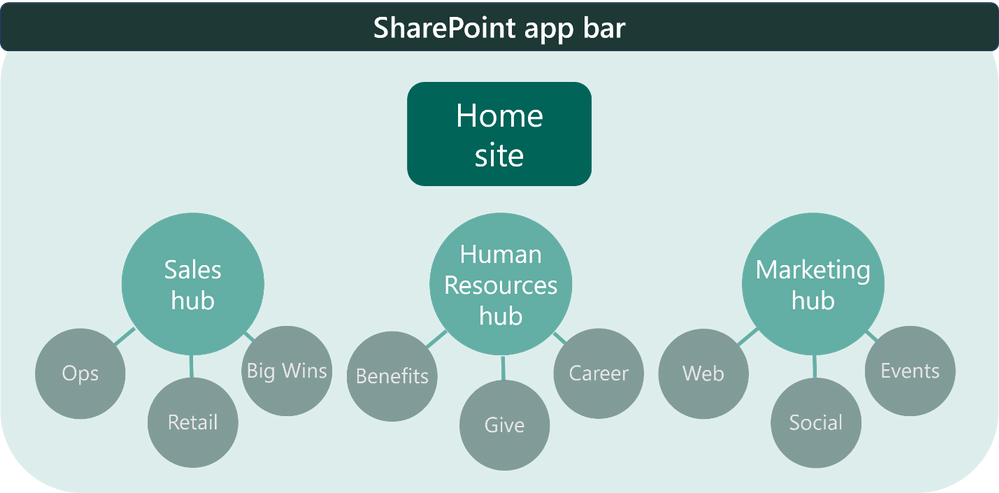
Previously customers could achieve this using a SharePoint hub site and associating all other intranet sites to it. This approach is great too but it’s just starting point! As your organization grows, your intranet will need to scale too. Soon, you’ll realize that you need more and more hubs (families of related sites) and you’ll need to make decisions on what resources to prioritize.


Global navigation solves this issue by providing navigation across all sites. You can then choose to use SharePoint hub sites to group and sync branding, permissions and navigation of related sites based on your departments, divisions, regions, or portfolio.


SPAppBarDiagram.png


How to think about global navigation


So, what should you use global navigation for? From talking to many customers across the years, we’ve learned successful global navigation designs focus on the most important resources like:


  • The home site itself and other top hubs and departmental sites (for example, HR)

  • Popular destinations for resources like benefits, company policies, and how to get support

  • Links to line of business apps and custom applications

  • Content relevant to the daily job functions of people in your organization


What does this mean for the home site navigation? The home site navigation transitions to focus more on wayfinding inside the home site as well and other relevant (but not critical) resources.


  • Wayfinding inside the home site

  • Links to news from inside the organization

  • Link to news from outside the organization

  • Organizational profiles and stories

  • Leadership teams, divisions, and stakeholders

  • Topics of interest

  • Public social feeds


Now, hub navigation can focus on resources related to the hub topic. For example, a human resources hub can have associated sites for all the different sites like benefits, payroll, time-off requests, and more. If the hub is for a division or department, it will have associated sites linked as topic sites that talk about business strategy, planning, metrics, leadership, and all the related teams within that division or topic. Learn more about how to think about home site, hub, and global navigation from the product team.


Next, decide the source for global navigation


Now that you know which resources are ideal for global navigation, it’s time to enable this feature and pick the source. We’ve given you multiple options so you can determine what best fits your needs.


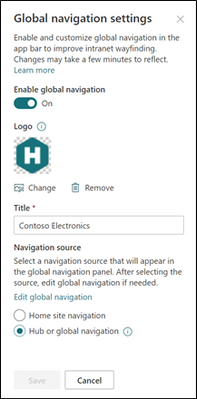
First, to enable and customize global navigation, your organization must have a home site. From the home site’s home page, select Settings and then Global navigation.


GlobalNavigationSettings.png


Then you can decide which source the global navigation should pull from, either the home site navigation or the hub navigation (whether it’s officially a hub or not). Now for some organizations, this decision depends on how you want your home site navigation experience to look like, so here are some tips:


  • If you want global navigation to match the home site navigation, select the Home site navigation as the source. Then, decide to display or hide the site navigation on the home site

  • If you want global navigation to be different from the home site navigation, select Hub or global navigation (even if your home site is not a hub).

  • If the home site is already a hub, you can select either navigation source, but we recommend using hub navigation and hiding the site navigation to simplify the navigation experience.

  • Finally, if the home site is a hub and you’re using the extended header style, note that the site navigation automatically becomes hidden.


Example of global navigation at Microsoft


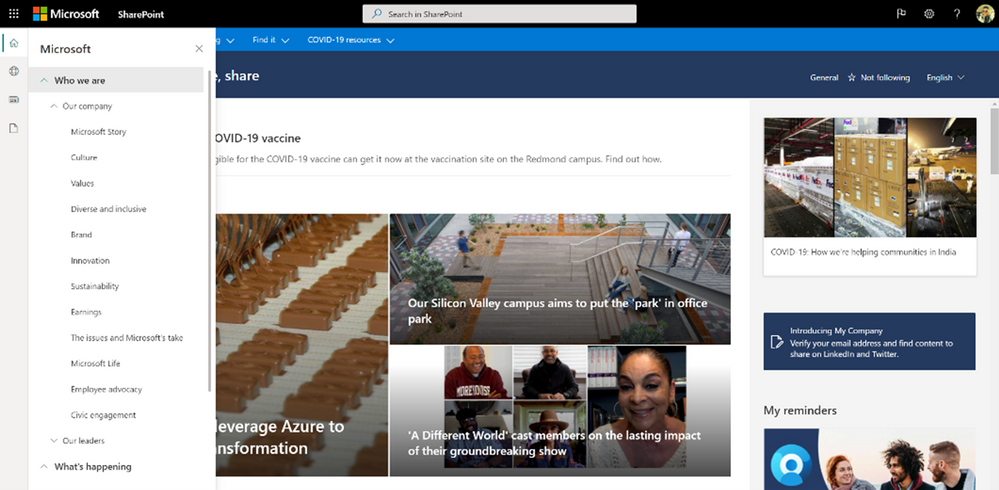
At Microsoft, our home site is also a hub site because there are multiple sites that power the Microsoft Web intranet experience from various news resources to a leadership connection site and more. For Microsoft’s global navigation, the home site navigation is the source and is hidden from the user interface on the home site.


The SP App bar used on Microsoft's intranetThe SP App bar used on Microsoft’s intranet


Enable and customize global navigation today


The SharePoint app bar is now available to most SharePoint customers. If you already have a SharePoint home site, you are ready to enable and set up global navigation. Next, integrate your SharePoint intranet with Microsoft Teams by using Viva Connections for desktop.


If you do not already have the SharePoint home site, now is a great time to plan and create a home site for your organization. Consider getting a head start on your home site by using a template named The Landing from the SharePoint look book. Learn  more from the Microsoft product team on how to think about and plan home sites.


We hope you find this information useful and that it provides further clarity on you should think about leveraging global navigation for both SharePoint and Viva Connections.


More resources


Learn more about information architecture in SharePoint


Onboard end-users to the SharePoint app bar


Check out the Viva Connections desktop experience


Watch: Architecting your intelligent intranet

Conditional Access GPS-based named locations now in public preview

Conditional Access GPS-based named locations now in public preview

This article is contributed. See the original author and article here.

Today, I am excited to share how you can improve your Conditional Access policies and ensure compliance with data regulations thanks to the public preview of GPS-based named locations. This feature helps admins strengthen their security and compliance posture and allows them to restrict access to sensitive apps based on the GPS location of their users.


I have asked Olena Huang, a PM on the Identity team, to tell you more. Let us know what you think!


Alex Weinert


————————————-


Hello,


With the public preview of GPS-based named locations, admins can refine their Conditional Access policies by determining a user’s location with even more precision.  GPS-based named locations allow you to restrict access to certain resources to the boundaries of a specific country. Due to VPNs and other factors, determining a user’s location from their IP address is not always accurate or reliable. Leveraging GPS signals enables admins to determine a user’s location with higher confidence. This is especially helpful if you have strict compliance regulations that limit where specific data can be accessed.


When the feature is enabled, users will be prompted to share their GPS location via the Microsoft Authenticator app during sign-in.


Create a policy to allow or restrict access based off a user’s GPS location


There are two simple steps:


  1. Create a GPS-based named location.

  2. Create or configure Conditional Access with this named location.


You’ll first need to create a countries named location and select the countries where you want the policy to apply. Configure the named location to determine the location by GPS coordinates instead of by IP address.


Named Locations.png


Next, create a Conditional Access policy to restrict access to selected applications for sign-ins within the boundaries of the named location.


New.png


For more information, check out our admin documentation  or our Graph API documentation.


Test out the location-sharing experience


First, make sure you have the Microsoft Authenticator app installed and set up with your test account.


Next, try to access the files or data restricted by the Conditional Access policy.  You’ll be prompted to share your geolocation from the Authenticator app.


Contoso.png


The first time you encounter this prompt, you will need to grant location permissions to the Authenticator app.


iOS


IOS.png


Android


Android.png


For the next 24 hours, your location will be shared silently once per hour from that device, so you won’t keep getting notifications.


After 24 hours, you will be re-prompted when trying to access the same resource. However, you will not need to grant permissions again (unless you’ve disabled them).


Authenticator.png


If you have questions, check out our FAQ page.


We’d love to hear from you! Feel free to leave comments below or reach out to us on Twitter.


Learn more about Microsoft identity: