by Contributed | May 19, 2021 | Technology
This article is contributed. See the original author and article here.
Today, we are releasing an update (“hotfix”) to our latest generally available version of Windows Admin Center! Windows Admin Center version 2103.2 is now available in preview. Thank you to our customers, partners, and fans for helping us to continue to improve and make Windows Admin Center better! We’re working constantly to ensure users of our product have the best user experience.
This version of Windows Admin Center includes key bug fixes and feature updates to the Azure sign in process, support for Azure China, as well as additional updates to the Events and Remote Desktop tool experience.
Download Windows Admin Center v2103.2 today!
Platform updates
Bug fixes
“Access Denied” fixed
We know several users were met with an “Access denied” error upon starting Windows Admin Center and were unable to use the Windows Admin Center v2103 as a result. We have updated the logic of our automatic extension updates feature to fix this issue.
PowerShell commands fixed
In the v2103 release, many users were unable to utilize PowerShell to manage their Windows Admin Center settings and connections. In this release, you should be able to effectively use these commands to configure your Windows Admin Center gateway.
Certificate error fixed
We know some users were having difficulties navigating in v2103 and kept being presented with an SSL certificate error message. In this release, we have added a fix for this issue and this SSL certificate error message should not occur.
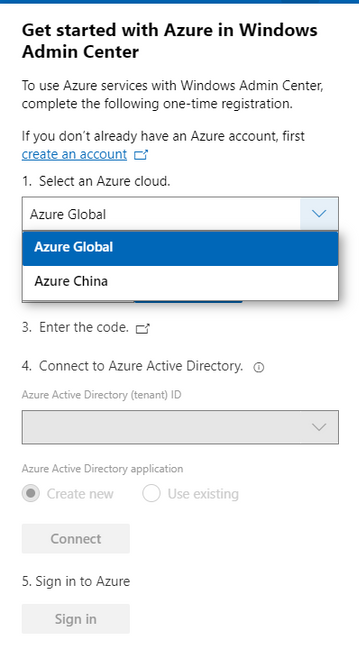
Windows Admin Center now supports signing into the Azure China cloud
The request for Windows Admin Center to expand their Azure support matrix to sovereign clouds has been a long-standing ask, especially as we continue to introduce additional hybrid capabilities to Windows Admin Center. In this release, when you register your gateway to Azure, you will be prompted to select the cloud you’d like to register in. The two options in this dropdown are Azure Global and Azure China, with Azure Global selected by default. After registering your gateway with your selected cloud, Windows Admin Center will assume that further Azure operations, like Azure sign-in, will be done through the cloud your gateway is registered in.
Some of the Azure services included in Windows Admin Center are not currently supported in Azure China. For more detailed information on the regional support for each Azure service, visit the Microsoft Azure website.
Other updates
- Option to “Install now” for automatic updates (in Windows Admin Center update settings)
- Improvements to the Azure sign-in process and bugfixes
- Updates to notification styling
- Accessibility improvements and bug fixes
Core management tools
Events tool updates
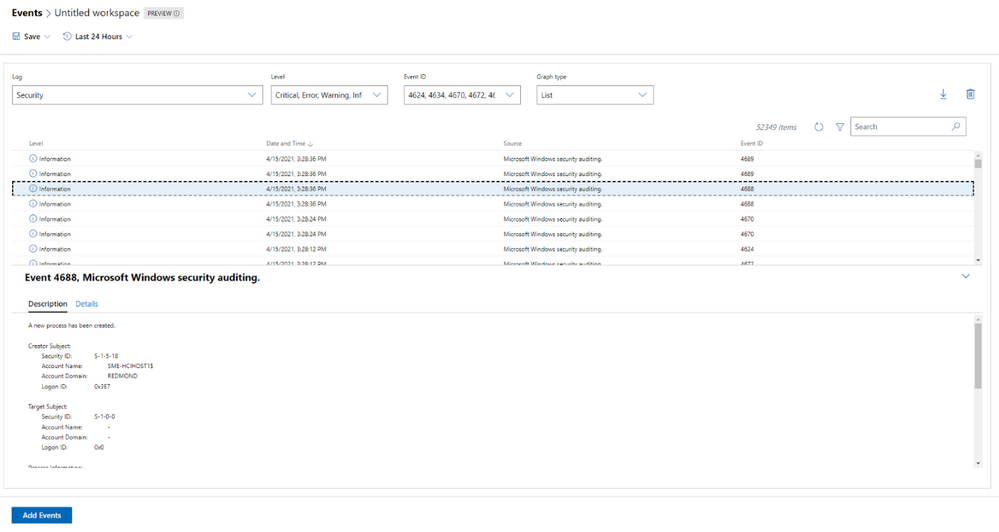
When we released the new look of the Events tool in our 2103 release, we did so with the caveat that not all the existing Events tool functionality was available in this new experience. In this release, we work towards rectifying that with the following improvements:
- The Details pane is now available in the new experience.
- We’ve fixed loading issues that occurred when changing event attributes while viewing events in stacked bar format.
- We’ve tweaked the dropdown menus slightly, so the displayed information remains accurate, even when you modify attributes of an event.
Remote Desktop tool updates
We’ve made a few changes to the Remote desktop tool in this release based on feedback we’ve received through UserVoice.
Windows Admin Center uses TLS ciphers in the Remote Desktop tool when connecting to a client machine. Historically, many of the ciphers offered by Windows Admin Center in this tool were cipher block chain (CBC) ciphers. In this release, we’ve upgraded the remote desktop web client library, and it now includes a wider selection of supported ciphers for you to choose from when you’re setting up RDP on your Windows Admin Center gateway. You should now be able to select ciphers from several suites, with options for both CBC and Galois/Counter mode (GCM).
Additionally, several users had reported through UserVoice that the language of their keyboard in the Remote Desktop tool did not match the language that had been selected. This was a large fix and it is currently only available to users who have access to our Windows Admin Center Insiders extension feed. To add the Insiders extension feed, navigate to the Feeds tab in Extension manager and add https://aka.ms/wac-insiders-feed to the feed list. Then, look for the updated “Remote Desktop” extension.
The Windows Time service extension is now in preview!
The Windows Time service extension uses the Windows Time service (W32Time) to synchronize the date and time for all computers running in Active Directory Domain Services (AD DS). Time synchronization is critical for the proper operation of many Windows services and line-of-business (LOB) applications. The Windows Time service uses the Network Time Protocol (NTP) to synchronize computer clocks on the network. NTP ensures that an accurate clock value, or timestamp, can be assigned to network validation and resource access requests.
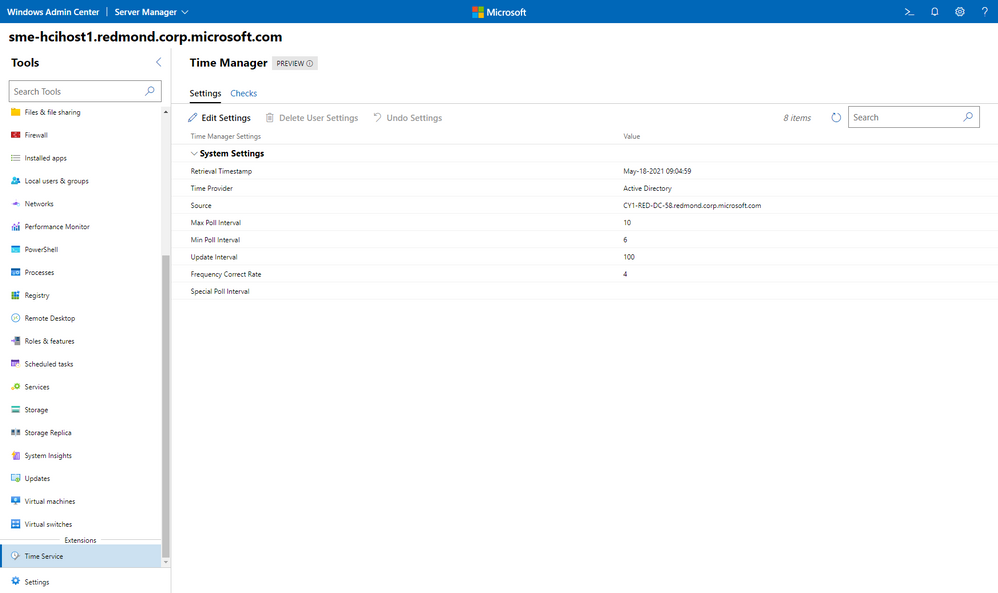
This extension is currently only available to users who have access to our Windows Admin Center Insiders extension feed. To add the Insiders extension feed, navigate to the Feeds tab in Extension manager and add https://aka.ms/wac-insiders-feed to the feed list.
Other changes
- Azure hybrid center bug fixes – We want your experience using Windows Admin Center and Azure to be clean and seamless. In this release, we made several bug fixes to enhance the look of the tool.
- Azure Arc bug fixes – In this release, we improved the Azure Arc user experience by fixing several bugs. Users should no longer face issues with the links in the Azure Arc tool and the disconnect experience.
Partner ecosystem
Windows Admin Center continues to value the collaboration efforts we have with our partners, and these past few months have been a very active period! Since our 2103 release in March, five of our partners have released new or updated versions of their extensions. If you’re interested in developing a Windows Admin Center extension, visit our documentation to get started.
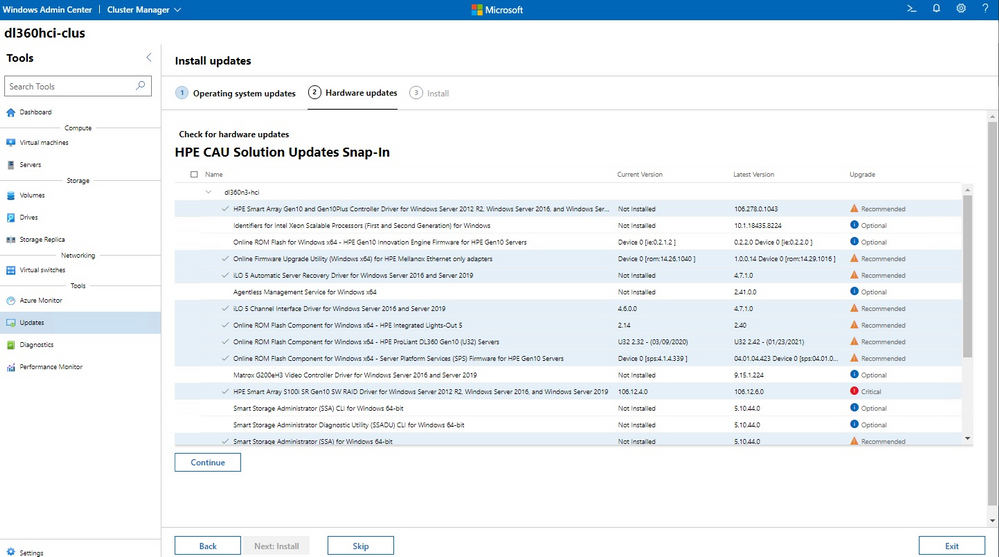
The HPE Azure Stack HCI Cluster Deployment and Update Snap-in is now available. The HPE Deployment snap-in reports the firmware and software inventory and status generated by HPE Smart Update Manager (SUM), then initiates installation of the selected components, followed by showing the completion status. The HPE Update snap-in reports the firmware and software inventory and status generated by HPE Smart Update Manager (SUM). The selected components will get updated on the cluster from Cluster-Aware-Updating (CAU) orchestration.
The cluster deployment snap-in will appear in the Azure Stack HCI cluster create wizard, and the update snap-in will appear in the update wizard in the Updates tool when connected to a cluster.
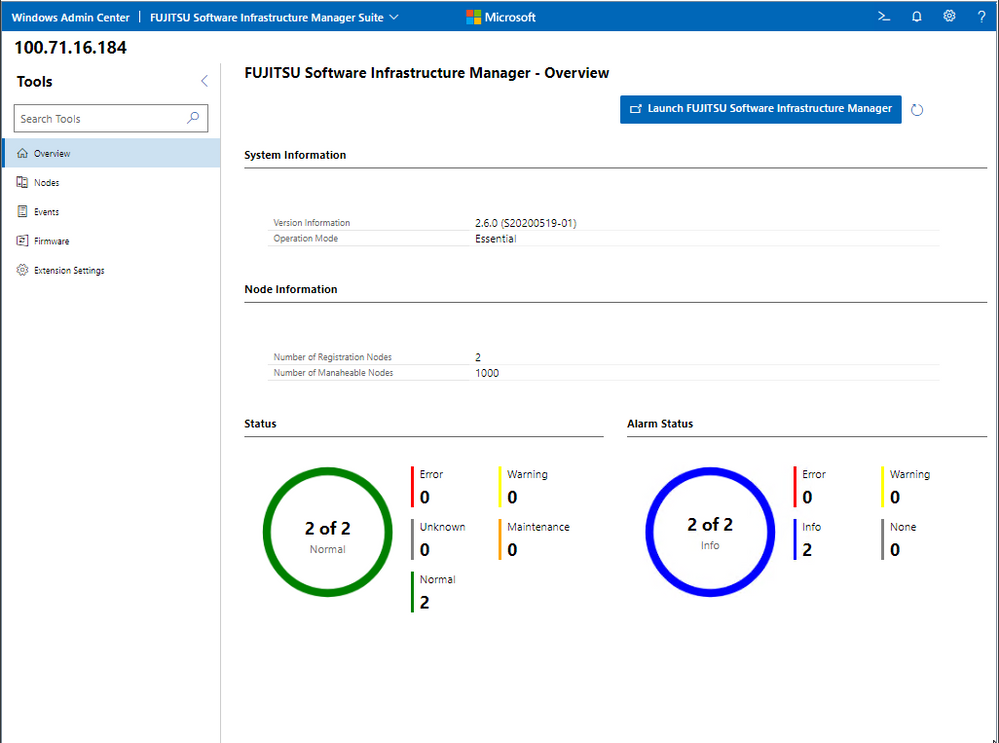
Fujitsu Software Infrastructure Manager (ISM) is now available. By installing ISM, multiple and various types of information and communications technology (ICT) devices can be managed in an integrated way. With this software, you can monitor the status of all the ICT devices in a data center or a machine room. You can also execute batch firmware updates for multiple devices and configure servers automatically. It can reduce costs of operation management and increase the operation quality.
Other partner extension updates
- DataON MUST Pro v2.1.0 – This version of DataON MUST Pro includes slight improvements to the inventory page.
- Fujitsu ServerViewR RAID v1.2.1 – The overview page has been updated to include a refresh button.
- Fujitsu ServerViewR Health v2.0.1 – There are several improvements in this release, including the addition of a refresh button to the overview page and new Windows Admin Center notifications for network error messages. Additionally, you can now perform health monitoring without ServerView agents.
- HPE Server and Azure Stack HCI v1.3.0 – The Inventory tab of the Server extension now reports SSD drive life expectancy and surfaces a warning message upon crossing a threshold. The Overview tab of the Azure Stack HCI extension has been updated with improved cluster classification and storage information reporting.
- Lenovo XClarity Integrator v3.1.23 – The newest release of this extension includes several bugfixes.
- QCT Management Suite v2.3.0 – Updates to this extension include Redfish support, a redesigned overview page, optimization for update experiences, and LLDP support.
Download today!
We hope you enjoy this latest update of Windows Admin Center, the various new functionality in preview, and all the extensions now available. Learn more and download today!
As always, thanks for your ongoing support, adoption, and feedback. Your contributions through user feedback continue to be very important and valuable to us, helping us prioritize and sequence our investments.
<3,
Windows Admin Center Team (@servermgmt)
by Contributed | May 19, 2021 | Technology
This article is contributed. See the original author and article here.
Join Azure Storage product teams and your peers at Build to take part in meaningful conversations about the tools you use every day. Share insights, discover new perspectives, and problem-solve in a collaborative environment to shape the future of Microsoft products.
Check out these product roundtable related to Azure Storage:
Designing and building data-centric cloud native applications
Tuesday, May 25 | 9:30AM – 10:30AM PDT
Azure Storage is a key enabler for cloud native application development and deeply integrated with almost every Azure service. We’ve built key features in the storage services for mobile and web app development, serverless computing and containerized workloads. In this roundtable, we’ll present the upcoming roadmap for these features and welcome your feedback. Share how you’re designing and building apps that work with persistent data and how we can improve to help you build great apps.
Build and run stateful container applications on Azure
Wednesday, May 26 | 3:00PM – 4:00PM PDT
Customers are increasingly using stateful container applications leveraging storage. These environments are prevalent both on-premises and cloud environments running at production scale. Containers provide simplicity, agility, scalability and mobility to applications but this requires careful planning when using state. We would like to learn about your experience running stateful applications on Azure or the Edge.
Register for Build 2021.
We are excited to see you there!
by Contributed | May 19, 2021 | Technology
This article is contributed. See the original author and article here.
Hello everyone, here is part 3 of a series focusing on Endpoint Protection integration with Configuration Manager. This series is recorded by Steve Rachui, a Microsoft principal premier field engineer.
This session focuses on the BitLocker management capabilities integrated into Configuration Manager. Steve details how to configure the integration, how it works and demonstrates the integration in action.
Next in the series Steve focuses on how Configuration Manager can be used to manage the integrated Windows Firewall settings.
Posts in the series
Go straight to the playlist
by Contributed | May 19, 2021 | Technology
This article is contributed. See the original author and article here.
Summary
As containers and cloud native workloads continue to grow, ensuring that customers can reliably acquire vendor artifacts becomes crucial. Microsoft is committed to offer its customers reliable and performant experience for pulling Microsoft container images from the Microsoft Container Registry (MCR or mcr.microsoft.com). MCR contains the full catalog of container images produced by Microsoft with their most up-to-date versions and tags. By leveraging Azure’s global footprint, MCR offers public access to Microsoft’s images globally. With that in mind, we are deprecating all /microsoft org container images hosted in Docker Hub repositories on June 30th, 2021.
How does this impact you?
If you continue to reference Microsoft container images using repositories in Docker Hub, this will have impact on your development, deployment, and automation scripts.
Examples for such references are: `FROM microsoft/*` in Dockerfile or `docker run microsoft/*` in automation scripts. You can leverage https://grep.app/ to discover such references in OSS scripts.
- Starting June 1st, 2021 pulls of microsoft/ org container images from Docker Hub registry will be throttled according to Docker Terms of Use. This will limit the number of pulls that you are allowed within certain time period.
- Starting July 1st, 2021 repositories from microsoft/ org on Docker Hub will be removed. At this point development, deployment and automation scripts that still reference /microsoft org images from Docker Hub registry will break.
To avoid any impact on your development, deployment or automation scripts, you must update `docker pull` commands, `FROM` statements in Dockerfiles, and other references to /microsoft container images to explicitly reference the mcr.microsoft.com registry.
We understand that certain repositories from microsoft/ org on Docker Hub registry are highly trafficked, and customers relying on them may not be able to complete these changes by June 30th, 2021. We are working to identify those repositories and provide extension for them. A list of such repositories and for how long they will be available will be published on MCR’s GitHub repository by June 1st, 2021.
Mapping of Docker Hub repositories to MCR repositories
Mapping between the repository names on Docker Hub and MCR can be found on MCR’s GitHub repository.
Guidance for Consuming Public Container Images
Having a controlled workflow for consumption of public content like container images from Docker Hub and MCR is a key for building a secured and reliable software supply chain. Please see the Open Container Initiative’s Consuming Public Content for general guidance and Azure’s guidance for consuming public content.
Background
Back in 2018, we announced the transition of Microsoft container images hosting to MCR with syndication to Docker Hub, which laid the ground for worldwide distribution of Microsoft container images. Last year Docker announced an update of their terms of use and plans for image retention – both changes impacting pulls of container images from Docker Hub. Microsoft and Docker have worked closely to provide smooth transition for customers who need to pull /microsoft org container images. Docker Hub pages were updated to reflect the new pull location, mcr.microsoft.com, and are continuously updated with information how to pull up-to-date tags from MCR. We will continue this collaboration to provide an easy and frictionless discoverability mechanism for Microsoft container images through Docker Hub.
How to get additional help?
We understand that there may be unanswered questions. You can get additional help by submitting an issue on GitHub or sending an email to mcrfeedback@microsoft.com.

by Contributed | May 19, 2021 | Technology
This article is contributed. See the original author and article here.
Tour your identity options when moving to the Zero Trust security model. Our last Essentials episode gave a high-level overview of the Zero Trust security model principles: identity, endpoints, applications, networks, infrastructure, and data.
Join our host, Jeremy Chapman, as he unpacks the foundational layer of the model with identity. As the primary control plane for Zero Trust, it acts as the front door for people, service accounts, and devices as each requests access to resources. Identity is at the core of the Zero Trust concepts of never trust, always verify and grant the appropriate level of access through the principle of least privilege.
Verify Explicitly
Azure AD — easily implement additional protections to verify explicitly Multi-factor authentication (MFA) — requires an additional authentication factor. Replace passwords with Microsoft Authenticator, Windows Hello, or FIDO2 keys. Activity reports in the Authentication methods — see who’s capable of MFA and passwordless authentication, how many recent registrations and by type. Usage — see the distribution of MFA sign-ins and by method, as well as the number of password changes and resets.
Least Privilege access
Conditional Access in Azure AD — uses real-time intelligence at the time of sign-in to assess the risk level, then blocks or grants access. Built-in Insights and Reporting — expose the impact of enabled policies pre- and post enforcement.
QUICK LINKS:
00:37 — Demo in Azure AD
01:47 — Azure AD Application Proxy
02:50 — How to set up multi-factor authentication
04:44 — Activity Reports for admins
05:21 — Least privileged access and conditional access
07:22 — Conditional Access Insights and Reporting
08:16 — Wrap up
Link References:
For tips and demonstrations, check out our series at https://aka.ms/ZeroTrustMechanics
Learn more at https://aka.ms/zerotrust
Unfamiliar with Microsoft Mechanics?
We are Microsoft’s official video series for IT. You can watch and share valuable content and demos of current and upcoming tech from the people who build it at Microsoft.
Keep getting this insider knowledge, join us on social:
Video Transcript:
-Welcome back to our series for Zero Trust on Microsoft Mechanics. In our Essentials Episode, we gave a high-level overview of the principles for Zero Trust security model, spanning identity, endpoints, applications, networks, infrastructure, and data. Now in this episode, we’re going to unpack the foundational layer of the model with Identity, the primary control plane for Zero Trust, which acts as the front door for people, service accounts, and devices as each request access to resources. Identity is at the core of the Zero Trust concepts of verifying explicitly, and also granting appropriate level of access through the principle of least privilege.
-Now, this begins with Azure Active Directory and first establishing a common and unified directory service to authenticate users, devices, and processes to your resources, apps, and services. In the Microsoft 365 admin center, you’ll see your users, resource accounts, and all of your groups. Now this is powered by Azure Active Directory in the background. In fact, if I click into Azure Active Directory here under the admin centers, it’s going to take me right into Azure AD. And when I click into users, you’re going to see the same people and resource accounts and groups. As I mentioned, one of the key starting points as you move to Zero Trust is unifying the identity and access management environment with your other cloud apps and even your on-premise resources. So now I’m going to click into Enterprise Applications. And here you can see all the SaaS applications that I’ve configured in this tenant that are using an Azure AD to log in. Now, there are thousands of apps that you can choose from. And if I click into Box, for example, you’re going to see the groups that are assigned with access to this application. And under Conditional Access, you can even see some of the access policies assigned to this specific app. And we’re going to go further into Conditional Access policies in a moment.
-Before I jump into the user experience, I want to show you one more thing for connecting your web apps hosted on-premises, the Azure AD Application Proxy. Now here, I can see a few apps that I already have configured for Single Sign-in, along with connector and IP address information. But let me show you what it looks like then to log into a non-Microsoft SaaS app now that Azure AD is configured as its identity provider. So I’m here in the My Apps portal. And if you aren’t familiar with this, you can find it at myapps.microsoft.com. And it gives me a unified view of all the apps that Woodgrove, in this case, has set up for me. And most of these are SaaS apps, but you can see the ones branded Woodgrove. Those are actually on-prem apps. So those are going to work here as well. I’m going to click into ServiceNow and you’ll see that it authenticates me directly into that app.
-If I go back to My Apps, I’ll click into the one called Sales Dashboard On-Prem. And in that case, it’s using the Azure AD App Proxy that we saw earlier to connect me directly, even though that resource is on-premises. Now with Azure AD as your unified identity provider across your apps and services, you can easily implement additional protections to verify explicitly, and here multi-factor authentication, or MFA, is key. Now MFA goes beyond weak password-only authentication and requires an additional authentication factor, like a passcode relayed over an SMS or phone call. And you can even replace passwords using options such as Microsoft Authenticator, Windows Hello, or FIDO2 keys. I’m going to show you how to set this up as an admin. Then we’re going to walk through the user experiences as well as new admin reporting to monitor usage. Now to find your options to configure this in the Azure AD admin center, go to Security, then Authentication methods.
-Here you’ll find methods for FIDO2 security keys, along with the options to target users and groups. This one here is for the Microsoft Authenticator mobile app that you can use in combination with built-in biometric sensors for fingerprint or facial recognition on your phone. And you’ll even find the new Temporary Access Pass method that allows you to provide a time-limited passcode that you can use to register a passwordless sign-in method so that you don’t even need to share the password with the user. Since the account I’m using is setup for passwordless MFA with the Authenticator app, I’ll show you how this even works when logging into non-Microsoft sites directly. So for example, here with ServiceNow, I can use a tenant-specific URL to sign in directly with the service. You’ll see that the Azure AD sign-in page launches, and I’m going to type in my password and username. It’s going to then request passwordless sign-in to match the number on the screen, and then it’s going to send a notification on my phone.
-Okay, so now you can see the notifications come in, I’ll tap on that. And that’s going to open up the Authenticator app and I will then tap on the option here for 26. There we go. And that’s going to sign me in directly into ServiceNow, and I can start working from there. And for admins, we also have reporting to help you track how well your organization is doing. The Activity reports and the Authentication methods area help you to see who’s capable of MFA and passwordless authentication, how many recent registrations have been made, and by which type. Then in Usage, you can see the distribution of MFA sign-ins and by method, as well as the number of password changes and resets. And this will really help as you roll out new authentication methods and track usage over time. So now we’ve shown a few things that you can do to explicitly verify requests to your cross-cloud and on-prem resources and services.
-Another core tenant of Zero Trust is applying Least Privileged Access. So here in Conditional Access in Azure AD, it’s using real-time intelligence at the time of sign-in to assess the risk level of the user or sign-in, the device platform, along with the sign-in location, client apps and device state to make decisions, enforcing access policies in real time, either to block or to grant access. Now earlier, I showed you how ServiceNow could be accessed directly using Azure AD authentication. And in this policy, you’ll see that for ServiceNow you’ll need to log in with MFA. And because I use passwordless earlier that satisfied the requirement.
-A recent addition to Conditional Access is the ability to look at device filters. Now, these filters allow you to scope your Conditional Access policy to a group of devices. For example, you can decide to allow access to privileged resources only from secure access workstation VMs, or conversely, exempt MFA from shared meeting room devices like conference phones, Teams Meeting Room devices, or Surface Hubs. Just to show how this works, I’ll log into a VM that doesn’t meet our secure access workstation requirements, and try to reach the Azure portal. And you’ll see here that I’m blocked from going to the Azure portal. But now let me switch to a second VM that’s a secured access workstation, and you’ll see that when I try to access the Azure portal, it meets the requirements. And then it asks me to verify my identity using passwordless auth. And I’m granted access to my applications and resources in Azure.
-Now Conditional Access can also extend to specific sites and content. So for example, even though I can log into Woodgrove’s marketing site, as you can see here, if I go back to SharePoint’s home and then try to open a highly confidential site, like Project Saturn, you’re going to see that it requires step-up authentication, in my case, again, using passwordless auth, before it allows me to access the protected resource. And now here I can see Project Saturn’s site. So finally, as you roll out Conditional Access, built-in Insights and Reporting in Azure AD can expose the impact of enabled policies, both pre and post-enforcement. Now the Impact Summary is interactive. And for example, can help you identify why sign-ins are failing. And here you can see the device state, device platform, client app, sign-in risk and location. And detailed sign-in events can be found at the bottom of the page. Now, one tip here that you can use is to enforce policies as report only to gauge the impact of them before turning them on. This can help you avoid setting policies that may lock people out of resources they should be able to access.
-That was a tour of your identity options and all the considerations when moving to the Zero Trust security model. Up next, we’ll explore your options for endpoints and applications. And keep checking back to aka.ms/ZeroTrustMechanics for more in our series where I share the tips and hands-on demonstrations of how the tools for implementing the Zero Trust security model work across all the six layers of defense. Now you can also learn more at aka.ms/zerotrust. And thanks for watching.
by Contributed | May 19, 2021 | Technology
This article is contributed. See the original author and article here.
We are excited to announce a new update to Power Query (PQ) in Excel for Mac – the ability to import data from local files. We’ve received many requests for this feature after the introduction of PQ query refresh. Now you can import data from local files including Excel workbooks and text & CSV files.
Getting started
This new functionality is available to Beta channel users running version 16.50 (build 21050400) or later. See this support article to check which version you’re using.
Importing data from local files
You can now import data from local Excel workbooks or text & CSV files.
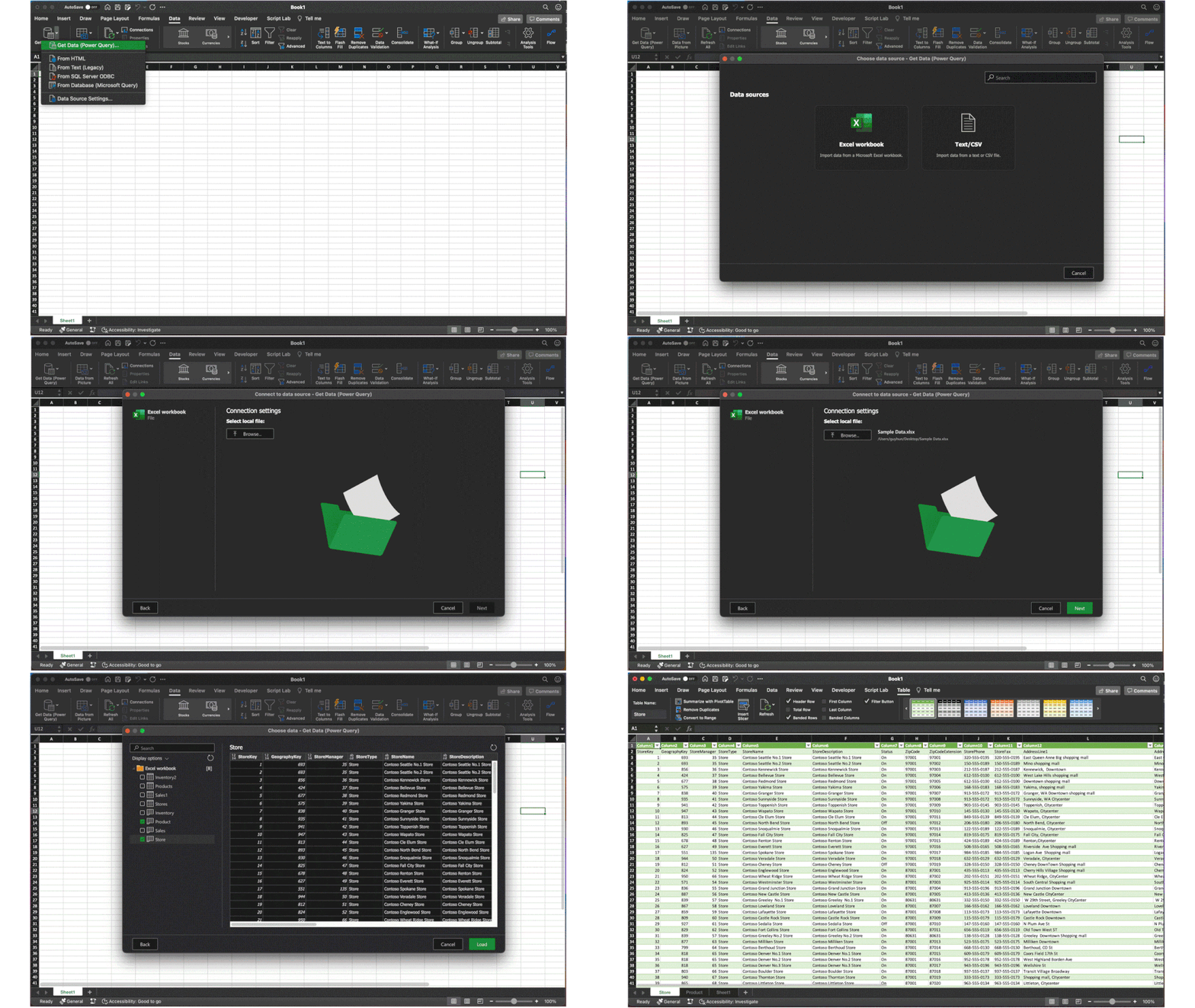
- Click Get Data (Power Query) on the Data tab
- Select Excel workbook or Text/CSV in the Choose data source dialog box
- Click Browse to select the local file
- Select the data you want to import and click the Load button
Import data from local files
For a feature deep dive, see Import data from local files with Power Query in Excel for Mac on the Office Insider Blog.
Sharing your feedback
Let us know what you think. Send us your feedback via Send a Smile/Frown button at the top right.
Also, subscribe to our Excel Blog and join our Excel Community to stay connected with us and other Excel fans around the world.


Recent Comments