by Scott Muniz | Jul 11, 2020 | Azure, Microsoft, Technology, Uncategorized
This article is contributed. See the original author and article here.
In this episode of One Ops Question, Dean Bryen answers the question “What is Azure Sentinel?”
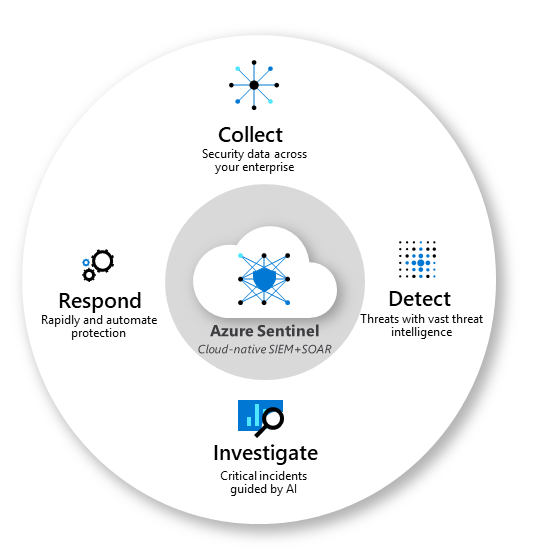
Because the Internet is littered with dangers and threats you need Microsoft Azure Sentinel. IT’s a Security Incident and Event Management (SIEM) solution built right into Azure to deliver intelligent security analytics across your environments.
Azure Sentinel can be your way to view the intelligent security analytics and threat intelligence across all your environment alleviating the stress of fighting attacks, increasing volumes of alerts, and long resolution timeframes.
-
Collect data at cloud scale across all users, devices, applications, and infrastructure, both on-premises and in multiple clouds.
-
Detect previously undetected threats, and minimize false positives using Microsoft’s analytics and unparalleled threat intelligence.
-
Investigate threats with artificial intelligence, and hunt for suspicious activities at scale, tapping into years of cyber security work at Microsoft.
-
Respond to incidents rapidly with built-in orchestration and automation of common tasks.
To leverage Azure Sentinel, you need to enable Azure Sentinel, and then connect your data sources. Sources such as
- Microsoft Threat Protection solutions
- Microsoft 365 sources (including Office 365)
- Azure AD
- Azure ATP
- Microsoft Cloud App Security
- and more.
Once Sentinel is enabled in your subscription and that your data sources are connected you’re ready to visualize and get a detailed analysis of what’s happening on your environment
If you want peace of mind in the knowledge that your environment is being looked after. you need to try Azure Sentinel
Cheers!
Pierre
by Scott Muniz | Jul 10, 2020 | Azure, Microsoft, Technology, Uncategorized
This article is contributed. See the original author and article here.
This is Sue Bohn, Partner Director of Program Management for Microsoft identity solutions. We’re back with another mailbag focusing on your common questions on access reviews, an Azure Active Directory (Azure AD) identity governance feature. One of my favorite sayings is there’s nothing more permanent than a temporary solution! Let’s say we exclude some users from a Conditional Access policy temporarily for the next week, with good intentions to remove them as soon as the project is done. We often forget that last part, so access reviews help not only with reviewing these exclusions at regular intervals, but also transferring the work from IT admins to the end users themselves to attest they still need that exclusion or access to a resource. This process works equally well for external identities. Reviewing access on a regular basis needs to be a key aspect of your identity governance strategy.
—
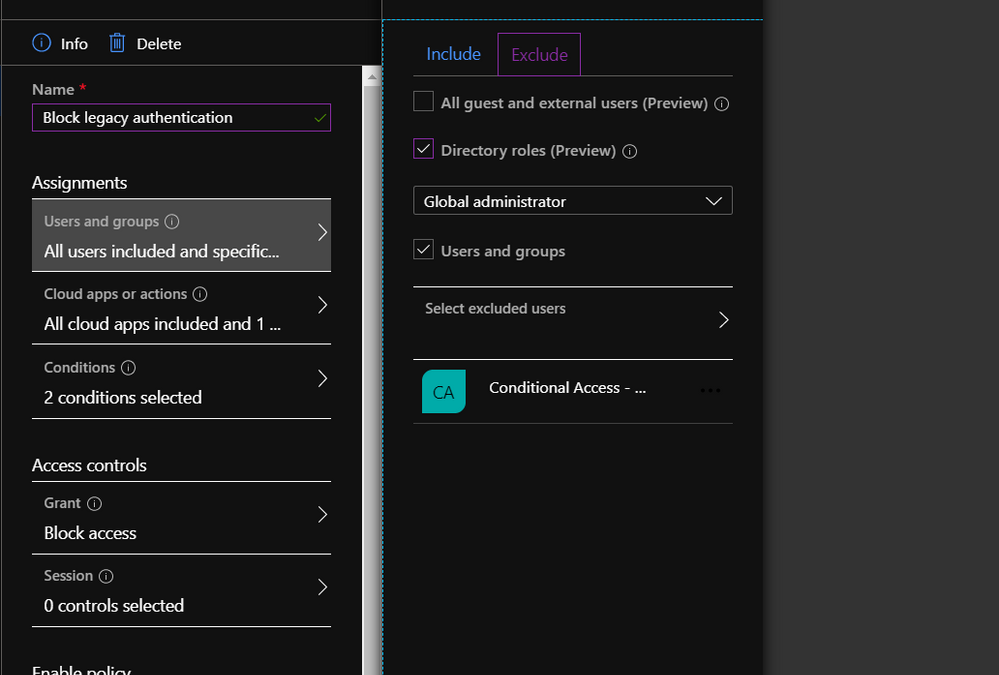
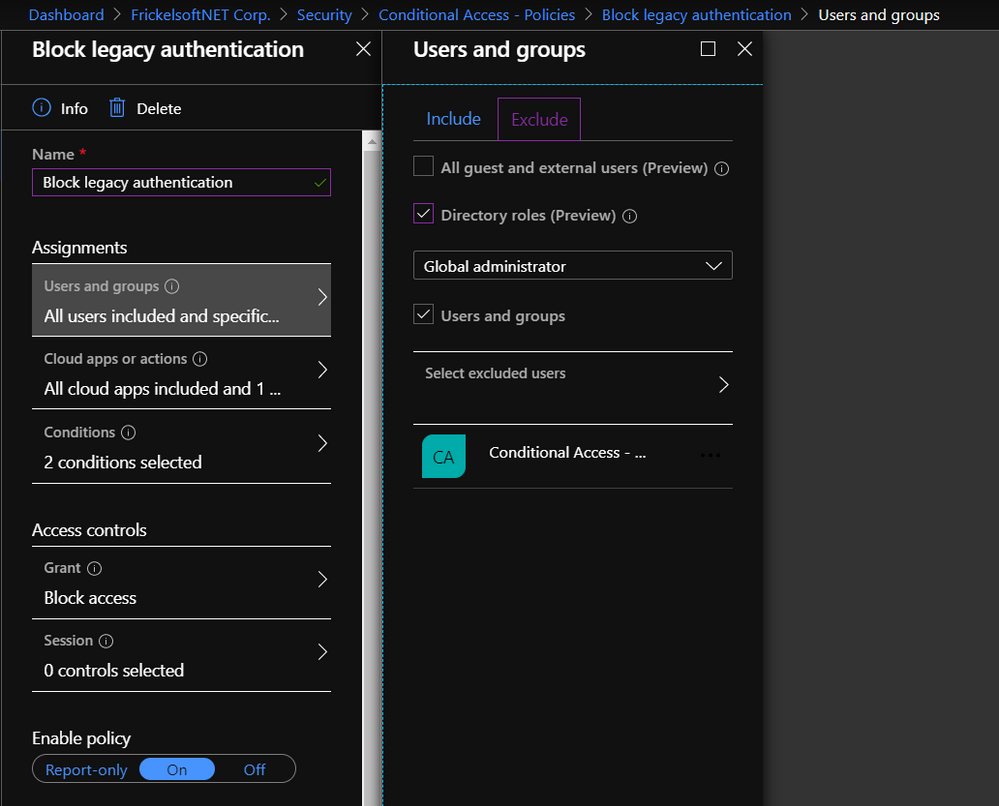
Hi everyone, it’s Florian reporting in today. Like many of our customers, you might be securing access to resources in your organization via Conditional Access policies. You might be using these policies to ensure that multi-factor authentication (MFA) is turned on, and users sign-in from trusted devices, or from trusted locations. During deployment, you might decide to gradually roll these policies out or have a need to ensure that specific users or accounts are untouched by these policies. In this case, you might specify an “exclude” list. Classic examples of such are the list of VIPs that you want to manage differently, or a set of Service Accounts and users that you may want to exclude from your “Block Legacy Authentication” configuration until you remediated them or find a different configuration to run them on.
Exception lists have the benefit (and the burden) of being setup at one point in time, with the goal of staying for some specific amount of time (where the “amount of time” is less than “forever”). There’s an implicit understanding that, eventually, the exception may go and the list of users that enables this exception should shrink gradually. How can you get a better grip on these exception lists, to get clarity on the most important questions most exception processes struggle with? How many users are running on this exception now? How can we regularly check who still needs this exception? How do we clean up this exception list? The answers to these questions are access reviews.
Access reviews build a framework for checking on and attesting access to resources, such as groups and group membership, privileged roles in Azure AD Privileged Identity Management (PIM), access packages, or Azure AD-integrated applications. In this scenario, the resource we’re reviewing is membership to a group. Reviews can be one-off or scheduled in a campaign-fashion, recurring on a monthly, quarterly, or yearly schedule. Reviewers can be defined and delegated, so that the review can be carried out by the best qualified set of people to do it – this may mean that IT does not review access to the resource, but the resource owner. Optionally, you may choose to have the user self-attest their access needs regularly and remove non-responsive users automatically.
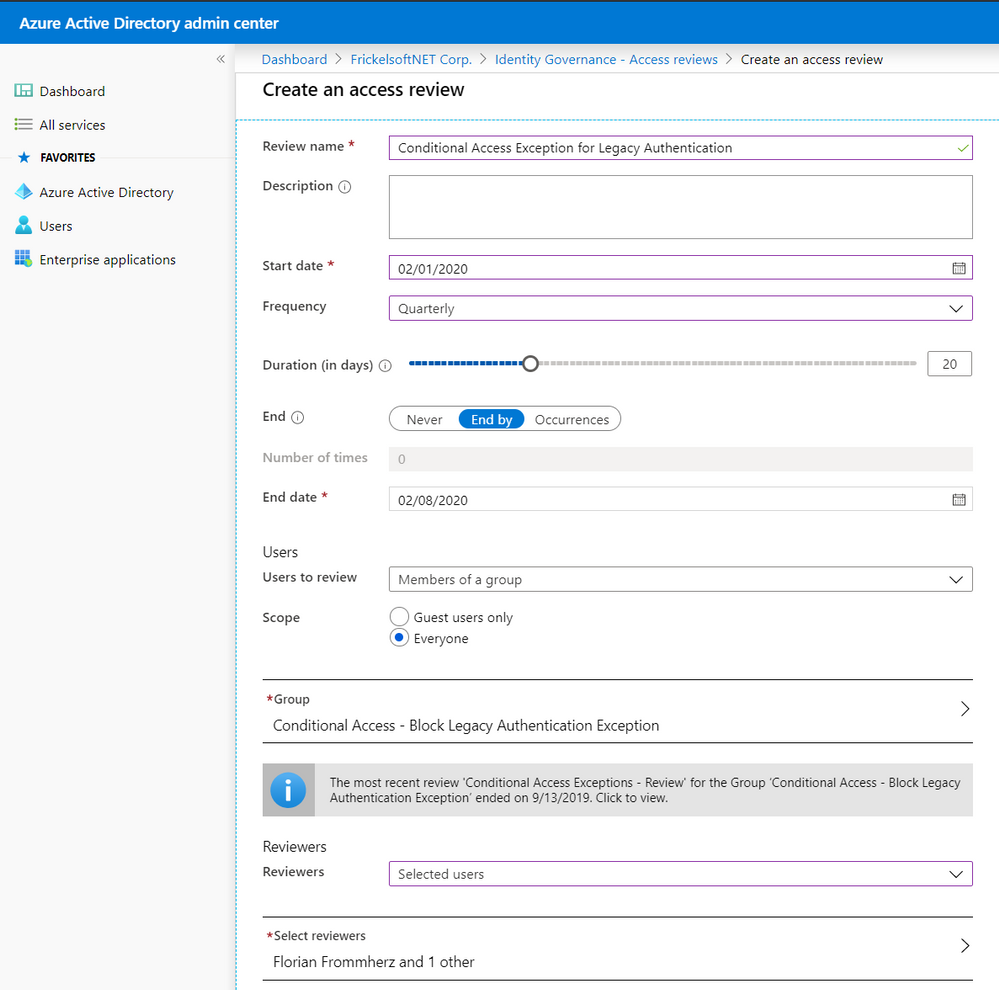
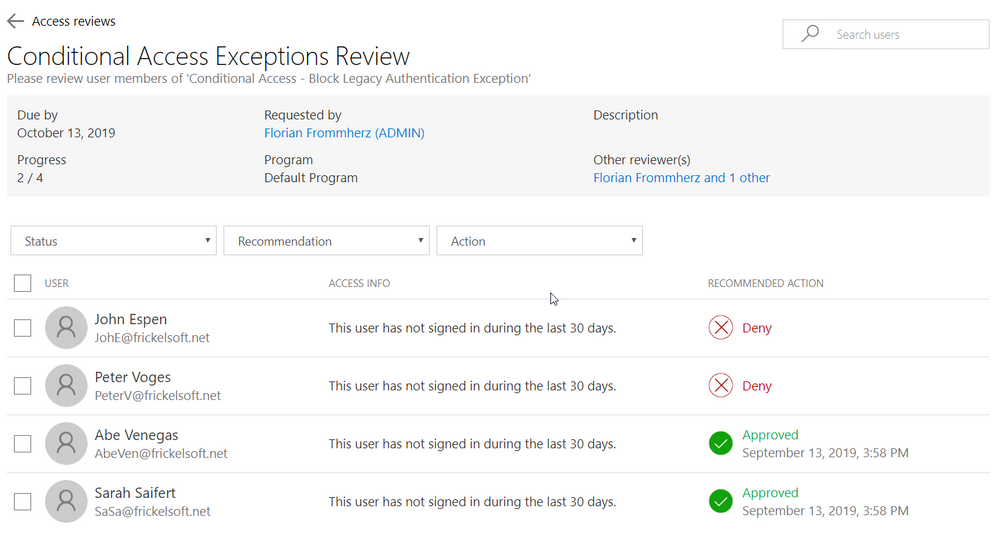
Reviewers will be notified when a new review is set up or a scheduled, regular review has started. They’ll receive an email that points them to a reviewer portal – where they decide on a per-user basis whether access for a resource must be preserved or not:
So how does this come together? Your Azure AD admin team creates the Conditional Access policy and assigns it to the target audience. When “Exclude” is used for scoping, the respective excluded users are added as members of a group to the policy. That group, in turn, is then controlled via access reviews and checked in regular campaigns. Reviewers, at best, are the owners of either the resources the Conditional Access policy is targeted to or – in case of blocking legacy authentication – the Security team.
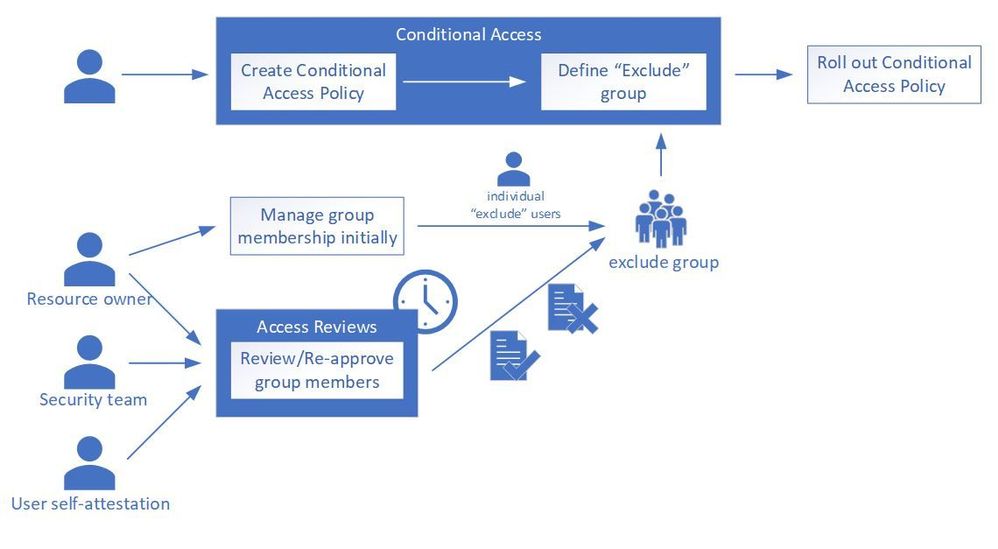
This becomes a useful tool when you need to review access to a resource – such as group membership that enables or disables Conditional Access, or more straightforward things like a Microsoft Teams team – but don’t necessarily own the resource yourself and you need to delegate.
Can I review who has access to an application?
Access reviews work well with several resources and are not limited to exception lists: the most natural are groups of all kinds (Security, Office 365) as well as assignments to applications. Applications may include line-of-business applications that you created and integrated into Azure AD or any Software-as-a-Service (SaaS) application that you configured with Azure AD. In addition, access reviews work with PIM roles, as well as access packages from Azure AD entitlement management. One prominent use cases for access reviews is the periodic attestation of Microsoft Teams teams or Office 365 Groups: you start an access review and let the group owner attest all members – or external identities only.
Can this help me govern access for external partners to Microsoft Teams?
Yes! Microsoft Teams lives and breathes the promise of flexible collaboration across company boundaries. At the same time, enterprises still want control over who accesses corporate resources. Access reviews are a clean way of governing external users’ continued access to resources, such as Teams – while shifting the responsibility from IT Admins to the teams owners – who can judge better whether or not an external partner needs access.
What ways of automation do I have?
Management of access reviews is supported via Microsoft Graph (in beta). We also have a sample PowerShell script and setup instructions to kick-start your PowerShell script accessing and managing access reviews.
I have multiple reviewers – how do I resolve conflicts?
For access reviews that have multiple reviewers aligned, all reviewers’ choices have equal weight. Access reviews count the last reviewer’s choice for every user to be reviewed – until the review ends. That last reviewer’s decision on whether access should be preserved or not is counted, overwriting potential earlier reviewer’s choices – “last reviewer wins”. All reviewers see other reviewer’s choices. For users that have not been reviewed (i.e. no reviewer commented on a particular user), access reviews can be configured to automatically apply a pre-defined result (Approve or Remove access) based on the user’s last logon or use of the resources.
Can I also review groups that I synchronize from on-premises through Azure AD Connect?
On-premises groups can be targeted for access reviews and reviewers can review end users and their continued access to the resource in question. At the end of the review, reviewers will be given an overview of the review result. Unlike cloud-managed groups, access reviews cannot perform “auto apply results” on on-premises groups, such as removing users from a group. Administrators will have to use the results from access reviews and perform manual actions on the on-premises group to apply the review results.
Can I provide this as self-service to users?
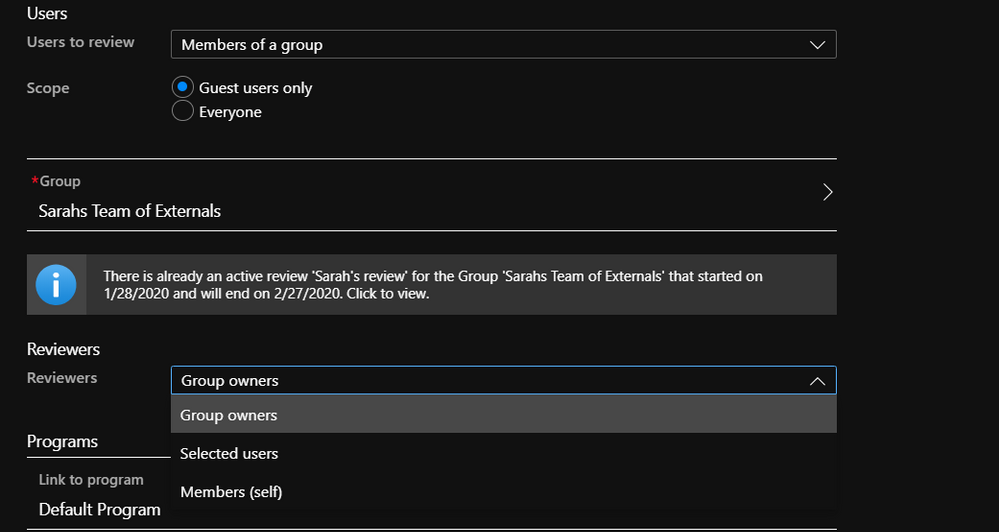
Yes! When creating an access review, there are several choices for reviewers that administrators can take. In addition to “Owners” of the resources and “Selected users” that you delegate as reviewers, there is also a “Self” option, where members of the group in review attest whether they need access or not. The users will be notified via email and will be taken to the reviewer portal via a link in the email. For non-responsive users, the system can also auto-approve or auto-remove access.
What about external identities?
External identities such as partners and contractors are an excellent use-case for organizations to use access reviews! Access Reviews is all tailored to support external identity use cases, from an exception group that you manage for Conditional Access to exempt external partners from MFA, to a Teams team that you want to put under review to have a closer look at external partners and vendors. When creating a review on a group or application, review administrators have a choice between building the review scope over “Everyone” who is member of the group or assigned to the application, or “Guest users only”.
We hope you find this information helpful. Please let us know via Twitter (@AzureAD) or comment below if you have any other questions or clarifications.
by Scott Muniz | Jul 10, 2020 | Azure, Microsoft, Technology, Uncategorized
This article is contributed. See the original author and article here.
The Azure open source database team that I lead is 100% focused on security. We live, eat, and breathe security. After all, many of you rely on national and industry standard security controls to develop and improve your INFOSEC defenses. And of course you expect the same level of security and due diligence when you build your open source workloads on Azure cloud.
This post highlights some of the frequently requested compliance certifications we’ve achieved for Azure Database for PostgreSQL – Single Server.
Note, our Postgres managed database service on Azure also has another deployment option, Hyperscale (Citus), which enables you to scale out your Postgres database horizontally across a server group. Hyperscale (Citus) is a powerful and secure option for those who need the performance and scale of a multi-machine database cluster.
Because the Hyperscale (Citus) deployment option GA’d in November 2019, it has not yet achieved the same compliance certs as our single server deployment option for Postgres. Moving forward, as the Hyperscale (Citus) compliance certificates becomes available, we’ll be sure to blog about it. In the meantime, you can always reach out to our team at AskAzureDBforPostgreSQL@service.microsoft.com if you need important security certs and you don’t (yet) see them in the compliance cert table below.
Notable Compliance Certs for For Azure Database for PostgreSQL – Single Server
|
Certificate
|
Applicable to…
|
|
HIPAA and HITECH Act (U.S.), HITRUST
|
Healthcare Providers, Healthcare Clearinghouses, and Health Plans
|
|
ISO 27001
|
Information Security Management Systems
|
|
ISO/IEC 27018
|
Public and private companies, government entities and not-for-profits that provides PII processing services via the cloud
|
|
NIST Cybersecurity Framework
|
Public and private companies, government entities and not-for-profits
|
|
FedRAMP High
|
U.S. Federal Agencies
|
|
SOC 1, 2 and 3
|
Cloud service providers; offers assurance to customers and stakeholders that effective internal controls that affect financial reports and operational control systems are in place
|
|
Cloud Security Allowance STAR
|
Cloud service providers; demonstrates ISO/IEC 27001 and Cloud Controls Matrix compliance
|
|
EU Model Clauses
|
All EU countries Norway, Iceland, and Liechtenstein; provides assurances for personal data leaving the European Economic Area
|
|
UK G-Cloud
|
UK Government
|
Our single server deployment option for Azure Database for PostgreSQL has achieved a comprehensive set of national, regional, and industry-specific compliance certifications in our Azure public cloud to help you comply with requirements governing the collection and use of your data.
To date, Azure Database for PostgreSQL – Single Server has amassed over 50 compliance offerings, including the more notable ones such as HIPAA, HITRUST, PCI-DSS, ISO 27001, ISO/IEC 27018, FedRAMP High, etc.
Our open source database team is continuing to pursue even more compliance certifications for Azure Database for PostgreSQL—for both Single Server and Hyperscale (Citus) which we will share in future posts about security, and as part of our documented compliance offerings for Azure.
I’ll be talking about even more security capabilities in future blog posts
In addition to all the certifications above for Postgres, our team has also been busy rolling out new security features on Azure Database for PostgreSQL that we’ll be blogging about next. These new Postgres features on Azure include high-demand capabilities such as data encryption for data at rest (we often call this ‘bring your own key’ or (BYOK) as well as double encryption); data security in motion (TLS and SSL); network security (firewall, service endpoint, private link); and access methods (native authentication and AAD authentication).
We also offer the Azure IP Advantage for Azure services running open source technologies. The Azure IP Advantage provides best-in-industry intellectual property protection, uncapped indemnification, the ability to deter and defend lawsuits with patent pick, and broad protection with a springing license.
We’re committed to make Azure the most secure cloud in the world for you and your applications. I’m looking forward to sharing more with you about the new security features we’ve been rolling out for Azure Database for PostgreSQL (as well as the ones our engineering team is actively working on right now).
If you have questions, please feel free to reach out to me and my team on the AskAzureDBforPostgreSQL@service.microsoft.com alias.
by Scott Muniz | Jul 10, 2020 | Azure, Microsoft, Technology, Uncategorized
This article is contributed. See the original author and article here.
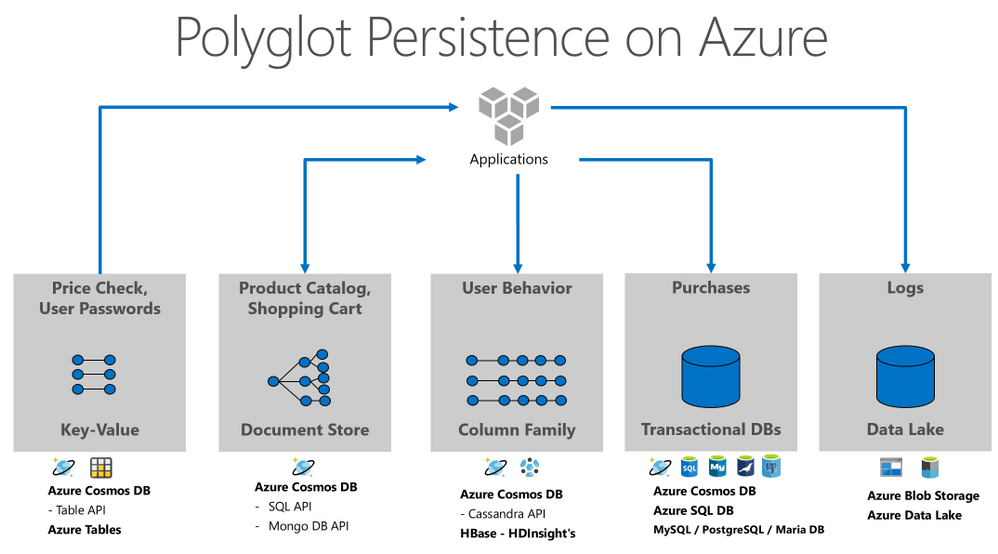
Polyglot Persistence is the concept of using different storage technologies by the same application or solution, leveraging the best capabilities of each component. Azure Data Services support all possible data types and its usages.
In this blog post you will learn more about Polyglot Persistence, the trade-offs of its implementation, and available Azure Data Services to implement it.
The Old Reality
Until the 1990s most companies used a single version of a single database product. No matter the use case or the technical requirements, what prevailed was the company standard and all applications had to adapt to the official database vendor. How many times have you heard that “here in the company we use Oracle (or any other)? Yes, this not distant past is still a reality in many companies, where all the functions of all applications use the same RDMS.
In the following decade, we began to see some diversification, with the emergence of analytical databases, to support BI workloads. But usually it was still tied to a single vendor and to relational databases. Which made a lot of sense, since the data was always structured and “small” if we compare with today’s times. Storage was very expensive, and data normalization was decisive for efficient applications.
The CWMBO Revolution – “Cloud – Web – Mobile – Big Data – Open Source”
The public cloud as we know it today was born in 2006 and revolutionized the IT world. Now it was easy to scale your infrastructure and use software as a service. The licensing mode began to lose space for the subscription model. It was easy to use multi-vendor databases, taking advantage of the product’s best capabilities.
At the same time, the web and mobile popularization was generating gigantic volumes of semi-structured or unstructured data. It was named as Big Data and created the necessity for technologies like Hadoop and NoSQL databases. The relational database was no longer a solution for everything. We just understood another factor of the revolution.
The last factor was the exponential growth of Open Source Software, allowing cheap access to innovative and quality products. And the cloud providers embraced this idea, offering the products in multiple modes and adding valuable support in some cases.
Cloud Native Applications and Polyglot Persistence on Azure
At this point we started to see some Polyglot Persistence in architecture level. Modern Data Warehouses were created using multiple products and services, with the data flowing from the data sources until the best storage option for that data type. We also started to see cloud native applications using principals like server-less, containers, complex event processing (on top of event-based architectures), REST APIs, etc.
That’s when companies to finally break down their monolith systems. Some of them were still running on-prem, some of them were lifted and shifted to IaaS servers running in the cloud. Distributed services were developed by different teams, using the best persistence option for that data type or workload.
Let us see the example below. The application was sliced in 5 main persistence activities, but we could include more areas like graphs, events, or cache. For each activity we have the typical datatype and the related Azure’s storage options.
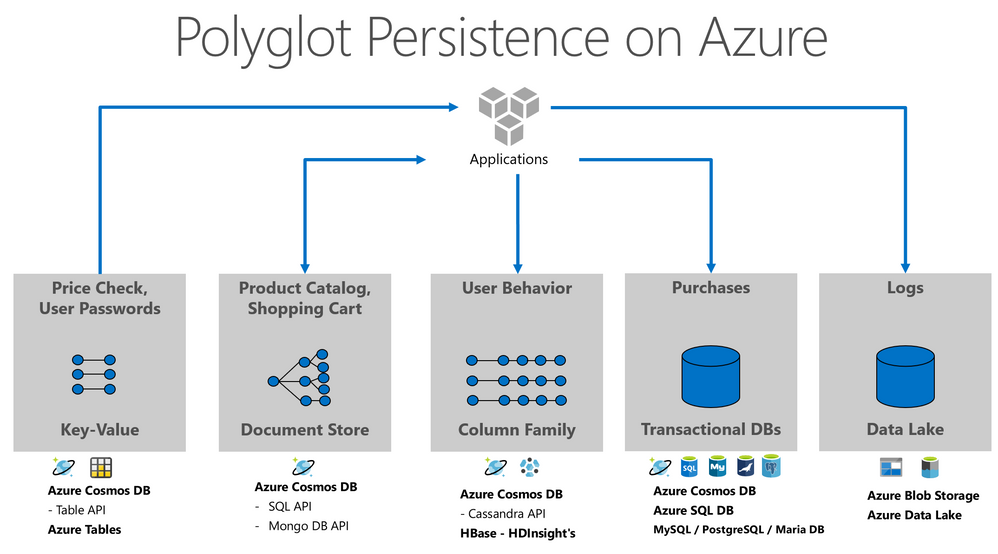
The modern data professional needs tools to handle and manage all this data, the trade-offs of polyglot persistence are orchestration and governance. Buck Woody wrote a great blog post about Azure Data Studio, a great tool to support the challenges of this new era.
The Future
Right now, we are seen the growth of concepts that extend the ideas presented in this post, like Data Mesh and micro-frontends. Also, Azure’s teams just released a data product called Azure Synapse Link, that enable HTAP scenarios in your Data Architecture. It allows NoETL analytical solutions, avoiding complexity of ETL jobs and all other data integration activities.
We can say that Big Data is too big to be moved around your environment, what created this in-place analytics, or NoETL solution. Azure Cosmos DB was the first Azure PaaS database to offer this automatically integration, but we can predict that other services will follow the same path.

by Scott Muniz | Jul 10, 2020 | Azure, Microsoft, Technology, Uncategorized
This article is contributed. See the original author and article here.

The ultimate guide to Microsoft Teams based approvals
Laura Kokkarinen is an MVP in the Office Development category, and works as a senior software developer and architect at Sulava in Finland. She has been coding for SharePoint and Office 365 since 2011. Today, her main focus is implementing customizations for Microsoft 365 by utilizing SharePoint Framework, Azure services and the Power Platform. Laura writes a Microsoft 365 and Azure focused blog for other developers at laurakokkarinen.com, and regularly shares her knowledge at international conferences. Follow her on Twitter @LauraKokkarinen.

Simplified YouTube live streaming with Azure and OBS Studio
Ihor Leontiev is an MVP for Microsoft Azure, yet ranges in experience from OpenStack to .NET development. Hailing from Ukraine, Ihor’s work takes him all around the world as he offers technical advice to various businesses, largely focusing on manufacturing and transportation. Follow him on Twitter @LeontievIhor

What’s the maximum number of generic parameters for a class in .NET/C#?
Jiří Činčura is an independent developer focusing on data and business layers, language constructs, parallelism and databases. Specifically Entity Framework, asynchronous and parallel programming, cloud and Azure. He’s a Microsoft MVP and you can read his articles, guides, tips and tricks at www.tabsoverspaces.com. Follow him on Twitter @cincura_net.

gRPC & ASP.NET Core 3.1: Message validation
Anthony Giretti is a specialist in web technologies with 14 years of experience. He specializes in particular in Microsoft .NET and he is currently learning the Cloud Azure platform. He has twice received the Microsoft MVP award and he is also a certified Microsoft MCSD and Azure Fundamentals. Follow him on Twitter @anthonygiretti.

Azure Security : Firewall vs NSG
George Chrysovalantis Grammatikos is based in Greece and is working for Tisski ltd. as an Azure Cloud Architect. He has more than 10 years’ experience in different technologies like BI & SQL Server Professional level solutions, Azure technologies, networking, security etc. He writes technical blogs for his blog “cloudopszone.com“, Wiki TechNet articles and also participates in discussions on TechNet and other technical blogs. Follow him on Twitter @gxgrammatikos.
by Scott Muniz | Jul 9, 2020 | Azure, Microsoft, Technology, Uncategorized
This article is contributed. See the original author and article here.
With all the changes in Azure, it is sometimes hard to keep track, that’s why I thought I would give you a quick update on a couple of exciting things I learned this week. In this update, I want to share a couple of things around updates on Azure Arc enabled SQL Servers, private endpoints for Azure File Sync, Azure Private Link support for Azure Automation, Azure Digital Twins enhanced features, and much more! Also, tune in for our live stream later today.
Preview of Azure Arc enabled SQL Server is now available
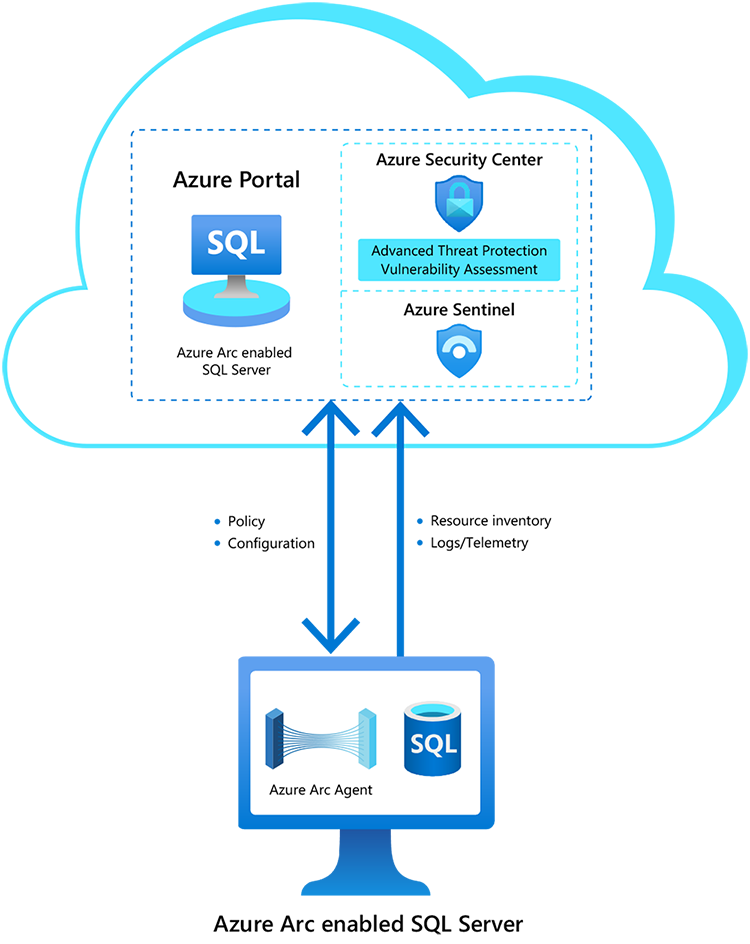
The Azure Data Services team just announced the private preview of Azure Arc enabled SQL Server. The preview includes the following features:
- Use the Azure Portal to register and track the inventory of your SQL Server instances across on-premises, edge sites, and multi-cloud in a single view.
- Use Azure Security Center to produce a comprehensive report of vulnerabilities in SQL Servers and get advanced, real-time security alerts for threats to SQL Servers and the OS.
- Investigate threats in SQL Servers using Azure Sentinel.
 Azure Arc enabled SQL Server is now available
You can register any Windows or Linux based SQL Server to track your inventory. Azure Security Center’s advanced data security works on Windows-based SQL Server version 2012 or higher, running on physical or virtual machines and hosted on any infrastructure outside of Azure.
If you are interested in participating in this preview, check out the full blog post here.
Azure Digital Twins enhanced features are now in preview
Azure Digital Twins enhanced features are now in preview. Create comprehensive digital models of entire environments to help gain insights that can drive better products, optimize operations, reduce costs, and create exceptional customer experiences with Azure Digital Twins Preview.
Private endpoints for Azure File Sync are now generally available
Starting with Azure File Sync agent 10.1, Azure File Sync supports private endpoints in all public and Azure US Government cloud regions where Azure File Sync is available. Private endpoints enable you to assign your Storage Sync Service private IP addresses from within the address space of your virtual network. Private endpoints for Azure File Sync allow you to:
- Securely connect to your Azure resources from on-premises networks using a VPN or ExpressRoute connection with private-peering.
- Secure your Azure resources by disabling the public endpoints for Azure Files and File Sync.
- Increase security for your Azure virtual networks by blocking exfiltration of data from your network boundaries.
You can learn more about configuring Azure File Sync network endpoints.
Azure Private Link support for Azure Automation is now available in preview
Another exciting news is the announcement of the preview of Azure Private Link Support for Azure Automation. You can now use Azure Private Link to securely connect virtual networks to Azure Automation using private endpoints (in preview).
Use Private link to:
- Establish a private connection to Automation without opening public network access.
- Ensure your Automation data is only accessed through authorized private networks.
- Protect data exfiltration with granular access to specific resources.
- Protect resources from public network access.
Use endpoints to:
- Use webhooks to start a runbook.
- Connect Hybrid Runbook Worker.
- Connect Azure DSC nodes.
You can learn how to use Private Link to securely connect networks to Automation here.
Fun IoT projects to do at home during #JulyOT
As they find themselves spending more time at home, devs are finding creative ways to strike a new work-life balance using the Internet of Things. Here are the stories of three IoT hobbyists and their home projects that will inspire your creativity too.
MS Learn Module of the Week

Get started with artificial intelligence on Azure
Artificial Intelligence (AI) empowers amazing new solutions and experiences, and Microsoft Azure provides easy to use services to help you get started.
Conclusion
I wish you a good weekend, and I hope this short blog post provided you with some news from this week. I know there is much more than just the things I listed here. I recommend that you follow the Azure announcements blog. If you have any questions, feel free to leave a comment.
Also, check out last week’s Az Update here.


Recent Comments