by Scott Muniz | Aug 4, 2020 | Uncategorized
This article is contributed. See the original author and article here.
We are pleased to announce the final release of the security configuration baseline settings for Windows 10 and Windows Server version 2004.
Please download the content from the Microsoft Security Compliance Toolkit, test the recommended configurations, and customize and implement as appropriate. If you have questions or issues, please let us know via the Security Baseline Community.
This Windows 10 feature update brings very few new policy settings, which we list in the accompanying documentation. Only one new policy meets the criteria for inclusion in the security baseline (described below), and we are removing one setting from the baseline. There are two additional policies we are not including in the baseline because of compatibility concerns, but which you may want to consider for your organization.
LDAP Channel Binding Requirements (Policy updated)
In the Windows Server version 1809 Domain Controller baseline we created and enabled a new custom MS Security Guide setting called Extended Protection for LDAP Authentication (Domain Controllers only) based on the values provided here. This setting is now provided as part of Windows and no longer requires a custom ADMX. An announcement was made in March of this year and now all supported Active Directory domain controllers can configure this policy. The value will remain the same in our baseline, but the setting has moved to the new location. We are deprecating our custom setting. The new setting location is: Security SettingsLocal PoliciesSecurity OptionsDomain controller: LDAP server channel binding token requirements.
Note: this new policy requires the March 10, 2020 security update. (We assume that, as security conscious baselines users, you are patching!) Details of that patch are here.
Microsoft Defender Antivirus File Hash (Worth considering)
Microsoft Defender Antivirus continues to enable new features to better protect consumers and enterprises alike. As part of this journey Windows has a new setting to compute file hashes for every executable file that is scanned, if it wasn’t previously computed. You can find this new setting here: Computer ConfigurationsAdministrative TemplatesWindows ComponentsMicrosoft Defender AntivirusMpEngineEnable file hash computation feature.
You should consider using this feature to improve blocking for custom indicators in Microsoft Defender Advanced Threat Protection (MDATP). This new feature forces the engine to compute the full file hash for all executable files that are scanned. This can have a performance cost, which we minimize by only generating hashes on first sight. The scenarios where you may want to test more thoroughly for performance include devices where you frequently create new executable content (for example, developers) or where you install or update applications extremely frequently.
Because this setting is less helpful for customers who are not using MDATP, we have not added it to the baseline, but we felt it was potentially impactful enough to call out. If you chose to enable this setting, we recommend throttling the deployment to ensure you measure the impact on your users’ machines.
Account Password Length (Worth considering)
In the Windows 10 1903 security baselines we announced the removal of the account password expiration policy. We continue to invest in improving this experience. With Windows 10 2004, two new security settings have been added for password policies: ‘Minimum password length audit’ and ‘Relax minimum password length limits’. These new settings can be found under Account PoliciesPassword Policy.
Previously, you could not require passwords/phrases greater than 14 characters. Now you can! Being able to require a length of more than 14 characters (maximum of 128) can help better secure your environment until you can fully implement a multi-factor authentication strategy. Our vision remains unchanged in achieving a password-less future, but we also recognize that this takes time to fully implement across both your users and your existing applications and systems.
You should be cautious with this new setting because it can potentially cause compatibility issues with existing systems and processes. That’s why we introduced the ‘Minimum password length audit’ setting, so you can see what will happen if you increase your password/phrase length. With auditing you can set your limit anywhere between 1 and 128. Three new events are also created as part of this setting and will be logged as new SAM events in the System event log: one event for awareness, one for configuration, and one for error.
This setting will not be added to the baseline as the minimum password length should be audited before broad enforcement due to the risk of application compatibility issues. However, we urge organizations to consider these two settings. Additional details about these new settings will be found here, once the new article get published in the coming days.
(NOTE: As of the today the link is not yet live, we are actively working to ensure it gets posted soon!)
As a reminder, length alone is not always the best predictor of password strength, so we strongly recommend considering solutions such as the on-premise Azure Active Directory Password Protection which does sub-string matching using a dictionary of known weak terms, and rejects passwords that don’t meet a certain score.
Turn on Behavior Monitoring (Policy removed)
In keeping with our principals of criteria for baseline inclusion we have found that the following setting does not need to be enforced; there is no UI path to the setting, you must be a privileged account to make the change, lastly we do not feel a mis-informed Admin would change this setting. Based on these principals we are removing Computer ConfigurationAdministrative TemplatesWindows ComponentsMicrosoft Defender AntivirusReal-time ProtectionTurn on behavior monitoring
Tooling updates
Finally, we do have some enhancements for LGPO and Policy Analyzer coming very shortly after this release! We will go into more details on these enhancements in a future blog post!
Baseline criteria
We follow a streamlined and efficient approach to baseline definition when compared with the baselines we published before Windows 10. The foundation of that approach is essentially:
- The baselines are designed for well-managed, security-conscious organizations in which standard end users do not have administrative rights.
- A baseline enforces a setting only if it mitigates a contemporary security threat and does not cause operational issues that are worse than the risks they mitigate.
- A baseline enforces a default only if it is otherwise likely to be set to an insecure state by an authorized user:
- If a non-administrator can set an insecure state, enforce the default.
- If setting an insecure state requires administrative rights, enforce the default only if it is likely that a misinformed administrator will otherwise choose poorly.
For further illustration, see the “Why aren’t we enforcing more defaults?” section in this blog post.
As always, please let us know your thoughts by commenting on this post.
![[Guest Blog] My Journey from the Marine Corps to Cybersecurity](https://www.drware.com/wp-content/uploads/2020/08/large-168)
by Scott Muniz | Aug 4, 2020 | Uncategorized
This article is contributed. See the original author and article here.
This article was written by Microsoft employee Vishal Amin who shares about how he transitioned from a career as a Fighter Pilot and Special Operations Officer to Cybersecurity Specialist at Microsoft.
64KB of data storage and memory. On the eve of my military career retirement that was 20 years in the making, I looked at my common access card and realized that this 3.370 x 2.125 inch card I was holding was the single piece of authentication that validated my career to the outside world. Somehow, the Marine Corps managed to fit my life and my 20 years of service onto a card that was merely 0.030 inches thick with only 64kB of data storage and memory.
So you might ask, why Microsoft, why cybersecurity? Well, in my story that is precisely where Identity, Security and the “Human” intersect.

I remember that day vividly. On March 21st of 2015, the Islamic State Hacking Division released an order to target 100 individuals operating against them. In the same order, they also released the whereabouts, pictures and personal identities of each individual – I was one of those who was identified. The thrill of 36,000 pounds of thrust from the fighter jet cockpit of a McDonnell Douglas F/A-18 Hornet, the privilege of leading our men and women in service, and my own personal aspirations of continued servant leadership seemingly grounded to a complete halt. The ability to collaborate and engage my peers, to serve my country and most importantly, protect my family were stripped from my control by way of data ownership and identity compromise. I had navigated a purposeful and fulfilling career, layered behind the most physically secure and digitally sound barriers our nation had the ability to provide. Yet, in a push of a button, a simple human event compromised the single most important piece of me – my identity.
The years following the incident, I was constantly in a heightened state of awareness and alarm – imagine having to be always mindful of suspicious unmarked vehicles outside your home, the safety of your family, and the ability to live a normal life without fear of physical or digital harm. This was my new normal. For me, this single event critically defined how the human element is the core to security and protecting our identities.
Realizing that the most important decisions we make in life are not tied to our wallets, but rather how we truly impact those around us and under our influence, I decided to dedicate the remainder of my life and career to Cybersecurity. For many, Cybersecurity is a monetary investment and a layer of protection or insurance on our valuable digital estate.


For a select few, Cybersecurity is how we empower people and organizations to positively impact the world in their unique and innovative ways, without fear or repercussion. Microsoft’s mission to empower every person and every organization on the planet to achieve more is precisely the reason I chose Microsoft, and specifically, Cybersecurity within Microsoft. Ann Johnson, CVP of Cybersecurity Business Development – someone I admire and continue to learn from at Microsoft – shared a few impactful thoughts with me personally before I began my career at Microsoft. She also published them in an article from CYBERCRIME MAGAZINE:
“But if all the people in your security team think the same way, you’re missing out on the diversity of understanding and problem-solving that a wider group of approaches and experiences would bring. We need to avoid the risk of group think, and that’s best done by having teams that come from different backgrounds, with varied experiences that help them find new answers to problems. Not only do you need different viewpoints to get creative solutions: you may not even notice some of the areas you’re neglecting, because you can’t tackle what you don’t know about.” – Ann Johnson
My journey to Microsoft was certainly not traditional, and I can only assume that same sentiment holds true for many others in their journey here. Looking back at the 64KB common access card I was issued, I realize that the authentication and validation that card provided could only be weaponized by the humans with malicious intent behind it. It’s our job as humans pledging to use tech for good – and not evil – to defend against that.
What can you do?
Invest in the people, the human. Look for talents in the places you least expect to. They will reciprocate that investment in you and your organization. My career and choice to invest in Microsoft was not simply a “transition”, but a journey. For those on their own journeys and navigating their careers in an uncertain, changing and evolving world, I challenge you to invest in passions. For me, Cybersecurity is not merely a job, but an entire frame of mind and a way of life. The investment that I choose to make in my passion has allowed me to diversify the way I view security. That same investment has now allowed me to grow in my career at Microsoft.
Ask yourself: How are you investing in your future, your passions, and most importantly, yourself? When that answer comes to mind, go do that thing. You will not regret it.
#HumansofIT
#CareerJourneys
#MilitaryVeteransinTech
by Scott Muniz | Aug 4, 2020 | Uncategorized
This article is contributed. See the original author and article here.
We’re excited to continue our blog series to share the learning journeys of our customers, partners, employees, and future generations. Today, we present the second blog in the series with a global customer learning story we love: the learning transformation at EY.
When Veronica Gomez received an email in November of 2019 inviting her to build her technical skills with Microsoft Learn, it intrigued her right away. A veteran Windows Server Administrator for more than a decade, Veronica was eager to expand her technical skillset and she dove in right away. Little did she know that it would open a new world of learning for her.
“I immediately thought it was a very cool opportunity,” Veronica said. “I have always been very interested in learning new things and I quickly started pursuing the different learning paths for DevOps to become a cloud engineer. I also became interested in other career paths that had not interested me before, like Python and AI.”
EY, Veronica’s employer, is one of the largest professional services firms in the world and a global leader in assurance, tax, transaction, and advisory services. She is part of the Client Technology Platform team, which partners with EY service lines to combine client knowledge and innovative ideas to deliver industrialized solutions on a global scale. The Client Technology function challenges itself to “innovate at scale while delivering technology at the speed of technology,” and it is constantly building new tools and experimenting with digital technologies and cloud platforms such as Microsoft Azure.
“When we assembled this global team about two years ago, it was an experiment,” said Pablo Cebro, Design and Engineering Director for EY’s Client Technology Platform and team leader. “I was the first employee and now we have 500. When you grow this fast, the biggest challenge is to continue to deliver the quality of work that we expect to deliver for EY clients. To get there, it wasn’t enough to just review the work. We needed to improve what we call the ‘employee quality’.”
Microsoft Learn
To deliver that quality, the Client Technology Platform team turned to Microsoft Learn, which offers free online access to bite-size, self-paced, interactive, and hands-on training, to upskill their employees. The team had recently adopted Azure DevOps to help make app development faster and less costly, and is now also using Azure services such as Azure Pipelines and Azure Kubernetes Service (AKS) to unlock software development with the power of container-based architecture. So, one of the areas where the EY employees really needed upskilling was Azure DevOps practices. And to motivate the team to learn, leaders were looking for a program that would be fun, measurable and at the same time would help get their employees certified. Enter the Microsoft Cloud Skills Challenge, a “gamified” skilling program designed to kickstart the cloud learning journey through self-guided content from Microsoft Learn, where developers compete to earn points by completing modules and top learners win prizes at the end of the competition.
“We needed a program that was quick to get off the ground, but also enticed our employees to see it through,” said Mark Luquire, Global DevOps Practice Lead for Client Technology, who also started the learning program for the team. “We have a global, dispersed team, so spending a week in a classroom is not always possible, but the material on Microsoft Learn is really good and gives people flexibility with the option to self-pace their learning with 24/7 access.”
But that was only the beginning of EY’s Client Technology team’s “transformational learning journey” to invest in their people. As they embraced the Cloud Skills Challenge, Mark saw his team “up their game” to mature their overall skills to successfully establish a DevOps culture and practice and meet the high expectation of creating industry-leading, world-class solutions. They also added virtual and in-person classes and today, engineers in the program are heavy users of Microsoft Learn’s free online training to help prepare for Microsoft Certification.
“Microsoft Learn is an open book, available to all, and it allows me to study every night before I go to sleep,” said Veronica Gomez, who is now a Cloud engineer for EY. “I work and I have a family with two little kids, so I have no time during the day, but I use the night to work on my career.”
The team also takes full advantage of other training options outside Microsoft Learn such as Microsoft OpenHack and collaboration in the Technology Experience Center (TEC) in Seattle. “Microsoft has been a great strategic partner for us, and this has been a joint journey,” Mark explained. “We have a unique relationship through the Technology Experience Center (TEC), where we have dedicated Cloud Solution Architects (CSA) who work side-by-side with us in Seattle, day in, day out. And they don’t just give us access to product teams and other engineering groups, but also provide the right learning materials. That partnership has been instrumental to the success of this program.”
Continuous learning
Today, EY’s learning program has matured to the point that leadership now evaluates their program every quarter, adding new practices and adjusting the program’s targets and goals for the hundreds of engineers who participate. The next step in the journey will be an expansion to other engineering teams and other organizations, which will incrementally grow the number of participants at EY into the thousands.
Mark describes the result of the partnership with Microsoft as a “culture of continuous learning”. Team leadership established a learning foundation with clear organizational goals focused on the cloud, but do not limit them in terms of what skills they want to pursue. And they celebrate successes by posting employee pictures on a dedicated internal site when they achieve a certification. They also are encouraged to share their achievement on LinkedIn, where EY leadership will publicly congratulate them as well.
“Microsoft Learn is a really powerful tool that gave us the opportunity to get quality skilling at scale,” said team leader Pablo, when asked to evaluate the progress made to date. “We’re now able to certify people faster than ever while also making sure they’re on the right career path. We expect 80% of our organization to be certified in DevOps by June. After that we’re going to be looking to skill more Azure developers, architects, and security specialists.” This is music to the ears of employees like Veronica Gomez, who has literally incorporated learning into her daily schedule to finish up her Azure certifications. “I’ve found that learning has contributed a great deal to my career in IT and has made my professional profile a lot more robust and appealing,” she says. “Now that I have had experience working with on-premises and IaaS systems I realize it certainly was more than just studying to pass an exam. I truly developed my skills.”
by Scott Muniz | Aug 4, 2020 | Uncategorized
This article is contributed. See the original author and article here.

| References and Information Resources |
Microsoft 365 Public Roadmap
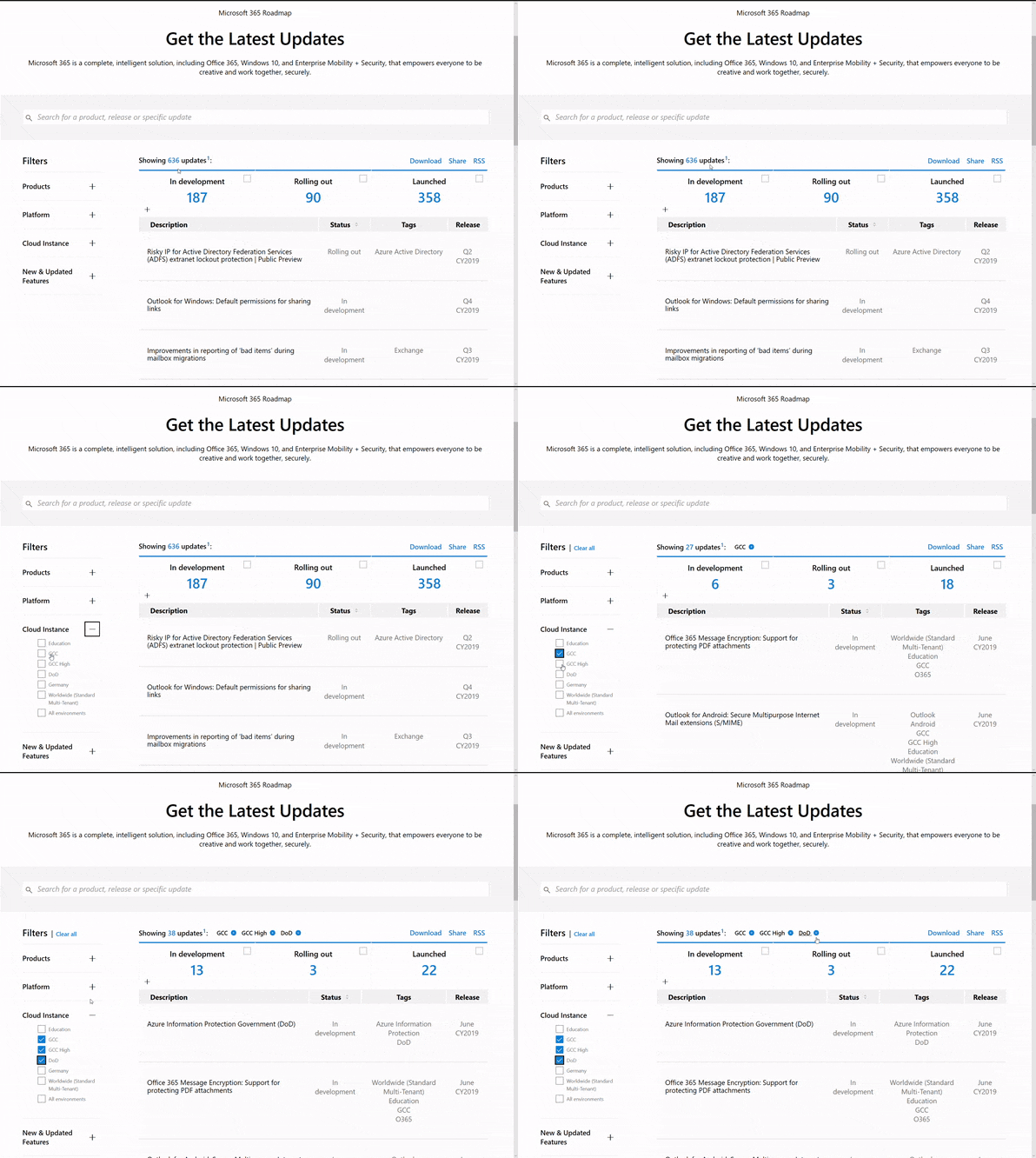
This link is filtered to show GCC, GCC High and DOD specific items. For more general information uncheck these boxes under “Cloud Instance”.
New to filtering the roadmap for GCC specific changes? Try this:
Stay on top of Office 365 changes
Here are a few ways that you can stay on top of the Office 365 updates in your organization.
Microsoft Tech Community for Public Sector
Your community for discussion surrounding the public sector, local and state governments.
Microsoft 365 for US Government Service Descriptions
- Office ProPlus (GCC, GCCH, DoD)
- PowerApps (GCC, GCCH, DoD)
- Flow (GCC, GCCH, DoD)
- Power BI (GCC, GCCH)
- Planner (GCC, GCCH, DoD)
- Outlook Mobile (GCC, GCCH, DoD)
- My Analytics (GCCH, DoD)
- Dynamics 365 US Government
Teams for Government Training Series
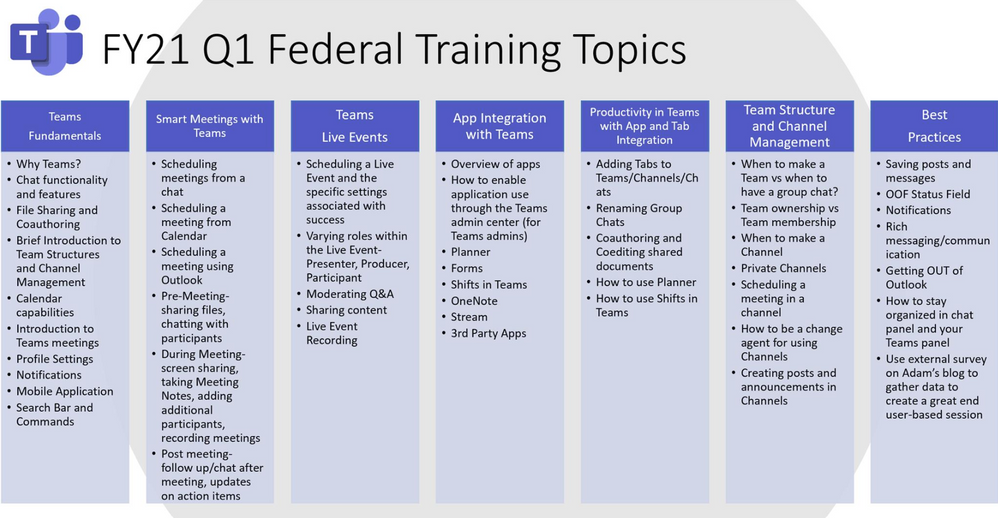
Live training accessible via Teams Live Event aka.ms/learnTeamsforGov
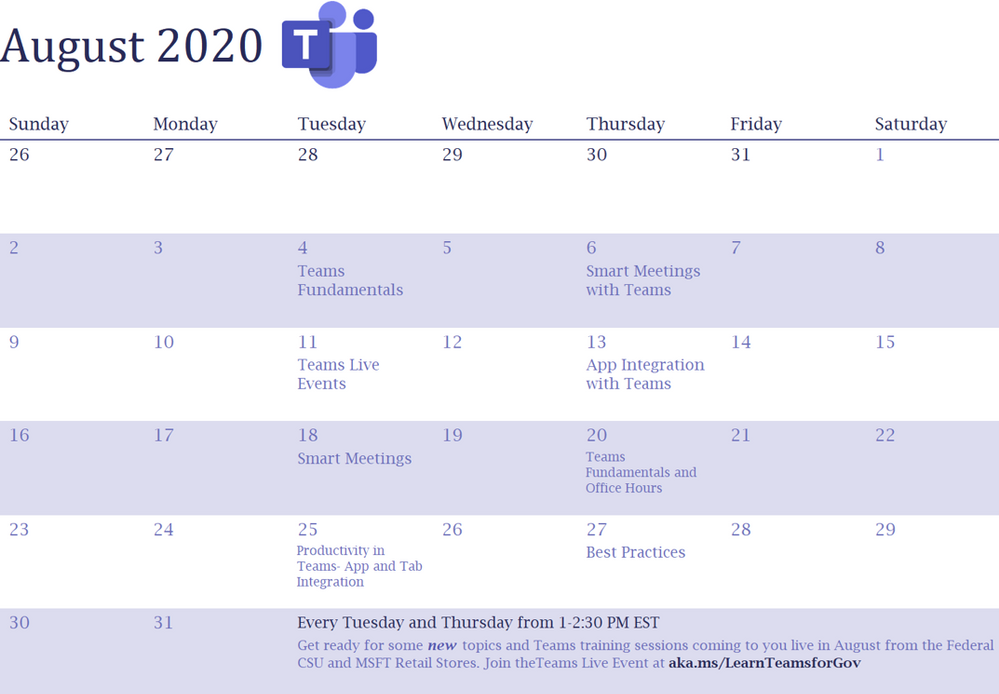
Also available: VOD options of past events
Introducing Microsoft Adoption
We want to ensure you get the most from our services to deliver your business outcomes. The Microsoft 365 adoption community and resources are here to support your journey.
PowerShell Basics: How to Delete Microsoft Teams Cache for All Users
Quickly clear Teams cache for testing and troubleshooting
Auditing and Logging: Designing SaaS service implementations to meet federal policy
Meeting federal mandates with SaaS services, a deep dive on auditing and logging.
How To Manage Federal Taxpayer Information In Microsoft Teams
Defining FTI and Consequences of Non-Compliance
Microsoft Bookings will be available on August 18th for Office 365 Government GCC
GCC customers are being notified that Microsoft Bookings will be available and released as on by default to all eligible Office 365 Government GCC customers on August 18th.
Reply-All Storm Protection releasing
This feature will temporarily block Reply-Alls under certain criteria, helping to eliminate these distractions that can disrupt business continuity.
SharePoint 2010 Workflow Retirement
SharePoint 2010 workflows will be retired starting August 2020. To mitigate the impact for customers using SharePoint 2010 workflows, we recommend migrating to Power Automate or other supported solutions.
Enable communication site experience on classic team sites
Allows SharePoint admins and site owners to enable the modern communication site experience on any classic team site that meets certain requirements including the root site.
MC210713 – SharePoint Designer features deprecation
An issue has been identified affecting SharePoint Designer functionality for creating custom Forms within SharePoint Online.
MC217890: Advanced eDiscovery Rollout Status
GCC rollout completed July 31
GCCH and DOD delayed, expected complete by mid-September
| Microsoft 365 IP & URL Endpoint Updates |
08 July 2020 – GCC
28 July 2020 – GCC High
28 July 2020 – DOD
| Roadmap Changes This Month |
by Scott Muniz | Aug 4, 2020 | Uncategorized
This article is contributed. See the original author and article here.
In general, the recommendation is to use Automatic OS upgrade feature of Virtual Machine scale set as patching solution for Service Fabric in production refer to (it needs durability of Silver and above for nodetype) :
https://docs.microsoft.com/en-us/azure/virtual-machine-scale-sets/virtual-machine-scale-sets-automatic-upgrade
https://docs.microsoft.com/en-us/azure/service-fabric/service-fabric-common-questions#do-service-fabric-nodes-automatically-receive-os-updates
However in this approach updates can happen anytime (but will be rolling upgrade) i.e. when new images are published. If you don’t want this and need more control like schedule patching during non-peak time you can consider Patch Orchestration Application refer https://docs.microsoft.com/en-us/azure/service-fabric/service-fabric-patch-orchestration-application. Otherwise if you need total control like want to test updates in lower environments and then only patch prod, then you have to manually upgrade images refer : https://docs.microsoft.com/en-us/azure/virtual-machine-scale-sets/virtual-machine-scale-sets-automatic-upgrade#manually-trigger-os-image-upgrades or simply disable nodes one by one with intent restart and then update Windows and then enable node again.
Important Notes:
- Ideally, when “enableAutomaticUpdates” is set to True, you are enabling windows updates i.e. patch upgrades, etc. (not the upgrade from 2012 to 2016). By default its True. These updates doesn’t happen in rolling fashion.
- For scale sets using Windows virtual machines using automatic OS upgrade feature i.e enableAutomaticOSUpgrade set to True, starting with Compute API version 2019-03-01, the property virtualMachineProfile.osProfile.windowsConfiguration.enableAutomaticUpdates property must set to false in the scale set model definition. The above property enables in-VM upgrades where “Windows Update” applies operating system patches without replacing the OS disk. With automatic OS image upgrades enabled on your scale set, an additional update through “Windows Update” is not required. So if your using any patching solution in prod, Automatic OS Upgrade feature / Patch Orchestration Application / Manual OS upgrades, ideally you should be set enableAutomaticUpdates to false.
If you are patching VMSS nodes you should also make sure the windows container which is running in VMSS nodes is patched and the windows version should be matched with VMSS node and the container.
In windows containers, its recommended that both should be patched to latest however host images using 1809 and above does not need to have matching revisions or if you are using Hyper-V isolation mode. Refer to examples. You can also refer to https://docs.microsoft.com/en-us/virtualization/windowscontainers/deploy-containers/update-containers#how-to-get-windows-server-container-updates for getting Container updates.
Windows Server containers currently don’t support scenarios where Windows Server 2016-based containers run in a system where the revision numbers of the container host and the container image are different. For example, if the container host is version 10.0.14393.1914 (Windows Server 2016 with KB4051033 applied) and the container image is version 10.0.14393.1944 (Windows Server 2016 with KB4053579 applied), then the image might not start.
However, for hosts or images using Windows Server version 1809 and later, this rule doesn’t apply, and the host and container image don’t need to have matching revisions.
We recommend you keep your systems (host and container) up-to-date with the latest patches and updates to stay secure.
Example 1: The container host is running Windows Server 2016 with KB4041691 applied. Any Windows Server container deployed to this host must be based on the version 10.0.14393.1770 container base images. If you apply KB4053579 to the host container, you must also update the images to make sure the host container supports them.
Example 2: The container host is running Windows Server version 1809 with KB4534273 applied. Any Windows Server container deployed to this host must be based on a Windows Server version 1809 (10.0.17763) container base image, but doesn’t need to match the host KB. If KB4534273 is applied to the host, the container images will still be supported, but we recommend you update them to address any potential security issues.
Container Patching
In simple term in your case you have to update your docker file, working with containers is not the same as working with real servers or VM’s you support for months or years. A container image is a static snapshot of the filesystem (and Windows registry and so on) at a given time.
Container images have layers
First have a look how a container image looks like. It is not just a snapshot. A container image consist of multiple layers. When you look at your Dockerfile you normally use a line like FROM microsoft/windowsservercore.
Your container image then uses the Windows base image that contains a layer with all the files needed to run Windows containers.
If you have some higher level application you may use other prebuilt container images like FROM microsoft/iis or FROM microsoft/aspnet. These images also re-use the FROM microsoft/windowsservercore as base image.
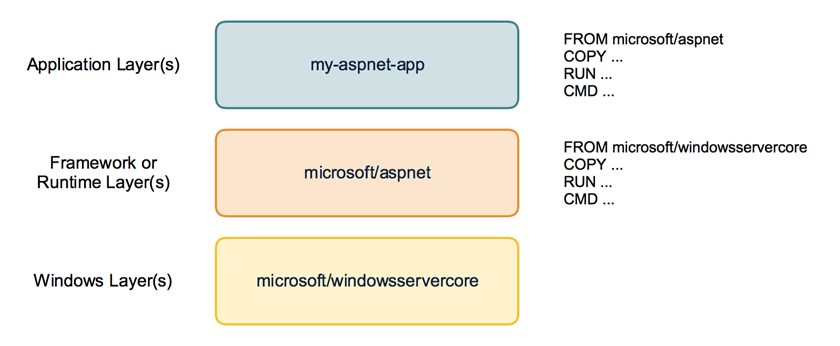
On top of that you build your own application image with your code and content needed to run the application in a self contained Windows container.
Behind the scenes your application image now uses several layers that will be downloaded from the Docker Hub or any other container registry. Same layers can be re-used for different other images. If you build multiple ASP.NET applications as Docker images they will re-use the same layers below.
But now back to our first question: How to apply Windows Updates in a container image?
The Windows base images
Let’s have a closer look at the Windows base images. Microsoft provides two base images: windowsservercore and nanoserver. Both base images are updated on a regular basis to roll out all security fixes and bug fixes. You might know that the base image for windowsservercore is about 4 to 5 GByte to download.
So do we have to download the whole base image each time for each update?
If we look closer how the base images are built we see that they contain two layers: One big base layer that will be used for a longer period of time. And there is a smaller update layer that contains only the patched and updated files for the new release.
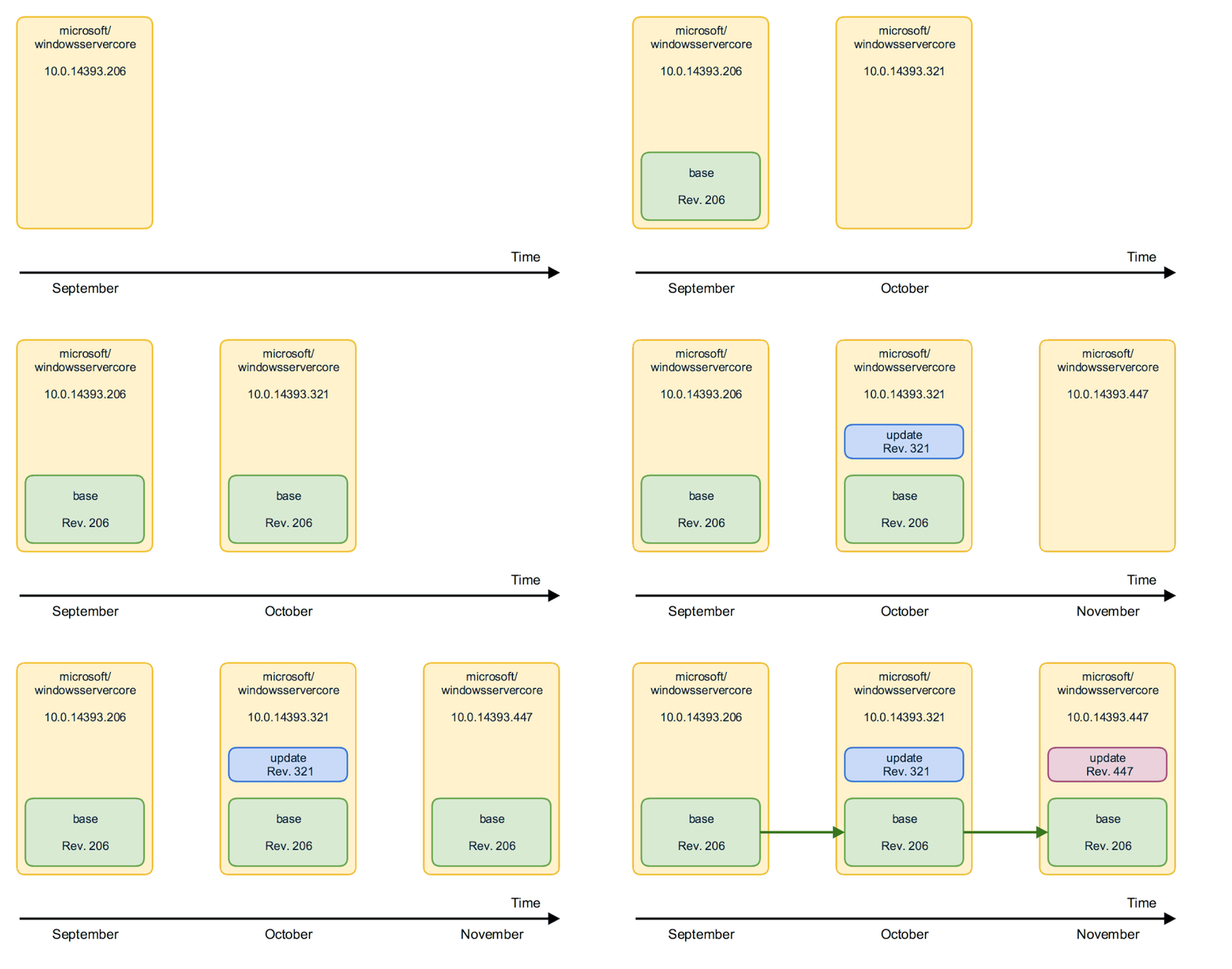
So updating to a newer Windows base image version isn’t painful as only the update layer must be pulled from the Docker Hub.
But in the long term it does not make sense to stick forever to the old base layer. Security scanners will mark them as vulnerable and also all the images that are built from them. And the update layer will increase in size for each new release. So from time to time there is a “breaking” change that replaces the base layer and a new base layer will be used for upcoming releases. We have seen that with the latest release in December.
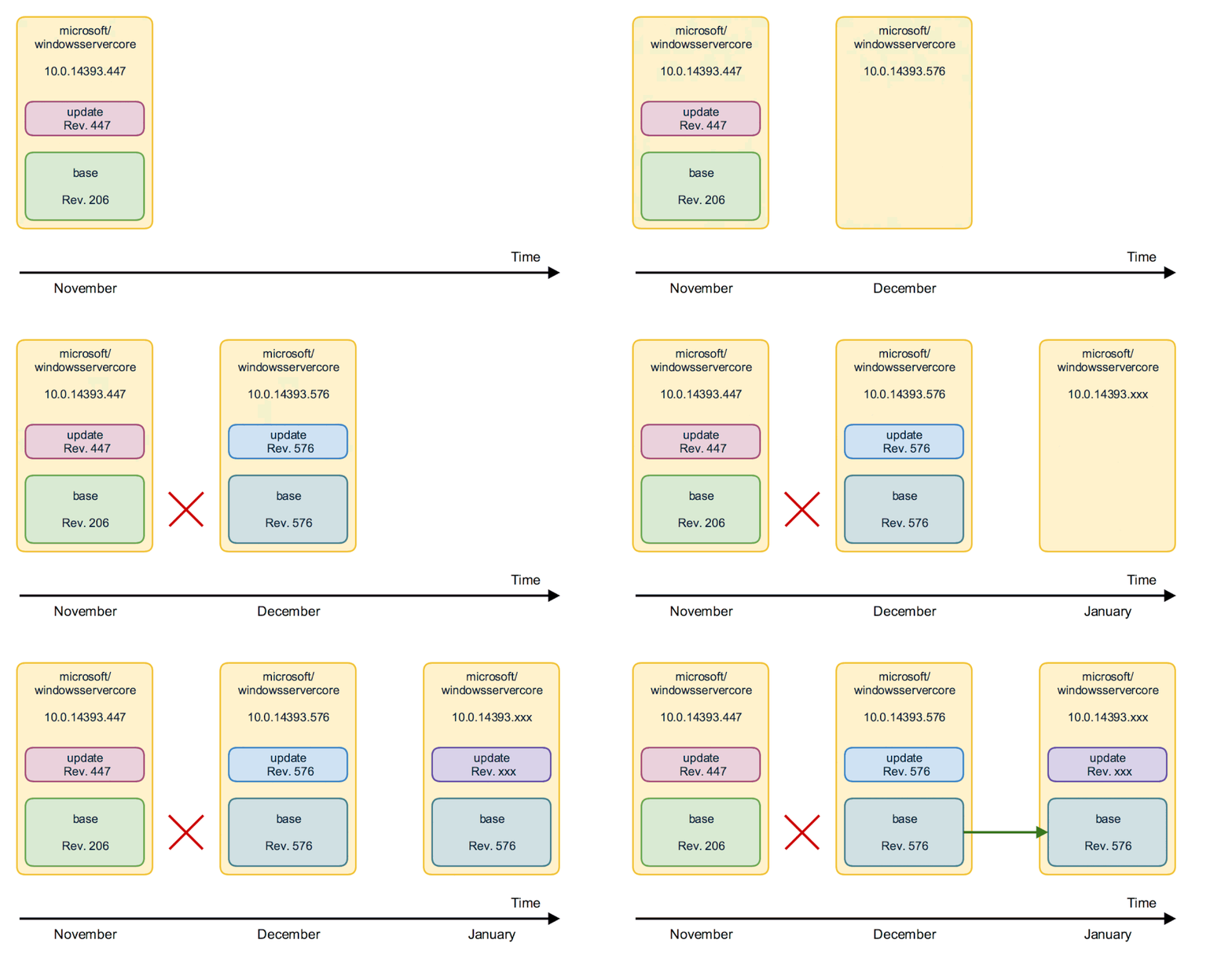
From time to time you will have to download the big new base layer which is about 4 GByte for windowsservercore (and only about 240 MByte for nanoserver, so try to use nanoserver whereever you can) when you want to use the latest Windows image release.
Keep or Update ? Should I avoid updating the Windows image to revision 576 to keep my downloads small? No!
Recommendation is to update all your Windows container images and rebuild them with the newest Windows image. You have to download that bigger base layer also only once and all your container images will re-use it.
Perhaps your application code also has some updates you want to ship. It’s a good time to ship it on top of the newest Windows base image. So is recommended to run
docker pull microsoft/windowsservercore
docker pull microsoft/nanoserver
before you build new Windows container images to have the latest OS base image with all security fixes and bug fixes in it.
If you want to keep track which version of the Windows image you use, you can use the tags provided for each release.
Instead of using only the latest version in your Dockerfile
FROM microsoft/windowsservercore
you can append the tag
FROM microsoft/windowsservercore:10.0.14393.576
But is still recommended to update the tag after a new Windows image has been published.
You can find the tags for windowsservercore and nanoserver on the Docker Hub.
What about the framework images?
Typically you build your application on top of some kind of framework like ASP.NET, IIS or a runtime language like Node.js, Python and so on. You should have a look at the update cycles of these framework images. The maintainers have to rebuild the framework images after a new release of the Windows base image came out.
If you see some of your framework images lag behind, encourage the maintainer to update the Windows base image and to rebuild the framework image. With such updated framework images – they hopefully come with a new version tag – you can rebuild your application.

by Scott Muniz | Aug 4, 2020 | Uncategorized
This article is contributed. See the original author and article here.
From privacy to manageability, these are the five areas you have to rigorously examine when evaluating the browser you want your organization to use for accessing corporate apps and data.
The post Why I think it’s time to revisit the idea of a “Modern Browser” appeared first on Microsoft 365 Blog.
Brought to you by Dr. Ware, Microsoft Office 365 Silver Partner, Charleston SC.
by Scott Muniz | Aug 4, 2020 | Alerts, Microsoft, Technology, Uncategorized
This article is contributed. See the original author and article here.
For organizations that operate a hybrid environment with a mix of on-premises and cloud apps, shifting to remote work in response to COVID-19 has not been easy. VPN solutions can be clumsy and slow, making it difficult for users to access legacy apps based on-premises or in private clouds. For today’s “Voice of the Customer” post, Nitin Aggarwal, Global Identity Security Engineer at Johnson Controls, describes how his organization overcame these challenges using the rich integration between Azure Active Directory (Azure AD) and F5 BIG-IP Access Policy Manager (F5 BIG-IP APM).
Enabling remote work in a hybrid environment
By Nitin Aggarwal, Global Identity Security Engineer, Johnson Controls
Johnson Controls is the world’s largest supplier of building products, technologies, and services. For more than 130 years, we’ve been making buildings smarter and transforming the environments where people live, work, learn and play. In response to COVID-19, Johnson Controls moved 50,000 non-essential employees to remote work in three weeks. As a result, VPN access increased by over 200 percent and usage spiked to 100 percent throughout the day. People had trouble sharing and were forced to sign in multiple times. To address this challenge, we enabled capabilities in F5 and Azure AD to simplify access to our on-premises apps and implement better security controls.
Securing a hybrid infrastructure
Our organization relies on a combination of hybrid and software-as-a-solution (SaaS) apps, such as Zscaler and Workday, to conduct business-critical work. Our hybrid application set contains some legacy apps that are built on a code base that can’t be updated. One example is a directory access app that we use to look up employee information like first name, last name, global ID, and phone number. It’s critical that we keep this data protected, yet we also need to make our apps available to employees working offsite.
Johnson Controls uses Azure AD to make over 150 Microsoft and non-Microsoft SaaS apps accessible from anywhere. Many of our legacy apps, however, use header-based authentication, which does not easily integrate with modern authentication standards. To enable single sign-on (SSO) to legacy apps for workers inside the network, we used a Web Access Management (WAM) solution. Remote workers used a VPN. The long-term strategy is to modernize these apps, eliminate them, or migrate them to Azure. In the meantime, we need to make them more accessible.
About five months ago we began an initiative to enable authentication to our legacy apps using Azure AD. We wanted to make access easier and apply security controls, including conditional access. Initially we planned to rewrite the authentication model to support Azure AD, but all these apps use different code. Some were built with .NET. Others were written in Java or Linux. It wasn’t possible to apply a single approach and quickly modernize authentication.
Migrating legacy apps to Azure AD in less than one hour
When our Microsoft team learned about our issues with our on-premises apps, they suggested we talk to F5. Johnson Controls uses F5 for load balancing, and F5 offers a product, F5 BIG-IP Access Policy Manager (F5 BIG-IP APM), that leverages the load-balancing solution to easily integrate with Azure AD. It requires no timely development work, which was exactly what we were looking for.
If an app is already behind the F5 load balancer and the right team is in place, it can take as little as one hour to migrate apps to Azure AD authentication using F5 BIG-IP APM. We just needed to create the appropriate configurations in F5 and Azure AD. Once the apps are onboarded, whenever a user signs in, they are redirected to Azure AD. Azure AD authenticates the user, sends the attributes back to the legacy app and inserts them in the header. For users, the experience is the same whether they are accessing an on-premises app or a cloud app. They sign in once using SSO and gain access to both cloud and legacy apps. It’s completely seamless.
We started the onboarding process in November. After we moved to remote work in response to the epidemic, we accelerated the schedule. So far, we’ve migrated about 30 apps. We have 15 remaining.
Implementing a Zero Trust security strategy
With authentication for our apps handled by Azure AD, we can put in place the right security controls. Our security strategy is driven by a Zero Trust model. We don’t automatically trust anything that tries to access the network. As we move workloads to the cloud and enable remote work, it’s important to verify the identity of devices, users and services that try to connect to our resources.
To protect our identities, we’ve enabled a conditional access policy in conjunction with multi-factor authentication (MFA). When users are inside the network on a domain-joined device or connected via VPN, they can access with just a password. Anybody outside the networks must use MFA to gain access. We are also using Azure AD Privileged Identity Management to protect global administrators. With Privileged Identity Manager, users who want to access sensitive resources sign in using a different set of credentials from the ones they use for routine work. This makes it less likely that those credentials will be compromised.
With Azure AD, we also benefit from Microsoft’s scale and availability. Before we migrated our apps from the WAM to Azure AD, there were frequently problems with access related to the WAM. With Azure AD we no longer worry about downtime. Remote work is easier for employees, and we feel more secure.
Support enabling remote work
If your organization relies on legacy apps for business-critical work, I hope you’ve found this blog useful. In the coming months, as you continue to support employees working from home, refer to the following resources for tips on improving the experience for you and your employees.
Top 5 ways you Azure AD can help you enable remote work
Developing applications for secure remote work with Azure AD
Microsoft’s COVID-19 response
by Scott Muniz | Aug 4, 2020 | Uncategorized
This article is contributed. See the original author and article here.
 This morning I had a call with a great, forward thinking, organization that is really looking to leverage the power of Microsoft Stream globally. Our conversation centered around the architecture, considerations for administration, as well as the security and compliance aspects of Stream. As a part of that meeting I promised to pull together a set of resources for review by their various teams internally. Since I know many other organizations, I work with are also considering similar deployments I thought I would share those resources here.
Microsoft Stream Resources:
Thanks for visiting – Michael Gannotti LinkedIn | Twitter | Facebook | Instagram
 Michael Gannotti
by Scott Muniz | Aug 4, 2020 | Uncategorized
This article is contributed. See the original author and article here.
We heard the message loud and clear: organizations want to start using Universal Print today. Learn how to start sharing existing printers across your organization using the Universal Print connector.
The future of print
Universal Print moves printing to the cloud by removing the need for the on-premises print servers and Active Directory domain controllers that have been traditionally necessary for printing. Instead, Universal Print uses Azure Active Directory (Azure AD) and enables IT administrators to share printers across their organization, regardless of where end users are located.
For the best experience with Universal Print, organizations should look to Universal-Print-ready printers—intelligent printers that can communicate directly with Universal Print to fetch print jobs and report statuses. Major printer manufacturers are partnering with Microsoft to create new printers that have these capabilities as well as provide firmware upgrades for existing printers that organizations are using today.
The temporary need for a connector
There are many organizations; however, that want to use Universal Print today, without having to wait for Universal-Print-ready printers to be widely available in the market. Some have recently made investments in printers that they do not expect to replace soon, while others simply want to start taking advantage of cloud-based printing.
The connector was created to enable companies to use existing printers with Universal Print. Some printers will receive firmware updates from the printer manufacturer. For other printers; however, the connector acts as a proxy between the Universal Print cloud service and the printer installed on Windows. Once these printers are replaced with newer, Universal-Print-ready versions or updated with the ability to communicate directly with Universal Print, the connecter will no longer be required.
Connector overview
Components
The connector is made up of two major components:
- A cloud service interface
- A printer interface
The cloud service interface handles the communication with Universal Print. It performs tasks, such as registering printers in Universal Print, managing device authentication with Azure AD, fetching print jobs from the cloud, and communicating printer and job status to Universal Print.
The printer interface handles communication with the physical print device. It performs tasks, such as submitting print jobs to printers and getting status information from these printers.
Implementation
Communication with Universal Print is based on the public Internet Printing Protocol (IPP) standard from PWG and the Microsoft Microsoft Graph API. The cloud service interface of the connector is a communication client of Universal Print. It uses the same protocol and API.
The connector printer interface could be implemented using any API that is suitable for communicating with the target device or group of devices. For example, if the connector is running on Windows, then the Windows print APIs could be used.
Although Microsoft created the first connector implementation as a background service that runs on a PC, the two components of the connector could be implemented by any software developer. As a result, some Microsoft partners have already created their own implementations of the connector, offering features that the Microsoft Universal Print connector does not provide, and vice versa.
For example, as Bruce Leistikow, Product Marketing Director at Y Soft, states:
|
“On July 21, Y Soft announced a new Universal Print solution comprised of YSoft OMNI Bridge™, a serverless edge device, and YSoft OMNI UP365™. This combined solution instantly and cost-effectively connects in-market multifunction devices and printers to Universal Print. Additionally, Y Soft simultaneously announced that YSoft SAFEQ also offers a connector for Universal Print as a free extension; thereby creating additional value for all SAFEQ on-prem and cloud customers and any business who wants to take advantage of the new Universal Print feature in their Microsoft 365 subscription as part of a print management solution.”
|
Partner connectors are typically designed to better fit into the partner’s existing solutions, as noted by Jamie McClunie, Product Manager at PaperCut:
|
“We wanted to make it easy for admins to use, so we’ve implemented all the connector functions natively in our print management software PaperCut MF and NG, meaning one less thing to install and manage. Plus, we’re adding a few enhancements of our own, like the network printer discovery we use in Mobility Print and some of our high availability features for resilience.”
|
Deploying the connector
Instructions on how to download and install the connector, and a short list of prerequisites, can be found in the Universal Print connector quick start guide.
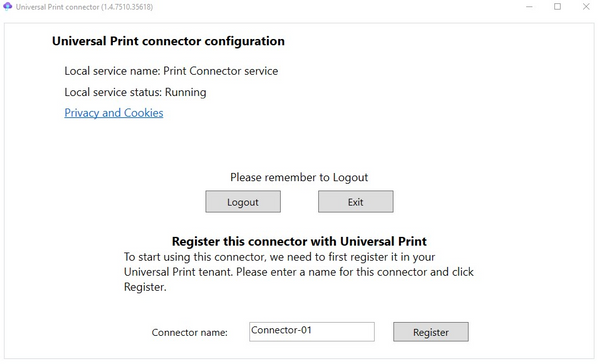
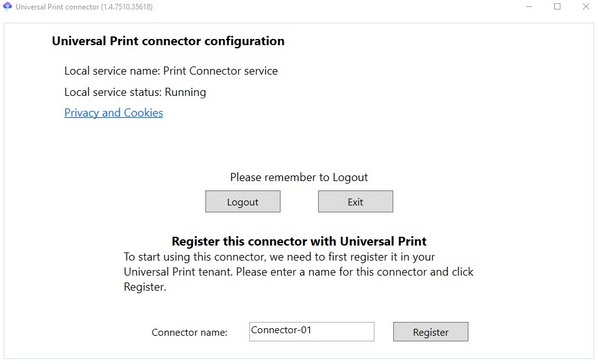
To act as a proxy for printers, the Universal Print connector must be located on the same network as these printers. The printers need to be installed (i.e. via the Settings app or the Print Management app) on the device that hosts the connector service. Additionally, the connector needs to have an outbound connection to the internet to communicate with the Universal Print service in the cloud.
There are many deployment configurations for the connector:
- On the Windows print servers on which the organization’s printers are already installed.
- On dedicated virtual machines at each site where printers are located.
- On virtual machines in Azure that have VPN access to the sites where the printers are located.
For example, an organization that uses a multi-protocol label switching (MPLS) network to connect its sites could install connectors at a central data center. An organization that uses network appliances that can host virtual machines could install connectors on these appliances at each site.
 Registering the connector with Universal Print
We want to hear from you!
The Universal Print connector was developed in response to requests and feedback received via our Universal Print feature requests board on Tech Community. Please continue to add features you would like to see in the connector on that page or upvote ideas that are already there.
If you have questions about the connector, please check out the Universal Print Community to find an answer or post your question for our team to answer.

by Scott Muniz | Aug 4, 2020 | Uncategorized
This article is contributed. See the original author and article here.
August Edition Sections:
- Highlighted
- Upcoming Reston MTC Events
- Microsoft Teams – IT Admins & Planning
- Microsoft Teams – End Users & Champions
- Other M365 Topics (Lists & Office)
- Security & Azure AD
- Blogs of Interest
Highlighted
Remote Working Federal Training
The Microsoft Federal Customer Success team has been working hard to provide remote working skilling and instruction to our customers working remote on the following topics:
- Teams Fundamentals: High-level Teams overview
- Productivity in Teams: Best practices for using Teams
- App Integration: Microsoft & 3rd Party apps that be utilized in GCC
- Smart Meetings: Using meetings in Teams to their full potential
- Live Events: Hosting virtual events up to 10K+
- Best Practices: Various topics based on feedback
Below is a schedule of upcoming events. Join all sessions at https://aka.ms/LearnTeamsforGov (we will use the same links daily to host the sessions). Feedback will be available during each session.
|
Date
|
Time (EST)
|
Topic
|
|
Tuesday, Aug 4, 2020
|
1:00-2:30pm |
Teams Fundamentals
|
|
Thursday, Aug 6, 2020
|
1:00-2:30pm |
Smart Meetings
|
|
Tuesday, Aug 11, 2020
|
1:00-2:30pm |
Live Events
|
|
Thursday, Aug 13, 2020
|
1:00-2:30pm |
App Integration |
| Tuesday, Aug 18, 2020 |
1:00-2:30pm |
Smart Meetings
|
|
Thursday, Aug 20, 2020
|
1:00-2:30pm |
Teams Fundamentals
|
| Tuesday, Aug 25, 2020 |
1:00-2:30pm |
Productivity in Teams
|
|
Thursday, Aug 27, 2020
|
1:00-2:30pm |
Best Practices
|
Above times don’t work? Check out our on-demand recordings of previous sessions.
Microsoft 365 Adoption Portal
Microsoft recently announced its launch of a comprehensive M365 Adoption Portal. Here you’ll find numerous resources, including: Adoption Guides in flipbook format, Day in the Life training cards, Links to key scenario guidance such as enabling remote work and virtual events, Links to our newly expanded Microsoft 365 Champion program information, Microsoft 365 learning pathways overview, and more.
Do it in Teams Adoption Resources
For end-user content, quick-start guides, and beginner/advanced interactive demos (which are a fantastic first step for new Teams users!), look no further than the “Do it in Teams” portal. This is a fantastic resource for users learning Microsoft Teams.
Upcoming Reston MTC Events
The Reston MTC is open for business and is delivering virtual customer engagements. Reach out to your account teams to schedule and coordinate your request.
Microsoft Teams – IT Admins & Planning

Microsoft Teams: Plan your upgrade (Start here!)
Discover everything you need to facilitate a successful upgrade to Teams. By the end of this workshop, participants will be able to: (1) Understand why a formal plan is crucial for upgrade success, (2) Identify the steps to the upgrade success framework, (3) Recognize common attributes of successful customers, and (4) Create and implement their own upgrade plan. The audience for this session is All (Business Sponsors, IT Admins, User Readiness/Change Manager, Project Lead).
- On-Demand Session
- Tuesday, August 4, 2020 at 8am PT
- Wednesday, August 5, 2020 at 9am PT
- Tuesday, August 11, 2020 at 8am PT
- Wednesday, August 12, 2020 at 9am PT
- Tuesday, August 18, 2020 at 8am PT
- Wednesday, August 19, 2020 at 9am PT
- Tuesday, August 25, 2020 at 8am PT
- Wednesday, August 26, 2020 at 9am PT
Microsoft Teams: Identify your upgrade approach
Determine the most suitable approach based on your current Skype for Business implementation and upgrade goals. By the end of this workshop, participants will be able to: (1) Understand common scenarios and upgrade approaches, (2) Visualize the user experience for each approach, and (3) Determine the optimal upgrade approach for your organization. IT Admins are the primary audience for this session.
- On-Demand Session
- Tuesday, August 4, 2020 at 9am PT
- Tuesday, August 4, 2020 at 4pm PT
- Tuesday, August 11, 2020 at 9am PT
- Tuesday, August 11, 2020 at 4pm PT
- Tuesday, August 18, 2020 at 9am PT
- Tuesday, August 18, 2020 at 4pm PT
- Tuesday, August 25, 2020 at 9am PT
- Tuesday, August 25, 2020 at 4pm PT
Microsoft Teams: Implement your upgrade approach
Execute your defined upgrade approach as part of your formal upgrade plan. By the end of this workshop, participants will be able to: (1) Recognize the upgrade settings in your O365 tenant admin portal, (2) Understand technical tips and considerations for a successful upgrade, and (3) Apply the appropriate settings in the Portal to execute your upgrade. The primary audience for this session is IT Admins.
- On-Demand Session
- Thursday, August 6, 2020 at 9am PT
- Thursday, August 6, 2020 at 4pm PT
- Thursday, August 13, 2020 at 9am PT
- Thursday, August 13, 2020 at 4pm PT
- Thursday, August 20, 2020 at 9am PT
- Thursday, August 20, 2020 at 4pm PT
- Thursday, August 27, 2020 at 9am PT
- Thursday, August 27, 2020 at 4pm PT
Microsoft Teams: Ready your end users
Design a user readiness strategy to help your users love and adopt Teams. By the end of this workshop, participants will be able to: (1) Recognize factors that influence user acceptance and adoption, (2) Define core value messaging for Teams in your organization, and (3) Outline your awareness, training and support activities. The audience for this session is: User Readiness/Change Manager.
- On-Demand Session
- Tuesday, August 4, 2020 at 10am PT
- Wednesday, August 5, 2020 at 7am PT
- Wednesday, August 5, 2020 at 4pm PT
- Thursday, August 6, 2020 at 10am PT
- Tuesday, August 11, 2020 at 10am PT
- Wednesday, August 12, 2020 at 7am PT
- Wednesday, August 12, 2020 at 4pm PT
- Thursday, August 13, 2020 at 10am PT
- Tuesday, August 18, 2020 at 10am PT
- Wednesday, August 19, 2020 at 7am PT
- Wednesday, August 19, 2020 at 4pm PT
- Thursday, August 20, 2020 at 10am PT
- Tuesday, August 25, 2020 at 10am PT
- Wednesday, August 26, 2020 at 7am PT
- Wednesday, August 26, 2020 at 4pm PT
- Thursday, August 27, 2020 at 10am PT
Microsoft Teams – End User & Champions
Do it in Teams Adoption Resources
For end-user content, quick-start guides, and beginner/advanced interactive demos (which are a fantastic first step for new Teams users!), look no further than the “Do it in Teams” portal. This is a fantastic resource for users learning Microsoft Teams.
Get Started with Microsoft Teams
Whether you are switching from Skype for Business or brand new, join us to learn the basics of how to use Teams to chat with your colleagues and collaborate on projects. Through a series of live demonstrations and best practices, you’ll leave this session with everything you need to start using Teams. After this session, you will be able to: (1) Set up your profile and notifications in Microsoft Teams, (2) Use chat and calling for 1:1 and group conversations, sharing and collaboration in Microsoft Teams, (3) Schedule and conduct meetings in Microsoft Teams, and (4) Align your team and teamwork in Microsoft Teams.
- On-Demand Session
- Tuesday, August 4, 2020 at 5am PT
- Tuesday, August 4, 2020 at 8am PT
- Tuesday, August 4, 2020 at 3pm PT
- Thursday, August 6, 2020 at 12pm PT
- Monday, August 10, 2020 at 5pm PT
- Tuesday, August 11, 2020 at 5am PT
- Wednesday, August 12, 2020 at 11am PT
- Friday, August 14, 2020 at 8am PT
Microsoft Teams: Staying connected with your team while remote
We designed Microsoft Teams to be a virtual office you can take anywhere you go. Work seamlessly and transparently with your remote team and discover greater collaboration and productivity. Join us for this session and explore how to avoid communication sinkholes and do more together, no matter where you are. Each session is limited to 12 participants, reserve your seat now.
Microsoft Teams: Master working from home
Working from home offers the opportunity to maintain your workflow while allowing flexibility in how and where you get your work done. Shifting to a remote worker status can be an adjustment as you look for ways to balance home and work life, maintain focus and be fully productive. Microsoft Teams can help you stay connected to your team while providing access to all of the tools and resources you need to get your work done. Join us to learn tips that can help set you up for success as you transition into a ‘work from home’ scenario. During this session, we’ll share: (1) Guidance for setting up your home environment for work, (2) Best practices for maintaining your workflow while working at home, (3) Tips for staying connected to your team while remote, and (4) Insights for effectively supporting a remote team.
Microsoft Teams: Seamless Collaboration with Microsoft 365
Are you still sending an e-mail with an attachment to your teammates when you want to collaborate on a file? How fast do they respond? How do you know if they are working on the file? How do you manage version control? With Microsoft 365 tools for teamwork, you can seamlessly collaborate on files with your team members. Using Microsoft Teams, you can invite your teammates into an environment where they can effectively collaborate and engage in a persistent conversation. Join us for this session and explore how to avoid productivity sinkholes and increase productivity. This interactive 2-hour session will give you the opportunity to test drive Microsoft Teams in a live cloud environment. A trained facilitator will guide you as you apply these tools to your own business scenarios and experience how they can work for you. Each session is limited to 12 participants, reserve your seat now.
Go Deeper with Microsoft Teams: Build collaborative workspaces in Microsoft Teams
Designed for those who are already familiar with Microsoft Teams, our ‘Go Deeper’ sessions offer insights and best practices. Learn how Teams can help organize your workday and make it easier to stay connected with colleagues. Explore ways to determine the best approach for creating workspaces for projects and workgroups. After this session, you will be able to: (1) Determine the best approach for your collaboration needs (chat versus teams & channels), (2) Create workspaces for your team to provide the best teamwork experience, and (3) Determine best practices in Microsoft Teams to enhance productivity. Note: This session was previously called ‘Learn tips for taking Microsoft Teams to the next level – Part 1’.
- On-Demand Session
- Monday, August 3, 2020 at 3pm PT
- Tuesday, August 4, 2020 at 10am PT
- Wednesday, August 5, 2020 at 5am PT
- Monday, August 10, 2020 at 12pm PT
- Thursday, August 13, 2020 at 8am PT
Microsoft Teams: Enabling Real-time Collaboration for Cross-functional Teams
How do you bring various stakeholders together across multiple teams to achieve your goal? Do you wish you could reduce the number of meetings or e-mails while still being able to solicit feedback, keep everyone informed, and get consensus? Join us to explore how to bring everything together in a shared workspace with Microsoft Teams. Learn how to chat, meet, share files, and work with other business applications to effectively engage others. This interactive 2-hour session will give you the opportunity to try it for yourself and test drive Microsoft Teams in a live cloud environment. A trained facilitator will guide you as you apply these tools to your own business scenarios and experience how they can work for you. Each session is limited to 12 participants, reserve your seat now.
Run Effective Meetings with Microsoft Teams
Have you spent significant time and resources to prepare for a meeting and still felt it wasn’t productive? Have you attended a meeting only to leave feeling like not much was accomplished? Join this class to learn how to make your meetings engaging, productive and effective. Microsoft Teams can help make your meetings worth showing up for. After this session, you will be able to: (1) Use Teams for your entire meeting experience, (2) Record your meeting, making it easy for those who couldn’t attend to get caught up, (3) Keep important meetings at your fingertips by pinning them for easy access, and (4) Assess which audio and video devices are best for your meeting needs.
- On-Demand Session
- Monday, August 3, 2020 at 5pm PT
- Tuesday, August 4, 2020 at 12pm PT
- Friday, August 7, 2020 at 8am PT
- Tuesday, August 11, 2020 at 3pm PT
- Wednesday, August 12, 2020 at 5am PT
- Thursday, August 13, 2020 at 10am PT
Go Deeper with Microsoft Teams: Leverage pro tips and tricks for Microsoft Teams
Designed for those who are already familiar with Microsoft Teams, our ‘Go Deeper’ sessions offer insights and best practices. Learn how Teams can help organize your workday and make it easier to stay connected with colleagues. Learn tips and tricks for managing and organizing work and communications in Teams. After this session, you will be able to: (1) Leverage formatting best practices to help get your messages noticed (and responded to), (2) Easily find files, chats and projects, (3) Implement strategies to manage and organize your work, and (4) Simplify your workday. Note: This session was previously called ‘Learn tips for taking Microsoft Teams to the next level – Part 2’.
Microsoft Teams: Do more with apps
Join Microsoft Teams experts as we review how you can deploy commonly-used applications directly within Teams, enabling your users to work more efficiently and effectively by accessing everything they need in a single interface. This foundational workshop covers basic capabilities across app management and security. With over 400 out-of-the-box applications available (and growing), you’re sure to find an app, or two, that your team can begin using today in Teams. After this session, you will be able to: (1) Identify suitable apps to meet the needs for your organization, (2) Recognize common attributes of successful app deployment, (3) Navigate security and compliance considerations for Teams’ apps, and (4) Determine the next steps to deploy an app to your environment.
Integrate apps to do more in Microsoft Teams
Do you want to get more done in Teams? Receive targeted and timely updates? Access services directly through Teams? Apps let you complete tasks, receive updates and communicate. This session introduces you to the key activities needed to get started with adding applications, bots and connectors in Microsoft Teams today. Through a series of live demonstrations and best practices, you’ll leave this session with everything you need to start using apps in Teams. After this session, you will be able to: (1) See how applications, bots and connectors can help you be more efficient while working in Teams, (2) Select an application, bot or connector for your workspace, (3) Install an application, bot or connector, and (4) Use an application, bot or connector in your workspace.
Other M365 Topics
Webinar: Working with Microsoft Lists
When: Wednesday, August 5, 2020 at 9:00am PT | Learn how to get started with Microsoft Lists from the Microsoft Lists engineers themselves. Start a list from a template, add your information, and then use conditional formatting, rules, and key collaboration features to make the list your own – to make it work across your team. Lots to learn. Lots of demos. Don’t forget to add this event to your calendar, and join us live!
Ask Microsoft Anything (AMA): Upcoming Changes to Office Support
When: Wednesday, September 9, 2020 at 9:00am PT | Join us for an opportunity to “Ask Microsoft Anything” (AMA) about upcoming changes to support for Office 2016 for Mac, Office 2010 and Office 2013 connectivity to Office 365 services. To join, simply visit the Office End of Support AMA space at 9:00am Pacific and submit a question. An AMA is a live, online, text-based question-and-answer event similar to a “YamJam” on Yammer or an “Ask Me Anything” on Reddit. Note: While we’ll only be answering questions in real-time from 9am – 10am Pacific, you can post your questions for the AMA to the Office End of Support AMA space up to 24 hours in advance. We look forward to seeing you there!
Security & Azure AD
Customer Immersion Experience: Protecting Identity, Apps, Data and Devices
Identity is at the center of security: don’t compromise when it comes to your company’s valuable information. Join us to explore how to use secure authentication, govern access, get comprehensive protection and set the right identity foundation. During this 2-hour interactive session, you will explore how to: (1) Enable password protection, (2) Bring multi-factor authentication to your Windows 10 users, (3) Protect your users and data through Office 365 multi-factor authentication, and (4) Use conditional access to protect across devices, locations and apps. Each session is limited to 12 participants, reserve your seat now.
Customer Immersion Experience: Protecting Your Sensitive Information
Data needs to be protected wherever it’s stored and whenever it travels, and you need the tools to monitor policy violations and risky behavior. Join us to explore how to implement a comprehensive and integrated approach across devices, apps, cloud services, and on-premises. During this 2-hour interactive session, you will explore how to: (1) Identify, monitor and automatically protect sensitive information across Office 365, (2) Help classify and protect documents and email, and (3) Use policies to enable BYOD scenarios by protecting data at the app level. Each session is limited to 12 participants, reserve your seat now.
Customer Immersion Experience: Protecting Assets and Empowering Your Defenders
Today’s workforce can work from anywhere, on any device, and on any app. Security teams need to understand threat signals from disconnected products and optimize security with minimal complexity. During this 2-hour interactive session, you will explore how to: (1) Safeguard users from malware attacks such as phishing and spoofing with Office 365, (2) Use the Windows Defender ecosystem to proactively monitor and protect your users, (3) Utilize Office 365 ATP to help protect users from bad links and attachments, and (4) Let machine learning and automation protect users from threats. Each session is limited to 12 participants, reserve your seat now.
Customer Immersion Experience: Simplifying Your Privacy and Compliance Journey
Your business needs to control how sensitive data is managed. Join us and explore how to assess your compliance risk, protect sensitive and business critical data, and respond efficiently to data discovery requests. During this 2-hour interactive session, you will explore how to: (1) Simplify assessment of compliance risk, (2) Integrate protection and governance of data, and (3) Intelligently respond to data discovery requests. Each session is limited to 12 participants, reserve your seat now.
Blogs of Interest
Public Sector Blog Website | RSS Feed
Microsoft Teams Blog Website | RSS Feed
Office & Microsoft 365
Enterprise identity, mobility, and security
Microsoft Azure and Development
Windows, Operations, Management, and Deployment
Support and adoption
Misc
Thanks for stopping by and reading our monthly resources. Feel free to reach out in the comments below with any comments, questions or ideas on other events to add to the list. Here in Public Sector we want to make sure we are giving you the information and insights to best serve your needs in this community.



Recent Comments