by Scott Muniz | Aug 11, 2020 | Uncategorized
This article is contributed. See the original author and article here.
At Build 2020, we announced the upcoming availability of the Windows CE App Container technology. The technology allows CE applications to run on top of x64 and ARM32 systems using Windows 10 IoT Core Services. I’m happy to announce that this technology is generally available today!!
We’ve previously discussed how this technology works, but one question customers have asked is when they should take this gradual approach and when does it make sense to just move their application natively to Windows 10 IoT.
All roads lead to Windows 10 IoT Enterprise
As we announced at Build 2020, the 2021 long term supported release of Windows 10 IoT Enterprise will combine the best of IoT Core and IoT Enterprise by offering several new features in a smaller footprint on both x64 and ARM64 hardware. Going forward, Windows 10 IoT Enterprise will be the only non-server version of Windows 10 IoT offered.
For devices needing access to the full range of x64 hardware, ARM64 hardware like NXP i.MX8, advanced UX, or have CE applications that can be migrated in one product design iteration, the best option is to move to Windows 10 IoT Enterprise directly. You will be able to begin taking advantage of the features quickly and have the maximum product support lifetime.
Partners in the Early Engineering Access Program can download the latest IoT Enterprise private preview begin development now, and it will be generally available in 2021. Please speak with your Microsoft account manager to join the EEAP program.
Steady progress
For designs that need to leverage ARM32 or have complex CE applications that will require multiple development cycles to migrate, the CE App Container with Windows 10 IoT Core Services offers a solution for gradual migration.
To use the Windows CE App Container, developers place a special ARM32 or x86 Windows Embedded Compact 2013 platform image within their IoT Core system image. They then deploy the resulting Windows 10 IoT Core image on Windows 10 IoT Core compatible hardware. Developers will have access to add functionality, like Azure cloud connectivity or modern peripherals, through the Windows 10 layer and can move portions of the CE application over as well aiming for complete migration before 2029.
With Windows 10 IoT Core Services, you receive licenses for both Windows Embedded Compact 2013 and Windows 10 IoT Core, and the IoT Core OS continue to receive security updates until 2029. And, with capabilities like Device Update Center, OEMs can manage the timing of the OS updates as well as distribute application updates easily.
End of Support is not the end of the road
Finally, for some device builders, they have already created a new modern offering with Windows 10, but not all their customers are ready to upgrade. In these cases, device makers need to continue producing and providing their legacy Windows CE based solutions. This could be because of long term orders, customers needing replacement hardware, etc.
While Windows CE will reach end of extended support in late 2023, Microsoft will allow license sales to continue for Windows Embedded Compact 2013 until 2028. And of course, Windows CE devices can continue to be used indefinitely.
Next Steps
Microsoft has a decades-long history of providing platform technologies and operating systems for device manufacturers and developers to use as part of their embedded solutions. The Windows CE operating system has powered industrial, medical, and a variety of other devices for more than 20 years. With Windows 10 IoT Core Services, Windows 10 IoT Enterprise, and the new Windows CE App Migration technology we’ve developed a path forward to modern operating systems designed for cloud connectivity to enable intelligent workloads. For more information about Windows CE App Migration, please see http://aka.ms/cemigration. For information about the Windows 10 IoT products please see http://www.windowsondevices.com.
by Scott Muniz | Aug 11, 2020 | Uncategorized
This article is contributed. See the original author and article here.
In a recent case, I was asked to help with an FTP error 550 when the FTP client tried to list the files in the FTP site. The user logged on without error but could not see ant files or folders. There was a firewall but the FTP ports being used were open.
So I asked for the FTP logs to find the reason logged. In the FTP logs, we saw 550 1236 38 (status, win32Status, sub status). We know 550 is no such file or directory, I looked up the win32staus 1236 and it is “The network connection was aborted by the local system.” I was not familiar with the FTP sub status, so I opened article 969061, The FTP status codes in IIS 7.0 and later versions to find sub status 38. this is listed: 38 – Client IP on the control channel didn’t match the client IP on the data channel.
Went back to the FTP log and noticed client IP changing once PASV command is run… .7 to .8 and therefore the error.
2020-07-10 21:37:30 n.n.n.7 <User> <server IP> PASV – 227 0 0 7b461e17-7dc0-45f3-b0a5-ccaf36c708ac –
2020-07-10 21:37:30 n.n.n.8 <User> <server IP> 6003 DataChannelOpened – – 0 0 7b461e17-7dc0-45f3-b0a5-ccaf36c708ac –
2020-07-10 21:37:30 n.n.n.8 <User> <server IP> 6003 DataChannelClosed – – 1236 38 7b461e17-7dc0-45f3-b0a5-ccaf36c708ac –
2020-07-10 21:37:30 n.n.n.7 <User> <server IP> 21 LIST – 550 1236 38 7b461e17-7dc0-45f3-b0a5-ccaf36c708ac /
At this point, the firewall engineer mentioned that this was due to the firewall configuration and this behavior could not be changed so the customer ended up using a different firewall product.
This article lists all of the FTP status codes and what they mean…IIS web sites also log sub status…many times the sub status tells us exactly what is wrong without collecting any other data. There are 56 sub statuses listed near the bottom of the page.
https://support.microsoft.com/en-us/help/969061/the-ftp-7-0-status-codes-in-iis-7-0#:~:text=When%20you%20try%20to%20access%20content%20on%20a,the%20exact%20reason%20that%20a%20request%20is%20unsuccessful.
The FTP substatus codes
This section describes the FTP substatus codes that IIS 7.0 uses:
- 0 – Successful operation.
- 1 – Authorization rules denied the access.
- 2 – File system denied the access.
- 3 – File system returned an error.
- 4 – IP restriction rules denied the access.
- 5 – Write access for the root of the virtual directory is forbidden.
- 6 – Short file name check has failed.
- 7 – Short file names are forbidden.
- 8 – Hidden segment was detected in the path based on request filtering rules.
- 9 – Denied Url sequence detected in the path based on request filtering rules.
- 10 – High bit characters detected in the path based on request filtering rules.
- 11 – File extension was denied based on request filtering rules.
- 12 – Path is too long based on request filtering rules.
- 13 – Attempt was made to open object that is not a file or directory.
- 14 – Control channel timed out.
- 15 – Data channel timed out.
- 16 – Control channel timed out based on new connection timeout.
- 17 – Invalid site configuration.
- 18 – Invalid configuration.
- 19 – Maximum connection limit was reached.
- 20 – Data channel was closed by ABOR command from client.
- 21 – Site is being stopped.
- 22 – Data channel was aborted by server due to an error.
- 23 – Data channel was aborted by client.
- 24 – SSL policy requires SSL for data channel.
- 25 – SSL policy requires SSL for control channel.
- 26 – SSL policy requires SSL for credentials.
- 27 – SSL policy denies SSL for data channel.
- 28 – SSL policy denies SSL for data channel.
- 29 – SSL policy denies SSL for credentials.
- 30 – SSL policy denies SSL for commands.
- 31 – SSL certificate was not configured.
- 32 – SSL initialization failed.
- 33 – Home directory lookup failed.
- 34 – Custom authentication call failed.
- 35 – User failed to authenticate.
- 36 – All authentication methods are disabled.
- 37 – Hostname didn’t match any configured ftp site.
- 38 – Client IP on the control channel didn’t match the client IP on the data channel.
- 39 – Maximum file size was exceeded. 40ActiveDirectory Isolation must be combined with basic authentication.
- 41 – An error occurred during the authentication process.
- 42 – Anonymous authentication is not allowed.
- 43 – Protection negotiation failed. PROT command with recognized parameter must precede this command.
- 44 – SSL certificate was not found.
- 45 – Private key was not found for the specified SSL certificate.
- 46 – SSL certificate hash has invalid length.
- 47 – SSL policy requires client certificate.
- 48 – User provided invalid client certificate.
- 49 – SSL policy requires matching client certificate for control and data channel.
- 50 – Data channel timed out due to not meeting the minimum bandwidth requirement.
- 51 – Command filtering rules denied the access.
- 52 – Session disconnected by administrator.
- 53 – Connection error.
- 54 – Session closed because of configuration change.
- 55 – 128-bit encryption is required for SSL connections.
by Scott Muniz | Aug 11, 2020 | Azure, Microsoft, Technology, Uncategorized
This article is contributed. See the original author and article here.
by @Edwin Hernandez
In this article, I will describe the implementation of a logger for UI Test automation and the integration with test execution from an Azure DevOps Release pipeline. This article and the demo solution are standalone articles; however, I do build on concepts we reviewed on previous articles, specifically:
You may want to read through those articles before starting with this one. Having said that, let us get started describing what the logger does.
Purpose
UI Test automation and Regression are time-consuming expensive tasks because of their initial time investment and their maintenance effort. Even if a test suite is well maintained, once Automated Regression is executed, you still need a QA Automation Engineer to analyze the results and investigate any errors.
The purpose of this logger is to provide a detailed log of the flow of the UI script, including test case steps and screenshots. The QA Engineer or a Business Analyst can use the information from the logger to follow the business logic of the UI test and more easily validate if the intended work was completed or the reason for failure if an error occurred. A descriptive log can be more useful than even an actual video recording of the test.
Logger Features
- The logger creates a single HTML file that contains all messages and embedded images.
- This class is meant to be used in a Page Object Model project, when the LogMessage method is called it reflects itself to get the calling method and class and it uses this information to write a message into the HTML log.
- There are 4 log levels to help filtering how much information you want to log (error, warning, passed, info). This and other configurations are exposed as global variables. You can also specify the level up to which you want screenshots to be taken.
- Screenshots are saved as binary strings and embed into the HTML file so that you end up with a single file. This greatly helps the integration with Azure DevOps.
- This logger is adaptable since it is a standalone class. You can plug it into several types of UI Test projects. I have personally used it with WinAppDriver, CodedUI, Selenium WebDriver, and Xamarin.UITests projects with minimal changes, pretty much all that needs to be changed is the type of session object that is passed as an argument and the screenshot method.
Logger Requirements
- Given the frameworks I just mentioned, you can guess that this Logger class was written in C# and is meant to be used on Visual Studio for UI Test projects running over MSTest or NUnit projects. You could adapt it to other types of frameworks, but it would require more work.
- As I said this logger is meant to be used as part of a Page Object Model (POM), it is not that you couldn’t use it with a straight Top to Bottom test but you would take more advantage of it in a POM project.
Other than that, the log method needs to be specifically called every time something needs to be logged. I explored the option of using the constructor or interfaces, but it would require the class to be more coupled with the test solution and I wanted it to be more portable.
Configuration Variables
The logger configuration variables should be put for example on the Class Initialize method:

A log level of 4 would log all messages, a log level of 3 would log only messages level 1 to 3. You can change the labels of the labels in the HTMLLogFile class itself.
Logging Messages from the Test Method
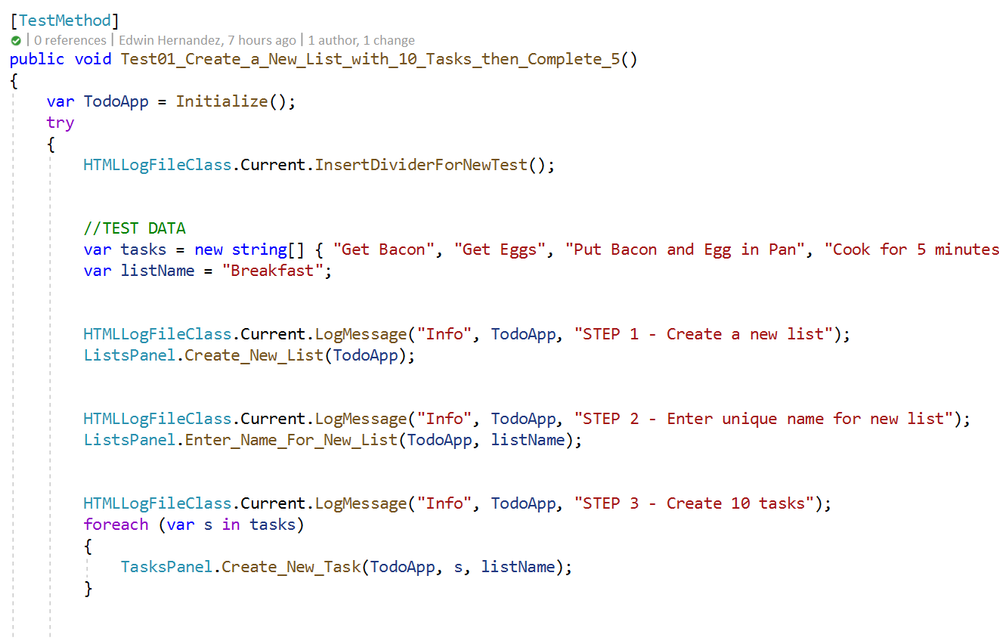
As I mentioned earlier, the LogMessage method needs to be called every time something is to be logged into the file. I recommend that only “Info” level messages should be logged from the Test Method, mostly to log comments and business step details that would make the HTML report easier to read, for example:
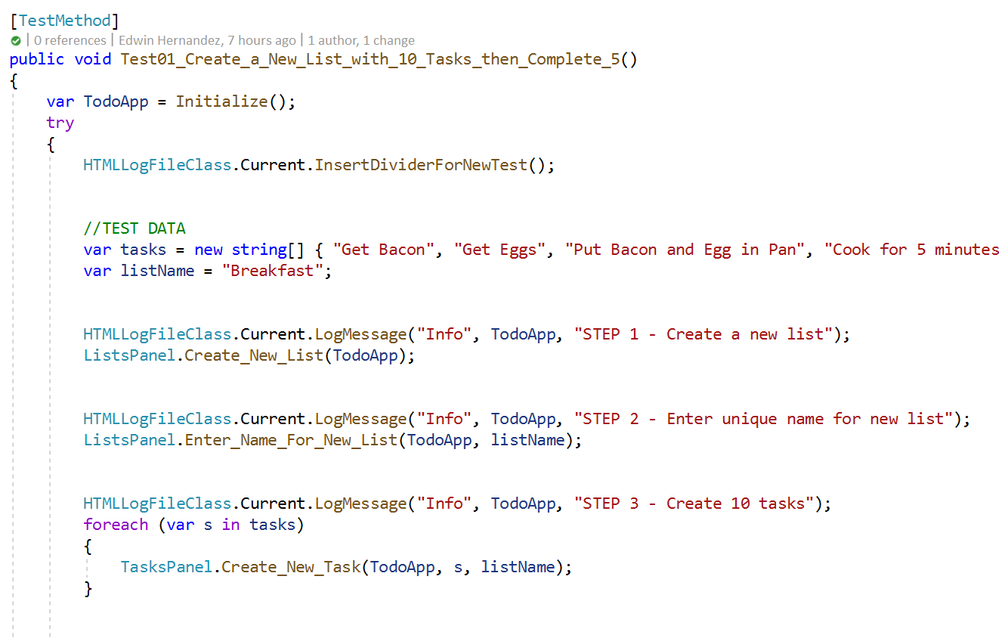
The InsertDividerForNewTest creates a header for the report, then every “Info” step is logged with or without screenshots depending on the configured level.
Logging Messages from the Page Class Methods
This may be the most interesting part, every time you use LogMessage from the Page Class Methods, the HTMLLogFile class will use reflection to get the calling method/class information and it will include this information into the HTML report, take the following for example:

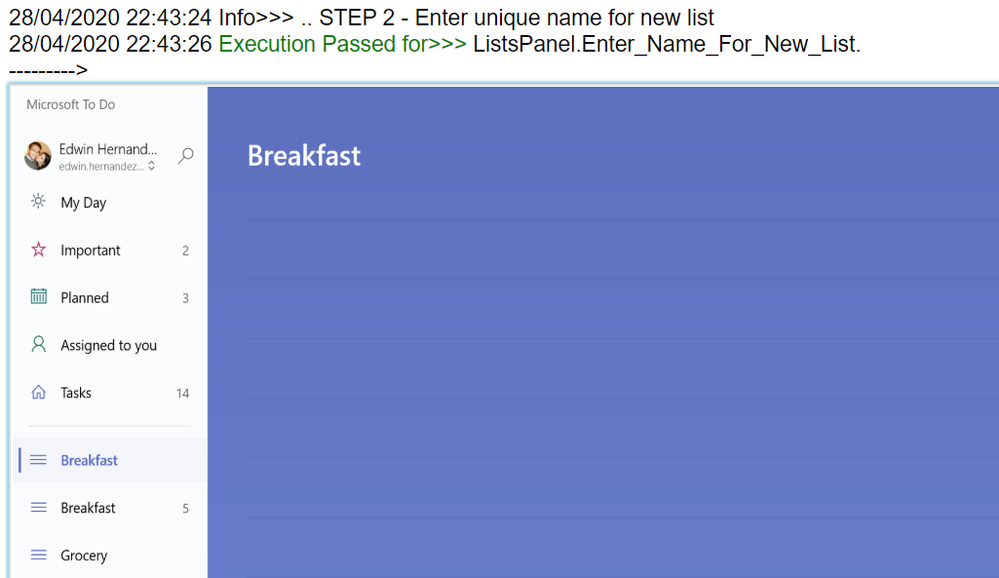
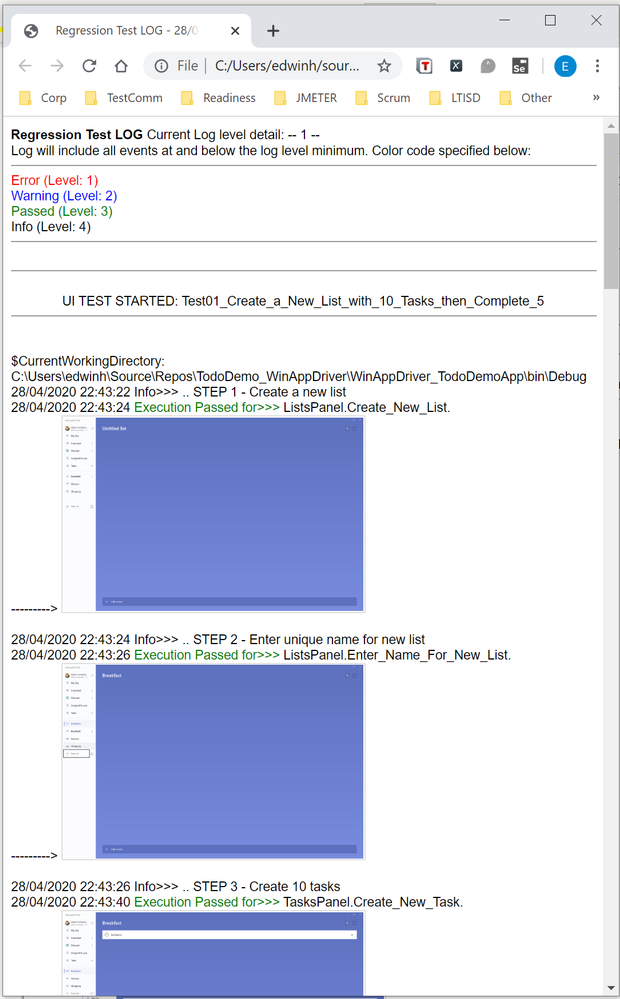
By including LogMessage “Passed” at the end, the HTML log will print the following:
Thus, by having well-constructed Page Object Classes, the log would build itself with very few additional comments.
Finding the Log for Local Test Executions
To have this HTML file to be uploaded to Azure DevOps it must be part of the Test Context. This part is included in this demo in the Class Cleanup Method:

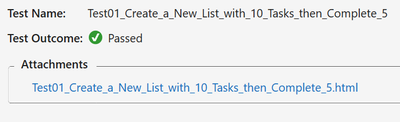
If the UI test is executed from Visual Studio (make sure you have WinAppDriver installed, please check my other post about this on the top). The Test Detail Summary should show additional output already part of the Test Context, and inside of that you can see the HTML file:
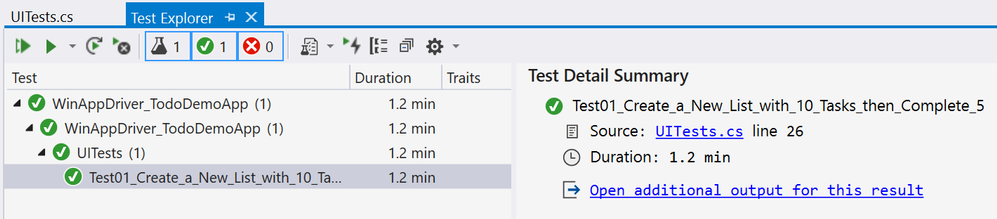
.
If you open that, the HTML log should have a header, then every Log Message. Please note that screenshots are expandable on hover.
Integration with Azure DevOps Release Pipeline
Now for the next part, I will only show what the result would look like. Setting up a Release Pipeline in Azure DevOps for UI Test Regression is not in the scope of this article. I intend to cover that in a future article, there are several ways to accomplish that depending on what you need to do.
For now, the screenshot below is a simple Release Pipeline that takes the Test Assemblies as an artifact, executes the Tests on a Private (Self-Hosted) Build Agent set on interactive mode.
MSTest automatically uploads to the Release Pipeline test results information (# of test passed, pass %, duration, etc.) and if you expand a specific test and navigate to the Attachments panel, the HTML Log file should be there already associated with that test. Every test will get a unique HTML file:
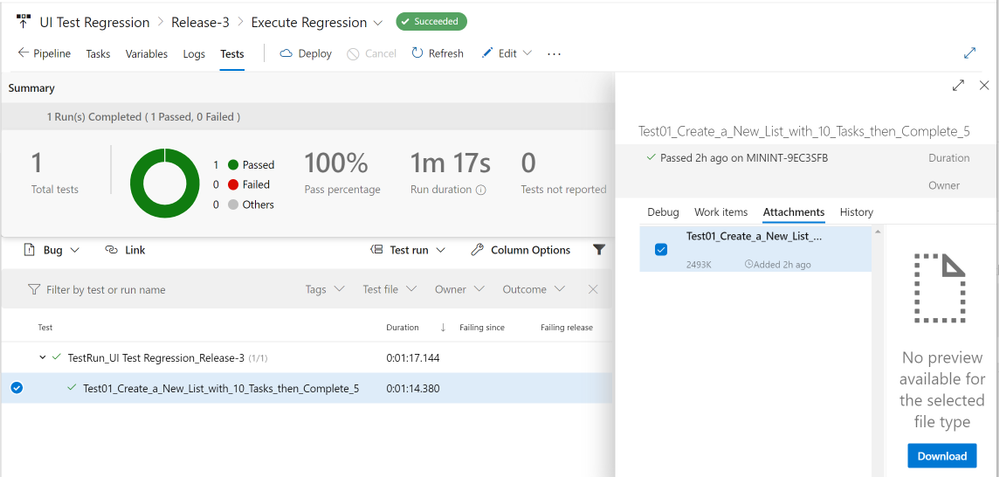
The benefits of running Regression from a Release Pipeline are related to traceability against a Build/Environment and even user stories and test cases. For deployment approval and for historical purposes since tests are saved into the cloud instead of local files.
Download Demo Project and HTMLLogFIle class
You can find at the bottom of this post, a file containing a Visual Studio solution that has a demo POM library project, a test project, and the HTMLLogFIle class, as well as a demo HTML report file as a reference.
If you have any comments/concerns, please reach out or comment below.
![The Intrazone, partner edition: “Fujitsu” [innovative scanning solutions]](https://www.drware.com/wp-content/uploads/2020/08/large-538)
by Scott Muniz | Aug 11, 2020 | Uncategorized
This article is contributed. See the original author and article here.
The Intrazone continues to spotlight Microsoft partners, the people and companies who deliver solutions and services to empower our customers to achieve more.
In our fifth partner episode, we talk with Jeff Willinger (Digital Workplace Innovator and Microsoft MVP (Fujitsu)) and his customer, Pete Schweiss (Data and Support Specialist | Boys Hope Girls Hope (BHGH)). BHGH is a not-for-profit helping academically capable and motivated children-in-need to meet their full potential. Fujitsu delivers innovative scanning solutions and services to streamline operations and overcome critical business productivity challenges.
We talk with them about how the Fujitsu solution helps BHGH digitize thousands of paper documents to minimize both physical space requirements and improve both usability and searchability. They, too, shared their planning and considerations for Project Cortex, to further minimize indexing and metadata management to further remove humans from the tagging and sorting process. The real goal is to provide more time spent creating opportunities and education through college – to develop future “graduate stories of hope.”
OK, Partner (edition), on with the show…
Subscribe to The Intrazone podcast! Listen this partner episode on Fujitsu now + show links and more below.
![Left-to-right: Jeff Willinger, Digital Workplace Innovator and Microsoft MVP (Fujitsu) and Pete Schweiss, Data and Support Specialist (Boys Hope Girls Hope); [The Intrazone guests]](https://gxcuf89792.i.lithium.com/t5/image/serverpage/image-id/211817i8754A8520A8A80A9/image-size/large?v=1.0&px=999 "JeffWillinger_PeteSchweiss_Fujitsu-BHGH_IZP_005.jpg") Left-to-right: Jeff Willinger, Digital Workplace Innovator and Microsoft MVP (Fujitsu) and Pete Schweiss, Data and Support Specialist (Boys Hope Girls Hope); [The Intrazone guests]
Left-to-right: Jeff Willinger, Digital Workplace Innovator and Microsoft MVP (Fujitsu) and Pete Schweiss, Data and Support Specialist (Boys Hope Girls Hope); [The Intrazone guests]
Link to articles mentioned in the show:
- Hosts and guests
- Articles and sites
- Events
Subscribe today!
Listen to the show! If you like what you hear, we’d love for you to Subscribe, Rate and Review it on iTunes or wherever you get your podcasts.
Be sure to visit our show page to hear all the episodes, access the show notes, and get bonus content. And stay connected to the SharePoint community blog where we’ll share more information per episode, guest insights, and take any questions from our listeners and SharePoint users (TheIntrazone@microsoft.com). We, too, welcome your ideas for future episodes topics and segments. Keep the discussion going in comments below; we’re hear to listen and grow.
Subscribe to The Intrazone podcast! And listen this partner episode on Fujitsu now.
Thanks for listening!
The SharePoint team wants you to unleash your creativity and productivity. And we will do this, together, one partner at a time.
The Intrazone links
![Left to right [The Intrazone co-hosts]: Chris McNulty, senior product manager (SharePoint, #ProjectCortex – Microsoft) and Mark Kashman, senior product manager (SharePoint – Microsoft).](https://www.drware.com/wp-content/uploads/2020/06/large-147 "Mark Kashman_0-1585068611977.jpeg") Left to right [The Intrazone co-hosts]: Chris McNulty, senior product manager (SharePoint, #ProjectCortex – Microsoft) and Mark Kashman, senior product manager (SharePoint – Microsoft).
Left to right [The Intrazone co-hosts]: Chris McNulty, senior product manager (SharePoint, #ProjectCortex – Microsoft) and Mark Kashman, senior product manager (SharePoint – Microsoft).
 The Intrazone, a show about the Microsoft 365 intelligent intranet (aka.ms/TheIntrazone)
by Scott Muniz | Aug 11, 2020 | Uncategorized
This article is contributed. See the original author and article here.
If you’ve been following news for Microsoft Planner on the commercial side, you likely saw our big announcement last week that we’re starting to rollout Tasks in Teams. As with most commercial releases, Tasks in Teams will be available for government cloud offerings at a later date. Keep an eye on your Office Message Center inbox for updates.
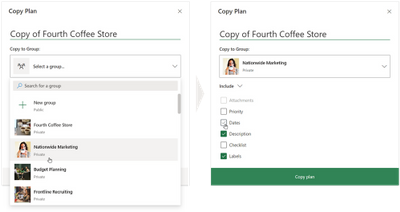
But Tasks in Teams wasn’t the only Planner news of note. Last month, we made Copy plan available for all government plans across GCC, GCC High, and DoD. Copy plan is exactly what it sounds like: the feature lets you copy an existing plan and its task card elements—these include attachments, priority, dates, description, checklist, and labels—into a new or current group (Microsoft 365 Groups) or team (Microsoft Teams). This means you no longer need to manually recreate plans for repeated processes, like requests for proposals or recurring budgeting projects.
You can read more about the Copy plan feature in our June roundup blog.
Please check visit our support page for a complete list of Planner features coming to the government cloud. If you’d like to keep up with all things Planner, our Tech Community page is the perfect place for learning about the latest announcements. You can also leave us suggestions for improving your Planner experience on UserVoice. And if you’re new to Planner, our support page will help get you started.
by Scott Muniz | Aug 11, 2020 | Uncategorized
This article is contributed. See the original author and article here.
Howdy folks,
When it comes to securing your organization, nothing is more effective than enabling multi-factor authentication (MFA) for your users. Whether using traditional methods like phone or token codes, or modern passwordless methods like the Authenticator, Windows Hello, or FIDO, MFA reduces the probability of account compromise by more than 99.9%. As part of adopting MFA, you should block legacy authentication endpoints that can’t support MFA. Legacy authentication protocols like POP, SMTP, IMAP, and MAPI can’t enforce MFA, making them preferred entry points for adversaries attacking your organization.
Organizations use Azure AD Conditional Access to enforce Zero-Trust Least-Privileged Access policies. Conditional Access allows you to determine access based on explicitly verified signals collected during the user’s sign-in, such as the client app, device health, session risk, or IP address. This is the best mechanism to block legacy authentication, but a recent analysis showed fewer than 16% of organizations with Conditional Access have policies that apply to sign-ins using legacy authentication protocols.
To help organizations more easily achieve a secure Zero Trust posture, we’re announcing 2 updates to help customers block legacy authentication:
- New Conditional Access policies will apply to legacy authentication clients by default.
- The client apps condition, including improvements to the client apps admin experience, is now in General Availability.
Daniel Wood, a program manager on the Conditional Access team, has written a blog to explain how these changes can help secure your organization. As always, please share your feedback below or reach out to intelligentaccesspm@microsoft.com with any questions.
Best regards,
Alex Simons (@Alex_A_Simons)
Corporate Vice President of Program Management
Microsoft Identity Division
——-
Hi everyone,
Today, I’m excited to announce we’re taking a big step forward in helping to make organizations more secure by changing the default Conditional Access configuration for new policies to apply to all client apps—including legacy authentication clients.
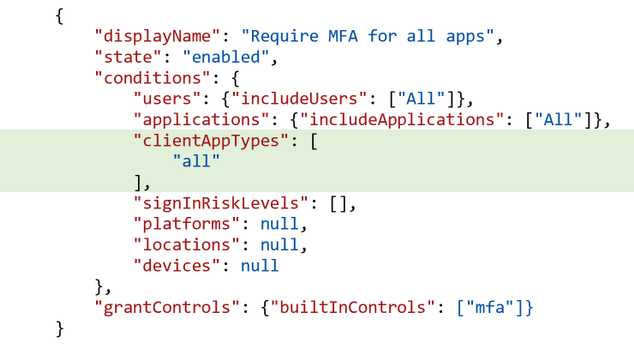
We’ve simplified the admin experience to make it easier for admins to create policies targeting modern authentication clients and legacy authentication clients. By default, all new Conditional Access policies will apply to all client app types when the client apps condition is not configured. Sign-ins from legacy authentication clients don’t support MFA and don’t pass device state information to Azure AD, so they will be blocked by Conditional Access grant controls, such as requiring MFA or compliant devices. If you have accounts which must use legacy authentication, you can grant them policy exceptions to keep them from being blocked.
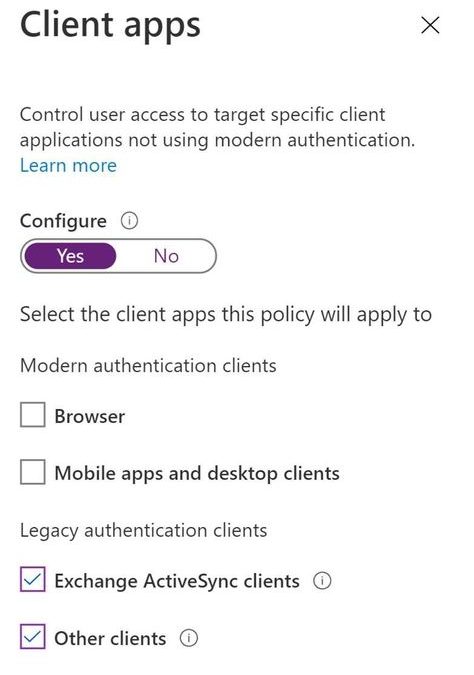
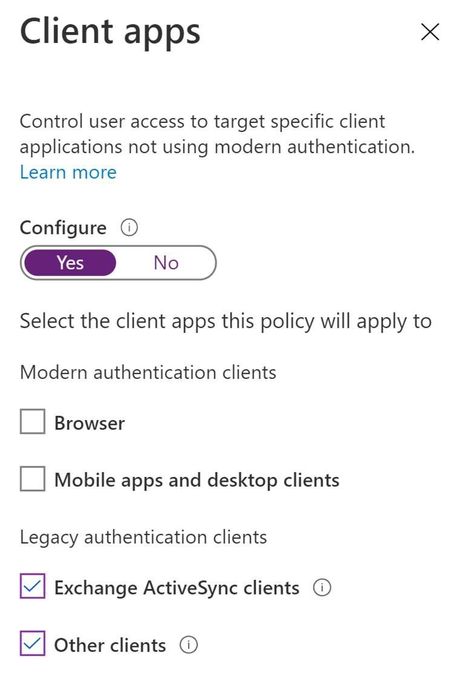
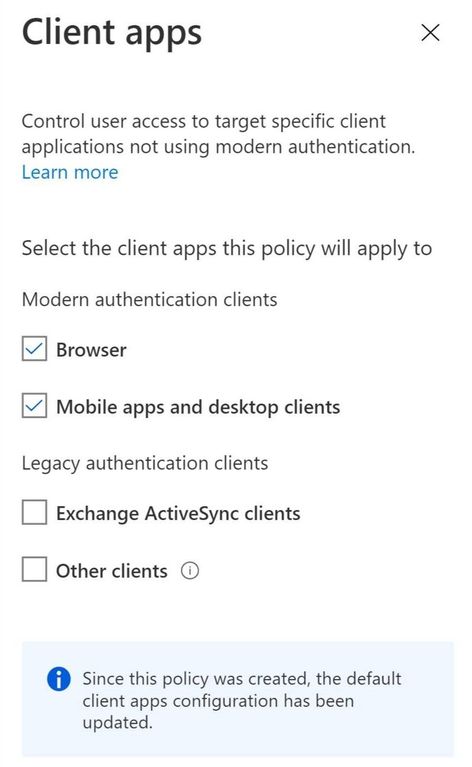
If you want to create a Conditional Access policy that only targets legacy authentication clients, switch the client apps Configure toggle to Yes and deselect Browser and Mobile apps and desktop clients, leaving Exchange ActiveSync and Other clients selected.
And for those of you who manage your policies using the Microsoft Graph API, we’ve simplified the client apps schema with the release of the new Conditional Access API in v1.0 to match the new UX. Here’s an example of the new default configuration for the client apps condition when you create a new policy using the API.
What about my existing Conditional Access policies?
If you have existing Conditional Access policies, they will continue to apply to the same client apps with no change. However, if you view an existing policy, we’ve made it easier to see which client apps are selected by removing the Configure Yes/No toggle. Existing policies where the client apps condition was not configured now look like this:
Understanding client app usage in your organization
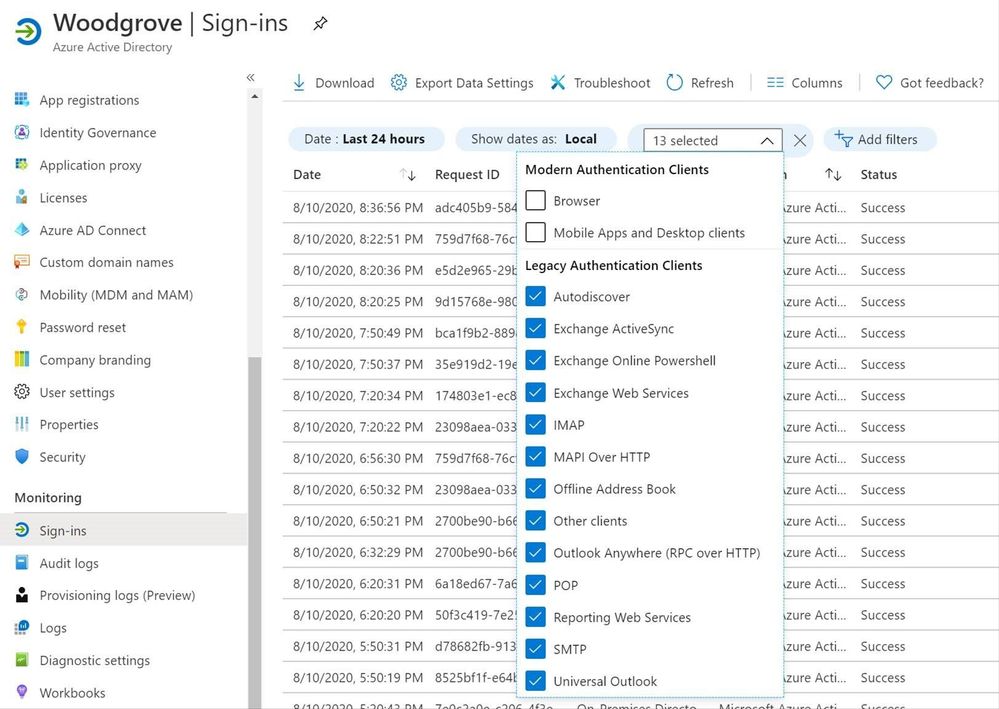
Before creating a new policy, it’s good to understand who’s using legacy authentication in your organization. To see which client apps and protocols are being used in your organization during sign-in, simply navigate to the Sign-ins page and filter the results by client app type.
Share your feedback!
We hope that these changes make it easier for admins to secure their organizations by blocking legacy authentication. As always, please share your feedback below or reach out to intelligentaccesspm@microsoft.com with any questions.
Thanks,
Daniel Wood (@Daniel_E_Wood)
Program Manager
Microsoft Identity Division
by Scott Muniz | Aug 11, 2020 | Uncategorized
This article is contributed. See the original author and article here.
If you are not familiar with the Microsoft 365 Network Connectivity Principles, you should be. At this stage of cloud powered digital transformation, it has become a well-recognized fact that efficient user connectivity and network architecture that is cloud ready and cloud optimized is one of the most critical decisions that customers should make to achieve best application performance and delightful user experience. For rich cloud-based productivity solutions, such as Microsoft 365, optimal end user connectivity to the cloud becomes especially important.
To help customers modernize their network architectures, Microsoft has developed 4 Network Connectivity Principles. These principles can help customers evaluate their existing network architectures and its readiness for Microsoft 365; inform future network design choices for in office and remote users; and modernize their networks to achieve both security and optimal user experience, instead of trading one versus another. These principles can also be helpful to evaluate different network partner solution architectures for Microsoft 365 alignment and provide confidence that customer network choices are not only optimal, but future proof for the dynamic and evolving nature of the Internet and Microsoft 365 cloud.
Below are the 4 principles at a high level. To dive into the details please watch the first video in our Microsoft 365 Network Connectivity Video Series, embedded in this blog. Please watch out for additional videos that dive deep into the details on how those principles can be applied to network design, network configuration, remote user connectivity, and achieving Zero Trust security.
For the latest information on how to configure your Microsoft 365 network components to maximize performance and provide the best possible user experience visit: https://msft.it/6003To3vP
Principle #1: Optimize Microsoft 365 traffic
Use the Microsoft published endpoint categories to differentiate Microsoft 365 traffic from generic Internet traffic for more efficient routing.
Principle #2: Enable local egress
Egress Microsoft 365 data connections through Internet as close to the user as practical with matching DNS resolution.
Principle #3: Enable direct connectivity
Enable direct egress for Microsoft 365 connections. Avoid network hairpins and minimize network latency (RTT) to Microsoft’s global network.
Principle #4: Modernize security for SaaS
Avoid intrusive network security for Microsoft 365 connections. Bypass proxies, traffic inspection devices, and avoid duplicating security controls already available in Microsoft 365.
by Scott Muniz | Aug 11, 2020 | Uncategorized
This article is contributed. See the original author and article here.
If you’ve been following news for Microsoft Planner on the commercial side, you likely saw our big announcement last week that we’re starting to rollout Tasks in Teams. As with most commercial releases, Tasks in Teams will be available for government cloud offerings at a later date. Keep an eye on your Office Message Center inbox for updates.
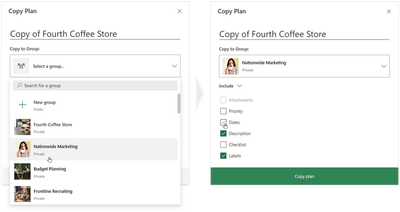
But Tasks in Teams wasn’t the only Planner news of note. Last month, we made Copy plan available for all government plans across GCC, GCC High, and DoD. Copy plan is exactly what it sounds like: the feature lets you copy an existing plan and its task card elements—these include attachments, priority, dates, description, checklist, and labels—into a new or current group (Microsoft 365 Groups) or team (Microsoft Teams). This means you no longer need to manually recreate plans for repeated processes, like requests for proposals or recurring budgeting projects.
You can read more about the Copy plan feature in our June roundup blog.
Please check visit our support page for a complete list of Planner features coming to the government cloud. If you’d like to keep up with all things Planner, our Tech Community page is the perfect place for learning about the latest announcements. You can also leave us suggestions for improving your Planner experience on UserVoice. And if you’re new to Planner, our support page will help get you started.
by Scott Muniz | Aug 11, 2020 | Uncategorized
This article is contributed. See the original author and article here.
 Microsoft Office is made for the Modern Workplace delivering cutting edge productivity capabilities that are updated, and added to, on a regular basis. Not a customer meeting goes by where I show some of the new features and hear “I didn’t know it could do that!”
In this HLS Show Me How I walk through a number of gems in Microsoft Word that everyone should take a look at. These include:
- Add Files From
- Researcher
- Ink to Shape
- Dictate
- Inspect Doc
- Check Accessibility
- Transform
- Translate
- Read Aloud
These gems only scratch the surface and make clear that this isn’t the Word of days gone by. After watching the video check out the resources below to get additional insight, and training, on leveraging the power of Microsoft Word.
Resources:
Thanks for visiting – Michael Gannotti LinkedIn | Twitter | Facebook | Instagram
 Michael Gannotti
by Scott Muniz | Aug 11, 2020 | Uncategorized
This article is contributed. See the original author and article here.
We are living through an extraordinary period in our history where we need to re-evaluate many aspects of our lives, including how we can safely co-exist within common workspaces. There are many technological innovations appearing from Microsoft and others to assist in these adjustments to our daily lives.
The Microsoft Visio desktop app, which includes Visio Plan 2, has templates for creating office and workplace diagrams to scale, and has the ability to embed CAD diagrams too (see Create a Floor Plan for more information, and Featured Visio templates and diagrams). Indeed, many Visio users have been doing this for many years, but now the world faces the challenge of preparing these workplaces for a new normal where social distancing is required. Most countries in the world have implemented guidelines and laws about social distancing in order to prevent the spread of communicable disease, such as COVID-19, through society. These guidelines may vary on the distance and units used (metres or feet), and so Microsoft have now released a new stencil of symbols, fill and line patterns to assist with the re-planning of workplaces easier, or simply checking if the existing layouts are compliant.
There are possibly two main approaches to providing social distancing in the workplaces:
- Re-plan the workstation layout
- Reduce the occupancy by blocking off alternate, or so, workstations
It will probably require that a one-way system being denoted to walk around the workplace, and this may include designating lifts for access only, and staircases for egress. It may also be necessary to place screens between or alongside workstations to provide greater isolation. Additionally, it may be necessary to restrict entry to restrooms, and to reduce their capacity accordingly. There will also be a need to provide multiple stations where hand sanitizer is available.
Working shifts could be introduced to reduce occupancy, and staggered start and finish times to reduce the flow at entrances and exits. It will be necessary to add signage and floor markings to remind staff of the safe distances to keep to and the direction to walk in.
Microsoft Visio is a perfect application for planning workplaces, and the new Workplace Social Distancing stencils makes it easy to analyze, review and plan for the new guidelines.
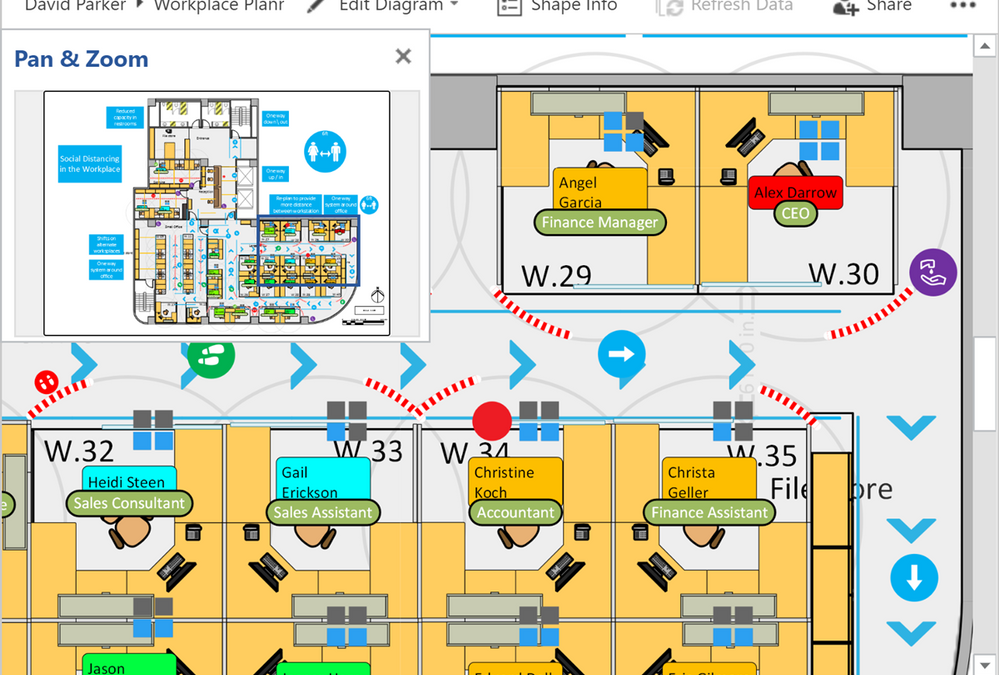
The Visio diagrams, that are stored in OneDrive or SharePoint Online, can then be viewed within a web page, using the Microsoft Online Viewer (See any Visio Diagram for free), or within a Power BI report (see Org Chart and Floor Plan ). In the case of the viewer, there is also a JavaScript API that can be utilized to enhance the experience.
The Visio desktop app has a layering feature that enables shapes on layers to have a color assigned to them, and one great use of this is to reduce most of the diagram to gray-scale so that the important features are easier to understand.
|
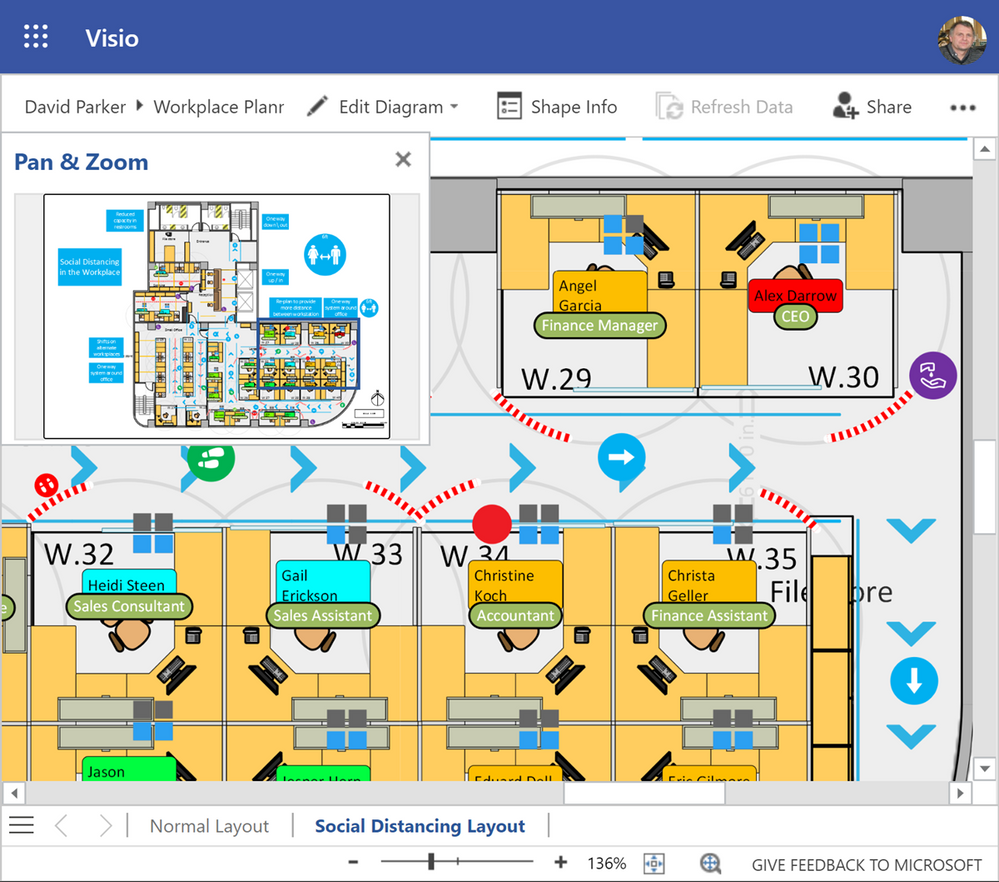 Desk layout in color Desk layout in color
|
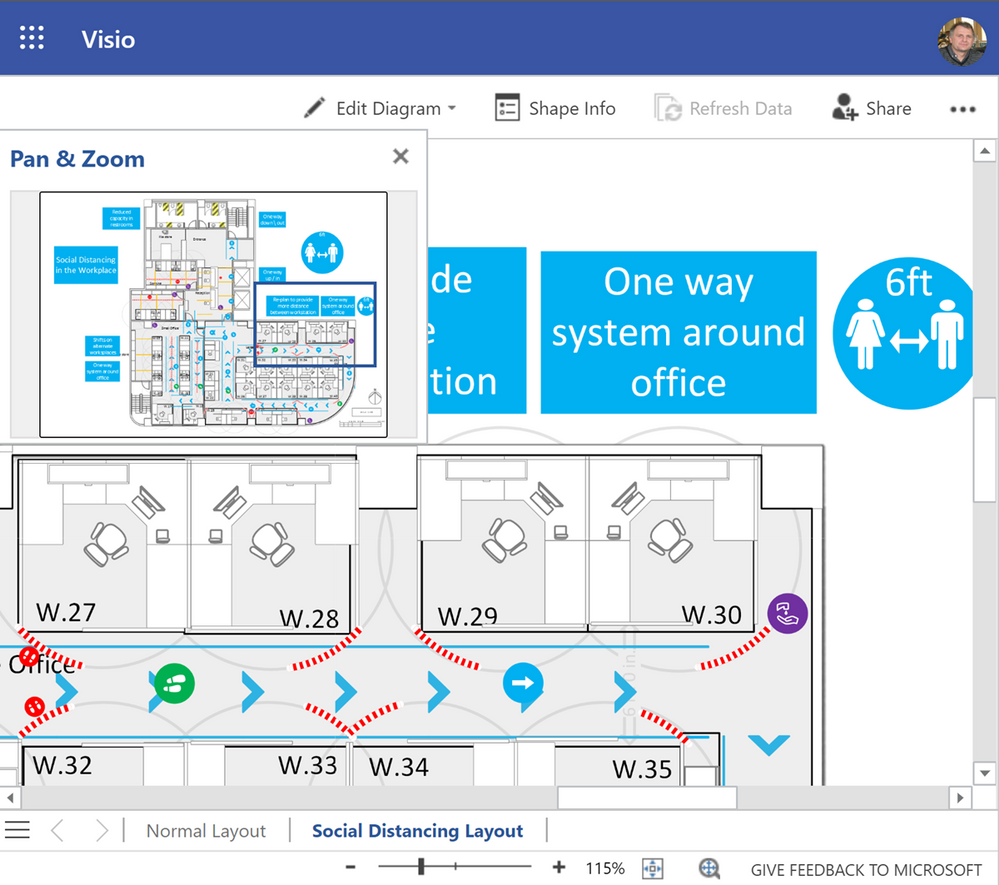 Gray-scale applied to most layers Gray-scale applied to most layers
|
This feature is particularly useful when using Power BI to color code visual elements automatically, such as the shift times for each workstation.
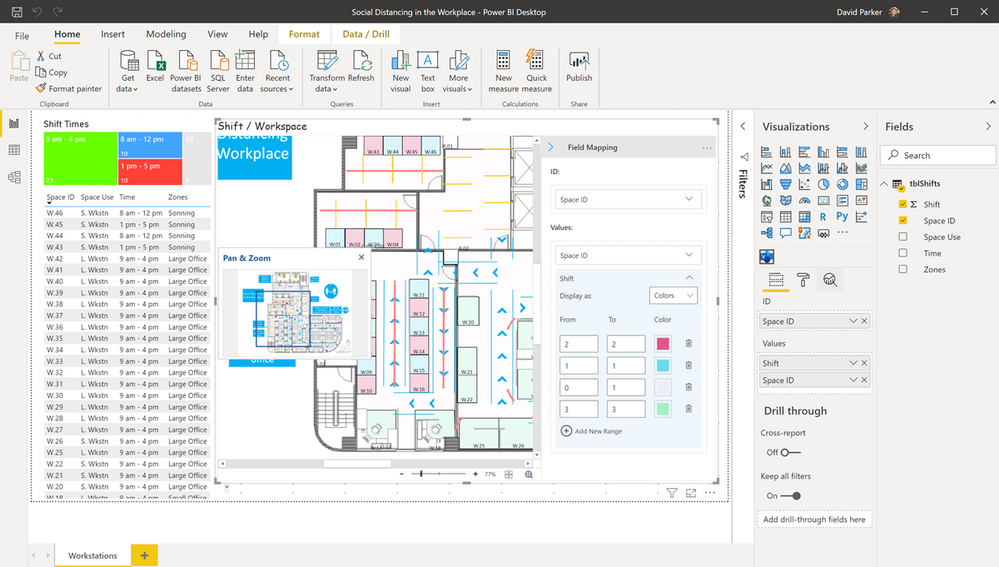 Display workplaces and shifts in Power BI
The layer settings in Visio can be manipulated manually each time a new view is required, or they can be automated with a third-party add-in such as LayerManager from bVisual.
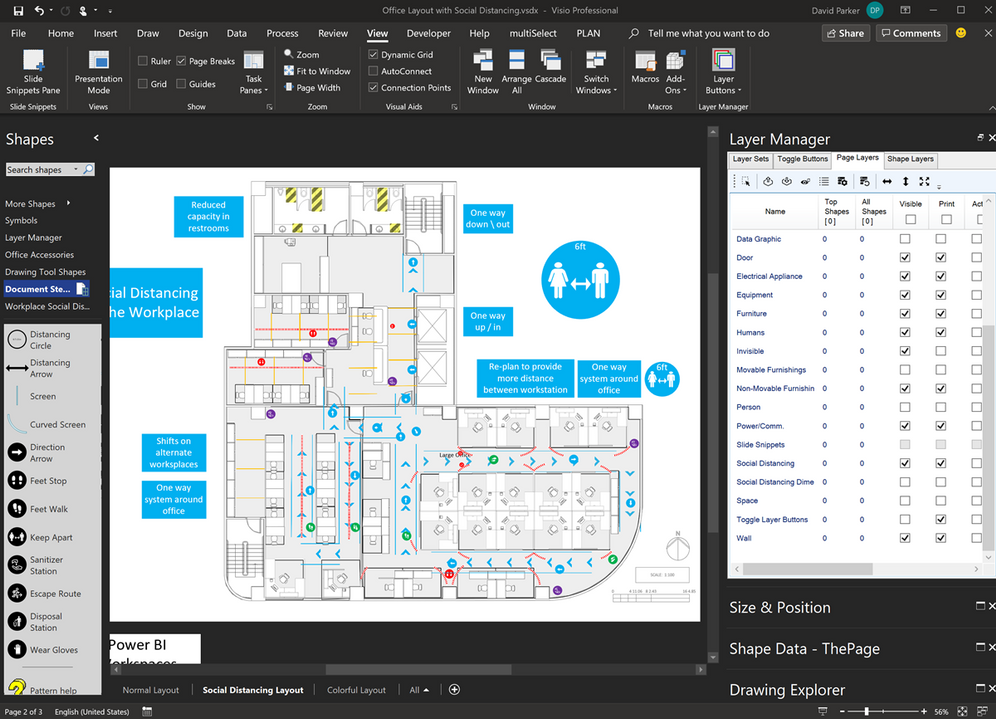 Managing layers in Visio desktop
The Workplace Social Distancing Stencils
There are two almost identical stencils with the same title, Workplace Social Distancing, so that users of either US Units or Metric Units are accommodated:
They should be placed into the My Shapes folder directly, or within a sub-folder, and preferably renamed tf45259688.vssx to WRKSOCDIST_U.vssx, and tf45492185.vssx to WRKSOCDIST_M.vssx. (Oh, the wonders of the web!)
The stencils contain a number of Masters, a Fill Pattern and Line Patterns to assist with the task of re-planning workplaces to satisfy social distancing guidelines. The scaled Line Patterns are provided in three different size because various countries and states have different distance requirements.
|
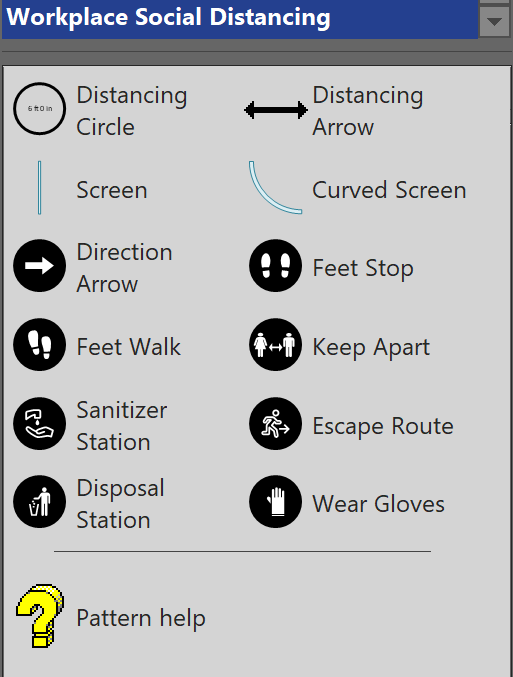 The Masters The Masters
|
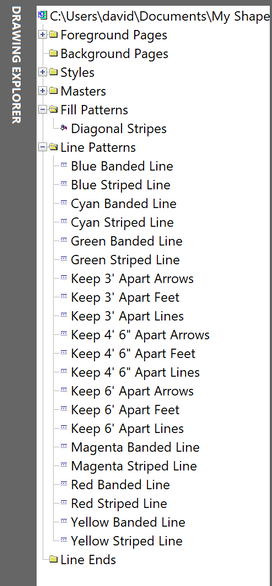 US Units Fill Pattern and Line Patterns US Units Fill Pattern and Line Patterns |
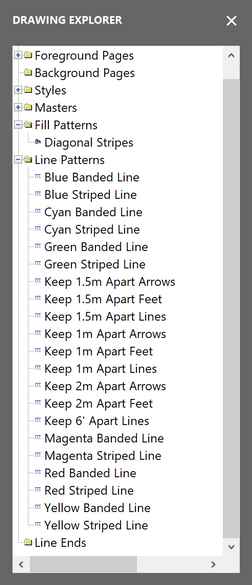 Metric Fill Pattern and Line Patterns Metric Fill Pattern and Line Patterns |
Masters
Dimensions
Both of these shapes are on the Social Distancing Dimensions layer by default, and they can be formatted to suit.
Distancing Circle
The Distancing Circle shape can be dragged and dropped to the center of the position to check the exclusion zone. The shape can then be re-sized manually or by typing a value in the Width or Height row of the Size & Position window. The aspect ratio of the shape is locked so it does not matter which row the value is entered into, because the other will be kept synchronized.
|
Position centered over target position
|
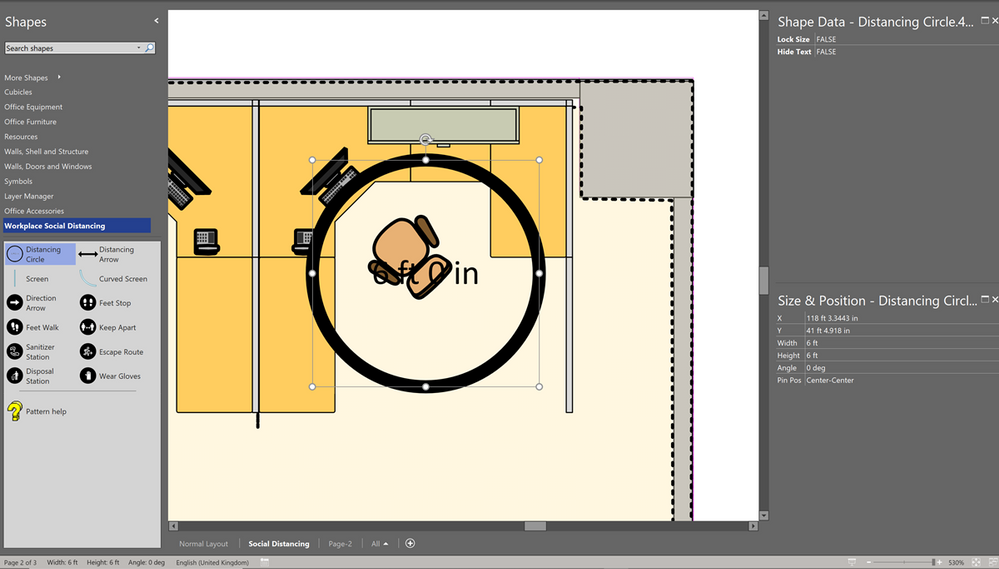 Distancing Circle Step 1 Distancing Circle Step 1
|
|
Set the diameter, optionally Lock Size and Hide Text using the Shape Data window or right-mouse action menu.
|
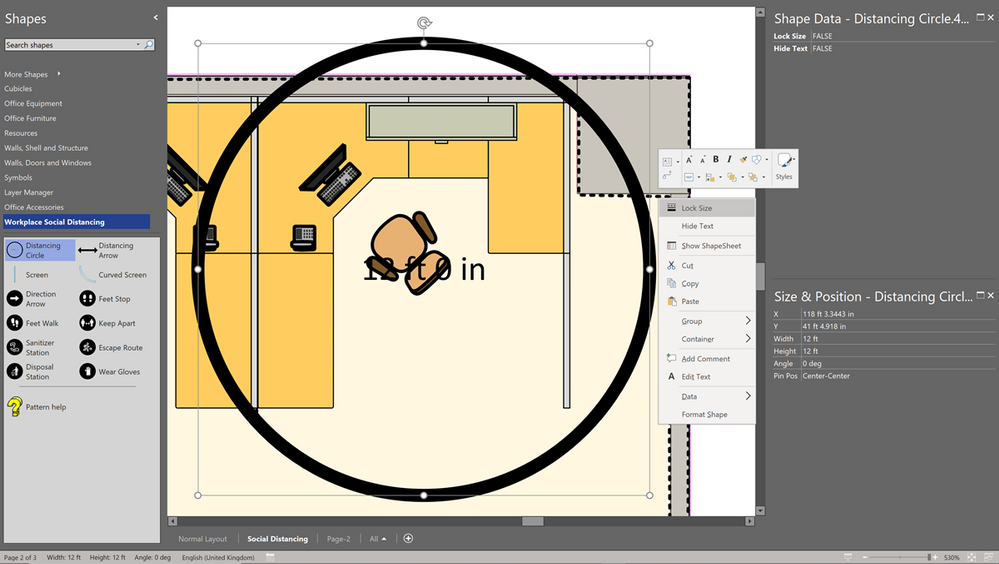 Distancing Circle Step 2 Distancing Circle Step 2
|
|
Edit Dash Type to suit, duplicate as required, and Send to Back.
|
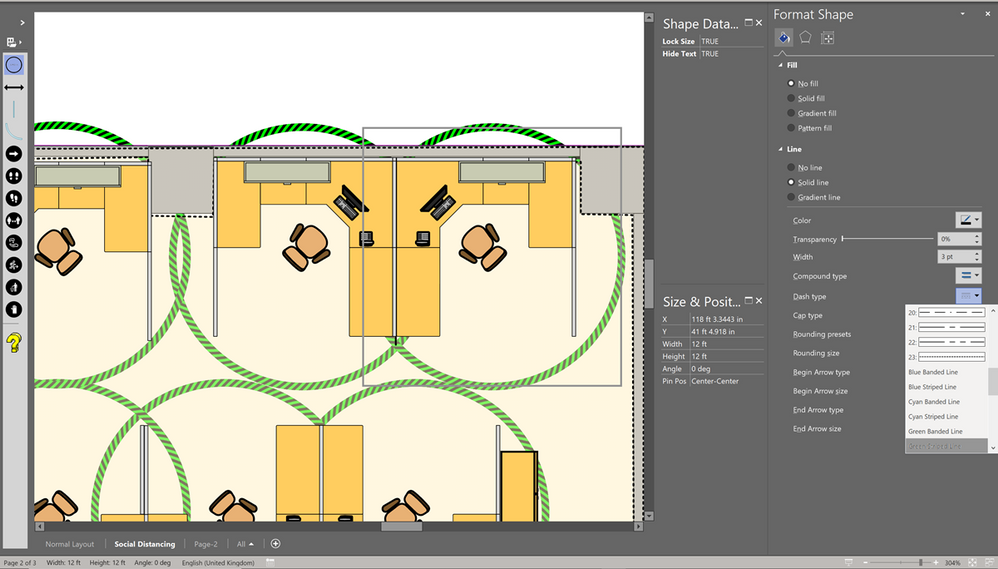 Distancing Circle Step 3 Distancing Circle Step 3
|
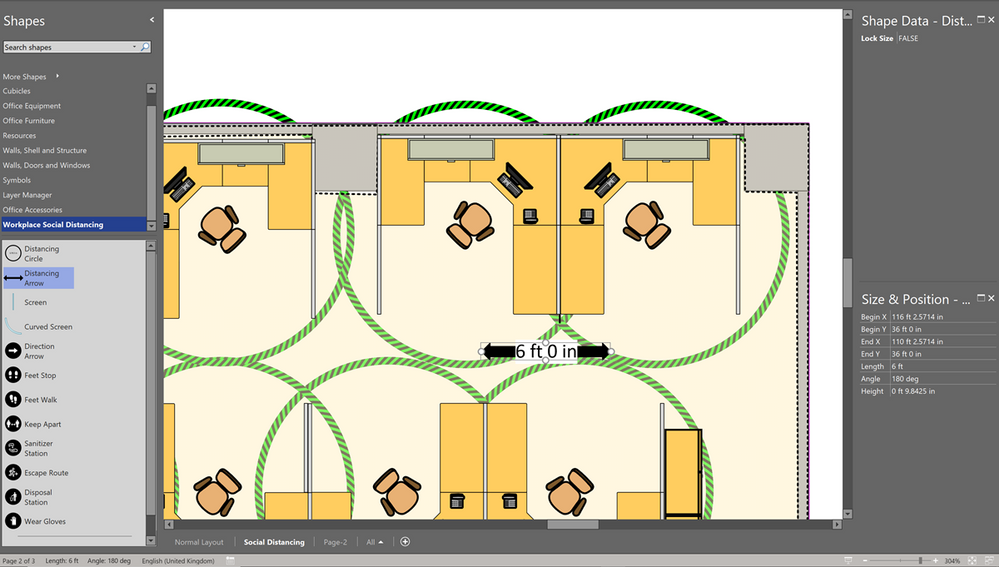
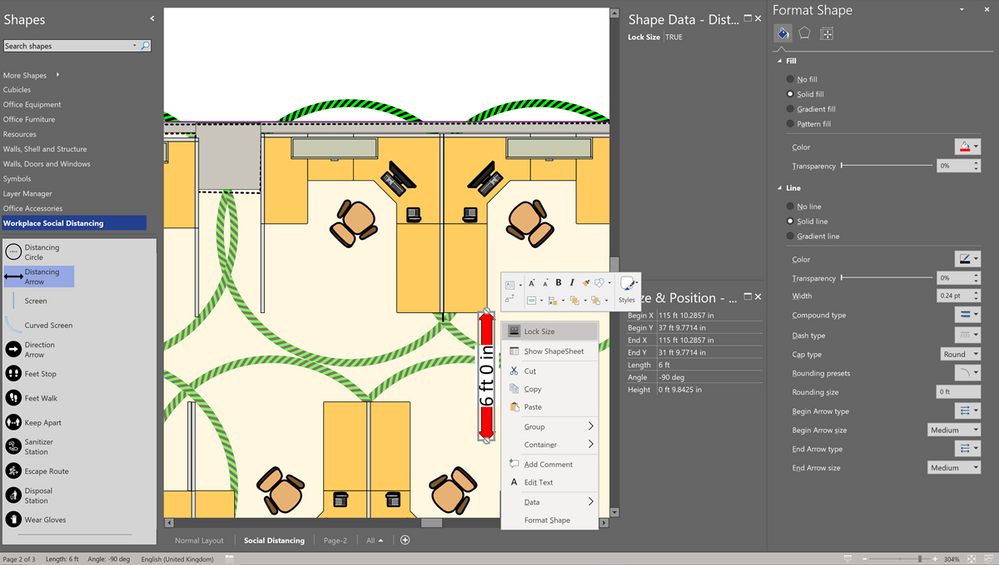
Distancing Arrow
The Distancing Arrow shape can be dragged and dropped to show the distance between items. The shape can then be re-sized manually or by typing a value in the Length row of the Size & Position window.
|
Drag and drop, and set the Length
|
|
|
Rotate and edit Fill Color as required, and optionally Lock Size using the Shape Data window or right-mouse action menu.
|
|
Barrier Screens
These shapes are on the Furniture and Non-Moveable Furnishings layers, and are used to provide a physical barrier where the full specified social distance is not possible.
Screen
This a simple straight barrier, which could be solid or transparent.
|
Use Screen shapes to be installed specify where extra barriers should be positioned
|
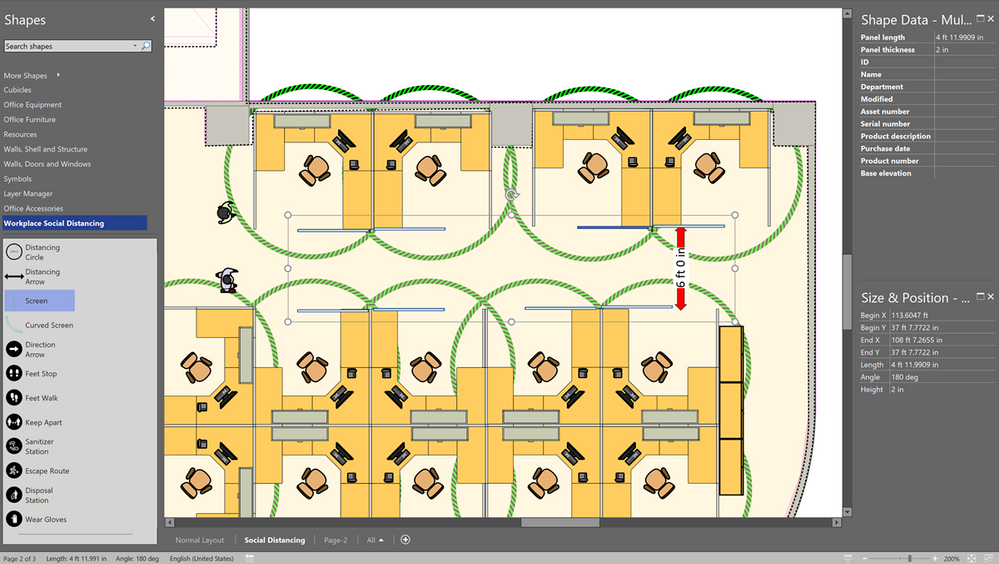 Add screens as a barrier Add screens as a barrier
|
Curved Screen
Similar to Screen but curved.
Symbols
These shapes are on the Social Distancing layer by default, and can be formatted to suit requirements.
The Fill Foreground, Fill Background and Line Color of these symbols can all be modified with the Format Shape panel.
|
Use Format Shape panel rather than Ribbon buttons
|
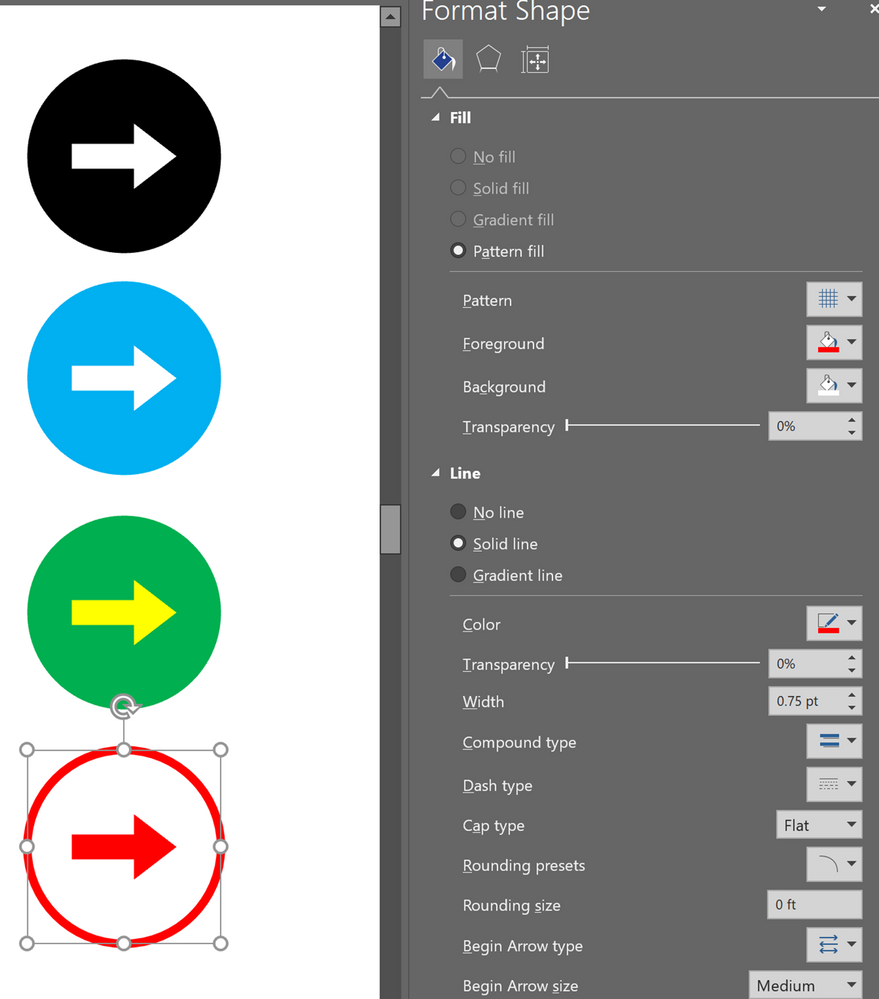 Formatted symbols Formatted symbols
|
- Direction Arrow
- Feet Stop
- Feet Walk
- Keep Apart
- Sanitizer Station
- Escape Route
- Disposal Station
- Wear Glove
|
The symbols are placed, re-sized, rotated and colored to suit.
|
Formatted symbols
|
Pattern Help
This shape contains some instructions for using the custom fill and line patterns.
Fill Patterns
Use Format Shape to select the Diagonal Stripe Pattern fill, then edit the Foreground and Background colors to suit.
|
Diagonal Stripes provides wider striping than the built in patterns.
|
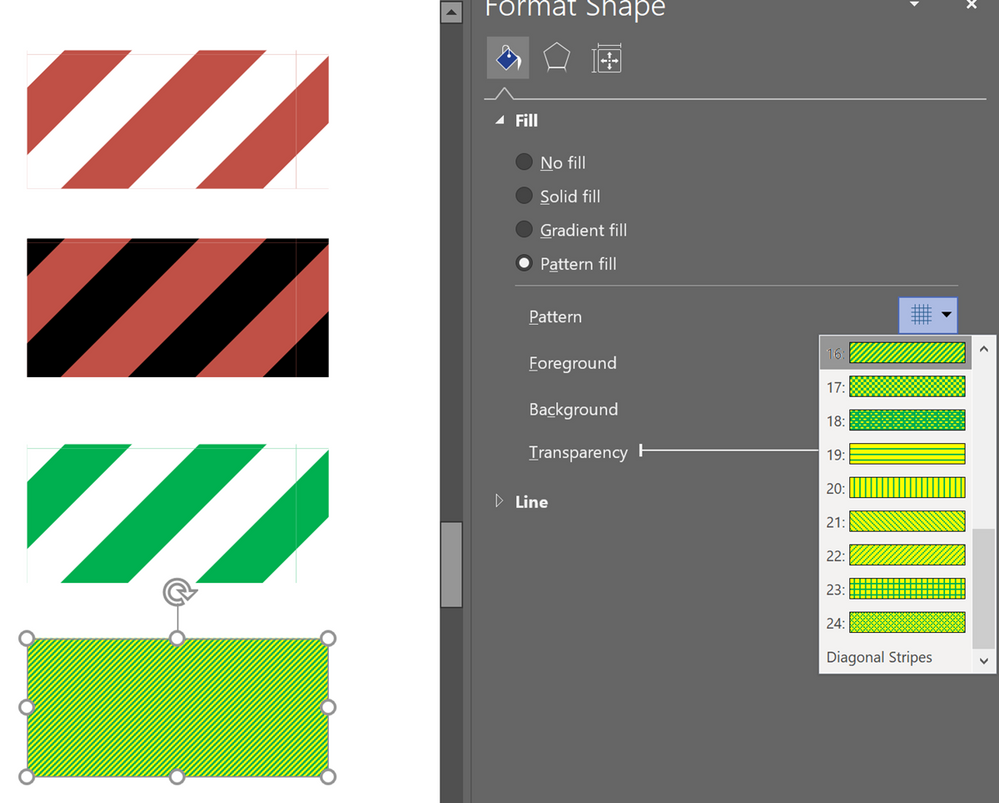
|
Line Patterns
There are both unscaled and scaled custom Line Patterns to assist in demarking social distancing markings and instructions.
Unscaled
These patterns provide two-colored Banded or Striped lines.
- [Blue | Cyan | Green | Magenta | Red | Yellow] Banded Line
- [Blue | Cyan | Green | Magenta | Red | Yellow] Striped Line
|
Use Format Shape / Solid Line to select a colored Banded or Striped Line Dash Type, then Line / Color to select the second color.
|
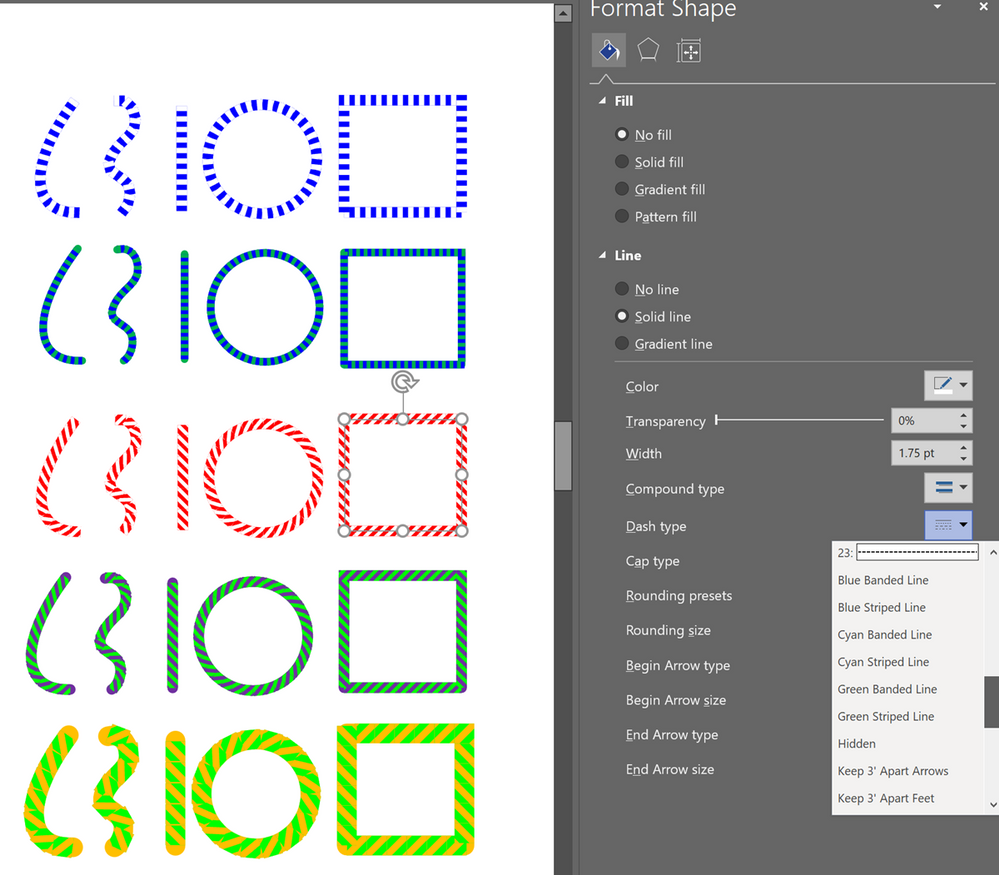
|
Scaled
These Line Patterns can be used to mark out the spacing, and the direction in two cases, of movement. These patterns work best with straight lines, and with lines that are an exact multiple of the spacing.
- Keep [3’/1m | 4’6”/1.5m | 6’/2m] Apart Arrows
- Keep [3’/1m | 4’6”/1.5m | 6’/2m] Apart Feet
- Keep [3’/1m | 4’6”/1.5m | 6’/2m] Apart Lines
|
Use Format Shape / Solid Line to select a Keep x Apart Arrows, Feet or Lines Dash Type, then Line / Color to select the color.
|
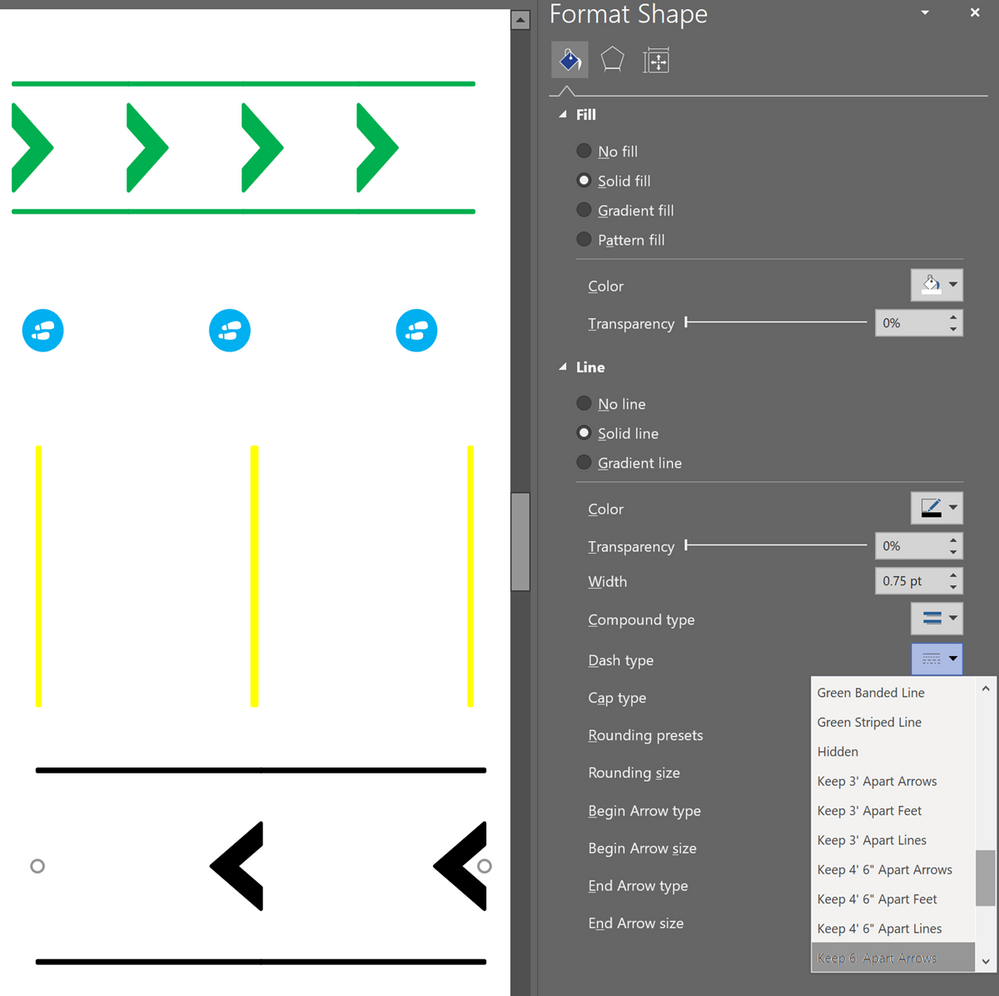
|
Example
Master shapes line Arc – graphical on the Drawing Tool Shapes stencil can be useful to define floor markings that need to be taped, using the appropriate unscaled custom colored line pattern. The scaled custom line patterns define the spacing of floor taping or mats to be added. The appropriately colored symbol shapes define where stickers, mats, posters or similar need to be placed.
The Layer Properties dialog can be used to recede the shapes on the Social Distancing Dimensions layer, or to make them invisible.
|
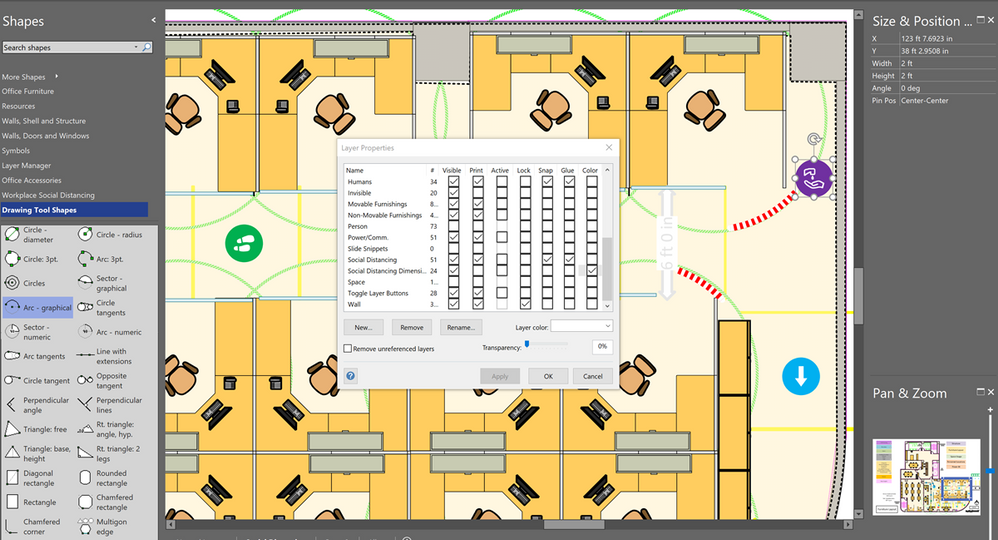 Social Distancing Dimensions receded Social Distancing Dimensions receded
|
|
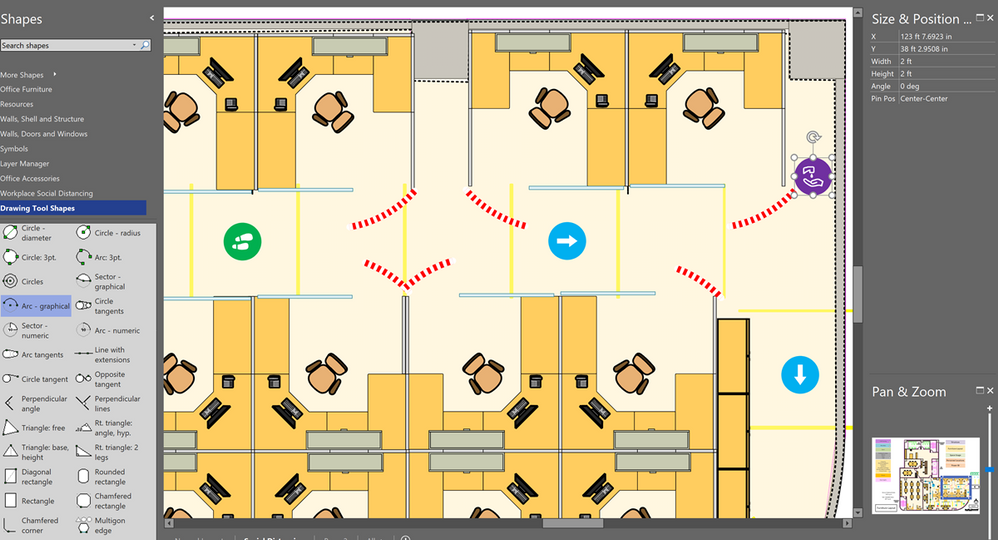 Adjusted layout with social distancing markings Adjusted layout with social distancing markings
|
There are two almost identical templates with the same title, Workplace Planning with Social Distancing, so that users of either US Units or Metric Units are accommodated:
They should be placed into the Custom Office Templates folder, or similar, and preferably renamed tf33393545.vstx to Workplace Planning with Social Distancing (US Units).vstx, and tf12087500.vstx to Workplace Planning with Social Distancing (Metric).vssx. (Still, the wonders of the web!)
We’d love to hear back from you! Leave a comment below with your experiences, questions, or suggestions. You can also submit ideas for future feature releases on our UserVoice site. Email us at tellvisio@microsoft.com for more detailed questions, and follow us on Facebook and Twitter to stay current on the latest releases.
Written by David Parker, a Visio developer since 1996, and an MVP for the past 16 years, and writer of a Visio blog at blog.bvisual.net. In a prior life, he was an architect and space planner.


Recent Comments