This article is contributed. See the original author and article here.
Development containers with Visual Studio Code can serve as a fantastic tool in education to ensure students have a consistent coding environment. Dev containers take care of setup, which can oftentimes occupy the first few days or weeks of the semester and allow students and instructors to instead focus on what’s truly important: learning and coding something great!
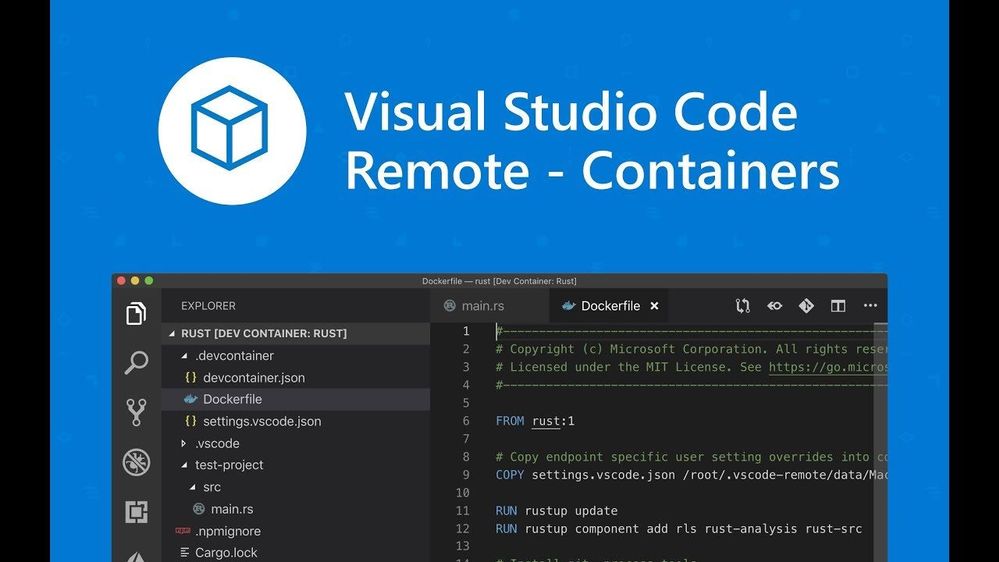
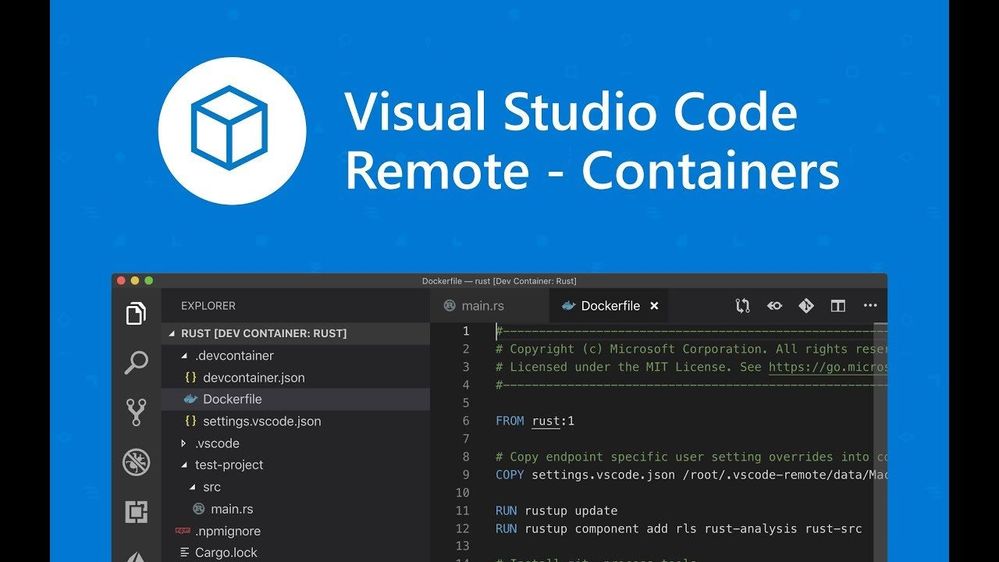
The Visual Studio Code Remote – Containers extension lets you use a container as your main coding environment. In the classroom, an instructor can take an existing dev container, or create their own, and share it with the class. Each student can open the container in VS Code and automatically have the tools and runtimes they need to develop their applications. Students will also have access to VS Code’s full feature set, including IntelliSense and debugging, while coding.
We’d love to learn more about your interest in or usage of development containers in the classroom through the quick 5-minute survey below. Whether you’re already using dev containers in education or just hearing about them now, we want to hear from you. You also have the option to leave your contact information to connect with our engineering team:
This article is contributed. See the original author and article here.
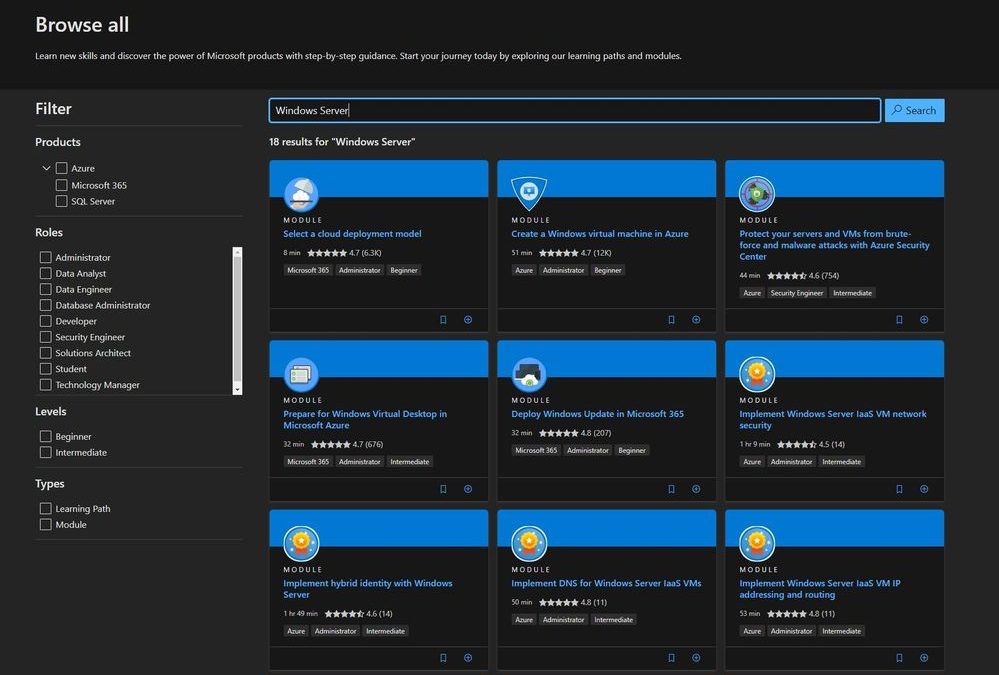
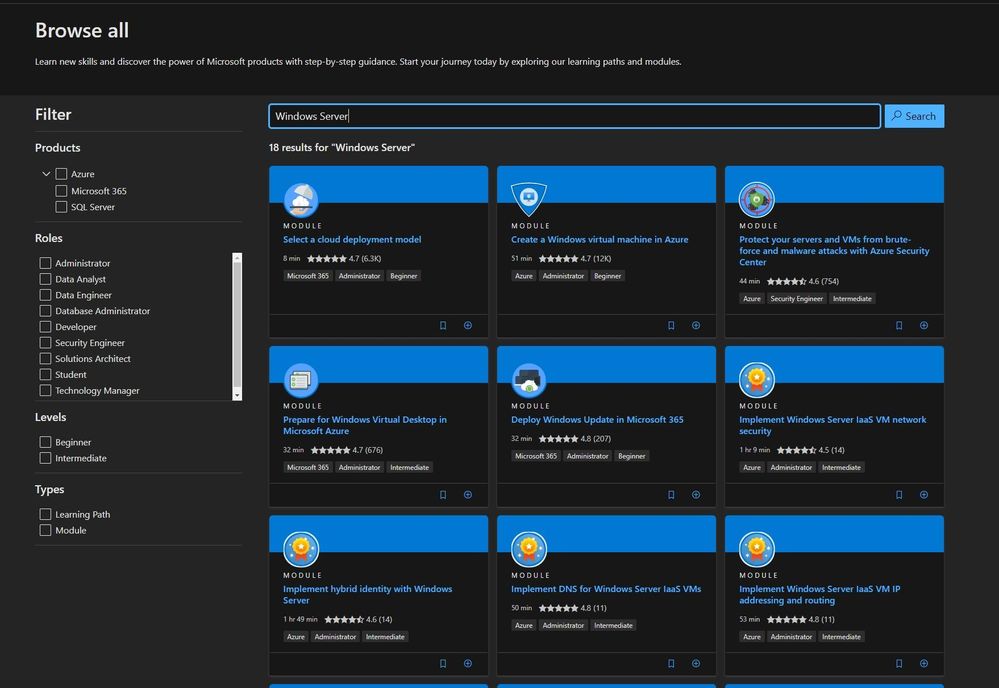
I am sure you already heard of Microsoft Learn. If you haven’t, Microsoft Learn is a free online learning platform around different technology. Whether you’re just starting or an experienced professional, the hands-on approach helps you arrive at your goals faster, with more confidence and at your own pace. In the last couple of days, we published a couple of new Microsoft Learn modules around Azure, Hybrid Cloud, and Windows Server for IT Pros. These modules help you to learn how you can leverage Microsoft Azure in a hybrid cloud environment to manage Windows Server.
New Microsoft Learn Modules for Azure and Windows Server IT Pros
Manage hybrid workloads with Azure Arc
You will learn to describe Azure Arc, implement Azure Arc with on-premises server instances, deploy Azure policies with Azure Arc, and use role-based access control (RBAC) to restrict access to Log Analytics data.
After completing this module, you will be able to:
Describe Azure Arc.
Explain how to onboard on-premises Windows Server instances in Azure Arc.
Connect hybrid machines to Azure from the Azure portal.
Migrate on-premises Windows Server instances to Azure IaaS virtual machines
You’ll be able to plan a migration and select appropriate server migration tools. You will also learn how to use Azure Migrate, how to assess physical servers, and how to migrate those servers.
After completing this module, you will be able to:
Plan your migration.
Describe Azure Migrate.
Migrate server workloads using Windows Server Migration Tools.
You’ll learn about Azure Backup before learning to implement Recovery Vaults and Azure Backup Policies. You’ll learn to implement Windows IaaS VM recovery, perform backup and restore of on-premises workloads, and manage Azure VM backups.
After completing this module, you will be able to:
Describe Azure Backup.
Implement Recovery Vaults.
Implement Azure Backup policies.
Recover Windows IaaS VMs.
Perform file and folder recovery.
Perform backup and recovery of on-premises workloads.
Explain how to manage Azure VM backups with Azure Backup.
This article is contributed. See the original author and article here.
Hi, Jonas here!
Or as we say in the north of Germany: “Moin Moin!” I am a Customer Engineer based in Germany and I recently played a bit with Azure Log Analytics (now called Azure Monitor) and the on-premises monitoring capabilities and I want to show you, how easy it is to monitor your own MECM / ConfigMgr environment.
TL;DR
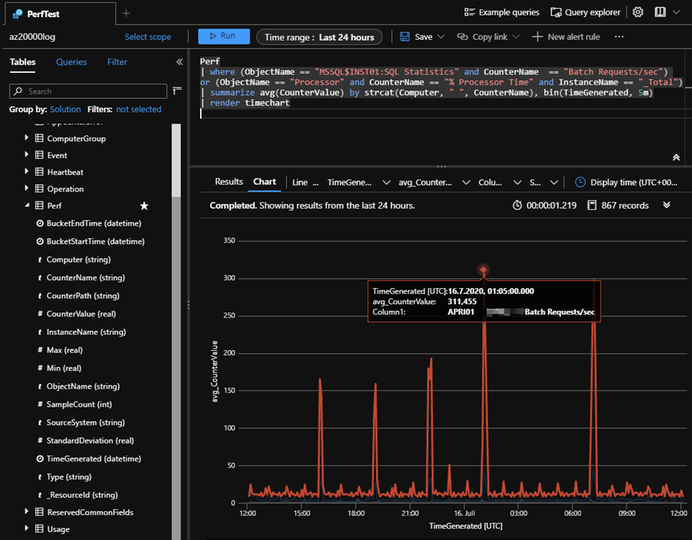
If you ever saw performance problems in your ConfigMgr environment and if you are interested in an easy way to create a ConfigMgr performance baseline, this is the right article for you. I am explaining the concept and setup and provide a list of useful performance counters in the: “List of useful performance counters” section below. Analyzing the gathered data will be a topic for a next article though, but you will be able to output something like shown in the picture below:
A baseline as a starting point:
When you encounter a performance issue in you environment you might not be able to tell if that is just the result of a normal increase in usage and you simply need more CPU or RAM or if what you encounter is an anomaly were you need to find the root cause to be able to get back to normal without the extra need for resources.
A baseline can help you answer this very basic question and then act before the real problem starts.
So, if you have gathered data for about a month or so and you see something like this:
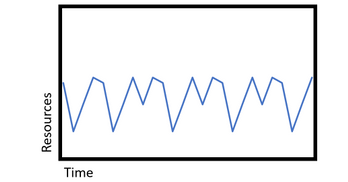
You have your baseline with some ups and downs, and you should be able to tell, if the next performance decrease is just a normal increase in usage (as shown in the left picture below) or an anomaly which you need to analyze and fix (as shown in the right picture below). (A very simplified graphic visualization)
The setup options:
As mentioned before, I am using Azure Monitor/Azure Log Analytics to monitor my on-premises environment and Log Analytics gives me two options to send data to the Log Analytics service.
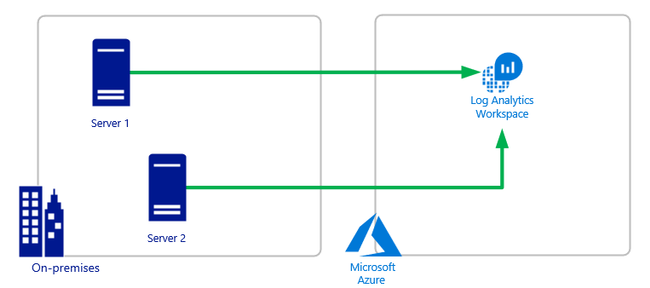
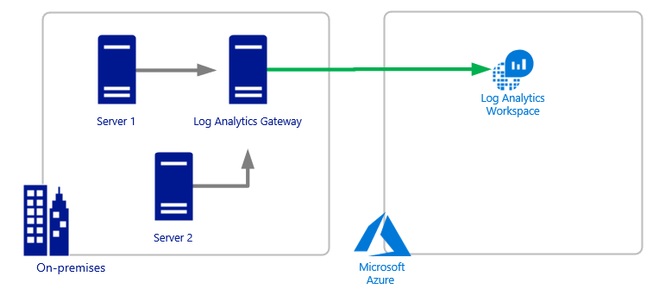
You can either send the data directly from the monitoring agent (running on the local machine) to Azure Log Analytics (see option 1 below) or use the Azure Log Analytics Gateway if not every machine has direct access to the internet (see option 2 below).
Since my machines have direct access, I simply installed the Log Analytics agent on them and used option 1 (see above) to send performance data to my workspace and I followed the following steps:
Step 1: Create Log Analytics workspace
All you need is an Azure Subscription where you can create an Azure Log Analytics workspace. The steps are documented here: Create workspace
Step 2: Install Log Analytics agent
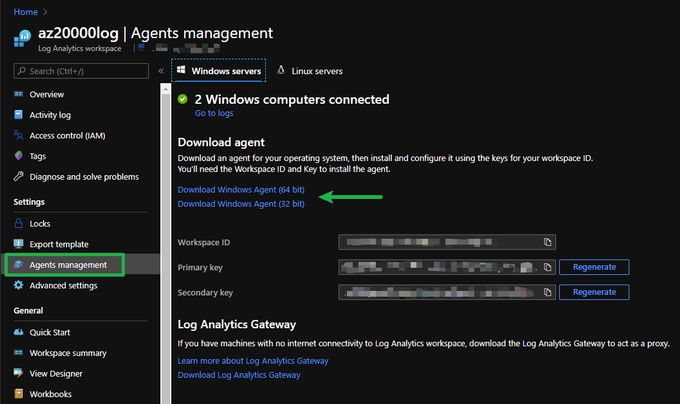
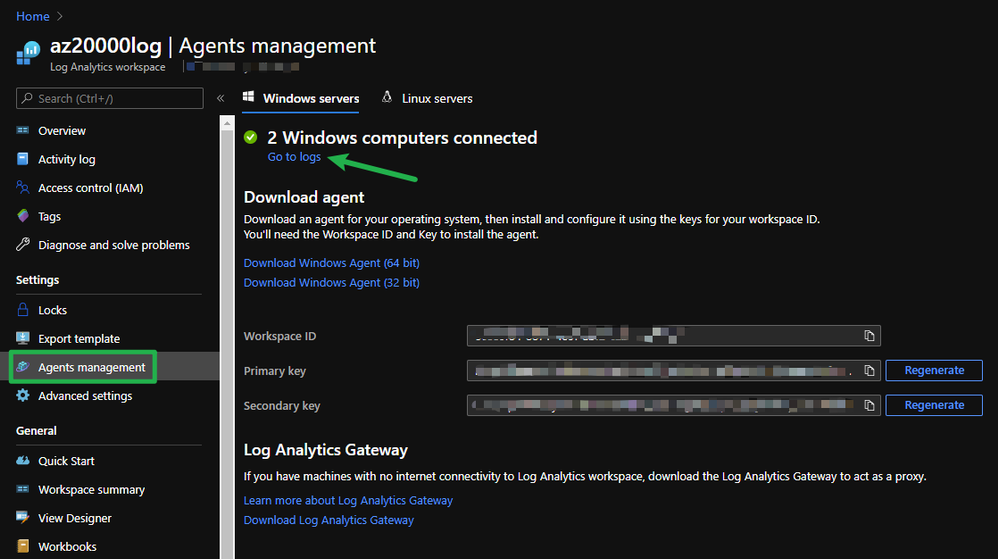
Go to your new Log Analytics workspace and click on “Agents management” to download the Log Analytics agent to the machines you would like to monitor.
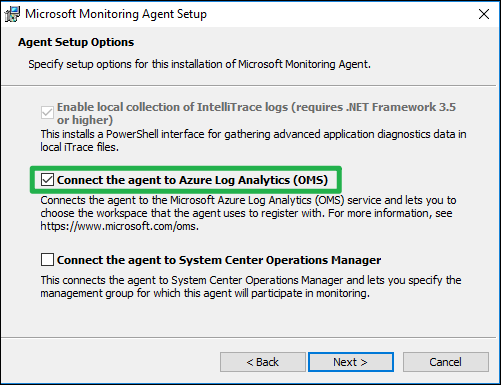
During the agent setup select “Connect the agent to Azure Log Analytics (OMS)” and click “Next”.
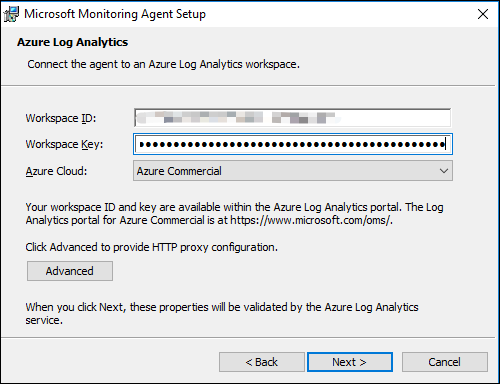
On the next page you need to copy and paste the “Workspace ID” and the “Primary Key” from the “Agents management” site we used earlier to point the agent to the correct workspace. If you need to set up a proxy for the connection, you can do this via the “Advanced” button.
Step 3: Verify connectivity
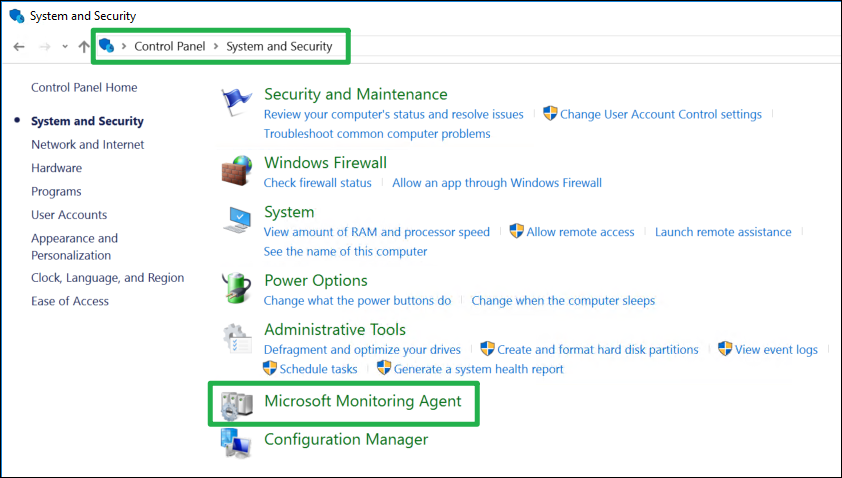
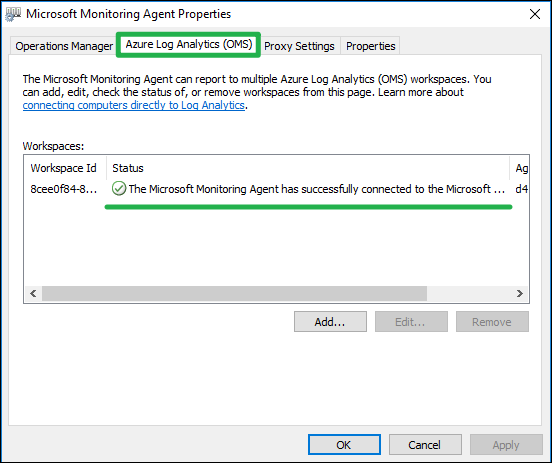
You can find the installed “Microsoft Monitoring Agent” in Control Panel under “System and Security”. (you will find multiple names for the agent in the documentation)
On the “Azure Log Analytics (OMS)” tab you can verify the successful connection to you Log Analytics workspace:
If you go back to the “Agents management” site in your Log analytics workspace, you can click on “Go to logs” to verify the successful connection of your agents.
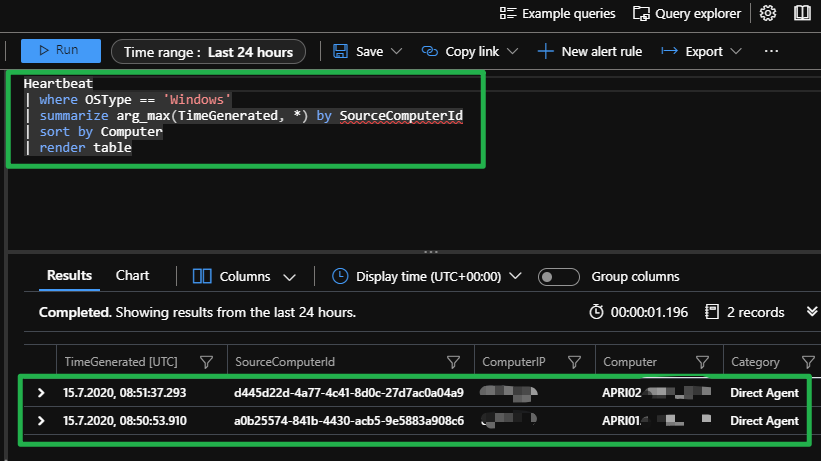
You should be redirected to the “Logs” section, where the following query should output your connected machines.
Keep in mind that it can take a minute for the first data to show up and you might need to click on “Get started” if you see the page for the first time:
If not, go to “Logs” and run the following query:
Heartbeat
| where OSType == ‘Windows’
| summarize arg_max(TimeGenerated, *) by SourceComputerId
| sort by Computer
| render table
Defining the baseline
All you have to do is to add the needed performance counters and let the agent gather the data.
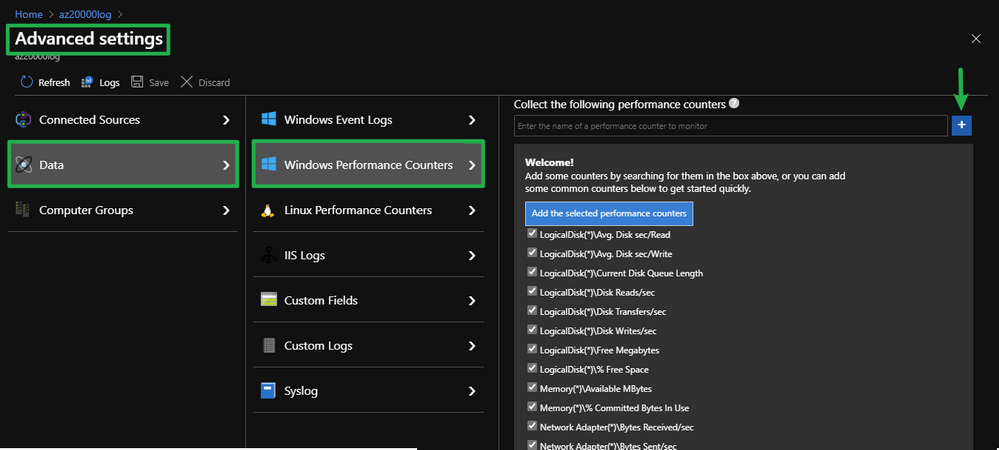
Go to “Advanced settings” in your “Log Analytics workspace“ and click on “Data”, “Windows Performance Counters” and add the counters you like with the plus sign:
For most default counters you can simply use the search box next to the plus sign and add them, but what if we need to add some counters not in the list, the ConfigMgr counters for example?
I wrote a little script called “Get-PerfCounterList.ps1” to help you find the correct counter names and be able to easily copy and paste them into Log Analytics.
IMPORTANT: Run the script as an administrator on the machine you want to monitor with Log Analytics, otherwise only a subset of counters might be visible.
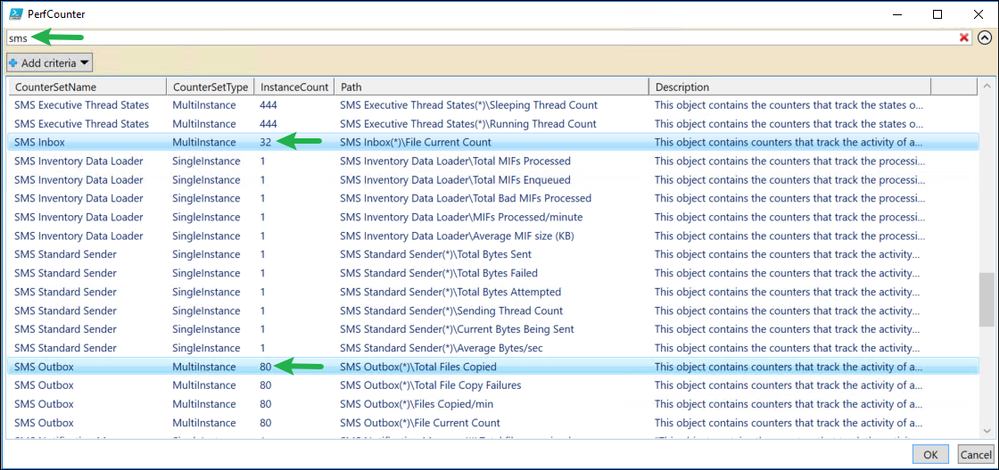
The output is a simple grid view showing you all the available performance counters on the machine.
And if you filter for “SMS” for example, you get a list of the ConfigMgr counters and the path you need for Log Analytics.
All you have to do is to choose the counter you like to monitor and copy the path into the counter search field in Log Analytics and hit the plus sign to add the counter to the list.
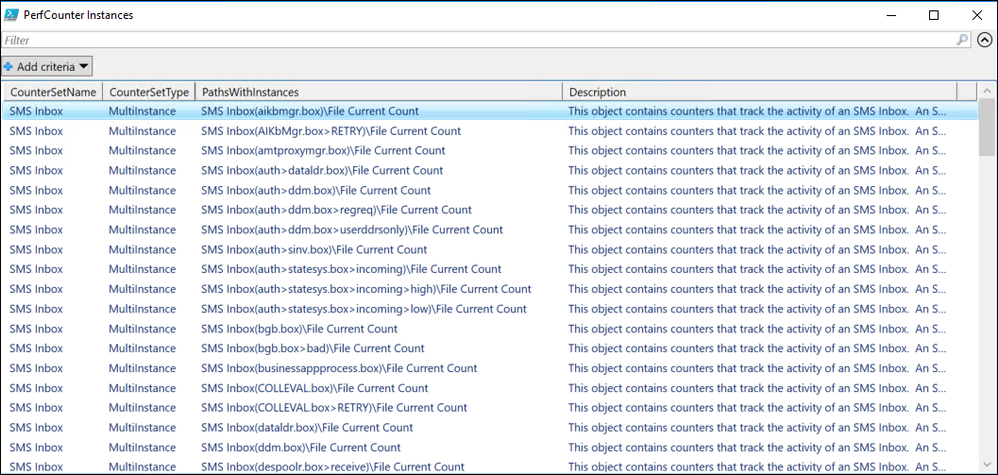
If there are multiple instances available (as shown in the screenshot above via the green arrows) you can select multiple counters in the grid view and click on “OK” to get another grid view of those specific instances and the correct path names:
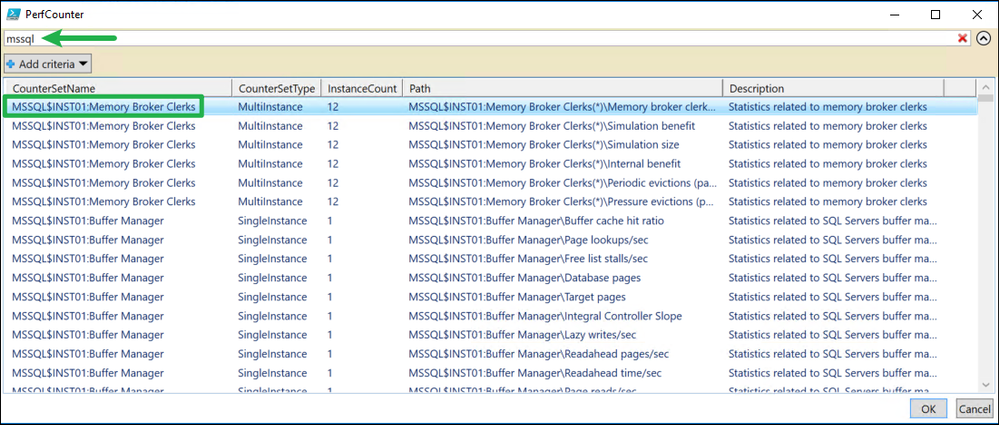
The script is also helpful if you use a named instance to store your ConfigMgr SQL DB, because you then need the exact name of the performance counter.
Since I am using a SQL instance called “INST01”, my counters look like this for example: “MSSQL$INST01:Memory…” instead of “SQLServer:Memory…”:
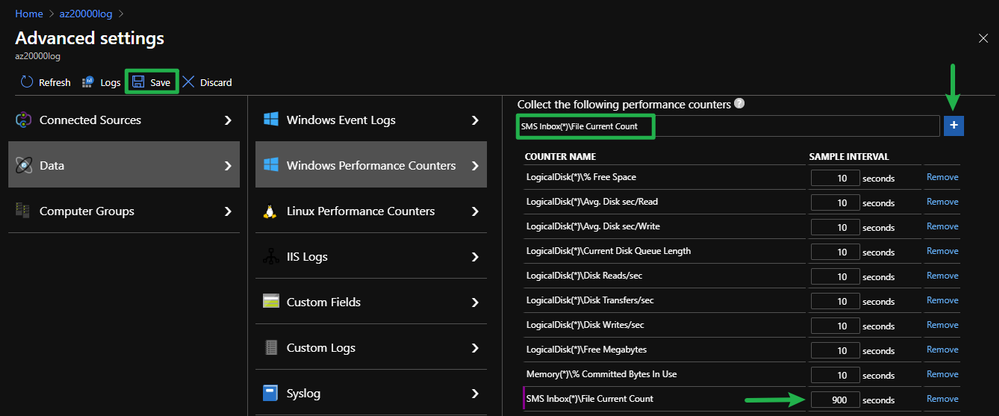
As mentioned before, simply copy and paste the counter you like into the search bar and click on the plus sign next to it:
I added the “SMS Inbox(*)File Current Count” counter in my example and since the counter will only be refreshed every 15 minutes locally, I set the sample interval to 900 seconds.
Since the counter has 32 instances and each instance will have an entry in Log Analytics, the higher sample interval will limit the data which needs to be stored in Log Analytics.
(At the time of writing the maximum sample interval was 1800 seconds (30 minutes))
When you are done adding all the needed counters, click on “Save” and the counter configuration will automatically be sent to every connected agent.
Sizing estimates
The actual amount of data stored in Log Analytics depends on the sample interval per counter, the number of counters, the number of instances per counter and the number of agents sending data to the workspace.
Use the script mentioned above to see how many instances each counter has and check if each instance is needed or if just a subset is enough to get the baseline you need and adjust the sample interval to save storage space if needed.
You will find more details about that topic in the Log Analytics documentation:
I will not explain every counter in detail, because that would be an article on its own, instead I will add some notes to some of them, if I feel that’s important to the baseline for ConfigMgr.
It is also not a complete list of counters, but the list should give you the most useful data for your baseline.
Use the search term: “Windows Performance Counters Explained” to find resources about the counters and how they are helpful.
Operating System related:
LogicalDiskAvg. Disk sec/Read LogicalDiskAvg. Disk sec/Write LogicalDiskCurrent Disk Queue Length LogicalDiskDisk Reads/sec LogicalDiskDisk Transfers/sec LogicalDiskDisk Writes/sec Memory% Committed Bytes In Use MemoryAvailable Mbytes MemoryPage Reads/sec MemoryPage Writes/sec Network AdapterBytes Received/sec Network AdapterBytes Sent/sec Network InterfaceBytes Total/sec Processor(_Total)% Processor Time SystemProcessor Queue Length
SMS Software Metering ProcessorSWM Usage Records Processed/minute
SMS State SystemMessage Records Processed/min
SMS Status Messages(*)Processed/sec
IIS related:
Web Service(*)Bytes Sent/sec
Web Service(*)Bytes Received/sec
Data visualization
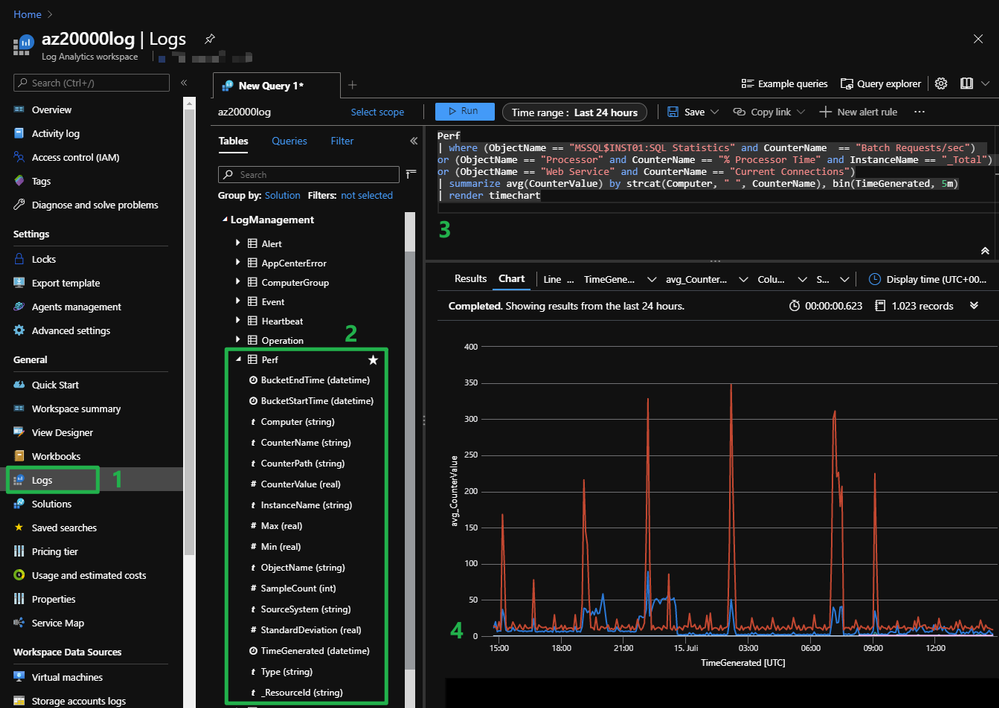
To analyze the gathered data, got to your Azure Log Analytics workspace and click “Logs” (1).
The actual data is stored in the “Perf” table (2) under “LogManagement” and can be queried via the query window (3) using KQL (Kusto Query Language).
In my example, the output is a “timechart” (4), but it can be any type of output Azure Log Analytics is capable of.
The query I am using is just an example, because analyzing the data is a topic on its own and might be worth another article. Other example queries can be found here: LINK
Data preview:
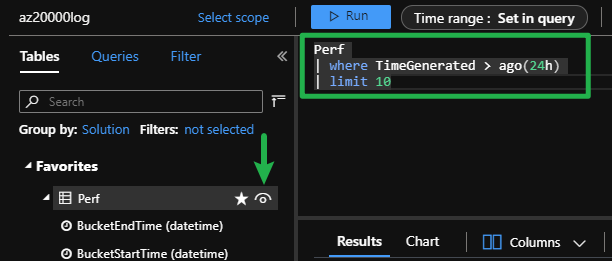
By clicking on the preview icon (see below) you will get a result set with 10 entries back, which helps to explore the gathered data and to finetune your KQL queries:
Alerting and monitoring:
You can create alerts and send out notifications when certain criteria are met, like CPU is at 90% for the last 15 minutes, or a ConfigMgr inbox has over 1000 files in it for the last hour or so and you have the ability to use multiple reporting features to visualize the data like, Azure Monitor Workbooks, Azure Portal Dashboards or PowerBI reports.
I will not explain those topics in this article, since each part would be a topic for its own article. Instead I provide you with a list of links to the documentation if you want to start right away:
Azure Log Analytics / Azure Monitor gives you an easy way of gathering performance data and building your ConfigMgr performance baseline and with KQL and the Alerting feature you have powerful tools to analyze the data and generate alerts when needed.
Have fun monitoring your environment and let me know what you think
Jonas Ohmsen
Microsoft Germany
Disclaimer:
This posting is provided “AS IS” with no warranties, and confers no rights
Every fifteen minutes poachers kill an African elephant. If this continues, elephants will become extinct within ten years. This situation, once desperate, is now dire. And not just for elephants. Grizzly bears, orangutans, lions, and more are also disappearing. Accepting the status quo means losing earth’s treasures, one by one.
But it does not have to be like this.
What if we could save these elephants and other creatures, based on what IoT solutions we already have? Why not use RFID tags and defined MCU sectors that now prevent shoplifting in retail stores to identify when an individual pangolin is stolen? Or repurpose heat mapping cameras that track customer behavior to recognize immediately if a hippo has been off on its own? What if we could learn in real-time, by means of solar-powered drones that monitor oil pipelines, whenever a predator has culled the herd, or a new baby elephant has been born? What about replicating smart cities as smart savannahs?
This is the mission of Microsoft’s Project 15: An animal conservation initiative created to put a spotlight on the problem at hand. Named in recognition of the frequency with which elephants are poached, Project 15 aims to raise awareness in our partner ecosystem and develop positive change through collaboration and IoT technology. To build a bridge for the scientific community to see what solutions we have already, to create the connection to talk to us and our partner ecosystem directly and work to get these problems solved and solutions built out on Azure, the World’s Computer. How can we help?
Hackster.io and Smart Parks are coming together with leading technology and conservation partners to protect the gentle giants in their natural habitats.
Elephant deaths and abuse like those pictured below are much too common, but they can be stamped out with stronger legislation, law enforcement, and conservation. In order to make that a reality, pro-conservation teams need to better data on what is happening, something our collaboration and technology are perfectly positioned to provide.
We’re inviting all Students to join Hackster,io and help develop the world’s most advanced elephant tracking collar, which can help park rangers reduce animal loss from illegal ivory poaching, trophy hunting, human conflict, and environmental degradation. With #ElephantEdge, we’re calling on the community to build ML models using the Edge Impulse Studio and tracking dashboards using Avnet’s IoTConnect, which will be deployed onto 10 production-grade collars manufactured by our engineering partner, Institute IRNAS, and deployed by Smart Parks.
Build machine learning models:
Build ML models with Edge Impulse that will be used for collar deployments. These new models will create a new Human to Elephant Language,powered by TinyML, that will help conservation efforts:
Poaching Risk Monitoring: Build models that can identify an increased risk for poaching. Example: Know when an elephant is moving into a high-risk area and send real-time notifications to park rangers.
Human Conflict Monitoring: Build models and dashboards that can prevent conflict between humans and elephants. Example: Sense and alert when an elephant is heading into an area where farmers live. This collar could detect human presence by scanning if any mobile phones or WiFi hotspots are near, by tapping the available radio modules (Nordic Semiconductor nRF52840, NINA-B30x BLE, Semtech LR1110).
Elephant Musth Monitoring: Build models and dashboards that can recognize when an elephant bull is in musth (a periodic condition in male elephants characterized by highly aggressive behavior and accompanied by a large rise in reproductive hormones). Example: Utilize the motion and acoustic sensors to discern this state of erratic, loud, and aggressive behavior.
Elephant Activity Monitoring: Build models and dashboards that can classify the general behavior of the elephant, such as when it is drinking, eating, sleeping, etc. Example: Detect and report the elephant activity by using accelerometer data. Or go more advanced and use a water detection sensor to see when the elephant goes swimming, drinking, or digging for water.
Elephant Communication Monitoring: Build models and dashboards that can listen for vocal communications between elephants via the onboard microphone. Example: Use sound-recording technology to listen to their vocalizations. Here’s how.
This is an urgent problem that no one has totally solved. Do you have completely out-of-the-box ideas that have never considered?
Courtesy of Alasdair Davies fromArribada.org: Github repo and sensor data containing thermal elephant dataset collected at the ZSL Whipsnade Zoo, made available for use by anyone wishing to train their own models using Edge Impulse for the ElephantEdge competition ( (GPLv3).
Build IoT tracking dashboards:
Build an IoTConnect dashboard that will be used for collar deployments and help park rangers, track, monitor, and get on-demand alerts that are critical to conservation efforts:
Simulate dashboards that track location and leaving protected areas
Build dashboards that report the frequency of entering high-risk areas
Monitor and infer active period vs resting period for the elephants
Simulate alerts when activity deviates from the expected range
Alerts to replace batteries or when a collar malfunctions, goes offline
Design and ideate any other telemetry data and inference
The new collar will use the following hardware and software:
STMicroelectronics LIS2DW12ultra-low-power high-performance three-axis MEMS accelerometer, with configurable single/double-tap recognition, free-fall, wakeup, portrait/landscape, and 6D/4D orientation detections
STMicroelectronics LSM303AGRultra-compact high-performance eCompass module, with a 3D digital linear acceleration sensor and a 3D digital magnetic sensor
STMicroelectronics MP23ABS1high-performance MEMS audio sensor with single-ended analog bottom-port microphone
You do not need any hardware to build the ML models. Use datasets to sample, analyze, and build your TinyML models. You can also use your mobile phone to run simulated data collections and deployment.
You do not need specific hardware to build the dashboards.Use any hardware you already have, from Arduino to Microchip, Seeed, Adafruit to STMicroelectronics, to send data to the IoTConnect platform.
Final software and hardware will be documented and shared freely under the open source license of opencollar.io. Thank you for participating!
Additional Resources
To help you get started on Machine Learning, Data Analysis and Data Visualizations and IOT we have Microsoft Learn.
Microsoft Azure for Students
No credit card needed Simply verify your student status through your school email address, and you’re ready to go with$100in credit.
Free developer tools
Build your skills in trending tech including data science, artificial intelligence (AI), machine learning, and other areas with access to professional developer tools.
This article is contributed. See the original author and article here.
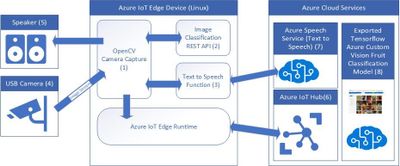
There are lots of applications for image recognition but what I had in mind when developing this application was a solution for vision impaired people scanning fruit and vegetables at a self-service checkout.
This article is contributed. See the original author and article here.
Today we are super pleased to announce another milestone in the Surface journey with the release of a major new form factor.
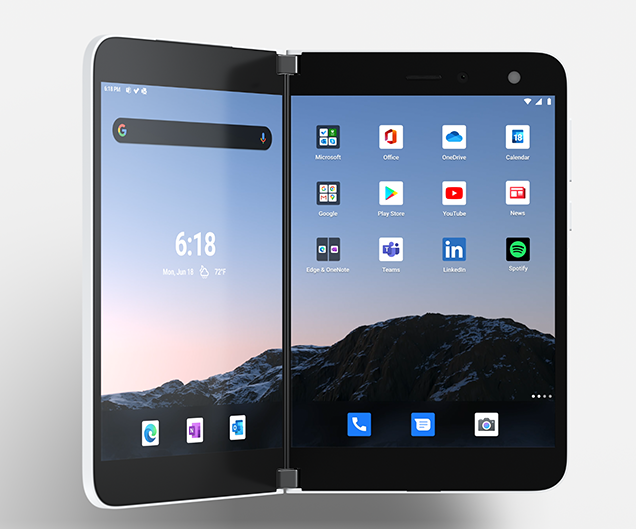
Unveiled today and shipping September 10, Surface Duo represents the next wave of mobile productivity, inspiring people to rethink what is possible with the device in their pocket. Surface Duo delivers the easiest way to multitask on the go, bringing together the power of Microsoft 365 experiences and the full ecosystem of Android mobile apps. Starting at $1,399, Surface Duo opens into the thinnest mobile device on the market with an 8.1″ PixelSense Fusion display connected by a revolutionary 360-degree hinge, allowing you to use each 5.6″ display individually or together, across a variety of modes. Do more wherever you are with Surface Duo.
Commercial customers can go here to find a commercial reseller for Surface Duo. You can get technical documentation about managing Surface Duo from our newly published site on Microsoft Docs with more content coming soon.
Enterprise-level security from chip to cloud
Surface Duo has protection built in at every layer with deeply integrated hardware, firmware, and software to keep your devices, identities, and data secure. Part of what makes this happen is that we built in our custom engineered Unified Extensible Firmware Interface (UEFI) which enables full control over firmware components. Microsoft delivers Enterprise-grade security to Surface Duo by writing or reviewing every line of firmware code in house, enabling Microsoft to respond directly and agilely, to potential firmware threats and to mitigate supply chain security risks. To learn more, check out the Surface Duo security overview.
Another new capability that also helps raise the bar on productivity is the option of connecting to a full Windows 10 experience in the cloud with Windows Virtual Desktop. To learn more, take a look at Windows Virtual Desktop on Surface.
Simply put, Surface Duo is a perfect fit for the modern workplace.
Stay in control with cloud-based management
You can manage the entire Surface Duo experience for employees and protect work data with a variety of mobile device management (MDM) options, including Microsoft Intune.
We understand how challenging it can be to balance the needs of your end users bringing their own device (BYOD) with enterprise requirements to protect corporate data. Intune app protection helps address this balance by protecting data without requiring users to enroll their device into their company portal. App protection policy settings only take effect when handling corporate data such as using Outlook to send a draft presentation for review. If the same user logs into Outlook with a personal account, the app protection policies have no effect.
Intune lets you manage Google play to distribute line of business and store applications to your non- enrolled devices in the app protection scenario. All this helps make App protection and Android enterprise work profiles the most implemented MDM scenarios. And that’s the reason we designed Surface Duo to be fully optimized for both. You can also manage Surface Duo in highly managed, corporate-owned device scenarios using Full device management or Dedicated device management.
In addition to the existing checks, the new implementation has the following additional checks.
The new implementation stores and uses a historical snapshot of the database state information to decide if the AG needs to be marked in error state or not. The health check routine caches the database state and associated error information, for the last three executions, which is then compared with the state information from the current execution of the health detection routine. If the same error condition (for the below mentioned error codes) exists in the four consecutive runs of the health detection routine, a failover is initiated. So for example if during the first run, let’s say at 22:00:00 there is an error 823, and the same error conditions exists at the subsequent runs at 22:00:10, 22:00:20 and 22:00:30 then the AG is marked in an error state and the control is passed to the cluster. This implementation is intended to provide safeguards against transient errors and issues which can be fixed by the auto page repair capabilities of the availability groups.
The new implementation checks for following additional errors. Majority of these errors are indicative of a hardware issues on the server. Please note, that this is not an exhaustive list of errors which could impact the database availability. There is an outstanding item to include error 824 to this list.
If we enable this feature, to make sure AG can failover successfully, we need to change the default failover policy.
The default “max restarts in the specified Period =1 in 1 hour
The default “max failure in the specified Period” =1 in 6 hours
Based on this settings, if the 823 error reported but this error could not be repaired from the secondary replica:
Detected 823 in 3 generation(30s)
WFSC got the error state from the AG controller, restarted the AG resource. –DB level error won’t prevent AG resource restart, the restart always works fine.
The failure count +1, the restart count+1
If continue detect 823 again—>AG offline. No failover because it reach to “max failure in the specified Period” =1. no more action took.
Recommend setting : “max failure in the specified Period” >=“max restarts in the specified Period+1 at least. Then all restart attempt finished but the issue still is detected, next time failover will trigger.
This article is contributed. See the original author and article here.
2020 has been a challenging year for everyone and good news has been hard to come by ,this is why we are excited to announce that System Center Operations Manager 2019 has come out with Update Rollup 2 to elevate your monitoring spirits!
Update Roll Up 2 for System Center Operations Manager 2019 was released last week and there are some cool new features to explore .This blog will briefly go through these features to get you plugged in and ready to go .
To begin with we have the management pack change tracking supported to finally be able to audit certain changes being done in SCOM. It is a feature that many SCOM users, administrators and customers have been waiting for.
In System Center Operations Manager user roles are defined to determine as to who can potentially change monitoring settings for applications and services through management packs. Various user roles (profiles) are defined to access and perform actions on the monitored objects. There can be multiple users associated with a single user role and these users interact with SCOM to monitor data relevant to their role. A profile is defined on a group of users which impose Role-based security and limit privileges that users have for various aspects of Operations Manager. When multiple users access and change the same object it becomes difficult to track, WHAT changes are done by WHOM and WHEN?
For SCOM customers with large scale environments this exercise can sometimes seem as daunting as looking for a needle in a haystack! With the change tracking feature enabled these time consuming and frustrating activities can be carried out in a matter of minutes .Admin users can now easily identify root causes for issues caused due to changes done by any user in SCOM. Once the changes are identified the admin can choose to undo them if needed.
To overcome this challenge, SCOM 2019 UR2 has enabled Change Tracking by default which tracks and reports all the changes on the management packs and management pack objects. All these changes are logged in Operations Manager Datawarehouse Database and you can generate reports on it.
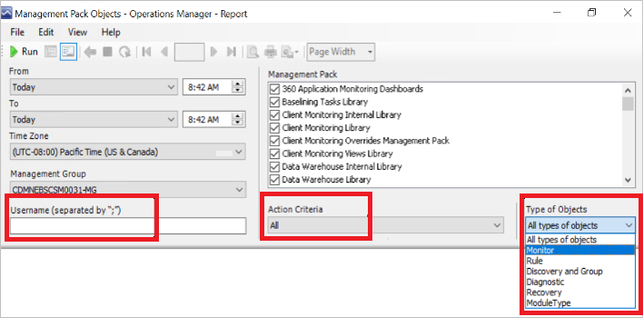
There are 3 new reports created in SCOM to show these changes. They are present under Reporting -> Microsoft Generic Report library as “Management Pack History”, “Management Pack Objects”, “Overrides Tracking”. These reports have the filtering enabled so you can track and report the changes as per your need. The section below gives an overview of each report:
Management Pack History
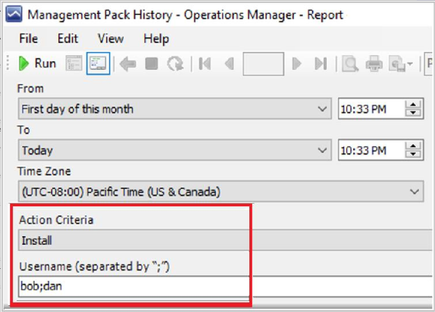
The management pack history report generates the list of all the management packs, which are either imported or deleted on any management server in your management group. You can filter the report by date, action, and username.
You can find an example of how the filters and reports look like below:
Sample Report:
Management Pack Objects
This report tracks and generates the list of all management pack objects, which are newly created or deleted from the management server. This report also tracks edits on management pack objects like renaming a group/monitor/rule or adding/deleting a member in the group etc.
You can find an example of how the filters and reports look like below:
Sample Report:
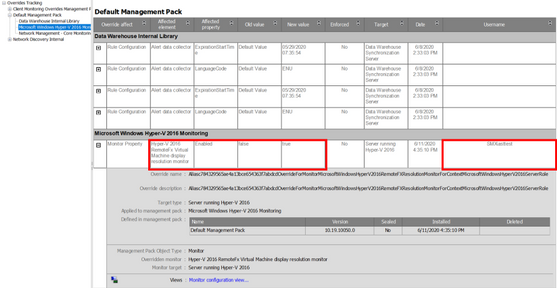
Overrides Tracking
Overrides are created to tune monitoring. Multiple user roles can create these overrides in Operations Manager. When different users create overrides, it becomes crucial to track and capture the user who made these changes and when.
To view detailed information for every changed parameter, expand each of the rows, the results are grouped by management pack name.
You can find an example of how the filters and reports look like below:
Sample Report:
Customers have been asking for enhancements of the schedule maintenance mode feature in SCOM and we have been listening!
As we all know schedule maintenance mode feature was introduced in SCOM 2016 where SCOM admins can choose a time in future to put the machines in maintenance mode. SCOM customers have 1000s of agents monitoring their infrastructure environments. They usually patch these agents in groups at predefined schedules which may or may not be recurring in nature.
Users who are patching the agents are generally different from admin users and conflicting maintenance mode schedules can lead to the undesirable scenario of SCOM generating multiple alerts. Based on feedback received from our customers we have included some enhancement to this critical feature to help customers ensure seamless business continuity.
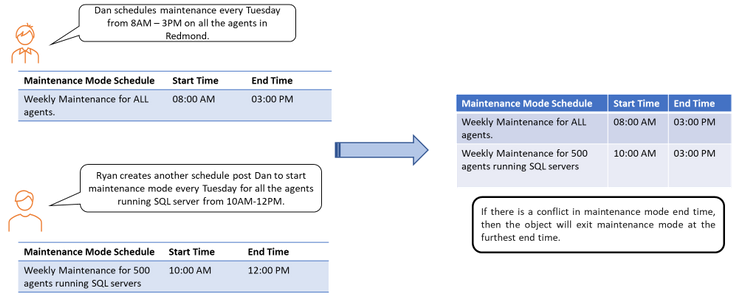
With 2019 UR2, if there is a conflict in maintenance mode end time, then the object will exit maintenance mode at the furthest end time defined for the object.
Below is an example to illustrate this feature:
Let’s talk about the Web Console!
It has been our continued focus to give customers a consistent user experience in the Web Console. We have now included the Favorite Reports feature and support for folders in the monitoring view of web console in SCOM 2019 as well.
Without Favorite Reports ,running ad-hoc SCOM reports on a regular basis can be time consuming for users going about their day to day tasks ,as it adds the overhead of also launching the Operations Console .But this pain point will now be a thing of the past as Favorite Reports feature is now available in the Web Console as part of SCOM 2019 UR2 .
To further allow efficient organization and easy access to important dashboards and views users can also create folders and place dashboards inside them in SCOM 2019 UR2.
We also continue to invest in enhancing the cross-platform monitoring capabilities of SCOM to cater to the rapidly increasing diverse environments. Operations Manager 2019 UR2 now also supports CentOS 8 under Universal Linux (RPM package).
Here is a list of supported Linux distributions on SCOM 2019 as of UR2:
Red Hat Enterprise 7 and 8
Suse Enterprise 12 and 15
OpenSuse Leap 15
Debian 8 and 9
Ubuntu 16.04 and 18.04
CentOS 6,7 and 8
Oracle Linux 6 and 7
Silect Dashboards for SCOM
Last but not least the new Silect dashboards for System Center Operations Manager leverage the interactive visualizations and business intelligence capabilities of Power BI to provide you with an in-depth look at the state of your IT infrastructure. View and easily share rich visualizations of the operational state of your IT environment including alert information, management pack activities, details on the state of critical SCOM components and much more. More Information https://www.silect.com/dashboards-for-scom/.
Some of you got the opportunity to try out of the preview of the Update Roll up 2 of SCOM 2019 and the feedback has been very encouraging!!
Additionally, fixes for critical defects continue to be a part of UR2. Find more details at the following link:
This article is contributed. See the original author and article here.
Update 2006 for Microsoft Endpoint Configuration Manager current branch is now available. Microsoft Endpoint Manager is an integrated solution for managing all your devices. Microsoft brings together Configuration Manager and Intune into a single console called Microsoft Endpoint Manager admin center.
On our minds and we are sure yours too, are the challenges posed with working from home. Previously we have blogged some guidance for these scenarios.
In March, we made the decision to close the Microsoft Redmond campus and ask all of our engineers to work from home for three weeks to help curb the spread of COVID19. At the time, three weeks sounded like a long time – little did we know that 6 months later we would still not set foot on campus. It was certainly an adjustment for everyone – but fortunately the tools and investments that Microsoft made in the name of employee flexibility and empowerment (Cloud identity using Azure Active Directory, Cloud provisioning using AutoPilot, Cloud Management from Microsoft Endpoint Configuration Manager and Intune ) also enabled employees to more easily work from home.
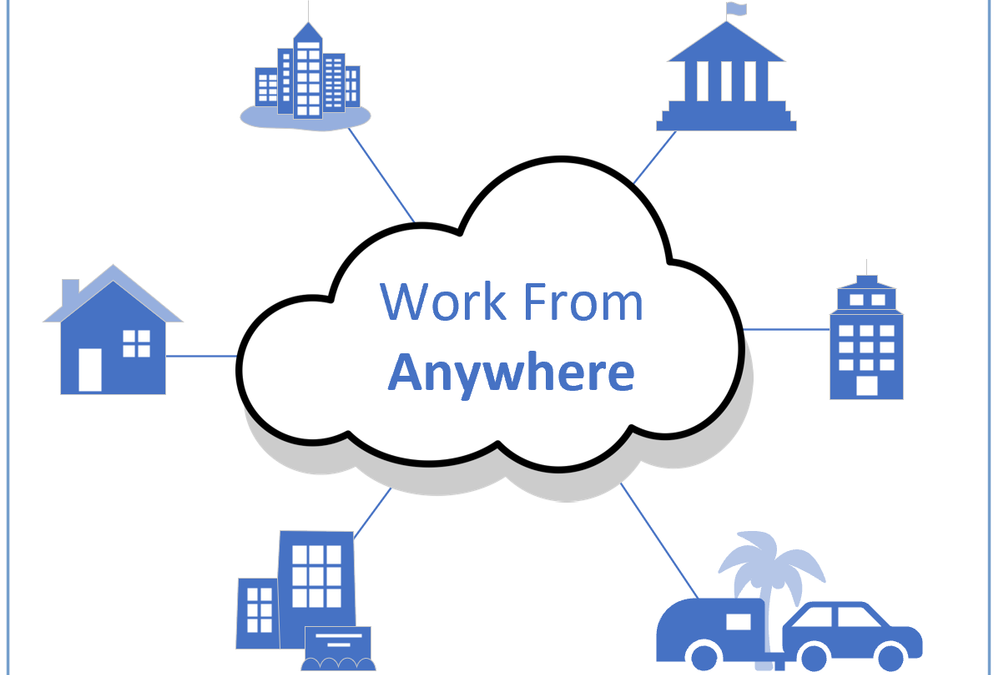
work from anywhere
But of course as we were forced to rely on our tools to work remotely 100% of the time, we found opportunities to improve: allowing clients to upgrade on metered networks, making it easier to download content from the cloud instead of a VPN, and simplifying remove provisioning among other things. So, we committed to focusing our ConfigMgr 2006 release on making these improvements and making them available to you.
Look below for the Work from Anywhere tag to find these features and others.
This release is brought to you by team members in Florida, Washington, British Columbia, Massachusetts, Pennsylvania, Maine, North Carolina, Michigan, Utah, California, Georgia, Shanghai and Suzhou China, and ‘Undisclosed’ – and we hope it will help make it easier to continue to manage your devices wherever they may be.
This release includes:
Microsoft Endpoint Manager tenant attach
Import previously created Azure AD application during tenant attach onboarding – During a new onboarding, an administrator can specify a previously created application during onboarding to tenant attach.
Endpoint Analytics
Endpoint Analytics Preview – the Endpoint Analytics preview is available. Endpoint analytics can help identify policies or hardware issues that may be slowing down devices and proactively make changes without disrupting end users or generating a help desk ticket.
Endpoint analytics data collection enabled by default – In 2006, the Enable Endpoint analytics data collection client setting is now enabled by default for tenants attaching for the first time. This setting allows your managed endpoints to send data, such as startup performance insights, to your Configuration Manager site server. This change affects local data collection only. Endpoint analytics data isn’t uploaded to the Microsoft Endpoint Manager admin center until you enable data upload in Configuration Manager. The new default value applies to the default client settings and any custom client settings created after upgrading to version 2006.
Site infrastructure
VPN boundary type – To simplify managing remote clients, you can now create a new boundary type for VPNs. Previously, you had to create boundaries for VPN clients based on the IP address or subnet. Now when a client sends a location request, it includes additional information about its network configuration. Based on this information, the server determines whether the client is on a VPN.
Management insights to optimize for remote workers – This release adds a new group of management insights, Optimize for remote workers. These insights help you create better experiences for remote workers and reduce load on your infrastructure. The insights in this release primarily focus on VPN:
Define VPN boundary groups
Configure VPN connected clients to prefer cloud-based content sources
Disable peer to peer content sharing for VPN connected clients
Improved support for Windows Virtual Desktop – The Windows 10 Enterprise multi-session platform is available in the list of supported OS versions on objects with requirement rules or applicability lists.
Intranet clients can use a CMG software update point – Intranet clients can now access a CMG software update point when it’s assigned to a boundary group. You can allow intranet devices to scan against a CMG software update point in the following scenarios:
When an internet machine connects to the VPN, it will continue scanning against the CMG software update point over the internet.
If the only software update point for the boundary group is the CMG software update point, then all intranet and internet devices will scan against it.
Cloud-attached management
Notification for Azure AD app secret key expiration – If you configure Azure services to cloud-attach your site, the Configuration Manager console now displays notifications for the following circumstances:
One or more Azure AD app secret keys will expire soon
One or more Azure AD app secret keys have expired
Use Microsoft Azure China 21Vianet for co-management – You can now select the Azure China Cloud as your Azure environment when enabling co-management.
Real-time management
The following improvements have been made in CMPivot –
CMPivot from the console and CMPivot standalone have been converged
Run CMPivot from an individual device or multiple devices without having to select or create a collection
From CMPivot query results, you can select an individual device or multiple devices then launch a separate CMPivot instance scoped to your selection.
Client management
Install and upgrade the client on a metered connection –Previously, if the device was connected to a metered network, new clients wouldn’t install. Existing clients only upgraded if you allowed all client communication. Starting in this release, client install and upgrade both work when you set the client setting Client communication on metered internet connections to Allow or Limit. With this setting, you can allow the client to stay current, but still manage the client communication on a metered network.
Improvements to managing device restarts – Configuration Manager provides many options to manage device restart notifications. You can now configure the client setting Configuration Manager can force a device to restart to prevent devices from automatically restarting when a deployment requires it. By default, Configuration Manager can still force devices to restart
Application management
Improvements to available apps via CMG – This release fixes an issue with Software Center and Azure Active Directory (Azure AD) authentication. For a client detected as on the intranet but communicating via the cloud management gateway (CMG), previously Software Center would use Windows authentication. When it tried to get the list of user-available apps, it would fail. It now uses Azure Active Directory (Azure AD) identity for devices joined to Azure AD. These devices can be cloud-joined or hybrid-joined.
Microsoft 365 Apps for enterprise – Office 365 ProPlus was renamed to Microsoft 365 Apps for enterprise on April 21, 2020. Starting in version 2006, the following changes have been made:
The Configuration Manager console has been updated to use the new name. This change also includes update channel names for Microsoft 365 Apps.
A banner notification was added to the console to notify you if one or more automatic deployment rules reference obsolete channel names in the Title criteria for Microsoft 365 Apps updates.
Operating system deployment
Task sequence media support for cloud-based content – Task sequence media can now download cloud-based content. Instead of further taxing the WAN to download large OS deployment content, boot media and PXE deployments can now get content from cloud-based sources.
Improvements to task sequences via CMG – This release includes the following improvements to deploy task sequences to devices that communicate via a cloud management gateway (CMG):
Support for OS deployment: With a task sequence that uses a boot image to deploy an OS, you can deploy it to a device that communicates via CMG. The user needs to start the task sequence from Software Center.
This release fixes the two known issues from Configuration Manager current branch version 2002. You can now run a task sequence on a device that communicates via CMG in the following circumstances:
You configure the site for Enhanced HTTP and the management point is HTTP
Improvements to BitLocker task sequence steps
You can now specify the disk encryption mode on the Enable BitLocker and Pre-provision BitLocker task sequence steps. By default, the steps continue to use the default encryption method for the OS version.
The Enable BitLocker step also now includes a setting to Skip this step for computers that do not have a TPM or when TPM is not enabled. When you enable this setting, the step logs an error on a device without a TPM or a TPM that doesn’t initialize, and the task sequence continues.
Management insight rules for OS deployment – When the size of the task sequence policy exceeds 32 MB, the client fails to process the large policy. The client then fails to run the task sequence deployment. To help you manage the policy size of task sequences, this release includes the following management insights:
Large task sequences may contribute to exceeding maximum policy size
Total policy size for task sequences exceeds policy limit
Improvements to OS deployment – This release includes the following additional improvements to OS deployment:
Use a task sequence variable to specify the target of the Format and Partition Disk step. This new variable option supports more complex task sequences with dynamic behaviors.
The Check Readiness step now includes a check to determine if the device uses UEFI. It also includes a new read-only task sequence variable, _TS_CRUEFI.
If you enable the task sequence progress window to show more detailed progress information, it now doesn’t count enabled steps in a disabled group. This change helps make the progress estimate more precise.
Previously, during a task sequence to upgrade a device to Windows 10, a command prompt window opened during one of the final Windows configuration phases. The window was on top of the Windows out-of-box experience (OOBE), and users could interact with it to disrupt the upgrade process. Now the SetupCompleteTemplate.cmd and SetupRollbackTemplate.cmd scripts from Configuration Manager include a change to hide this command prompt window.
Some customers build custom task sequence interfaces using the IProgressUI::ShowMessage method, but it doesn’t return a value for the user’s response. This release adds the IProgressUI::ShowMessageEx method. This new method is similar to the existing method, but also includes a new integer result variable, pResult.
Protection
CMG support for endpoint protection policies – While the cloud management gateway (CMG) has supported endpoint protection policies, devices required access to on-premises domain controllers. Starting in this release, clients that communicate via a CMG can immediately apply endpoint protection policies without an active connection to Active Directory.
BitLocker management support for hierarchies – You can now install the BitLocker self-service portal and the administration and monitoring website at the central administration site.
The IT admin community has developed a wealth of knowledge over the years. Rather than reinventing items like scripts and reports from scratch, we’ve built a Configuration Manager Community hub where you can share with each other. The Community hub fosters creativity by building on others’ work and having other people build on yours. GitHub already has industry-wide processes and tools built for sharing. Now, the Community hub will leverage those tools directly in the Configuration Manager console as foundational pieces for driving this new community. For the initial release, the content made available in the Community hub will be uploaded only by Microsoft.
Notifications from Microsoft
You can now choose to receive notifications from Microsoft in the Configuration Manager console. These notifications help you stay informed about new or updated features, changes to Configuration Manager and attached services, and issues that require action to remediate.
Note: As the update is rolled out globally in the coming weeks, it will be automatically downloaded, and you’ll be notified when it’s ready to install from the “Updates and Servicing” node in your Configuration Manager console. If you can’t wait to try these new features, see these instructions on how to use the PowerShell script to ensure that you are in the first wave of customers getting the update. By running this script, you’ll see the update available in your console right away.
For assistance with the upgrade process, please post your questions in the Site and Client Deployment forum. Send us your Configuration Manager feedback through Send-a-Smile in the Configuration Manager console.
Continue to use our UserVoice page to share and vote on ideas about new features in Configuration Manager.
Here is a quick summary of those announcements and the current status (although I do recommend you read both posts in detail):
We have added many configuration service providers, or CSPs, to Microsoft Intune to help you turn on, manage, report the status of, and turn off BitLocker encryption, including Trusted Platform Module (TPM) management. In Intune, these CSPs were added in the second half of 2019. We added these capabilities to Configuration Manager starting with a private preview in June 2019, and they are generally available today.
In November of 2019, we combined our two enterprise management offerings—Microsoft Intune for cloud management and Configuration Manager for on-premises management—into a single offering called Microsoft Endpoint Manager. Today over 200 million devices are managed with Microsoft Endpoint Manager.
Last year, we also announced extended support for Microsoft BitLocker Administration and Monitoring (MBAM). Those of you using MBAM can continue to do so until April 14, 2026. In the meantime, we recommend that you start thinking about migrating your devices to Microsoft Endpoint Manager to manage BitLocker.
Manage BitLocker using Microsoft Intune
Microsoft Azure Active Directory (Azure AD) and Microsoft Intune bring the power of the intelligent cloud to Windows 10 device management, including management capabilities for BitLocker. Some of these capabilities work on Windows 10 Pro, while other capabilities require Windows 10 Enterprise or Education editions.
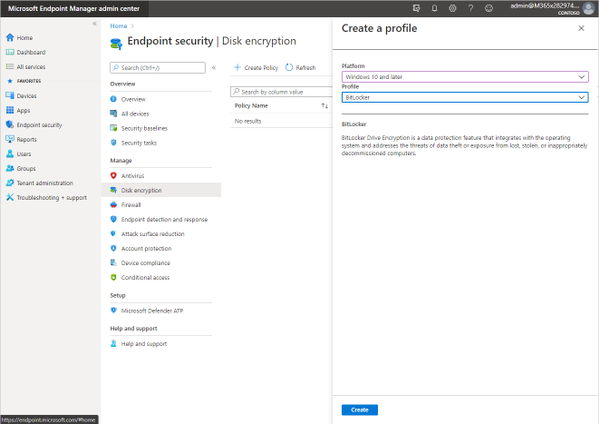
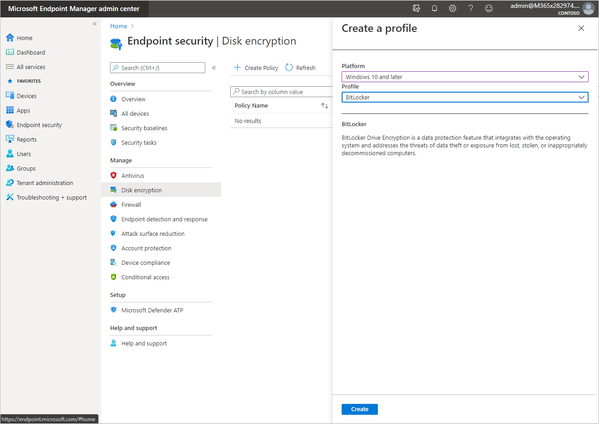
The first step to managing BitLocker using Microsoft Intune is to visit the new Microsoft Endpoint Manager admin center. Select Endpoint security > Disk encryption, and then Create policy. Enter in the Platform and Profile indicated in the screen capture below, and then select Create.
creating a new Microsoft BitLocker policy in Microsoft Endpoint Manager
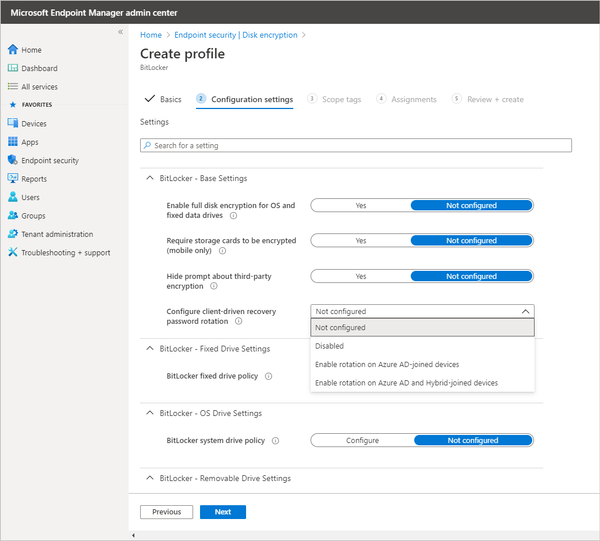
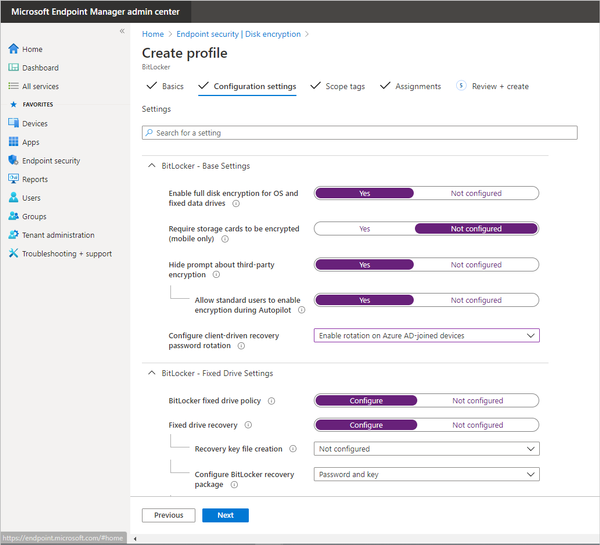
Next, enter the basics, such as the name of the policy and an optional description, then move on to Configuration settings. Notice you can search for a specific setting, like “fixed drive policy,” or you can scroll through the settings. Also notice the options offered for key rotation. This setting, which requires Windows 10, version 1909 or later, will change the recovery key when the recovery key is used to unlock a drive.
Create an Endpoint Security profile in Microsoft Endpoint Manager
As you enable settings, additional settings may appear. For example, Enabling Fixed drive encryption expands more options: Recovery key file creation and Configure BitLocker recovery key package.
Configuring BitLocker settings in Microsoft Endpoint Manager
Finally, add Scope tags, assign the new policy to specific groups of users or devices, and select Create.
The settings that can be configured here include:
BitLocker – Base Settings
Enable full disk encryption for OS and fixed data drives
Require storage cards to be encrypted (mobile only)
For enterprise organizations currently using on-premises management of their endpoint devices, the best approach would be to enable co-management with Microsoft Intune and Configuration Manager, and use the CSPs available in Microsoft Intune. This may not be an option, so we’ve also made BitLocker management available in Configuration Manager current branch, as early as July 2019. When using Configuration Manager, BitLocker management also supports Windows 8.1. And, although Windows 7 is no longer a supported operating system, we are not blocking BitLocker management on Windows 7; however, some settings may not apply to Windows 7 devices. Please review the product support lifecycle page for end of support dates for these operating systems.
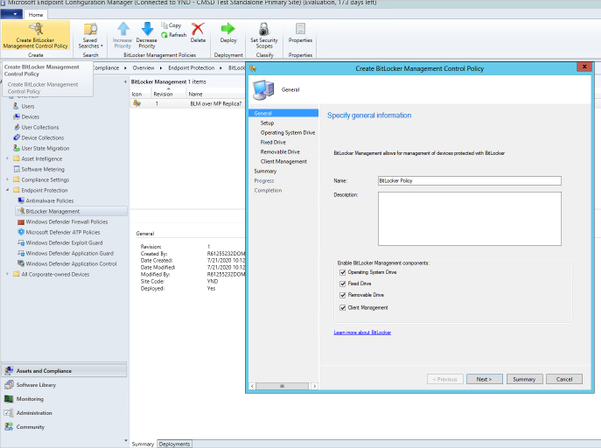
When you open the Microsoft Endpoint Configuration Manager console, navigate to Assets and Compliance > Overview > Endpoint Protection > BitLocker Management. From there, you can create a new BitLocker Management Control Policy, where you can specify whether to encrypt the Operating System Drive, and/or Fixed Drives, and/or Removeable Drives, and set Client Management policies.
Creating a new BitLocker Management Control Policy to manage BitLocker on the Configuration Manager managed devices
As you select these checkboxes, additional pages will appear in the navigation pane on the left.
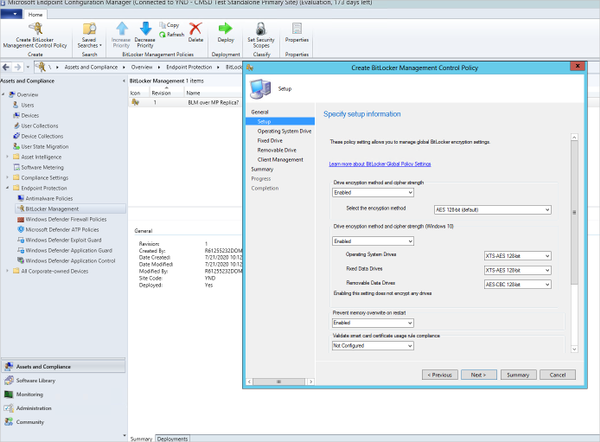
Enabling the Drive encryption policy, then allows you to choose the encryption method: AES 128-bit (default), AES 128-bit with Diffuser, AES 256-bit with Diffuser, or AES 256-bit. Enabling the encryption and cypher strength (Windows 10) offers a few more choices: AES-CBC 128-bit, AES-CBC 256-bit, XTS-AES 128-bit, XTS-AES 256-bit. Hovering over a policy displays a message box full of information. For more information about the different encryption and cypher strengths available, see the BitLocker settings reference.
Specifying setup information for the BitLocker Management Control Policy
All entries listed in the screenshot above are the default once enabled and are not necessarily the recommended settings. Research the different encryption and cypher strengths available before configuring the policy.
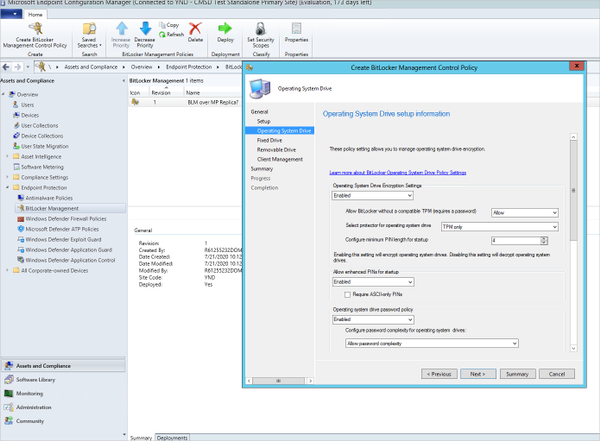
The next page brings you to the Operating System Drive, where you can enable settings such as TPM protector, and PIN length. PIN must be between 4-20 characters. You can also configuration settings for Enhanced PINs – that is, PINs that allow upper and lower case letters, numbers, special characters, and spaces, and a password for operating system drives, which likewise allows you to either allow or require password complexity.
Configuring BitLocker Management Control Policy settings for OS drives
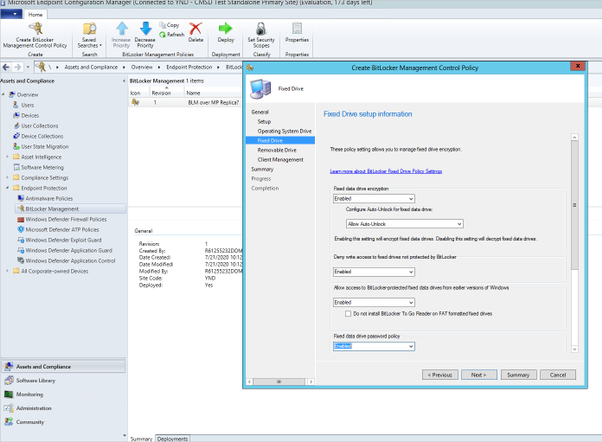
Configuring the settings on the Fixed Drive page allows you to enable fixed drive encryption, as well as specify whether or not fixed drives can be auto-unlocked, deny write access to fixed drives that are not protected by BitLocker, and specify whether or not to install BitLocker To Go on FAT formatted drives.
Configuring BitLocker Management Control Policy settings for fixed drives
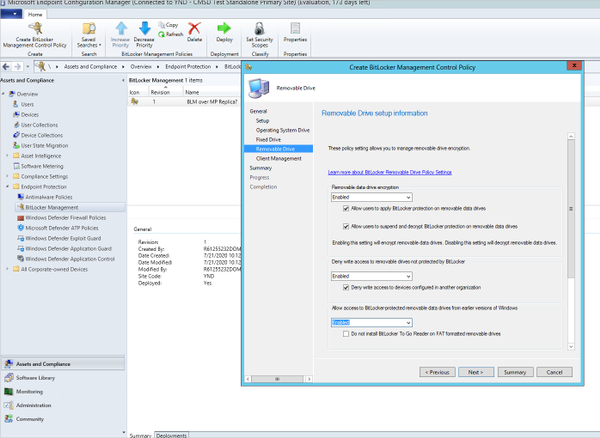
The next page allows you to specify the settings which will be applied to removeable drives, such as denying access to those drives which have not been protected with BitLocker, and whether or not these removeable drives should be accessible from earlier versions of Windows.
Configuring BitLocker Management Control Policy settings for removable system drives
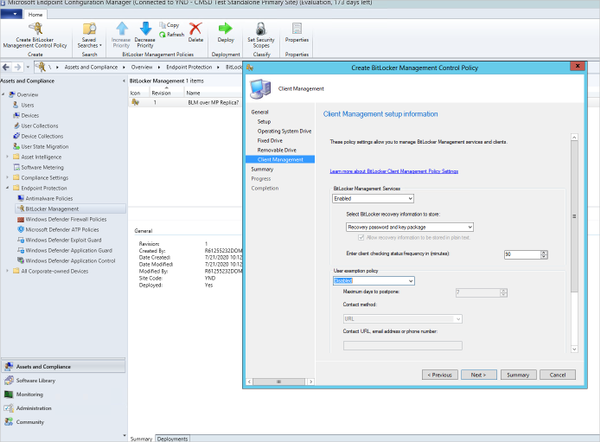
Finally, the Client Management policy allows you to manage the key recovery service backup of the BitLocker information, such as Recovery password and key package, or Recovery password only. You can also configure how often the client will check for changes to the BitLocker policy, and a method for users to request and exemption from this policy. These choices are URL, email address, or Phone number.
Configuring client management settings for the BitLocker Management Control Policy
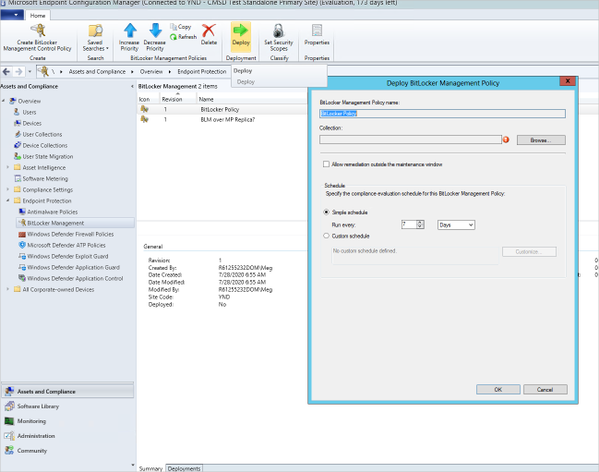
Once the policy has been created, deploy it to the target Collection.
Deploying the new BitLocker Management Control Policy to a target collection in Configuration Manager
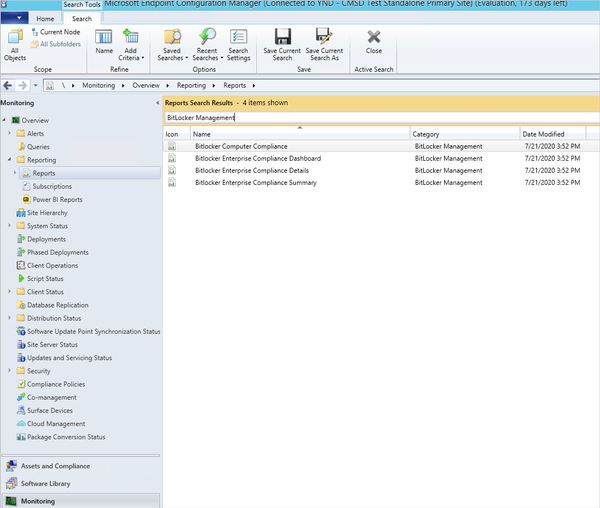
Once you set the policy, in the Configuration Manager console navigate to Monitoring > Overview > Reporting > Reports. From here you can report on BitLocker compliance in the enterprise.
BitLocker reports in Configuration Manager
Note: To manage encryption on co-managed Windows 10 devices using the Microsoft Endpoint Manager cloud service, switch the Endpoint Protection workload to Intune. For more information on the endpoint protection device configuration profile, see Windows 10 (and later) settings to protect devices using Intune.
Learn more
Whether you are a current MBAM customer or are using a third-party tool to manage BitLocker, Microsoft can help you transition to Microsoft Endpoint Manager, at your pace. Don’t have Endpoint Manager, or need to learn more? Start a free trial or buy a subscription today!
Frequently asked questions
What licenses do I need to manage Microsoft BitLocker?
BitLocker can be enabled and disabled using Microsoft Endpoint Manager on Windows 10 Pro, Enterprise, or Education. However, all other management, such as enforcing a key rotation and compliance reporting require a Microsoft 365 E3/E5 or Windows E3/E5 license.
Can I enable BitLocker while deploying a device with Microsoft Autopilot?
Yes! You can configure the BitLocker policy in Endpoint Manager and link the policy to all devices, including those deployed with Windows Autopilot.
What settings are available for my Windows 7 workstations?
Windows 7 is no longer a supported operating system, and as such we do not test any BitLocker settings on Windows 7 clients. Using Configuration Manager, you can deploy the BitLocker policy to a Collection that contains Windows 7. However, as encryption and cyphers strengthen over time, these new settings may not work on Windows 7 workstations. The settings to enable and disable BitLocker, and a supported strength, should work on Windows 7, but again these are not tested. Our recommendation is that you upgrade to a supported operating system as soon as possible, but we’ll help you keep Windows 7 encrypted and more secure during your migration project.
How can I migrate my clients from using Configuration Manager to using Intune to manage BitLocker policies and compliance?
To migrate the clients to use Intune, enable co-management and set the Endpoint Protection workload to Intune.
Can I migrate from a third- party encryption to Microsoft BitLocker without decrypting the device?
No. If you are using a third-party disk encryption product, you must decrypt the device and then set the Microsoft BitLocker policies. To make this quicker, set the policy to only encrypt used space.
I’m using Microsoft BitLocker but am using a third-party management tool. How can I migrate the recovery key to Microsoft Endpoint Manager?
You can remove the third-party agent, configure the BitLocker policies in Endpoint Manager, and force a key rotation. This will change the recovery key from the key stored on the third-party management tool and upload a new recovery key in Endpoint Manager. You should check with the third-party management tool documentation if the removal of the agent will force a decryption of the drive.












Recent Comments