by Scott Muniz | Aug 18, 2020 | Uncategorized
This article is contributed. See the original author and article here.
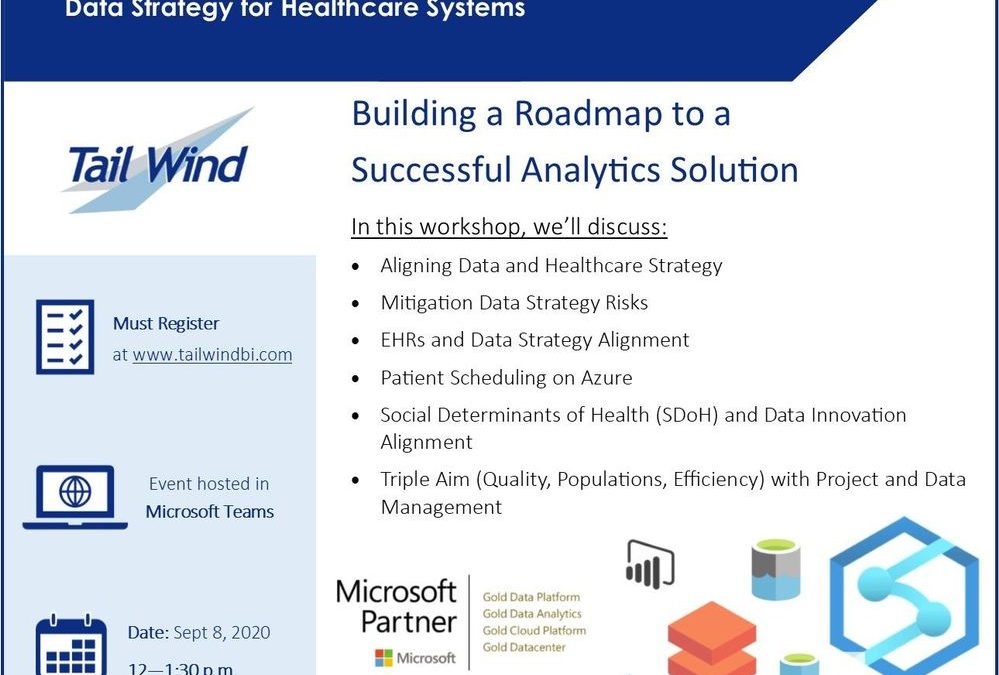
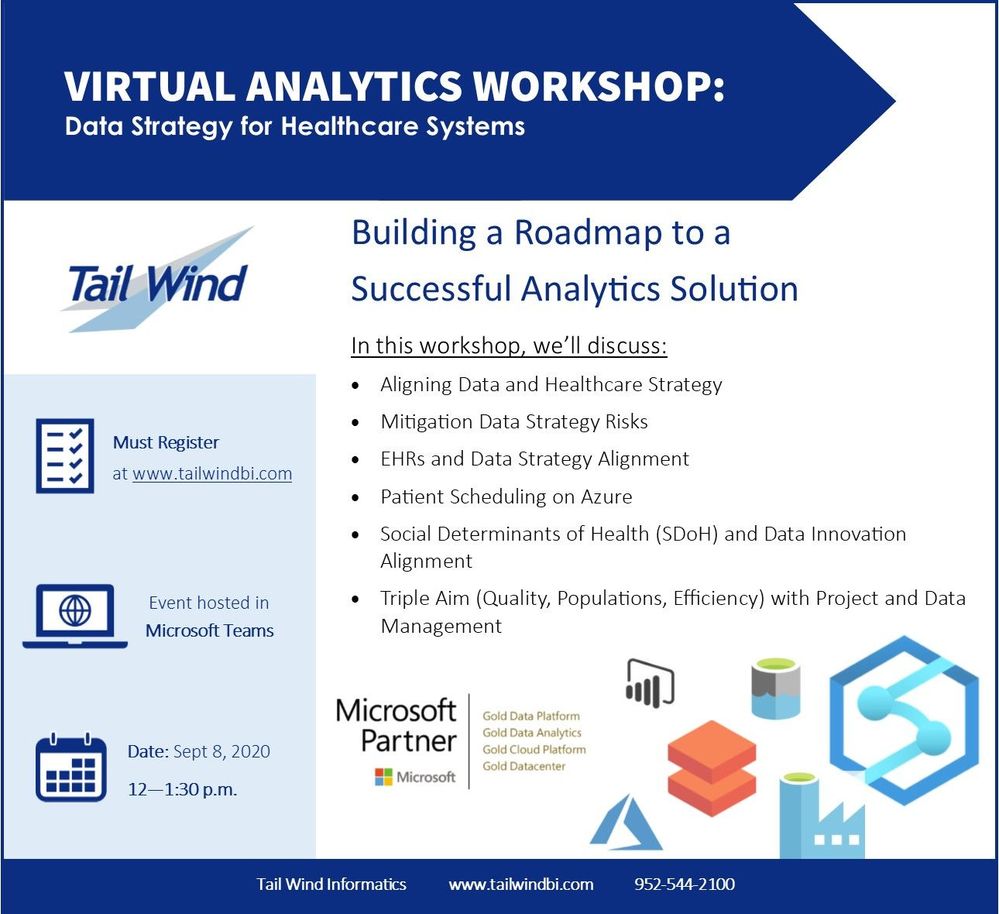
Interested in learning more about how Healthcare customers plan and implement a successful data strategy using Microsoft tools?
Registration is open for a free Virtual Workshop from Tail Wind Informatics focusing on Healthcare Data Strategy and Analytics. Tail Wind Informatics is a Gold Certified Microsoft Partner. Register now at https://TailwindBI.com .
Tuesday, September 8, 2020
Event Hosted in Microsoft Teams
1-2:30 PM EST (10-11:30 PST)
Register here: https://TailwindBI.com
by Scott Muniz | Aug 18, 2020 | Uncategorized
This article is contributed. See the original author and article here.
I introduced Enterprise-Scale in my first blog, which is part of the Cloud Adoption Framework (CAF). In this second blog I want to answer the question about when Enterprise-Scale should be adopted, compared to alternative solutions; in my own words and from my own view.
Azure landing zone and implementation options
On the implementation options we have a few information documented related to the question above, as follows:
“When business requirements necessitate a rich initial implementation of landing zones, with fully integrated governance, security, and operations from the start, Microsoft recommends the enterprise-scale approach.”
However, I think this does not fully address the question about the when, as from my view the following must be take into account as well:
- The culture of the organization (centrally IT-controlled vs DevOps empowered)
- The cloud and DevOps maturity of application teams
- The cloud maturity of the organization’s operating model
Should Enterprise-Scale be used?
If an organization is very much IT-controlled, and there is a mandatory layer to enable a centralized IT team to control the entire cloud adoption, including all networking aspects, identity, security, monitoring for all applications, etc., Enterprise-Scale might not be the best implementation options for Azure landing zones. This is due to the fact that such an IT-controlled approach would not align with the Enterprise-Scale design principles.
In contrast, if an organization embraces DevOps principles and methodologies, empowers application teams to implement a DevOps approach (they own an application end-to-end), Enterprise-Scale might be a very good fit. This is due to the fact that Enterprise-Scale considers a cloud-native way to build landing zones, which differs greatly from a traditional on-premises data center setup. One concrete example is the recommended approach to protect web applications and web APIs, which in an on-premises data center would be completely owned by the central IT team. In Enterprise-Scale, though, the service used to protect web applications and APIs is part of the landing zone, therefore setup in a decentralized way. But of course, configured Azure policies (guard-rails) ensure the required configuration of the protection service (Azure Application Gateway and Azure Web Application Firewall, to be precise).
by Scott Muniz | Aug 18, 2020 | Uncategorized
This article is contributed. See the original author and article here.
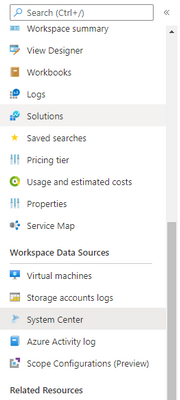
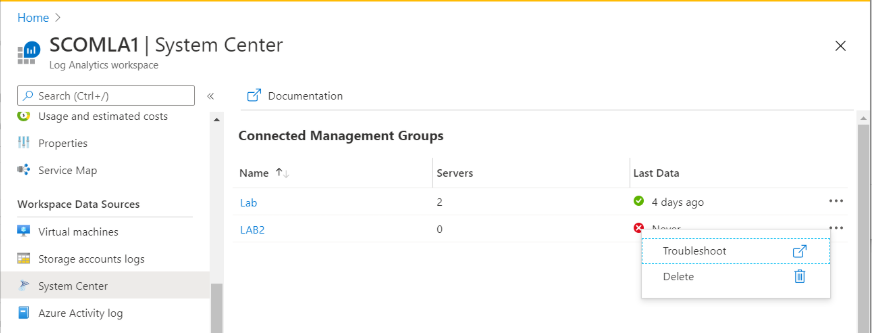
System center now has it’s own, dedicated blade in Log Analytics.
We have added a new menu entry to the sidebar menu in Log Analytics workspaces for System center:
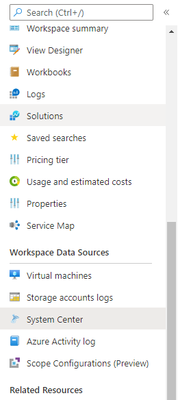
The new blade has a new, more streamlined and accessible design:
To learn more about System center and Log Analytics follow this link.
Let us know what you think! we encourage you to reply and comment on this blog post.
Thank you,
The Log Analytics team
by Scott Muniz | Aug 18, 2020 | Uncategorized
This article is contributed. See the original author and article here.
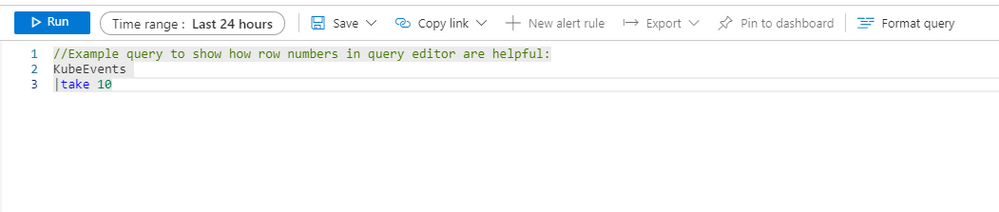
We have added row numbers to our query editor.
When creating a Log Analytics query, each row in the query editor is indicated by a number:

This makes it easier to find the part of the query you need, when composing.
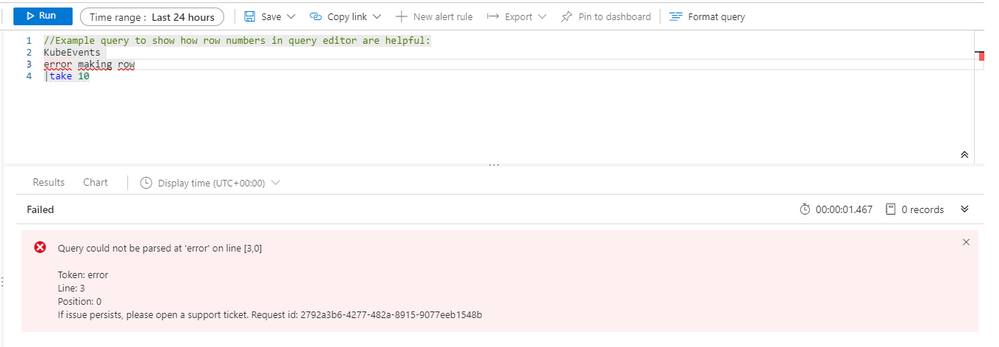
The new line numbers work in tandem with our new error messages.
If something is wrong with the query you composed, our newly designed error messages will indicate the row where an issue was found, row numbers in query editor makes it faster and easier to find the issue and fix your query:
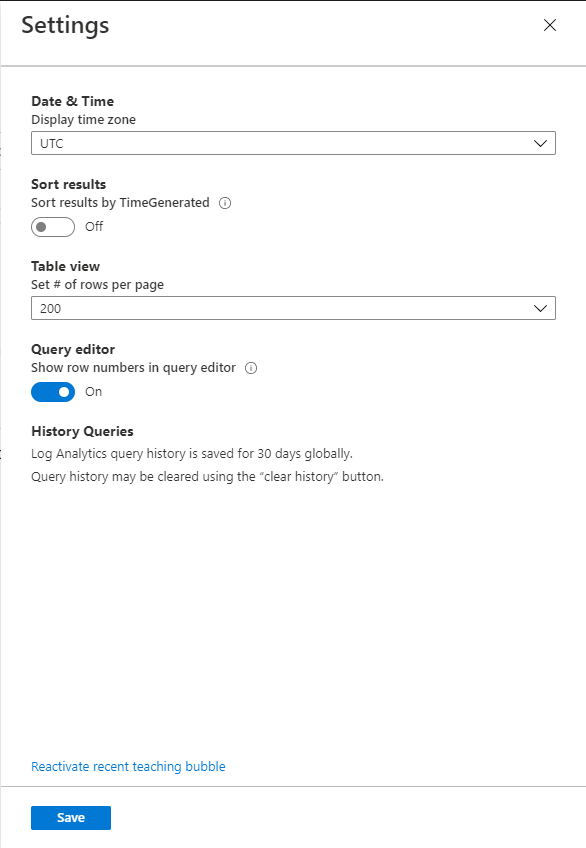
Row numbers are optional.
The default setting for this feature is ‘on’ so Log Analytics show row numbers in query editor, however this can easily be changed from the ‘settings’ area of your Log Analytics blade:
 Let us know what you think! we encourage you to reply and comment on this blog post.
Thank you,
The Log Analytics team
by Scott Muniz | Aug 18, 2020 | Azure, Microsoft, Technology, Uncategorized
This article is contributed. See the original author and article here.
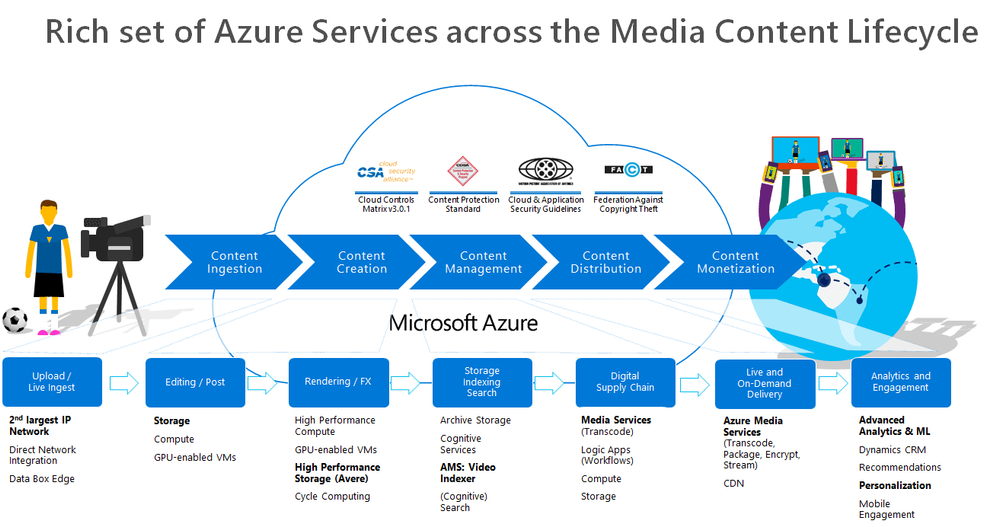
Over the last two months, I’ve engaged with a few media companies who wanted to learn how to integrate Azure Media Services into their workflow. Azure Media Services (AMS) offers a whole range of media capabilities for content ingest, storage, transcoding, video AI, encryption, dynamic packaging, and delivery – be it for live streaming or VOD through a single or multi-CDN.

This post contains 2 sample workflow implementations for content ingest and clear stream publishing
- A logic app that monitors newly uploaded content in an Azure Storage for transcoding and indexing.
- A logic app for publishing a media asset with a clear stream locator.
Reference and Set-up
Before I start, let me just share first that I referred to these 2 GitHub Repos extensively in implementing this logic app:
In doing so, I had to refactor some functions and split them into two. I also had to add some more functions to suit my needs. So I forked the v3 repository, which you can check out here: https://github.com/raffertyuy/media-services-v3-dotnet-core-functions-integration.
Create an Azure Function App and deploy the functions found in the advanced-vod-workflow folder.
Also, if you prefer to skip reading the logic app documentation below, feel free to clone the repo above and go straight to the code.
Upload and Process Workflow
Media companies will have an existing process for the creation of mezzanine files. These files are then typically uploaded to a CDN for content distribution. Given that this process already exists, the idea here is to add/modify the upload destination to an Azure Storage instead and expect it to be processed in Azure Media Services.
Media Service Assets
An Asset is a core concept specific to Azure Media Services (AMS). It is not a single blob in Azure Storage. An asset from a storage perspective will contain multiple files, such as its metadata, multiple bitrate files, etc. Internally, AMS handles this by mapping each asset to an Azure Blob container, which contains all of these files.
So the main challenge is how to upload a mezzanine file and get it recognized as a media asset by Azure Media Services, and this is where logic apps come in.
The Logic App
Azure Logic Apps is a cloud service that helps you schedule, automate, and orchestrate tasks, business processes, and workflows when you need to integrate apps, data, systems, and services across enterprises or organizations. In this particular case, we are using logic apps to:
- Monitor an Azure Storage account for new uploads
- Create an Asset in Azure Media Services
- Transcode the asset into multi-bitrate
- Send to Azure Video Indexer for Video AI insights
In implementing this logic app, I used a lot of connectors, including a connector to Azure Functions. I used Azure functions to execute code that is not available in Logic Apps.
Monitor an Azure Storage Account for New Uploads
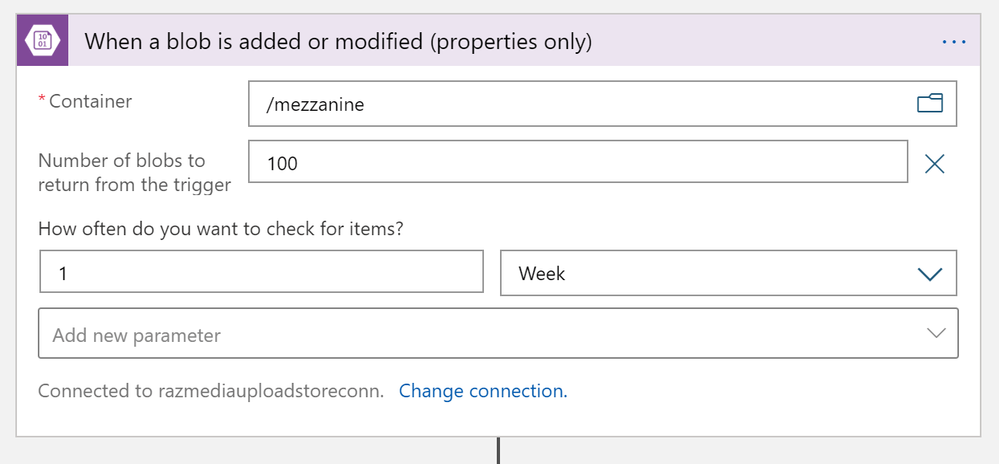
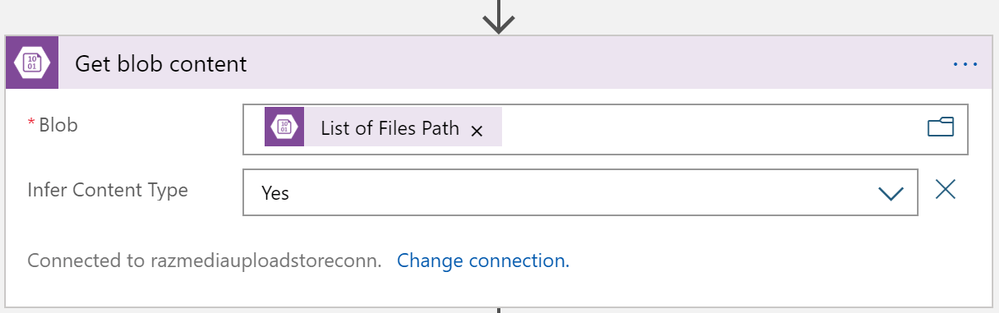
This one is easy; I used the Azure Blob Storage trigger to monitor for new files uploaded to my /mezzanine Azure storage container. But since media files usually are quite large, we need to ensure that the file is segmented in chunks. As recommended in this article, the way is to use the “properties only” trigger and then use an additional Get blob content action.
Create an Asset in Azure Media Services
Interestingly, AMSv3, at this point, does not have a quick API call to convert a file into a recognized media asset. The process is first to create an “empty asset” and then copy the blob content over. The process looks like this:
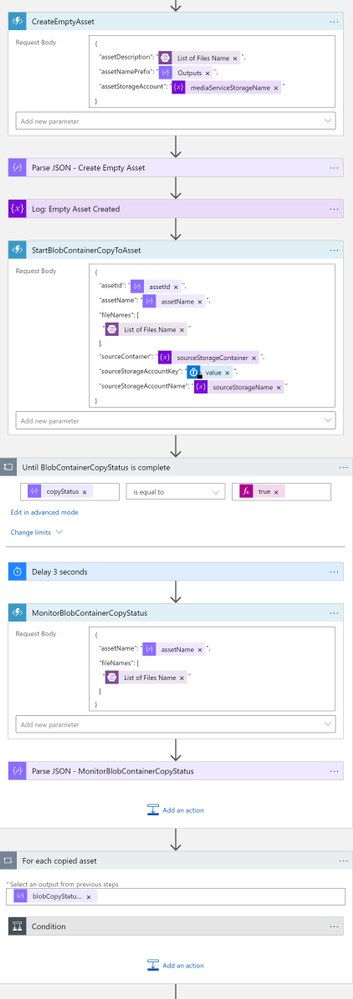
Note that CreateEmptyAsset, StartBlobContainerCopyToAsset, and MonitorBlobContainerCopyStatus are Azure Functions.
Transcode the Asset into Multi-bitrate
Azure Media Services has out-of-the-box presents for us to do our tests, but in a real-world scenario, a media company will likely have their custom-defined list of transcoding profiles. In this sample implementation, I used the H264MultipleBitrate1080 preset. I then created a Transform (if it doesn’t yet exist) and then submitted a job for transcoding. You may refer to this article to understand these concepts better.
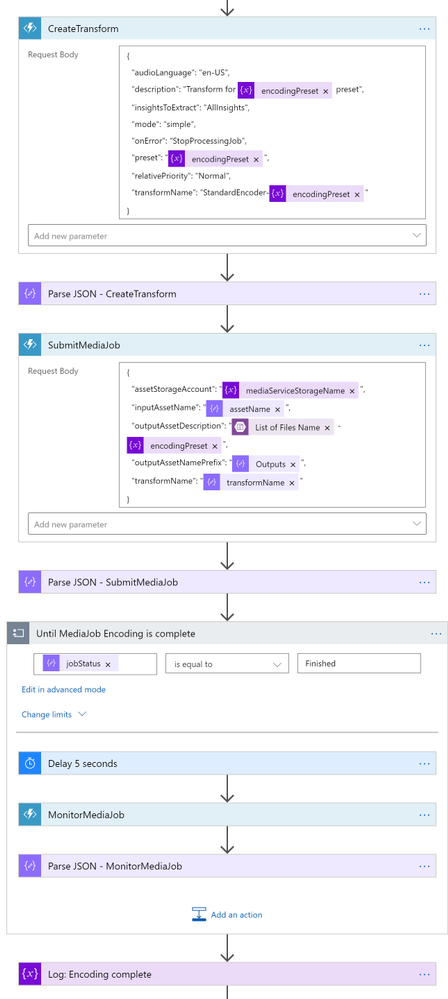
So I used the CreateTransform and SubmitMediaJob functions here. If you are planning to modify this logic app to suit your needs, you may need to spend some time understanding how to use these functions. In this logic app, this is where I spent most of my time. The sample code isn’t very well documented and not bug-free (As previously stated, this is a forked repo from AzureSamples), so it required a lot of trial-and-error and bug fixing.
If you are planning to create a new custom preset, you need to set "preset": "CustomPreset" and then define a "customPresetJson": {...} according to this.
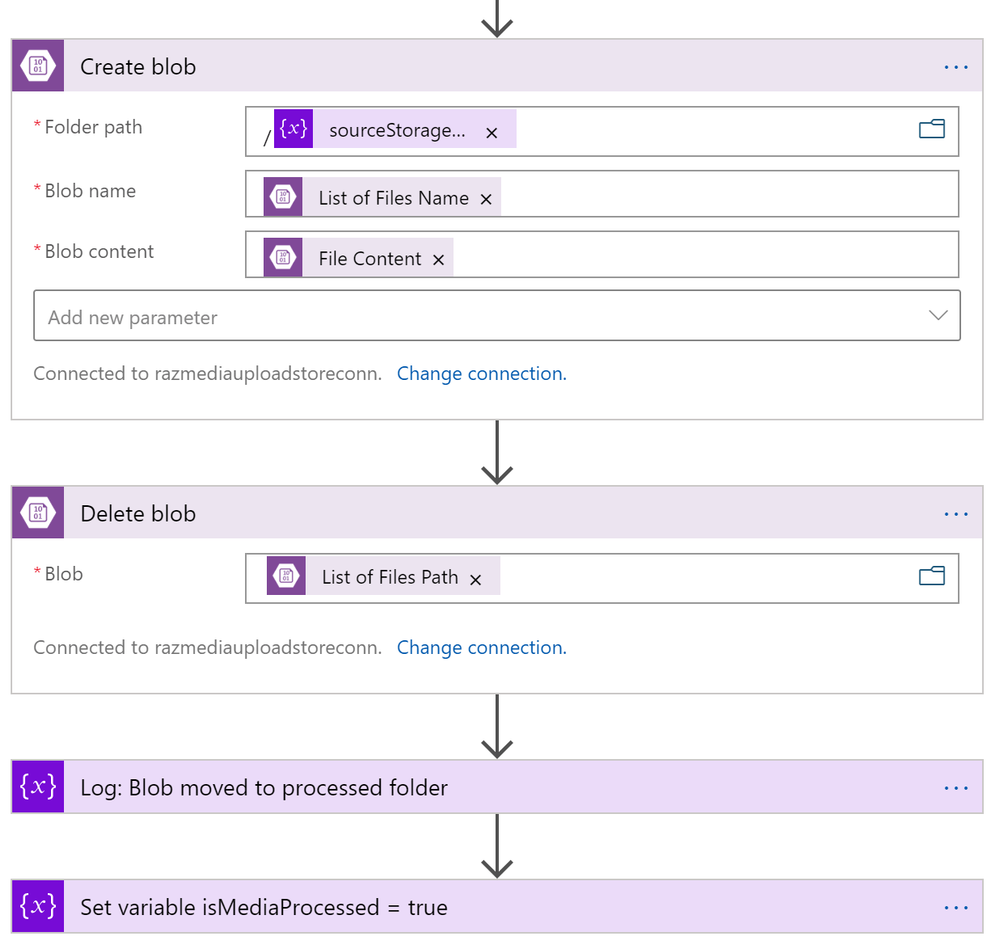
After the asset is transcoded, I then move the asset to another blob container. Since there is no “move” action, I had to create in the destination container first, and then delete the original one.
Send to Azure Video Indexer
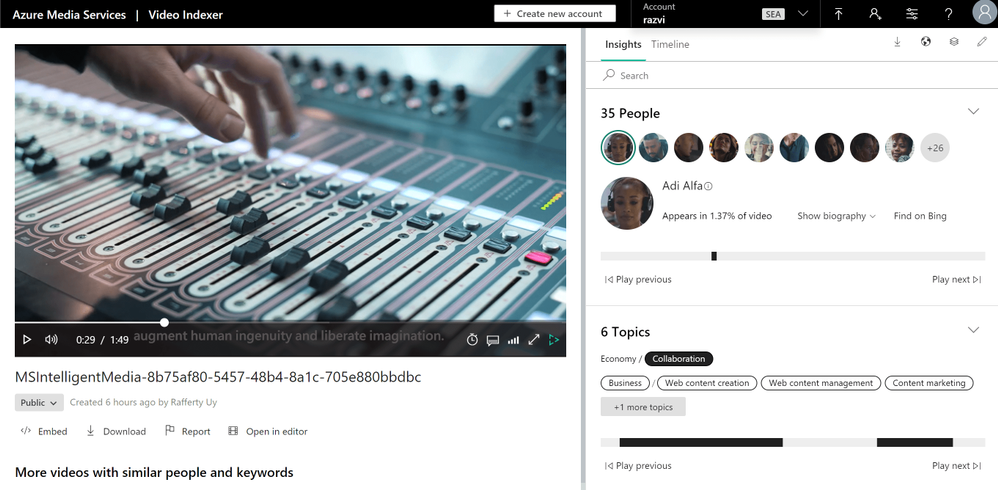
Parallel to transcoding, I added another branch for sending the file to Video Indexer. Azure Video Indexer is the media service AI solution for extracting more insights such as the transcripts, keywords, sentiments, celebrities, landmarks, etc. that are found in the media asset.
In uploading, you may choose to upload from a blob URL straight. But since we already have a media asset, I went with the Asset ID parameter option.
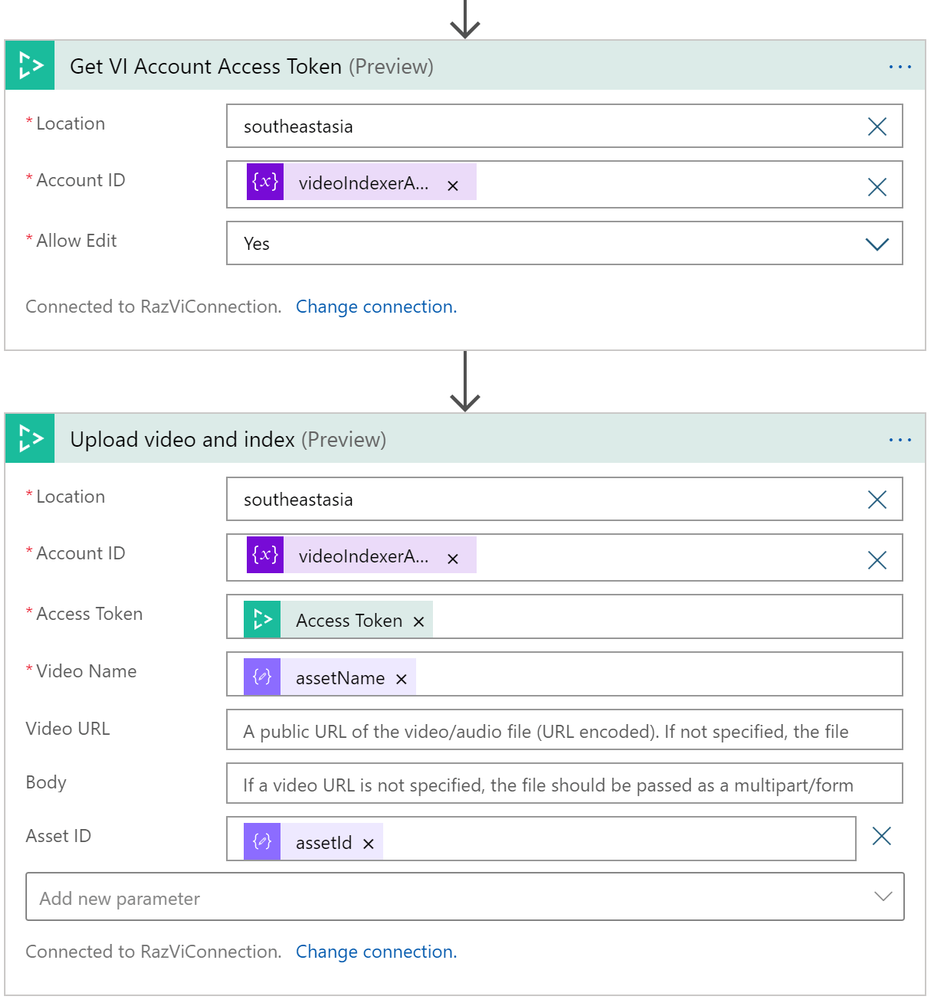
One interesting note here is that VI will transcode the asset again into a 720p Single Bitrate file.
Output
And here are the results after running this logic app
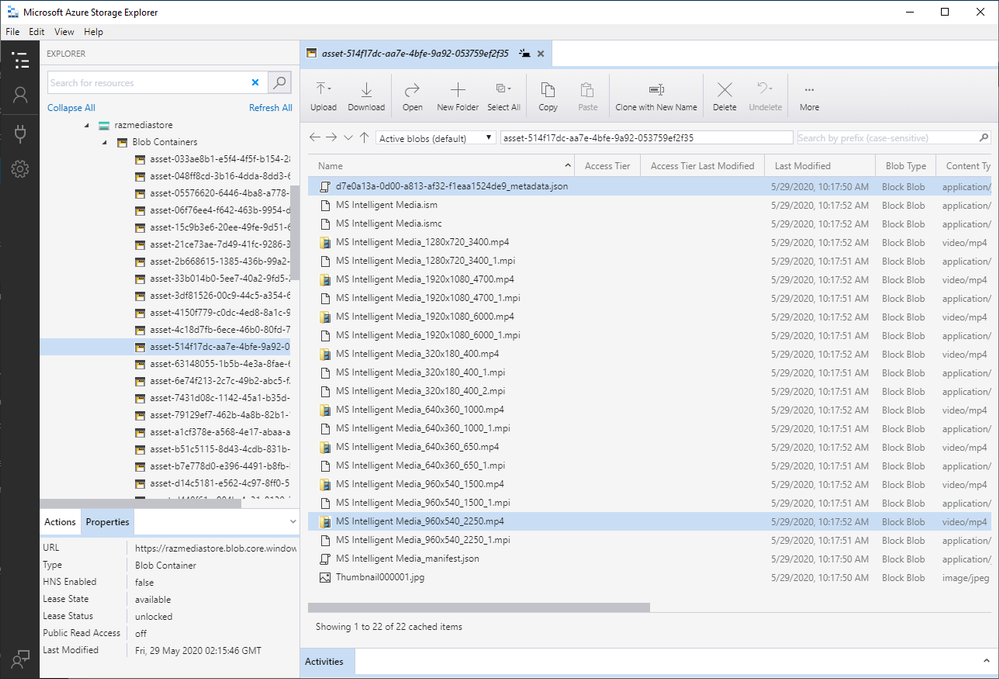
Azure Media Service Explorer
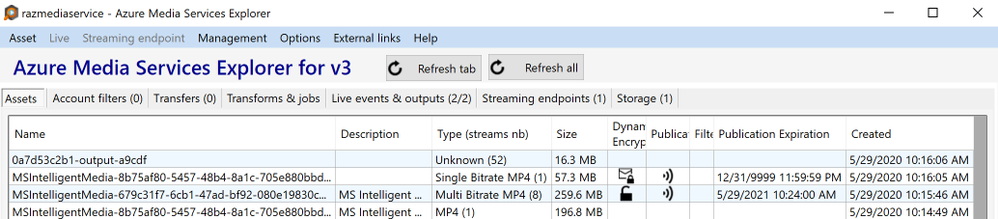
Media Asset in the Azure Storage
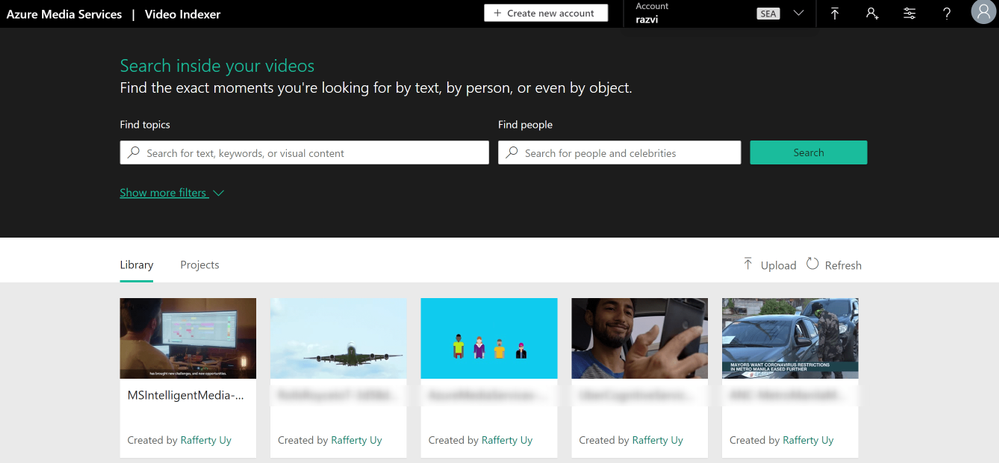
Insights from Azure Video Indexer
Publish Asset for Streaming
Publishing an asset in this article’s definition is about creating a streaming locator so that the asset is available for VOD.
The Logic App
This is a pretty simple logic app and could have been combined with the previous one. But there are many reasons for not publishing an asset immediately after transcoding such as:
- Checking the quality of the video,
- Adding AES or DRM encryption policies,
- Adding closed captions,
- and more
So to disconnect, I used an HTTP POST request to trigger this logic app, with the following JSON content-type body.
{
    "properties": {
        "alternative-media-id": {
            "type": "string"
        },
        "assetName": {
            "type": "string"
        },
        "contentKeyPolicyName": {
            "type": "string"
        },
        "endDateTime": {
            "type": "string"
        },
        "startDateTime": {
            "type": "string"
        },
        "streamingEndpointName": {
            "type": "string"
        },
        "streamingLocatorId": {
            "type": "string"
        },
        "streamingPolicyName": {
            "type": "string"
        }
    },
    "type": "object"
}
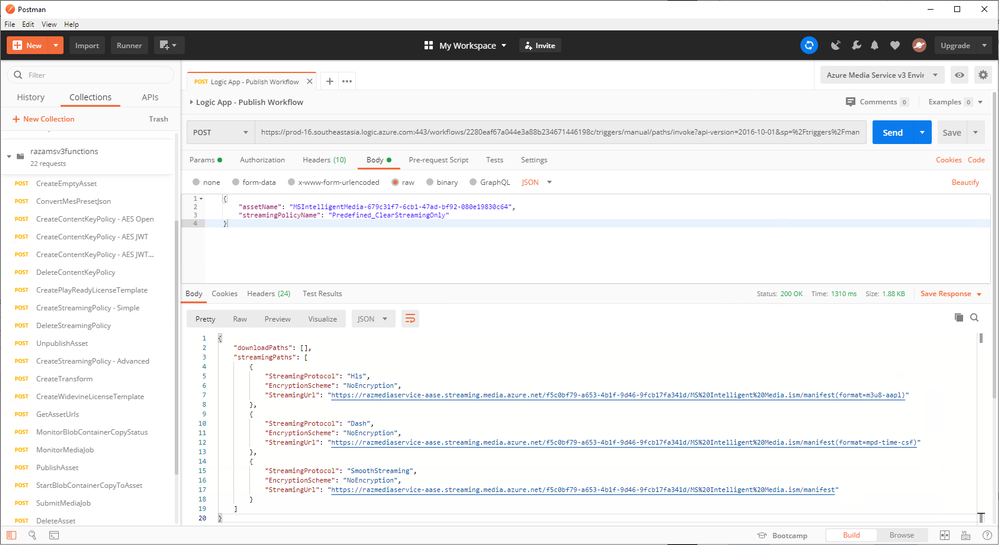
A simple request body will look like this:
{
    "assetName": "MSIntelligentMedia-679c31f7-6cb1-47ad-bf92-080e19830c64",
    "streamingPolicyName": "Predefined_ClearStreamingOnly"
}
With this HTTP request, it will be as simple as calling the PublishAsset and GetAssetUrls Azure Functions.
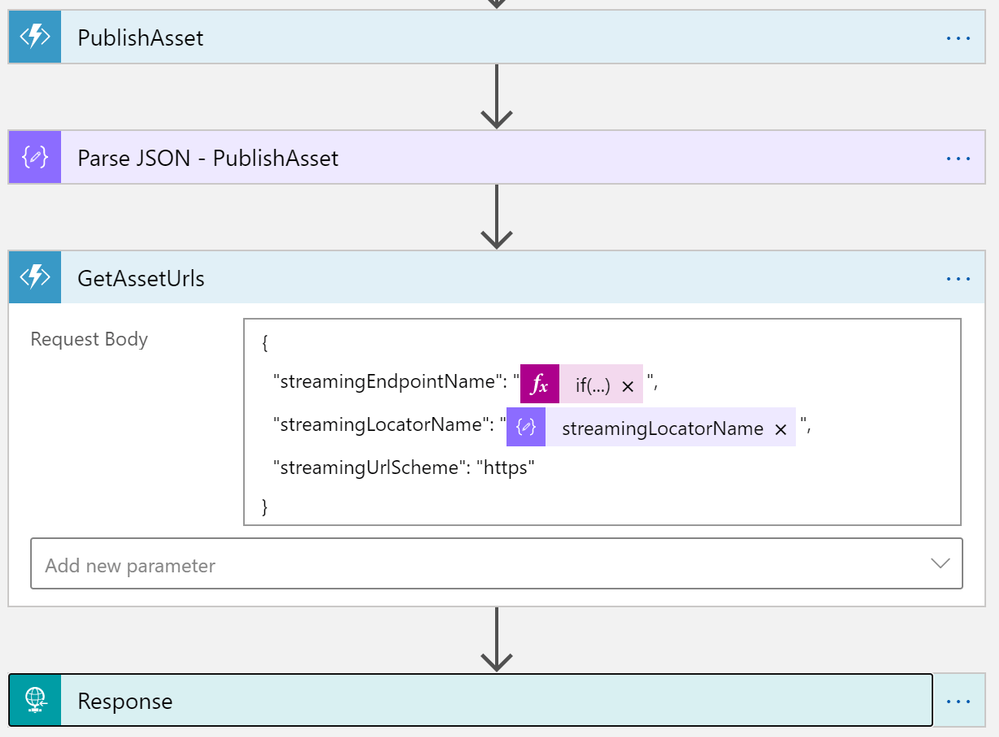
Output
This HTTP request will give me the following output.
Conclusion
In this post, we learned how to create an Upload-and-Publish workflow using Azure Logic Apps and Azure Functions. Azure Functions for calling the Azure Media Service APIs and Logic Apps to orchestrate the workflow. This post also shows that Azure Logic Apps is not just a low-code/no-code tool. It is fully capable of integrating with your custom code.
GitHub Repository: https://github.com/raffertyuy/media-services-v3-dotnet-core-functions-integration
by Scott Muniz | Aug 18, 2020 | Uncategorized
This article is contributed. See the original author and article here.
Containers are becoming extremely popular these days and many ITPros are being asked to modernize existing applications and run those apps on Kubernetes. The process can be a bit challenging if you don’t know how to get started, and more importantly if you don’t have the right tools for the job.
In this video series we will go over the entire process of containerizing a web application running on Windows Server 2012 R2 on-premises to Azure with Azure Kubernetes Services. Here are some details on the tools used in this video, so you can try for yourself:
- Sample web application: The process shown in the video can be performed in your application, but if you just want to test it, you can use this sample app as shown in the series.
- Web Deploy: We’ll be using it to export the application from IIS. Web Deploy makes the process of exporting an IIS web site way simpler than doing it manually. Plus, you can reconfigure some parameters like Database Connection in the process.
- Windows Admin Center: The updated Containers extension now supports Web Deploy ZIP files as a source for new container images. With WAC you can point to a ZIP file from Web Deploy and WAC will do the hard work for you!
In this first video in the series, we cover how to extract the web application from IIS and use the exported ZIP file to create a new container image on Windows Admin Center. Check it out:
In the next video, we’ll cover how to push this container image to Azure so you can reuse on other container hosts, or Azure services. The final video will cover how to prepare Azure Kubernetes Services to deploy this Windows Container hosting our exported application.
I hope you like the video and the series. Let us know what you think in the comments and what you’d like to see next!
Regards,
Vinicius.
Twitter: @vrapolinario
by Scott Muniz | Aug 18, 2020 | Azure, Microsoft, Technology, Uncategorized
This article is contributed. See the original author and article here.
The August update includes the following new features, bugs fixes, changes, and improvements.
Preview
We are previewing Java Message Service (JMS) 2.0 for Azure Service Bus premium tier. The JMS 2.0 APIs empower customers to seamlessly lift and shift their Spring workloads to Azure, while helping them modernize their application stack with best in class enterprise messaging in the cloud. As an example, the Azure service bus starter will now auto create queues and topics, at runtime over AMQP, if they don’t already exist.
New
- Connection to multiple Key Vault from a single application configuration file
- Support case sensitive keys in Key Vault
- Key Vault Spring Boot Actuator
See our key vault documentation on how to leverage these new features.
Improved
We revamped the refresh logic in Azure Key Vault to better adhere to refresh intervals defined in application configuration properties, and avoid unnecessary updates.
Fixed
We upgraded the Spring Boot dependency to 2.3.2, which addresses many CVEs and cleaned up all warnings at build time.
Changed
We have adopted the mono-repo approach. Azure Spring Starters have migrated from the 4 previous locations under https://github.com/microsoft/ to https://github.com/Azure/azure-sdk-for-java/tree/master/sdk. Developers can now easily find all Azure Spring starters under this single repository under the Azure SDK for java folder. Furthermore, this change allows us to bring more timely updates from Azure service SDKs and run more regression tests for quality control and preserve compatibility integrity.
Lastly the following starters are deprecated
- azure-servicebus-spring-boot-starter
- azure-mediaservices-spring-boot-starter
- azure-storage-spring-boot-starter
by Scott Muniz | Aug 17, 2020 | Uncategorized
This article is contributed. See the original author and article here.
The Azure App Service is offered as two deployment types: the multi-tenant service and the App Service Environment. In the multi-tenant service there are thousands of customers on the same infrastructure. Your apps are always secured but the network, the address space and some other components are shared. In an App Service Environment you have a single tenant version of App Service that runs in your Azure Virtual Network. The next two articles are focused on how to configure network security in the multi-tenant App Service.
In this article, you will learn how to secure your standalone app in the multi-tenant App Service. In the next article, we will cover how to build a secure multi-tier web application.
Networking overview
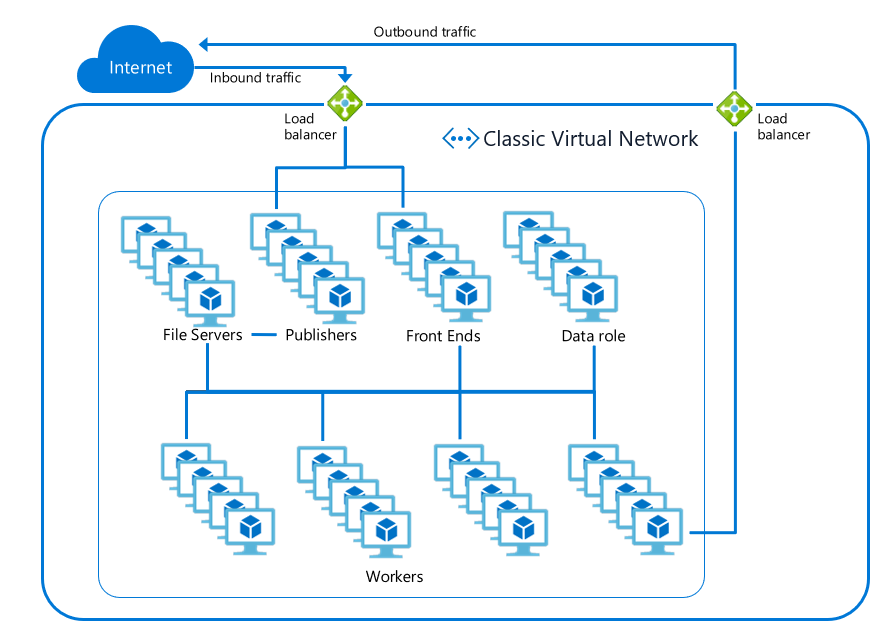
There are two aspects that need to be secured for a web app, inbound traffic and outbound traffic. Inbound traffic are visitors going to your web page, or clients sending requests to your API. Outbound traffic is when your web app makes an outbound call to a database, cache, message queue, or other service. The inbound traffic passes through a load balancer to a set of shared front end servers before reaching the workers which your apps run on. The outbound traffic leaves those workers and goes out through one of the outbound load balancers used by the scale unit. In the diagram below, the inbound and outbound load balancers are shown in green.
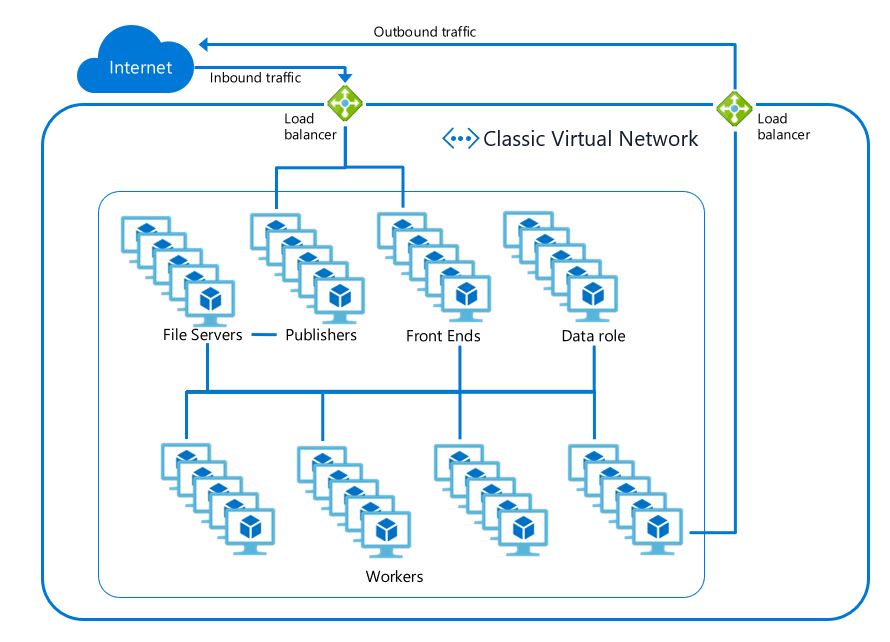
All traffic to and from the components inside App Service is strictly locked down and secured to prevent malicious actions. This includes preventing any worker-to-worker communication. This means users just need to secure the networking path to and from their apps–all other traffic is secured for you.
Features and Services
The following tutorial uses a number of Azure Networking features and services. Here is a quick breakdown of the features used in this article.
- Web Application Firewall: The Web Application Firewall (or WAF for short) sits between your applications and your end users. It protects your applications against common attacks like cross-site-scripting or SQL injection.
- Virtual Network: The Azure Virtual Network (VNet) is the building block for creating your network in Azure. A VNet is similar to a physical network that you would have in an on-premises network: you can assign an address space for a VNet and apply subnets to organize the network.
- Application Gateway: An Application Gateway acts as a load balancer for your application(s) and allows you to route requests based on the requested hostname or URL path. Learn more about Azure Application Gateway features
- Service endpoints: Some Azure resources are deployed into virtual networks by default. Other resources, such as the multi-tenant App Service, can gain access to the VNet using Service Endpoints. This means you can use Service Endpoints to only allow inbound traffic to your web app from a subnet within a VNet.
- Private Endpoints: Private Endpoints enable exposing the inbound traffic to a service on an address in a selected VNet.
- Azure Front Door: Front Door (AFD) provides many of the same features and benefits of an Application Gateway. It improves application performance by routing users to the nearest Point of Presence (POP).
Securing your web app
To secure the network access around your web app you will need to secure…
- Inbound request traffic to your app
- Inbound publishing traffic to your app
- Outbound calls made from your app
To secure inbound request traffic to your app, use a WAF enabled Application Gateway with Service Endpoints. To secure inbound publishing traffic to your app, use a build agent with service endpoints on the publishing endpoint. Lastly, to secure outbound traffic from your web app, use VNet Integration and an Azure Firewall.
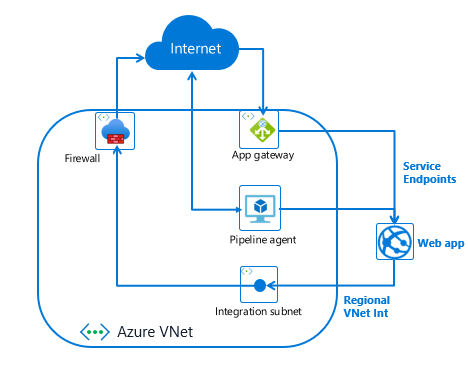
Securing inbound traffic
- Select or create an Azure Virtual Network (VNet). To secure your inbound traffic to your app you will need to have a VNet. If you have one already, you do not need to create another. It should be in the same region as your web app. If you do not have a VNet, you can create one following these instructions Creating an Azure Virtual Network.
- Create an Application Gateway as described here in Creating an Application Gateway.
- Enable Service Endpoints to your web app.
- Once you have the VNet, App Gateway, and Service Endpoints set up, you need to add a custom domain name for your app that should point to your Application Gateway. Your web app needs to be configured with the new domain name. To add a custom domain name to your web app, follow the guidance here.
The end result is that your web app will have all inbound traffic routed through your Application Gateway to your app. You can, and should, enable Web Application Firewall (WAF) support on your Application Gateway.
Alternate Configuration
There are two alternative services that are in preview that should be noted. One is using Private Endpoints rather than Service Endpoints and the other is using Azure Front Door instead of an Application Gateway.
If you use Private Endpoints instead of Service Endpoints, you would create your Private Endpoint in a subnet other than the GatewaySubnet. This Private Endpoint would be configured against your app. This is a great solution as it also hosts the HTTPS publishing endpoint for your app. When you add Private Endpoints to your app, the app is no longer accessible from the internet. Traffic to your app must only go through the private endpoints on your app.
If you use Azure Front Door (AFD) with your app, you would need to set an IP address access restriction to secure your app to only being accessible through AFD. There are some additional changes that will soon be available that will enable you to lock you app down to specific AFD profiles. If you use AFD, you can enable a mix of capabilities such as WAF protection just like with an Application Gateway.
Secure publishing inbound traffic
Publishing is the process by which you upload your web app content to your app service instance. Unless you are using FTP, all publishing actions are performed against the scm site for your app. For every app there exists the app url and there also exists the publishing url. The publishing url is <app name>.scm.azurewebsites.net. Secure publishing is not too different from secure app access. For secure publishing you need to publish from inside your VNet. To have a secure publishing story you need to follow one of the following patterns:
- Use Access Restrictions to secure traffic to the publishing endpoint for your app
- Use service endpoints to secure traffic from a jump box being used to publish
- Use a relay agent, such as the Azure Pipeline build agent deployed on a VM in your VNet and then use service endpoints to secure your scm site to the subnet that the build agent is in.
To use the Azure Pipeline relays agent:
- Create a VM in your VNet.
- Install and configure the Azure pipeline agent
- Configure service endpoints for your app scm site against the subnet that your VM is in.
Secure outbound traffic from your web app
To secure outbound traffic from your web app you need to use the regional VNet Integration feature. This feature enables you to make calls into your VNet and have all outbound traffic subject to Network Security Groups (NSGs) and Route Tables (UDRs). With NSGs you can restrict outbound traffic to address blocks of your choosing. With UDRs you can route traffic as you see fit. If you route the outbound traffic to an Azure Firewall device, you can restrict your outbound internet traffic to only the FQDN’s you want it to reach.
To secure your outbound traffic from your web app, enable VNet Integration. By default, your app outbound traffic will only be affected by NSGs and UDRs if you are going to a private address (10.0.0.0/8, 172.16.0.0/12, 192.168.0.0/16). To ensure that all of your outbound traffic is affected by the NSGs and UDRs on your integration subnet, set the application setting WEBSITE_VNET_ROUTE_ALL to 1.
Summary
Congratulations! In this article you learned how to secure your inbound and outbound networking traffic. You are now able to assemble App Service and Networking features to create a secure internet facing web application.
Helpful Resources
by Scott Muniz | Aug 17, 2020 | Uncategorized
This article is contributed. See the original author and article here.
Have questions about setting up Microsoft Endpoint Manager to manage all the devices—Windows, Android, iOS, and macOS—used in your education environments? Our engineering and product teams will be hosting a one-hour AMA event on Wednesday, August 19, 2020 to help you better understand how Microsoft Endpoint Manager can simplify the way you manage and update devices, provide advice on specific configuration and deployment options, and troubleshoot any issues you may be encountering.
ADD TO CALENDAR
To join, simply, visit the Microsoft Endpoint Manager AMA space this Wednesday, August 19th at 8:00 a.m. Pacific Time and click “Start a New Conversation” to post your question. This event is open to all Tech Community members and we’ll have a wide variety of experts standing by to provide answers—as well as members of the MVP community who can provide their real-world expertise.
What is an AMA?
An “Ask Microsoft Anything” (AMA) event is a live, online, text-based question-and-answer event similar to a “YamJam” on Yammer or an “Ask Me Anything” on Reddit. This AMA is your chance to get answers to your questions about things like:
- Configuring new devices effectively and quickly.
- Repurposing existing shared devices for distribution to individual students.
- Managing devices when disconnected from school networks.
- Network considerations, such as VPN.
- Secure connections to on-premises resources
I’m in. How do I join?
- The Microsoft Endpoint Manager AMA space will open at 9:00 a.m. PT August 18th and remain open until 9:00 a.m. PT August 19th to ensure you have plenty of time to submit your questions.
- You can post questions anytime during the 24-hour window. To submit a question, simply click Start a new conversation—and do this for each new question.
- Our subject matter experts will be live from 8:00-9:00 a.m. PT on August 19th.
- At the end of the AMA, the Microsoft Endpoint Manager AMA space will close and become a read-only resource. We will post a final recap with a list of all questions and answers from the event.
Don’t miss this chance to get answers to your questions. We hope you can join us!
by Scott Muniz | Aug 17, 2020 | Uncategorized
This article is contributed. See the original author and article here.
If you are running SQL Server 2017 or SQL Server 2019 on Redhat 7.x or UBUNTU 16.x Linux operating systems and configured Transactional Replication or Change Data Capture feature, then sporadically log reader agent may fail to read the transactional logs with non yield dump or SQL Server core dump may be created
You might see following spinlock message in Linux /var/log/messages file or SQL Server error log.
0311305655_1586954331_applogsvarlogmessages 14712 Apr 15 07:39:08 ip-10-57-146-76 sqlservr: getspinlock pre-Sleep(): spid 0, 271030 yields on lock type “XDESMGR” (adr 0000001B7F3496C0)
0311305655_1586954331_applogsvarlogmessages 14713 Apr 15 07:39:09 ip-10-57-146-76 sqlservr: getspinlock pre-Sleep(): spid 0, 272641 yields on lock type “XDESMGR” (adr 0000001B7F3496C0)
0311305655_1586954331_applogsvarlogmessages 14721 Apr 15 07:39:18 ip-10-57-146-76 sqlservr: 2020-04-15 07:39:18.18 Server * Non-yielding Scheduler
2020-02-11 12:05:31.35 Server Process 0:0:0 (0x2a4) Worker 0x00000015AADA8160 appears to be non-yielding on Scheduler 3. Thread creation time: 13225913261587. Approx Thread CPU Used: kernel 0 ms, user 54770 ms. Process Utilization 45%. System Idle 0%. Interval: 70012 ms.
2020-02-11 12:05:41.36 Server Process 0:0:0 (0x268) Worker 0x00000015AFF12160 appears to be non-yielding on Scheduler 1. Thread creation time: 13225913261537. Approx Thread CPU Used: kernel 0 ms, user 61160 ms. Process Utilization 48%. System Idle 0%. Interval: 76426 ms.
This issue is currently investigated by SQL Server engineering team and fix will be released in upcoming CU’s.
Mean time you can enable Forced Unit Access (FUA) which will ensure the data is stored in stable media before a write request return to SQL Server using following parameters will workaround the issue.
sudo /opt/mssql/bin/mssql-conf traceflag 3979 on
sudo /opt/mssql/bin/mssql-conf set control.alternatewritethrough 0
sudo /opt/mssql/bin/mssql-conf set control.writethrough 1
After enabling the trace flag we may need to restart SQL Server for TF to take effect.
More information about FUA can be found in following blog and KB article
https://bobsql.com/sql-server-on-linux-forced-unit-access-fua-internals/
https://support.microsoft.com/en-us/help/4131496/enable-forced-flush-mechanism-in-sql-server-2017-on-linux


Recent Comments