
by Scott Muniz | Sep 16, 2020 | Azure, Technology, Uncategorized
This article is contributed. See the original author and article here.

The Internet of Things Event Learning Path is designed for Solution Architects, Business Decision Makers, and Development teams that are interested in building IoT Solutions with Azure Services. The content is comprised of 5 video based modules that approach topics ranging from IoT device connectivity, IoT data communication strategies, use of artificial intelligence at the edge, data processing considerations for IoT data, and IoT solutioning based on the Azure IoT reference architecture.
Each session includes a curated selection of associated modules from Microsoft Learn that can provide an interactive learning experience for the topics covered and may also contribute toward preparedness for the official AZ-220 IoT Developer Certification.
This content may be reused as-is across partner, field, and third party events or modified to suit custom audiences. The video resources and presentation decks are open-source and can be found on GitHub @ https://aka.ms/iotlp. To pull down a local copy of all included slide decks and video presentations simply clone the GitHub repo with:
git clone https://github.com/microsoft/Internet-of-Things-Event-Learning-Path.git
We have packaged this content in a way that makes it very easy to reuse either as-is or to modify with your own personal touch. Each session includes a 15 minute introduction session and a longer 45 minute deep dive. To make these sessions your own, you can modify the existing presentations to your liking. We recommend delivering in a full-hour format by presenting the 15 minute introductions in a live format where you can then switch to a playback of the 45 minute video recording. In this way, you can genuinely introduce the content to your audience then allow for playback of the more advanced demos in a recorded fashion where they can’t fail (barring unforeseen ability to playback the video recordings)! Let us know in the comments if you have any ideas or questions around using this content for your own events.
If you are interested in sharing or viewing the content right away, we have hosted the recordings on the IoT Developer YouTube where they can be viewed on-demand in a curated Internet of Things – Event Learning Path Playlist.
Modules
With 80% of the world’s data collected in the last 2 years, it is estimated that there are currently 32 billion connected devices generating said data. Many organizations are looking to capitalize on this for the purposes of automation or estimation and require a starting point to do so. This session will share an IoT real world adoption scenario and how the team went about incorporating IoT Azure services.
Data collection by itself does not provide business values. IoT solutions must ingest, process, make decisions, and take actions to create value. This module focuses on data acquisition, data ingestion, and the data processing aspect of IoT solutions to maximize value from data.
As a device developer, you will learn about message types, approaches to serializing messages, the value of metadata and IoT Plug and Play to streamline data processing on the edge or in the cloud.
As a solution architect, you will learn about approaches to stream processing on the edge or in the cloud with Azure Stream Analytics, selecting the right storage based on the volume and value of data to balance performance and costs, as well as an introduction to IoT reporting with PowerBI.
For many scenarios, the cloud is used as a way to process data and apply business logic with nearly limitless scale. However, processing data in the cloud is not always the optimal way to run computational workloads: either because of connectivity issues, legal concerns, or because you need to respond in near-real time with processing at the Edge.
In this session we dive into how Azure IoT Edge can help in this scenario. We will train a machine learning model in the cloud using the Microsoft AI Platform and deploy this model to an IoT Edge device using Azure IoT Hub.
At the end, you will understand how to develop and deploy AI & Machine Learning workloads at the Edge.
A large part of value provided from IoT deployments comes from data. However, getting this data into the existing data landscape is often overlooked. In this session, we will start by introducing what are the existing Big Data Solutions that can be part of your data landscape. We will then look at how you can easily ingest IoT Data within traditional BI systems like Data warehouses or in Big Data stores like data lakes. When our data is ingested, we see how your data analysts can gain new insights on your existing data by augmenting your PowerBI reports with IoT Data. Looking back at historical data with a new angle is a common scenario. Finally, we’ll see how to run real-time analytics on IoT Data to power real time dashboards or take actions with Azure Stream Analytics and Logic Apps. By the end of the presentation, you’ll have an understanding of all the related data components of the IoT reference architecture.
In this session we will explore strategies for secure IoT device connectivity in real-world edge environments, specifically how use of the Azure IoT Edge Gateway can accommodate offline, intermittent, legacy environments by means of Gateway configuration patterns. We will then look at implementations of Artificial Intelligence at the Edge in a variety of business verticals, by adapting a common IoT reference architecture to accommodate specific business needs. Finally, we will conclude with techniques for implementing artificial intelligence at the edge to support an Intelligent Video Analytics solution, by walking through a project which integrates Azure IoT Edge with an NVIDIA DeepStream SDK module and a custom object detection model built using CustomVision.AI to create an end-to-end solution that allows for visualization of object detection telemetry in Azure services like Time Series Insights and PowerBI.
by Scott Muniz | Sep 16, 2020 | Uncategorized
This article is contributed. See the original author and article here.
Hello,
My name is Jeffrey Worline, and I am a Senior Support Escalation Engineer on the Windows Performance Team at Microsoft. This blog addresses how to troubleshoot unaccounted memory usage or leak to include identifying and data collection.
If you already determined the process consuming memory, check out my previous blog post: Memory Leaks in a Process
Scenario
- When you cannot reconcile the amount of RAM being used with task manager, resource monitor, or perfmon collection.
- Large chunk of RAM being used but you cannot see where or by what.
Troubleshooting
Scenario A
When large amount of RAM is being used by not accounted for in task manager or resource manager. How do we find or account where that mystery memory is being used? RAMMap from Sysinternals is the tool needed for the job.
- First, when looking in task manager and at the memory usage by processes to view memory usage, ensure you also look in the Memory box on the performance tab – the amount of cached, paged pool, and non-paged pool memory usage.

- Download RAMMap
- Launch RAMMap to have it take a snapshot of memory usage.
Glossary and Guide to the column and row headings
Stages of memory
- Active: Pages of physical RAM in active use by the specified category (usually a process working set or the system working set).
- Standby: Pages of physical RAM not actively being used. These are still left in physical RAM but will be repurposed first by the memory manager (either returned to the active list or zeroed out and reused) if something needs physical ram for active pages.
- Modified: Similar to Standby, but these are pages of physical RAM that have been changed and must be flushed to disk before reusing them.
- Modified no write: Similar to modified pages but have been marked not to write out to disk.
- Transition: Pages that are in transition between any of the other categories
- Zeroed: Pages that have been zeroed out and are ready to be used – they can be quickly allocated for new physical memory allocations
- Free: Free pages are free to be used but have some type of “dirty” data in them so they must be zeroed for security reasons before given to a user process. These are usually pages that have been freed by an existing process.
- Bad: These are physical pages that have been marked as bad.
Areas of interest would be the following rows to check for high memory consumption to account where the rest of your memory is being used.
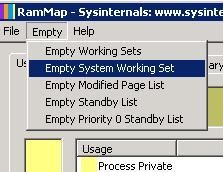
TIP:
If you have a memory leak and get to the point of almost running out of memory, the normal procedure is to reboot the machine in order to clear out the memory. You can use RAMMap to clear areas of memory negating the need to reboot the machine.
Types of memory usage
- Process Private: Memory allocated for use only by a single process.
- Mapped file: Mapped “views” of files are when the contents of that file are mapped to virtual addresses in memory.
- Shareable: Pages that have been marked as shared can be used by multiple processes.
- Paged Pool: Kernel pooled memory that can be paged to disk.
- Nonpaged Pool: Kernel pooled memory that cannot be paged to disk.
- Session Private: Memory that is private to a particular logged in session. This will be higher on RDS Session Host server.
- Metafile: Metafile is a part of the system cache containing NTFS metadata and used to increase the performance of the file system.
- AWE: You will typically see this used by SQL or other database applications.
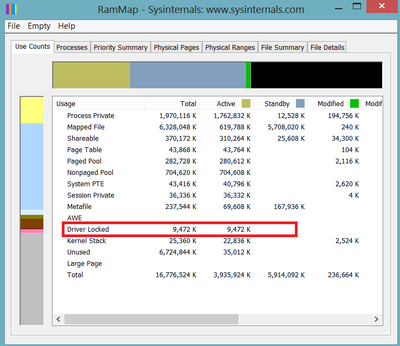
- Driver Locked: These are pages that have been locked in physical RAM by a driver. Usually see this usage with Hyper-V or VMware virtual machines.
- Large Page: Normal page size for Windows memory is 4kb on x64 systems. But with large pages, the size is 2mb. SQL Server and Oracle support the concept of Large Pages when allocating memory.
In this snapshot, you can see that about half of the physical RAM being used is by Mapped Files:
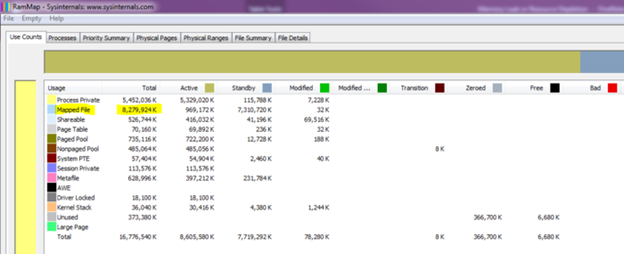
- In this example, next we would click on the Physical Pages tab
- Now at the bottom of the tool select “Use” for the Filter and “is” select “Mapped File” from the drop down.
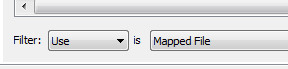
This will now show you all the mapped file entries.
- Next, I would click on the File Name column heading to group similar file names so at this point I could look to see if all the mapping were going to the same path or general path to help determine what is causing all the mapped files.

This information is not something you will see any place else other than an RAMMap or memory dump.
Scenario B
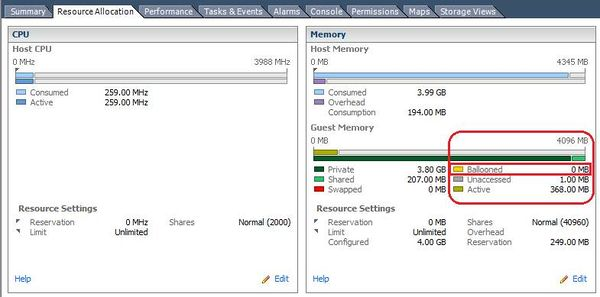
On a VMWare or Hyper-V system, the hypervisor can take memory away from one VM and give it to another VM. It does this by using a driver loaded in the VM to “lock” the memory at the kernel level which can then be given to another VM. If too much memory is taken away, this will cause working set trimming and general performance issues. Standard perfmon memory counters will not provide the info to account for the missing memory. This driver locked or “ballooned” memory can be seen 4 different ways depending on the OS.
VMWare console – Memory and processor utilization for each VM will be clearly seen in the VMWare console. If you have access to the console, then this is the preferred method to see the state of memory in the VM.
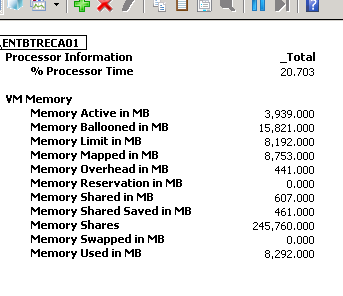
VMware performance counters – When VMWare tools are installed, VMware performance counters are also created. These can be manually loaded in Performance Monitor or use the logman.exe method below to set up perfmon collection.
Example of Logman to collect VMWare processor and memory counter:
The following will configure the counters, set logging to circular with max file size of 300 mb, and take a counter reading every 3 seconds.
- The resultant log will be place in c:perflogs.
<<Start Search>>, enter “CMD.exe” w/o the quotation marks and then press Enter.
- Copy and paste the following command into the command prompt window:
Logman.exe create counter PerfLog-Short -o "c:perflogsPerfLog-Short.blg" -f bincirc -v mmddhhmm -max 300 -c "LogicalDisk(*)*" "Memory*" "Cache*" "Network Interface(*)*" "Paging File(*)*" "PhysicalDisk(*)*" "Processor(*)*" "Processor Information(*)*" "Process(*)*" "Thread(*)*" "Redirector*" "Server*" "System*" "Server Work Queues(*)*" "Terminal Services*" "VM Processor*" "VM Memory*" -si 00:00:03
Logman.exe start PerfLog-Short
Logman.exe stop PerfLog-Short
Example output from Perfmon:
Example Sysinternals RAMMap:
– Jeffrey Worline

by Scott Muniz | Sep 16, 2020 | Uncategorized
This article is contributed. See the original author and article here.
I recently gave a talk about the Citus extension to Postgres at the Warsaw PostgreSQL Users Group. Unfortunately, I did not get to go in person to beautiful Warsaw, but it was still a nice way to interact with the global Postgres community and talk about what Citus is, how it works, and what it can do for you.
If you are already familiar with Postgres then this talk should be a good introduction to all the powerful capabilities that Citus gives you. The tl;dr is this: Citus is an open source extension to Postgres that transforms Postgres into a distributed database. Citus uses sharding and replication to distribute your data and your Postgres queries across a distributed database cluster.
Shining a light on the performance speedups of Citus (via demo)
Every so often, I try to rethink how I talk about Citus as Postgres and the needs of applications evolve. One thing we have not done very much is talk directly about the performance improvements in Citus. Sometimes it’s actually slower, but at scale can be a lot faster. Therefore, I introduced every Citus feature with some benchmarks that show the performance compared to a (large) Postgres server.
The talk is also worth watching for the demo (the demo starts at 46:52) where I compare the performance of Hyperscale (Citus) on Azure Database for PostgreSQL against a single Postgres server. For the demo, I use GitHub archive data in an analytics use case, and the demo shows >250x speedups for analytical queries with Citus!

Click here to watch the video of my talk at Warsaw PostgreSQL Users Group, on Citus: PostgreSQL at any Scale. The demo starts at 46:52, but the introductory discussion should be useful, too.
Props to the organizers of the Warsaw PostgreSQL Users Group—especially Alicja Kucharczyk—for the time they spend organizing Postgres talks for their community. And for inviting me to give a talk to their Postgres users group. I really appreciated all the good questions, too.
If this is your first intro to Citus & you want to learn more
Here are a few of the getting-started next steps I usually recommend to developers:
- Download Citus packages locally: Citus is open source, so it’s easy to download and try out.
- Try Citus on Azure: And in the months since Microsoft acquired Citus Data last year, we have also integrated Citus into our managed Postgres service on Azure: Citus is now available as Hyperscale (Citus), a built-in deployment option in Azure Database for Postgres. So you can also try out Citus on Azure.
- Read the Citus open source docs: docs.citusdata.com has tutorials for multi-tenant SaaS applications and real-time analytics dashboards, a use case guide for time series data, details on pretty much every Citus feature, installation instructions for how to set Citus up locally on a single server as well as installing on multiple servers.. the Citus docs are quite useful.
by Scott Muniz | Sep 16, 2020 | Uncategorized
This article is contributed. See the original author and article here.
Microsoft Ignite 2020 will soon get underway – this year is a digital journey for you to enjoy regardless of where you are. If you haven’t registered yet, go do it now! It’s free to attend.
This post is to highlight all the information specific to Outlook at Ignite 2020. If you’d like a comprehensive compilation of content across Exchange, Outlook and Bookings you can check out the Exchange Team blog.
The links to the digital content in this article will go live when the event starts on September 22nd 2020 at 8am PST and you can connect to most of our information during the event from our Virtual Hub for Outlook and Bookings.
Overview – vision
- The Outlook vision: IT and user value in a hybrid workspace – Hear from Outlook’s new leader, Lynn Ayres, on how to empower your users and organization in areas such as Time Management, Mobile Productivity, and hybrid workplaces. Learn about the “One Outlook” vision – inspiring agile innovation, providing IT with tools to meet security and compliance standards, and offering users more value, faster. Lynn will cover the use of AI to help users get work done more efficiently, new integrations with Microsoft 365 apps, and Bookings in the Enterprise.
- The Evolution of Outlook – Learn about the vision for the evolution of Outlook as your personal organizer and the transformation of communications and time management in the workplace. We’ll share the roadmap for Outlook and its future within the scaffolding of the evolving Microsoft 365 productivity suite.
Deep dives
- Introducing the new Outlook for Mac – Last year, in November we launched a preview of the new Outlook for Mac for our Insiders users – with a brand new user experience and rebuilt on Microsoft sync technology. Since then we have been hard at work adding an incredible number of new features and experiences. Come learn about all the new capabilities that makes this the best mail and calendar application on the Mac platform.
- The new Outlook for Mac – Under the Hood – Come learn about the internals of the new Outlook for Mac and some best practices on how to deploy it within your organization. We will go over all nuts and bolts such as how the Microsoft sync technology works, various account types we support, authentication models, deployment configurations that you can deploy that best suit your needs and much more.
- Outlook Calendar: Fundamentals and Collaboration – We know that features must work flawlessly, and that you want to be able to use any Outlook client to accomplish your time management needs. This sessions updates you on these “fundamental” investments so that your users have less issues, more consistency, and love using the features that Outlook offers them.
- What’s new in Outlook on the Web – Outlook on the web is one of the first apps where we ship new and awesome stuff, and this year will be no different! Come join us on a session so we can show you all that is new, we have AI, Search, and more!
- Delivering a better, more innovative Outlook faster than ever – Understand how the common architecture and embedded web experiences will change the face of Outlook, and it’s already started.
- Outlook and its place in your organization’s mobile productivity strategy – Delegate and shared mailboxes. Check. Sensitivity labeling. Check. Up Next, dark mode and more. Check. What’s next? Split screens, drag and drop and connected experiences: learn about the innovation in Outlook mobile designed to keep you organized, connected and prepared through out your day asked for by our leading Enterprise customers.
- What’s new in Outlook on mobile browser – Remember the update we did to Outlook on a desktop browser? We are doing the same to Outlook in a mobile browser! Come join us as we share all our updates and new features.
- Voice and more AI assistance in Outlook – From neural network voice readouts to voice commanding — Explore and see demos of AI and Cortana capabilities built into Outlook that help take the load off your workforce for optimal personal organization and time management.
- Sorting out your Outlook contacts and connections – Outlook is enhancing the way you manage contacts on your mobile device with new sorting and filtering options, support for contact subfolders and a performance updates you’ll love. No more duplicates! Tune in to learn about these new updates and get a preview for what is next to come.
- What’s New in Microsoft Search in Outlook – Connecting Outlook to Microsoft Search has unleashed capabilities that deliver a more consistent experience, drive productivity and improve performance. Dive deeper into how Search unlocks organizational knowledge in Outlook, saves time through actionable results and surfaces what’s relevant to you.
- Virtual collaboration across Microsoft 365 – Virtual collaboration is a key way to get work done in a hybrid work environment. Learn how to take advantage of Microsoft 365 collaboration scenarios across Outlook, Teams, and Office apps.
Learning Path – Mailbox Protection with Microsoft 365
Learn about how Microsoft protects your email and calendar data end to end: helping to make sure that your data and privacy are protected from the device in your hand or on your desk to the bits on a disk in one of our data centers.
- Protecting E-Mail And Calendar Data End-To-End – See the secure, end to end flow of communication, between individuals and organizations. See a high-level view of how data is secured and treated from the disk in Exchange Online to the client.
- Protecting Exchange Online Mailboxes As A Secure Vault – How we protect data on disk, how we protect the servers, the service, the story of HA and resilience and security and compliance in EXO.
- Protecting Outlook data with Authentication and Authorization controls – In this session, you will learn about the authentication mechanisms available with Exchange Online and how Azure Active Directory provides authorization mechanisms, like Security Defaults and Conditional Access, to ensure only the trusted users and devices get access to your Outlook data.
- Protecting Outlook data on your devices – In this session, you will learn about the differences between device and application management capabilities that can be used to protect your Outlook data on devices, how device risk can be used to further evaluate the health of a device, and the solutions you should implement to protect Outlook data on managed and personal Windows 10 devices, as well as, mobile devices.
- Protecting sensitive emails with policy-driven compliance – Classification of your content, sensitivity labeling and protecting in transit and at rest. Learn about what’s new with information protection — how you can audit your environment to ensure compliance and find out what’s next with reporting and data loss protection in Outlook and Exchange.
This information will also be available with the Ignite 2020 Virtual Hubs for Outlook and Bookings as well as Exchange.
But that’s not all! Be sure to come back here to the Outlook blog Tech Community once Ignite begins as we will publish several articles that complement our sessions and will also go deeper on what’s new and newsworthy. Given the digital nature of Microsoft Ignite 2020, our stickers won’t be available this year sadly. But come back to this article and related Ignite news articles in Tech Community during Ignite, we might have a digital give away for our Outlook, Exchange and Bookings fans.
We always love to hear your feedback so please feel free to leave comments here.
The Outlook Team
by Scott Muniz | Sep 16, 2020 | Uncategorized
This article is contributed. See the original author and article here.
Ignite is just around the corner on September 22 and 23, and you are invited. In this all digital event, there are amazing live and on demand sessions to learn more and connect.
First, if you are a IT Administrator, school leader, or anyone else looking to dive deeper into the technology available for your students, school or institution, register for Ignite 2020 here!
Next, check out these recommended sessions and links to join live or watch on demand. (You’ll need to be registered to see and sign up for sessions.)
- Microsoft Teams
- Device management with Intune for Education
- Microsoft Edge
Microsoft Teams
Microsoft Teams – Education specific sessions
Remote and hybrid learning with Teams for Education (On Demand starting Sept 22)
In this session, we’ll go in depth on everything you need to know for remote and hybrid learning, including how to create online meetings with the right meetings options and policies, how to create class teams through automation, and how to support collaborative classroom environments.
Deployment and Governance of Teams for Education (On Demand starting Sept 22)
Understand everything you’ll need to know for holistic governance for your educational institution. In this session we’ll cover chat policies, meeting policies, app policies, assignments through groups, how to configure student safety, and methods for automating team class creation.
Integrate with Microsoft Teams for Education App Platform – (On Demand starting Sept 22)
Teams is an open platform for educational institutions to integrate apps and create custom workflows. In this session we’ll cover how the Teams app store is used across classroom teaching to integration with IT help desks. Learn about 3rd party app governance, open source app templates, and a hands-on example of App Studio to create a quick custom website app for your institution.
Apps and Workflows
Digitize and transform business processes with no-code building blocks and app templates in Microsoft Teams (On Demand starting Sept 22)
Organizations are already transforming many of their business processes on Teams – from approvals and task management, all the way to crowd sourcing the organization for top ideas. Learn how to use embedded building blocks and production-ready app templates to digitize and streamline key processes. In this session we’ll share how customers are leveraging these solutions without any custom development required, as well as how some recent innovations can help simplify these processes
Modernize business processes with the low-code Microsoft Teams + Power Platform integration (On Demand starting Sept 22)
Learn how Teams users can build and integrate custom apps, bots, automation, and data into Teams to simplify work. Microsoft Power Platform provides Teams users with a low-code platform to build custom solutions, even if they don’t have any developer experience. In this session, we will discuss how new Teams + Power Platform capabilities make it even easier to build and deploy custom low-code solutions to Teams, and share how customers are simplifying work with this integration.
Meetings
Master virtual breakout rooms in Microsoft Teams meetings (On Demand starting Sept 22)
Join us to learn about the latest innovations with virtual breakout rooms in Teams. In this session we’ll highlight use cases and best practices for facilitating small group ideation, brainstorming, learning, and discussions with virtual breakout rooms.
Make your Teams meetings safe and inclusive with meeting and video conferencing controls (On Demand starting Sept 22)
Join this session to learn more about meetings safety, security and moderation – including the ability to hard mute all attendees, request to speak functionality and configuring breakout rooms. We will also cover features like reactions and raised hands that can help make meetings more inclusive.
Leverage Teams to deliver engaging virtual events for your employees, customers and communities (On Demand starting Sept 22)
Join this session to learn how Microsoft Teams can seamlessly scale to help deliver events of all types, from company townhalls, to training webinars, to online conferences. We will also share vision and roadmap for features to help scale and customize your virtual meetings and events.
Managing Security and Compliance in Microsoft Teams – (On Demand – Save to Ignite backpack)
Delivering a secure collaboration experience is essential. Join us for a review of the security and compliance features for Microsoft Teams from an ITPro perspective. Policy management, content management, retention procedures, communication compliances, and more will be covered. Come see the full compliment of capabilities for secure, compliant collaboration!
Build richer meetings experiences with Microsoft Teams apps using new meetings extensibility points (On Demand – Save to Ignite backpack)
Learn how developers can use new meetings extensibility points to integrate their Teams apps across the meetings surfaces – enabling apps to be used throughout the meetings lifecycle (pre, during, post) and provide users a richer collaboration experience within meetings.
What’s New for Microsoft Stream and video in Microsoft 365 (On Demand – Save to Ignite backpack)
Join the product team to learn more about the innovations and roadmap for video in Microsoft 365.
Micrsoft Teams for Education Ask me Anything (AMA)
Finally, if you want to connect on Teams for Education, sign up for our Customer Connection here. This is a smaller setting (max of 30 people) to talk with experts and share your experience with other Teams for Education users.
Device Management with Intune for Education
Device management sessions will go live with links once Ignite starts. Check out our session on Intune for Education and check https://aka.ms/MicrosoftIgnite2020/MEM for other Microsoft Endpoint Manager sessions.
What’s new in Intune for Education (On demand session – check back on Sept 22 for live link)
Request a meeting
If you’re interested in talking to a member of the Microsoft Endpoint Manager leadership team about your school district’s device management, request a meeting using this form.
Education Specific Device Management Learning Path
We’re also excited to announce that a new Education specific device management learning path on Microsoft Learn is coming soon. Check out current learning paths: https://docs.microsoft.com/en-us/learn/paths/manage-enterprise-deployment-m365/
Microsoft Edge
Microsoft Edge – State of the browser in 2020
Come learn about new security and productivity features and our continued integration with M365. We’ve been listening and learning from you and we’ll share how all of that feedback fits into Microsoft Edge.
Ask the Expert: Microsoft Edge – State of the browser in 2020
Join us Wednesday, September 23rd from 1:45pm-2:15 PM PDT to dive deeper into the State of the Browser on-demand session content and get your questions answered. Let’s talk about new security and productivity features, our continued integration with M365, and more. Join us
Looking for more? Check out https://aka.ms/EdgeYouTube for deep dives on Microsoft Edge.

by Scott Muniz | Sep 16, 2020 | Uncategorized
This article is contributed. See the original author and article here.
To continue my hybrid migration blog series (see part 1 here) – let’s talk about migration move reports. We will need this knowledge when we get to later parts of the series (and start troubleshooting more).
When troubleshooting failed or slow migrations, it is best to export the move reports to XML files. If you are working with Microsoft support, you can then send those files to us. If we have the move request statistics with -IncludeReport and -DiagnosticInfo switches for the affected users, we’d typically have enough to troubleshoot hybrid migrations (assuming that the move requests were created for the users we are troubleshooting).
What if move requests are not being created?
If you started the hybrid migration via migration batches and move requests are not there because they weren’t created by migration service for some reason, you would send us the migration user statistics XML and eventually the migration batch XML. We would also require you to run New-MoveRequest command manually from PowerShell depending on the migration scenario you are doing (onboarding or offboarding) and see if you get an error message when manually invoked by the administrator (the exact commands for onboarding / offboarding move requests are found in Part 1 of the blog).
Here is a quick summary of main reasons why migration service wouldn’t be able to inject the New-MoveRequest (and thus produce the move report):
- Migration user fails validation, for example:
- ExchangeGuid not synced from on-premises mailbox to corresponding cloud mail user, error referenced here
- Secondary SMTP address user@tenant.mail.onmicrosoft.com is not synced from on-premises mailbox to corresponding cloud mail user, error referenced here
- Primary or secondary SMTP address on the on-premises mailbox contains an SMTP domain that is not an accepted domain in Office 365 (the domain hasn’t been verified in Office 365 or it can’t be verified (for example a domain is a non-routable domain like user@contoso.local), error referenced here
- The user mailbox you are trying to migrate to Office 365 has multiple ComponentShared mailboxes in Office 365 and during the merging process we fail to find the recipient ExchangeGUID of a specific ComponentShared mailbox (the error message is similar to #1 above with the difference that the ExchangeGuid doesn’t belong to the user mailbox being migrated but rather belongs to the Exchange Online ComponentShared mailbox location associated with the corresponding cloud mail user for your on-premises mailbox) . If you find yourself in this scenario, please provide us with the error message containing the affected ExchangeGuid and result of Get-MailboxLocation -User <Identity> |FL ran in Exchange Online PowerShell, against the user you are failing to migrate.
- On-premises environment is filtering connections from Office 365 and is not allowing specific Exchange Online IP addresses ranges which includes the outbound IP of the migration service server. Ensure you allow all EXO IP addresses from here.
When move requests are being created
Suppose you did have a move request created (migration service or the admin managed to successfully inject the move request for the user with New-MoveRequest) but the move request is in a failed state. You would then typically retrieve the move request statistics with -IncludeReport switch for a better understanding of the cause of the failure.
There is another switch called DiagnosticInfo switch; it’s use is less common than IncludeReport and is usually used by support people. It accepts 3 arguments: showtimeline, showtimeslots and verbose; showtimeline and showtimeslots are useful when we have slow migrations because we want to see where the requests spent most of the time and useful to understand why it is slow. Verbose argument can be also useful in failed migrations, especially when we don’t have a report for the move/ migration user.
A move request can have the following statuses and you can use –MoveStatus parameter to filter the move request based on a specific status, reference here. I will list the main statuses of move requests, with a brief explanation of each:
- AutoSuspended – the move request is automatically suspended by MRS. This happens if you manually create a move request with the -SuspendWhenReadyToComplete flag or use this parameter on an existing move request and the move request has completed the initial sync stage.
- Completed – the move request completed successfully.
- CompletedWithWarning – the move request is completed but it encountered a failure during the move, a failure which didn’t fail the migration. This needs your attention. We will get deeper into this in a later part of this blog series.
- CompletionInProgress – the move request is about to complete (final sync stage).
- Failed – the move request encountered a permanent failure that is not retriable automatically. Failed move requests will be discussed in Part 3 of this blog series.
- InProgress – the move request is in progress. If you suspect that the move is progressing slowly, Part 4 of this blog series will cover that.
- Queued – the move request is being queued in the MRS queue and is waiting to be processed.
- Suspended – the move request is manually suspended (for example, Stop-MigrationBatch/MigrationUser or Suspend-MoveRequest initiated by the admin).
- Synced – the move request has completed the initial sync stage and is waiting for manual or automatic resume (incremental or final sync stage).
As promised earlier, here are the cmdlets to export migration and move reports to XML files:
Export migration user statistics for one migration user to an XML file
- Use whenever you initiate a hybrid migration through batches
- Use when a move request fails to be injected (you have nothing returned in Get-MoveRequest for the user, meaning no move request available for the user identity)
Get-MigrationUserStatistics <User> -IncludeSkippedItems -IncludeReport -DiagnosticInfo Verbose | Export-Clixml C:tempAffectedMigUser1Stats.xml
Export move request statistics for one user to an XML file
- This only applies to hybrid remote moves
- Use when you have a Get-MoveRequest for that user identity
Get-MoveRequestStatistics <User> -IncludeReport -DiagnosticInfo “showtimeslots, verbose, showtimeline” | Export-clixml C:tempEXO_AffectedHybridMoveRequest1Statistics.xml
Export all migration batches info to an XML file
Get-MigrationBatch -DiagnosticInfo Verbose -IncludeReport | Export-Clixml C:tempEXO_ALL_Batches.xml
Export one migration batch info to an XML file
Get-MigrationBatch “<Batch Name>” -DiagnosticInfo Verbose -IncludeReport | Export-Clixml C:tempEXO_AffectedBatch.xml
Some of you might be in a situation where the migration completed fine and you have removed the move request but now, an end-user calls you saying that she/he lost permissions on a mailbox you just migrated (and already deleted the report for). Fortunately, you can still try to retrieve the move report and move history with Get-MailboxStatistics command executed on premises where the mailbox was moved to (and the mailbox is hosted currently – Exchange Online or Exchange on-premises). References for the command to use can be found here and here.
Other exporting to XML, you can also store the report in a variable, for example $stats. This is useful especially when you want to investigate by yourself (before logging a support case, for example):
$stats = Get-MoveRequestStatistics <user> -IncludeReport -DiagnosticInfo verbose
Note that if you run the command without those 2 switches, you won’t have the report or DiagnosticInfo available, but only the actual statistics, example:

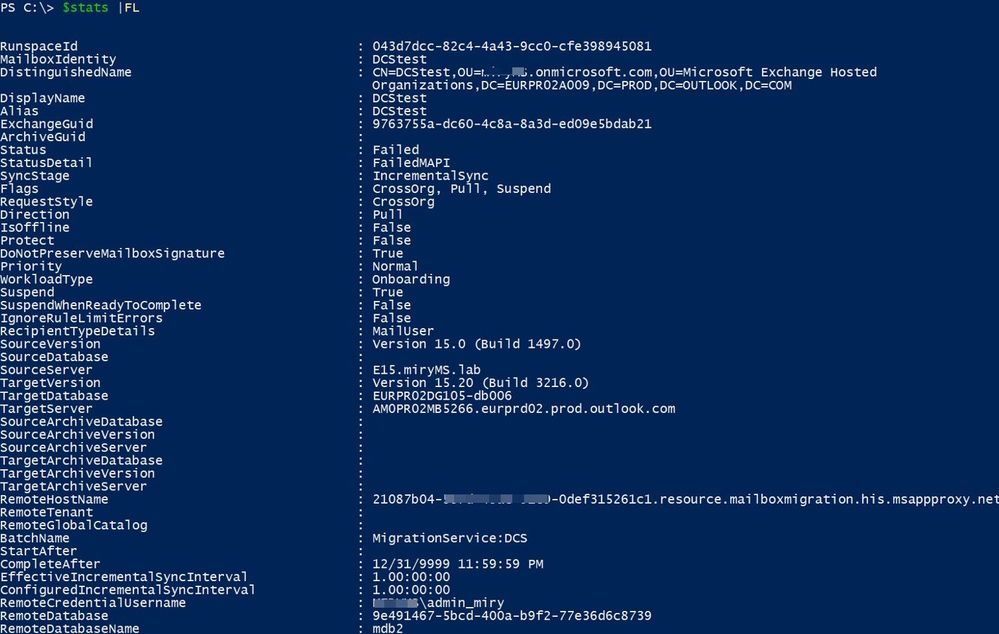
You can use |FL to see more info on the statistics, example here:
Next I will list some of the main things that can be found in just the statistics of a move request, which I find useful:
- Information related to identifiers of the user mailboxes (primary or archive mailbox) being migrated: MailboxIdentity, DistinguishedName, Alias,DisplayName, ExchangeGuid, ArchiveGuid, Identity
- Information related to the state of the move and its completion settings: Status, StatusDetail, SyncStage, PercentComplete, CompleteAfter, SuspendWhenReadyToComplete, Message, FailureType,FailureSide, LastFailure
- Information related to the directionality of the move and if online or offline move: Direction, WorkloadType, IsOffline
- Information related to the size of the mailboc being migrated: TotalPrimarySize, TotalPrimaryItemCount, TotalArchiveSize, TotalArchiveItemCount, TotalMailboxSize, TotalMailboxItemCount
- Information related to bad items, large items and Data Consistency Score: BadItemLimit, LargeItemLimit, AllowLargeItem, BadItemsEncountered, LargeItemsEncountered, MissingItemsEncountered, DataConsistencyScore, DataConsistencyScoringFactors, LastSkippedItemEncounteredTimestamp, SkippedItemApprovalTimestamp
- Information related to the batch and migration endpoint used (when we initiate hybrid migration through batches): BatchName, MigrationMailboxGuid, SourceEndpointGuid, MigrationBatchGuid, MigrationUserGuid
- Information related to source or remote environments: SourceVersion, SourceDatabase, SourceServer, SourceArchiveDatabase, SourceArchiveVersion, SourceArchiveServer, RemoteHostName, RemoteCredentialUserName, RemoteDatabase, RemoteDatabasename, RemoteArchiveDatabase, RemoteArchiveDatabaseName
- Information related to the target environment and somains: TargetVersion, TargetDatabase,TargetServer, TargetArchiveDatabase, TargetArchiveServer, TargetArchiveVersion, TargetDeliveryDomain, ArchiveDomain
Information related to duration and timestamps:
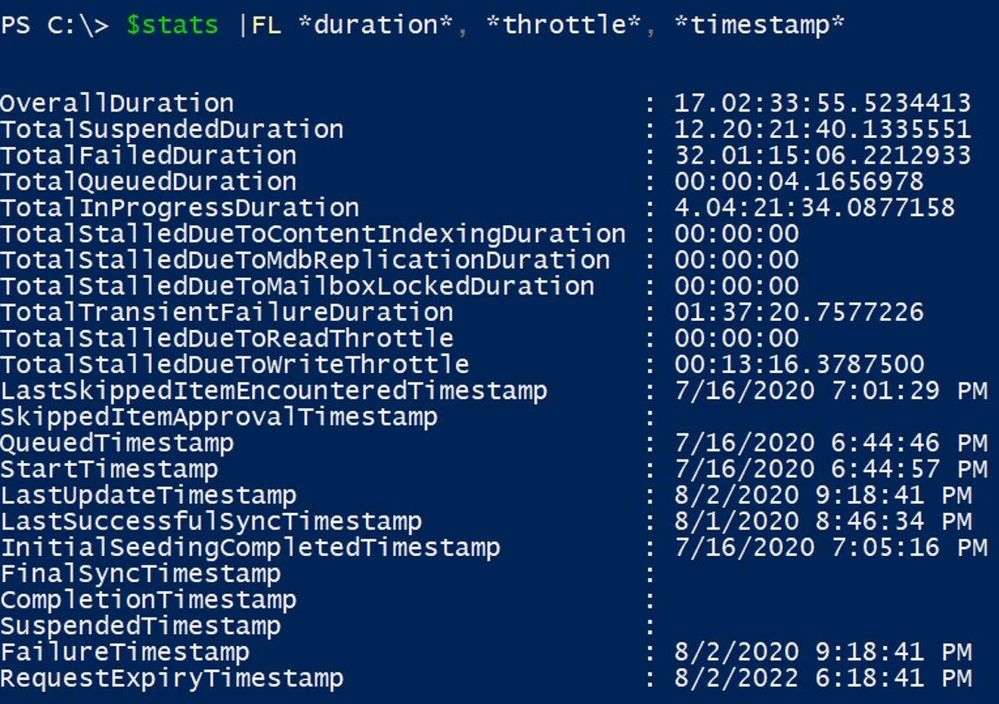
Now, let’s talk about things we see in the actual report of a move request statistics ($stats.Report) in PowerShell (and with MRS Explorer GUI tool) so that you know what to check when you’re stuck with a hybrid move.
Note: you need to have a move request in place for the user and get the move request statistics with IncludeReport switch in order to have the report available for analysis.
Suppose we stored the move request statistics in $stats variable and have the report available in $stats.Report. We can simply run $stats.Report to dump the entire report (not practical) or check specific sub-parts of the report.

I will now list the main report components and a brief explanation of what type of info you will find here:
- .Entries (all report entries, everything from the report is logged here; think of it as a timeline of the move operation)
- .DebugEntries (“hidden” entries, these are for example useful when troubleshooting in-depth permissions loss during move or want to check the values changed in Set-MoveRequest)
DebugEntries is different from Entries in data contained and as well as localized string language; in report, Entries will be in lof the admin whereas DebugEntries are in English (these are mostly used by Microsoft folks). DebugEntries is usually used in troubleshooting permissions loss (folder ACL before and after the move, mailbox security descriptors (SD) and calendar folder ACL for F/B issues)
Commands to get Entries and DebugEntries linked together and copied to clipboard::
$e =@()
$e += $stats.Report.Entries
$e += $stats.Report.DebugEntries
$e | sort CreationTime | % { [string] $_ } | clip
Command to get the first entry related to a corrupt item – this is also seen in report.baditems[0]:
$stats.Report.Entries | where { $_.LocalizedString -match ‘Corrupt’ } | Select -first 1 | % { [string] $_}
- .Failures (these are admin exposed failures that were encountered during the move; the failures are normally grouped in transient and permanent ones. We will talk about this more in a later part of this blog post series, where we will discuss failed migrations)
We can output these with a | group failuretype and show overall details or we can output it with a | Select -Last 1 or [-1] to show you the last error in the report or with a | Select -First 1 or [0] to show you the first error in the report. We are mostly interested in Timestamp, SourceSide, DataContext, StackTrace and InnerException
- .InternalFailures (“hidden” failures, used mostly by migration engineering team, usually seen in mailbox locked scenarios; you can format the output the same as regular failures described above)
- .BadItems (corrupted items encountered, most common ones are orphaned ACLs with unresolved SIDs)
- .LargeItems (large items encountered, in MRS migrations limit is 150MB)
- .Connectivity (server versions and names; think of this as a timeline of the connectivity during a move operation)
- .SessionStatistics (statistics of the move , like source and target average latency time)
- .Mailbox verification (item statistics before and after the move on source and target; it’s only available when status is Completed). A quick command to see the folders and their properties where the number of items from source are different from the ones on target: $stats.Report.MailboxVerification | where { $_.Source.Count -ne $_.Target.Count }
- .SourceMailboxBeforeMove.Props together with .TargetMailUserBeforeMove.Props (for example, in onboarding scenario: on-prem mailbox properties and Office 365 mail user properties before the move; only available when status is Completed)
- .TargetMailboxAfterMove.Props together with .SourceMailUserAfterMove.Props (in the same example, in onboarding scenario: on-prem mail user properties and Office 365 mailbox properties after move; only available when status is Completed)
- .SourceMailboxSize (the size of the source mailbox)
- .TargetMailboxSize (the size of the target mailbox)
- .SourceArchiveMailboxSize (the size of the source archive mailbox)
- .TargetArchiveMailboxSize (the size of the target archive mailbox)
- .SourceThrottles (shows reason for why/if a move was throttled on the source side and for how long)
- .TargetThrottles (shows reason for why/if a move was throttled on the target side and for how long)
Using MRS Explorer
If you are not super skilled with PowerShell and would like to choose a more user-friendly interface to analyze the move report, you can use the MRS Explorer utility (please note that this is not an officially supported tool).
You will have to download the script located here.
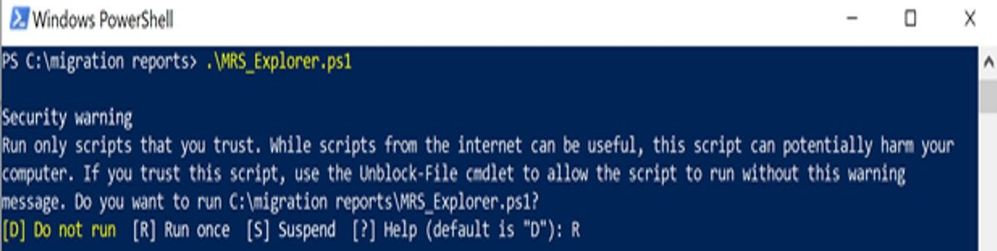
1. After you have downloaded MRS_Explorer.ps1 script to your local drive, run it from any PowerShell client as shown below:
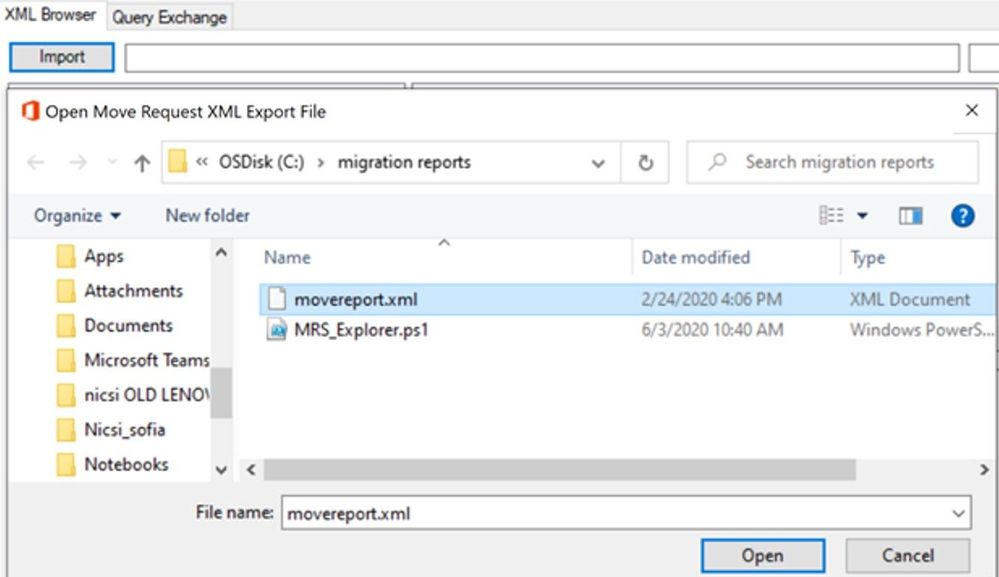
2. From the interface that pops up, you can import one of the XML migrations reports that you have already saved on your machine or you can connect directly to Exchange Online by selection the option “Query Exchange”.
3. Once the report has been imported, you can view the details of each property from the migration report. We can view more insight by expanding the “Report” tree, for example the details of SessionStatistics:
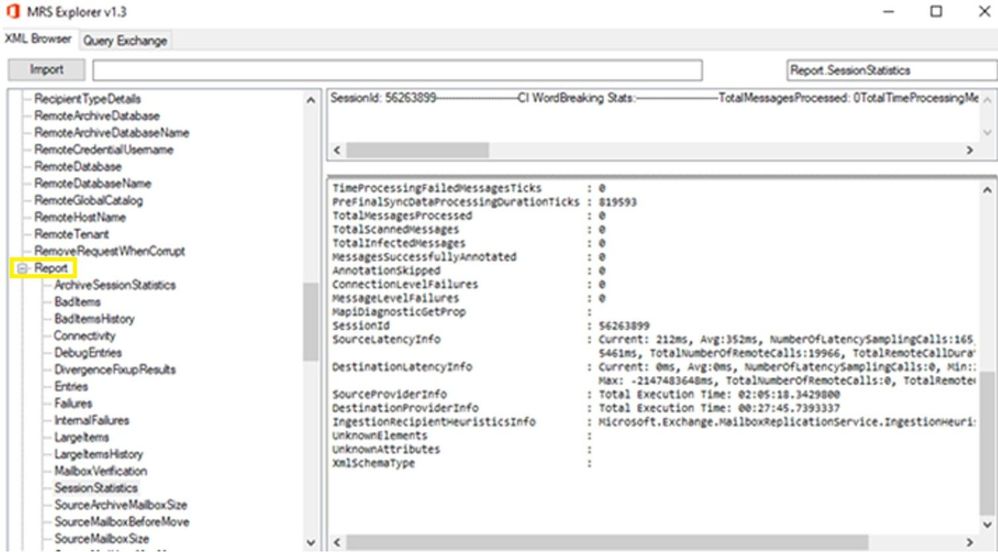
4. We can also see the information about Data Consistency Score for example:
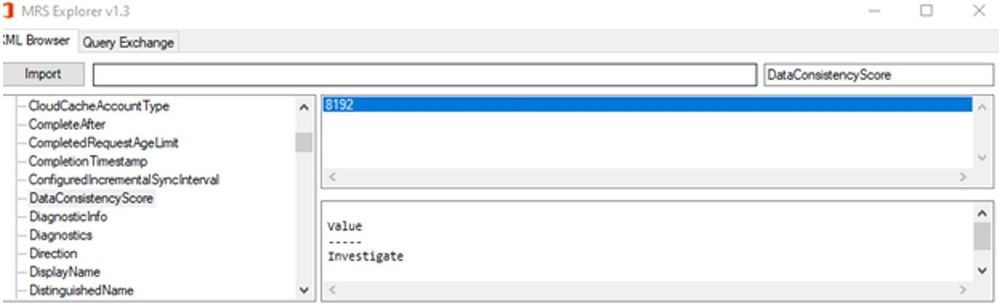
This concludes part 2 of this blog series. Onto failed migrations next!
Special thanks to the army of migration specialists that reviewed and contributed to this post: Angus Leeming, William Rall, Brad Hughes, Chris Boonham, Ben Winzenz, Cristian Dimofte, Nicu Simion, Nino Bilic, Timothy Heeney.
Mirela Buruiana
by Scott Muniz | Sep 16, 2020 | Uncategorized
This article is contributed. See the original author and article here.
Microsoft Intune is excited to support Apple in their launch of iOS 14, iPadOS 14, and watchOS 7. We are delighted to deliver new functionality alongside Apple’s launch – ensuring you can be at the cutting edge to support your users wherever they are working or learning this fall.
Here are the new Apple scenarios we support and updates we’ve made to provide the best MDM and APP experience:
- In our September release, we support several new configurations for MDM enrolled iOS and iPadOS 14.0+ devices, including:
-
Disable iOS/iPadOS App Clips
-
4096 bit SCEP certificate keys
-
Custom maximum transmission unit (MTU) values for IKEv2 VPN connections
-
Per-account VPN routing for the native Mail app
-
Prevent users from disabling automatic VPN
-
Associated domains for per-app VPN connections
-
Excluded domains for per-app VPN connections
-
Apple Business Manager and Apple School Manager have been updated with a new view for all devices and Custom Apps functionality for distributing apps internal to your organization. Last year’s integration with Microsoft Azure Active Directory to enable Federated Authentication for Managed Apple IDs now works alongside SCIM (System for Cross-domain Identity Management) to help keep account data in sync.
-
There have been improvements to the Apple Push Notification service (APNs) to improve communication, which Intune supports.
In upcoming releases, we plan to add even more features to support your Apple management journey, including skipping Restore Completed and Update Completed panes during Automated Device Enrollments on iOS and iPadOS 14.0+.
With iOS and iPadOS 14, devices will automatically present a randomized MAC address for enhanced privacy when connecting to networks rather than defaulting to physical MAC addresses. If you rely on static MAC addresses in your environment, which may be used for network access control (NAC), you can disable MAC address randomization on a per-network basis in your Wi-Fi profile configuration for iOS and iPadOS 14 in our September release.
When using the “Required” assignment type for apps on iOS and iPadOS 14 devices, apps are marked as non-removable. This ensures that these mission-critical apps cannot be uninstalled by the user. For existing apps assigned as “Required”, when enrolled devices update to iOS and iPadOS 14, these will start receiving the new non-removable setting for apps.
In iOS 14, users can set their default mail and browser apps. The latest Outlook version (4.55.1) supports this functionality and Edge is live with the functionality to set their default mail and browser apps as of version 45.8.9.
iOS and iPadOS 14 offer the ability for app developers to provide widgets that present key information from apps on users’ home screens. If an app creates a widget, that widget will show up on the user’s device. Microsoft Endpoint Manager will not obscure the information displayed in widgets. If a widget from a protected app contains any links, APP will apply to protect that link as links within the app are protected.
In iOS and iPadOS 14, there are some updates to how pasteboard works. Here’s what this means for your apps protected with APP:
- For apps that have not updated to the most recent version of the Intune SDK (12.9.0), managed accounts trigger pasteboard notifications frequently. This is because Intune checks the pasteboard when the app becomes active to ensure data on the pasteboard is being protected correctly. For iOS and iPadOS 14, Intune has made changes to restrict on paste/copy rather than on app launch/resume.
- Because Intune can no longer read the content without triggering a pasteboard notification, it is not possible to hide the paste button (where we would have blocked the paste action) for accounts with a non-zero paste in exception policy. This paste button will only appear until a paste action has been taken and will paste “Your personal data cannot be pasted here. Only <admin-defined number> characters are allowed.” when selected. After the first paste in the managed app, we will know of the contents and can properly hide the button.
In 2021, Apple will update the format of serial numbers for products to a randomized string of 10 characters. This should not impact your Intune enrollments.
We recently brought support for Shared iPad to iPadOS 13.0+ devices enrolled through Automated Device Enrollment and Apple Configurator 2 and are working hard to bring this support to iPadOS 14 devices as well.
We’re investigating an issue with iOS and iPadOS 14 and OneDrive where users cannot access OneDrive files through the Files app or FileProvider API when the device is enrolled with the following device restrictions:
- “Viewing corporate documents in unmanaged apps” is blocked.
- “Viewing non-corporate documents in corporate apps” is not configured.
We have recently made changes to our iPadOS enrollment service that are live for public cloud tenants already. These changes are rolling out to the government cloud in the next week. In the meantime, if you would like to enroll a device running iPadOS 14 through the Company Portal, you can follow a few simple steps:
- Go to iOS Settings > Safari > Request Desktop Websites and turn off “Request Desktop Website on All Websites”
- Go to iOS Settings > Safari and select the Clear History and Website Data option
- Log into the Company Portal app and enroll your device
Apple is posting updated versions of operating system software license agreements to Apple Business Manager on September 16, 2020. Once posted, your organization won’t be able to enroll devices or deploy new apps until an administrator has signed into Apple Business Manager and accepted the new terms.
For more information see the Apple Support article If Apple Business Manager or Apple School Manager asks you to approve new terms and conditions.
What should you do now?
- If you haven’t been testing with the public beta releases, be sure to test your scenarios now that iOS and iPadOS 14 are releasing.
- Test out new Endpoint Manager functionality and see how it might apply to scenarios in your organization.
- Accept Apple’s new versions of operating system software license agreements in Apple Business Manager.
Keep us posted on your favorite new feature and as always let us know if you have any additional questions or feedback. You can comment on this post or reach out to us on Twitter by tagging us at @IntuneSuppTeam.
by Scott Muniz | Sep 16, 2020 | Uncategorized
This article is contributed. See the original author and article here.
Claire Bonaci
Today Ryan Tubbs speaks with Omkar Kulkarni, the Chief Innovation Officer for Children’s Hospital Los Angeles about their latest initiative KidsX.
Ryan Tubbs
Hi, good afternoon. This is Ryan Tubbs, digital transformation officer for Microsoft healthcare. I’m joined today by Omkar Kulkarni, he’s the Chief Innovation Officer at Children’s Hospital of Los Angeles. And we had an excellent conversation the other day and he was talking to me about some initiatives that he’s driving and hoping to get some more information from today. So first of all, welcome Omkar.
Omkar Kulkarni
Thank you. Thanks, Ryan.Glad to be here and glad to have this conversation with you.
Ryan Tubbs
Well, I’d love to learn more about you first, and then we’ll move on to some of these initiatives. Can you tell me a little bit about yourself?
Omkar Kulkarni
Sure, thanks. So, my name is Omar Kulkarni. I’m the Chief Innovation Officer at Children’s Hospital Los Angeles, like you said, and I’m also the managing director of kids x, which is a new program that I’d love to talk to you and your viewers more about.
Ryan Tubbs
Excellent. So I’d like to get just a baseline understanding of some of the the problems that are facing pediatric health just generally speaking, what are you seeing? What are some of the the problem areas you’re seeing? What are the innovations that are happening in the space of pediatric health currently?
Omkar Kulkarni
Yeah. What’s what’s interesting about pediatric health is it’s not all too different than adult health care in the global sense, right. So what’s happening in in adult health care happens in pediatric healthcare, but it’s not the same. And so while the problems the general problems are, are similar, the the ways in which those problems are solved is different. I think that’s really where we’re trying to shine a light on that specific fact. And then be figured out ways to make it easier for people that are building solutions to be able to solve them specifically with the pediatric lens in mind, I’ll give you one example. You know, for in most most of adult health care, the patient is the user of technology. Typically, in pediatric care, that’s not mostly the case. In fact, usually it’s either a parent, a guardian, a grandparent, sometimes a sibling, and then often with older kids, it is that it is that the patient who’s the user, but just that element alone, thinking about, you know, different user personas and user profiles and what engagement you get with a six year old versus a 16 year old versus, you know, maybe a 35 year old parent of a child. Those are all different. And so as you’re building technology that’s, you know, solving problems and engaging the user. There are some things to keep in mind that are unique and different about this population.
Ryan Tubbs
Excellent. Now, imagine that you started KidsX to combat some of those challenges. Can you talk to us a little bit more about that program?
Omkar Kulkarni
Sure. So it is the largest pediatric digital health accelerator in the world. We have 26 amazing, innovative pediatric hospitals from across the United States, from us from the UK and from Australia, that basically come together to say, look, we want to work together to figure out a way to accelerate the pace of digital innovation in pediatric health care. And specifically by working with early stage startup companies that are focused on solving problems that are really important to these pediatric hospitals. So those ingredients are going to come together with kids x, and through that we think we can really make a pretty big impact in a short period of time.
Ryan Tubbs
Interesting, why startups?
Omkar Kulkarni
So, you know, there are solutions that exist across, you know, the ecosystem from, you know, various, you know, technology vendors, academic partners, in earlier stage companies. We feel that, that there are plenty of already great solutions that exist between kind of established technology, you know, developers and vendors and big companies. That space is already doing really well the area where we feel like there is a need and an opportunity is with these early stage companies, because many of them, they have the flexibility, agility, and talent to be able to do some incredible things that can solve some of the gaps and fill in some of the holes in between. where some of the existing solutions lie. But the problem is that without really having partners and, you know, engaged decision makers and clinicians, from the users, in our case, the hospitals, the solutions lack something, they don’t actually solve problems that are focused on our specific population in our market. And as a result, they’re not really ready to use, we feel like we get kind of kid sized versions of adult technology, adult adult healthcare focused technology as opposed to, you know, purpose built solutions for us.
Ryan Tubbs
Yeah, it’s interesting. You know, we do quite a bit of work with startups, as you can imagine, as a large technology organization, and we find much of the same and not just limited to pediatric health, broader healthcare and then across industries, we find that there’s a lot of great innovative ideas that are coming out of the startup community. However, it does take this community this almost as open innovation approach to really further refining those solutions and allowing them startups an ecosystem that they can do their continuous market validation as it were. So there’s a very symbiotic relationship in some of these accelerator type programs where it’s good for them to evaluate the commercial aspects of their offering. But it’s also good for the end customer and ideally, the hospitals to get in be an early advisor into how that product shapes Is that what you’re finding?
Omkar Kulkarni
Yeah, I mean, the way we think about it is we are really good at delivering pediatric health care, right? We’re at its core, we as in these organizations that we know we’re part of, we are good at delivering health care. We’re not technology companies, right? I mean, we have great smart people who work in technology who work for us, but ultimately, we’re not designed to build new technology. That’s that’s what you all do. That’s what these startups do. That’s that’s what that ecosystem is, but to your point, there is this mutually beneficial relationship when you can find a way to work together and that’s what is needed but it needs to be facilitated. I think the problem is there’s so many these one off conversations that are happening between entrepreneur and you know, hospital leadership or doctor are nurses. They’re one off and they’re not coordinated. They’re not facilitated. There’s not an evaluation process or prioritization process that’s in any way consistent or scaled. And so there’s a lot of inefficiencies in that process. And what ends up happening is you don’t really have the best of the best that are selected, identified, and partnered with that actually end up with solutions that are delivered. And so I think that’s what these ecosystems like accelerators are really helpful because they bring together the key leaders thought, thought partners, decision makers, to both select the right people, the right entrepreneurs and companies, but then also to mentor them, guide them and prepare them for entering into that market. Right. So through product validation, through, you know, business model validation, building that right go to market and sales strategy. These are key elements that you know, can be done in a vacuum but can be done so much better if you have partnership for both ends of the ecosystem.
Ryan Tubbs
Absolutely. Now, I don’t recall you mentioning how long the program has been around. But as have you already gone through a cycle this no traditional accelerators have a cycle of nomination process, you know, some build time and then, you know, some kind of an exit, if you like, does your program operate similarly? And where are you at in your cycle currently?
Omkar Kulkarni
Yeah, it does. It’s at once a year program, we just launched the program. And so we have our hospitals. What’s unique about our program, which I’m particularly proud of, is, we use the reverse pitch concept. So with this with this reverse pitch model, we feel like it’s important to first start by asking the hospitals, what are the key problems that you want to solve it even further than that – what are the key problems that you would actually put resources towards solving? So we did that exercise a few weeks ago, and we brought together these 26 hospitals virtually, of course, and we said, Look, what are the key areas that you want to put resources towards solving. And through that we were able to come up with a list of actually hundreds of different ideas we’ve prioritized and selected eight and we’re calling them the kidsX wishlist and this is the list of items that we really want. So companies, startups, who are solving these problems to come to us and say, Look, I can solve this for you. And I can solve it for you in this way. So we just have that process or applications are open now. There’ll be open through middle of October. And then our actual class will begin in January and go through March. And so the idea is for this to happen every single year with an accelerator class, that’s kind of January through March.
Ryan Tubbs
Awesome. And so do you have any good stories around this that you can tell currently that are publicly available?
Omkar Kulkarni
Yes. I mean, what’s incredible about this so far, as we all have, even though we all work in very different markets, different cities, around the country, even around the world, some of the same, some of the same things keep popping up everywhere we go some of the same challenges. Some of the same successes are existing in Florida existing in Texas, existing in London, in LA as well. And so it’s been it’s been great getting to know these different things. decision makers and leaders in digital health across the country, because we’re coming across the same challenges and the same issues. And what’s really great about our program, I think is, in addition to everything else we’re doing, I think we’re learning from each other. And I think there’s a inherent goal of trying to even find ways to do things similarly, maybe not identically. But it’s similarly across the board. So there are some efficiencies but based on learning from one another, and how we’re, you know, doing the various elements of this digital health process.
Ryan Tubbs
Excellent. Well, beautiful. So, um, one final question for you is, how are you attracting the startups to this cause? How are you, understanding what they’re doing and identifying the organizations that are best suited for the program? And then lastly, you know, what message would you like to deliver to any of them that are viewing this podcast?
Omkar Kulkarni
I mean, the best thing is, the best thing about this whole space is that companies and entrepreneurs, especially early stage companies, they’re all they exist and thrive all over the world. They’re not in specific locations or cities. Some are more concentrated in certain markets and others, but they’re everywhere. And we want to find them all. So it doesn’t matter, you know, whether they’re based here in the US or based internationally, we’re very much open to meeting as many different founders and companies that want to solve the problems that ever been identified by our hospitals. So we’ve got our, we’ve got our website, kidsx.health, which we encourage you all to visit. And if you feel like you’ve got a solution, my message here is to startups. If you have a solution that meets one of the wishlist items, please apply. That’s the best way for us to get to know you, and see if you’re a good fit for our program. And if you’re in the ecosystem, and you know of companies that may be interested in some of the areas that we’re focused on, please point them to our website so they can get involved and get their get their foot in the door and we can start talking to them.
Ryan Tubbs
Excellent. Well, thank you so much for your time today. We’re fans of the work that you’re doing anything, of course that we can do to help further support your efforts. we’re absolutely willing and able to do I couldn’t agree with you more about this approach. I mean, I have to tell you, I think it’s ingenious that it’s not just looking at What innovations are necessary but the process of nurturing those innovations and optimizing the throughput of those innovations so that we can really get them to really the people that need them as quickly as possible. So I applaud the efforts, and I wish you the best of luck.
Omkar Kulkarni
Thank you appreciate the time and look forward to seeing what’s out there.
Ryan Tubbs
Thank you.
Claire Bonaci
Thank you all for watching. Please feel free to leave us questions or comments below. And check back soon for more content from the HLS industry team.
by Scott Muniz | Sep 16, 2020 | Azure, Technology, Uncategorized
This article is contributed. See the original author and article here.
Heya folks, Ned here again. Azure Files isn’t just SMB anymore, we now offer NFS 4.1 as a service! Extreme high availability & durability, full file system semantics, AES-256 encryption at rest, it will do 100K IOPS & 80 Gibps throughput. More info at:
NFS 4.1 support for Azure Files is now in preview
Get started with your first NFS share here.
– Ned “Azure Files isn’t just for SMB anymore” Pyle

by Scott Muniz | Sep 16, 2020 | Uncategorized
This article is contributed. See the original author and article here.
If you are not familiar with the Microsoft 365 Network Connectivity Principles, you should be. Refer to the video Overview of Network Connectivity Principles as a prelude to this topic.

For many companies, providing remote work options was already a rapidly growing movement (+173% since 2005 according to Global Workplace Analytics). That was before the COVID-19 crisis, which has massively accelerated that trend and highlighted a number of remote work problems that require immediate remediation. The need to maintain security without sacrificing performance has generated unprecedented demands on enterprise IT to support work-from-anywhere productivity at a massive scale.
Microsoft 365 is well positioned to help customers fulfill that demand, but high concurrency of users working from home generates a large volume of Microsoft 365 traffic which, if routed through forced tunnel VPN and on-premises network perimeters, causes rapid saturation and runs VPN infrastructure out of capacity. In this new reality, using VPN to access Microsoft 365 is no longer just a performance impediment, but a hard wall that not only impacts Microsoft 365 but critical business operations that still have to rely on the VPN to operate.
For many years enterprises have been using VPNs to support remote experiences for their users. Whilst core workloads remained on-premises, a VPN from the remote client routed through a datacenter on the corporate network was the primary method for remote users to access corporate resources. VPNs, network perimeters, and associated security infrastructure were often purpose built and scaled for a defined volume of traffic, typically with the majority of connectivity being initiated from within the corporate network, and most of it staying within the internal network boundaries.
VPN models where all connections from the remote user device are routed back into the on-premises network (known as forced tunneling) were largely sustainable as long as the concurrent scale of remote users was modest and the traffic volumes traversing VPN were low. The use of forced tunneled VPNs for connecting to distributed and performance sensitive cloud applications is extremely suboptimal. This problem has been growing for a number of years, with many customers reporting a significant shift of network traffic patterns. Traffic that used to stay on premises now connects to external cloud endpoints.
For customers who connect their remote worker devices to the corporate network or cloud infrastructure over VPN, Microsoft recommends that key Microsoft 365 scenarios including Microsoft Teams, SharePoint Online, and Exchange Online are routed over a VPN split tunnel configuration. This becomes especially important as the first line strategy to facilitate continued employee productivity during large scale work-from-home events such as the COVID-19 crisis. The essence of this approach is to provide a simple method for enterprises to mitigate the risk of VPN infrastructure saturation and dramatically improve Microsoft 365 performance in the shortest timeframe possible.
This VPN split tunnel guidance is in alignment with the Microsoft 365 Network Connectivity principles, which are designed to work efficiently for remote users whilst still allowing an organization to maintain security and control over their connectivity. These connectivity principles can also be implemented for remote users very quickly with limited work yet achieve a significant positive impact on the problems outlined above.
Microsoft’s recommended strategy for optimizing remote worker’s connectivity is focused on rapidly alleviating the problems with the traditional approach and providing high performance with a few simple steps. These steps guide you to split tunnel Microsoft 365 traffic for a small number of defined endpoints to bypass bottlenecked VPN infrastructure and leverage cloud-based security services natively available within the Microsoft 365 stack.
For the latest information on how to plan network connectivity for your remote users and provide the best possible cloud experience watch the Enable a seamless remote work experience video below. This is one video from the 7-part Microsoft 365 Network Connectivity Video Series, which you can find at aka.ms/netvideos.


Recent Comments