by Scott Muniz | Sep 17, 2020 | Uncategorized
This article is contributed. See the original author and article here.
Looking for a quick guide to Microsoft Endpoint Manager sessions, expert Q&As, deep dives, and more? You’ve found it!
The world changed what seems like eons ago, and Microsoft Endpoint Manager has helped make the IT side of those changes easier to navigate. With Microsoft Endpoint Manager, you can rely on the power of hybrid or cloud-based environment that can maintain fluidity and business continuity, all while delivering a great user experience—and the security you need to protect it all.
Where can you learn more? Microsoft Ignite 2020! This year’s conference is 100% remote, 100% virtual, and 100% free. That’s right! If you haven’t had an opportunity to attend Microsoft Ignite in the past – due to time, travel, or budgetary constraints – this is your chance!
Not only are we presenting digital breakouts (with live Q&A) and live Ask the Expert sessions, we are doing so with a global audience in mind so you can choose the time that works best with your schedule. We are also supplementing our live programming with on demand videos that dive deeper into the what, how, and why of each technology and capability—plus offering up some juicy post-event opportunities for those yearning for the pre-days of the past.
How do I access all these activities?
Register for free today and start building your schedule for the 48-hour live event. Click the hyperlinks below to add our live sessions to your schedule or save them to your digital “backpack” for reference later on.
Most importantly, make sure you bookmark this blog as we’ll be posting updates on day one (September 22nd), including links to all the on demand sessions you see listed below.
Now let’s get to what’s on the agenda for Microsoft Endpoint Manager at Microsoft Ignite 2020!
|
Digital breakouts (with live Q&A)
|
|
Session name
|
Times offered (duration: 30 min.)
|
|
Playing chess on a trampoline: How to innovate in an era of uncertainty (Brad Anderson)
|
Tues. Sept 22,
11:30 AM PST
|
Tues. Sept 22,
7:30 PM PST
|
Wed. Sept 23,
3:30 AM PST
|
|
Building a resilient organization on Microsoft 365 (Catherine Boeger)
|
Tues. Sept 22,
12:15 PM PST
|
Tues. Sept 22,
8:15 PM PST
|
Wed. Sept 23,
4:15 AM PST
|
|
Windows 10 innovations for enhanced productivity and resiliency (Joe Lurie and Karen Simpson)
|
Tues. Sept 22,
1:45 PM PST
|
Tuesday Sept 22,
9:45 PM PST
|
Wed. Sept 23,
5:45AM PST
|
|
Introducing modern admin capabilities to better service Microsoft 365 Apps for enterprise (Aleš Holeček)
|
Wed. Sept 23,
11:30 AM PST
|
Wed. Sept 23, 7:30 PM PST
|
Thurs. Sept 24,
3:30 AM PST
|
Looking to dive deeper into the topics covered in our digital breakouts? We’ll have a variety of technical overviews and deep dives available in the Video Hub on Tech Community—direct from our engineering and product teams!
|
Video Hub (links available on September 22nd)
|
|
Get started with Microsoft Endpoint Manager (Joe Lurie & Mayunk Jain)
|
|
Managing Windows devices with Microsoft Endpoint Manager and Windows Autopilot (Michael Niehaus & Miz Rahman)
|
|
Managing Apple devices with Microsoft Endpoint Manager (Tiffany Silverstein & Arnab Biswas)
|
|
Managing Android devices with Microsoft Endpoint Manager (Esther Salter & Courtenay Bernier)
|
|
Configuring zero trust with Microsoft Endpoint Manager (Matt Shadbolt & Clay Taylor)
|
|
What’s new in Microsoft Endpoint Manager. Part 2 (Steve Dispensa & Ramya Chitrakar)
|
|
Flexible paths to cloud management with Microsoft Endpoint Manager (Rob York)
|
|
Endpoint analytics deep dive: putting the end-user experience front and center (Zach Dvorak)
|
|
Microsoft Endpoint Manager Configuration Manager Deep Dive (Rob York, Jason Githens, David James)
|
|
Secure and deploy Microsoft 365 mobile apps for productivity, collaboration, email, and browsing (Ross Smith & Shiv Patel)
|
|
Unify endpoint security management with Microsoft Endpoint Manager and Microsoft Defender ATP (Matt Shadbolt & Dilip Radhakrishnan)
|
|
Introducing Microsoft management tools to secure and manage work from home (Matt Shadbolt & Scott Duffey)
|
|
Setting up Windows Update for Business via Microsoft Intune (Aria Carley & Dune Desormeaux)
|
|
Enabling remote management with Cloud Management Gateway & Cloud Attach (Danny Guillory)
|
|
Securing Teams with Microsoft Endpoint Manager (Mayunk Jain & John Gruszczyk)
|
|
What’s new in Microsoft Intune for Education (Liz Cox)
|
|
Eliminate on-premises print servers with Universal Print (Saurabh Bansal & Jimmy Wu)
|
|
Intune App Protection Policies with policy assurance (Ross Smith)
|
|
Microsoft Endpoint Manager Reporting Graph APIs and Log Analytics (Spencer Shumway)
|
|
Modern policy management for security and productivity (Aasawari Navathe & Laura Arrizza)
|
|
Enable security and productivity quickly using Microsoft Endpoint Manager (Lance Crandall & Tyler Castaldo)
|
|
Deep dive into Role Based Access Control (RBAC) in Intune (Pallavi Joshi)
|
|
Accelerating the journey to modern management (Chris Sweeney)
|
Post-event activities
Post-conference: Manage, Configure, and Secure Devices with Microsoft Endpoint Manager
We are offering a special, one-day post-conference event for those seeking to roll up their sleeves and dramatically increase their endpoint management IQ on Tuesday, September 29th from 10:00 AM to 6:00 PM Australian Eastern Standard Time (AEST). The event will take place in two, four blocks with a Windows devices track and a mobile devices track. Click here to register!
Additional resources
For a closer look at sessions and resources related to Microsoft 365 Admin Tools and Experiences, see the Microsoft 365 Admin Guide to Microsoft Ignite 2020.
To see what’s what at Microsoft Ignite 2020 related to Windows deployment and servicing: https://aka.ms/MicrosoftIgnite2020/Windows
For the latest in all things Office and Microsoft 365 Apps, bookmark: https://aka.ms/MicrosoftIgnite2020/Office
I’ll personally be moderating some of the Ask the Experts sessions, and monitoring comments on Tech Community, so I look forward to “seeing” you at Microsoft Ignite!
by Scott Muniz | Sep 17, 2020 | Uncategorized
This article is contributed. See the original author and article here.
It’s that time of the year again!
Microsoft Ignite 2020 is here to give you early access to the latest product developments and news with guidance from Microsoft experts and your worldwide community. This year’s event will be all digital, taking place over 48 hours from September 22-24.
To help you manage the change to an all virtual event, and navigate the hundreds of videos published during this timeframe, please review the guide below for important content related to Microsoft Stream.
While this content is being made available during the Ignite timeframe, it is meant to serve as foundational learning material beyond the scope of the event. As a result you will not see Ignite specific branding, but rest assured this is the most up-to-date and in-depth content; all delivered by our Microsoft subject matter experts as you have hopefully come to expect from Microsoft Ignite.
Stream sessions
Video is central to modern communications and empowers people to connect authentically, share knowledge, and to drive communication, training and employee engagement.
The sessions below will explore ways you can get the most out of video with Microsoft Stream:
Microsoft Stream also features in other Ignite sessions. If you’re curious to learn why, you should check out the sessions below:
- DB158 | “Enabling collaboration, communication, and knowledge sharing with Microsoft Teams, SharePoint, Project Cortex, and more” by Jeff Teper, CVP – SharePoint, OneDrive, and Teams engineering (delivered three times):
- KEY04 | “The Future of Work” by Jared Spataro, CVP – Microsoft 365 marketing (delivered three times):
- DB150 | “Employee Engagement and Communities in Microsoft 365” by Dan Holme and Murali Sitaram – VP Yammer+M365 Groups (delivered three times):
We look forward to seeing you at this year’s Ignite!
by Scott Muniz | Sep 17, 2020 | Uncategorized
This article is contributed. See the original author and article here.
2020 has been a year of change, including our approach to Microsoft Ignite. The event will be entirely virtual this year, taking place over 48 hours from September 22-24.
To help you manage this change in approach and navigate the hundreds of videos published during this timeframe, please review the below guide for important content related to Network Connectivity. While this content is being made available during the Ignite timeframe, it is meant to serve as foundational learning material beyond the scope of the event. As a result you will not see Ignite specific branding, but rest assured this is the most up to date and in-depth content; all delivered by our Microsoft subject matter experts as you have hopefully come to expect from Microsoft Ignite.
As you review the content below, make sure to add the Microsoft 365 Network Connectivity Office Hours to your calendar. It’s on Wednesday, Sept 23rd from 8am – noon PST. Please drop in any time to ask our panel of network experts your questions. Set a reminder on your calendar now, and visit aka.ms/nettalk for details on how to join.
Pages to know:
Optimizing Microsoft 365 network connectivity – Aka.ms/netvideos
If you are interested in the Microsoft 365 network connectivity topic – you should bookmark this page. Not only will all the latest video content from Ignite be posted here, but you’ll find links to the most important Microsoft network configuration resources and guidance on how to handle critical topics like remote work or Zero Trust security. This is a recently launched page and going forward will serve as the central hub for updates and information regarding Microsoft 365 network connectivity.
Interactive guide: Configure your network for Microsoft 365 and Teams – aka.ms/MSLearnNetworkM365
Launching on Sept 18th, this interactive guide provides step by step instructions to configure your network for optimal connectivity to the Microsoft 365 suite, with a focus on Teams. As more organizations adopt Microsoft Teams, we’ve seen increasing demands for guidance on how to get the best experience with native in-platform experiences that are performance sensitive – like video/audio conferencing, document co-editing, chat, and search. Use this guide to ensure your users have the best Teams experience possible.
Network connectivity discussion forum
Use this discussion forum to ask questions, see hot topics from your peers, and engage directly with our Microsoft 365 networking experts. See the latest post from Paul Andrew, Microsoft 365 Principal Program Manager, on the new features of the connectivity.office.com network assessment tool.
Core content videos:
Topic: Overview of Network Connectivity Principles
Speaker: Konstantin Ryvkin, Microsoft 365 Partner Architect
Location: aka.ms/netvideos
Learn about the Microsoft 365 Network Connectivity Principles, which serve as foundational elements to achieve optimal network connectivity and most performant user experience with Microsoft 365. Learning about these key principles can help ensure your network strategy and design choices are optimal for your Microsoft 365 users, competitive in the marketplace, and future proof to the constant evolution of the cloud.
Topic: Microsoft’s enterprise network design for the cloud era
Speaker: Paul Collinge, Microsoft 365 Senior Program Manager
Location: aka.ms/netvideos
This video discusses why a traditional enterprise network built for the on-premises world isn’t a good fit for a cloud-first world. We’ll look at some of the common modern enterprise network design models which our customers are using to achieve great performance, agility, security—and often cost savings. We will also cover how Microsoft 365’s design and network principles lend themselves well to this approach.
Topic: Microsoft 365 network connectivity for remote users
Speaker: Roshan Padmanabhan, Microsoft 365 Senior Program Manager
Location: aka.ms/netvideos
In this video we will discuss Microsoft 365 network connectivity best practices for remote users working from home, we will go through remote connectivity strategies like VPN split-tunneling to facilitate continued user productivity during large scale work from home events such as the COVID-19 pandemic.
Topic: Microsoft 365 Networking Partner Program
Speakers:
John Mighell, Microsoft 365 Senior Product Marketing Manager
Fraser Street, Silver Peak, VP Technical Alliances
Ritesh Mukherjee, 128 Technology, Vice President Product Management
Joseph Chung, VMWare, Director Strategic Alliances
Location: aka.ms/netvideos
Customers often ask Microsoft if partner solutions work with Microsoft 365 and whether they align with Microsoft’s Network Connectivity Principles. This session will review our Networking Partner Program and explain how we designate verified partner solutions that can help optimize your network connectivity.
Topic: How Microsoft does Zero Trust
Speakers: Mark Simos, Microsoft Lead Cybersecurity Architect; Lesley Kipling, Microsoft Chief Security Advisor
Location: aka.ms/netvideos
Learn about Microsoft’s approach to Zero Trust within the context of network configuration. Research shows that the Zero Trust concept is used to discuss very different approaches to the same problem and it is often left to the organization to determine which approach is best for their environment. In this session, we’ll outline an approach that details 4 critical categories that evolve the discussion from “Trust but verify” to “Verify everything, trust nothing” including the network.
Topic: Managing connections using the IP/URL web service [NOTE: will be available 9/22]
Speaker: Jeff Mealiffe, Microsoft 365 Principal Architect
Location: aka.ms/netvideos
In this video, we will explain how Microsoft publishes details on the service endpoints across Microsoft 365 workloads, and how you can consume these details to keep your infrastructure configuration up to date and ensure the best possible experience for your users.
Topic: Microsoft 365 network connectivity testing tools [NOTE: will be available 9/22]
Speaker: Paul Andrew, Microsoft 365 Principal Program Manager
Location: aka.ms/netvideos
For large enterprises Microsoft 365 connectivity often requires different network perimeter design than generic Internet connectivity. We publish connectivity principles and best practices for optimizing network perimeters for Microsoft 365. This session will show tooling that is available for testing against those connectivity principles and it will evaluate network connectivity for impact on Microsoft 365 user experience. Passive network measurements from Microsoft 365 clients are shown in the Microsoft 365 Admin Center. Active testing can be run using the Microsoft 365 Network Connectivity Test tool which is available at https://connectivity.office.com. This talk will review the test tools, describe when you would use them, and explain the output and what you can learn from them using demos. We will look at network latency, DNS configuration, download speed, network media elements, home VPN configuration, and more. Take a look and you’ll learn how to get the most out of your network perimeter supporting Microsoft 365 user experience.
![[Updated 2020] Introducing the SensorExplorer App](https://www.drware.com/wp-content/uploads/2020/09/medium-94)
by Scott Muniz | Sep 17, 2020 | Uncategorized
This article is contributed. See the original author and article here.
How to get the app
1. From the Microsoft Store: Search “SensorExplorer” or follow this link https://aka.ms/sensorexplorer
2. From GitHub: Go to https://aka.ms/sensorstrace, the app package is available inside the SensorExplorer folder for sideloading.
* The source code is available at https://github.com/Microsoft/busiotools/tree/master/sensors/SensorExplorer/code/SensorExplorer
Overview
SensorExplorer is an app available on the Microsoft Store (https://aka.ms/sensorexplorer) and the app package can be accessed through GitHub (https://aka.ms/sensorstrace). The app offers tests that allow you to quickly verify the installation of supported sensors such as orientation sensors (accelerometer, simple orientation sensors, etc.), and detailed tables and plots that enable you to monitor different sensors. In addition, logs can be conveniently saved later for debugging.
There are three modes (menu bar on the left-hand side) in SensorExplorer:
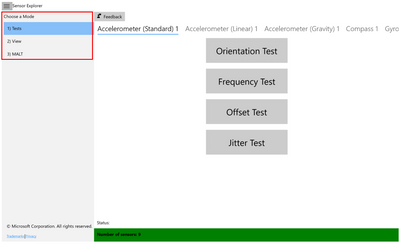
1. Test: This mode is used for manual testing of supported sensors. The orientation test verifies orientation sensors are installed in the correct position and the sensor data is as expected. Other tests, such as frequency, offset and jitter test, are also available. The sensor data is read using the UWP Sensors API (Windows.Devices.Sensors: https://docs.microsoft.com/en-us/uwp/api/Windows.Devices.Sensors).
2. View: This mode is used for viewing sensor data and properties. In this mode, the app displays a data visualization from a variety of sensors (such as accelerometer, compass, gyrometer, inclinometer, light sensor, and orientation sensor, etc.), and shows detailed sensor information in tabular format. It can help you monitor the abnormal behaviors of the sensors, and you can also use this mode to set the report interval of sensors.
3. MALT: This mode is used for connecting to and controlling MALT (Microsoft Ambient Light Tool), a simple low-cost light testing apparatus. The tool combines a microcontroller, light sensors, and a controllable light panel to calibrate light sensors and visually measure a panel’s light curve.
How to test your sensors
You may explore what tests are available for each sensor on your system by scrolling the top menu bar (highlighted in the screen shot below as a red box).
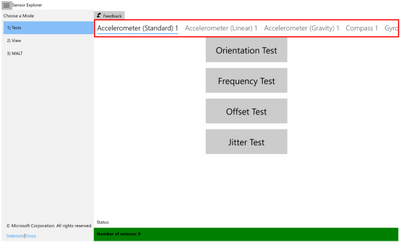
1. Orientation test
This test asks you to orient the device in different directions and then checks the sensor reading accordingly.
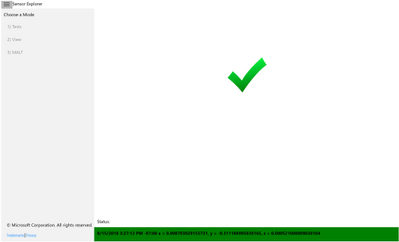
A pass/fail result will be displayed at the end of the test.
1.1 Before you begin the tests
- Under the test mode, if you find that the display rotates when you rotate your device, please turn off auto-rotation on your device (Search “Rotation Lock” in Settings and turn it on). Otherwise, you do not need to turn off auto-rotation.
- Please refer to the Device Reference Frame section found in the whitepaper at https://msdn.microsoft.com/en-us/library/windows/hardware/dn642102(v=vs.85).aspx) for more information on orientation and reference frame.
1.2 During the tests
- Click the “Start” button to begin the tests.
- For each test, you have 10 seconds to orient your device so that the arrow on the screen is pointing down toward the ground.
Note:
(1).You may click the icon (highlighted in the screen shot below as a red box) to hide the menu bar during the test.
(2). The menu bar is disabled during the test and will be enabled once the test finishes.
(3). For the Simple Orientation Sensor, the four directions tested are face up, face down, left, and right. For all other sensors, the four directions tested are up, down, left and right.
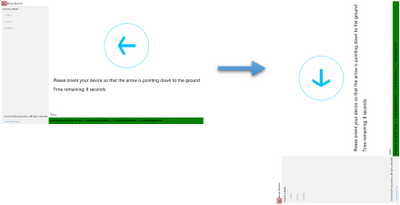
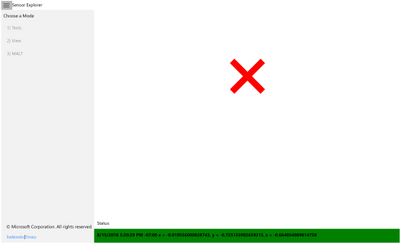
- Once the sensor data reflects that your device is indeed in the desired orientation, a green checkmark will be displayed. And you will automatically move on to the next test.
- Otherwise, after 10 sec, a red x will be displayed as this round of tests has failed.
1.3 After the tests
- Click the “Save Log” button to save the log file(data for all rounds of tests will be saved).
- Or click the “Restart” button to start another test.
2. Frequency Test
This test calculates the number of sensor readings received/60 seconds.
A numeric value will be displayed at the end of the test.
3. Offset Test
This test calculates the average error in sensor readings compared with the expected value.
A numeric value will be displayed at the end of the test.
4. Jitter Test
This test calculates the maximum difference in sensor readings during a period of time, compared with the initial reading.
A numeric value will be displayed at the end of the test.
5. Resolution Noise Density Test
This test checks actual sensor resolution and noise of the physical accelerometer sensor in the device.
A numeric value will be displayed at the end of the test.
How to monitor your sensors
The View mode will automatically detect any sensors that are attached to or embedded in your platform. It will then display the information that it reads from the sensors.
1. View
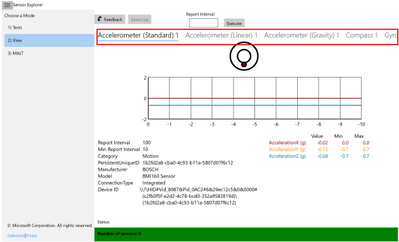
- You may scroll the top menu bar (highlighted in the screen shot below as a red box) to change the sensor being displayed.
- For each sensor, the current data and properties are shown in a table and plotted as moving waveforms.
- The report interval of a specific sensor can be changed here.
More on Logging
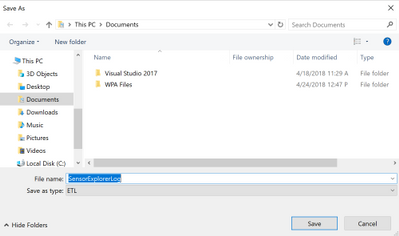
When you click the “Save Log” button, you may choose the location to save the log file. The default name of the ETL (Event Trace Log) file is “SensorExplorerLog”, but you may change it.
To view the ETL file, you may use the tracerpt command (https://docs.microsoft.com/en-us/windows-server/administration/windows-commands/tracerpt_1).
1. Test
The following will be logged:
- Properties of the selected sensor
- Information about each test
- For orientation test:
- The sensor reading when you pass a test
- The last sensor reading before the countdown ends, in the case you fail the test
- For other tests:
- All sensor readings collected during the test
- The final result
Future Work
Some of the functionalities that we are planning to add to SensorExplorer include:
- Integrate all functions of MALT (Microsoft Ambient Light Tool)
- Other types of sensor tests
- Improve logging infrastructure
by Scott Muniz | Sep 17, 2020 | Uncategorized
This article is contributed. See the original author and article here.
In the modern workforce, the emergence of hybrid cloud deployments and collaborative applications make it easy for employees to share information, data, and files with other internal as well as external users, helping them collaborate easily with vendors, business partners, contractors and customers. Managing all the access across different resources – Office groups, Teams, SharePoint sites, as well as your own applications and SaaS applications – is challenging. As requirements change with new applications being added, or users needing additional access rights, IT staff may not know who should have access or to which applications. To succeed at scale, an identity governance process must enable all users’ access to be able to change with their needs, without burdening IT staff to be involved in each access request.
Azure AD entitlement management, a feature of Azure AD identity governance, helps organizations manage their access lifecycle at scale by automating request workflows, assignments, reviews, and expiration. You can empower users to request access to the resources they need. These requests and the resulting access can be approved and regularly reviewed by people across the organization who know whether someone should still have access
Here are some common questions we’ve received from customers about how to manage employee access.
Question 1. In the past we’ve configured that our AD- and ADFS-connected applications were open to everyone in the directory to access, as we only had employees and vendors in our AD. Now that we’ve moved these applications to Azure AD, we want to lock down access to those apps and move to app assignments so that users don’t inadvertently have access. What are the best ways to manage application assignments to make sure users don’t have access they don’t need?
Azure Active Directory (Azure AD) supports multiple approaches for access management for your own applications, including SaaS apps, cloud-based federation-based apps and on-premises AD-connected applications via the Azure AD app proxy, enabling organizations to easily achieve the right balance of access policies ranging including automatic, attribute-based assignment, as well as delegated assignment.
As described in the article managing access to apps, traditionally access management starts with either individual assignment, one for each user, or group-based assignment. Group–based assignment works well if you have an existing security group that you could re-use. However, keeping the membership consistent could be challenging if you have multiple applications. Suppose a user named Alice, and others in the same department as her, need access today to two apps. If there’s a group that has Alice and the other users as members, you could assign that group to those two apps. However, if Alice no longer needs one of the apps, that would require restructuring the groups to avoid audit findings of users having excessive access, and could lead to a proliferation of groups, potentially as many as there are apps.
Another way to manage access to applications is for the users to receive entitlement management assignments for an access package that includes those applications and have those assignments set to expire or be regularly reviewed. Through Azure AD entitlement management in the Azure portal, an administrator or a resource owner can create an access package with one or more applications. A user can request access to that access package through the myaccess.microsoft.com UI, or an access package catalog owner can assign access to users in the Azure portal. You can also have users request or create assignments programmatically, through Microsoft Graph, as shown in the tutorial for how to create an access package using Microsoft Graph APIs. When a user is approved for access to the access package, they are assigned to the application.
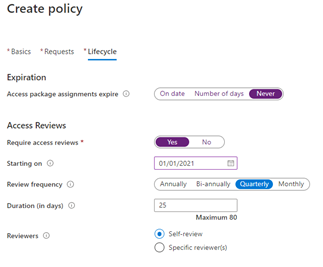
You can ensure that users do not have access indefinitely by configuring automatic access reviews as part of the policy. You could have different policies for different collections of users so that their review schedule is based on the likelihood of the user no longer needing access or the risk of inadvertent continued access. Each policy in an access package can have a different access review frequency for reoccurrence or different reviewers.
 The “Create policy” screen in the Azure portal for an Azure AD access package, showing the lifecycle tab in which quarterly reviewing access reviews are required.
For example, you could have one policy that gives users in the IT department a shorter maximum duration of access as they’re performing administrative tasks and another policy from users in other departments.
Question 2. What about giving users access to Office 365 and other Microsoft applications? Not everyone in the directory has a license, and we don’t have relevant data in our HR system to be able to create a dynamic group of just those people who need a license.
For applications in Office 365 or other paid suites, users can be granted access through license assignment either directly to their user account or through a group using the group-based license assignment.
Combining group-based licensing and entitlement management for users to request an access package that results in license assignments simplifies giving users licenses they need.
First, in the Azure portal, create an Azure AD security group, and configure that group to give license assignments.
Then, create an access package containing membership in that group as a resource. If you select to have the requestor’s manager as approver in the policy, then each requestor’s manager can decide if the requesting user has a need for the license for these applications.
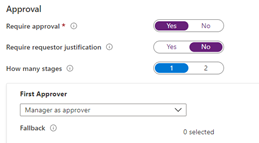 The “New access package” screen in the Azure portal, for a policy configuring manager as approver.
Once a user requests and is approved, they’re automatically added to the security group, and Group-based license assignment gives them a license.
In access packages which give licenses, you may wish to configure a long duration prior to access package expiration or a “Never” setting with access reviews to avoid a user inadvertently losing their access package assignment and their use of Office while on vacation or on leave.
Question 3. As we roll out Office groups and Microsoft Teams in our organizations, employees may inadvertently try to join public teams that sound relevant but aren’t the appropriate team for them. How can we cut down on unnecessary work for teams owners to approve requests and maintain their memberships?
An organization can publish a curated collection of teams that they want to make available for users to join by creating access packages for each one (they can include multiple teams in a single access package as well). They can then configure the requestor’s manager as needed for approval, approval by a departmental list of approvers, or both. Once approved, the user is then added to the Office group and team, and can collaborate.
For example, if it wasn’t known in advance everyone who might need to be a member of a team, such as for a marketing launch, the marketing department could create the team as private. Next, the team owners could manually add or share a code with those individuals who are known and likely to need to be part of that team.
To bring in the rest of the necessary members from other departments who aren’t known but avoid users being added who do not have a business requirement, they could create an access package for that team.
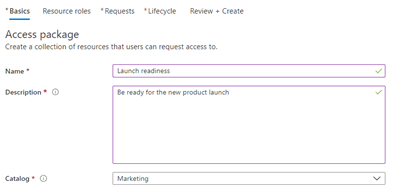 The “New access package” screen in the Azure portal.
If there are additional resources, such as a SharePoint Online site or applications, those could be added to the access package as well.
The policies for the access package could scope to only allowing certain users to request access, and could also require approval by both the requestor’s manager, and by the members of a departmental group.
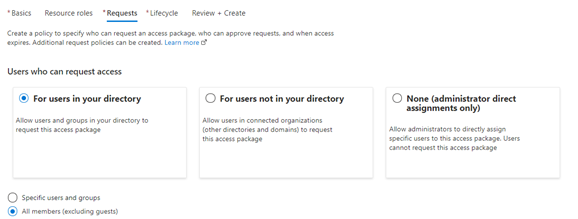 The “New access package” screen in the Azure portal, creating a policy for all member users to be able to request.
The first stage would specify the manager as approver. You can also configure a fallback approver for requestors who don’t have a manager.
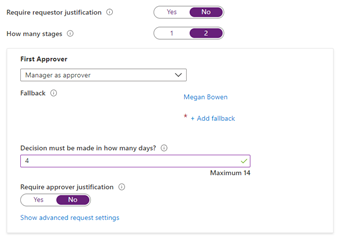 The “New access package” screen in the Azure portal, setting the first approver stage in a multi-stage approval workflow.
And the second stage could have a different approver, such as members of a group.
The assignments created through that access package could also be set to expire automatically on a predefined date, to avoid users remaining in the team indefinitely.
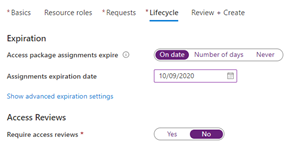 The “New access package” screen in the Azure portal, setting the access package assignment lifecycle for the policy.
Furthermore, additional resources that users might need access to,including access to SaaS applications, in-house developed applications, other existing security and Office groups, and SharePoint Online sites, can be added to the access package. Users with assignments to the access package will then automatically be given access to those resources as well.
To find out more about Azure AD identity governance, including access reviews, privileged identity management, and how to manage the lifecycle of business partner guests see What is Azure AD identity governance? and What is Azure AD entitlement management?. There are also case studies for how digital innovator Avanade chose Azure AD Identity Governance for streamlined, highly secure collaboration and how the leading energy and services company Centrica solved collaboration challenges with Azure Active Directory entitlement management.
by Scott Muniz | Sep 17, 2020 | Uncategorized
This article is contributed. See the original author and article here.
Experience a reimagined Microsoft Ignite as a digital event this year, Sep 22-24. Connect with Microsoft experts and your world-wide community like never before.
This year, we’re excited to share our modern Excel story in the context of insights, collaboration, hybrid work environment – and much more.
Check out a couple highlights from the session catalog:
Register now >
by Scott Muniz | Sep 17, 2020 | Uncategorized
This article is contributed. See the original author and article here.
We’ve been very busy getting ready for our first all-digital Microsoft Ignite, which starts Tuesday. In anticipation of the conference, our product marketing manager, Shin-Yi, posted a quick guide to all the sessions related to Microsoft Planner, Tasks in Microsoft Teams, and other task management capabilities across Microsoft 365. Check out the session videos and related resources in the Virtual Hub and the Microsoft Tech Community Video Hub. Links to all session videos, which will get posted once the conference kicks off, are in Shin-Yi’s post.
To tide you over for the next few days, we’ve got a pair of feature enhancements to announce that improve the Planner web and mobile experiences.
Planner web: Filter by Progress (Completed)
As you know, completed tasks in Planner get moved to the bottom of your plan board and hidden under a disclosure widget—the official name of that twisty triangle. But those same completed tasks disappeared entirely from the Schedule view, and you couldn’t filter on them in the Charts view.
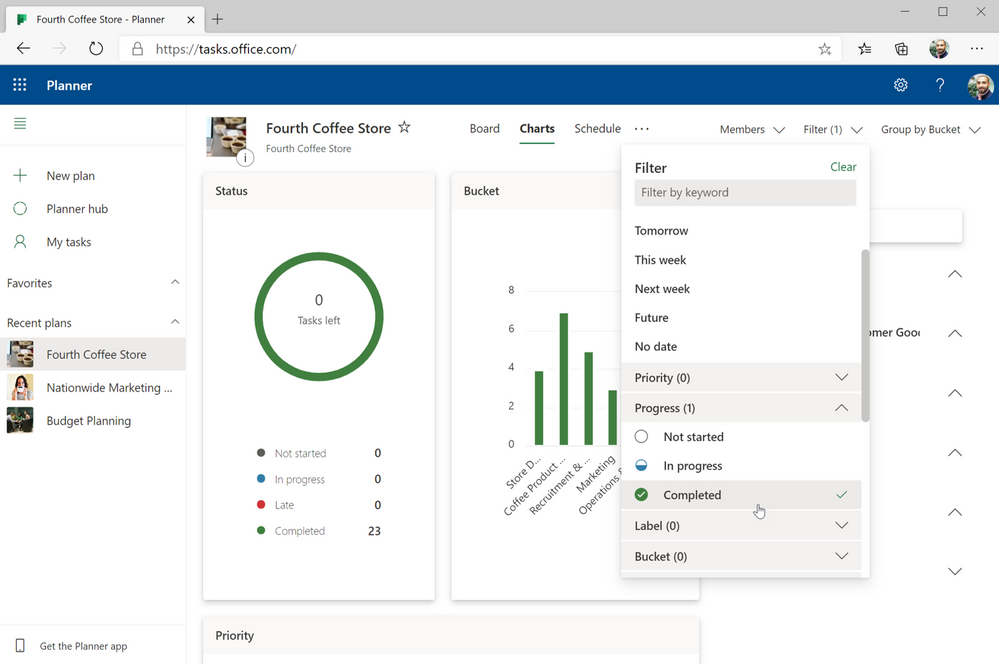
We’ve now addressed both issues by adding completed tasks as a Progress filter option in both the Schedule and Charts view. In the Schedule view, completed tasks appear as a green bar; in the Charts view, you’ll see them in green in both the pie and bar chart. You can filter completed tasks alongside not started and in progress tasks, too, to see how your team is tracking against deadlines. You can also filter by completed tasks in the Board view.
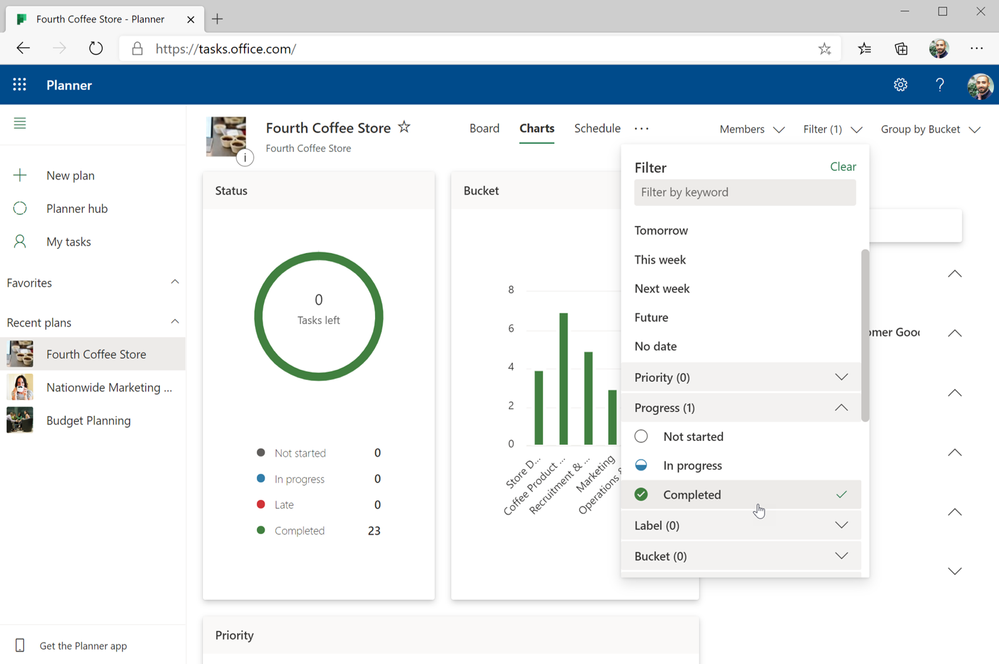
This enhancement is currently only available in the Planner web experience and will be released soon for Planner in Microsoft Teams.
Planner mobile: Copy links
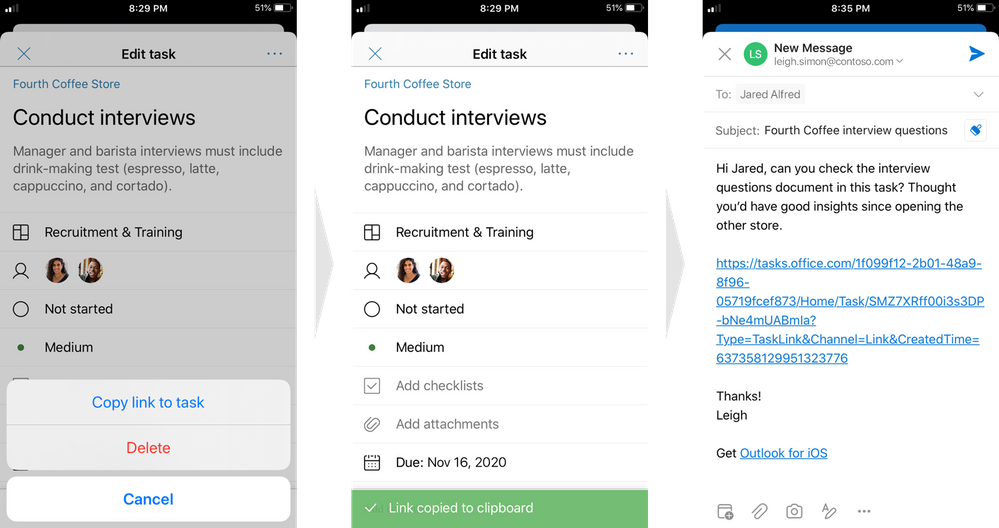
This feature works exactly like its name implies: in the Planner mobile app, you can copy a plan or task link and paste it anywhere else. This makes sharing your plans and tasks much easier, especially if you need input from others who aren’t actively members of your plan.
To copy links, tap the ellipses (…) in the upper right-hand corner of your plan board (to copy the plan link) or task (to copy the task link) and select the copy option. You can then paste that link just like you’d paste anything else—you might use CTL + V on your keyboard or select the Paste option from the ribbon—into an email, a Teams chat, or anywhere else you need it.
Don’t forget! Ignite runs from Sept. 22 through Sept. 24. If you can’t attend live, we’ll have plenty of Ignite content here and in the hubs mentioned at the beginning of this post. In the meantime, continue leaving your feedback on UserVoice and visiting Tech Community for all the latest Tasks and Planner news.

by Scott Muniz | Sep 17, 2020 | Uncategorized
This article is contributed. See the original author and article here.
Back to school is typically an exciting time of year. But uncertainty around what school will look like makes this year feel different. For some, going back to school will mean teaching or attending classes online from the desk in their bedrooms. Others will be splitting time between remote learning and the physical classroom. Either way, a top priority for teachers is helping students stay connected and engaged in what they’re learning. Here, technology plays a key role—it shifts from being a vehicle for delivery or transmission to something that helps teachers build a culture of collaboration and social connectedness. It must empower teachers to communicate broadly, share and find information and assignments quickly and easily, and collaborate seamlessly with students, parents, and administrators.

Teacher-student and peer interaction are incredibly important for learning. Many schools are using Microsoft Teams for Education to connect teachers, students, parents, and administrators. As a digital hub for remote learning, the Teams for Education ecosystem consists of Teams, Microsoft SharePoint, and Microsoft OneDrive, bringing apps, conversations, and content together in one place. It also integrates with supported learning management systems (LMS) to help create a connected and engaged school community. At the core, teachers and students use Office apps including Word, PowerPoint, Excel, or OneNote notebooks to create their work and store those files using OneDrive. OneDrive (whether it’s on the web, via the desktop client or on a mobile device) connects teachers and students to both their personal files and their Teams files. When teachers are ready to share assignments with students, or when students are ready to share their work with a study group or the teacher, they can upload their individual files from OneDrive into Teams. There, they can chat and collaborate together on files in real time. Everything in Teams is synced to the cloud and securely stored in OneDrive and SharePoint respectively.

Anytime, anywhere access to files on any device to keep learning on track
During any typical school year, assignments, tests, memos, and other information accumulate and need to be saved until school ends. Many schools provide shared network drives for students and teachers to store their files. But the abrupt shift to online school last spring meant that work stored on network drives was often inaccessible, disrupting the flow of learning. Suddenly, teachers and students were forced to save work on school-issued laptops or even personal or home computers, where they could quickly run out of storage space, especially if they share a family computer. This year many schools are implementing either online or hybrid models, where students are in physical classes part-time and working remotely the rest of the day. This means important information will continue to be stored across disparate locations, with all parties requiring anywhere access to files and a place with enough storage where they can securely store their work.
OneDrive connects teachers, students, and administrators to all their work in the cloud. It lets them store and protect files, share them with others within or outside their school, and get to them from anywhere using any device. Both the OneDrive web app and the OneDrive mobile app enables teachers and students to access, upload, and share files from anywhere. They can even save files offline to view or edit them when there’s no internet connection. All offline edits are automatically synced whenever the device they’re using reconnects to the internet.

And with OneDrive, low storage space on a device doesn’t have to be an issue. Using the OneDrive Files On-Demand feature, teachers and students can securely access and work on all their files stored in OneDrive without downloading them directly to their computers. Even as schools transition back to traditional classroom learning, storing files in the cloud with OneDrive removes the administrative burden of backups, expensive storage systems, and disaster recovery from IT. Using the Known Folder Move Group Policy, IT can also prompt teachers and students to automatically sync content stored in Windows Known folders (such as Desktop, Documents, Pictures) on their computers to OneDrive to ensure all their files are synced to the cloud.

Secure sharing and collaboration to protect teachers, students, and information
In the world of remote learning, teachers and students need an easy way to share work and collaborate together on assignments. Many resort to sending files as attachments via email or using a free online file sharing program. However, these methods can lead to data leakage, version control issues, and even “lost” homework assignments. In OneDrive or in files uploaded to Teams, teachers and students can securely share content as a link and set permissions for who can access that link. They can also set expiration dates (for teachers who don’t want students accessing files or folders past a certain date) or set passwords (for teachers who want to protect grades or exams, or for students who want to send their work to a family member or friend outside school for review). Blocking downloads on files also prevents recipients from saving files to their computers.
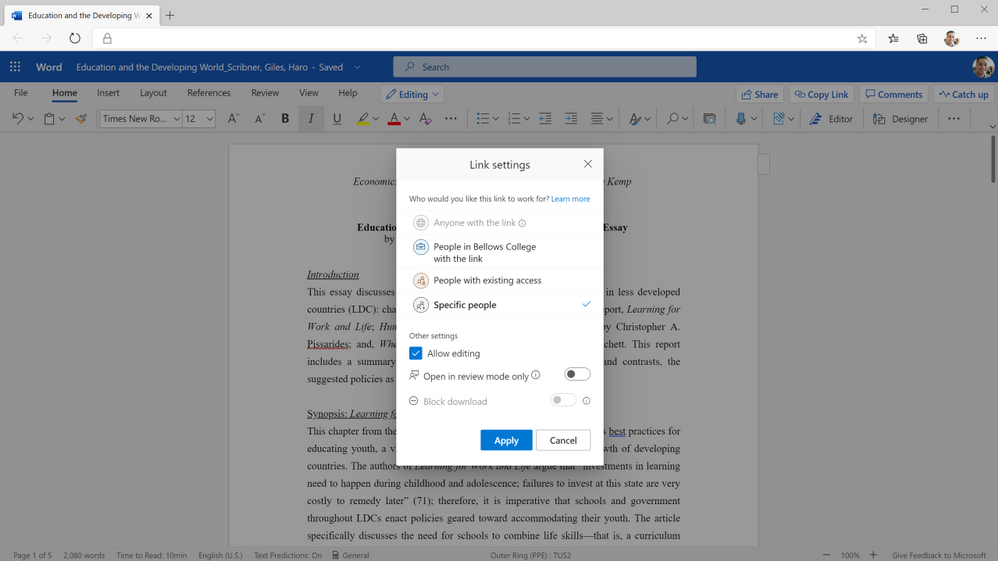 Securely share your assignments with students and teachers across campuses and geographies.
When a teacher or student gets a link to a shared document, deep integration with Office also means they can start co-authoring a document by selecting from a variety of tools to annotate, highlight, and comment on content in real time. They can use @mentions to flag comments and tasks for co-authors or other reviewers, and they can also track version history and restore previous file versions as needed. And because all changes are synced and stored in the cloud, they can start editing a document on one device and finish it on another.
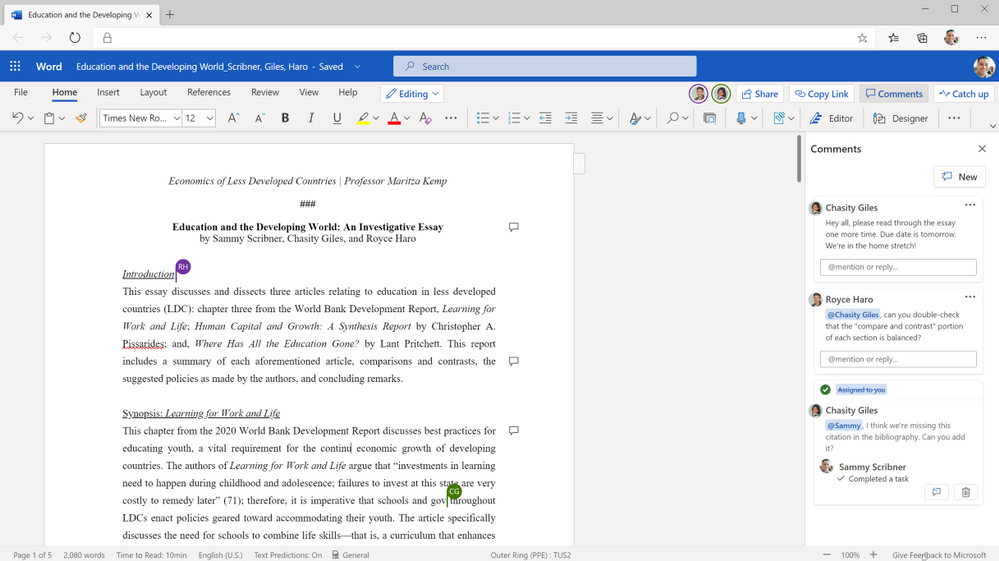 Collaborate in real time on group essays.
A better way to organize learning materials and classwork
Keeping virtual school on track is a different ballgame. People rely on visual cues all the time to remind them of what needs doing. But now that administrators, teachers, and students can’t rely on seeing each other in the halls and classrooms, they also can’t rely on those quick reminders about test scores that need to be turned in, lesson plans that need to be reviewed, or class notes that need to be shared. However, using the Request file feature in OneDrive, a principal can create a link where teachers can upload standardized test results or a department head can share a link to request lesson plans to review. Students working together on group projects can use the Request file link to gather notes from group members and keep project materials organized. Anyone with a request link can only upload files—they cannot view or access the folder—ensuring that any other material the requestor has saved in the folder is protected.
Now, using Add to OneDrive in the OneDrive , teachers and students can also add shortcuts to folders others have shared with them in OneDrive, Teams, or SharePoint. This brings all their content into one place, so they can access everything they need to prepare for their classes. Using Add to OneDrive, teachers can create shortcuts to administrative folders that share school policy or guidelines for lesson plans, so they always have those documents for quick reference. To keep their class materials organized, students can add shortcuts to folders shared by their teachers to their own OneDrive for quick, easy access to reading assignments and other information.
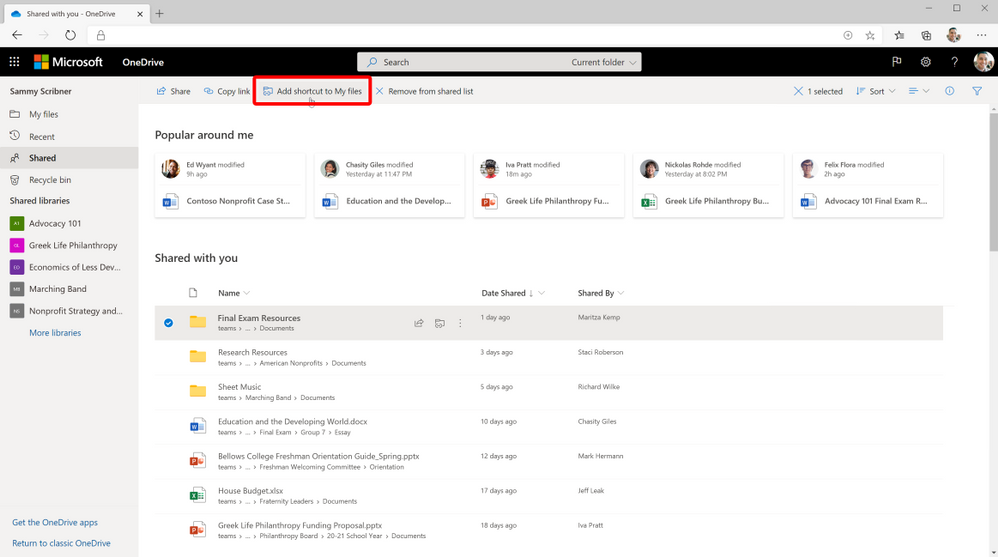 Add your important school/college folders directly to your OneDrive.
Likewise, when teachers are ready to share lesson plans with a broader group of collaborators, such as other teachers or school administrators, or when students are ready to share their individual contributions to a group project, they can upload their files to shared cloud libraries they’ve added to their OneDrive. These files are synced with the cloud libraries in SharePoint, which means the files are also accessible through Teams if the school is using it. Anyone who’s been granted access to a moved file maintains that permission and will receive a notification with a link to the new location. This content can also be synced, shared, and collaborated on, without losing any of its existing security and compliance policies.
Comprehensive administration monitoring to protect remote learning environments
Exposure of sensitive student or school information can have serious legal and compliance implications. Remote learning environments can heighten these worries, because information is shared outside the bounds of a protected IT environment. Microsoft is in compliance with the Family Educational Rights and privacy Act (FERPA), which is a US federal law that protects the privacy of students’ education records, including personally identifiable and directory information.
Having the right tools is a good first step toward protecting confidential or sensitive content. It can use Microsoft Information Protection to create policies for automatic classification of sensitive data. This means that if a teacher creates a document that contains sensitive student data, such as a Social Security number, that document will automatically be classified by the system and encrypted for additional protection. This takes the burden of worrying about security off teachers and administrators, who often work with sensitive student information, and lets them focus on education.
But knowing how administrators, teachers, and students interact with that content adds an extra layer of security and control. Microsoft 365 offers detailed audit logs and reports that enable IT to trace OneDrive activity at the folder, file, and user levels, so they can see at a glance if any unauthorized users have tried to access sensitive student information. That kind of transparency helps protect data while giving IT valuable user insights that could influence future IT decisions.
Audit logs and reports in Microsoft 365 Security and Compliance Center surface unprecedented levels of visibility into user and admin activities within OneDrive. Every user action, including changes and modifications made to files and folders, is recorded for a full audit trail. IT can also audit individual users to understand how teachers and students are sharing, requesting access, and syncing content in OneDrive. Audit logs also show IT admin activities, such as changing device access policies. Device visibility and control is especially important for thwarting the breach and ransomware attacks that educational institutions deal with almost on a daily basis. IT can also use advanced auditing capabilities such as log retention policies to retain all records for specific time periods to enable forensic and compliance investigations.
IT can create alert policies to help monitor activities performed by teachers and students using OneDrive, such as sharing files externally, assigning access permissions, or creating an anonymous link. Admins can define the alert conditions and policies that will best help them investigate, contain, and respond to any risks of data leakage outside the school, to help protect sensitive student information.
Learn more and stay engaged
Check out this pamphlet summarizing the top OneDrive tools for education for teachers, students and administrators.
Tune in to our latest episode of Sync Up- a OneDrive podcast to hear the experts on remote learning and how OneDrive and Microsoft 365 play a critical role in helping students and teachers stay connected and engaged.
We continue to evolve OneDrive as a place to access, share, and collaborate on all your files in Microsoft 365, keeping them protected and readily accessible on all your devices, anywhere.
You can stay up-to-date on all things via the OneDrive Blog and the OneDrive release notes.
Check out the new and updated OneDrive documentation.
Take advantage of end-user training resources on our Office support center.
Thank you again for your support of OneDrive. We look forward to your continued feedback on UserVoice and hope to connect with you at Ignite or another upcoming Microsoft or community-led event.
Thanks for your time reading all about OneDrive,
Ankita Kirti
OneDrive | Microsoft
by Scott Muniz | Sep 17, 2020 | Uncategorized
This article is contributed. See the original author and article here.
Learn more about Project Cortex at Microsoft Ignite 2020 and get the Ignite scoop at our September 30 Office Hours meeting. Find out more about security and compliance best practices, and hear more from our customers and partners.
Join us at Microsoft Ignite 2020
Register today for Microsoft Ignite 2020 (September 22-24), Microsoft’s largest annual customer event. Connect with Microsoft experts and your worldwide community at this no-cost, digital experience.
Add the following keynotes and sessions featuring Project Cortex and Knowledge to your schedule. Choose the session times that best match your schedule.
Keynotes
Sessions
- Project Cortex: Knowledge discovery and content intelligence in Microsoft 365 (Naomi Moneypenny; Chris McNulty)
- Ask the Experts: Project Cortex: Knowledge discovery and content intelligence in Microsoft 365 (Naomi Moneypenny; Chris McNulty)
- Expertise & knowledge networks: Microsoft’s vision for a successful knowledge system in your organization (Naomi Moneypenny)
- Rolling out Project Cortex at DXC Technology, Mott MacDonald, and Protiviti (Britt Boston et al)
- How to successfully activate and adopt Project Cortex (Nkem Okoye, Lauri, Ellis, James Eccles)
- Adopting content capture and process automation services for content in Microsoft 365 (Sean Squires)
- Step-by-Step: How to build a document understanding model using Project Cortex (Mingquan Xue, Sean Squires)
- Knowledge managers: What you need to know to plan & manage topics for your organization (Eric Gradel, Naomi Moneypenny)
- Build knowledge with topic experiences in Microsoft 365 (CJ Tan)
- Getting started with metadata and taxonomy on content in Microsoft 365 (Anupam Francis, Sudha Narayanan)
- Metadata services in Microsoft 365: Deep dive with the product team (Anupam Francis)
- Connect people with knowledge and expertise in Microsoft 365 (Rebecka Isaksson)
- Driving open sharing and knowledge in communities (Kaleem Rahman, Rebecka Isaksson)
- Manage information lifecycle and records intelligently with Microsoft Information Governance (Tina Ying, Roberto Ygelsias)
Tune in for Office Hours on September 30
Get a summary of our Microsoft Ignite news and updates on our September 30 (download invite) Office Hours meeting. We’ll discuss the latest Microsoft 365 and Project Cortex updates and news from Microsoft Ignite, as well as answer audience questions.
Learn more about the Office Hours series – including upcoming meetings like our October 14 (download invite) meeting highlighting Financial Services – and view the recaps and recordings for all past meetings on the Office Hours page.
Project Cortex spotlight
Microsoft 365 Content Services Partner Program
Thank you to all the partners who recently applied for the Microsoft 365 Content Services Partner Program. We’re reviewing applications and plan to send out notifications by September 18.
See what’s new
File Security in Microsoft SharePoint and OneDrive for Business
Get an overview of security and compliance best practices for Microsoft SharePoint and OneDrive for Business in Microsoft 365. Download our whitepaper on File Security in Microsoft SharePoint and OneDrive for Business.
Learn about our customers and partners
Check out the latest partner edition of the Intrazone podcast featuring Fujitsu and Boys Hope Girls Hope. Hear how Fujitsu, a Microsoft 365 Content Services partner which delivers innovative scanning solutions and services, helped Boys Hope Girls Hope, a not-for-profit helping academically capable and motivated children-in-need to meet their full potential.
Visit the Project Cortex resource center to learn more and get the latest news, demos, and more.
by Scott Muniz | Sep 17, 2020 | Uncategorized
This article is contributed. See the original author and article here.
If you’re looking or guidance on how to plan for new capabilities in Windows—and tie the benefits of staying up to date to real value for your end users and your business—this is the post for you.
Today I’m going to walk you through existing resources available from Microsoft to help you plan for new and improved capabilities in the Windows operating system. I’ll discuss best practices around notifying users, support teams, and business leaders depending on your deployment scenario—and offer tips on how to take advantage of the newest innovations.
As part of the Windows 10 update process, IT pros focus their planning and preparation efforts towards validating critical line-of-business (LoB) applications, updating supporting infrastructure, and, in some instances, updating deployment tools and third-party endpoint solutions. Focusing on these critical tasks can make it challenging to keep track of new capabilities or features in the OS.
Our vision for Windows as a service is to support IT pros to be more efficient with their approach to updates and enhance their end user’s experience. By staying current, customers can benefit from an agile deployment process, which allows IT pros to understand product improvements in each release more quickly and thoroughly. By adapting to the quicker cadence, IT pros can be more involved in the feature development process as they get access and testing capabilities of new features as soon as they are released. The impact on the end user’s experience becomes incremental, reducing the need for extensive employee retraining or IT resource effort.
For upcoming Windows 10 feature updates, our recommended process for identifying, validating, and amplifying new capabilities includes the following tasks:
- Review what’s new in the most recent Windows 10 feature update by reading articles inside Windows 10 blogs (listed below) to identify the new capabilities or features applicable to your organization.
- Categorize new features and capabilities across productivity, accessibility, and security to determine who benefits from the new features.
- Validate new features and capabilities through a pilot deployment group.
- Amplify the most relevant features and capabilities coming to Windows 10 by creating targeted or broad communications.
- Use the Windows Insider for Business program to get an early look at what is coming in feature updates with Windows to assist with planning efforts for the next release.
Review what’s new in Windows 10
When a Windows 10 feature update is made available, several blogs and articles are released the same day to showcase new features and capabilities.
We suggest reviewing each of these articles to see what capabilities can be applied within your organization:
You should also examine the features and functionality that Microsoft removed in Windows 10, as well as the features that are no longer being developed to determine if there is any immediate or future impact on endpoints.
Categorize new features and capabilities
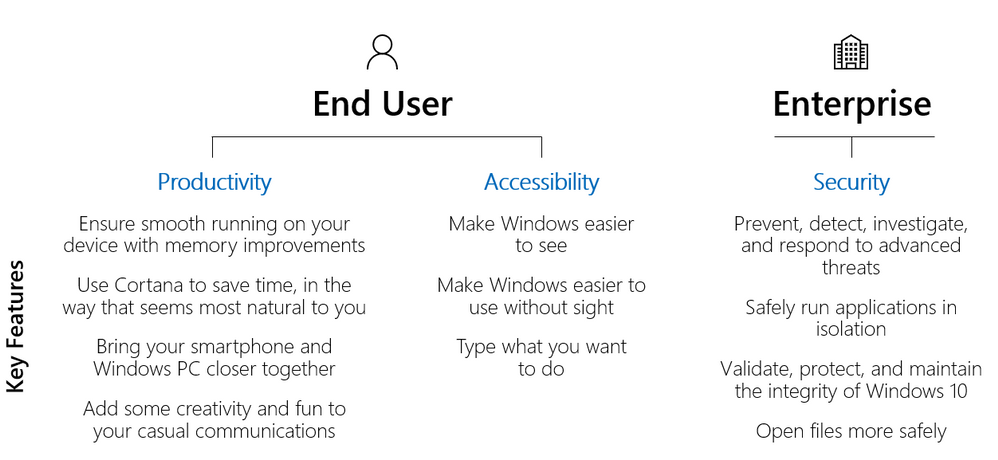
Once new capabilities are understood, the next step is to categorize these features across productivity, accessibility, and security, and separate them into two areas – the benefit to end users and the benefit to the enterprise.

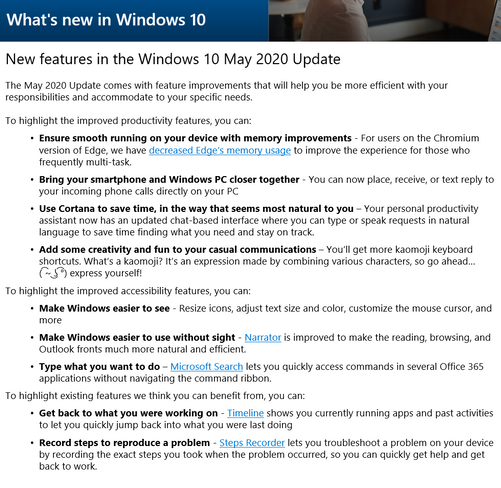
Figure 1. List of highlighted capabilities with Windows updates
New capabilities in Windows 10 feature updates enhance the end user experience by improving performance, using existing device features to provide new or better experiences, providing new OS features, or unlocking new functionality when managed by supporting infrastructures such as Configuration Manager or Microsoft Intune.
Productivity
Platform productivity gains are typically made by leveraging the device’s full capabilities and taking advantage of multitasking improvements. As device hardware is refreshed, new working methods can be discovered through different form factors or input types such as touch or inking. Over the span of Throughout several Windows 10 feature updates, improvements were made in the following areas to support those goals:
- Ensure smooth running on your device with memory improvements – Beginning with the Windows 10 May 2020 Update, we aim to ensure Microsoft Edge on Chromium continues to serve as a trusted browser for compatibility and performance. For users on the Chromium version of Microsoft Edge, we have decreased Microsoft Edge’s memory usage to improve the experience of multi-taskers.
- Use Cortana to save time, in the way that seems most natural to you – Your productivity assistant now has an updated chat-based interface where you can type or speak requests in natural language to save time finding what you need and staying on track. Cortana helps you connect with people, check your schedule, add tasks, set reminders, and more.
- Bring your smartphone and Windows PC closer together – Beginning with the Windows 10 May 2020 Update, you can now place, receive, or text replies to your incoming phone calls directly on your PC, reducing the need for switching context across multiple devices.
Some existing features that may also be useful to your environment include:
- Easily get back to what you were working on – First introduced in the Windows 10 April 2018 Update, Timeline enhances Task View to show you currently running apps and past activity to quickly help you remember and jump into what you were last doing.
- Record steps to reproduce a problem – Steps Recorder, a feature present in the OS since Windows 7, lets you troubleshoot a problem on your device by recording the exact steps you took when the problem occurred, so you can get help from a support professional and get back to work.
Accessibility
Everyone should be empowered to use their devices to create and consume content and collaborate with their teams. At Microsoft, we are committed to making sure those who can be supported by our accessibility improvements know what exists for them and know what developments are coming next. The release of quality and feature updates helps Microsoft provide improvements in accessibility to end users. Here are examples of what is included in the Windows 10 May 2020 Update:
- Make Windows easier to see – Resize icons, adjust text size and color, customize the mouse cursor, and more—our display and vision settings make it easy to personalize your viewing experience.
- Make Windows easier to use without sight – Narrator is improved to make reading and browsing in Edge and Outlook much more natural and efficient.
- Type what you want to do – Microsoft Search lets you quickly access commands in Microsoft 365 applications without navigating the command ribbon.
Security
Windows feature updates provide enhanced security and capabilities to simplify administration or reduce administrative effort. When looking at what is new in Windows 10, version 2004, approximately 70% of the improvements provide IT pros with options to use in their environment. Consider looking for capabilities recently unlocked by updates or investments in supporting infrastructure, and improvements that address gaps filled by third-party software to reduce cost or effort. If one or more Windows 10 feature updates have been skipped, review the improvements of those feature updates in addition to the latest feature updates.
The following sections highlight key security features enabled by Windows 10, versions 1809 to 2004 across that are selectively available in Windows 10 Enterprise E3 and in E5 licensing constructs that can provide additional benefit to your organization.
- Prevent, detect, investigate, and respond to advanced threats – Available since the Windows 10 Creators Update, Microsoft Defender Advanced Threat Protection allows you to discover vulnerabilities and misconfigurations in real-time, get expert-level threat monitoring and analysis, quickly move from alert to remediation, and block sophisticated threats and malware. This will be useful with the shift to a secure remote workforce that becomes more cloud capable. This feature requires Windows 10 Enterprise E5 licensing or other alternatives, as listed here.
- Safely run applications in isolation – Available since the April 2019 Update, Windows Sandbox is an isolated, temporary, desktop environment where you can run external software without the fear of the lasting impact on your PC. It ensures your host device remains secure and that everything is discarded once the application is closed. This can be useful during situations such as critical application testing for remote workers, or even everyday use when you are browsing through the web.
- Validate, protect, and maintain the integrity of Windows 10 – First introduced in the October 2018 Update, Secure Launch leverages Dynamic Root of Trust for Measurement to launch the OS into a trusted state. The May 2020 feature update provides increases in checks and measurements to allow you to reach further security hardening and to posture to protect sensitive resources.
- Open files more safely – Application Guard has been available since October 2017 to help protect your device from familiar and emerging threats by using containers to open files from potentially unsafe locations. With the May 2020 Update, Application Guard now provides support for Microsoft Edge on Chromium.
Validate selected features and capabilities
Once features and capabilities have been categorized, they can be presented to users during the Pilot Deployment phase of a feature update deployment. IT pros should include a mix of users who typically test devices and applications, as well as power users who are interested in supporting the new tools or features that will benefit the organization. This group’s feedback will help IT pros validate new features and capabilities and provide feedback on what additional context or ways of working can be included to show value in having the update deployed. This information can be included in broader communications discussed in the section below.
Amplify new features and capabilities
Once capabilities in the platform have been assessed and validated during pilot deployment, attention shifts to how to communicate these changes to users broadly. Factors that influence a company’s communication depend on the feature update deployment strategy and the time it takes to deploy the feature update to all devices. Typically, customers deploy feature updates using one of the following deployment strategies:
- Data-driven deployment (e.g. Desktop Analytics targeting deployment for defined audiences)
- Role-based deployment (e.g. updating devices for Finance teams during their off-peak times)
- Geography-based deployment (e.g. deploy by country or region)
- Company-wide deployment (e.g. if your organization is entirely ready for deployment all at once)
For each deployment strategy, the communication approach can change based on the organizational culture and time taken to deploy the feature update. For example, for customers that deploy feature updates in less than a month to their entire organization, a single communication leveraging collaboration tools such as Teams, Yammer, or email can be the most effective way of informing users. For customers who deploy feature updates over a 6-, 12-, or 18-month period, communicating once to all users will be less effective due to the length of time between the communication being sent and the device’s update. The communication methods below are discussed in terms of their effectiveness for the different deployment strategies and deployment duration:
- Company email – Team, region, or organization-wide emails can be used to give your end users a heads up of an upcoming deployment, how it might impact their working environment, and the benefits that will come from deploying the update. When a new feature update is available, Microsoft uses a targeted company email to share how many devices are currently updated in the organization, explain the user experience that comes with the update, and how it will impact the user based on the deployment tool used to apply the feature update to the device. Deployment emails are useful when you know which team(s) you might want to target or when there is a large announcement you want to make to everyone in the organization. Here is an example of how this might look:
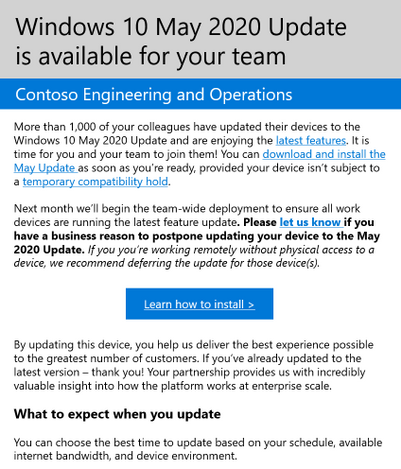
Figure 3. Windows 10 update team announcement email sample
Note that the longer a deployment of a Windows 10 feature update takes in an organization, the less effective a single email will be to reach users and amplify new features within.
Use Windows Insider for Business for an early look at new capabilities and features
For organizations interested in reviewing and shaping improvements of Windows 10 feature updates ahead of release, the Windows Insider Program for Business program gives you the opportunity to review and validate pre-release features and validate critical application. To provide this functionality for end users, consider using an opt-in program that enables users to receive early access to new products within the organization. Our Microsoft Elite program allows users to opt-in to the program to provide our Engineering teams with feedback to make our products and services better.
Summary
We want your organization to have the best possible experience with Windows 10. This post aims to help make this easier by providing a process that you can use to find and convey the value of Windows 10 feature updates to your business leadership and users.
I recommend that you consider using this process for each feature update planning cycle so that you can assess relevant features and engage more users at as faster cadence, which is even more possible when switching to cloud-based update management technologies. It is also useful to communicate with end users to continually gather feedback on what capabilities are working effectively for their environment and what needs improvements.
Let us know if you find this article helpful below, and what other best practices your organization uses to communicate value with your users.


Recent Comments