
by Contributed | Sep 28, 2020 | Azure, Technology, Uncategorized
This article is contributed. See the original author and article here.
Organizations of all sizes have an opportunity to optimize cost savings and increase agility by migrating their SAP workloads to Microsoft Azure. Your SAP estate is mission-critical, and together with our partners, we excel at streamlining migration to an enterprise-grade cloud platform you can trust.
Azure runs some of the largest SAP production landscapes in the world, including customers such as Walgreens Boots Alliance, Daimler, and Carlsberg. Microsoft itself has been an SAP customer for nearly three decades. We have migrated our SAP estate to Azure, and our IT organization shares best practices on migrating to Azure so customers can capitalize on these learnings. After helping customers deploy thousands of SAP instances to Azure, we are pleased to offer a well-defined migration journey, available at the SAP on Azure migration center.

1. Discover: Evaluate your current SAP estate, define goals, and align key stakeholders
Whether you are planning a simple migration or embarking on a complex SAP transformation, the first step is to take inventory and catalog your current SAP estate. Document all your SAP and non-SAP solutions. In addition, analyze your current infrastructure configuration. This includes “right-sizing” of compute, storage, and networking requirements based on current usage and estimated growth patterns. During this exercise, rationalize what workloads need to be refreshed, renewed, and/or replaced based on your business requirements. Then, define goals for the capabilities you would like to unlock with Azure.
People: Determine your key stakeholders and empower IT staff with the necessary training to anticipate and advance technical changes. This will help align teams and set expectations. It can also help in developing an action plan with assigned resources and commitments.
Partners: Most organizations choose to work with an experienced System Integrator (SI) from our partner ecosystem for proven expertise with both SAP and Azure. Engage your partners early to help understand your current IT landscapes, prioritize what you want to build, and envision the migration process to ultimately achieve your transformation goals in the cloud.
2. Prepare: Build the blueprint for your unique migration journey that will respond to rapidly evolving business needs
Together, SAP, Microsoft, and our partners offer best practices and planning materials to map your existing ecosystem to the desired future state.
Architecture and Design: Start with an Architecture and Design planning session with your SAP-certified partner and Microsoft account team. Using the information from the Discovery phase, we can evaluate and map to the powerful capabilities of Azure.
Azure provides virtual machines and HANA large instances that are optimized for deploying SAP landscapes. We also offer tools to establish security, high availability, disaster recovery and backup plans. If your organization needs specific customizations, such as custom code, governance, and compliance, we can add those elements to your ecosystem to manage them going forward. As you build your business case, consider the total cost savings that can be realized by optimizing the scale, size, and snooze options available in Azure.
To streamline this process, leverage our reference architectures for proven practices to help you deploy and run your SAP landscapes. Additionally, with the Embrace initiative, SAP and Microsoft are committed to supporting your migration to Azure and planning your upgrade to S/4HANA.
When it comes to the launch timeline, it is important to understand the groups of SAP applications that should be deployed together and the appropriate sequences for migration. Many organizations choose low-risk applications to deploy first, to help establish understanding of system interdependencies. This can also help you learn how to patch and manage production systems. Set aside time for testing, training, and sufficient IT change management communication updates, to maximize business readiness.
Once you have a solid understanding of how Azure resources are to be deployed, and have built benchmarks to measure success, you are ready for the next step.
3. Migrate: Launch your migration strategy and go live
Realize: It is time to bring your plans to life. You may consider starting with a pilot, to test initial migration processes. Ensure your planned configuration accounts for all your desired capabilities. Throughout this phase it is critical to anticipate any relevant planned downtimes and communicate technology changes to the business.
Deploy: As you start the migration process, you can leverage our open source SAP deployment automation framework with Terraform and Ansible. These components automate deployment of your SAP landscape based on SAP on Azure reference architectures and best practices recommended by SAP and Microsoft. Use these services to streamline your migration as you consider all the elements of your new environment.
Think long-term about your overall SAP estate. Reference the SAP virtual machine deployment guide. Check your backup and recovery capabilities. Then conduct the orchestra of cutover for compute, storage, network, and access controls for the SAP landscapes you want to take to the cloud.
4. Run: Focus on running SAP on Azure and optimize for security and performance
After you have deployed your SAP workloads in Azure, you can optimize landscapes for new technological advances and continuously cut costs as new updates are shared. Azure offers several services to help you secure your SAP estate and give you visibility across all your applications.
Protect your data with Azure Backup for HANA and ensure it is well managed with Azure Monitor for SAP solutions, which collects real-time telemetry across your new configuration. To optimize your SAP Basis operations, evaluate SAP Landscape Manager (LaMa) and use the SAP LaMa Azure Connector to relocate, copy, clone, and refresh SAP systems. Azure security services will help you establish a secure environment, so you can run mission-critical apps and data with confidence. While you are continuously gaining feedback on your ecosystem, you can optimize performance by actively receiving reports on availability and cost management. In addition to these Azure services, we also support choices for third-party applications, and create integration experiences to match your unique preferences.
5. Innovate: Maximize immediate business insights and be future-ready
This is an exciting area for customers as they begin to break down silos and create new user experiences to add tremendous business value.
After migration, you can integrate your SAP and non-SAP data through an extensive portfolio of Azure and SAP data services. This allows you to create real-time dashboard views of current operations, use data analytics to understand trends and gain predictive insights, and use data visualization tools to communicate across the organization and enable powerful business outcomes.
Customers who shift their SAP workloads to Azure can access a robust repository of built-in process integration apps and APIs. For example, you can integrate SAP Cloud Platform Identity Authentication with Azure Active Directory (Azure AD) single-sign on (SSO), to manage data access across multiple sources from a central location. This central location can contain automated tools to help you manage workflows, with real-time visibility into your Key Performance Indicators (KPIs).
The developers in your organization will appreciate the ability to tap into more than 100 cloud services in Azure to innovate with new capabilities in the cloud. You can also enhance productivity and collaboration, with integration to Microsoft 365, Microsoft Teams, Microsoft Power Apps, and Microsoft Power BI, as well as first-class integration with SAP solutions like SuccessFactors, Ariba, and Fieldglass.
Ready to start your SAP migration journey to Azure?
Visit the new SAP on Azure migration center where you will find all the resources you need to streamline the migration of your SAP landscape to Azure and begin to realize the benefits of cloud transformation.
Register for our upcoming webinar series on October 13, 2020 to hear directly from Microsoft experts and ask your questions during the Q&A.
by Contributed | Sep 28, 2020 | Uncategorized
This article is contributed. See the original author and article here.
As much of the business world works from home, we’re relying even more heavily on our mobile devices to stay productive as we multitask our way through this pandemic. That reliance means it’s even more important than ever that these endpoints are secure. Microsoft has been making significant investments in detection and response. Our integrated approach, investments in cross platform support, prioritization of threats, and auto investigation and response are just some of the ways Microsoft Defender for Endpoint takes next-gen endpoint security to a new level.
These investments are making an impact. In a report titled “Microsoft expands capabilities and platforms for Microsoft Defender ATP” published by 451 Research, Microsoft is considered an endpoint security platform by security buyers, according to their Voice of the Enterprise: Information Security, Workloads and Key Project 2020 research.
Over the last few years, security leaders have aimed to streamline their security operations by reducing the amount of security tools of tools in their system, and prioritizing solutions that solve more challenges and fit better into their comprehensive security posture, to get closer to a model of Zero Trust. Our broad set of endpoint security capabilities and our deep integration into the Windows operating system and with other security solutions help to address these initiatives to simplify and modernize their infrastructure, while giving valuable time to their SOC.
Microsoft Defender for Endpoint offers the following capabilities:
- Agentless approach on Windows 10 and Windows Server – maintains a light footprint on the endpoint.
- Threat and vulnerability management – our risk-based approach to vulnerability management which now includes ServiceNow integration support.
- Attack surface reduction – includes better support for managing firewall rules and certifications and offers visibility and control into web threats.
- Next generation endpoint protection – leverages deep and broad security intelligence across Microsoft with machine learning models and built in OS security features.
- Endpoint detection and response – expanded capabilities to MacOS, alignment with the MITRE ATT&CK framework, integration of live response, and new capabilities in behavioral blocking.
- Auto investigation and remediation – includes integration with Microsoft Defender for Office 365 and Microsoft Defender for Identity, enables the organization to respond quickly at scale, and assists analysts during their investigations.
- Simplified licensing approach so customers understand exactly what they’re getting and how it fits into their existing infrastructure.
Download the report to get more in-depth details of their assessment.
For more information about our industry leading endpoint security solution or to sign up for a trial, visit our Microsoft Defender for Endpoint page.
We are so grateful to our customers who have been on this journey with us and have helped us build an amazing product – thank you!

by Contributed | Sep 28, 2020 | Uncategorized
This article is contributed. See the original author and article here.
Agenda
On October 12 at 1PM PDT, 9PM BST. Ayse Mutlu from the University of Oxford and Paul DeCarlo from Microsoft’s IoT Advocacy team will livestream an in-depth walkthrough of a custom Continuous Integration / Continuous Delivery pipeline using Azure DevOps for IoT Edge Solutions.
The content will be based on an interactive learning module from MS Learn that can be followed at your leisure at https://aka.ms/learnlive/cicd.
You can follow along with us live on October 12, or join the Microsoft IOT Cloud Advocates here in the forum https://techcommunity.microsoft.com/t5/internet-of-things-iot/ct-p/IoT throughout October to ask your questions about CI / CD development with Azure DevOps for IoT Edge solution.
Meet the Presenters

Data Scientist & Tutor of AI: Cloud and Edge Implementations – University of Oxford

Paul DeCarlo
Principal Cloud Advocate, Microsoft
Session Details
The Internet of Things is a technology paradigm that involves the use of internet connected devices to publish data often in conjunction with real-time data processing, machine learning, and/or storage services. Development of these systems can be enhanced through application of modern DevOps principles which include such tasks as automation, monitoring, and all steps of the software engineering process from development, testing, quality assurance, and release. In this LearnTV Live session, we will create a DevOps solution for Azure IoT Edge devices. The solution will employ a CI/CD (continuous integration/continuous deployment) strategy using Azure DevOps, Azure Pipelines, and Azure Monitor Application Insights on a Kubernetes cluster.
Learn Live Module which will be discussed and demonstrated during the session: https://docs.microsoft.com/en-us/learn/modules/implement-cicd-iot-edge/
Our Livestream will be shown live on this page and at Microsoft Learn TV on Monday 12th October 2020.
This is a Global event and can be viewed LIVE at these times:
:india: 13.30pm IST | :european_union: 10pm CEST | :united_kingdom: 9pm BST | :united_states: 4pm EDT | :united_states: 1pm PDT
We hope to be able to bring you live chat on Learn TV on that date, but you can also interact with us watch the live stream on LearnTV: http://aka.ms/IOTOxford
by Contributed | Sep 28, 2020 | Uncategorized
This article is contributed. See the original author and article here.
TL;DR:
The 503 response from the IIS machine, Service Unavailable, is the result of repeated application crashes. Since the w3wp.exe worker process, created by IIS to execute a web application, is crashing frequently, the respective IIS application pool is turned off. This is a feature of IIS, at Application Pool level, called Rapid-Fail Protection. It helps prevent consuming valuable system resources creating a worker process that crashes anyway, soon after spawning.
Evidence of repeated w3wp.exe crashes and Rapid-Fail Protection may be found in Windows Events, in the System log with Source=WAS.
Evidence of what causes the w3wp.exe to crash may be found in Windows Events, in the Application log: second-chance crashing exceptions with w3wp.exe.
If we’re looking at the reference list of responses that IIS could send, an HTTP response status 503 means Service Unavailable. In most of the cases, we have a 503.0, Application pool unavailable; and when we check the corresponding application pool, it shows “Stopped”.
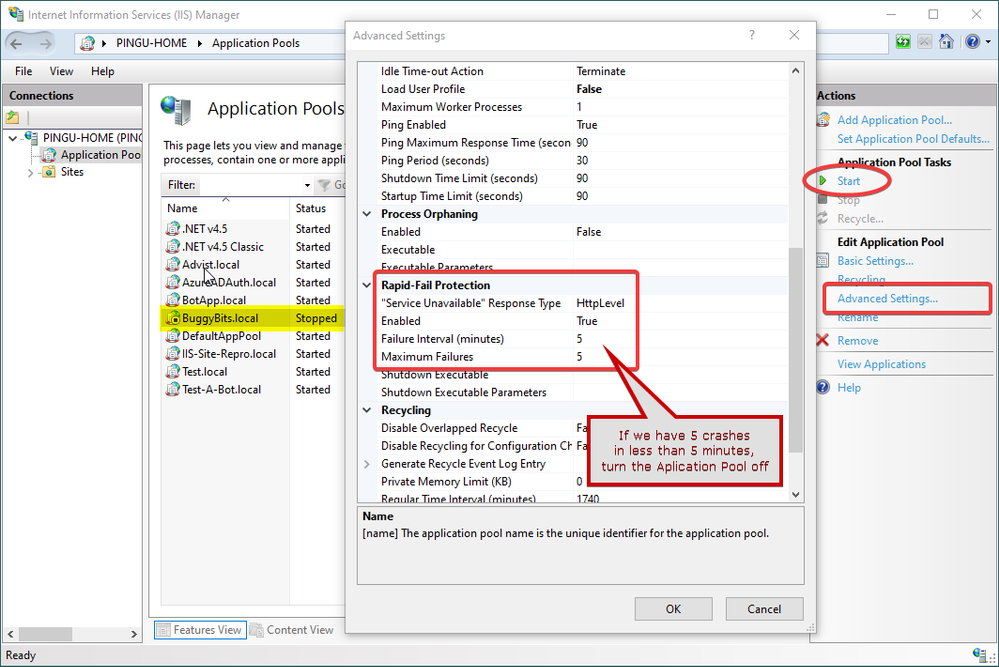
Believe it or not, that is actually a feature in IIS acting: the Rapid-Fail Protection. If the hosted application is causing the crash of its executing process for 5 times in less than 5 minutes, then the Application Pool is turned off automatically. These values are the default values; but you get the point.
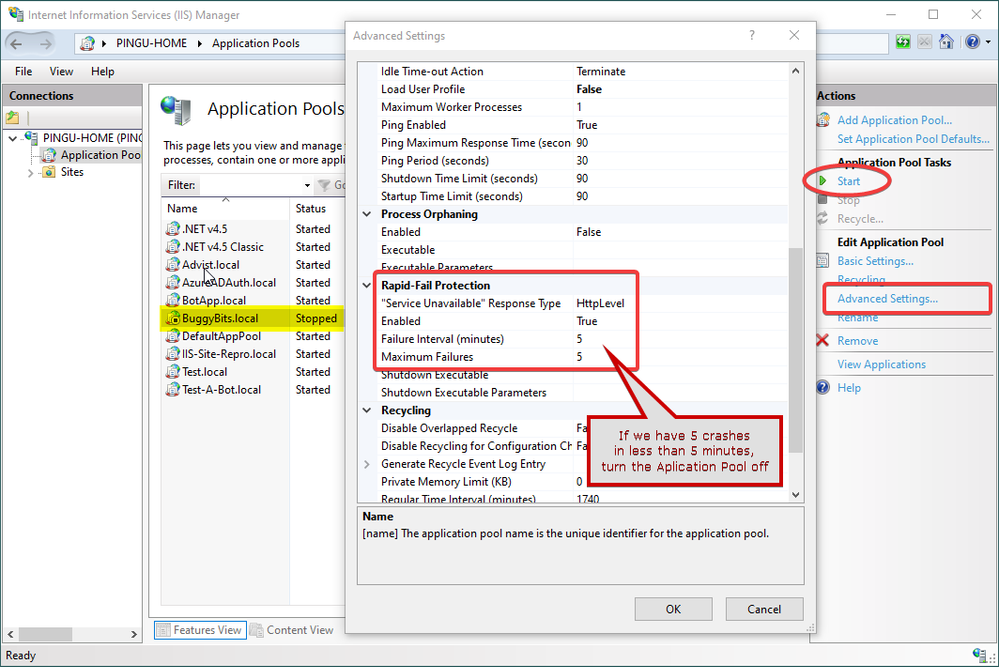 Img 1, Rapid-Fail Protection settings for an Application Pool
Rapid-Fail Protection
But why turning off the application pool at all? Why is IIS doing that?
You see, there is an IIS component called WAS, Windows (Process) Activation Service, that is creating and then monitoring the worker processes – w3wp.exe – for application pools. These are the IIS processes that are loading and then executing the Web apps, including the Asp.Net ones. These are the processes responding to HTTP requests.
If a worker process crashes, WAS would immediately try to create a new process for the Application Pool; because the Web apps needs to continue serving requests. But if these processes are repeatedly crashing, soon after being created, WAS is going to “say”:
I keep creating processes for this app, and they crash. It is expensive for the system to create these processes, which crash anyway. So why don’t I stop doing that, marking the Application Pool accordingly (Stopped), until the administrator is fixing the cause. Once the condition causing the crashes is removed, then the administrator may manually re-Start the application pool.
This WAS is reporting stuff in Windows Events, in the System log. So, if we open the Events Viewer, go to System log and filter by Event Sources=WAS, we may see a pattern like this:
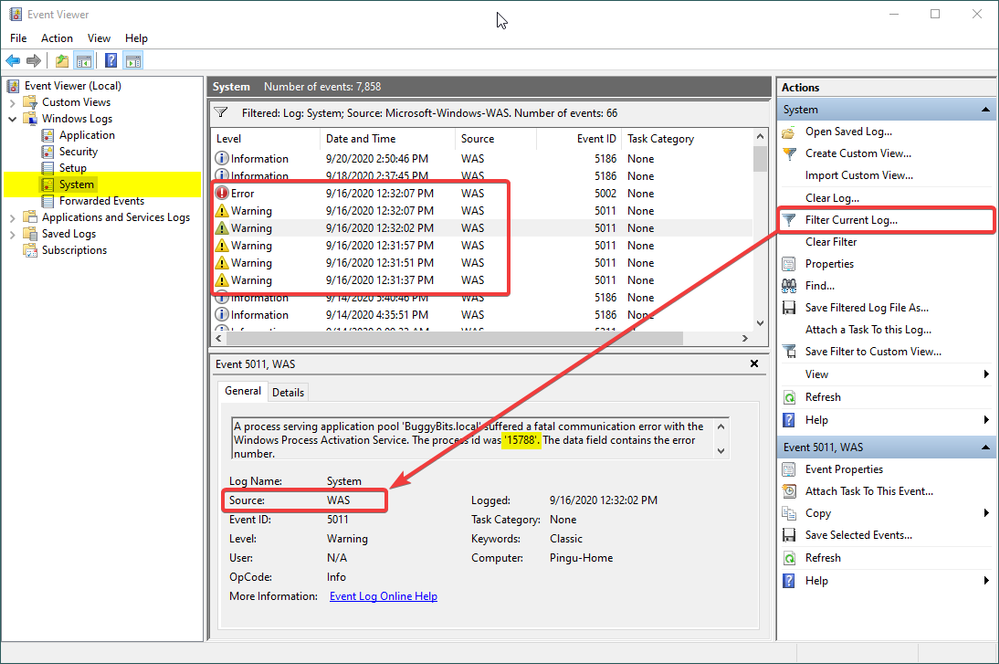 Img 2, Windows Events by WAS while monitoring w3wp.exe
There is a pattern to look for: Usually 5 Warning events 5011, for same application pool name, within a short time frame; if the PIDs, Process ID, in the Warning events are changing, it is a sign that the previous w3wp.exe instance was “killed”, it ended for some reason:
A process serving application pool ‘BuggyBits.local’ suffered a fatal communication error with the Windows Process Activation Service. The process id was ‘6992‘. The data field contains the error number.
… and then followed by an Error event 5002 for that same application pool name:
Application pool ‘BuggyBits.local’ is being automatically disabled due to a series of failures in the process(es) serving that application pool.
This behavior – turning off the application pool – is also seen when WAS can’t start the worker process at all. For instance when the application pool identity has a wrong or non-decipherable password: WAS can’t (repeatedly) start the w3wp.exe with the custom account that was set for the application pool. In Windows Events we would see Warnings/Errors from WAS like:
Event ID 5021 when IIS/WAS starts: The identity of application pool BuggyBits.local is invalid. The user name or password that is specified for the identity may be incorrect, or the user may not have batch logon rights. If the identity is not corrected, the application pool will be disabled when the application pool receives its first request. If batch logon rights are causing the problem, the identity in the IIS configuration store must be changed after rights have been granted before Windows Process Activation Service (WAS) can retry the logon. If the identity remains invalid after the first request for the application pool is processed, the application pool will be disabled. The data field contains the error number.
Event ID 5057 when app is first accessed: Application pool BuggyBits.local has been disabled. Windows Process Activation Service (WAS) did not create a worker process to serve the application pool because the application pool identity is invalid.
Event ID 5059, service becomes unavailable: Application pool BuggyBits.local has been disabled. Windows Process Activation Service (WAS) encountered a failure when it started a worker process to serve the application pool.
It is HTTP.SYS, for the inquisitive
When the application pool is turned off, hence we don’t have a w3wp.exe to process on requests for it, we’re having the HTTP.SYS driver responding status 503 instead of IIS. Remember that IIS is just a user-mode service making use of the kernel-level HTTP.SYS driver?
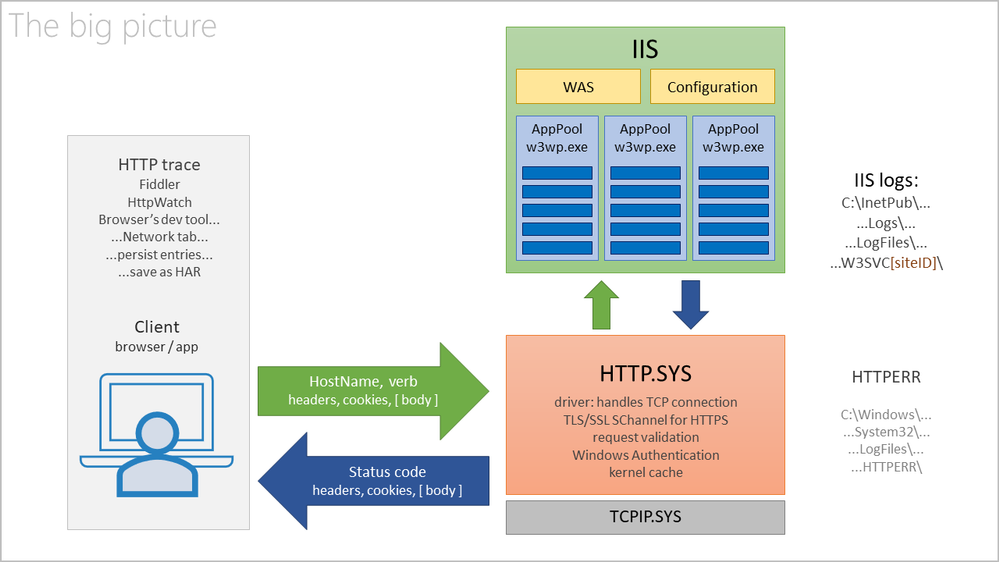 Img 3, HTTP.SYS validates and queues requests for IIS to pick and process
With a normal, successful request, we have the IIS responding:
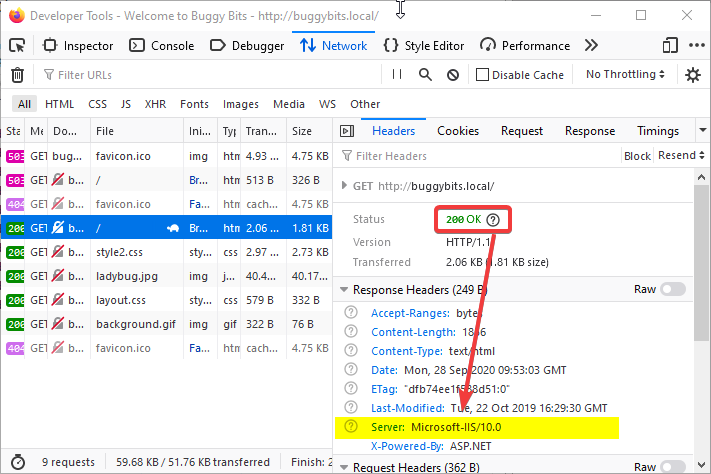 Img 4, Success response 200; in Response headers, the Server is IIS
But when the application pool is down, the request does not even reach IIS. The response comes from HTTP.SYS, not from the w3wp.exe:
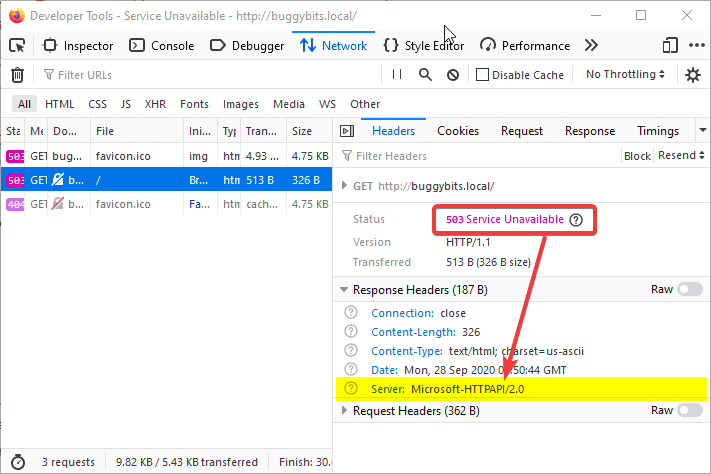 Img 5, With a 503 Response, the Server header is HTTP.SYS
Without a w3wp.exe to process the requests which arrived for an application pool, HTTP.SYS, while acting as a proxy, basically says:
Look, dear client, I tried to relay your request to IIS, to its w3wp.exe process created to execute the called app.
But the app or its configuration is repeatedly crashing the worker process, so creation of new processes ceased.
Hence, I had no process where to relay your request; there is no service ready to process your request.
Sorry: 503, Service Unavailable.
Why is w3wp.exe worker process failing?
I think of an IIS application pool as:
As with all applications, exceptions happen, unforeseen errors. They all start as first-chance exceptions.
- Most of the first-chance exceptions are handled and they never hurt the app or its executing process.
They are handled either by the code of the application, or by the Asp.Net framework itself.
- If the unhandled exception happens in the context of executing an HTTP request, the Asp.Net Framework will do its best to treat (handle) it by wrapping it and generating an error page, usually with an HTTP response status code of 500, Server-side execution error.
The exception that was not handled by the developer’s code gets handled by the underlying framework.
- Some exceptions are unhandled, not treated by any code in the process, so they become the so-called second-chance / process-crashing exceptions.
- When these happen, the operating system simply terminates the process that generated them; all the virtual memory of the process is flushed away into oblivion.
- Exceptions occurring outside the context of a request processing (such as during application startup) have more chances to become second-chance, crashing exception.
Fortunately, these exceptions – first-chance or second-chance – may leave traces. The first place to look at is in the Windows Events, Application log.
As an illustration, the code of my application running in the BuggyBits.local application pool generated the following:
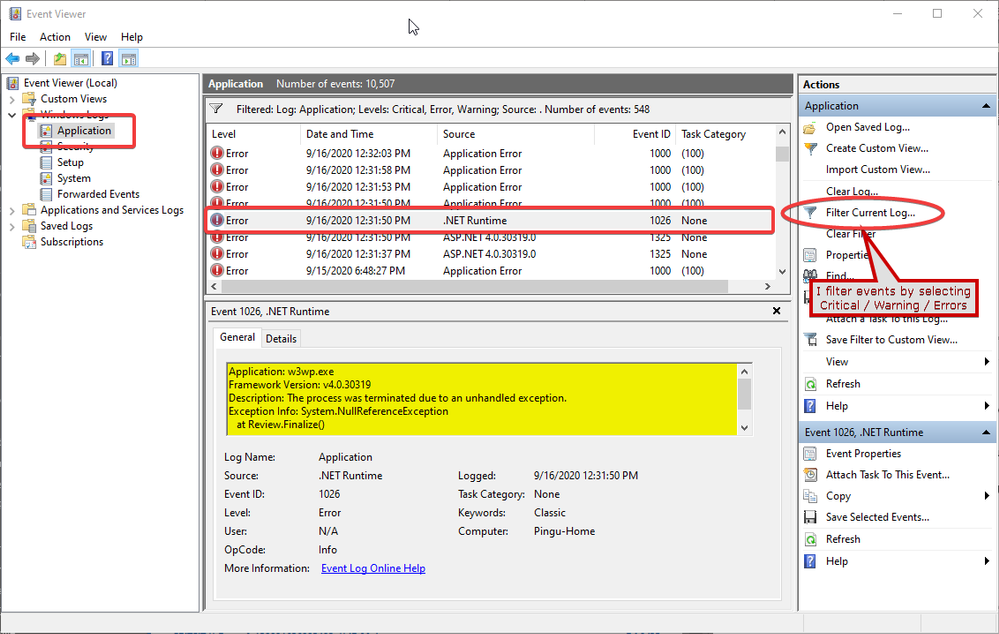 Img 6, First-chance exception by app in .NET Runtime
Since the exception could not be handled by the Asp.Net, it immediately became a second-chance exception, causing Windows to terminate the w3wp.exe in the same second:
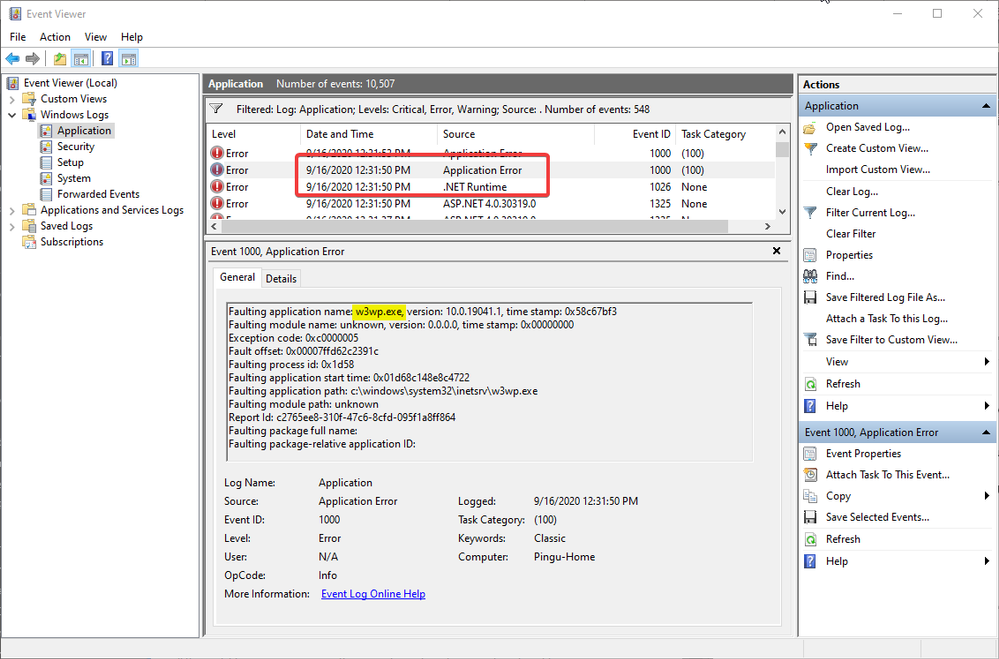 Img 7, Second-chance exception crashing w3wp.exe
Pings from WAS to check on w3wp.exe
If you notice the time-stamp in the capture above, it corresponds to a Warning event from WAS in the System log, telling that the worker process did not respond (Img 2).
This response does not refer to the HTTP request/response; it refers to pings from WAS.
Remember that I said WAS is creating the worker processes, w3wp.exe, but also it monitors them. It has to know if the worker process is healthy, if it can still serve requests. Of course, WAS is not able to know everything about the health of a w3wp.exe; many things could go wrong with the code of our app. But at least it can send pings to that process.
Illustrating with the Advanced Settings of an application pool, WAS is sending pings to its instances of w3wp.exe, every 30 seconds. For each ping, the w3wp.exe (that PID) has 90 seconds to respond. If no ping response is received, WAS concludes that the process is dead: a crash or hang happened – no process thread is available to respond to the ping. Notice that we also have other time limits too that WAS is looking on.
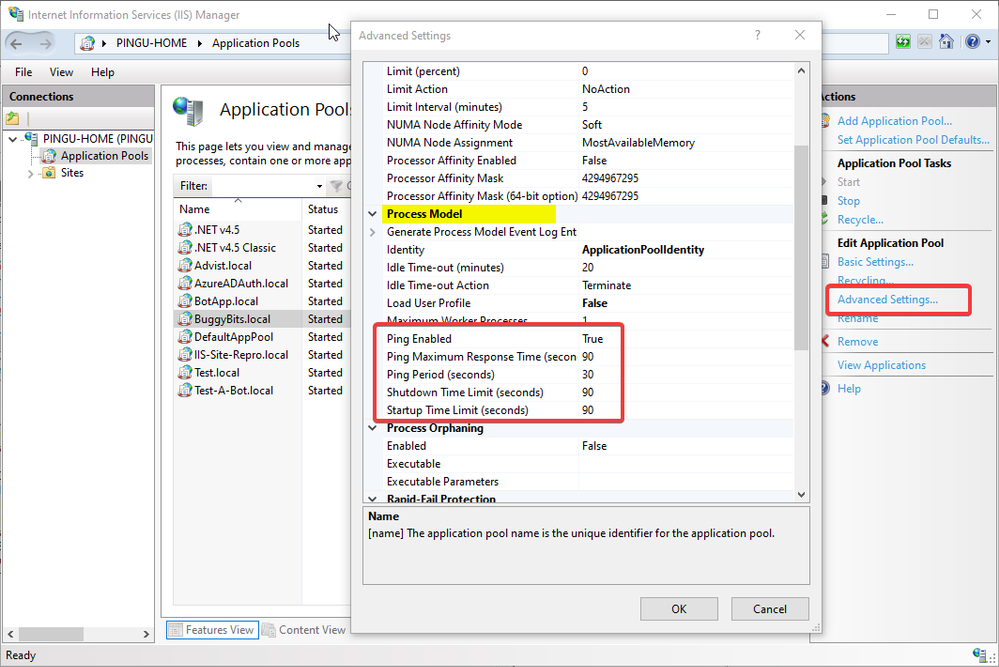 Img 8, Setting process pings from WAS to w3wp.exe(s)
More on exceptions
It may happen that, even looking in Windows Events > Application log, we still don’t know why our w3wp.exe is crashing or misbehaving. I’ve seen cases where the exceptions are not logged in Windows Events. In such cases, look in the custom logging solution of the web application, if it has one.
Lastly, if we don’t have a clue about these exceptions, if we have no traces left, we could attach a debugger to our w3wp.exe and see what kind of exceptions happen in there. Of course, we would need to reproduce the steps triggering the bad behavior, when using the debugger.
We can even tell that debugger to collect some more context around the exceptions, not just the exceptions itself. We could collect the call stacks or memory dumps for such context.
One such debugging tool is the command-line ProcDump. It does not require an installation; you only need to run it from an administrative console.
Let’s say I put my ProcDump in E:Dumps. Before using it, I must determine the PID, Process ID of my faulting worker process w3wp.exe:
E:Dumps>C:WindowsSystem32InetSrvappcmd.exe list wp
Then, I’m attaching ProcDump to the PID, redirecting its output to a file that I can later inspect:
E:Dumps>procdump.exe -e 1 -f "" [PID-of-w3wp.exe] > ProcDump-monitoring-log.txt
If my Windows has an UI and I’m allowed to install diagnosing apps, then I prefer Debug Diagnostics. Its UI makes it easier to configure data collection, and it determines the PID of w3wp.exe itself, based on the app pool selected. Debug Diag is better suited to troubleshoot IIS applications.
Both Debug Diag and Proc Dump are free tools from Microsoft, widely used by professionals in troubleshooting. A lot of content is available on the Web on how to use these.
by Contributed | Sep 28, 2020 | Uncategorized
This article is contributed. See the original author and article here.
As a Windows developer, a very common requirement you might be asked to implement is to track information about the installation process. For example, let’s say that you have started a special campaign to advertise your application and you want to understand how many people are installing it because they have clicked one of the promotional banners. Or, in an enterprise environment, you may want to know which is the department of the employee who is installing the application, so that you can apply a different configuration. A very common solution for this requirement is to leverage a web installation and to use query string parameters, appended to the installation URI, which must be collected by the Windows application the first time it’s launched. For example, your installation URL can be something like http://www.foo.com/setup?source=campaign. Then your application, when it’s launched for the first time, must able to retrieve the value of the query string parameter called source and use it as it’s needed (for example, by sending this information to an analytic platform like App Center).
As you might know if you follow this blog, MSIX is the most modern technology to deploy Windows application and, through a feature called App Installer, you can support web installations with automatic updates. As such, is there a way to pass activation parameters to the application from the installer URL with MSIX and App Installer? The answer is yes!
Let’s see how we can do that.
Adding protocol support
The way MSIX supports this feature is by leveraging protocol support. Your app must register a custom protocol, which will be used to launch the application after it has been installed from your website using App Installer. Then, your application will retrieve all the information about the activation through the startup arguments, like in a regular protocol activation scenario. For example, let’s say you register a protocol called contoso-expenses:. This means that, when someone invokes a URL like contoso-expenses:?source=campaign, your application will receive as activation arguments the value source=campaign. This is exactly what App Installer is going to do the first time it launches your MSIX packaged app after the installation has been completed.
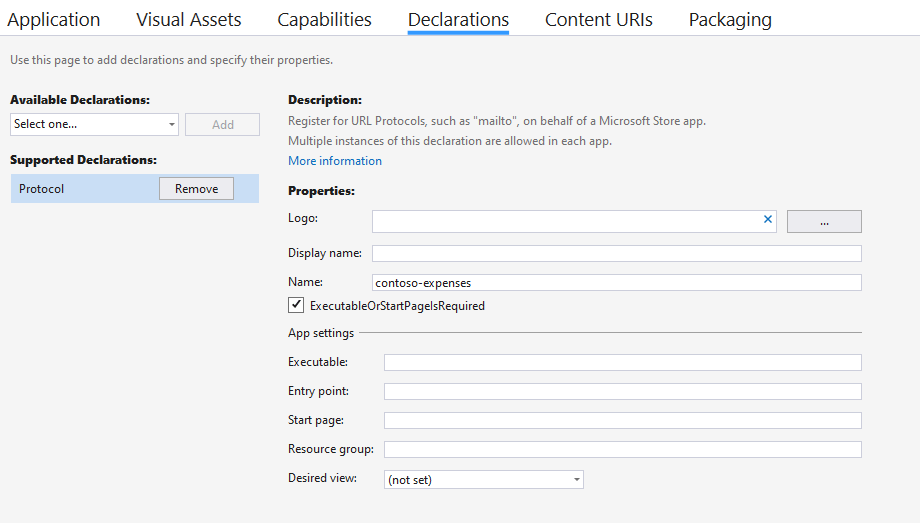
Adding protocol support in a MSIX packaged application is quite easy, thanks to the application manifest. In my scenario, I have a WPF application built with .NET Core, which is packaged as MSIX using the Windows Application Packaging Project. As such, all I have to do is to double click on the Package.appxmanifest file in the Windows Application Packaging Project and move to the Declarations section. In the Available declarations dropdown menu choose Protocol and fill the Name field with the name of the custom protocol you want to register (in my scenario, it’s contoso-expenses:(
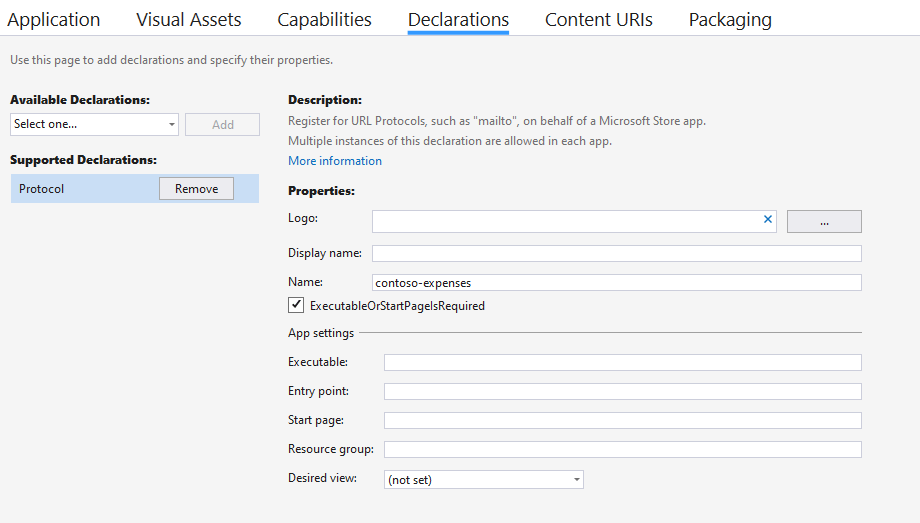
Listening for activation arguments
The next step is to make our application aware of activation arguments. The way you implement this support changes based on the development framework you have chosen. In this sample we’re going to see how to do it in a WPF application. Activation arguments can be retrieved in the App.xaml.cs file, by overriding the OnStartup() method, which is invoked every time the application starts:
public partial class App : Application
{
    protected override void OnStartup(StartupEventArgs e)
    {
        string path = $"{Environment.GetFolderPath(Environment.SpecialFolder.Desktop)}//AppInstaller.txt";

        if (e.Args.Length > 0)
        {
            System.IO.File.WriteAllText(path, e.Args[0]);
        }
        else
        {
            System.IO.File.WriteAllText(path, "No arguments available");
        }
    }
}
The OnStartup() method gets, as input parameter, an object of type StartupEventArgs, which includes any activation parameter that has been passed to the application. They are stored inside an array called Args. In case of protocol activation, there will be only one item in the array with the full URL that has been used to activate the application. The previous sample code simply writes this information, for logging purposes, in a text file stored on the desktop of the current user.
Test the custom protocol implementation
Before putting all together for App Installer, we have a way to quickly test if the implementation we have done works as expected. Since the App Installer implementation of this feature is based on the standard approach for managing custom protocols, we can test this scenario right away, without needing to package everything together and upload it on our website. We just need to invoke our custom protocol from any Windows shell.
As first step, right click on the Windows Application Packaging Project and choose Deploy, in order to install the application on the system and register the custom protocol. Now open the Run panel in Windows 10 (or just press Start+R on your keyboard) and type a URI which uses your custom protocol. For example, in my scenario I can use something like:
contoso-expenses:?source=campaign
If you have implemented everything correctly, your application will start. The OnStartup() event will have been triggered as well, so if I check my desktop I will find a file called AppInstaller.txt with the following content:
contoso-expenses:?source=campaign
As you can see, everything is working as expected. The application has launched and, in the activation arguments, I’ve been able to get the full URL that it has been used to invoke the custom protocol.
If you encounter issues during the OnStartup() event, the Windows Application Packaging Project gives you an option to easily test this scenario. Right click on it, move to the Debug section and enable the option Do not launch, but debug my code when it starts.
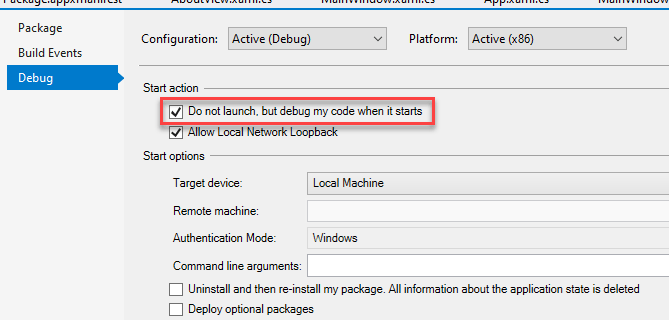
Now you can press F5 to launch the debugger, but the application won’t be actively launched. The debugger will be on hold, waiting for the application to be activated. Thanks to this feature, you can easily test different activation paths. In our scenario, you can just add a breakpoint inside the OnStartup() method and then, from the Run panel, invoke the custom URL. The application will start and the debugger will wake up, triggering the breakpoint and giving you the option to debug your code.
Now that we have a working implementation in our application, let’s see how we can configure App Installer to leverage it.
Setting up App Installer
When it comes to the App Installer configuration, you don’t have to do anything special to support this scenario. The App Installer file you’re using today to deploy your MSIX application works fine. However, you will have to customize the URL that is used to trigger the installation. If you’re generating the App Installer file as part of the publishing process in Visual Studio, you will end up with a web page similar to the following one:
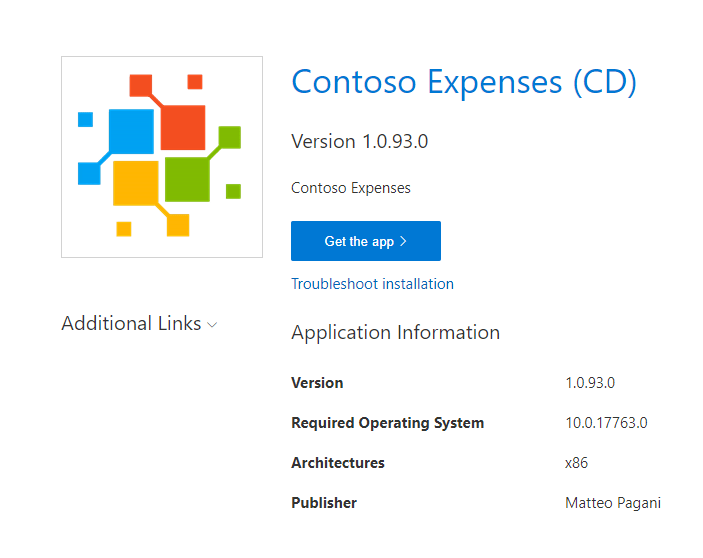
The Get the app button will trigger the installation of the MSIX package by leveraging the special ms-appinstaller protocol and it will look like this:
ms-appinstaller:?source=https://contosoexpensescd.z19.web.core.windows.net/ContosoExpenses.Package.appinstaller
The trick here is to add a special parameter to this URI, called activationUri. As such, open the web page with your favorite text editor and change the URL to look like this (or copy it directly in your web browser, if you just want to do a test):
ms-appinstaller:?source=https://contosoexpensescd.z19.web.core.windows.net/ContosoExpenses.Package.appinstaller&activationUri=contoso-expenses:?source=campaign
As you can see, I have added at the end an activationUri parameter with, as value, the same exact custom URL I have tested before, based on the contoso-expenses protocol registered in the application. When you do this, Windows will automatically launch this URL at the end of the MSIX deployment process, instead of simply launching your application.
The installation process won’t look different. When you click on Get the app button with the new custom URL, the user will continue to see the traditional MSIX deployment experience:
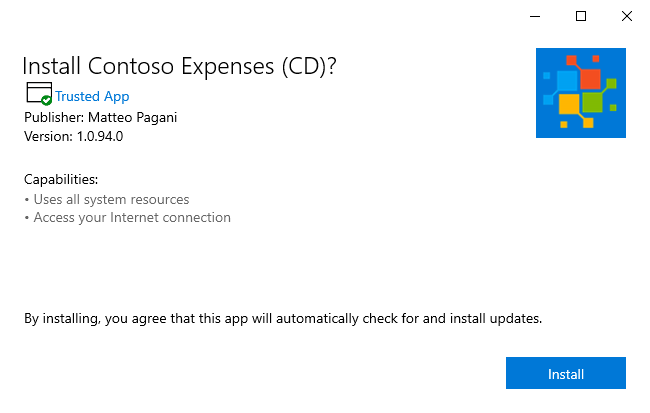
The only difference is that, as you can notice, the option Launch when ready is hidden. The application will be forcefully launched at the end of the process with the custom URL we have specified, otherwise we won’t be able to get the activation parameters. Once the deployment is complete, Windows will silently invoke the custom URL we have passed to the activationUri parameter, which in our case is contoso-expenses:?source=campaign. As a consequence, the experience will be like the one we have tested before when we have locally invoked the custom protocol: the application will be launched and, on the desktop, we’ll find a file called AppInstaller.txt with the full URL that has been used for triggering the execution.
Unfortunately, Visual Studio doesn’t have a way to customize the web page that is generated to add this custom App Installer URI. However, in a real scenario, you won’t probably use that page, but you will have the App Installer link embedded in a button or banner of your existing website.
Working with the activation parameters
An easier way to work with the activation parameters is to leverage the HttpUtility class which is included in the System.Web namespace. Thanks to this class, you can manipulate the query string parameters coming from the Uri in an easier way:
protected override void OnStartup(StartupEventArgs e)
{
    string path = $"{Environment.GetFolderPath(Environment.SpecialFolder.Desktop)}//AppInstaller.txt";

    if (e.Args.Length > 0)
    {
        UriBuilder builder = new UriBuilder(e.Args[0]);
        var result = HttpUtility.ParseQueryString(builder.Query);
        var value = result["source"];

        System.IO.File.WriteAllText(path, $"Source: {value}");
    }
    else
    {
        System.IO.File.WriteAllText(path, "No arguments available");
    }
}
As first step, we use the UriBuilder class to create a Uri object out of the activation parameter we have received inside the first position of the e.Args array. This way, we can easily access only to the query string parameters (without the whole contoso-expenses protocol) by using the Query property. By using the ParseQueryString() method and passing the query string we get in return a dictionary, which makes easy to access to all the various parameters. The previous sample shows how easily we can retrieve the value of the source parameter from the query string. Thanks to this approach, we can avoid to use string manipulation to retrieve the same information, which is more error prone.
What about a Universal Windows Platform application?
What if, instead of a .NET application like in this example, I have a UWP app? From a custom protocol registration perspective, the approach is exactly the same. The deployment technology for UWP is MSIX, so also in this case we have a manifest file where we can register our protocol. From a code perspective, instead, UWP offers a dedicated method for custom activation paths, called OnActivated(), which must be declared in the App.xaml.cs file. This is an example implementation:
protected override void OnActivated(IActivatedEventArgs args)
{
    if (args is ProtocolActivatedEventArgs eventArgs)
    {
        UriBuilder builder = new UriBuilder(eventArgs.Uri);
        var result = HttpUtility.ParseQueryString(builder.Query);
        var value = result["source"];
    }
}
As you can see, the code is very similar to the WPF implementation. The only difference is that the OnActivated event can be triggered by multiple patterns and, as such, first we need to make sure that this is indeed a protocol activation, by checking the real type of the IActivataedEventArgs parameter. In case of protocol activation, it will be ProtocolActivatedEventArgs, which gives us access to the to the Uri property we need to retrieve the activation URL.
Wrapping up
This implementation is based on the standard custom protocol support offered by Windows, so it’s very easy to implement. Every development platform support a way to get activation parameters when the application starts, so you just need to write some code to manage the desired scenario.
You can find the full sample used in this blog post on GitHub.
Happy coding!
References

by Scott Muniz | Sep 28, 2020 | Uncategorized
How do you pick a voice out of the all the chatter, and attend to what they’re saying, especially when the conversations around you are louder than the one you’re having? This is called the cocktail party problem. Yet the brain is able to defuse the ambient sound and channel the voices we’re interested in. In scientific terms this has been explained as “selective cortical representation of attended speaker in multi-talker speech perception.” No matter how you describe it, although we give it little thought, it’s a remarkable and critical ability we use every day.
Social Marketing
I often hear this question, in one form or another, “How can I, or my Web site, be heard in the worldwide crowd?” It’s easy to view the Web as a cacophony of voices in which it is impossible to expect to be heard over all the noise. That’s a reasonable conclusion. Why would you want to be heard over the voices? When you enter a crowded room are you inclined to yell in order to get everyone’s attention? It doesn’t make sense and yet some consider this to be the aim of social marketing. It’s an unattainable goal. A better approach is the cocktail party problem. Rather than trying to get everyone’s attention, enter the room, look for someone to talk to, ignore unwanted noise, and pay attention to what the other person is saying. This is exactly how we all “work the room” in real life. Also, don’t forget, the most interesting people are very good listeners. The Bible put’s it another way, “Be quick to listen, slow to speak.” (James 1:19) This is excellent advice and a principle that works online as well. Rather than clamoring for attention, if you listen carefully to online conversations, you can filter out posts about your brand, your products, customer issues, trends, and so on, allowing you to engage meaningfully with customers to bring to them real value and to bring to your business real money (to put it bluntly). More on social listening in a moment (below). Now let’s talk about social engagement … (click on header below)
Social Engagement
Social engagement is so much more effective than social marketing. Let’s take a moment to discuss social marketing. Marketing implies getting your name out there, brand recognition, top-of-mind awareness, and a million other buzz words. Abbreviations like SEO, for search engine optimization, and SEM, for search engine marketing, are the catch phrases of social marketers and unfortunately the esoteric language of online “snake oil salesmen.” SEO and SEM are passive marketing approaches that wreak of old world thinking. Consider it mathematically. Let’s say there are ten search results on Google’s home page and thirty car dealerships in your town. They all hire the best SEO and SEM marketers in the world. Can they all achieve first page ranking? For the sake of argument let’s say we lived in the world of quantum mechanics and they did manage to get thirty dealerships in to ten results, will this translate into clicks? Does this automatically translate into real business? Show me the money!
Sometimes very successful brick-and-mortar businesses appear to lose their minds when they open an online storefront. To illustrate let’s create a hypothetical retail store called Fred’s Fun Stuff. Fred spent years building a business, building relationships with customers, carving out a niche, and as a result he enjoys increased profits year over year. He knows he needs to go online so he launches an online store. He buys all the hoopla about social marketing and spends out the wazoo to get good search engine placement. It works, he gets good site traffic, but he’s not selling much online. He learns that nearly everything he has in his store can be bought on Amazon for less so he starts to cut his prices to compete with Amazon. His customers find out they can buy from him cheaper online. Now he’s moving the same amount of products, has less foot traffic in his stores, and due to smaller margins he has less profit. Well done Fred! The problem? Fred lost his mind.
In his brick-and-mortar store Fred doesn’t try to compete on price with the likes of Walmart. Why? He knows he can’t. So what does he do? Fred listens to his customers, engages with them, supports them, cares about them, and he builds relationships. “I go to Fred’s because of the personal attention.” “He has the coolest store and lets me try stuff out. If I don’t like it I can bring it back.” “Fred always stands behind his products.” You get the point. In a nutshell Fred does stuff Walmart can’t and won’t do. These are called differentiators and it is one reason some retailers stay around when others go under. There are many differentiators that make your “real world” business successful. The key is to bring those same factors to your online venture. Success tends to beget success.
Social Listening
In the cocktail party problem it’s all about attention and how that attention can change your brain. The same is true for social listening. A system has to be put in place to serve as your ears to listen in on all the conversations on Facebook, Twitter, Instagram, LinkedIn, Google+, and so on. Of course listening requires more than just ears. The system must be able to filter conversations by triggers like products, competitors, geographic location, key phrases, and then be able to bring these conversations to your attention. A dashboard shows you the conversations you want to “hear” in real time. Now you can engage. This is active, not passive, marketing.
To illustrate let’s say you’re listening to social networks for any mention of a competitor and you find several customers complaining because a product is out of stock. You have the product in stock so you engage the customer and let them know about the availability. Not only have you made a sale but, just as important, you’ve begun a new relationship. Relationship marketing, the differentiators, kick in, focusing on customer retention.
I don’t mean to give you the impression there isn’t a place for SEO and SEM. These are important components for the same reason you may list your number and put a sign above your brick-and-mortar business. There is a place for passive marketing as there is a place for advertising. Online success isn’t about achieving good search engine ranking only to wait for someone to click on your site in hopes of a sale. Online success is about pursuing relationships. To put it in the framework of the cocktail party problem: You enter the worldwide social networking mixer, you have on your SEO/SEM name tag, and you listen to the conversations to identify that next opportunity. You work the room, you engage, you follow up, and you build relationships.
by Contributed | Sep 28, 2020 | Uncategorized
This article is contributed. See the original author and article here.
This a quick post about this failure and how to fix: Error: org.apache.spark.sql.AnalysisException: java.lang.RuntimeException:
The operation failed: ‘This request is not authorized to perform this operation.’, 403
First, let’s just add some context :
When you are working on synapse workspace with the managed identity you would need to give Storage Blob Data contributor permission to the workspace that represents the managed identity permission:
https://docs.microsoft.com/en-us/azure/synapse-analytics/security/how-to-grant-workspace-managed-identity-permissions
More information here: https://docs.microsoft.com/en-us/azure/synapse-analytics/security/synapse-workspace-managed-identity
Speaking of managed identities –quick review on it: “A common challenge when building cloud applications is how to manage the credentials in your code for authenticating to cloud services. You can use the identity to authenticate to any service that supports Azure AD authentication, including Key Vault, without any credentials in your code.”
More here: https://docs.microsoft.com/en-us/azure/active-directory/managed-identities-azure-resources/overview?toc=/azure/synapse-analytics/toc.json&bc=/azure/synapse-analytics/breadcrumb/toc.json
So there you are with your workspace with the managed identity permissions granted running a notebook to create a database on Spark.
Note you are the one running the notebook on Synapse Studio and you are not using any credentials as you are under Synapse workspace:
%%spark
spark.sql("CREATE DATABASE IF NOT EXISTS nyctaxi")
It fails:
Solution:
Add the RBAC Storage Blob Data Contributor to the user that is running the notebook, or your user.
In this case, the script is running under the user that is executing the notebook. So this user needs permission as well.
That is it!
Liliam Uk Engineer.
by Contributed | Sep 28, 2020 | Uncategorized
This article is contributed. See the original author and article here.
With the latest release of SharePoint Online Client Components aka CSOM (Client-Side Object Model) (version: 16.1.20317.12000 or above), we now support methods to capture versions of Document Sets in SharePoint Online document libraries. This fills a major gap in our support for Document Sets in SharePoint Online as there was no way to capture versions of Document Sets automatically or programmatically. If you do a quick search online, you will see there are hundreds of posts where users are either asking for a way to capture version or document workarounds using JavaScript hacks and other unsupported methods. This also showcases that “Document Sets” are here to stay and will get all the support and enhancements in SharePoint Online.
Without the CSOM/API support, capturing a new version for a Document Set must be done manually through the ribbon or the ECB menu. This is true for both the classic and modern sites in both SPO and On-Premises. See below screenshot of the ECB menu to capture a version:
This API powering the “Capture Version” functionality is now generally available to everyone through the latest CSOM release. I am glad to share that I personally worked on a Design Change Request (DCR) on behalf of my customer to get this approved from Product Group. DCR is our internal process to make a business justification with enough evidence that a certain feature is needed/modified etc. That’s one of the many ways Product Group takes feedback from field broadening our impact in this role as a Customer Engineer (formerly known as Premier Field Engineer).
Here are short snippets of C# sample code that shows how the CSOM code works.
Start with basic CSOM authenticate and then get a site title.
string userName = "userid@Contoso.OnMicrosoft.com";

SecureString password = ConvertToSecureString("secretpassword");

var ctx = new ClientContext("https://Contoso.sharepoint.com/sites/ModernTeamSite");

ctx.Credentials = new SharePointOnlineCredentials(userName, password);

ctx.Load(ctx.Web);

ctx.ExecuteQuery();

Console.WriteLine(ctx.Web.Title);
Now that you have your ClientContext object ready. You can now request all the Document Set items from the library. Then request the version collection for each document set item.
var list = ctx.Web.Lists.GetByTitle("Documents");

//Use below two lines if you want to load a specific item by id

//var item = list.GetItemById(26);

//ctx.Load(item, l=>l.ContentType);

var query = new CamlQuery()

{

    ViewXml = String.Format("<View><Query><Where><Eq><FieldRef Name='ContentType' /><Value Type='Computed'>Document Set</Value></Eq></Where></Query></View>")

};

ListItemCollection items = list.GetItems(query);

ctx.Load(items);

ctx.ExecuteQuery();


foreach (var item in items)

{

    Console.WriteLine("Item id: "+ item.Id);

    var folder = item.Folder;

    ctx.Load(folder);

    var ds = Microsoft.SharePoint.Client.DocumentSet.DocumentSet.GetDocumentSet(ctx, folder);

    ctx.Load(ds);

    var dsVersions = ds.VersionCollection;

    ctx.Load(dsVersions);

    ctx.ExecuteQuery();

    Console.WriteLine("Version count: "+ dsVersions.Count);

}
To add a new version aka capture version of a document set:
//Add new version. First parameter signifies whether to capture items within docset with their major or minor versions checked in. Second parameter is a string/comment.

dsVersions.Add(true, "capture new version thru CSOM");

To get contents of a captured version of a Document set along with the site columns (fields) for the library.

List<Microsoft.SharePoint.Client.DocumentSet.DocumentSetVersionItem> itemsWithinDS = (List<Microsoft.SharePoint.Client.DocumentSet.DocumentSetVersionItem>)dsVersions[0].GetDisplayContents();

List<Microsoft.SharePoint.Client.DocumentSet.DocumentSetVersionField> fields = (List<Microsoft.SharePoint.Client.DocumentSet.DocumentSetVersionField>)dsVersions[0].GetDisplayFields();

ctx.ExecuteQuery();

Console.WriteLine("Contents count: " + itemsWithinDS.Count);

Console.WriteLine($"Field title: {fields[0].Title}, Value: {fields[0].FormattedValue}");

Do not forge to dispose of your ClientContext object :)

ctx.Dispose();
I also have the PowerShell script posted on my GitHub Gist account. It showcases how to get all Document Set items, capture versions, enumerate contents and the fields. Here is the full PowerShell script:
cls

#Import-Module Microsoft.Online.SharePoint.PowerShell

Add-Type -Path "C:Program FilesCommon FilesMicrosoft SharedWeb Server Extensions16ISAPIMicrosoft.SharePoint.Client.dll"

Add-Type -Path "C:Program FilesCommon FilesMicrosoft SharedWeb Server Extensions16ISAPIMicrosoft.SharePoint.Client.Runtime.dll"

Add-Type -Path "C:Program FilesCommon Filesmicrosoft sharedWeb Server Extensions16ISAPIMicrosoft.SharePoint.Client.DocumentManagement.dll"


#Setting this to True will create new version for any DocSet it identifies that has zero versions existing

$CreateNewVersion = $true

$AdminPass = "password"

$AdminPassword = ConvertTo-SecureString -string $AdminPass -AsPlainText -Force

#$AdminPassword=Read-Host -Prompt "Enter password" -AsSecureString

$username="MeganB@YourTenant.OnMicrosoft.com"

$Url="https://YourTenant.sharepoint.com/sites/ModernTeamSite"

$ListTitle="Documents"

$ctx=New-Object Microsoft.SharePoint.Client.ClientContext($Url)

$ctx.Credentials = New-Object Microsoft.SharePoint.Client.SharePointOnlineCredentials($Username, $AdminPassword)

$ctx.Load($ctx.Web)

$ctx.ExecuteQuery()

$list=$ctx.Web.Lists.GetByTitle($ListTitle)

$ctx.Load($list)

$ctx.ExecuteQuery()


"Document Library: "+ $ListTitle

"Total Item Count: "+ $list.ItemCount


$spqQuery = New-Object Microsoft.SharePoint.Client.CamlQuery

$spqQuery.ViewXml = "<View><Query><Where><Eq><FieldRef Name='ContentType' /><Value Type='Computed'>Document Set</Value></Eq></Where></Query></View>";

#$spqQuery.v .ViewFields = "<FieldRef Name='FileLeafRef' /><FieldRef Name='Title' />"

#$spqQuery.ViewFieldsOnly = $true


$items = $list.GetItems($spqQuery)

$ctx.Load($items)

$ctx.ExecuteQuery()


write-host "Found (" $items.Count ") DocumentSet content type items."

write-host ""

foreach ($splListItem in $items)

{

    write-host "Id: " $splListItem.Id " ," "Title:" $splListItem["Title"] -ForegroundColor Green


    $folder = $splListItem.Folder;

    $ctx.Load($folder);

    $ctx.ExecuteQuery()

    $docSetItem = [Microsoft.SharePoint.Client.DocumentSet.DocumentSet]::GetDocumentSet($ctx, $folder)

    $ctx.Load($docSetItem)

    $ctx.ExecuteQuery()

    $docSetItemVersions = $docSetItem.VersionCollection

    $ctx.Load($docSetItemVersions)

    $ctx.ExecuteQuery()

    write-host "Total versions: " $docSetItemVersions.Count


    if($docSetItemVersions.Count -gt 0)

    {

        $docSetItemVersions | %{

            Write-Host "Fetching the version contents..." -ForegroundColor Yellow

            #$_ | Get-Member

            Write-Host "Version Id: "$_.VersionLabel ", Comment: " $_.Comments ", Created: " $_.Created ", By: " $_.CreatedBy

            #$versionContents = New-Object System.Collections.Generic.List[Microsoft.SharePoint.Client.DocumentSet.DocumentSetVersionItem]

            $versionContents = [System.Collections.Generic.List[Microsoft.SharePoint.Client.DocumentSet.DocumentSetVersionItem]]$_.GetDisplayContents();

            $fieldValues = [System.Collections.Generic.List[Microsoft.SharePoint.Client.DocumentSet.DocumentSetVersionField]]$_.GetDisplayFields();

            $ctx.ExecuteQuery()

            #Write-Host $versionContents[0]

            #$versionContents[0] | Get-Member

            write-host "Found (" $versionContents.Count ") items in this doc set verion:"

            $versionContents | %{ write-host "-- ItemUrl:" $_.ItemUrl ", VersionLabel:" $_.VersionLabel ", InternalId: " $_.InternalId}

            #$fieldValues.Count

            write-host "Field values found in this version:"

            $fieldValues | %{ Write-Host "-- Title: " $_.Title ", Value: "$_.FormattedValue }

            Write-Host ""

        }

    }

    else {

        $docSetItemVersions.Add($true, "v1")

        $ctx.ExecuteQuery()

    }

    write-host ""

    write-host ""

}
$ctx.Dispose()
Here is the official MS docs for Add method that captures the version. https://docs.microsoft.com/en-us/dotnet/api/microsoft.office.documentmanagement.documentsets.documentsetversioncollection.add?view=sharepoint-server
Upcoming updates:
The Document Sets product group team is actively working on supporting Copy/Move functionality for Document Set content type items. Today the Copy/Move functionality works for Document Sets, but its scope is limited to within the document library. It doesn’t support copying/moving them across libraries or sites. With the upcoming update that’s going to change. Expect this update to roll out to all tenants in early September 2020.
Hope that helps!
by Contributed | Sep 28, 2020 | Azure, Technology, Uncategorized
This article is contributed. See the original author and article here.
Final Update: Monday, 28 September 2020 04:35 UTC
We’ve confirmed that all systems are back to normal with no customer impact as of 09/28, 03:24 UTC. Our logs show the incident started on 09/28, 02:23 UTC and that during the 1 Hour & 01 minute that it took to resolve the issue some customers may have experienced intermittent data latency, data gaps and incorrect alert activation in South UK
-
Root Cause: The failure was due to scaling issue in our one of backend dependent services
-
Incident Timeline: 1 Hour & 01 minutes – 09/28, 02:23 UTC through 09/28, 03:24 UTC
We understand that customers rely on Application Insights as a critical service and apologize for any impact this incident caused.
-Vamshi
by Contributed | Sep 27, 2020 | Uncategorized
This article is contributed. See the original author and article here.
How to deploy APIM self-hosted gateway in Windows Server 2019 for test purpose
APIM self-hosted gateway is packaged as a x86-64 Linux-based Docker container.
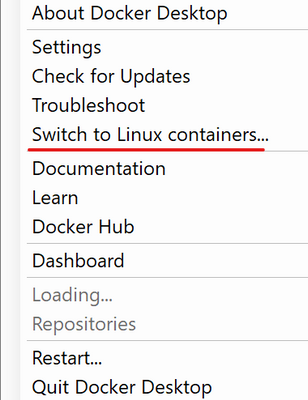
In Windows 10, if we have Docker Desktop installed, we can easily switch the Docker to Linux Mode so we can spin up linux containers.
However, it takes a few more steps to run linux containers in windows server OS.
VM Limitation
We will need v3 series or above Azure VM to enable hyper-v feature. Here I am using D2s_V3 VM to do the demo.
Enable Hyper-V
First we need to install Hyper-V.
Run Powershell as administrator and run this command. The installation would ask for a reboot.
Enable-WindowsOptionalFeature -Online -FeatureName Microsoft-Hyper-V -All
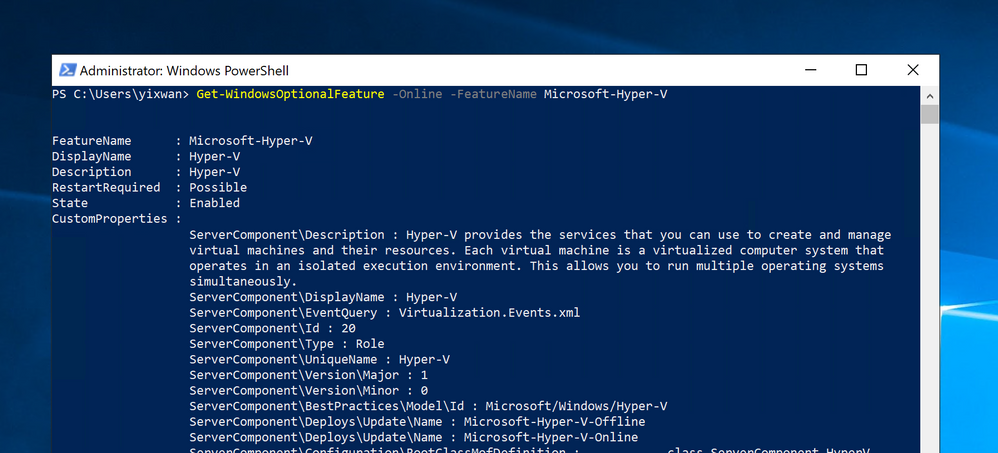
After reboot, run Powershell as administrator and run this command to check if Hyper-V is enabled.
Get-WindowsOptionalFeature -Online -FeatureName Microsoft-Hyper-V
As you can see here, the state is Enabled.
Install Docker
Then we will install docker service.
To install Docker, we’ll use the OneGet provider PowerShell module. The provider will enable the containers feature on your machine and install Docker, which will require a reboot.
Run the below commands:
Install-Module -Name DockerMsftProvider -Repository PSGallery -Force
Install-Package -Name docker -ProviderName DockerMsftProvider
Restart-Computer -Force
After the reboot, run docker info to check if the docker is successfully installed.
docker info
Now let’s try to pull the self-hosted gateway image and run it.
docker run -it --rm mcr.microsoft.com/azure-api-management/gateway
The docker will complain the operating system does not match.
Switch to Linux Mode
So we are going to switch the Docker to linux mode.
We will configure the docker to run in experimental mode.
Create or modify a json file at this path.
C:ProgramDatadockerconfigdaemon.json
We will add or change the ‘experimental’ attribute to true here.
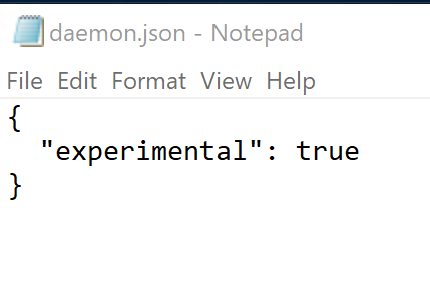
Then we restart docker.
restart-service docker
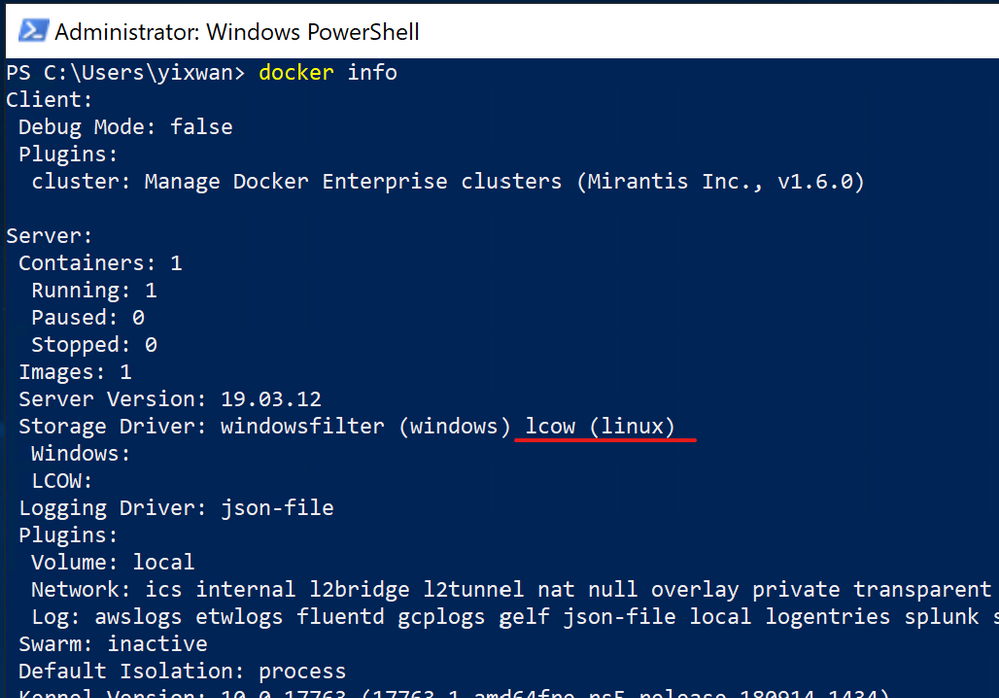
Run docker info again, we can see that the LCOW setting is there.
Finally we need to download LinuxKit from Github.
Invoke-Webrequest -UseBasicParsing -uri "https://github.com/linuxkit/lcow/releases/download/v4.14.35-v0.3.9/release.zip" -outfile ".release.zip"
Unzip it to this path.
Expand-Archive ".release.zip" -DestinationPath "C:Program FilesLinux Containers."
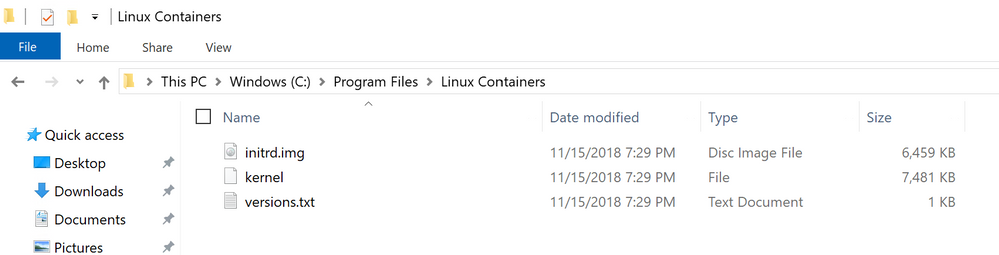
Restart the docker service again.
restart-service docker
Try the linux container
The environment should be good to run linux container now.
docker run -d --rm --name test-apim mcr.microsoft.com/azure-api-management/gateway
-d here means detach, which means running the container at the background.
–rm means when we kill the container, docker will remove the container, just to avoid dangling containers here.
If we run a docker container list, we can see the self-hosted gateway container is running there.
docker container ls
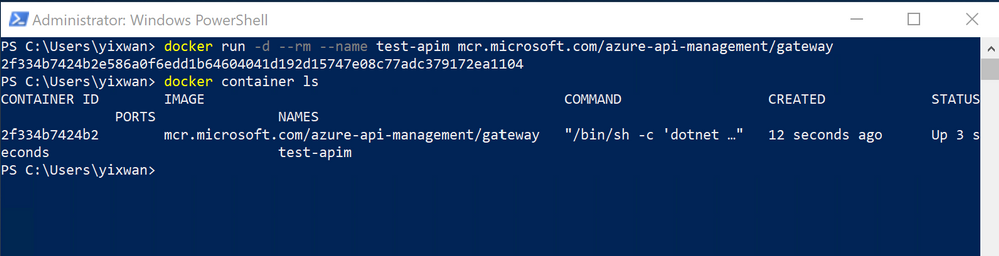
Terminate the container
Run docker kill to terminate the container.
test-apim is the name we just gave this container using –name flag when we ran it.
docker kill test-apim
Actually Run it
Now we will connect this container to our APIM and make it an actual gateway.
We create an gateway in the Gateway blade of APIM Azure Portal.
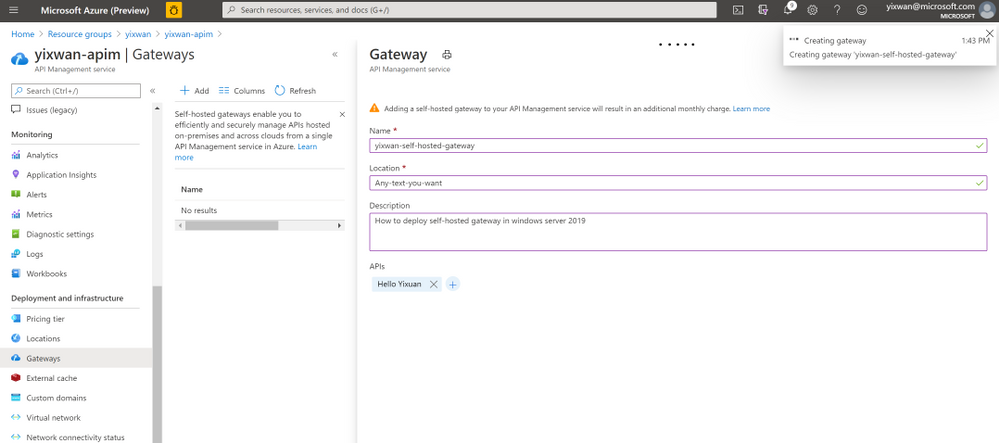
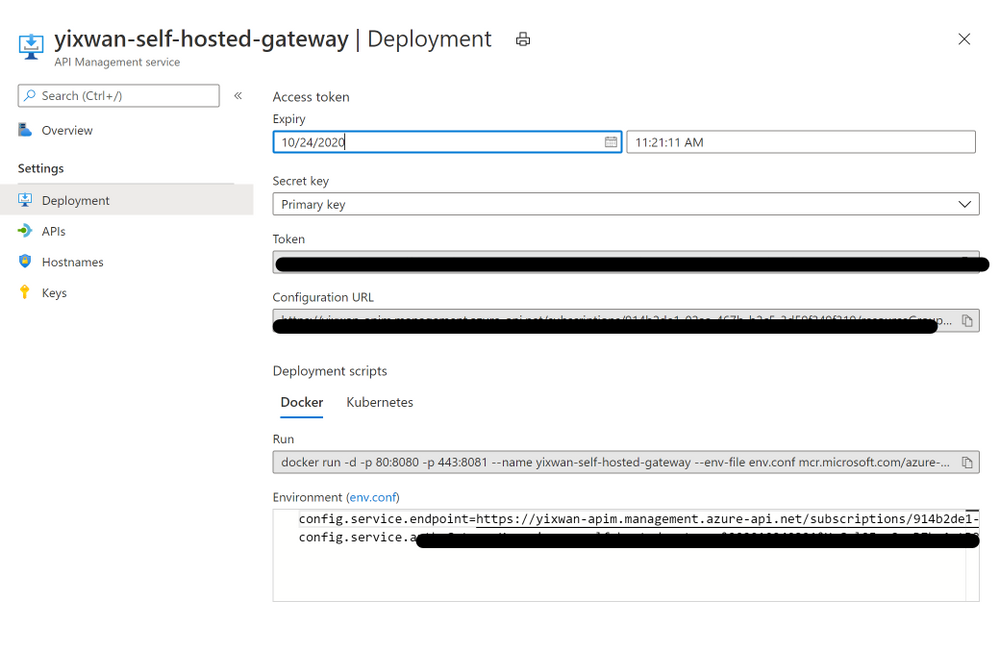
Download the env.conf file from the just created gateway. Put it into the path that we are going to run the ‘docker run’ command.
docker run -d -p 80:8080 -p 443:8081 --name yixwan-self-hosted-gateway --env-file env.conf mcr.microsoft.com/azure-api-management/gateway
The -p here is publish(expose). It exposes container’s 8080 and 8081 port to the host machine’s 80 and 443 port.
Once the container is up, any requests that hit the mapped port will go through this self-hosted gateway.
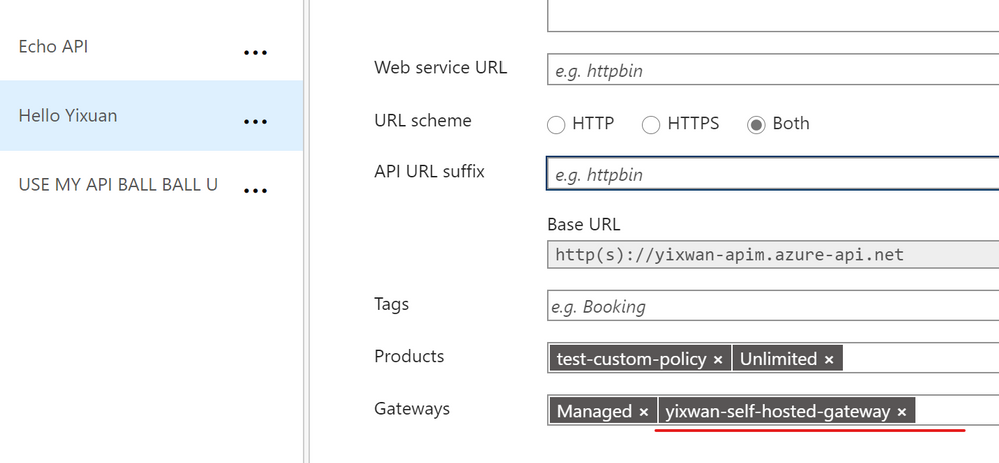
Make sure in API setting that you have included your gateway.
Now we will test use curl or any web request tool, we can send request to http://localhost:80 or https://localhost:443 to see if our self-hosted gateway is working.
Purpose
Currently the LinuxKit on Github is not being developed any more, so this is just a quick way to demonstrate that APIM self-hosted gateway can be deployed in windows server 2019.




Recent Comments