
by Contributed | Oct 1, 2020 | Uncategorized
This article is contributed. See the original author and article here.
October Edition Sections:
- Highlighted
- Microsoft Teams – IT Admins & Planning
- Microsoft Teams – End Users & Champions
- Security & Azure AD
- Blogs & Articles of Interest
Highlighted
Remote Working Federal Training
The Microsoft Federal Customer Success team has been working hard on our next round of trainings, starting October 13. More information will be provided here soon!
Ignite Announcements
Microsoft announced a ton of new updates last month at Ignite – below are some of those consolidated announcements of interest.
Microsoft Teams: Master working from home
Working from home offers the opportunity to maintain your workflow while allowing flexibility in how and where you get your work done. Shifting to a remote worker status can be an adjustment as you look for ways to balance home and work life, maintain focus and be fully productive. Microsoft Teams can help you stay connected to your team while providing access to all of the tools and resources you need to get your work done. Join us to learn tips that can help set you up for success as you transition into a ‘work from home’ scenario. During this session, we’ll share: (1) Guidance for setting up your home environment for work, (2) Best practices for maintaining your workflow while working at home, (3) Tips for staying connected to your team while remote, and (4) Insights for effectively supporting a remote team.
Microsoft Teams – IT Admins & Planning

Microsoft Teams: Plan your upgrade (Start here!)
Discover everything you need to facilitate a successful upgrade to Teams. By the end of this workshop, participants will be able to: (1) Understand why a formal plan is crucial for upgrade success, (2) Identify the steps to the upgrade success framework, (3) Recognize common attributes of successful customers, and (4) Create and implement their own upgrade plan. The audience for this session is All (Business Sponsors, IT Admins, User Readiness/Change Manager, Project Lead).
- On-Demand Session
- Tuesday, September 29, 2020 at 8am PT
- Wednesday, September 30, 2020 at 9am PT
- Tuesday, October 6, 2020 at 8am PT
- Wednesday, October 7, 2020 at 9am PT
- Tuesday, October 13, 2020 at 8am PT
- Wednesday, October 14, 2020 at 9am PT
- Tuesday, October 20, 2020 at 8am PT
- Wednesday, October 21, 2020 at 9am PT
- Tuesday, October 27, 2020 at 8am PT
- Wednesday, October 28, 2020 at 9am PT
Microsoft Teams: Identify your upgrade approach
Determine the most suitable approach based on your current Skype for Business implementation and upgrade goals. By the end of this workshop, participants will be able to: (1) Understand common scenarios and upgrade approaches, (2) Visualize the user experience for each approach, and (3) Determine the optimal upgrade approach for your organization. IT Admins are the primary audience for this session.
- On-Demand Session
- Tuesday, September 29, 2020 at 9am PT
- Tuesday, September 29, 2020 at 4pm PT
- Tuesday, October 6, 2020 at 9am PT
- Tuesday, October 6, 2020 at 4pm PT
- Tuesday, October 13, 2020 at 9am PT
- Tuesday, October 13, 2020 at 4pm PT
- Tuesday, October 20, 2020 at 9am PT
- Tuesday, October 27, 2020 at 9am PT
- Tuesday, October 27, 2020 at 4pm PT
Microsoft Teams: Implement your upgrade approach
Execute your defined upgrade approach as part of your formal upgrade plan. By the end of this workshop, participants will be able to: (1) Recognize the upgrade settings in your O365 tenant admin portal, (2) Understand technical tips and considerations for a successful upgrade, and (3) Apply the appropriate settings in the Portal to execute your upgrade. The primary audience for this session is IT Admins.
- On-Demand Session
- Thursday, October 1, 2020 at 9am PT
- Thursday, October 1, 2020 at 4pm PT
- Thursday, October 8, 2020 at 9am PT
- Thursday, October 8, 2020 at 4pm PT
- Thursday, October 15, 2020 at 9am PT
- Thursday, October 15, 2020 at 4pm PT
- Thursday, October 22, 2020 at 9am PT
- Thursday, October 22, 2020 at 4pm PT
- Thursday, October 29, 2020 at 9am PT
- Thursday, October 29, 2020 at 4pm PT
Teams Chalk Talk: Get to Teams – Zero to Production
Microsoft Teams can help your employees stay connected and collaborate with each other, especially in the current unprecedented time where remote work is a reality of employees around the world. Being able to chat, do video meetings and collaborate on Office documents within Teams can help companies stay productive. Whether you are a small business, a non-profit or a large organization, you can get started with Teams within Microsoft 365 or Office 365 suite – even before deploying any other Office app or service. Join Microsoft Teams experts as we review Teams implementation for collaboration, chat and meetings. We’ll share key configurations, considerations, best practices, and resources to get your users up and running quickly. After this session, you will be able to: (1) Recognize key success factors for technical and user readiness, (2) Identify pre-requisites and tenant setup for your environment, (3) Install the Teams clients appropriate for your organization, (4) Configure policies that enable your preferred user experiences, and (5) Leverage collaboration features to enhance remote work scenarios.
Enabling Remote Work with Microsoft Teams: Manage Guest Access in Microsoft Teams
When: Thursday, November 5, 2020 at 9:00am PT | The recent shift to remote, hybrid and on-premise work has IT professionals across every industry looking for more solutions and support for deploying Microsoft Teams. That’s why we’re excited to launch this new live webcast series. In Episode 9, which is one of the most requested episodes, we’ll feature tips, tricks and gotchas on managing guest access in Microsoft Teams. Be sure to add this event to your calendar!
Teams Chalk Talk: Do more with apps
Join Microsoft Teams experts as we review how you can deploy commonly-used applications directly within Teams, enabling your users to work more efficiently and effectively by accessing everything they need in a single interface. This foundational workshop covers basic capabilities across app management and security. With over 400 out-of-the-box applications available (and growing), you’re sure to find an app, or two, that your team can begin using today in Teams. After this session, you will be able to: (1) Identify suitable apps to meet the needs for your organization, (2) Recognize common attributes of successful app deployment, (3) Navigate security and compliance considerations for Teams’ apps, and (4) Determine the next steps to deploy an app to your environment.
- Tuesday, September 29, 2020 at 8am PT
- Thursday, October 1, 2020 at 8am PT
- Tuesday, October 6, 2020 at 8am PT
- Thursday, October 8, 2020 at 8am PT
- Tuesday, October 13, 2020 at 8am PT
- Thursday, October 15, 2020 at 8am PT
- Tuesday, October 20, 2020 at 8am PT
- Thursday, October 22, 2020 at 8am PT
- Tuesday, October 27, 2020 at 8am PT
- Thursday, October 29, 2020 at 8am PT
Teams Chalk Talk: Taking charge of AV quality experiences
Are you looking to ensure users have optimal experiences with meetings and voice capabilities in Teams? During this session, we’ll discuss tools, reporting and best practices to help you manage service quality — from establishing a proactive strategy to resolving common quality issues as they arise. We’ll build upon best practices from Teams experts and make it real with examples of common scenarios that may arise as your organization embraces meetings and voice capabilities in Teams. Join us for an expert-led workshop for guidance on key resources and actionable insights to manage audio and video quality with Microsoft Teams. Your users will thank you for it! After this session, you will be able to: (1) Define key service metrics and user experience factors for quality, (2) Recognize concepts and metrics in core tools and resources that help you assess usage and quality, (3) Identify key indicators of poor experience in common scenarios and relevant actions to address, and (4) Establish a proactive quality management strategy to ensure optimal user experience.
- Wednesday, September 30, 2020 at 7am PT
- Wednesday, September 30, 2020 at 4pm PT
- Thursday, October 1, 2020 at 10am PT
- Wednesday, October 7, 2020 at 7am PT
- Wednesday, October 7, 2020 at 4pm PT
- Thursday, October 8, 2020 at 10am PT
- Wednesday, October 14, 2020 at 7am PT
- Wednesday, October 14, 2020 at 4pm PT
- Thursday, October 15, 2020 at 10am PT
- Wednesday, October 21, 2020 at 7am PT
- Wednesday, October 21, 2020 at 4pm PT
- Thursday, October 22, 2020 at 10am PT
- Wednesday, October 28, 2020 at 7am PT
- Wednesday, October 28, 2020 at 4pm PT
- Thursday, October 29, 2020 at 10am PT
Teams Chalk Talk: So…you want to make calls with Microsoft Teams?
Are you ready to add PSTN calling capabilities to Microsoft Teams? Join Microsoft Teams Engineering subject-matter-experts as they demystify the options for adding PSTN calling to Teams, provide you with best practices for configuring calling options and show you how to monitor call quality. After this session, you will be able to: (1) Understand the history of voice services in Microsoft products, (2) Identify what calling options in Microsoft Teams are right for you, (3) Configure your calling options in the Teams admin portal, and (4) Monitor and use call quality tools in Teams.
- Wednesday, September 30, 2020 at 8am PT
- Wednesday, October 7, 2020 at 8am PT
- Wednesday, October 14, 2020 at 8am PT
- Wednesday, October 21, 2020 at 8am PT
- Wednesday, October 28, 2020 at 8am PT
Enabling Remote Work with Microsoft Teams: New Resources for Microsoft Teams Admins
When: Thursday, October 22, 2020 at 9:00am PT | The recent shift to remote, hybrid and on-premise work has IT professionals across every industry looking for more solutions and support for deploying Microsoft Teams. That’s why we’re excited to launch this new live webcast series. In Episode 8, learn about new Teams deep dive help videos for administrators as well as other resources to get your support teams and help desk up to speed. Be sure to add this event to your calendar!
Enabling Remote Work with Microsoft Teams: The New World of Virtual Events
When: Thursday, October 8, 2020 at 9:00am PT | The recent shift to remote, hybrid and on-premise work has IT professionals across every industry looking for more solutions and support for deploying Microsoft Teams. That’s why we’re excited to launch this new live webcast series. The events industry transformed overnight, and Microsoft Teams played a big part in this transition. In Episode 7, we’ll sit down with members of the Microsoft Teams product group and learn how they are building the future of high-scale communication with Microsoft Teams. Be sure to add this event to your calendar!
Microsoft Teams: Ready your end users
Design a user readiness strategy to help your users love and adopt Teams. By the end of this workshop, participants will be able to: (1) Recognize factors that influence user acceptance and adoption, (2) Define core value messaging for Teams in your organization, and (3) Outline your awareness, training and support activities. The audience for this session is: User Readiness/Change Manager.
Microsoft Teams – End User & Champions
Get Started with Microsoft Teams
Whether you are switching from Skype for Business or brand new, join us to learn the basics of how to use Teams to chat with your colleagues and collaborate on projects. Through a series of live demonstrations and best practices, you’ll leave this session with everything you need to start using Teams. After this session, you will be able to: (1) Set up your profile and notifications in Microsoft Teams, (2) Use chat and calling for 1:1 and group conversations, sharing and collaboration in Microsoft Teams, (3) Schedule and conduct meetings in Microsoft Teams, and (4) Align your team and teamwork in Microsoft Teams.
Customer Immersion Experience: Getting Started with Microsoft Teams
Whether you are switching from Skype for Business or brand new, join us to learn the basics of how to use Teams to chat with your colleagues and collaborate on projects. Join us for this session and leave this with everything you need to start using Teams. During this 2-hour interactive session, you will explore how to: (1) Set up your profile and notifications in Microsoft Teams, (2) Use chat and calling for 1:1 and group conversations, sharing and collaboration in Microsoft Teams, (3) Schedule and conduct meetings in Microsoft Teams, and (4) Align your team and teamwork in Microsoft Teams.
Run Effective Meetings with Microsoft Teams
Have you spent significant time and resources to prepare for a meeting and still felt it wasn’t productive? Have you attended a meeting only to leave feeling like not much was accomplished? Join this class to learn how to make your meetings engaging, productive and effective. Microsoft Teams can help make your meetings worth showing up for. After this session, you will be able to: (1) Use Teams for your entire meeting experience, (2) Record your meeting, making it easy for those who couldn’t attend to get caught up, (3) Keep important meetings at your fingertips by pinning them for easy access, and (4) Assess which audio and video devices are best for your meeting needs.
Customer Immersion Experience: Running Effective Meetings with Microsoft Teams
Whether you are switching from Skype for Business or brand new, join us to learn the basics of how to use Teams to chat with your colleagues and collaborate on projects. Join us for this session and leave this with everything you need to start using Teams. During this 2-hour interactive session, you will explore how to: (1) Set up your profile and notifications in Microsoft Teams, (2) Use chat and calling for 1:1 and group conversations, sharing and collaboration in Microsoft Teams, (3) Schedule and conduct meetings in Microsoft Teams, and (4) Align your team and teamwork in Microsoft Teams.
Go Deeper with Microsoft Teams: Build collaborative workspaces in Microsoft Teams
Designed for those who are already familiar with Microsoft Teams, our ‘Go Deeper’ sessions offer insights and best practices. Learn how Teams can help organize your workday and make it easier to stay connected with colleagues. Explore ways to determine the best approach for creating workspaces for projects and workgroups. After this session, you will be able to: (1) Determine the best approach for your collaboration needs (chat versus teams & channels), (2) Create workspaces for your team to provide the best teamwork experience, and (3) Determine best practices in Microsoft Teams to enhance productivity. Note: This session was previously called ‘Learn tips for taking Microsoft Teams to the next level – Part 1’.
Customer Immersion Experience: Creating a Secure Online Meeting
With the dramatic shift to remote work, we all continue to seek creative ways to stay connected and productive in our jobs. How do we recreate those meetings, calls, and large events that previously brought us together and helped us achieve our business goals? Do we have the right tools and devices to do so? And how do we do all of this while keeping security top of mind? These aren’t easy questions to answer. This one-hour session will give you the opportunity to test drive Microsoft Teams, Yammer, and Power BI in a live cloud environment. A facilitator will guide you as you create a virtual company-wide meeting and explore how to: (1) Build a communication and collaboration hub, (2) Engage employees through chat and polls, (3) Set up automated meeting captioning, translation, and transcripts, and (4) Use analytical tools to make sense of data, categorize it, and make it easier to visualize.
- Monday, September 28, 2020 from 9am – 10am PT
- Monday, September 28, 2020 from 12pm – 1pm PT
- Monday, October 5, 2020 from 9am – 10am PT
- Monday, October 5, 2020 from 12pm – 1pm PT
- Monday, October 13, 2020 from 9am – 10am PT
- Monday, October 13, 2020 from 12pm – 1pm PT
Microsoft Teams: Staying connected with your team while remote
We designed Microsoft Teams to be a virtual office you can take anywhere you go. Work seamlessly and transparently with your remote team and discover greater collaboration and productivity. Join us for this session and explore how to avoid communication sinkholes and do more together, no matter where you are. Each session is limited to 12 participants, reserve your seat now.
Microsoft Teams: Master working from home
Working from home offers the opportunity to maintain your workflow while allowing flexibility in how and where you get your work done. Shifting to a remote worker status can be an adjustment as you look for ways to balance home and work life, maintain focus and be fully productive. Microsoft Teams can help you stay connected to your team while providing access to all of the tools and resources you need to get your work done. Join us to learn tips that can help set you up for success as you transition into a ‘work from home’ scenario. During this session, we’ll share: (1) Guidance for setting up your home environment for work, (2) Best practices for maintaining your workflow while working at home, (3) Tips for staying connected to your team while remote, and (4) Insights for effectively supporting a remote team.
Integrate apps to do more in Microsoft Teams
Do you want to get more done in Teams? Receive targeted and timely updates? Access services directly through Teams? Apps let you complete tasks, receive updates and communicate. This session introduces you to the key activities needed to get started with adding applications, bots and connectors in Microsoft Teams today. Through a series of live demonstrations and best practices, you’ll leave this session with everything you need to start using apps in Teams. After this session, you will be able to: (1) See how applications, bots and connectors can help you be more efficient while working in Teams, (2) Select an application, bot or connector for your workspace, (3) Install an application, bot or connector, and (4) Use an application, bot or connector in your workspace.
Go Deeper with Microsoft Teams: Leverage pro tips and tricks for Microsoft Teams
Designed for those who are already familiar with Microsoft Teams, our ‘Go Deeper’ sessions offer insights and best practices. Learn how Teams can help organize your workday and make it easier to stay connected with colleagues. Learn tips and tricks for managing and organizing work and communications in Teams. After this session, you will be able to: (1) Leverage formatting best practices to help get your messages noticed (and responded to), (2) Easily find files, chats and projects, (3) Implement strategies to manage and organize your work, and (4) Simplify your workday. Note: This session was previously called ‘Learn tips for taking Microsoft Teams to the next level – Part 2’.
Security & Azure AD
Customer Immersion Experience: Protecting Identity, Apps, Data and Devices
Identity is at the center of security: don’t compromise when it comes to your company’s valuable information. Join us to explore how to use secure authentication, govern access, get comprehensive protection and set the right identity foundation. During this 2-hour interactive session, you will explore how to: (1) Enable password protection, (2) Bring multi-factor authentication to your Windows 10 users, (3) Protect your users and data through Office 365 multi-factor authentication, and (4) Use conditional access to protect across devices, locations and apps. Each session is limited to 12 participants, reserve your seat now.
Customer Immersion Experience: Protecting Your Sensitive Information
Data needs to be protected wherever it’s stored and whenever it travels, and you need the tools to monitor policy violations and risky behavior. Join us to explore how to implement a comprehensive and integrated approach across devices, apps, cloud services, and on-premises. During this 2-hour interactive session, you will explore how to: (1) Identify, monitor and automatically protect sensitive information across Office 365, (2) Help classify and protect documents and email, and (3) Use policies to enable BYOD scenarios by protecting data at the app level. Each session is limited to 12 participants, reserve your seat now.
Customer Immersion Experience: Protecting Assets and Empowering Your Defenders
Today’s workforce can work from anywhere, on any device, and on any app. Security teams need to understand threat signals from disconnected products and optimize security with minimal complexity. During this 2-hour interactive session, you will explore how to: (1) Safeguard users from malware attacks such as phishing and spoofing with Office 365, (2) Use the Windows Defender ecosystem to proactively monitor and protect your users, (3) Utilize Office 365 ATP to help protect users from bad links and attachments, and (4) Let machine learning and automation protect users from threats. Each session is limited to 12 participants, reserve your seat now.
Microsoft announces cloud innovation to simplify security, compliance, and identity
Blogs & Articles of Interest
Public Sector Blog Website | RSS Feed
Microsoft Teams Blog Website | RSS Feed
Office & Microsoft 365
Enterprise identity, mobility, and security
Microsoft Azure and Development
Windows, Operations, Management, and Deployment
Support and adoption
Misc
Thanks for stopping by and reading our monthly resources. Feel free to reach out in the comments below with any comments, questions or ideas on other events to add to the list. Here in Public Sector we want to make sure we are giving you the information and insights to best serve your needs in this community.

by Contributed | Oct 1, 2020 | Uncategorized
This article is contributed. See the original author and article here.

Do you want to ensure security for your users as they collaborate in Microsoft Teams? On Wednesday, September 30th, Pete and I brought in speakers from Microsoft’s trusted partner Unify Square. They dove in beyond the basic native Teams governance with third party specialty tools.
Key Topics Covered:
- Key analytics focus areas for collaboration security
- Tips and tricks for breaking the reactive governance loop
- Teams Policies and Use Cases
- Basic (native) governance vs Advance (3rd party tools) governance
Recording:
Relevant Resources:
Presenters:
-
Scott Gode, Chief Product Marketing Officer, Unify Square

-
Brandon Long, Collaboration Security Solution Architect, Unify Square

Moderators:


Thanks for joining!
by Contributed | Oct 1, 2020 | Uncategorized
This article is contributed. See the original author and article here.
We know that all of you have been intrigued about the recently patched CVE-2020-1472 Netlogon Elevation of Privilege Vulnerability, widely known as ZeroLogon. While we strongly recommend that you deploy the latest security updates to your servers and devices, we also want to provide you with the best detection coverage possible for your domain controllers. Microsoft Defender for Identity (previously Azure Advanced Threat Protection) along with other Microsoft 365 Defender (previously Microsoft Threat Protection) solutions detect adversaries as they try to exploit this vulnerability against your domain controllers.
Here’s a sneak peek into our detection lifecycle
Whenever a vulnerability or attack surface is disclosed, our research teams immediately investigate possible exploits and come up with various methods for detecting attacks. This is highlighted in our response to suspected WannaCry attacks and with the alert for Suspected SMB packet manipulation (CVE-2020-0796 exploitation). These detection methods are tested in our lab environment, and experimental detectors are deployed to Microsoft Defender for Identity to assess performance and accuracy and find possible attacker activity.
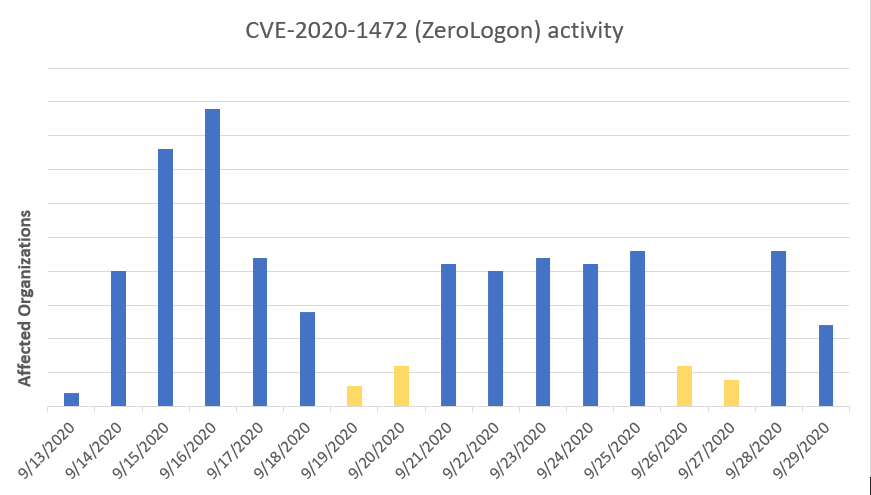
Over the past month since the CVE-2020-1472 was first disclosed, the interest in this detection rapidly increased. This happened even if we did not observe any activity matching exploitation of this vulnerability in the initial weeks after the August security updates. It generally takes a while before disclosed vulnerabilities are successfully reverse-engineered and corresponding mechanism are built.
This lack of activity changed on September 13, when our triggered a surge in alerts. Simultaneously, this increase in activity was followed by the publication of several proof-of-concept tools and demo exploits that can leverage the vulnerability.
 Figure 1 – Orgs with ZeroLogon exploitation attempts by red teams and real attackers starting September 13
Microsoft Defender for Identity that can detect this vulnerability early on. It covers both the aspects of exploitation and traffic inspection of the Netlogon channel.
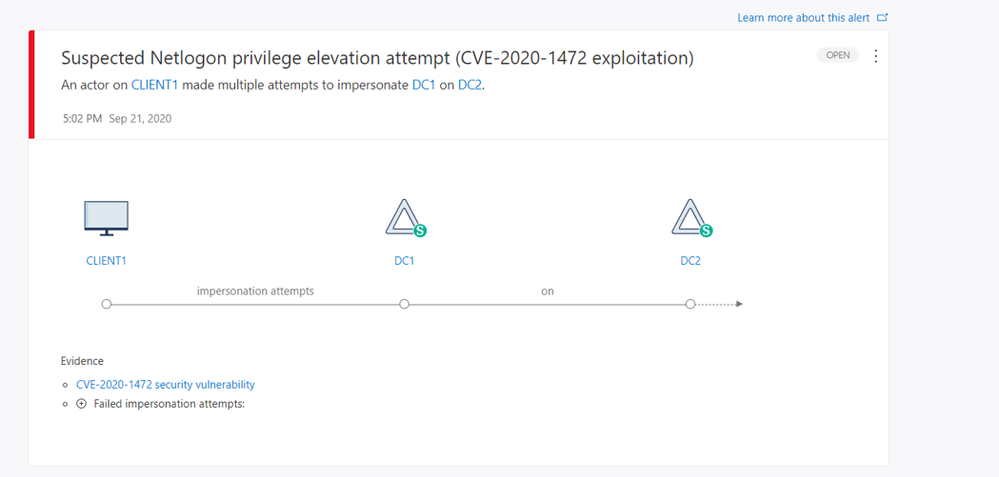 Figure 2 – Alert page experience
With this Microsoft Defender for Identity alert, you will be able to identify:
- The device that attempted the impersonation
- The domain controller
- The targeted asset
- Whether the impersonation attempts were successful
Finally, customers using Microsoft 365 Defender (previously Microsoft Threat Protection) can take full advantage of the power of the signals and alerts from Microsoft Defender for Identity, combined with behavioral events and detections from Microsoft Defender for Endpoint (previously Microsoft Defender Advanced Threat Protection). This coordinated protection enables you not just to observe Netlogon exploitation attempts over network protocols,
A close look at some of the earliest ZeroLogon attacks
ZeroLogon is a powerful vulnerability for attackers to leverage, but in a normal attack scenario it will require an initial entry vector inside an organization to facilitate exploitation against domain controllers. During initial monitoring of security signals, Microsoft Threat Experts observed ZeroLogon exploitation activity in multiple orgs. In many cases, it was clear that the activity was originated by red teams or pen testers using automated vulnerability scanners to locate vulnerable servers. However, Microsoft researchers were also able to identify a few limited cases of real attackers jumping on the ZeroLogon train to expand their perimeter into organizations that, after a month of patch being available, were still running unpatched domain controllers.
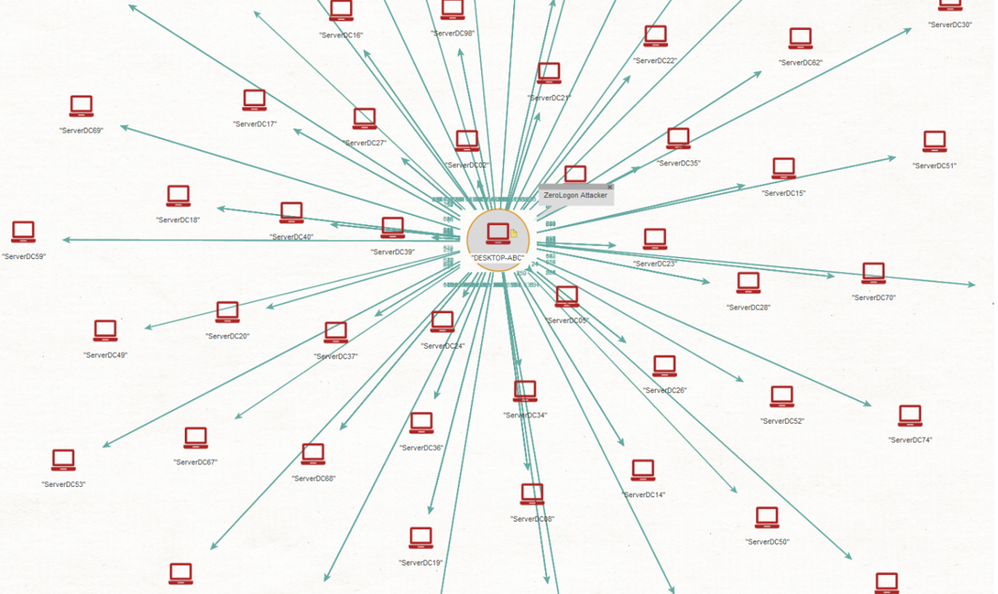 Figure 3 – Typical ZeroLogon exploitation activity generated by a vulnerability scanner or a red team testing domain controllers at scale
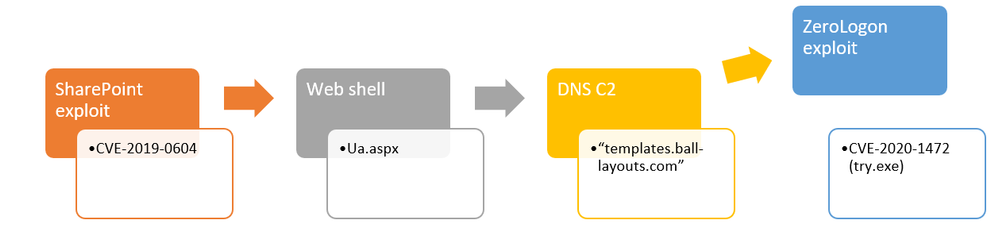
One of the adversaries noticed by our analysts was interesting because the attacker leveraged an older vulnerability for SharePoint (CVE-2019-0604) to exploit remotely unpatched servers (typically Windows Server 2008 and Windows Server 2012) and then implant a web shell to gain persistent access and code execution. Following the web shell installation, this attacker quickly deployed a Cobalt Strike-based payload and immediately started exploring the network perimeter and targeting domain controllers found with the ZeroLogon exploit.
Using the @MsftSecIntel handle on twitter, we publicly shared some file indicators used during the attack. We also shared the variations of the ZeroLogon exploits we detected, many of which were recompiled versions of well-known, publicly available proof-of-concept code. Microsoft Defender for Endpoint can also detect certain file-based versions of the CVE-2020-1472 exploit when executed on devices protected by Microsoft Defender for Endpoints.
Hunting for ZeroLogon in Microsoft 365 Defender
Combining signals from Microsoft Defender for Endpoint with the ZeroLogon alerts from Microsoft Defender for Identity can help assess the nature of the alert quickly. Microsoft 365 Defender automatically leverages signals from both products. It has logic that constantly attempts to combine alerts and events using a variety of correlation logic based on knowledge of cause-effect attack flows, the MITRE ATT&CK framework, and machine learning models.
In this section, we provide an example (in the simplified form of an advanced hunting query) of how Microsoft 365 Defender correlation logic operates behind-the-scenes to combine alerts, reducing SOC fatigue and facilitating investigation.
The following Microsoft 365 Defender advanced hunting queries identify process and network connection details from the source device suspected to have launched the NetLogon exploit.
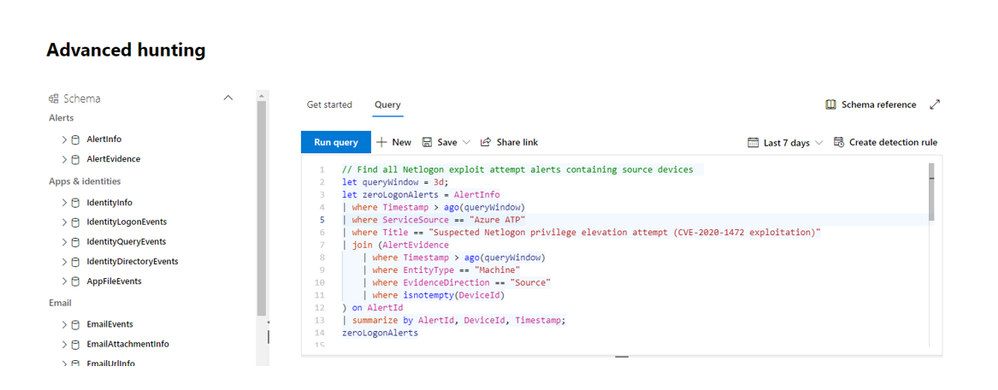
First, we gather the relevant details on recent Netlogon exploit attempts from Microsoft Defender for Identity alerts. This will help populate the AlertId for the second query.
// Find all Netlogon exploit attempt alerts containing source devices
let queryWindow = 3d;
AlertInfo
| where Timestamp > ago(queryWindow)
| where ServiceSource == "Azure ATP"
| where Title == "Suspected Netlogon privilege elevation attempt (CVE-2020-1472 exploitation)"
| join (AlertEvidence
    | where Timestamp > ago(queryWindow)
    | where EntityType == "Machine"
    | where EvidenceDirection == "Source"
    | where isnotempty(DeviceId)
) on AlertId
| summarize by AlertId, DeviceId, Timestamp
Next, populate one AlertId from the prior query into NLAlertId in the next query to hunt for the likely process that launched the exploit and its network connection to the domain controller:
// Find potential endpoint Netlogon exploit evidence from AlertId
let NLAlertId = "insert alert ID here";
let lookAhead = 1m;
let lookBehind = 6m;
let NLEvidence = AlertEvidence
| where AlertId == NLAlertId
| where EntityType == "Machine"
| where EvidenceDirection == "Source"
| where isnotempty(DeviceId)
| summarize Timestamp=arg_min(Timestamp, *) by DeviceId;
let sourceMachine = NLEvidence | distinct DeviceId;
let alertTime = todatetime(toscalar(ZLEvidence | distinct Timestamp));
DeviceNetworkEvents
| where Timestamp between ((alertTime - lookBehind) .. (alertTime + lookAhead))
| where DeviceId in (sourceMachine)
| where RemotePort == 135 or RemotePort between (49670 .. 49680)
| summarize (Timestamp, InitiatingProcessFileName, InitiatingProcessCommandLine, InitiatingProcessAccountSid)=arg_min(ReportId, Timestamp, InitiatingProcessFileName, InitiatingProcessCommandLine, InitiatingProcessAccountSid), TargetDevicePorts=make_set(RemotePort) by DeviceId, DeviceName, RemoteIP, RemoteUrl
| project-rename SourceComputerName=DeviceName, SourceDeviceId=DeviceId, TargetDeviceIP=RemoteIP, TargetComputerName=RemoteUrl
This query can return a result that looks like this:
|
SourceDeviceId
|
<DeviceId>
|
|
SourceComputerName
|
CLIENT1.test.local
|
|
TargetDeviceIP
|
10.0.0.1
|
|
TargetDevicePorts
|
[135, 49670]
|
|
TargetComputerName
|
DC1.test.local
|
|
Timestamp
|
2020-09-21 17:02:41
|
|
InitiatingProcessFileName
|
python.exe
|
|
InitiatingProcessCommandLine
|
python.exe “C:UsersCLIENT1Documentszerologon_tester.py”
|
|
InitigatingProcessAccountSid
|
<UserSid>
|
Tying Microsoft Defender for Endpoint data together with the original Microsoft Defender for Identity alert can give a clearer picture as to what happened on the device suspected of launching the exploit. This could save SOC analysts time when investigating alerts, because the relevant details are there to determine if it was caused by a curious researcher or from an actual attack.
Defend against ZeroLogon
As always, it’s important to keep your assets up to date with the latest security updates
Learn more about the alert.
Also, feel free to review our guidance on managing changes in Netlogon secure channel connections and how you can prevent this vulnerability
Customers with Microsoft Defender for Endpoint can get additional guidance from the threat analytics article available in Microsoft Defender Security Center.
Get started today
Are you just starting your Microsoft Defender for Identity journey? Begin a trial of Microsoft 365 Defender to experience the benefits of the most comprehensive, integrated, and secure threat protection solution for your organization.
Join the Microsoft Defender for Identity community for the latest updates and news about Identity Security Posture Management assessments, detections and other updates.
by Contributed | Oct 1, 2020 | Uncategorized
This article is contributed. See the original author and article here.
Final Update: Thursday, 01 October 2020 10:41 UTC
We’ve confirmed that all systems are back to normal with no customer impact as of 10/01, 09:45 UTC. Our logs show the incident started on 10/01, 05:30 UTC and that during the 4 hours 15 Minutes that it took to resolve the issue. Some customers may experience failure notifications when accessing or performing service management operations such as Create, Update, Delete for Azure Log Search Alert Rules in multiple regions.
-
Root Cause: The failure was due to a performance degradation following a recent backend service deployment.
-
Incident Timeline: 4 Hours & 15 minutes – 10/01, 05:30 UTC through 10/01, 09:45 UTC
We understand that customers rely on Log Search Alerts as a critical service and apologize for any impact this incident caused.
-Vamshi
Update: Thursday, 01 October 2020 09:25 UTC
We continue to investigate issues within Log Search Alerts. Root cause is not fully understood at this time. Some customers may experience failure notifications when accessing or performing service management operations such as Create, Update, Delete for Azure Log Search Alert Rules in multiple regions. Initial findings indicate that the problem began at 10/01 ~05:30 UTC. We currently have no estimate for resolution.
-
Next Update: Before 10/01 12:30 UTC
-Vamshi
Initial Update: Thursday, 01 October 2020 08:11 UTC
We are aware of issues within Log Search Alerts and are actively investigating. Some customers may experience failure notifications when accessing or performing service management operations such as Create, Update, Delete for Azure Log Search Alert Rules in East US Region.
-
Work Around: None
-
Next Update: Before 10/01 11:30 UTC
We are working hard to resolve this issue and apologize for any inconvenience.
-Vamshi
by Contributed | Oct 1, 2020 | Uncategorized
This article is contributed. See the original author and article here.
Initial Update: Thursday, 01 October 2020 08:11 UTC
We are aware of issues within Log Search Alerts and are actively investigating. Some customers may experience failure notifications when accessing or performing service management operations such as Create, Update, Delete for Azure Log Search Alert Rules in East US Region.
-
Work Around: None
-
Next Update: Before 10/01 11:30 UTC
We are working hard to resolve this issue and apologize for any inconvenience.
-Vamshi

by Contributed | Oct 1, 2020 | Azure, Technology, Uncategorized
This article is contributed. See the original author and article here.
Minimizing business downtime during planned maintenance
Introduction
I was preparing a proposal for a customer recently and one of the pain points with their current SAP infrastructure architecture was that they were unable to patch their SAP environment without impacting their business with planned downtime.
Given the business criticality of SAP to this customer, minimizing planned downtime during patching was a key requirement and something that had to be addressed in our SAP on Azure proposal.
An SAP (on Azure) environment is made up of multiple software components that may need to be patched during the lifecycle of the system:
- SAP Application (Enhancement Packages and Support Packages)
- SAP Kernel
- Database
- Operating System
In this blog post I’d like to demonstrate how an SAP on Azure infrastructure deployed following Microsoft’s reference architecture for SAP S/4HANA for Linux VMs on Azure in combination with an SAP native capability called Rolling Kernel Switch (RKS) can enable the SAP Kernel to be patched with minimized business downtime.
It’s important to note that while the detailed steps outlined in this blog post are for Linux, the Rolling Kernel Switch (RKS) will work equally as well in Windows environments on Azure that follow the Microsoft reference architecture for SAP NetWeaver (Windows) for AnyDB on Azure.
Important SAP notes to review in relation to SAP Rolling Kernel Switch (RKS) are:
It is mandatory to read and understand the standard SAP documentation and notes before implementing RKS in your own environment.
Microsoft Reference Architectures for SAP on Azure
The Microsoft reference architecture for SAP S/4HANA for Linux VMs on Azure and reference architecture for SAP NetWeaver (Windows) for AnyDB on Azure show a set of proven practices for running S/4HANA and SAP NetWeaver in a high availability environment that supports disaster recovery on Azure. This architecture is deployed with specific virtual machine (VM) sizes that can be changed to accommodate your organization’s needs.
For the purposes of this blog/demo I’ve built an S/4HANA 1809 on Azure environment that follows the reference architecture with the following exceptions:
The SAP components of the reference architecture for SAP S/4HANA for Linux VMs on Azure that we will be patching without system downtime are outlined in green in the schematic below:

Source: Reference architecture for SAP S/4HANA for Linux VMs on Azure
|
Component
|
Virtual Hostname
|
Operating System
|
HA Cluster
|
|
SAP ASCS/ERS Node 1
|
anf-ascs
|
SLES for SAP 12 SP4
|
Y
|
|
SAP ASCS/ERS Node 2
|
anf-ers
|
SLES for SAP 12 SP4
|
Y
|
|
SAP Primary Application Server (PAS)
|
sapapp1
|
SLES for SAP 12 SP4
|
n/a
|
|
SAP Additional Application Server (AAS)
|
sapapp2
|
SLES for SAP 12 SP4
|
n/a
|
The current kernel patch level is 773 patch 101 and this will be patched to level 201 using RKS.
It is important to note that while the detailed steps in this blog are specific to SUSE SLES, the Rolling Kernel Switch (RKS) can be implemented in a similar fashion for SAP NetWeaver on RHEL HA environments on Azure.
Rolling Kernel Switch (RKS)
SAP provides detailed guidance on the RKS process in the SAP NetWeaver 7.4 Administration Guide.
In addition, SAP note 953653 – Rolling Kernel Switch contains important pre-requisites and restrictions. In particular, it should be noted that there is a manual RKS procedure for 7.2x kernel releases. As of 7.4x an automatic RKS procedure is provided by SAP.
It is mandatory to read and understand the standard SAP documentation and notes before implementing RKS in your own environment.
In summary, the rolling kernel switch (RKS) is an automated procedure that enables the SAP kernel in an SAP ABAP system to be exchanged without system downtime (for dual-stack and AS Java scenario limitations please refer to SAP note 953653).
RKS can also be used to make parameter changes while the system is running. Usually, RKS only causes minimal restrictions for users of the system.
In the SAP NetWeaver 7.5 Admin Guide, SAP states that the advantages of the rolling kernel switch are:
- SAP kernel exchange without system downtime (Note: individual SAP application instances are re-started but there is no overall system downtime)
- The procedure is automated
- The procedure can be started and monitored using standard tools in SAP MMC and in the system overview (transaction SM51)
- No or minimal impact on system users
- Static parameters can be changed while the system is running
Note: Parameters that affect the whole system should be checked carefully. Parameters that affect the system landscape (e.g. with ASCS instance or database in their name) cannot be changed with RKS.
Source: Automated Rolling Kernel Switch (RKS) in the SAP NetWeaver 7.5 Admin Guide
The intent of this blog is not to repeat the SAP documentation, rather, the key steps in the RKS process are outlined, in particular any steps that are relevant to the Microsoft reference architecture for SAP S/4HANA for Linux VMs on Azure are called out.
RKS Pre-Checks
Before the RKS process can be executed there are pre-requisite checks that must be carried out beforehand. Some of these are manual and must be performed by the system administrator. Other are automatic checks that are executed by the RKS process itself.
RKS manual Pre-checks
SAP lists the manual checks and preparations as follows:
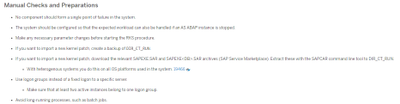
Source: RKS – Manual and Automatic Checks of the System Configuration in the SAP NetWeaver 7.5 Admin Guide
Let’s consider each of these manual checks in turn:
- No component should form a single point of failure in the system
Because we have followed the Microsoft reference architecture for SAP S/4HANA for Linux VMs on Azure (or reference architecture for SAP NetWeaver for AnyDB on Azure) we know that no single SAP component forms a single point of failure in the system:
- SAP Central Services – deployed as a 2 node HA Cluster
- Minimum of 2 SAP Application Servers – To manage logon groups for ABAP application servers, the SMLG transaction is used. It uses the load balancing function within the message server of the Central Services to distribute workload among SAP application servers pool for SAPGUIs and RFC traffic. The application server connection to the highly available Central Services is through the cluster virtual network name. This avoids the need to change the application server profile for Central Services connectivity after a local failover.
- The system should be configured so that the expected workload can also be handled if an AS ABAP instance is stopped
The expected workload on my SAP on Azure demo environment is minimal, however, in a real Production environment this is a key consideration and is why SAP recommends performing RKS activities during periods of low business activity if possible.
- Make any necessary parameter changes before starting the RKS procedure
One of the additional benefits of RKS is that it can be used to implement SAP profile parameter changes without planned business downtime.
Note: Parameters that affect the whole system should be checked carefully. Parameters that affect the system landscape (e.g. with ASCS instance or database in their name) cannot be changed with RKS.
- If you want to import a new kernel patch, create a backup of DIR_CT_RUN
We definitely want to import a new kernel patch so let’s quickly confirm the location of DIR_CT_RUN. I checked using transaction AL11:

Create a backup of DIR_CT_RUN is also easy. For the purposes of this demo I’ve simply created a copy using the o/s command cp as follows:
cp -avr /usr/sap/A4H/SYS/exe/uc/linuxx86_64 /usr/sap/A4H/SYS/exe/uc/linuxx86_64_backup_11192019
- If you want to import a new kernel patch, download the relevant SAPEXE.SAR and SAPEXE<DB>.SAR from SAP ServiceMarketPlace. Extract these with the SAPCAR command line tool to DIR_CT_RUN.
In my case the latest patch level for the complete 773 kernel is 201. Remember to download the DATABASE INDEPENDENT archive AND the DATABASE SPECIFIC archive. In my case SAP HANA.
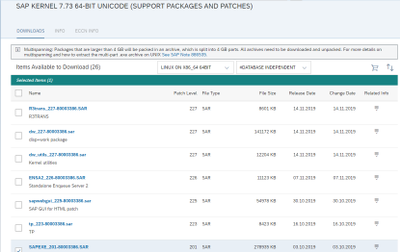
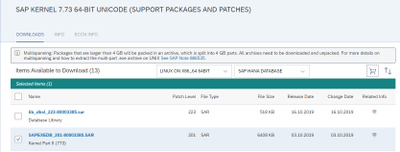
Extract with SAPCAR into DIR_CT_RUN e.g.
cd /sapmnt/A4H/exe/uc/linuxx86_64
SAPCAR -xvf /sapsoftware/SAPKernel773_PatchLevel_201/SAPEXEDB_201-80003385.SAR
SAPCAR -xvf /sapsoftware/SAPKernel773_PatchLevel_201/SAPEXE_201-80003386.SAR
- Use logon groups instead of a fixed logon to a specific server
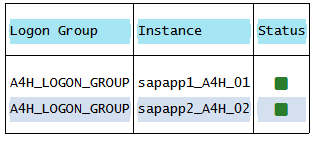
Most SAP Production environments will be using SAP Logon Groups already but if not it’s always a good practice to do so and they can be configured via transaction SMLG. In my demo case I have two SAP application severs configured in a single Logon Group:
- Avoid long running processes such as batch jobs
In my demo environment this isn’t an issue, however, it very likely will be in real Production system. This is also why SAP recommends performing RKS activities at periods of lower system activity. Each SAP application server will be stopped in turn and if there are still long running batch jobs running on the application server these will be terminated.
RKS Automatic Pre-Checks
The list of RKS automatic checks is extensive and available here
As well as being executed prior to the RKS process itself an Administrator can also execute the automated pre-checks in advance.
To do this, in SAP MMC choose Check Prerequisites from the context menu (right-click) of System Update.
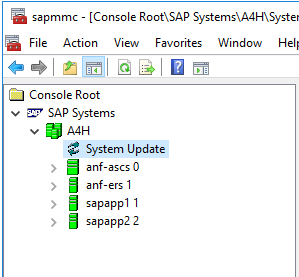
RKS MMC Pre-requisites Check – Error
The first time I executed the pre-requisite checks in my SAP on Azure demo environment I experienced the following error:
FAIL: NIEHOST_UNKNOWN (Invalid argument), <errordetails xmlns=”urn:SAPControl”>NiRawConnect failed in plugin_fopen()</errordetails>
To resolve I uncommented the localhost entry in the hosts file on the VM running the SAM MMC:
# localhost name resolution is handled within DNS itself.
#127.0.0.1 localhost
127.0.0.1 localhost
RKS Pre-requisites Check – Warning
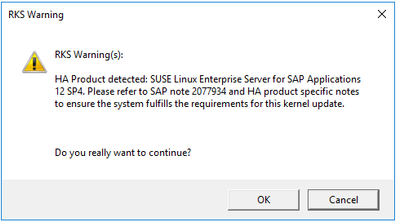
Once the localhosts issue was resolved the next message received was an RKS Warning. RKS had detected – correctly – that my setup was HA using SUSE SLES for SAP Applications 12 SP4.
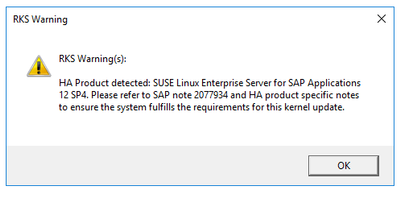
The SAP note in the message and one other referenced within it were relevant to my setup:
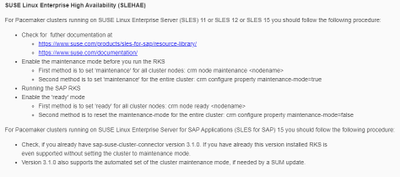
As my HA clusters are based on SLES 12 SP4 I put the ASCS cluster into maintenance mode:

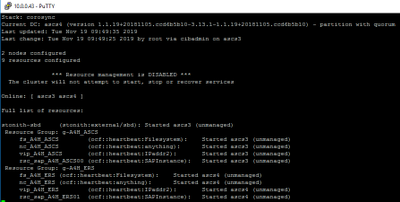
But noted that for Pacemaker clusters running on SUSE Linux Enterprise Server for SAP Applications (SLES for SAP) 15 you should follow the following procedure:
- Check, if you already have sap-suse-cluster-connector version 3.1.0. If you have already this version installed RKS is even supported without setting the cluster to maintenance mode.
RKS Execution
Now that we’ve completed the pre-checks, we’re just about ready to execute the RKS process itself.
SAP provides a detailed description of the RKS Process in the SAP NetWeaver 7.5 Admin Guide
Each component of the SAP system will be stopped in turn:
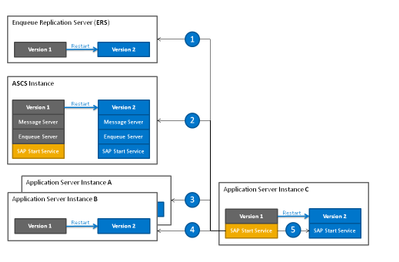
- The enqueue replication server is the first instance restarted.
- The ASCS instance is the second instance restarted.
- Then the application server instances are restarted in the order specified beforehand. In the figure below, instance A is the first application server instance restarted.
- Instance B is the second application server instance restarted, and so on.
- The instance defined as the last one in the order is restarted together with its start service last of all with the new kernel version. The RKS procedure is completed with this final step.
Source: RKS Process in the SAP NetWeaver 7.5 Admin Guide
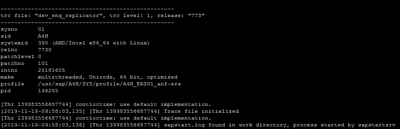
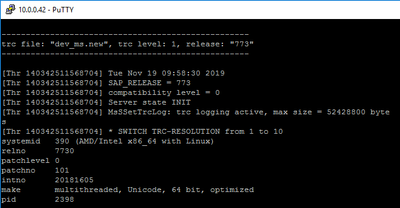
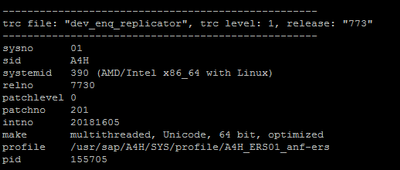
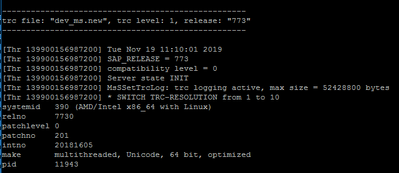
- Nearly ready to Update System. Before we do let’s just confirm the current kernel patch level of the SAP components that will be updated.
Kernel Patch levels prior to starting the RKS
ERS (dev_enq_replicator):
Message Server (dev_ms):
First SAP Application Server:
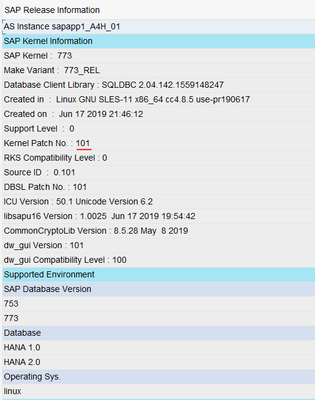
Second SAP Application Server:
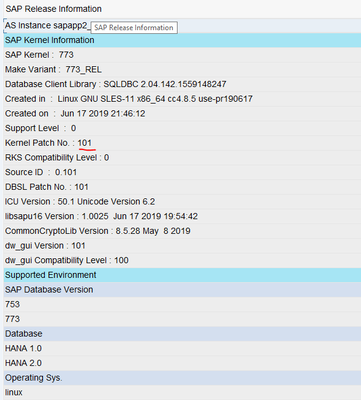
RKS – Update System
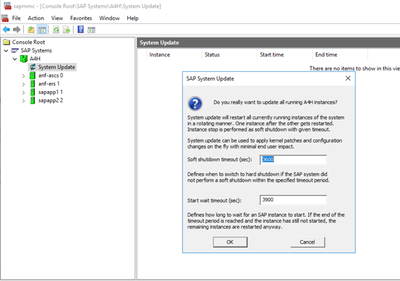
To start the RKS Process again I right click on System Update and select Update System from the Context Menu.
Note: You can also start RKS from the command line
In my demo case I reduced the soft shutdown timeout and start wait timeout to lower values than the defaults shown here. In Production environments this should be carefully considered following SAP’s guidance on RKS timeouts.
The RKS process re-runs the automated pre-requisite checks we did earlier. As we’ve seen this warning already and read and understood the SAP note 2077934 we can simply click OK.
The restart of the ERS and ASCS is very quick (see the RKS log below for detailed timings). Within a few seconds the first SAP application server is shutdown:
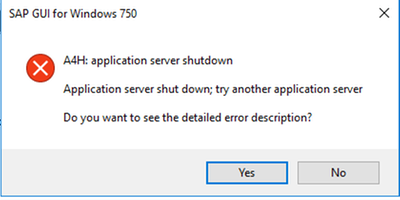
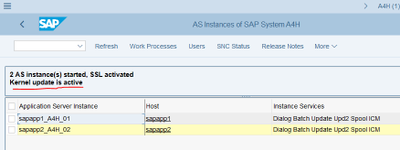
I’m still logged on via the second application server and can see that Kernel update is active in transaction SM51:
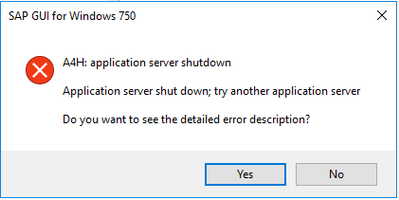
After the first SAP application server is started, the second SAP application server is then shutdown:
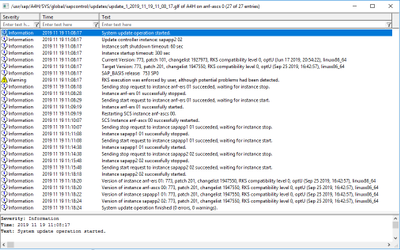
After a few more minutes the process completes successfully.
We can view the complete RKS log via the SAP MMC or directly at the operating system level.
Post RKS Checks
Now that the RKS process has completed we’ll quickly double-check that all the required components have been patched correctly:
The Enqueue replication server looks good – updated to 773 patch 201:
So does the SAP Message Server – updated to 773 patch 201:
Now let’s check both SAP application servers via transaction SM51 – Release Notes:
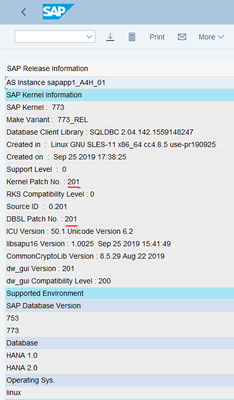
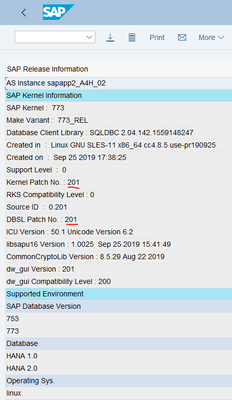
Yup, all good.
We can now take the ASCS Cluster out of maintenance mode:

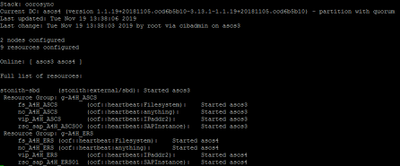
Remembering that per with SLES15 and the sap-suse-cluster-connector version 3.1.0 it will not be necessary to take the cluster in and out of maintenance mode before executing RKS.
Conclusion
An SAP on Azure deployment that follows the Microsoft reference architecture for SAP S/4HANA for Linux VMs on Azure or reference architecture for SAP NetWeaver (Windows) for AnyDB on Azure in combination with the SAP native capability Rolling Kernel Switch is an excellent combination for patching SAP kernels on Azure without system downtime.
Future blog posts will look at downtime minimized patching approaches to other software components of an SAP on Azure environment.
by Contributed | Oct 1, 2020 | Azure, Technology, Uncategorized
This article is contributed. See the original author and article here.
At Microsoft Ignite 2020, we saw a bunch of exciting news announced but we also saw some products renamed and I wanted to create a blog post referencing those changes. So, let’s dive in!
Microsoft 365
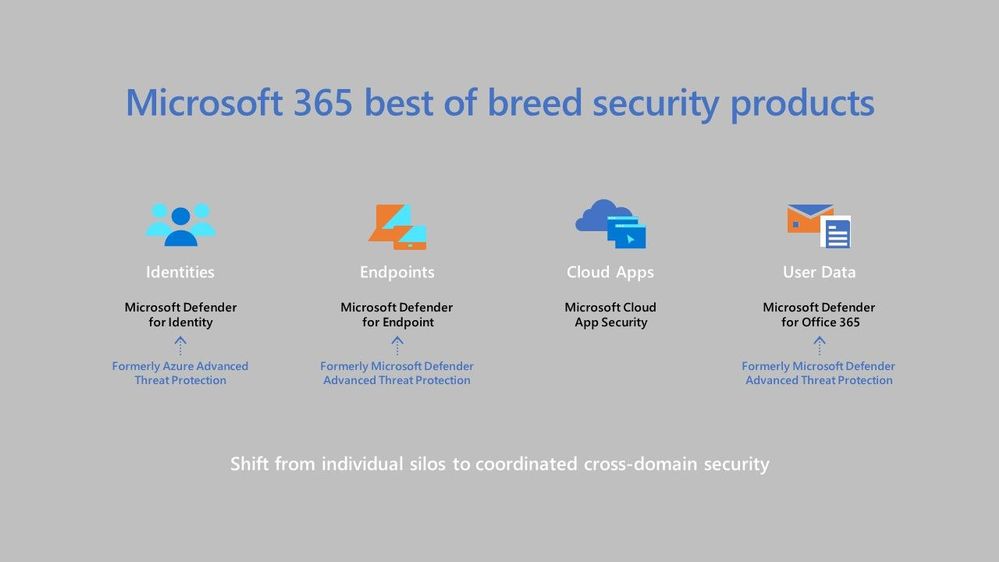
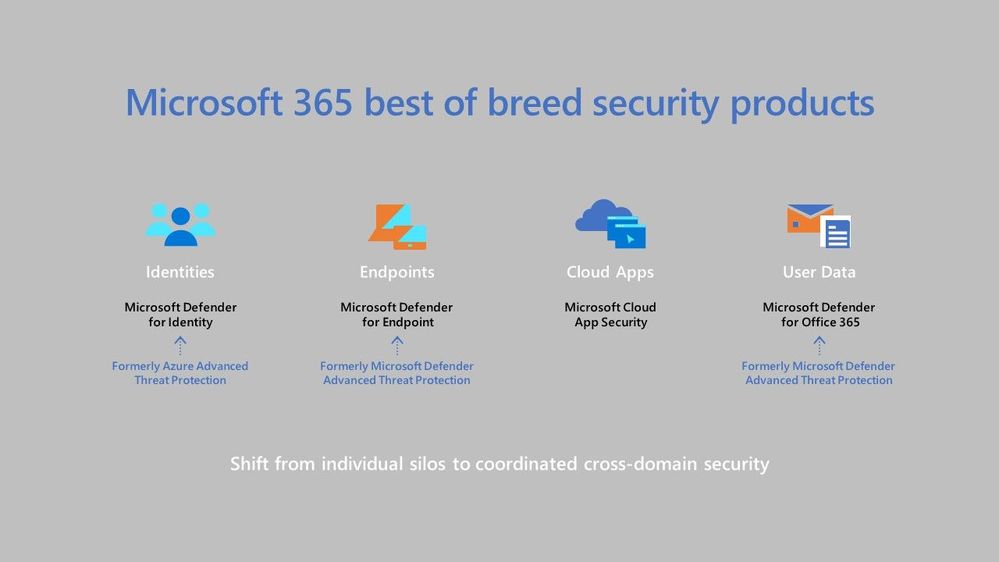 Microsoft 365 Changes
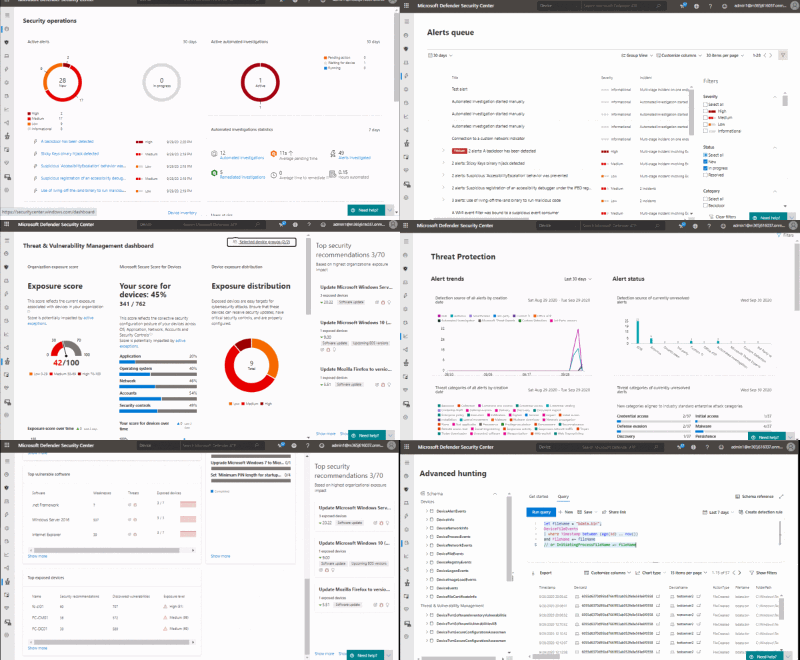
The first change I want to cover is Microsoft Threat Protection is now Microsoft 365 Defender. This is really a suite of products, ranging from endpoint protection to safeguarding your email messages and links within them.
Azure Advanced Threat Protection has changed its name to Microsoft Defender for Identity. This product helps you to detect and investigate advanced attacks on prem AND in the cloud.
Microsoft Defender Advanced Threat Protection is now Microsoft Defender for Endpoint, this product helps you detect and remediate advanced attacks on your endpoints. It supports Windows operating systems from Windows 7 to Windows Server 2019, and can also be used on Android, Linux (in preview currently) and MacOS. As well as the name change, we saw support for Microsoft Defender for Endpoint launch support for iOS devices, which is currently in preview. Learn more about the latest endpoint security.
Office 365 Advanced Threat Protection is now Microsoft Defender for Office 365. This product is designed to help protect organisations from malicious attacks through things like scanning email attachments for malware, scanning URLs in emails and documents and checking for unauthorized spoofing. My personal favourite feature of Microsoft Defender for Office 365 is Safe Links, it really does help protect if there are malicious links in emails etc and people click on them.
Azure Defender
Azure Security Centre Standard Edition, is now called Azure Defender for Servers. For Windows this help to monitor and protect your servers with Security Centre presenting the alerts and remediation suggestions. While for Linux it use auditd to collect audit records. With Azure Defender for Servers you get things like Just-in-Time(JIT) VM access, which is a great product for protecting common management ports like RDP or SSH and only having them open when and how you need them.
Azure Security Centre for IoT is now called Azure Defender for IoT. As IoT becomes more and more something we are introducing to our homes and organisations we need to ensure we have an appropriate security posture in place and Azure Defender for IoT can help provide that end to end threat detection and analysis.
Advanced Threat Protection for SQL is now called Azure Defender for SQL. This is Generally Available (GA) for Azure SQL database servers and in preview for SQL servers on machines hosted in Azure, other cloud environments, and even on-premises machines. This product helps to monitor for threats such as SQL injection, brute-force attacks and privilege abuse.
by Contributed | Sep 30, 2020 | Uncategorized
This article is contributed. See the original author and article here.

Dear IT Pros,
I would like to continue on Part 2 of the Windows Defender ATP Operation with tasks handled by ATP operators, ATP administrator.
_________________________________________________
Creating Alert Notification
Alert Notification settings are configured for the purpose of sending alert email message to Security Team and other teams.
To setup Alert Notification:
-
In ATP Portal, go to SettingsGeneralAlert notification
-
Add Item
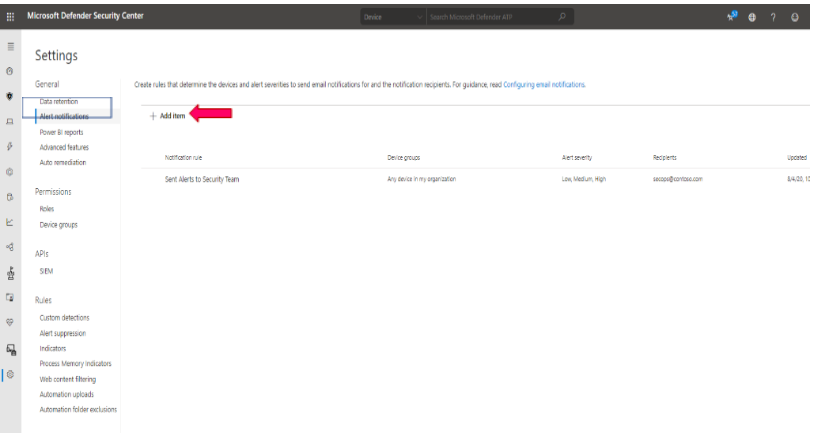
-
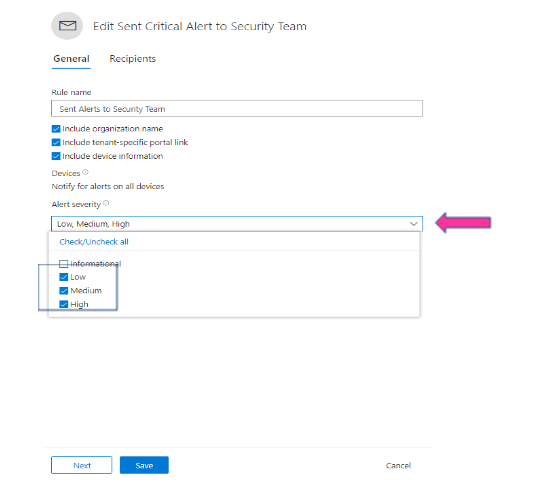
Enter Rule name, eg: Sent High Severity Alert to Secops Team
-
Choose options: include organization name, include tenant-specific portal link, include device information
-
Choose alert severity: High, Medium, Low
-
Next,
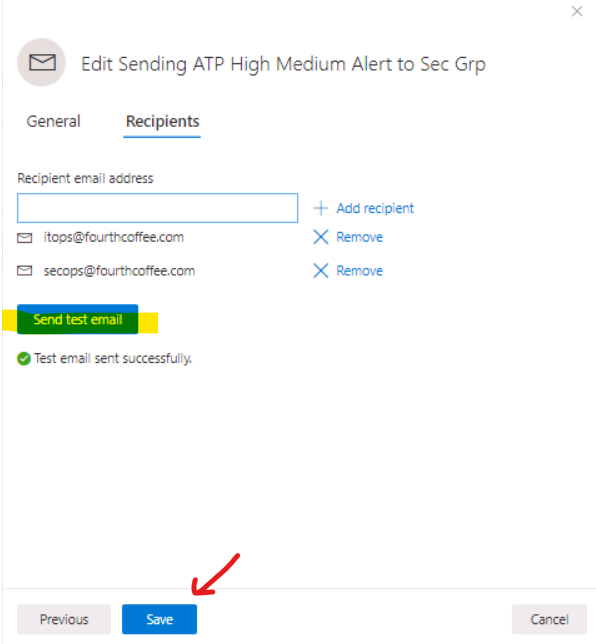
- Enter Group’s email address
- Send test email and Save
Live Response to remote device
Live response gives you the remote access to target device by remote shell connection. It enables security admin to run command, script and collect forensic data, send suspicious entities for analysis, remediate threats, and proactively hunt for emerging threats on the remote device.
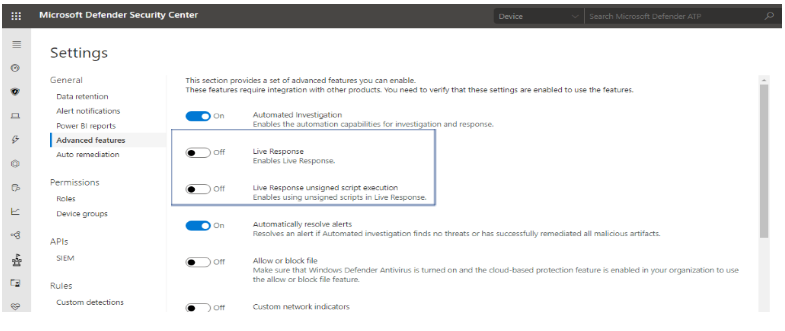
To Enable Live Response for ATP devices:
-
In ATP Portal, go to SettingsGeneralAdvanced features
-
Turn on Live Response
-
Turn on (optional) Live Response unsigned script execution
-
Save Preferences
To Run Live Response Remote Access to Device:
- Client Prerequisite:
-
Windows 10 version 1909 or later.
-
For other Windows 10 versions: Make sure to install appropriate updates (live response feature included in these updates).
Windows 10-1903: KB4515384
Windows 10-1809 (RS5): KB4537818
Windows 10-1803 (RS4): KB4537795
Windows 10-1709 (RS3): KB4537816
- The Target Machine is member of a Device Group with Semi or Full Remediation of Automation Level as shown :
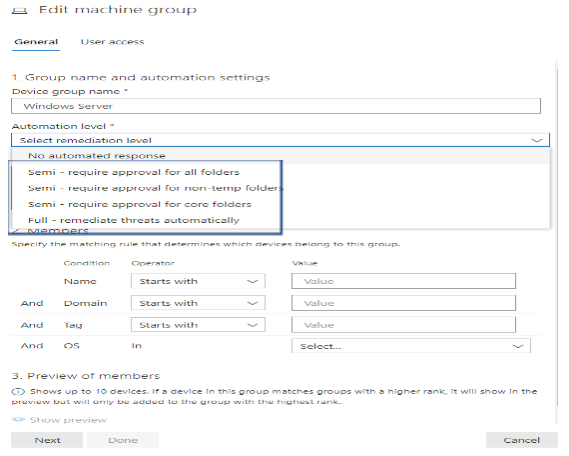
For Dynamic Device Group, please refer to “ATP Daily Operation – Part 1″ for more detail.
To Run the command or script in live response session.
In live response session, you could run one of the commands in the following table of commands:
|
Command
|
Description
|
|
cd
|
Changes the current directory.
|
|
cls
|
Clears the console screen.
|
|
connect
|
Initiates a live response session to the device.
|
|
connections
|
Shows all the active connections.
|
|
dir
|
Shows a list of files and subdirectories in a directory.
|
|
download <file_path> &
|
Downloads a file in the background.
|
|
drivers
|
Shows all drivers installed on the device.
|
|
fg <command ID>
|
Returns a file download to the foreground.
|
|
fileinfo
|
Get information about a file. (10GB max size limit)
|
|
findfile
|
Locates files by a given name on the device.
|
|
help
|
Provides help information for live response commands.
|
|
persistence
|
Shows all known persistence methods on the device.
|
|
processes
|
Shows all processes running on the device.
|
|
registry
|
Shows registry values.
|
|
scheduledtasks
|
Shows all scheduled tasks on the device.
|
|
services
|
Shows all services on the device.
|
|
trace
|
Sets the terminal’s logging mode to debug.
|
Advanced commands
The following advanced commands are for the user roles that are granted the ability to run advanced live response commands such as ATP Administrator Role:
|
ADVANCED COMMANDS
|
|
Command
|
Description
|
|
analyze
|
Analyses the entity with various incrimination engines to reach a verdict.
|
|
getfile
|
Gets a file from the device. (3GB max size limit)
NOTE: This command has a prerequisite command. You can use the -auto command in conjunction with getfile to automatically run the prerequisite command.
|
|
run
|
Runs a PowerShell script from the library on the device.
|
|
library
|
Lists files that were uploaded to the live response library. (250MB max size limit)
|
|
putfile
|
Puts a file from the library to the device. Files are saved in a working folder and are deleted when the device restarts by default.
|
|
remediate
|
Remediates an entity on the device. The remediation action will vary depending on the entity type:
– File: delete
– Process: stop, delete image file
– Service: stop, delete image file
– Registry entry: delete
– Scheduled task: remove
– Startup folder item: delete file
NOTE: This command has a prerequisite command. You can use the -auto command in conjunction with remediate to automatically run the prerequisite command.
|
|
undo
|
Restores an entity that was remediated.
|
To run Powershell Script in live response:
The library stores files (such as scripts) that can be run in a live response session at the tenant level. PowerShell scripts must first be placed in the library before you can run them.
Upload the script file in the library and run script
Click Upload file to library. 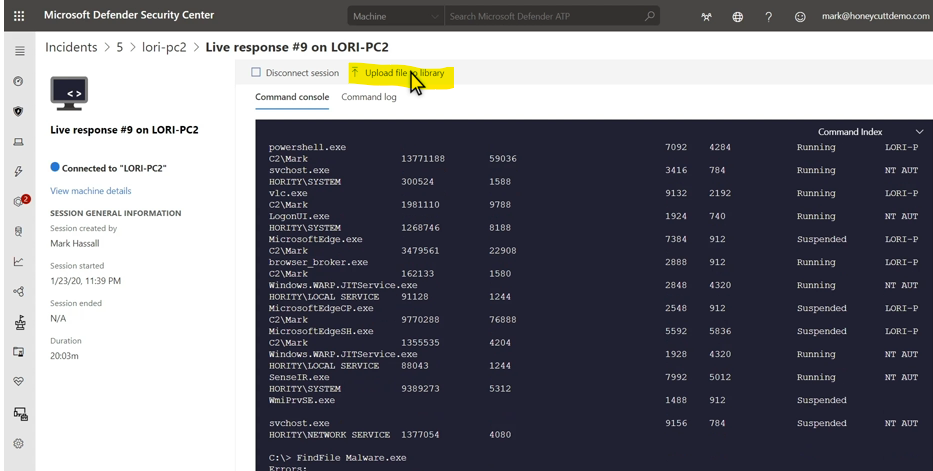
-
Click Browse and select the file.
-
Provide a brief description.
-
Specify if you’d like to overwrite a file with the same name.
-
If you’d like to be known what parameters are needed for the script, select the script parameters check box. In the text field, enter an example and a description.
-
(Optional) To verify that the file was uploaded to the library, run the library command.
-
Run the script with command: Run scriptname.ps1
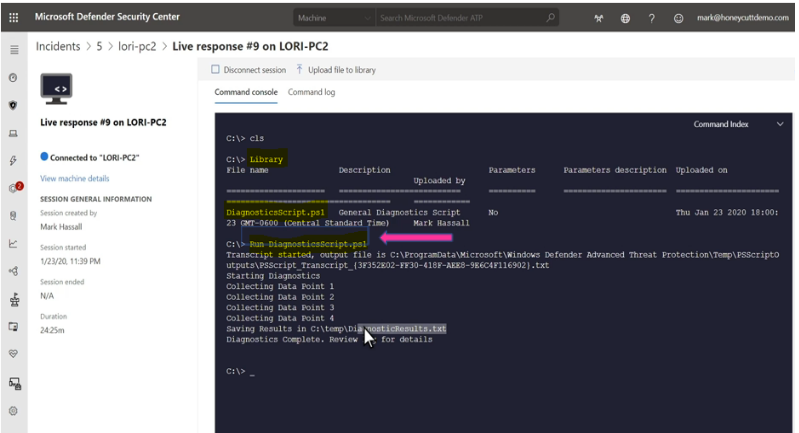
Cancel a command
Anytime during a session, you can cancel a command by pressing CTRL + C.
Using this shortcut will not stop the command in the agent side. It will only cancel the command in the portal.
Automatically run prerequisite commands
Some commands have prerequisite command’s to run parallelly. If you don’t run the prerequisite command, you would get an error. For example, running the download command without fileinfo will return an error.
You can use the auto flag to automatically run prerequisite commands,:
getfile c:UsersuserDesktopwork.txt -auto
Apply command parameters
When using commands that have prerequisite commands, you can use flags:
<command name> -type file -id <file path> – auto
Supported output types
Live response supports table and JSON format output types. For each command, there’s a default output behavior. You can modify the output in your preferred output format using the following commands:
-
-output json
-
-output table
Note
Fewer fields are shown in table format due to the limited space. To see more details in the output, you can use the JSON output command so that more details are shown.
View the command log
Select the Command log tab to see the commands used on the device during a session. Each command is tracked with full details, ID, Command line, Duration, Status and input or output side bar
Examples:
analyze -type file -id C:UsersCMAdmin.FourthCoffeeDownloadsKnownMalicious.exe –auto
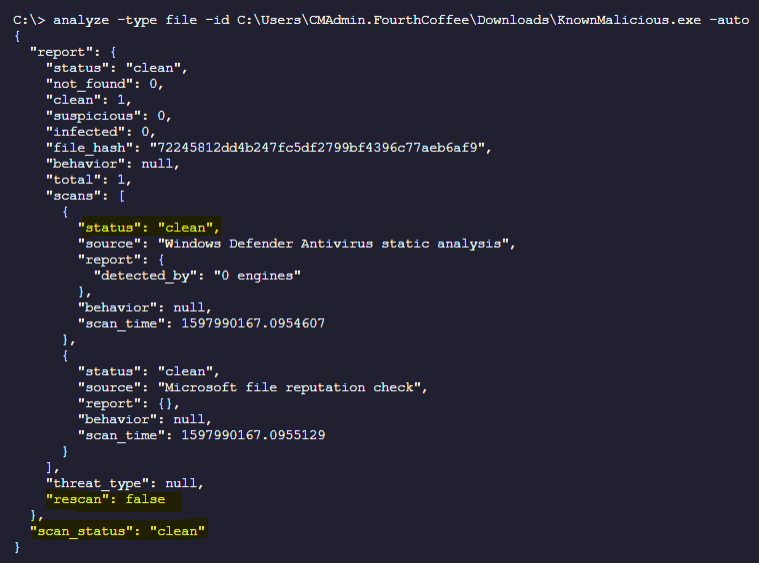
-
Analyze File in remote machine and Auto Download to local Workstation in the “Downloads” Folder:
analyze -type file -id C:UsersCMAdmin.FourthCoffeeDownloadsKnownMalicious.exe -auto > AnalyzedKnownMalicious.txt
-
Remediating a file (delete file)
C:>remediate -type file -id C:UsersCMAdmin.FourthCoffeeDownloadsFreeVideo.exe –auto
or
C:>remediate file C:UsersCMAdmin.FourthCoffeeDownloadsFreeVideo.exe –auto
-
To download file from the remote target device to your local workstation
C:getfile “C:UsersCMAdmin.FourthCoffeeDownloadsFreeVideo.exe” -auto
or
C:> download “C:UsersCMAdmin.FourthCoffeeDownloadsFreeVideo.exe” -auto

-
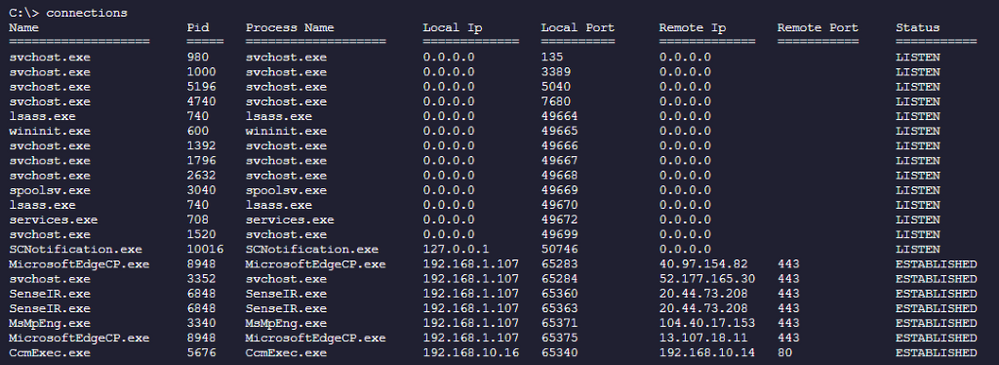
To list on connection of the remote target device
C:> connections
-
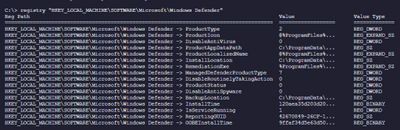
To list the registry key and value of the remote target device
C:> registry “HKEY_LOCAL_MACHINESOFTWAREMicrosoftWindows Defender”
-
Creating a test script, upload to Library and run script:
Example: creating ATPTest.ps1 with the following content:
Dir c:usersCMAdmin.Contoso.comdownloads > C:tempdowload_files.txt
Upload script named “ATPTest.ps1” to Library and run the script

Download result of run content to your local workstation under “downloads” folder
Download “C:Tempdownload_files.txt” -auto

I hope the information is useful to your daily ATP operation monitoring.
Cheer!
References:
Live Response Investigation:
https://docs.microsoft.com/en-us/windows/security/threat-protection/microsoft-defender-atp/live-response#:~:text=Microsoft%20Defender%20Advanced%20Threat%20Protection%20%28Microsoft%20Defender%20ATP%29,as%20a%20machine%29%20using%20a%20remote%20shell%20connection.
https://docs.microsoft.com/en-us/windows/security/threat-protection/microsoft-defender-atp/live-response-command-examples
Video about Live Response
https://www.bing.com/videos/search?q=microsoft+live+response+advanced+threat+protection+video&docid=608005478874219990&mid=593DC3A568771CBCEF01593DC3A568771CBCEF01&view=detail&FORM=VIRE
__________________________
Disclaimer
The sample scripts are not supported under any Microsoft standard support program or service. The sample scripts are provided AS IS without warranty of any kind. Microsoft further disclaims all implied warranties including, without limitation, any implied warranties of merchantability or of fitness for a particular purpose. The entire risk arising out of the use or performance of the sample scripts and documentation remains with you. In no event shall Microsoft, its authors, or anyone else involved in the creation, production, or delivery of the scripts be liable for any damages whatsoever (including, without limitation, damages for loss of business profits, business interruption, loss of business information, or other pecuniary loss) arising out of the use of or inability to use the sample scripts or documentation, even if Microsoft has been advised of the possibility of such damages.
by Contributed | Sep 30, 2020 | Uncategorized
This article is contributed. See the original author and article here.
Happy #OpenSourceOctober everyone!
Do you remember your first encounter with an open source project? Some of the most popular developer tools, frameworks, and experiences in the world are built around open communities. Most coders can recall the first time they ran into an open source project on GitHub, SourceForge, CodePlex, Google Code, or just downloaded one from someone’s blog and asked themselves “what is this open source thing, anyway?”. While consuming, contributing to, and talking about open source feels normal today, it didn’t exist before 1998 but it has made an immense impact over the last 22 years!
So, now it’s time to test your open source project knowledge! How many of these did you already know about? Share your ‘score’ in the comments below!
MVVM Light Toolkit
One of the first open source breakouts was Laurent Bugnion’s MVVM Light Toolkit. Laurent was a Microsoft MVP at the time and is currently a Senior Cloud Advocate for Microsoft. For enterprise developers especially, it was a shock in 2009 to find someone creating a great software package and not charging for it. But it clearly also wasn’t freeware because it didn’t force you to watch ads or download potential malware ;). It also happened to be the best tool for data binding and lightweight messaging in XAML apps, and everybody was using it. Free, useful software with no strings attached changed how many of us understood enterprise development from that point forward.
Visual Studio Code
Open source isn’t just about free distribution; it’s also about having a decentralized developer base. The current GitHub project with the most contributors (19.1K according to Octoverse) is VS Code, Microsoft’s super extensible code editor. Since 2015, developers around the world have been continuously adding new features, visual schemes, and language integrations.
WriteableBitmapEx
WriteableBitmapEx was a CodePlex project that took the .NET WriteableBitmap class and made it better by adding tons of helpers as .NET extension methods. All this code effectively turned a basic component of most platforms, the common bitmap, into a powerful drawing surface to brighten and animate the battleship–gray user interfaces of the time.
Blender

Instead of trying to improve something already out there, Blender is a great open source example of looking at something already dominant in the marketplace and trying to replace it. Blender is a free 3D modeling tool that competes with the best of the best. The proof of its success lies in just how many creative professionals are now using it in their daily workflows. In order to support this important free tool for the creation of 3D models for AI research, Microsoft along with many other software companies contribute to the Blender Development Fund.
DotNetNuke
Going a little further back in time, DotNetNuke (DNN) began its life as a 2001 Microsoft reference application, IBuySpy (familiar to anyone who might remember what Northwind and AdventureWorks were). Shaun Walker added features to the reference application and released it as an open source project. It was an early .NET-based content management system best known for its extensibility and quickly formed a community of developers who built and sold plugin solutions for it. Shawn Wildermuth recently did an amazing interview with Shaun Walker about what it’s like to maintain a project for 14 years!
OpenVR
The purpose of OpenVR is to emphasize the “open” part of the open source movement. It provides an API that developers can program against while ignoring the actual hardware that runs it. This means the underlying hardware (HTC Vive) can change without directly affecting your app. It also means your app can potentially run on other hardware devices (like Oculus, Windows Mixed Reality, etc) without major changes. It’s also the bridge technology that allowed Windows Mixed Reality headsets to automatically play the large catalog of Steam VR games when WMR was first released.
TypeScript
TypeScript came out in 2012, after two years of internal development at Microsoft, as a way to formalize the way JavaScript is written without breaking compatibility with it. TypeScript is probably best known for introducing static typing to web programming, but it also extended JavaScript with other programming features like classes, interfaces, and generics.
JSON.NET
At some point in software history, developers migrated from using XML to JSON as the ubiquitous, cross-platform serialization format. It turns out, however, that a cross-platform format still needs translation software to talk to specific platforms. In the .NET world, James Newton-King’s JSON.NET fills that role. We all use it. What more is there to say?
XUnit
2007 was a watershed year for formal software processes and paradigm inversions. We also learned that we needed tools to test first, mock up our classes, and implement continuous integration. For many software architects, xUnit was the way to go and we’re still using it 13 years later. Shawn Wildermuth did a great interview with Brad Wilson on maintaining the xUnit repo over such a long period of time.
OpenCV
OpenCV is everything you want an open source project to be. OpenCV is a computer vision library that uses machine learning techniques to analyze images. It has applications that run from interpreting handwritten letters to segmenting, classifying, and identifying objects in images. Intel started sharing their magic in 2001 with the release of the first OpenCV beta. The library has since been used by developers for many projects including many early Microsoft Kinect applications. It is the basis for almost all smart phone and tablet computer vision apps including modern UWP apps and provides the foundation for machine learning on Microsoft Azure as well as all the other major AI services providers. The moment in 2001 when OpenCV became open source marks the start of the current AI revolution.
And that’s a wrap! Hopefully you enjoyed this trip down memory lane and we want to know what you learned! If you already knew about all of them, make sure to share your personal favorite open source project in the comments below or on Twitter using the #OpenSourceOctober hashtag.
If you are interested in other open source projects and initiatives that Microsoft is investing in, please check out Microsoft’s Open Source page!
by Contributed | Sep 30, 2020 | Azure, Technology, Uncategorized
This article is contributed. See the original author and article here.
Initial Update: Thursday, 01 October 2020 01:47 UTC
We are aware of issues within Log Analytics and are actively investigating. Some customers in West Central US, Australia south East regions may experience issues with Data Latency in AzureDiagnostics and AzureMetrics which may cause misfiring of alerts.
-
Work Around: none
-
Next Update: Before 10/01 04:00 UTC
We are working hard to resolve this issue and apologize for any inconvenience.
-Vincent


Recent Comments