by Contributed | Oct 20, 2020 | Technology
This article is contributed. See the original author and article here.
Welcome to your single resource for ways to learn, events to attend and communities to join to always stay up-to-date on Windows Server.
Microsoft Learn
Explore Windows Server in-depth through guided paths or learn how to accomplish a specific task through individual modules.
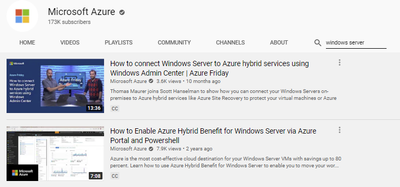
Training Videos
Windows Server on the Microsoft Azure YouTube Channel
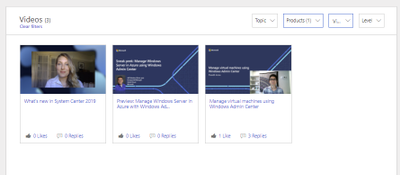
Tech Community Video Hub
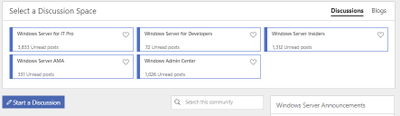
Windows Server Tech Community
Share best practices, get the latest news and learn from experts about Windows Server here
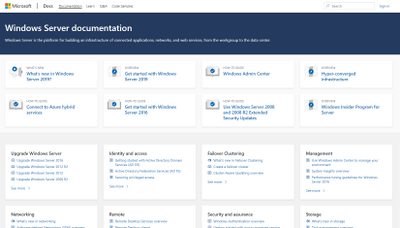
Windows Server Docs
Check out the plethora of official technical documentation, questions, and learning resources on the Windows Server Docs page.
Events
Track upcoming Microsoft Azure and Windows Server events using the Microsoft Events Catalog
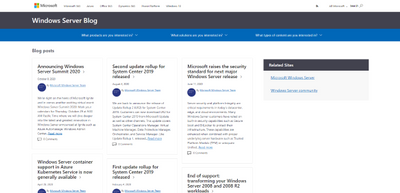
Windows Server Blogs
Stay up to date on the latest news, product updates and announcements on the Windows Server blog channel.
Partner Network
Equip yourself with partner resources such as demos, readiness materials, offers, and more to be the best partner you can be for your Windows Server customers.
With these resources at your fingertips, we can’t wait to see what you continue to do with Windows Server!
by Contributed | Oct 20, 2020 | Technology
This article is contributed. See the original author and article here.
Long-running Stored Procedures for Power Platform SQL Connector
The SQL Server connector in Power Platform exposes a wide range of backend features that can be accessed easily with the Logic Apps interface, allowing ease of business automation with SQL database tables. However, the user is still limited to a 2-minute window of execution. Some stored procedures may take longer than this to fully process and complete. In fact, some long-running processes are coded into stored procedures explicitly for this purpose. Calling them from Logic Apps is problematic because of the 120-second timeout. While the SQL connector itself does not natively support an asynchronous mode, it can be simulated using passthrough native query, a state table, and server-side jobs.
For example, suppose you have a long-running stored procedure like so:
CREATE PROCEDURE [dbo].[WaitForIt]
    @delay char(8) = '00:03:00'
AS
BEGIN
SET NOCOUNT ON;
    WAITFOR DELAY @delay
END
Executing this stored procedure from a Logic App will cause a timeout with an HTTP 504 result since it takes longer than 2 minutes to complete. Instead of calling the stored procedure directly, you can use a job agent to execute it asynchronously in the background. We can store inputs and results in a state table that you can target with a Logic App trigger. You can simplify this if you don’t need inputs or outputs, or are already writing results to a table inside the stored proc.
Keep in mind that the asynchronous processing by the agent may retry your stored procedure multiple times in case of failure or timeout. It is therefore critically important that your stored proc be idempotent. You will need to check for the existence of objects before creating them and avoid duplicating output.
For SQL Azure
An Elastic Job Agent can be used to create a job which executes the procedure. Full documentation for the Elastic Job Agent can be found here: https://docs.microsoft.com/en-us/azure/azure-sql/database/elastic-jobs-overview
You’ll want to create a job agent in the Azure Portal. This will add several stored procedures to a database that will be used by the agent. This will be known as the “agent database”. You can then create a job which executes your stored procedure in the target database and captures the output when it is completed. You’ll need to configure permissions, groups, and targets as explained in the document above. Some of the supporting tables and procedures will also need to live in the agent database.
First, we will create a state table to register parameters meant to invoke the stored procedure. Unfortunately, SQL Agent Jobs do not accept input parameters, so to work around this limitation we will store the inputs in a state table in the target database. Remember that all agent job steps will execute against the target database, but job stored procedures run on the agent database.
CREATE TABLE [dbo].[LongRunningState](
       [jobid] [uniqueidentifier] NOT NULL,
       [rowversion] [timestamp] NULL,
       [parameters] [nvarchar](max) NULL,
       [start] [datetimeoffset](7) NULL,
       [complete] [datetimeoffset](7) NULL,
       [code] [int] NULL,
       [result] [nvarchar](max) NULL,
 CONSTRAINT [PK_LongRunningState] PRIMARY KEY CLUSTERED
 (
       [jobid] ASC
 )
       WITH (STATISTICS_NORECOMPUTE = OFF, IGNORE_DUP_KEY = OFF) ON [PRIMARY]
 )
 ON [PRIMARY] TEXTIMAGE_ON [PRIMARY]
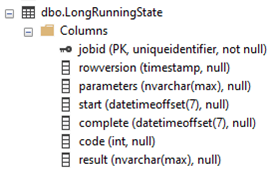
The resulting table will look like this in SSMS:
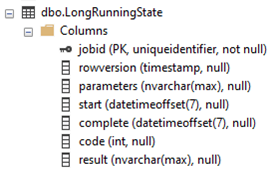
We will use the job execution id as the primary key, both to ensure good performance, and to make it possible for the agent job to locate the associated record. Note that you can add individual columns for input parameters if you prefer. The schema above can handle multiple parameters more generally if this is desired, but it is limited to the size of NVARCHAR(MAX).
We must create the top-level job on the agent database to run the long-running stored procedure.
EXEC jobs.sp_add_job
    _name='LongRunningJob',
    @description='Execute Long-Running Stored Proc',
    @enabled = 1
We will also need to add steps to the job that will parameterize, execute, and complete the stored procedure. Job steps have a default timeout value of 12 hours. If your stored procedure will take longer, or you’d like it to timeout earlier, you can set the step_timeout_seconds parameter to your preferred value in seconds. Steps also have (by default) 10 retries with a built in backoff timout inbetween. We will use this to our advantage.
We will use three steps:
This first step waits for the parameters to be added to the LongRunningState table, which should occur fairly immediately after the job has been started. The first step merely fails if the jobid hasn’t been inserted to the LongRunningState table, and the default retry/backoff will do the waiting for us. In practice, this step typically runs once and succeeds.
EXEC jobs.sp_add_jobstep
       _name='LongRunningJob',
       _name= 'Parameterize WaitForIt',
       @command= N'
              IF NOT EXISTS(SELECT [jobid] FROM [dbo].[LongRunningState]
                           WHERE [jobid] = $(job_execution_id))
                     THROW 50400, ''Failed to locate call parameters (Step1)'', 1',
       @credential_name='JobRun',
       _group_name='DatabaseGroupLongRunning'
The second step queries the parameters from the state table and passes it to the stored procedure, executing the procedure in the background. In this case, we use the @callparams to pass the timespan parameter, but this can be extended to pass additional parameters if needed. If your stored procedure does not need parameters, you can simply call the stored proc directly.
EXEC jobs.sp_add_jobstep
       _name='LongRunningJob',
       _name='Execute WaitForIt',
                @command=N'
              DECLARE @timespan char(8)
              DECLARE @callparams NVARCHAR(MAX)
              SELECT @callparams = [parameters] FROM [dbo].[LongRunningState]
                     WHERE [jobid] = $(job_execution_id)
              SET @timespan = @callparams
              EXECUTE [dbo].[WaitForIt] @delay = @timespan',
       @credential_name='JobRun',
       _group_name='DatabaseGroupLongRunning'
The third step completes the job and records the results:
EXEC jobs.sp_add_jobstep
       _name='LongRunningJob',
       _name='Complete WaitForIt',
                _timeout_seconds = 43200,
                @command=N'
              UPDATE [dbo].[LongRunningState]
                 SET [complete] = GETUTCDATE(),
                     [code] = 200,
                     [result] = ''Success''
               WHERE [jobid] = $(job_execution_id)',
       @credential_name='JobRun',
       _group_name='DatabaseGroupLongRunning'
We will use a passthrough native query to start the job, then immediately push the parameters into the state table for the job to reference. We will use the dynamic data output ‘Results JobExecutionId’ as the input to the ‘jobid’ attribute in the target table. We must add the appropriate parameters for the job to unpackage them and pass them to the target stored procedure.
Here’s the native query:
DECLARE @jid UNIQUEIDENTIFIER
DECLARE @result int
EXECUTE @result = jobs.sp_start_job 'LongRunningJob', @jid OUTPUT
    IF @result = 0
        SELECT 202[Code], 'Accepted'[Result], @jid[JobExecutionId]
    ELSE
        SELECT 400[Code], 'Failed'[Result], @result[SQL Result]
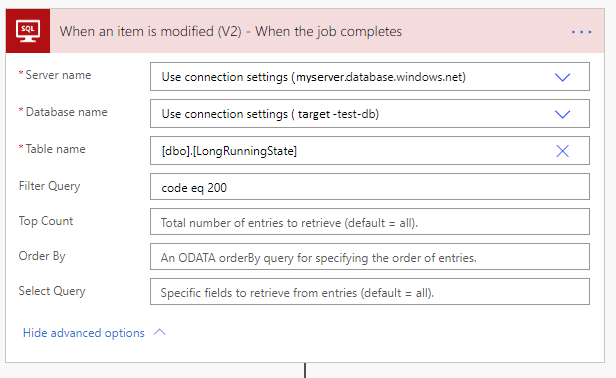
Here’s the Logic App snippet:
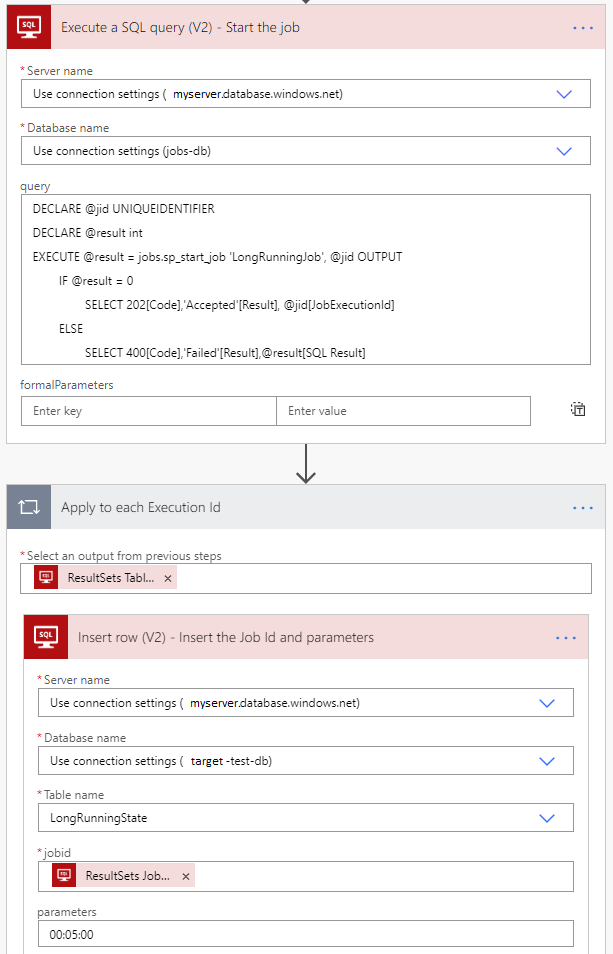
Notice that the Native Query runs on the job database, while the Insert Row acts on the target database.
When the job completes, it updates the target LongRunningState table so that you can easily trigger on the result. If you don’t need output, or if you already have a trigger watching an output table, you can skip this part.
For SQL Server on-premise or SQL Azure Managed Instances:
SQL Server Agent can be used in a similar fashion. Some of the management details differ, but the fundamental steps are the same.
https://docs.microsoft.com/en-us/sql/ssms/agent/configure-sql-server-agent
by Contributed | Oct 20, 2020 | Technology
This article is contributed. See the original author and article here.
Hi there, welcome to another feature release blog of the Azure CLI. Today we will be sharing with you some of the recent Azure CLI work done related to announcements atenabled several end-to-end (E2E) features in the Azure CLI across key Compute, Monitoring and Networking services.
VMWare in Azure CLI:
Azure VMware Solution is an area of investment announced at Microsoft Ignite where VMware support. As Eric Lockard, the CVP for Azure Dedicated , many of our teams have “…worked hard to bring it all together with a fantastic end-to-end portal experience and CLI tools so that customers can go get productive on day zero.”
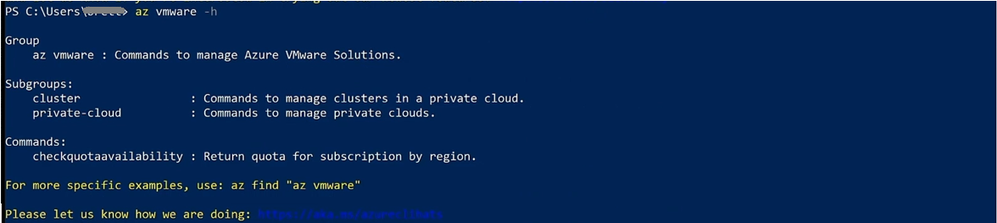
Figure 1: Use az vmware -h to learn more about CLI support
To further take advantage of the new capabilities, follow along the scenario presented at the Ignite talk here (22:05 – 27:15) to first bootstrap your private cloud creation with the Azure portal, then switch to the Azure CLI to manage and update the relevant resource. Once the setup has been completed, you’ll be able to see that the changes are reflected instantly and are viewable inside the Azure portal blade.
Here is where you can learn more about Azure VMware Solution the supported Azure CLI capabilities.
Networking and private-link support:
Azure Private Link enables you to access hosted customer and partner services in your virtual networks over a private endpoint, with protection against data exfiltration. This was first launched about a year ago with support for Azure Storage, Azure Cosmos DB, and Azure SQL. Now, there are 36 Azure services that support private link, both inside the portal and the CLI. With this set of Azure CLI commands, you can easily create and manage Azure Private Link connections including Azure Application Gateway, SignalR Service, Cognitive Services, IoT hub, Key Vault, Azure Container Registry, and more.
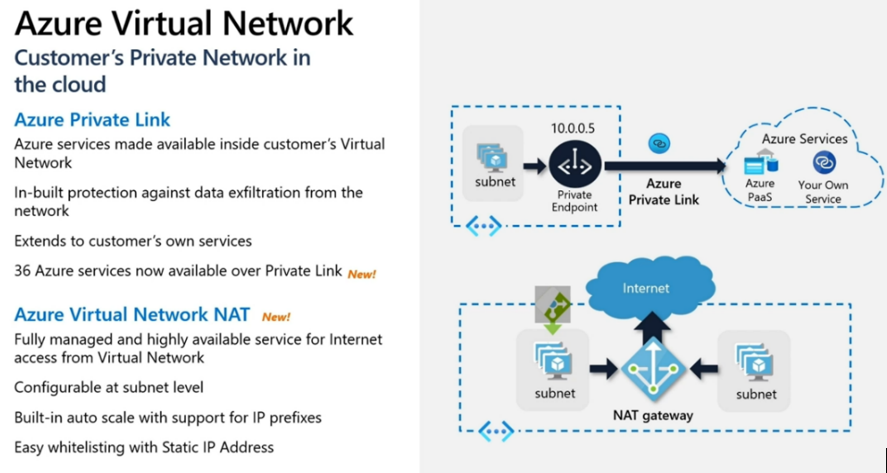
Figure 2: Selection of Azure Networking Ignite release
This Ignite talk where you can learn more about the newly-released Azure Private Link features
Aside from Private Link, the Azure CLI team provided other Networking feature coverage with Virtual Network NAT, including endpoint configurations and management, routing configuration on connection, and more. We also enabled support for cloud native network security with Azure Firewall, and enhanced firewall policies to protect networks. You can also find more information regarding Networking support in Azure CLI here.
Monitoring with deeper App Insights integration with Log Analytics:
The list of monitoring support features ranges from out-of-the-box full-stack insights with deeper analytics and enhanced alert management so you can manage your work at scale in a secure and compliant manner. With the newly GA-ed Log Analytics Workspace-based Application Insights, we now have Azure CLI support for App Insights based workspace management; as well as saved search, data export, and more.
We also support Customer-managed keys () encryption between Log Analytics and Application Insights including component connections, bring your own service (BYOS), and cluster association support. Finally, we’ve enhanced our support around alert-management for activity logs and various other diagnostic settings. Here’s the CLI reference summary of Azure Monitor Ignite release talk of What’s new in Azure Monitoring. You can also find guidance about Azure Monitor support in Azure CLI here.
Compute with Azure Dedicated Hosts and in-guest patching:
A feature we recently added in the Azure CLI is support for Azure Dedicated Hosts to simplify deployment and increase workload scalability for both Virtual Machines and Virtual Machine Scale Sets (VMSS). Azure Dedicated Hosts was released earlier this year to allow you to deploy a physical server. A dedicated host gives you greater control over VM placements, maintenance, and compliance due to the higher level of isolation between VMs. Similar to the portal experience where you’d first create a host group, individual hosts, and associate a VM/VMSS with a particular host, you to achieve this via scripting/automation.
In addition to support for dedicated hosts, we also added support for to ensure more operational control and security.
Follow up with us:
We’d love for you to try out the Azure CLI features that support your E2E scenarios. Please feel free to provide us feedback on these and any other features and/or scenarios you’d like us to further invest in.
Here is the latest announcement from our data science team that discusses mpowering CLI developers with AI support. Be sure to check it out! As always, here is where you can learn more about new features in the ever-improving Azure CLI.
by Contributed | Oct 20, 2020 | Technology
This article is contributed. See the original author and article here.
Heya folks, Ned here again. We’ve released our next set of features and fixes for the Windows Server 2019 Storage Migration Service, as part of cumulative update KB4580390 (Windows Server 2019) & KB4580386 (SAC 1903, 1909) This update comes optionally in the third week of October and then as part of the normal “Patch Tuesday” on November 10. Read on for details.
We also have big new SMS features coming in early 2021 that I’ll be talking about at the Windows Server Summit on Thursday, October 29, 2020. Register now, it’s free!
What’s new
Installing these KBs on your SMS orchestrator and any WS2019 destination servers gives you:
- Significant file transfer and especially re-transfer performance improvements
- Significant inventory performance improvement with large number of files and folders
- Inventory validation
- Fix for transfers failing if a source computer had an extremely large number of shares
- Fix for the “Source not available” error when migrating account was missing permissions on shares
- Fix for cluster network migrations
- Fix for Windows Server 2003 inventory failure (yes I said 2003!)
- Test for Windows Server 2008 R2 required update
- Various Samba-Linux migration fixes
- Various database and reliability fixes
There is also a new Windows Admin Center releasing into the feed. It includes:
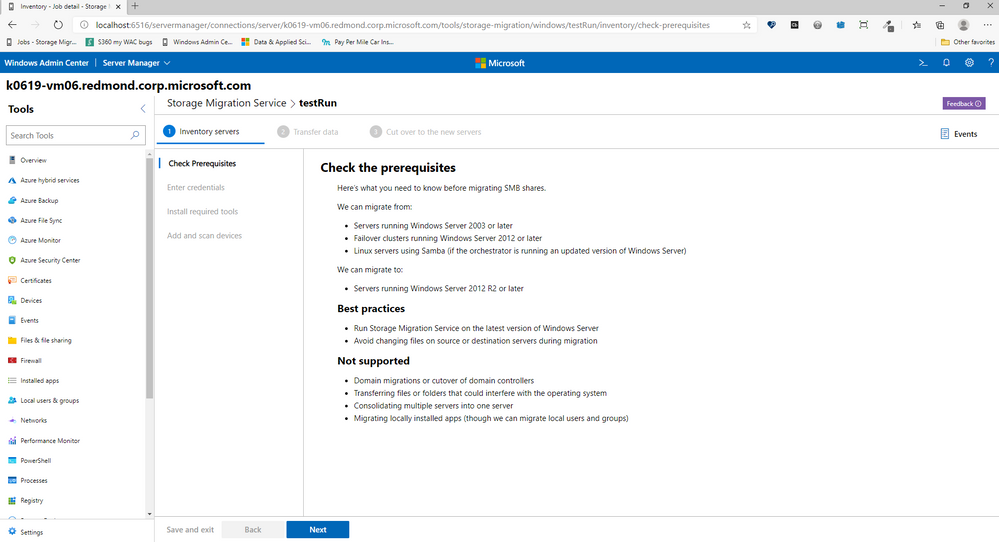
- A new prerequisites page to help you get ready for a migration

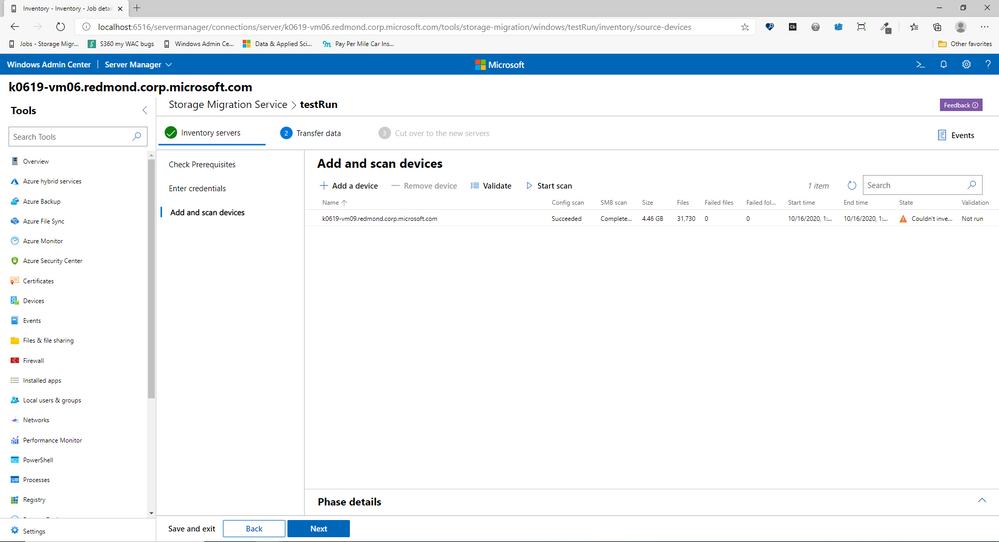
- Inventory validation option
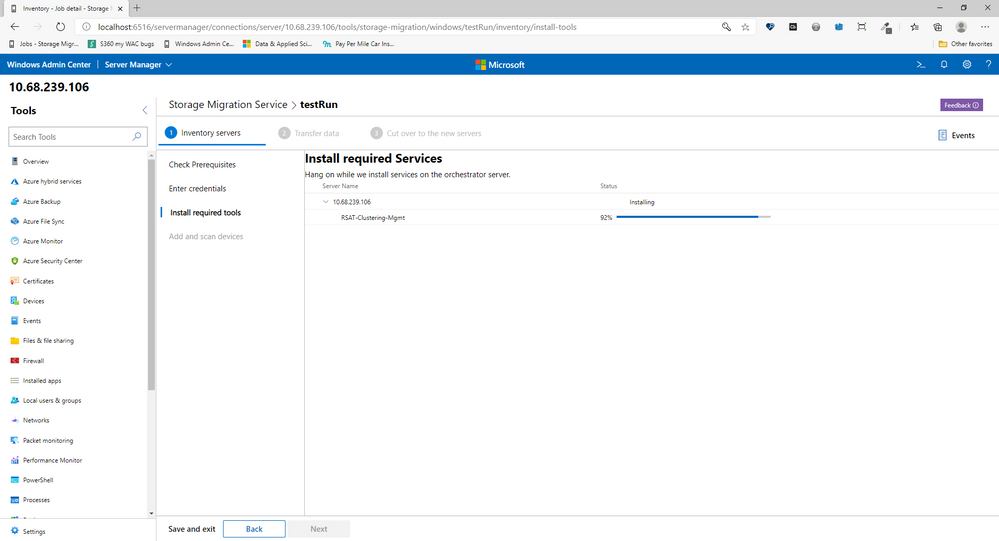
- Automatic install of the cluster management tools on the orchestrator if not installed
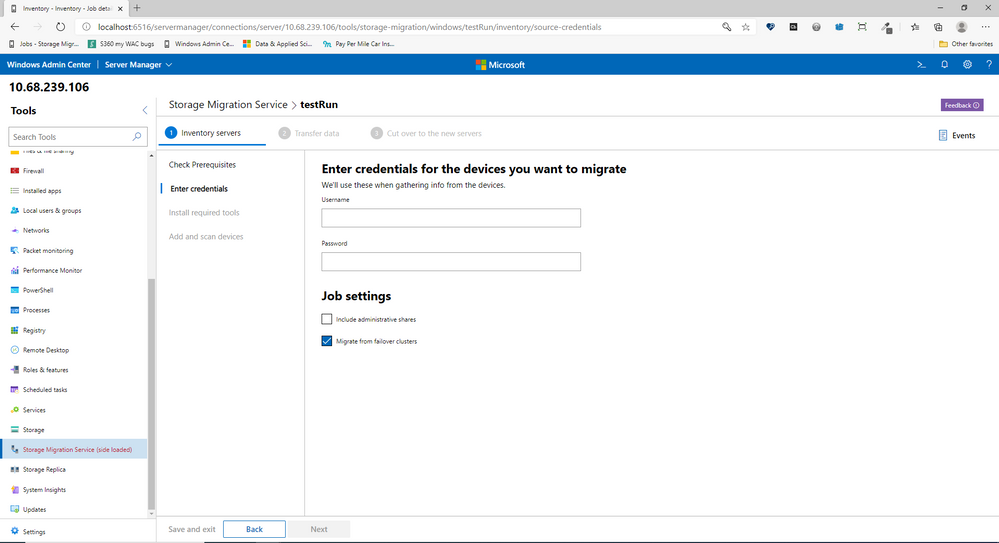
- Various ease of use and layout changes based on customer feedback
- Note: we’re also going to add automatic installation of the SMS Proxy on the destination server if not already installed, but it will be in another WAC update a few weeks after this one.
Sum up
I’ll be updating the official SMS docs on some of these points, I know your boss doesn’t believe in blogs even though I wrote both articles. :D
The KB4580390 (Win10 1809, Windows Server 2019) & KB4580386 (1903, 1909) cumulative updates are available on the Microsoft Catalog for download, and will automatically install via Windows Update in the November patch Tuesday release. Let me know how it goes. And remember, more big features coming early next year, come watch the Windows Server Summit on Thursday, October 29, 2020 to learn more
– Ned “grind grind grind” Pyle
by Contributed | Oct 20, 2020 | Technology
This article is contributed. See the original author and article here.
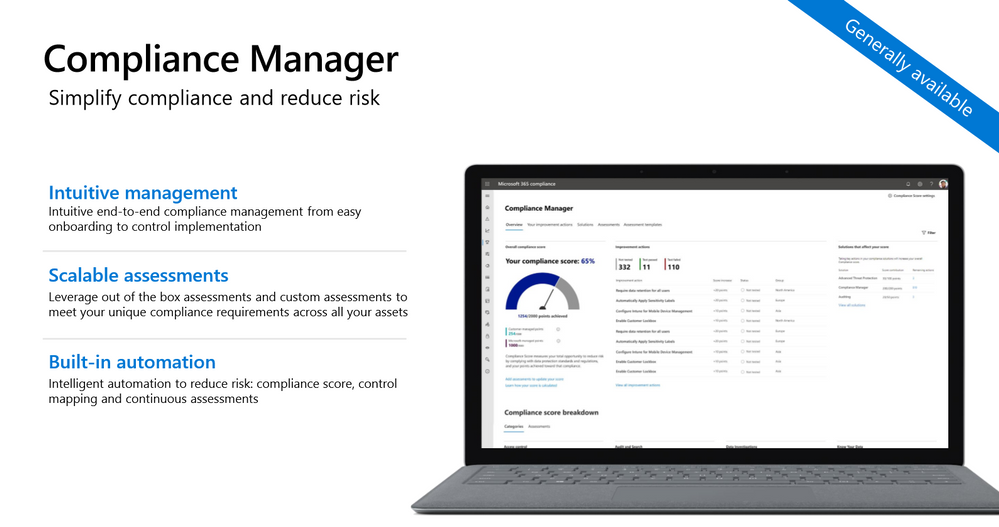
Microsoft Compliance Manager is a feature in the Microsoft 365 compliance center that helps you manage your organization’s compliance requirements with greater ease and convenience. Compliance Manager can help you throughout your compliance journey, from taking inventory of your data protection risks to managing the complexities of implementing controls, staying current with regulations and certifications, and reporting to auditors.

References:
This webinar was presented on October 1st, October 8th, and October 15th, 2020, and the recording can be found here.
Attached to this post are:
- The FAQ document that summarizes the questions and answers that came up over the course of both Webinars.
- A PDF copy of the presentation.
Thanks to those of you who participated during the two sessions and if you haven’t already, don’t forget to check out our resources available on the Tech Community.
Thanks!
@LaurenVaughn on behalf of the MIP and Compliance CXE team
by Contributed | Oct 20, 2020 | Technology
This article is contributed. See the original author and article here.
Windows 10, version 20H2 is now available through Windows Server Update Services (WSUS) and Windows Update for Business, and can be downloaded today from Visual Studio Subscriptions, the Software Download Center (via Update Assistant or the Media Creation Tool), and the Volume Licensing Service Center[1]. Today also marks the start of the 30-month servicing timeline for this Semi-Annual Channel release.
Just like we did for devices upgrading from Windows 10, version 1903 to version 1909, we will be delivering Windows 10, version 20H2 (also referred to as the Windows 10 October 2020 Update) to devices running Windows 10, version 2004 via the new streamlined fashion, which we call an enablement package. For those updating to Windows 10, version 20H2 from earlier versions of Windows, the process will be similar to previous updates.
For those of you that are new to “enablement packages,” Windows 10, version 2004 and Windows 10, version 20H2 share a common core operating system with an identical set of system files. As a result, the new features in version 20H2 were included in the monthly quality updates for version 2004 released on September 8, 2020, but were delivered in a disabled/dormant state. These features remain dormant until they are turned on with the Windows 10, version 20H2 enablement package: a small, quick to install “switch” that activates these features. Using an enablement package, the update to Windows 10, version 20H2 should take approximately the same amount of time as it does to install monthly quality updates.
Note: If you are running Windows 10, version 2004 and have not installed the September 8, 2020 updates, you will not see the version 20H2 enablement package offered to your device.
|
With today’s release, we recommend IT administrators begin targeted deployments of Windows 10, version 20H2 to validate that the apps, devices, and infrastructure used by their organizations work as expected with the new features. If you will be updating devices used in remote or hybrid work scenarios, I also recommend reading Deploying a new version of Windows 10 in a remote world. For insight into our broader rollout strategy, see John Cable’s post on How to get the Windows 10 October 2020 Update.
If your organization is currently running Enterprise or Education editions of Windows 10, version 2004, you have 18 months of servicing. By using the enablement package to upgrade your devices to version 20H2, you will receive 30 months of servicing. Devices running Home, Pro, Pro for Workstations, and Pro Education will receive the standard 18 months of servicing. For more information, see the Windows lifecycle FAQ.
New features
As you begin to roll out Windows 10, version 20H2 to your organization, here are some of the new features and enhancements that will allow you to benefit from intelligent security, simplified updates, flexible management, and enhanced productivity.
For the end user
- Theme-aware tiles in Start – The redesigned Start menu has a more streamlined design that removes the solid color backplates behind the logos in the apps list, and applies a uniform, partially transparent background to the tiles. This design creates a beautiful stage for your icons, especially the Fluent Design icons for Office and Microsoft Edge, as well as the redesigned icons for built-in apps like Calculator, Mail, and Calendar.
- ALT+TAB between tabs in Microsoft Edge – We introduced ALT+TAB (task switcher) allowing you to toggle between open windows way back in Windows 2.0! In Windows 10, version 20H2, you can now use ALT+TAB to rotate between not only your open apps but also the tabs in Microsoft Edge. Now rotating through ALT+TAB will allow you to open Microsoft Edge in the specific tab you’re needing, not just the latest active tab. You can modify the ALT+TAB experience in Settings > System > Multitask.
- Improved notifications – Toast notifications now have the app’s logo in the top left corner of the notification, so you can immediately see where the notification is coming from. We’ve also turned off the Focus Assist notifications, which tells you when Focus Assist is enabled – whether via automatic rule or manually enabling it.
- Settings – We continue to improve the Settings page, adding more and more classic Control Panel capabilities. In addition to added settings, we also added a [COPY] button to Settings > System > About so you can easily copy that information and paste it into a help desk ticket. Watch for even more improvements to come!
- Tablet experience – Previously, when you detach a keyboard on a 2-in-1 device, a toast notification would appear asking if you wanted to switch into Tablet Mode. If you tapped Yes, you would switch into Tablet Mode. But selecting No would bring you the Windows desktop. In Windows 10, version 20H2, the default is changed: the toast notification no longer appears and you are instead brought into the new tablet experience. You can change this behavior in Settings > System > Tablet.
- Refresh rate of display – Change the refresh rate of your display, giving you a smoother motion. This change can be made at Settings > System > Display > Advanced display settings. Note that this may require supported hardware.
- Microsoft Edge (built on Chromium) – And of course, Windows 10, version 20H2 is the first version of Windows to come with Microsoft Edge browser built on the Chromium engine.
To keep up the latest improvements for end users, follow the Windows Insider Program Blog.
For the IT professional
- Mobile device management (MDM) – Like you’ve been doing with Group Policy for 20 years, you can now make granular changes to Local Users and Groups on an MDM-managed Windows 10 device by using the Local Users and Groups MDM policy.
- Windows Autopilot – There have been many enhancements to Windows Autopilot since version 2004, including Windows Autopilot for HoloLens, Windows Autopilot and co-management, and enhancements to Autopilot reporting. For details on all of these and more, see Managing Windows Devices with Microsoft Endpoint Manager. Here’s a summary of some of the enhancements:
- Windows Autopilot for HoloLens – You know HoloLens as that untethered, holographic device. HoloLens 2 devices are commercial-ready, support Azure AD, MDM, kiosk mode, BitLocker, Windows Store for Business, and Windows Update for Business. As adoption increases, setting up your HoloLens 2 devices just got easier, with a Windows Autopilot for HoloLens 2 self-deploying mode.
- Windows Autopilot with co-management – Co-management policy can be set during Autopilot deployment to ensure workloads are managed from the appropriate source.
- Windows Autopilot ESP + task sequences – Using a task sequence as part of Windows Autopilot allows you to take advantage of your Configuration Manager investments and reuse those task sequences to configure devices. The task sequence can integrate right into the Enrollment Status Page (ESP), blocking access to the desktop until the task sequence completes.
- Enhancements to Windows Autopilot deployment reporting – Currently in preview, you can monitor the status of Autopilot deployments in the Microsoft Endpoint Manager admin center: endpoint.microsoft.com. From there, select Devices > Monitor and scroll down to the Enrollment section. Click Autopilot deployment (preview). As this section grows, you will soon be able to see ESP duration broken down at a device and user targeted ESP and app installation status, policy status, and other enhancements. So stay tuned!
- Microsoft Defender Application Guard for Office – Microsoft Defender Application Guard, designed for Windows 10, now supports Office! With this support, you can launch untrusted Office documents (those that come from outside the Enterprise) in an isolated container to prevent potentially malicious content from compromising the user’s computer or exploiting their personal contents.
- LCU + SSU = single payload – Many of you have asked us for many years to simplify the deployment of Latest Cumulative Updates (LCUs) and Servicing Stack Updates (SSUs). Starting with Windows 10, version 20H2, LCUs and SSUs have been combined into a single cumulative monthly update, available via Microsoft Catalog or Windows Server Update Services.
- More secure biometric sign on – With enhanced sign-in security[2], Windows Hello now offers added support for virtualization-based security for certain fingerprint and face sensors, which protects, isolates, and secures a user’s biometric authentication data.
- Microsoft Edge on Chromium – Even more important for the IT pro, we’re adding this feature here as well! Windows 10, version 20H2 is the first version of Windows to come with Microsoft Edge on Chromium. Need a reason why you should care? I’ll give you five! I also invite you to learn more about the security features in Microsoft Edge.
What else have we been up to?
Aside from Windows 10, version 20H2, we’ve been busy with other new, exciting products and features that you may have heard about! Note that some of these may require additional licensing or services. Check out the links for details.
- Cortana – We continue to make investments in Cortana, adding a daily briefing email from Cortana, play my emails from Outlook, Cortana availability within the Microsoft Teams mobile app (available in English today, more languages coming!), and of course the updated and improved features of Cortana in Windows 10 itself.
- Universal Print – Universal Print provides cloud-managed print services built on Azure. Universal Print ensures that customers can print from anywhere, anytime, with secure identity credentials. And, it is integrated right into Microsoft Endpoint Manager making it easy to get started and join the thousands of Preview customers who have moved millions of print jobs to the cloud.
- Windows Virtual Desktop – Windows Virtual Desktop is a desktop and app virtualization service that runs on Microsoft Azure. It lets end users connect securely to a full desktop from any device. And now with Microsoft Endpoint Manager, you can secure and manage your Windows Virtual Desktop VMs with policy and apps at scale, after they’re enrolled.
- Microsoft Tunnel Gateway – Microsoft Tunnel Gateway allows Microsoft Intune-enrolled iOS and Android devices to access on-premises apps and resources, with single sign-on Azure AD authentication, integrated Conditional Access policies, and is flexible enough to meet the needs of all organizations.
- Endpoint analytics – Endpoint analytics aims to improve user productivity and reduce IT support costs by providing insights into the user experience. The insights enable IT to optimize the end-user experience with proactive support and to detect regressions to the user experience by assessing user impact of configuration changes. Enroll devices into Endpoint analytics while enabling tenant attach in Configuration Manager.
- Productivity Score – Productivity Score provides visibility into how your organization works, helping you understand the employee experience, including how collaborative your people are. It also gives visibility into their technology experience, focusing on their endpoints, network connectivity, and Microsoft 365 apps.
- Microsoft 365 apps – Office 365 ProPlus is the version of Microsoft Office that comes with several enterprise, government, and education subscription plans. Earlier this year we announced a name change to Microsoft 365 apps. If you have internal wikis, packages used by Configuration Manager – specifically any automatic deployment rules (ADRs), or product flows, you may need to update references to Office 365 ProPlus to this new name.
- Microsoft Defender for Endpoint – Microsoft Defender Advanced Threat Protection (Microsoft Defender ATP) recently went through a name change as well – to Microsoft Defender for Endpoint. Explore the latest features or functionality and find information on the new name and the products affected in the Microsoft Defender for Endpoint blog.
- Developers! Developers! Developers! – For information on what’s new for developers, including Project Reunion and new PowerToys. see Windows Dev Center. (And if you don’t know why I introduce this bullet in this way, check out any of the videos here!)
- Test Base for Microsoft 365 – Test Base provides intelligent application testing from an Azure environment, making it easier for your ISVs (software vendors) to make support statements for a new version of Windows.
Frequently asked questions
Is there also a Windows Server release with this release?
Yes. The next Windows Server semi-annual channel (SAC) release is also available today. The Windows Server semi-annual channel is designed for customers who wish to take advantage of new operating system capabilities at a faster pace. Windows Server, version 20H2 is focused on reliability, performance, and other general improvements. It is also available on Azure Marketplace or the Volume Licensing Service Center.
Will there be a Long-Term Servicing Channel (LTSC) release with this release?
No. Windows 10 Enterprise LTSC 2019 is the current LTSC option, and was released with Windows 10, version 1809 in November 2018. The next LTSC release can be expected toward the end of 2021. Customers currently using Long-Term Servicing Branch (LTSB) 2015 for special-purpose devices should start working to upgrade those devices to Windows 10 Enterprise LTSC 2019, as mainstream support for LTSB 2015 ended on Oct. 13, 2020, and it entered into extended support. See the lifecycle policy here.
Can I upgrade our devices from Windows 7 directly to Windows 10, version 20H2?
Yes. You can directly upgrade from Windows 7 to Windows 10, version 20H2. We strongly encourage you to begin your upgrade process immediately as Windows 7 is no longer supported.
How can I preview versions of Windows 10 before they become available? I want to start testing these new features early so I can deploy them when they are released!
The Windows Insider Program for Business team has focused on enabling IT administrators to view and provide feedback on upcoming security, management, and productivity features ahead of release. And you can manage the installation of Windows 10 Insider Preview Builds across multiple devices in your organization! Read the Windows Insider Program for Business documentation for more information.
Where can I ask specific questions about rolling out Windows 10, version 20H2 and managing updates in general?
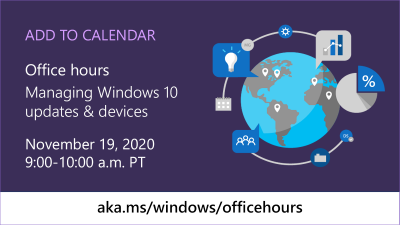
We hold monthly “office hours” in the Windows 10 servicing community on Tech Community with a broad group of servicing, deployment, endpoint management, and security experts. Submit your questions live during the one-hour event—or post them in advance by adding a label for “Office Hours”—and we’ll do our best to help! Visit https://aka.ms/windows/officehours for more information and calendar links for upcoming events. Or click here to save the date for our November 19th session!

Tools and resources
To support the release of Windows 10, version 20H2, we have released updated versions of the following resources:
Also, if you haven’t seen it yet, the Windows release health dashboard (introduced with the release of Windows 10, version 1903) provides you with timely information on the status of the Windows 10, version 20H2 rollout, details on any safeguard holds or known issues (including the status of those issues, workarounds, and resolutions), and other important announcements, such as those related to lifecycle updates, upcoming events, and best practices.
For help with configuring and deploying updates, please see the following resources:
To see a summary of the latest documentation updates, see What’s new in Windows 10, version 20H2 IT pro content on Docs.
And finally, for a list of features and functionality that have been removed from Windows 10, or might be removed in future releases, see Features and functionality removed in Windows 10.
For the latest updates on new releases, tools, resources, AMAs, Ask the Experts, or Windows Office Hours, stay tuned to this blog and follow us @MSWindowsITPro on Twitter. You can also follow me on Twitter @LURIE_MSFT for the latest on Microsoft Endpoint Manager, Windows, and other exciting news and events for IT pros.
[1] It may take a day for downloads to be fully available in the VLSC across all products, markets, and languages.
[2] Enhanced sign-in security requires specialized hardware and software components that can be leveraged starting on devices shipping with Windows 10 October 2020 Update configured out of factory. Documentation will be available later this year.
by Contributed | Oct 20, 2020 | Technology
This article is contributed. See the original author and article here.
We are pleased to announce the proposed draft release of the for Windows 10 and Windows Server, version 20H2 (a.k.a. October 2020 Update) security baseline package!
Please download this draft baseline (attached to this post), evaluate the proposed baselines, and provide us your comments/feedback below.
This Windows 10 feature update brings very few new policy settings, which we list in the accompanying documentation. At this point, no new 20H2 policy settings meet the criteria for inclusion in the security baseline, but there are a few policies we are going to be making changes to, which we highlight below along with our recommendations.
Block at first sight
We started the journey for cloud protection several years ago. Based on our analysis of the security value versus the cost of implementation, we feel it’s time to add Microsoft Defender Antivirus’ Block At First Sight (BAFS) feature to the security baseline. BAFS was first introduced in Windows 10, version 1607 and allows new malware to be detected and blocked within seconds by leveraging various machine learning techniques and the power of our cloud.
BAFS currently requires 6 settings to be configured. Our baseline already sets 2 of them, Join Microsoft MAPS and Send file sample when further analysis is required. We are now recommending the addition of the following settings to enable BAFS:
- Computer ConfigurationAdministrative TemplatesWindows ComponentsMicrosoft Defender AntivirusMAPSConfigure the ‘Block at first sight’ feature set to Enabled
- Computer ConfigurationAdministrative TemplatesWindows ComponentsMicrosoft Defender AntivirusReal-time ProtectionScan all downloaded files and attachments set to Enabled
- Computer ConfigurationAdministrative TemplatesWindows ComponentsMicrosoft Defender AntivirusReal-time ProtectionTurn off real-time protection set to Disabled
- Computer ConfigurationAdministrative TemplatesWindows ComponentsMicrosoft Defender AntivirusMPEngineSelect cloud protection level set to High blocking level
These new settings have been added to the MSFT Windows 10 20H2 and Server 20H2 – Defender Antivirus group policy.
Additional details on BAFS can be found here.
Attack Surface Reduction Rules
We routinely evaluate our Attack Surface Reduction configuration, and based on telemetry and customer feedback we are now recommending configuring two additional Attack Surface Reduction controls: Computer ConfigurationAdministrative TemplatesWindows ComponentsMicrosoft Defender AntivirusMicrosoft Defender Exploit GuardAttack Surface ReductionConfigure Attack Surface Reduction rules: Use advanced protection against ransomware and Block persistence through WMI event subscription.
Introduced in Windows 10, version 1709 the Use advanced protection against ransomware rule will scan any executable files and determine, using advanced cloud analytics, if the file looks malicious . If so, it will be blocked unless that file is added to an exclusion list. This rule does have a cloud dependency, so you must have Join Microsoft MAPS also configured (which is already part of the security baseline).
Block persistence through WMI event subscription is a rule that was released in Windows 10, version 1903. This rule attempts to ensure WMI persistence is not achieved – a common technique adversaries use to evade detection. Unlike many of the other ASR rules, this rule does not allow any sort of exclusions since it is solely based on the WMI repository.
A friendly reminder that the security baselines set all ASR rules to block mode. We recommend first configuring them to audit mode, then testing to ensure you understand the impacts these rules will have in your environment, and then configuring them to block mode. Microsoft Defender for Endpoints (formally Microsoft Defender Advanced Threat Protection, MDATP) will greatly enhance the experience of testing, deployment, and operation of ASR rules. We would encourage you to look at evaluating, monitoring and customizing links to better prepare your environment.
These new settings have been added to the MSFT Windows 10 20H2 and Server 20H2 – Defender Antivirus group policy.
UEFI MAT
You might recall in the draft release of our security baseline for Windows 10, version 1809 we enabled UEFI Memory Attributes Tables, but based on your feedback we removed that recommendation from the final version (thank you to the testers who provided that feedback!). After further testing and discussions, we are again recommending that you enable Computer ConfigurationAdministrative TemplatesSystemDevice GuardTurn on Virtualization Based SecurityRequire UEFI Memory Attributes Table.
Microsoft Edge
Starting with Windows 10, version 20H2 the new Microsoft Edge (based on Chromium) is now installed as part of the operating system. Please ensure you are applying the security baseline for Microsoft Edge to your Windows 10, version 20H2 machines. We have gotten questions about including it on the Windows security baseline, but since Microsoft Edge is a cross platform product and has a different release cadence, we are going to keep it a separate security baseline.
Baseline criteria
We follow a streamlined and efficient approach to baseline definition when compared with the baselines we published before Windows 10. The foundation of that approach is essentially:
- The baselines are designed for well-managed, security-conscious organizations in which standard end users do not have administrative rights.
- A baseline enforces a setting only if it mitigates a contemporary security threat and does not cause operational issues that are worse than the risks they mitigate.
- A baseline enforces a default only if it is otherwise likely to be set to an insecure state by an authorized user:
- If a non-administrator can set an insecure state, enforce the default.
- If setting an insecure state requires administrative rights, enforce the default only if it is likely that a misinformed administrator will otherwise choose poorly.
For additional discussion, please see the “Why aren’t we enforcing more defaults?” section in this blog post.
by Contributed | Oct 20, 2020 | Technology
This article is contributed. See the original author and article here.
The Intrazone continues to spotlight Microsoft partners, the people and companies who deliver solutions and services to empower our customers to achieve more. In our seventh partner episode, we talk with Jesse Murray (SVP of Employee Experience & Managing Director | Rightpoint) and his customer, Doug Kalish (Head of Knowledge Management | Grant Thornton).
In this episode, we dig into successes resulting from numerous integration points Rightpoint helped implement across the Microsoft 365 suite. With SharePoint as their intranet base, Grant Thornton uses the Power Platform for user feedback, Stream for company-wide video, Yammer across communities, and Power BI for site analytics – along with programmatic approach to custom development and governance. By implementing an intranet advisory board, Grant Thornton helped establish their modern intranet as a home for everything people need in the day-to-day when working with their peers and various communities of practice.
OK, Partner (edition), on with the show…
https://html5-player.libsyn.com/embed/episode/id/16451786/height/90/theme/custom/thumbnail/yes/direction/backward/render-playlist/no/custom-color/247bc1/
Subscribe to The Intrazone podcast! Listen this partner episode on Rightpoint now + show links and more below.
![Left-to-right: Jesse Murray (SVP of Employee Experience & Managing Director | Rightpoint) and Doug Kalish (Head of Knowledge Management | Grant Thornton). [The Intrazone guests]](https://techcommunity.microsoft.com/t5/image/serverpage/image-id/228057iEC41BC18312566BB/image-size/large?v=1.0&px=999 "JesseMurray_DougKalish_RightPoint-GrantThornton_IZP_007.jpg") Left-to-right: Jesse Murray (SVP of Employee Experience & Managing Director | Rightpoint) and Doug Kalish (Head of Knowledge Management | Grant Thornton). [The Intrazone guests]
Left-to-right: Jesse Murray (SVP of Employee Experience & Managing Director | Rightpoint) and Doug Kalish (Head of Knowledge Management | Grant Thornton). [The Intrazone guests]
Link to articles mentioned in the show:
- Hosts and guests
- Articles and sites
- Events
Subscribe today!
Listen to the show! If you like what you hear, we’d love for you to Subscribe, Rate and Review it on iTunes or wherever you get your podcasts.
Be sure to visit our show page to hear all the episodes, access the show notes, and get bonus content. And stay connected to the SharePoint community blog where we’ll share more information per episode, guest insights, and take any questions from our listeners and SharePoint users (TheIntrazone@microsoft.com). We, too, welcome your ideas for future episodes topics and segments. Keep the discussion going in comments below; we’re hear to listen and grow.
Subscribe to The Intrazone podcast! And listen this partner episode on Rightpoint now.
Thanks for listening!
The SharePoint team wants you to unleash your creativity and productivity. And we will do this, together, one partner at a time.
The Intrazone links
![Left to right [The Intrazone co-hosts]: Chris McNulty, senior product manager (SharePoint, #ProjectCortex – Microsoft) and Mark Kashman, senior product manager (SharePoint – Microsoft).](https://www.drware.com/wp-content/uploads/2020/08/large-758 "Mark Kashman_0-1585068611977.jpeg") Left to right [The Intrazone co-hosts]: Chris McNulty, senior product manager (SharePoint, #ProjectCortex – Microsoft) and Mark Kashman, senior product manager (SharePoint – Microsoft).
Left to right [The Intrazone co-hosts]: Chris McNulty, senior product manager (SharePoint, #ProjectCortex – Microsoft) and Mark Kashman, senior product manager (SharePoint – Microsoft).
 The Intrazone, a show about the Microsoft 365 intelligent intranet (aka.ms/TheIntrazone)
by Contributed | Oct 20, 2020 | Technology
This article is contributed. See the original author and article here.
When we redesigned the Azure CLI in 2016, our goal was to create a simple, easy to use, tool for managing Azure. Since then, Azure has grown tremendously from supporting multiple clouds in various locations across the globe, on/off premises services, and scenario-specific technologies, such as Azure IoT and AI/ML tools.
With over 2500 commands, tens of thousands of parameters, and new Azure features being developed daily, maintaining simplicity in Azure CLI is a challenge. In this post, we want to introduce you to three of our AI-powered features we’ve developed to ensure the Azure CLI remains easy to use, consistent, and “evergreen”. These features include: generating up-to-date examples, enabling natural language search in command line, and assisting with failure recovery. We will share with you our learnings and journey below.
Generating up-to-date examples
Learning new software and APIs requires up to date documentation with multiple examples covering the main common scenarios. However, the fast pace of modern software causes documentation, especially examples, to quickly become stale.
We’ve addressed the problem of incomplete and stale documentation by developing an AI-powered platform that automatically generates and updates examples for our command line tools (Azure CLI and Azure PowerShell) ensuring
- Up-to-date examples: generate new examples with each new Azure CLI (and Azure PowerShell) release, ensuring the documentation is always up-to-date.
- Representative of actual usage: Unlike bare-bones examples usually found in documentation that only cover basic scenarios, our examples are based on actual usage patterns and therefore represent how current users use the software in practice.
- Informed by our educational content: Our platform ingests over 14,000 pages of blogs, tutorials, and samples to ensure consistency (naming, sample values, etc.) across our learning resources.
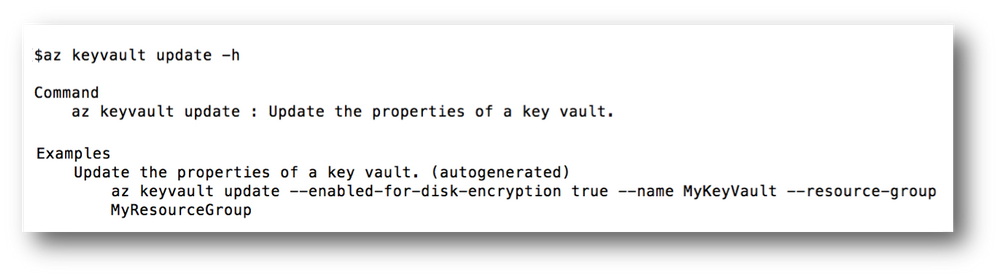
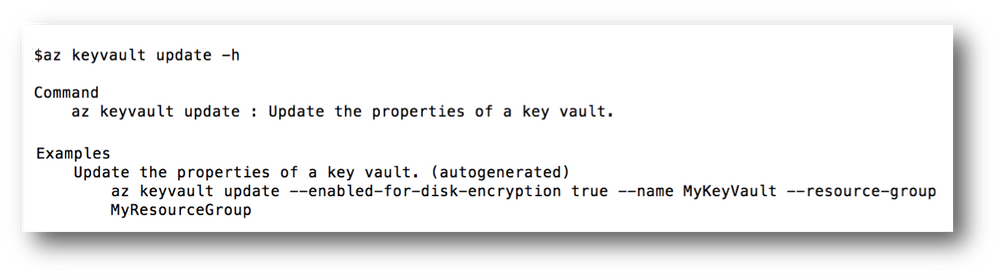 Figure 1. Just like regular examples, our auto-generated examples are accessible through the command line by typing –help/-h in front of the command name. In this Figure, the user has called help on ‘az keyvault update’.
Our examples are accessible through the command line help by typing the command name followed by “–help” or “-h” in the command line (Figure 1). Additionally, examples are published to our online reference docs (Figure 2).
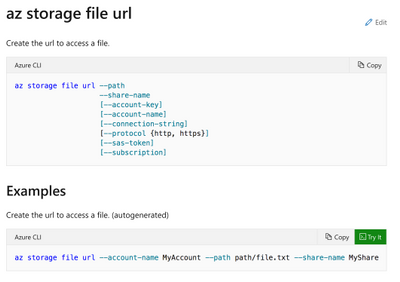 Figure 2. Screenshot of help content and examples as shown in reference docs on the web.
To measure the effectiveness of our pipeline, we examined the coverage and quality of our generated examples. We observed the examples written by software owners (human generated examples) cover 55% of the functionality and features supported by Azure CLI, while our AI-generated examples cover 100% of used features and functionality. This means that algorithmically we can achieve a scale that cannot be achieved through manual writing of examples. Not only do AI-generated examples cover more commands, but they also cover more service functionality. For example, while human-generated examples on average only cover 20% of command parameters, AI-generated ones cover 32%.
Enabling natural language search in command line
Finding the right command can be difficult, especially with multiple Azure offerings for popular concepts or scenarios. The Azure CLI originally shipped with an `az find` command powered by plain text search, allowing users to search through the 100s of commands for their scenario. However, the plain text search did not provide any recommendations or context on how to pick the best service.
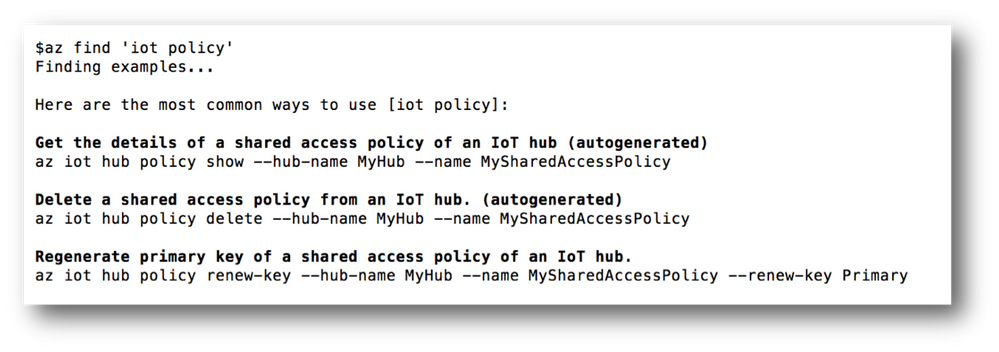 Figure 3. Our natural language search, finds the most relevant examples in our knowledgebase.
In early 2019, we released an AI based version of ‘az find’, augmented with natural language search features powered by the Azure Search Service (Figure 3). In addition, the new ‘az find’ also supplies command and command group level examples allowing users to easily find the most popular features and services (Figure 4). While our in-tool AI-powered examples are updated with each release, the ’az find’ command supplies the most up-to-date recommendations.
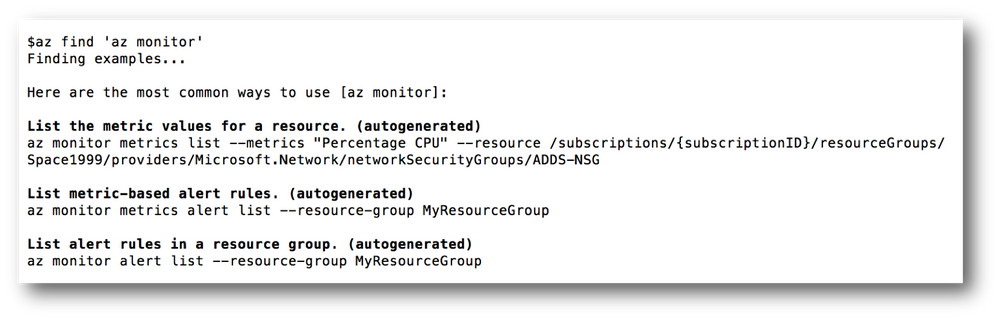 Figure 4. For each command group, the most common commands used within that command group are shown.
Assisting in failure recovery
Taking the right action to recover from a failure can be challenging and exacerbated by an ever-changing platform where new functionalities and features are added frequently. Our cloud developers and in particular novice developers, may struggle with finding the right commands, parameters, or values and further struggle with cryptic error messages. Guiding developers through examples can help alleviate some of their frustrations. With the goal of helping such users, we present a command line failure recovery recommender system for Azure CLI. Our failure recovery system is an AI-based system that learns from other users’ past errors and creates recovery patterns from these errors.
An Example
Let’s consider a new Azure developer who has created a storage account before and now is using Azure CLI to quickly create another account. The user types the following command.

The previous Azure CLI versions would have shown the user an error saying ‘create’ is not in ‘az storage’ command group and referenced in editor help or generic online docs for help. However, with our failure recovery recommender system, the new Azure CLI will recommend an example command that the user is most likely to run.

How does it work?
Our failure recovery system uses a conditional probability model. This model is built on the assumption that scripts accomplish tasks and specific tasks require specific commands in a certain order. Within each script, if a command fails there should be common patterns on how the next successful command remedies that failure. Data analysis demonstrates that given one or more commands in a script significantly narrows the probability of what command(s) follow these in that script. For instance, the chance of a user running “az storage account create” is 0.01%; when proceeded by ‘az storage create’ which is a failure the chance increases to 49%.
How do we serve the recommendations?
The failure recommendation service is hosted by Azure App Service. Scalability and performance are critical for the service so that we can respond to requests quickly in the order of milliseconds. When the system is under heavy load, we leverage the autoscaling capabilities in Azure to quickly scale up and keep the service performant. The service is deployed into different regions worldwide, which is aligned with Azure CLI users distribution to make sure every user’s request can be served from a region within the shortest amount of time.
Help us improve with your feedback
Help us make the tools that you love and use every day even better. You can provide feedback by creating an issue in Azure CLI Github page.
by Contributed | Oct 20, 2020 | Technology
This article is contributed. See the original author and article here.
Hello! In today’s “Voice of the Partner” blog, Chris Gregory, VP Operations and Channel Development at Saviynt explains how Saviynt identity governance solutions complement Azure Active Directory (Azure AD) and Microsoft 365 to help organizations simplify identity management and comply with data privacy regulations. Our two companies are currently involved in a multi-year engagement with Walgreens to help unify operations after a recent merger. Chris provides great insight into how we’ve helped the pharmacy consolidate identity and access management across its global enterprise.
Enabling digital transformation for a global enterprise
By Chris Gregory, VP Operations and Channel Development, Saviynt
In today’s business environment, protecting data and consumer privacy can be complex. Enterprises support remote workers, contractors, partners, and customers who access resources across multiple cloud services. It’s important that each of these users can access only the data required for a task—and nothing more. This requires strong access management and identity governance.
Saviynt’s partnership with Microsoft allows us to offer customers a comprehensive access management and identity governance solution through a single pane of glass. Our mutual customer, Walgreens Boots Alliance, provides a great example of how, together, we help customers solve complex compliance and governance challenges.
Protecting consumer privacy in a global enterprise
Walgreens, the second-largest pharmacy store chain in the United States, operates 9,277 stores domestically. Recently, the company purchased Swiss-based Alliance Boots to expand its global retail reach, forming a new entity, Walgreens Boots Alliance (WBA). The entire user community includes 65,000 corporate users and 248,000 field workers in stores and distribution centers.
The purchase of Alliance Boots requires WBA to comply with the European Union Global Data Privacy Regulation (GDPR). Under GDPR, companies with EU customers must make sure that their systems and processes for handling data are designed with privacy in mind. They need to monitor and detect breaches, control access to data, and regularly audit user access, among other requirements. Before we engaged with WBA, the company managed many of these processes manually, which was time consuming and put them at risk of noncompliance.
Unifying operations and identity management
Merging two companies also means integrating different tools, processes, and teams. Walgreens and Alliance Boots each had their own apps and user groups, so as a first step toward unifying operations, WBA signed a strategic agreement with Microsoft for development of a community healthcare platform for in-store, standalone, and online clinical endpoints. Since WBA embraces Microsoft Cloud Solutions, it required that identity management and governance be native to the Microsoft solution and provide a single organization-wide dashboard. They also needed a solution that would help them rapidly onboard apps.
As part of a two-phase project, WBA will consolidate identity management and governance with Azure Active Directory (Azure AD) and Saviynt. Phase 1 focused on Europe, the Middle East, and Africa (EMEA). To help WBA verify identities that access its systems, Azure AD authenticates and authorizes users. Capabilities like multi-factor authentication (MFA) reduce the risk that a compromised account can successfully sign in. Machine learning algorithms help identify and respond to risky sign-ins based on policies that WBA defines. For example, Azure AD can force a user who may be compromised to reset their password. WBA also uses Conditional Access policies to limit and block access based on a variety of risk factors. Many of these processes can be automated, freeing up security operations to focus on the most critical issues.
Simplifying compliance requirements with identity governance
At an organization as large as WBA, people frequently transition in and out of the company or into different roles and groups within the organization. It’s important that with each role change, users quickly get access to the tools they need and lose access to the ones they don’t. This is especially true for privileged users who are authorized to handle customer information. Previously, WBA managed the provisioning and deprovisioning of accounts manually, but our solution has allowed them to automate much of this process.
Saviynt’s identity governance and privileged access management capabilities complement Azure AD identity governance with fine-grained entitlement management across apps. This allows WBA to define access based on conditions in addition to role. Artificial intelligence and machine learning technologies surface actionable access data to help administrators make smart approval decisions. And they can dig into access details across identities and apps to facilitate investigations and audits. Separation of Duties (SOD) allows WBA to split a complex financial-related task between more than one person in compliance with the Sarbanes-Oxley Act of 2002 (SOX).
Phase 1 was completed in 90 days. We are currently engaged in phase 2, which will replace a legacy on-premises identity management product implementation in the United States and integrate over 200 apps with Azure AD and Saviynt for authentication and identity governance.
Learn more
WBA represents just one example of how Azure AD and Saviynt work together to help companies digitally transform, while protecting consumer privacy.
Learn more about Microsoft identity:
Share product suggestions on the Azure Feedback Forum


Recent Comments