by Contributed | Oct 22, 2020 | Technology
This article is contributed. See the original author and article here.
This installment is part of a broader series to keep you up to date with the latest features in Azure Sentinel. The installments will be bite-sized to enable you to easily digest the new content.
As you probably know, Azure Sentinel can be installed on workspaces located in any GA region where Log Analytics is available except China and Germany sovereign regions.
However, Azure Sentinel generates some additional data like Alert information, Incident details, Bookmarks, etc. that in some cases may be stored in a different region to where the workspace is located.
Today we are announcing the expansion of Azure Sentinel data residency to three additional geographies: Japan, United Kingdom and Canada. With these additions, the geographies where the Azure Sentinel data at rest is stored is summarized in the following table:
Workspace geography |
Azure Sentinel-generated data geography |
United States
India
Brazil
Africa
Korea |
United States |
Europe
France
Switzerland |
Europe |
Australia |
Australia |
United Kingdom |
United Kingdom |
Canada |
Canada |
Japan |
Japan |
So, for example, any new or existing Sentinel workspaces created in Japan, will have all its Azure Sentinel data at rest stored within Japan. Similarly, workspaces located within Brazil, will have their Sentinel data at rest stored in the United States.
This is a very important achievement as we strive to provide customers and partners with the tools to comply with the different regulations applicable to each geography.
Please post a comment below if you have questions.
Thanks to @Koby Koren and @Michael Gladishev for their work on this feature!
by Contributed | Oct 22, 2020 | Technology
This article is contributed. See the original author and article here.
Final Update: Thursday, 22 October 2020 09:24 UTC
We’ve confirmed that all systems are back to normal with no customer impact as of 10/22, 08:30 UTC. Our logs show the incident started on 10/22, 01:30 UTC and that during the 7 hours that it took to resolve the issue some customers may have experienced failure notifications when accessing or performing service management operations for Azure Activity Log Alert Rules.
Root Cause: The failure was due to issues with one of our dependent services.
Incident Timeline: 7 Hours – 10/22, 01:30 UTC through 10/22, 08:30 UTC
We understand that customers rely on Activity Log Alerts as a critical service and apologize for any impact this incident caused.
-Sandeep

by Contributed | Oct 22, 2020 | Technology
This article is contributed. See the original author and article here.
In Azure Synapse Analytics, data will be distributed across several distributions based on the distribution type (Hash, Round Robin, and Replicated). So, on an operation like Join condition we may have Compatible Joins or Incompatible Joins which depends on the type of the joined table distribution type and location on the join (LEFT or RIGHT).
As part of query performance troubleshooting/ tuning, one of the main factors to enhance the query performance is to minimize the data movement between distributions. Customers can modify the join types / table distribution type (if applicable) to achieve that.
Below are two examples; the first shows how to get compatible join, and the other one shows how to minimize the data movement by modifying the table (incompatible join).
Examples:
compatible join example, for this example we have two tables [dbo].[DimCustomer] and [dbo].[FactSurveyResponse]
- [dbo].[DimCustomer] distributed as a hash on CustomerKey with integer as a data type
- [dbo].[FactSurveyResponse] distributed as a hash on CustomerKey with integer as a data type as well.
Based on the below reference (Table 1: Compatible Joins) , if we are joining two tables on the same key and same date type no data movements will be required.
CREATE TABLE [dbo].[DimCustomer]
(
	[CustomerKey] [int] NOT NULL,
	[GeographyKey] [int] NULL,
	[CommuteDistance] [nvarchar](15) NULL
)
WITH
(
	DISTRIBUTION = HASH ( [CustomerKey] ),
	CLUSTERED COLUMNSTORE INDEX
)

CREATE TABLE [dbo].[FactSurveyResponse]
(
	[SurveyResponseKey] [int] NOT NULL,
	[DateKey] [int] NOT NULL,
	[CustomerKey] [int] NOT NULL,
	[ProductCategoryKey] [int] NOT NULL
)
WITH
(
	DISTRIBUTION = HASH ( [CustomerKey] ),
	CLUSTERED COLUMNSTORE INDEX
)

SELECT FSR.* , DC.LastName , DC.FirstName
FROM [dbo].[FactSurveyResponse] FSR
INNER JOIN [dbo].[DimCustomer] DC
ON DC.[CustomerKey] = FSR.[CustomerKey]
By examining the produced query steps for the above query, no data movement happened as we have joined the two tables based on the same hash key (CustomerKey)
incompatible join example, for this example we have two tables [dbo].[ DimProductCategory] and [dbo].[FactSurveyResponse]
- [dbo].[ DimProductCategory] distributed as a hash on ProductCategoryKey
- [dbo].[FactSurveyResponse] distributed as a hash on CustomerKey as well.
Based on the below reference (Table 2: Incompatible Joins) , if we are joining two tables on different keys additional data movements (e.g. BroadcastMoveOperation, ShuffleMoveOperation) will be required.
CREATE TABLE [dbo].[FactSurveyResponse]
(
	[SurveyResponseKey] [int] NOT NULL,
	[DateKey] [int] NOT NULL,
	[CustomerKey] [int] NOT NULL,
	[ProductCategoryKey] [int] NOT NULL
)
WITH
(
	DISTRIBUTION = HASH ( [CustomerKey] ),
	CLUSTERED COLUMNSTORE INDEX
)

CREATE TABLE [dbo].[DimProductCategory]
(
	[ProductCategoryKey] [int] NOT NULL,
	[ProductCategoryAlternateKey] [int] NULL,
	[EnglishProductCategoryName] [nvarchar](50) NOT NULL,
	[SpanishProductCategoryName] [nvarchar](50) NOT NULL,
	[FrenchProductCategoryName] [nvarchar](50) NOT NULL
)
WITH
(
	DISTRIBUTION = HASH ( [ProductCategoryKey] ),
	CLUSTERED COLUMNSTORE INDEX
)

SELECT FSR.* , DPC.[EnglishProductCategoryName]
FROM [dbo].[FactSurveyResponse] FSR
INNER JOIN [dbo].[DimProductCategory] DPC
ON DPC.[ProductCategoryKey] = FSR.[ProductCategoryKey]
Based on the above there was a BroadcastMoveOperation which moved 4 rows, since we have joined the two tables on different keys (incompatible Join). One of the ways to remove the BroadcastMoveOperation is to use REPLICATE distribution type.
Note: The customer needs to consider the changes not CSS, since this might affect other queries and requires a structure redesign for related objects. In the next step we will create a new table by using CTAS with REPLICATE distribution data type.
Steps to minimize the data movements (Just an example).
- Create a new table with REPLICATE distribution by using CTAS, and verify that both left and right table has the predicate joins data type. (e.g. int = int)
Build the replicate cash.
CREATE TABLE [dbo].[DimProductCategory_Replicate]
WITH (DISTRIBUTION=REPLICATE)
AS SELECT * FROM [dbo].[DimProductCategory]

SELECT FSR.* , DPC.[EnglishProductCategoryName]
FROM [dbo].[FactSurveyResponse] FSR
INNER JOIN [dbo].[DimProductCategory_Replicate] DPC
ON DPC.[ProductCategoryKey] = FSR.[ProductCategoryKey]
- Based on the Compatible Joins table we can get a compatible join either by having the replicated table on left or right.
By examining the produced query steps for the above query, no data movement happened. Based on the below reference (Table 1: Compatible Joins) if the left table is distributed and the right table is replicated along with inner join no data movement is required.

Compatible and Incompatible Joins table reference:
Compatible Joins: is a join that doesn’t require data movement before each compute node.
Table 1: Compatible Joins
Join type
|
Left Table
|
Right Table
|
Compatibility
|
All join types
|
Replicated
|
Replicated
|
Compatible – no data movement required.
|
Inner Join
Right Outer Join
Cross Join
|
Replicated
|
Distributed
|
Compatible – no data movement required.
|
Inner Join
Left Outer Join
Cross Join
|
Distributed
|
Replicated
|
Compatible – no data movement required.
|
All join types, except cross joins, can be compatible.
|
Distributed
|
Distributed
|
Compatible – no data movement required if the join predicate is an equality join and if the predicate joins two distributed columns that have matching data types.
Cross Joins are always incompatible.
|
Example:
Incompatible Joins is a join that requires data movement before each compute node.
Note: Data movement operations take extra time and storage and can negatively impact query performance.
Table 2: Incompatible Joins
Join type
|
Left Table
|
Right Table
|
Compatibility
|
Left Outer Join
Full Outer Join
|
Replicated
|
Distributed
|
Incompatible – requires data movement before the join.
|
Right Outer Join
Full Outer Join
|
Distributed
|
Replicated
|
Incompatible – requires data movement before the join.
|
See Compatibility column for details.
|
Distributed
|
Distributed
|
Incompatible – requires data movement if joins have different keys and the predicate joins on the distributed columns have different data types.
Cross joins are always incompatible.
|
by Contributed | Oct 22, 2020 | Technology
This article is contributed. See the original author and article here.
I’ve been talking to customers about migrating to Azure for a while now and I’m passionate about talking about the Discovery part of your migration project. The part where you look at your existing environment and collect data on it. Data that helps you see what you have in your environment, how everything is interconnected, even getting down to the deep dive of what patches are applied to your operating systems, all that data. Collecting all that data is important and can really set you up for a successful migration.
However, the trick with collecting all this data is being able to display it and interpret it. If you’ve been using Azure Migrate to collect that data, we’ve had some great reports and outputs from it to help us visual the data and interpret it.
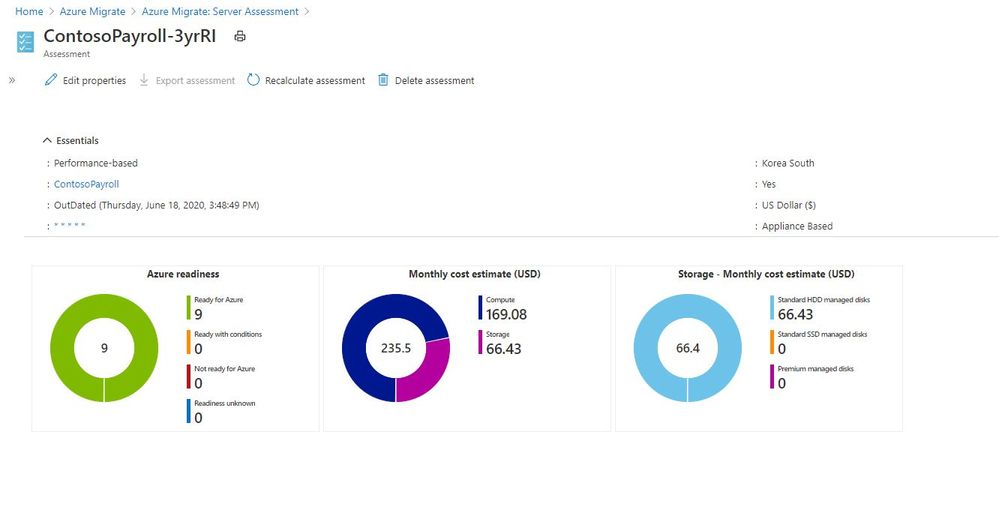 Azure Migrate Report
But the thing with analysing data, everyone likes to see it that bit differently. And the Azure Migrate team have a new offering, in the form of PowerBI templates you can now use to visualise the data slightly differently. They’ve also released some PowerShell Modules to help interact with REST APIs to help you pull out the data to use within PowerBI.
PowerBI Assessment Utility
The first PowerBI and PowerShell Module that they’ve released is called the Assessment Utility. This utility is designed to compliment the Azure Migrate: Server Assessment solution. Currently you can go into the Azure Portal and create a group of machines, and assessments for those group, then compare costs based on things like sizing, Reserved Instance, Hybrid benefits, etc this new utility helps to automate those activities and visualise the cost estimates across multiple assessments. With this new utility the PowerShell script creates 12 different assessments using combinations of sizing criteria, Reserved Instances and Hybrid benefits, that can then be visualised within PowerBI.
You can find the documentation on how to use this new utility here.
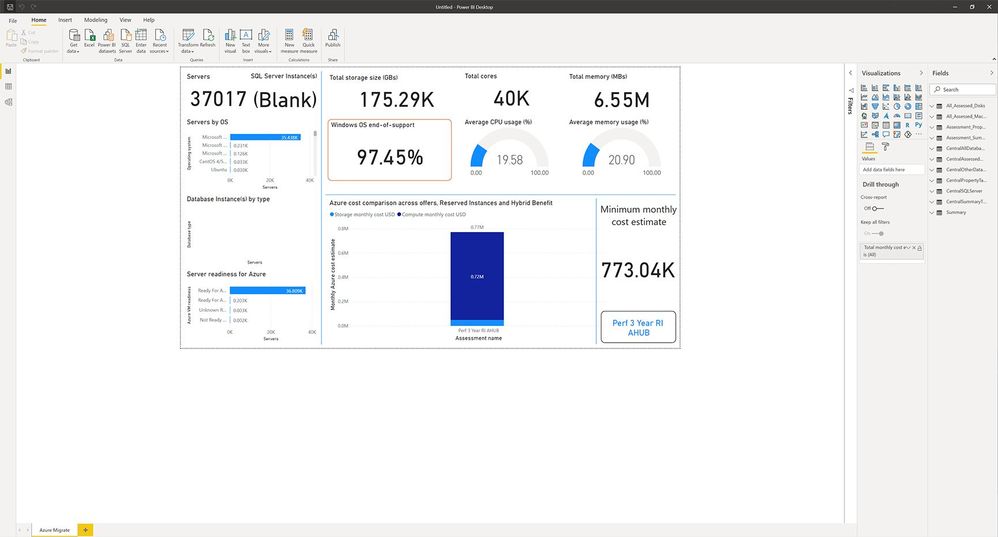 Sample Output from Assessment Utility PowerBI
The data being viewed in this PowerBI report is the same data within Azure Migrate, just in another format. This view is giving you an at a glance view of what your server estate looks like in terms of operating systems within it and also things like Average CPU usage across those servers.
With the quick glance data regarding your operating system estate you can easily see what servers are candidates for upgrade or modernisation or in the case of Windows Server 2008 the opportunity to migrate to Azure and give yourself more time to plan for the future or give these servers a bit more life while still receiving security patches.
Having data such as the average utilsation view across your estate gives you an indication on how much optimisation and saving opportunities you have, and hopefully a great insight into why you should consider running a performance based right sizing report using Azure Migrate before migrating.
Dependency Mapping
Dependency mapping or understanding how all your existing servers and workloads interact is really important when you are thinking about migrating your workloads to the cloud or anywhere else to be honest. You need to know what will be affect if you move a server somewhere else, what relies on that, what requires fast latency, etc etc, the consequences go on.
Digging into this kind of information gathering and then analysis can be time consuming, but it’s one of those steps that are totally worth it. I’ve seen customers uncover dependencies they didn’t know about because documentation and communication within their departments hasn’t been great or colleagues have put in something temporarily and it’s become a production workload.
When you use Azure Migrate: Server Assessment dependency analysis you can visualise the data and interact with the data there. However, this new PowerBI template gives you another option to help visualise the data and interrogate it.
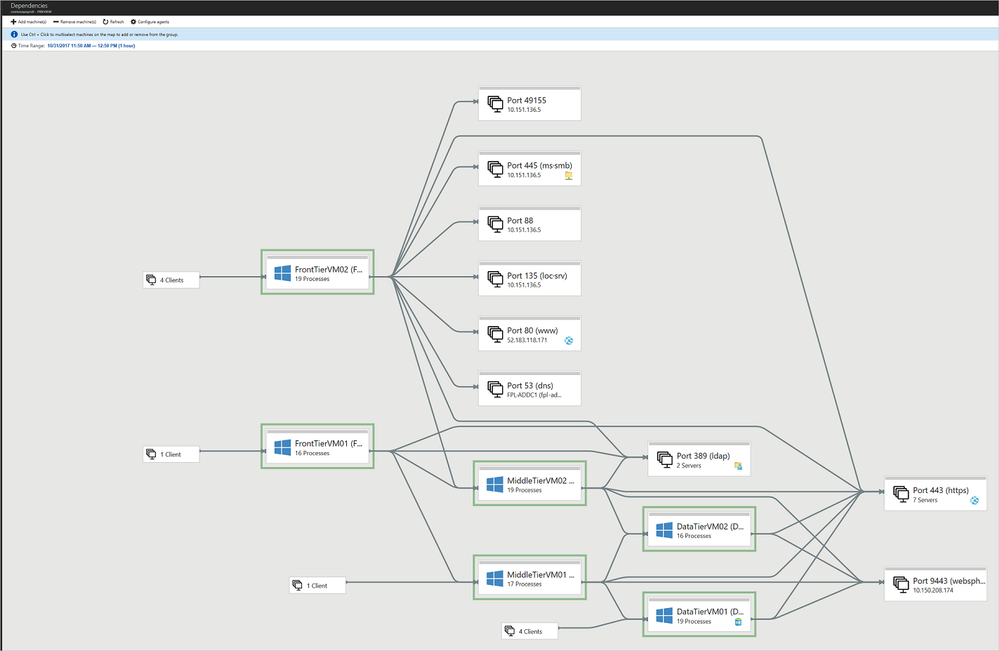 Azure Migrate Dependency Mapping
The team have also released a PowerShell module that goes along with this new PowerBI visual, which can help you get a list of discovered VMware machines and enable or disable dependency analysis on a large number of machines.
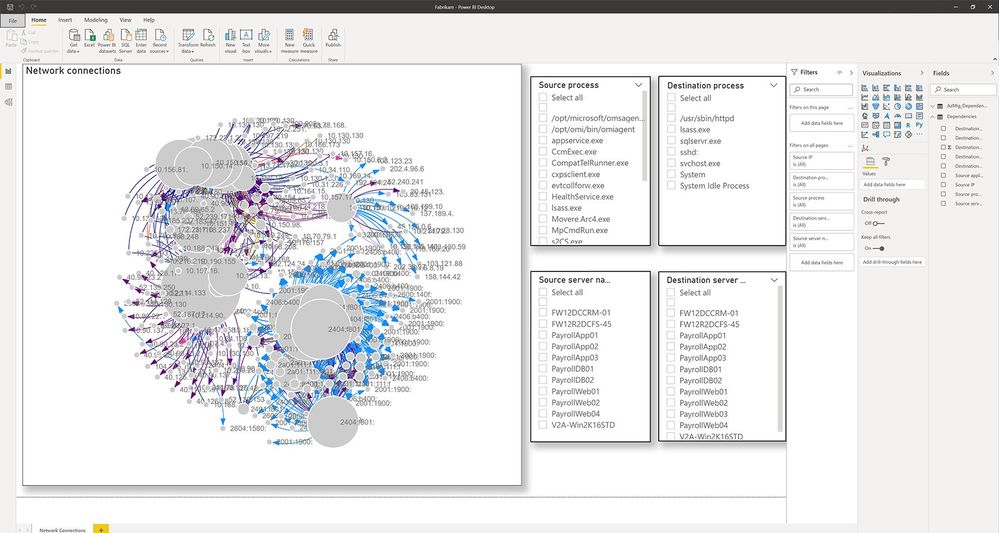 Dependency Mapping PowerBI Output
If you are working on a migration project or even just looking to gather more information about your environment give these new tools a go and let us know your feedback!
by Contributed | Oct 22, 2020 | Technology
This article is contributed. See the original author and article here.
Final Update: Thursday, 22 October 2020 06:02 UTC
We’ve confirmed that all systems are back to normal with no customer impact as of 10/22, 05:25 UTC. Our logs show the incident started on 10/22, 04:20 UTC and that during the 1 hour 5 minutes that it took to resolve the issue, some customers may have experienced intermittent data latency, data gaps and incorrect alert activation for the resources hosted in Central US region. This impact is limited to customers using Log Analytics.
- Root Cause: The failure was due to issues with one of our dependent service.
- Incident Timeline: 1 Hours & 5 minutes – 10/22, 04:20 UTC through 10/22, 05:25 UTC
We understand that customers rely on Log Analytics as a critical service and apologize for any impact this incident caused.
-Madhav

by Contributed | Oct 21, 2020 | Technology
This article is contributed. See the original author and article here.

by Contributed | Oct 21, 2020 | Technology
This article is contributed. See the original author and article here.
See how deploying Surface Duo in a health care environment helps medical professionals in this video on the growing impact of telehealth and telemedicine.
One of the big challenges right now is real estate. It’s difficult to really see a lot of what you need to see to do your job in medicine when you just have six inches of space. If you can have double that, if you have the ability to see multiple views, I think it makes it much easier to actually have a device in a hospital setting.
– Charles Drayton, Chief Technical Architect, Microsoft
I so often find myself talking to somebody and wanting to see something else and not being able to do that on a phone very easily.
– Clifford Goldsmith, M.D. US Chief Medical Officer, Microsoft
by Contributed | Oct 21, 2020 | Technology
This article is contributed. See the original author and article here.
Microsoft Teams Community,
We’re back with the second video in our Kitchen Table Admin series, an Introduction to Microsoft Audio Conferencing, or meeting dial-in. We get a LOT of support volume on this topic and we hope to clear up some of the most common questions and issues we hear from Teams Administrators when first setting up this feature set.
Demo starts at about 0:53 into the video. This is level 50/100 stuff here, so if you’re already familiar with Microsoft Audio Conferencing and using the feature, this information should be well known to you. However, if you’re just getting started, check out the video we hope it is helpful to you.
As always we welcome your feedback in the blog comments. We’re especially interested in topics you’d like to have us cover in a future video.
Thanks for watching!
by Contributed | Oct 21, 2020 | Technology
This article is contributed. See the original author and article here.
Today, I worked on an interesting service request where our customer tried to connect using the FQDN of their private link endpoint – servername.privatelink.database.windows.net and our customer got the error: Error 0 – The target principal name is incorrect. Why?
Here we have two issues to explain:
- First of all, when you created a private link there is not needed to connect to the server using the FQDN private link, basically, you need to pay attention in how you have created the private link. If you enabled the Private DNS for a specific VNET and Subnet, you are going to have a new entry in your DNS with the new IP resolution of you Azure SQL Database servername.database.windows.net. If you didn’t enable this private DNS or you didn’t allow to update the DNS entry, the resolution will be the public IP. For this reason, it is very important to know this first thing. Please, always check the DNS resolution when you have enable a private endpoint.
- Second, when you establish the connection to Azure SQL Database, in order to encrypt the data, our gateway encryt this using the certificate that we have for the domain *.database.windows.net. For this reason, if you tried to connect servername.privatelink.database.windows.net you are going to have this error message about “Error 0 – The target principal name is incorrect” if you want to skip this validation, basically you need to specify in your connection string the parameter “Trust Server Certificate” and you would be able to connect. But, my recomendation is always use the servername.database.windows.net and configure correctly your DNS to prevent any additional problem.
Enjoy
by Contributed | Oct 21, 2020 | Technology
This article is contributed. See the original author and article here.
Today, I got a very good question from a customer that they want to connect using Azure SQL DB to several tables of Azure Synapse using External Tables. Following I would like to share what was the lessons learned and how I was able to connect.
1) First of all, following I would like to share with you that script that I used to connect to Azure Synapse.
CREATE DATABASE scoped CREDENTIAL CredentialJM WITH IDENTITY  ='UserNameToConnect'
, SECREt = 'Password'

CREATE EXTERNAL DATA SOURCE [RemoteData] WITH (TYPE = RDBMS, LOCATION = N'servername.database.windows.net', CREDENTIAL = [CredentialJM], DATABASE_NAME = N'databasename')
GO
CREATE EXTERNAL TABLE [dbo].[TableNameSynapse]
([id] [int] NOT NULL)
WITH (DATA_SOURCE = [RemoteData])
2) Finally, I was able to run and obtain data from the table TableNameSynapse without issues.
3) Just wanted to comment one thing that it is very important, even if you create a PrivateLink for Synapse server and you specified in the firewall Deny public network access, always the connection will be stablished from the Azure public IP of the machine that is running your Azure SQL Database never with the private IP. Remember that the Private Link is for incoming connection request not outbound connection request.
Enjoy!









Recent Comments