by Contributed | Nov 10, 2020 | Technology
This article is contributed. See the original author and article here.
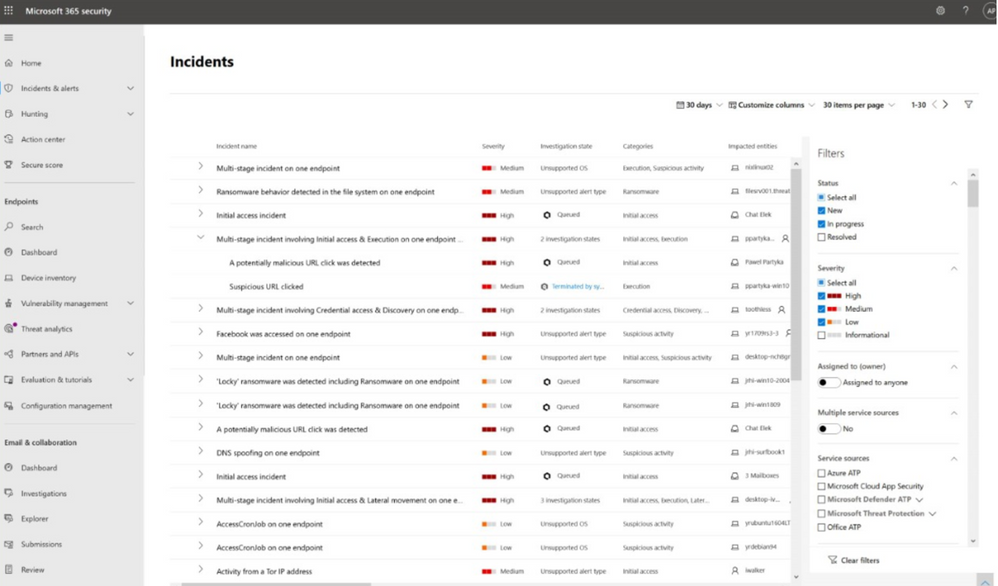
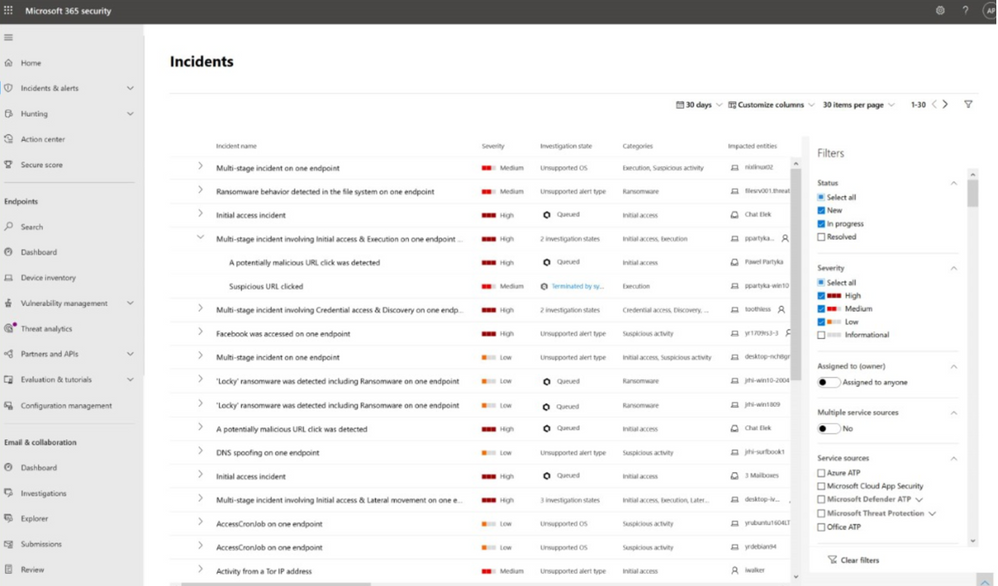
If you enjoyed working on alerts in the alert queue of Microsoft 365 Defender or Microsoft Defender for Endpoint, we are excited to tell you that we have expanded the features of our incident queue. Now you can benefit from the sophisticated incident correlation logic of the incident queue without losing the capabilities you had in the alert queue.
This includes:
- Nested list of alerts grouped by incident
Enables you to quickly view which alerts make up each incident and easily drill down to each alert
- Extended list of filters
Improves your ability to analyze incidents using more types of filters including investigation state, device groups, OS platforms, and more
- Full alignment with Microsoft Defender for Endpoint alert queue
The new and improved incident queue now includes all the related alerts within the same queue. This means that right from the incident queue you can view all the associated alerts and open them directly. We also added more valuable columns like investigation status and device groups, filter capabilities that applies on the incidents based on any of the alerts’ attributes including investigation state, alert status, classification and more.
This capability can help you quickly assess, narrow down, and prioritize among incidents. For example, you can filter the incidents by device group to immediately see if sensitive devices have been affected–and spend your first few hours of the day analyzing those.

by Contributed | Nov 10, 2020 | Technology
This article is contributed. See the original author and article here.
Microsoft Endpoint DLP is a unified and integrated experience to protect sensitive information used by information workers every day.
The new reality of significant numbers of employees working from home or other remote locations indefinitely has created renewed emphasis on providing strong, coordinated, and unified protections across all user touchpoints with sensitive data.
Microsoft continues to invest in developing cutting-edge information protection solutions for our customers. Microsoft Information Protection (MIP) is a built-in, intelligent, unified, and extensible solution to know your data, protect your data, and prevent data loss across an enterprise – in Microsoft 365 apps, services, on-premises, devices, and third-party SaaS applications and services. Microsoft’s Data Loss Prevention (DLP) is a core element of MIP that extends data protection to common egress points.
Organizations rely on Microsoft DLP to enforce policies that identify and prevent risky or inappropriate sharing, transfer, or use of sensitive information consistently across cloud, on-premises and endpoints. We are thrilled to announce several new DLP capabilities today.
Microsoft Endpoint DLP – General Availability
First, we are excited to announce the general availability of Microsoft Endpoint Data Loss Prevention.
With Microsoft’s Unified DLP, and now Endpoint DLP, your organization can further reduce dependencies on individual and uncoordinated solutions, moving from disparate set of tools to a unified solution to monitor user actions, remediate policy violations, and educate users in context on the correct handling of sensitive data at the endpoint, on-premises, and in the cloud.
Seamless protection
Endpoint DLP provides a familiar user experience, seamless deployment, integrated insights.
A familiar user experience
No matter where DLP is applied, users have a consistent and familiar look and feel they are already accustomed to from the applications and services they use every day. Endpoint DLP also reduces end-user training time and alert confusion, increasing user confidence in prescribed guidance and remediations, and improving policy compliance – without impacting productivity.
 Figure 1: Familiar User Experience – User notified of an unapproved copying of sensitive text in Office
 Figure 2: Familiar User Experience – User notified of an unapproved copying of sensitive file in Edge
Seamless Deployment
Endpoint DLP is a cloud-managed solution that is built into Microsoft 365 Compliance Center. Built natively into Microsoft’s Unified DLP solution, it’s easy to extend your existing DLP policies and custom sensitive content identifiers to endpoint devices without extensive reconfiguration.
Broad classification support
Endpoint DLP uses the same classification technology as our other MIP solutions, providing consistent discovery of sensitive content across Microsoft 365 Apps (Office 365), Exchange, OneDrive, SharePoint, and Microsoft Teams. With over 100 sensitive information types and built-in policy templates, it’s easy to turn on Endpoint DLP to identify sensitive data across common industry regulations and compliance-related data types.
Integrated Insights
Insights on activity with sensitive data on the endpoint start flowing to the Security and Compliance solutions like MIP’s Data Classification dashboard, Microsoft Defender for Endpoint, and Insider Risk Management as soon as onboarding has been completed, and before any DLP policy is deployed. These insights provide comprehensive coverage and visibility of active data protections, device states, and user actions that may be required by organizations to meet regulatory and policy compliance. Furthermore, they can be used to help identify the most critical needs for DLP policies and can assist in guiding DLP policy creation priority.
Microsoft DLP alerting management – Public Preview
We are excited to announce the public preview of a DLP alert management experiences in Microsoft 365 compliance center – a single place to view an manage DLP alerts. Alerts provide details on DLP events including the sensitive information types detected in the content, confidence score rating and event count to further assist DLP reviewers in quickly identifying high risk events and to more effectively manage event triage and remediations.
This latest addition to Microsoft’s DLP solution provides customers with direct visibility into DLP policy enforcement activity in Exchange, SharePoint, OneDrive, Teams, and Devices.
Advanced DLP alert options are configured in the existing DLP policy authoring workflow. These provide eligible DLP customers with the ability to tailor how they organize and display DLP policy enforcement event alerts with the information they need to investigate and address DLP policy violations quickly. Historical workflow information for alerts is available in the Management log.
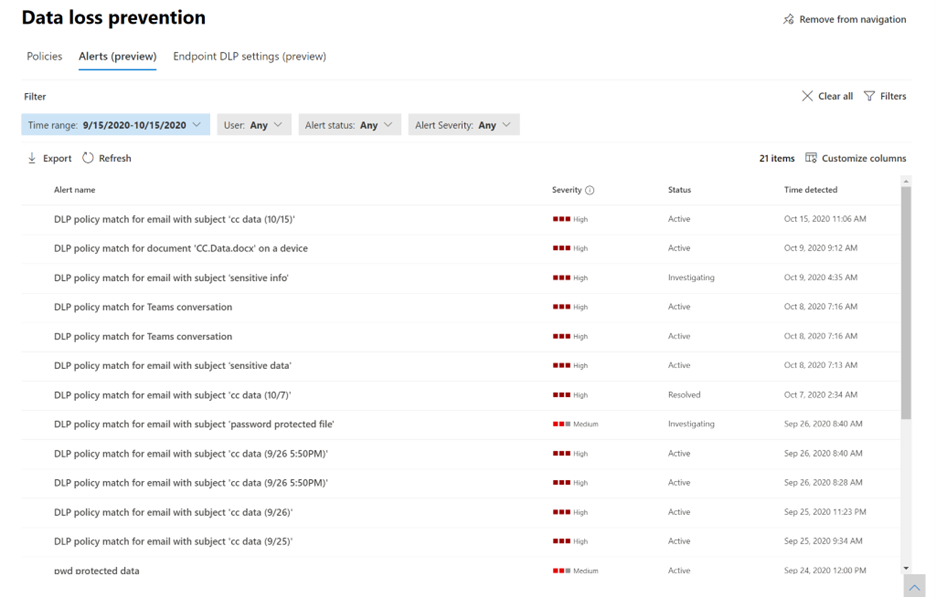 Figure 3: Data Loss Prevention Event Alerts
Individual alerts provide exhaustive metadata associated with the DLP policy violation, change alert status (Active, Investigating, Dismissed or Resolved), include additional comments entered by reviewers and defined workflow actions such as assigning alerts to individuals for follow up.
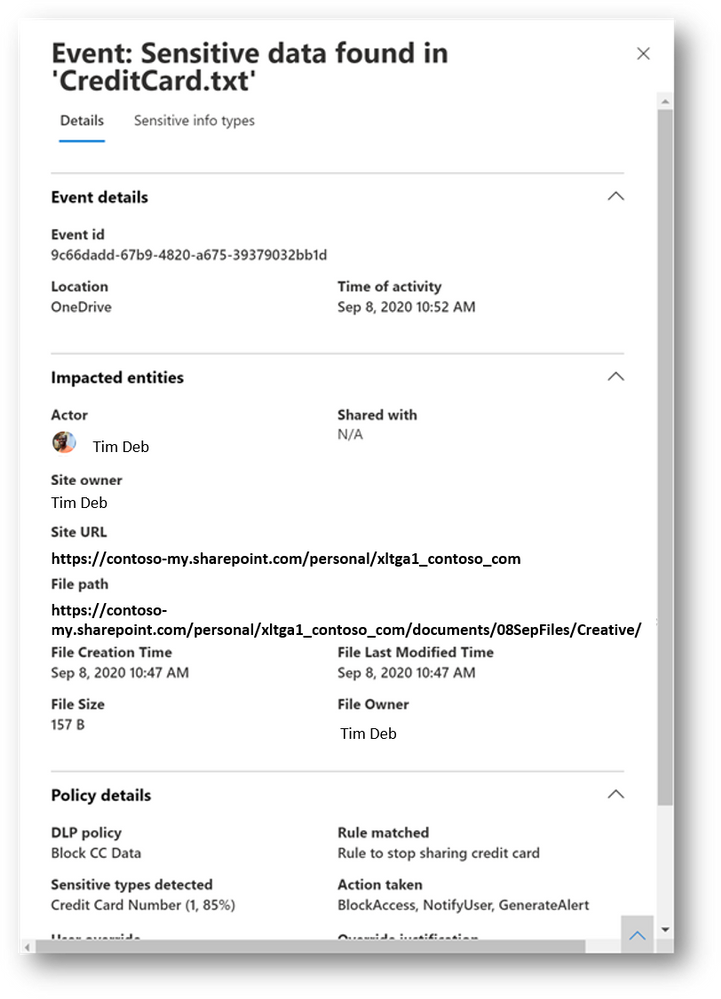 Figure 4: Data Loss Prevention Event Alert Details
Alerts can trigger notifications to keep your administrators informed when DLP policy violations occur. For more advanced scenarios, eligible customers can turn on threshold-based alerts that will keep them informed when a combination match occurs over a period of time or over a specified amount of data.
For customers interested in learning how to extend DLP activity and alerts to their SIEM for advanced incident management, an example using Sentinel is available here.
Sensitivity label-aware DLP policies
One of the leading capabilities within MIP is sensitivity labels.
Sensitivity labels allow you to classify data according to sensitivity such as Public, General, Confidential, Highly Confidential or any other sensitivity label created by the organization to meet its needs. This sensitivity information is added to the file information and is used to guide users, applications and services in how to handle and use sensitive data such as:
- Protect content in Microsoft 365 Apps across different platforms and devices
- Enforce protection settings such as encryption or watermarks on labeled content
- Protect content in third-party apps and services
- Extend sensitivity labels to third-party apps and services
- Classify content without using any protection settings
- Expand the quality of insights to intelligently flag potential insider risks
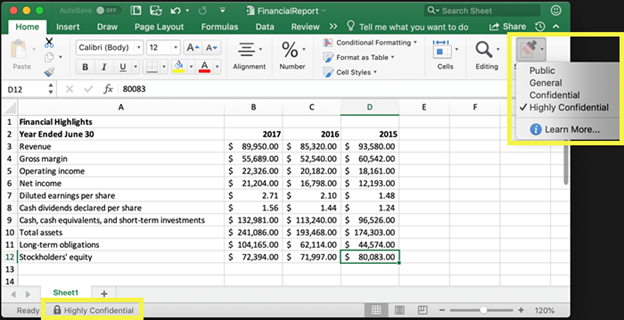 Figure 5: Sensitivity label in Microsoft 365 Apps – Excel
With the announcement of sensitivity labels as a condition for Microsoft DLP policies, you can now define new enforcement actions and locations that take into account the sensitivity context of information to better meet protection requirements.
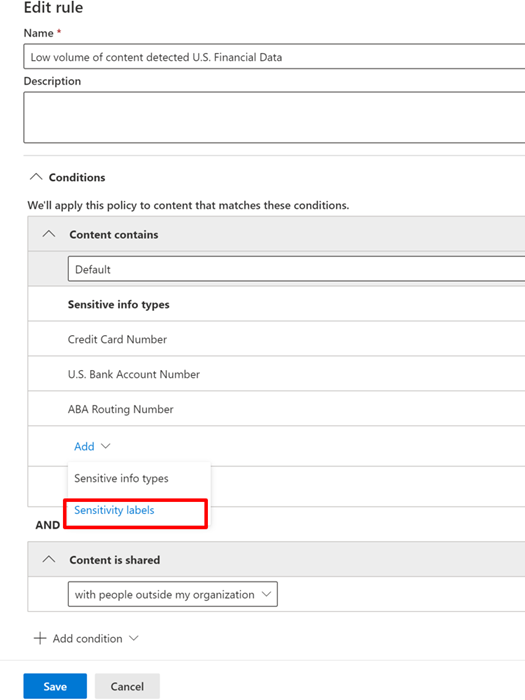 Figure 6: Choosing a sensitivity label as a condition in a DLP policy
DLP policies using sensitivity labels apply to Exchange Online email messages, SharePoint Online, OneDrive for Business, Teams and Windows 10 devices.
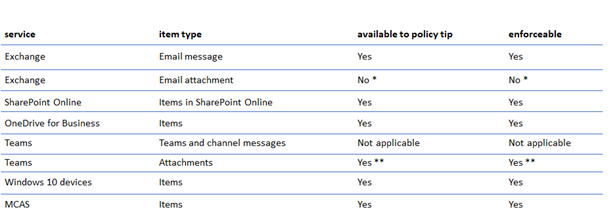 Figure 7: Supported services, items, policy tips and enforceability
Advanced Controls in DLP for Email protection – Public Preview
Those of you familiar with using existing Exchange Transfer Rules (ETR) to define special handing actions for email messages matching the rules can now implement these controls directly in Unified DLP for Exchange! You can use the same conditions, exceptions, and DLP-related actions you’re familiar with from ETR to enhance and extend your Unified DLP Email policies with even more fine-grained controls.
The new conditions and exceptions announced in public preview enhance the already existing capabilities in DLP. (See highlighted in Figure 7. New Conditions and Exceptions) These provide the ability to give additional granular control over the scoping and application of a DLP policy and ensure policies are applied as intended.
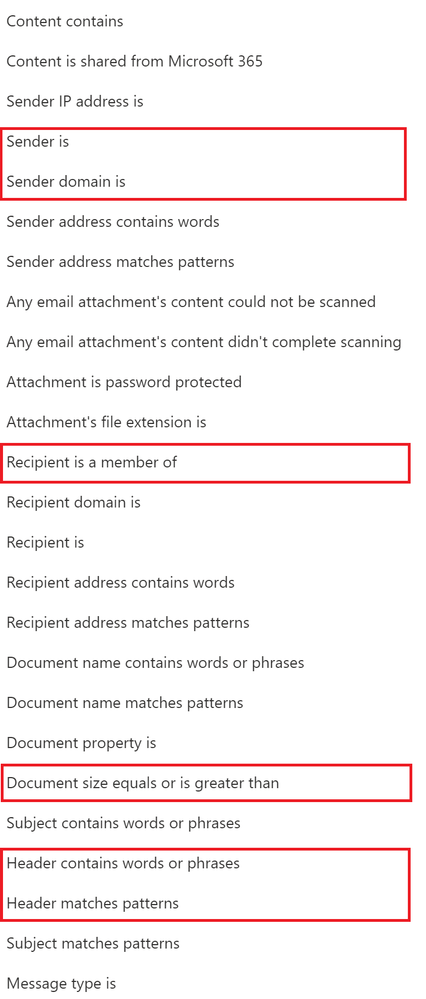 Figure 8: New Conditions and Exceptions for Email
New actions to enforce email DLP controls from a Unified DLP policy. (See highlighted in Figure 8. New Actions)
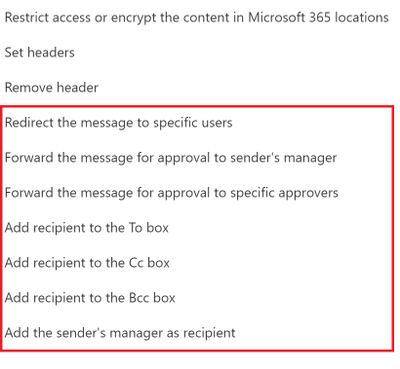 Figure 9: New DLP Actions for Email
GET STARTED
Microsoft’s DLP solution is part of a broader set of Information Protection and Governance solutions that are part of the Microsoft 365 Compliance Suite. You can sign up for a trial of Microsoft 365 E5 or navigate to the Microsoft 365 compliance center to get started today.
Additional resources:
- For more information on Data Loss Prevention, please see this and this
- For videos on Microsoft Unified DLP approach and Endpoint DLP see this and this
- For a Microsoft Mechanics video on Endpoint DLP see this
- For more information on DLP Alerts and Event Management, see this
- For more information on Sensitivity Labels as a condition for DLP policies, see this
- For more information on Sensitivity Labels, please see this
- For more information on conditions and actions for Unified DLP, please see this
- For the latest on Microsoft Information Protection, see this and this
Thank you,
Maithili Dandige, Principal Group Program Manager, Microsoft Information Protection and Compliance Engineering
Eric Ouellet, Senior Product Marketing Manager, Microsoft Compliance
by Contributed | Nov 10, 2020 | Technology
This article is contributed. See the original author and article here.
This is a guest post by Nikhil Gupta, Partner Solutions Architect, Databricks
As customers start to move towards the lakehouse paradigm one of the necessary requirements is to have data stored in a format that is open sourced and provides properties such as transaction support, schema enforcement/governance and BI support. Delta stands out on all the above requirements and thus becomes the best in class format for storing your data in Azure Data Lake Store.
Delta is an open-source storage layer on top of your data lake that brings ACID transaction capabilities on big data workloads. In a nutshell, Delta Lake is built on top of the Apache Parquet format together with a transaction/change log mechanism. This enables Delta Lake to overcome challenges traditional parquet has in terms of delete, upserts, merge, etc. while providing additional capabilities such as time travel.
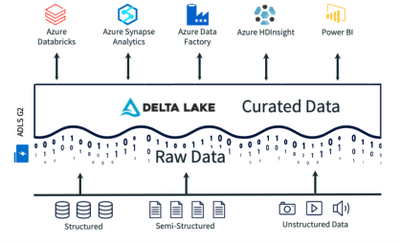
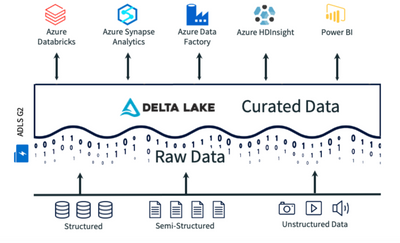
So as per the architecture diagram below, once the data in the data lake is stored in Delta Format it can be accessed by a variety of Azure services.
How does Delta integrate with other Azure Services?
- Azure Databricks: Azure Databricks natively supports Delta Lake. With Azure Databricks you can use many enhanced capabilities such as Delta caching. With Azure Databricks you can use SQL, Python, R or Scala to query the delta lake. We would recommend going through below blogs to get more insights into Delta Lake with Azure Databricks:
- Azure Synapse Analytics: Azure Synapse Analytics (Spark component in public preview) is compatible with Linux Foundation Delta Lake so you can use Synapse Spark to read and write data in your data lake stored in Delta format. The current version of Delta Lake included with Azure Synapse has language support for Scala, PySpark, and .NET.
- Azure Data Factory: Azure Data Factory (ADF) supports Delta Lake in the following ways:
- Copy activity supports Azure Databricks Delta Lake connector to copy data from any supported source data store to a Azure Databricks Delta Lake table, and from Delta Lake table to any supported sink data store.
- ADF mapping data flows support generic Delta Lake format on Azure Storage as source and sink to read and write Delta files for code-free extract, transform and load (ETL), and runs on managed Azure Integration Runtime (IR).
- Azure Databricks Notebook Activities support orchestrating your code-centric ETL or machine learning workload on top of Delta Lake.
Azure HDInsight: Azure HDInsight supports both Apache Spark and Hive. You can connect to a Delta Lake by downloading relevant open source drivers.

by Contributed | Nov 10, 2020 | Technology
This article is contributed. See the original author and article here.
Open Azure Day | Microsoft Azure
Wednesday, November 18, 2020, 10:00 AM–1:00 PM Pacific Time
Run Linux apps your way on Azure

Learn to natively run Linux and open source in the cloud—and push your apps and data to the next level. Join this free digital event to hear about the latest trends and best practices for running Linux on Azure from Microsoft insiders and partners, including Red Hat, SUSE, Canonical, HashiCorp, Elastic, Cloudera, VMware, and Redis Labs.
Join us to hear from Microsoft Scott Guthrie, Sarah Novotny and Brenden Burns
Linux, and open-source insiders. Featured speakers include Matt Hicks, EVP of Red Hat; Armon Dadgar, Co-Founder of HashiCorp; Dr. Thomas Giacomo, President of SUSE; Steve Maziak, Field CTO of Elastic; and Arun Murthy, CPO of Cloudera.
Register for this free digital event to:
- Find out how to increase workload performance and security while optimizing IT costs.
- Explore updates in enterprise-class Linux, containers, and hybrid and multicloud technology.
- See tools and platforms in action, including Azure Arc, OpenShift, Rancher, Terraform, Elasticsearch, Cloudera, and GitHub.
- Discover how to make the Microsoft partner ecosystem for Linux and OSS on Azure work for you.
- Hear about real-life customers who boosted productivity by running their mission-critical Linux workloads on Azure.
You’ll also have the chance to ask experts your questions and connect with your peers in the live chat.
by Contributed | Nov 10, 2020 | Technology
This article is contributed. See the original author and article here.
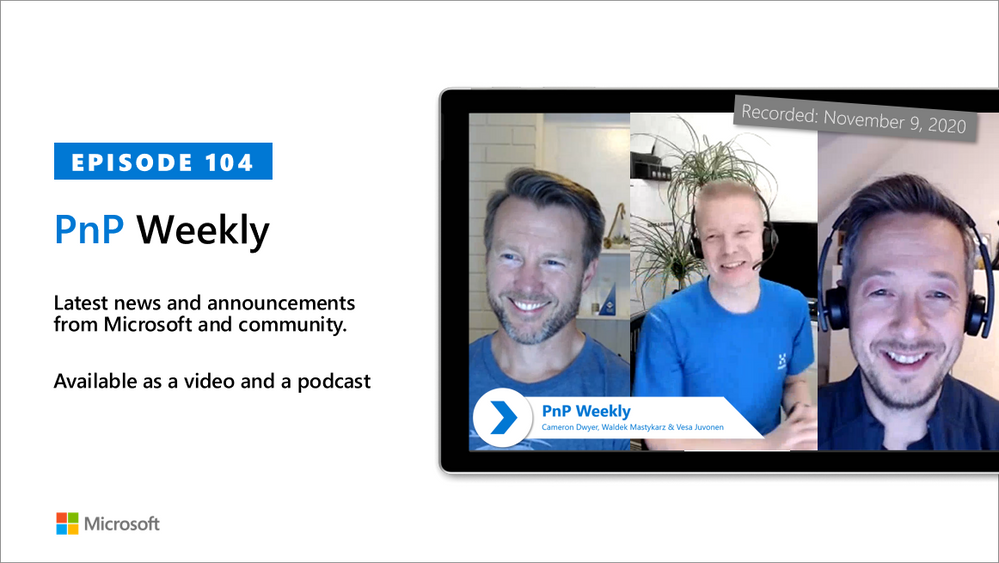
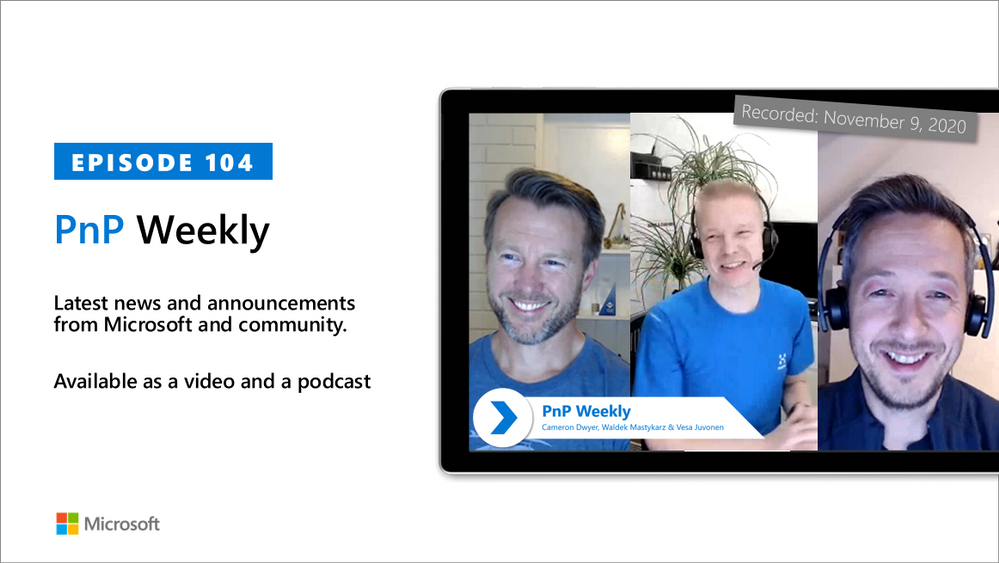
In this installment of the weekly discussion revolving around the latest news and topics on Microsoft 365, host – Vesa Juvonen (Microsoft) | @vesajuvonen is joined by Cameron Dwyer (OnePlace Solutions) | @CameronDwyer – CTO and Office Development MVP at OnePlace Solutions, located in Sydney, Australia. Differences between the ISV – SAAS product developer and the Corporate Developer are considered during this session.
Topics broached include the selection of tools and methods for UX dev layer, API layer, discovery with Microsoft Graph, real web components, authentication and identity across workloads, and more. Insights and challenges when moving from consulting to products and from product license management to a subscription-based model were shared. Why should partners consider the Microsoft 365 ecosystem? Pretty clear reasons are called out in this episode.
Twelve recently released articles and videos from Microsoft and the PnP Community are highlighted in this session as well.
This episode was recorded on Monday, November 9, 2020.
Did we miss your article? Please use #PnPWeekly hashtag in the Twitter for letting us know the content which you have created.
As always, if you need help on an issue, want to share a discovery, or just want to say: “Job well done”, please reach out to Vesa, to Waldek or to your PnP Community.
Sharing is caring!
by Contributed | Nov 10, 2020 | Technology
This article is contributed. See the original author and article here.
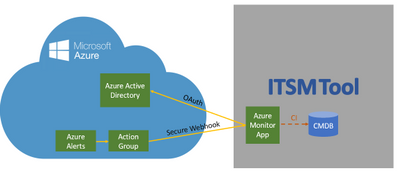
The ServiceNow ITOM connector provides an upgraded new integration between Azure Monitor and ServiceNow® Event Management to help bring Azure telemetry events seamlessly into ServiceNow ITOM Health with its AIOps capabilities such as event correlation, root cause analysis and service impact analysis, to help you maximize performance and availability of your applications and proactively identify problems.
One of the main improvements of the new integration, also referred to as “Secure Export”, is a more secure authentication due to its use of Azure Active Directory (AAD).
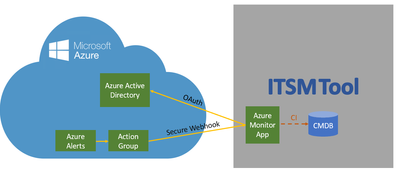
Customers who choose this integration will have a single view of events in ServiceNow® Event Management to achieve unified management in hybrid cloud environments (e.g. on-prem and Azure cloud). Customers will be able to have one common process to handle events and review operational and delivery processes, thus achieving faster issue resolution. Ultimately, customers will be able to benefit from a unified KPI management system and be able to define common global goals in the organization using ServiceNow® Event Management.
Enterprises typically start their event management journey by consolidating events from multiple monitoring tools. Collectively, these tools can generate hundreds of thousands—or even millions—of events every day. Event management systems need to collect and process these huge event volumes in real time without losing events or causing delays whether they occur on-premises or in the cloud. To ensure ServiceNow® Event Management and Microsoft Azure continue to serve our joint customers’ most demanding environments, we are announcing enhancements to our ServiceNow Event Management and Azure Monitor integration.
The new ServiceNow Event Management Connector integrates with Microsoft Azure Monitor and includes these key enhancements:
- A secured integration which leverages Azure Active Directory – Safely integrate Azure Monitoring and ServiceNow Event Management using Active Directory based authentication and authorization. Register ServiceNow as a trusted application in the Microsoft identity platform which is authenticated using OAuth with Azure Active Directory using “Secure Export” action group.
- A dedicated listener and transformation of Azure events to ServiceNow Event Management events – Out of the box dedicated end point for receiving Azure events and transforming them into ServiceNow events
- Deduplication of Azure events and mapping to ServiceNow Event Management alerts – Deduplicate and correlate multiple Azure Monitor events to a single actionable ServiceNow alert leveraging ServiceNow AIOps capabilities, including finding unexpected and unusual behaviours and resolve them, even before the end users call and report them to the helpdesk.
- Bind Azure-generated alerts to CI and perform impact analysis on your monitored services – Creating and or updating ServiceNow alerts, binding them to a CI in the CMDB and performing an impact analysis to realize the impact on the monitored service
- Creation of actionable alerts and allowing incident creation using out the box Alert Management rules – Orchestrating the incident creation in ServiceNow by applying out-of-the-box Alert Management rules. Incident is automatically created with the right information bubbled up from Azure Monitor to ServiceNow Event Management and to Incident Management.
- Single view of tickets in one central system where the customer can centrally monitor and manage work items in his ServiceNow Service Management product.
The new Event Management Connector and Azure Monitor integration is available in the ServiceNow Store in the Event Management Connectors app.
For further information:
by Contributed | Nov 10, 2020 | Technology
This article is contributed. See the original author and article here.
Hello folks,
Lately I’ve been building and tearing down complete environments in Azure to test and record demos. To do that I’ve been using a combination of PowerShell scripts, ARM templates and AzureCLI scripts in the Azure Cloud Shell. Some of those scripts require a significant amount of time to run. (especially the ones with gateways).
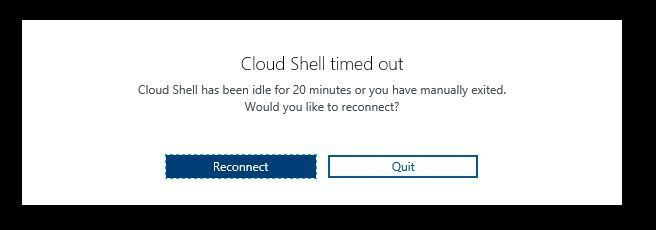
The last time I setup my demo environment I started the process, went to the kitchen for a cup of coffee and came back to my desk to the dreaded Cloud Shell timed out message.

A fit of rage and despair filled my heart….

Once I regained my calm, I started to thing that there must be a way to avoid this issue with the Azure Cloud Shell 20-minute timeout… We know that the cloud shell is intended for interactive use cases. Therefore, any long-running non-interactive sessions are ended WITHOUT warning.
I started researching way to run the shell locally. I already knew that I could run the shell in a Windows Terminal but that would not solve my issue since this basically presents the online Azure cloud Shell inside the terminal windows.
Some background on Azure Cloud Shell. It runs in the background on a virtual machine and provides your Cloud Shell session. That VM is temporary, and it is recycled after your session is inactive for 20 minutes in order to insure we (Microsoft) have enough capacity for everyone.
I found an open sourced image in a Microsoft public Azure Container Registry. Its our primary Registry for all Microsoft Published docker images.
I am now using this image locally to take advantage of all the benefits of using the managed environment and tooling available through the Azure Cloud Shell without the limitation of running it in the cloud.
Those benefits are a great pre-configured shell experience for managing Azure resources without the overhead of installing, versioning, and maintaining all the tooling on my own machine.
There are other reasons you might want to run the shell locally. For example, if your security team has disabled access to Cloud Shell from your network for your users you could use it locally. Cloud Shell utilizes access to the ux.console.azure.com domain, which can be denied, stopping any access to Cloud Shell’s entry points including portal.azure.com, shell.azure.com, Visual Studio Code Azure Account extension, and docs.microsoft.com.
It’s not my issue but if you work in a large enterprise and require more than 20 concurrent sessions, you might also want to run this locally. Azure Cloud Shell has a limit of 20 concurrent users per tenant per region. If you try to open more sessions than your limit, you will get a “Tenant User Over Quota” error.
The solution
The solution to my issues ended up being a combo of different services and tools. I’m now running the Azure Cloud Shell on my Windows 10 workstation in a Docker container. (See the documentation here for installation).
I keep my code (scripts, ARM templates, code samples…) in an Azure Repo (you could use any code repo like GitHub or other…) and just clone it locally in a directory (I put mine on here E:azrshell).
I built a PowerShell script that I use to ensure I am running the latest image and to connect to an existing container should it already be running. (Code below)
function SelectShellType {
    DO {
        cls
        Write-Host "~~~~~~~~~~~~~~~~~~ Menu Title ~~~~~~~~~~~~~~~~~~" -ForegroundColor Cyan
        Write-Host "1: Enter 1 to select PowerShell"
        Write-Host "2: Enter 2 to select Bash"
        Write-Host

        $input = (Read-Host "Please make a selection").ToUpper()
        switch ($input) {
            '1' { $shellType = "/usr/bin/pwsh" }
            '2' { $shellType = "/bin/bash" }
        }
    } While ($input -NotIn 1..2)
    return $shellType
}

$results = $(docker ps -q --filter ancestor=mcr.microsoft.com/azure-cloudshell)
If ($results -ne $null) {
    Write-Host "container running..."
    Write-Host "connecting to container..."
    docker exec -it $results bash
}
Else {
    Write-Host "container not running"
    Write-Host "Updating container image..."
    Write-Host "Picking Shell Type"

    $StartShellType = SelectShellType
    $default = "E:azrshell"
    if (!($ScriptsLocation = Read-Host "Enter the path where your local scripts are located. Press Enter to accept the default = [$default]")) { $ScriptsLocation = $default }
    Write-Host "updating container image..."
    docker pull mcr.microsoft.com/azure-cloudshell:latest
    Write-Host "Starting container and connecting your shell..."
    Write-Host "Mapping your scripts directory in the container home drive to " $ScriptsLocation "..."
    Write-Host
    Write-Host "___________________________________________________________"
    Write-Host
    docker run -it -v ""$ScriptsLocation':/usr/cloudshell/scripts'"" mcr.microsoft.com/azure-cloudshell $StartShellType
}
I know it’s not the prettiest script and it could use some refinements, but it works as intended. I created a shortcut on my desktop and in my start menu with the following command.
"C:Program FilesPowerShell7-previewpwsh.exe" -ExecutionPolicy Bypass -File "c:UserspierrerDesktopAzrShell.ps1"
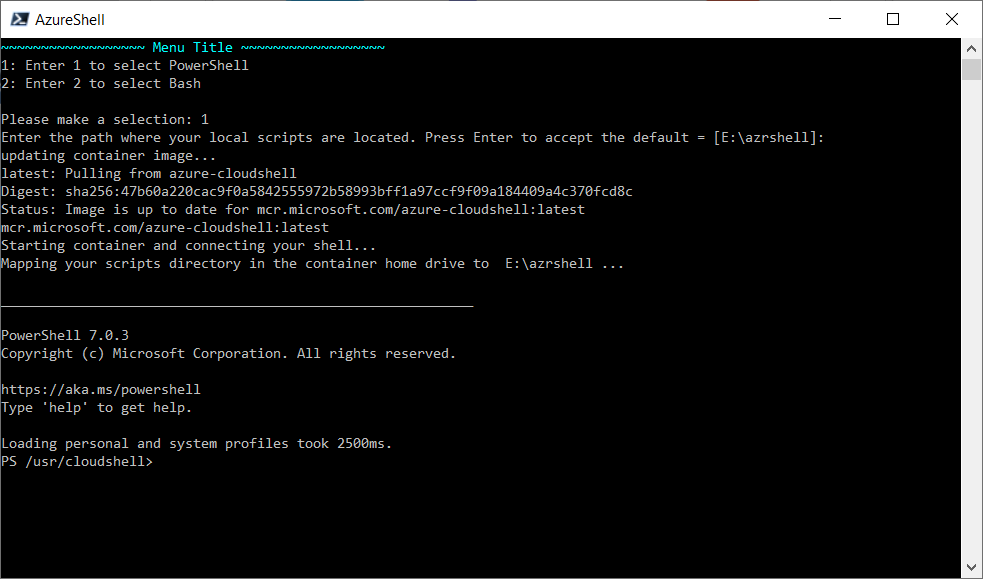
The open-source image I leverage has all the bits needed to run both the Bash shell and the PowerShell Core shell just like the one in the online shell.azure.com one. When I click on the shortcut the script will provides me a choice of shells and the opportunity to specify where the clone of my script repo is.
The first time running this script, will take about 5 minutes to completely pull the image and run the container.
If no update to the image is needed, it will load in seconds.
There are some of you who will ask “what’s the catch??” There must be some differences.
Well, yes there are some…
In Cloud Shell, we provide a way to automatically obtain tokens for the user connected to the shell. When you run the image locally, you’ll have to authenticate explicitly before you can access Azure resources using “az login” for AzureCLI or “Connect-AzAccount” for PowerShell.
We don’t mount the Cloud Drive from your Azure Cloud Shell. That’s why we mount a local drive in the container pointing to our local clone.
In Azure Cloud Shell you always run as a regular user. When running the image locally, you run as root. Therefore, you can make changes to the installed tooling.
The last main difference I found is the fact that in the Azure Cloud Shell, when using the PowerShell option, you have the Azure drive (Azure:) It enables easy discovery and navigation of Azure resources such as Compute, Network, Storage etc. like a filesystem navigation.
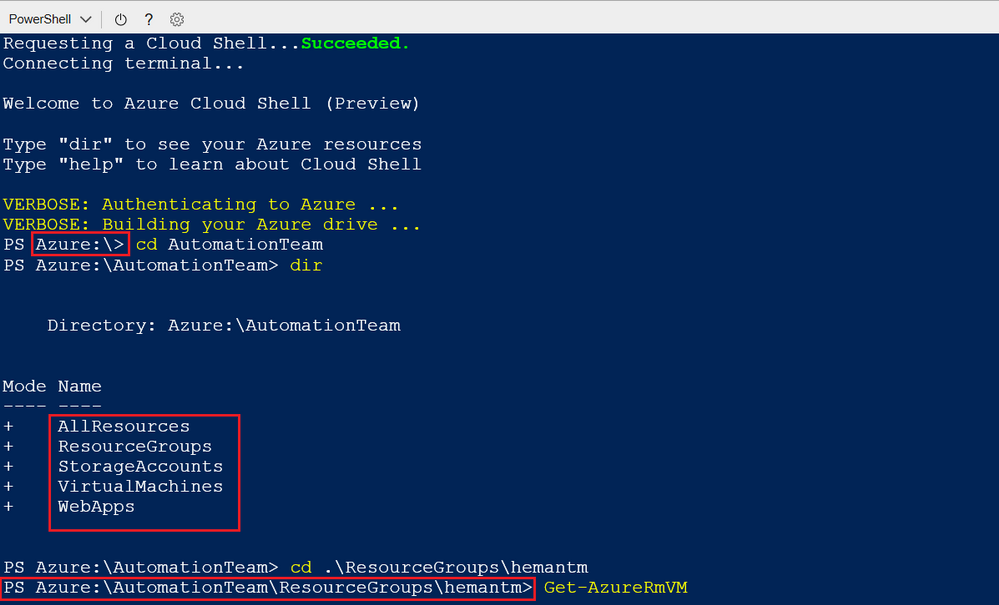
I hope this little story on how I addressed my own issue will help you get around some of the Azure shell restrictions that you may have.
Let me know in the comment below if you have scenarios, you’d like us to explore.
Cheers!
Pierre
by Contributed | Nov 10, 2020 | Technology
This article is contributed. See the original author and article here.
Scenario:
While trying to upload multiple blobs to the azure blob storage, there could be a scenario wherein you may have faced the below errors:
Error 1:
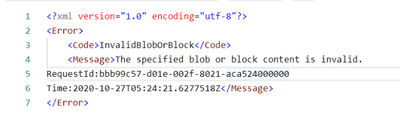
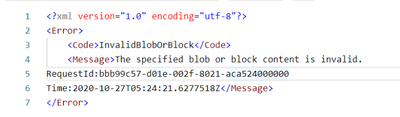
Invalid Block/Blob ‘The specified blob or block content is invalid’
Error 2:
The uncommitted block count cannot exceed the maximum limit of 100,000 blocks ErrorCode:BlockCountExceedsLimit
Error 3:
Invalid Block ‘The specified block list is invalid’
Cause:
For the Error 1
This can occur if the application / client specify a block size that is not supported.
Reference link for the Put Block REST API:
https://docs.microsoft.com/en-us/rest/api/storageservices/put-block#remarks
For the Error 2
This can occur if the application doing the copy is exceeding this limit during the copy or if there are some uncommitted blocks left from a previous copy that was canceled.
A blob can have a maximum of 100,000 uncommitted blocks at any given time.
Reference Link : https://docs.microsoft.com/en-us/azure/storage/common/storage-scalability-targets#azure-blob-storage-scale-targets
https://docs.microsoft.com/en-us/rest/api/storageservices/put-block#remarks
For the Error 3
This happens when you upload blocks with different applications and there are uncommitted blocks for which we don’t find same length as different application use different length to upload the data. This could have happened due to a previous upload that failed.
Resolution:
The issue that has been observed on both the above errors can be resolved by following either of the 3 methods:
Method 1:
Perform a GetBlockList (with blocklisttype=uncommitted) to retrieve the uncommitted block list, commit the block list, then delete the blob.
Method 2:
Create a dummy blob (can be of length zero) with the same blob name in the same container and transfer it using a non-blocked transfer
Method 3:
Wait 7 days for the uncommitted block list to garbage collect.
Tip :
You can also consider using Azure Blob Events.
The event is only triggered when a Put Blob or Put Block List is completed so you will know that the blob is fully committed before trying to take action on it.
This has the benefit of being notified of when a new blob is written and you can reference this blob directly without having to blobs in the container to find blobs that need action.
Reference Linkhttps://docs.microsoft.com/en-us/azure/event-grid/event-schema-blob-storage
Pre-Requisites:
- Azure Storage GPV2 / Blob Storage Account/ ADLSGEN2 account used with blob endpoint.
- Windows PowerShell
Action:
The below is a PowerShell script would help with the resolution mentioned on Method 1
Disclaimer :
By using the following materials or sample code you agree to be bound by the license terms below and the Microsoft Partner Program Agreement the terms of which are incorporated herein by this reference.
These license terms are an agreement between Microsoft Corporation (or, if applicable based on where you are located, one of its affiliates) and you. Any materials (other than sample code) we provide to you are for your internal use only. Any sample code is provided for the purpose of illustration only and is not intended to be used in a production environment. We grant you a nonexclusive, royalty-free right to use and modify the sample code and to reproduce and distribute the object code form of the sample code, provided that you agree:
- to not use Microsoft’s name, logo, or trademarks to market your software product in which the sample code is embedded;
- to include a valid copyright notice on your software product in which the sample code is embedded;
- to provide on behalf of and for the benefit of your subcontractors a disclaimer of warranties, exclusion of liability for indirect and consequential damages and a reasonable limitation of liability
- to indemnify, hold harmless, and defend Microsoft, its affiliates and suppliers from and against any third party claims or lawsuits, including attorneys’ fees, that arise or result from the use or distribution of the sample code.”
Perform a GetBlockList (with blocklisttype=uncommitted) to retrieve the uncommitted block list and then delete the blob.
[CmdletBinding()]
Param(
#Please enter storage account name
[Parameter(Mandatory=$true,Position=1)] [string] $StorageAccountName,
#Please enter Shared Access Signature <SAS token > generated with the permissions <ss=b;srt=sco;sp=rwldc>
[Parameter(Mandatory=$True,Position=1)] [string] $SharedAccessSignature,
#Please enter storage Container name
[Parameter(Mandatory=$True,Position=1)] [string] $ContainerName ,
#Please enter Blob name
[Parameter(Mandatory=$True,Position=1)] [string] $Blobname
)
# below rest API helps in getting the uncommitted block List
$Blob = “https://$StorageAccountName.blob.core.windows.net/“+$ContainerName+”/”+$Blobname+”$SharedAccessSignature&comp=blocklist&blocklisttype=uncommitted”
$Blob
$listfileURI = Invoke-WebRequest -Method Get -Uri $Blob
$FilesystemName = $listfileURI.Content
$String=$FilesystemName -replace ‘’ , ”
$String | Select-Xml –Xpath “/BlockList/UncommittedBlocks/Block”|Select-Object -Expand Node
$Count=$String.Count
#deletion of the blob & uncommitted block
if($Count.Count -gt 0)
{
$delete= “https://$StorageAccountName.blob.core.windows.net/“+$ContainerName+”/”+$Blobname+”$SharedAccessSignature”
$listfileURI1 = Invoke-WebRequest -Method Delete -Uri $delete
$FilesystemName1 = $listfileURI1.StatusCode
Write-Host “Deletion has been successfully , API returned status code ” $FilesystemName1
}
Write-Host “Check if the uncommitted block are still present”
Try
{
$Blobcheck = “https://$StorageAccountName.blob.core.windows.net/“+$ContainerName+”/”+$Blobname+”$SharedAccessSignature&comp=blocklist&blocklisttype=uncommitted”
$listfileURI2 = Invoke-WebRequest -Method Get -Uri $Blobcheck
}
catch{
#$err=$_.Exception
Write-Host “StatusCode:” $_.Exception.Response.StatusCode.value__
Write-Host “StatusDescription:” $_.Exception.Response.StatusDescription
}
Write-Host “With the above error message we can confirm that the uncommitted blocks and their respective blob has been deleted”
Write-Host “Name and size of uncommitted block that has been deleted are as below”
Hope this helps 
by Contributed | Nov 9, 2020 | Technology
This article is contributed. See the original author and article here.
The Azure Sphere 20.10 release includes an updated Azure Sphere OS, Azure Sphere SDK, and extensions for Visual Studio and Visual Studio Code. If your devices are connected to the internet, they will receive the updated OS from the cloud. However, to develop apps that use the new features in the OS, you’ll need to install the 20.10 SDK and the updated extension for your development environment.
If you installed the 20.10 Evaluation SDK, you should replace it by installing the 20.10 SDK for the retail release. The 20.10 SDK contains the 5, 6, 7, and 7+Beta2010 sysroots and all the new features introduced with the 20.10 release.
New and changed features in the 20.10 release
For the Azure Sphere 20.10 release, we upgraded the Yocto Project to the latest 3.1 LTS Dunfell release. The upgrade included updates to open-source tools, libraries, and the GNU Compiler Collection (GCC) toolchain. The upgrade brought new functionality to support changes like a 64-bit time_t type. It also addressed known security vulnerabilities in the open-source libraries used for building Azure Sphere.
Memory visualization in Visual Studio Extension
The 20.10 Visual Studio Extension now lets you see memory usage for high-level applications, using new information available from the Azure Sphere OS. See Memory use in high-level applications for information about how to use the new feature.
Container support for build pipelines
We have added support for use of containers (first shipped in 20.07) as part of build pipelines in GitHub and ADO. Add continuous integration to your container builds describes how to use containers as part of build pipelines in GitHub and ADO, and Use containers for build and debug with Visual Studio Code explains how to debug directly in a container with Visual Studio Code.
MAC address
It is now possible to set the Ethernet MAC address for eth0 connections by using the azsphere device network update-interface command.
Custom NTP server
High-level apps can now use a custom NTP server. For more information, see Specifying an NTP Server in the online documentation and the CustomerNTP_HighLevelApp for sample code.
Server-side authentication for wolfSSL
Azure Sphere now supports server-side authentication for wolfSSL, in addition to client-side.
New IOCTLs for GPIO and UART
New I/O controls (IOCTLs) are available for both GPIO and UART. See ioctl for a complete list.
Power management
The 20.10 release introduces power profiles, which let high-level apps select the appropriate balance between performance and energy use. See Set power profiles for Azure Sphere devices for details.
Secure connections
Applications can now access the device authentication and attestation (DAA) certificate on the device for use in authenticating with wolfSSL and other services. The DeviceAuth_GetCertificatePath function is new in the deviceauth.h header for this release.
External interrupts in RTApps
Real-time capable applications (RTApps) can now use external interrupts.
Support for AIA in tenant CA certificates
Azure Sphere tenant CA certificates now support the Authority Information Access (AIA) extension, which is an industry standard for all certificates. This extension includes an access method and a URL that points to the issuing certificate’s public certificate file. Support for the AIA extension means that you can use the Certification Path tab on the Certificate control panel to view the tenant certificate chain up to the Root CA certificate.
Device certificates do not yet support the AIA extension.
IoT C SDK
For the 20.10 release, we’ve added support for Model ID to help simplify some IoT Central/PnP and IoT Edge scenarios. We’ve also added new functions from the SDK and exposed more functionality to enable connectivity to IoT Edge.
IoT Edge example
We have added support for IoT Edge to the Azure IoT sample . IoT Edge provides a filtering and data processing layer between a downstream device, like Azure Sphere, and IoT hub. Consider using IoT Edge if your Azure Sphere device produces too much data or data that requires post-processing.
The sample application lets you start prototyping solutions with IoT Edge and Azure Sphere. It does not support bulk device onboarding. In addition to the sample, we’ve added Set up Azure IoT Edge for Azure Sphere to the online documentation.
C runtime library time_t type
In this release, we upgraded the C runtime library (libc) in the Azure Sphere OS to musl version 1.2. With this upgrade, musl has updated C type time_t (and thus all of its derivatives) to 64 bits instead of 32 bits in preparation for the UNIX epoch rollover in 2038. To read more about this change, please visit the MUSL release page: https://musl.libc.org/time64.html and see C runtime library time_t type in What’s new.
For more information on Azure Sphere OS feeds and setting up an evaluation device group, see Azure Sphere OS feeds.
If you encounter problems
For self-help technical inquiries, please visit Microsoft Q&A or Stack Overflow. If you require technical support and have a support plan, please submit a support ticket in Microsoft Azure Support or work with your Microsoft Technical Account Manager. If you would like to purchase a support plan, please explore the Azure support plans.

by Contributed | Nov 9, 2020 | Technology
This article is contributed. See the original author and article here.

We want to hear from you and answer your questions around using Microsoft Planner! We will be hosting an “Ask Microsoft Anything” (AMA) session on Tuesday, November 17th at 9 AM Pacific Time, here, on the Tech Community. Save the date!
To join, simply, visit the Planner AMA space on date and time Pacific Time and click “Start a New Conversation” to post your question. This event is open to all Tech Community members and we’ll have members of the Microsoft product and engineering teams standing by to provide answers.
In the meantime, if you haven’t already, be sure to join the Planner Community.
We look forward to answering your questions!


Recent Comments