by Contributed | Nov 12, 2020 | Technology
This article is contributed. See the original author and article here.
In 2020, the influx of remote workers and the need to secure access for work from home scenarios was a challenge for traditional endpoint management solutions. The traditional solutions we are familiar with just did not meet the demands we were placing on them.
In a previous blog post for 24x7ITConnection I wrote about one of our latest The Current Status episode when we had special guest Simon May, Principle Program Manager, to discuss all things modern management with us. Modern management is the solution that meets the demands of 2020 and beyond.
What is modern management 2020?
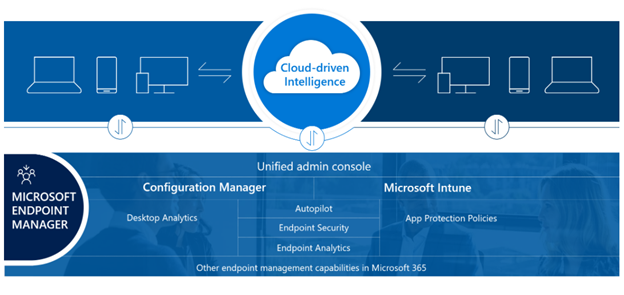
The last time I worked with in Intune was setting up a POC to manage mobile devices and applying MAM policies. Boy has it changed… Now fast forward to 2020, Microsoft Endpoint Manager is the modern way to manage our endpoints. It combines services and tools to manage and monitor mobile devices, desktops, laptops, virtual machines, embedded devices, and servers. Examples of endpoints could be specialized devices including retail point of sale devices, ruggedized devices, digital interactive whiteboards, conference room devices, and holographic wearable computers.
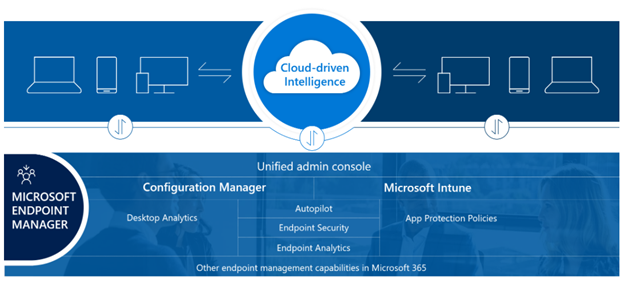
So let’s break down what is all included with Microsoft Endpoint Manager (MEM) and understand how you could use each of these components
- Microsoft Intune – Intune is a 100% cloud-based mobile device management (MDM) and mobile application management (MAM) provider for your apps and devices. It lets you control features and settings on Android, Android Enterprise, iOS/iPadOS, macOS, and Windows 10 devices. It integrates with other services, including Azure Active Directory (AD), mobile threat defenders, ADMX templates, Win32, and custom LOB apps, and more.
- Configuration Manager- If you are familiar with prior versions of SCCM, starting in version 1910, Configuration Manager became part of Microsoft Endpoint Manager. With real time action on your managed devices Configuration manager can provide deployment of OS and software, apply updates, and compliance settings management on your endpoints whether they are in the cloud or on-premises.
- Co-management – Co-management combines your existing on-premises Configuration Manager investment with the cloud using Intune and other Microsoft 365 cloud services.
- Desktop Analytics – This is a cloud-based service that integrates with Configuration Manager to give you insight and intelligence on your managed endpoints.
- Windows Autopilot – If you are constantly provisioning new devices this is where Autopilot would help you. Windows Autopilot sets up and pre-configures new devices, getting them ready for use. It’s designed to simplify the lifecycle of Windows devices, for both IT Pros and end users.
- Azure Active Directory (AD) – Azure AD is used by Endpoint Manager for the identity of devices, users, groups, and to perform multi-factor authentication (MFA). Azure AD Premium, which may be an added cost, has additional features to help protect devices, apps, and data, including dynamic groups, auto-enrollment, and Conditional Access.
- Endpoint Manager admin center – The admin center is a one-stop web site to create policies and manage your devices. It plugs-in other key device management services, including groups, security, Conditional Access, and reporting. This admin center also shows devices managed by Configuration Manager and Intune (in preview).
Wow! that is a bunch of stuff right to keep up with. With so much to learn and know I’m so glad we had Simon to catch us up on it. You can watch the replay of our show on The Current Status YouTube channel. We learned so much from Simon that episode. In addition to breaking down all the new features I listed above he also mentioned the evolution of the product and it’s growth through the years. Such as there are people on the product team that have been working on the product since SMS 2003!
What’s new? Microsoft Tunnel
One of the coolest tidbits of information he told us about was the rapid acceleration of the newest offering called Microsoft Tunnel. With the Pandemic and the influx demand of work from home users there was an immediate need for a secure access to resources. Microsoft Tunnel is a VPN gateway solution for Microsoft Intune that can support up to 64,000 connections. The tunnel allows access to on-premises resources from iOS/iPadOS and Android Enterprise devices using modern authentication and Conditional Access. Microsoft Tunnel is currently in public preview.
Microsoft Tunnel Gateway works by installing to a Docker container that runs on Linux, which can be a virtual or physical server, in the cloud or on-premises. The service can scale according to the needs of your organization. In a future blog post we will go in depth on Microsoft Tunnel, reviewing setup, installation, and configuration requirements. Stay Tuned!
Take it for a test drive…
It is great to see that we have a TON of documentation on Microsoft docs but if you’re really curious to know how it works hands on then you’re in luck, We recently published new modules just focused on Microsoft Endpoint Manager which can be found on Microsoft Learn. I was curious myself and took the Microsoft Endpoint Manager fundamentals learning path which includes:
Introduction to Microsoft Endpoint Manager – This module was an overview of all the services that are included in Microsoft Endpoint manager. It takes about 25 minutes to complete and is the perfect primer for all the other learning modules and gives you the fundamentals of what Microsoft Endpoint Manager is.
Protect your endpoint environment with Microsoft Endpoint Manager – This module focuses on protecting your resources, such as devices, apps, data, whether in the cloud or on-premises. You will learn about protecting devices through device configuration polices but also protecting applications as well using Mobile Application Management.
To get a deeper knowledge and understand the differences between mobile device management (MDM)and App protection management (MAM) you can take the following modules:
Understand app management using Microsoft Endpoint Manager – This module will explain how your organization’s apps can be configured and protected. You’ll also learn more about the data protection framework using app protection policies.
Understand device management using Microsoft Endpoint Manager– This module will focus on the devices and how they can provision and the different enrollment methods.
Once you are done with those modules there is only 3 modules left and the whole learning path is completed. The last 3 modules include:
Understand Conditional Access policies using Microsoft Endpoint Manager– This module reviews with you how to manage devices, apps, and policies based on groups. You will understand the common ways to use Conditional Access, giving users access to resources based on specific polices.
Analyze and resolve compliance issues using Microsoft Endpoint Manager – This module covers such things as tenant status, health dashboards, troubleshooting portals, reports which helps you analyze, troubleshoot, and resolve compliance issues.
Benefits of Microsoft Endpoint Manager – This module does not really go over anything technical but it’s more of the reassurance of what all it can do. You are going to learn all the benefits of the products and your return on investment. It’s a required module to take if you want to finish the whole learning path and get your MSLearn points but if you’re looking for deep technical content this isn’t the module for you.
Overall, the Microsoft Endpoint Manager fundamentals learning path is great one to take to get caught up or learn more about. It takes about 2.5 – 3 hours complete either all at once or broken up into multiple days.
by Contributed | Nov 12, 2020 | Technology
This article is contributed. See the original author and article here.
The default logging in PowerShell Desired State Configuration is sometimes a bit limited. You can use the Verbose output to get more information about a Push deployment, but what about reboots or unattended runs (e.g. Consistency Checks or Pull mode deployments)? In those instances the Verbose output isn’t visible.
Last year I created a blog post on the DSC Community blog about DSC logging and the DSC Log Parser script I created. This article describes the methods to view the verbose logging output, which is also written to disk and is very useful for troubleshooting issues. But wait, there is more!
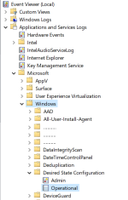
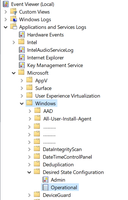
DSC also creates an event log in which events are logged. This log can be found under “Applications and Services Logs > Microsoft > Windows > Desired State Configuration > Operational”. This log can contain some useful errors, but often is not sufficient to troubleshoot an issue.
 Ok, now what?
Custom SharePointDsc event log
That is why we have implemented a custom event log functionality in SharePointDsc. The log can be found at “Applications and Services Logs > SPDsc“
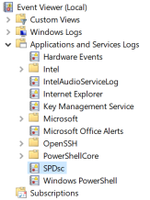
Since v4.2 this log contains entries for each resource that is not in the desired state (Event ID 1). With the next release (v4.4), we are also going to add entries if an exception is thrown in the code (Event ID 100).
Using this log, troubleshooting incompliance is made easier. It also enables you to use monitoring tooling (like System Center Operations Manager) to create alerts on configuration issues in your SharePoint environment.
Future plans
The plan is to extend this logging functionality with more information going forward, like non terminal errors.
If you have any ideas on what information you would like to have logged, let us know in the comments.
Important: This functionality is SharePointDsc specific and does not work for other resources, with the exception of Microsoft365Dsc.
by Contributed | Nov 12, 2020 | Technology
This article is contributed. See the original author and article here.
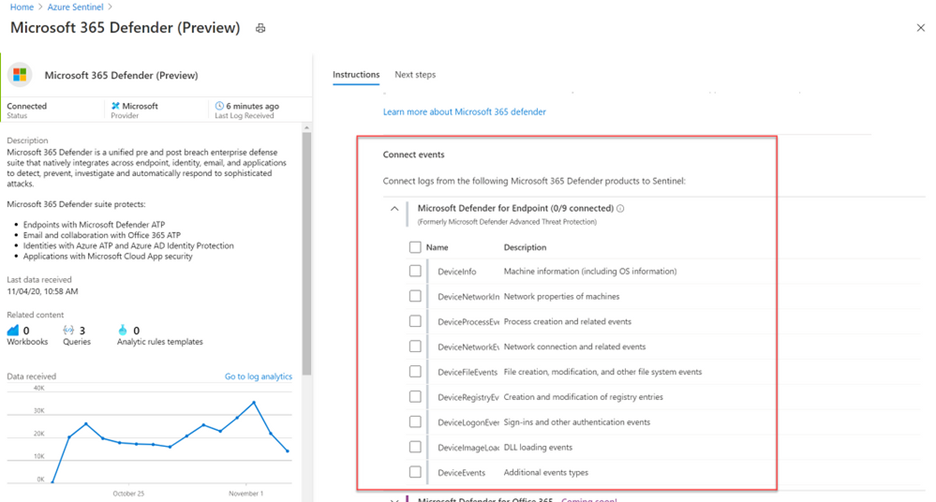
We’re very pleased to announce that the public preview of the new Microsoft 365 Defender connector is now available, alongside a new Azure Sentinel benefit for Microsoft 365 E5 customers!
The Microsoft 365 Defender connector lets you stream advanced hunting logs—a type of raw event data—from Microsoft 365 Defender into Azure Sentinel.
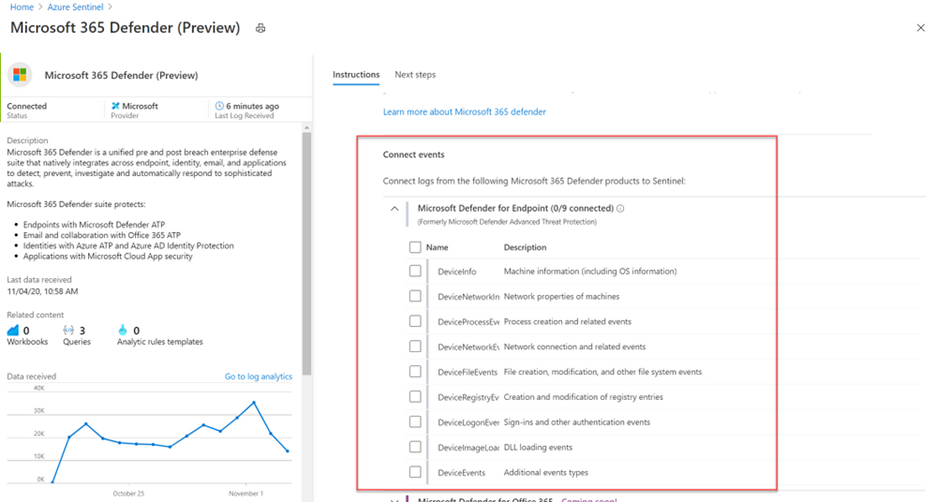
To learn more about the new Microsoft 365 Defender connector, how to enable it, and the benefit for Microsoft 365 E5 customers read out latest blog: What’s new: Microsoft 365 Defender connector now in Public Preview for Azure Sentinel – Microsoft Tech Community
by Contributed | Nov 11, 2020 | Technology
This article is contributed. See the original author and article here.
Initial Update: Thursday, 12 November 2020 01:35 UTC
We are aware of issues within Log Analytics and are actively investigating. Some customers may experience issues with missed, delayed or wrongly fired alerts or experience difficulties accessing data for resources hosted in West US2.
- Work Around: None
- Next Update: Before 11/12 06:00 UTC
We are working hard to resolve this issue and apologize for any inconvenience.
-Saika

by Contributed | Nov 11, 2020 | Technology
This article is contributed. See the original author and article here.
During development of the HP Reverb G2 in partnership with HP and Valve, we’ve made some improvements to the Windows Mixed Reality VR platform we’d like to share today. These improvement apply to some existing VR headsets available on the Windows Mixed Reality platform in addition to the HP Reverb G2 devices. All of these improvements are available today with the latest versions of Windows 10 (Details here).
Chromatic Aberration Correction
Over the last few months, we have spent considerable time improving our approach to reducing chromatic aberration, an artifact inherent to VR lenses. Chromatic aberration is an artifact caused by red, green, and blue light refracting through lenses differently. A white pixel on the panels will refract through the lenses and separate into red, green, and blue pixels visible to the viewer. Chromatic aberration correction aims to adjust for this by pre-distorting the rendered image so that the image viewed by the user after lens refraction appears as a single white pixel as intended. Chromatic aberration artifacts usually look like opposing red and blue color fringes emanating from the center of the optics (Fig. 1).
We have applied these new improved algorithms to several Windows Mixed Reality headsets as outlined in the Device Specific Improvements section below.
One important note we would like to highlight is how to get into the eye box when you put on your headset. All Fresnel lenses in every VR headset have something called an eye box (the actual shape is more like a cone, but the term we use is “eye box”). That is the ideal position (it’s actually a very small volume) where your eyes are directly behind the center of the lenses commonly referred to as the “sweet spot”, and this is the location we calibrate for. The physical IPD slider on devices such as the HP Reverb G2 allows you to move the lenses inward/outward to align horizontally with the center of your eyes, but even more important is to adjust the headset vertically until you see the sharpest image possible. It can take some practice, but once you’re able to get into the sweet spot of the eye box, you’ll see an incredibly clear image across your field of view. If you feel like you see any color fringing or radial distortion, try adjusting the IPD slider on the bottom of the headset and moving the headset up and down on your face slowly until the image is clearest. If you’re out of the eye box, you can often see some chromatic aberration artifacts near the center of the lenses in any VR headset.

Fig 1. (Left) Chromatic aberration artifacts common in some VR headsets. (Right) Corrected chromatic aberration captured on a Reverb G2.
Light Leak Correction
Almost every VR headset released to date has had some level of visual corrections implemented in software or on the GPU to correct for artifacts caused by some aspect of the hardware. Correcting for lens distortion is a great example of this.
Every VR headset the industry has seen has pushed panel technology to the limits, and with that comes subtle artifacts worth correcting for. The displays inside the HP Reverb G2 are amazingly high-quality LCD panels with a native resolution of 2160×2160 per eye at 90 Hz with virtually no screen door effect. However, most LCD panels on the market do not have filters that perfectly match the chromatic range of red, green, and blue light, and that can cause something we call light leakage.
As an example of light leakage, if a pure green pixel leaks a little bit of red light through the filter, normally, in a smartphone or flatscreen TV, you would never know that a little bit of red light is leaking through that green pixel. But in VR, that slight red leaked light is refracting through lenses, and since red, green, and blue light refract differently through the optics, that leaked light of a different color separates and can cause what appears to be a subtle colored ghost of the rendered image causing color fringing. We developed technology to correct for this in most situations where there is enough light in neighboring pixels to compensate for the artifacts.
It is important to point out that light leakage artifacts appear different from chromatic aberration artifacts. Chromatic aberration generally appears as opposing red/blue color fringing where light leakage can appear as red/cyan, green/magenta, or blue/yellow color fringing (depending on the panel design). This can also affect the overall color tint of the headset due to added light in a single-color channel. Our correction algorithms reduce both color fringing and the overall color tinting (Fig. 2).

Fig 2. Simulated light leakage without correction (left) and with correction (right). Notice the false color tinting on the left and the green and magenta color fringing. Images can also appear slightly blurrier without this correction (left).
God Rays
If you’re unfamiliar with the term god rays, it’s a common artifact of Fresnel lenses where light can appear to stretch and glow from the center of the lenses outward and creates an effect that appears similar to sunlight shining through dense treetops, often referred to as sunbeams or god rays.
God rays have been one of the most talked-about artifacts of Fresnel lenses, and the optics engineers at Valve did an amazing job of producing lenses for the HP Reverb G2 with almost no visible god rays relative to all previous headsets on the market. These reduced god rays aren’t just an improvement for the viewer; it’s also an improvement for the entire calibration process that drives features like chromatic aberration correction and distortion correction.
Device Specific Improvements
Development on the HP Reverb G2 has led to some new approaches to correcting for certain visual artifacts as described above, and we were able to apply some of these new techniques to existing products in-market, namely, the Samsung Odyssey+ and the original HP Reverb G1. For the Samsung Odyssey+, we were able to improve chromatic aberration artifacts at the periphery. For the Reverb G1, we were able to improve chromatic aberration artifacts, reduce radial distortion, apply light leak correction, and improve rendering performance by about 8% in most applications from an updated and optimized hidden area mesh. All these improvements are also present in the HP Reverb G2 devices. These improvements are available in the latest Windows Mixed Reality runtime (see Windows Update instructions below).
Runtime Software Improvements
We are continually improving our software platform. To ensure you are getting the best experience, update to the latest Windows Mixed Reality VR runtime using Windows Update.
You can find instructions for how to update Windows 10 here.
Windows Feedback Hub
We are always listening to our users and improving our platform. Please use the Windows Feedback Hub to file bug reports or make suggestions to improve any aspect of our Mixed Reality products. Our Windows Mixed Reality team regularly reads and reviews all feedback and bug reports submitted by our users, so please let us know if you see an opportunity for us to improve any aspect of our software.
You can find instructions for how to file bugs and feedback to the Mixed Reality team here.
We are excited for the launch of the HP Reverb G2, and we look forward to seeing the community enjoying this headset as much as we are.
by Contributed | Nov 11, 2020 | Technology
This article is contributed. See the original author and article here.
Here are the latest functionalities that rolled out to production in the month of October-2020.
- File sharing in Microsoft Teams
- Known Folder Move in FRE
- Teams Meeting & Calling recordings stored in OneDrive and SharePoint
File sharing in Microsoft Teams
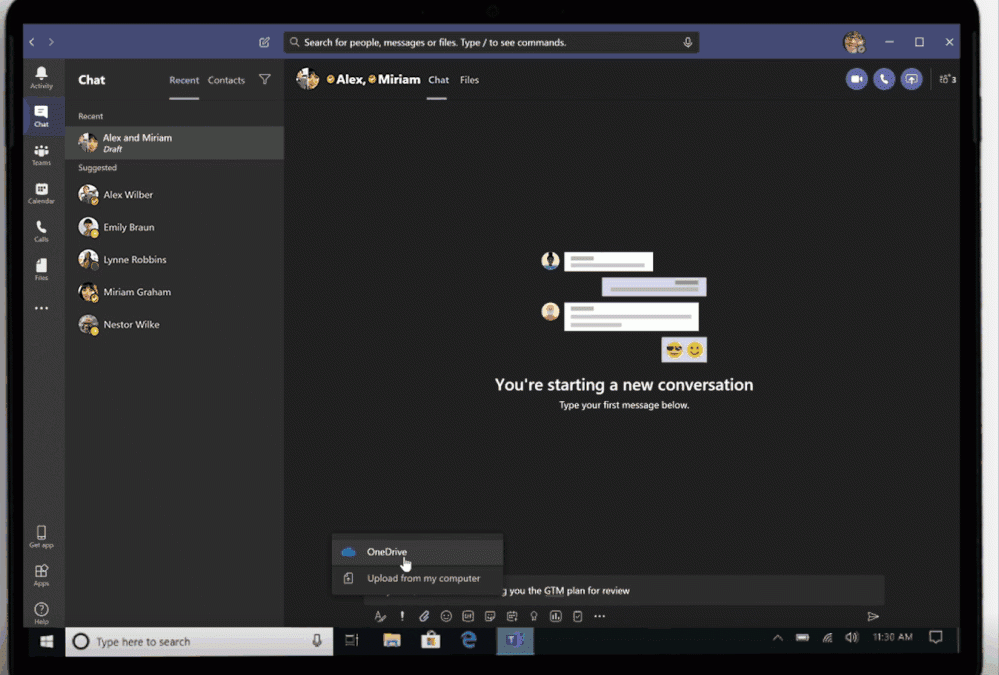
Teams is your hub for teamwork where people collaborate on files, communicate, and streamline processes. In an effort to provide a consistent sharing experience across Microsoft 365—no matter where you share your file, whether through Office apps, Outlook, OneDrive, or SharePoint, the sharing experience is similar—we’re bringing some of the sharing capabilities you already know to Teams. Now, users will be able to set familiar sharing and access controls directly in Teams with the added option to share a link with a specific private or group chat. This means only people in that chat have access to the shared content. Shared links intelligently reconcile to file name and all sharing follows the admin settings and configured policies.
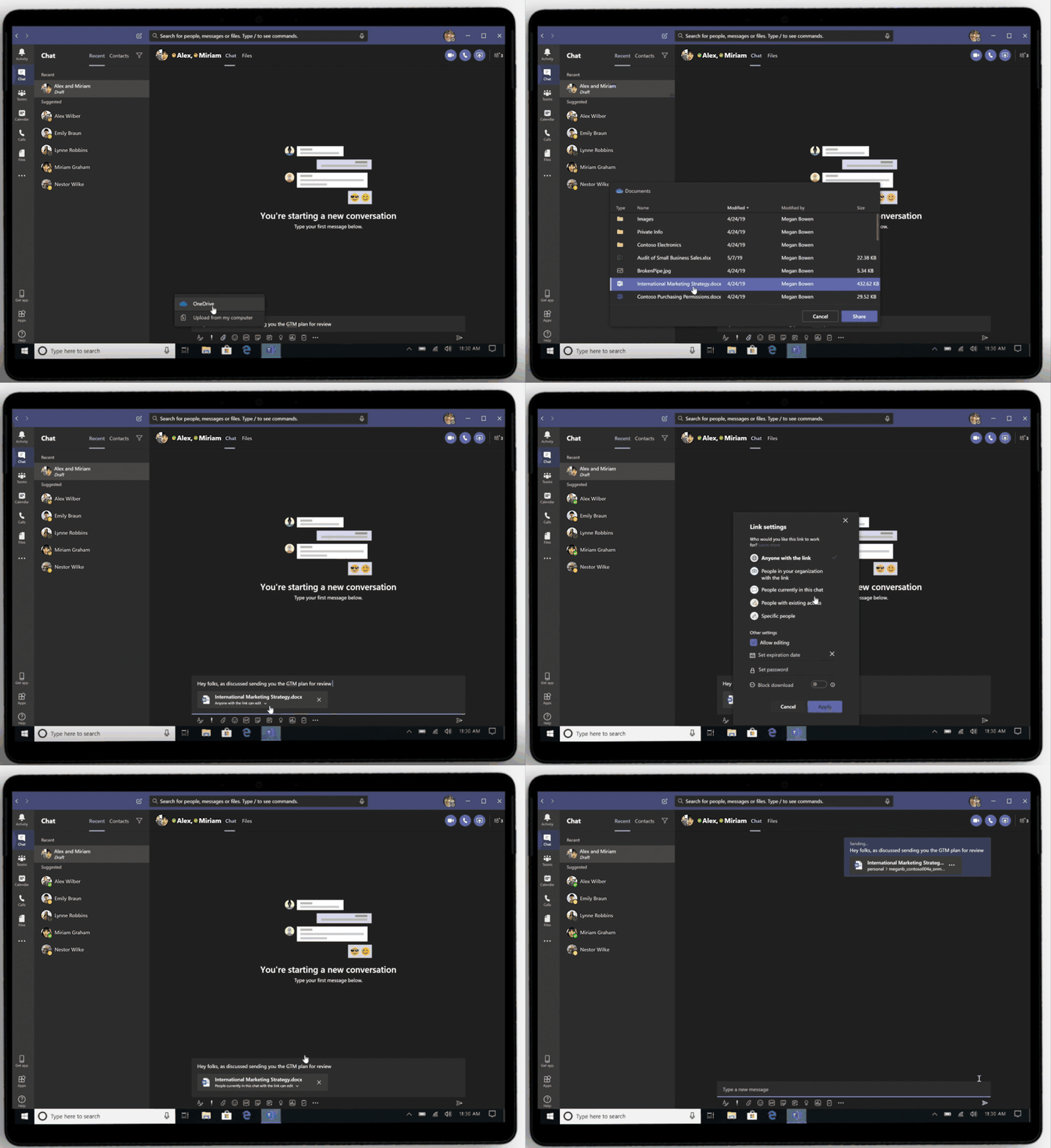 Sharing integration in Microsoft Teams
Known Folder Move in FRE
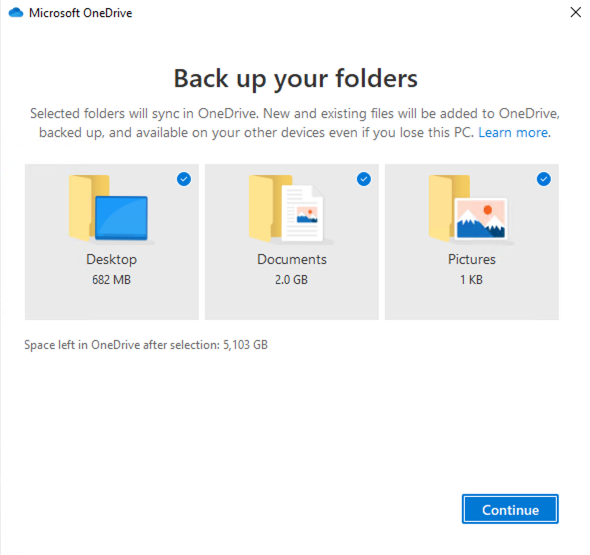
Our new first run experience now allows you to select which Windows known folders you would like to sync to OneDrive. Moving your important folders to OneDrive allows you to have the power of cloud in your most productive folders on Windows. This decision was brought into the first-run experience to give you the best OneDrive sync experience from initial sign-in.
Teams Meeting & Calling recordings stored in OneDrive and SharePoint
Teams meeting and call recordings can now be stored in your OneDrive for Business or in SharePoint, providing the ability to share recordings with guests or external users, access meeting recordings faster, and manage recordings with security and compliance controls available to other file types in Microsoft 365. Teams Admins can select their recording storage location by updating policies using PowerShell. Learn more
Learn more and stay engaged
As you can see, we continue to evolve OneDrive as a place to access, share, and collaborate on all your files in Microsoft 365, keeping them protected and readily accessible on all your devices, anywhere.
You can stay up-to-date on all things via the OneDrive Blog and the OneDrive release notes.
Check out the new and updated OneDrive documentation.
Take advantage of end-user training resources on our Office support center.
Thank you again for your support of OneDrive. We look forward to your continued feedback on UserVoice and hope to connect with you at Ignite or another upcoming Microsoft or community-led event.
Thanks for your time reading all about OneDrive,
Ankita Kirti – Product Manager – OneDrive | Microso
by Contributed | Nov 11, 2020 | Technology
This article is contributed. See the original author and article here.
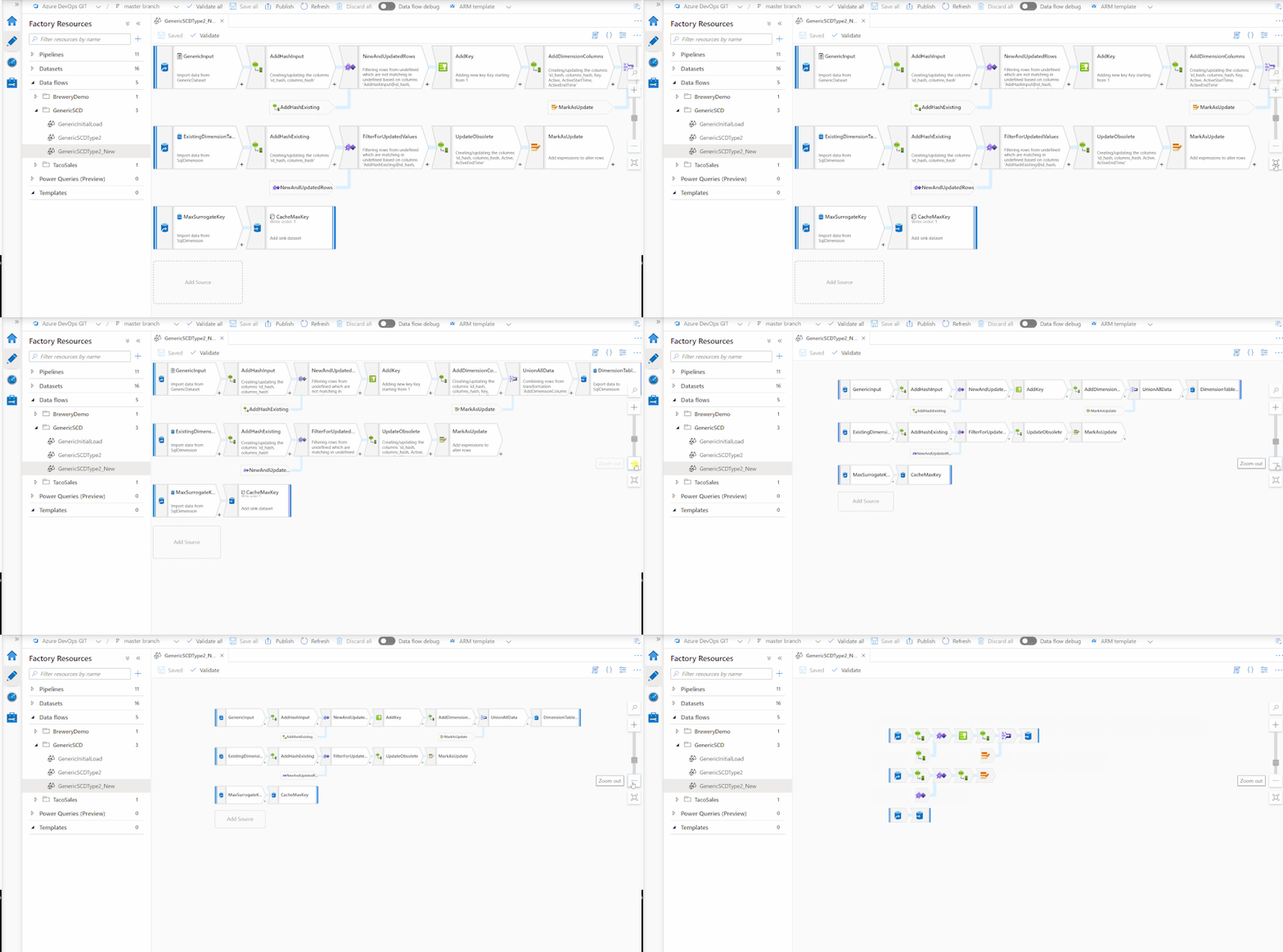
Azure Data Factory continues to improve the ease of use of the UX. This week, the data flow canvas is seeing improvements on the zooming functionality. As a user zooms out, the node sizes will adjust in a smart manner allowing for much easier navigation and management of complex graphs.
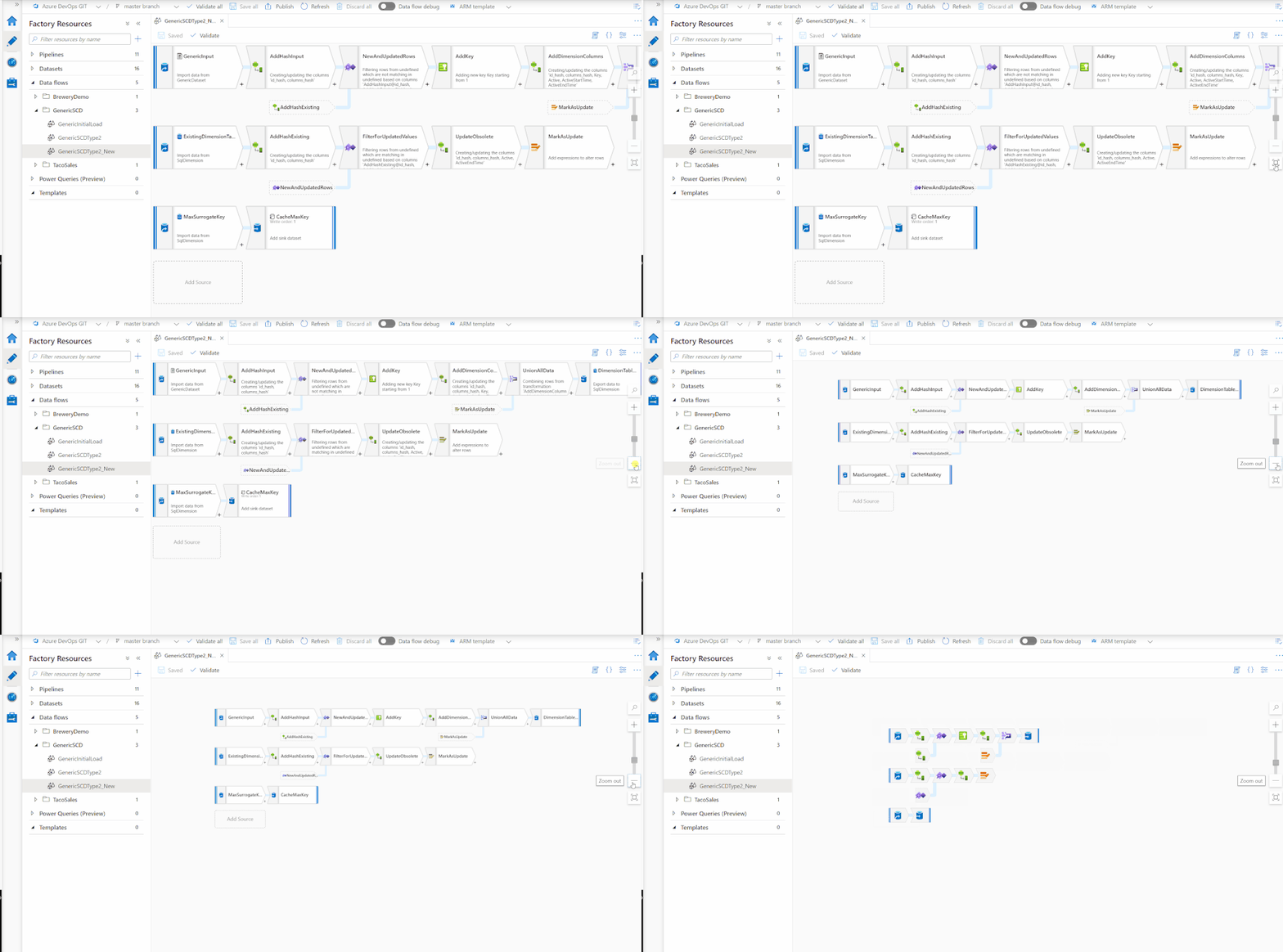
The existing zoom to fit capability now auto adjusts for the appropriate node size letting you see your entire graph with just one click. On top of the existing search functionality, its never been easy to build and maintain your data flows!
by Contributed | Nov 11, 2020 | Technology
This article is contributed. See the original author and article here.
This post was written in collaboration with Gabi Stein, Tessa Wiedmann and Colin Birge, and Amy Shan from The Microsoft EDU Engagement Team.
Recently, members of the EDU Engagement team at Microsoft reached out to the Microsoft Student Forum for feedback using Microsoft Education products day-to-day. The Student Forum is a community of higher education and further education students who connect with each other and Microsoft Education experts on best practices, tips & tricks, and personal learnings using Microsoft tools. To learn more or to join the Microsoft Student forum, please fill out this survey.
The Engagement Team was delighted to see the many creative ways students are utilizing OneNote, Teams, and other Microsoft products. In this post, we want to highlight feedback submitted by three awesome students and showcase their efforts to boost their productivity and use their skills to improve their communities.
“How Asia Pacific College Utilizes Microsoft 365 During a Global Pandemic”
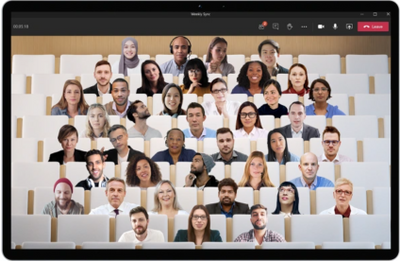
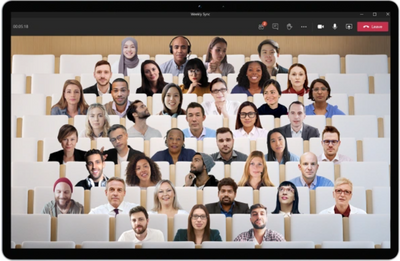
Rommel Ormita is a student from Asia Pacific College (APC), a Microsoft Learn Student Ambassador and President of the Asia Pacific College Microsoft Community. APC has embraced remote and hybrid learning models over the past several months and has fully integrated its classes into Teams, OneNote, and Stream. We asked Rommel how he and his peers have been adjusting to an online learning environment. Rommel cited the benefit of Teams meeting recordings, “Whenever one of our educators has an update, they will just announce it in our Teams. . . our educators record their lessons and if a student misses a class, [they] can view the recording [from] Microsoft Stream.”
Additionally, Rommel explained how APC utilizes Teams for student events such as their event for first years, ‘Frosh Night’ as well as their Organization Fair. Through Teams, APC showcased all 28 of their student organizations. “Even though it is all virtual, the student leaders and students of APC had fun throughout the [week-long] celebration of this year’s Organization fair.” Take a look at Rommel’s full write-up here.
“Microsoft Education Tools –Empowering me Throughout my Academic Career”
James Woods from Newcastle University has long relied on OneNote, Windows Virtual Desktop, Microsoft To Do, and Teams to increase his productivity and accomplish more. With these tools, Woods cited his enhanced ability to “organize [his] notes using sections, and tag important revision notes with a start so [he] can find them later”; “connect to a remote desktop that’s configured with the same software as a desktop on-campus”; and “set reminders and never miss a task!“
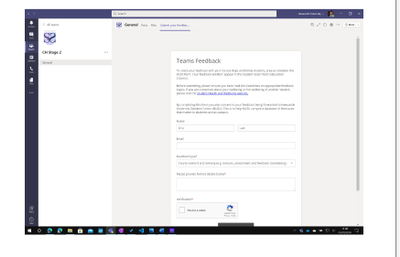
James also played a crucial role in helping transition Newcastle’s student government into a Teams environment. “It’s a single platform linked with our university credentials that can be used to chat, collaborate, plan meetings, and even meet remotely.” In his role as the student body secretary from 2018-2019, James seamlessly recorded meeting minutes and saved his notes within the team’s ‘Files’ tab for all to access. James and his peers also took advantage of the Forms + Teams integration to gather anonymous feedback from fellow students. “Using Microsoft Forms, a feedback form was created and pinned as a tab in Teams, making it possible for students to anonymously provide feedback to their course reps, which would then be fed back to staff members on [student councils]”. “If it’s not yet clear, Microsoft tools, including Teams, played a huge part in helping me be productive wherever I am. Teams is a revolutionary product for education that has transformed many aspects of university life for the better.” See James’ full post and check out his personal blog here.
“Empowered to Achieve More Than I Could Have Imagined”
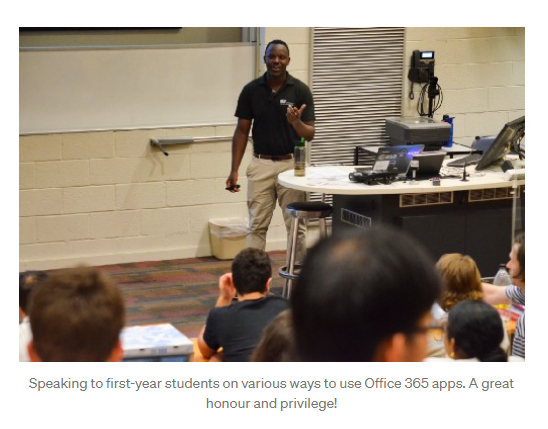
Victor Olet left Kenya to pursue his bachelor’s degree in chemical engineering at Curtin University in Perth, Australia. Victor detailed how he built up his skills using the tools available within the M365 suite. Victor was able to partner with Microsoft’s Perth campus to plan and facilitate an on-campus event for his Science and Engineering Club. He quickly became the resident expert on all things Microsoft and is frequently asked to present and share his expertise. From having the ‘best PowerPoint presentations in his unit’ to being commended by his research supervisor for ‘organized note-taking,’ Victor felt empowered by his ability to leverage Microsoft tools to get more done. Victor writes of a shortage in traditional writing paper and his creative solution to use paper towels for note-taking and brainstorming. “I would then use Office Lens to convert them to PDF and add them my OneNote-based log report along with Excel data and my own notes.” Due to all of Victor’s efforts to build and share his knowledge and skills with Office products, he became a Microsoft Learn Student Ambassador and continues to encourage the use of Microsoft tools at Curtin University. See Victor’s full post here.
To learn more or to join the Microsoft Student forum, please fill out this survey.
by Contributed | Nov 11, 2020 | Technology
This article is contributed. See the original author and article here.
How are we using machine learning (ML) and artificial intelligence (AI) to improve cybersecurity today? What are the different types of ML algorithms, and how do they differ? Taking it a step further, how do we protect our ML systems? According to the 2020 Microsoft Digital Defense Report, we know adversarial machine learning and attacks on ML systems are part of the future of cybersecurity. Yet, 89% percent of surveyed organizations felt they don’t have the right tools in place to secure their ML systems.
Security Unlocked is a new podcast exploring the technology and people powering Microsoft’s security solutions—co-hosted by myself and Nic Fillingham—with a special emphasis on ML and AI. We tackle these questions in interviews with security experts across Microsoft Security (and have a few laughs along the way).
In each episode we talk to Microsoft Security experts about the latest innovations in the intersection of threat intelligence, security research and data science. Our conversations focus on how cybsersecurity is evolving alongside threats, how our products are built and how ML and AI are truly empowering our customers. As Sharon Xia, Principal Program Manager at Microsoft , said in our most recent episode, “Security teams and machine learning teams are running on two parallel orbits.” In having a dialogue around these topics, we hope to provide information that can help change that.
In each episode we also interview one of the security experts working in Microsoft Security to hear their career story and their perspectives on ML and AI and the future of cybersecurity. Today, security professionals come from a range of disciplines and backgrounds, bringing with them new perspectives and approaches. We aim to highlight the unique community of people making the world a more secure place.
We encourage you to share feedback or suggestions on topics via @MSFTSecurity or by emailing us at SecurityUnlocked@microsoft.com! We want to hear from you!
Here’s a line-up of a few of our most recent episodes:
Protecting Machine Learning Systems
Guests: Sharon Xia and Emily Hacker
In this episode, we chat with Sharon Xia, Principal Program Manager at Microsoft, on the rising tide of machine learning in security—from the different types of machine learning attacks to the application of machine learning in security solutions to the democratization of ML. We also chat with Emily Hacker, threat analyst at Microsoft, to learn how she went from English major to security analyst. Listen here.
How to Catch a Villain with Math
Guests: Mike Flowers, Cole Sodja, Justin Carroll and Dr. Anna Bertiger
In this episode we chat with Mike Flowers and Cole Sodja of the Microsoft Protection Team and Justin Carroll of the Microsoft Threat Intelligence Global Engagement and Response team. Our three experts explain how they’re using machine learning to identify and model lateral movement attacks. We also speak with Dr. Anna Bertiger, Senior Applied Scientist at Microsoft, to learn ow she’s using math to catch villains. Listen here.
by Contributed | Nov 11, 2020 | Technology
This article is contributed. See the original author and article here.
Unlike SSMS 17.xx onwards; SSDT/DACFx currently doesn’t have “Parameterize for Always Encrypted” setting.
This causes DACPAC/DACFx deployments to fail when Pre/Post deployment scripts have DML (INSERT, UPDATE) on Always Encrypted columns.
We know Always Encrypted is driver based encryption technology, and for DML to work on Always Encrypted columns, query needs to be parameterized (SqlClient.SqlParameter).
SSMS has an option to “Parameterize for Always Encrypted”, which behind the scenes look for TSQL Variables and convert them to SqlClient.SqlParameter.
One way to achieve this with SSDT/DACFx deployments is to use parameterized Powershell script and calling PS1 directly in Pre/Post Deployment Script in SSDT.
Steps:
- Create parameterized powershell script for DML on Always Encrypted columns
- Call that powershell script directly in Pre/Post Deployment script
- Publish
Sample Powershell script for DML: TestPS.ps1
DB: TestDB
Always Encrypted Columns: fname, lname
$sqlConn = New-Object System.Data.SqlClient.SqlConnection
$sqlConn.ConnectionString = “Server=localhost;Integrated Security=true; Initial Catalog=TestDB; Column Encryption Setting=enabled;”
$sqlConn.Open()
$sqlcmd = New-Object System.Data.SqlClient.SqlCommand
$sqlcmd.Connection = $sqlConn
$sqlcmd.CommandText = “INSERT INTO dbo.t1 ([i],[t],[fname],[lname]) VALUES (@Param1, @Param2, @Param3, @Param4)“
$sqlcmd.Parameters.Add((New-Object Data.SqlClient.SqlParameter(“@Param1”,[Data.SQLDBType]::int)))
$sqlcmd.Parameters[“@Param1”].Value = “100”
$sqlcmd.Parameters.Add((New-Object Data.SqlClient.SqlParameter(“@Param2”,[Data.SQLDBType]::int)))
$sqlcmd.Parameters[“@Param2”].Value = “50”
$sqlcmd.Parameters.Add((New-Object Data.SqlClient.SqlParameter(“@Param3”,[Data.SQLDBType]::VarChar,10)))
$sqlcmd.Parameters[“@Param3”].Value = “PSTest”
$sqlcmd.Parameters.Add((New-Object Data.SqlClient.SqlParameter(“@Param4”,[Data.SQLDBType]::VarChar,10)))
$sqlcmd.Parameters[“@Param4”].Value = “PSTest”
$sqlcmd.ExecuteNonQuery();
$sqlConn.Close()
Sample Post Deployment Script to call TestPS.ps1
xp_cmdshell ‘powershell -Command “C:TestPS.ps1″‘


Recent Comments