by Contributed | Dec 8, 2020 | Technology
This article is contributed. See the original author and article here.
ADF Data Flow connectors for Common Data Model (CDM) and Delta Lake are both now generally available (GA).
This is the documentation link for CDM to learn more about how to read model.json and manifest style of CDM models into ADF. With data flows, you can build powerful ETL processes using CDM formats and then also generate updated manifest files that point to your new, transformed data using CDM as a sink.
Here is the documentation link for Delta Lake, which is a Spark-based data lake format that makes working with data in your lake for analytics solution super-easy. With ADF data flows, you can read from Delta Lake folders, transform data, and even update, upsert, insert, delete, and generate new Delta Lake folders using the Delta Lake sink format.
Both of these Data Lake formats are available now in GA under the data flow “Inline Dataset” feature.
by Scott Muniz | Dec 8, 2020 | Security, Technology
This article is contributed. See the original author and article here.
Original release date: December 8, 2020
FireEye has released a blog addressing unauthorized access to their Red Team’s tools by a highly sophisticated threat actor. Red Team tools are often used by cybersecurity organizations to evaluate the security posture of enterprise systems. Although the Cybersecurity and Infrastructure Security Agency (CISA) has not received reporting of these tools being maliciously used to date, unauthorized third-party users could abuse these tools to take control of targeted systems. The exposed tools do not contain zero-day exploits.
CISA recommends cybersecurity practitioners review FireEye’s two blog posts for more information and FireEye’s GitHub repository for detection countermeasures:
This product is provided subject to this Notification and this Privacy & Use policy.
by Contributed | Dec 8, 2020 | Technology
This article is contributed. See the original author and article here.
Today is a look back at a guest blog post from a teacher, Jez Dean…
Originally written on 09/13/2017.
In this blog post: Build a computer-to-micro:bit connection with Small Basic.
You can write a simple GUI to send commands to a micro:bit running Python:
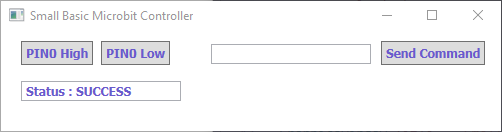
The program sends Python commands over a serial connection to the micro:bit. I’ve kept it as simple as possible so you can customize it further.
Clicking PIN0 High sends the command pin0.write_digital(1) to the micro:bit. You could type display.show(Image.HAPPY) and click Send Command would show a smiley on the micro:bit.
Instructions
- Flash a Python program to the micro:bit. You can just flash an empty program from within mu.
- Install the lit dev extensions for Small Basic. These are used to communicate over a serial connection.
- Find out the COM port of your micro:bit.
- Add your COM port at the top of the Small Basic code.
Code
 comPort = “COM4”
Initialise()
While (“True”)

  Program.Delay(10)

EndWhile
Sub Initialise

  ‘draw window’

  GraphicsWindow.Width = 500

  GraphicsWindow.Height = 100

  GraphicsWindow.Title = “Small Basic Microbit Controller”
  ‘draw pin control buttons’

  pin0high = Controls.AddButton(“PIN0 High”, 20, 10)

  pin0low = Controls.AddButton(“PIN0 Low”, 100, 10)
  ‘draw status and command buttons & boxes’

  statusbox = Controls.AddTextBox(20,50)

  value = Controls.AddTextBox(210,13)

  send = Controls.AddButton(“Send Command”, 380, 10)
  ‘Open connection to microbit’

  Controls.SetTextBoxText(statusbox,”Status : “+ LDCommPort.OpenPort(comPort, 9600))
  ‘Assign variables’

  Controls.ButtonClicked = OnButtonClicked

  nl = Text.GetCharacter(10) ‘new line character’

EndSub
Sub OnButtonClicked

  button = Controls.LastClickedButton

  val = Controls.GetTextBoxText(value)
  ‘if button pressed, send command and new line character’

  If (button = pin0high) Then

    LDCommPort.TXString(“pin0.write_digital(1)+nl”)

  ElseIf (button = pin0low) Then

    LDCommPort.TXString(“pin0.write_digital(0)+n1”)

  EndIf

  If (button = send) And (val <> “”) Then

    LDCommPort.TXString(val+nl)

  EndIf

EndSub
Adapted from litdev on the Small Basic blog.
Notes
- This is not interactive; it will not return any value the microbit sends.
- This will only work over USB. Python does not work over Bluetooth.
See Also
Other Resources from Jez Dean (website is down now)
![[New feature] Auto-sync roster to a lab through AAD groups](https://www.drware.com/wp-content/uploads/2020/12/636x279)
by Contributed | Dec 8, 2020 | Technology
This article is contributed. See the original author and article here.
Hi everyone,
You can now sync the user list of a lab to an existing Azure Active Directory (AAD) group in https://labs.azure.com! Users and VMs are automatically added/deleted based on the AAD group membership.
But first, what is an AAD group? To put it simply, it’s a group that can be created within your organization’s Azure Active Directory to manage access to organizational resources and cloud-based apps. To learn more, see the documentation on AAD groups. If your organization uses Microsoft Office 365 or Azure services, your organization will already have admins who manage your Azure Active Directory.
How to add a lab to an AAD group
- Go to the Users tab inside a lab, and make sure the user list is empty. If there are existing users inside a lab that you added manually or through importing a CSV file, the option to sync the lab to an existing group will not appear.
- Click on the “Sync from group” button.
- You will be prompted to pick an existing AAD group to sync your lab to.
NOTE: If you don’t see an Azure AD group in the list, it could be because of the following reasons:
- If you are a guest user for an Azure Active Directory (usually if you’re outside the organization that owns the Azure AD), and you are not able to to search for groups inside the Azure AD. In this case, you won’t be able to add an Azure AD group to the lab.
- Azure AD groups created through Teams do not show up in this list. You can add the Azure Lab Services app inside Teams to create and manage labs directly from within it. See more information about managing a lab’s user list from within Teams.
- Once you picked the AAD group to sync your lab to, click Add.
- Once a lab is synced, it will pull everyone inside the AAD group into the lab as users, and you will see the user list updated. Only the people in this AAD group will have access to your lab. The user list will refresh every 24 hours to match the latest membership of the AAD group. You can also click on the Sync button in the Users tab to manually sync to the latest changes in the AAD group.
- Invite the users to your lab by clicking on the Invite All button, which will send an email to all users with the registration link to the lab.
Automatic management of virtual machines based on changes to the AAD group
Once the lab is synced to an AAD group, the number of virtual machines in the lab will automatically match the number of users in the group. You will no longer be able to manually update the lab capacity. When a user is added to the AAD group, a lab will automatically add a virtual machine for that user. When a user is deleted from the AAD group, a lab will automatically delete the user’s virtual machine from the lab.
Please go try this out and let us know if you have any questions or feedback!
Link to the documentation
Thank you,
Azure Lab Services team
by Scott Muniz | Dec 8, 2020 | Security
This article was originally posted by the FTC. See the original article here.
Whether you’re just starting out or starting a new life, information on your background report can determine if you get credit, a job, or even housing. That’s why the law requires background screening companies to take steps to ensure the accuracy of the information they collect and share about you. But some companies don’t take enough of these steps and put together inaccurate background reports that can stand between you and a place to live.
Brought to you by Dr. Ware, Microsoft Office 365 Silver Partner, Charleston SC.
by Scott Muniz | Dec 8, 2020 | Security, Technology
This article is contributed. See the original author and article here.
Original release date: December 8, 2020
Adobe has released security updates to address vulnerabilities in multiple products. An attacker could exploit some of these vulnerabilities to take control of an affected system.
The Cybersecurity and Infrastructure Security Agency (CISA) encourages users and administrators to review the following Adobe Security Bulletins and apply the necessary updates.
This product is provided subject to this Notification and this Privacy & Use policy.
by Contributed | Dec 8, 2020 | Technology
This article is contributed. See the original author and article here.
With more and more people working from home, businesses need to provide secure printing capabilities for both at-home and the in-office workers. It is no longer predictable where workers will be when they need to print documents and it’s key to be able to support the hybrid workforce with secure printing.
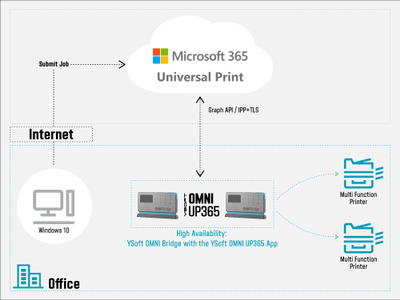
With the Universal Print service in Microsoft 365 and YSoft OMNI Series™, the user can be anywhere and securely print to any existing printer from a zero trust network – whether that printer is at home or in the office.
YSoft OMNI Series primer
Because it will take time for Universal Print-compatible printers to hit the market in mass, businesses need a way to take advantage of Universal Print on existing printers. That is where OMNI Series comes in. YSoft OMNI Bridge pulls print jobs from the Universal Print service within the Microsoft 365 cloud and delivers it to the printer. One OMNI Bridge can support up to 25 printers.
Maintaining the Zero Trust Network environment
When you think about printing, it involves pulling the print job from point A (the job spooler) to point B (the printer). Regarding security, think about data transferred or stored – known as data in transit and data at rest.
Within the Microsoft 365 environment, encryption is turned on by default in keeping with concepts of secure by design and secure by default. This encryption doesn’t require the user to do anything. Data is seamlessly encrypted using service-managed keys and AES-256 encryption. Universal Print, naturally as part of Microsoft 365, uses the same encryption. (For more information, see the Microsoft 365 Encryption documentation.)
OMNI Series applies the same concept of secure by default and leverages the encryption provided by Microsoft to secure both data in transit and data at rest. Print jobs are spooled and stored in Microsoft 365 and OMNI Series pulls the print job using Transport Layer Security (TLS). Security is further maintained when OMNI Series transfers the print job to a local printer using IPP over SSL.
This same security applies whether the worker on the office LAN to print on a multifunction printer or on their home LAN to print on a home printer. In the office or at home, the protection is maintained.
To learn more about trying YSoft OMNI Series with Universal Print today, visit the Y Soft website and join others around the world in supporting the hybrid workforce with secure Universal Print. You can also listen to Y Soft’s webcast with Alan Meeus from Microsoft on LinkedIn
by Scott Muniz | Dec 8, 2020 | Security, Technology
This article is contributed. See the original author and article here.
Original release date: December 8, 2020
Microsoft has released updates to address vulnerabilities in Microsoft software. A remote attacker could exploit some of these vulnerabilities to take control of an affected system.
The Cybersecurity and Infrastructure Security Agency (CISA) encourages users and administrators to review Microsoft’s December 2020 Security Update Summary and Deployment Information and apply the necessary updates.
This product is provided subject to this Notification and this Privacy & Use policy.
by Contributed | Dec 8, 2020 | Microsoft, Technology
This article is contributed. See the original author and article here.
You can now deploy the December 2020 latest cumulative update (LCU) and servicing stack update (SSU) together via our new one cumulative update package, or separately.
On September 9th, 2020, I announced the work in progress to simplify on premises deployments of servicing stack updates. Today, I am excited to announce that you can take advantage of this new capability using Windows Server Update Services (WSUS) and the Windows Insider Program for Business.
We have released the December 2020 LCU and the December 2020 SSU to WSUS in two ways for devices running Windows 10, version 2004 and later: to the typical Security Updates category and to the Windows Insider Pre-Release category.
To deploy the cumulative update and servicing stack update separately, no special action is needed. Just ensure, as always, that you deploy the SSU prior to deploying the LCU so that both updates install successfully on the device.
To deploy the LCU and SSU together using the new one cumulative update package, simply follow three easy steps.
Step 1: Sync the Windows Insider Pre-release category
- In the WSUS console, from Products and Classifications, select Windows Insider Pre-Release Product and Upgrades. Sync WSUS.
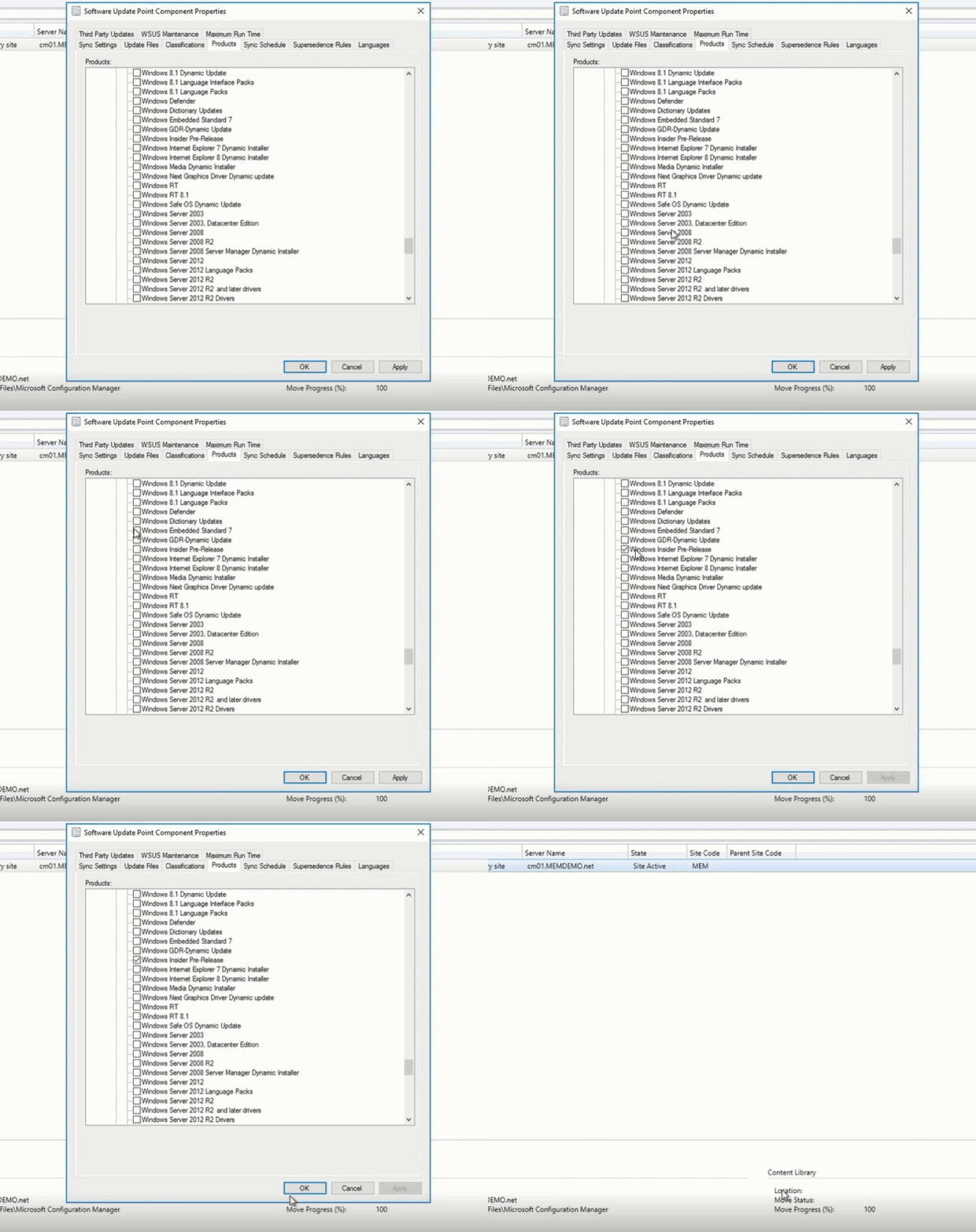
- In Microsoft Endpoint Manager Configuration Manager, navigate to the Products tab of
Software Update Point Component Properties and select Windows Insider Pre-Release. Select OK to confirm this selection.
Step 2: Select the OS version
From the list of All Updates, select the cumulative update for the version of Windows 10 running on the device(s) that will receive the update. Currently, this would be either of the following:
- 2020-12 Cumulative Update for Windows 10 Version 2004
- 2020-12 Cumulative Update for Windows 10 Version 20H2
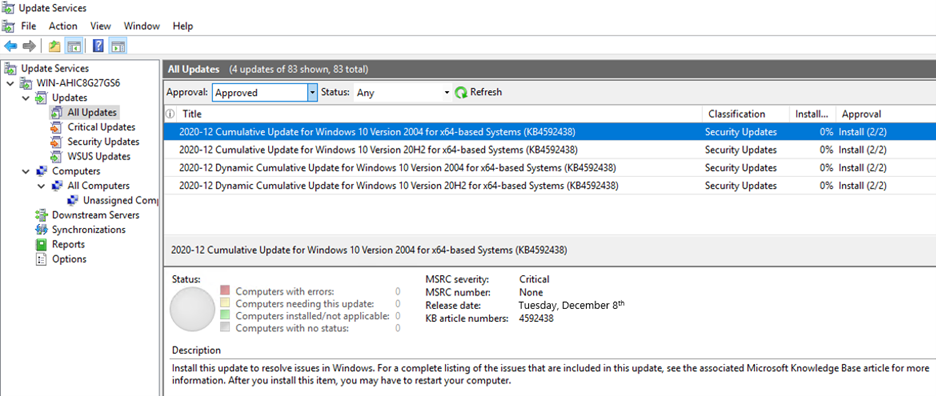
Step 3: Deploy the update
Deploy the update to the desired devices in your organization the same way you would deploy any other monthly cumulative update.
Check your preferred method of reporting and note that your devices are now running the December LCU (KB4592438) and SSU (KB4593175).
That’s it! It’s that simple.
The best part? Like all preview builds published to commercial devices in the Release Preview Channel and to the WSUS Windows Insider Pre-Release category, testing out this new deployment technology for LCUs and SSUs from WSUS is fully supported.
If you run into an issue that prevents you or other users in your organization from deploying or updating using this new one cumulative package, use this online form to request assistance directly from Microsoft Support at no cost to you. Or contact customer support through your typical channel.
Try out this new way of deploying LCUs and SSUs and let us know what you think by commenting below or reaching out to me directly on Twitter @ariaupdated.
by Contributed | Dec 8, 2020 | Technology
This article is contributed. See the original author and article here.
We will not have our Service Fabric Community Q&A call in Dec 2020 and Jan 2021 to accommodate for the upcoming holiday season. We will resume our Community call in Feb 2021.
Wishing everyone a safe and joyous holiday season!
Happy Holidays and Happy New Year!
Talk soon.
Service Fabric Team.


Recent Comments