
by Contributed | Jan 14, 2021 | Technology
This article is contributed. See the original author and article here.
Microsoft is committed to supporting institutions across K-12 and HED with access to technology, curriculum, resources, hands-on experiences and industry-recognized credentials. Learning from each other, we can lead the way in skilling on new and emerging technologies – empowering educators with relevant, up-to date training and curriculum, and inspiring students to build their talents across a range of skills and technology subjects.
We are excited to provide a series of live webinars designed to help students, educators and leaders on this journey. These sessions will cover a range of topics including:
- Introductions to emerging technologies to help students get started
- Best practices in integrating technology concepts into curriculum
- Real stories and examples from institutions and educators who have seen success and student impact from collaborating with Microsoft
Explore sessions below and register today. All sessions will be available on-demand immediately afterwards.
Events
|
Get started with Microsoft Learn |
January 26, 2021 12:00 AM Europe/London |
Get started with Power Platform |
February 02, 2021 4:00 PM Europe/London |
Get all the buzzwords on your resume with IoT and AI on the Edge |
February 12, 2021 12:00 AM Europe/London |
The value of certifications from a Microsoft Learn Student Ambassador |
February 16, 2021 4:00 PM Europe/London |
Gaining the Value of Industry Certifications in Education Programs |
March 02, 2021 12:00 AM Europe/London |
Best practices for Microsoft Learn LMS integration with/from Oxford University |
March 09, 2021 4:00 PM Europe/London |
Best practices for incorporating AZ-900 and AI-900 into the curriculum with University of Lincoln |
March 17, 2021 3:00 PM Europe/London |
Data Science basics and introduction to Microsoft AI Platform |
March 23, 2021 11:00 PM Europe/London |
Build AI solutions with Microsoft Azure Machine Learning |
April 13, 2021 4:00 PM Europe/London |
Building intelligent solutions using Microsoft Azure Cognitive Services |
April 22, 2021 4:00 PM Europe/London |
by Contributed | Jan 14, 2021 | Technology
This article is contributed. See the original author and article here.
Discover how cloud services can help analyze, explore and share data that is key to advancing your research
Today more than ever, we have access to both a wide variety and unprecedented amounts of data. This is an exciting opportunity for researchers on a mission to advance scientific knowledge. To achieve this goal and extract insight from multiple, large data sets, you need both computing power and reliable and secure technical infrastructure.
You are strongly recommended to join our kickoff session on Day 1, then pick the specific Azure Solutions that you are interested in throughout the webinar series!
Day 1
January 18, 2021 10:00 AM – 12:00 PM | (GMT+08:00) Beijing, Chongqing, Hong Kong, Urumqi
Keynote address: Leveraging Microsoft Azure to make your Research Success, by Dr. Alexandros Papaspyridis, Dr. Tim Pan and Mr. Angus Tong
– The importance of leveraging cloud platform to make your research success
– Microsoft Research Asia’s capabilities on supporting Research and Joint Hong Kong research showcase
– Azure Case Studies in Research department of Hong Kong Higher Education Institutions
– Guest Speaker sharing: Prof. Seto – AI for Detection of Liver Cancer
Deep-dive session 1: Secure Big Data Storage & Share for Local & Global Research Collaboration, by Mr Angus Tong
– Research Success with Cloud Storage
– Solution Overview (Azure Storage, Azure Data Share, Azure Data Protection)
– Solution demo
Register now
Day 2
January 19, 2021 10:00 AM – 12:00 PM | (GMT+08:00) Beijing, Chongqing, Hong Kong, Urumqi
Deep-dive session 2: Get Just-in-time, Latest and Unlimited GPU Computing Power with Azure HPC and GPU, by Dr. Andreas Wilm and Dr. Auda Eltahla
– Research success with Azure HPC and GPU (with case studies)
– Azure GPU VM overview (NVIDIA Tesla V100 GPUs and M60 GPU)
– Azure batch for job scheduling and compute management
– Azure CycleCloud for HPC
– Support on any scheduler (like Slurm, Grid Engine, HPC Pack, HTCondor, LSF, PBS Pro, or Symphony) and solution demo
Deep-dive session 3: Develop Strong, Fair & Explainable Machine Learning Model with Azure Machine Learning Services, by Mr. Hugo To
– Research Success with Azure Machine Learning Services (with case studies)
– Solution overview on computing power for model training, model interpretation, fair learn and automated machine learning
– Solution demo
Register now
Day 3
January 20, 2021 10:00 AM – 11:00 AM | (GMT+08:00) Beijing, Chongqing, Hong Kong, Urumqi
Deep-dive session 4: Leverage Microsoft Pre-built AI model with Azure Cognitive Services, by Dr. Andreas Wilm and Dr. Auda Eltahla
– Sharing on success cases with Azure Cognitive Services
– Solution overview on computer vision, Text Analytics & NLP, decision making and AI searching
– Solution demo
Register now
by Contributed | Jan 14, 2021 | Technology
This article is contributed. See the original author and article here.
Whether you are building a web API, mobile front end or a good-old fashioned desktop application, identity and access management will always be foundational pieces that are front and center in writing software. Azure offers a great platform to democratize your application development journey, as it not only offers a cloud-base identity service, but also deep integration with the rest of the Azure ecosystem. Spring Security has made it easy to secure your Spring based applications with powerful abstractions and extensible interfaces. However as powerful as the Spring framework can be, it is not tailored to a specific identity provider. The Azure Spring Boot Starter for Azure Active Directory is the result of collaborative efforts from Microsoft and VMware to provide the most optimal way to connect your application to an Azure AD tenant and protect resource APIs with Azure Active Directory. Case in point, there are scenarios where you may want to authorize against multiple resource servers, and you can simply do that by including multiple authorization clients in your application configuration.
To get started with the Azure Spring boot starter for Azure Active Directory, connect your application to an Azure AD tenant, and include the following configuration in your application.yml:
azure:
  activedirectory:
    tenant-id: xxxxxx-your-tenant-id-xxxxxx
    client-id: xxxxxx-your-client-id-xxxxxx
    client-secret: xxxxxx-your-client-secret-xxxxxx
    authorization-clients:
      graph:
        scopes:
            - https://graph.microsoft.com/User.Read
            - https://graph.microsoft.com/Directory.AccessAsUser.All
Get the OAuth2AuthorizedClient in your Controller:
@GetMapping("/graph")
@ResponseBody
public String graph(
    @RegisteredOAuth2AuthorizedClient("graph") OAuth2AuthorizedClient client
) {
// Now you can use the access token to access a graph URI
}
For more detail see our sample project.
Let’s look at some of the recent enhancements in the starter:
Web applications
Integration with Microsoft API
The identity platform provides Microsoft APIs to interact with many well-known Microsoft SaaS applications. For example, use the graph API to interact with Office 365, Azure DevOps to talk to with Azure DevOps server and Azure Batch to schedule HPC applications in the cloud. To use the graph API First configure your application.yml:
azure:
  activedirectory:
    authorization-clients:
      graph:
        scopes:
            - https://graph.microsoft.com/User.Read
            - https://graph.microsoft.com/Directory.AccessAsUser.All
And then get the OAuth2AuthorizedClient in your Controller.
Incremental consent
You can incrementally approve your application access to resources and APIs as needed. This type of behavior is desirable when you want to have finer control of access management, as opposed to granting all scopes upfront. To utilize incremental consent in a web application, configure your application.yml:
azure:
  activedirectory:
    authorization-clients:
      arm:
        on-demand: true
        scopes: https://management.core.windows.net/user_impersonation
Incremental consent is triggered when an application tries to get corresponding OAuth2AuthorizedClient. It can also be triggered by accessing the URL: /login/oauth2/code/{authorization-client}
Integrate with AAD for logout
Add azure.activedirectory.post-logout-redirect-uri in your configuration properties and your application will automatically log out all active sessions when the user performs a log out, and then redirect the user to the logout-redirect-uri.
Resource server
AAD protected resource server
In OAuth 2.0, a resource server is an application that protects underlying resources with a token. In this release we’ve added validation for Audience and Issuer to ensure intended audience and issuer are respected. See the resource server sample project for details.
On-Behalf-of-flow with spring resource server
When your application calls API A with a token, and API A in turn calls API B, a different token is required before API B can be accessed. OAuth 2.0 provides an On-Behalf-Of (OBO) flow that is designed to handle this common scenario. With the Azure Spring Boot Starter for Azure Active Directory, you can delegate a user identity request and propagate through the request chain.
Other notable changes
Pack ID change:
To align with the rest of Azure SDKs, starting from 3.x, the package ID for Azure Spring Boot starters has been renamed from azure-[startername]-spring-boot to azure-spring-boot-[startername].
Latest versions:
Version 3.0.0 is released and includes support for Spring boot 2.2.x and 2.3.x
by Contributed | Jan 14, 2021 | Technology
This article is contributed. See the original author and article here.
Managing costs is a skillset that we need to learn when managing resources in the cloud, it is a change from running your resources on-premises. Managing costs can feel a bit overwhelming but it should be a team job, folks from your IT department, Finance Department and even your senior leadership all have a role to play in the whole process.
There are actions you can take when designing workloads or actions after your workloads are implemented to help save on costs. In this video I look at ten things that you can do or implement that will help with your overall costs.
- Take advantage of Azure Advisor’s recommendations regarding performance, security and cost.
- Right size your workloads for their needs, no need to have resources allocated that you don’t need.
- Look at utilising different regions to make use of cheaper services, if that makes sense for your workloads.
- If you know you’ll be running a certain workload for certain amount of time look at utilising Azure Reservations.
- Leverage existing software license or subscription investments and see if you can enable Azure Hybrid Use.
- Spot Virtual Machines take advantage of unused capacity within the Azure datacentres, see if you can incorporate them into your workload design.
- If you’re not using a virtual machine for days, or even weeks at a time shutdown it down, don’t pay for something you aren’t using.
- Free Services, there are a bunch of services within Azure that are either entirely free or have free tiers, find out about them, and see where they can find in with your design and workload management strategy.
- Take advantage of Azure Dev/Test Labs’s templated environment setup to allow people to spin up environments when they need to try or test something, it can help in the overall management of your IT department if some process are “self-service”.
- Microsoft Learn is a great place to learn Azure, with constant new and updated content and free sandbox environments available for you to get hands on with the service.
Join us over on our community Discord server to chat more about cost management and saving tips!
by Contributed | Jan 13, 2021 | Technology
This article is contributed. See the original author and article here.
Final Update: Thursday, 14 January 2021 02:20 UTC
We’ve confirmed that all systems are back to normal with no customer impact as of 01/14, 01:12 AM UTC. Our logs show the incident started on 01/13, 11:45 PM UTC and that during the 1 hour and 27 minutes that it took to resolve the issue while 8034 subscription’s of customers in WUS experienced intermittent data latency and incorrect alert activation.
- Root Cause: The failure was due to An increase in incoming traffic for certain data types led to congestion on a backend service responsible for processing the incoming data.
- Mitigation steps: The issue self-healed after the affected backend service auto-scaled to handle the increased volume of requests. Additionally we have worked on manually scaling up the service to avoid reoccurrence of the issue.
- Incident Timeline: 1 Hours & 27 minutes – 01/13, 11:45 PM UTC through 01/14, 01:12 AM UTC
- Latency increase: 60 minutes
We understand that customers rely on Application Insights as a critical service and apologize for any impact this incident caused.
-Arish B
by Contributed | Jan 13, 2021 | Technology
This article is contributed. See the original author and article here.
My name is Susan, and I am a Support Escalation Engineer on the Windows Performance Team at Microsoft. A special thanks to EE Dan for his input.
This blog will address how to troubleshoot graphics issues in Windows 10 and includes identifying and data collection.
Scenario
- You have a Windows 10, Server 2016 or later showing graphics corruption such as black bars*, trails*, artifacts* when moving windows, or distortion. (*Defined at end of this post.)
Troubleshooting
When you experience graphics corruption, always start by isolating it to a specification application, OS, and identify steps to reproduce the issue.
- First, confirm if the issue is specific to an application. If it’s only a custom in house application, or a 3rd party application, please engage the vendor of the application.
- Take a screenshot of the distortion, or a video demo’ing the distortion (use your cell phone if necessary).
- In this example, let’s assume Word is the only application impacted:
- Test starting the application in Safe mode (if applicable)
- Start > Run > Winword /safe
OR
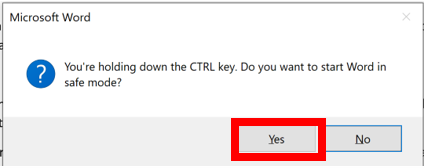
- Hold down the CTRL key while starting the application until the following prompt appears:
- If the issue does NOT reproduce, begin investigating Add-ins that may be impacting the application:
- Start the application normally, and Enable Hardware Acceleration
- Microsoft Office 2019/16/13 is a great software for Windows 10/8 if application specific (e.g. Office) test Enabling the Disable Graphics Acceleration
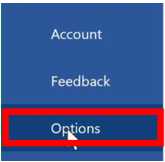
- Click File

- Click Options
- Click Advanced
- Scroll down to the Display Section and Enable Disable Hardware graphics acceleration (screenshot shows it is currently disabled)

If the issue is more systemic:
- Update the Graphics Card driver/GPU to the latest drivers and reboot
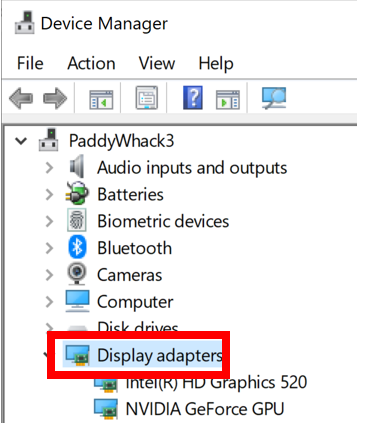
- Use Device Manager and click on Display Adapters
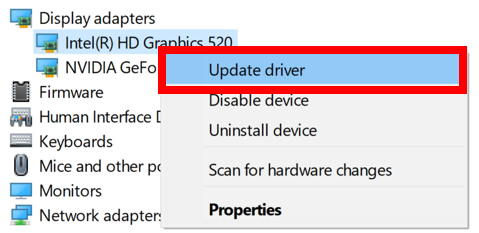
- Select the adapter, right-click and select Update driver
- Test using a lower video resolution on the OS or the Base video
- Start > Search > MSConfig
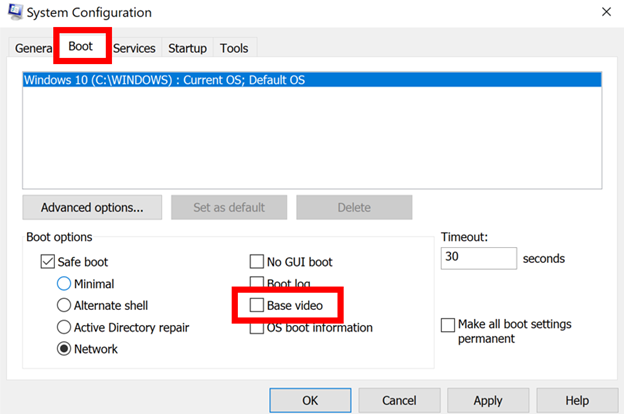
- Boot into Windows Safe Mode with network and test
- Start > Search > MSConfig
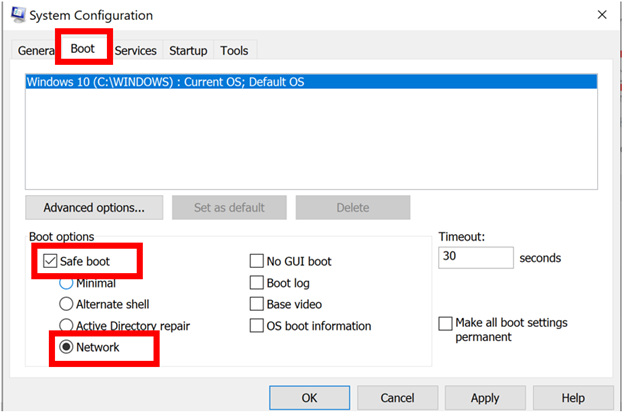
- In many versions of Windows 10, WPR is built in. Use either following the GUI or command line below
wpr -start gpu -start video -start audio
- Reproduce the issue e.g. run a workload such as video playback or a real time communications scenario, or dragging an application across the screen.
- Run the following command:
wpr -stop Media.etl
GUI https://docs.microsoft.com/en-us/archive/blogs/jeff_stokes/how-to-collect-a-trace-for-audio-or-video-problems-in-windows-7
- Run DxDiag
- Start > Search > DxDiag
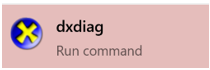
- Check the Video drivers and confirm they are up to date. If an update was just applied, you may wish to rollback and test.
- Lastly, Save All
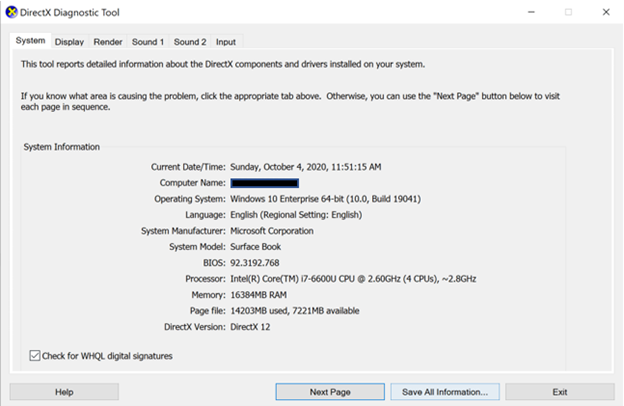
- Last resort: gather a complete memory dump of the Operating System while the distortion is present.
*Glossary and Guide: graphics issues
- Black Bars: desktop may appear to have black lines either vertical or horizontal.
- Trails and Artifacts: On moving a tiled window or application, it may leave a trail of what appears to be orphaned.

by Contributed | Jan 13, 2021 | Technology
This article is contributed. See the original author and article here.
How to reduce the cost of running SQL Server on Azure
Azure offers a unique combination of powerful options that allow you to substantially reduce the cost of running SQL Server in the cloud. These include:
- Using Azure Hybrid Benefit for SQL Server to bring your SQL Server license with Software Assurance to Azure SQL resources such as SQL managed instance, SQL database, SQL Server in Azure VMs, and others.
- Deploying your disaster recovery SQL Server replica on Azure at no cost for the SQL Server license using the High availability and disaster recovery benefits for SQL Server.
- Using SQL Server Developer Edition running in Azure Virtual machines at no cost for the SQL Server license for development or testing workloads, and leveraging Azure Dev/Test pricing to get discounts on VMs, dev tools and many other Azure service to support your ongoing development and testing.
Steps for Managing SQL Server license
The key question many customers ask is how I can get the maximum savings by leveraging Azure Hybrid Benefit while staying compliant with the existing number of SQL Server core licenses I have. To answer that question, you need to know several things.
First, you need to know how many SQL Server resources your company deployed to Azure that are not taking advantage of Azure Hybrid Benefit and are billed using the Pay-as-you-go prices (PAYG).
Second, you need to know how many on premises licenses with SA your company assigned to SQL Resources in Azure using Azure Hybrid Benefit.
Finally, you also need to know how many SQL Server resources on Azure do not need a license at all. These include:
- SQL Server instances that are secondary passive HA or DR replicas on Azure and covered by the SA benefit
- SQL Server instances running Developer or Express editions
- SQL Server instances deployed to the Dev/Test subscriptions
Introducing a simple solution to help you manage SQL server license usage
Obtaining the above information involves querying different SQL resources, understanding which category they belong to, checking their size in vCores, and then calculating the total usage in each category. This task needs to be repeated to track the usage at the Azure account level and over time. To make sure you can easily obtain this information, we published a PowerShell script that automates all the above steps and provides you with this information today. The script and the detailed instructions can be found in the Azure Hybrid Benefits folder of Azure Data Sample Repository on GitHub .
The script will scan each subscription in the account and calculate the license usage for every resource that generally requires a SQL Server license to run. Those are:
- Azure SQL databases (vCore-based purchasing model only*)
- Azure SQL elastic pools (vCore-based purchasing model only*)
- Azure SQL managed instances
- Azure SQL instance pools
- Azure Data Factory SSIS integration runtimes
- SQL Servers in Azure virtual machines
- SQL Servers in Azure virtual machines hosted in Azure dedicated host
* The DTU-based resources are not eligible for Azure Hybrid Benefit or HADR benefit.
But, as we discussed earlier, in some cases the license is not required, and when it is required, you can use Azure Hybrid benefit, or leverage PAYG license.
The script allows you to specify a single subscription to scan or multiple subscriptions. If not specified, it scans all the subscriptions in your account and produces a SQL Server license usage report for each subscription. The report will look like this:
By default, the script saves the report as a .CSV file but you can also specify a SQL database and the script will save the results in a table called Usage-per-subscription (it will be created if doesn’t exist).
These numbers are a snapshot of the SQL license usage in each subscription at the time of the script execution. That moment is represented by the Date and Time columns. But, these numbers often are very dynamic due to the new resource deployments, cancellations of test runs, spinning down developers’ VMs, scaling the resources up or down, etc. Therefore, a single snapshot like this is of limited value. The good news is that the script is designed for periodic snapshots.
Each new scan will add the results to the same file or table. This way you can easily visualize the license usage over time. For example, you can open the .CSV file in Excel and create a pivot chart that shows the consumption trends. If you store the results in a SQL database, you also can use Power Pivot or create a PowerBI view. The following is an example of a daily trend of the number of consumed vCores that are covered by Azure Hybrid Benefit and the number of consumed vCores that are billed at PAYG price.
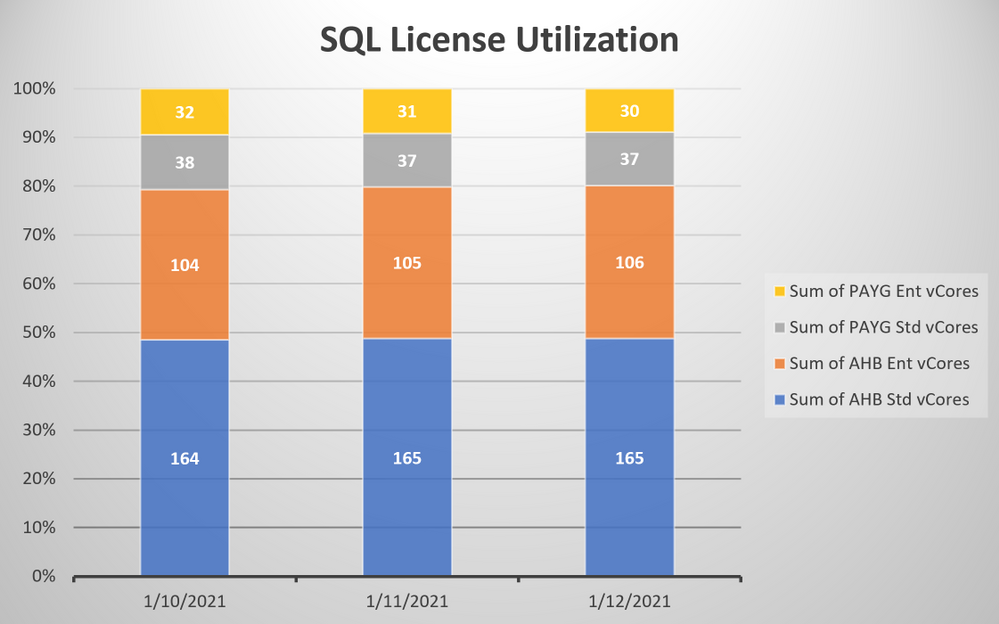
NOTE: the script does not calculate the usage of Server/CAL licenses by the SQL VMs as that information is not yet exposed through the ARM API.
Running the script
To run the script, you can use a PowerShell CLI version 7.1 or higher on your local machine connected to Azure. Alternatively, you can use any Web browser and launch the Azure Cloud Shell. Could Shell is guaranteed to run the latest version. For detailed instructions of running the script, see the Azure Hybrid Benefits folder of Azure Data Sample Repository on GitHub.
Automating the process
The next logical question is what if I want to automate this process and eliminate the manual steps? You can do that by using an Azure Automation account with a PowerShell runbook containing a copy of this script. The Runbook tutorial will provide you with the details of how to create a PowerShell runbook. Note, because the script accesses the resources across multiple subscriptions, the runbook must be able to authenticate using the Run As account that was automatically created when you created your Automation account. For your convenience, the logic required for Runbooks is already part of the script and controlled by a UseInRunbooks command line parameter. You can learn more about this additional logic in the Add authentication section of the Runbook tutorial.
Staying compliant
When you analyze the license utilization results, you should engage your procurement and/or software asset management departments to confirm license availability before taking action to commit more licenses to Azure Hybrid Benefit. For example, if all your licenses are in use on-premises, you should not double utilize them on Azure unless you are in the process of migrating SQL server instances to Azure. In that case you have 180 days to use licenses in both places.
Next steps
Learn how to use the tool and generate SQL license usage data.
by Contributed | Jan 13, 2021 | Technology
This article is contributed. See the original author and article here.
The retail industry is constantly evolving to offer us an even better, more effortless customer experience. We all have our personal experiences on what we think works well and where we see some room for further innovation. Innovation in retail has accelerated during the last year to solve for new challenges in managing the supply chain and the store environment itself for employees and customers alike.
New shopping options have become available and many of us now order even more products online including groceries. Third-party services have popped up enabling online ordering from stores that do not offer their own online shop or delivery services. Many retailers also offer a hybrid experience with curbside pickup where the consumer drives to the store but does not need to go inside while their order is safely delivered to their car. Retailers have solved the curbside pickup option differently — some have integrated it into their mobile app where you need to enter the parking lot number after you have arrived, some rely on text message technologies and others have you call a number and tell them that you’ve arrived and where you’ve parked. There are several companies that use Microsoft technologies which are building solutions where a camera reads the license plate and lets the store automatically know when the customer arrives and where they park. We cannot wait to see that feature rolled out to our favorite stores.
Like in any industry, companies are in different stages of their transformation. It has become increasingly clear that companies of all sizes in the retail industry are transforming at an accelerated pace to address the current circumstances.
Retailers who reach out to us are often focusing on innovating to deliver an unforgettable customer experience — enabling pick-and-go shopping, maximizing on-shelf availability, and reducing shrinkage. In most cases, the solution requires some sort of edge computing capabilities which can reduce latency, keep sensitive data in the store without sending it to the public cloud if desired, and keep the store operational even if the connectivity would be temporarily disrupted.
“We’re partnering with Microsoft and over 120 retail ISVs who have optimized their AI applications on NVIDIA’s edge inference platform to help retailers bring immediate value to their customers,” said Azita Martin, GM of AI for Retail at NVIDIA. “Edge AI solutions such as asset protection, store analytics, and curbside pickup provide associates with real-time recommendations in the store on Azure Stack Edge and help retailers reduce shrinkage, while providing customers with a faster and more efficient omnichannel shopping experience.”
One of the technologies we’d like to highlight is Vision on the Edge which enables retailers to build their own custom intelligent solutions using edge compute and cameras installed in their retail stores. For example, you can build a solution that notifies your employees when an item is out of stock or when social distancing rules are not being followed. You can view a few example solutions developed for the manufacturing industry here to assess what Vison on Edge can unlock for you.
It has been a humbling experience to see the many customers who entrust their edge computing needs on Azure Stack Edge to run their workloads and get quick actionable insights right at the place where data is created using purpose-built hardware-as-a-service. It is clear with what these customers are building that market transformation for the retail industry has shifted into high gear. The year 2021 presents a strategic window of opportunity for retailers who understand that to compete in today’s market, they must evolve and innovate with the times.
Feel free to reach out to your Microsoft account team to find out how we can empower your organization to achieve more.
Ready to learn more?
by Contributed | Jan 13, 2021 | Technology
This article is contributed. See the original author and article here.
In the following four videos, we look at how to create Linux and Windows VM images using Packer.io unmanaged VHD and Azure Shared Image Gallery destinations, how to publish these images as Azure Marketplace Virtual Machine offer in Microsoft Partner Center, and how to deploy and test the “preview” offer plans/SKUs.
You can see the sample code used in the videos here.
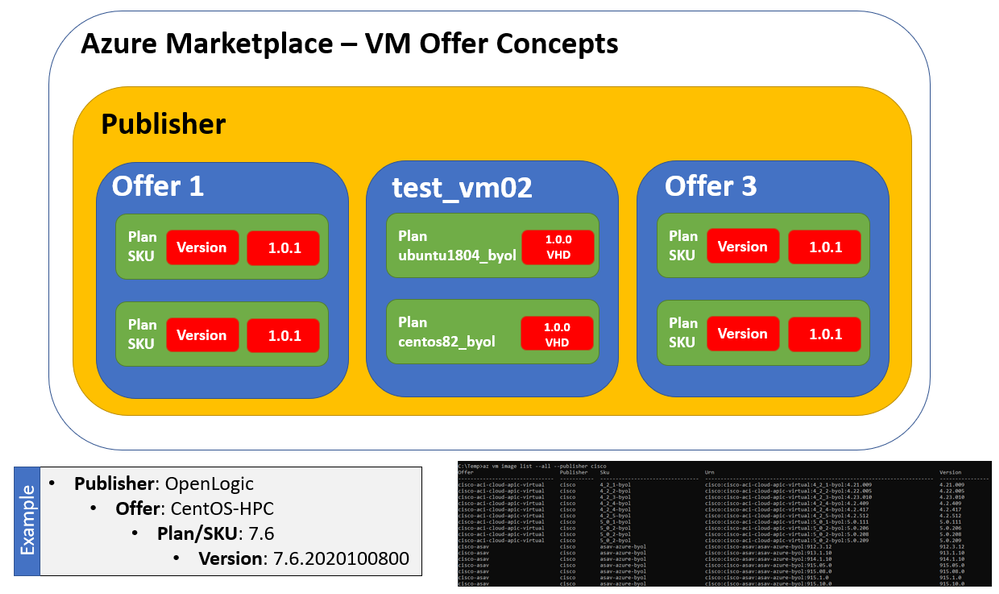
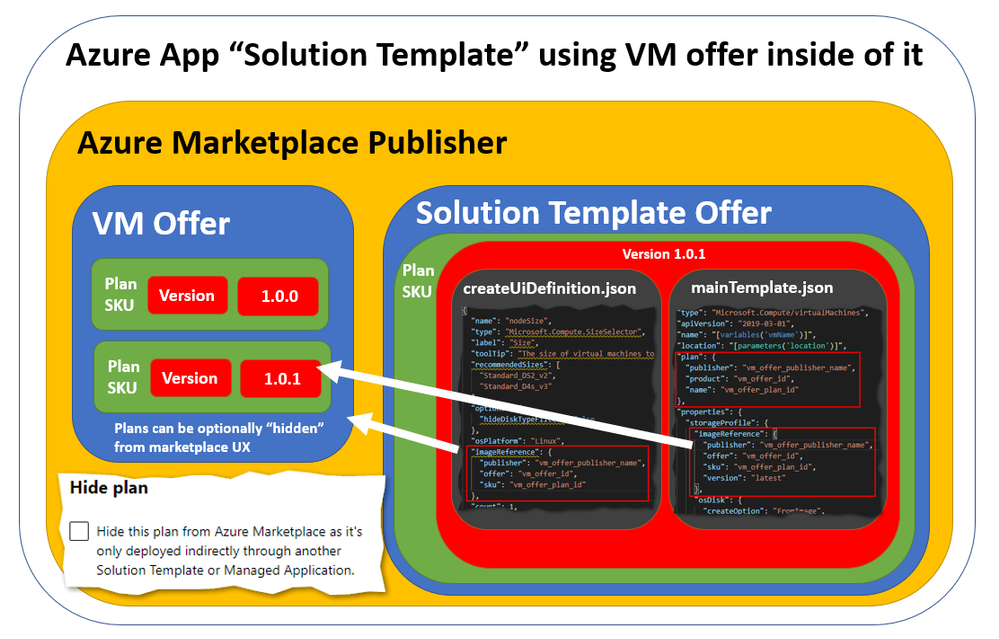
Azure Virtual Machine Offer Hierarchy – Publisher, Offer, Plan/SKU, and Version
Video #1: Creating Azure VM image for Azure Marketplace Virtual Machine Offer using Packer with “unmanaged” VHD destination
Tip: Play the video full screen to see all of the details.
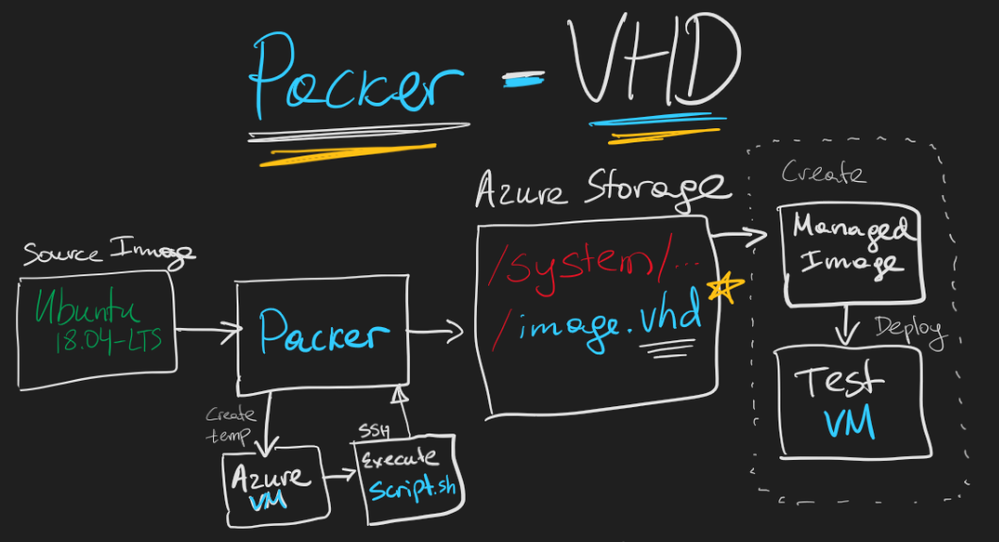
Using Packer with “unmanaged” VHD destination to get the VHD SAS URL for Partner Center
Video #2 (optional): Creating Azure VM image for Azure Marketplace Virtual Machine Offer using Packer with Azure Shared Image Gallery destination
Tip: Play the video full screen to see all of the details.
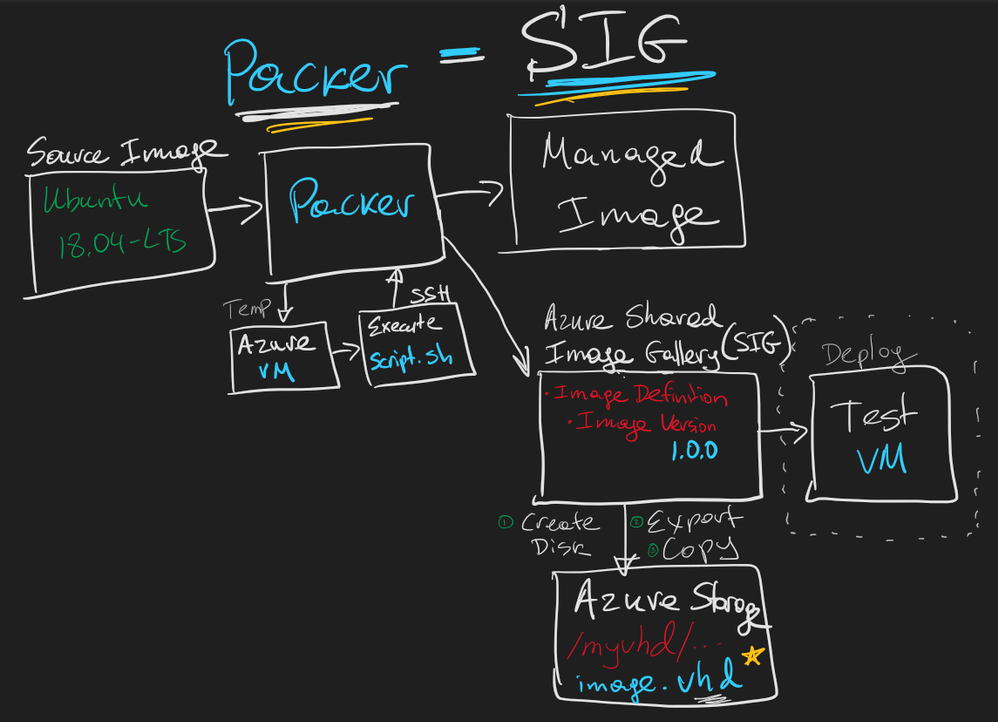
Using Packer with Azure Shared Image Gallery destination and then exporting the image and copying the VHD into Azure Storage account
Video #3: Publishing Azure Marketplace Virtual Machine Offer in Partner Center using SAS VHD URL
Tip: Play the video full screen to see all of the details.
Video #4: Deploying and testing “preview” Virtual Machine offer from Azure Marketplace
Tip: Play the video full screen to see all of the details.
Azure VM offer plans can used by Azure Apps
Azure Application offers (i.e. Solution Template or Managed Application) can use VM offer plan/SKU inside of their ARM templates. The VM offer plan can be marked as “hidden” so that it is not visible directly in Azure Marketplace UI but can still be used via ARM templates or command line tools.
You can find the sample code used in the videos above at https://github.com/arsenvlad/azure-vm-offer-hello-world-202012
Originally published at https://arsenvlad.medium.com/simple-azure-marketplace-virtual-machine-offer-creating-vm-images-and-publishing-in-partner-center-599bb0140689 on December 23, 2020.
by Contributed | Jan 13, 2021 | Technology
This article is contributed. See the original author and article here.
COVID is driving a tsunami of digital transformation initiatives in Healthcare and Life Science. But what’s the role and impact of electronic signatures and communication within that industry vertical? During this webinar, Jayashree Ramakrishna (Adobe Head of Industry Strategy: Healthcare and Life Science) will take our audience through a high-level overview of this highly regulated vertical and talk about what’s in-store for Health and Life Sciences in the Age of Digitization.

In this demonstration, we will see how Adobe Sign can help support Virtual Consult by bringing patients and clinicians together and sign important documents such as a HIPPA Consent form in Microsoft Teams meeting.
Presenters:

Event details:
OR
Pete and I will be your producers. Bring your questions and we look forward to seeing you there!

Sam Brown, Microsoft Teams Technical Specialist

Pete Anello, Senior Microsoft Teams Technical Specialist


Recent Comments