This article is contributed. See the original author and article here.
Event-driven architecture has become popular for its ability to ingest, process, and react to events in real-time. Event-driven is not a new paradigm however the proliferation of microservices and serverless computing has led to its ability to fully realize the benefit of its loosely coupled design to reach infinite scale without the need to manage infrastructure.
Moving to an event-driven architecture requires a restructuring of how you think about your application. To adopt an event-first mindset, you should first consider what business processes could be optimized to deliver customer value. These business processes can then be distilled down to a workflow of events.
What is an event?
An event is a lightweight notification of a condition or a state change that occurs in your environment. Events are produced from event sources where the state change has taken place. Events exist in many forms from checking code into source control or hiring a new employee and now several actions need to follow.
What is event-driven architecture?
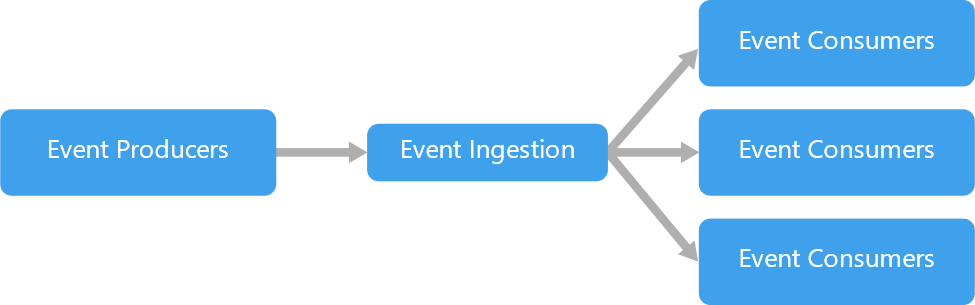
Event-driven architecture is a distributed system pattern that uses events to communicate between loosely coupled microservices to produce highly scalable applications. An event-driven architecture consists of event producers that generate a stream of events, and event ingestion that processes messages to the appropriate event consumers. Producers and consumer services are decoupled, which allows them to be scaled, updated, and deployed independently.
Polling based vs event-driven architectures
In a polling based architecture when you want to respond to events it can be difficult to discover those events, often you must write specific code across different API’s and SDK’s to continuously poll, looking for changes from the desired event source. Polling based architectures are synchronous so clients must wait for initial processes to complete before it can move onto the next one.
In an event-driven architecture, events are processed asynchronously which keeps threads running independently, instead of having to wait for a reply before moving onto the next task. One of the best practices for event driven architectures is using an event broker. Event producers and event consumers aren’t tightly coupled, so you can change producers and consumers just by communicating with the broker.
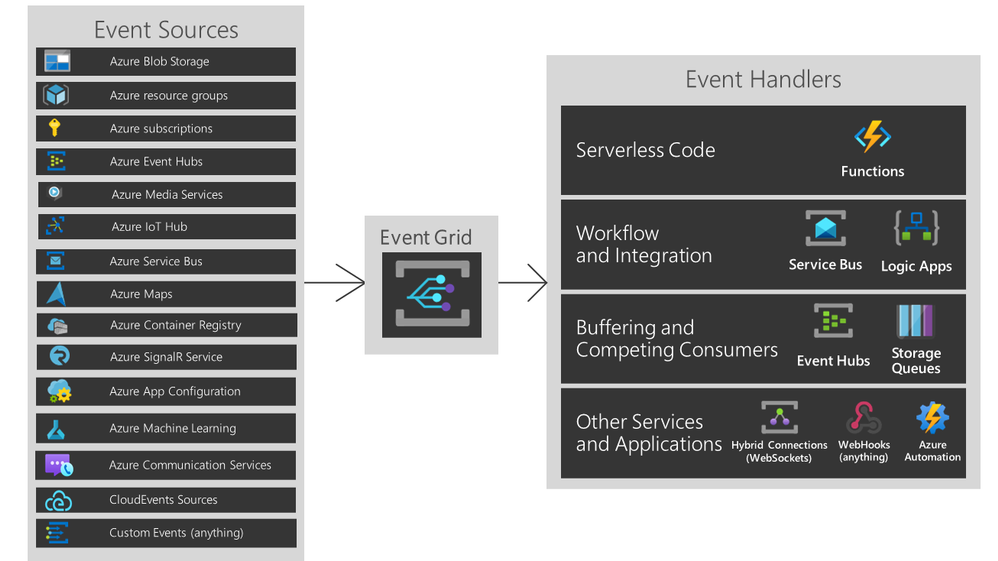
Azure Event Grid is the event broker backplane that enables event-driven, reactive programming. You can publish any event to event grid, add consumers to event grid and lower costs by eliminating the need for constant polling. Event grid is serverless so you get the benefits of publishing and subscribing to messages without the overhead of setting up the necessary infrastructure.
Since event-driven architectures are composed of loosely coupled distributed services, serverless application components can react to events in near real-time with virtually unlimited scalability. Services such as Azure Functions or Logic Apps easily integrate with Event Grid allowing you to build serverless event-driven applications.
What are the benefits of event-driven?
Loosly coupled: can add, remove, version as your architecture grows. You can easily add in a new event consumer and the other ones don’t have to know about it
Highly composable: can use and reuse different event driven components throughout your solution
“Single purpose” units of code: Event driven architecture can help you keep your code from getting too complex by breaking into more discrete parts
Maps to the business need: Your team is building code based off of the actual business events. “When a sale happens” is the event, so what should happen when a sale happens? Ideally the real world events are represented in your solution.
Example Scenario
Event-driven architecture
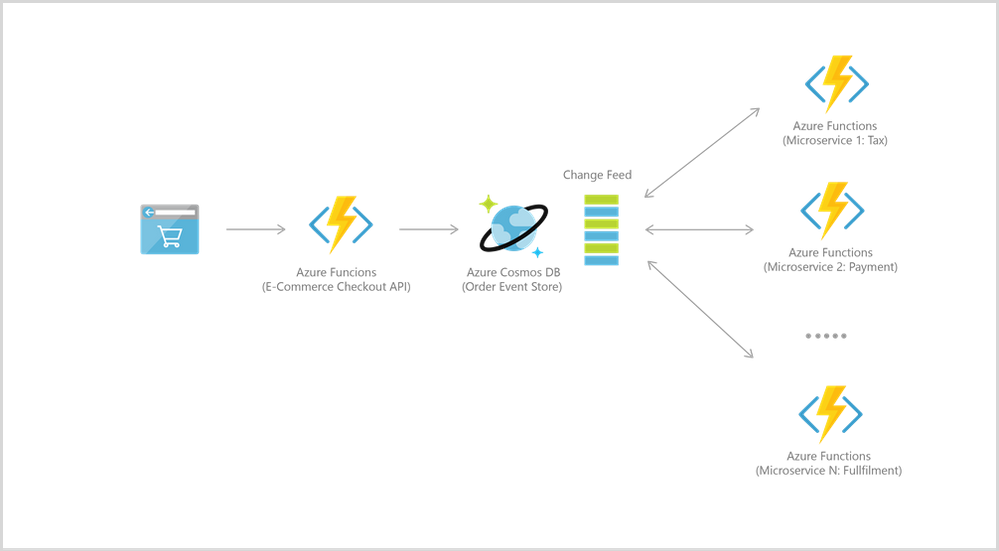
One of the more common event patterns is when a customer places an order on an e-commerce site. When an order is placed, an event is created with all the information necessary for other services to carry out the completion of the order. The task of completing the order would involve several actions that would be processed by different systems: payment is processed, an email is sent to a customer, inventory is accounted for, the shipping label is produced, etc. These actions occur asynchronously so services do not have to wait on another to complete their task.
When you should use this architecture
Use cases for event-driven architecture are typically driven by the need to have near real-time processing and multiple subsystems processing the same events. Many of the common applications include IoT applications, e-commerce, financial systems, and data analytics.
The decision to use a request-driven vs event-driven architecture ultimately boils down to what problem are trying to solve and how you will benefit from the solution. Event-driven is not the answer for all scenarios however it is a great first step to begin thinking about business-processes as first-class events that ultimately derive customer value.
Summary
Transitioning to an event-driven architecture is an opportunity to modernize your systems to keep up with the fast-changing business environment. Paired with a serverless infrastructure, event-driven architecture provides the agility necessary to scale on-demand and independently make changes or update services.
In the next blog in the series, I will focus on how you can build event-driven applications using common messaging patterns and capabilities in Azure.
This article is contributed. See the original author and article here.
One of the main challenges when using Office 365 products and services is to stay aware of announcements, updates and upcoming features. This applies to all responsible roles at Office 365 customers as well as for IT Consultants or Engineers guiding others.
This article, written by two Microsoft Customer Engineers (formerly known as Premier Field Engineers), provides an overview of choices, how to gain information and awareness on upcoming changes in Office 365. Different options, tools and services with their respective audience are compared with each other to help to decide what approach best suits the target audience’s needs.
At the end of this post you will find background information to get a general understanding what “evergreening” means, how updates work and why you should adjust your service management processes.
Wondering how you can stay ahead on what’s happening next in Office 365? Check the role guide section to find out what you could do.
Download this article: O365 Update Scout to go
Grab the PowerPoint version of this article at aka.ms/O365UpdateScoutToGo and share it with anyone who should not be missing changes in Office 365.
Possible options how to stay ahead
There are various ways to keep yourself informed about what is happening in Office 365. Read about some of them below. Be aware that this list is not claiming to cover all existing options or information sources. This list is based on our experience as Office 365 engineers working for multiple customers. Do you know about additional sources, tools or solutions that are missing in this post? Speak up in the comments and let the authors know about it.
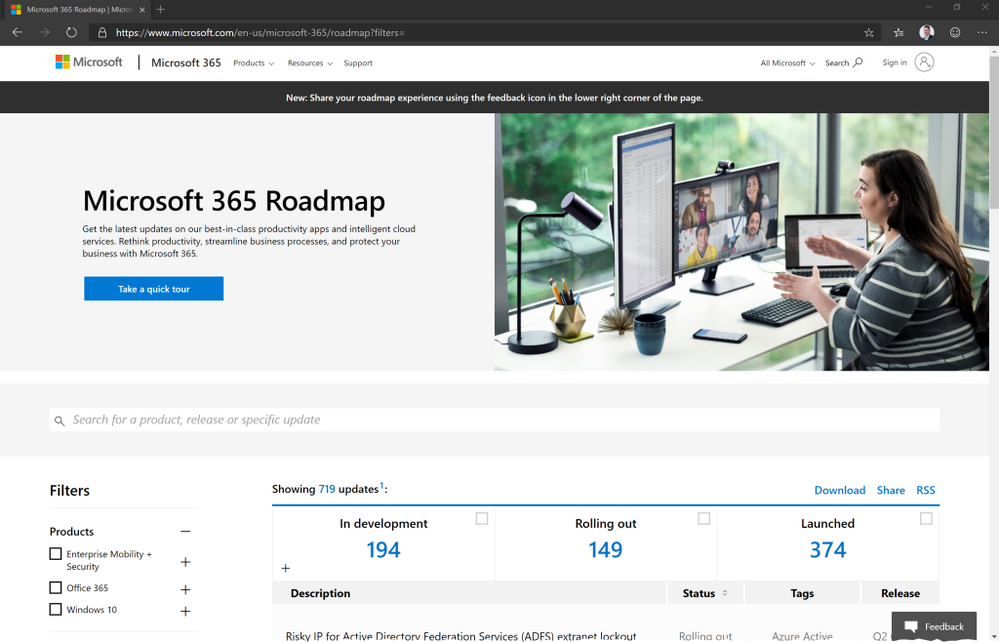
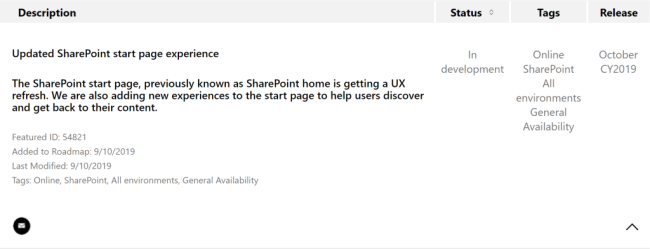
The Microsoft 365 Roadmap Website is the official resource for all roadmap related information. Updates usually happen twice a week, related to all products, features and services released across Microsoft 365.
The intuitive website UI, that is offering filtering by certain options and categories, gives access to all roadmap items and their details.
Searching for and sharing of features is possible as well as a download (CSV Format) functionality. An RSS feed subscription is available and recommended for anyone professionally dealing with Office 365.
Conclusion:
The Microsoft 365 Roadmap should be considered “the truth”. It is the official and main channel for all long-term change announcements and should be monitored by most roles dealing with Office 365. Every roadmap item comes with a targeted release estimation, so this is the best way to get information about long term changes or feature updates.
One of the challenges with the Microsoft 365 Roadmap is the release date. Keep in mind that those dates are estimates and subject to change. This doesn’t mean the update or feature will be available within your Tenant at this specific date. The complexity or requirements of a feature, quality checks, feedback while in preview (and more) all those topics can affect the date when a feature will be “really” available within your tenant.
Create an RSS subscription. You can quickly consume the RSS feed within a Microsoft Teams channel as well (Using Teams RSS Connector or via Flow). If necessary, you can easily search and export roadmap items on the website.
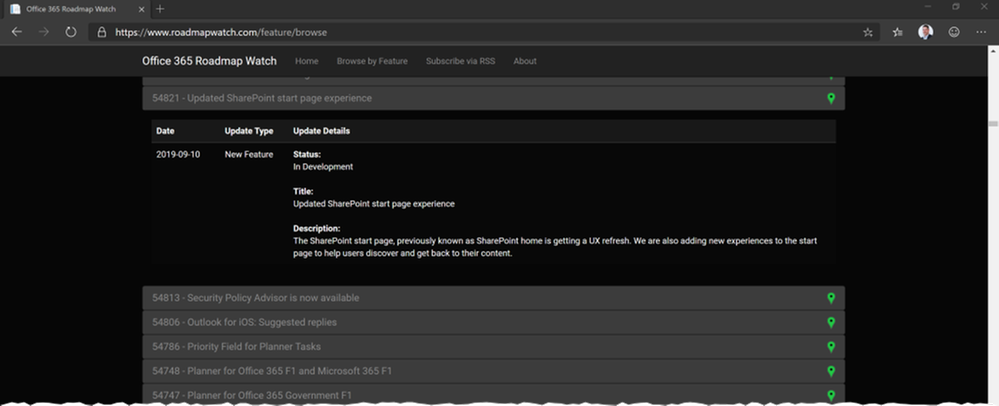
This project helps monitoring the Official Microsoft Office 365 Roadmap and tracks changes that occur with each roadmap update. Changes can be reviewed via the “Browse by Feature” section of the site. You can subscribe to an RSS feed to get notified when updates occur.
The website offers a great way to keep track of chances in the Office 365 Roadmap. Author of the project is Joe Palarchio. He is a Microsoft employee, but the project itself is not affiliated with Microsoft.
Conclusion:
Keeping track of the official Office 365 Roadmap alone can be challenging, due to the amount of changes. Roadmap Watch simplifies monitoring the roadmap. This solution helps to aggregate roadmap updates and does not provide further information on the roadmap item itself.
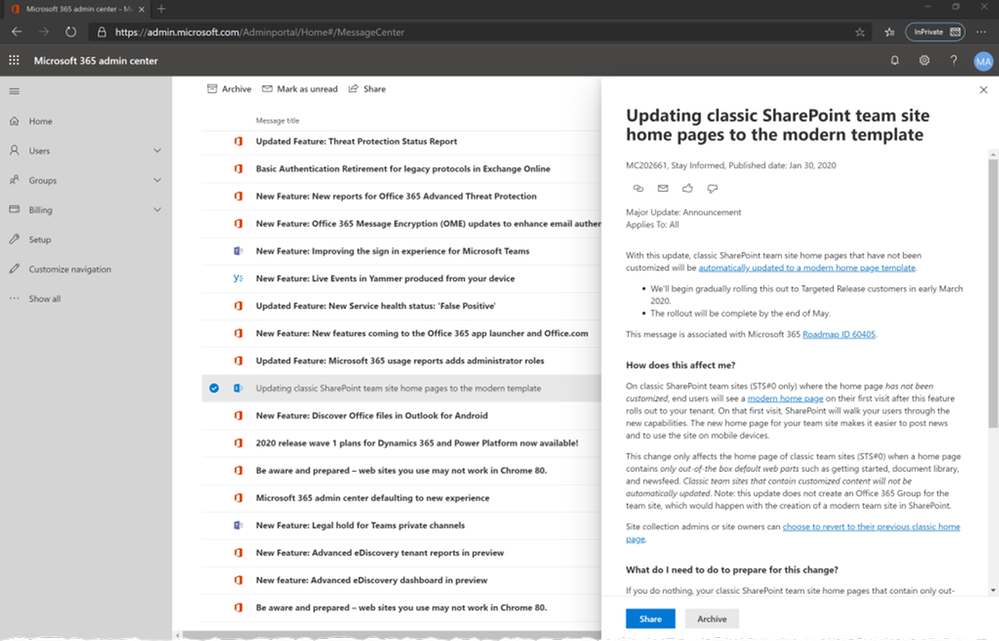
To learn about upcoming changes, including new and changed features, planned maintenance, or other important announcements affecting your tenant, go to the Message center within your tenants admin center. That’s the channel where Microsoft communicates to you or posts official announcements and let you take a proactive approach to change management. Each post gives you a high-level overview of a planned change and how it may affect your users, and links out to more detailed information to help you prepare.
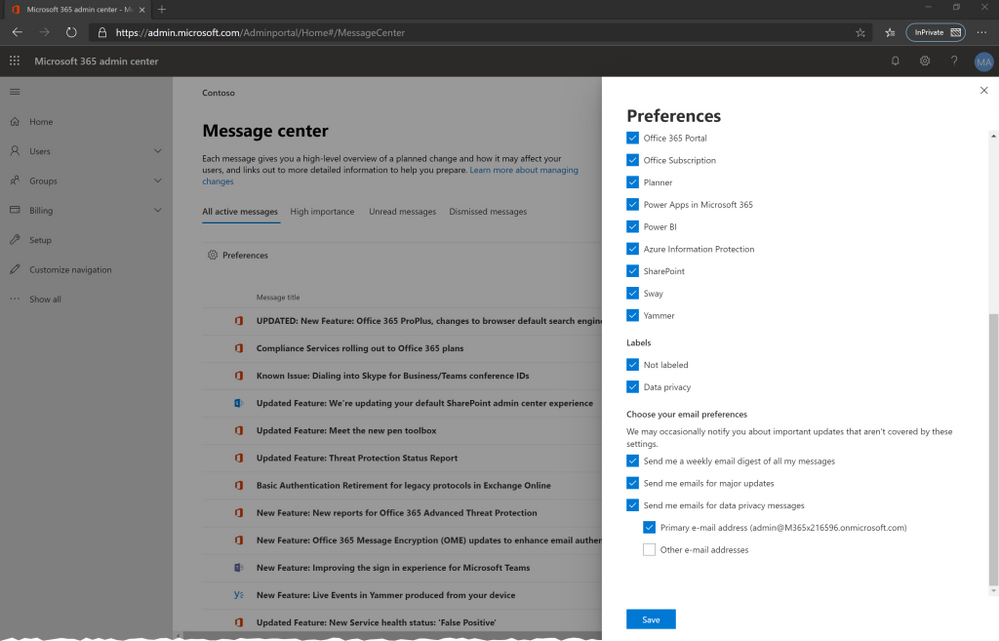
The Message Center preferences offers the ability to send out weekly email digest as well as emails for major updates and data privacy messages. Administrators with access to the Message Center should subscribe this type of emails. A best practice is to create an email distribution list, that receives weekly digest mails. Members of this email distribution list, that have no access to the Message Center itself, can participate from this channel as well.
You can also use the Microsoft 365 Admin app on your mobile device to view Message center, which is a great way to stay current with push notifications.
Conclusion:
Depending on your role and permissions, you should monitor your tenants Message Center constantly. Check the list of administrative roles, that do not have access to the Message Center. Even though you can configure Email alerts and digest messages, the amount of data available can make it difficult not to lose the overview. A general monitoring strategy should be discussed with other administrators in your organization.
Get familiar with the Message Center and its features. Go to the Message Center Preferences and configure a weekly email digest and email alerts for major updates. Discuss possibilities to monitor Message Center content within your organization. Review additional tools and solutions (mentioned in this article), that can help to implement an efficient Message Center monitoring.
Microsoft offers an API, that provides access to various information of Office 365, Yammer, Dynamics CRM and Microsoft Intune cloud services. This enables developers and IT pros to build custom solutions to gather events and messages from the Office 365 Message center as well as to get the current state of Office 365 services. You can use the Office 365 Service Communications API V2 to query following data:
Get Services: Get the list of subscribed services.
Get Current Status: Get a real-time view of current and ongoing service incidents.
Get Historical Status: Get a historical view of service incidents.
Get Messages: Find Incident and Message Center communications.
There are various projects that make use of this API. It can also be used to support your Office 365 information and change management processes by creating your own solution that leverages the API.
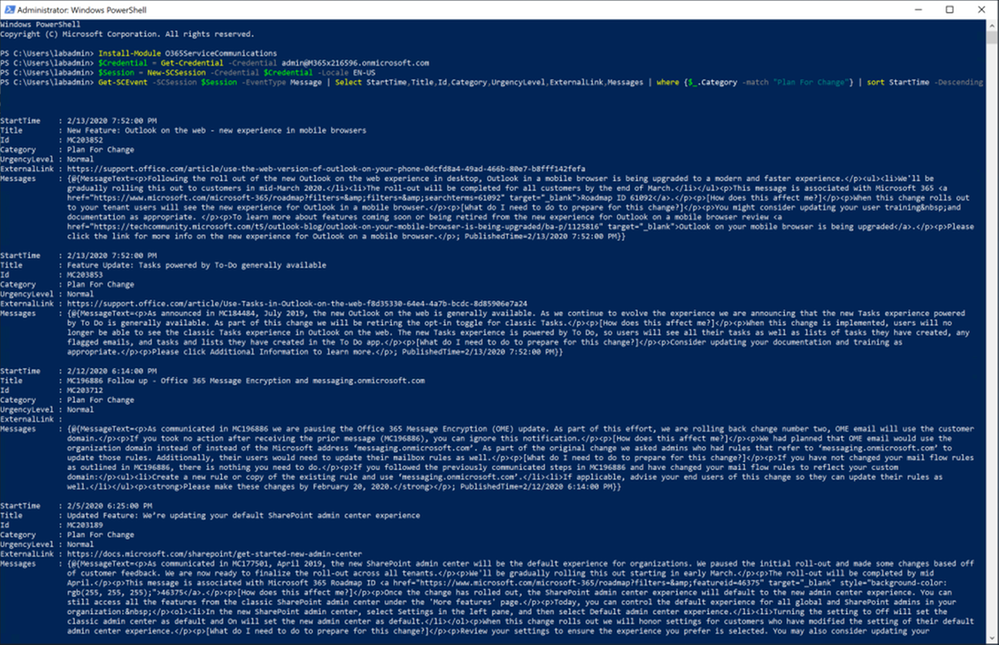
A good example of an existing solution which uses the API is the O365ServiceCommunications project, available on GitHub. It provides a PowerShell module for retrieving data from the Office 365 Service Communications API. This can be used right away for reporting the health status of your tenant over time, or for alerting when new messages are published in the Message Center. So ideally you would not just extract the messages from the message center but define procedures (like task items, inform advisory boards etc.) to leverage and benefit from the extracted information.
Conclusion:
The Office 365 Service Communications API offers an additional source of information that can be used by administrators or developers to create your own solution and help your organization to get the information you need to be prepared for upcoming changes.
If you are looking for possibilities to build a custom solution that is supporting your change management process, Developers or IT pros should take a look at the Office 365 Service Communications API and existing projects building on it.
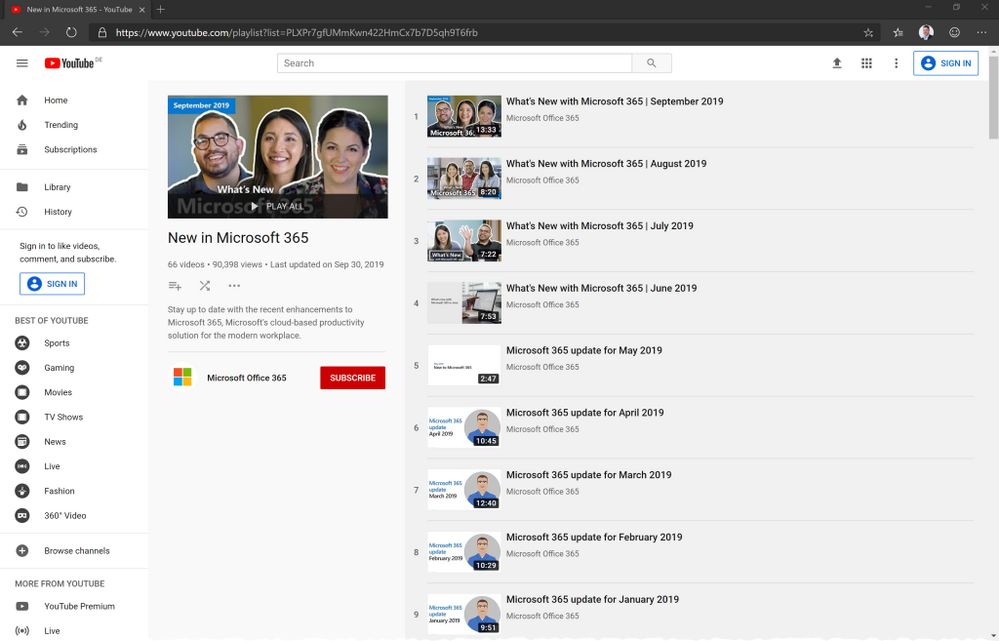
What’s new with Microsoft 365 is a YouTube Playlist on the Microsoft Office 365 YouTube channel. Microsoft is releasing a 10-15 minutes videocast at the end of each month, to cover important updates to products, features and services in Office 365. The hosts of the show as well as selected guests highlight certain important updates. The video format offers great possibilities to show details of each topic. Be aware, that not all changes of the last month are covered in each episode.
Conclusion:
The videocast format is an easy and quick way to see what is happening in Office 365, on a high-level overview.
Schedule 15 minutes in your calendar at the end of each month to watch the videocast and catch up with what has happened the last month and how you can benefit from those updates.
Office 365 Automated Change Management
Publisher:
Microsoft Services
Source:
Available for Microsoft Premier/Unified Support Customers. Contact your Customer Success Account Manager (CSAM), formerly known as Technical Account Manager (TAM) for more information.
Description:
The Office 365 Automated Change Management project is about building a fully automated solution around Azure DevOps (alternatively Planner) and Microsoft Teams as a central collaboration platform within an organization to provide tools to take control and be fully prepared for the changes in Office 365. Administrators, Developers and other responsible roles automatically get the information they need for their workload responsibilities by tasks that are automatically created and assigned to them through this solution.
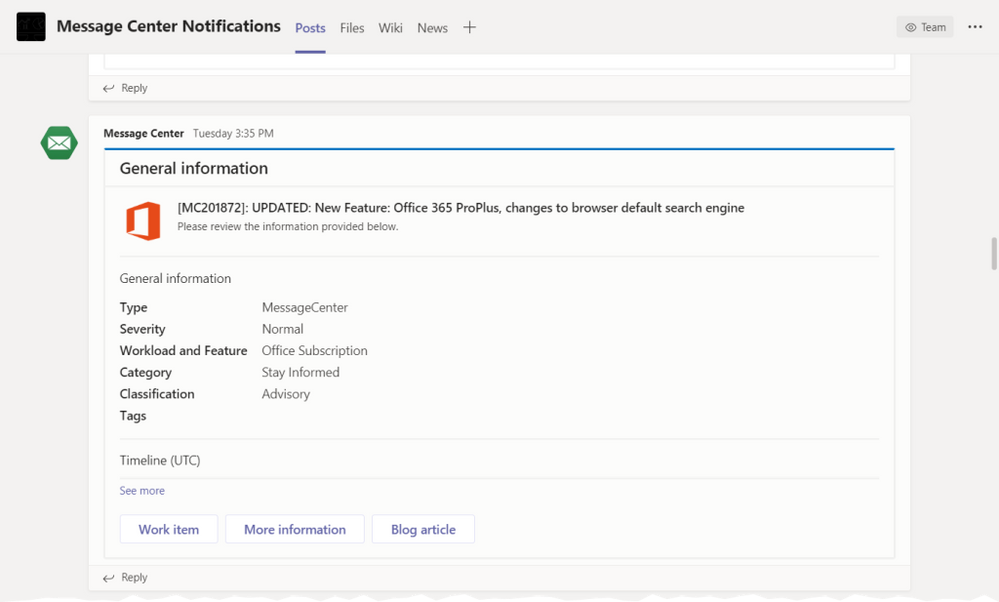
Message Center Notifications can get posted to Teams for general awareness, even for roles with no access to Message Center. Teams is used to inform about new work items that are linked in the post within the Teams channel:
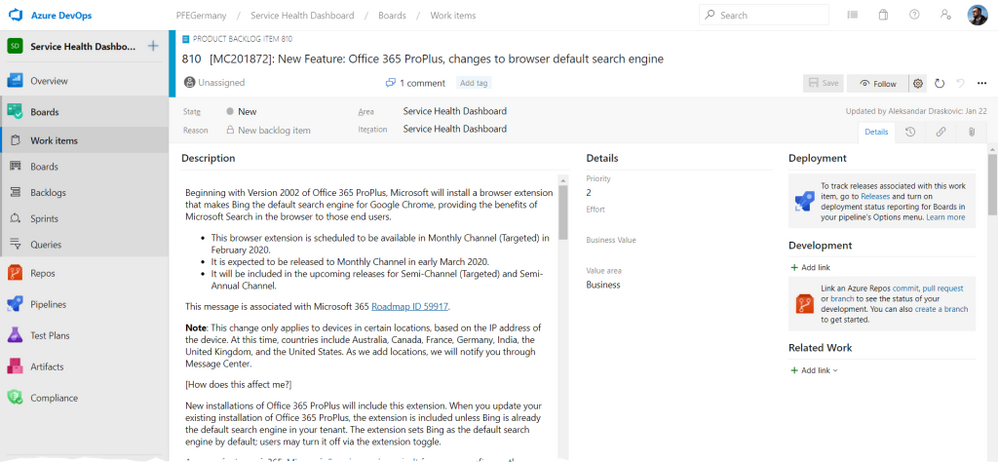
How about Azure DevOps automatically creating work items for any new Message Center notifications? Assign tasks to people in charge and never miss important changes. Not using Azure DevOps? Tasks can alternatively be saved in a Planner bucket as well.
Conclusion:
The solution is an excellent way to automatically create tasks for relevant roles involved in Office 365 Change Management. Organizations that aim for operational excellence and try to improve processes to minimize risks and bad surprises, are recommended to have a look at this project. The solution needs to be implemented and customized by Microsoft Services. The minimal implementation effort pays off immediately.
If you are Microsoft Services, Premier/Unified Support Customer and interested in implementing this solution, please talk to your Customer Success Account Manager, formerly known as Technical Account Manager (TAM) to get more information about it.
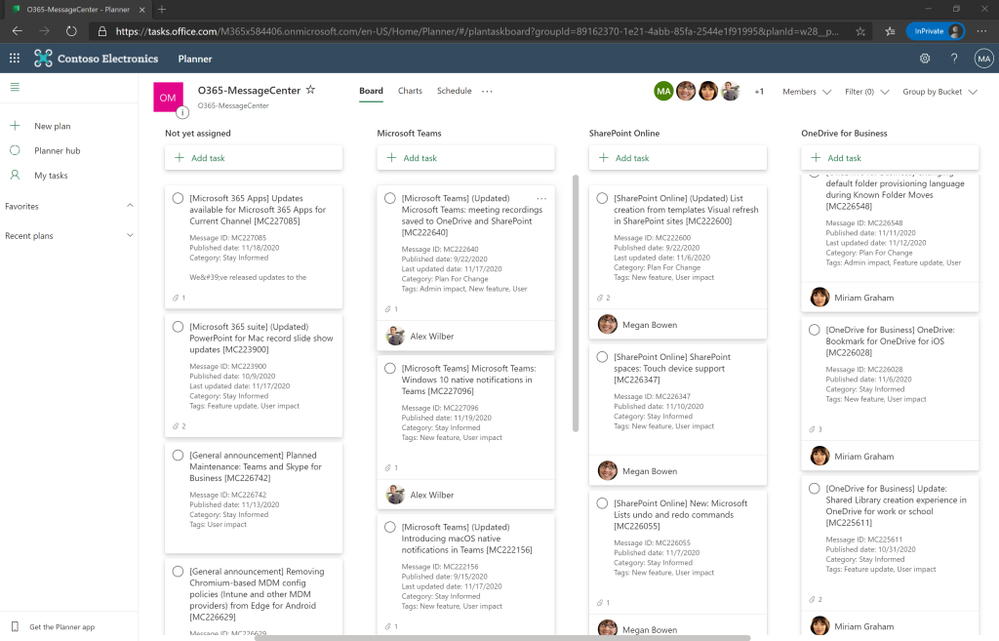
Non-Global Admins or Non-Service Administrators are not able to see the Office 365 Message Center. How about an automated way, that reads the Message Center and posts relevant information to Planner? Message Center Synchronisation to a Planner Plan can be set up in a few minutes.
The idea is reminding us of the Office 365 Automated Change Management solution mentioned earlier in this article. Compared to the Office 365 Automated Change Management solution this is a more simplified approach that just covers basic functionality but is very easy to implement.
Bring over notifications from the Message Center automatically into Office 365 workload related Planner buckets:
Conclusion:
Similar like the Office 365 Automated Change Management solution from Microsoft Services, Office 365 Message Center Planner Syncing is an easy way to automatically manage changes by syncing Message Center items to a Planner Plan. In the Plan, synced tasks can be assigned to people in charge.
Work through the Microsoft Message Center Planner Syncing documentation and review the step-by-step implementation guide. Adopt it to fit your organization’s needs.
Monthly Technical Update Briefing
Publisher:
Microsoft Services
Source:
Available for Microsoft Premier/Unified Support Customers. Contact your Customer Success Account Manager (CSAM), formerly known as Technical Account Manager (TAM) for more information.
Description:
The Office 365 monthly Technical Update Briefing (TUB) is available for all Office 365 workloads (SharePoint Online, Exchange Online, Teams and Skype for Business) and provides IT professionals with proactive information on updates needing change management attention.
TUB delivers the short-and long-term roadmap of future Office 365 capabilities and features:
Enabling ongoing value of Office 365 investment by receiving knowledge on new features and updates
Understanding necessary administrative and user actions to implement changes
Overview on mandatory and optional changes including switches to consider
Understand infrastructure updates to consider in your hybrid solutions
Understand delivered bug fixes to update your helpdesk staff
TUB is available in two formats:
Webcast: Office 365 – Technical Update Briefing SharePoint Online / Exchange Online / Teams The one-hour, monthly workload specific webcast series is presented by a Microsoft Customer Engineer (formerly knows as Premier Field Engineer). It contains information on new features, feature updates and changes, rollout timelines, and further roadmap information. There are separate one-hour webcasts available for multiple workloads (SharePoint Online, Exchange Online and Microsoft Teams) which are not customer specific.
WorkshopPlus: Office 365 – Technical Update Briefing (Dedicated Session 1 Day) Presented by one or more Microsoft Customer Engineers (formerly known as Premier Field Engineers), the monthly WorkshopPlus is a 6 hours delivery. It contains information on new Office 365 features, feature updates and changes, rollout timelines and further roadmap information. All workloads are included in this session (Overall O365 announcements, Exchange Online, SharePoint Online as well as Microsoft Teams) and targeted specifically to the customer. There are Demos, Q&A and Post-Delivery follow-ups included in this service as well.
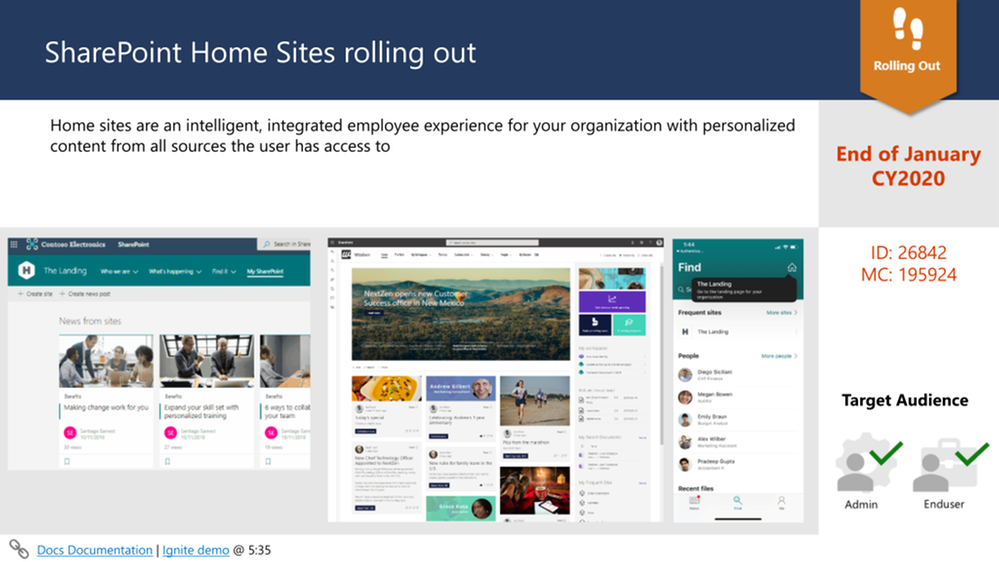
Sample content from a former TUB announcement:
Conclusion:
TUB is a very detailed way to get relevant information to the right audience. The interactive format offers more than just plain news about What’s New. Unique selling point is the possibility to ask the experts (CEs, formerly known as PFEs) during the delivery. Demos, Q&A and follow-ups add the value which Microsoft Enterprise customers are looking for.
If you are Microsoft Services, Premier/Unified Support Customer and interested in monthly Technical Update Briefings, please talk to your Customer Success Account Manager (CSAM), formerly known as Technical Account Manager (TAM) to get more information about it.
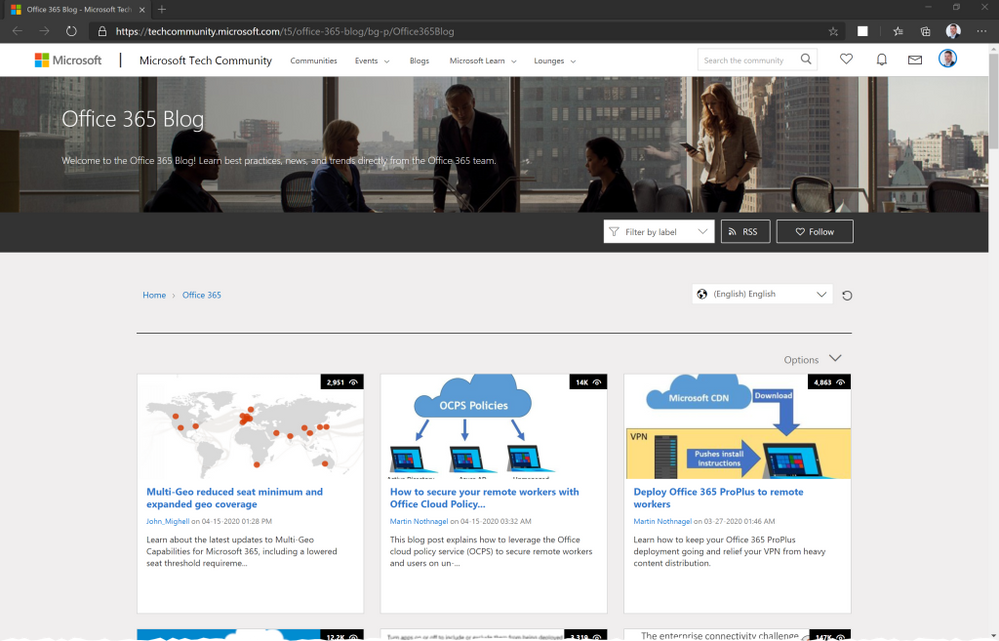
The Office 365 Blog is a great source for best practices, news, and trends. The product groups as well as other experts from the field (e.g. Engineers from Microsoft Services) publish content that is relevant for everyone dealing with Office 365.
Conclusion:
There is a variety of Office 365 related Blogs on Microsoft Tech Community. Workloads like SharePoint, Teams or Exchange are covered by dedicated blogs, but by following the Office 365 Blog you make sure to get information across the board. Articles that are published here are not just announcing latest updates or the availability of important features, but also delivering other must-know content. For that reason, you should not miss the pieces created by subject matter experts.
Create an RSS subscription. You can quickly consume the RSS feed within a Microsoft Teams channel as well (Using Teams RSS Connector or via Flow).
Role Guide: How can you stay ahead?
Different roles and responsibilities, different access to information sources, different point of view. In this section you find typical roles involved in the Office 365 game.
Select to find out which options could make sense for you:
Select your Role
Office 365 Developer
Office 365 Consultant
Office 365 Global Administrator
Office 365 Security Administrator
Office 365 Service Administrator
IT-Service Owner
IT-Change Coordinator
IT-Enthusiast / Power User
Business- / IT-Decision Maker
Responsible for IT related decisions at a high level in an organization or business unit
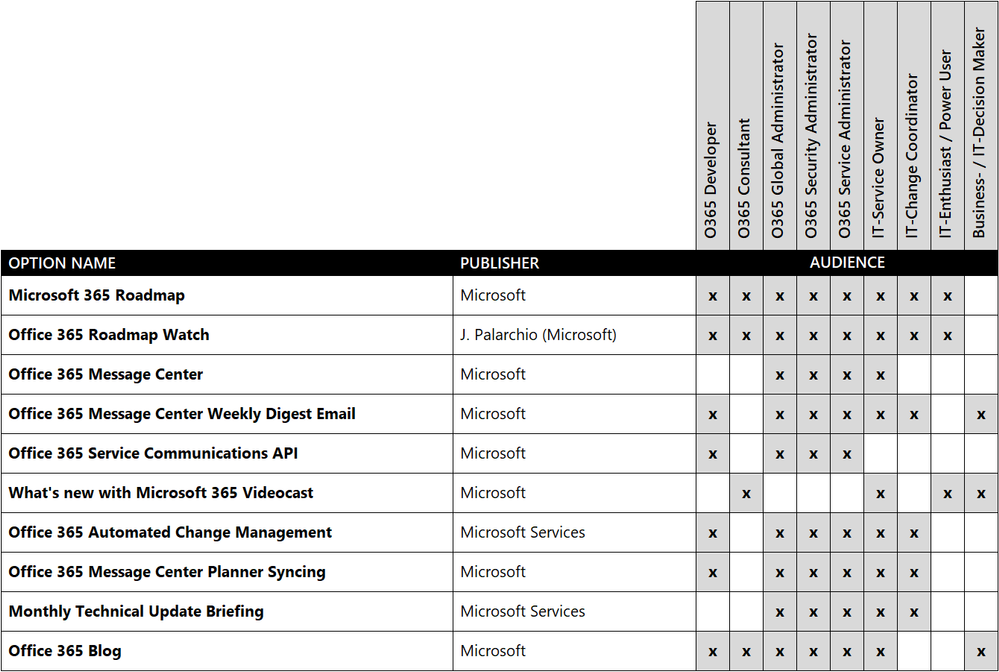
Options Matrix
See all the options described in this article in one overview. Which role are you in? Find out what is recommended for you to stay on top of Office 365 Updates.
Conclusion
As you might have guessed by now, there is simply no one-fits-all solution for this topic. Different Office 365 customers use multiple ways to deal with upcoming changes.
Look out for future blog posts covering real world customer examples from the field.
In our experience customers use a mixture of the options above to stay ahead of upcoming changes. Important factor to mention is not only to getting the information ahead of the update but to leverage this information proactively. Customers tend to “ignore” updates which first is not a proper way to deal with it. Furthermore, it is a bad decision because every month new features and updates will appear on top of the ignored ones within the tenant. And don’t forget, your users will use those features so staying aligned and proactive is in your organization and your users’ best interest.
Our hope is that every one of you will take action to
Consume the information from Office 365 blogs, roadmap, and Message Center etc.
Review the communications for business benefit and to avoid adversity with your business users
Drive and measure business benefits of each new feature because success begets success like nothing else
BACKGROUND INFORMATION
The Microsoft 365 change guide
Microsoft published an excellent online resource that is a must read for the audience of this article.
The Microsoft 365 change guide helps understanding the concept of rapid feature release and adoption and why it is necessary to develop and implement a robust change management strategy. The documentation is structured in chapters to provide background information as well as giving advisory for customers to implement modern IT service and change management:
Continuous change in the cloud
Introduction to the Microsoft agile development model and how customers benefit from Microsoft being committed to constantly enhance, improve, and evolve cloud services.
An overview of challenges customers are facing with the continuous release policy of Microsoft 365. Learn about the impact your strategy can have on evergreen IT. Three categories of customers can be identified based on their observed change strategies. Read about these common approaches and what Microsoft is advising.
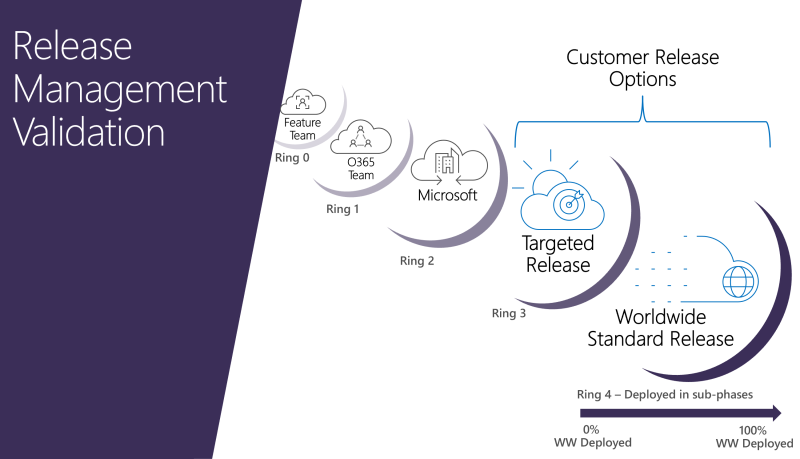
Microsoft 365 customers can control the release of features they receive in two different options: “Standard Release” and “Targeted Release”. The implications of these different types are covered in the guide. Furthermore, Microsoft develops and releases new features in a ring deployment model while every ring reaches a broader audience. Get familiar with the service release channels and how to set up the release option in the admin center.
To be able to manage changes on client devices, organizations must understand the concept of client release channels. The documentation compares the differences of Microsoft 365 Apps channels (Current Channel, Monthly Enterprise Channel and Semi-Annual Enterprise Channel) and how to modify update channels for devices in your organization.
Updates are necessary to keep products and services secure, up to date, and working as expected. The M365 change guide is transparent in explaining the Microsoft 365 change management plan, disclosing details on the three phases of a change. The article explains how changes are classified and about Microsoft’s commitment to notify customers before updates are rolled out.
This content was published by Christian Heim and Christian Keller. Both work for Microsoft in Germany in their role as Senior Customer Engineers. Check out this video to find out what their daily business is all about: Working as a Customer Engineer (Premier Field Engineer) at Microsoft.
Disclaimer
The authors of the Office 365 Update Scout online article and offline PowerPoint document are a group of Microsoft Customer Engineers (CEs), formerly known as Premier Field Engineers (PFEs). The Office 365 Update Scout should not be considered an official (Microsoft) product. It was created and published to help Office 365 Administrators to stay aware of announcements, updates and upcoming features. All information provided in the Office 365 Update scout online article and offline PowerPoint document is provided “AS IS” with no warranties and confers no rights. The Office 365 Update Scout online article and offline PowerPoint document does not represent the thoughts, intentions, plans or strategies of Microsoft. All content is solely the opinion of the authors and provided with a best effort to be based in reality. All content, code samples, demonstrations, or anything resembling a “how-to” are provided “AS IS” without warranty of any kind, either express or implied, including but not limited to the implied warranties of merchantability and/or fitness for a particular purpose.
This article is contributed. See the original author and article here.
Want to learn how to use Microsoft Teams effectively at your hospital? Join Mary Buonanno, Healthcare Chief Technology Officer at The Ergonomic Group, and Margaret Campbell, Director at HealthNET Consulting, as they share their real-world experience with Microsoft Teams during COVID-19 in a multi-facility acute care hospital environment.
Topics will include:
• Why MS Teams
• COVID-19’s impact
• Using MS Teams in an EHR implementation
• Benefits realized / lessons learned
• Technology considerations for a successful deployment
You’ll learn practical tips — and even hear some Teams insight from Microsoft support — on how Microsoft Teams can help your hospital improve operational efficiencies.
Join us on Wednesday, February 10th from 2-3 PM EST.
This article is contributed. See the original author and article here.
UEFI signing is a service provided by the Windows Hardware Dev Center dashboard by which developers submit UEFI firmware binaries targeted to x86, x86-64, or ARM computers. After these binaries are approved through manual review, the owners can install them on PCs that have secure boot enabled with the Microsoft 3rd Party UEFI CA permitted.
While Microsoft reserves the right to sign or not sign submissions at its discretion, you should adhere to these requirements. Doing so will help you achieve faster turnaround times for getting a submission signed and help avoid revocation. Microsoft may conduct follow-up reviews, including but not limited to questionnaires, package testing, and other security testing of these requirements before signing.
The following list contains the latest requirements for the UEFI signing process. These requirements are to ensure the security promise of secure boot, and to help expedite the turnaround of signing submissions.
UEFI submissions require an EV certificate and an Azure Active Directory (AAD) account.
Only production quality code (for example, “release to manufacturing” code, rather than test or debug modules) that will be released to customers (no internal-only code or tools) are eligible for UEFI signing. For internal-use code, you should add your own key to the Secure Boot database UEFI variable or turn off Secure Boot during development and testing.
Microsoft UEFI CA signs only those products that are for public availability and are needed for inter-operability across all UEFI Secure Boot supported devices. If a product is specific to a particular OEM or organization and is not available externally, you should sign it with your private key and add the certificate to Secure Boot database.
Code submitted for UEFI signing must not be subject to GPLv3 or any license that purports to give someone the right to demand authorization keys to be able to install modified forms of the code on a device. Code that is subject to such a license that has already been signed might have that signature revoked. For example, GRUB 2 is licensed under GPLv3 and will not be signed.
If there’s a known malware vector related to code that uses certain techniques, that code will not be signed and is subject to revocation. For example, the use of versions of GRUB that aren’t Secure Boot enlightened will not be signed.
If there are known security vulnerabilities in your submission code, the submission will not be signed, even if your functionality doesn’t expose that code. For example, the latest known secure versions of OpenSSL are 0.9.8za and 1.0.1h, so if your submission contains earlier versions that contain known vulnerabilities, the submission will not be signed.
Microsoft will not sign EFI submissions that use EFI_IMAGE_SUBSYSTEM_EFI_RUNTIME_DRIVER. Instead, we recommend transitioning to EFI_IMAGE_SUBSYSTEM_EFI_BOOT_SERVICE_DRIVER. This prevents unnecessary use of runtime EFI drivers.
Use of EFI Byte Code (EBC): Microsoft will not sign EFI submissions that are EBC-based submissions.
If your submission is a DISK encryption or a File/Volume based encryption, then you MUST make sure that you either don’t encrypt the EFI system partition or if you do encrypt, be sure to decrypt it and make it available by the time Windows is ready to boot.
If your submission is comprised of many different EFI modules, multiple DXE drivers, and multiple boot applications, Microsoft may request that you consolidate your EFI files into a minimal format. An example may be a single boot application per architecture, and a consolidation of DXE drivers into one binary.
If your submission is a SHIM (handing off execution to another bootloader), then you must first submit to the SHIM review board and be approved before a submission will be signed. This review board will check to ensure the following:
Code signing keys must be backed up, stored, and recovered only by personnel in trusted roles, using at least dual-factor authorization in a physically secured environment.
The private key must be protected with a hardware cryptography module. This includes but is not limited to HSMs, smart cards, smart card–like USB tokens, and TPMs.
The operating environment must achieve a level of security at least equal to FIPS 140-2 Level 2.
If embedded certificates are EV certificates, you should meet all of the above requirements. We recommend that you use an EV certificate because this will speed up UEFI CA signing turnaround.
Submitter must design and implement a strong revocation mechanism for everything the shim loads, directly and subsequently.
If you lose keys or abuse the use of a key, or if a key is leaked, any submission relying on that key will be revoked.
Some shims are known to present weaknesses into the SecureBoot system. For a faster signing turnaround, we recommend that you use source code of 0.8 or higher from shim – GitHub branch.
If your submission contains iPXE functionality, then additional security steps are required. Previously, Microsoft has completed an in depth security review of 2Pint’s iPXE branch. In order for new submissions with iPXE to be signed, they must complete the following steps:
This article is contributed. See the original author and article here.
Join Anna Hoffman and Buck Woody as they take a tour of the incredible learning resource the Microsoft Engineering team has put together. From labs to full hands-on workshops and much more, you’ll find a wealth of high-quality, free-cost training. You’ll also learn about many of the other valuable references and assets you can find at SQL Workshops.
This article is contributed. See the original author and article here.
Howdy folks!
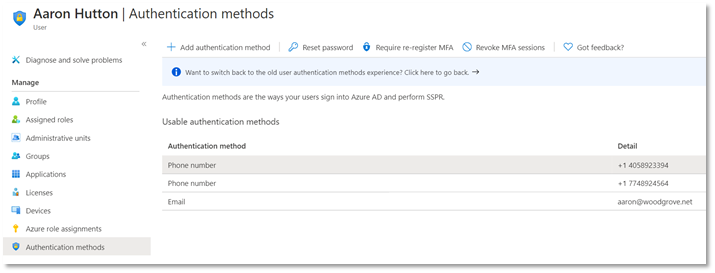
In November, I shared that we’re simplifying the MFA management experience to manage all authentication methods directly in Azure AD. This change has been successfully rolled out to cloud-only customers. To make this transition smooth for hybrid customers, starting February 1, 2021, we will be updating the authentication numbers of synced users to accurately reflect the phone numbers used for MFA.
Daniel Wood, a Program Manager on the Identity Security team will share the details of this change for hybrid customers. As always, please share your feedback in the comments below or reach out to the team with any questions.
It’s never been more important to enforce MFA. As part of our efforts to make hybrid MFA deployments simpler and more secure, we’ll be updating empty authentication numbers with users’ public phone numbers if those numbers are being used for MFA. This change doesn’t affect the end user experience, but here’s what you’ll see as an admin after February 1:
Changes to user records
Starting February 1, 2021, for synced users who are using public profile numbers for MFA, Microsoft will copy the public number to users’ corresponding authentication number. Once the authentication number is populated, the MFA service will call that authentication number, instead of the public number. Microsoft will copy subsequent changes to the public number over to the authentication number until May 1, 2021 (except deletions of the public number).
Managing users’ authentication numbers
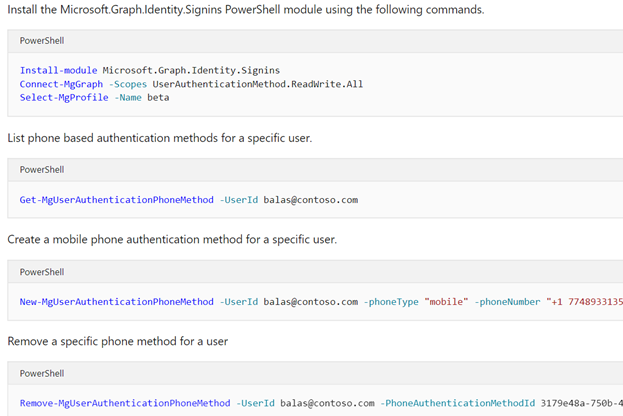
Going forward, you can manage your users’ authentication numbers directly in Azure AD using:
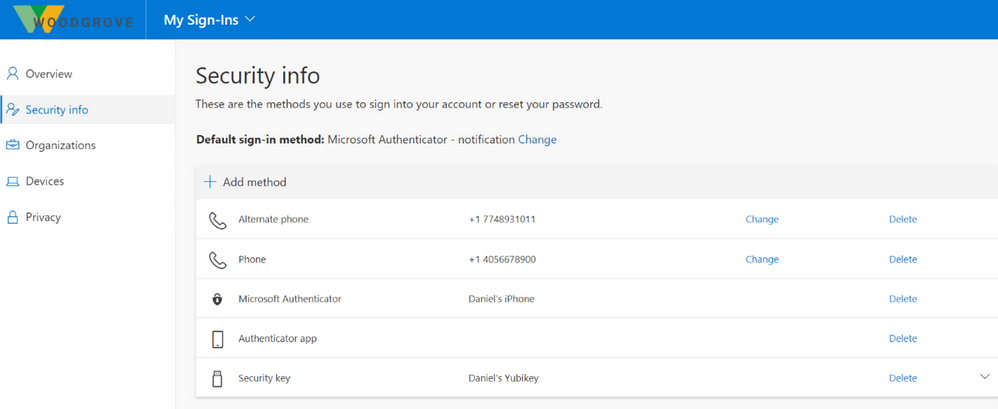
4. End users can update their authentication numbers in the security info tab of MyAccount.
We hope these changes will significantly simplify how users and admins manage their authentication methods while enhancing security. Please let us know your thoughts by leaving a comment below.
This article is contributed. See the original author and article here.
COVID is driving a tsunami of digital transformation initiatives in Healthcare and Life Science. But what’s the role and impact of electronic signatures within that industry vertical? During this webinar, Jayashree Ramakrishna (Adobe Head of Industry Strategy: Healthcare and Life Science) and Michael Point (Adobe Head of Technical Product Marketing and Evangelism) took our audience through a high-level overview of this highly regulated vertical and talk about what’s in-store for Health and Life Sciences in the Age of Digitization.
In this recorded demonstration, you will see how Adobe Sign can help support Virtual Consult by bringing patients and clinicians together and sign important documents such as a HIPPA Consent form in Microsoft Teams meeting. Check out the recording here:
This article is contributed. See the original author and article here.
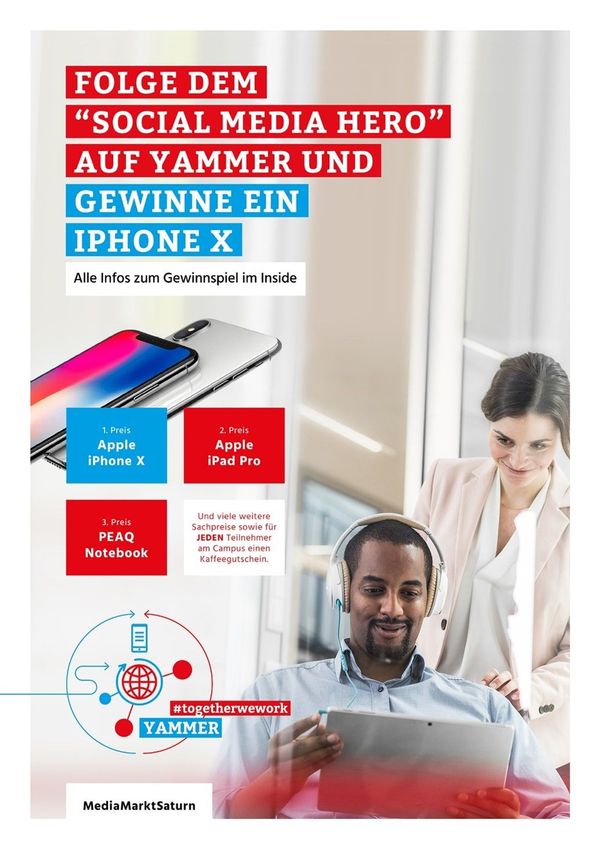
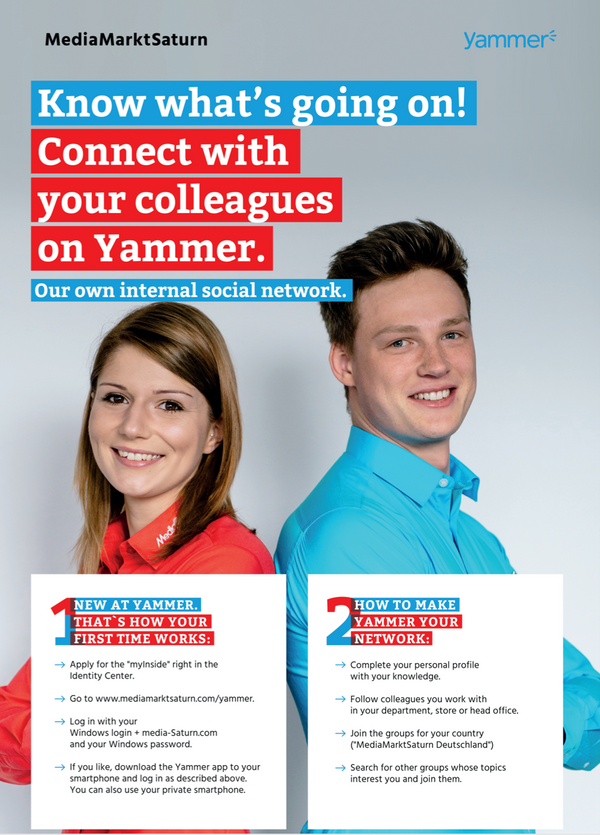
Background MediamarktSaturn is the leading consumer electronics retailer in Europe with more than 1000 stores spread over 13 countries in Europe. We started to rollout Yammer as one of our first Microsoft 365 apps to office workers in May 2018. In March 2020, we continued to roll it out to first line workers in Germany and Spain, two of the largest customer markets.
Initially, we had slow adoption of Yammer and did not see the network effect take off the way we knew it could. We needed to focus on making sure our employees knew and understood the purpose of Yammer, and we decided to focus on four strategic initiatives:
Specific use cases and connecting the store employees to hq departments
Consistent community management
Shifting the focus of conversations from selling used goods to using Yammer for CEO Communications
Communities app in pinned Microsoft Teams deployed to all employees
Store employees now get information from Yammer One tactic we implemented was to include store employees in our Yammer communities to connect to other stores. Now, they can ask employees at headquarters questions, and give feedback like never before. The ability to ask and answer questions has been a huge driver of adoption. Our store employees access Yammer on their own time, and they will have access to company mobile devices with Yammer installed for them.
Now, our employees are better informed, and contribute their involvement in Yammer communities and conversations to their learning and growth at MediaMarktSaturn.
What does consistent community management look like? We have created the same story about why and how employees are using Yammer in order to bring awareness to different department and use cases. Yammer enables our employees the ability to connect with the right people to find answers, and now, we can measure progress and share our success stories with communities to encourage participation. Previously, we had heard rumors and the grumbles about employee dissatisfaction, but now we have a way to react and educate our employees about what’s being shared, all out in the open where any employee can contribute.
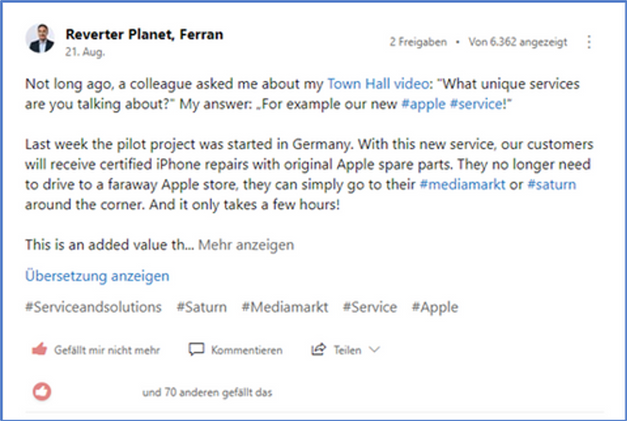
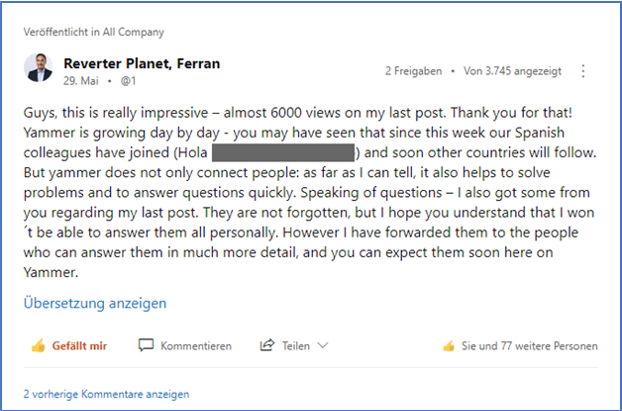
CEO Communications in Yammer Leadership connection on Yammer has been key for us. Our CEO Ferran Reverter Planet, now shares regularly on Yammer. And most recently he shared about a new strategy, which really showcases some of the reasons behind the shift in strategy. This two-way communication between the leadership and the associates allows for open dialog about these upcoming changes, and empowers employees at every level to ask questions and get answers.
Our CEO is also very active in starting, replying and reacting to conversations.
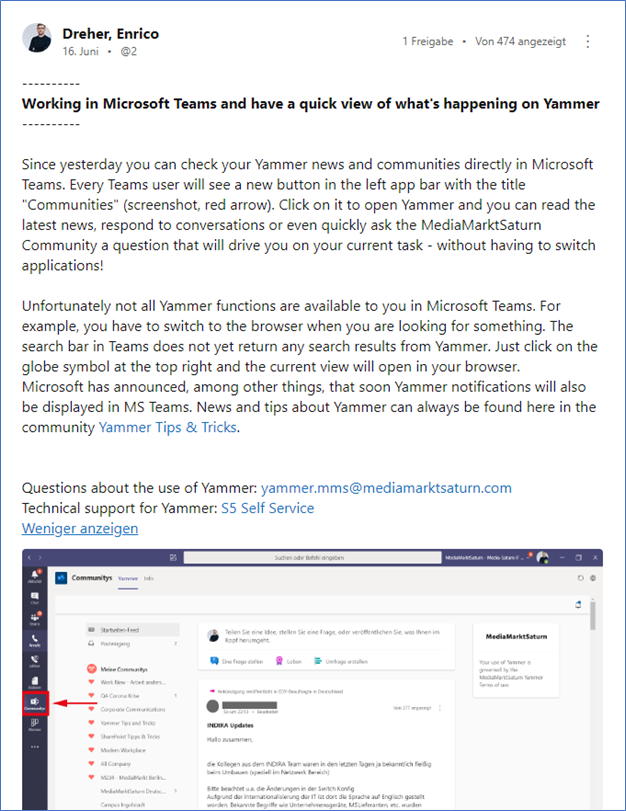
The Communities app in Teams Microsoft Teams officially rolled out July 2020, with early adopters taking to it as early as March when many began working remotely. Prior to the official rollout, we pinned the Communities app in Teams on June 1st for all MediamarktSaturn employees in the Teams side-bar, including firstline workers at the stores.
Corporate communications worked with IT to start a campaign in Yammer highlighting the new possibilities of using Yammer in Teams. This campaign focused on the benefits of having all communications (1:1, team, 1:many, and all employees) in one place.
Additionally, we communicated to employees “when to use what?”, providing them with suggestions and guidance on when to use which tool and best practices for each tool.
What we’ve learned and what’s next We learned that the Communities app in Microsoft Teams is a great driver for adoption. As additional Yammer features become available in the Communities app many existing Yammer users may primarily use Yammer in Teams as they find it to be the most convenient solution to interact within their communities. In just one month almost 25% of Yammer users have already shifted and we anticipate more to follow.
We have also uninstalled the Yammer Desktop App on all computers in the headquarters. Employees who used to see Yammer in the morning now switch to Microsoft Teams for a similar experience.
Furthermore, we are working on rolling out to the rest of the organization. We know with more people gaining access to Yammer, the more knowledge and opportunity our employees have to ask questions, get answers and provide feedback. Additionally, we are expanding our leadership engagement by encouraging every Country Manager to share and have a voice on Yammer.
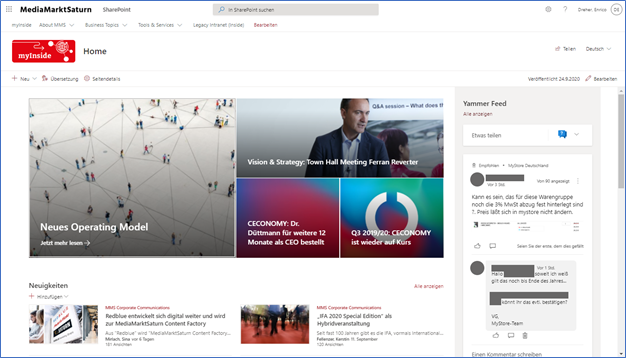
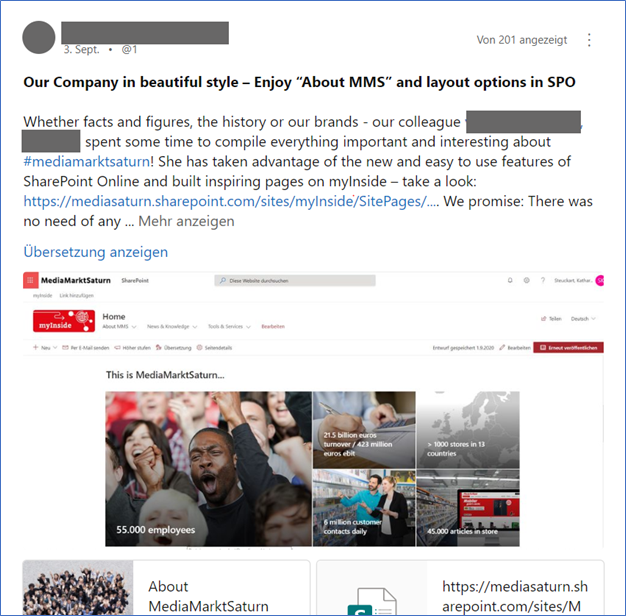
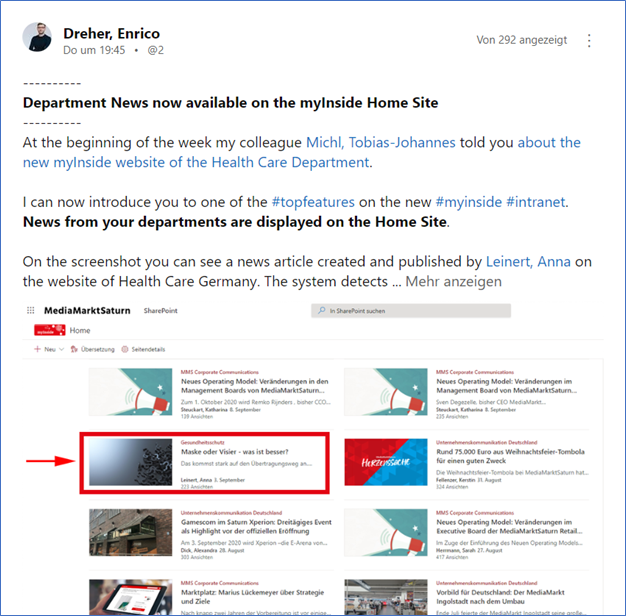
Finally, we are working hard to rollout our new intranet and will be using Yammer to help facilitate communications about the changes. Within the intranet we will also be using the new Yammer SharePoint conversations webpart.
Looking back we realized giving everyone a voice helped moved the needle on important conversations and strengthen relationships and communities from the retail stores back to headquarters. Yammer has helped us improve processes and listen to feedback so we can react to employees in new ways. We can’t wait to see what is to come for us in the future.
More about Enrico Dreher
Social Collaboration & Corporate Community Manager, MediaMarktSaturn
Enrico is responsible for project management, implementation of Yammer; he is Corporate Community Manager for Yammer; Project management, conception and realisati-on of a social intranet based on O365 + Powell 365; Enrico also writes an internal company blog about Community & Collaboration and works with the business departments in using communication and collaboration tools
This article is contributed. See the original author and article here.
Importance of application resiliency in the cloud
High availability is a fundamental part of SQL Managed Instance (MI) platform that works transparently for your database applications. As such, failovers from primary to secondary nodes in case of node degradation or fault detection, or during our regular monthly software updates are an expected occurrence for all applications using SQL Managed Instance in Azure. This is why it is important to ensure your applications (legacy apps migrated to the cloud or cloud born apps) are “cloud-ready” and resilient to transient errors typical for the cloud environments.
Your cloud-ready apps need to follow these principles:
The application must be able to detect faults when they occur
The application must be able to determine if the fault is transient
The application needs to retry an operation in case of transient issues and keep count of the retries
The application must use an appropriate strategy for the retries (number of retries, delay between each attempt)
Recommended best practices for making your apps cloud-ready are:
Use the latest drivers to connect to SQL Managed Instance. Newer drivers have a stronger implementation of transient error handling resiliency.
Use the latest drivers to your advantage, the following parameters are recommended to be added to your application connection string for SQL MI: “Connect Timeout=30;ConnectRetryCount=3;ConnectRetryInterval=10”.
Implement retry logic in your applications for all transient errors common to the cloud environment. See this sample source code for the connection retry logic. Use this as a template to modify your apps.
Finally, test your applications for the resiliency using user-initiated manual failover for SQL Managed Instance (subject of this blogpost).
To learn more on building cloud-ready apps and test them with user-initiated failover functionality for SQL Managed Instance, see the embedded video (15 minutes in length):
To learn more how to execute and monitor user-initiated failover on SQL MI, read further:
Initiate SQL Managed Instance failover on-demand
In August 2020, we have released a new feature user-initiated manual failover allowing users to manually trigger a failover on SQL Managed Instance using PowerShell or CLI commands, or through invoking an API call. Manually initiated failover on a managed instance will be an equivalent of the automated failover for high availability and software patches initiated automatically by the service.
This functionality will allow you to test your applications end to end for transient errors fault resiliency on automatic failovers in case of planned or unplanned events before deploying to production. In addition to testing how failover impacts existing database sessions, it can also help verify if it changes the end-to-end performance due to changes in the network latency. In some cases, if performance issues are encountered on SQL MI, manually invoking a failover to a new node can help mitigate the performance issue.
Because the restart operation is intrusive and a large number of them could stress the platform, only one user-initiated manual failover call is allowed every 15 minutes for each managed instance (this was reduced from the original 30 minutes in October 2020).
Ensuring that your applications are failover resilient prior to deploying to production will help mitigate the risk of application faults in production and will contribute to application availability for your customers.
How is High Availability (HA) implemented on a Managed Instance?
Azure SQL Managed Instance (MI) is offered in two service tiers, one is Business Critical (BC) and the other one is GP (General Purpose). Both service tiers offer High Availability (HA), with different technical implementations, as follows:
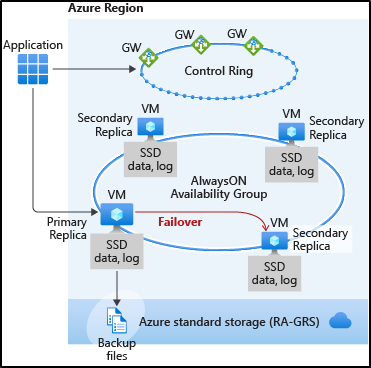
HA for SQL Managed Instance BC (Business Critical) service tier was built based on AlwaysOn Availability Groups (AG) technology, resulting in such MI consisting of the total of 4 nodes – one primary and three secondary R/O replicas. In case of a failover, one of the secondary replicas becomes primary. This type failover typically takes only a few short seconds.
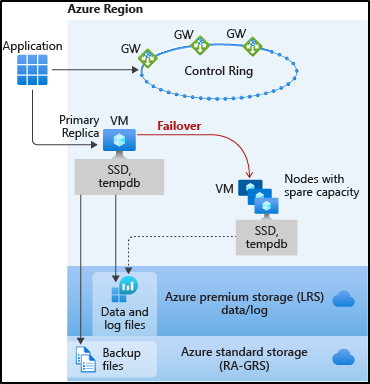
HA for SQL Managed Instance GP (General Purpose) service tiers was based on multiple redundancy of the storage layer and it is based on a single primary node. In case of a failover, a new node is taken from the pool of standby nodes, and the storage is re-attached from the old to the new primary node. This type of failover typically takes under a minute.
Using the user-initiated manual failover functionality, manually initiating a failover on MI BC service tier will result in a failover of the primary node to one of the three secondary nodes. As secondary read-only nodes on the MI BC service tier can be used for read scale-out from a single node (out of three read-only secondary nodes), the user initiated manual failover capability allows also a failover of read-only replica. This means that users can manually failover the read scale-out from the current to one of the two other available read-only secondary nodes.
Manually initiating a failover on MI GP service tier will result in deallocation of the primary node, and allocation of a new node from the pool of available nodes, and reattachment of the storage from the old to the new node.
How to initiate a manual failover on SQL Managed Instance?
RBAC permissions required
User initiating a failover will need to have one of the following RBAC roles:
The minimum version of Az.Sql needs to be v2.9.0 (download link), or use Azure Cloud Shell from the Azure portal that always has the latest PowerShell version available.
If you have several Azure subscriptions, first ensure that you select the appropriate subscription where your target SQL MI is located:
PowerShell
Select-AzureRmSubscription <SubscriptionID>
Use PS command Invoke-AzSqlInstanceFailover with the following example to initiate failover of the primary node, applicable to both BC and GP service tier:
Use az sql mi failover CLI command with the following example to initiate failover of the primary node, applicable to both BC and GP service tier:
CLI
az sql mi failover -g myresourcegroup -n myinstancename
Use the following CLI command to failover read secondary node, applicable to BC service tier only:
CLI
az sql mi failover -g myresourcegroup -n myinstancename –replica-type ReadableSecondary
Using Rest API
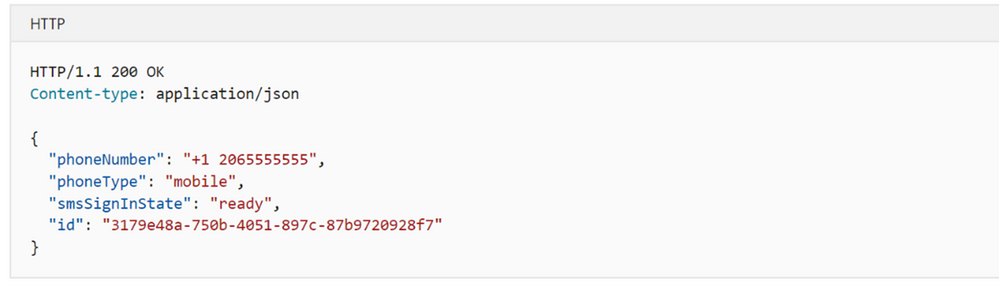
For advanced users who would perhaps like to automate failovers of their SQL Managed Instances for purposes of implementing continuous testing pipeline, or automated performance mitigators, this can be accomplished through initiating failover through an API call, see Managed Instances – Failover REST API for details.
To initiate failover using REST API call, first generate the Authentication Token. One way to do that is to use a Postman client. Initiating the API call from any other client should generally work as well. This token is used as Authorization property in the header of API request and it is mandatory.
The following is an example of the API URI to call:
The following are API call properties that can be passed in the call:
API property
Parameter
subscriptionId
Subscription ID to which managed instance is deployed
resourceGroupName
Resource group that contains managed instance
managedInstanceName
Name of managed instance
replicaType
(Optional) (Primary|ReadableSecondary)
This is the type of replica to be failed over: primary or readable secondary. If not specified, failover will be initiated on the primary replica by default.
api-version
Static value and currently needs to be “2019-06-01-preview”
API response will be one of the following two:
202 Accepted
One of the 400 request errors.
Track the operation status
Operation status can be tracked through reviewing API responses in response headers.
Note: Completion of the failover process (not the actual short unavailability) might take several minutes at a time in case of high-intensity workloads. This is because the instance engine is taking care of all current transactions on the primary and catch up on the secondary, prior to being able to failover.
Monitoring the failover
SQL MI Business Critical
To monitor the progress of user initiated manual failover for Business Critical service tier, execute the following T-SQL query in your favorite client (such is SSMS) on SQL Managed Instance. It will read the system view sys.dm_hadr_fabric_replica_states and report replicas available on the instance. Refresh the same query after initiating the manual failover.
T-SQL
SELECT DISTINCT replication_endpoint_url, fabric_replica_role_desc FROM sys.dm_hadr_fabric_replica_states
Receiving success confirmation from a PowerShell command, or from the API response indicates a successfully completed failover operation. Therefore, monitoring of the failover process is not required. It is however shown in this article for illustration purposes only. Please note that examples in this article do not include monitoring failover of secondary for SQL MI BC SKU.
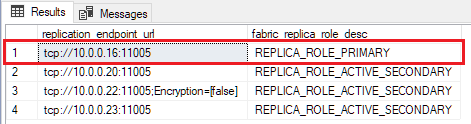
T-SQL output prior to initiating the failover will indicate the current primary replica on the MI BC containing one primary and three secondaries in the AlwaysOn Availability Group.
In this example we see the primary and three secondary replicas on MI BC node, each assigned to an internal IP address starting with 10.0.0.X. The primary node in this example has been allocated to the internal IP address 10.0.0.16.
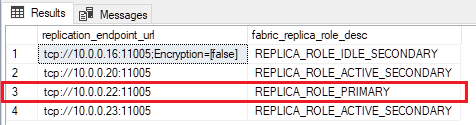
Upon execution of a failover, running this query again would need to indicate a change of the primary node.
In this particular example, we can see that before the failover, the primary node IP was 10.0.0.16, whereas after the failover this node became secondary, and the new primary node became node with the IP 10.0.0.22.
Monitor failover of secondary replica for BC (Business Critical) Service tier
Monitoring failover of secondary replica for MI BC is not available through DMVs. Receiving a response of success from PowerShell or API is sufficient confirmation that failover has been successful.
Monitor failover for GP (General Purpose) Service tier
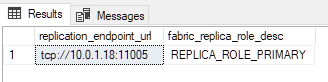
As MI GP service tier is a single node system replaced with another node on the failover, you will not be able to see the role change using the above DMV example for MI BC service tier. Your T-SQL query output for MI GP service tier will always show a single node before and after the failover, something as the following:
However, there is an alternative way to monitor the GP instance failover by looking at the last start time of the SQL engine before and after the failover. Use the following T-SQL command before and after the failover to see the SQL engine start time change:
T-SQL
SELECT DISTINCT sqlserver_start_time, sqlserver_start_time_ms_ticks FROM sys.dm_os_sys_info
The output will be the timestamp when the SQL engine was started which should be different before and after the failover. For example, your output before the failover might show something as follows:
After the failover, the timestamp will be further in time than the previous reading. This indicates a new start time of the SQL engine, therefore indicating that failover has occurred.
Also consider the following to note the failover is in progress:
Upon executing the failover of MI GP, if you refresh any T-SQL query there will be no availability (loss of connectivity) from your client until the node failover has been executed (typically under a minute), after which the query will show the same IP of the primary replica. This loss of connectivity to MI GP during the failover will be the indication of the failover execution.
Functional limitations
Throttle mechanism is implemented to guard from potentially too many failovers. As such, you can initiate one failover on the same MI every 15 minutes. If this is the case, there will be an error message shown when attempting to initiate a manual failover within this protected time frame.
For BC instances there must exist quorum of replicas for the failover request to be accepted. This means that failover can be executed only in the case all replicas are healthy. If this is not the case, and if one of replicas is unhealthy or being rebuilt, you will not be able to manually initiate a failover at such time.
It is notpossible to specify which readable secondary replica to initiate the failover on. The system will determine this automatically. is because MI allows automatically for only a single read-only replica to be available to customers.
If there was a database recently created on SQL MI, user-initiated failover will not be possible until automated systems perform the first full backup of a new database. This is to protect the automated backup process from the failover and ensure backup integrity. Depending on the database size that needs to be backed up for the first time, the time to wait until you are able to initiate a failover might vary.
Disclaimer
Please note that products and options presented in this article are subject to change. This article reflects the user-initiated manual failover option available for Azure SQL Managed Instance in January, 2021.
Closing remarks
If you find this article useful, please like it on this page and share through social media.
This article is contributed. See the original author and article here.
As today’s world expands with a massive wealth of customer information gleaned from brand interactions, purchases, services, and experiencestruly understanding your customers is of the upmost importance. The traditional approach of analyzing one piece of purchase data or one simple survey is insufficient for businesses looking to make an impact on the bottom line. With more information comes more opportunity to increase sales with effective marketing, but it also comes with a challenge: privacy.
According to a 2020 study conducted by Forrester1, protecting customers’ personal information and privacy was the top priority for marketing decision makers when considering customer analytics.
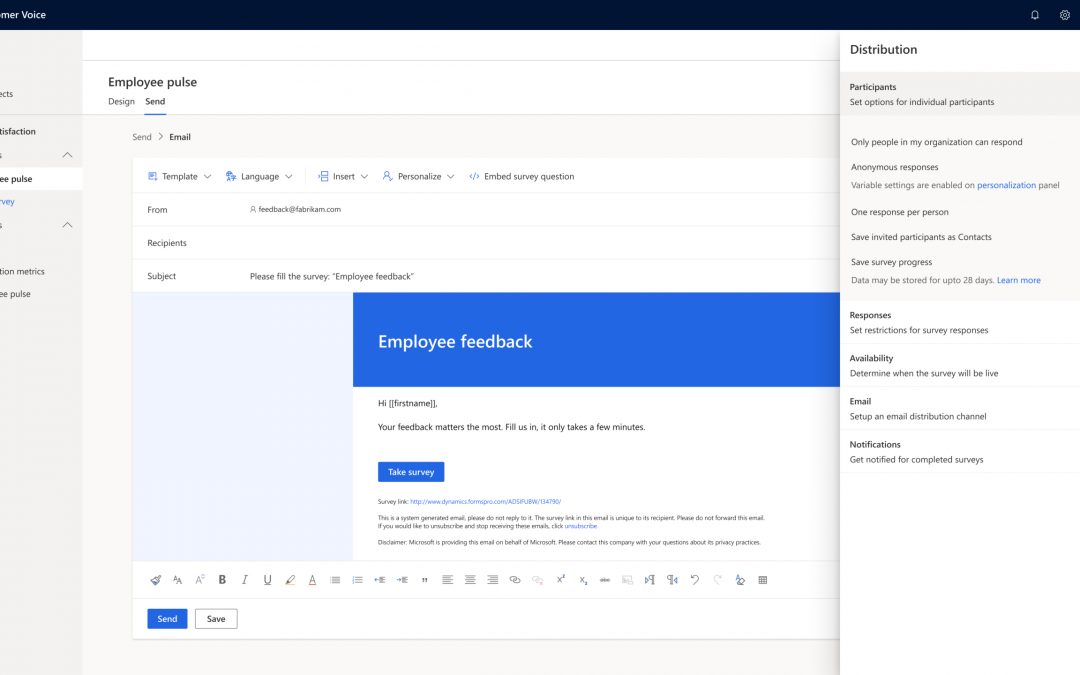
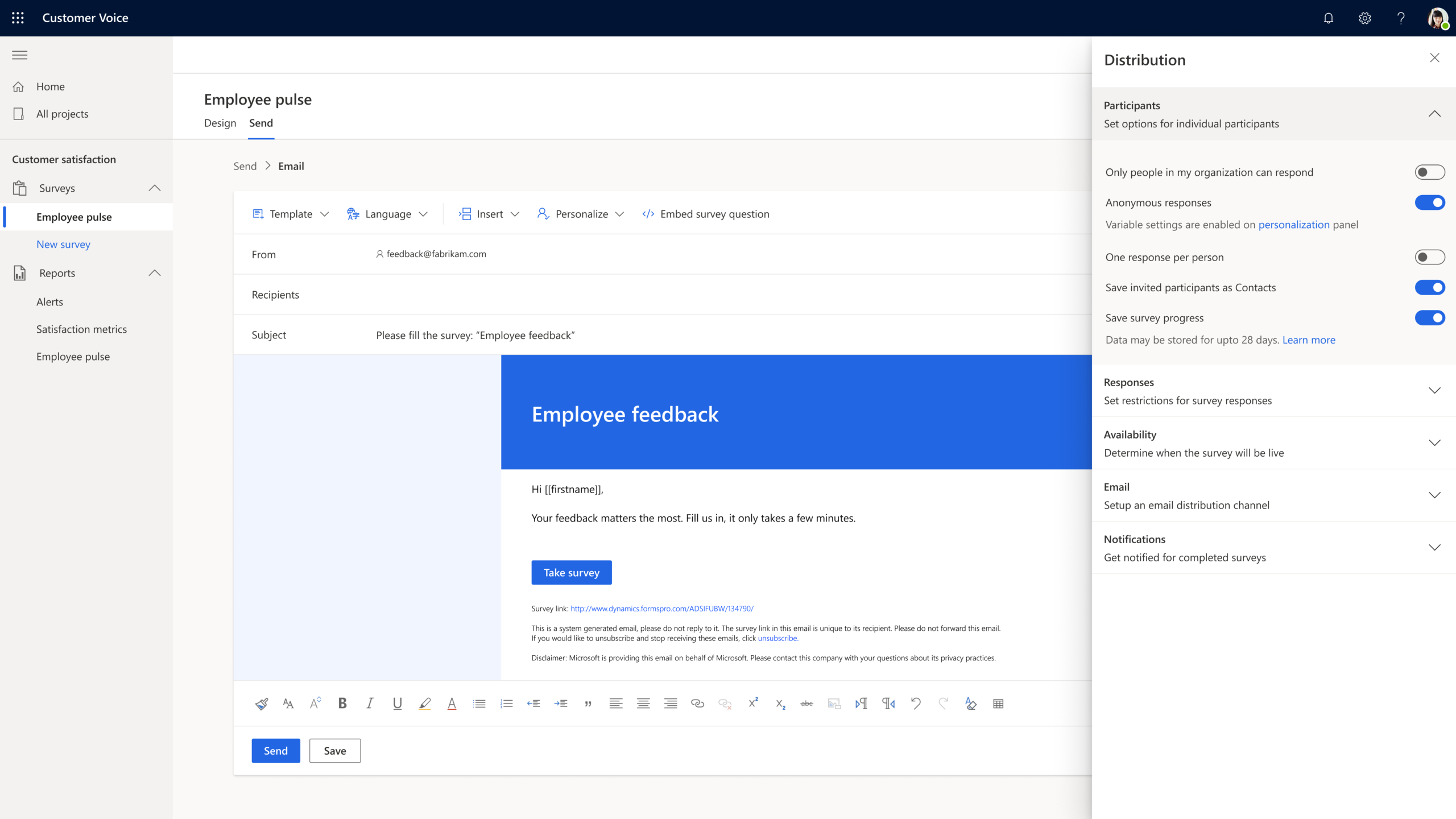
Gathering and tracking customer metrics is critical for a business to build better customer experiences and respond in the moments that matter. With Dynamics 365 Customer Voice, organizations can send direct surveys and collect customer feedback, then analyze it using powerful, built-in artificial intelligence to uncover key customer insights. Now, semi-anonymous surveys create peace of mind for customers when responding to surveys so you can receive more reliable feedback while protecting privacy.
Not only do semi-anonymous surveys enable you to understand your customers, but they can also be an important tool in listening to your employees. With Dynamics 365 Customer Voice, you can capture internal feedback and monitor responses only by title, department, and work location, keeping personal identifiers out.
The new semi-anonymous survey feature allows organizations to select which fields they want to keep anonymous, and which fields to track. For example, you can select to keep relevant location such as location of purchase but exclude personal information such as name and email. This gives organizations even more power managing their data. With rich data now at organizations’ fingertips, departments can align on marketing decisions to build better experiences and lifelong fans.
The value of customer data
Your business is only as successful as your understanding of your customers and data.
A Forrester study in 20182 found that data-driven organizations are growing at an average of 30 percent or more annually.
With Dynamics 365 Customer Voice, the customer understanding process is simplified with easy-to-use survey creation, data analysis, integration with your other applications, and automatic notifications so you can meet the customer at every moment. Now, with added functionality for survey reminders, you can be sure to capture all relevant feedback and information to uncover rich insights.
Ultimately, data-driven and customer-centric organizations are at a competitive advantage because they understand the value of how better insights lead to more sales. Many organizations are missing the key piece of an easy-to-use direct feedback management solution, holding them back from creating a holistic view of the customer and maximizing data’s value. Dynamics 365 Customer Voice empowers a complete understanding of your data, linking together direct and indirect feedback directly in Microsoft Dynamics 365 and enabling better customer experiences.
Get started today
Customer privacy is key when collecting data and making decisions. Dynamics 365 Customer Voice empowers you to bridge the gap between uncovering key customer insights and protecting personal information, allowing you to build meaningful relationships for long-term success. With unified customer profiles linked across your business applications, customer-first and employee-first organizations can act quickly on feedback and drive great experiences.



















![[Customer story] Communities app in Microsoft Teams brings adoption to employees in headquarters](https://www.drware.com/wp-content/uploads/2021/01/600x849-600x675.)




Recent Comments