by Scott Muniz | Feb 26, 2021 | Security, Technology
This article is contributed. See the original author and article here.
The National Security Agency (NSA) has released Cybersecurity Information Sheet: Embracing a Zero Trust Security Model, which provides information about, and recommendations for, implementing Zero Trust within networks. The Zero Trust security model is a coordinated system management strategy that assumes breaches are inevitable or have already occurred.
CISA encourages administrators and organizations review NSA’s guidance on Embracing a Zero Trust Security Model to help secure sensitive data, systems, and services.
by Contributed | Feb 26, 2021 | Technology
This article is contributed. See the original author and article here.
Lots of news to cover on the eve of the upcoming Microsoft Ignite Winter Event. This week’s news includes: Azure Front Door Standard and Premium now in public preview, Upgrading your Azure AD Connect sync to a newer version prior to 29 February 2024, Retirement of AKS legacy Azure AD integration on 29 February 2024, Retirement of Azure Batch rendering VM images & licensing, Microsoft Announces Windows Server 2022 Insider Preview Build 20298 and as always the Microsoft Learn module of the week.
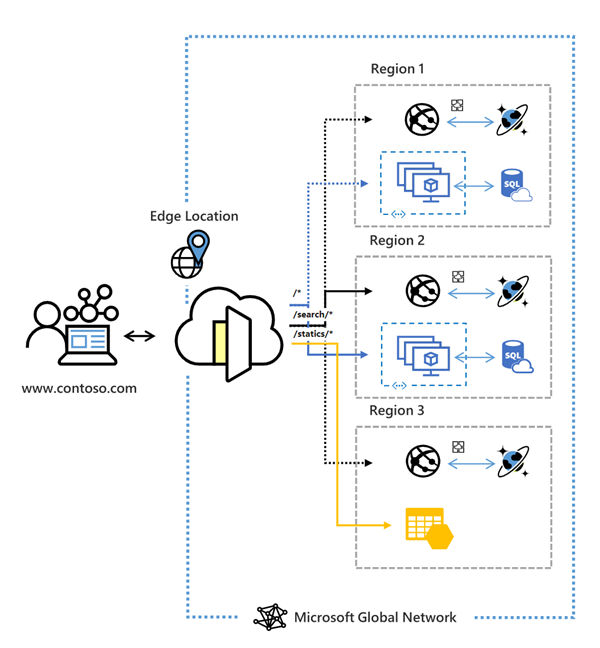
Azure Front Door Standard and Premium now in public preview
Azure Front Door, Microsoft’s secure cloud CDN service enabling cyber security teams to accelerate content delivery while protecting apps, APIs, and websites from cyberthreats has reached public preview this week for both it’s standard and Premium offerings. Azure Front Door combines intelligent threat protection and modern CDN technology in a tightly integrated service that’s easy to setup, deploy and manage.
Check here for more information: Azure Front Door Standard and Premium
Azure AD Connect sync update requirement to a newer version by 29 February 2024
Microsoft is constantly making updates to Azure AD Connect sync to ensure optimal security and performance of the synchronization processes. With theses updates comes the retirement of versions published before 5 May 2018 (version 1.1.751.0 and older) of Azure AD Connect on 29 February 2024.
Please upgrade to a newer version of Azure AD Connect sync to minimize service disruption. Review the options in the migration guide to perform the upgrade.
AKS legacy Azure AD integration will be retired on 29 February 2024
Azure Kubernetes Service now uses Managed Azure Active Directory to simplify the Active Directory integration process. This means the legacy Azure Active Directory Integration will be retiring on 29 February 2024. Any Azure Kubernetes Service cluster using the legacy Azure Active Directory integration will be unsupported after 29 February 2024.
Transition to AKS-managed Azure AD before 29 February 2024 to avoid or minimize disruption to your Azure Kubernetes Service cluster.
Azure Batch rendering VM images & licensing will be retired on 29 February 2024
Batch pools, currently be created using Marketplace VM images containing pre-installed graphics and rendering applications that have pay-for-use application licensing, will not be available for use starting 29 February 2024.
Organizations will need to create a custom Virtual Machine image with the required applications installed and will require the creation of new Batch pools. Standard licenses will need to be purchased for the required applications and installed on a license server that is on the same virtual network as the created Batch pool. Old pools using the Marketplace images will need to be deleted.
The Batch documentation contains guidance for creating and using custom VM images to create pools with the required applications, as well as information on using standard application licensing.
Microsoft Announces Windows Server 2022 Insider Preview Build 20298
Microsoft has released a new build of the Windows Server Long-Term Servicing Channel (LTSC) Preview that contains both the Desktop Experience and Server Core installation options for Datacenter and Standard editions.
Microsoft is asking for feedback on what’s working and what needs to be improved. Current known issues include: Shutdown Event Tracker is displayed every time a user logs on even when the user is a member of the administrators group and the user has closed the tracker window properly. Also, Auto Logon does not work correctly in some scenarios.
Further details surrounding how to aquire a copy can be found here: How to download Windows Server Preview Build 20298
Community Events
- Microsoft Ignite – Registration and the schedule builder is available for next weeks event.
MS Learn Module of the Week

Microsoft Ignite Cloud Skills Challenge
The challenge begins on March 2nd, 2021 and contains 7 challenges to choose from. You will earn a free Microsoft Certification exam that can be applied to your choice from a select list of options once you complete that challenge.

The challanges ends on April 7th 2021 and full details on how to participate can be found here: Microsoft Ignite Cloud Skills Challenge
Let us know in the comments below if there are any news items you would like to see covered in the next show. Be sure to catch the next AzUpdate episode and join us in the live chat.
by Contributed | Feb 26, 2021 | Technology
This article is contributed. See the original author and article here.
Here comes part three in the “ADF/Purview integration” blog series. In this blog we will focus on bringing SSIS ETL linage into Azure Purview. If you want to learn what we covered in part one and two in this series, please go back and check out Analyze root cause and impact using ADF ETL lineage in Azure Purview and Bootstrap ETL process by bringing Azure Purview assets into Azure Data Factory.
Enterprises are increasingly migrating existing SQL Server Integration Services (SSIS) projects and packages from on-premises to Azure for cost reduction as well as scalability and high availability enhancements. With the number of packages often in the hundreds if not thousands, data engineers in charge of operating the ETL process often grapple with the challenge of ensuring the freshness of the produced data and downstream data consumers often wondering whether they can trust the quality of the data for their business-critical reports.
SQL Server Integration Services (SSIS) is now integrated with Azure Purview to address these challenges! You can bring data lineage from Azure Data Factory SSIS Integration Runtime to Azure Purview for root cause analysis and impact analysis.
If you do not have ADF SSIS Integration Runtime, please check out Lift and shift SQL Server Integration Services workloads to the cloud.
The steps below describe how to bring SSIS lineage into Azure Purview.
Step 1: Create an Azure Purview account
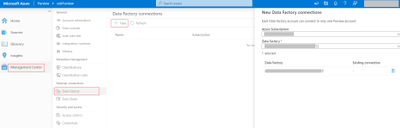
Step 2: Connect a Data Factory to Azure Purview
Step 3: Trigger SSIS activity execution in Azure Data Factory
You can run SSIS package with Execute SSIS Package activity or run SSIS package with Transact-SQL in ADF SSIS Integration Runtime.
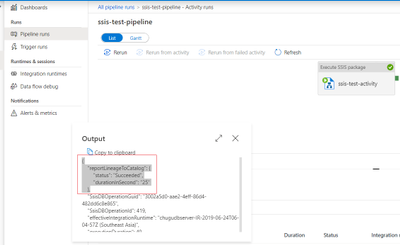
Once Execute SSIS Package activity finishes the execution, you can check lineage report status from the activity output in Data Factory activity monitor.
Step 4: Now you are ready to browse lineage Information in your Azure Purview account.
- You can browse the Data Catalog by choosing asset type “SQL Server Integration Services”.
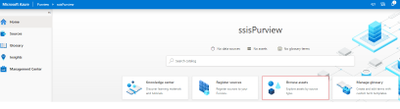
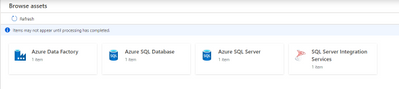

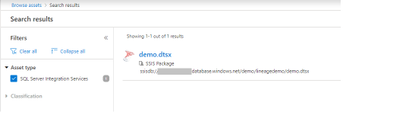
- Alternatively you can also search the Data Catalog using keywords
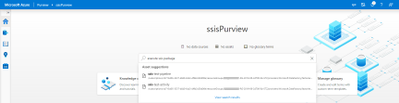
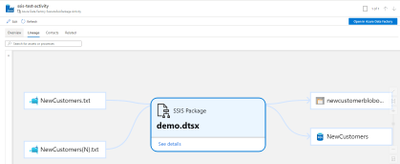
- You can view lineage information for an SSIS Execute Package activity and have the option to open in Data Factory to view/edit the activity settings.
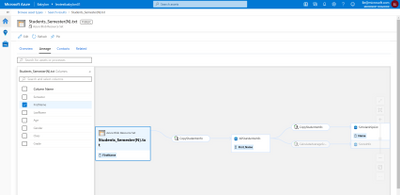
- You can choose one data source to drill into how the columns in the source are mapped to the columns in the destination.
More Resources:
by Contributed | Feb 26, 2021 | Technology
This article is contributed. See the original author and article here.
Here comes part three in the “ADF/Purview integration” blog series. In this blog we will focus on bringing SSIS ETL linage into Azure Purview. If you want to learn what we covered in part one and two in this series, please go back and check out Analyze root cause and impact using ADF ETL lineage in Azure Purview and Bootstrap ETL process by bringing Azure Purview assets into Azure Data Factory.
Enterprises are increasingly migrating existing SQL Server Integration Services (SSIS) projects and packages from on-premises to Azure for cost reduction as well as scalability and high availability enhancements. With the number of packages often in the hundreds if not thousands, data engineers in charge of operating the ETL process often grapple with the challenge of ensuring the freshness of the produced data and downstream data consumers often wondering whether they can trust the quality of the data for their business-critical reports.
SQL Server Integration Services (SSIS) is now integrated with Azure Purview to address these challenges! You can bring data lineage from Azure Data Factory SSIS Integration Runtime to Azure Purview for root cause analysis and impact analysis.
If you do not have ADF SSIS Integration Runtime, please check out Lift and shift SQL Server Integration Services workloads to the cloud.
The steps below describe how to bring SSIS lineage into Azure Purview.
Step 1: Create an Azure Purview account
Step 2: Connect a Data Factory to Azure Purview
Step 3: Trigger SSIS activity execution in Azure Data Factory
You can run SSIS package with Execute SSIS Package activity or run SSIS package with Transact-SQL in ADF SSIS Integration Runtime.
Once Execute SSIS Package activity finishes the execution, you can check lineage report status from the activity output in Data Factory activity monitor.
Step 4: Now you are ready to browse lineage Information in your Azure Purview account.
- You can browse the Data Catalog by choosing asset type “SQL Server Integration Services”.
- Alternatively you can also search the Data Catalog using keywords
- You can view lineage information for an SSIS Execute Package activity and have the option to open in Data Factory to view/edit the activity settings.
- You can choose one data source to drill into how the columns in the source are mapped to the columns in the destination.
More Resources:
by Contributed | Feb 26, 2021 | Technology
This article is contributed. See the original author and article here.
Tested with Windows 10 1609 up to 20H2
Hey community, this is Helmut Wagensonner, a Customer Engineer for Windows Client platform. Today I show you a way to make file type associations more enterprise ready.
I heard many of my customers complaining that it’s no longer possible to assign file types programmatically to an application (i.e. during the installation of an application). An example: You install Adobe Reader as your desired default PDF reader in your environment. Former, the Adobe Reader setup was able to register itself as default handler for all .PDF files. With Windows 10 this has changed. Applications can add themselves as an optional file handler, but it is no longer possible to programmatically change the default file handler for a certain file type. The final decision of which app opens which file type needs to be made by the user. On one hand this can prevent malicious software from inadvertently registering themselves as a default file handler but on the other hand it can cause inconvenience in Enterprises.
But we didn’t forget about enterprises and added an option to Windows 10 to manage file type associations (FTAs) in an administrative way. In fact, there are two options.
You can create an XML file containing the desired FTA’s and import it using DISM. Those settings are applied during the user profile creation process and allows users to change the settings afterwards. However, this method does not work for existing user profiles. You can find more details here: https://docs.microsoft.com/en-us/windows-hardware/manufacture/desktop/export-or-import-default-application-associations
The second option is to apply this XML file using a Group Policy setting. In this case also existing user profiles are affected from the settings within the XML. That’s pretty much what we need. The only thing remaining is to provide a way for application setups to change this XML file. And this is where this blog post and the attached script can help.
The script I’m providing here adds a bit of dynamics to the file type associations. It supports adding, removing and updating values in the XML file. Here are more details and quick instructions.
Prepare your environment
- Your clients need to be joined to an Active Directory, where GPOs can be applied to computers.
- Create an empty default file type association XML, which should look like this:
<?xml version="1.0" encoding="UTF-8"?>
<DefaultAssociations>
</DefaultAssociations>
You can also use a predefined XML, which works with your standard client. In that case make sure that your configuration file only contains extensions you want to modify. You will find examples of how to create association XMLs
<https://docs.microsoft.com/de-de/archive/blogs/windowsinternals/windows-10-how-to-configure-file-associations-for-it-pros> here.
- Use your preferred deployment method to push the configuration file to your clients or add it to your master image. Select a local folder, which is readable but not changeable for users. The C:ProgramDataYourCompany folder would be a good place.
Note: This solution does not work if your configuration XML file is located on an UNC path. It must be stored locally.
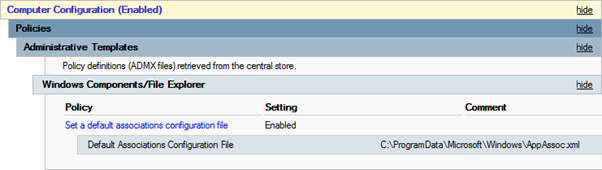
- Create a GPO which affects all Windows 10 clients and change the setting as shown in the picture. Point the path to the location, where you copied your XML file in the step before.
- Add the script provided in this blog post to your desired software installations. You find examples of how to use the script further down the page.
Add script to application deployments
Let’s assume you deploy a video player application, which handles the “.AVI” files. You want the application setup to change the default app for .AVI to this application. To accomplish this, simply run the Powershell script attached to this article after or during the application’s setup, i.e. as a custom action or a script that is triggered in your install.cmd/.ps1).
The following command modifies the local application association XML file. It changes .AVI to the new AppId or adds a new line, if AVI is not yet assigned in the configuration file.
Modify-AppAssocXml.ps1 -Path "C:ProgramDataYourCompanyAppAssoc.xml" -Extension ".avi" -ProgId "VLC.avi" -AppName "VLC Media Player"
Please note that it requires GPO foreground processing for the settings to take effect. This means that users need to log off/on after the FTA XML has changed.
Command line options
Path is straightforward. It’s the path to your local FTA config file.
Extension is the file type(s) you want to modify or set. You can either specify a single extension or multiple extensions, separated by comma (i.e. “.avi,.mp4,.mpeg”).
ProgID is the path to the application’s ProgId registry key without HKEY_CLASSES_ROOT. Most times this is the path to the open handler in the registry, relative from HKEY_CLASSES_ROOT to the key name before ShellOpenCommand. An Example: The open handler for “notepad.exe” can be found in HKEY_CLASSES_ROOTApplicationsnotepad.exeshellopencommand. The ProgID for Notepad would be Applicationsnotepad.exe.
AppName is the file description property of the corresponding EXE file. However, this value does not affect the file type association, but it must be set.
Verification and troubleshooting
After running the script and logging off/on the user, you can check the registry for verification. If you changed, for example, the assignment for .AVI files, you should find a registry value HKEY_CURRENT_USERSoftwareMicrosoftWindowsCurrentVersionExplorerFileExts.aviUserChoiceProgId. The data of this value should be the same as the ProgId specified in your XML. And of course .AVI files should open with the application you assigned it to. If this is not the case, check the event log Microsoft-Windows-Shell-Core/AppDefaults for errors.
Disclaimer
The sample scripts are not supported under any Microsoft standard support program or service. The sample scripts are provided AS IS without warranty of any kind. Microsoft further disclaims all implied warranties including, without limitation, any implied warranties of merchantability or of fitness for a particular purpose. The entire risk arising out of the use or performance of the sample scripts and documentation remains with you. In no event shall Microsoft, its authors, or anyone else involved in the creation, production, or delivery of the scripts be liable for any damages whatsoever (including, without limitation, damages for loss of business profits, business interruption, loss of business information, or other pecuniary loss) arising out of the use of or inability to use the sample scripts or documentation, even if Microsoft has been advised of the possibility of such damages.
by Contributed | Feb 26, 2021 | Technology
This article is contributed. See the original author and article here.
Final Update: Friday, 26 February 2021 08:34 UTC
We’ve confirmed that all systems are back to normal with no customer impact as of 02/26, 08:11 UTC. Our logs show the incident started on 02/26, 03:25 UTC and that during the 4 hours 45 Minutes that it took to resolve the issue some customers may have experienced data access, data latency and incorrect alert activations in Japan East region.
- Root Cause: The failure was due to issue in one of our dependent service.
- Incident Timeline: 4 Hours & 45 minutes – 02/26, 03:25 UTC through 02/26, 08:11 UTC
We understand that customers rely on Azure Monitor Service as a critical service and apologize for any impact this incident caused.
-Vamshi
Initial Update: Friday, 26 February 2021 04:57 UTC
We are aware of issues within Log Analytics and are actively investigating. Some customers may experience delayed or missed Log Search Alerts in Japan East region.
- Work Around: None
- Next Update: Before 02/26 09:00 UTC
We are working hard to resolve this issue and apologize for any inconvenience.
-Vamshi
by Contributed | Feb 26, 2021 | Technology
This article is contributed. See the original author and article here.
Initial Update: Friday, 26 February 2021 04:57 UTC
We are aware of issues within Log Analytics and are actively investigating. Some customers may experience delayed or missed Log Search Alerts in Japan East region.
- Work Around: None
- Next Update: Before 02/26 09:00 UTC
We are working hard to resolve this issue and apologize for any inconvenience.
-Vamshi
by Contributed | Feb 25, 2021 | Technology
This article is contributed. See the original author and article here.
Hi everyone, we have added a new video tutorial to the Advanced OSD series. This tutorial highlights the ability to bootstrap a task sequence during client installation. This was introduced in ConfigMgr current branch 2002 and refined in ConfigMgr current branch 2006. The video demonstrates how to use this option when the client is installed on-prem, directly on the internet using the CMG, and through Autopilot. While not specifically part of client bootstrapping, the tutorial also demonstrates and discusses the various authentication options the client can use including self-signed certs, PKI certificates, Azure AD token authentication and new in ConfigMgr 2002, the Bulk Registration Token.
The video linked below was prepared by @Steve Rachui, a Principal Customer Engineer focused on manageability technologies.
Posts in Advanced OSD.
Go straight to the Advanced OSD playlist
For an overview of the entire series see OSD with Configuration Manager Video Tutorial Series Overview.
by Contributed | Feb 25, 2021 | Technology
This article is contributed. See the original author and article here.
In this series, Microsoft identity team members share their reasons for loving passwordless authentication (and why you should too!). Today, Tarek Dawoud, principal program manager, continues this series.
Since we announced our Public Preview of passwordless credential management, we have met with hundreds of customers to discuss the passwordless promise and how to get there. If there’s one consistent theme we’ve heard from customers over the past two years, it’s been that going passwordless makes sense. That’s what I love about passwordless. They absolutely believe in the promise, the technology, and the standards backing it. They see that it’s the right investment to truly rely on enterprise security for user accounts and credentials.
The other theme we’ve also heard is that customers need guidance and help on how to plan their passwordless journey. Since passwords have been around since the inception of computing, this is a new undertaking for most customers and with the passwordless journey being closely tied to the cloud journey, many customers are seeking a blueprint or roadmap.
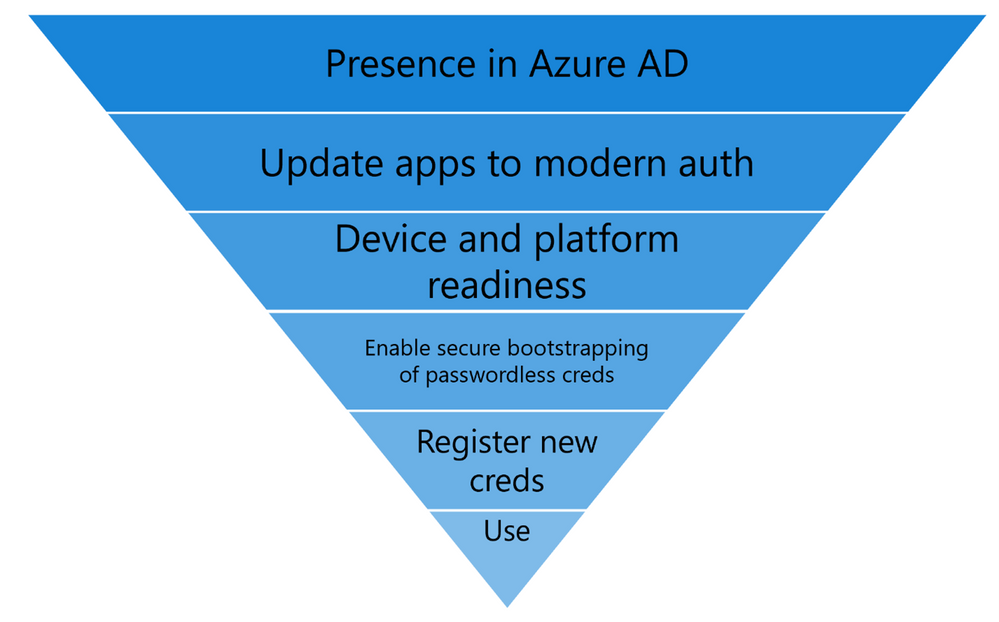
I am here to share more about the journeys that some of our most successful passwordless customers, including Microsoft ourselves, have taken, and what we have learned from them. The first step on the journey is to understand and start planning for the “Passwordless Funnel” as illustrated in the image below:
Passwordless Funnel:
- Presence in Azure AD: Recognize that the cloud is where passwordless innovation is happening, whether it’s WebAuthN or enhancements in token protection, the modern protocols and standards are where the battle can be won. Trying to go passwordless while relying on on-premises legacy technologies that have the password embedded in their fabric is counter-productive. While legacy applications will be around (and the solution should allow them to continue to work), the speed of the cloud is so much more suited for iterating on passwordless than hoping for server products to keep up.
- Moving your Apps to Azure AD: The majority of users day-to-day apps should be modernized apps that do OAuth2.0 or SAML authentication and authorization. This is true for all Microsoft 365 apps, but we also want you to The more apps under Azure AD, the more bang for your passwordless buck. For developers, we now have guidance on how to make sure your apps are passwordless ready.
- Device and platform readiness: This is one area that customers may overlook. To enable Windows Hello for Business with the best feature set for passwordless integration, we recommend Windows 20H1 or higher. Customers will likely need time to get on a current build of Windows. Customers using FIDO2 keys need to also get themselves familiar with the Azure AD FIDO2 Supportability matrix for operating system and browser support. Device readiness also includes what FIDO hardware you may need, and which vendors provide the functionality and features customers may need. This matrix is an ever evolving page as more software and hardware vendors add support for FIDO2, so watch this space.
- Enable secure bootstrapping of Passwordless: A strong credential created with a single weak credential compromises the overall credential. As your users onboard to passwordless credentials (Windows Hello for Business – WHFB, Passwordless Phone Sign in or FIDO2 keys) they must use strong authentication to register these credentials. Today, this means they must be registered for Azure AD MFA following our best practices . Soon, we’ll add a way for employees to register a passwordless credential without needing a traditional MFA method first. To keep up with the newest updates keep following this series.
- Registering the new passwordless credentials: Create campaigns and awareness to enroll targeted user groups into the new credentials. Today, we have over 4 million users actively using WHFB as their primary credential on Azure AD. WHFB, enrollment can be completed on existing devices or simply by acquiring a new device. For FIDO2 and Passwordless Phone Sign in, you can scope rollout campaigns using the guidance in our deployment guide.
Putting it all together
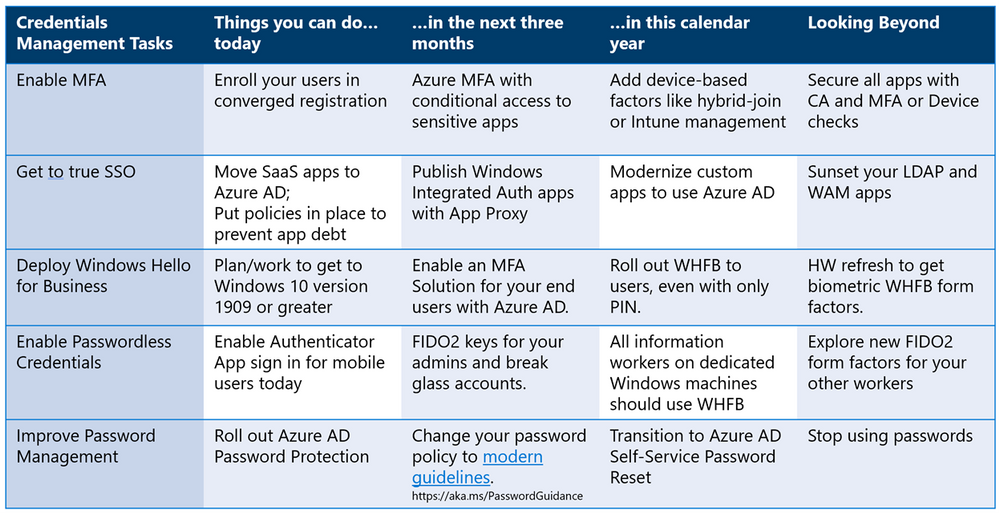
So, as you start your passwordless journey… What can you do today? What can you start in a month? And what do you have to start working on this year? This journey map (shown below) is built based on our deployment journey at Microsoft as well as hundreds of passwordless deployments with our customers, we hope you will find it valuable.
Check out the other posts in this series:
Learn more about Microsoft identity:
by Contributed | Feb 25, 2021 | Technology
This article is contributed. See the original author and article here.
This blog is part two of a three-part series focused on business email compromise.
In the previous blog in this series, we described the components of a classic (or single stage) BEC attack and showed how Microsoft Defender for Office 365 helps you protect against them. In this post, we will look at how BEC attacks have evolved and how new capabilities in Defender for Office 365 provide additional security layers to keep your organizations safe against these evolving patterns.
Understanding Evolving BEC Attack Patterns
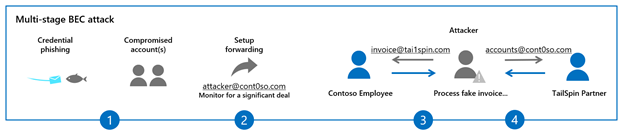
In recent years, we have seen BEC attacks grow more complex and now involve multiple stages. Here is how they work:
- Once the attacker has identified the target organization, they attempt to compromise the email account of the victim through techniques like credential phishing or reusing previously leaked passwords.
- The attacker subsequently sets up a forwarding rule on the victim’s email account. This enables the attacker to conduct reconnaissance on the target and monitor new emails from partners or vendors, typically those that involve a financial exchange.
- Once a transaction of interest is identified, the attacker inserts themselves in the middle of an active email conversation through the tactics we described in our previous blog: using either user or domain impersonation, or a domain spoofing attack. The idea is to dupe the victim into trusting the attacker (who’s posing as the trusted vendor) and taking specific actions. The attacker can carry out multiple parallel conversations posing as one entity to another.
- Finally, the attacker modifies the wire transfer or financial transaction details, leading the victim to process a fake invoice.
Figure 1: The stages of multi-stage BEC attacks
In recent months, we have updated Defender for Office 365 in multiple ways to help customers secure themselves against each stage of these evolving attack patterns.
Preventing Credential Phishing & Account Compromise
In the stages we discussed above, the first step is typically account compromise using a tactic like credential phishing. To block credential phishing mails, Defender for Office 365 is constantly updating its multi-layered email filtering stack which includes capabilities such as Safe Links, Safe Attachments and multiple machine learning models that scan and sandbox emails, files, and URLs to detect credential harvesting sites and block them. Additionally, Safe Links provides time-of-click protection for links in emails and is integrated into Office apps like Word, Excel and PowerPoint, to block exposure to malicious sites. Safe Links capabilities are available for both mails that come from outside your organization and internal mails within your organization. Defender for Office 365 is the only solution that can provide internal email protection within the compliance boundary of Office 365. No need to journal mails to external systems or grant mailbox access to external services.
We have also recently updated our machine learning models that detect anomalous account behavior and trigger alerts. You can learn more about how Defender for Office 365 identifies, automatically investigates, and remediates compromised user accounts.
Office 365 customers that leverage Azure Active Directory for identity access management can configure security defaults that enable Multi-Factor Authentication and disable legacy authentication for your Office 365 environment. This eliminates risk of password spray and account compromise in more than 99.9% of cases.
External Email Forwarding in Office 365 Now Disabled by Default
As we move to the next step in the typical multi-stage attack, we must turn our attention to external forwarding. External forwarding allows attackers to establish persistence and learn more about their victims. We have rolled out a new option in the outbound spam policy that disables external forwarding by default. Additionally, to help our customers get to a secure posture, this policy has been retroactively applied to existing Office 365 mailboxes. This has helped disrupt any existing compromised accounts and BEC activities.
For legitimate scenarios that require email forwarding, administrators can create custom policies and enable forwarding for select mailboxes, while keeping it disabled for the rest of their users. You can learn more about controlling external forwarding in Defender for Office 365 here.
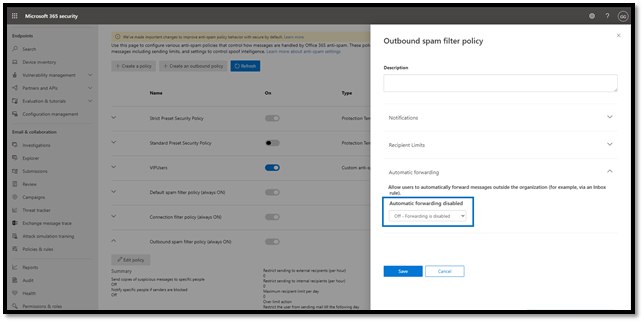 Figure 2: Configure automatic forwarding in the outbound spam policy
New and Improved Suspicious Forwarding Alerts
In addition to disabling external forwarding by default, Defender for Office 365 has introduced a new alert that detects suspicious forwarding related activity. The alert can warn administrators when suspicious forwarding activity is detected and enables them to conduct further investigation, remediate the account, and prevent any suspicious wire transfer activities.
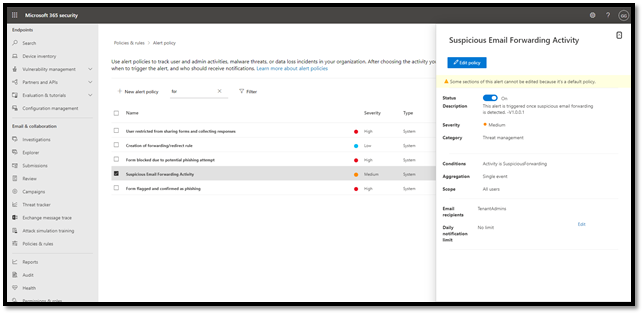 Figure 3: Suspicious email forwarding activity alerts
Tools to Improve User Awareness
Employees are an organization’s greatest asset, but they are also susceptible to falling prey to these evolving attacks. An important way to strengthen your defenses against all cyber threats is through user awareness.
For awareness programs to be successful, they must offer intuitive learning moments for your employees. What differentiates Microsoft from all other email security vendors is our ability to natively integrate security features into the products like Outlook and Office 365 apps. This integration provides both protection and awareness for your users.
New Safety Tips Options
Defender for Office 365 already provides various safety tips that are shown to end users of an email to enhance user awareness. We recently launched a new safety tip that enables email users to self-detect suspicious emails based on a signal related to first time contact between a sender and recipient(s).
If you receive an email from a sender for the first time or do not often get emails from this sender, you will see a safety tip displayed in your Outlook client as shown below to warn you that this email might be suspicious.
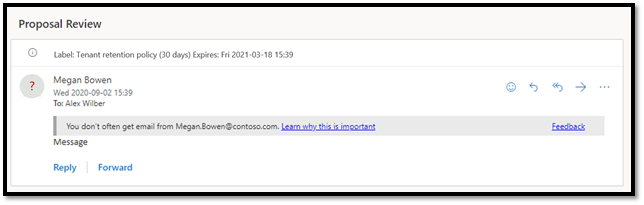 Figure 4: First contact safety tip warns users of suspicious email
Imagine being in the middle of an email chain with your business partner or vendor and receiving this warning message. That is a strong indicator of a potential business email compromise attempt. This capability adds an extra layer of security protection and creates awareness for users against such attacks.
You can learn more about configuring first contact safety tips in your Office 365 tenant.
Native Link Rendering
Phishing trainings usually educate users to verify links in email apps by hovering over these links to reveal their destination. Many email security products rewrite these URLs, making it difficult for users to decipher the destination URL and reducing the value of the training. Safe Links in Defender for Office 365 goes beyond rewriting URLs and natively integrates with Outlook and Office 365 apps. Native link rendering allows users to see the destination URL when they hover over the link, but still protects them from malicious links by evaluating these links at time-of-click. This capability is unique to Defender for Office 365, and its native integrations with Office apps preserve your investments in phishing and user awareness training.
Attack Simulation & Training
It’s critical that your end users are trained to spot suspicious messages and the indicators we’ve discussed so far, and the most effective way to train your users is to emulate real threats with intelligent simulations. In January we announced the general availability of Attack simulation training in Microsoft Defender for Office 365. Rebuilt from the ground up, Attack simulation training enables customers to train their employees to recognize red flags that might indicate a business email compromise attack. Industry-leading training from Terranova Security caters to diverse learning styles, engaging employees in defending the organization. You can learn more about these new capabilities here.
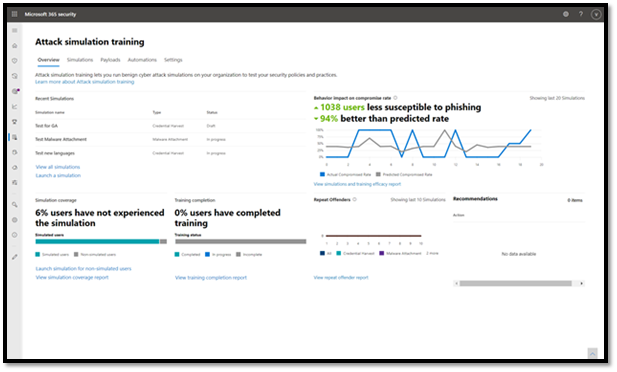 Figure 5: Attack simulation training engages employees in defending the organization
Coming up in Part 3….
In this blog we covered several ways that Microsoft Defender for Office 365 has been updated to help prevent evolving business email compromise attacks. We encourage readers to review these new capabilities and enable them in their environments.
In the next post in this series, we will look at the impact of these protections and the work we are doing outside the product in partnership with other security teams at Microsoft to further secure our customers. We’ll wrap up the series with best practice recommendations to ensure your organization stays protected against business email compromise attacks. Stay tuned!


Recent Comments