
by Contributed | Mar 25, 2021 | Dynamics 365, Microsoft 365, Technology
This article is contributed. See the original author and article here.
Managing robust fraud operations can be complex and time consuming. To help simplify the process and increase your fraud detection efficiency as well as accuracy, Dynamics 365 Fraud Protection takes a cohesive approach to manual review. With the Manual Review tool, now available in preview, you can set the rules to identify transactions that can benefit from further human review. You then place those items in a queue to facilitate and amplify the review process. The tool enables rule-based or business process-based queues with intelligent routing and feedback integration to help keep manual reviewers on schedule in their tasks. This seamless integration helps reduce the complex feedback loop and is scalable to accommodate any type of manual review operations. Key capabilities Queue management – Create workflows that route suspected fraudulent transactions to different queues for manual review based on specific criteria and manage them in one place. Review dashboard Use a dashboard to see a curated view of data, complete with previous transaction history, so that you can review a transaction and analyze the fraud pattern efficiently. Create customized actions – Dynamically create remedy actions, such as decisions and fraud labeling, which can be applied for tracking and analysis purposes. You can escalate complex transactions that may require further review. A customized performance dashboard – Access a dashboard that displays a list of reviewed orders, fraudulent orders, the false positive rate, and so on, calculated by the team or analyst, with daily and monthly views. Reports can also be exported and shared internally for review and discussion. Example screenshots Next steps To learn more about manual review capabilities and details,check out the GitHub site for Dynamics 365 Fraud Protection – Manual review. Also, join the Dynamics 365 Fraud Protection Insider Program, to get an early view of upcoming features and discuss best practices to combat fraud
The post Enhance your fraud workflow with efficient manual review appeared first on Microsoft Dynamics 365 Blog.
Brought to you by Dr. Ware, Microsoft Office 365 Silver Partner, Charleston SC.
by Contributed | Mar 25, 2021 | Technology
This article is contributed. See the original author and article here.
We all know one of the most important and secure methods of authentication in SQL Server is through AD authentication. Learn today in this episode of Data Exposed with Amit Khandelwal how to enable AD authentication for a SQL container and log in using an AD account all in less than 5 minutes using a tool called adutil.
Watch on Data Exposed
Resources:
by Contributed | Mar 25, 2021 | Technology
This article is contributed. See the original author and article here.
ION – We Have Liftoff!
Four years ago, we started a journey to help develop and advance decentralized identity, an emerging form of identity technology that empowers individuals and creates new business capabilities. Our goal is to put individuals, organizations, and other entities at the center of the apps, services, and digital exchanges that increasingly play a pivotal role in our lives. Among all the technical development required to deliver decentralized identity, none is more important than Decentralized Identifiers (DIDs).
DIDs are identifiers that can be used to secure access to resources, sign and verify credentials, and facilitate application data exchange. Unlike traditional usernames and email addresses, DIDs are owned and controlled by the entity itself (be it a person, device, or company), and exist independently of any external organization or trusted intermediary. Without DIDs, you can’t have a vibrant, interoperable decentralized identity and application ecosystem. Early on we recognized the existence of a secure, scalable DID implementation was a prerequisite for the kinds of applications and services we wanted to offer, so in 2019 we set out to build one.
We are excited to share that v1 of ION is complete and has been launched on Bitcoin mainnet. We have deployed an ION node to our production infrastructure and are working together with other companies and organizations to do so as well. ION does not rely on centralized entities, trusted validators, or special protocol tokens – ION answers to no one but you, the community. Because ION is an open, permissionless system, anyone can run an ION node, in fact the more nodes in operation, the stronger the network becomes. Development of ION, and the Sidetree standard ION is based on, takes place in the Decentralized Identity Foundation (DIF). Read on to learn how you can integrate ION, DIDs, and Verifiable Credentials in your applications and services.
Learn more about ION here: https://identity.foundation/ion/
Use ION DIDs
Creating an open, public, permissionless DID implementation that runs at massive scale, to the tune of thousands of operations per second, while maintaining decentralization and security was a long road – now it’s time to drive adoption. To help get DIDs into the hands of users and enable developers to easily integrate ION DIDs in wallets, decentralized apps, and credential-related services, we have contributed an open source library for generating DIDs and have opened up our ION node to provide a no-hassle option for anchoring ION DIDs:
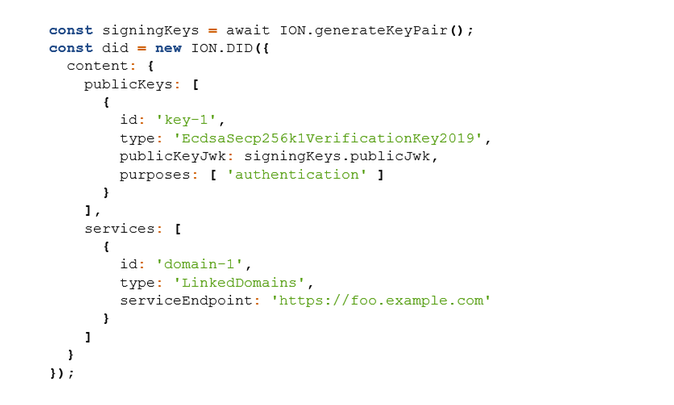
Generate ION DIDs and keys – the high-level ION.js helper library is the easiest way to start generating ION DIDs as fast as possible: github.com/decentralized-identity/ion-tools (ION.js library).
An example of generating an ION DID with the ION.js library:
Use the lower-level SDK – access a larger set of ION-related APIs that provide more granular functionality: github.com/decentralized-identity/ion-sdk (TypeScript/Node)
Anchor DIDs you generate – easily anchor your DIDs via our ION node, without having to interact with a cryptocurrency wallet or run an ION node locally: github.com/decentralized-identity/ion-tools
[ NOTE: ownership of your DIDs is based on keys you generate locally, and all ION operations are signed with those keys, so even if you use our node for anchoring DID operations (or any other node), you are always in sole control. ]
Run an ION node
Running an ION node provides the fastest lookup of ION DIDs, the highest level of security when interacting with ION DIDs, and ensures you can always resolve ION DIDs without depending on intermediaries. There are two options for running an ION node:
- Run the Dockerized version of ION: https://github.com/decentralized-identity/ion/tree/master/docker (provides an option to connect to an existing Bitcoin node)
- Install a node natively on your machine: https://identity.foundation/ion/install-guide/
Lookup ION DIDs
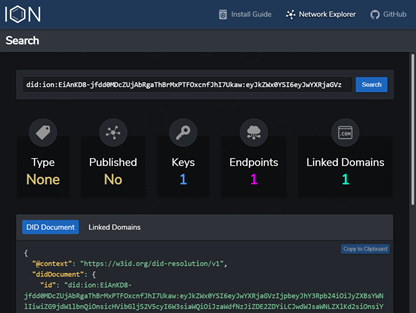
You can resolve ION DIDs to view their keys and routing endpoints using the ION Explorer interface: https://identity.foundation/ion/explorer/. This dashboard (which you’ll soon be able to run against your own local ION node) is being built-out with more views and tools as we speak, and will eventually contain interfaces to help operators monitor their local ION nodes.
Leverage ION DIDs today
Here are a few ways you can use ION DIDs right now:
- If you are a business or organization, sign up for the public preview of the Azure AD Verifiable Credential service: http://aka.ms/vcpreview
- Explore integrating OpenID Connect Self-Issued for DIDs to authenticate with sites, apps, and services that implement the draft specification: https://bitbucket.org/openid/connect/src/master/openid-connect-self-issued-v2-1_0.md
- Create a DID for yourself or your company and cryptographically link it to Web domains you control, using the DIF Well-Known DID Configuration specification: https://identity.foundation/.well-known/resources/did-configuration/.
- Use a DID to issue Verifiable Credentials, which are digital proofs that can be used to represent just about any verifiable assertion or asset, such as diplomas, membership cards, event tickets, etc.
ION’s core protocol has been standardized
Along with ION reaching v1, so too has the protocol at its core: Sidetree. Sidetree is a specification developed alongside many others at the Decentralized Identity Foundation (DIF) that enables scalable DID networks (i.e. ION, Element, Orb) to be built atop any decentralized event record system (e.g. blockchains). We would like to thank the following collaborators who have worked on specs, contributed code, or provided feedback during this process:
This work would not have been possible without the contributions of folks like Orie Steele of Transmute and Troy Ronda of SecureKey, who played key roles in shaping the Sidetree specification, our colleagues in Microsoft Research, as well as Dietrich Ayala and the Protocol Labs team, who helped integrate IPFS as the P2P file replication protocol used in ION.
Open source development and codification of standards is essential to the creation of a vibrant decentralized identity ecosystem. If you are a developer or organization interested in contributing to the Sidetree specification, ION’s open source code, or any other work underway in this area, we encourage you to join the Decentralized Identity Foundation (DIF) and its Sidetree Development & Operating Group. This group is the primary place where contributors meet to discuss various technical and operational aspects of ION and the general Sidetree protocol.
Beyond v1
With ION v1 out the door, we will be turning our attention toward optimizing the ION node implementation and adding other important features, such as:
- Deliver a light node configuration, making node operation easier for low-resource devices.
- Add tooling and support for Ed25519 and BLS12-381 keys
- Enable optimistic operation ingestion for transactions still in the mempool (reduces time to resolution)
- Codify an initial set of DID type tags (used in tagging DIDs as IoT devices, software packages, etc.)
- Enable querying of ION’s decentralized DID directory based on DID type – for example: once organizations and businesses establish DIDs, you will be able to fetch all DIDs typed as Organization, LocalBusiness, etc., to build a decentralized directory. You will also be able find all DIDs of types like SoftwareSourceCode, to create decentralized code package and app registries. (NPM? How about DPM)
While launching v1 of ION is a significant milestone, we’re still in the early phases of this journey. We have a lot left to do before we can fully realize a better, more trustworthy, more decentralized Web that empowers every person and every organization on the planet to achieve more.
Daniel Buchner
Decentralized Identity, Microsoft
by Contributed | Mar 25, 2021 | Technology
This article is contributed. See the original author and article here.
This month’s Microsoft Endpoint Manager highlights include a guided scenario for Windows 10 in cloud configuration, Microsoft Tunnel health metrics, scale improvements to your Automated Device Enrollment experience for iOS, iPadOS, or macOS devices, and more.
On this blog and across many social platforms – including LinkedIn and Twitter – you’ve shared your feedback on What’s New in Microsoft Endpoint Manager – Microsoft Ignite 2021 Edition. Based on your response, I’m continuing the series, and I’m excited to share more of our new management and security capabilities! While you can find the full list of engineering investments, we’ve made in What’s New, here are a few of my favorite additions. Which one’s your favorite? Let me know by leaving a comment, connecting with me on LinkedIn, or by tagging me on Twitter.
We recently announced Windows 10 in cloud configuration. With the Microsoft Endpoint Manager service release 2103 in March, we are providing a guided scenario for Windows 10 that makes it even easier for you to apply a uniform, Microsoft-recommended device configuration to any Windows 10 device. We focused on engineering a simplified cloud configuration experience so it’s faster to set up and easier to use. In less than a minute, you can now go from zero policy to managing Windows 10 devices that are cloud-optimized. Watch Senior Program Manager Ravi Ashok demonstrate this new guided scenario.
Guided scenario for Windows 10 in cloud configuration
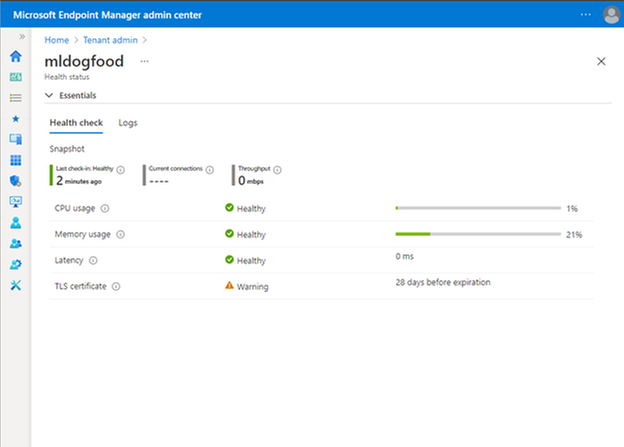
Microsoft Tunnel is an IT Pro favorite from the past two Microsoft Ignite conferences. From the start, we wanted to make the Tunnel experience as simple and easy to use as possible. New in 2103, Tunnel performance and health metrics are easier for you to see right away. In the Microsoft Endpoint Manager admin center, you can easily see the top four health checks – CPU, memory, latency, and your Transport Layer Security (TLS) certificate. You no longer need to log in to your gateway server to do this troubleshooting – this simplification brings troubleshooting to you. From the UI, you can quickly see what you need to act on, with logs available if you need to dive deeper.
Microsoft Endpoint Manager admin center view of Tunnel performance and health metrics
If you’re not up to speed on Tunnel, watch a demo starting at 08:24 in our What’s New in Microsoft Endpoint Manager session.
Finally, with this release, we’ve made significant architectural changes in our support of Apple’s Automated Device Enrollment (ADE). Many of our customers use Automated Device Enrollment to enroll large numbers of devices without touching them – perfect for a remote or distributed workforce. By making these architectural changes, we have enabled you to enroll three times the number of devices per single token with the same profile. In future releases, we’ll focus on optimizing and scaling this enrollment experience to make it even simpler. While this may seem like a minor change to highlight in this blog post, customers from healthcare to school districts have requested this improved Automated Device Enrollment experience. I’m glad we could simplify your management experience.
Next month is already shaping up to include many favorite features. As I shared before, I am incredibly proud of the work the team does, and we always work with our customers top of mind. We listen to your feedback and goals and make changes and investments that help improve the user experience and simplify IT.
As always we welcome your feedback, so leave a comment below, connect with me on LinkedIn, or tag me @RamyaChitrakar on Twitter.

by Contributed | Mar 25, 2021 | Technology
This article is contributed. See the original author and article here.

by Contributed | Mar 25, 2021 | Technology
This article is contributed. See the original author and article here.
It costs time and effort to perfectly align and manually position multiple elements on a slide. To help simplify the process, we are pleased to introduce Auto Fix: a new feature that enables easier, precise, and faster editing of slide content alignments. Available in PowerPoint on the web with your Microsoft 365 subscription.
Applying Auto Fix via right-click menuThis Artificial Intelligence (AI)-powered feature automatically aligns, uniformly resizes, and distributes elements, and straightens the connectors between them leaving the user with a polished slide in just a few clicks. So, the next time you’re creating a custom diagram or flow chart, instead of manually aligning and resizing each element, simply select the elements and click Auto Fix to save time and effort.
To use Auto Fix – simply follow these steps:
- Select two or more elements on a slide.
- Do one of the following:
- Right-click one of the elements and, from the context menu, select Auto Fix.
- On the Home tab, in the Drawing group, click Arrange, and then select Auto Fix.
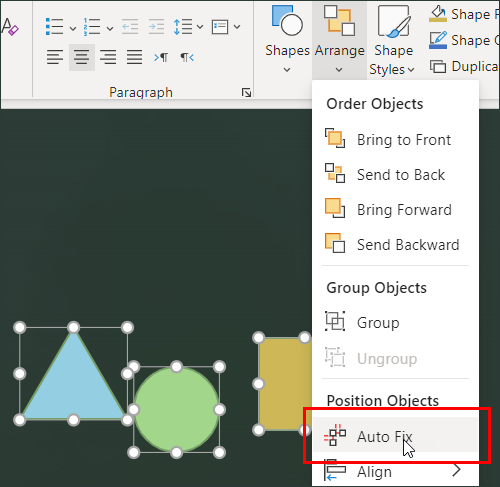
Tip: Depending on what you have selected, you may also see the Arrange menu in the Shape or Picture tabs.
Auto Fix will align, distribute, and uniformly resize all the selected elements and straighten any connectors between them.
Auto Fix works independently and will not activate if you are using SmartArt, group shapes, and elements that overlap. We plan to expand this scope once we have a better understanding of user intent behind various visualizations.
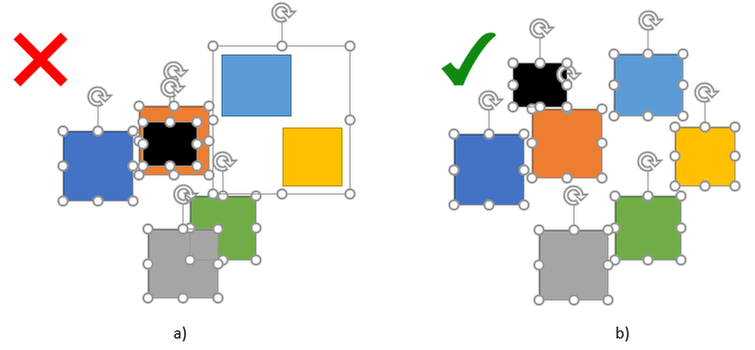 Example 2a: Elements overlap and there is a group shape; b) there are no overlaps or group shapes
Pro Tip: In scenarios of more complex visualizations, large numbers, and a variety of elements, we recommend using Auto Fix on a smaller set of elements, and then gradually polishing the elements until the entire visualization is perfectly aligned.
Get started
We are excited about the new experiences in PowerPoint and hope you will love them too! Have questions or want to leave feedback? Let us know in a comment below.
by Scott Muniz | Mar 25, 2021 | Security, Technology
This article is contributed. See the original author and article here.
The Samba Team has released security updates to address vulnerabilities in multiple versions of Samba. An attacker could exploit some of these vulnerabilities to take control of an affected system.
CISA encourages users and administrators to review the Samba Security Announcements for CVE-2020-27840 and CVE-2021-20277 and apply the necessary updates and workarounds.
by Scott Muniz | Mar 25, 2021 | Security, Technology
This article is contributed. See the original author and article here.
Cisco has released security updates to address vulnerabilities in multiple Cisco products. An attacker could exploit some of these vulnerabilities to take control of an affected system.
CISA encourages users and administrators to review the Cisco Security Advisories page and apply the necessary updates.
by Contributed | Mar 25, 2021 | Technology
This article is contributed. See the original author and article here.
Eliminate passwords by users and their organizations with the latest authentication updates in Azure AD, now generally available. Joy Chik, Microsoft CVP from the identity engineering team, joins host Jeremy Chapman to review friction-free ways of going passwordless with the introduction of the new temporary access pass.
USERS:
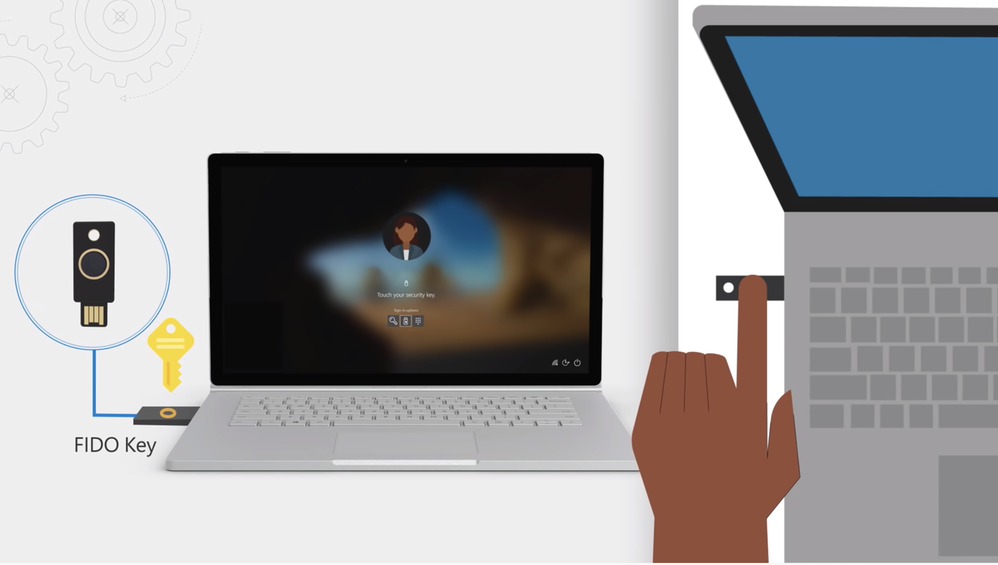
- Azure AD now supports FIDO2 security keys as an authentication method for signing into operating systems, applications, and services
- FIDO2 keys — make life easier for frontline workers using shared devices
- Microsoft Authenticator app — never need to remember, or even type a password
- Secure and convenient, on-prem or in any cloud
IT:
- Easier to drive passwordless adoption
- Roll out passwordless authentication methods in Azure AD
- Automate the management of passwordless using PowerShell or our new Microsoft Graph APIs
- New reporting to help track how well your organization is doing
QUICK LINKS:
02:33 — Users: FIDO2 Security Key
03:41 — IT: Passwordless adoption
05:01 — See it in action
07:23 — How to enable experiences in Azure AD Portal
09:30 — Set up Temporary Access Pass
11:11 — How to issue a Temporary Access Pass to a user
12:57 — Wrap Up
Link References:
Register your key at https://aka.ms/mysecurityinfo
If you are a Microsoft 365 admin, use an interactive guide at https://aka.ms/passwordlesswizard
Unfamiliar with Microsoft Mechanics?
We are Microsoft’s official video series for IT. You can watch and share valuable content and demos of current and upcoming tech from the people who build it at Microsoft.
Video Transcript:
– Up next, a special edition of Microsoft Mechanics. We’re joined today by Microsoft CVP Joy Chik from the Identity Engineering team to review the latest authentication updates in Azure AD that are now generally available for eliminating the use of passwords by users and their organizations as well as more friction-free ways of going passwordless with the introduction of the new Temporary Access Pass. So Joy, welcome back into Microsoft Mechanics.
– It is great to be back on the show.
– And thanks so much for joining us today. So I remember the first time that you were on Mechanics back in Ignite 2018; you revealed Microsoft’s leadership role in eliminating the use of passwords as the main vulnerability both for security breaches as well as a primary data target when the perimeter has been breached. So, at that time passwordless methods, such as biometrics and Windows Hello for Business, they’d been around for a while and we launched the preview of the passwordless authentication method using the Microsoft Authenticator app. This experience now even works well on shared devices like Surface Hub. So a lot’s really happened since we started down this path but how far are you then in terms of reaching your goal of eliminating passwords?
– I would say we’re closer than ever to our goal of eliminating passwords. There has been a few stages along this journey. This includes, developing passwordless methods then growing the partner ecosystem for devices and improving the admin experience. But the good news is that as of today, everything Azure AD users need to go passwordless, is now generally available. So we expect to see much broader adoption moving forward. And as I will show you today we are now on the next step of this journey with the new Temporary Access Pass. This makes it even easier to introduce passwordless methods and it is in public preview today.
– This is one of those things where I think passwords are just so pervasive. You’re not going to be able to stop people using them overnight.
– You really can’t. But it’s encouraging that over the past year, with so many of us working remotely, the use of passwordless methods has really reached an inflection point. More than 200 million users are now using passwordless authentication across Azure Active Directory and Microsoft consumer accounts. So, hopefully it won’t be too long before passwords are a thing of the past.
– You mentioned that Azure AD users have now the pieces to implement passwordless and those are all generally available. What does that mean then in terms of both the user and the IT side?
– Well, we know that the easier we make it to stop using passwords the more users and services can get onboard. For users, beyond the methods that you mentioned Azure AD now supports FIDO2 security keys as an authentication method for signing into operating systems, applications, and services. Organizations can issue these keys to everyday information workers. And this approach can make life much easier for frontline workers using shared devices. It works by using industrial strength public private key technology. The FIDO device securely stores private keys. Which you can unlock via a biometric or pin. All authentication messages that are exchanged are signed by the private key and then validated by the public key that’s held in Azure AD. Which then sends a token, or a session cookie, to the device as a proof of authentication.
– And all of this happens by the way in just a fraction of a second. So it feels instantaneous and also convenient to the user.
– Right, and then for IT we have made it easier to drive passwordless adoption. This includes how you roll out passwordless authentication methods in Azure AD. You can automate the management of passwordless using PowerShell or our new Microsoft Graph APIs. We also have new reporting to help you track how well your organization is doing. And this really helps as you roll out new authentication methods and track their usage over time. And you can integrate these metrics with your apps using our APIs.
– Right, I have to really say this is a game changer for me because I use the Authenticator app and even though I frequently sign into lots of different machines and phones and cloud services, all I have to remember is my email address and I get a verification from my phone. So I never need to remember or even type a password.
– Yeah, it’s not only easy but also way more secure than using passwords. And it’s still two factors of authentication. And when users do not have a phone or a dedicated Windows 10 device they can use a FIDO security key. And in fact, we have worked as part of the FIDO Alliance to develop a simple common architecture for secure authentication with FIDO2.
– All right, so let me try this out. I’m going to start by using this method to sign into Windows 10. You can see here that I already have my profile on the device. So I’m going to go ahead and insert the USB key. Then I’m going to click on sign in options. And I’m going to choose the security key one in the middle and it’s going to ask me to touch the security key. So I’ll go ahead and do that. And so that’s going to use my fingerprint to authenticate. Now because we’re using seamless single sign on this authentication also carries forward within my session onto the browser. So I’m going to go ahead and go to myapps.microsoft.com and you’ll see that it just signs me in. Now this works with your Microsoft apps, but you can also see that the SaaS apps are configured here that are using Azure AD and Windows-based authentication. So here you can see, for example, that we have Box. And I also have my on-prem file share available and if I wanted to I could click into that and securely access linked resources that are on the internet or that are apps on-prem.
– Again, you do not need to enter a password. It is super secure and is super convenient. And you can connect to your resources whether they are on premise in the Microsoft cloud or in other clouds and services.
– Right, and this also works across devices. So your pin and biometric by the way are tied to that USB key so you can use it to sign into services with other devices as well. So for example here, my machine’s set up to dual boot to Linux. So it’s running Chrome, and in my case I’ll even try signing into myapps.microsoft.com one more time, this time on Ubuntu without even needing to type in my email address. I’ll click into the sign in options. Now it’s going to ask whether I want to use a security key or GitHub in this case. And again, I’ll choose security key. So I’ll go ahead and insert it. Then I’ll use my fingerprint. Now in my case, you can see that I have two accounts registered to this key. So I’m going to go ahead and choose my account. And similarly, you can see that I can get to the same resources that we saw earlier in the browser that are the apps and anything that supports Azure AD-based authentication.
– Right, it is fast and it’s secure. And the good news is that we are expanding the Microsoft Intelligent Security Association ecosystem of security partners. And these partners are developing a growing range of FIDO2 security keys. This includes a support for the use of NFC reader devices for passwordless sign-in.
– Right, so you also mentioned the admin updates earlier. So how easy is it to set all this up for your tenant? What are some of the changes that have been made?
– So, you enable these experiences in Azure AD portal. Just go to security settings then go to authentication methods. Here, you can see all of our new authentication methods including Microsoft Authenticator and the FIDO2 security key. I will quickly show you how to enable FIDO2 security keys by clicking in. You can scope it to all users or limit the scope to selected users or groups. And in my case, it is already enabled. I have already assigned the group FIDO Pilot and now I will add a new user, Megan Bowen. If I wanted, I could have broadened the scope by adding multiple users and groups. And finally I will hit save. And now Megan is ready for FIDO2 application.
– Okay, so now that Megan is set up what has to happen then for the FIDO key to be associated with her account?
– So Megan would need to register her key. Here I’m signed in as Megan, and I have already navigated to aka.ms/mysecurityinfo. And next I will choose add a method. And from the dropdown I will select security key and hit add. Here, I can choose a USB or NFC device type. And in my case, I will select USB. I will make sure my key is ready and then select next. Then when I continue Windows 10 will guide me through set up. So I will hit okay, and I hit okay again then tap my key to prove presence. Now I will set up the six-digit pin then I’ll re-enter it and click okay. Now I will give it a name, Feitian USBC, and then hit next, then done. And that’s it. My key is ready to use.
– Nice, so now you’ll be able to use this to sign into an Azure AD-joined PC, or like I showed before, you can use it at the browser level on PC, Mac, or Linux. And all of these capabilities are now generally available. But that said, you just released the public preview of Temporary Access Pass, so how does this help in terms of going passwordless?
– To be clear, if you already adopted MFA you have all the pieces in place to enable passwordless authentication quickly. With that said, for brand new employees who do not have a password or MFA that is where the new Temporary Access Pass comes in. This is the missing piece that we need to eliminate the use of passwords as scale. For example, most organizations have a process to prove that you are who you say you are. At the end of the process an administrator can issue a Temporary Access Pass to the verified user. And this Temporary Access Pass is a time-limited passcode that the user can apply to register their passwordless sign-in method, such as a FIDO key or the Microsoft Authenticator app. So let me show you how you would set this up. The Temporary Access Pass is configured as an authentication method. When I select it you see the same controls that we saw earlier. And in this case, I already have it enabled and I set the scope to all users. If I click into edit you will see all the available settings. I can set the minimum and a maximum lifetime as well as a default lifetime. In my case, it’s one hour. And then for the one-time use setting, we recommend you keep this setting to set no if you need to use it more than once during that timeframe. As you can see, it is a very simple process to get this up and running in your tenant.
– Great, so now this is all set up. How do you issue then a Temporary Access Pass to a user?
– So, when you need to generate a Temporary Access Pass in Azure AD just go to the user you want and then navigate to authentication methods. And next, choose add authentication methods and then select Temporary Access Pass. You can either keep the default duration, which is 60 minutes in this case, or choose a duration that you want. Then select add where display the Temporary Access Pass that you can copy and then send to the user. And this is just one way to do this. We also have APIs for this. So you can integrate this process into your own solutions. But Jeremy, we have created one just for you. Why don’t you show us the user experience?
– Okay, so I’ve received my Temporary Access Pass and not only can I register a FIDO key directly as we showed earlier, but I can also now set up passwordless phone sign in when I sign in directly to the Microsoft Authenticator app. Now, first I’m going to go ahead and open up the app. Then I’ll choose add account through authenticator. And now I’m going to choose a work or school account. Then sign in, then continue. And now I’ll type my email jeremy@wingtiptoysonline.com And then I will be asked to sign in with the Temporary Access Pass that you just gave me. So I’m going to go ahead and type that. As I type, you’ll see it’s comprised of special characters, upper and lower case letters. And I’m going to go ahead and tap sign in and that will authenticate to the service. Then I’ll hit finish and now passwordless auth will be working. So I can then use the Authenticator app to sign in.
– Right, now as a user you don’t need to worry about passwords anymore.
– Okay, so I can see this really simplifying things for both users and IT. But given everything that we’ve shown today where’s the best place then to get started?
– If you have MFA set up you have what you need to go passwordless today in just a few steps. And in fact, if you are a Microsoft 365 admin you can use an interactive guide at aka.ms/passwordlesswizard. With that said, if your organization is not using MFA you can try the public preview of Temporary Access Pass to set up passwordless authentication. So try passwordless today.
– Thanks so much for joining us today and also sharing the latest updates for passwordless authentication. Of course, be sure to keep watching Microsoft Mechanics for the latest updates. Subscribe, if you haven’t already and we’ll see you next time.
by Contributed | Mar 25, 2021 | Dynamics 365, Microsoft 365, Technology
This article is contributed. See the original author and article here.
Understanding your customers can be a complex task, especially in a digital age where interactions span multiple channels and customer behavior can change at a rapid pace. Organizations need to be able to adapt and deliver better customer experiences, but many find it difficult without the right information at their fingertips. According to a Forrester study in 2020, driving decision making with customer insights was the top challenge for CMOs.1 Every departmentfrom marketing to sales to customer serviceneeds to be aligned on one view of the customer so they can make the best engagement decisions. That’s why Microsoft Dynamics 365 Customer Insights customers are automatically entitled to Microsoft Dynamics 365 Customer Voice so organizations can build a unified view of customers by combing direct survey feedback with rich customer data. Download our e-book to learn more about “Delivering personalized experiences in times of change.” A 360-degree view of your customer Customers interact with brands in variety of ways from the actual purchasing of a product to interacting on a website or on social media. This means that organizations need to collect those learnings into one place to fully understand what makes their customer tick. It can be frustrating to get insights about your customer from siloed data in disparate IT systems. Dynamics 365 Customer Insights enables you to get a complete view of your customer by bringing together transactional, behavioral, and demographic data in real-time. Because Dynamics 365 Customer Insights is vendor neutral, you can easily integrate dataregardless of where it resides. Through prebuilt and customized AI models, you can then unlock meaningful insights from your unified data. Collecting direct feedback is also key, as important data such as satisfaction, sentiment, and Net Promoter Score can be telling when understanding the customer. Dynamics 365 Customer Voice empowers organizations to collect, analyze, and track feedback in a scalable, easy-to-use feedback management solution. Today, an organization can bring in Dynamics 365 Customer Insights profiles directly within Dynamics 365 Customer Voice, allowing users to view rich data on the customer and their activities in one singular view. This allows you to track the progress of Dynamics 365 Customer Voice surveysmaking better decisions on when to engage with the customerand combine feedback for a 360-degree customer view. Watch the video below to learn more about Dynamics 365 Customer Voice and Dynamics 365 Customer Insights. https://www.microsoft.com/en-us/videoplayer/embed/RE4MBpL Determining the best moment to drive customer engagement is easier than ever from within the Dynamics 365 Customer Insights dashboard. With automatic entitlement to Dynamics 365 Customer Voice, Dynamics 365 Customer Insights customers can view Dynamics 365 Customer Voice activities within the dashboard, including follow-up actions so you can easily know when it’s time to engage with the customer. With relevant details on hand, organizations can more easily understand their customers and make better decisions to drive a great customer experience. Connected data Every customer interacts with each part of your business, so it is imperative that everyone is aligned on who the customer is and how to interact with them. That’s why Dynamics 365 Customer Insights and Dynamics 365 Customer Voice work together to surface rich customer profiles and data that can be shared across applications and departments. Customer feedback data from Dynamics 365 Customer Voice surveys can be used to generate customer segments within Dynamics 365 Customer Insights so other applications, like Microsoft Dynamics 365 Marketing, can make the right decisions for the right customer. All three applications come together to empower customer journey orchestration, so any team can engage customers in real-time based on interactions across marketing, sales, commerce, and service to win customers and earn loyalty faster. Learn more about customer journey orchestration capabilities from Dynamics 365. Learn more Having a clear and rich view of your customer data makes understanding them even easier. With Dynamics 365 Customer Insights and Dynamics 365 Customer Voice, you can efficiently analyze customer data without ever leaving your application and make the right decisions in the moments that matter. To learn more about Microsoft’s feedback management solution, visit the Dynamics 365 Customer Voice website or start your free trial today. Take a guided tour to see how your organization can use Dynamics 365 Customer Insights to unlock insights and drive personalized customer experiences, and learn more about “Delivering personalized experiences in times of change” from our e-book. 1Forrester Analytics, Business Technographics Marketing Survey, 2020
The post Utilize surveys to understand data in your customer data platform appeared first on Microsoft Dynamics 365 Blog.
Brought to you by Dr. Ware, Microsoft Office 365 Silver Partner, Charleston SC.


Recent Comments