by Contributed | Apr 22, 2021 | Technology
This article is contributed. See the original author and article here.
Initial Update: Thursday, 22 April 2021 20:45 UTC
We are aware of issues within Application Insights and are actively investigating. Some customers may experience intermittent inaccurate or missing data within the Live Diagnostics (also known as Live Metrics) experience.
- Work Around: None
- Next Update: Before 04/23 00:00 UTC
We are working hard to resolve this issue and apologize for any inconvenience.
-Saika
by Contributed | Apr 22, 2021 | Technology
This article is contributed. See the original author and article here.
Initial Update: Thursday, 22 April 2021 20:45 UTC
We are aware of issues within Application Insights and are actively investigating. Some customers may experience inaccurate or data gaps on Live Metrics Stream charts.
- Work Around: None
- Next Update: Before 04/23 00:00 UTC
We are working hard to resolve this issue and apologize for any inconvenience.
-Saika
![[Guest Blog] A Journey of Firsts in Mixed Reality](https://www.drware.com/wp-content/uploads/2021/04/fb_image-172-600x675.jpeg)
by Contributed | Apr 22, 2021 | Technology
This article is contributed. See the original author and article here.
This guest blog was written by Kimberly Castro, Program Manager in Microsoft’s Cloud + AI division. She shares about her career journey transitioning from the military into in the world of mixed reality as part of our Humans of Mixed Reality series.
I knew I wanted to be a part of Mixed Reality the first time I heard about it. I had just finished my interview loop with Microsoft when I heard that one more team wanted to talk to me before leaving. Shortly after, which actually felt like an eternity due to interview nerves, I was in a focus room with Miguel Sussffalich. After a few questions, he started telling me everything he could about the IVAS program.
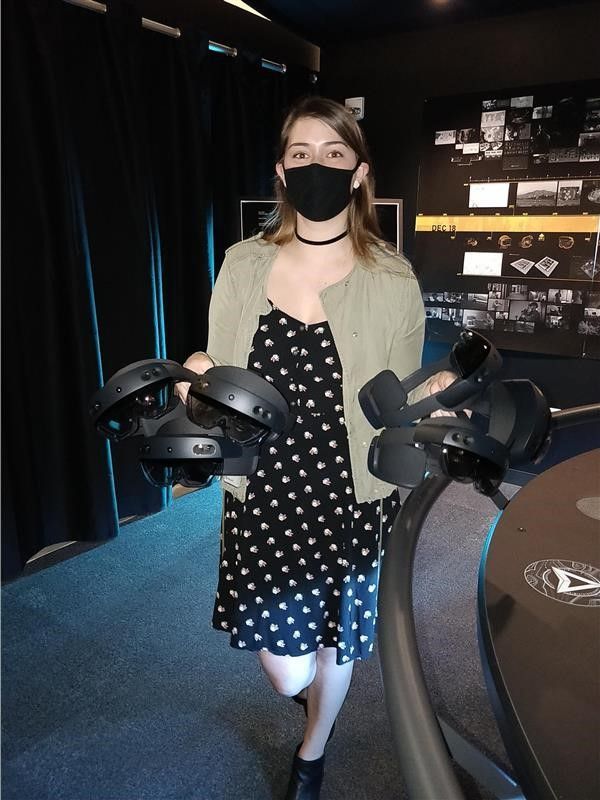
Admittedly I was late to the game. I had never put on a VR/AR/MR headset, never heard of the HoloLens, and if I’m completely honest, I’d never used a Microsoft product aside from the Office Suite. You see, I grew up in an Apple household. You’re probably wondering how someone like me even managed to land an interview at Microsoft in the first place, especially coming from a rather non-traditional tech background.
After graduating from the University of Arizona in 2013, I enlisted in the Army as a Linguist. I spent the next two years learning Mandarin Chinese and eventually found myself in the Special Operations Command working Intelligence, Surveillance, and Reconnaissance (ISR) missions. After one more year, I started doing similar work at the NSA. At that point, I started seeing myself in a government contractor position once fulfilling my enlistment contract. It would’ve been an incredibly natural and easy transition to make. Not a whole year had passed when the Army said it was time for me to move again – my 7th move in 5 years. I was extremely frustrated to have to pack up my life and travel across the country again, but I had always wanted to spend time in the Pacific Northwest – and it ended up being my best move yet.
As the end of my contract was nearing, I received approval to participate in the Microsoft Software and Systems Academy (MSSA), a transition program for active duty military and veterans, which is essentially a C# bootcamp. Upon completing MSSA you are guaranteed a first-round interview in the form of a phone screening with Microsoft. I did well enough at the first round to be invited back to participate in a full interview loop.
I was sitting across from Miguel, learning about the IVAS program for the first time. He told me about a synthetic training environment where soldiers could practice clearing an enemy and a hostage-filled building safely and effectively. I was immediately transported back six years to basic training, where I first experienced the military’s Glass House training drill. Glass House is a generous term – in reality, it is just tape placed in a square on the ground, in a field, with a door-sized opening. “Rooms” were extended or added with more tape to alter the scenario, making an already limited training environment increasingly vague and less effective. You and your team members would have to imagine the walls, the roof, the enemy, the hostages, everything. The drill sergeants would yell out increasingly complex instructions, and eventually, your team would fail, reset, and try again. Of course, there was no way to know if you missed an enemy or pointed your weapon at a hostage or team member by accident, just whatever the drill sergeants could see. Additionally, with all the imagining that had to be done, it was impossible to realistically create the stress levels that an experience like that would entail in real-life. Essentially it wasn’t the best way to train, but it was all we had.
As soon as Miguel paused, I said, “Oh, this is going to save lives,” and from then on I was hooked.
I graduated from the MSSA program with offers from three different teams within Microsoft and an offer from another company. None of the other scopes of work came close to the experience I knew Mixed Reality was going to provide. So, in January of 2020, I joined the Delaware team as a program manager. I was just as excited as I was terrified. I was so sure people would quickly find out I was a fraud who tricked her way into Microsoft – over a year later, and I still have moments when I feel like this. I like to joke that it’s not imposter syndrome because I’m actually an imposter (I know, I know).
Within mere days of joining the team, I experienced my first hologram. A friend slapped a HoloLens 2 device on my head and showed me a bunch of cute animals dancing around. He explained that I could resize the figures and place them wherever I wanted in the physical space. I think I stayed in device for about an hour playing with everything I could; it felt like magic. I would’ve stayed for longer, but I suddenly remembered that I was in the middle of the dev space yelling out, “This is so cool!” every few minutes while people were working. To this day, one of my favorite things to do is run demonstrations to show off what is possible with Mixed Reality. I love seeing people experience the magic of their first hologram or surprising someone who has seen it all before by dropping them in the middle of New York City or the bottom of the Red Sea.
Another aspect I enjoy is customer focus and human-centered design. The infinite feedback loop and drive to figure out what someone needs, particularly when they themselves don’t know, really resonates with me. Accomplishing that gives me the same feeling as snapping the last puzzle piece into place; it’s a satisfying completion. This puzzle, however, is infinite.
The public sector has been the perfect place for me to dive in because I can really understand the user – after all, I used to be one. It’s incredibly comfortable to speak the same language as the customer, and I am so excited to have the opportunity to continue in this space. In the future, I would enjoy getting into the commercial and consumer or entertainment studios as well. I would love to help create something that furthers scientific research or builds something solely for a user’s enjoyment. Again, I love the public sector, it’s the perfect place for me to learn and grow, but I will want to take a step back from life and death situations one day.
It’s difficult to express how much I’ve learned over the last year and yet I know I’ve barely scratched the surface. I feel so privileged to work with artists, musicians, designers, and engineers every single day. I have never considered myself a creative type, but working in this space with these incredibly talented individuals has, for the first time, sparked a passion to create in my professional and personal life.
I hope you will discover an exciting new world with mixed reality too – the possibilities are endless!
#MixedReality #CareerJourneys
by Contributed | Apr 22, 2021 | Technology
This article is contributed. See the original author and article here.
By Masaki Iwamaru – Service Engineer | Microsoft Endpoint Manager – Intune
Box for EMM is an app for the iOS platform developed by Box Inc. The Box for EMM app is intended for enterprise customers with mobile device management (MDM) solutions such as Microsoft Endpoint Manager – Microsoft Intune. The app provides secure access to data in Box cloud storage workspace with iOS devices.
When you integrate Box for EMM app with Intune, you can apply app protection policies (APP). This will enable the data protection features of the app built with the Intune App SDK. You can control data transfer between apps, restrict copy-paste between apps, set access requirements, and force conditional launch settings.
This blog post provides you a step-by-step guide on integrating Box for EMM app with Intune.
Note
There is a separate Box app that can be used for both personal and enterprise use. This article focuses on the Box for EMM app, which has supported Intune since 2015. Both the Box for EMM and Box app can access the same cloud storage space provided by the Box EMM Enterprise workspace.
Steps to integrate Box for EMM with Intune
Step 1. Add and deploy Box for EMM app to your employees.
Deploy the app using Intune. If end users install Box for EMM from the App Store and you haven’t deployed it to users or devices, they will not be able to sign-in to the app because the required app configuration policy is not applicable (see step 2).
To add Box for EMM to Intune:
- Sign into the Microsoft Endpoint Manager admin center.
- Go to Apps > iOS/iPadOS.
- Select + Add, choose iOS store app from the dropdown list, and then Select.
- Select Search the App Store and enter Box for EMM.
- Select to add the app to Intune.
After you add the app to Intune, deploy it by assigning the app to users and devices. Learn more about deploying apps in this article.
Tip
You can also deploy the Box for EMM app that’s purchased through the Apple Volume Purchasing Program (VPP).
Step 2. Create and deploy an app configuration policy.
This is a required configuration for the Box for EMM app. Otherwise end users won’t be able to sign into the app.
- Go to Apps > App configuration policies to create an app configuration policy.
- Select + Add and choose Managed devices from the list.
Note
Be aware you need to create and deploy an app configuration policy using a managed device. Managed apps won’t work for the Box for EMM app.
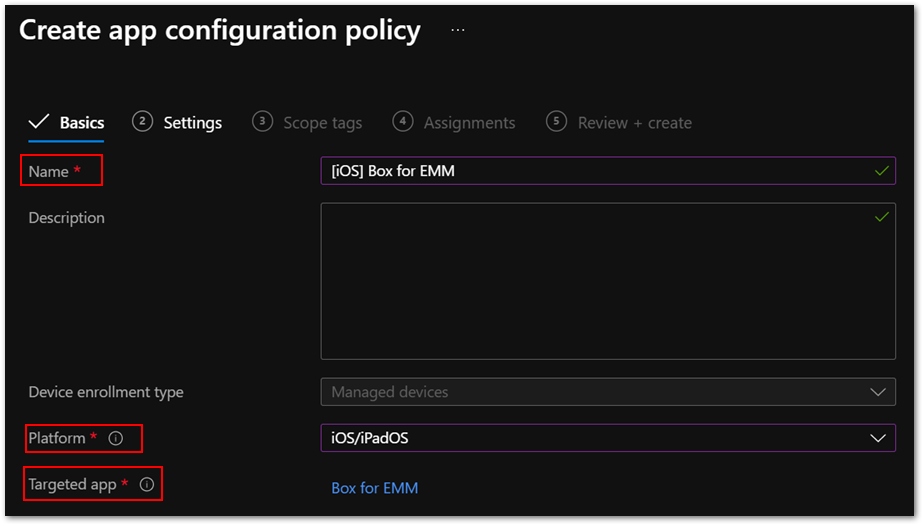
- Enter a policy name in Name and choose iOS/iPadOS from the Platform list.
- For Targeted app, Select app, and then choose Box for EMM from the list.
Figure 1. Box for EMM policy in the Microsoft Endpoint Manager admin center
Go to the Settings tab.
Choose Use configuration designer from the Configuration settings format list and specify the following values from the XML property list.
Configuration key
|
Value type
|
Configuration value
|
Public ID
|
String
|
<The value provided by Box.com>
|
Management ID
|
String
|
AnyString
|
Intune Enterprise
|
String
|
1
|
com.box.mdm.oneTimeToken
|
String
|
AnyString
|
userprincipalname
|
String
|
{{userprincipalname}}
|
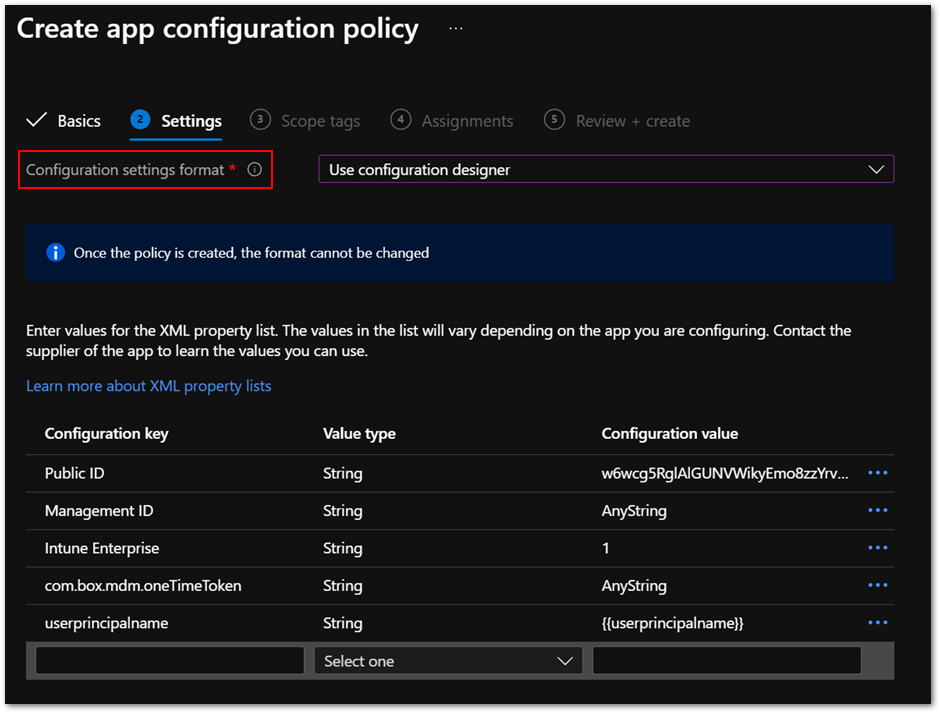 Figure 2. App configuration policy settings
- Then deploy the policy to users and devices. These assignments are usually identical to the ones for the Box for EMM app.
Step 3. Create and deploy an app protection policy (APP) for the Box for EMM app.
You can create a new app protection policy for iOS and iPad operating systems (OS) or use an existing one. Here are a few best practices:
- Make sure that the Box for EMM app is included in the Targeted apps list of the policy.
- Set Target to apps on all device types to Yes in app protection policies to avoid misconfigurations. If you set it to No, you might need to deploy the IntuneMAMUPN key. This often overlooked by administrators, so I recommend setting it to Yes.
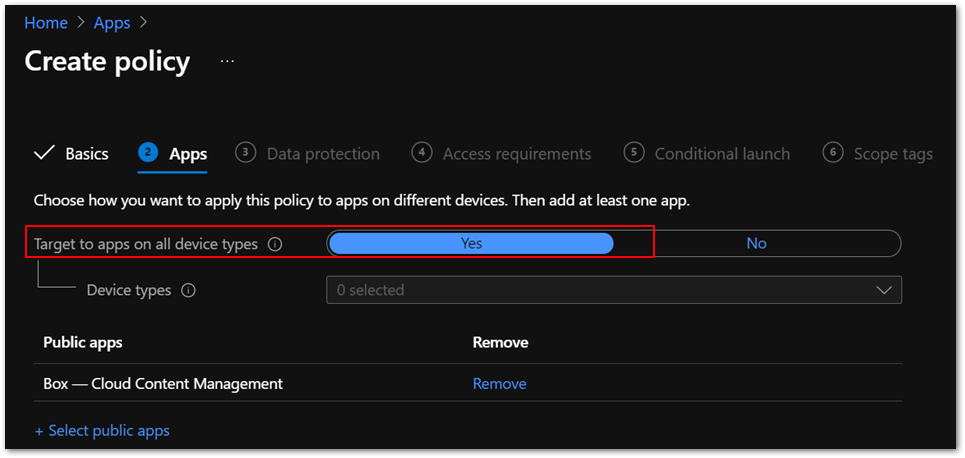 Figure 3. App configuration policy settings
- Make sure the policy is assigned to the correct users. App protection policies should be assigned to users instead of devices.
Step 4. install the Box for EMM app to iOS/iPadOS using Intune.
Make sure both the app and the app configuration policy are deployed. You can check deployment status in the Microsoft Endpoint Manager admin center.
Step 5. Launch the Box for EMM app.
You will see the Microsoft Azure Active Directory (Azure AD) sign-in screen. The user name is automatically populated. It should be the same as the user who enrolled the device. Enter the password for the user and app protection policy will be applied. Then you will see an app restart request.
Step 6. Relaunch the app.
When you relaunch the app, it might ask you to set an app PIN. Then you will see a login screen for the Box for EMM app. Sign in with your Box account. Now you can use the app with Intune app protection.
Frequently asked questions (FAQs)
In summary, here are common issues to be aware of when you’re integrating Box for EMM app with Intune:
The Box for EMM app is not installed on iOS devices.
Make sure you assigned the app to the correct groups. You can check app installation status in Device install status in each app or Managed Apps in each device.
If you use VPP for app deployment, make sure the VPP token is valid, and you have enough app licenses.
App configuration policy for Box for EMM app shows Not applicable.
Ensure that the Box for EMM app is installed using Intune instead of the App Store.
Check that the app configuration policy targets the Box for EMM app that you are deploying. Sometimes it targets the incorrect applicationID of the same app name because you have multiple Box for EMM apps in the Microsoft Endpoint Manager admin center or you have deleted and re-added the app.
Note
The app configuration policy type should be Managed devices instead of Managed apps.
App protection policy is not applied after sign-in.
Make sure the policy is assigned to correct users. App protection policy should be assigned to users instead of devices.
Be sure that Target to apps on all device types is set to Yes.
It can take time for the policy to be applied if end users are signed-in to the app before the policy assignment. This article provides more information about expected policy delivery timing.
How can I get Public ID for my Box tenant?
Public ID is provided by Box, Inc. for your tenant. Contact Box support for this information
- Should I set up single sign-on (SSO) between Azure AD and Box service?
You can use Box for EMM features without SSO integration. While it is optional, SSO provides a simplified and excellent user experience. Check out this article to learn about SSO integration guidance.
I want to allow access with Box for EMM app only while blocking personal Box app.
You can use the iOS device restriction profile to hide and disable the Box for EMM app. The Show or hide apps setting is applicable only to supervised iOS devices.
There is also a setting for enabling and disabling Official Box Apps in Box Admin Console – Apps.
I want to disable Files app functionality on iOS devices to prevent unintended file sharing.
Intune doesn’t have this setting. There is a setting for disabling Files app functionality in Box Admin Console – Enterprise Settings – Mobile.
Are there recommended settings for the Box for EMM app?
The following recommended settings allow end users to open, modify, and save files directly in Box storage with Microsoft Office applications.
Setting name
|
Value
|
Send Org data to other apps
|
Policy managed apps with OS sharing
|
Receive data from other apps
|
All Apps with incoming Org Data
|
Save copies of Org data
|
Block
|
Allow user to save copies to selected services
|
Select locations you want to save org data into
|
We also recommend adding the following key/value pair in the app configuration policy.
Key
|
Value (is you’re using Intune as the MDM)
|
IntuneMAMUPN
|
{{UserPrincipalName}}
|
The actual value specified for the IntuneMAMUPN key depends on the MDM provider you are using. You can find examples of the value you should enter for a third-party MDM provider in this article.
More info and feedback
For further resources on this subject, please see the links below.
iOS/iPadOS app protection policy settings
Validate your app protection policy setup
Create and deploy app protection policies
Set up app protection policies for iOS devices
Let us know if you have any questions by replying to this post or reaching out to @IntuneSuppTeam on Twitter.
by Contributed | Apr 22, 2021 | Technology
This article is contributed. See the original author and article here.
Final Update: Thursday, 22 April 2021 17:34 UTC
We’ve confirmed that all systems are back to normal with no customer impact as of 04/22, 17:01 UTC. Our logs show that the incident started on 04/22, 16:11 UTC and that during the 50 minutes that it took to resolve the issue some of the customers might have experienced data access issues and delayed or missed Log Search Alerts in East US region.
- Root Cause: The failure was due to an issue in one of our backend services.
- Incident Timeline: 50 minutes – 04/22, 16:11 UTC through 04/22, 17:01 UTC
We understand that customers rely on Azure Log Analytics as a critical service and apologize for any impact this incident caused.
-Saika
by Contributed | Apr 22, 2021 | Technology
This article is contributed. See the original author and article here.
Today we’re pleased to announce the commercial preview of Microsoft Office Long Term Servicing Channel (LTSC) for Windows and Office 2021 for Mac. The next perpetual version of Office for commercial customers is built specifically for organizations running regulated devices that cannot accept feature updates for years at a time, process control devices that are not connected to the internet in manufacturing facilities, and specialty systems that must stay locked in time and require a long-term servicing channel. Office LTSC will provide the familiar productivity tools you have experienced with Office 2019, now with faster performance and expanded accessibility. You can preview Office LTSC and Office 2021 for Mac starting today.
Office LTSC will include features from past Office releases as well as a subset of new features already available in Microsoft 365 Apps for enterprise. As we announced in February, Office LTSC, like Windows 10 LTSC, will be supported for five years and continue being governed by the Fixed Lifecycle Policy. To learn more about other changes for Office LTSC read our February announcement.
Office LTSC will be deployed using Click-to-Run exclusively, just like Office 2019, so IT admins can take advantage of modern deployment technology to help reduce costs. Office 2021 for Mac will use the standard Apple Package format (pkg) – the same technology that we have used for previous perpetual releases, including Office 2019 for Mac and Office 2016 for Mac. To understand additional system requirements for Office LTSC and Office 2021 for Mac, read the FAQ.
Microsoft 365 Apps continues to deliver the most productive and most secure Office experience, offering the lowest Total Cost of Ownership (TCO) for deployment and management. In another recent announcement, we shared how Microsoft 365 Apps can also be used in organizations with employees going offline for longer periods of time or using shared devices or workstations. However, Office LTSC will be a valuable upgrade for customers who need to keep their Office Apps on-premises.
This is the first in a series of preview announcements for the on-premises wave, and in the coming months we’ll also announce commercial previews for SharePoint and Project Server. For instructions on how to install the Office LTSC and Office 2021 for Mac preview, go here.
Continue the conversation by joining us in the Microsoft 365 Tech Community! Whether you have product questions or just want to stay informed with the latest updates on new releases, tools, and blogs, Microsoft 365 Tech Community is your go-to resource to stay connected!
by Contributed | Apr 22, 2021 | Technology
This article is contributed. See the original author and article here.
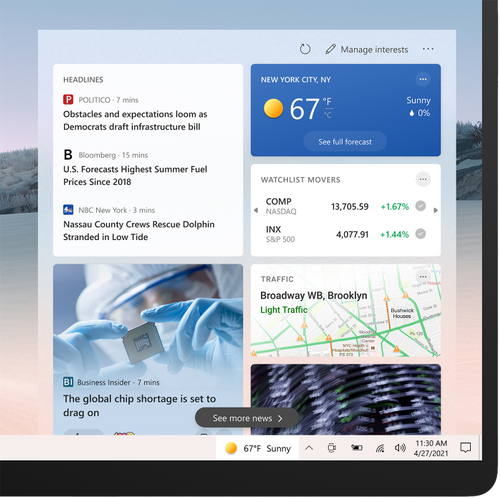
News and interests on the taskbar will begin rolling out to Windows 10 users today. We are taking a measured approach starting with the April 2021 Cumulative Update Preview for Windows 10, and broad availability will occur in phases. Devices running Windows 10, version 1909 (and later) who have installed the May 2021 Windows monthly update (or later) will be included in this phased rollout.
Today, on the Windows Experience blog, we announced that news and interests will be available on the Windows taskbar in the coming weeks. Designed to help Windows users stay up to date, at a glance, with weather, news, and more, this experience was first introduced to Windows Insiders in the Dev Channel in January and we have since been optimizing the experience based on Insider feedback.
When the experience rolls out to their devices, users will see a personalized weather forecast based on their location on the taskbar. To quickly check in on the latest headlines, weather, sports, and more, they can simply open news and interests, get caught up, and get back to what they were doing.
News and interests on the Windows taskbar offers personalized content at a glance
The information shown in news and interests is personalized for individual users. Users can customize the content they see, enabling scenarios like the following:
- Keep an eye on nearby weather and traffic that may impact a commute.
To change the location shown for weather and traffic updates, select More options (…) on the Weather or Traffic card, and select Edit Location.
- Follow a topic related to professional or personal interests.
Follow a specific topic related to an industry, job role, or subject to learn more about. To follow a specific topic, select Manage Interests and select or search for a topic.
- Get personalized updates on stocks.
Keep an eye on major market indicators, see top gainers or losers, or create a watch list of stocks to see updates throughout the day.
- Share, save or see more stories.
Select More options (…) on headlines and articles in news and interests on the taskbar to share them with others or save them to read later. Users can also request to see more or fewer stories like the ones shown.
In addition, the appearance of news and interests on the taskbar can be customized. Users can choose to right click or long press a blank space on the taskbar and select News and interests to customize. They can choose Show icon and text or, to save taskbar space, select Show icon only. Users can also select Turn off to unpin news and interests. For more information on customizing news and interests, see the Support page
Manage news and interests on the taskbar with policy
In addition to personalization for individual users, Windows and Microsoft 365 IT admins can easily manage the way news and interests on the taskbar is configured for the devices they manage.
To manage news and interests on the taskbar with Group Policy, locate:
Computer Configuration > Administrative Templates > Windows Components > News and interests > Enable news and interests on the taskbar
 The news and interests setting in Group Policy
Through this policy, you can disable or enable the news and interests experience on the taskbar. If you leave the setting as “Not configured” the experience will be enabled by default.
- Enabled – News and interests will be allowed on the taskbar. The settings UI will be present in the Taskbar context menu, and users will be able to turn it off or switch modes.
- Disabled – News and interests will be turned off completely, and the settings UI in the Taskbar context menu will be removed.
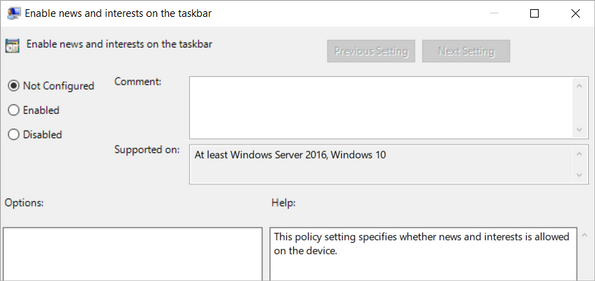 Configuring news and interests via Group Policy
Microsoft Endpoint Manager offers the same policy configuration options:
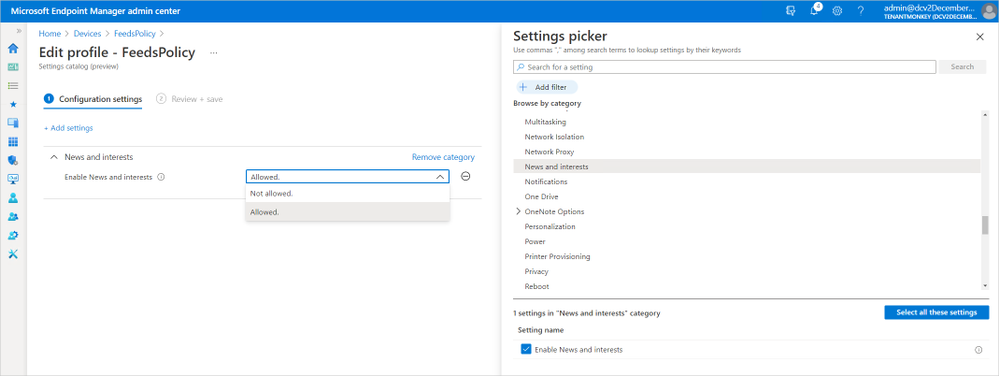 Configuring news and interests policy in Microsoft Endpoint Manager
Learn more
For more information on configuring the news and interests experience for your users, please see the Policy CSP – Experience article in Windows client mobile device management documentation.

by Contributed | Apr 22, 2021 | Technology
This article is contributed. See the original author and article here.
We are excited to announce Azure Storage Day, a free digital event on April 29, 2021, where you can explore cloud storage solutions for all your enterprise workloads. Join us to:
- Understand cloud storage trends and innovations—and plan for the future.
- Map Azure Storage solutions to your different enterprise workloads.
- See demos of Azure disk, object, and file storage services.
- Learn how to optimize your migration with best practices.
- Find out how real customers are accelerating their cloud adoption with Azure Storage.
- Get answers to your storage questions from product experts.
This digital event is your opportunity to engage with the cloud storage community, see Azure Storage solutions in action, and discover how to build a foundation for all of your enterprise workloads at every stage of your digital transformation.
The need for reliable cloud storage has never been greater. More companies are investing in digital transformation to become more resilient and agile in order to better serve their customers. The rapid pace of digital transformation has resulted in exponential data growth, driving up demand for dependable and scalable cloud data storage services.
Register here.
Hope to see you there!
– Azure Storage Marketing Team
by Contributed | Apr 22, 2021 | Technology
This article is contributed. See the original author and article here.
ConfigMgr admins love extending hardware inventory and collecting data from Windows devices.
Did you know Intune can do the same?!
The answer is Intune PowerShell scripts! Also known as SideCar… IME… Intune Management Extensions…
Well, IME is just another channel that runs parallel to MDM that sort of acts like the ConfigMgr client. We deliver different features over this channel: PowerShell scripts, Win32 apps, Proactive Remediation scripts, Win32 app log collection…
Can you give us an example?
Maybe you are interested to know more about Win32_BIOS.
Run the following PowerShell one-liner on a device
Get-WmiObject -Class Win32_BIOS |
select CurrentLanguage,
Description,
EmbeddedControllerMajorVersion,
EmbeddedControllerMinorVersion,
Manufacturer,
ReleaseDate,
SerialNumber | ConvertTo-Json -Compress
Script outputs the following:

Beautified:
{
"CurrentLanguage": "en-US",
"Description": "N2EET43W (1.25 )",
"EmbeddedControllerMajorVersion": 1,
"EmbeddedControllerMinorVersion": 13,
"Manufacturer": "LENOVO",
"ReleaseDate": "20191028000000.000000+000",
"SerialNumber": "12345678"
}
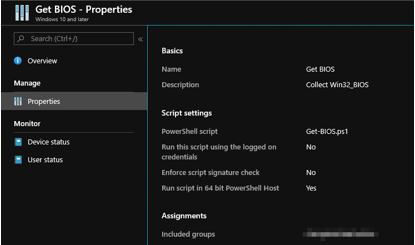
Let’s create an Intune PowerShell script and deploy it to some users/devices to demonstrate Win32_BIOS data as an example.
Tip: <scriptId> is stored in the URL

You can access the data via the following Graph endpoint in graph explorer
https://graph.microsoft.com/beta/deviceManagement/deviceManagementScripts/<scriptID>/deviceRunStates?$expand=managedDevice
It turns out that we store the above-mentioned script output in a property on the service side. If you are familiar with Graph Explorer, then you can take a look at the results
In the property “resultMessage”:

How do I see the data from all devices?
Prerequisites:
Install-Module -Name Microsoft.Graph.Intune
You need one more script to retrieve your results from Graph…
Update-MSGraphEnvironment -SchemaVersion 'beta'
Connect-MSGraph

$result = Invoke-MSGraphRequest -HttpMethod GET -Url 'deviceManagement/deviceManagementScripts/b113448a-528a-4beb-b7d5-381a117d5184/deviceRunStates?$expand=managedDevice' | Get-MSGraphAllPages
$success = $result| Where-Object -Property errorCode -EQ 0
$resultMessage = $success.resultMessage
$objResultMessage = $resultMessage | ConvertFrom-Json
$objResultMessage | Out-GridView
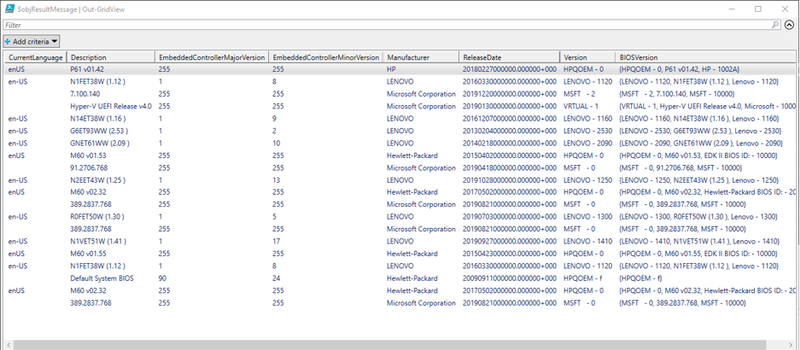
You can store the data in Log Analytics, SQL etc and visualize the way you want.
Enjoy!
by Contributed | Apr 22, 2021 | Technology
This article is contributed. See the original author and article here.
Jupyter Notebooks bring a wonderful capability to hand someone a single file that contains both code, and instructions on how to run that code. This is great and can be used in many different ways, one of which is to help new team members get up to speed. But what happens when you need to do the same thing as one of your existing Notebooks, but now you need to do it at scale? What if you could take your existing Notebook and add parameters for things like Server name & Database? In this episode with Aaron Nelson, take a look at how new features in Azure Data Studio can help you take your Notebooks to the next level of re-usability.
Watch on Data Exposed
Resources:
View/share our latest episodes on Channel 9 and YouTube!


Recent Comments