by Contributed | Apr 23, 2021 | Technology
This article is contributed. See the original author and article here.
The combination of artificial intelligence and computing on the edge enables new high-value digital operations across every industry: retail, manufacturing, healthcare, energy, shipping/logistics, automotive, etc. Azure Percept is a new zero-to-low-code platform that includes sensory hardware accelerators, AI models, and templates to help you build and pilot secured, intelligent AI workloads and solutions to edge IoT devices. This posting is a companion to the new Azure Percept technical deep-dive on YouTube, providing more details for the video:
Hardware Security
The Azure Percept DK hardware is an inexpensive and powerful 15-watt AI device you can easily pilot in many locations. It includes a hardware root of trust to protect AI data and privacy-sensitive sensors like cameras and microphones. This added hardware security is based upon a Trusted Platform Module (TPM) version 2.0, which is an industry-wide, ISO standard from the Trusted Computing Group. Please see the Trusted Computing Group website for more information with the complete TPM 2.0 and ISO/IEC 11889 specification. The Azure Percept boot ROM ensures integrity of firmware between ROM and operating system (OS) loader, which in turn ensures integrity of the other software components, creating a chain of trust.
The Azure Device Provisioning Services (DPS) uses this chain of trust to authenticate and authorize each Azure Percept device to Azure cloud components. This enables an AI lifecycle for Azure Percept: AI models and business logic containers with enhanced security that can be encrypted in the cloud, downloaded, executed at the edge, with properly signed output sent to the cloud. This signing attestation provides tamper-evidence for all AI inferencing results, providing a more fully trustworthy environment. More information on how the Azure Percept DK is authenticated and authorized via the TPM can be found here: Azure IoT Hub Device Provisioning Service – TPM Attestation.
Example AI Models
This example showcases a Percept DK semantic segmentation AI model (Github source link) based upon U-Net, trained to recognize the volume of bananas in a grocery store. In the video below, the bright green highlights are the inferencing results from the U-Net AI model running on the Azure Percept DK:
Semantic segmentation AI models label each pixel in a video with the class of object for which it was trained, which means it can compute the two-dimensional size of irregularly shaped objects in the real world. This could be the size of an excavation from a construction site, the volume of bananas in a bin, or the density of packages in a delivery truck. Since you can perform AI inferencing over these items periodically, this enables time-series data upon the change in shape of the objects being detected. How fast is the hole being excavated? How efficient is the cargo space loading utilization in the delivery truck? In the banana example above, this time series data allows retailers reduce food waste by creating more efficient supply chains with less safety stock. In turn this reduces CO2 emissions by less transportation of fresh food, and less fertilizer required in the soil.
This example also showcases the Bring Your Own Model (BYOM) capabilities of Azure Percept. BYOM allows you to bring your own custom computer vision pipeline to your Azure Percept DK. This tutorial shows how to convert your own TensorFlow, ONNX or Caffe models for execution upon the Intel® Movidius™ Myriad™ X within the Azure Percept DK, and then how to subclass video pipeline IoT container to integrate your inferencing output. Many of the free, pre-trained open-source AI models in the Intel Model Zoo will run on the Myriad X.
People Counting Reference Application
Combining edge-based AI inferencing and video with cloud-based business logic can be complex. Egress, storage and synchronization of the edge AI output and H.264 video streams in the cloud makes it even harder. Azure Percept Studio includes a free, open source reference application which detects people and generates their {x, y} coordinates in a real-time video stream. The application also provides a count of people in a user-defined polygon region within the camera’s viewport. This application showcases the best practices for security and privacy-sensitive AI workloads.
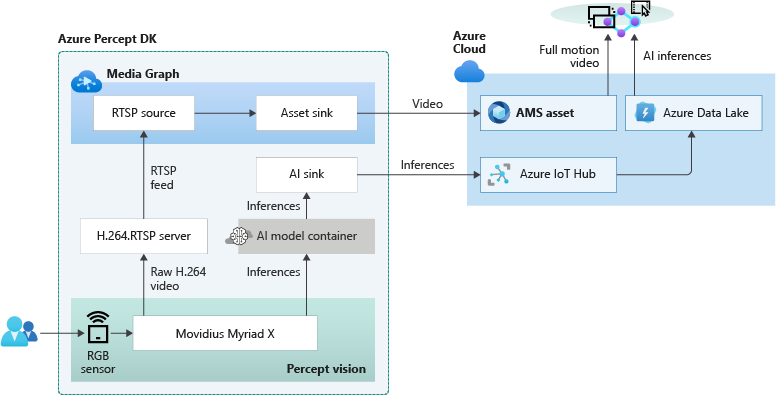
The overall topology of the reference application is shown below. The left side of the illustration contains the set of components which run at the edge within Azure Percept DK. The H.264 video stream and the AI inferencing results are then sent in real-time to the right side which runs in the Azure public cloud:
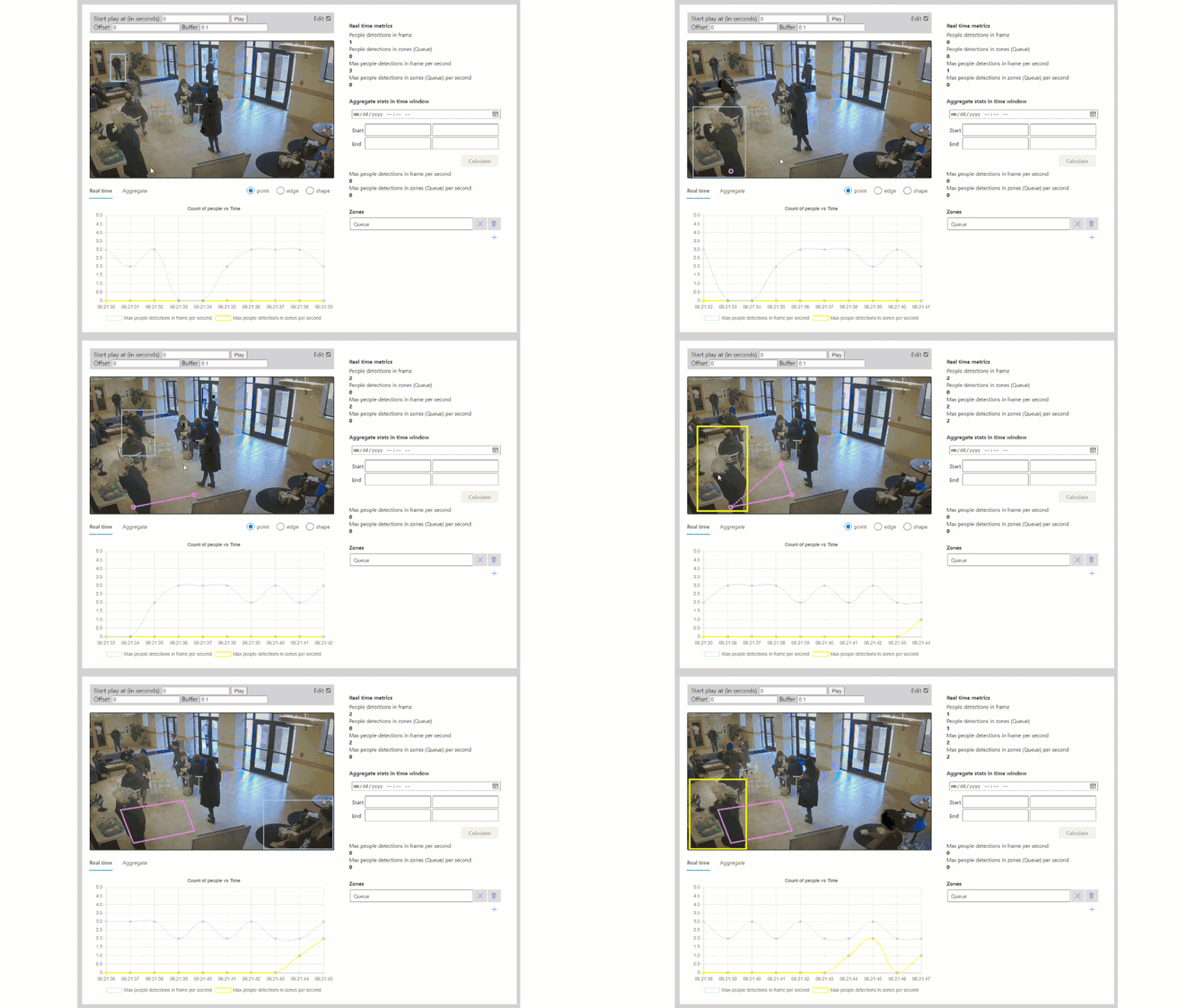
Because the Myriad X performs hardware encoding of both the compressed full motion H.264 video stream and AI inferencing results, hardware-synchronized timestamps in each stream makes it possible to provide downstream frame-level synchronization for applications running in the public cloud. The Azure Websites application provided in this example is fully stateless, simply reading the video + AI streams from their separate storage accounts in the cloud and composing the output into a single user interface:
Included in the reference application is also a fully automated deployment model utilizing an Azure ARM template. If you click the “Deploy to Azure” button, then “Edit Template”, you will see this code:
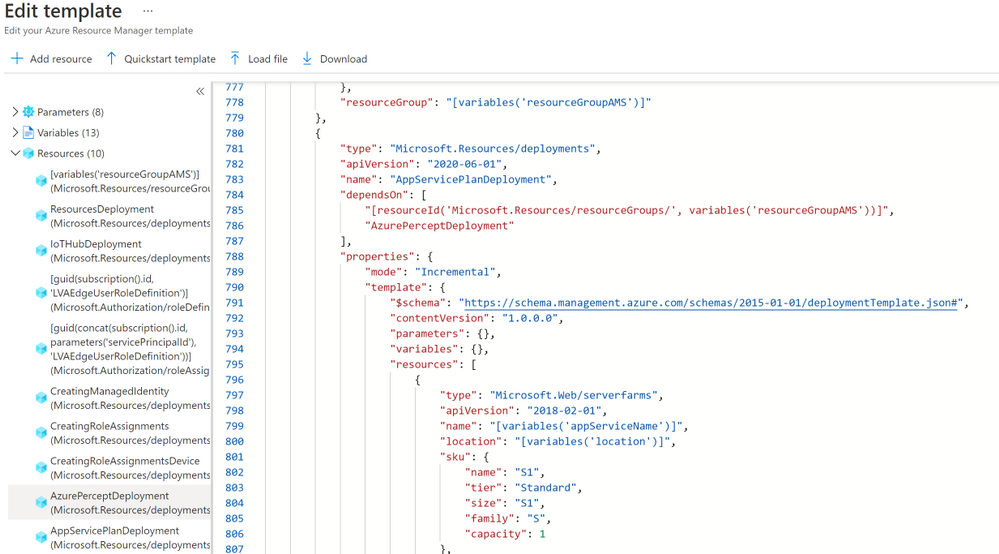
This ARM template deploys the containers to the Azure Percept DK, creates the storage accounts in the public cloud, connects the IoT Hub message routes to the storage locations, deploys the stateless Azure Websites, and then connects the website to the storage locations. This example can be used to accelerate the development of your own hybrid edge/cloud workloads.
Get Started Today
Order your Percept DK today and get started with our easy-to-understand samples and tutorials. You can rapidly solve your business modernization scenarios no matter your skill level, from beginner to an experienced data scientist. With Azure Percept, you can put the cloud and years of Microsoft AI solutions to work as you pilot your own edge AI solutions.

by Contributed | Apr 23, 2021 | Technology
This article is contributed. See the original author and article here.
The Ultimate How To Guide for Presenting Content in Microsoft Teams
Vesku Nopanen is a Principal Consultant in Office 365 and Modern Work and passionate about Microsoft Teams. He helps and coaches customers to find benefits and value when adopting new tools, methods, ways or working and practices into daily work-life equation. He focuses especially on Microsoft Teams and how it can change organizations’ work. He lives in Turku, Finland. Follow him on Twitter: @Vesanopanen

Backup all WSP SharePoint Solutions using PowerShell
Mohamed El-Qassas is a Microsoft MVP, SharePoint StackExchange (StackOverflow) Moderator, C# Corner MVP, Microsoft TechNet Wiki Judge, Blogger, and Senior Technical Consultant with +10 years of experience in SharePoint, Project Server, and BI. In SharePoint StackExchange, he has been elected as the 1st Moderator in the GCC, Middle East, and Africa, and ranked as the 2nd top contributor of all the time. Check out his blog here.

Getting started with Azure Bicep
Tobias Zimmergren is a Microsoft Azure MVP from Sweden. As the Head of Technical Operations at Rencore, Tobias designs and builds distributed cloud solutions. He is the co-founder and co-host of the Ctrl+Alt+Azure Podcast since 2019, and co-founder and organizer of Sweden SharePoint User Group from 2007 to 2017. For more, check out his blog, newsletter, and Twitter @zimmergren

Azure: Talk about Private Links
George Chrysovalantis Grammatikos is based in Greece and is working for Tisski ltd. as an Azure Cloud Architect. He has more than 10 years’ experience in different technologies like BI & SQL Server Professional level solutions, Azure technologies, networking, security etc. He writes technical blogs for his blog “cloudopszone.com“, Wiki TechNet articles and also participates in discussions on TechNet and other technical blogs. Follow him on Twitter @gxgrammatikos.

Teams Real Simple with Pictures: Hyperlinked email addresses in Lists within Teams
Chris Hoard is a Microsoft Certified Trainer Regional Lead (MCT RL), Educator (MCEd) and Teams MVP. With over 10 years of cloud computing experience, he is currently building an education practice for Vuzion (Tier 2 UK CSP). His focus areas are Microsoft Teams, Microsoft 365 and entry-level Azure. Follow Chris on Twitter at @Microsoft365Pro and check out his blog here.
by Contributed | Apr 23, 2021 | Technology
This article is contributed. See the original author and article here.
Context
During a Power Platform audit for a customer, I was looking for exporting all user licenses data into a single file to analyze it with Power BI. In this article, I’ll show you the easy way to export Power Apps and Power Automate user licenses with PowerShell!
Download user licenses
To do this, we are using PowerApps PowerShell and more particular, the Power Apps admin module.
To install this module, execute the following command as a local administrator:
Install-Module -Name Microsoft.PowerApps.Administration.PowerShell
Note: if this module is already installed on your machine, you can use the Update-Module command to update it to the latest version available.
Then to export user licenses data, you just need to execute the following command and replace the target file path to use:
Get-AdminPowerAppLicenses -OutputFilePath <PATH-TO-CSV-FILE>
Note: you will be prompted for your Microsoft 365 tenant credentials, you need to sign-in as Power Platform Administrator or Global Administrator to execute this command successfully.
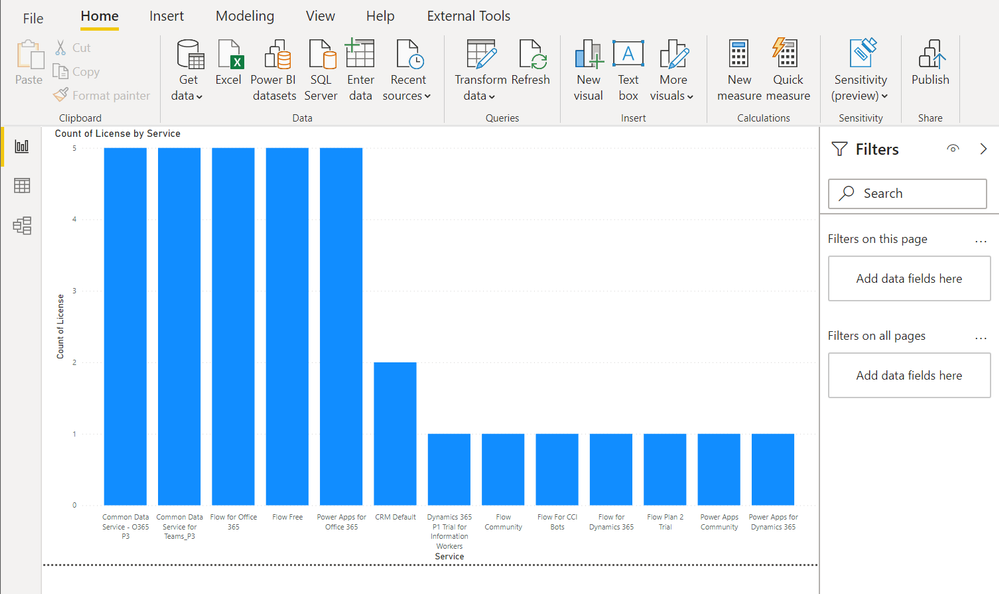
After this, you can easily use the generated CSV file in Power BI Desktop for further data analysis:
Happy reporting everyone!
You can read this article on my blog here.
Resources
https://docs.microsoft.com/en-us/powershell/powerapps/get-started-powerapps-admin
https://docs.microsoft.com/en-us/powershell/module/microsoft.powerapps.administration.powershell/get-adminpowerapplicenses

by Contributed | Apr 23, 2021 | Technology
This article is contributed. See the original author and article here.
The team is excited this week to share what we’ve been working on based on all your input. News to be covered includes Application Gateway URL Rewrite General Availability, End of Support for Ubuntu 16.04, Using Azure Migrate with Private Endpoints, Overview of HoloLens 2 deployment and security-based Microsoft Learn Module of the week.
Application Gateway URL Rewrite General Availability

Azure Application Gateway can now rewrite the host name, path and query string of the request URL. You can now also rewrite the URL of all or some of the client requests based on matching one or more conditions as required. Administrators can also now choose to route the request based on the original URL or the rewritten URL. This feature enables several important scenarios such as allowing path based routing for query string values and support for hosting friendly URLs.
Learn more here: Rewrite HTTP Headers and URL with Application Gateway
Upgrade your Ubuntu server to Ubuntu 18.04 LTS by 30 April 2021
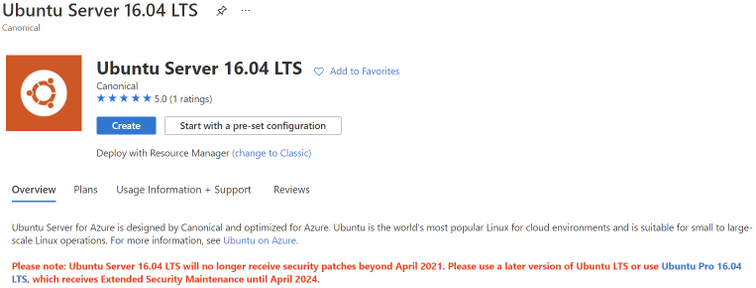
Ubuntu is ending standard support for Ubuntu 16.04 LTS on 30 April 2021. Microsoft will replace the Ubuntu 16.04 LTS image with an Ubuntu 18.04 LTS image for new compute instances and clusters to ensure continued security updates and support from the Ubuntu community. If you have long running compute instances, or non-autoscaling clusters (min nodes > 0), please follow the instructions here for manual migration before 30 April 2021. After 30 April 2021, support for Ubuntu 16.04 ends and no security update will be provided. Please migrate to Ubuntu 18.04 immediately or before 30 April 2021, and please note that Microsoft will not be responsible for any kind of security breaches after the deprecation.
Azure Migrate with private endpoints
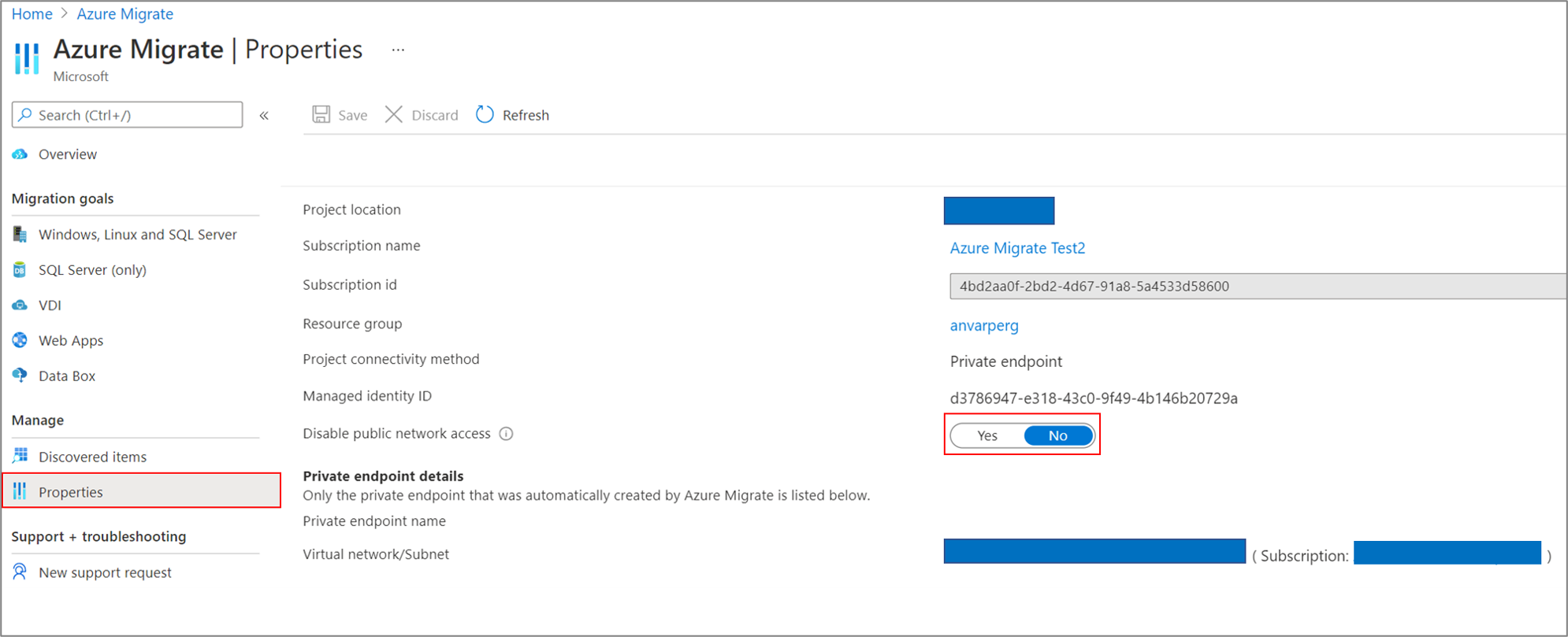
You can now use Azure Migrate: Discovery and Assessment and Azure Migrate: Server Migration tools to privately and securely connect to the Azure Migrate service over an ExpressRoute private peering or a site-to-site VPN connection via an Azure private link. The private endpoint connectivity method is recommended when there is an organizational requirement to not cross public networks to access the Azure Migrate service and other Azure resources. You can also use the private link support to use an existing ExpressRoute private peering circuits for better bandwidth or latency requirements.
Learn more here: Using Azure Migrate with private endpoints
HoloLens 2 Deployment Overview
Our team recently partnered with the HoloLens team to collaborate on and curate documentation surrounding HoloLens 2 deployment. Just like any device that requires access to an organizations network and data, the HoloLens in most cases requires management via that organization’s IT department.
This writeup shares all the necessary services required to get started: An Overview of How to Deploy HoloLens 2
Community Events
MS Learn Module of the Week

AZ-400: Develop a security and compliance plan
Build strategies around security and compliance that enable you to authenticate and authorize your users, handle sensitive information, and enforce proper governance.

Modules include:
- Secure your identities by using Azure Active Directory
- Create Azure users and groups in Azure Active Directory
- Authenticate apps to Azure services by using service principals and managed identities for Azure resources
- Configure and manage secrest in Azure Key Vault
- and more
Learn more here: Develop a security and compliance plan

Let us know in the comments below if there are any news items you would like to see covered in the next show. Be sure to catch the next AzUpdate episode and join us in the live chat.
by Contributed | Apr 23, 2021 | Technology
This article is contributed. See the original author and article here.
I remember running my first commands and building my first automation using Windows PowerShell back in 2006. Since then, PowerShell became one of my daily tools to build, deploy, manage IT environments. With the release of PowerShell version 6 and now PowerShell 7, PowerShell became cross-platform. This means you can now use it on even more systems like Linux and macOS. With PowerShell becoming more and more powerful (you see what I did there ;)), more people are asking me how they can get started and learn PowerShell. Luckily we just released 5 new modules on Microsoft Learn for PowerShell.
Learn PowerShell on Microsoft Learn
Microsoft Learn Introduction to PowerShell
Learn about the basics of PowerShell. This cross-platform command-line shell and scripting language is built for task automation and configuration management. You’ll learn basics like what PowerShell is, what it’s used for, and how to use it.
Learning objectives
- Understand what PowerShell is and what you can use it for.
- Use commands to automate tasks.
- Leverage the core cmdlets to discover commands and learn how they work.
PowerShell learn module: Introduction to PowerShell
Connect commands into a pipeline
In this module, you’ll learn how to connect commands into a pipeline. You’ll also learn about filtering left, formatting right, and other important principles.
Learning objectives
- Explore cmdlets further and construct a sequence of them in a pipeline.
- Apply sound principles to your commands by using filtering and formatting.
PowerShell learn module: Connect commands into a pipeline
Introduction to scripting in PowerShell
This module introduces you to scripting with PowerShell. It introduces various concepts to help you create script files and make them as robust as possible.
Learning objectives
- Understand how to write and run scripts.
- Use variables and parameters to make your scripts flexible.
- Apply flow-control logic to make intelligent decisions.
- Add robustness to your scripts by adding error management.
PowerShell learn module: Introduction to scripting in PowerShell
Write your first PowerShell code
Getting started by writing code examples to learn the basics of programming in PowerShell!
Learning objectives
- Manage PowerShell inputs and outputs
- Diagnose errors when you type code incorrectly
- Identify different PowerShell elements like cmdlets, parameters, inputs, and outputs.
PowerShell learn module: Write your first PowerShell code
Automate Azure tasks using scripts with PowerShell
Install Azure PowerShell locally and use it to manage Azure resources.
Learning objectives
- Decide if Azure PowerShell is the right tool for your Azure administration tasks
- Install Azure PowerShell on Linux, macOS, and/or Windows
- Connect to an Azure subscription using Azure PowerShell
- Create Azure resources using Azure PowerShell
PowerShell learn module: Automate Azure tasks using scripts with PowerShell
Conclusion
I hope this helps you get started and learn PowerShell! If you have any questions feel free to leave a comment!

by Contributed | Apr 23, 2021 | Technology
This article is contributed. See the original author and article here.
SharePoint Framework Special Interest Group (SIG) bi-weekly community call recording from April 22nd is now available from the Microsoft 365 Community YouTube channel at http://aka.ms/m365pnp-videos. You can use SharePoint Framework for building solutions for Microsoft Teams and for SharePoint Online.
Call summary:
Preview the new Microsoft 365 Extensibility look book gallery co-developed by Microsoft Teams and Sharepoint engineering. Download showcase apps, samples, and documentation. Register now for April trainings on Sharing-is-caring. Give us feedback, the Microsoft 365 developer community survey is now open. Announcing public preview of SharePoint Framework 1.12.1.
There were six PnP SPFx web part samples delivered in last 2 weeks. Great work!
Latest project updates include:
PnP Project
|
Current version
|
Release/Status
|
SharePoint Framework (SPFx)
|
v1.12.1 (beta)
|
GA by end-of-April
|
PnPjs Client-Side Libraries
|
v2.4.0
|
April 9th
|
CLI for Microsoft 365
|
v3.9 (beta)
|
Upgrading SPFx projects to v1.12.1-rc.2
|
Reusable SPFx React Controls
|
v2.6.0
|
v3.0.0 when SPFx v1.12.1 GA
|
Reusable SPFx React Property Controls
|
v2.5.0
|
v3.0.0 when SPFx v1.12.1 GA
|
PnP SPFx Generator
|
v1.16.0
|
|
PnP Modern Search
|
v3.19 and v4.1.0
|
April and March 20th
|
The host of this call is Patrick Rodgers (Microsoft) @mediocrebowler. Q&A takes place in chat throughout the call.
Jungle seating in a Pacific Northwest, Washington, US amphitheater! Truly unique like this Community!
Actions:
- Complete the Microsoft 365 Developer Community Survey – https://aka.ms/m365pnp/survey
- Reserve date – SharePoint Monthly community call – 13th of April 8 AM PDT | https://aka.ms/sp-call
- Register for Sharing is Caring Events:
- First Time Contributor Session – April 27th (EMEA, APAC & US friendly times available)
- Community Docs Session – April
- PnP – SPFx Developer Workstation Setup – April 29th
- PnP SPFx Samples – Solving SPFx version differences using Node Version Manager – May TBD
- AMA (Ask Me Anything) – Power Platform Samples – May 5th
- AMA (Ask Me Anything) – Tech Community – May 11th
- First Time Presenter – May TBD
- More than Code with VSCode – April 28th
- Maturity Model Practitioners – May TBD
- PnP Office Hours – 1:1 session – Register
- Download the recurrent invite for this call – https://aka.ms/spdev-spfx-call
Demos:
Running the CLI for Microsoft 365 in Azure Container Instances orchestrated by Logic Apps – or Flow in Power Automate. Step through how the Azure Container Instance is created with the specified managed identity. Docker enables you to bundle a pre-configured version of CLI for Microsoft 365 together with all its required dependencies and also is used to orchestrate containers. Purpose of configuration is to run scripts or reports against your tenant.
Advanced Page Properties web part solution – when the normal page properties web part is not enough, this new Advanced Page Properties web part delivers more. New properties supporting theme variants, capsule format for list options, support for image fields, for links, for currency, and for dates. Tour the code for tracking available properties for drop downs, tracking property selections and parameters for refreshing and rendering the data.
SharePoint Framework 1.12.1 new features – support for Node v12, Gulp 4, Microsoft Teams SDK v1.8 and for creating Microsoft Teams meeting apps. Demos – 1) Increased access to page structure and context to avoid DOM dependency (web part detects DOM structure and selects output size to fit allotted space) and 2) SPFx support for Complex Microsoft Teams solutions (manifest included in Package to synchronize with Teams App catalog).
SPFx web part samples: (https://aka.ms/spfx-webparts)
Thank you for your great work. Samples are often showcased in Demos.
Agenda items:
Demos:
Running the CLI for Microsoft 365 in Azure Container Instances orchestrated by Logic Apps – Albert-Jan Schot (Portiva) | @appieschot | deck – 18:04
Advanced Page Properties web part solution – Mike Homol (ThreeWill) | @homol | deck – 32:00
SharePoint Framework 1.12.1 new features – Vesa Juvonen (Microsoft) | @vesajuvonen
– 45:33
Resources:
Additional resources around the covered topics and links from the slides.
General Resources:
Other mentioned topics:
Upcoming calls | Recurrent invites:
PnP SharePoint Framework Special Interest Group bi-weekly calls are targeted at anyone who is interested in the JavaScript-based development towards Microsoft Teams, SharePoint Online, and also on-premises. SIG calls are used for the following objectives.
- SharePoint Framework engineering update from Microsoft
- Talk about PnP JavaScript Core libraries
- Office 365 CLI Updates
- SPFx reusable controls
- PnP SPFx Yeoman generator
- Share code samples and best practices
- Possible engineering asks for the field – input, feedback, and suggestions
- Cover any open questions on the client-side development
- Demonstrate SharePoint Framework in practice in Microsoft Teams or SharePoint context
- You can download a recurrent invite from https://aka.ms/spdev-spfx-call. Welcome and join the discussion!
“Sharing is caring”
by Contributed | Apr 22, 2021 | Technology
This article is contributed. See the original author and article here.
Debug Diag involves various methods of dump collection methods that can be incorporated. In this blog we would be dealing with one such method that helps to capture crash dumps on particular exception only when it contains a specific function in its call stack.
When can you use this type of data collection?
You can use this method to capture the dumps if you are facing the below challenges:
- Your application pool recycles very frequently making it difficult to monitor the process ID for procdump command to run
- The exception being targeted can occur in other scenarios as well, hence generating a lot of false positive dumps
- We know call stack of the exception or a specific function call where the exception comes from
Steps to capture dumps for an exception occurring from specific method :
- Download the latest Debug Diagnostic Tool v2 Update 3 from https://www.microsoft.com/en-us/download/details.aspx?id=58210
- Open the Debug diag collection
- Once you open this , you will automatically be prompted with Select Rule Type wizard, if not select Add Rule from the bottom pane
- Select Crash and chose A specific IIS web application pool
- Chose the required application pool and click Next
- Click on Exceptions and got to Add Exception in the following prompt that appears
- Chose the type of exception your require and select Custom from Action Type
- Once you chose Custom you will be presented with a page to add your script
- Add the following script :
If Instr(UCASE(Debugger.Execute("!clrstack")),ucase("Your function here")) > 0 Then

                                                      CreateDump "Exception",false

End If
- Alternatively if you want to capture a dump for an exception that might be coming from two different methods you can use this:
If Instr(UCASE(Debugger.Execute("!clrstack")),ucase("function 1")) > 0 Then

                                                       CreateDump "Exception",false

ElseIf  Instr(UCASE(Debugger.Execute("!clrstack")),ucase("function2 ")) > 0 Then

                                                      CreateDump "Exception",false

End If
- Set the Action Limit to number of dumps to be captured and hit OK
- Click Save and Close and Next in the following command prompt that appears
- Alter the Rule name and location in next prompt if required
- Chose Activate the rule now and Finish
For example, Let’s assume that we are getting the exception “System.Threading.ThreadAbortException” from method “EchoBot.dll!Microsoft.BotBuilderSamples.Controllers.BotController.PostAsync() Line 33”. In this scenario we will follow the below steps :
- Complete the steps from step 1 to step 6 as written above
- Chose the CLR Exception from the list of exceptions presented to you
- In Exception Type Equals column add : System.Threading.ThreadAbortException
- In Action Type , chose Custom from drop down menu
- In the Provide DebugDiag Script Commands For Custom Actions prompt that appears paste the following script :
If Instr(UCASE(Debugger.Execute("!clrstack")),ucase("Microsoft.BotBuilderSamples.Controllers.BotController.PostAsync")) > 0 Then

                                                      CreateDump "Exception",false

End If
- Follow the steps from 11 to 14 above to complete the configuration
This rule creates the dump on System.Threading.ThreadAbortException that occurs from Microsoft.BotBuilderSamples.Controllers.BotController.PostAsync.
More information:
The script indicates debug diag to capture the dump when it hits the exception you selected and involves the function call ( you mentioned in script ) in it’s call stack.
by Contributed | Apr 22, 2021 | Technology
This article is contributed. See the original author and article here.
Web Localization and Ecommerce
Using Microsoft Azure Translator service, you can localize your website in a cost-effective way. With the advent of the internet, the world has become a much smaller place. Loads of information are stored and transmitted between cultures and countries, giving us all the ability to learn and grow from each other. Powered by advanced deep learning, Microsoft Azure Translator delivers fast and high-quality neural machine-based language translations, empowering you to break through language barriers and take advantage of all these powerful vehicles of knowledge and data transfer.
Research shows that 40% of internet users will never buy from websites in a foreign language[1]. Machine translation from Azure, supporting over 90 languages and dialects, helps you go to market faster and reach buyers in their native languages by localizing your web assets: from your marketing pages to user-generated content, and everything in-between.
Up to 95% of the online content that companies generate is available in only one language. This is because localizing websites, especially beyond the home page, is cost prohibitive outside of the top few markets. As a result, localized content seldom extends one or two clicks beyond a home page. However, with machine translation from Azure Translator Service, content that wouldn’t otherwise be localized can be, and now most of your content can reach customers and partners worldwide.
How to localize your website in a cost-effective way?
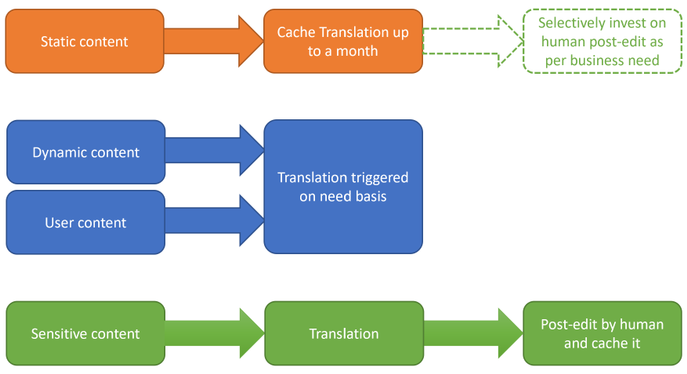
The first step is to understand the nature of your website content and classify them. It is critical as each of them needs different levels of localization. There are four types of content: a) static and dynamic, b) generated by you and posted by customer, c) sensitive like ‘Terms of Use’, d) part of UX elements.
Static content like about the organization, product or service description, user guides, terms of use, etc. can be translated once (or less frequently) offline into all required target languages. Translation results could be cached and served from your webserver. This could substantially reduce the cost of translation. Machine translation models which powers Azure Translator service are regularly updated to improve quality. Hence consider refreshing the translations once a quarter if not every month.
User generated content like customer reviews, information requests, etc. are dynamic in nature, not all of them requiring translations, and to be translated on need basis only. You could plan for an UX element in the webpage which could initiate translation on need basis. Target language for translation could be identified based on user browser language. Likewise, responses to customer could be translated back into the language of original request or comment.
Sensitive content like terms of use, company policies, are recommended to do a human review post-machine translation.
Text in UX elements of the webpage like menu, labels in forms, etc. are typically one or two words and have restricted space. Hence recommended to do a UX testing post translation for fit and finish. If necessitates look for alternate translation or human review.
Due to the speed and cost-effective nature that Azure Translator Service provides, you can easily test which localization option is optimal for your business and your users. For example, you may only have the budget to localize in dozens of languages and measure customer traffic in multiple markets in parallel. Using your existing web analytics, you will be able to decide where to invest in human translation in terms of markets, languages, or pages. For example, if the machine translated information passes a defined page view threshold, your system may trigger a human review of that content. In addition, you will still be able to maintain machine translation for other areas, to maintain reach.
By combining pure machine translation and paid translation resources, you can select different quality levels for the translations based on your business needs.
How to use Azure Translator service to translate static content
Pre-requisite:
- Create an Azure subscription
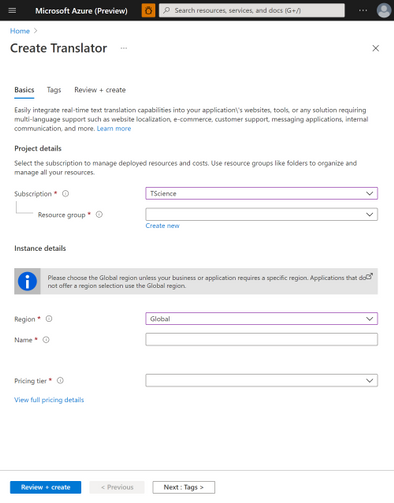
- Once you have an Azure subscription, create a Translator resource in the Azure portal.
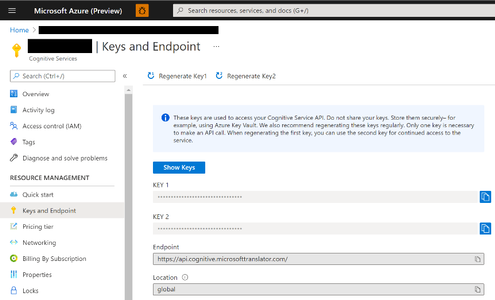
- Once Translator resource it created, go to the resource, and select ‘Keys and Endpoint’ which is used to connect your application to the Translator service.
Translating static webpage content:
Below code sample shows how to translate an element in the webpage. You could use it and iterate for each element in your webpage requiring translation.
import os, requests, uuid, json
subscription_key = "YOUR_SUBSCRIPTION_KEY"
endpoint = "https://api.cognitive.microsofttranslator.com"
path = '/translate'
constructed_url = endpoint + path

params = {
    'api-version': '3.0',
    'to': ['de'], # target language
    'textType': 'html'
}

headers = {
    'Ocp-Apim-Subscription-Key': subscription_key,
    'Content-type': 'application/json',
    'X-ClientTraceId': str(uuid.uuid4())
}

# You can pass more than one object in body.
body = [{
    "text": "<p>The samples on this page use hard-coded keys and endpoints for simplicity.
    Remember to <strong>remove the key from your code when you're done</strong>, and
    <strong>never post it publicly</strong>. For production, consider using a secure way of
    storing and accessing your credentials. See the Cognitive Services security article
    for more information.</p>"
}]

request = requests.post(constructed_url, params=params, headers=headers, json=body)
response = request.json()
print (response[0]['translations'][0]['text']) # shows how to access the translated text from response
Localization is just a fraction of the things that you can do with Translator, so don’t let the learning stop here. Check out recent new Translator features, additional doc links to dive deeper, and join the Translator Ask Microsoft Anything session on 4/27.
Get started:
[1] CSA Research – Can’t Read, Won’t Buy – B2C Analyzing Consumer Language Preferences and Behaviors in 29 Countries https://insights.csa-research.com/reportaction/305013126/Marketing
by Contributed | Apr 22, 2021 | Technology
This article is contributed. See the original author and article here.
We are excited to announce that the GREATEST and LEAST T-SQL functions are now generally available in Azure Synapse Analytics (serverless SQL pools only).
This post describes the functionality and common use cases of GREATEST and LEAST in Azure Synapse Analytics, as well as how they provide a more concise and efficient solution for developers compared to existing T-SQL alternatives.
Functionality
GREATEST and LEAST are scalar-valued functions and return the maximum and minimum value, respectively, of a list of one or more expressions.
The syntax is as follows:
GREATEST ( expression1 [ ,...expressionN ] )
LEAST ( expression1 [ ,...expressionN ] )
As an example, let’s say we have a table CustomerAccounts and wish to return the maximum account balance for each customer:
CustomerID |
Checking |
Savings |
Brokerage |
1001 |
$ 4,294.10 |
$ 14,109.84 |
$ 3,000.01 |
1002 |
$ 51,495.00 |
$ 97,103.43 |
$ 0.02 |
1003 |
$ 10,619.73 |
$ 33,194.01 |
$ 5,005.74 |
1004 |
$ 24,924.33 |
$ 203,100.52 |
$ 10,866.87 |
Prior to GREATEST and LEAST, we could achieve this through a searched CASE expression:
SELECT CustomerID, GreatestBalance =
    CASE
        WHEN Checking >= Savings and Checking >= Brokerage THEN Checking
        WHEN Savings > Checking and Savings > Brokerage THEN Savings
        WHEN Brokerage > Checking and Brokerage  > Savings THEN Brokerage
    END
FROM CustomerAccounts;
We could alternatively use CROSS APPLY:
SELECT ca.CustomerID, MAX(T.Balance) as GreatestBalance
FROM CustomerAccounts as ca
CROSS APPLY (VALUES (ca.Checking),(ca.Savings),(ca.Brokerage)) AS T(Balance)
GROUP BY ca.CustomerID;
Other valid approaches include user-defined functions (UDFs) and subqueries with aggregates.
However, as the number of columns or expressions increases, so does the tedium of constructing these queries and the lack of readability and maintainability.
With GREATEST, we can return the same results as the queries above with the following syntax:
SELECT CustomerID, GREATEST(Checking, Savings, Brokerage) AS GreatestBalance
FROM CustomerAccounts;
Here is the result set:
CustomerID  GreatestBalance
----------- ---------------------
1001            14109.84
1002            97103.43
1003            33194.01
1004           203100.52

(4 rows affected)
Similarly, if you previously wished to return a value that’s capped by a certain amount, you would need to write a statement such as:
DECLARE @Val INT = 75;
DECLARE @Cap INT = 50;
SELECT CASE WHEN @Val > @Cap THEN @Cap ELSE @Val END as CappedAmt;
With LEAST, you can achieve the same result with:
DECLARE @Val INT = 75;
DECLARE @Cap INT = 50;
SELECT LEAST(@Val, @Cap) as CappedAmt;
The syntax for an increasing number of expressions is vastly simpler and more concise with GREATEST and LEAST than with the manual alternatives mentioned above
As such, these functions allow developers to be more productive by avoiding the need to construct lengthy statements to simply find the maximum or minimum value in an expression list.
Common use cases
Constant arguments
One of the simpler use cases for GREATEST and LEAST is determining the maximum or minimum value from a list of constants:
SELECT LEAST ( '6.62', 33.1415, N'7' ) AS LeastVal;
Here is the result set. Note that the return type scale is determined by the scale of the highest precedence argument, in this case float.
LeastVal
--------
6.6200

(1 rows affected)
Local variables
Perhaps we wish to compare column values in a WHERE clause predicate against the maximum value of two local variables:
CREATE TABLE dbo.studies (
    VarX varchar(10) NOT NULL,
    Correlation decimal(4, 3) NULL
);

INSERT INTO dbo.studies VALUES ('Var1', 0.2), ('Var2', 0.825), ('Var3', 0.61);
GO

DECLARE @PredictionA DECIMAL(2,1) = 0.7;
DECLARE @PredictionB DECIMAL(3,2) = 0.65;

SELECT VarX, Correlation
FROM dbo.studies
WHERE Correlation > GREATEST(@PredictionA, @PredictionB);
GO
Here is the result set:
VarX       Correlation
---------- -----------
Var2              .825

(1 rows affected)
Columns, constants and variables
At times we may want to compare columns, constants and variables together. Here is one such example using LEAST:
CREATE TABLE dbo.products (
    prod_id INT IDENTITY(1,1),
    listprice smallmoney NULL
);

INSERT INTO dbo.products VALUES (14.99), (49.99), (24.99);
GO

DECLARE @PriceX smallmoney = 19.99;

SELECT LEAST(listprice, 40, @PriceX) as LeastPrice
FROM dbo.products;
GO
And the result set:
LeastPrice
------------
     14.99
     19.99
     19.99
Summary
GREATEST and LEAST provide a concise way to determine the maximum and minimum value, respectively, of a list of expressions.
For full documentation of the functions, see GREATEST (Transact-SQL) – SQL Server | Microsoft Docs and LEAST (Transact-SQL) – SQL Server | Microsoft Docs.
These new T-SQL functions will increase your productivity and enhance your experience with Azure Synapse Analytics.
Providing the GREATEST developer experience in Azure is the LEAST we can do.
John Steen, Software Engineer
Austin SQL Team
by Contributed | Apr 22, 2021 | Technology
This article is contributed. See the original author and article here.
We are excited to announce that the GREATEST and LEAST T-SQL functions are now generally available in Azure SQL Database, as well as in Azure Synapse Analytics (serverless SQL pools only) and Azure SQL Managed Instance.
The functions will also be available in upcoming releases of SQL Server.
This post describes the functionality and common use cases of GREATEST and LEAST in Azure SQL Database, as well as how they can provide a more concise and efficient solution for developers compared to existing T-SQL alternatives.
Functionality
GREATEST and LEAST are scalar-valued functions and return the maximum and minimum value, respectively, of a list of one or more expressions.
The syntax is as follows:
GREATEST ( expression1 [ ,...expressionN ] )
LEAST ( expression1 [ ,...expressionN ] )
As an example, let’s say we have a table CustomerAccounts and wish to return the maximum account balance for each customer:
CustomerID |
Checking |
Savings |
Brokerage |
1001 |
$ 4,294.10 |
$ 14,109.84 |
$ 3,000.01 |
1002 |
$ 51,495.00 |
$ 97,103.43 |
$ 0.02 |
1003 |
$ 10,619.73 |
$ 33,194.01 |
$ 5,005.74 |
1004 |
$ 24,924.33 |
$ 203,100.52 |
$ 10,866.87 |
Prior to GREATEST and LEAST, we could achieve this through a searched CASE expression:
SELECT CustomerID, GreatestBalance =
    CASE
        WHEN Checking >= Savings and Checking >= Brokerage THEN Checking
        WHEN Savings > Checking and Savings > Brokerage THEN Savings
        WHEN Brokerage > Checking and Brokerage  > Savings THEN Brokerage
    END
FROM CustomerAccounts;
We could alternatively use CROSS APPLY:
SELECT ca.CustomerID, MAX(T.Balance) as GreatestBalance
FROM CustomerAccounts as ca
CROSS APPLY (VALUES (ca.Checking),(ca.Savings),(ca.Brokerage)) AS T(Balance)
GROUP BY ca.CustomerID;
Other valid approaches include user-defined functions (UDFs) and subqueries with aggregates.
However, as the number of columns or expressions increases, so does the tedium of constructing these queries and the lack of readability and maintainability.
With GREATEST, we can return the same results as the queries above with the following syntax:
SELECT CustomerID, GREATEST(Checking, Savings, Brokerage) AS GreatestBalance
FROM CustomerAccounts;
Here is the result set:
CustomerID  GreatestBalance
----------- ---------------------
1001            14109.84
1002            97103.43
1003            33194.01
1004           203100.52

(4 rows affected)
Similarly, if you previously wished to return a value that’s capped by a certain amount, you would need to write a statement such as:
DECLARE @Val INT = 75;
DECLARE @Cap INT = 50;
SELECT CASE WHEN @Val > @Cap THEN @Cap ELSE @Val END as CappedAmt;
With LEAST, you can achieve the same result with:
DECLARE @Val INT = 75;
DECLARE @Cap INT = 50;
SELECT LEAST(@Val, @Cap) as CappedAmt;
The syntax for an increasing number of expressions is vastly simpler and more concise with GREATEST and LEAST than with the manual alternatives mentioned above
As such, these functions allow developers to be more productive by avoiding the need to construct lengthy statements to simply find the maximum or minimum value in an expression list.
Common use cases
Constant arguments
One of the simpler use cases for GREATEST and LEAST is determining the maximum or minimum value from a list of constants:
SELECT LEAST ( '6.62', 33.1415, N'7' ) AS LeastVal;
Here is the result set. Note that the return type scale is determined by the scale of the highest precedence argument, in this case float.
LeastVal
--------
6.6200

(1 rows affected)
Local variables
Perhaps we wish to compare column values in a WHERE clause predicate against the maximum value of two local variables:
CREATE TABLE dbo.studies (
    VarX varchar(10) NOT NULL,
    Correlation decimal(4, 3) NULL
);

INSERT INTO dbo.studies VALUES ('Var1', 0.2), ('Var2', 0.825), ('Var3', 0.61);
GO

DECLARE @PredictionA DECIMAL(2,1) = 0.7;
DECLARE @PredictionB DECIMAL(3,2) = 0.65;

SELECT VarX, Correlation
FROM dbo.studies
WHERE Correlation > GREATEST(@PredictionA, @PredictionB);
GO
Here is the result set:
VarX       Correlation
---------- -----------
Var2              .825

(1 rows affected)
Columns, constants and variables
At times we may want to compare columns, constants and variables together. Here is one such example using LEAST:
CREATE TABLE dbo.products (
    prod_id INT IDENTITY(1,1),
    listprice smallmoney NULL
);

INSERT INTO dbo.products VALUES (14.99), (49.99), (24.99);
GO

DECLARE @PriceX smallmoney = 19.99;

SELECT LEAST(listprice, 40, @PriceX) as LeastPrice
FROM dbo.products;
GO
And the result set:
LeastPrice
------------
     14.99
     19.99
     19.99
Summary
GREATEST and LEAST provide a concise way to determine the maximum and minimum value, respectively, of a list of expressions.
For full documentation of the functions, see GREATEST (Transact-SQL) – SQL Server | Microsoft Docs and LEAST (Transact-SQL) – SQL Server | Microsoft Docs.
These new T-SQL functions will increase your productivity and enhance your experience with Azure Synapse Analytics, Azure SQL Database, and Azure SQL Managed Instance.
Providing the GREATEST developer experience in Azure is the LEAST we can do.
John Steen, Software Engineer
Austin SQL Team


Recent Comments