by Contributed | Apr 22, 2021 | Technology
This article is contributed. See the original author and article here.
Today we’re pleased to announce the commercial preview of Microsoft Office Long Term Servicing Channel (LTSC) for Windows and Office 2021 for Mac. The next perpetual version of Office for commercial customers is built specifically for organizations running regulated devices that cannot accept feature updates for years at a time, process control devices that are not connected to the internet in manufacturing facilities, and specialty systems that must stay locked in time and require a long-term servicing channel. Office LTSC will provide the familiar productivity tools you have experienced with Office 2019, now with faster performance and expanded accessibility. You can preview Office LTSC and Office 2021 for Mac starting today.
Office LTSC will include features from past Office releases as well as a subset of new features already available in Microsoft 365 Apps for enterprise. As we announced in February, Office LTSC, like Windows 10 LTSC, will be supported for five years and continue being governed by the Fixed Lifecycle Policy. To learn more about other changes for Office LTSC read our February announcement.
Office LTSC will be deployed using Click-to-Run exclusively, just like Office 2019, so IT admins can take advantage of modern deployment technology to help reduce costs. Office 2021 for Mac will use the standard Apple Package format (pkg) – the same technology that we have used for previous perpetual releases, including Office 2019 for Mac and Office 2016 for Mac. To understand additional system requirements for Office LTSC and Office 2021 for Mac, read the FAQ.
Microsoft 365 Apps continues to deliver the most productive and most secure Office experience, offering the lowest Total Cost of Ownership (TCO) for deployment and management. In another recent announcement, we shared how Microsoft 365 Apps can also be used in organizations with employees going offline for longer periods of time or using shared devices or workstations. However, Office LTSC will be a valuable upgrade for customers who need to keep their Office Apps on-premises.
This is the first in a series of preview announcements for the on-premises wave, and in the coming months we’ll also announce commercial previews for SharePoint and Project Server. For instructions on how to install the Office LTSC and Office 2021 for Mac preview, go here.
Continue the conversation by joining us in the Microsoft 365 Tech Community! Whether you have product questions or just want to stay informed with the latest updates on new releases, tools, and blogs, Microsoft 365 Tech Community is your go-to resource to stay connected!
by Contributed | Apr 22, 2021 | Technology
This article is contributed. See the original author and article here.
News and interests on the taskbar will begin rolling out to Windows 10 users today. We are taking a measured approach starting with the April 2021 Cumulative Update Preview for Windows 10, and broad availability will occur in phases. Devices running Windows 10, version 1909 (and later) who have installed the May 2021 Windows monthly update (or later) will be included in this phased rollout.
Today, on the Windows Experience blog, we announced that news and interests will be available on the Windows taskbar in the coming weeks. Designed to help Windows users stay up to date, at a glance, with weather, news, and more, this experience was first introduced to Windows Insiders in the Dev Channel in January and we have since been optimizing the experience based on Insider feedback.
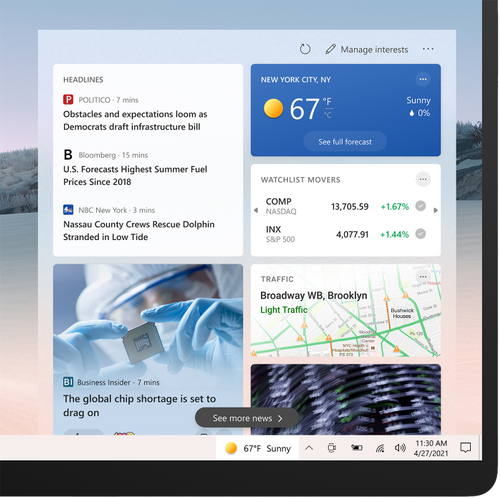
When the experience rolls out to their devices, users will see a personalized weather forecast based on their location on the taskbar. To quickly check in on the latest headlines, weather, sports, and more, they can simply open news and interests, get caught up, and get back to what they were doing.
News and interests on the Windows taskbar offers personalized content at a glance
The information shown in news and interests is personalized for individual users. Users can customize the content they see, enabling scenarios like the following:
- Keep an eye on nearby weather and traffic that may impact a commute.
To change the location shown for weather and traffic updates, select More options (…) on the Weather or Traffic card, and select Edit Location.
- Follow a topic related to professional or personal interests.
Follow a specific topic related to an industry, job role, or subject to learn more about. To follow a specific topic, select Manage Interests and select or search for a topic.
- Get personalized updates on stocks.
Keep an eye on major market indicators, see top gainers or losers, or create a watch list of stocks to see updates throughout the day.
- Share, save or see more stories.
Select More options (…) on headlines and articles in news and interests on the taskbar to share them with others or save them to read later. Users can also request to see more or fewer stories like the ones shown.
In addition, the appearance of news and interests on the taskbar can be customized. Users can choose to right click or long press a blank space on the taskbar and select News and interests to customize. They can choose Show icon and text or, to save taskbar space, select Show icon only. Users can also select Turn off to unpin news and interests. For more information on customizing news and interests, see the Support page
Manage news and interests on the taskbar with policy
In addition to personalization for individual users, Windows and Microsoft 365 IT admins can easily manage the way news and interests on the taskbar is configured for the devices they manage.
To manage news and interests on the taskbar with Group Policy, locate:
Computer Configuration > Administrative Templates > Windows Components > News and interests > Enable news and interests on the taskbar
 The news and interests setting in Group Policy
Through this policy, you can disable or enable the news and interests experience on the taskbar. If you leave the setting as “Not configured” the experience will be enabled by default.
- Enabled – News and interests will be allowed on the taskbar. The settings UI will be present in the Taskbar context menu, and users will be able to turn it off or switch modes.
- Disabled – News and interests will be turned off completely, and the settings UI in the Taskbar context menu will be removed.
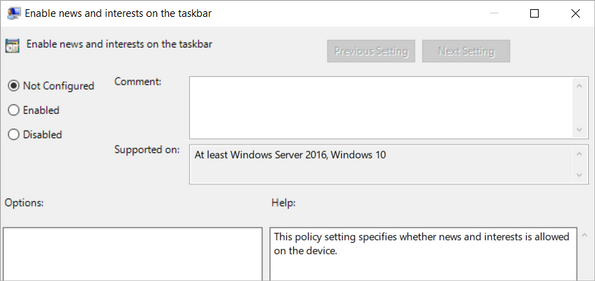 Configuring news and interests via Group Policy
Microsoft Endpoint Manager offers the same policy configuration options:
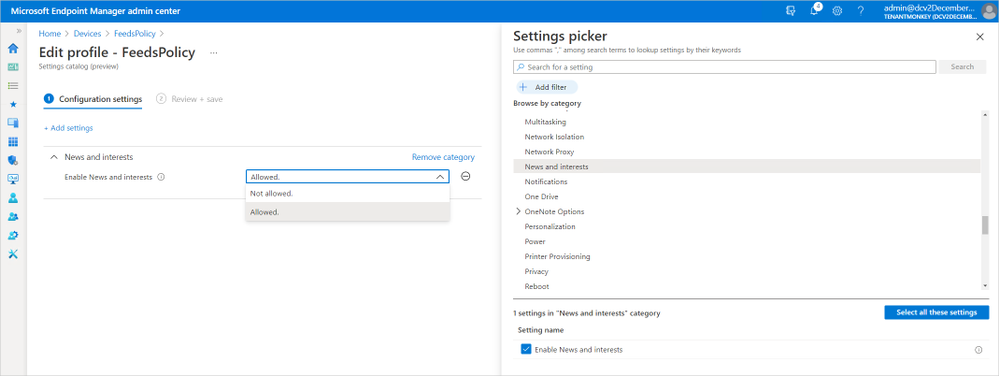 Configuring news and interests policy in Microsoft Endpoint Manager
Learn more
For more information on configuring the news and interests experience for your users, please see the Policy CSP – Experience article in Windows client mobile device management documentation.
by Contributed | Apr 22, 2021 | Technology
This article is contributed. See the original author and article here.
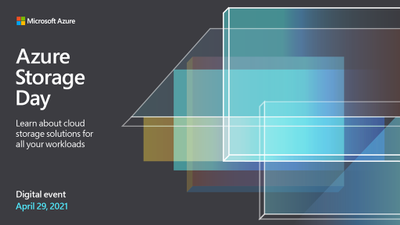
We are excited to announce Azure Storage Day, a free digital event on April 29, 2021, where you can explore cloud storage solutions for all your enterprise workloads. Join us to:
- Understand cloud storage trends and innovations—and plan for the future.
- Map Azure Storage solutions to your different enterprise workloads.
- See demos of Azure disk, object, and file storage services.
- Learn how to optimize your migration with best practices.
- Find out how real customers are accelerating their cloud adoption with Azure Storage.
- Get answers to your storage questions from product experts.
This digital event is your opportunity to engage with the cloud storage community, see Azure Storage solutions in action, and discover how to build a foundation for all of your enterprise workloads at every stage of your digital transformation.
The need for reliable cloud storage has never been greater. More companies are investing in digital transformation to become more resilient and agile in order to better serve their customers. The rapid pace of digital transformation has resulted in exponential data growth, driving up demand for dependable and scalable cloud data storage services.
Register here.
Hope to see you there!
– Azure Storage Marketing Team
by Contributed | Apr 22, 2021 | Technology
This article is contributed. See the original author and article here.
ConfigMgr admins love extending hardware inventory and collecting data from Windows devices.
Did you know Intune can do the same?!
The answer is Intune PowerShell scripts! Also known as SideCar… IME… Intune Management Extensions…
Well, IME is just another channel that runs parallel to MDM that sort of acts like the ConfigMgr client. We deliver different features over this channel: PowerShell scripts, Win32 apps, Proactive Remediation scripts, Win32 app log collection…
Can you give us an example?
Maybe you are interested to know more about Win32_BIOS.
Run the following PowerShell one-liner on a device
Get-WmiObject -Class Win32_BIOS |
select CurrentLanguage,
Description,
EmbeddedControllerMajorVersion,
EmbeddedControllerMinorVersion,
Manufacturer,
ReleaseDate,
SerialNumber | ConvertTo-Json -Compress
Script outputs the following:

Beautified:
{
"CurrentLanguage": "en-US",
"Description": "N2EET43W (1.25 )",
"EmbeddedControllerMajorVersion": 1,
"EmbeddedControllerMinorVersion": 13,
"Manufacturer": "LENOVO",
"ReleaseDate": "20191028000000.000000+000",
"SerialNumber": "12345678"
}
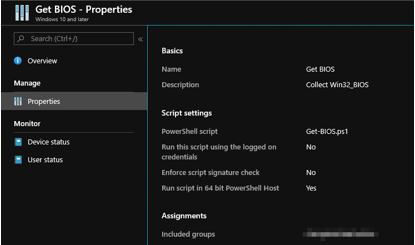
Let’s create an Intune PowerShell script and deploy it to some users/devices to demonstrate Win32_BIOS data as an example.
Tip: <scriptId> is stored in the URL

You can access the data via the following Graph endpoint in graph explorer
https://graph.microsoft.com/beta/deviceManagement/deviceManagementScripts/<scriptID>/deviceRunStates?$expand=managedDevice
It turns out that we store the above-mentioned script output in a property on the service side. If you are familiar with Graph Explorer, then you can take a look at the results
In the property “resultMessage”:

How do I see the data from all devices?
Prerequisites:
Install-Module -Name Microsoft.Graph.Intune
You need one more script to retrieve your results from Graph…
Update-MSGraphEnvironment -SchemaVersion 'beta'
Connect-MSGraph

$result = Invoke-MSGraphRequest -HttpMethod GET -Url 'deviceManagement/deviceManagementScripts/b113448a-528a-4beb-b7d5-381a117d5184/deviceRunStates?$expand=managedDevice' | Get-MSGraphAllPages
$success = $result| Where-Object -Property errorCode -EQ 0
$resultMessage = $success.resultMessage
$objResultMessage = $resultMessage | ConvertFrom-Json
$objResultMessage | Out-GridView
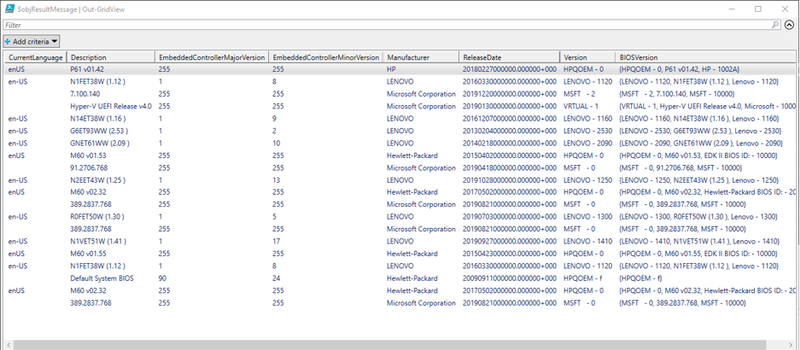
You can store the data in Log Analytics, SQL etc and visualize the way you want.
Enjoy!
by Contributed | Apr 22, 2021 | Technology
This article is contributed. See the original author and article here.
Jupyter Notebooks bring a wonderful capability to hand someone a single file that contains both code, and instructions on how to run that code. This is great and can be used in many different ways, one of which is to help new team members get up to speed. But what happens when you need to do the same thing as one of your existing Notebooks, but now you need to do it at scale? What if you could take your existing Notebook and add parameters for things like Server name & Database? In this episode with Aaron Nelson, take a look at how new features in Azure Data Studio can help you take your Notebooks to the next level of re-usability.
Watch on Data Exposed
Resources:
View/share our latest episodes on Channel 9 and YouTube!
by Contributed | Apr 22, 2021 | Technology
This article is contributed. See the original author and article here.
Hopefully, you have read my previous blog posts about Azure Purview access management Part 1 and Part 2 to find about Azure Purview control plane and data plane roles and tasks. In this post, I will cover the following topic:
- Overview of dashboards and roles required to extend your M365 Sensitivity Labels to Azure Purview.
By extending M365 Sensitivity Labels to Azure Purview you can automatically assign labels to files and database columns in Azure Purview.
In order to bring Sensitivity Labels from M365 to Azure Purview, you may need to work with other teams in your organization. The following table summarizes tasks, required to extend the labels to Azure Purview including dashboards and roles required to perform each step:
Task
|
What portal to use
|
Who can perform this task
|
Verify if you have at least one M365 E5 License in your Azure AD tenant
|
Azure Portal (https://portal.azure.com/) OR
M365 Admin Center (https://admin.microsoft.com/AdminPortal/)
|
Any Azure AD role (e.g. Global Reader)
|
Consent “Extend labeling to assets in Azure Purview”
|
Microsoft 365 Security and Compliance Center (http://compliance.microsoft.com/)
|
Azure AD Roles:
Compliance Administrator
OR
Global Administrator
|
Create and update Sensitivity Labels in M365
|
Microsoft 365 Security and Compliance Center
|
Azure AD Roles:
Azure Information Protection Administrator
OR
Global Administrator
|
Register Data Sources in Azure Purview
|
Azure Purview Studio
(https://web.purview.azure.com/)
|
Azure Purview Roles (data plane:(
Purview Data Source Administrator + Purview Data Curator
AND
Azure Roles (control plane)
Reader (on data sources)
|
Scan Data Sources in Azure Purview
|
Azure Purview Studio
|
Azure Purview Roles (data plane):
Purview Data Source Administrator + Purview Data Curator
OR
Purview Data Source Administrator + Purview Data Reader
|
Search Catalog and filter assets based on Sensitivity Labels
|
Azure Purview Studio
|
Azure Purview Roles (data plane):
Purview Data Reader
OR
Purview Data Curator
|
View Sensitivity Labels Insights reports
|
Azure Purview Studio
|
Purview Data Reader
OR
Purview Data Curator
|
Verify if you have at least one M365 E5 License in your Azure AD tenant
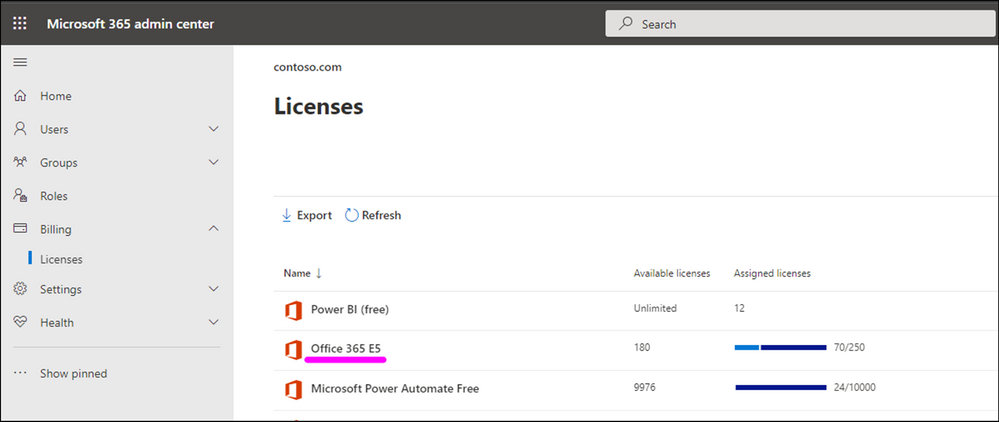
Use your M365 Admin center to check if you already have M365 E5 Licenses in your tenant:
If you do not have this license in place, please work with your finance team to obtain the required licenses. Microsoft 365 E5 | Microsoft 365 Enterprise.
Consent “Extend labeling to assets in Azure Purview”.
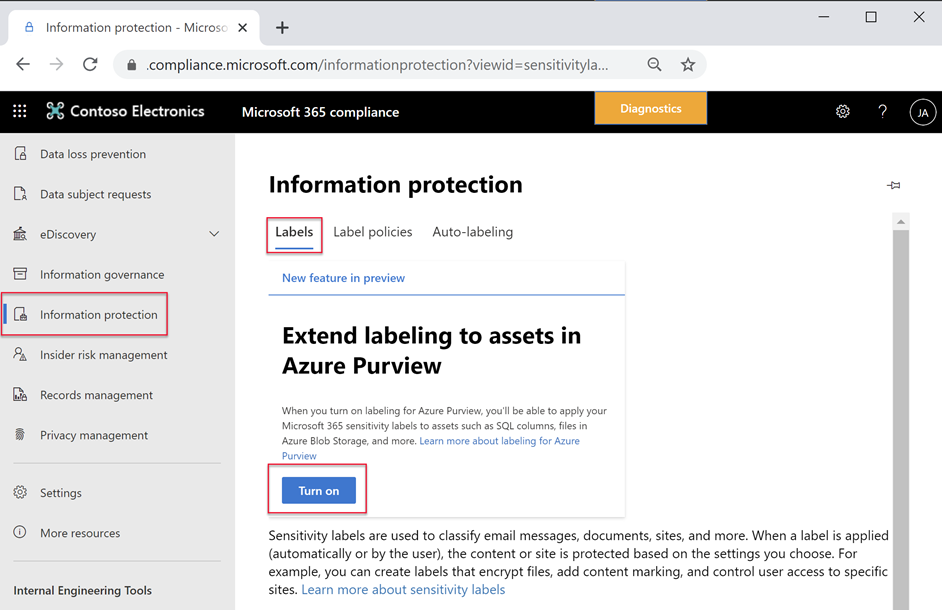
By default, Sensitivity Labels are only available for assets in M365. With this one-time operation at your Azure AD tenant level, you will allow M365 Sensitivity Labels to be extended to assets in Azure Purview. Use Microsoft 365 Security and Compliance Center to consent.
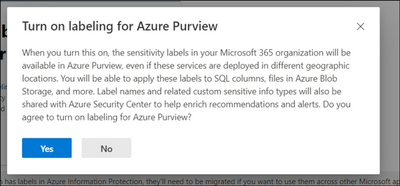
Create or update M365 Auto-labeling Rules
It is important to identify which team in your organization is responsible for defining Sensitivity Labels in Microsoft 365.
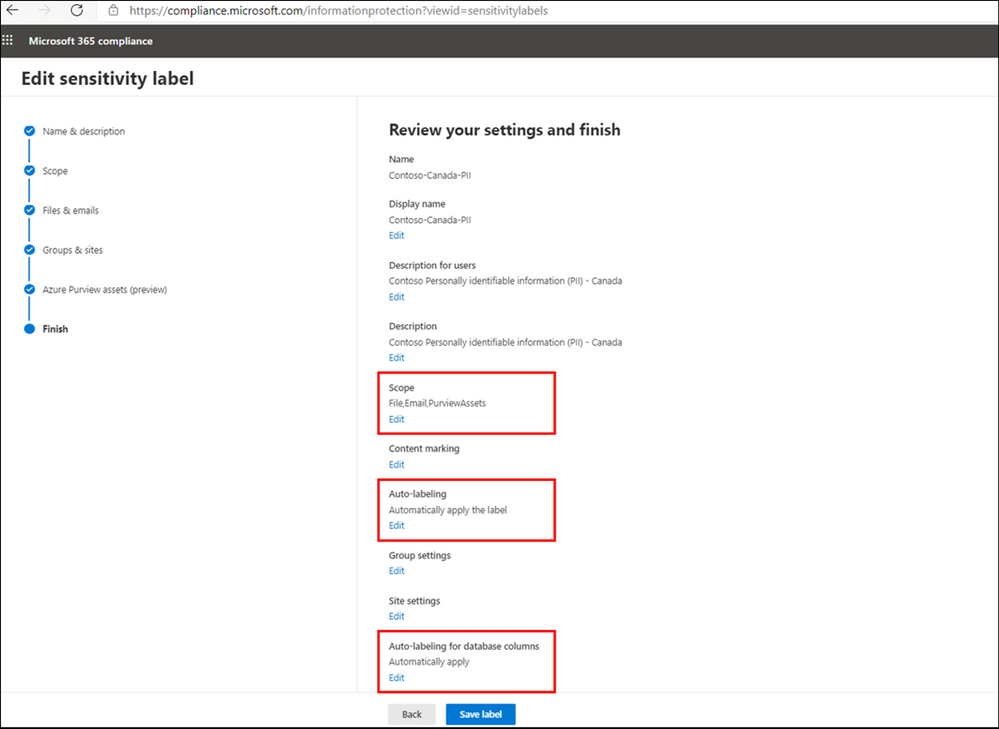
To extend a label to Azure Purview, you can create a new M365 Sensitivity Label or update an existing one in Microsoft 365 Security and Compliance Center, by configuring the following settings:
- From Define the scope for this label enable Azure Purview Assets.
- Add Auto-labeling rule
- From Auto-labeling for database columns enable Auto-labeling for database columns.
Information Protection Administrator or Global Administrator roles can be used to create or update Sensitivity Labels.
If you are looking to expand visibility of your M365 Sensitivity Labels to other teams, you can provide them with Read-only access to view of M365 Sensitivity Labels in your tenant, you can assign the user with Security Reader role in Azure AD or more specifically assign them with Sensitivity Label Reader in Microsoft 365 Security and Compliance Center.
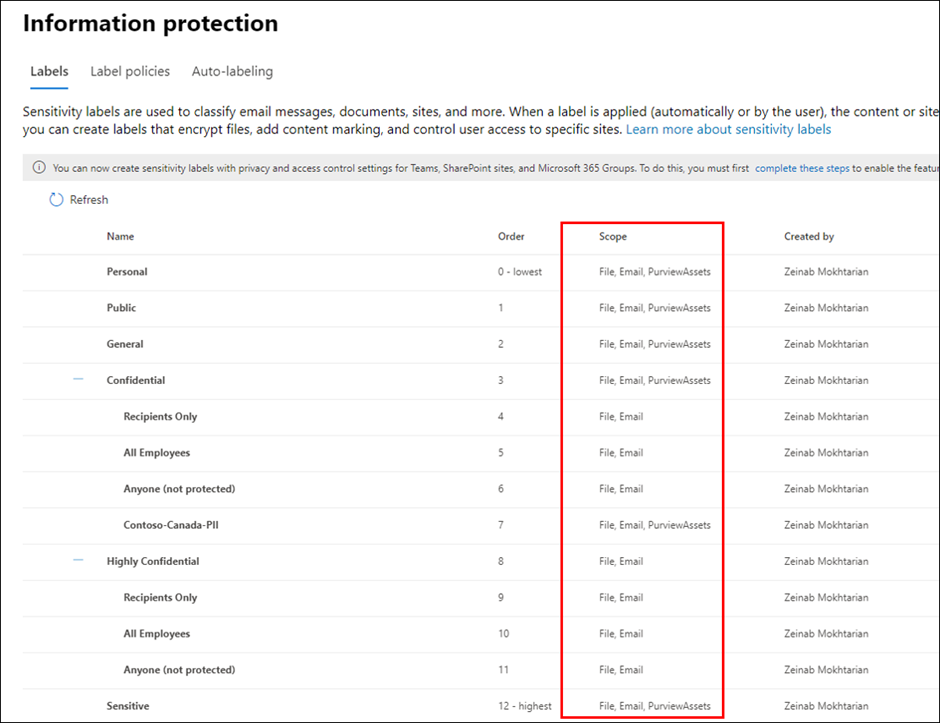
Register and Scan data sources in Azure Purview
Use Azure Purview Studio to register data sources such as Azure SQL Servers or Blob Storage. Once you scan your data sources, Sensitivity Labels are automatically assigned based on auto-labeling rules and then you will be search, browse and filter assets based on Sensitivity Labels or view Insights Reports. View my past blog post to read more about setting up and exploring assets by Sensitivity Labels in Azure Purview.
Purview Data Curator + Data Source Administrator or Purview Data Reader + Data Source Administrator roles can be used to scan data in Azure Purview. To search assets and view reports, you can use at least Purview Data Reader role.
Summary and Call to Action
Through close integration with Microsoft Information Protection offered in Microsoft 365 Azure Purview enables direct ways to extend visibility into your data estate, and classify and label your data.
We would love you hear your feedback and know how Azure Purview helped tracking your sensitive data estate using automatic labeling.
- Create an Azure Purview account now and extend your M365 Sensitivity Labels across your files and database columns in Azure Purview.
- Use Sensitivity Labels Insights to get a bird’s eye view of your data estate by the sensitivity labels.
- Learn more about Azure Purview Autolabeling and Sensitivity Label Insights.
- Provide your feedback.
by Contributed | Apr 22, 2021 | Technology
This article is contributed. See the original author and article here.
Microsoft Forms aims to help you make better decisions with data. As we improve Forms’ intelligence service, we support you in not just creating surveys and polls more easily, but also in extracting key insights from data in an understandable way. Read on to learn about three of these improvements: Estimated Time, the Insights button, and Word Clouds.
Automatically Add Estimated Response Time (Design Intelligence)
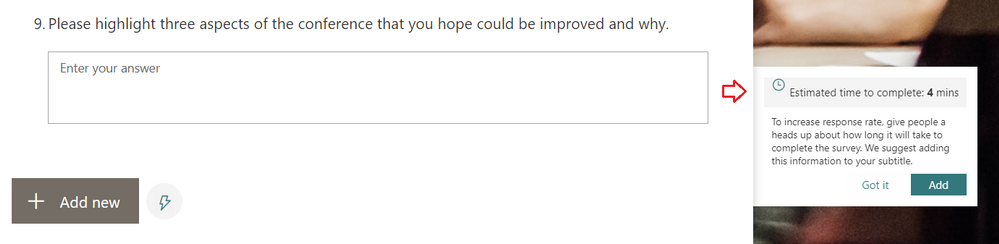
You may have noticed that while creating your surveys, Forms now provides an estimated response time for longer surveys. Our intelligence service can now predict the approximate time it will take for someone to complete the form, depending on the types and number of questions on the form. You can add this estimated response time (as seen below) in the subtitle of the form, which can help increase the form’s response rates.
Add Estimated Time to Encourage Response Completion
Engage in a New Experience for Forms Data Insights
In the past, after collecting a few dozen responses in your survey, you may have noticed the “Ideas” button appear at the top of the Responses tab of your Forms design page. By clicking on “Ideas,” you would have seen intelligence-based data insights on your responses.
From now on, you might instead see an “Insights” button under a particular question. If the Forms service can provide insights on the responses to that question—which is dependent on the number of responses and the data itself—you will see this “Insights” button. With this change, you can more clearly interpret the insights Forms provides for a specific question.
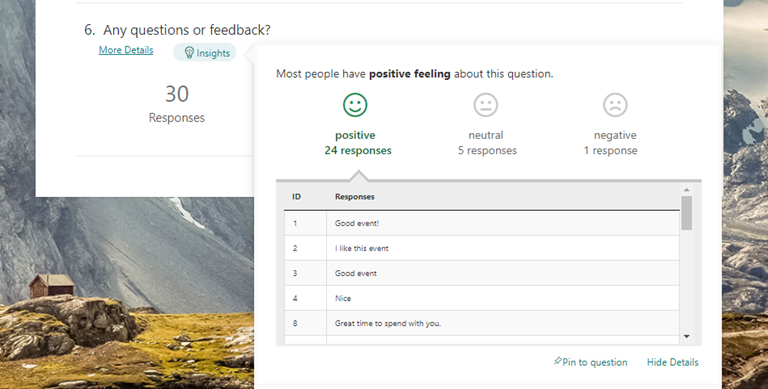 Click the Insights button to uncover analysis of your responses
As some of you are already familiar, these insights include sentiment analysis on open-response questions, score distribution for ratings questions, and association rule analysis, which notices patterns in responses across multiple choice questions. These insights are presented in easy-to-read data visualizations, which you can pin for quick future reference.
Visualize Open-Text Responses with Word Clouds (Insights)
We are excited to introduce a new intelligence-based data insight type: word clouds for open-text questions in Forms. The key phrases from the response to that question will be extracted and be visualized in a word cloud, offering you a quick view on the top text phrases among the responses.
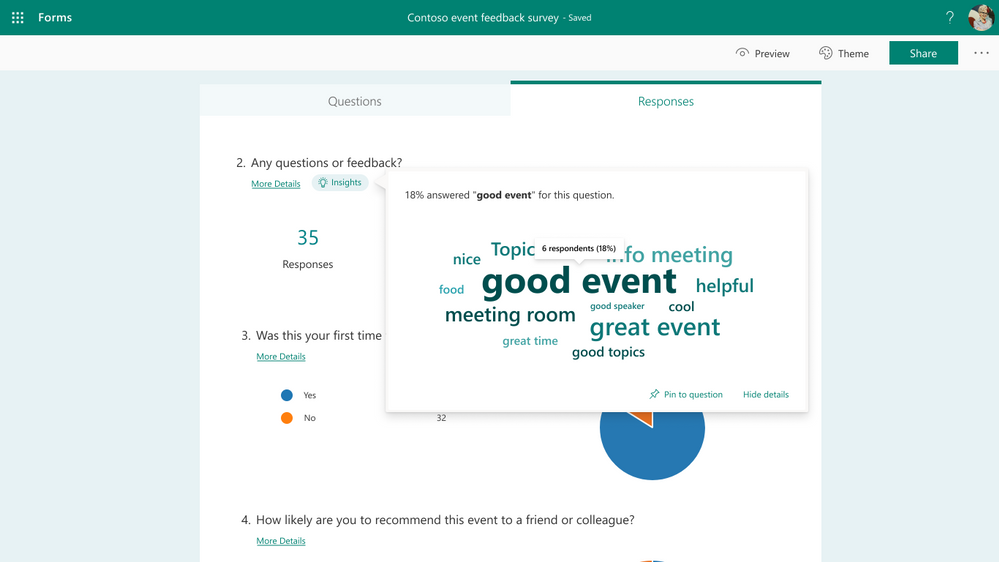 View open-text responses in word clouds
As seen above, when you click any key phrase in the word cloud, you can find statistics on how many respondents and what percentage of respondents mentioned this phrase in their response.
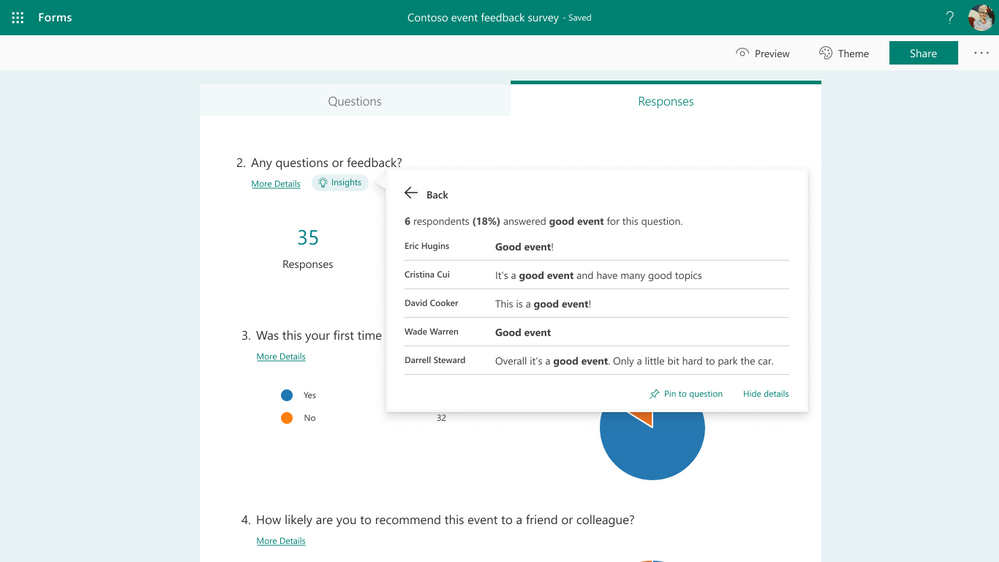 Click the word cloud to see exact responses
Additional FAQ:
When will this become available?
We will begin roll out of word clouds to open-text questions in regular forms at the end of April. Meanwhile, as Open-Text Polls for Microsoft Teams meetings start rollout at the end of May or early June, word clouds for these polls will become available as well.
Which languages are supported?
Word clouds will support English and Chinese text in our first stage of this work. We will expand to additional languages in the near future—please stay tuned.
Will I always get a word cloud for my open-text questions?
No, not always—this is because the Forms service may not have found any meaningful results to show, especially if you have only received a small number of total responses. You can come back to check for a word cloud after collecting more responses.
Next Steps
We hope you explore these latest updates as they become available to you. If you have additional questions on Forms surveys, quizzes, or polls, please visit our Support page. You can also join discussions in the Microsoft Forms Tech Community and follow the Forms Blog to stay updated in the future. Thank you.
by Contributed | Apr 22, 2021 | Technology
This article is contributed. See the original author and article here.
Track what matters most from the comforts of a larger touch screen device. We’re pleased to share Microsoft Lists for iOS now supports iPad. AKA, no more lists at 2x. You’ll get a beautiful native experience to track, manage and share your information. We, too, have enabled Conditional Access to Lists for iOS, and updated an important fix when a list is deleted from your iPhone or iPad.
Get Microsoft Lists for iOS today.
Let’s dive into all the updates below.
Microsoft Lists for iOS: iPad support [Roadmap ID: 70748]
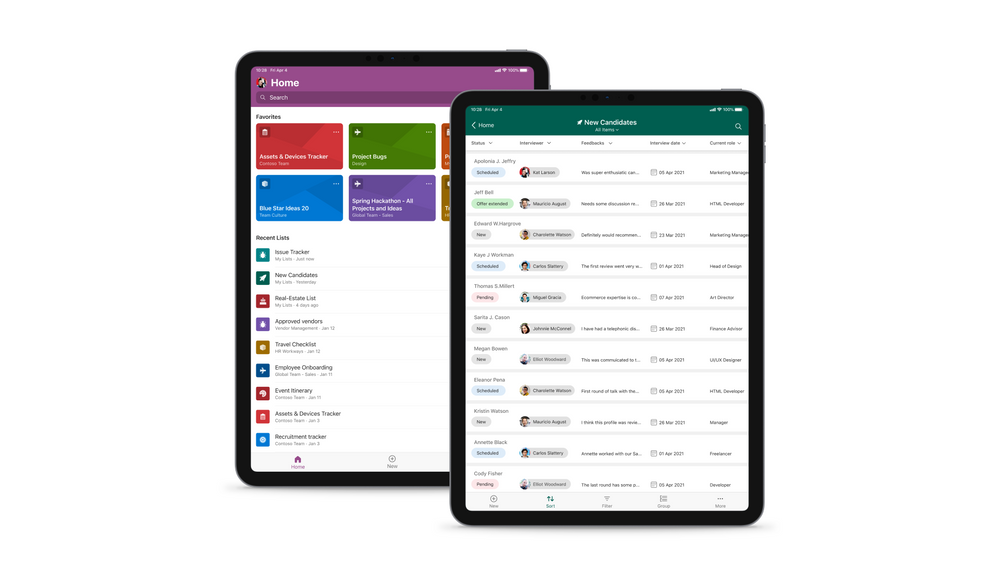
Microsoft is expanding device support on iOS to now include iPad. Microsoft Lists for iOS looks great on iPhone and iPad, scaling the user-friendly user interface to give you the best access to create, edit, and share your information from your iOS device.
Microsoft Lists for iOS on an iPad, showing the main home screen with Search, and Favorites and Recent lists (left), and working on an individual ‘New Candidates’ list (right).
With the extra screen real estate, you can easily search for lists, list items, and tap directly into your favorite and recent lists – directly from the home screen. Lists looks great in both portrait and landscape modes. And it mirrors the Lists Web experience, blended within the common design of iOS.
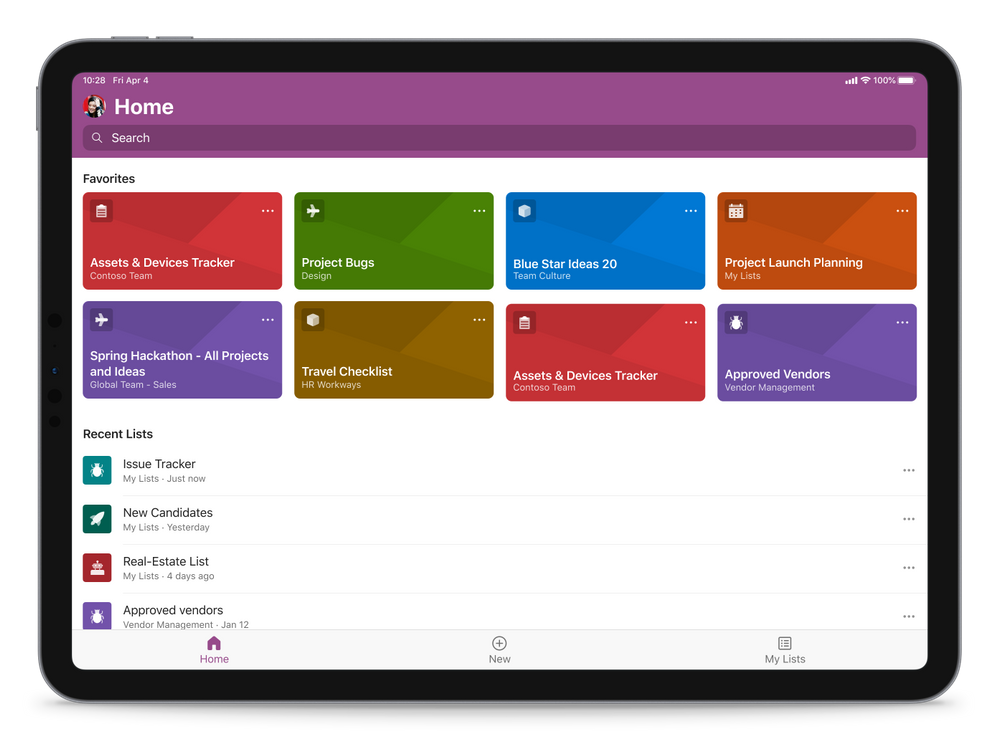 Microsoft Lists for iOS on an iPad, showing the main home screen with Search, and Favorites and Recent lists (in landscape mode)
Once in a list, you’ll swipe up and down, left to right to navigate your list. You’re able to tap into a specific list item to see it’s full view form. And you can refine the view of information using filter, group by, and tapping into individual fields to make changes to drop-down menus or enter text.
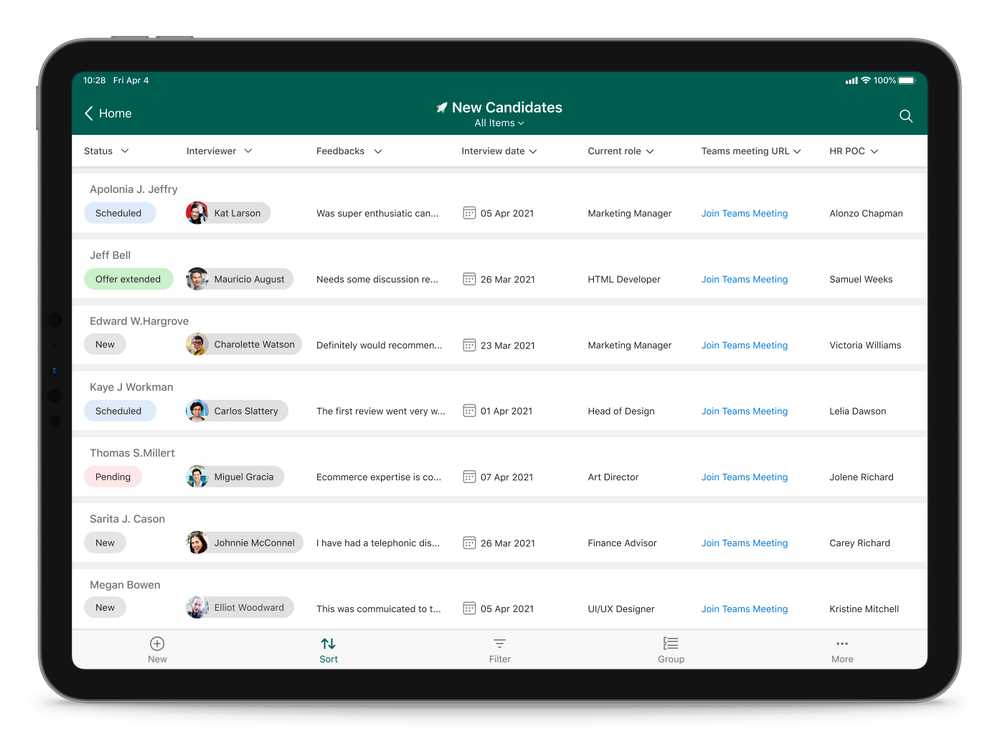 Microsoft Lists for iOS on an iPad, working on an individual ‘New Candidates’ list (in landscape mode)
Admins: Manage Microsoft Lists for iOS using InTune app protection policies (APP)
The Microsoft Lists iOS app is now configurable as a public app in Intune app protection policy (APP) through the Microsoft Endpoint Manager admin center. This allows app to be targeted to ensure that the data accessed is protected by app protection policies.
The app now also supports conditional access deployment through Azure admin portal. Please note that ‘Require app protection policy’ is supported which provides higher level of assurance. Lists app doesn’t currently support ‘Require approved client app’ grant access.
Learn more how to enable InTune app protection policies (APP) for Lists for iOS, which includes how to create and assign app protection policies (via docs.microsoft.com).
Bug fix update for lists deleted from an iPhone or iPad
Lists deleted from Lists for iOS can now be restored from the corresponding site recycle bin. We appreciate everyone who brought this to our attention, and for your patience while our development team addressed the issue.
Additional resources
To learn more about Lists throughout the year, please visit our updated Microsoft Lists resource center for blogs, demos, videos, podcasts, and more.
Get more done with Microsoft Lists on the go.
Thanks, Mark Kashman – senior product manager – Microsoft 365
by Contributed | Apr 22, 2021 | Technology
This article is contributed. See the original author and article here.
Avtex, a Microsoft Gold Partner, knows well the value of training and how it helps build loyalty—both with its clients and among its employees. We recently spoke with Steven Jacobowitz, Avtex Director of Capabilities, about how the company maintains its technical expertise and Gold Partner status with a dedicated program of workforce training.
“We made an investment in our people, and they appreciate that,” Jacobowitz explains. “It makes a difference in how our clients trust our expertise. The training has also been a real morale booster for our teams.”
Staying Gold in an ever-changing digital world
Since the 1970s, Avtex has helped its clients build and retain their customers with marketing and communications solutions. These days, Avtex guides its clients through digital transformation initiatives using cloud solutions powered by Microsoft Dynamics 365, Azure, and Microsoft 365. The company also partners with Genesys, one of the largest call center applications in use today.
As a Microsoft Gold Partner, Avtex hires highly skilled technicians and consultants who must stay up to date on the Microsoft technologies that support its clients. Avtex team members have passed hundreds of exams and assessments on technical competencies and have earned hundreds of Microsoft Certifications—all of which give its clients a deep pool of talent to depend on.
To maintain Gold Partner status, Avtex supports ongoing training and certifications. To achieve and retain this level of partnership requires a huge learning commitment.
Before Jacobowitz came to Avtex, the training process was informal. “Part of my job is to work with our technicians’ careers and make sure that they’re upskilling all the time,” he says. “Before, everybody was scrambling at the end of the year to get to those certifications so we could remain Gold.”
Jacobowitz himself holds more than 40 Microsoft Certifications, including every available Dynamics 365 certification and some legacy Dynamics certifications. He’s a big believer in the value of certifications, which have helped him earn promotions and bigger salaries over the years. Now, he reports, “I’m at a point in my career where I can do that for others.”
Jacobowitz initiated a more methodical approach to tracking the progress of his team members against their learning goals and to publicly celebrating their achievements. These efforts are part of his drive to enhance the culture of learning that Avtex promotes.
“It’s just so important to be more educated in the technologies that we’re supporting,” he notes. “I want everybody to know that our people are passing exams and getting certified.”
Advocating for training and advancing team skills
Training has become a key part of the employee review process at Avtex, where Jacobowitz maintains a skills matrix of the training and certification achievements for his team of technicians. He built the skills matrix using Microsoft Power Platform as a way to assess skill gaps while also boosting his knowledge of the low-code app building platform.
“I’m already planning, based on each one of my technician’s abilities, what they should be focusing on,” he explains. “Then I try to gently push them into the right direction. So far, it’s been working.”
For example, Jacobowitz wants to build more Microsoft Power Platform competency inside of Avtex this year. Some of his technicians are ramping up on the technology by training and studying for Exam PL-100: Microsoft Power Platform App Maker to earn the Microsoft Certified: Power Platform App Maker Associate certification.
More advanced technicians are aiming for the coveted “architect” title and preparing for Exam PL-600: Microsoft Power Platform Solution Architect, currently in beta, to earn the Microsoft Certified: Power Platform Solution Architect Expert certification. Still others are working on the requirements for Exam MB-230: Microsoft Dynamics 365 Customer Service for the Microsoft Certified: Dynamics 365 Customer Service Functional Consultant Associate certification. You can explore these Dynamics certifications and more on our website.
Tracking progress helps to keep people focused on their goals, Jacobowitz reports. Microsoft also recognizes the benefits and recently launched a learning management system called Microsoft Learn Organizational Reporting. This valuable service offers enterprise customers, partners, and academic institutions the ability to view and report on Microsoft Learn training progress and achievements for individuals within their organization’s tenant.
For Jacobowitz, helping his people learn has become job one. “I get to help them grow their own careers, which is really important. I get more thrill out of that than anything else I could possibly do at this point.”
The value of working with Microsoft Learning Partners
Last year, Jacobowitz initiated an effort at Avtex to roll out a new approach to training, starting with key technical people in the organization. Training is delivered through authorized Microsoft Learning Partners, which provide all the resources and course materials based on Microsoft Official Courseware (MOC).
Jacobowitz chose Learning Partners based on unusual but practical criteria. “I clicked on their websites to see whose was fastest. I didn’t want anything to hinder class sign-ups!”
Learning Partners help companies like Avtex meet their specific training and certification goals. In addition to delivering content, instructor-led trainings, and other material and logistical support, Learning Partners can help with assessing skill gaps and tracking progress, although that’s Jacobowitz’s role at Avtex.
Microsoft even commissioned a study by global research corporation IDC to find out more about the value that Learning Partners bring to organizations. For details, see Leveraging Microsoft Learning Partners for Innovation and Impact.[1]
Avtex is working with two Microsoft Learning Partners—Global Knowledge and Learning Tree—that take care of the details for the approximately 50 employees going through the new training program. This support frees Jacobowitz to focus on building his team’s skills.
“I have a philosophy of never leaving anybody behind,” he explains. “I get to focus on mentoring my people.”
‘I didn’t know Microsoft can do that!’
A culture of learning takes time to build. For the consultants who say they don’t have time for certifications, Jacobowitz has prepared a motivating response. “I say to them, ‘Look, if you’re not willing to invest in your own career, how do you think you’re ever going to get ahead in this industry?’”
Jacobowitz believes so firmly in the value of training that he convinced his executive team to set aside a week during which each consultant and technician in the program can focus on training and prepare for exams. It’s a big investment, as he notes.
“From our point of view, it isn’t just the cost of the training per employee, but it’s a week’s worth of missed billings that we’re also investing in. So it’s really a true partnership between Avtex and Microsoft.”
Participants in the training program are surveyed about their experience. Their feedback has included comments like, “I didn’t know Microsoft can do that!” and, “Wow, this is really better than I thought it was.”
Jacobowitz adds that as more Avtex technicians earn their certifications, they can better represent Microsoft products. More certifications also mean that the company can better serve its customers, and Avtex retains its Gold Partner status.
As Jacobowitz says, “Everybody wins in this situation.”
[1] Source: IDC white paper, sponsored by Microsoft, Leveraging Microsoft Learning Partners for Innovation and Impact, #US47225021, January 2021.
Learn more
Microsoft Certifications
Microsoft Learning Partners
Microsoft Learn Organizational Reporting
by Scott Muniz | Apr 22, 2021 | Security, Technology
This article is contributed. See the original author and article here.
CISA has released AR21-112A: CISA Identifies SUPERNOVA Malware During Incident Response to provide analysis of a compromise in an organization’s enterprise network by an advance persistent threat actor. This report provides tactics, techniques, and procedures CISA observed during the incident response engagement.
CISA encourages organizations to review AR21-112A for more information.


Recent Comments