by Contributed | Apr 27, 2021 | Technology
This article is contributed. See the original author and article here.
Initial Update: Tuesday, 27 April 2021 07:04 UTC
We are aware of issues within Log Analytics and are actively investigating. Some customers may experience data access issues and delayed or missed Log Search Alerts in West US region.
- Work Around: None
- Next Update: Before 04/27 09:30 UTC
We are working hard to resolve this issue and apologize for any inconvenience.
-Soumyajeet

by Contributed | Apr 26, 2021 | Technology
This article is contributed. See the original author and article here.
As frontline workers increasingly interact with workplace applications using mobile devices, tablets, or other mobile form factors, organizations face higher risks of these devices being lost, stolen, or temporarily misplaced. Earlier this year, Microsoft announced new licensing options for organizations with frontline workers to address these potential risks and other security threats, while also helping improve compliance capabilities.
With these offers, organizations using Microsoft Surface devices can better protect their devices and data against attacks or accidents. With security capabilities built into the firmware, operating system, and Microsoft 365, Microsoft has taken a comprehensive chip-to-cloud approach to help organizations deliver more protection for employees using Surface devices with Microsoft 365.
Surface with Microsoft 365 provides unique protection at the front line. To provide a few illustrations of how devices may be vulnerable and how this new level of protection can support organizations and frontline workers, here are a few commonplace examples:
- Scenario 1: The device is stolen while it is momentarily unattended
- Scenario 2: A malicious actor gains access to a device for a short time
- Scenario 3: An employee accidentally visits a malicious website or unknowingly joins an unsecure Wi-Fi signal
Scenario 1: The device is stolen while it is momentarily unattended
A building inspector is on a job site and sets her Surface Pro 7+ down for a second while she checks a plumbing connection. Someone steals the device, hoping to find sensitive information or perhaps intending to sell the device to a highly capable hacker. The following protections built into Surface and in the cloud with Microsoft 365 help prevent a stolen device from compromising sensitive data:
- Data on the hard drive is encrypted. Surface devices ship with BitLocker drive encryption enabled by default, so the data on the hard drive cannot be accessed without credentials or the encryption key. Even if the hard drive is removed from the device and inserted into a new device, it cannot be decrypted.
- USB booting is prevented because the organization used Microsoft Endpoint Manager to proactively turned off the ability to boot from USB through the firmware-level control that the Surface device offers.
- There is zero access to data even if the SSD is removed. If a Surface’s removable SSD is tampered with, the device will shut off power, erasing any residual data in its memory. Since the device is cloud-managed, the organization can remote wipe all the machine’s contents .
Scenario 2: A malicious actor gains access to a device for a short time
A retail employee is helping a customer in the store when they both hear a loud crash. Another customer has knocked over a display accidentally. The employee puts down their Surface Pro X and rushes over to help. Seeing the device was not locked, someone takes the device. Later, they try to access data stored on the device. With Microsoft’s cloud security, the retail establishment’s data is protected.
- A Zero Trust approach means that even if a device is authenticated, the current user profile can only access data and content they have permissions for. The retail establishment assumes that a breach is always possible and maintains strict controls over data access. Conditional access capabilities in Microsoft 365 prevent data leakage from both internal and external actors.
- Any unusual behavior on the device is automatically detected and remediated with Microsoft Defender for Endpoint, which analyzes signals from the device to recognize any abnormal behavior, like an uncommon executable running on the device. As part of the remediation path, the device is automatically quarantined from the network until the situation is resolved.
Scenario 3: An employee accidentally visits a malicious website or unknowingly joins an unsecure Wi-Fi signal
An employee joins a public Wi-Fi network, which creates the potential for a malicious actor to collect sensitive information. Or maybe the employee accidentally clicks a link that installs malicious code on a device. Surface with Microsoft 365 can keep data secure in a few ways:
- Instead of worrying about encrypting data that could be shared on a public network, the organization takes a proactive approach to having a guaranteed secure connection, especially for employees in the field, by equipping frontline workers with LTE-enabled devices. The entire Surface 2-in-1 portfolio (Surface Go 2, Surface Pro 7+, Surface Pro X) has LTE available.
- Any websites, cloud resources, or internal networks not explicitly defined as “trusted” are contained with Microsoft Defender Application Guard. These untrusted sites or files are opened in a virtualized container – essentially a separate PC within the existing PC – to isolate those potentially harmful sites or files from the rest of the device.
In addition to the ways that Surface with Microsoft 365 can help keep frontline devices secure, with cloud management and Windows Autopilot, Surface devices can also be shipped directly to a worker’s location without IT ever touching the device, saving time and effort. As frontline workers increasingly use devices in public spaces, the need to protect sensitive information at the front line has never been more important.
To learn more about Surface for Business visit Surface.com/Business or connect with your local commercial reseller.
by Contributed | Apr 26, 2021 | Technology
This article is contributed. See the original author and article here.
Join us tomorrow Tuesday, April 27, 2021 from 10:00 AM – 1:00 PM PDT
This industry-focused CMMC readiness summit, part two in the series, is a 3-hour conference designed to bring together the defense industrial base and the greater government contracting community for new perspectives from leading technology vendors and government officials. It will include exclusive insights from Suzanne Spaulding, Senior Advisor to the Department of Homeland Security from CSIS, a “titan” cloud security panel that will address the need for transparency of CMMC controls, a DIY vs. managed solution approach, and leading government officials who stand at the forefront of cyber and national security. It is truly stellar packed with trusted advisors and industry experts who are leading the charge to educate toward early adoption.
PLUS, we’ll also have our trivia again which makes it all worthwhile!
Key Takeaways:
- How we are defending forward in 2021 with supply chain vulnerability and critical infrastructure in mind.
- How cloud adoption can accelerate your CMMC compliance strategy.
- “Who” to ask “what” and “when” for help – with the “why” and “how”: decisively and strategically making the necessary changes to align with CMMC, which is the foundation to defending your business.
- Key differences between soliciting a vendor and doing it yourself.
- What industry software giants advise in managed security tech stacks.
- Updated on key impacts of the Solar Winds and Microsoft Exchange attacks, and how we accelerate our readiness against future attacks of this magnitude.
Register and save a spot for this event here.
![[Guest Blog] Once an innovator, always an innovator](https://www.drware.com/wp-content/uploads/2021/04/fb_image-206.jpeg)
by Contributed | Apr 26, 2021 | Technology
This article is contributed. See the original author and article here.
This guest blog was written by Ivana Tilca, an Innovation Evangelist & Quality Manager at 3XM Group and Microsoft AI MVP from LATAM. She shares about her career journey, from aspiring to become a computer scientist, her experience at Microsoft, and how Mixed Reality changed her life.
This story is not just about a passion for technology, but also a story of grit and motivation.
Who am I? My Career Journey
My name is Ivana Tilca, from Latin America. I was born in Salta, Argentina, a city of five hundred thousand inhabitants located in the north of Argentina. As a child, I always felt an attraction for technology, which was not common in my city. At 16, it was clear that the career I wanted to pursue was computer science. In high school, my teachers used to ask me, “What career would you like to pursue when you grow up?”. My answer was always… “I want to study computer science and would like to work or be close to Microsoft.” Imagine the face of my teachers when a female student answered that. Well, why was that my answer? When I was 16 years old, my older brother showed me the movie “Pirates of Silicon Valley,” which tells the story of Bill Gates and Steve Jobs, and how they changed the world with technology despite all the rejection and problems they faced. I was deeply inspired by that story and how they overcome obstacles to solve problems and become successful.
I wanted to impact people’s lives, and I knew I could do it through technology.
My older brother, who was studying computer engineering at the time, suggested that I learn how to program and write code. In university, I started doing research about innovation, leading me to become a Microsoft student partner which gave me the wonderful opportunity to travel to events held in other universities and mentor students. I also competed at the Imagine Cup 2008 in Paris, France.
In 2011, to my excitement and delight, Microsoft Corp came to Brazil to recruit talent. One day, an email arrived inviting me to meet them in Rio de Janeiro and of course I accepted. In 2012, I fulfilled my great dream – I was able to finally experience working in Redmond at the Microsoft headquarters on the Office Web Apps team, and eventually ended up working for Microsoft back in Argentina as Technical Evangelist as well.
When I became a Manager
Finally, due to personal life situations, I made the difficult decision to leave Microsoft and started working as a developer in a company in the city of Còrdoba, Argentina. Then, I started to lead the quality area of 3XM Group and I put aside programming to focus on management. My passion for technology evolved into a passion for working with an amazing group of people.
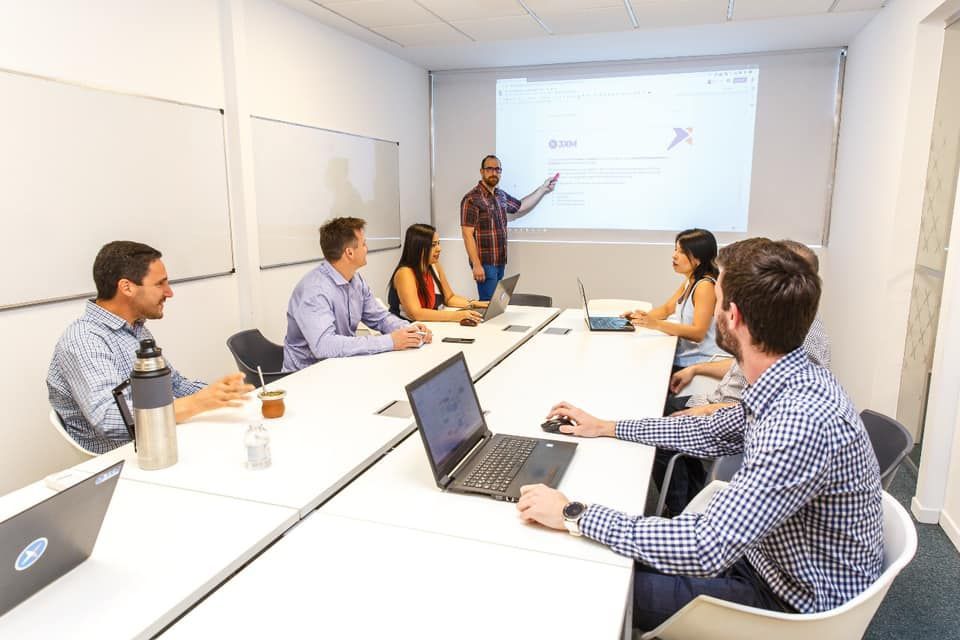
I thought that the chapter on innovation had already finished in my life, but it turns out I was wrong.
During all that time I was in contact with who was always my role model, someone I like to call my “mentor”, Guadalupe Casuso Innovation Leader – Principal PM Autonomous Systems at Microsoft. At the beginning of 2019, she told me about a device that would completely transform my life.
How Mixed Reality changed my life
In January 2019, Guadalupe Casuso told me about Azure Kinect. She was testing the device with body tracking and depth. I also learnt a bit more about Microsoft’s vision for AI. At the time of having that conversation, Julia White had just presented at Microsoft Inspire 2019, where the creation of her hologram with real-time translation into another language was being spotlighted for the first time. I was hooked, listening carefully to digest all the details about how they managed to put together her hologram, using Azure Kinect, HoloLens 2, and Azure’s cognitive services.
I was so excited, and right there and then made it my personal goal to learn about this technology that was shown. I began to learn everything I could about this technology that was just emerging in Latin America. I remember that at that time, many people around me did not have much faith or believed that the world of holograms and AI existed. They saw it as something very distant or almost impossible to experience, especially due to the low availability of devices locally. I sought to become as skilled as I could in AI.
In February 2020, I received the Microsoft MVP award for Artificial Intelligence. I remember around the same time, I found Jesse McCulloch, Microsoft Program Manager of the Mixed Reality team on Twitter. He became a great resource for me from that moment on by introducing me the Mixed Reality Toolkit (MRTK). In 2020, the global pandemic and massive shift to working from home created the perfect excuse for me to finally devote more time to investigations and tests. This gave me the opportunity to participate in events worldwide, including the digital edition of Microsoft Ignite 2020. This visibility helped position me in the field of innovation, leading professionals and leaders from all over the world to contact me to help guide them in projects or research.
Companies worldwide also began to contact me to hire 3XM Group services to develop XR applications, which continues to surprise me. The field of application of XR is very broad – it includes health, safety, training, and there is more much to tapped on too. It really motivates me to keep working on this technology when a lot that companies begin to notice the potential of mixed reality and seek to apply it to positively impact and transform their business.
Finally this year, in 2021, I was given the opportunity to be interviewed live at Microsoft Ignite, and I was also named as Innovation Evangelist in 3XM Group. I fully credit all this to the fact that I regained my passion for innovation and for mixed reality technologies, where there is truly no limit for the imagination.

The future of Mixed Reality.
Extended reality is already here. I welcome you to connect with me on Twitter and share your experiences as well!
#MixedReality #CareerJourneys
by Contributed | Apr 26, 2021 | Technology
This article is contributed. See the original author and article here.
Need to share a video with AUDIO during a Microsoft Teams meeting? What used to only be possible in Windows, is now also possible in MacOS!
In this work from home tip, Jeremy Chapman, from the Microsoft 365 team, will show you how to “Include Computer Sound” while sharing your desktop or app windows using a Mac or PC. At the time of release, this is a Public Preview feature in Microsoft Teams for MacOS, so we’ll also show how to get that enabled if you don’t see the options demonstrated.
QUICK LINKS:
00:34 — Demo in Teams to Include Computer Sound
01:40 — Demo of Including Computer Sound after sharing desktop
02:20 — What to do if you don’t see the Include Computer Sound options
02:56 — Enabling Preview Features in the Teams Admin Center
03:21 — Closing remarks
Link References:
Find more shows in our work from home series at https://aka.ms/WFHmechanics
Unfamiliar with Microsoft Mechanics?
We are Microsoft’s official video series for IT. You can watch and share valuable content and demos of current and upcoming tech from the people who build it at Microsoft.
Keep getting this insider knowledge, join us on social:
Video Transcript:
Need to share a video with AUDIO during a Microsoft Teams meeting? Well, what used to only be possible in Windows is now also possible in MacOS. What I’ll show you today is currently in Public Preview, but depending on when you’re watching this, there is a pretty good chance you’ll see the controls I’ll demonstrate today in your Teams experience. If not, keep watching, and I will show you how to enable Public Preview, and if you don’t even see that, I’ll show you what your Teams admin needs to configure to make Public Preview available to you.
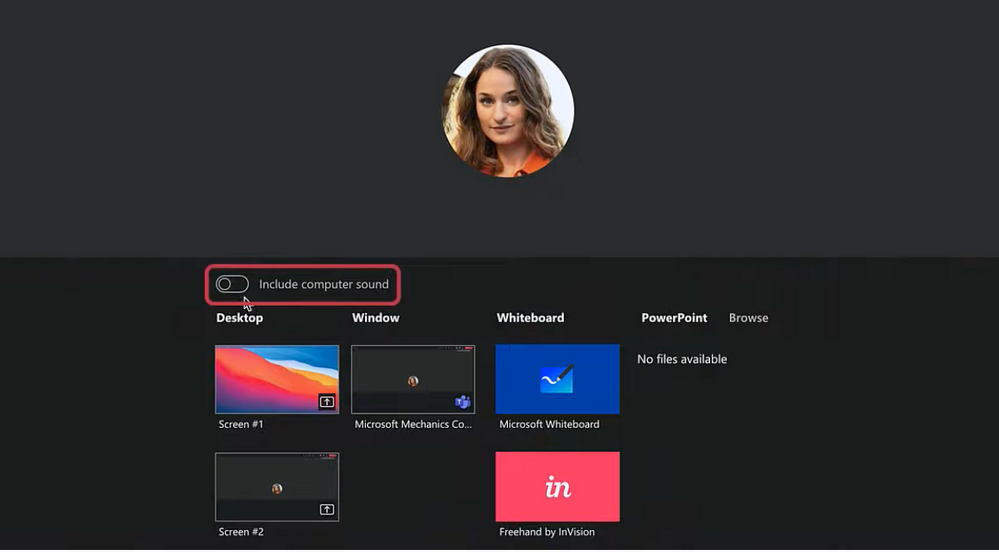
With that, let’s get started. I’m on a MacBook in a Teams meeting and I want to share a video running in YouTube, but this could anything or any app with sound running in a Mac or PC. When I hit the share tray, you’ll see I have the new option to “Include computer sound” that I can toggle on before sharing my desktop. So I’ll enable it, select my desktop in this case and hit play on my previous video explaining this process using Windows, which is by the way still more or less the same. Now let me switch over to Adele’s view and sound with the incoming audio, and you’ll hear the sound coming through.
One note here about my previous video, I said that MacOS will share audio without using this capability. That was true if audio is coming out of your Mac’s speakers. MacOS in this case is different from Windows, where Windows will usually succeed in noise-canceling speaker sound completely out. But this approach of sharing speaker audio doesn’t always work, if you’re wearing headphones, or just want the sound to be better than what you can achieve using the speakers and microphone pick-up. So, let’s switch back over to the Mac, and I’ll show you the second option to share or un-share computer sound during the meeting. If I move my cursor to the top of the screen, you’ll see another couple of screen sharing controls, I’ll pin this for now. Here I can use this little button between “Give control” and “Stop Presenting” to turn off or turn on sharing computer sound. The diagonal slash means it’s off and no slash means it’s on. Using that control means you don’t need to stop sharing, enable computer sound, then re-share your screen. Both of these control types are available in Windows and MacOS, so the same steps I just demonstrated apply to Windows as well. So now I’ll Leave the meeting.
OK, if you’ve made it this far and have realized this option isn’t available in your Teams app on MacOS, let me show you how to enable it. In Teams, click on your image in the upper right corner. Go to about, then if you DON’T have this checkmark next to Public Preview, click on it. Teams will ask to you restart the Teams app. Once you log back in, you’ll be on the Public Preview, then you should see the option to “Include computer sound” when sharing content. The very first time you try out that option on your Mac, it will ask you to install a driver, and after that it will work like I demonstrated earlier.
Finally, if you don’t even see the Public Preview option from before, that’s because your Teams admin doesn’t have this enabled in the Teams Admin Center. If you’re the Teams admin, you’ll find it under Teams, Update Policies, and “Show preview features”. Just turn that on, and you can scope it to only the users who really need it if you want — maybe that is your group of MacOS users — and they’ll see the options for enabling Public Preview appear soon.
So that was just another quick working from home tip, and to see more like this, check out aka.ms/WFHMechanics for more. Be sure to subscribe to our channel. And as always, thanks for watching!
by Contributed | Apr 26, 2021 | Technology
This article is contributed. See the original author and article here.
Initial Update: Monday, 26 April 2021 20:56 UTC
We are aware of issues within Application Insights and are actively investigating. Some customers in West US 2 may experience data loss for metric data. This may cause failed or misfired alerts.
- Work Around: none
- Next Update: Before 04/26 23:00 UTC
We are working hard to resolve this issue and apologize for any inconvenience.
-Ian
by Contributed | Apr 26, 2021 | Technology
This article is contributed. See the original author and article here.
We’re pleased to announce the availability of forced failover for Azure Database for MySQL – Flexible Server in all zone redundant regions. This functionality enables you to manually force a failover to test functionality with your application scenarios, which can help to prepare you in case of any outages.
When you trigger a failover, the standby replica is activated to become the primary server with the same database server name by updating the DNS record. While client connections are disconnected, you can automatically reconnect them to resume operations if you have implemented retry-logic, which is recommended for cloud native applications.
Before the forced failover begins, a pop-up window displays the estimated time for completion of the operation by factoring the recency of the last checkpoint and the current transactions running on the primary server.
Forcing a failover in Azure Database for MySQL – Flexible Server using the Azure Portal
To force a failover from your primary server to a standby instance of Flexible Server, perform the following steps:
- In the Azure portal, select an existing instance of Azure Database for MySQL Flexible Server that has high availability enabled.
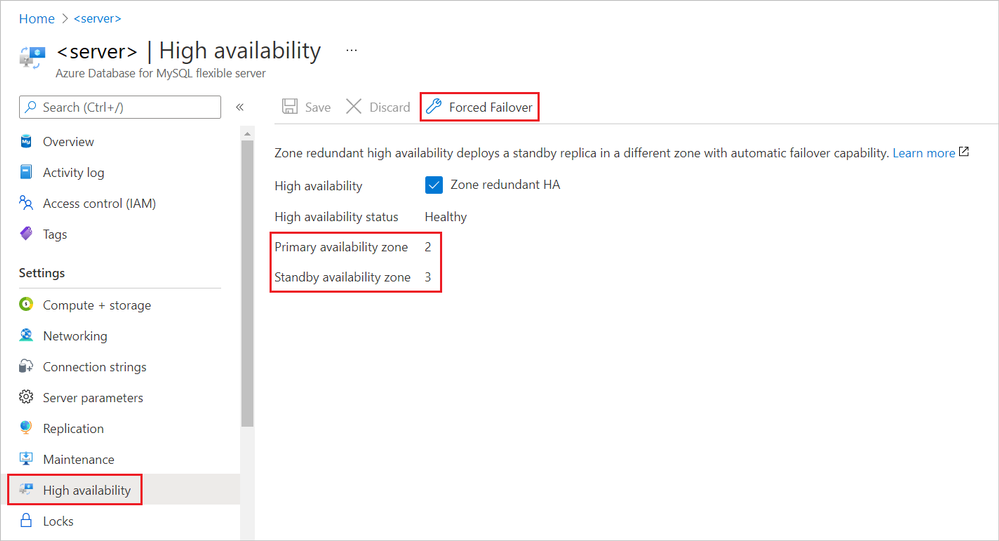
- On the page associated with the selected server, under Settings, select High availability.
- On the High availability page, make a note of the values associated with Primary availability zone and Standby availability zone.
We’ll compare these numbers to similar values we get after the failover completes.
- To initiate the manual failover procedure, select Forced Failover.
A pop-up window displays the estimated failover time, estimated based on the current workload on the primary server and the recency of the last checkpoint.

- Read the message, and then select OK.
An “Initiating the failover process…” notification appears. Then, after failover to the standby server completes successfully, second notification appears.
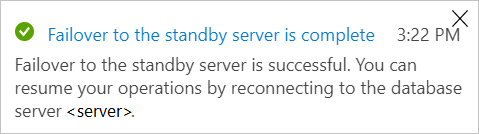
- Compare the new Primary availability zone and the Standby availability zone to the values before the failover.
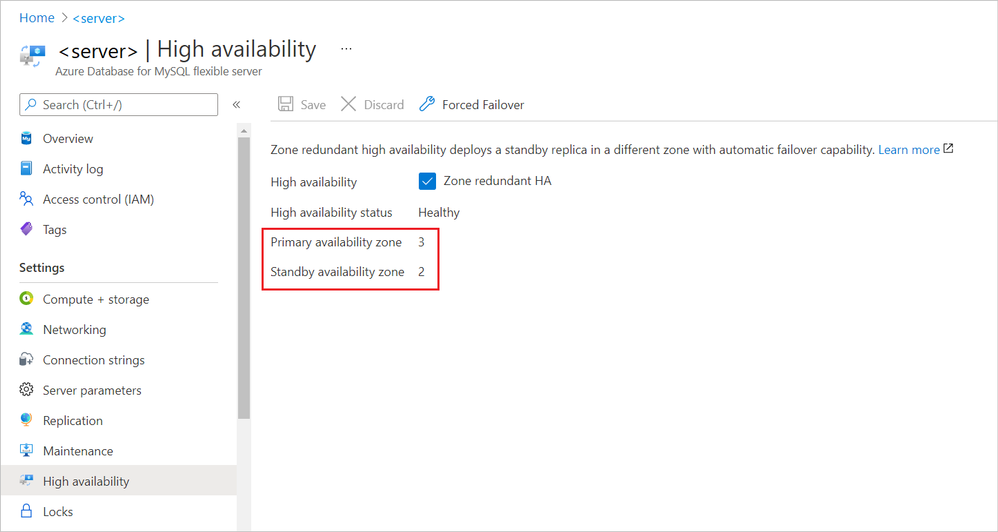
Notice that the value of the Primary availability zone is now the original value of the Standby availability zone.
As you can see, the forced failover process is easy to accomplish and use in your own environment. Azure Database for MySQL Flexible Server also offers automatic failover using zone redundant high availability. For more information, see High availability concepts in Azure Database for MySQL Flexible Server.

by Contributed | Apr 26, 2021 | Technology
This article is contributed. See the original author and article here.
As we already know, many organizations started to use Microsoft Teams for collaboration, chat, and audio/video meetings which adoption skyrocketed due to the pandemic that began in early 2020. Microsoft Teams became the backbone for many organizations to survive during this pandemic work from home scenarios.
Now employees are planning/returning to work or after a long time. They are finding difficulty joining Teams meeting with from existing conference rooms for many reasons; most of them are listed below. Let me explain what organizations can do to join Teams meeting from these conference rooms one by one and will cover Microsoft Licensing and FAQs at the end of this blog post.
Note: Devices listed in each section are simply recommendations, I highly recommend you to test, pilot and pick the right device for your setup. Please visit http://aka.ms/teamsdevices for more information. Before reading this document, I highly recommend watching this 7 mins video to learn about Microsoft Teams Room.
- The existing conference room only has a conference speaker on the table.
- The existing conference room only has a monitor/projector and speakerphone for audio.
- The existing conference room is the latest Cisco Rooms, recently invested.
- The existing conference room is a native Zoom Conference room.
- The existing conference room is a legacy room (Cisco, Bluejeans/Polycom etc.).
- The existing conference room has a dedicated PC to use as a conference room device.
- The existing legacy boardroom or executive rooms doesn’t work with Teams meeting.
- The existing training room is not designed to work with Microsoft Teams.
- Executive office room small side table setup doesn’t work with Teams meeting.
- The existing conference room is setup with Surface Hub in Skype only mode, doesn’t work with Teams meeting.
- Teams Audio/Video device in Clinicians and Patient room.
The existing conference room only has a conference speaker on a table.
For various reasons, organizations deployed only speaker in this setup. Users will arrive at the conference room with their laptops and join the meeting by dialing a phone number or calling back from the meeting into the phone number labelled on the conference phone. If Teams users who scheduled meeting has Audio conference license or meeting has Dial-in info, users can dial into the meeting. Nothing changes for the user except, they won’t be able to project on a large screen.
Sample: Modern Teams Room for huddle space
Organizations can easily convert this room into Microsoft Teams video Conference room. Assuming this is a small huddle room, my single favorite device that has everything built-in for the room would be Yealink VP59 Teams Video phone that has HDMI output to connect with large screen. Crestron Teams Video Phone and Lenovo Think Smartview are also good choices to use in small rooms.
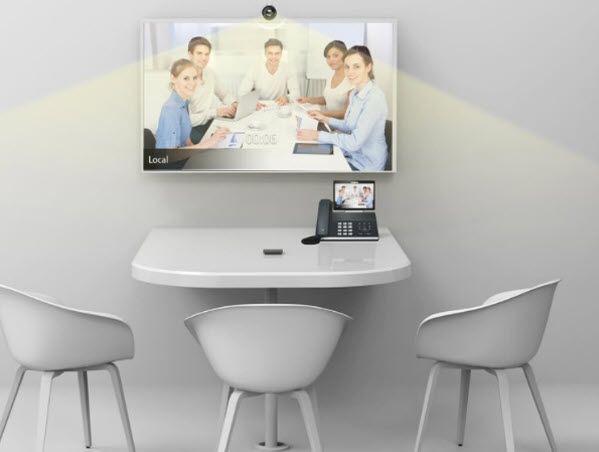 Sample: Modern Teams Room with Video
Some of my personal recommended devices for small/huddle rooms would fit in quickly and easy to set up.
Note: Requires monitor in the room to connect the video.
- Poly Studio X30
- Yealink A20
- Logitech Rally Bar Mini
- Audiocodes RXV80
There are many other options, and we are continuously adding more partner devices; please visit https://aka.ms/teamsdevices
Additionally, Microsoft Surface Hub2 would be superb for this space, where users can join Teams meeting with Audio/Video and can whiteboard and collaborate.
The existing conference room only has a monitor/projector and speakerphone for audio.
Usually, the existing conference room where only a monitor or projector and desktop speakerphone to dial into a meeting is installed.
Employees require their laptop into the conference room, plug into HDMI or wireless HDMI input device (for example: Clickshare or AirMedia) and share screen to discuss the meeting agenda. Since there is no Video camera and Video is limited to an employee’s laptop. Not a great experience. Organizations can easily convert this room into Microsoft Teams video Conference room.
 Sample: Modern Teams room for the medium size room
Some of my personal recommended Teams Room devices for medium-sized rooms would fit in quickly and easy to set up.
- Logitech TAP with Rally Sound System
- Crestron Room Systems
- Yealink Room System MVC800
There are many other options, and we are continuously adding more partner devices; please visit https://aka.ms/teamsdevices
Microsoft Surface Hub would be superb for this space, where users can join Teams meeting with Audio/Video and can whiteboard and collaborate. It will be ideal to have both Surface HUB and MTR deployed in this room to have not only Audio/Video experience but also can collaborate together with remote participants in real-time.
The existing conference room is the latest Cisco Conference room.
Because Cisco Room devices are recently deployed, it is unlikely organizations will replace them with Microsoft Teams Room native devices. In this case, you can integrate Cloud Video Interop Service from Cisco, Poly, Pexip or Bluejeans. CVI is a SaaS service from partners that can be quickly set up in the cloud, nothing to deploy on-premise and apply a license to each Office365 user who will schedule a meeting. You can also enable one-button join or one-touch dial into Cisco devices, allowing users to walk into the conference room and join Teams meeting with one touch. CVI Partners offers a Trial service, highly recommended to enable at least two partner CVI solutions running Pilot and later you can finalize with one.
Some Cisco Rooms Webex Boards, Room devices and Desk pros) also supports WebRTC; please discuss with the Cisco rep. WebRTC enables Teams meeting to join from existing Cisco rooms without CVI in place; however, there are some limitations on experience.
The existing conference room is a native Zoom Conference room.
Many customers adopted Zoom and started their journey to equipped Room devices with their native solutions. These native Zoom devices provided an excellent meeting experience while users were at the office. Because organizations are now shifting to Microsoft Teams, it’s natural for users to schedule and join the meeting from conference room devices.
What are the options?
Option1: Keep Zoom room as is; enable/use Direct Guest method to join Teams meeting
Option2: Integrate Cloud Video Interop Service from Cisco, Poly, Pexip or Bluejeans. CVI is a SaaS service from partners that can be quickly set up in the cloud, nothing to deploy on-premise and apply a license to each Office365 user who will schedule a meeting and going to use Zoom rooms
Option3: Convert Zoom Rooms to Teams Native (Newer models)
The majority of newer models of Room devices from partners Poly, Crestron, Yealink, Logitech and a few others hardware supports both platforms. You can reach out to your partner and repurpose your device converting to Microsoft Teams Room Native.
Option4: Convert Zoom Rooms to Teams Native (Older models)
I have seen many customers deployed older model Zoom rooms, such as IPAD, on the table; this is unsupported for Teams Rooms. In this case, you will need to discuss with your AV Vendor or Partner to replace with Native Teams Room listed here: http://aka.ms/teamsdevices
I also often asked by customers, can I still use the existing NUC and deploy the Teams Room image to make Teams Room? The answer is no. Unless the Microsoft Teams Room is certified by Microsoft, it’s an unsupported device. I do not recommend going down this path to build your device methodology. In some cases, existing Microsoft Teams certified peripherals you can repurpose, for example, Logitech Meetup camera, Logitech Rally sound system, Huddly Camera, Polycom Cameras etc.
So, what do I do with IPAD and the existing PC that came with zoom rooms? You can repurpose PC for users office or home and IPAD to join Teams meeting from Teams App installed in IPAD as a secondary device for the office or home users.
The existing conference room is a legacy room (Cisco, Bluejeans/Polycom etc.).
The legacy conference room usually is expensive to manage and maintain. It is highly recommended to convert to Modern Teams Room.
Here are some recommended steps.
Step1: Deploy Cloud Video Interop service
It is a journey to modernize rooms, and that takes time/budget and planning. In the meantime, to utilize existing legacy rooms with Teams, you can integrate Cloud Video Interop Service from Cisco, Poly, Pexip or Bluejeans. CVI is a SaaS service from partners that can be quickly set up in the cloud, nothing to deploy on-premise and apply a license to each Office365 user who will schedule a meeting. You can also enable One Touch Dial (OTD) on Polycom/Poly room systems and personal systems (along with CVI) for OTD calendaring to Teams (and OTD to Zoom, WebEx, BJN, etc). Please discuss with Poly rep for details.
CVI Partners offers a Trial service, highly recommended to enable at least two partner CVI solutions running Pilot and later you can finalize with one.
Step2: Engage Microsoft Teams Devices Partners for Pilot
Most Microsoft Teams Certified devices partners provide loaner/test units for a couple of weeks to let organizations try Microsoft Teams Room devices. Deploy and Test, and you will be surprised how easy to deploy, use and maintain.
Step3: Start planning to replace with Microsoft Teams Room
Step4: Engage with Microsoft Account representative to see if there is any FastTrack room offer. FastTrack room offers white-glove room deployment at no cost to customers to try. This program changes every year; please ask your Microsoft Account rep for details.
The existing conference room has a dedicated PC to use as a conference room device.
This is an interesting one. I have witnessed many conference rooms with fully loaded Windows PC where users will log in with their credentials and join the Meeting app. This is not an intuitive, secure, nor modern way of using the shared device in the conference room.
It is highly recommended to remove all PC and their peripherals and deploy certified Microsoft Teams Room, either Windows or Android version. Surface Hub2 would also be the perfect choice for this room as well.
Engage with Microsoft Account representative to see if there is any FastTrack room offer. FastTrack room offers white-glove room deployment at no cost to customers to try. This program changes every year; please ask your Microsoft Account rep for details.
Some of my personal recommended Teams Room devices for medium-sized rooms would fit in quickly and easy to set up.
- Logitech TAP with Rally Sound System
- Crestron Room Systems
- Yealink Room System MVC800
There are many other options, and we are continuously adding more partner devices; please visit https://aka.ms/teamsdevices
The existing boardroom or executive rooms doesn’t work with Teams meeting.
The boardroom, executive room are usually large, deployed with many peripheral components such as ceiling speaker and mic, DSPs, video switchers, wireless microphones, multi-camera support.
Step1: The organization should integrate Cloud Video Interop Service from Cisco, Poly, Pexip or Bluejeans. Apply CVI license to Executive Assistants and Executives who will most likely schedule Teams meeting and walk into a conference room to start the meeting.
Step2: Deploy Microsoft Teams Room
We have many Partner solutions that can be integrated with existing room peripherals setup, replacing central console, i.e. Cisco/Polycom or other solution. Often times there are lights and blinds, controls also integrated with the room console; therefore highly recommended to discuss with your AV design partner and design/deploy/integrate accordingly.
Here are some recommended products that can be deployed into Large/Boardroom or Executive rooms. Please visit http://aka.ms/teamsdevices for more information.
- Poly – Studio X series – Small meeting room / Focus room / Executive office / Room system | Teams devices (microsoft.com)
- Poly – G Series – Midsize meeting room / Large meeting room | Teams devices (microsoft.com)
- Yealink – MVC II series – Extra large meeting room / Education / Large educational spaces / Healthcare | Teams devices (microsoft.com)
- Crestron – UC C160 Series – Midsize meeting room | Teams devices (microsoft.com)
- Logitech – Tap with Rally – Midsize meeting room | Teams devices (microsoft.com)
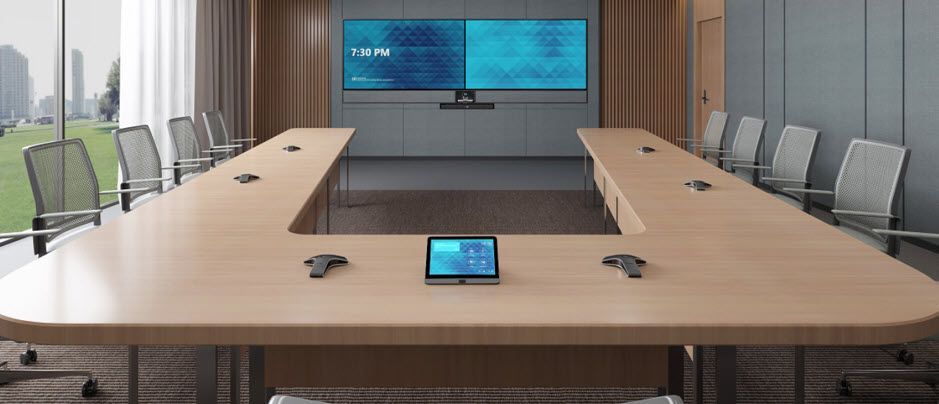 Sample: Teams Executive/Large Conference room
 Sample: Teams Executive/Large Conference room
The existing Training room is not designed to work with Microsoft Teams.
Training rooms usually are super large, require a better audiovisual system. In most cases, training rooms are only equipped with a projector or multiple large monitors. Organizations can easily integrate Microsoft Teams room into large rooms in this scenario. Crestron, Yealink and Poly, HP and Dell all can provide their specific models that can work with Large Meeting training spaces. Recently Shure line of products is also certified for Teams which can be perfect audio peripherals for the meeting room. There are more products info in http://aka.ms/teamsdevices
A large Training room can be a complex setup to provide the best experience for trainees. My recommendation is to discuss with AV Partner and design a custom room that will be native to Microsoft Teams Room.
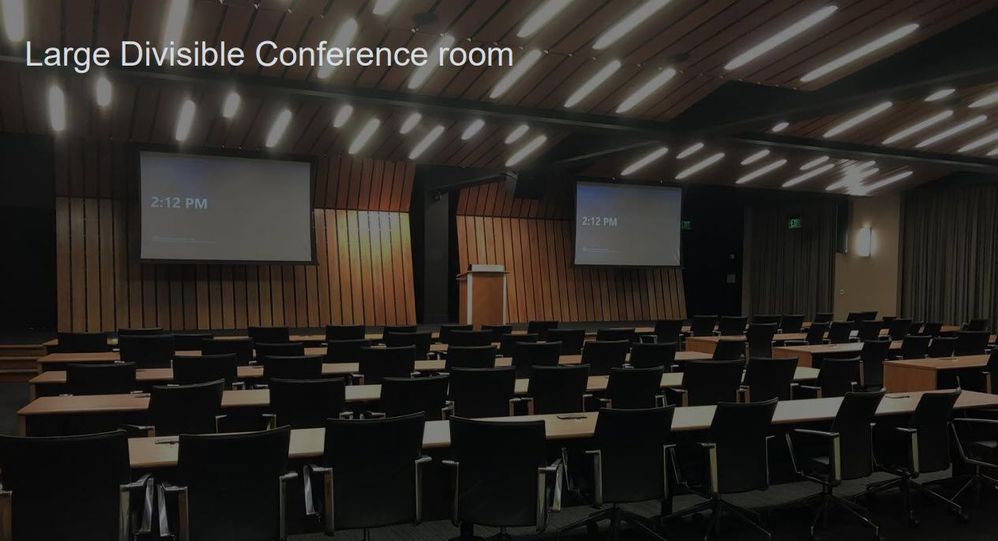 Sample: Training and Divisible Rooms
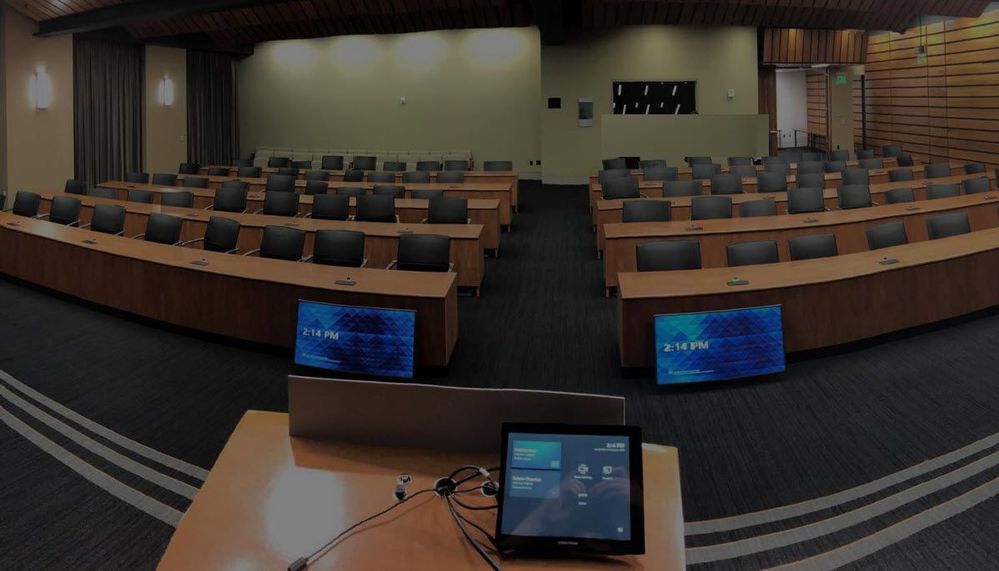 Sample: Training and Divisible Room
Executive office room small conference side table setup, enabling Teams meeting.
Many executive offices have small conference room table on the side. As you can relate to this picture, there is either desk phone or conference phone on the table for Executives to join meetings by dialing into meeting phone number. This setup is not intuitive, modern nor has video.
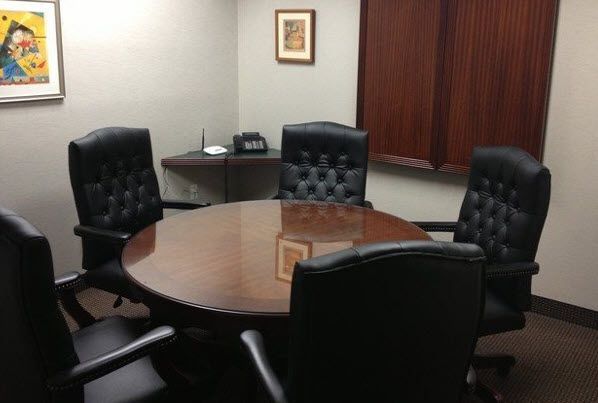
Organizations can easily enable this conference room with simple to deploy Microsoft Teams Room Android devices. Here are few devices you can deploy.
- Teams Video Phone VP59
- Poly Studio X30
- Yealink A20
- Logitech Rally Bar Mini
- Audiocodoes RXV80
There are many other options, and we are continuously adding more partner devices; please visit https://aka.ms/teamsdevices
Executives most likely going to use MFA on his/her account therefore Windows based MTR is not recommended. Windows MTR will reboot after receiving new updates automatically and MFA wont let it completely be ready after reboot.
The existing conference room is setup with Surface Hub in Skype only mode, doesn’t work with Teams meeting
Unless your IT configured Surface hub enable for Microsoft Teams meeting, users wont be able to do one click join in Surface Hub. Please visit this blog to enable Surface Hub with Teams meeting. Download the Microsoft Teams app for Surface Hub – Microsoft Tech Community
Teams Audio/Video device in Clinicians and Patient room
Healthcare providers are adopting Teams to streamline multiple applications into one. For example, Tigertext, Vocera, Paging App, Zoom, Webex etc. Teams Audio/Video personal device also can be deployed in clinicians and patient bedside to enable Audio/video to discuss with patient remotely. This will not only save time, but it will make virtual rounding much faster. This opens many possibilities for Clinicians to be more effective and taking care patient safely specially during this pandemic.
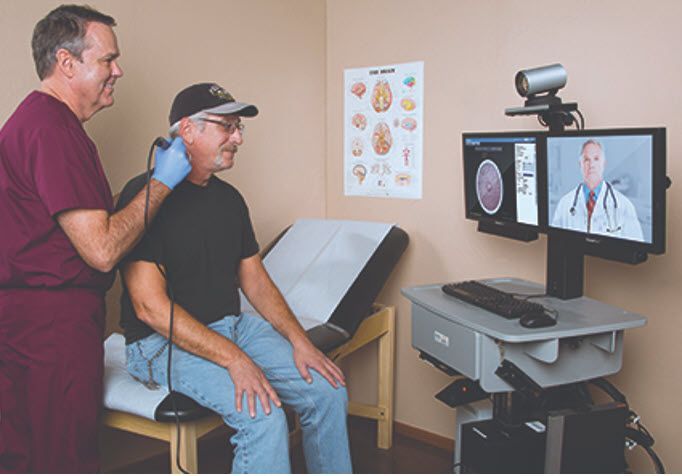 Sample Patient Examine Room
Licensing: Microsoft Teams Rooms licenses – Microsoft Teams | Microsoft Docs
Microsoft has two (Standard and Premium) dedicated SKUs for licensing meetings and calling on a per-device basis for meeting room devices (such as Microsoft Teams Rooms, Microsoft Surface Hub, and collaboration bars for Microsoft Teams). Organizations not supposed to use any other licensing other than the Microsoft Teams Room license.
Difference between Standard and Premium License.
Great meeting room experiences: Meet the new Microsoft Teams Rooms Standard and Premium – Microsoft 365 Blog
Enable Teams Room with Voice (Telephone Capability)
You can enable the Microsoft Teams Room or Surface Hub device to be used as a standard Telephone (without a meeting). The use case would be dialing any phone number, dialing into meetings like old days, etc. To enable this, you will need a Phone System plus Calling Plan license from Microsoft. The phone system license is included in the Microsoft Teams Room standard or premium license. You can add a Domestic or International Calling plan license to the user account, which enables a dial pad in Microsoft Teams Room to make a phone call without the meeting.
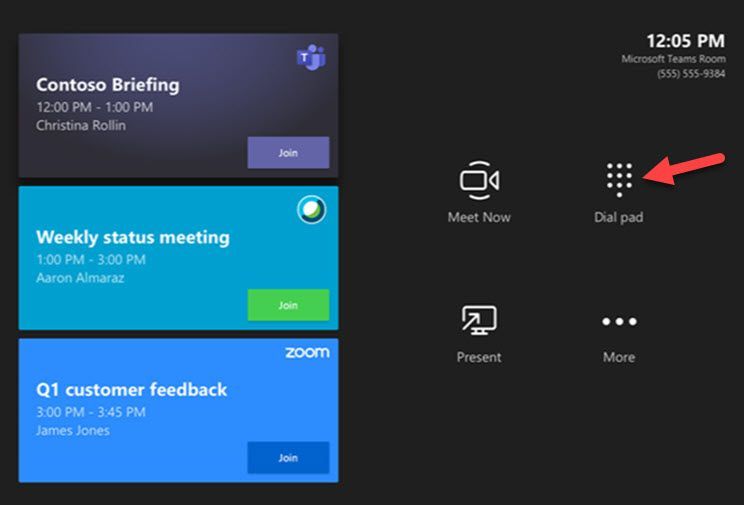 MTR With Dialpad and Zoom/Cisco Meeting enabled
Frequently asked Questions:
- Microsoft Teams Room be deployed in any PC Hardware?
No, Only Microsoft Certified Partner Teams devices can be deployed.
- Do I need to create AD Account for Room?
Most likely no, you already should have Room AD Account to reserve room which you can apply MTR License to make it Teams Room account and use that account in MTR console to sign-in.
- Do I need Deskphone or Conference phone in addition to MTR
No, MTR will have full Audio/Video and Telephone capabilities
- Can I connect MTR with my Telephone PBX so I don’t need Calling Plan?
Yes, you can, you can deploy Direct Routing to integrate Teams with on-premises voice trunks
- Do I need to join MTR with Domain?
It will be ideal to secure MTR by deploying Intune and Conditional Access. If not, you can join to domain, keep it in separate OU and do not push regular windows related GPOs and Applications. This MTR Windows will not be accessible by users nor requires any application other than MTR App. MTR will get updates from Windows update automatically, ensure its not blocked for updates.
- How do I troubleshoot for Quality issues?
IT Admins can review Call Analytics for quality issues. Coming soon, there will be real-time quality and performance data you will be able to review.
- Any prerequisites before deploying MTR?
Ensure MTR has Account setup according to this documentation: Deploy Microsoft Teams Rooms with Microsoft 365 or Office 365 – Microsoft Teams | Microsoft Docs
- Can I join Zoom and Webex Meeting from MTR?
Yes, you can however you have to enable from MTR Touch console. Only admin has access to enable.
- Who do I call if there is an issue?
You can call MTR vendor for hardware related issues. If there is Account or meeting related issues, you can call Microsoft to open case. If you have MTR Premium license, Microsoft will monitor and provide proactive support.
- How do I monitor MTR?
You can monitor MTR from Teams Admin Center Manage your devices in Microsoft Teams – Microsoft Teams | Microsoft Docs
by Contributed | Apr 26, 2021 | Technology
This article is contributed. See the original author and article here.
In this blog post, we describe our work on enabling machine learning (ML) inference (aka scoring) of previously trained ML models using the newly introduced language extensions of SQL Server 2019. By implementing a set of APIs, users can interface SQL Server with an external process (such as an ML runtime in our scenario) in order to move data and results between the main execution engine and the external process (which will perform the model scoring). As we will show in this post, this method is more efficient and more intuitive than performing model scoring using SQL Server’s ML Services capability via Python scripts.
To ground the description of such an external language implementation for model scoring with a concrete example, we will discuss scoring for ONNX models, as well as models that can be converted to ONNX (e.g., TensorFlow, PyTorch, scikit-learn). However, the technique described here is generic and can be used to invoke any other ML runtime.
Implementing ONNX as an external language allows users of any existing SQL Server 2019 installation to score ONNX models. There are several benefits to this approach:
- Users can take advantage of faster times for scoring ONNX models over data in SQL Server compared to implementations using SQL Server’s Python capabilities. As we will show, example prediction queries (invoking logistic regressions and decision trees) are about 1.3–2x faster when compared to the Python implementation. They are also much easier to express in a few lines of code, as opposed to a few tens of lines for the Python case.
- Following an implementation as the one we describe in this blog post for ONNX, users can create other external languages for efficiently invoking any other ML runtime of their choice, such as PyTorch or TensorFlow. Note that we will not release our implementation at this point, but interested users can perform a similar implementation following the design in this blog post.
- Given the extensibility framework has a C++ interface, users can directly embed any custom C/C++ code for model scoring just by implementing the API methods we describe below.
Note that another alternative is SQL Server’s native scoring capability using the PREDICT keyword for scoring ONNX models. Although this capability is available on Azure SQL Edge and Azure SQL Managed Instance (in preview), it is not yet present in all SQL Server flavors, including on-premises versions.
Example Usage
1. Language Registration
The first step to use ONNX as an external language is to register that language in SQL Server with the following command.
CREATE EXTERNAL LANGUAGE ONNX
FROM (CONTENT=N'onnxextension.zip', FILE_NAME=N'onnxextension.dll')
To perform the language registration, we point to the onnxextension.zip file that contains the onnxextension.dll. This dll includes our implementation of the extensibility framework C++ APIs, as we will describe later.
2. Stored Procedure Creation
Next, the user can create a stored procedure that uses the ONNX external language we registered above to perform model scoring of a model over some data using the sp_execute_external_script capability. The procedure takes as input the ID of the model to be used for scoring (the model is stored as a binary object in a SQL Server table and is identified by that ID) and a SQL query that defines the data to be used.
CREATE OR ALTER PROCEDURE dbo.sp_onnx_scoring (@model_id int, @input_query nvarchar(max))
AS
BEGIN
DECLARE @model_binary varbinary(max) = (SELECT Data FROM models WHERE id = @model_id);
EXECUTE sp_execute_external_script
    @language = N'ONNX',
    @script = N'',
    @input_data_1=@input_query,
    @parallel = 1,
    @params = N'@model varbinary(max)',
    @model = @model_binary
WITH RESULT SETS (("length of stay" bigint))
END;
The example stored procedure declares (by setting the @language variable) that it is using the ONNX external language extension (created earlier). The input data is read into the @input_data_1 variable and the model is read into the @model_binary and @model variables.
The ‘EXECUTE sp_execute_external_script’ invokes execution of the language extension. The setting of @parallel to 1 enables parallel (multi-threaded) execution of the language extension.
The ‘WITH RESULT SETS’ directive specifies the return types of the results. In this case, the model returns an integer. In general, the type of the result returned by the model should match or be able to be implicitly converted to the type specified in the ‘RESULT SETS’ clause.
3. Model Scoring
The stored procedure needs to be saved once and can then be invoked later for scoring different models with input data as follows.
EXEC sp_onnx_scoring <model num>, “SELECT <feature list> FROM dbo.patients_table"
The ‘EXEC’ command in the example invokes the stored procedure with a model number and a T-SQL query string that specifies the input data consisting of all rows and a subset of columns (used as features for the model) from a database table (patients_table). The model number identifies a model that is stored as a binary string (along with other models) in another table in the database.
High-Level Architecture
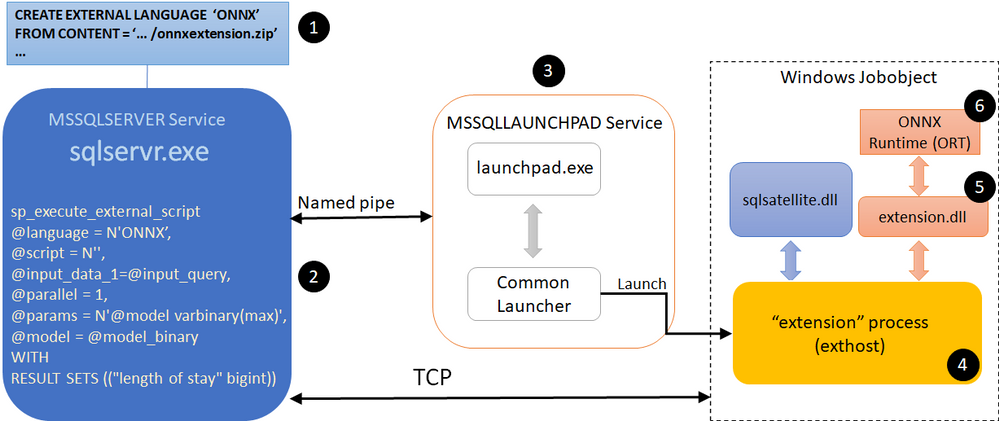
Fig. 1. High-level architecture diagram of ONNX extension for SQL Server
Figure 1 shows a high-level architecture of the implementation of ONNX as external language in SQL Server. The steps/components marked with a numbered circle are briefly described below.
- User registers an external language named ONNX with SQL Server. We describe the creation of this language extension in the Extension Implementation section later in this blog post. Our implementation is packaged in the file ‘onnxextension.zip’ shown in Figure 1.
- User executes a T-SQL query that invokes sp_execute_external_script with ONNX as the language.
- SQL Server communicates with the Launchpad service to launch the exthost external process (4).
- The exthost process loads the extension dll (5) that was registered for ONNX in step 1.
- The extension dll loads the ONNX runtime dll (6).
- The ONNX runtime dll provides the functionality for scoring the ONNX models.
Extension Implementation
As we mentioned earlier, SQL Server 2019 introduced the extensibility framework that users can exploit to create their own language extension and invoke execution in that language through T-SQL queries. This framework consists of a set of C++ APIs that users can implement to copy data and parameters from SQL Server, perform operations on that data, and return results and performance telemetry to SQL Server. Reference implementations of Java, R, and Python using this extensibility framework have been open-sourced.
We now briefly discuss how some of the APIs of the SQL Server language extensibility framework can be implemented to support ONNX as an external language. The implementation is compiled into a dll that can then be registered with SQL Server for this external language (step 1 in the architecture description shown earlier).
The Windows and SQL Server data types used in the code snippets below for the implementation are the same as those used in the other open-sourced reference implementations for the extensibility framework, e.g., in Java as an external language.
- Init: This is called by exthost when the dll associated with the language extension is loaded. Our implementation of ONNX as an external language loads the ONNX runtime (ORT for short) dll in Init. ORT provides the functionality to score ONNX models. The code snipped below shows how the ORT dll can be loaded.
	LPCWSTR onnxDllPath = L"onnxruntime.dll";
	std::wstring fullPath = wstr.get();
	fullPath += L"onnxruntime.dll";
	auto load_result = LoadLibraryExW(fullPath.c_str(), NULL, 0);
	const OrtApi *api = OrtGetApiBase()->GetApi(ORT_API_VERSION);
	……
	return SQL_SUCCESS;
Note that the ONNX extension dll needs to be built with the delay load dlls option set for linker input properties, with the ORT dll specified as the dll to be delay loaded.
The OrtApi type definition is provided by the ORT C runtime API. The ORT_API_VERSION is set to the value corresponding to the ORT version, e.g., 4 for ORT v1.4.
We will call methods provided by the ORT by dereferencing the ‘api’ pointer. In Init, we call the api->CreateEnv(…) method provided by the ORT to create the runtime environment.
The call to Init and its execution corresponds to steps 4 and 5 of the architecture description shown earlier.
- GetInterfaceVersion: This is called by exthost to get the version number of the extensibility API implemented by the extension. For example, the value returned would be 2 for Version 2 of the API.
return EXTERNAL_LANGUAGE_EXTENSION_API;
- InitSession: This is called by exthost once per inference session. The ONNX extension should copy the values of the function arguments to variables in the extension that can be retrieved by the other functions implemented by the extension. For example, the variables can be part of a class, an object of which is allocated on the heap during Init, and then this object is used by the rest of the functions.
- InitColumn: This is called by exthost once per column (attribute) of the input data on which the model scoring will be done in this inference session. The ONNX extension should copy and save the values of the function arguments.
- InitParam: This is called by exthost to pass other arguments of the sp_execute_external_script command for this inference session. One of the arguments is the “@model” string along with its value, which was set by the user script to the binary string of the model. The ONNX extension should copy and save this model, e.g., using memcpy as shown in the code snippet below.
	if (!strcmp(reinterpret_cast<const char *>(ParamName), "@model")) {
		SQLPOINTER m_modelPtr = new unsigned char[StrLen_or_Ind];
		std::memcpy(m_modelPtr, ArgValue, StrLen_or_Ind);
	}
	……
	return SQL_SUCCESS;
- Execute: This is called by exthost to score the model on the input data for this inference session. There are several steps that are executed in the function.
- Map Types: First, the ONNX extension maps the SQL types (enums) of the input data to the types understood by the ORT. This can be done by looking up a mapping table that tells how to do the translation.
- Create Context: Then, it creates a context for scoring the model by calling ORT methods, e.g., api->CreateSessionOptions(…), api->SetIntraOpNumThreads(…), api-> SetInterOpNumThreads(…), api->SetSessionGraphOptimizationLevel(…), api->CreateSessionFromArray(…), etc.
- Score Model: Then it scores the model by calling ORT methods, e.g., api->CreateTensorWithDataAsOrtValue(…), api->Run(…)
- Save Results: It then saves the predictions returned by the ORT.
- Return number of output columns: Finally, it returns the number of columns in the output of the predictions by setting the ‘*OutputSchemaColumnsNumber’ parameter of the Execute function. The return value of the Execute function is SQL_SUCCESS.
- GetResultColumn: This is called by exthost for each of the columns for the prediction results. The number of columns has been returned by the Execute function as described above. The ONNX extension returns the data type and size for the corresponding column.
- GetResults: This is called by exthost once for the inference session to get the results of the model predictions. The code snippet below shows that the number of rows in the results as well as the results are returned. Here variable DataBuffer is of type BYTE* and it holds the prediction results obtained during the Execute function call as described above.
	*RowsNumber = elemCount;
	*Data = reinterpret_cast<SQLPOINTER *>(&(DataBuffer));
	……
	return SQL_SUCCESS;
- CleanupSession: This is called by exthost once for the inference session. The ONNX extension deallocates variables that is allocated for this inference session.
Performance Comparisons
We evaluated the performance of the following three different ways of scoring ONNX models with SQL Server. We used a SQL Server 2019 installation.
- PREDICT: This uses SQL Server’s built-in PREDICT keyword for scoring ONNX models using the ONNX Runtime. It is currently publicly available only in Azure SQL Edge and Azure SQL Managed Instance (in preview).
- Ext. C++: This uses the ONNX as external language capability described in this blog post.
- Ext. Python: This uses SQL Server’s capability to invoke Python as an external process for invoking the ONNX Runtime to score ONNX models.
We used an input dataset ranging in size from 10K rows to approx. 3M rows. We measure end-to-end query runtimes, that include the total prediction time over all the rows in the particular table, with scoring for two ML models, namely a Decision Tree and a Logistic Regression. We average the runtimes over five executions of the same query.

Fig. 2. Query execution times with inference using different input sizes and models.
Figure 2 shows the average query run times as a function of the number of rows in the input data set, which is also equal to the number of predictions done with the models.
We make the following two observations from these experimental results.
- Ext. Python is significantly slower (2.7x–30.5x, depending on the model and number of input rows) than PREDICT. As an example, for 3M rows, Ext. Python takes about 2.9x (Decision Tree) to 2.7x (Logistic Regression) as much time as PREDICT.
- Ext. C++ results in query run times that are in between PREDICT (1.9x–22.4x slower than PREDICT) and Ext. Python (which is 2.7x–30.5x slower than PREDICT), leading to 1.3–2.1x speedups when compared to Ext. Python. For example, for 3M rows, Ext. C++ takes about 1.9x as much time as PREDICT in contrast to the 2.7x–2.9x time taken by Ext. Python. For approximately 0.3M rows and Decision Tree model, Ext. C++ takes about 2.6x whereas Ext. Python takes about 5.4x as much time as PREDICT, resulting in Ext. C++ being about 2x faster than Ext. Python for scoring the given model on the same input dataset.

Fig. 3. Query slowdowns, relative to in-process PREDICT, for different input sizes and models.
Figure 3 shows the average query run times relative to that with PREDICT with the same number of input rows. At small number of input rows, the computation for the model scoring is small. So, the overheads of setting up the external execution environment dominates. At larger input sizes, the slowdown values become smaller. In all cases, the slowdowns with Ext. C++ are smaller than with Ext. Python.
Summary
SQL Server 2019’s C++ extensibility framework offers a powerful capability to users for calling a wide range of ML model scoring engines to score corresponding ML models on tabular data provided by SQL Server. Our implementation enables users to perform scoring of ONNX models faster and more intuitively than with the existing Python execution. This blog post also provided an overview of how users can write their own ML engine interfacing extensions with the new extensibility framework.
Acknowledgments
We thank Ivan Popivanov, Jasraj Dange, Michelle Wallig, Carlo Curino, and members of the SQL Server extensibility team for their help and feedback on this work.
References
- SQL Server 2019
- Native scoring using the PREDICT T-SQL function with SQL machine learning
- Machine learning and AI with ONNX in SQL Edge
- Machine Learning Services in Azure SQL Managed Instance (preview)
- Extensibility architecture in SQL Server Machine Learning Services
- Python language extension in SQL Server Machine Learning Services
- R language extension in SQL Server Machine Learning Services
- sp_execute_external_script
- Extending Relational Query Processing with ML Inference
- SQL Server Language Extensions
- CREATE EXTERNAL LANGUAGE (Transact-SQL)
- Extensibility architecture in SQL Server Language Extensions
- Extensibility Framework API for SQL Server
- SQL Server Language Extensions project
- ONNX Runtime
- ONNX Runtime C API
by Contributed | Apr 26, 2021 | Technology
This article is contributed. See the original author and article here.
Our Excel team strives to provide its customers with rich experiences that increase productivity in Excel for the web. Recently, we shared how we’ve continued to better navigate and manipulate your Excel files in a browser, making working in and navigating around a workbook and other interactions, faster and smoother. Today, we’re excited to introduce new features and capabilities to help you easily format your data with color and style along with a new mini toolbar, table improvements, and more. In this article, we cover:
- Custom color palettes
- Cell styles gallery
- Draw & erase borders
- Mini toolbar
- Table improvements
- New printing experience (coming soon)
Custom color palette
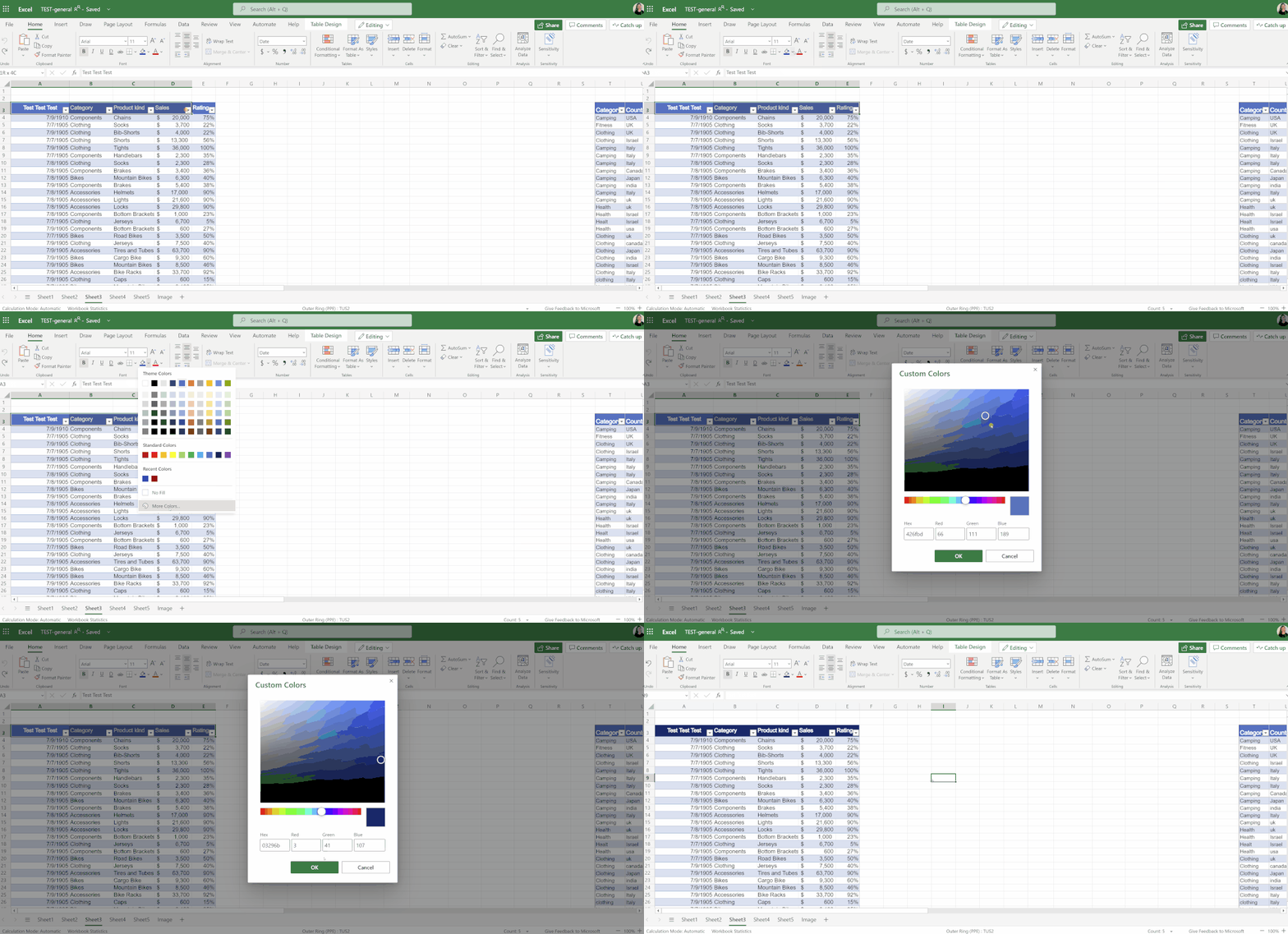
Match your brand colors or fine tune your color choices with custom color palettes:
- Select from a wide range of color options via the more colors dialog box by simply dragging the color slider
- Change color shade by dragging your cursor around the more colors rectangle and view your selection in the preview box
- Input RGB values or hex values directly for easy color selection
Cell styles gallery
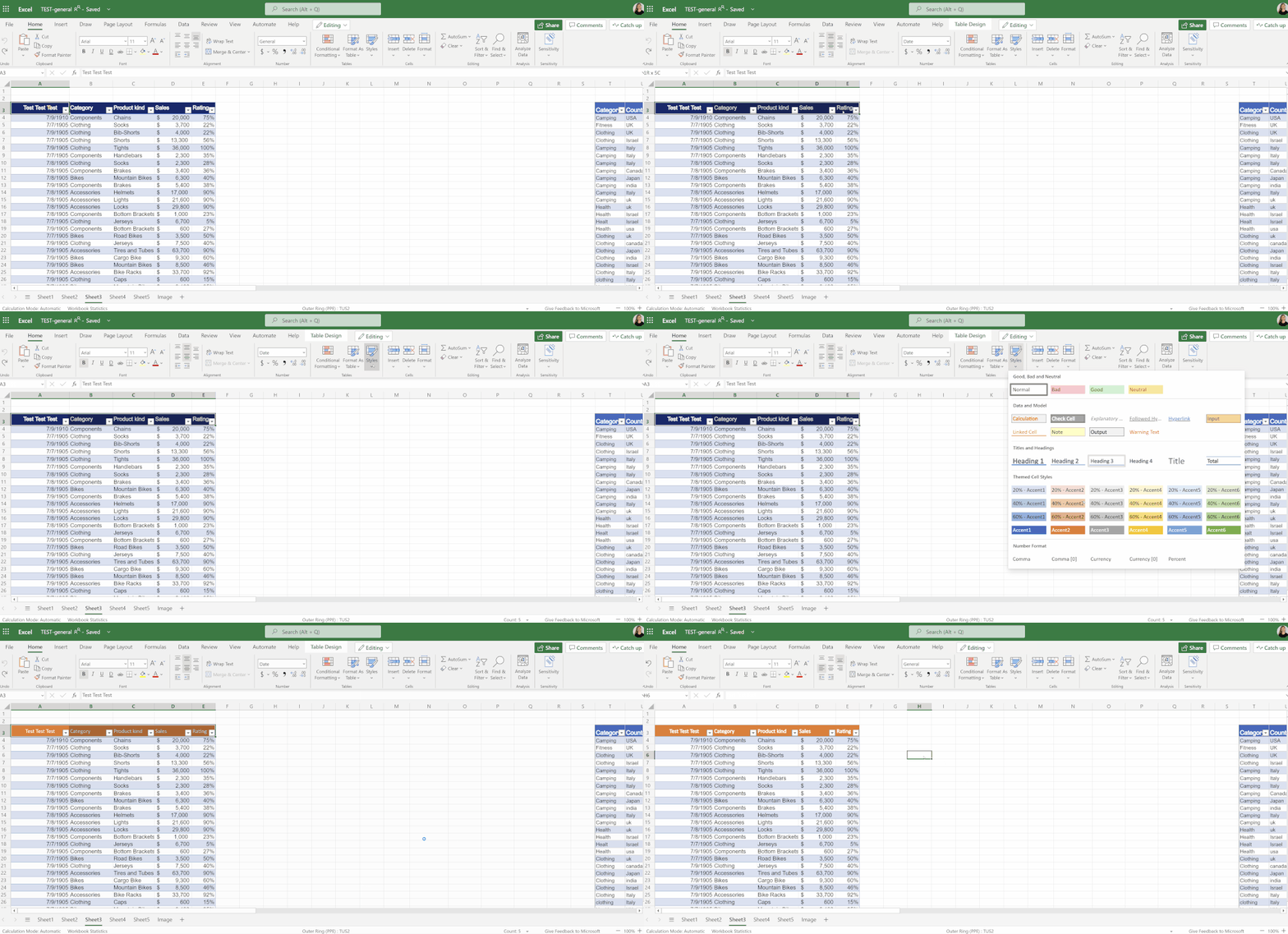
Keep the formatting of your data consistent so it’s easy to read and understand by applying cell styles such as fonts, number formats, and cell borders and shading.
Draw & erase borders
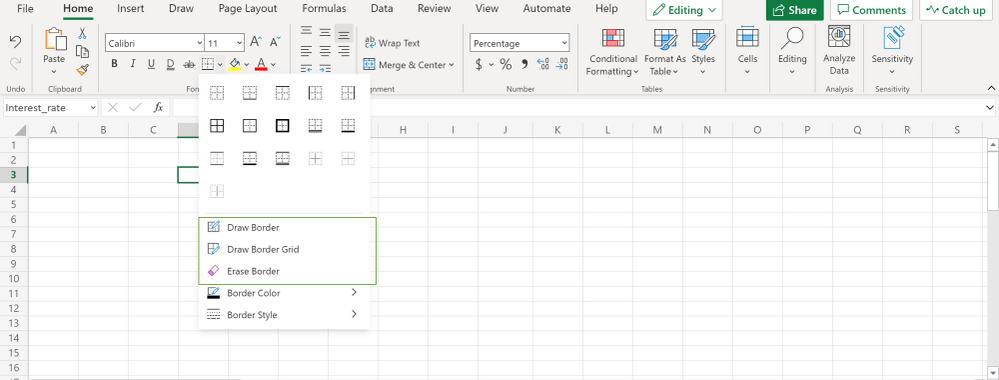
Highlight your data or differentiate one set of data from another by adding or removing cell borders. Pick Draw Border to add outer borders, Draw Border Grid to add gridlines, or Erase Borders to erase them.
Mini toolbar
Right click to get quick access to most common formatting commands via the new mini toolbar.

Table improvements
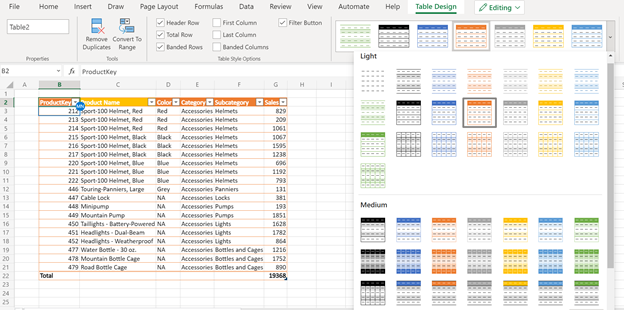
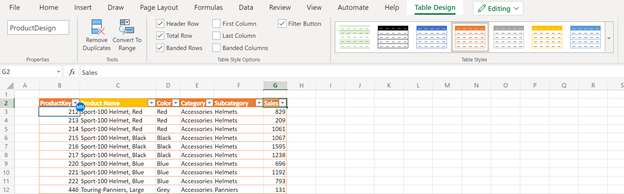
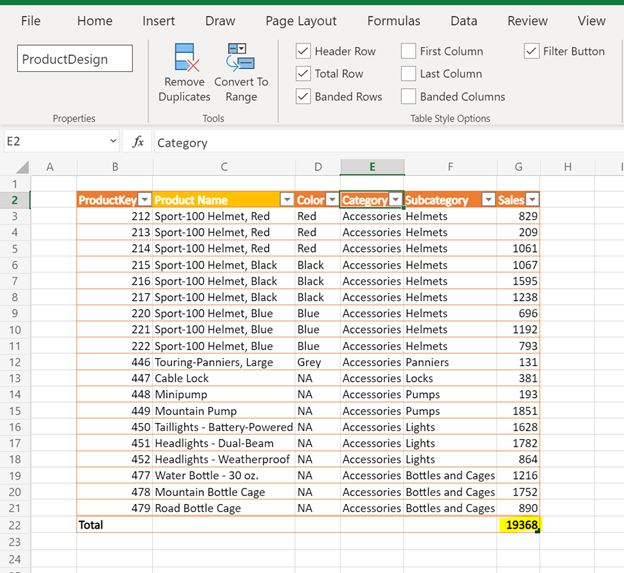
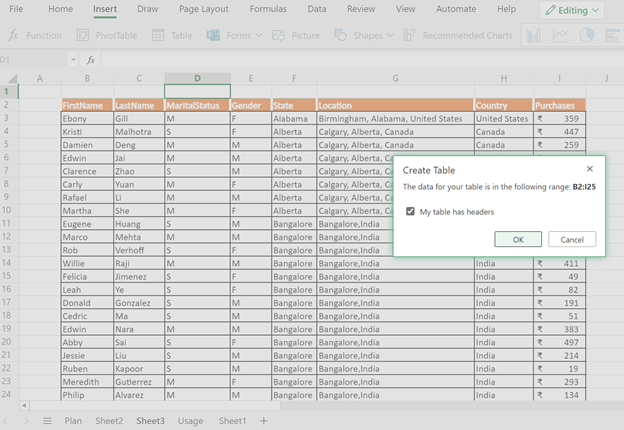
Tables are muscle memory for many Excel users, and we want to continue bringing you a more consistent table experience across Excel on the desktop and Excel for the web, from design and styling to naming to total rows and more:
- Select table design and styling options
New printing experience (coming soon)
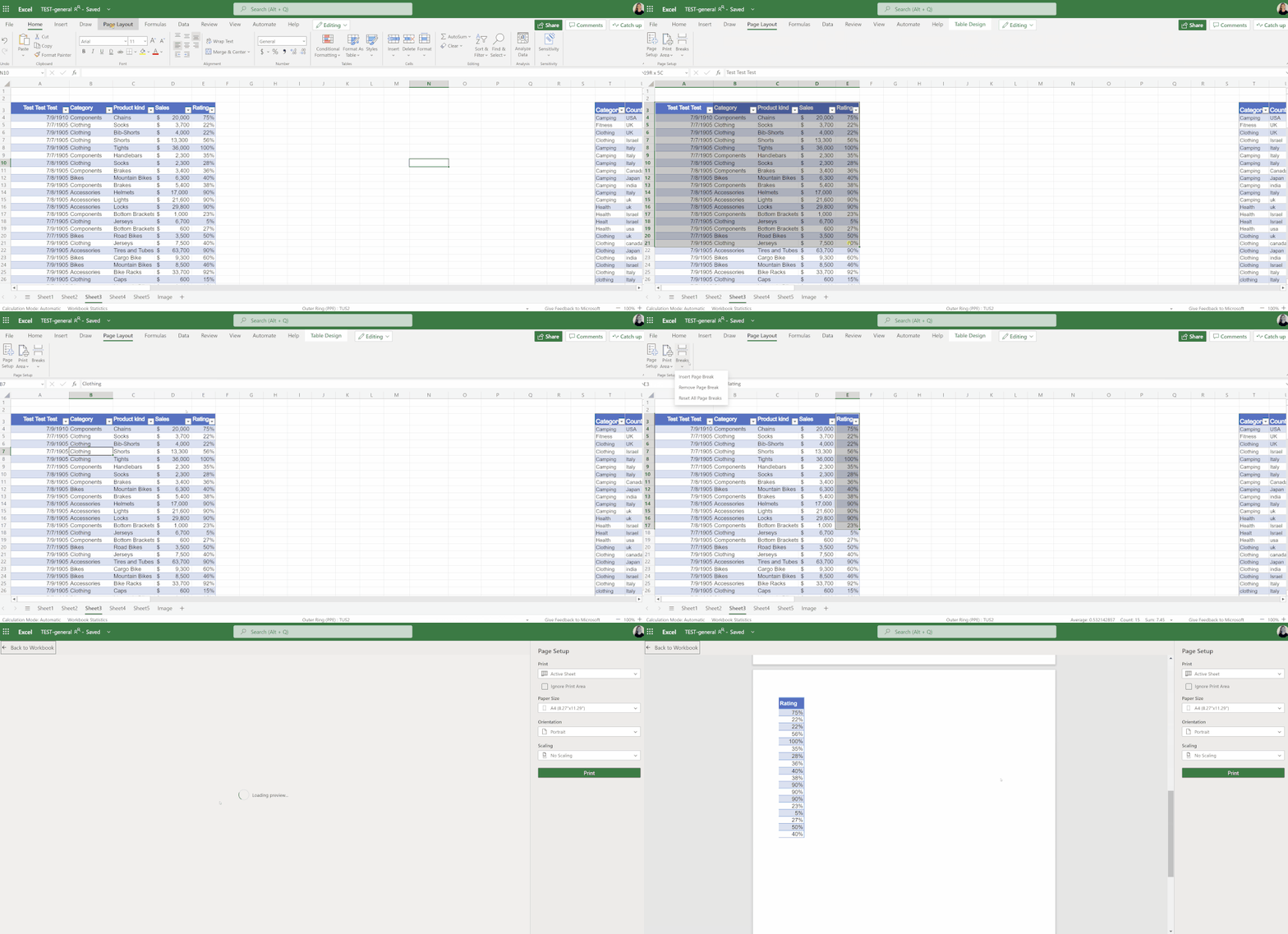
See what you’re printing and customize it the way you want it with the new printing experience in Excel for the web, now supporting print preview with page layout settings:
- Set print area: active sheet, entire workbook, or current selection
- Insert/delete page breaks
These are just some of the latest improvements, many more are coming soon!
Your feedback helps shape the future of Excel for the web. Please let us know how you like a particular feature and what we can improve upon—send us a smile or frown.
Want to know more about Excel for the web? See What’s new in Excel for the web and subscribe to our Excel Blog to get the latest updates. Stay connected with us and other Excel fans around the world – join our Excel Community and follow us on Twitter.
Thank you!


Recent Comments