
by Contributed | May 5, 2021 | Technology
This article is contributed. See the original author and article here.
By Christine Alford, Director, Commercial Marketplace Business Team
Previously, I’ve talked about Microsoft’s #BuildFor2030 campaign. As partner to the United Nations, Microsoft has pledged to support the UN Sustainable Development Goals (SDGs). The SDGs are a set of 17 initiatives adopted by member states in 2015 focused on creating a more inclusive, sustainable, and equitable world by 2030. Inspired by the UN SDGs, through the #BuildFor2030 campaign, we’re featuring Microsoft partners building solutions that enable a more inclusive economy.
This milestone of the campaign launched on Earth Day on April 22. With this milestone we are supporting climate action and sustainability by recognizing partner innovation for sustainability. Currently, on our homepages of Microsoft AppSource and Azure Marketplace you can find Microsoft partner solutions in our “featured apps” section that are innovating to build a more resilient and sustainable future.
Learn more about how Microsoft partners are helping customers leverage technology to better our environment and create a more sustainable society by reading this blog post by Nick Parker, CVP, Global Partner Solutions.
If you have a solution that supports a more inclusive, sustainable, and equitable future, we’d love to celebrate your impact. Upcoming campaign themes this year include enabling nonprofits and empowering communities. Learn more about #BuildFor2030 and how you can participate. Don’t miss out on your chance to be featured! Nominate your solution today.

by Contributed | May 5, 2021 | Dynamics 365, Microsoft 365, Technology
This article is contributed. See the original author and article here.
As the pace of manufacturing accelerates to meet demands across global customers, organizations are struggling to rapidly train and upskill workers on factory lines and the production floor. In fact, up to 2.4 million U.S. manufacturing jobs could remain unfilled between 2018 and 2028 due to this challenge.1
Today we’re introducing an exciting update to Microsoft Dynamics 365 Guides that promises to improve the way frontline workers access digital guidance in real-world scenarios, empowering them with hands-on opportunities to learn new and revised technical skills on-site. By engaging employees in hands-on, experiential learning, they are better able to retain and apply new skills to meet evolving job demands.
State of learning today
Traditional classroom training methods are not only expensive to implement and maintain but also are often ineffective. On average, employees only apply about 54 percent of new skills learned and business leaders are similarly disenfranchised.2 88 percent of human resource leaders are looking to invest in new technologies and 84 percent of business leaders want to rethink their workforce experience.3 At Microsoft, we see an opportunity to shift the way employees learn by providing organizations with the technology to attract, train, and maintain their workforce. Instead of static, hundred-page manuals that employees consume in a classroom, employees move towards immersive and collaborative experiences that are incorporated into daily workflows. With an estimated 97 million new jobs created by the year 2025, organizations need to provide employees with greater operational knowledge and a seamless, improved way to learn on the job.4 The question is, where do you get started?
On-the-job guidance with Dynamics 365 Guides and Azure Object Anchors
Dynamics 365 Guides is the mixed reality solution for organizations looking to accelerate upskilling and empower employees with transformational learning experiences. With Dynamics 365 Guides, employees can author step-by-step workflows with holograms on a head-mounted display to effectively imitate real-world scenarios.
Visual overlays and markers hover over the next step, using visual reinforcements to help improve muscle memory and reduce downtime.

Non-linear guides can incorporate branching logic to account for skill level and workflow variability in which users can easily select the option best fits their skillset or situation.
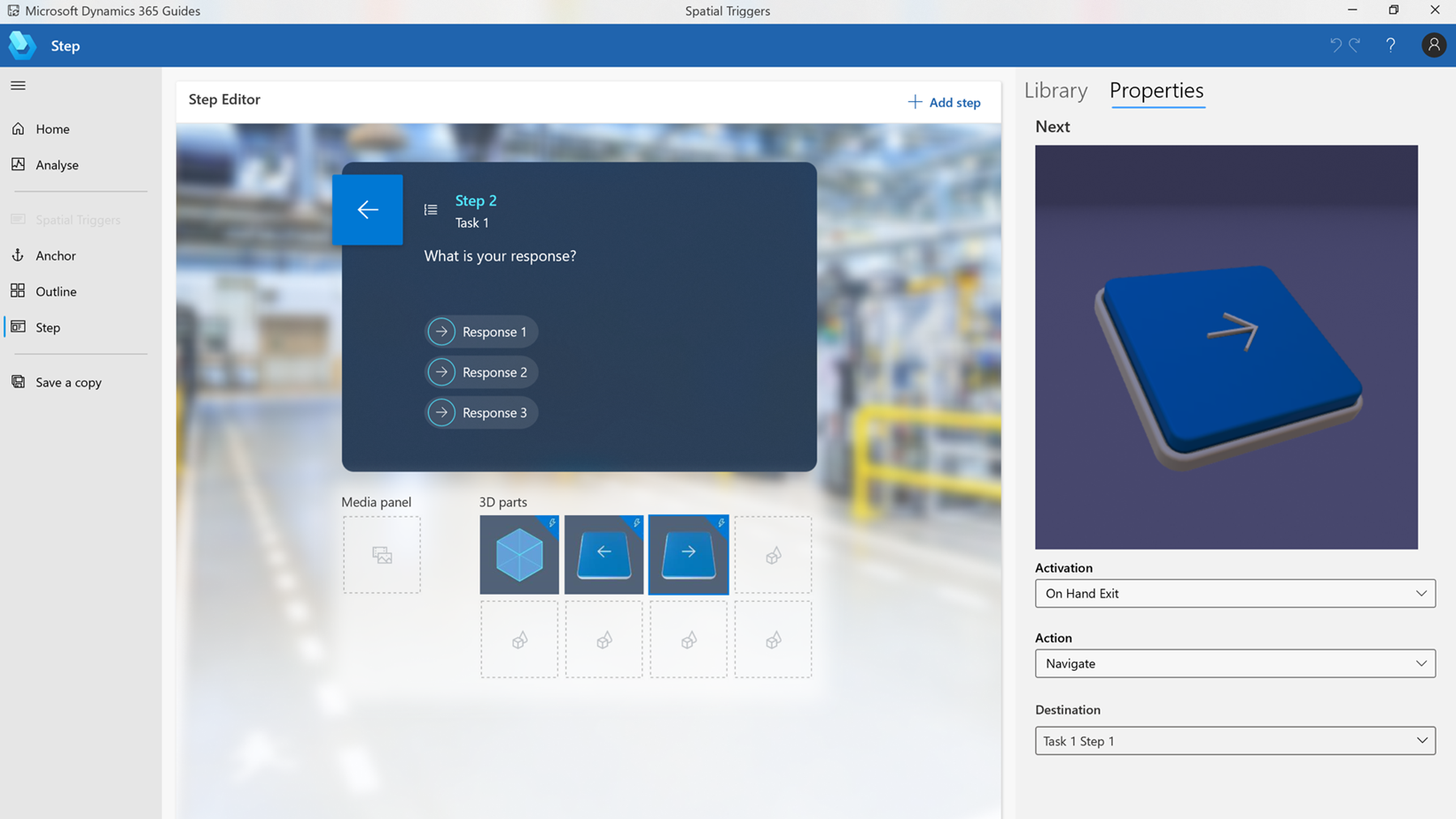
Operators can stay in the flow of work while following step-by-step instructions overlaid directly in front of them, empowering employees to learn on the job and reduce downtime spent in a classroom.
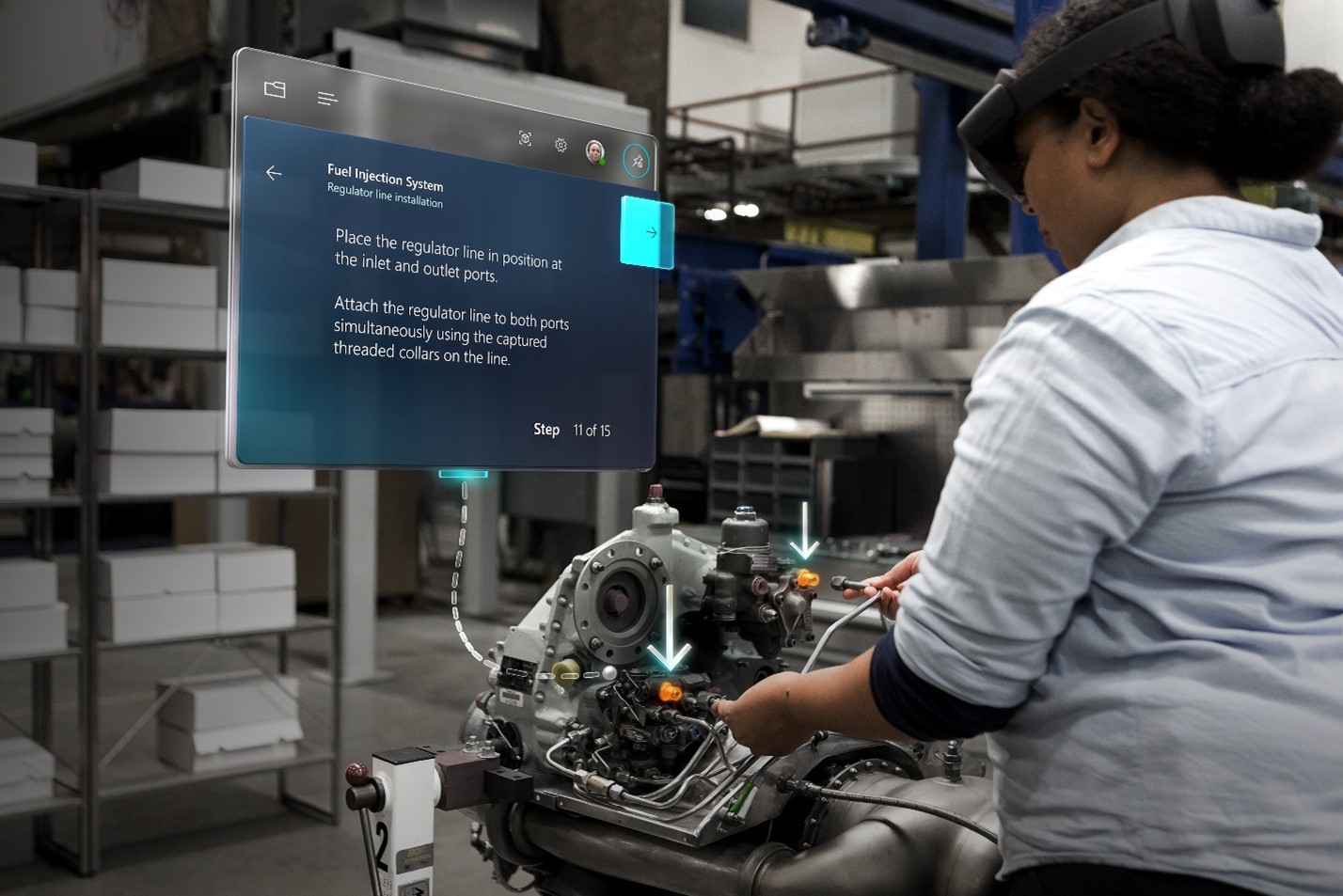
Yesterday at the Microsoft Business Applications Summit, we announced the latest development: Dynamics 365 Guides with Azure Object Anchors. Azure Object Anchors enable users to automatically align digital content with physical objects, eliminating the need for QR-code markers while improving alignment accuracy. Using Dynamics 365 Guides and Azure Object Anchors, operators can easily move from one workstream to the next as HoloLens’s spatial insight detects anchors and seamlessly launches overlaid digital content. Organizations can move from a manual process, often ripe with inaccuracies, to a walk-up and work experience that improves user learning and reduces errors.
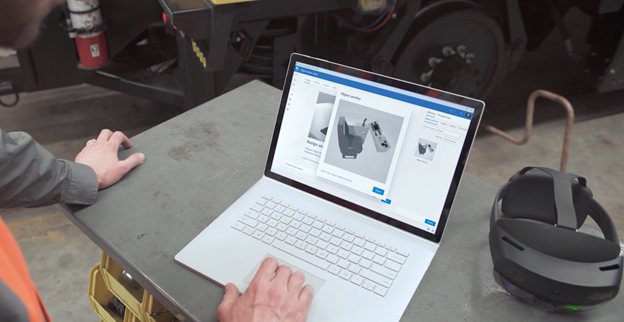

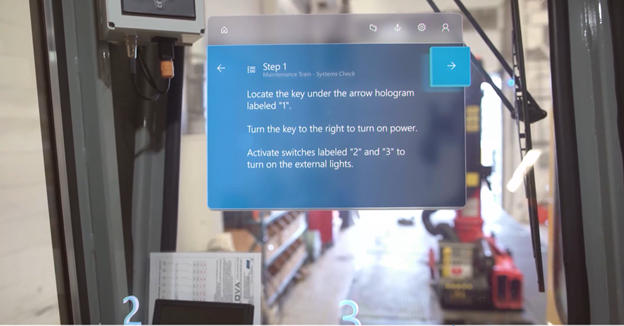
Azure Object Anchors is a recent example of the innovation that stems directly from customer feedback, and we’ve seen it in use recently at Toyota Japan, where they used Azure Object Anchoring to place digital markers in their environment to improve process efficiencies. Without the need for physical markers, Toyota was able to incorporate Azure Object Anchors across dealerships to help technicians get up and running much faster. We are excited to bring this new capability to Dynamics 365 Guides to improve the workflow experience and unlock additional operational efficiencies.
Innovative solutions and technology are needed to address the growing skills gap faced by many industries. As organizations eschew the status quo and adopt experiential learning solutions, like Dynamics 365 Guides, they are better prepared to meet this challenge and empower their employees to learn on the job more effectively.
Learn more about Dynamics 365 Guides and Azure Object Anchors.
1Deloitte Insights and the Manufacturing Institute, 2018 Deloitte and the Manufacturing Institute Skills Gap and Future of Work Study, 2018
2Baker, Mary. “Stop Training Employees in Skills They’ll Never Use.” Smarter With Gartner, August 28, 2020.
3Deloitte Human Capital Trends 2019, “Leading the Social Enterprise: Reinvent with a Human Focus,” Deloitte, 2019.
4Russo, Amanda. “Recession and Automation Changes our Future of work, but there are Jobs Coming,” World Economic Forum, 2020.
The post Improve on-the-job guidance with Dynamics 365 Guides and Azure Object Anchors appeared first on Microsoft Dynamics 365 Blog.
Brought to you by Dr. Ware, Microsoft Office 365 Silver Partner, Charleston SC.
by Contributed | May 5, 2021 | Technology
This article is contributed. See the original author and article here.
Mapping technology to Zero Trust frameworks is a challenge in many industries. We need to change our thinking in security assessment as the cloud evolves at the speed of innovation and growth, which often challenges our security requirements. We need a method to map Zero Trust approaches to technology while measuring change over time like a muscle.
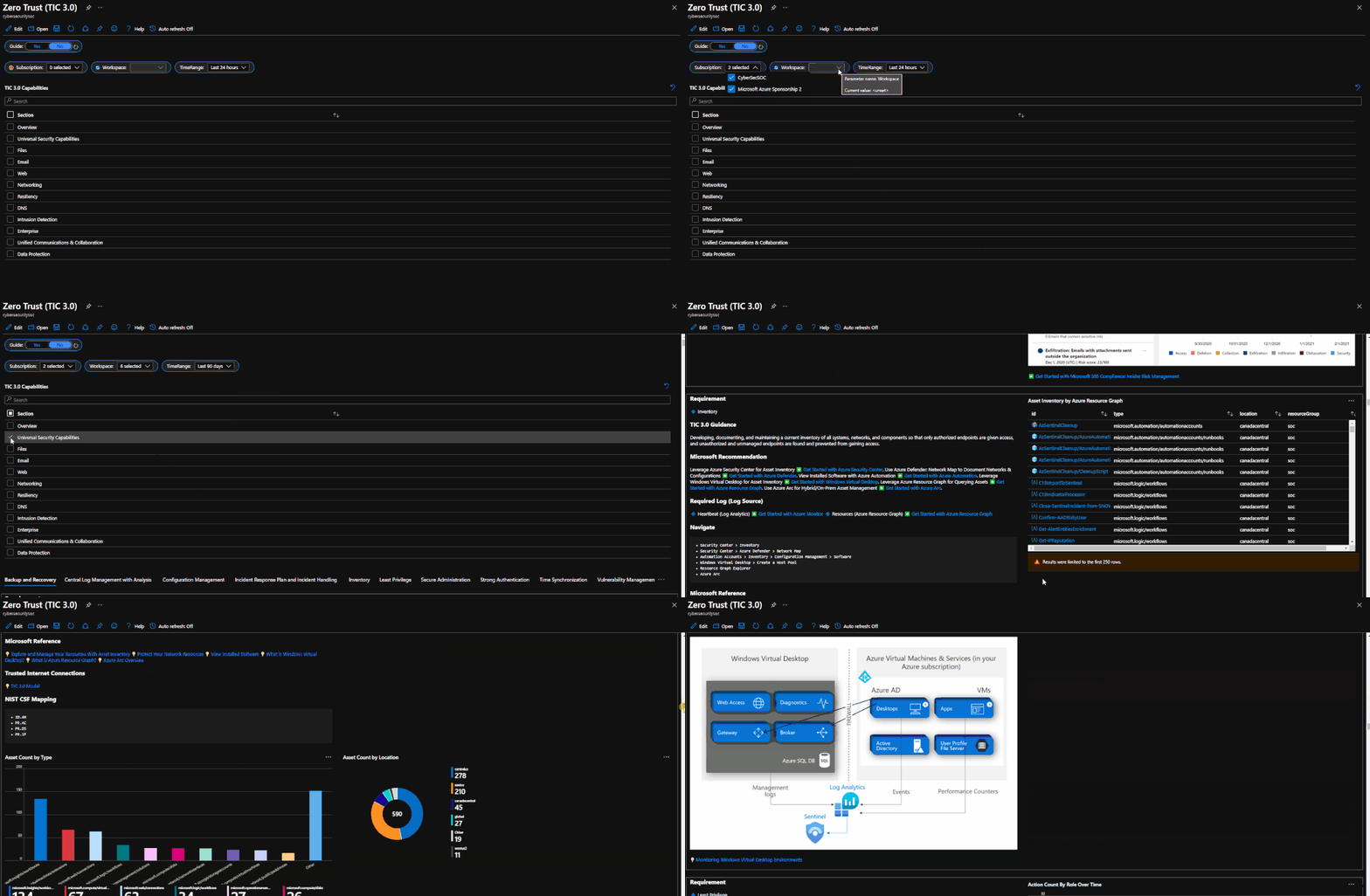
Azure Sentinel: Zero Trust (TIC 3.0) Workbook
The Azure Sentinel: Zero Trust (TIC3.0) Workbook provides an automated visualization of Zero Trust principles cross walked to the Trusted Internet Connections framework. This workbook leverages the full breadth of Microsoft security offerings across Azure, Office 365, Teams, Intune, Windows Virtual Desktop, and many more. This workbook enables Implementers, SecOps Analysts, Assessors, Security & Compliance Decision Makers, and MSSPs to gain situational awareness for cloud workloads’ security posture. The workbook features 76+ control cards aligned to the TIC 3.0 security capabilities with selectable GUI buttons for navigation. This workbook is designed to augment staffing through automation, artificial intelligence, machine learning, query/alerting generation, visualizations, tailored recommendations, and respective documentation references.
Use Cases
There are several use cases for the Azure Sentinel Zero Trust (TIC 3.0) Workbook depending on user roles and requirements. The graphic below shows how a Security Engineer can leverage the workbook to review controls, evaluate tool efficiency, explore events, and investigate configurations. There are also several additional use cases where this workbook will be helpful:
Roles
- Implementers: Build/Design
- SecOps: Alert/Automation Building
- Assessors: Audit, Compliance, Assessment
- Security & Compliance Decision Makers: Situational Awareness
- MSSP: Consultants, Managed Service
Mappings
- Framework to Requirement to Microsoft Technology
Visualization
- Hundreds of Visualizations, Recommendations, Queries
Time-Bound
- Measure Posture Over Time for Maturity
Time-Saving
- Aggregation & Analysis
- Capabilities Assessment
- Navigation
- Documentation
- Compliance Mapping
- Query/Alert Generation
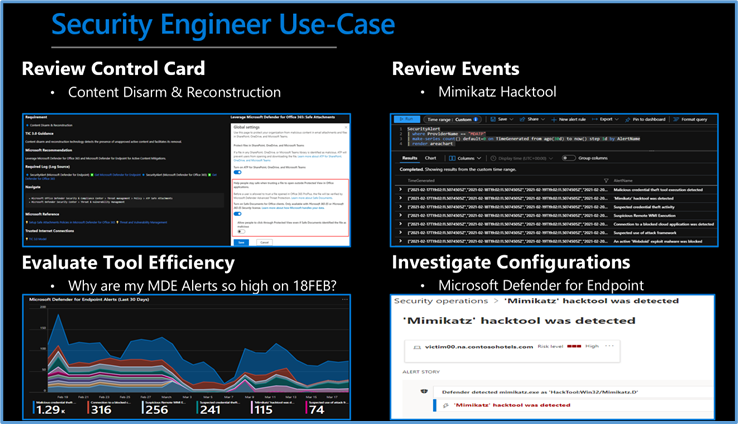 Security Engineer Use Case
Is Zero Trust Equivalent to TIC 3.0?
No, Zero Trust is a best practice model and TIC 3.0 is a security initiative. Zero Trust is widely defined around core principles whereas TIC 3.0 has specific capabilities and requirements. This workbook demonstrates the overlap of Zero Trust Principles with TIC 3.0 Capabilities. The Azure Sentinel Zero Trust (TIC 3.0) Workbook demonstrates best practice guidance, but Microsoft does not guarantee nor imply compliance. All TIC requirements, validations, and controls are governed by the Cybersecurity & Infrastructure Security Agency. This workbook provides visibility and situational awareness for security capabilities delivered with Microsoft technologies in predominantly cloud-based environments. Customer experience will vary by user and some panels may require additional configurations for operation. Recommendations do not imply coverage of respective controls as they are often one of several courses of action for approaching requirements which is unique to each customer. Recommendations should be considered a starting point for planning full or partial coverage of respective requirements.
Deploying the Workbook
It is recommended that you have the log sources listed above to get the full benefit of the Zero Trust (TIC3.0) Workbook, but the workbook will deploy regardless of your available log sources. Follow the steps below to enable the workbook:
Requirements: Azure Sentinel Workspace and Security Reader rights.
1) From the Azure portal, navigate to Azure Sentinel
2) Select Workbooks > Templates
3) Search Zero Trust and select Save to add to My Workbooks
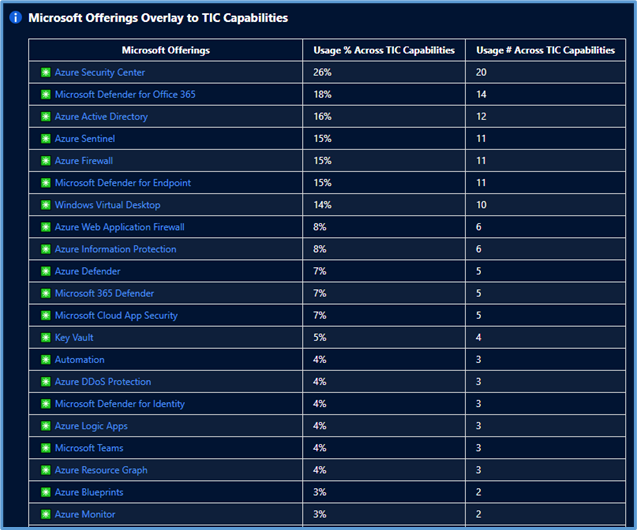 Microsoft Offerings Overlay to TIC Capabilities
Navigating the Workbook
The Legend Panel provides a helpful reference for navigating the workbook with respective colors, features, and reference indicators.
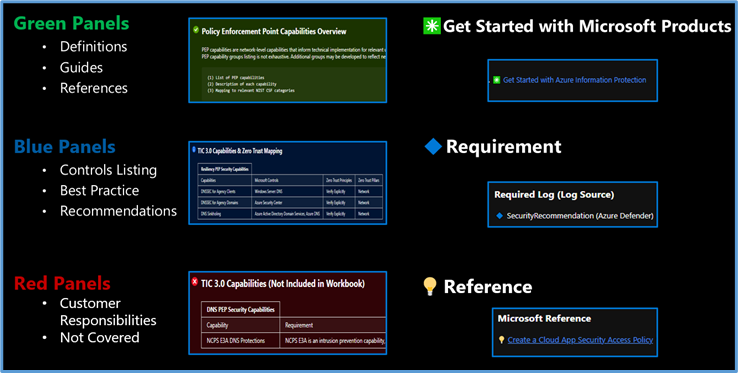 Navigating The Workbook
The Guide Toggle is available in the top left of the workbook. This toggle allows you to view panels such as recommendations and guides, which will help you first access the workbook but can be hidden once you’ve grasped respective concepts.
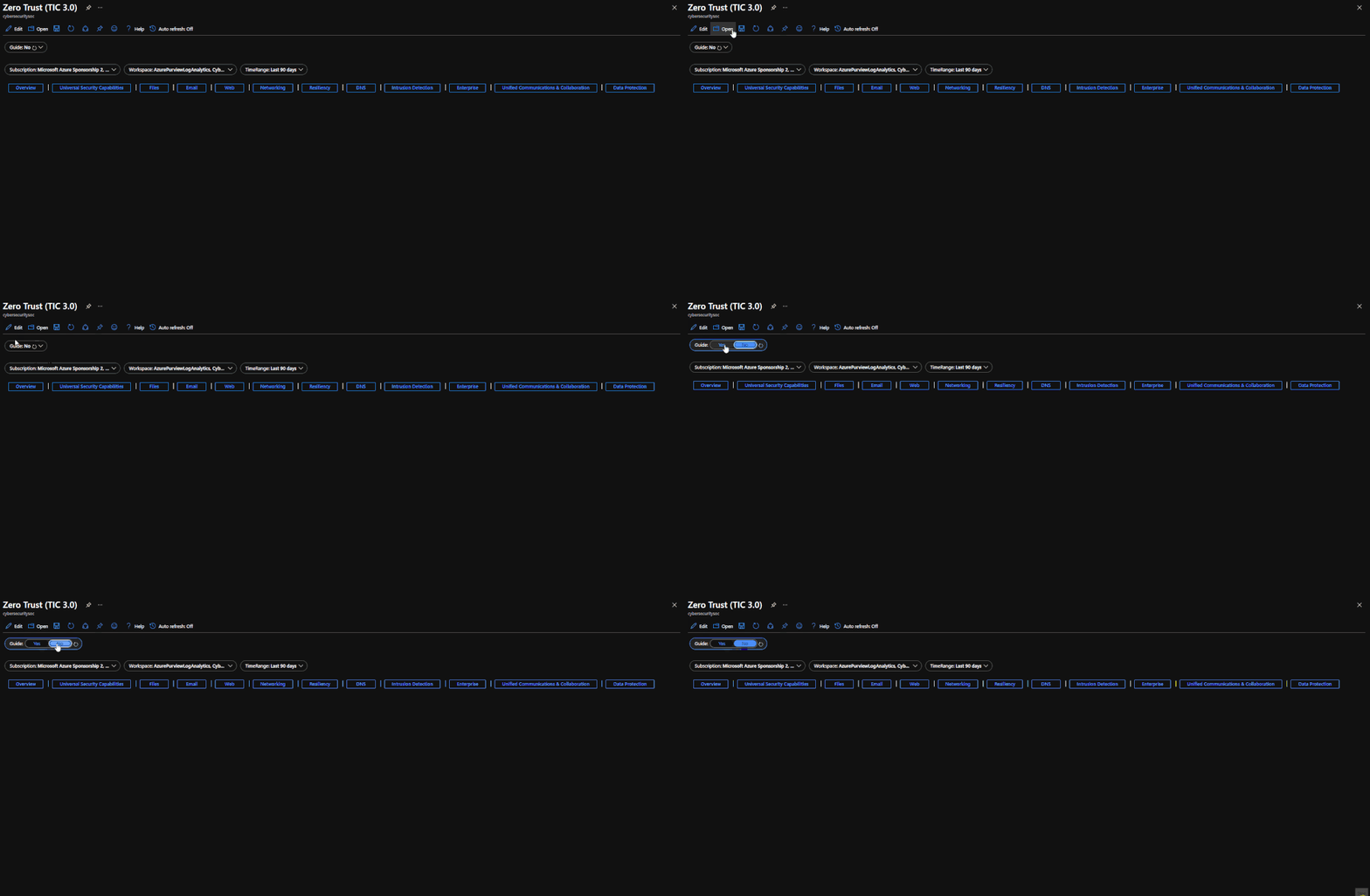 Guide Toggle
The Resource Parameter Options provide configuration options to sort control cards by Subscription, Workspace, and Time Range. The Parameter Options are beneficial for Managed Security Service Providers (MSSP) or large enterprises that leverage Azure Lighthouse for visibility into multiple workspaces. It facilitates assessment from both the aggregate and individual workspace perspectives. Time range selectors allow options for daily, monthly, quarterly, and even custom time range visibility.
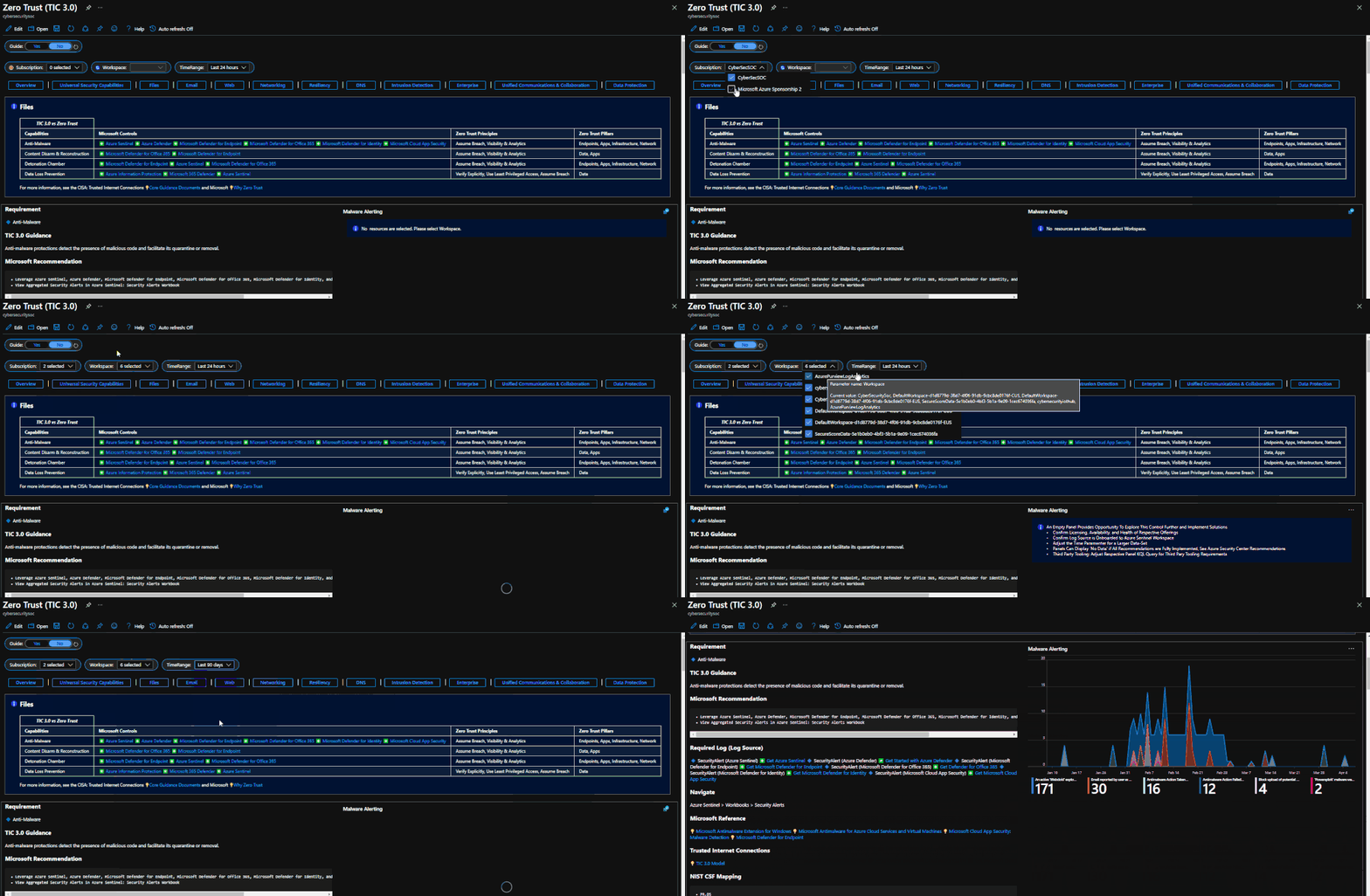 Resource Parameter Options
The Azure Sentinel Zero Trust (TIC3.0) Workbook displays each control in a Capability Card. The Capability Card provides respective control details to understand requirements, view your data, adjust SIEM queries, export artifacts, onboard Microsoft controls, navigate configuration blades, access reference materials, and view correlated compliance frameworks.
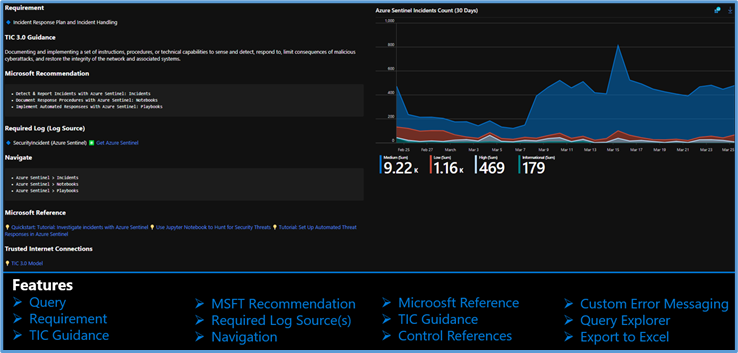 Capability Card
While using Microsoft offerings for the Zero Trust (TIC3.0) Workbook is recommended, it’s not a set requirement as customers often rely on many security providers and solutions. Below is a use-case example for adjusting a Control Card to include third-party tooling. The default KQL query provides a framework for target data, and it is readily adjusted with the desired customer controls/solutions.
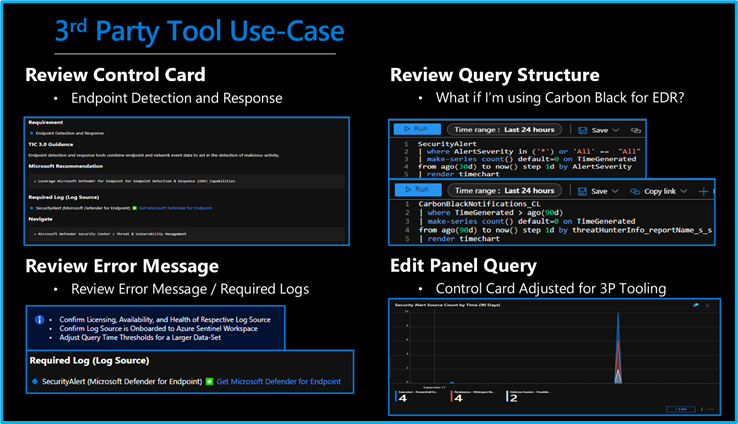 3rd Party Tool Use Case
Get Started with Azure Sentinel and Learn More About Zero Trust with Microsoft
Below are additional resources for learning more about Zero Trust (TIC3.0) with Microsoft. Bookmark the Security blog to keep up with our expert coverage on security matters and follow us at @MSFTSecurity or visit our website for the latest news and cybersecurity updates.
Disclaimer
The Azure Sentinel Zero Trust (TIC 3.0) Workbook demonstrates best practice guidance, but Microsoft does not guarantee nor imply compliance. All TIC requirements, validations, and controls are governed by the Cybersecurity & Infrastructure Security Agency. This workbook provides visibility and situational awareness for control requirements delivered with Microsoft technologies in predominantly cloud-based environments. Customer experience will vary by user, and some panels may require additional configurations and query modification for operation. Recommendations do not imply coverage of respective controls as they are often one of several courses of action for approaching requirements which is unique to each customer. Recommendations should be considered a starting point for planning full or partial coverage of respective control requirements.
by Contributed | May 5, 2021 | Technology
This article is contributed. See the original author and article here.
This blog post is the third in a series of three examining the results of a recent IDC study, Leveraging Microsoft Learning Partners for Innovation and Impact.*
Upskilling is a key requirement in today’s IT centers, and Microsoft Learning Partners can help your organization get the greatest impact from your learning initiatives, development programs, and digital transformation efforts. Given the importance of staying ahead of quickly evolving technology, we asked IDC researchers to find out what makes a Learning Partner valuable to an organization.
Our first post in the series, New study shows the value of Microsoft Learning Partners, took a high-level look at the benefits of using a Learning Partner to meet your technical skilling needs. Among the findings: the right partner, along with high-quality content, improves outcomes. The second post, Get results from end-to-end training solutions offered by Microsoft Learning Partners, highlighted the tremendous value Learning Partners bring to organizations through their capacity to provide an end-to-end solution and to deliver value-added services to support a learner’s ability to gain and retain needed skills.
This final post explores the additional benefits. Working with a Learning Partner provides:
- Scale, flexibility, and speed. Learning Partners have the scale to support global organizations, the flexibility to tailor programs to client needs, and the speed to stand up complex programs quickly.
- Quality content and delivery. They also deliver the latest in accurate, relevant content using Microsoft Official Courseware (MOC) delivered by Microsoft Certified Trainers (MCTs).
Programs with scale, flexibility, and speed meet learning goals
Learning Partners have the scale, flexibility, and speed to set up your IT skills initiatives quickly, provide all the necessary resources, and make sure programs stay on track. As learning experts, they know how to adapt to changing circumstances and schedules and to help ensure that learning initiatives succeed.
The IDC study emphasized three areas where Learning Partners make a difference to organizations:
- The scale to work locally and globally. Whether your IT group is big or small, a Learning Partner works with you to scope and adapt their programs to your organization’s needs, such as rolling out learning across time zones.
- The flexibility to adapt to change. Learning Partners have the flexibility to adapt their deliverables to your changing requirements and business constraints.
- The speed to stay ahead of the tech. Learning Partners not only keep up with the technology but also anticipate changing requirements and help you prepare for the road ahead.
Quality always makes a difference
Quality in learning programs helps accelerate your organization’s business goals, including digital transformation. Tom O’Reilly, Head of Group Strategy at QA, talks about quality as meeting the unique needs of learners and circumstances. “You cannot execute a transformation program without offering a breadth of learning modalities and a high-quality offering in each of them,” he points out.
The IDC study emphasized that high-quality training comes from using official courseware and current content, delivered by certified instructors. Quality extends to the way that Learning Partners address every aspect of the learner experience—beginning with an assessment of your training needs and, for some, ending in certification exam preparation.
Some organizations view certifications as a natural outcome of a quality learning experience. Certified IT pros perform their role better,** and certifications can lead to improved IT performance. Learning Partners can help your workforce prepare for the industry’s most trusted certification.
Next step: Ask an expert about their services
To move forward with your skilling needs, consider working with a Microsoft Learning Partner with the scale, flexibility, and speed to deliver the resources that work best for your workforce—along with the quality content and instructors that can help everyone succeed.
Share your thoughts by posting your comment.
Download the IDC study white paper, Leveraging Microsoft Learning Partners for Innovation and Impact
Download the IDC study datasheet, Top reasons to get IT training from a Microsoft Learning Partner
Find a Microsoft Learning Partner

Related posts
Sharpen your technical skills with instructor-led training
Leading Learning Partners Association—a unique organization for delivering Microsoft training
Technical certifications could help drive business optimization
* IDC white paper, sponsored by Microsoft, Leveraging Microsoft Learning Partners for Innovation and Impact, #US47225021, January 2021.
** Global Knowledge, 2019 IT Skills and Salary Report, as quoted in Ten reasons to earn a Microsoft Certification.
by Contributed | May 5, 2021 | Technology
This article is contributed. See the original author and article here.
This blog dives into how to setup 1:1 call recording, end user experience and best practices for enabling this feature for users.
What is 1:1 call recording ?
This feature gives user the ability to record Microsoft® Teams call made to another user who is using Teams. Note that, this feature does not give you the ability to record 1:1 call with PSTN user.
How to enable call recording settings:
This is enabled using PowerShell. You need to modify the “Teams Calling Policy” using PowerShell. This setting is disabled by default – it must be enabled. You can either enable it for your global policy or you can create a custom policy, which has this feature enabled, and apply that policy to users who require this feature.
Set-CsTeamsCallingPolicy -Identity Global -AllowCloudRecordingForCalls $True
Note that, prior to April 12, 2021, this setting was controlled by the “Teams meeting policy”. If you allowed recording for teams meeting by setting “AllowCloudRecording” to true. After May 31, 2021, this particular setting in “Meeting Policy” only works for recording a meeting, it does not work for call recording.
End user experience:
After enabling this feature the user will have the option to ‘record a call’ in teams.
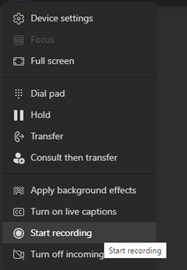
After a call is connected, users will have to click on the “more actions” icon (…) and it will give the option to start recording. In this example, John called Jane, and John started the recording.
When the recording starts the user on the other end (Jane) will get a notification that recording has started. In addition, a recording icon (red button) appears right next to the timer, even if the notification is dismissed the recording icon will stay active as long as recording is going on, so that the user is aware that the call is being recorded.
The notification still says “this meeting is being recording…” even though it is a 1:1 call, you can ignore this typo.

Where is the recording stored
The recording will be stored either in Stream or OneDrive for the user who initiated the recording. The “other” user – in this example, “Jane” will have read-only access to the recording.
Both users will be notified when the recording is ready. It will show up in the chat window for the call – in this example, John called “Jane Doe” and Jane recorded the call. The link to recording appears on both their chat window and it can be played back right on the Teams client.
In this case both John and Jane are in the same organization within the same Microsoft 365 tenant.

If the user who did not initiate the recording is an external user, then, this “recorded” user will not have access to the recording. The user who initiated the recording will have to share the recording with the user on the other organization.
After July 7, 2021, all recordings will be stored in OneDrive by default, unless your organization decides to opt-out. Following article goes into details about recording and storage for both 1:1 calls and meeting recordings.
Use OneDrive for Business and SharePoint for meeting recordings – Microsoft Teams | Microsoft Docs
This feature is for end user and does not replace or complement compliance recording. The user who initiates the recording has access to the recorded file, which in certain situation can violate compliance. For example, in certain scenarios, just the notification that the user is being recorded may not meet compliance requirement, additional disclaimers might be necessary. Another possible scenario – certain users are not allowed to keep recordings of calls in their storage. In these cases, admins need to get formal approval from the compliance team before proceeding with this setting.
Recommendation:
- Consider compliance requirement prior to enabling 1:1 recording feature.
- Start with a custom policy where this feature is enabled and add select group users to the policy. If a decision is made to enable the feature for all users, then the feature can be enabled globally.
- Both 1:1 call recording and meeting recording experience should be similar for specific users – otherwise, it can create confusion for the end-user.
- Share helpful tips with the user about where the recordings are stored.
- Consider retention policy to get remove old recordings from user’s One Drive.
Seema Rahman is the Principal Architect of Zodela Technologies. Her primary focus area is Microsoft Teams – over last 3 years, she has helped multiple mid to large size customers adopt teams as their main collaboration platform.
To write your own blog on a topic of interest as a guest blogger in the Microsoft Teams Community, please submit your idea here: https://aka.ms/TeamsCommunityBlogger

by Contributed | May 5, 2021 | Technology
This article is contributed. See the original author and article here.
This series highlights Microsoft Learn Student Ambassadors who achieved the Gold milestone and have recently graduated from university. Each blog features a different student and highlights their accomplishments, their experience with the Student Ambassadors community, and what they’re up to now.
Today we’d like to introduce Sukhman Preet Singh Jawa who is from India and graduated this past winter from JECRC University in Jaipur, India.
Responses have been edited for clarity and length.
When you became a Student Ambassador in 2018, did you have specific goals you wanted to reach, and did you achieve them?
What I really wanted to do when I joined was to learn new things that are happening in technology. I was not connected to a community of people that would be actively participating in not just the development of the tech, but in adoption as well. This program gave me that platform and enabled me to connect with people around the world and discover technologies, like cloud, that back then were more like something that you would just read on a blog, and you would be like “Oh my God. What is that?”. These kinds of innovations were primarily my goal, and then after a year I was getting into it, then Microsoft Learn came and…whoa… I was just blown away. The amount of content, the amount of learning resources that were there, they were the best thing that I could hope for.
What was the one accomplishment that you’re the proudest of and why?
I wanted to build a community on my campus. I wanted people to build projects with me and participate in hackathons, so I launched a community called Microsoft Tribe. We initially invited students from our university, but the response was so overwhelming that opened it for the entire city. Last year we crossed 500 people–students and developers who are working on Microsoft technologies and trying to build the next generation of products. They are actively collaborating, teaching each other about the technologies that they know. It’s more like mutual learning, and even sharing opportunities for jobs to increase participation.
How has being a part of this community impacted you and helped to prepare you for the next chapter in your life? What are you doing now, what do you have planned?
I have been able to amass so much knowledge being in this program. Proper knowledge about not just technology. Knowledge about people, knowledge about how to pitch, how to be a part of a team, how to work together. These particular skills that I’ve acquired have enabled me to–alright, I’m going to brag here–I just founded my own startup, and I’m building products for developers to boost their productivity and enable them to have more granular control over how they’re building their products. I never thought I was going to talk about this. I was saving it for some special occasion, and I guess this is it. The scale of learnings from this program is amazing.
The Student Ambassadors program really sparked a new kind of motivation for me. Seeing all those amazing people doing all that great stuff, it inspires other Student Ambassadors to achieve more, to engage more with that community, to learn more. I won the top 100 Engineering Students Award in India, and I credit being in this program for this accomplishment. If I hadn’t been part of this program, I would have never thought of engaging with such an amazing dynamic of students and developers who are at the cutting edge or part of building the new world.
If you could go back in time, is there anything you would have done differently as a Student Ambassador?
I started as a sophomore, but had I got a time machine to go back, I would start the moment I joined college.
If you were to talk to a student who’s interested in joining the Microsoft Student Ambassadors community, let’s say you were trapped in an elevator with them for 30 seconds, what would you say to convince them to join?
I would hope the elevator stops for more than 30 seconds. This program enables you to achieve things that you would normally achieve later in your life. I would give this advice to people who generally don’t show up in tech. I would love to see more women joining this program because it embodies so much more about who you are. It is about growing yourself and community around you. You need to be a part of the program. You are going to miss out a lot of things if you don’t join. If you’re into tech, if you’re into learning, if you’re into being part of student communities, just join this program. Don’t think twice.
What advice would you give to new Student Ambassadors?
I would say start using Microsoft Learn early on. If I would have started using it when I became a Student Ambassador, I would have exponentially more knowledge than I have right now. And build connections with people you know, be a part of the community, stay immersed. Never stop dreaming about what you can build with technology. You’ve got access to such amazing people who are being part of that innovation that is happening round the corner, just reach out to them. If you have questions, just ask them.
Do you have a motto, a guiding principle that you live life by?
I have a motto–“empathy is greater than technology”. There’s a saying that we stand on the shoulders of giants, and we build upon them. As technologists, as innovators, as engineers, it becomes our responsibility to build solutions that empower people who are diverse. We must innovate and build for all of them. Be inclusive and understand the problem from the point of the person who is facing it, not from what we think that problem might be. Yeah, that’s “empathy greater than technology”.
Fellow Student Ambassadors and community members, you can always reach Sukhman on Twitter @spsxj.
Good luck to you, Sukhman, in your future endeavors! And if you’re interested in making a difference in tech, apply to join the Student Ambassadors community today.

by Contributed | May 5, 2021 | Technology
This article is contributed. See the original author and article here.
Welcome back to Reconnect, the biweekly series that catches up with former MVPs and their current activities.
This week we are thrilled to be joined by none other than eight-time titleholder Tony Champion! Hailing from Texas, Tony is a software architect with over 20 years of experience developing with Microsoft technologies.
As the owner and lead software architect of Champion DS, Tony remains active in the latest trends and technologies, creating custom solutions on Microsoft platforms. His client list includes multiple industries and includes companies such as Schlumberger, Microsoft, Boeing, MLB, and Chevron/Philips.
Tony describes his passion as creating new and engaging software that can span platforms, devices, and architectures. From XAML and C# to HTML and Javascript, Tony believes in using the right tools for the job and delivering a user experience and not just a piece of software.
Tony is an active participant in the community as a Microsoft MVP, international speaker, published author and blogger.
Tony simply describes himself as someone who has been coding for a long time and experienced both the highs and lows in this industry. Moreover, he loves to teach and jumps at the opportunity to share his knowledge.
When he’s not working or coding, Tony can normally be found with a guitar in hand.
For more information on Tony, check out his blog and Twitter @tonychampion.

by Contributed | May 5, 2021 | Technology
This article is contributed. See the original author and article here.
We recently published another new class type. This class type shows how to set up lab with Adobe Creative Cloud for digital arts and media classes.
This class type includes the following information:
- Recommended VM size for the lab.
- How to set up Adobe Creative Cloud with Named User Licensing.
- External storage options.
- Example costs for the class.
Here is where you can find the new Adobe Creative Cloud class type: Set up a lab with Adobe Creative Cloud using Azure Lab Services – Azure Lab Services | Microsoft Docs
Thanks!
Azure Lab Services team
by Contributed | May 5, 2021 | Technology
This article is contributed. See the original author and article here.
Dear IT Pros,
Ransomware acts with accessing to the files, folders and encrypting them, to respond against it, we need to enable the Windows Defender feature named “Controlled Folder Access” – WDCFA and monitor the Windows Defender Guard Events in Windows Event Viewer. The best way is possibly collecting the related activities by Advanced Hunting features of Microsoft 365 Security or Defender for Endpoint.
Could we search for Event ID by running the advanced hunting query or not?
We will discuss the above topic today.
To View or change the list of protected folders
You can use the Windows Security app to view the list of folders that are protected by controlled folder access.
- On your Windows 10 device, open the Windows Security app.
- Select Virus & threat protection.
- Under Ransomware protection, select Manage ransomware protection.
- If controlled folder access is turned off, you’ll need to turn it on. Select protected folders.
- Do one of the following steps:
- To add a folder, select + Add a protected folder.
- To remove a folder, select it, and then select Remove.
Note
Windows system folders are protected by default, and you cannot remove them from the list.
Review controlled folder access events in Windows Event Viewer
The following table shows events related to controlled folder access:
Event ID
|
Description
|
5007
|
Event when settings are changed
|
1124
|
Audited controlled folder access event
|
1123
|
Blocked controlled folder access event
|
You can review the Windows event log and look for events which were created when controlled folder access of Windows Defender had blocked (or reported in audit mode) an app ‘s activity of accessing to the related folders, steps to follow:
- Download the Evaluation Package and extract the file cfa-events.xml to an easily accessible location on the device.
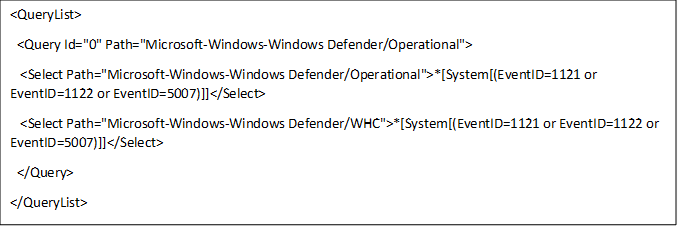
Content of cfa-events.xml is shown in the following lines:
- Type Event viewer in the Start menu to open the Windows Event Viewer.
- On the left panel, under Actions, select Import custom view….
- Navigate to where you extracted cfa-events.xml and select it. Alternatively, copy the XML directly.
- Select OK.
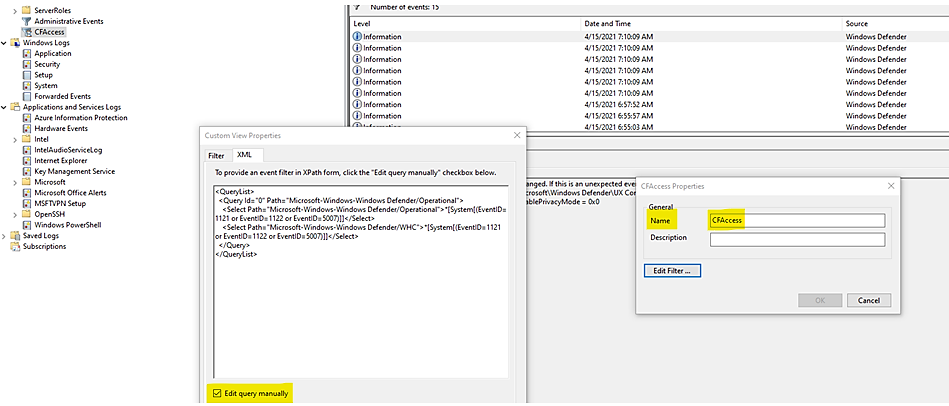
Review controlled folder access events in the Microsoft 365 Security.
M365 Security portal, advanced hunting provides detailed information of Windows Defender events as part of its alert investigation scenarios.
You can query Microsoft 365 Security data by using Advanced hunting. For Controlled Folder Access, if you are enable it audit mode, you can use advanced hunting to see how controlled folder access settings would affect your environment if they were enabled.
To query Controlled Folder Access Events by Powershell, :
DeviceEvents
| where ActionType in ('ControlledFolderAccessViolationAudited','ControlledFolderAccessViolationBlocked')
Advanced Hunting for Controlled Folder Access Events:
Query Table
WDAC- Windows Defender Application Control
|
DeviceEvents
| where Timestamp > ago(7d) and ActionType startswith “AppControl”
| summarize Machines=dcount(DeviceName) by ActionType
| order by Machines desc
|
Monthly report on Vulnerability
|
DeviceTvmSoftwareInventoryVulnerabilities
| project DeviceName, SoftwareName, CveId, SoftwareVersion, VulnerabilitySeverityLevel
| join (DeviceTvmSoftwareVulnerabilitiesKB
| project AffectedSoftware, VulnerabilityDescription , CveId , CvssScore , IsExploitAvailable
)
on CveId
| project CveId , SoftwareName , SoftwareVersion , VulnerabilityDescription , VulnerabilitySeverityLevel, IsExploitAvailable , CvssScore
| distinct SoftwareName , SoftwareVersion, CveId, VulnerabilityDescription , VulnerabilitySeverityLevel, IsExploitAvailable
| sort by SoftwareName asc , SoftwareVersion
|
WD-ASR Event
|
DeviceEvents
| where ActionType == “AsrOfficeChildProcessAudited” and Timestamp > minTime
| project BlockedProcess=FileName, ParentProcess=InitiatingProcessFileName, DeviceName, Timestamp
|
WD-CFA Controlled Folder Access Event
|
DeviceEvents
| where ActionType in (‘ControlledFolderAccessViolationAudited’,’ControlledFolderAccessViolationBlocked’)
|
|
|
- We could not query by Event ID.
Until today, the built-in Defender for Endpoint sensor does not allow raw ETW access using Advanced Hunting nor forwards them.
- In Event Viewer, using XML to filter events related to Windows 10 Defender Guard,
the Event IDs are listed in the following Event Table:
Feature
|
Provider/source
|
Event ID
|
Description
|
Exploit protection
|
Security-Mitigations (Kernel Mode/User Mode)
|
1
|
ACG audit
|
Exploit protection
|
Security-Mitigations (Kernel Mode/User Mode)
|
2
|
ACG enforce
|
Exploit protection
|
Security-Mitigations (Kernel Mode/User Mode)
|
3
|
Do not allow child processes audit
|
Exploit protection
|
Security-Mitigations (Kernel Mode/User Mode)
|
4
|
Do not allow child processes block
|
Exploit protection
|
Security-Mitigations (Kernel Mode/User Mode)
|
5
|
Block low integrity images audit
|
Exploit protection
|
Security-Mitigations (Kernel Mode/User Mode)
|
6
|
Block low integrity images block
|
Exploit protection
|
Security-Mitigations (Kernel Mode/User Mode)
|
7
|
Block remote images audit
|
Exploit protection
|
Security-Mitigations (Kernel Mode/User Mode)
|
8
|
Block remote images block
|
Exploit protection
|
Security-Mitigations (Kernel Mode/User Mode)
|
9
|
Disable win32k system calls audit
|
Exploit protection
|
Security-Mitigations (Kernel Mode/User Mode)
|
10
|
Disable win32k system calls block
|
Exploit protection
|
Security-Mitigations (Kernel Mode/User Mode)
|
11
|
Code integrity guard audit
|
Exploit protection
|
Security-Mitigations (Kernel Mode/User Mode)
|
12
|
Code integrity guard block
|
Exploit protection
|
Security-Mitigations (Kernel Mode/User Mode)
|
13
|
EAF audit
|
Exploit protection
|
Security-Mitigations (Kernel Mode/User Mode)
|
14
|
EAF enforce
|
Exploit protection
|
Security-Mitigations (Kernel Mode/User Mode)
|
15
|
EAF+ audit
|
Exploit protection
|
Security-Mitigations (Kernel Mode/User Mode)
|
16
|
EAF+ enforce
|
Exploit protection
|
Security-Mitigations (Kernel Mode/User Mode)
|
17
|
IAF audit
|
Exploit protection
|
Security-Mitigations (Kernel Mode/User Mode)
|
18
|
IAF enforce
|
Exploit protection
|
Security-Mitigations (Kernel Mode/User Mode)
|
19
|
ROP StackPivot audit
|
Exploit protection
|
Security-Mitigations (Kernel Mode/User Mode)
|
20
|
ROP StackPivot enforce
|
Exploit protection
|
Security-Mitigations (Kernel Mode/User Mode)
|
21
|
ROP CallerCheck audit
|
Exploit protection
|
Security-Mitigations (Kernel Mode/User Mode)
|
22
|
ROP CallerCheck enforce
|
Exploit protection
|
Security-Mitigations (Kernel Mode/User Mode)
|
23
|
ROP SimExec audit
|
Exploit protection
|
Security-Mitigations (Kernel Mode/User Mode)
|
24
|
ROP SimExec enforce
|
Exploit protection
|
WER-Diagnostics
|
5
|
CFG Block
|
Exploit protection
|
Win32K (Operational)
|
260
|
Untrusted Font
|
Network protection
|
Windows Defender (Operational)
|
5007
|
Event when settings are changed
|
Network protection
|
Windows Defender (Operational)
|
1125
|
Event when Network protection fires in Audit-mode
|
Network protection
|
Windows Defender (Operational)
|
1126
|
Event when Network protection fires in Block-mode
|
Attack surface reduction
|
Windows Defender (Operational)
|
5007
|
Event when settings are changed
|
Attack surface reduction
|
Windows Defender (Operational)
|
1122
|
Event when rule fires in Audit-mode
|
Attack surface reduction
|
Windows Defender (Operational)
|
1121
|
Event when rule fires in Block-mode
|
- You could run the queries by using Microsoft 365 Security or Microsoft Defender for Endpoint.
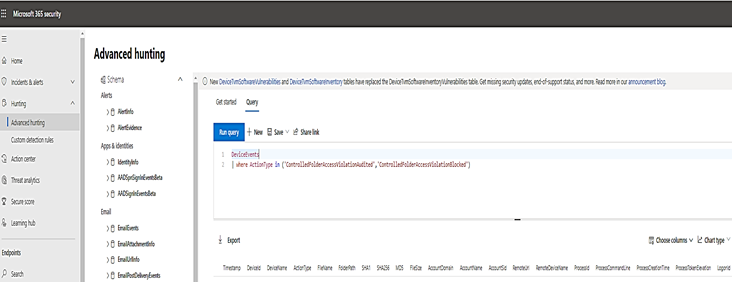
I hope the information is useful, see you next time.
Reference:
by Contributed | May 5, 2021 | Technology
This article is contributed. See the original author and article here.
Sometimes we have a business requirement to get site collections with all the sub-webs so we can achieve the solution easily using PnP Powershell.
Let’s see step-by-step implementation:
Implementation
Open Windows Powershell ISE
Create a new file and write a script
Now we will see all the steps which we required to achieve the solution:
1. We will initialize the admin site URL, username, and password in the global variables.
2. Then we will create a Login function to connect the O365 SharePoint Admin site.
3. Create a function to get all site collections and all the sub-webs
So in the end, our script will be like this,
$SiteURL = "https://domain-admin.sharepoint.com/"
$UserName = "UserName@domain.onmicrosoft.com"
$Password = "********"
$SecureStringPwd = $Password | ConvertTo-SecureString -AsPlainText -Force
$Creds = New-Object System.Management.Automation.PSCredential -ArgumentList $UserName, $SecureStringPwd

Function Login {
    [cmdletbinding()]
    param([parameter(Mandatory = $true, ValueFromPipeline = $true)] $Creds)
    Write-Host "Connecting to Tenant Admin Site '$($SiteURL)'"
    Connect-PnPOnline -Url $SiteURL -Credentials $creds
    Write-Host "Connection Successfull"
}

Function AllSiteCollAndSubWebs() {
    Login($Creds)
    $TenantSites = (Get-PnPTenantSite) | Select Title, Url

    ForEach ( $TenantSite in $TenantSites) {
        Connect-PnPOnline -Url $TenantSite.Url -Credentials $Creds
        Write-Host $TenantSite.Title $TenantSite.Url
        $subwebs = Get-PnPSubWebs -Recurse | Select Title, Url
        foreach ($subweb in $subwebs) {
            Connect-PNPonline -Url $subweb.Url -Credentials $Creds
            Write-Host $subweb.Title $subweb.Url
        }
    }
}

AllSiteCollAndSubWebs
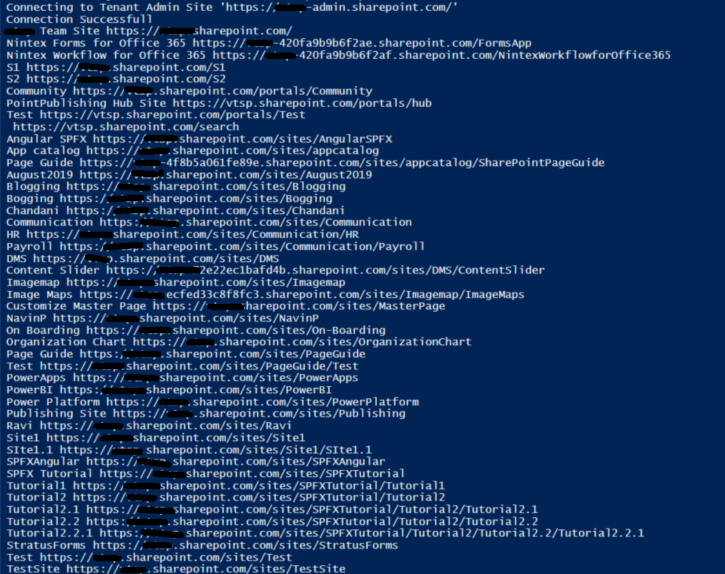
Output:
Summary:
In this article, we have seen how to get all the site collections and their subwebs using pnp Powershell.
Hope this helps! If it is helpful to you then share it with others.
Sharing is caring!


Recent Comments