
by Contributed | May 21, 2021 | Technology
This article is contributed. See the original author and article here.
Today’s technology travels at light speed; enabling faster transformation and innovation for agencies to meet mission demands. The next-era revolution features a host of cutting-edge emerging technologies that will impact and shape the future of US government on the ground and into space.
We invite you to RSVP and join the Azure Government User Community Wednesday, May 26 from 6 p.m. to 7 p.m. EST for a meetup on “What’s next? Emerging tech impacting US government” via Teams Live.
During this event, which is free and open to the public, we’ll look at several emerging technologies and what it means to government including:
- Extension of cloud capabilities and innovation to space
- Making the most of 5G networking capabilities for cloud and edge computing
- Strategies to prepare your agency for what’s next
Featured speakers:
- Jim Perkins – Senior Program Manager, Azure Edge + Platform, Microsoft
- Steve Kitay – Senior Director, Azure Space, Azure Global MisSys US, Microsoft
We hope to see you at this virtual meetup. We also invite you to join our government cloud community of 3,900 innovators by visiting https://www.meetup.com/DCAzureGov/
by Contributed | May 21, 2021 | Technology
This article is contributed. See the original author and article here.
Recently we have fixed an very interesting issue for a customer. ; sharing the details below
ISSUE:
SQL Server generates below error for every one minute.
2021-05-20 08:15:09.96 spid32s Error: 17053, Severity: 16, State: 1.
2021-05-20 08:15:09.96 spid32s UpdateUptimeRegKey: Operating system error 5(Access is denied.) encountered.
2021-05-20 08:16:10.08 spid24s Error: 17053, Severity: 16, State: 1.
2021-05-20 08:16:10.08 spid24s UpdateUptimeRegKey: Operating system error 5(Access is denied.) encountered.
Even though there is no impact these messages fill up the error log and are noisy.
Background:
Every 1 minute, SQL wakes up and updates the Process ID and the Uptime in the registry keys
Key Name: HKEY_LOCAL_MACHINESOFTWAREMicrosoftMicrosoft SQL ServerMSSQL14.MSSQLSERVERMSSQLServer
Name: uptime_pid
Type: REG_DWORD
Data: 0x1a5c
Name: uptime_time_utc
Type: REG_BINARY
Data: 00000000 98 61 19 0e 42 4e d7 01 –
Troubleshooting and solution :
- SQL Server writes the PID and Uptime of SQL process to Registry key for every one minute and this operation is failing with “Access denied” hence the error.
- We provided permission to the SQL Service Account on the required registry key (HKEY_LOCAL_MACHINESOFTWAREMicrosoftMicrosoft SQL ServerMSSQL14.MSSQLSERVERMSSQLServer) but it didn’t fix the issue.
- From the process monitor, it has been identified that Office components are interacting with SQL Server while writing the data to registry key.
- We have identified that SQL Server is using MS Office components to import and export data into Excel through BULK Insert queries. So we couldn’t uninstall Office.
- The Office has been upgraded to latest version but still the issue persists
- Upon further investigation, we have identified that Office is using Virtual registry and we need to bypass it.
- For the same we have added (Don’t overwrite it) the required SQL reg key(HKEY_LOCAL_MACHINESOFTWAREMicrosoftMicrosoft SQL ServerMSSQL14.MSSQLSERVERMSSQLServer) to the list of exceptions at HKEY_LOCAL_MACHINESOFTWAREMicrosoftOfficeClickToRunREGISTRYMACHINESoftwareMicrosoftAppVSubsystemVirtualRegistry under “passthroughPaths” and this fixed the issue.
Thanks,
Rambabu Yalla
Support Escalation Engineer
SQL Server Team

by Contributed | May 21, 2021 | Business, Microsoft 365, Technology
This article is contributed. See the original author and article here.
Today, Satya shared Microsoft’s broad approach as we transition to hybrid work, and we’ve taken that approach as we talk with our customers in the field.
The post How Microsoft approaches hybrid work: A new guide to help our customers appeared first on Microsoft 365 Blog.
Brought to you by Dr. Ware, Microsoft Office 365 Silver Partner, Charleston SC.

by Contributed | May 21, 2021 | Technology
This article is contributed. See the original author and article here.
Some time ago I wrote this post about different storage options in Azure Red Hat OpenShift. One of the options discussed was using Azure NetApp Files for persistent storage of your pods. As discussed in that post, Azure NetApp Files (ANF) has some advantages:
- ReadWriteMany support
- Does not count against the limit of Azure Disks per VM
- Different performance tiers, the most performant one being 128MiB/s per TiB of volume capacity
- The NetApp tooling ecosystem
There is one situation where Azure NetApp Files will not be a great fit: if you only need a small share, since the minimum pool size in which Azure NetApp Files can be ordered is 4 TiB. You can carve out many small volumes out of that pool with 4 TiB of capacity, but if the only thing you need is a small share, other options might be more cost effective.
The three different performance tiers of Azure NetApp Files can be very flexible, offering between 16 and 128 MiB/s per provisioned TiB. For example, at 1 TiB a Premium SSD (P30) would give you 200 MiB/s, while a an ANF volume would give you up to 128 MiB/s. Not quite the performance of a Premium SSD, but it doesn’t fall too far behind either.
But’s let’s go back to our post title: what is Trident? In a standard setup, you would have to create the ANF volume manually, and assign it to the different pods that need it. However, with the project Trident NetApp offers the possibility for the Kubernetes clusters of creating and destroying those volumes automatically, tied to the Persistent Volume Claim lifecycle. Hence, when the application is deployed to OpenShift, nobody needs to go to the Azure Portal and provision storage in advance, but the volumes are created using the Kubernetes API, through the functionality of Trident.
As the Trident documentation says, OpenShift is a supported platform. I did not find any blog about whether it would work on Azure RedHat OpenShift (why shouldn’t it?), so I decided to give it a go. I installed Trident on my ARO cluster following this great post by Sean Luce: Azure NetApp Files + Trident, and it was a breeze. You need the client tooling tridentctl, which will do some of the required operations for you (more to this further down).
I created the ANF account and pool with the Azure CLI (Sean is using the Azure Portal). Trident needs a Service Principal to interact with Azure NetApp Files. In my case I am using the cluster SP, to which I granted contributor access for the ANF account:
az netappfiles account create -g $rg -n $anf_name -l $anf_location

az netappfiles pool create -g $rg -a $anf_name -n $anf_name -l $anf_location –size 4 –service-level Standard

anf_account_id=$(az netappfiles account show -n $anf_name -g $rg –query id -o tsv)

az role assignment create –scope $anf_account_id –assignee $sp_app_id –role ‘Contributor’
Now you need to install the Trident software (unsurprisingly, Helm is your friend here), and add a “backend”, which will teach Trident how to access that Azure NetApp Files pool you created a minute ago:
# Create ANF backend

# Credits to https://github.com/seanluce/ANF_Trident_AKS

subscription_id=$(az account show –query id -o tsv)

tenant_id=$(az account show –query tenantId -o tsv)

trident_backend_file=/tmp/trident_backend.json

cat <<EOF > $trident_backend_file

{

  “version”: 1,

  “storageDriverName”: “azure-netapp-files”,

  “subscriptionID”: “$subscription_id”,

  “tenantID”: “$tenant_id”,

  “clientID”: “$sp_app_id”,

  “clientSecret”: “$sp_app_secret”,

  “location”: “$anf_location”,

  “serviceLevel”: “Standard”,

  “virtualNetwork”: “$vnet_name”,

  “subnet”: “$anf_subnet_name”,

  “nfsMountOptions”: “vers=3,proto=tcp,timeo=600”,

  “limitVolumeSize”: “500Gi”,

  “defaults”: {

    “exportRule”: “0.0.0.0/0”,

    “size”: “200Gi”

  }

}

EOF

tridentctl -n $trident_ns create backend -f $trident_backend_file
After this, we need a way for OpenShift to use this backend, through standard Kubernetes constructs as any other OpenShift storage technology: with a storage class.
# Create Storage Class

# Credits to https://github.com/seanluce/ANF_Trident_AKS

cat <<EOF | kubectl apply -f –

apiVersion: storage.k8s.io/v1

kind: StorageClass

metadata:

  name: azurenetappfiles

provisioner: netapp.io/trident

parameters:

  backendType: “azure-netapp-files”

EOF
So OpenShift now will have now 2 storage classes: the default one, which leverages managed Azure Premium disks, plus the new one that has been created to interact with ANF:
$ kubectl get sc

NAME                        PROVISIONER                RECLAIMPOLICY   VOLUMEBINDINGMODE      ALLOWVOLUMEEXPANSION

azurenetappfiles            csi.trident.netapp.io      Delete          Immediate              false

managed-premium (default)   kubernetes.io/azure-disk   Delete          WaitForFirstConsumer   true
And here the magic comes: when a Persistent Volume Claim is created and associated to that storage class, an ANF volume will be instantiated too, matching the parameters specified in the PVC. To create the PVC I will stick to Sean’s example, with a 100 GiB volume:
# Create PVC

# Credits to https://github.com/seanluce/ANF_Trident_AKS

cat <<EOF | kubectl apply -f –

kind: PersistentVolumeClaim

apiVersion: v1

metadata:

  name: azurenetappfiles

spec:

  accessModes:

    – ReadWriteMany

  resources:

    requests:

      storage: 100Gi

  storageClassName: azurenetappfiles

EOF
The PVC is now visible in OpenShift:
$ kubectl get pvc

NAME               STATUS   VOLUME                                     CAPACITY   ACCESS MODES   STORAGECLASS       AGE

azurenetappfiles   Bound    pvc-adc0348d-5752-4e44-82c2-8205f39c376d   100Gi      RWX            azurenetappfiles   8h
And sure enough, you can use the Azure Portal to browse your account, pool, and the newly created volume:
The Azure CLI will give us as well information about the created volume. The default output was a bit busy and didn’t fit in my screen width, so I created my own set of options that I was interested in:
$ az netappfiles volume list -g $rg -a $anf_name -p $anf_name -o table –query ‘[].{Name:name, ProvisioningState:provisioningState, ThroughputMibps:throughputMibps, ServiceLevel:serviceLevel, Location:location}’
Name                                                      ProvisioningState    ThroughputMibps    ServiceLevel    Location

——————————————————–  ——————-  —————–  ————–  ———–

anf5550/anf5550/pvc-adc0348d-5752-4e44-82c2-8205f39c376d  Succeeded            1.6                Standard        northeurope
Interestingly enough, I couldn’t see the volume size in the object properties, but it can be easily inferred: the volume is Standard, and from the Azure NetApp Files performance tiers we know that Standard means 16 MiB/s per provisioned TiB. Hence, 1.6 MiB/s means 100 GiBs: Maths still work!
I used my sqlapi image, which includes a rudimentary I/O performance benchmark tool based on this code by thodnev, to verify those expected 1.6 MiB/s:
# Deployment

name=api

cat <<EOF | kubectl apply -f –

apiVersion: apps/v1

kind: Deployment

metadata:

  name: $name

  labels:

    app: $name

    deploymethod: trident

spec:

  replicas: 1

  selector:

    matchLabels:

      app: $name

  template:

    metadata:

      labels:

        app: $name

        deploymethod: trident

    spec:

      containers:

      – name: $name

        image: erjosito/sqlapi:1.0

        ports:

        – containerPort: 8080

        volumeMounts:

        – name: disk01

          mountPath: /mnt/disk

      volumes:

      – name: disk01

        persistentVolumeClaim:

          claimName: azurenetappfiles

—

apiVersion: v1

kind: Service

metadata:

  labels:

    app: $name

  name: $name

spec:

  ports:

  – port: 8080

    protocol: TCP

    targetPort: 8080

  selector:

    app: $name

  type: LoadBalancer

EOF
And here the results of the I/O benchmark (not sure about why the read bandwidth is 10x, I might have a bug in the I/O benchmarking code or there is some caching involved somewhere, I will update this post when I find out more):
❯ curl ‘http://40.127.231.103:8080/api/ioperf?size=512&file=%2Fmnt%2Fdisk%2Fiotest’
{
  “Filepath”: “/mnt/disk/iotest”,
  “Read IOPS”: 201567.0,
  “Read bandwidth in MB/s”: 1574.75,
  “Read block size (KB)”: 8,
  “Read blocks”: 65536,
  “Read time (sec)”: 0.33,
  “Write IOPS”: 13.0,
  “Write bandwidth in MB/s”: 1.62,
  “Write block size (KB)”: 128,
  “Write time (sec)”: 315.51,
  “Written MB”: 512,
  “Written blocks”: 4096
}
When you delete the application from OpenShift, including the PVC, the Azure NetApp Files will disappear as well, without anybody having to log to Azure to do anything.
So that concludes this post, with a boring “it works as expected”. Thanks for reading!
by Contributed | May 21, 2021 | Technology
This article is contributed. See the original author and article here.
It’s the week before Microsoft Build and there is a lot of news to share. Items covered this week includes VNet Peering and Azure Bastion now generally available, Windows Admin Center version 2103.2 preview is now available, Internet Explorer 11 retirement announcement, IT tools update to support Windows 10 version 21H1 and a hybrid focused Microsoft Learn Module of the week.
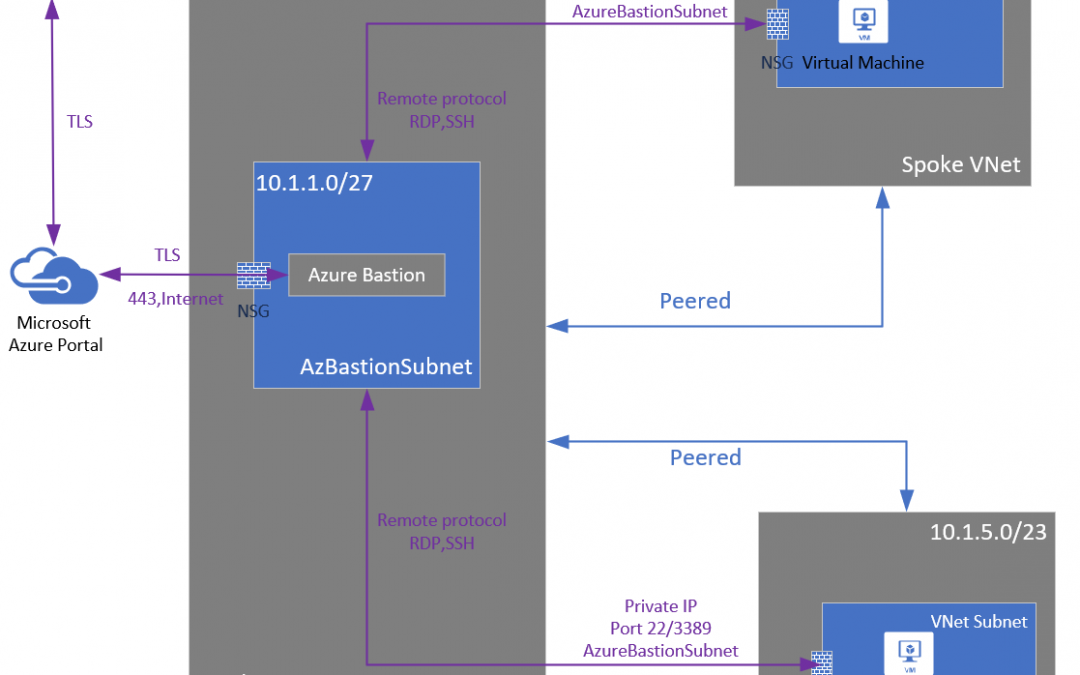
VNET peering support for Azure Bastion reaches general availability
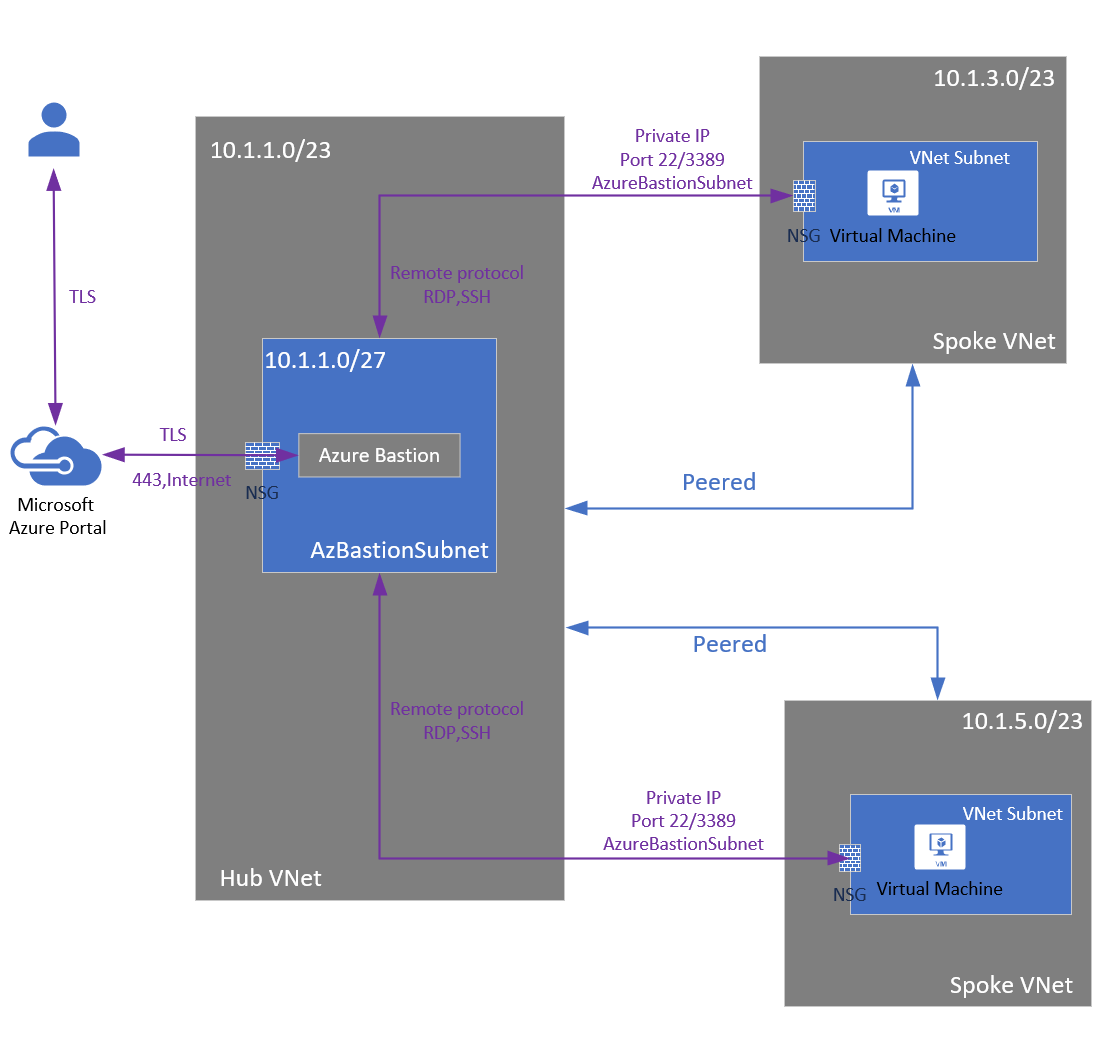
Azure Bastion and VNet peering can now officially be used together. When VNet peering is configured, organizations no longer have to deploy Azure Bastion in each peered VNet. If you have an Azure Bastion host configured in one virtual network (VNet), it can be used to connect to VMs deployed in a peered VNet without deploying an additional Bastion host.
Learn more here: VNet peering and Azure Bastion
Windows Admin Center version 2103.2 is now available in preview
This version of Windows Admin Center includes key bug fixes and feature updates to the Azure sign in process, support for Azure China, as well as additional updates to the Events and Remote Desktop tool experience. Windows Admin Center also continues to value the collaboration efforts Microsoft has with thier partners. Since the 2103 release in March, five of Microsoft’s partners have released new or updated versions of their extensions.
Be sure to also provide your feedback reguarding this latest update of Windows Admin Center. Learn more and download today
Internet Explorer 11 desktop app retirement
Microsoft Edge with IE mode is officially replacing the Internet Explorer 11 desktop application on Windows 10. As a result, the Internet Explorer 11 desktop application will go out of support and be retired on June 15, 2022 for certain versions of Windows 10. This will also include Internet Explorer 11 found on Windows Virtual Desktop being replaced by Microsoft Edge. Here is a quick video on the announcement:
In-market Windows 10 LTSC and Windows Server are out of scope (unaffected) for this change.
Microsoft has also created an FAQ to address any questions you may have which can be found here: Internet Explorer 11 desktop app retirement FAQ
Windows 10, version 21H1 IT tools update
Windows 10, version 21H1 offers a scoped set of improvements in the areas of security, remote access, and quality. Windows 10 version 21H1 will be delivered via an enablement package to devices running version 2004 or version 20H2. Those updating to Windows 10, version 21H1 from Windows 10, version 1909 and earlier, will experiance a similar process to previous updates. Updates to security baseline and admin templates are also now available.
Full details surrounding all IT tool updates can be found here: IT tools to support Windows 10, version 21H1
Community Events
- Microsoft Build – Explore what’s next in tech and the future of hybrid work. Join us May 25-27, 2021 at Microsoft Build.
- Testing in Production – Producer Pierre and Sound Guy Steve are back to share thier livestream learnings
- Hello World – Special guests, content challenges, upcoming events, and daily update
MS Learn Module of the Week

Introduction to Azure hybrid cloud services
This module provides an introductory overview of hybrid cloud technologies and how you can connect an on-premises environment to Azure in a way that works best for your organization.

Modules include:
- Describe the elements of an Azure hybrid cloud deployment.
- Explain methods of connecting on-premises networks to workloads in Azure.
- Understand how to use the same set of identities in hybrid environments.
- List the types of compute workloads for hybrid clouds.
- Explain the application infrastructure of hybrid clouds.
- Describe the services that support files and data in hybrid clouds.
- Explain technologies that support the security of hybrid clouds.
Learn more here: Introduction to Azure hybrid cloud services

Let us know in the comments below if there are any news items you would like to see covered in the next show. Be sure to catch the next AzUpdate episode and join us in the live chat.
by Contributed | May 21, 2021 | Technology
This article is contributed. See the original author and article here.
It’s the week before Microsoft Build and there is a lot of news to share. Items covered this week includes VNet Peering and Azure Bastion now generally available, Windows Admin Center version 2103.2 preview is now available, Internet Explorer 11 retirement announcement, IT tools update to support Windows 10 version 21H1 and a hybrid focused Microsoft Learn Module of the week.
VNET peering support for Azure Bastion reaches general availability
Azure Bastion and VNet peering can no officially be used together. When VNet peering is configured, organizations no longer have to deploy Azure Bastion in each peered VNet. If you have an Azure Bastion host configured in one virtual network (VNet), it can be used to connect to VMs deployed in a peered VNet without deploying an additional Bastion host.
Learn more here: VNet peering and Azure Bastion
Windows Admin Center version 2103.2 is now available in preview
This version of Windows Admin Center includes key bug fixes and feature updates to the Azure sign in process, support for Azure China, as well as additional updates to the Events and Remote Desktop tool experience. Windows Admin Center also continues to value the collaboration efforts Microsoft has with thier partners. Since the 2103 release in March, five of Microsoft’s partners have released new or updated versions of their extensions.
Be sure to also provide your feedback reguarding this latest update of Windows Admin Center. Learn more and download today
Internet Explorer 11 desktop app retirement
Microsoft Edge with IE mode is officially replacing the Internet Explorer 11 desktop application on Windows 10. As a result, the Internet Explorer 11 desktop application will go out of support and be retired on June 15, 2022 for certain versions of Windows 10. This will also include Internet Explorer 11 found on Windows Virtual Desktop being replaced by Microsoft Edge. Here is a quick video on the announcement:
In-market Windows 10 LTSC and Windows Server are out of scope (unaffected) for this change.
Microsoft has also created an FAQ to address any questions you may have which can be found here: Internet Explorer 11 desktop app retirement FAQ
Windows 10, version 21H1 IT tools update
Windows 10, version 21H1 offers a scoped set of improvements in the areas of security, remote access, and quality. Windows 10 version 21H1 will be delivered via an enablement package to devices running version 2004 or version 20H2. Those updating to Windows 10, version 21H1 from Windows 10, version 1909 and earlier, will experiance a similar process to previous updates. Updates to security baseline and admin templates are also now available.
Full details surrounding all IT tool updates can be found here: IT tools to support Windows 10, version 21H1
Community Events
- Microsoft Build – Explore what’s next in tech and the future of hybrid work. Join us May 25-27, 2021 at Microsoft Build.
- Testing in Production – Producer Pierre and Sound Guy Steve are back to share thier livestream learnings
- Hello World – Special guests, content challenges, upcoming events, and daily update
MS Learn Module of the Week
Introduction to Azure hybrid cloud services
This module provides an introductory overview of hybrid cloud technologies and how you can connect an on-premises environment to Azure in a way that works best for your organization.
Modules include:
- Describe the elements of an Azure hybrid cloud deployment.
- Explain methods of connecting on-premises networks to workloads in Azure.
- Understand how to use the same set of identities in hybrid environments.
- List the types of compute workloads for hybrid clouds.
- Explain the application infrastructure of hybrid clouds.
- Describe the services that support files and data in hybrid clouds.
- Explain technologies that support the security of hybrid clouds.
Learn more here: Introduction to Azure hybrid cloud services
Let us know in the comments below if there are any news items you would like to see covered in the next show. Be sure to catch the next AzUpdate episode and join us in the live chat.
by Contributed | May 21, 2021 | Technology
This article is contributed. See the original author and article here.
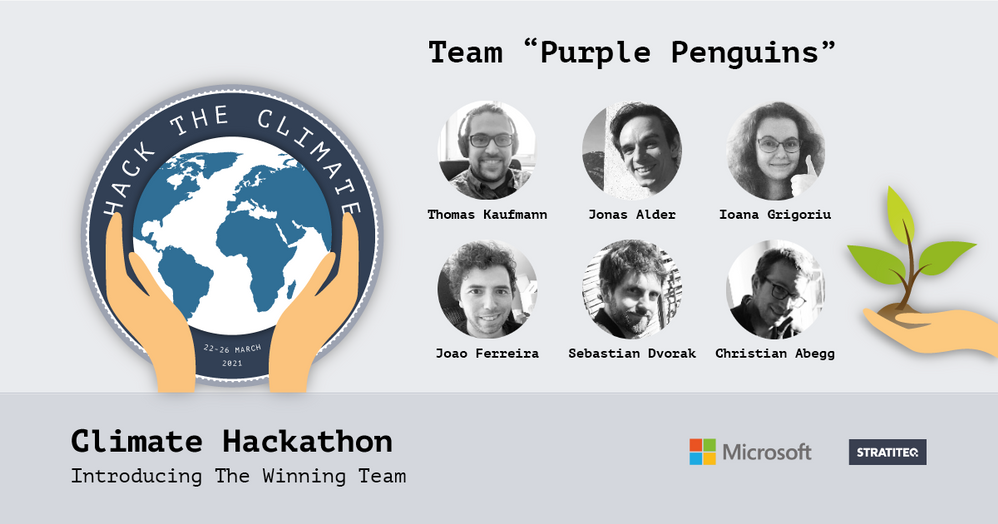
Team Purple Penguins
Climate Hackathon took place online 22-26 March 2021. The goal was to raise awareness about the Climate issues and at the same time create a platform for our developer audience to create innovative solutions with our Azure Services.
What made this Hackathon unique, was the collaboration with non-profit and non-governmental organizations that have a key role in solving some of the climate challenges but might not have the resources or technical competencies to do so on their own. These organizations provided real life challenges for the Hackathon participants to solve. The challenges were categorized into four tracks: carbon, ecosystem, waste, and water.
The outcome of the hackathon was 14 quality solutions and 3 winners:
We interviewed the team behind the winner of the Ecosystem track, Purple Penguins to get to know them, their motives to join the hackathon, as well as their learnings during the hackathon and how they want to apply these learnings in their upcoming projects.
This team worked on challenges provided by Climate Policy Radar and consisted of the following individuals:
What compelled you to take part in Climate Hackathon? What did you hope to achieve by participating?
- Joao (Jo) Ferreira: I felt the Climate Hackathon was a great way of contributing to the massive challenge of climate change. Going into it I was hoping to have fun, contribute to an amazing solution, and learn something new.
- Ioana Grigoriu: Decarbonization is a global corporate focus topic for Zühlke – and one of the reasons why I decided to work for this company. Protecting the environment and tackling issues around this topic is something I feel very passionate about. I wanted to join the hackathon as soon as I saw the message on the internal channel. My main hopes were to be able to contribute to a solution that would help to fix a real problem, as well as to learn more about new technologies.
- Jonas Alder: Solving climate change is the biggest challenge humanity has ever faced. While this sounds daunting, doing nothing is not going to get us any closer to working solutions. This seemed like a good opportunity to support some organizations that are taking up this challenge with my know-how. Hackathons are also fun and provide lots of learning opportunities.
- Sebastian Dvorak-Novak: I’m involved in decarbonization projects with clients, so participating in this hackathon aligned well with my interests.
- Christian Abegg: What I hoped to achieve were new learnings about AI services, to raise awareness for the topic of climate change, and also to get to know new people from within Zühlke who are as passionate as I am about solving the climate crisis.
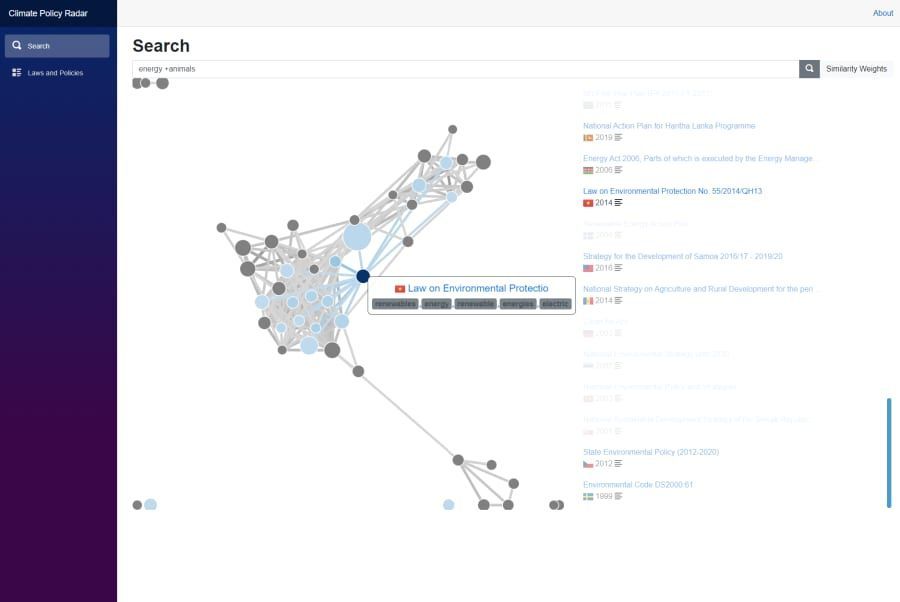 The graph view of search result highlighting similar laws and policies
How did this hackathon support your work to address climate change?
- Ioana Grigoriu: It’s been very interesting to learn about the problems that NGOs are facing and to think about solutions that could address these. It definitely made me want to take part in similar events, that grow my own skills at supporting my team in a challenge like this and to learn more about different factors contributing to climate change and how these can be tackled individually.
- Jonas Alder: I learned a lot about what different organizations are doing to fight climate change, which was very informative and inspiring. This boosted my thinking about how I can improve my personal as well as my professional impact on the topic.
- Sebastian Dvorak-Novak: The participation in the Climate Hackathon brought in new perspectives and insights I can incorporate into my work.
- Christian Abegg: Our participation definitely brought new ‘trains of thought’ for our internal discussions on the topic of sustainability.
What new learnings and partnerships arose from your participation in this Hackathon?
- Joao (Jo) Ferreira: In addition to what I’ve learned on fighting climate change, the hackathon was a great opportunity to learn more about the Azure AI and ML capabilities. On top of that, it was a great way to get to know colleagues from the other Zühlke sites around the globe.
- Ioana Grigoriu: I learned more about the capabilities available in Azure and got to experience the creation of razor pages (which was new to me). It has also given me the opportunity to work with and learn from colleagues from other countries that I would probably not have had the chance to meet otherwise.
- Sebastian Dvorak-Novak: Policies matter and thinking about smart ways to parse them and infer their impact was very insightful.
- Christian Abegg: It was great to learn about all the data-driven NGOs tackling the climate crisis using technology. Also, it was great to see that a big tech company like Microsoft is so engaged in fighting the climate crisis. This really shows that they are a good match for Zühlke.
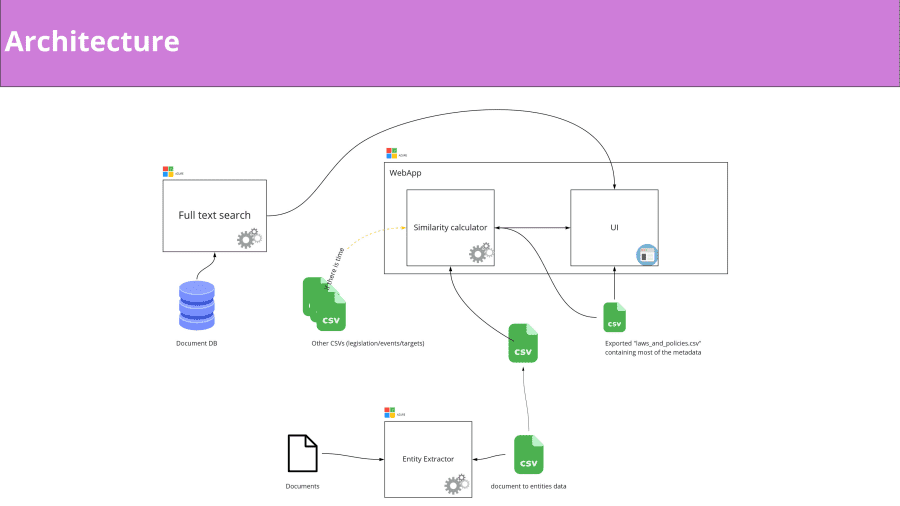 The project architecture
How will you continue to use the learnings from the Climate Hackathon to further your organization’s important work?
- Joao (Jo) Ferreira: At Zühlke, we believe that technology is key to make the world a better place. As engineers we care about how to solve climate change – we have the brainpower and the willingness to solve this issue. In the Climate Hackathon, I learned a lot about creative ways to fight climate change. This gives us a lot of ideas on how we can support our customers in tackling the climate crisis.
- Ioana Grigoriu: I think using data and being able to process it in order to obtain meaningful information is vital for supporting good decision-making, especially when it comes to very serious topics such as the climate. I hope that this experience will be an important building block for me to continue learning and to contribute to other projects that are relevant to helping the environment and improving things in general.
- Sebastian Dvorak-Novak: I can use a lot of the things I learned at the Hackathon for our internal sustainability projects but also for projects that we are doing with clients. Zühlke is encouraging its employees to participate in events like the Climate Hackathon and I’m happy to provide my learnings to our internal community.
- Christian Abegg: Events like the Climate Hackathon are very important to tackle the climate crisis. I’m looking forward to the next event like this – and I’m sure, other colleagues of mine are very interested, too.
Is there anything else you would like to highlight?
- Joao (Jo) Ferreira: The first time we ever spoke to each other was on the Friday before the Hackathon. Although all of us had not met before, we had such a great team attitude, and we are still in contact. I was impressed by the grade of agility, in which we delivered our contribution to the Hackathon – including a pivot from the initial solution after some validating assumptions about the brief.
- Ioana Grigoriu: I particularly liked the constructive discussions about the pros and cons of the challenge that we should select. Another highlight was to work with Azure cognitive services and to see how impressively fast it delivers results.
- Jonas Alder: I liked the collaboration with our international Zühlke team. A team highlight was to experience how fast we developed our solution once our goal was clear. Coding with C# / Razor was a personal highlight for me.
- Sebastian Dvorak-Novak: The best moment for me was when I returned after a breakout on day 3 and I saw working software – that was just impressive. And the happiest moment for me was when we got to know that our solution will most likely be applied.
- Christian Abegg: I found it refreshing that – like usually at Hackathons – we focused on fast and useable results. Sometimes, it’s fun to create something “quick and dirty”.
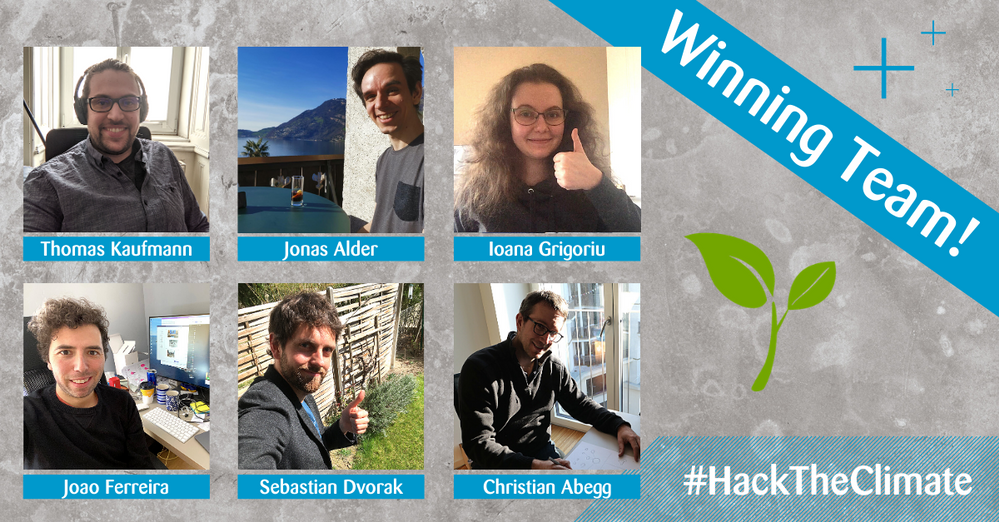
Team’s Bio:
- Joao (Jo) Ferreira: Joao Ferreira is a Lead Business Analyst that started with Zühlke in August 2020. He has more than 10 years of experience in IT and is a certified BA and Product Owner. He has worked in multiple industries (Automotive, Manufacturing, Commodities, Risk management, education, etc.), wearing many different hats. His main focus is Product Management, Agile Practices, and Delivery Management. Joao started his career as a developer and also worked several years as a business consultant in pre-sales which gives him a great perspective on how to manage stakeholders and approach projects.
- Ioana Grigoriu: Ioana Grigoriu is a senior software engineer that started with Zühlke in January 2020. She has worked on a few different projects across different industries over the past 8 years and has chameleon-ed her way through different role responsibilities at different times. In more recent years she’s been itching to focus on the importance of sustainability and wishes strongly to leave the world a better place than she found it. So she hopes to be able to make a difference by contributing to changes that fix current problems and prevent future ones.
- Jonas Alder: Jonas Alder joined Zühlke in June 2017 and has almost 15 years of IT experience. Thanks to his basic training as a systems engineer and his work in various IT roles, he has a very broad range of expertise from application development to databases and systems engineering. His current focus is on DevOps, cloud, automation, and code quality. When not hacking for good, Jonas is an avid skier and a geek of all things space. His favorite place on earth (other than his home country Switzerland) is Japan.
- Thomas Kaufmann: Thomas Kaufmann is a software engineer and with Zühlke since 2018. He holds an MSc in Computer Science from Vienna University of Technology with an emphasis on algorithms, optimization, and machine learning. At Zühlke, he started as a developer in the .NET ecosystem but gained experience in various fields and technologies throughout the years. More specifically, his focus is on the design and development of data-driven distributed systems in enterprise cloud environments as well as IoT applications.
- Sebastian Dvorak-Novak: Sebastian Dvorak-Novak joined Zühlke in March 2021. After earning his degree in theoretical evolutionary biology, he gained experience as a business consultant and agile project manager in the automotive industry and in the area of urban, multimodal transportation. As a business analyst, he enjoys working closely with clients/users to understand their needs and to design products with genuine added value.
- Christian Abegg: Christian is a software architect and has been working at Zühlke since 2007. In his project work, his passion goes into continuously improving quality, providing a rock-solid architecture, writing the right tests, and setting up reliable build pipelines. He never ceases to be amazed by what people can achieve together when they collaborate and work to each other’s strengths.

by Contributed | May 21, 2021 | Technology
This article is contributed. See the original author and article here.
SharePoint Framework Special Interest Group (SIG) bi-weekly community call recording from May 20th is now available from the Microsoft 365 Community YouTube channel at http://aka.ms/m365pnp-videos. You can use SharePoint Framework for building solutions for Microsoft Teams and for SharePoint Online.
Call summary:
Preview the new Microsoft 365 Extensibility look book gallery co-developed by Microsoft Teams and Sharepoint engineering. Register now for May/June trainings on Sharing-is-caring. View the Microsoft Build sessions guide (Modern Work Digital Brochure) – Keynotes, breakouts, on-demand, roundtables and 1:1 consultations. PnPjs Client-Side Libraries v2.5.0 GA and CLI for Microsoft 365 v3.10.0 preview were released this month. Also latest updates on SPFx roadmap (v1.13.0 Preview in summer) and Viva Connections extensibility shared.
Four new/updated PnP SPFx web part samples delivered in last 2 weeks. Great work!
Latest project updates include: (Bold indicates update from previous report 2 weeks ago)
PnP Project |
Current version |
Release/Status |
SharePoint Framework (SPFx) |
v1.12.1 |
v1.13.0 Preview in summer |
PnPjs Client-Side Libraries |
v2.5.0 |
v3.0.0 developments underway |
CLI for Microsoft 365 |
v3.9.0 |
v3.10.0 preview released |
Reusable SPFx React Controls |
v2.7.0, v3.1.0 |
v2.7.0 (SPFx v1.11), v3.1.0 (SPFx v1.12.1) |
Reusable SPFx React Property Controls |
v2.6.0, v3.1.0 |
v2.6.0 (SPFx v1.11), v3.1.0 (SPFx v1.12.1) |
PnP SPFx Generator |
v1.16.0 |
Angular 11 support |
PnP Modern Search |
v3.19 and v4.1.0 |
April and March 20th |
The host of this call is Patrick Rodgers (Microsoft) @mediocrebowler. Q&A takes place in chat throughout the call.
Thanks everybody for being part of the Community and helping making things happen. You are absolutely awesome!
Actions:
- Register for Sharing is Caring Events:
- First Time Contributor Session – May 24th (EMEA, APAC & US friendly times available)
- Community Docs Session – May
- PnP – SPFx Developer Workstation Setup – June
- PnP SPFx Samples – Solving SPFx version differences using Node Version Manager – May 20th
- AMA (Ask Me Anything) – Microsoft Graph & MGT – June 8th
- AMA (Ask Me Anything) – Microsoft Teams Dev – June
- First Time Presenter – May 25th
- More than Code with VSCode – May 27th
- Maturity Model Practitioners – May 18th
- PnP Office Hours – 1:1 session – Register
- Download the recurrent invite for this call – https://aka.ms/spdev-spfx-call
Demos:
Using Microsoft Graph Toolkit to easily access files in Sites and in OneDrive – a.k.a. OneDrive finder – find and explore OneDrives, folders and files using Microsoft Graph Toolkit. Use Graph queries to get hostname, Sites on hostname, OneDrive item-id, and Sites Root item-id. Use 2 beta controls from MGT for search – Mgt-File-List and MGT-File. Refine search results by file extension, items on page, etc. Display style – light/dark mode. Recommendations on managing file list cache and permissions.
Building Microsoft Teams user bulk membership update tool with SPFx and Microsoft Graph – a.k.a. the Teams Membership Updater tool – a web part for Teams’ site owners that pulls member updates from a selected CSV file. Upon load, the web part calls Graph to pull the list of Teams you are a member/owner. Uses Graph batch functions to remove orphaned members and then to add new members. Uses SPFx Reusable controls and react-papaparse.
Building Microsoft Graph get client web part with latest Graph Client SDK – use Microsoft Graph Toolkit SharePoint provider to access and leverage new functionality of Graph JS SDK in SPFx. Web part sample developed using React Framework that showcases how to use the latest microsoft-graph-client in SPFx. The client enables throttling management (no 429s), Chaos management, uses latest types, getting RAW responses from API, Content-Type is already set for PUT, and a lot more!
SPFx web part samples: (https://aka.ms/spfx-webparts) 
Thank you for your great work. Samples are often showcased in Demos.
Agenda items:
Demos:
Demo: Using Microsoft Graph Toolkit to easily access files in Sites and in OneDrive – André Lage (Datalynx AG) | @aaclage – 18:27
Demo: Building Microsoft Teams user bulk membership update tool with SPFx and Microsoft Graph – Nick Brown (Cardiff University) | @techienickb – 34:06
Demo: Building Microsoft Graph get client web part with latest Graph Client SDK – Sébastien Levert (Microsoft) | @sebastienlevert – 47:30
Resources:
Additional resources around the covered topics and links from the slides.
General Resources:
Other mentioned topics:
Upcoming calls | Recurrent invites:
PnP SharePoint Framework Special Interest Group bi-weekly calls are targeted at anyone who is interested in the JavaScript-based development towards Microsoft Teams, SharePoint Online, and also on-premises. SIG calls are used for the following objectives.
- SharePoint Framework engineering update from Microsoft
- Talk about PnP JavaScript Core libraries
- Office 365 CLI Updates
- SPFx reusable controls
- PnP SPFx Yeoman generator
- Share code samples and best practices
- Possible engineering asks for the field – input, feedback, and suggestions
- Cover any open questions on the client-side development
- Demonstrate SharePoint Framework in practice in Microsoft Teams or SharePoint context
- You can download a recurrent invite from https://aka.ms/spdev-spfx-call. Welcome and join the discussion!
“Sharing is caring”
Microsoft 365 PnP team, Microsoft – 21st of May 2021
by Contributed | May 21, 2021 | Technology
This article is contributed. See the original author and article here.
This is a continuation of Troubleshooting Node down Scenarios in Azure Service Fabric here.
Scenario#6:
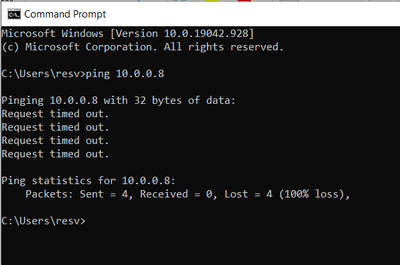
Check the Network connectivity between the nodes:
- Open a command prompt
- Ping <IP Address Of Other Node>
If request times out.
Mitigation:
Check if any NSG blocking the connectivity.
Scenario#7:
Node-to-Node communication failure due to any of the below reason could lead to Node down issue.
- If Cluster Certificate has expired.
- If SF extension on the VMSS resource is pointing to expired certificate, On VM reboot node may go down due to this expired certificate.
“extensionProfile”: {
“extensions”: [
{
“properties”: {
“autoUpgradeMinorVersion”: true,
“settings”: {
“clusterEndpoint”: “https://xxxxx.servicefabric.azure.com/runtime/clusters/xxxxxxxx-xxxx-xxxx-xxxx-xxxxxxxxxxxx“,
“nodeTypeRef”: “sys”,
“dataPath”: “D:SvcFab”,
“durabilityLevel”: “Bronze”,
“enableParallelJobs”: true,
“nicPrefixOverride”: “10.0.0.0/24”,
“certificate”: {
“thumbprint”: “XXXXXXXXXXXXXXXXXXXXXXXXXXXXX”,
“x509StoreName”: “My”
}
- Make sure certificate is ACL’d to network service.
- If Reverse Proxy certificate has expired.
- If above are taken care, Go to Scenario#8.
Scenario#8:
Node1 is not able to establish lease with a Neighboring node2 could cause node1 to do down.
From the SF traces:
For example in the logs we see a node with Node ID “e4eac25286f23859b79b5483964ab0c8” (Node1) failed to establish lease with a node with Node ID “c196867202638ea43655614031736e9” (Node2)–

Now the focus should be on the node with which the lease connectivity is failing rather than the node which is down.

From above traces, we get the Error code: c0000017
To understand what this Error code means, please download Microsoft Error Lookup Tool.
And execute the exe by passing error code as Parameter:
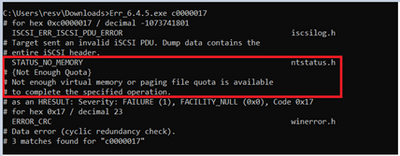
Mitigation:
Restart the node (Node2) which could free up the Virtual Memory and start establishing the lease with Node1 to bring the Node1 Up.
by Contributed | May 21, 2021 | Technology
This article is contributed. See the original author and article here.
This is a continuation of Troubleshooting Node down Scenarios in Azure Service Fabric here
Scenario#5:
Virtual Machine associated with the node is healthy, but Service Fabric Extension being unhealthy could cause node to go down in Service Fabric cluster.
Analysis:
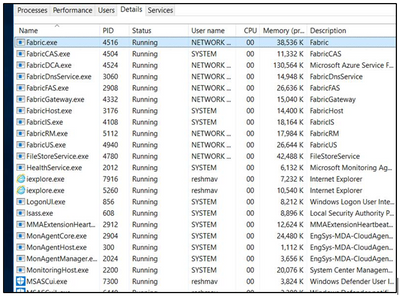
RDP into node, which is down. Open Task manager and Observe the Fabric processes.
If Fabric.exe and FabricHost.exe is crashing and Restarting often, then check Mitigation#1.
If ServiceFabricNodeBootStrapAgent.exe is crashing and Restarting often check Mitigation#2.
If FabricInstallerSvc.exe is crashing and Restarting often check Mitigation#3.
Mitigation#1:
- <path>/Cluster.current.xml
- Does it match manifest for cluster (compare with the one in SFX)
- No
- Does SFX indicate upgrades in progress?
- No upgrades in progress
- Go to <Path>
- Open Clustermanifest.current.xml
- Replace contents of Clustermanifest.current with contents of manifest in SFX.
- Save
- In task manager, select Fabric.exe if running and click on “End Task” button
- If Fabric.exe is not running, reboot VM.
- It will take a few minutes for node to become healthy.
- Node did not become healthy, start from beginning.
Path: D:SvcFab_Nodename_FabricClusterManifest.current.xml
Mitigation#2:
Check if this process listed in list of processes in Task Manager.
- If “Yes”:
- Wait a while to see if the node heals itself.
- This process tries to heal the failure at a coarse level by restarting the VM and reinstalling SF runtime.
- It waits for 15 minutes after an attempt to heal before taking the next action.
- Check ServiceFabricNodeBootstrapAgent.InstallLog – Check “From the Node” Path: C:PackagesPluginsMicrosoft.Azure.ServiceFabric.ServiceFabricNode<version>ServiceServiceFabricNodeBootstrapAgent.InstallLog
- Did not heal, go to “Event Viewer logs” for error details.
- If “No”:
- Go to Services tab in Task Manager and click on Open Services link at the bottom.
- Check the startup mode for the bootstrap service, make sure it is Automatic .
- Start service.
- If it stays running, go to “Yes” section above.
Mitigation#3:
Check if the connectivity of the Node is working.
For more details Refer to Part III – Troubleshooting Node down Scenarios.



Recent Comments