by Scott Muniz | Jul 6, 2020 | Azure, Microsoft, Technology, Uncategorized
This article is contributed. See the original author and article here.
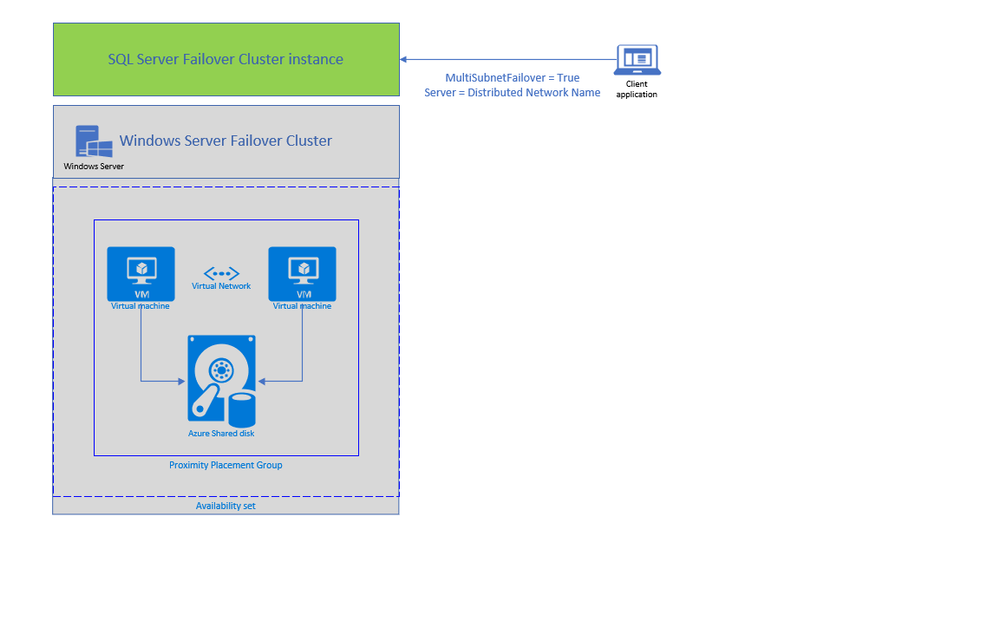
Today, we are announcing two new features enabling lift and shift of Always ON SQL server Failover Cluster instances (SQL FCI) from on-premises to Azure Virtual Machines: Distributed Network Name (DNN) for SQL FCI and Azure Shared Disks for SQL FCI.
SQL FCI has been commonly used for years to protect SQL Server instance in case of a failure (hardware failures, operating system failures, application, or service failures), or a planned upgrade. With SQL FCI, SQL instance will be moved to an available Windows Server Failover Cluster (WSFC) node if the current node fails, transparent to the client or application connecting to SQL Server. SQL FCI protects from failures at the instance level through redundancy and automatic failover and fairly simplifies configuration and management for High Availability.
Azure offers many capabilities for SQL Server to maximize performance, optimize cost, reduce maintenance with SQL VM Resource Provider and achieve world class security. On Azure VMs, you can leverage these capabilities by keeping full control on the platform hosting SQL Server; including control on the VM family and size, storage configuration, SQL Server version and edition, deployment options and HADR architecture.
Previously, rehosting SQL FCI on Azure had some differences compared to on-premises as it required an Azure Load Balancer for automated failover and there was no representative of SAN (Storage Array Network) type storage on Azure. With today’s announcement, both differences are addressed by offering an exact representation of SQL FCI architecture on Azure VMs.
DNN support for SQL FCI
DNN for SQL FCI is supported with SQL Server 2019 CU2 on Windows Server 2016 and later and it enables faster failover, simplifies provisioning and maintenance, and improves robustness by removing the need for an Azure Load Balancer.
Traditionally, SQL Clients leveraged Windows Server Failover Cluster Virtual Network Name (VNN) and Virtual IP access points for SQL FCI connectivity. VNN for SQL FCI provided a unified connection point and allows applications to connect to the VNN without the need to know the current active node. Since Virtual IP works different in Azure environment, you are required to configure an Azure Internal Load Balancer for automated failovers through VNN. Azure Load Balancer distributes inbound flows that arrive at the load balancer’s front end to backend pool instances which should be configured as the Azure Virtual Machines running SQL FCI nodes.
The DNN resource in Windows Server Failover Cluster provides an alternative way for SQL client to connect to the SQL FCI without an Azure Load Balancer. When a DNN resource is created, WSFC binds the DNN DNS name with the IP addresses of all nodes in the cluster. SQL client will try to connect each IP address in this list to find the active node. This connection process can be further accelerated by connecting all IP addresses in parallel with the SQL connection property “MultiSubnetFailover” is set to true, enabling SQL client to connect to the current running FCI instantly. DNN would be helpful in any environment including on-premises where IP Addresses are scarce, and you do not need to connect directly to the cluster group to manage the cluster.
You can configure DNN for SQL FCI connectivity basically in 5 simple steps as shown in the example below. First, create the DNN resource in WFCS for the resource group hosting SQL FCI (for default SQL instance group name is “SQL Server (MSSQLSERVER)”), then set the DNS Name of the DNN resource with “SQL FCI name”, and start the resource (verify owner node list for DNN resource only includes SQL FCI nodes ). At this point DNN resource will be ready to use, so restart SQL Server and update connection string to start using the DNN.
1. Add DNN resource
Add-ClusterResource -Name dnn-demo -ResourceType "Distributed Network Name" -Group "SQL Server (MSSQLSERVER)"
2. Set DNS name of the DNN resource
Get-ClusterResource -Name dnn-demo | Set-ClusterParameter -Name DnsName -Value sqlfciname
3. Start the DNN resource
Start-ClusterResource -Name dnn-demo
4. Restart SQL Server
5. Update Connection String for parallel querying of FCI nodes with Multi Subnet Failover property
Add “MultiSubnetFailover=True” property to SQL connection string and set the Server Name as the DNS name of DNN property.
You can keep using the same name for an existing SQL FCI, to do that simply:
With .NET framework 4.6.1, MultisubnetFailover support is turned on by default; no client-side change is needed if you are using 4.6.1 and higher and same SQL FCI name is used.
Azure Shared Disks for SQL FCI (Preview)
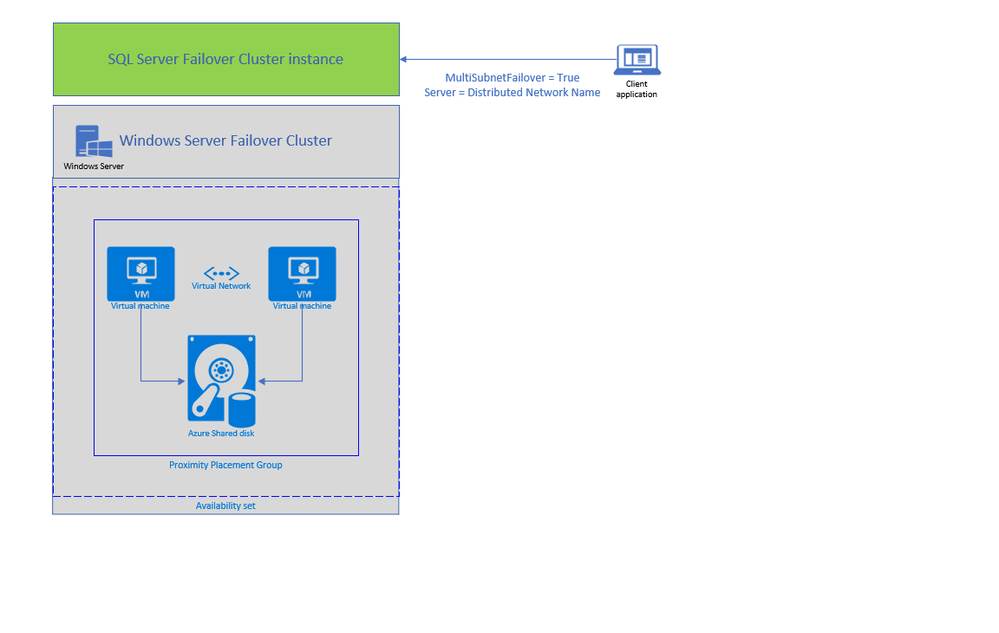
Second feature enabling lift and shift migrations of SQL FCI to Azure is Azure Shared Disks. Azure Shared disks can be attached to multiple VMs in the Windows Failover Cluster at the same time. The VM that can read or write to the disk is chosen by the Cluster service based on the SCSI Persistent Reservations (SCSI PR). SCSI PR is widely leveraged by SQL FCI running on Storage Area Network (SAN) on-premises, and Azure Shared disks enables migrating those to Azure VMs as is.
You should create the Azure Shared disks by setting “Max Shares = 2” for a 2 node SQL FCI, and then attach the disk to both SQL FCI nodes. You can use Failover Cluster Manager and present the shared disk to the cluster as Cluster Shared Volume (CSV) and then use it for SQL Server Data and Log files. Please follow this tutorial to deploy SQL FCI with Azure Shared Disks. You can use Premium SSD Shared disks with SQL FCI 2016 and higher versions, and Ultra Shared Disks with SQL FCI 2019.
To access Azure Shared Disks, both FCI nodes should be placed on the same Availability Set and Proximity Placement Group. Using the same Availability Set guarantees 99.95% HA SLA at the VM level, when one VM is down for planned maintenance the other will be available. Proximity placement groups creates a logical grouping of Azure compute resources which assures that they are physically located close to each other to achieve the lowest network latency. SQL FCI configured with Azure Shared Disks on an availability sets and PPG offers a high-performance HA solution at the instance level for mission critical SQL Server workloads.
Use Azure Migrate to migrate SQL Server workloads to Azure SQL and leverage workload optimizations and total cost of ownership savings today! Get started with a free trial or pre-configured Azure SQL images.
by Scott Muniz | Jul 6, 2020 | Uncategorized
This article is contributed. See the original author and article here.
When we announced the public preview of web content filtering as part of Microsoft Defender Advanced Threat Protection (ATP), we set out to deliver to customers a feature that empowered security admins to create acceptable web usage policies across their organizations. Security teams were enabled to author policies to track and regulate access to websites based on specified content categories, and also get visibility into blocks and web usage through the Microsoft Defender Security Center.
During the public preview, we received positive feedback on the simplicity of the feature due to the ease of creating and deploying policies at scale, without the need for additional agents or hardware. However, one critical piece of feedback we received was that this feature was too expensive to implement, since it required an additional partner license.
We have heard your feedback and are excited to share that going forward, web content filtering will be offered as part of Microsoft Defender ATP without any additional partner licensing. Now you get the benefits of web content filtering without the need for additional agents, hardware, and costs.
If you joined in on the public preview, you might be in one of the following scenarios:
- If your 60-day trial for the partner license has already expired, all your policies are now active and protecting your enterprise.
- If you have an active 60-day trial for a partner license, all your policies will continue to work even after 60 days.
You can un-register any partner integration that you have previously signed up for in the Azure portal:
- Go to Azure Active Directory > App Registrations
- Search for the name you have registered the partner app (Cyren)
- Select the partner application and delete it.
For the time being, this feature continues to be in public preview. Those customers that have preview features turned on can start trying out web content filtering in Microsoft Defender ATP today. If you haven’t yet opted in, we encourage you to turn on preview features in the Microsoft Defender Security Center.
Want your organization to track and regulate access to websites based on certain categories? Learn about turning on web content filtering in our documentation.
If you’re not yet taking advantage of Microsoft’s industry leading security optics and detection capabilities for endpoints, sign up for a free trial of Microsoft Defender ATP today.
Let us know your thoughts and feedback in the comments below.
by Scott Muniz | Jul 6, 2020 | Uncategorized
This article is contributed. See the original author and article here.
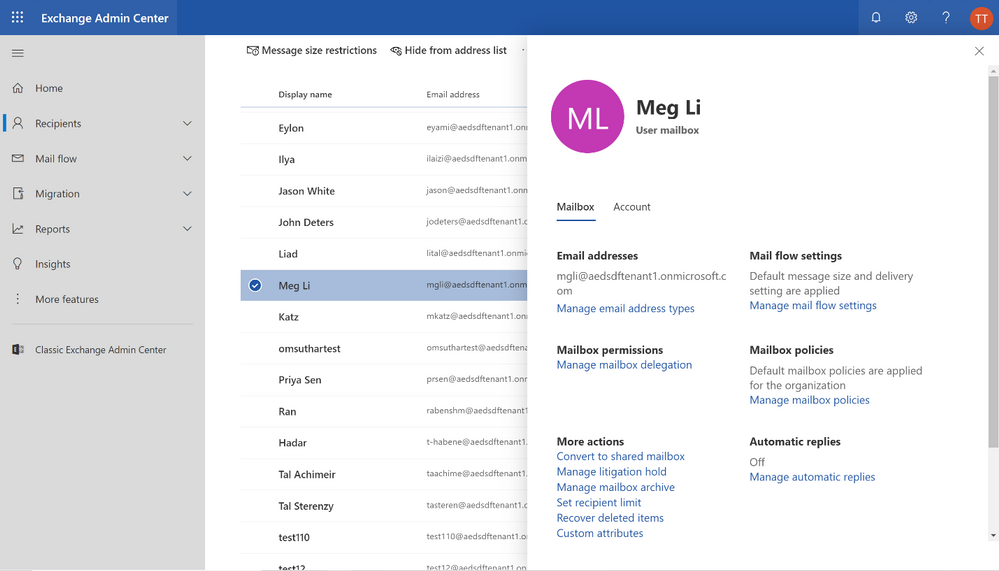
Today, we are excited to announce that RecoverableItems, a tenant admin PowerShell cmdlet, has shipped to the preview version of Exchange Admin Center with a new UI!
RecoverableItems has proven itself time and time again to be a fantastic cmdlet for tenant admins to quickly manage mailbox item deletion scenarios. Our team received feedback that because this functionality only existed in PowerShell, it only catered to power admins who have the expertise to write PowerShell commands, leaving out smaller customers who may not have such a user as a tenant admin. This left a big gap between the cmdlet’s potential and usage. We felt we didn’t have to sacrifice one for another, and there could be a win-win outcome that gives power users the freedom to directly use our PowerShell cmdlet, while unlocking the potential to reach more admins. Furthermore, we believe UI functionality for RecoverableItems will generally make life easier for all.
See screenshots below for a walkthrough!
Walkthrough:
In the new Exchange Admin Center, select the user with a mailbox that you want to recover deleted items for and then look for Recover deleted items link on the user property page.
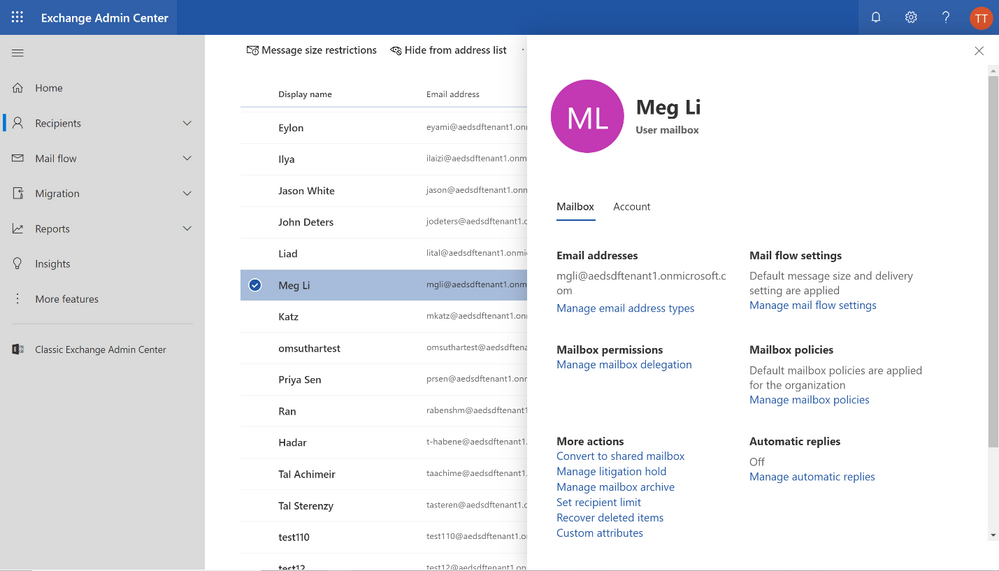
The new Recover deleted items UI will then show up. The UI will automatically take you to the latest 50 recoverable items.
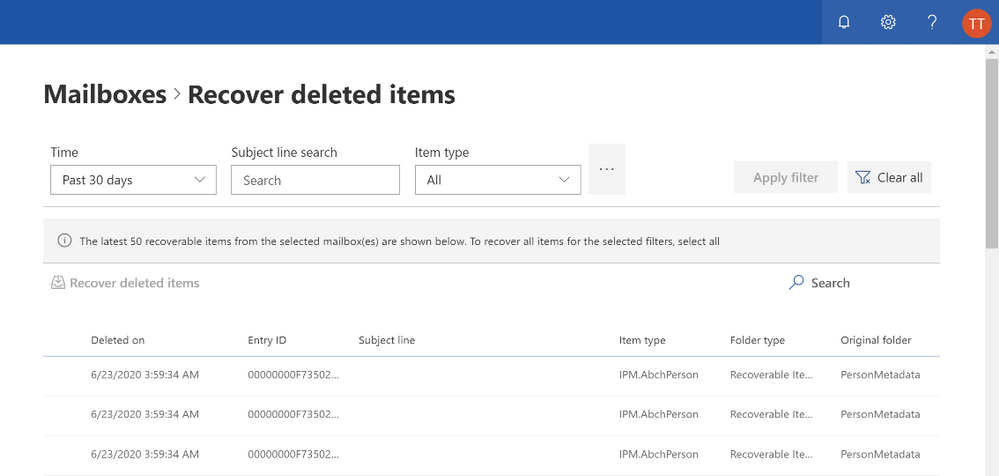
In our walk-through here we are looking for a message related to the April weekly schedule, so we use the subject line filter.
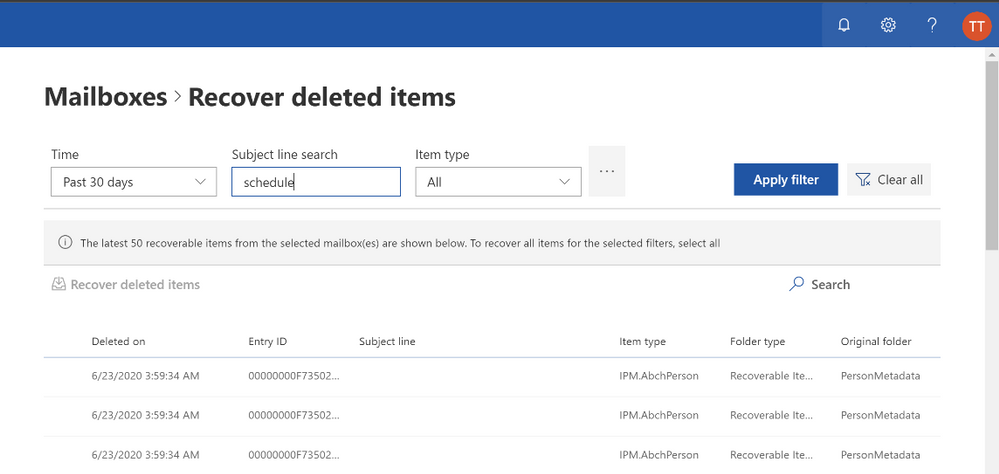
After clicking “apply filter”, our results are reduced to recoverable items containing the subject line “schedule” which were deleted within the past 30 days.
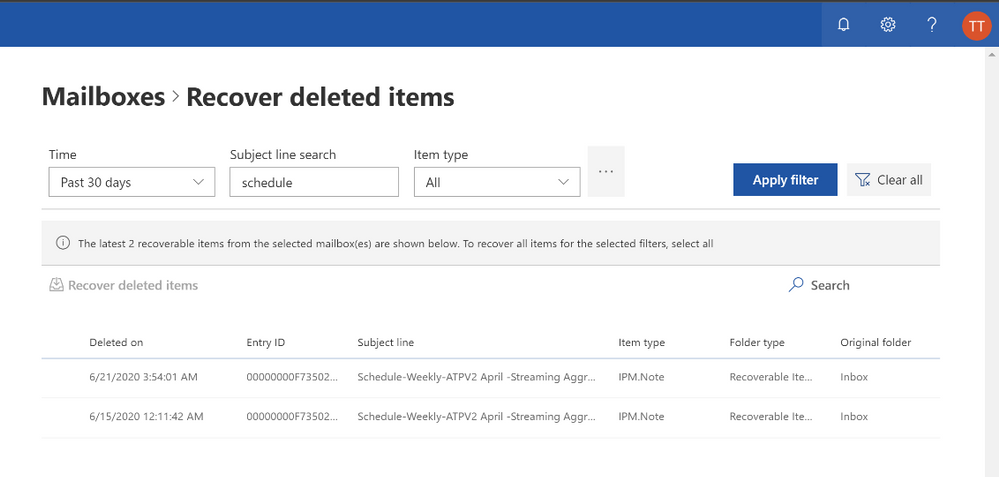
We found our item! Let’s select the 6/15/2020 note item and click “Recover deleted items”
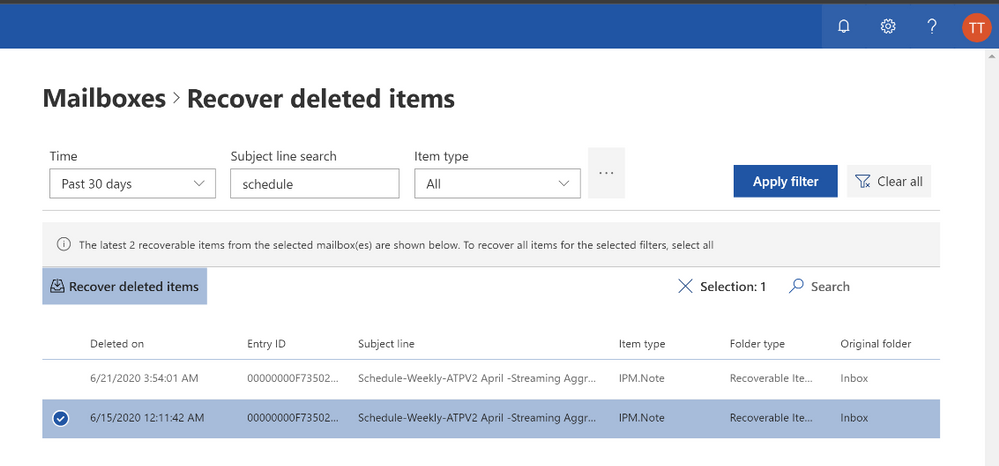
Click ‘Recover deleted items’
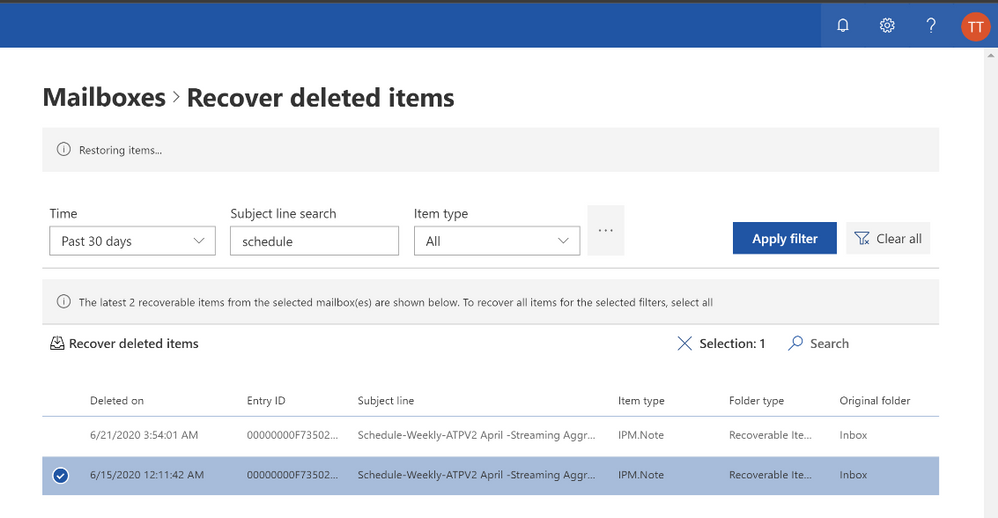
And the Recover deleted items status is displayed below
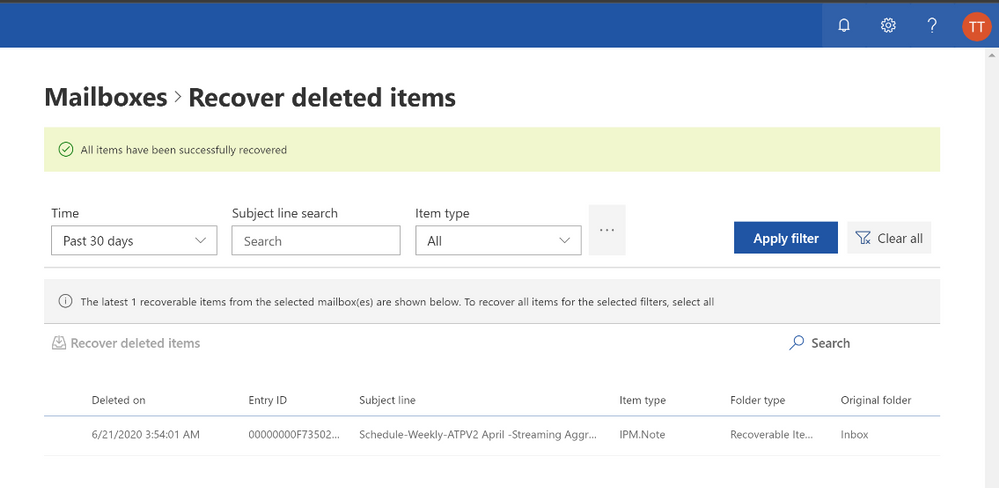
All done! A green banner will appear indicating all items have been successfully recovered.
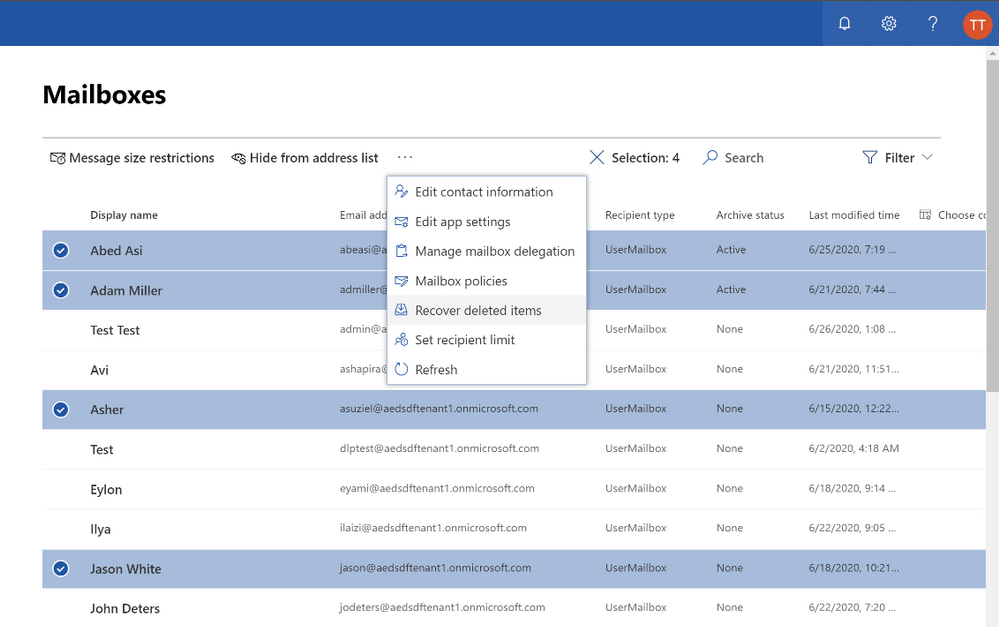
Now you can also select multiple users and recover deleted items for all selected users at once. This comes in handy when you need to bulk restore, usually when an issue impacts the entire tenant. For example: someone (let’s call that person Nino) accidentally changes the retention policy from 180 days to 60 days for all mailboxes in a tenant. Something that may previously have been potentially career milestone moment, and now the tenant admin saves Nino’s the day.
Additional Links:
If you want to use this new functionality you need to use the new (and in preview) admin center – https://admin.exchange.microsoft.com/#/mailboxes
You must be assigned the Mailbox Import Export RBAC role to use Recover Deleted Items.
We hope you try out our new UI (though hopefully you won’t have to use it too often!). This feature is ever evolving, so we’re excited to hear your feedback and work to add more to it!
Munya Chiro
Exchange Data Protection PM
by Scott Muniz | Jul 6, 2020 | Uncategorized
This article is contributed. See the original author and article here.
In this series of articles, we will present Premier Services Offerings around Power BI. In this first one we will succinctly present them all, but we will publish other articles to deep dive on those different offers highlighting their values as well as presenting current investment.
Introduction
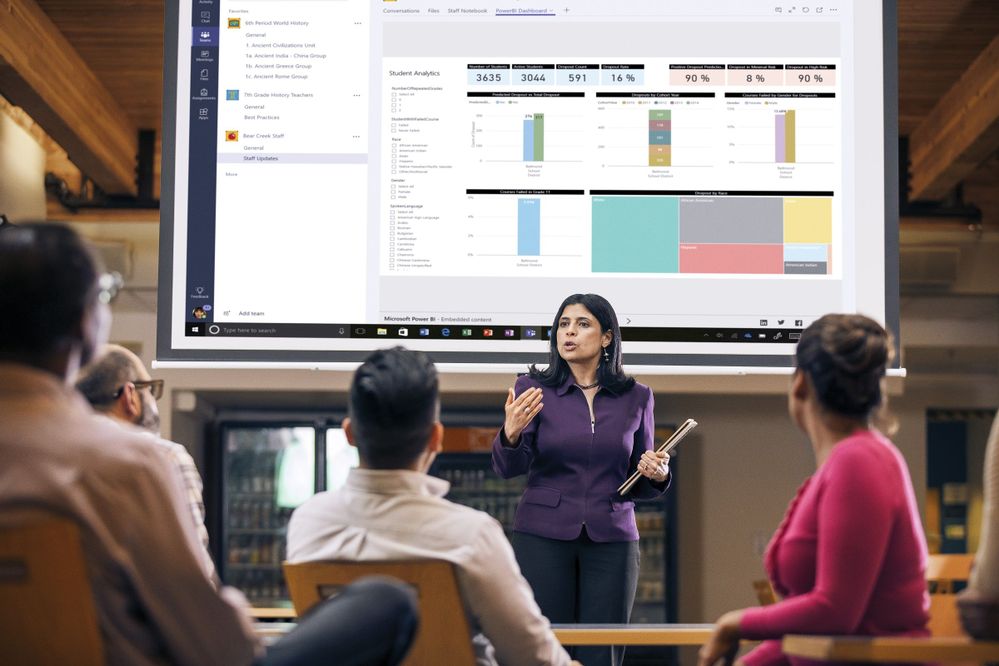
Power BI helps to make every decision based on data it enables a single unified platform to ask smarter business questions and get to actionable insight faster.
As a Premier Field Engineers at Microsoft, we encounter customers with different kinds of needs around Power BI, some of them want to proactively learn and begin to use our products having in mind all best practices, some of them want to implement, deploy and validate their use of our technologies by going to throw an assessment, and other kinds of customers who already have deep knowledge want to assess and optimize applying our methodology and tooling in order to better tunes and optimize cost.
To support all those different needs, we have developed different kinds of content and those can be grouped in these three categories:
- Upskill & Design: Workshops are designed as a combination of theory and practical applications and provide from Microsoft Subject Matter Experts knowledge that will help them use and get the best of Microsoft technologies.
- Discovery & Assess: Workshops are designed as a combination of assessment to diagnose potential issues and knowledge transfer to configure and implement a Power BI Enterprise Deployment.
- Configure & Implement: Workshops are designed as a combination of assessment to diagnose potential issues and knowledge transfer to performance tuning and optimization methodology.
Notes: Premier Services deliveries are advanced technical intervention available to Premier Support customers. Developed by Microsoft Premier Field Engineer and delivered by an accredited Engineer in person or online, these workshops are focused on enhancing knowledge and skills around a specific technology, product, or online service.
 Power BI Premier Offering
Offers Presentation
Nowadays they are six workshops, from one to three days and for different kinds of audiences. The beginner to advanced users will find topics to learn on. Let’s present them quickly here but as said more articles will present them more deeply.
- Upskill & Design
- WorkshopPLUS – Data AI Business Analytics with Power BI
- Duration: 3 days.
- Audience: This workshop is targeted at IT administrators, Business Intelligence Power Users, Business Analytics Developers, Data Engineers and Data Scientists.
- Presentation: Develop deep knowledge of the latest Microsoft business analyst tool, Power BI Desktop, and the accompanying cloud service, which allows publishing, consumption, and secure sharing of information. Also understand how to use Power BI Desktop to connect to your operational data sources, transform them to meet your business requirements, produce data models and Develop highly visual and highly interactive reports and dashboards.
- WorkshopPLUS – Data AI Advanced Data Analytics with Power BI
- Duration: 2 days.
- Audience: This workshop is targeted at IT administrators, Business Intelligence Power Users, Business Analytics Developers, Data Engineers and Data Scientists. Participants that have existing experience in Power BI and want to optimize their Power BI investments will receive the most value from this course.
- Presentation: This workshop contains those three different modules: Advanced Data Modeling in Power BI, Power BI Premium and Embedded Analytics, Security and Administration in Power BI.
- WorkshopPLUS – Data AI Reporting Services and Power BI Report Server
- Duration: 3 days.
- Audience: This workshop is targeted at Report Designers, Analysts, Business Analytics Developers, and Data Engineers.
- Presentation: This workshop is regarding the On-Premises way to share Power BI Report. It will provide the knowledge and tools necessary to understand the capabilities and usage of SQL Server Reporting Services and the Power BI Report Server. It will help participants to get familiar with report design concepts and skills needed to develop Reporting Services Paginated, Mobile, and Power BI Reports.
- Activate Business Analytics with Power BI
- Duration: 3 days.
- Audience: This engagement is targeted at IT administrators, Business Intelligence Power Users, Business Analytics Developers, Data Engineers and Data Scientists.
- Presentation: Primary goal of the engagement is to work with customers to develop a proof of concept (POC). In this engagement, your team will learn how to use and deploy Power BI to make quick, confident data-based decisions, and to leverage that knowledge for future deployments. After discussions with your Microsoft engineer, you will select a scenario that best fits your organization’s needs from development to governance and operational framework.
- Discovery & Assess
- Power BI Assessment
- Duration: 2 days.
- Audience: This workshop is targeted for enterprise who want to gain a deeper understanding of all aspects of their Power BI environment and have proposed solutions for each of the issues identified and articulated in recommendations on Power BI report.
- Presentation: Power BI Assessment is a proactive service to diagnose potential issues with your Power BI environment. Engineer will provide valuable guidance on recommended practices to improve the health of your Power BI environment. At the end of this engagement, you will receive a comprehensive Power BI report with results of the assessment, a detailed best practice guidance deck and a summary report tailored to your environment.
- Configure & Implement
- Power BI Clinic
- Duration: 3 days.
- Audience: This workshop is targeted at IT administrators, Business Intelligence Power Users, Business Analytics Developers, Data Engineers and Data Scientists.
- Presentation: This workshop will provide an opportunity to work with a Microsoft Subject Matter Expert on Performance Tuning and Optimization of “Slow Running Power BI Reports”, with focus on Report Models and Data Analysis Expression.
Follow up and feedback
For further information, please contact your Microsoft Account Representative, Technical Account Manager (TAM) or Service Delivery Manager (SDM).
To improve our workshop, we always consider feedback from you. At Microsoft, achieving a high level of satisfaction among our customers and partners around the world is a core component of our business. For that reason, don’t hesitate to complete them and gave feedback.
Thanks to Sajas Salahuddeen and Raghu Prasad B R for this article review.
Author: Romain Casteres, Senior Data & AI Premier Field Engineering based in Paris, France.
by Scott Muniz | Jul 6, 2020 | Uncategorized
This article is contributed. See the original author and article here.
Welcome to the June update for Project for the web!
The new features called out below may look familiar if you follow Project on the Microsoft 365 Public Roadmap, which gives advanced notice on pending releases of larger features. Additionally, other new capabilities mentioned in both this blog and future blogs will be appearing in the monthly “What’s new in Project” article, which will list out new larger and smaller features that already have rolled out.
The feedback you provide through the “Feedback” button in the product or UserVoice on Project for the web (or maybe both!) plays a vital role on how we approach new features. Please keep this feedback coming! We read every submission we get and try to respond as needed. Be sure to provide an email address so we can reach out for further information.
What’s the latest?
- Copy Project ~ You can copy an existing project and use it to create a new project. This feature should now be available to all Project for the web users. To find more information on this feature, please check out our Copy Project blog post!
- View persistence ~ Collapsing summary tasks and custom column width in Grid view will remain the same when you reload or reopen your projects.
- Office 365 user view to Project and Roadmap ~ All O365 users should be able to access Project and Roadmap as guests.
What’s coming next?
- Custom Fields at the Task Level ~ Create custom fields in Project for the web to allow you to store custom information about your projects!
- Add Roadmap reports to the PowerBI template ~ Starting very soon, you will be able to export data from roadmaps to PowerBI. Keep an eye out for future announcements and blog posts about this new functionality!
- Teams Integration for Project and Roadmap~ Right now, you can add Roadmaps and Projects as Web tabs in Teams. However, you soon will be able to add Projects and Roadmaps as an app in Teams.
Answers to top questions
Q: What admin permissions level is required to change working hours for a project calendar?
A: Dynamics 365 admins should have the permissions level to change working hours for project or resource calendars. If you need help with permissions for changing the project calendar, contact your systems admin.


Recent Comments