by Scott Muniz | Jul 8, 2020 | Uncategorized
This article is contributed. See the original author and article here.
Over the past few months, many organizations have vaulted into an entirely new world of work. We’ve discovered some of the benefits of this new world through more than 30 research projects here at Microsoft, and by learning from our customers and partners. These benefits range from, increased fluidity between work and life activities, allowing people to move between the two more easily, to increased empathy between teammates, and several other benefits detailed in our latest Work Trend Index Report. We’ve also seen the emergence of new challenges. That same blend of work and life can be difficult to balance, home offices without distractions are rare, remote collaboration can feel more difficult than in-person, and access to reliable networks and equipment isn’t available for everyone. While distributed remote work has its rewards, there are certain advantages to in-office collaboration as well. Through these learnings it has become clear – the workplace of the future will not be one location or the other, but a fluid experience across the two.
To help our customers navigate this new, hybrid working environment, today we’d like to share some new and reimagined capabilities in Teams-enabled meeting rooms that offer touchless experiences, support inclusive collaboration between remote and in-person attendees, and help remind teams to practice social distancing in meeting rooms.
Touchless experiences on Microsoft Teams devices for shared spaces
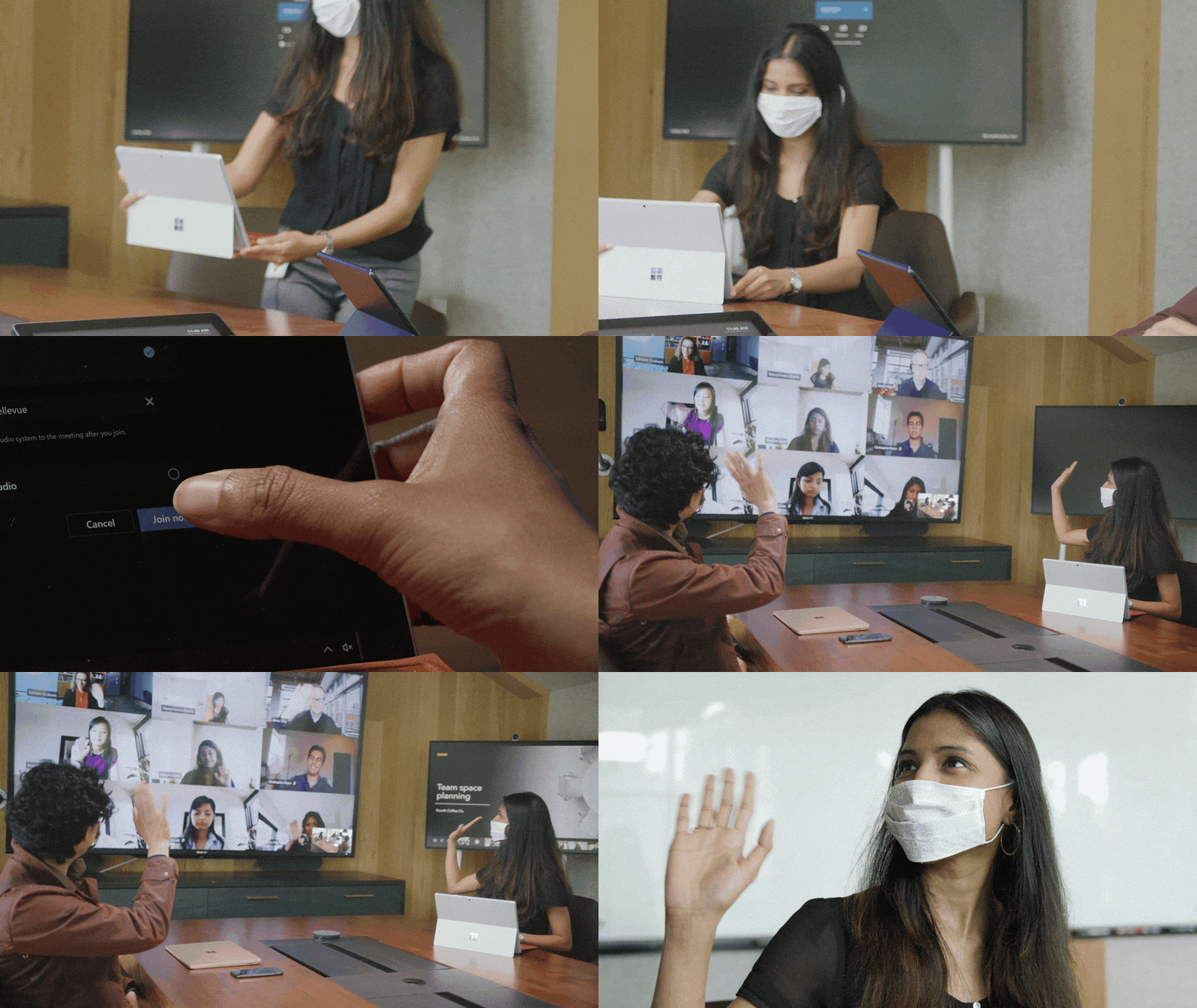
Today, people in the meeting room can join a Teams meeting from their Microsoft Teams Room and collaboration bar devices, share content and collaborate using their personal PC or mobile device, all without ever having to touch the shared device display. Later this year, we’ll enable these capabilities on Surface Hub as well. Additionally, Surface Pro X users can use their pen across Surface devices, including Surface Hub 2S, further limiting the contact with the shared device display in a meeting room. As the need for additional touchless experiences grows, we’re expanding these features to allow people to control more aspects of the meeting. In the future, people will be able to choose how they want to interact with their shared space devices, using touch, controls on their own personal devices, and through voice commands.
Soon, in-room participants will be able to control their Teams Room and collaboration bar devices from the Teams mobile app. From the new room remote experience, users will be able to mute and unmute the room, adjust audio volume, turn cameras on and off, and exit the meeting. We’ll also enable wireless casting to any Teams Room, collaboration bar, and Surface Hub for quick ad-hoc connections that don’t require remote participation. Beginning later this year, voice assistance will be enabled for Microsoft Teams Room devices, allowing in-room participants to ask Cortana to join and leave a meeting, and add a phone number or participant from the address book to a meeting.*
When the meeting is over, people can simply leave the room, allowing the Teams Room or collaboration bar to automatically exit the meeting. This feature allows room administrators to designate a period of zero-activity after a meeting is scheduled to end, after which, meeting devices are automatically ejected from the meeting.

Proximity join
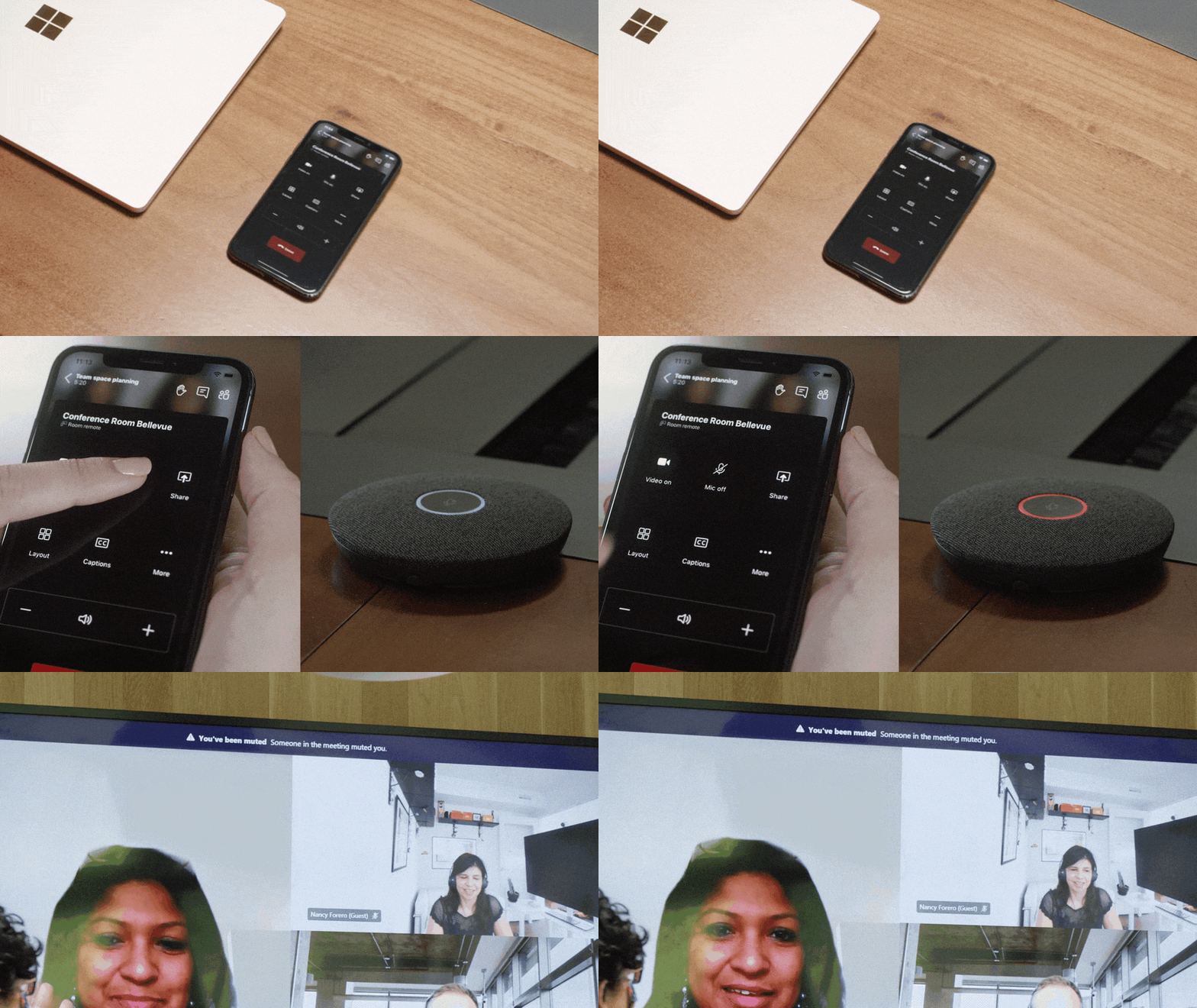
Room remote
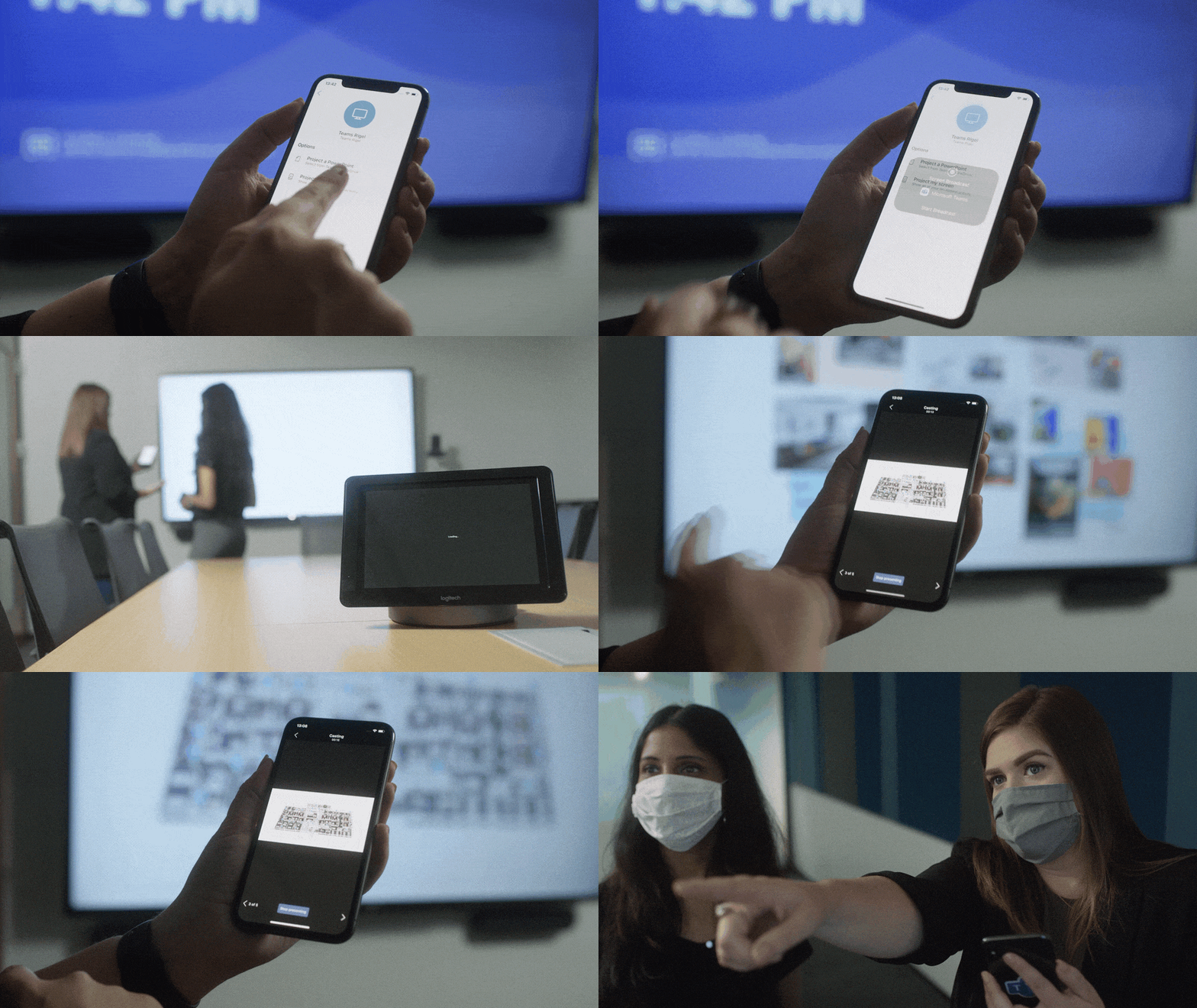
Wireless casting

Cortana voice assistance on Microsoft Teams Room
Coordinated meetings with Teams Room and Surface Hub
Teams Room is the premier solution for delivering Teams meeting room experiences with a focus on high fidelity audio, HD video, and seamless content sharing capabilities. Surface Hub delivers unmatched co-creation experiences in meetings, featuring premium pen and inking capabilities, with access to must-have Microsoft apps and Office 365 files. Soon, users will be able to leverage the power of both devices, in the same meeting, through a coordinated experience. Using proximity or one-touch join, both devices join the meeting simultaneously with Teams Rooms running audio and video, while Surface Hub is automatically muted to avoid any distracting feedback. During the meeting, users can maximize screen real estate by using the front of room display to show attendees in the meeting gallery, while the Surface Hub is used to show content or to conduct a collaborative whiteboarding session. With the whiteboard experience on Surface Hub and Microsoft Whiteboard in Teams, people can draw and ink together on the same savable canvas, no matter their location. With this new coordinated device capability, people can drive inclusive, collaborative meeting experiences between remote and in-person attendees like never before.
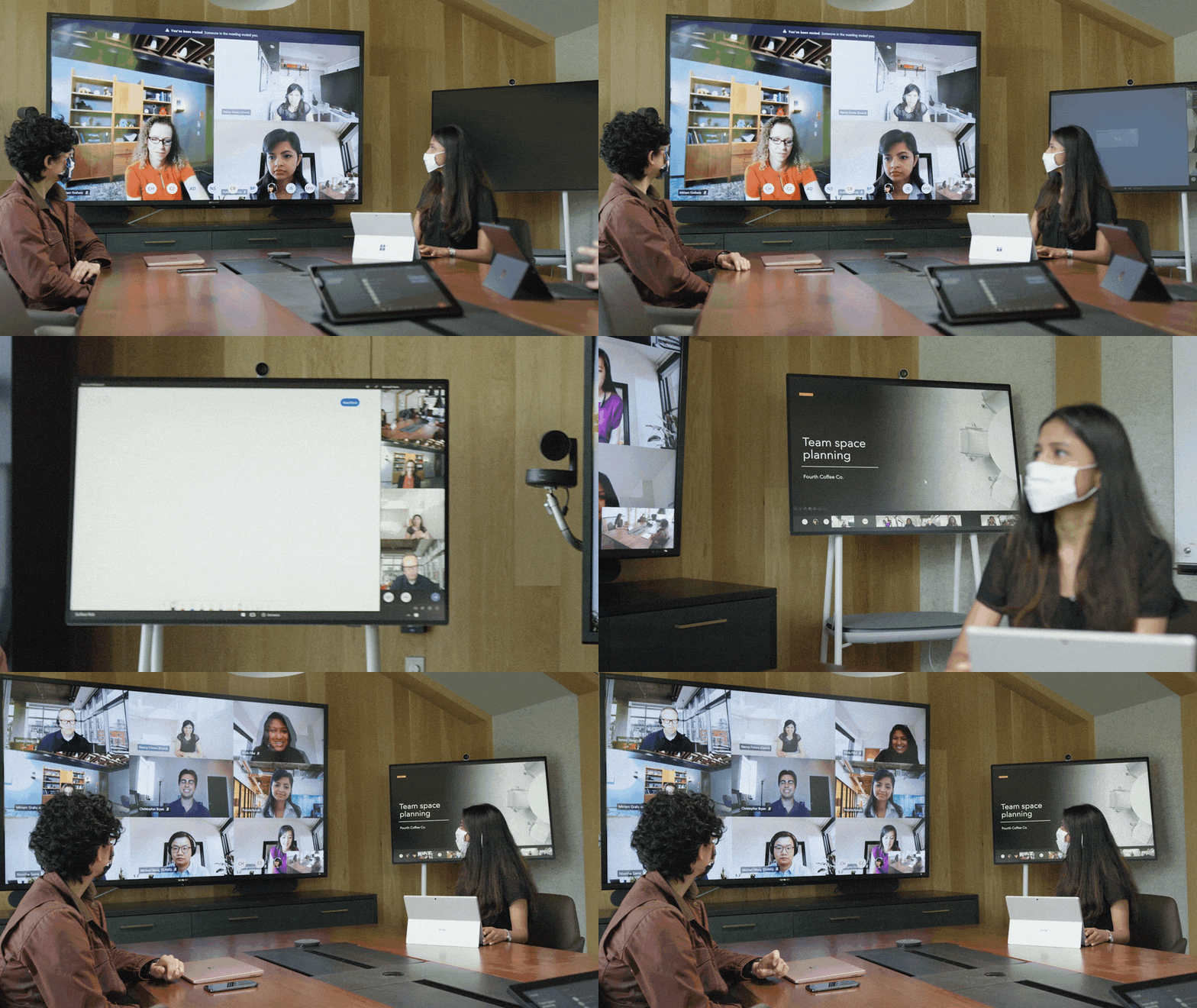
Coordinated meetings with Surface Hub and Microsoft Teams Room
Meeting room capacity notifications
As organizations plan their transitions back to the office, many are looking to implement new in-office policies to adhere to local safety guidelines. Some of these recommendations include social distancing practices in shared spaces like meeting rooms. To aid our customers in these efforts we’ll soon enable a way for room administrators to automatically notify in-room meeting participants if a room is over capacity. Today, administrators can define meeting room capacity for the room account. Soon, we’ll enable IT to use the data from meeting room cameras with people-counting technologies to identify how many people are in a room, and alert in-room meeting participants if it is over-capacity based on the capacity data defined in the room account. The notification will be displayed as a banner that appears across the top of the screen at the front of the room. In the future, administrators will receive an alert in the Teams Admin Center, allowing them to track room usage to help inform space planning decisions.
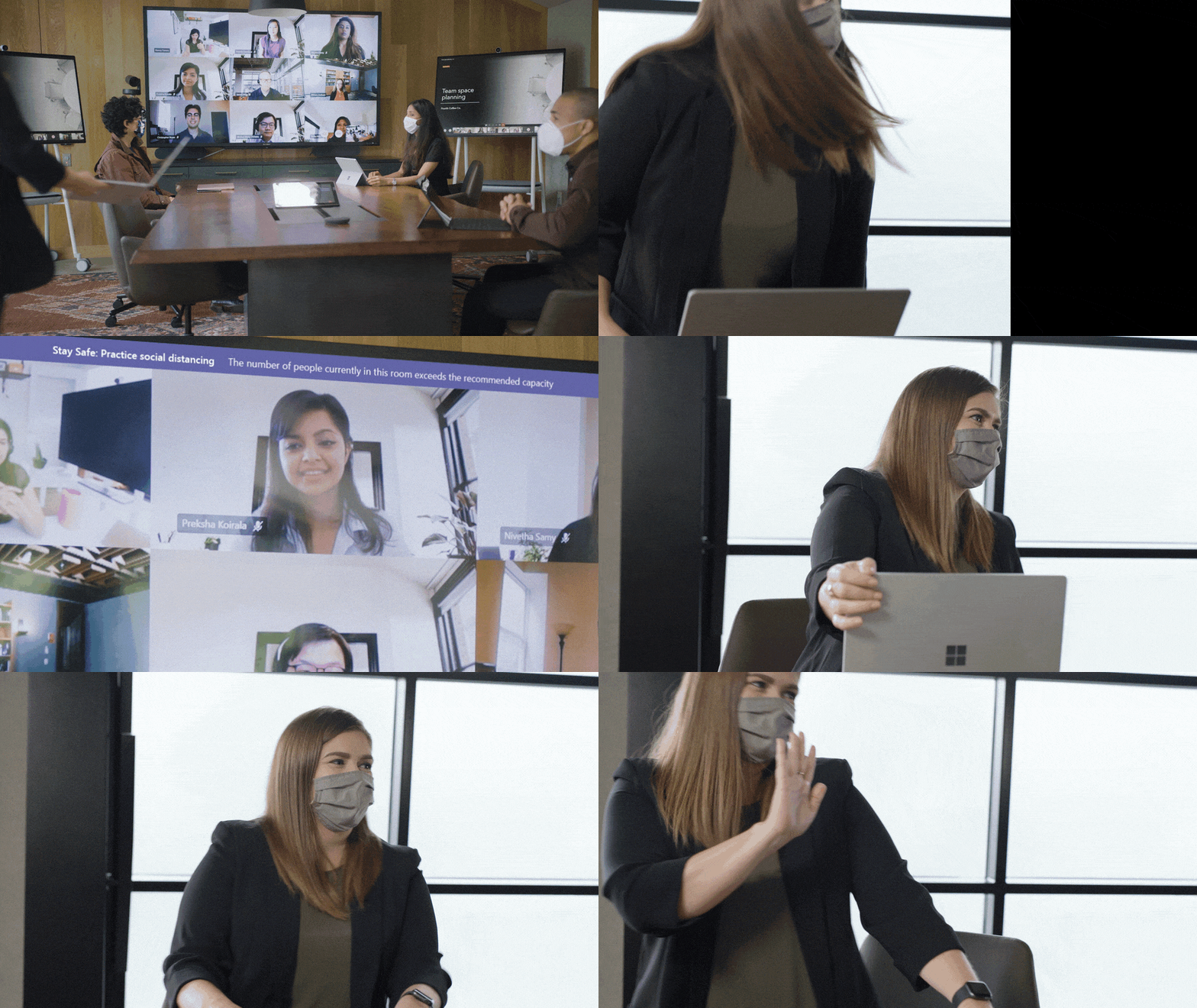
Meeting room capacity notifications
Helping people connect across workspaces has never been more important. With Teams meetings and Teams-enabled devices, people can engage in collaborative and inclusive meetings from anywhere.
View our collection of Teams certified devices at the Devices Showcase. From now until 7/31/2020, use code “TeamsDevices20” to receive a discount on a variety of products at checkout. To learn more about Surface Hub, click here.
*Voice assistance will launch first for Microsoft 365 Enterprise users in the U.S., in English. Not all Teams Room audio devices will support Cortana voice assistance.
by Scott Muniz | Jul 8, 2020 | Uncategorized
This article is contributed. See the original author and article here.
Kernel Data Protection (KDP) is a new technology that prevents data corruption attacks by protecting parts of the Windows kernel and drivers through virtualization-based security (VBS). KDP is a set of APIs that provide the ability to mark some kernel memory as read-only, preventing attackers from ever modifying protected memory.
KDP uses technologies that are supported by default on Secured-core PCs, which implement a specific set of device requirements that apply the security best practices of isolation and minimal trust to the technologies that underpin the Windows operating system. KDP enhances the security provided by the features that make up Secured-core PCs by adding another layer of protection for sensitive system configuration data.
KDP is implemented in two parts:
- Static KDP enables software running in kernel mode to statically protect a section of its own image from being tampered with from any other entity in VTL0.
- Dynamic KDP helps kernel-mode software to allocate and release read-only memory from a “secure pool”. The memory returned from the pool can be initialized only once.
The concept of protecting kernel memory as read-only has valuable applications for the Windows kernel, inbox components, security products, and even third-party drivers like anti-cheat and digital rights management (DRM) software.
Learn more about Kernel Data Protection, how it is implemented on Windows 10, and more applications in this blog: Introducing Kernel Data Protection, a new platform security technology for preventing data corruption.
Enjoy!
Memory management & security core team (Andrea Allievi, Matthew Woolman, Jon Lange, Eugene Bak, Mehmet Iyigun)

by Scott Muniz | Jul 8, 2020 | Uncategorized
This article is contributed. See the original author and article here.
Have you logged into https://portal.azure.com and seen the following banner?
Or, did you read the two Message Center posts – MC208118 (back in March, 2020) and then MC211982 (May, 2020)? If so, you’re fully aware that Intune administration is now at https://endpoint.microsoft.com.
If you haven’t read the messages or seen the banner, then just be aware that on August 1, 2020, future development of Intune will be focused at https://endpoint.microsoft.com. Here’s answers to frequently asked questions:
- There are no changes to graph.
- You’ll still have an entry point in https://portal.azure.com which will redirect you to Microsoft Endpoint Manager admin center.
- Where possible, we’ll put redirects on popular Intune blades at https://portal.azure.com to remind you of this change.
- New features will be shipped in https://endpoint.microsoft.com.
Docs have been updated. Let us know if you have any additional questions on this updated admin experience, and see you at https://endpoint.microsoft.com!
by Scott Muniz | Jul 8, 2020 | Azure, Microsoft, Technology, Uncategorized
This article is contributed. See the original author and article here.
For enterprise and industrial customers with connected equipment and devices, a higher level of network security is an important part of protecting business-critical investments and infrastructure. When bringing connected devices onto a corporate network, customers want control and visibility over exactly what devices are connected. Instead of authenticating a device to a network using a password, which can be shared among multiple devices, secured enterprise Wi-Fi relies on mechanisms to support unique authentication of each device.
Extensible Authentication Protocol-Transport Layer Security (EAP-TLS) is a common authentication method used in such security-focused, enterprise scenarios. Azure Sphere supports the EAP-TLS protocol to secure the connections to an access point via certificates on a device. The use of device certificates is more secure than sharing a global key among all devices.
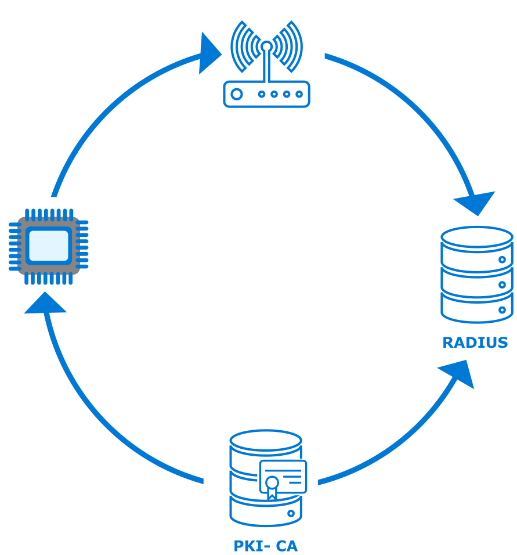
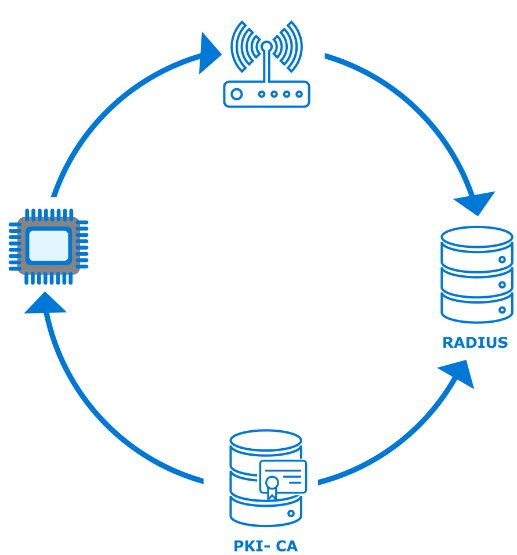
To use EAP-TLS to connect to an access point, the network administrator must configure a RADIUS server and the access point(s) for WPA2-Enterprise and EAP-TLS. In this scenario a certificate authority (CA) generates client and server authentication certificates for the devices as well as the RADIUS server.
This post does not cover the details for the customer network configuration or PKI components; these items are well documented for network administrators setting up an enterprise network. Azure Sphere’s implementation on the client ensures that the customer maintains control over the existing network and security infrastructure.
This post will cover the basic steps needed to load a valid certificate, to configure a new EAP-TLS network with the certificate, and to connect to your secured network via the command line or programmatically.
How to get started
Certificate acquisition
In the 20.04 release of the Azure Sphere OS, we added the ability to connect to a secured Wi-Fi network via EAP-TLS. There are multiple ways a device can acquire a certificate with the private key. Which pattern you choose to use depends on your network as well as your manufacturing and distribution process, but it can be summarized into two methods:
- Sideload the data during manufacturing or upon delivery of a device from a connected computer that contains the data and uses the azsphere command line interface to load it.
- Bootstrap the data via an existing open or PSK network which has internet access. In this scenario, you must ensure there is a secure delivery mechanism, such as an on-premises web service that can authenticate, manage, and securely transport the certificate and private key to the device.
Certificate formats
Azure Sphere supports RSA x509 certificates in the .PEM file format in PKCS1 and PKCS8 syntax. Azure Sphere devices have about 24KB of onboard storage for certificates, managed by the OS. Applications can use the Certstore API to manage the certificates.
Enable secure enterprise Wi-Fi access using the azsphere command line tool
During testing and development, use the azsphere command-line tool to quickly iterate and test device connectivity.
New functionality in azsphere device certificate allows certificate management
|
Verb
|
Information
|
|
add
|
Adds a certificate to the attached device’s certificate store.
|
|
delete
|
Deletes a certificate from the attached device’s certificate store.
|
|
list
|
Lists the certificates in the attached device’s certificate store.
|
|
show
|
Shows details about a certificate in the attached device’s certificate store.
|
|
show-quota
|
Displays the available free space in the attached device’s certificate store.
|
New parameters in azsphere device wifi add
|
Verb
|
Information
|
|
clientcertid
|
A string value (up to 16 characters) that identifies the client certificate (containing both the public and private key). Required to set up an EAP-TLS etwork.
|
|
clientid
|
ID recognized for authentication by this network’s RADIUS server. Required for some EAP-TLS networks.
|
|
rootcacertid
|
A string value (up to 16 characters) that identifies the server’s root CA certificate for EAP-TLS networks where the device authenticates the server.
|
Programming model
Before an application can load certificates, its application manifest (app_manifest.json) must include the new CertStore capability. Likewise, to enable secure enterprise Wi-Fi access, the application manifest must include the EnterpriseWifiConfig capability.
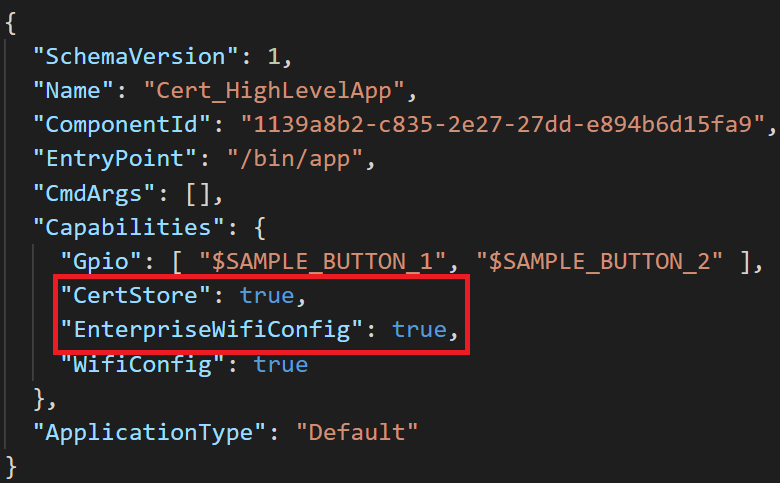
The certificate data consists of the client authentication certificate, its corresponding private key, and the public certificate for the RootCA of the RADIUS server. After this data is loaded, the application must set the WifiConfig_Security_Wpa2_EAP_TLS flag used to indicate that the Wi-Fi security type is EAP-TLS.
The certificate data is then associated with the network, so the device can connect to the network using the specified client ID and certificate data.
Next Steps
Check out the EAP-TLS feature overview: https://docs.microsoft.com/azure-sphere/network/eap-tls-overview
Samples are available:
- Loading and managing certificates: https://github.com/Azure/azure-sphere-samples/tree/master/Samples/Certificates
- Configuring secure enterprise Wi-Fi access: https://github.com/Azure/azure-sphere-samples/tree/master/Samples/WiFi/WiFi_HighLevelApp
by Scott Muniz | Jul 8, 2020 | Uncategorized
This article is contributed. See the original author and article here.
I was working on this case last week and discussing with my colleagues Sergio Fonseca from SQLDB and Arjun Bardhan from AAD about this issue.
Let me just write a few lines here about the issue and solution.
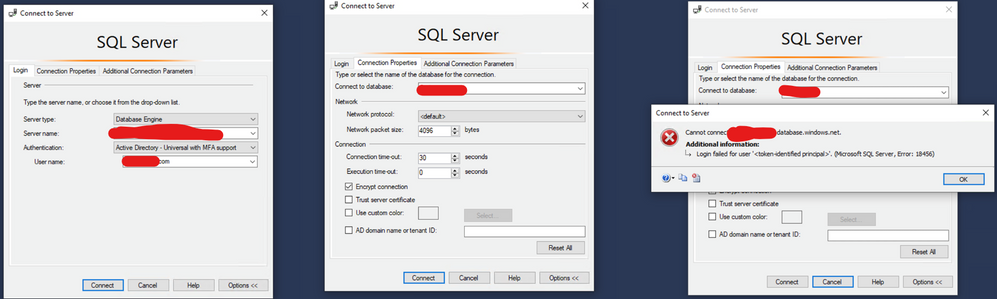
Issue: You have a SQL as a Service ( SQL DB or SQL DW) and you are trying to connect using MFA, you already tried to connect to the database on the SSMS as this blog mentioned: https://techcommunity.microsoft.com/t5/azure-database-support-blog/aad-auth-error-login-failed-for-user-lt-token-identified/ba-p/1417535. It did not work as Fig. 1 shows.
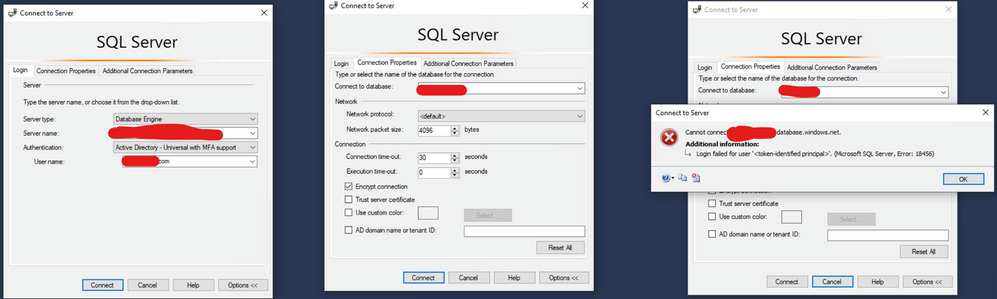
Fig. 1: Connection Failed
What else could you do?
Try to connect again using the same steps provided on the blog that I mentioned. But now check the option AD Domain Name or Tenant ID and type your AAD domain name that you can require from your AAD administrator.
Why? Because If you are connecting as a guest user using SSMS 17.x or older, you must use this option as provided on this documentation: https://docs.microsoft.com/en-us/azure/azure-sql/database/authentication-mfa-ssms-configure#connecting-by-using-universal-authentication-with-ssms
Example, Fig. 2:
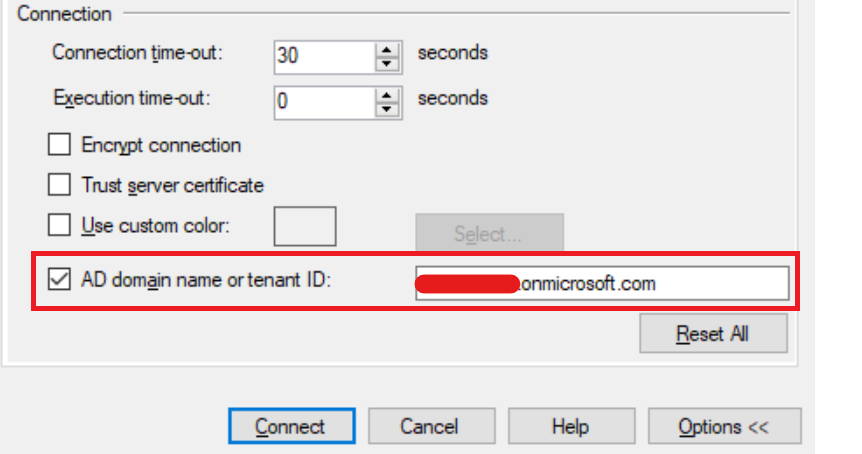
Fig. 2 Tenant
Liliam
UK Engineer


Recent Comments