by Scott Muniz | Jul 16, 2020 | Azure, Microsoft, Technology, Uncategorized
This article is contributed. See the original author and article here.
Within the world of security operations, dashboards and visual representation of data, trends, and anomalies are essential for day to day work. In Azure Sentinel, Workbooks contain a large pool of possibilities for usage, ranging from simple data presentation, to complex graphing and investigative maps for resources. Out of the box, Sentinel already comes with dozens of Workbooks. It also allows for custom workbooks to be created based on the user’s vision and use case. The purpose of this blog is to provide examples and describe some of the more advanced uses for Workbooks in Sentinel. We have also created a sample Workbook that can be accessed here that can be used to follow along.
If you would like to watch a presentation on the uses of Workbooks, you can check out our Security Community webinar on this topic here.
Pre-requisites:
- Azure Sentinel Contributor permissions
- Azure Workbooks Contributor permissions
- Available data in your Azure Sentinel/Log Analytics workspace
Before we can dive into the advanced topics, it is important to recap the basics.
- Text – simple text or comments on the workbook
- Grids – a row by row view of data
- Graphs – visual representation of data in comparison
- Time Charts – visual representation of data over time
Advanced
- Power BI – move data to Power BI for dashboarding
- Tabs – separate data by topic per tab
- Groups – grouping of tiles by topic
- Time Brushing – selecting a window of time for logs
- Hives – visual grouping of data into hive shapes
- Dynamic Content – enabling tiles to inherit variables based on other tiles
- Personalization – modify results in the Workbook to standout or be presented differently
Text

Text within a workbook is a simple section where text can be added to describe data, leave comments, instructions, and more. The purpose of this is to allow for user input to be listed on the workbook. Text can be used to help maximize the effectiveness of visuals by noting important areas to check, procedures to follow, or items to keep an eye out for. An example would be adding a note in text near a time chart to watch for over 100 failed login attempts.
To deploy text:
- Go to your Workbook.
- Hit ‘Add’ and choose ‘Text’.
- It will open a new section for text to be input.
- The font size can be modified to show titles, notes, and descriptions.
- Click ‘Done’ when finished.
Parameters
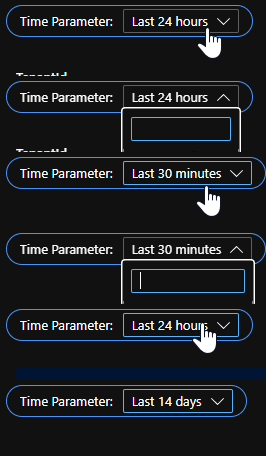 Changing the parameter value will change the range for all items that are configured to use the value.
Parameters allow for the selection of values that will be applicable to the whole Workbook. This can be used for time ranges, subscriptions, workspaces, filtering, and more. The parameters are presented as a drop-down list which can be placed at the top of the Workbook or just above graphs. Each selection can provide impact on which data is presented or how it is queried.
To deploy parameters:
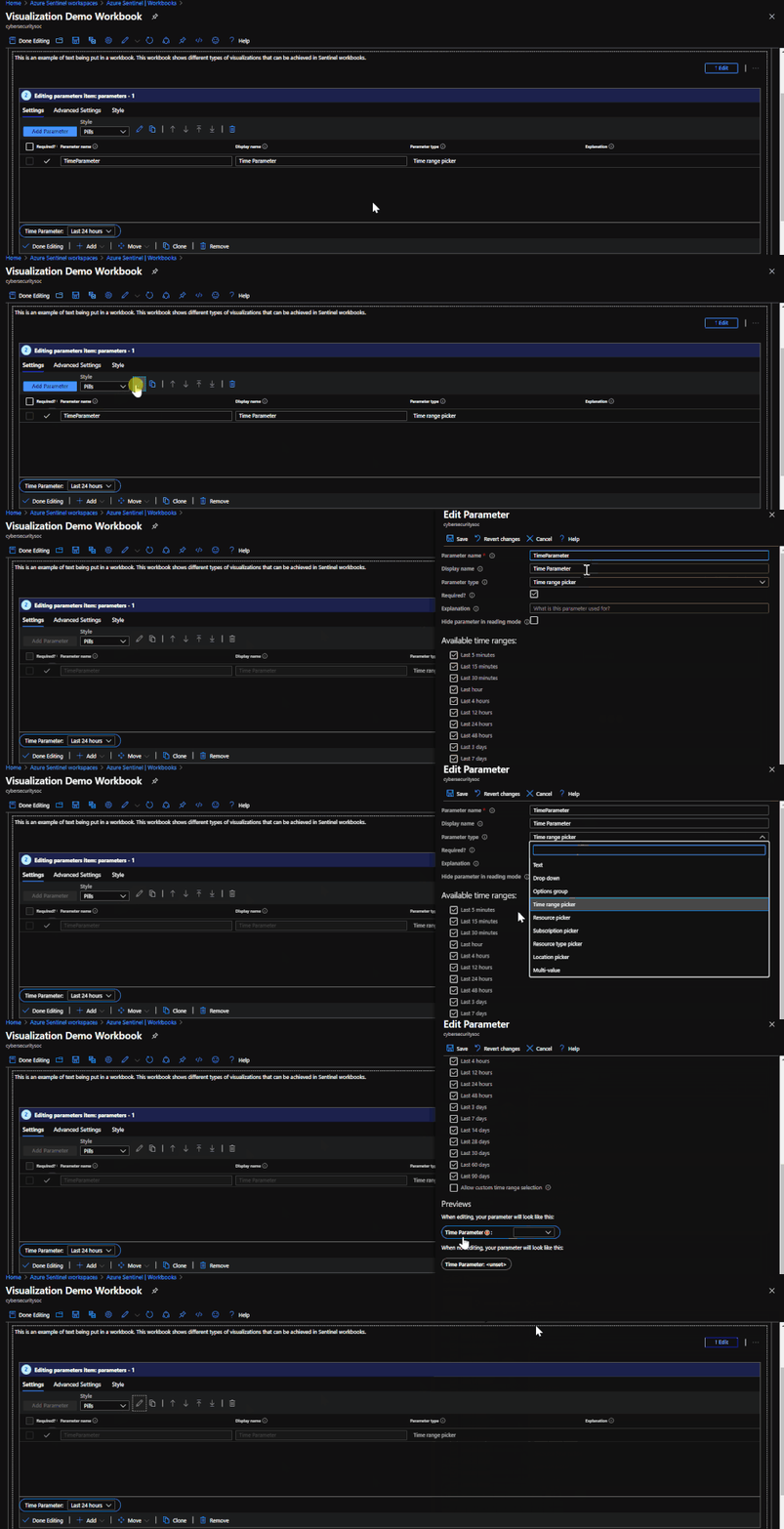
- Click ‘Add’ and choose ‘Parameter’.
- Give the parameter a name.
- Click ‘Edit’ and choose ‘Settings’.
- Within Settings, the parameter type can be chosen and the value options for selection can be set.
- Click ‘Save’ when finished.
*Note: If the parameter has a ‘!’ by it, the value has not been set and needs to be done.
Grids
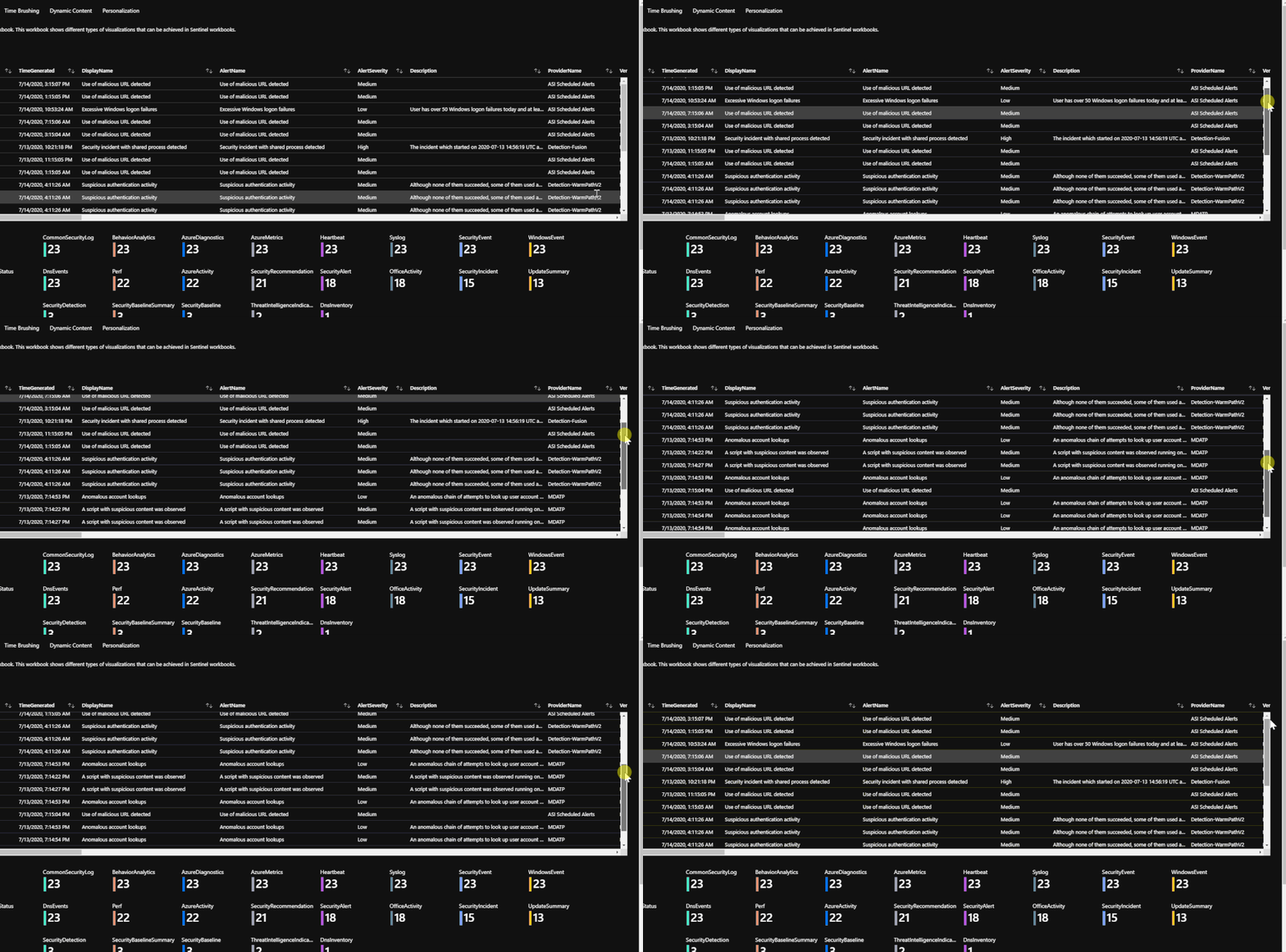
Grids are where logs and other data items are listed in a rowed fashion. This is where data that is queried is listed. This data is what can be transformed into graphs, time charts, hives, and more. Each grid is made up of a Kusto query that runs when the Workbook is accessed. The queries can range in time, data tables, etc.
To deploy grids:
- Go to ‘Add’ and choose ‘Query’.
- Enter a query for the data that you would like to pull.
- The results will get capped at 250 so if you do not want too much, make sure to use the ‘take’ operator to limit the amount of rows you want returned.
Graphs and Charts
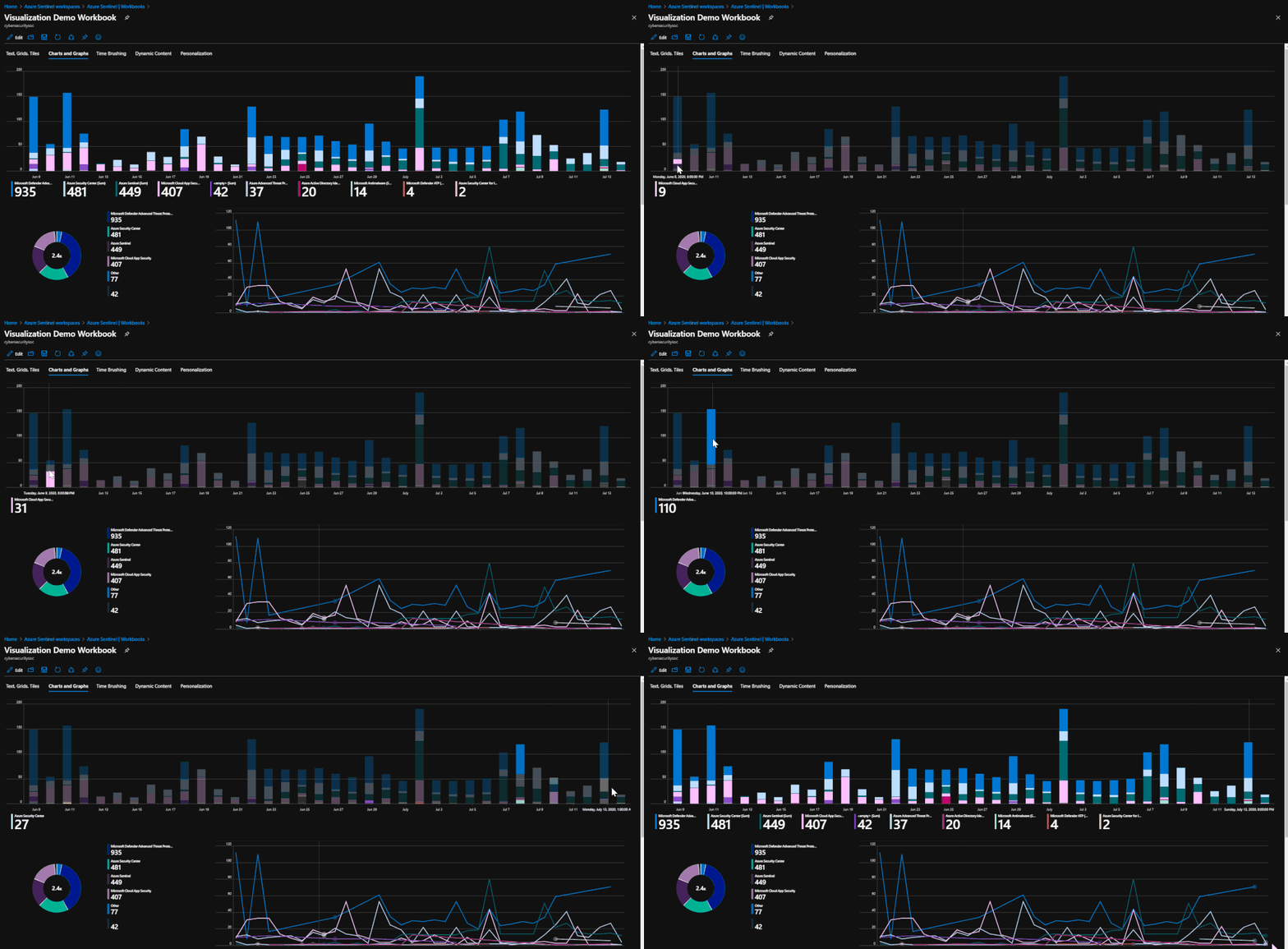
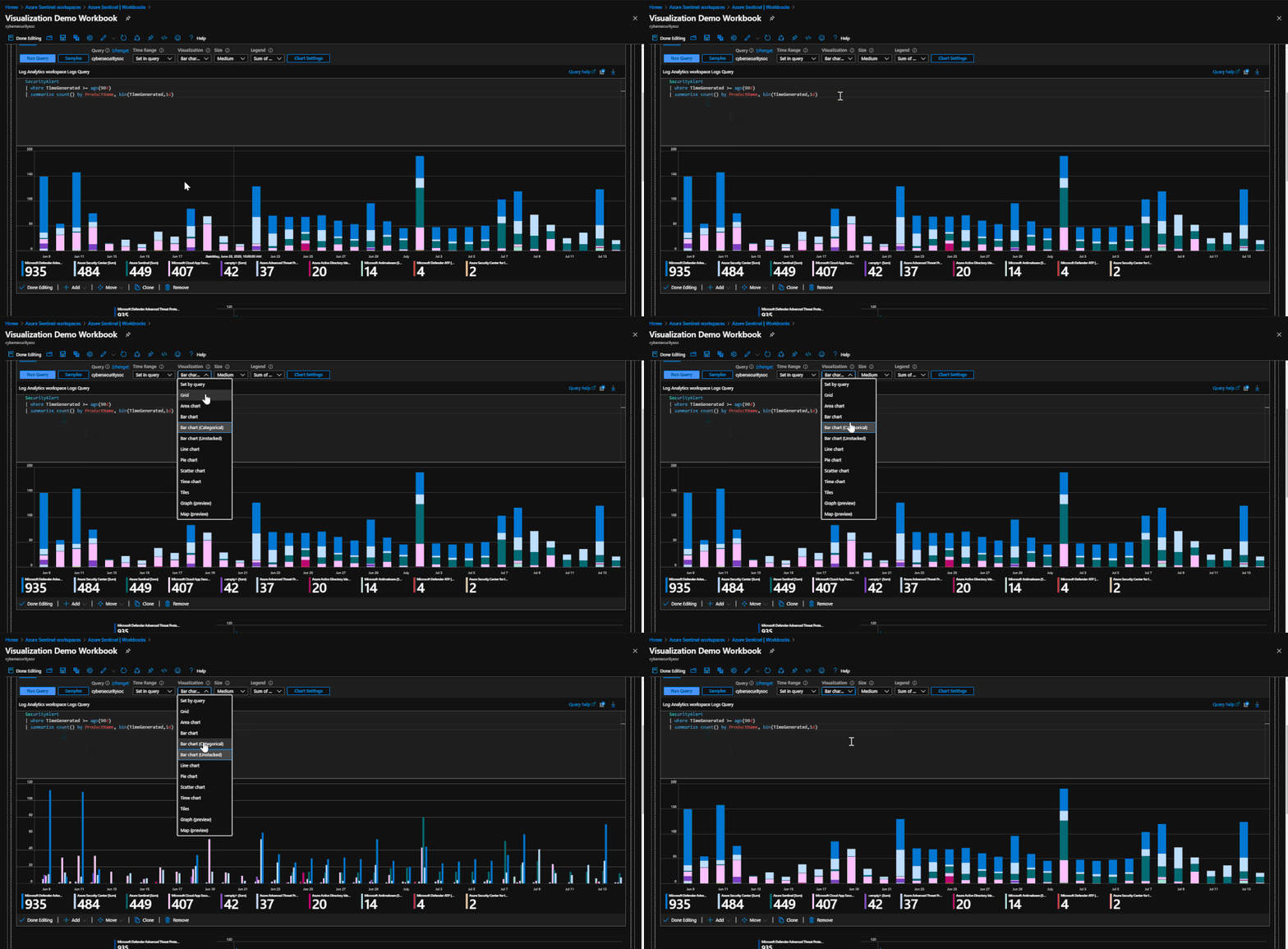
Graphs are a type of visual representation for data in Workbooks. These can vary between pie graphs to bar graphs. This is how data is visualized to show trends, comparisons, and more. These visuals can assist with finding potential malicious events, unhealthy trends, or outliers in performance.
To deploy graphs:
- Go to ‘Add’ and choose ‘Query”.
- Enter a query and make sure that there is a summarize count() or count() that is used within the query. The data cannot be put into a graph format if there are not numeric values for the subjects in the data.
- Use either the ‘render’ operator or choose ‘Visual’ in the query settings within the Workbook to choose the graph that it will be displayed as.
*Example query*

SecurityAlert
| where TimeGenerated >= ago(30d)
| summarize count() by ProviderName
| render barchart
Time Charts
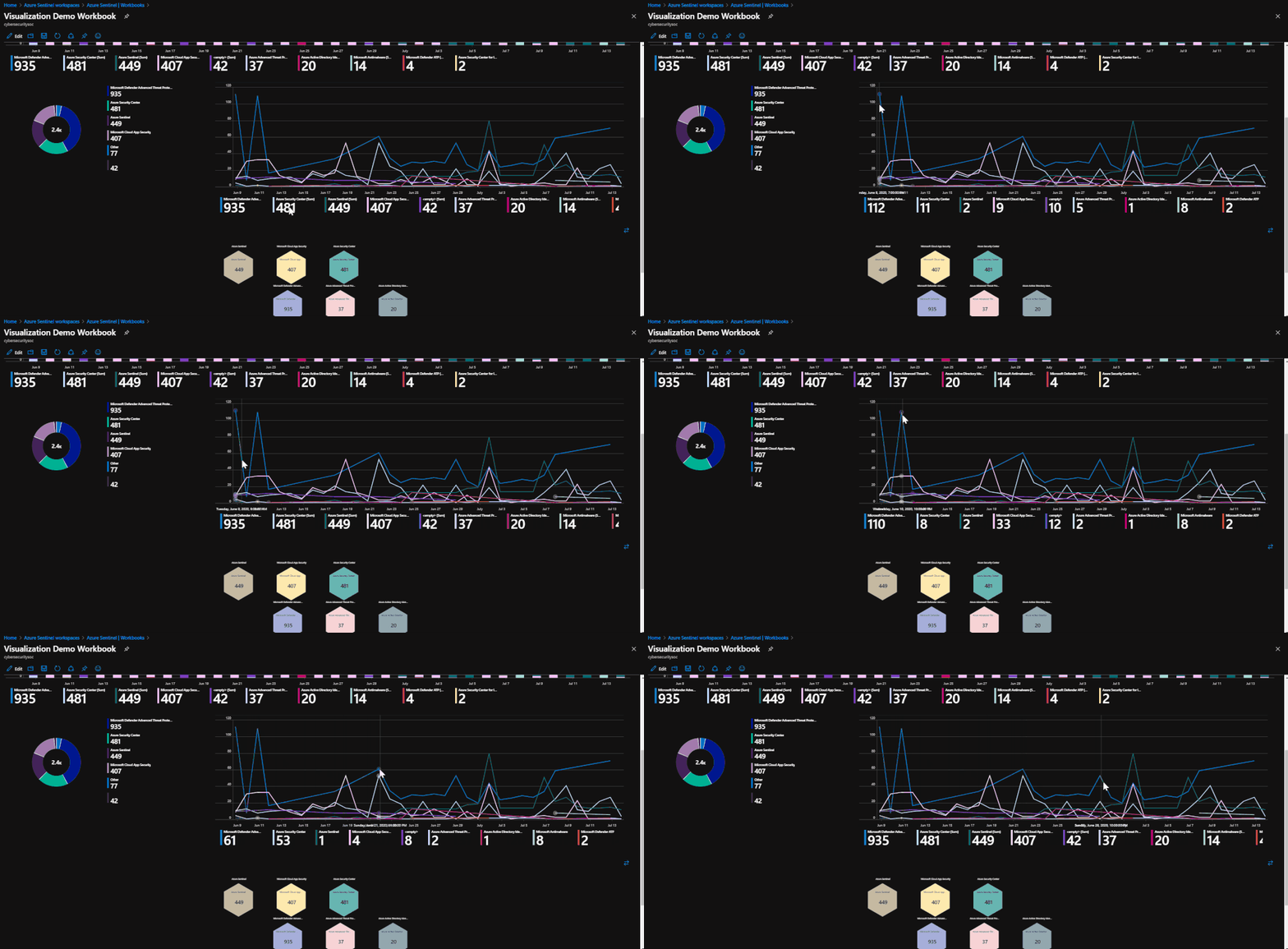
Time charts are similar to line graphs but lay out more information and focus more on a time frame of information. This ties into tracking anomalies, unhealthy trends, and more. This also ties into time brushing in the advanced section. Similar to regular graphs, the query option must be chosen. This time around, the query will need a ‘bin’ operator. The bin operator will take a variable and a time scale value and create a series based on the data.
An example would be ‘summarize count() by ProviderName, bin(TimeGenerated, 1d)’. This is taking a count of ProviderName from the query results and generating a time series that will show the amount of results per day.
SecurityAlert
| where TimeGenerated >= ago(30d)
| summarize count() by ProviderName, bin(TimeGenerated, 1d)
| render timechart
Tabs
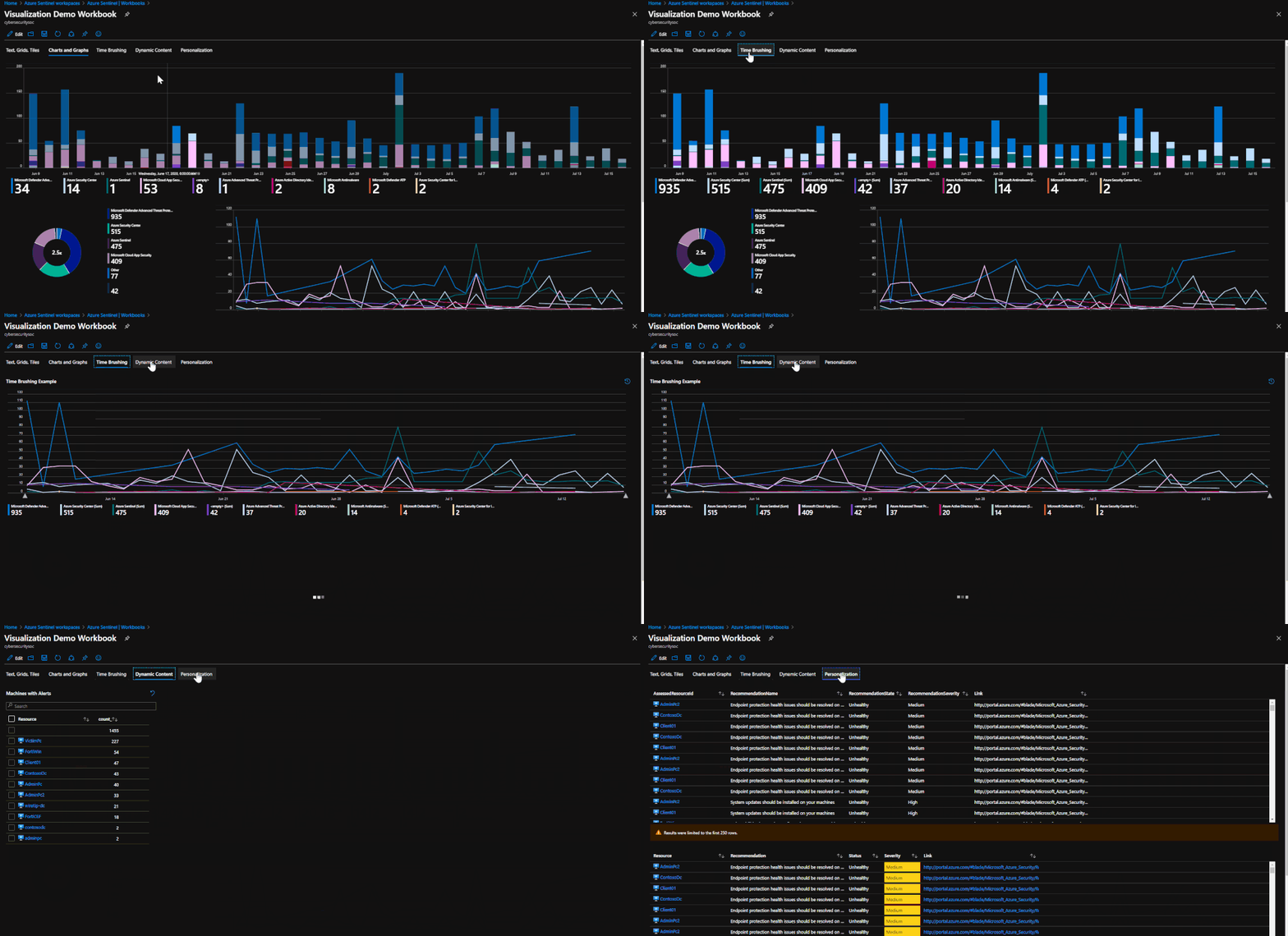
Tabs are headers within the Workbook that can be selected in order to change what is being presented on the page. This is very useful when making a Workbook that might cover several topics or if there is a large amount of information to present.
To deploy a tab:
- At the top of the page click ‘Add’ and choose ‘Tabs’. Each title will need to be made.
- Give the new item a title and choose actions – ‘Set a parameter value’.
- Set the value to ‘Tab’ and give the tab a value that identifies what it is for.
- If you would like certain tiles to be mapped to specific tabs, you must go to ‘Advanced Settings’ on the item and enable ‘Make this item conditionally visible’.
- Set the value to be ‘Tab equals (the value of the tab you set)’. The item will no longer show on other tabs until the proper tab has been chosen.
Groups
Groups allow users to set tiles, graphs, and other data into collections based on topic, format, and more. The best use for groups is distinguishing data types or topics from each other and separating them. This can be maximized by using tabs to separate each group into different tabs.
To deploy a group:
- Go to ‘Add’ and choose ‘Groups’.
- Groups can have countless tiles and items added to it. If you would like to add existing items to a group, choose ‘Move’ and choose the group you want to move the items to.
- If you would like the group of items to show up under certain tabs, add a condition stating that it will only show if a certain value is chosen.
Time Brushing
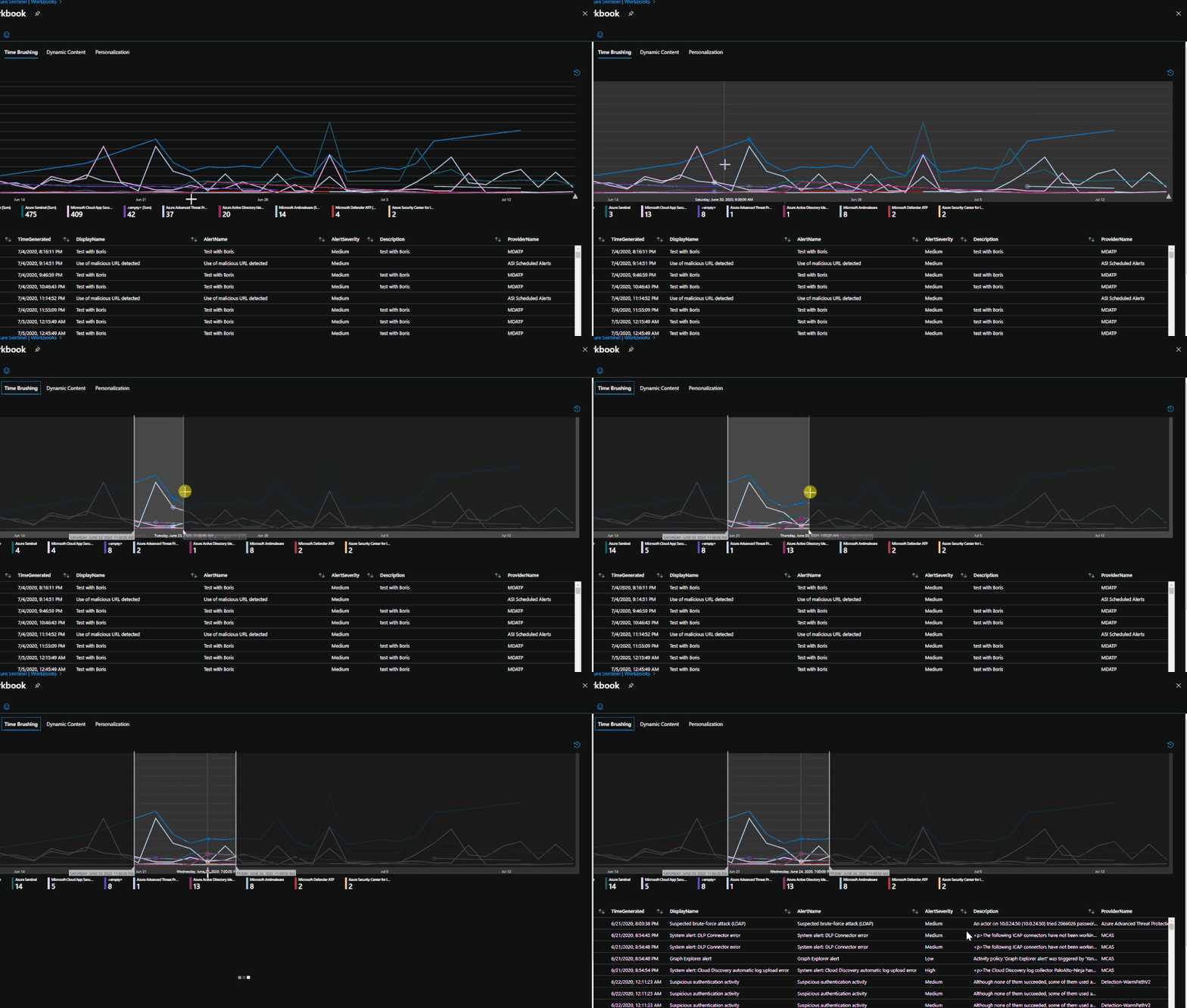
Time brushing is the ability to click and drag on a time chart to set a time window that should be investigated. By using time brushing, tiles and logs that follow the time chart can inherit the time range chosen to narrow down associated information.
To set up time brushing:
- ‘Enable time range brushing’ must be enabled under the advanced settings of the time chart.
- From there, the time range will need to be changed to the new time variable you created in the previous step.
- Once set, click and drag on the time chart to change the range.
- For items within the Workbook to inherit the new time range value, change the time to be the value that you created in the time chart.
Hives
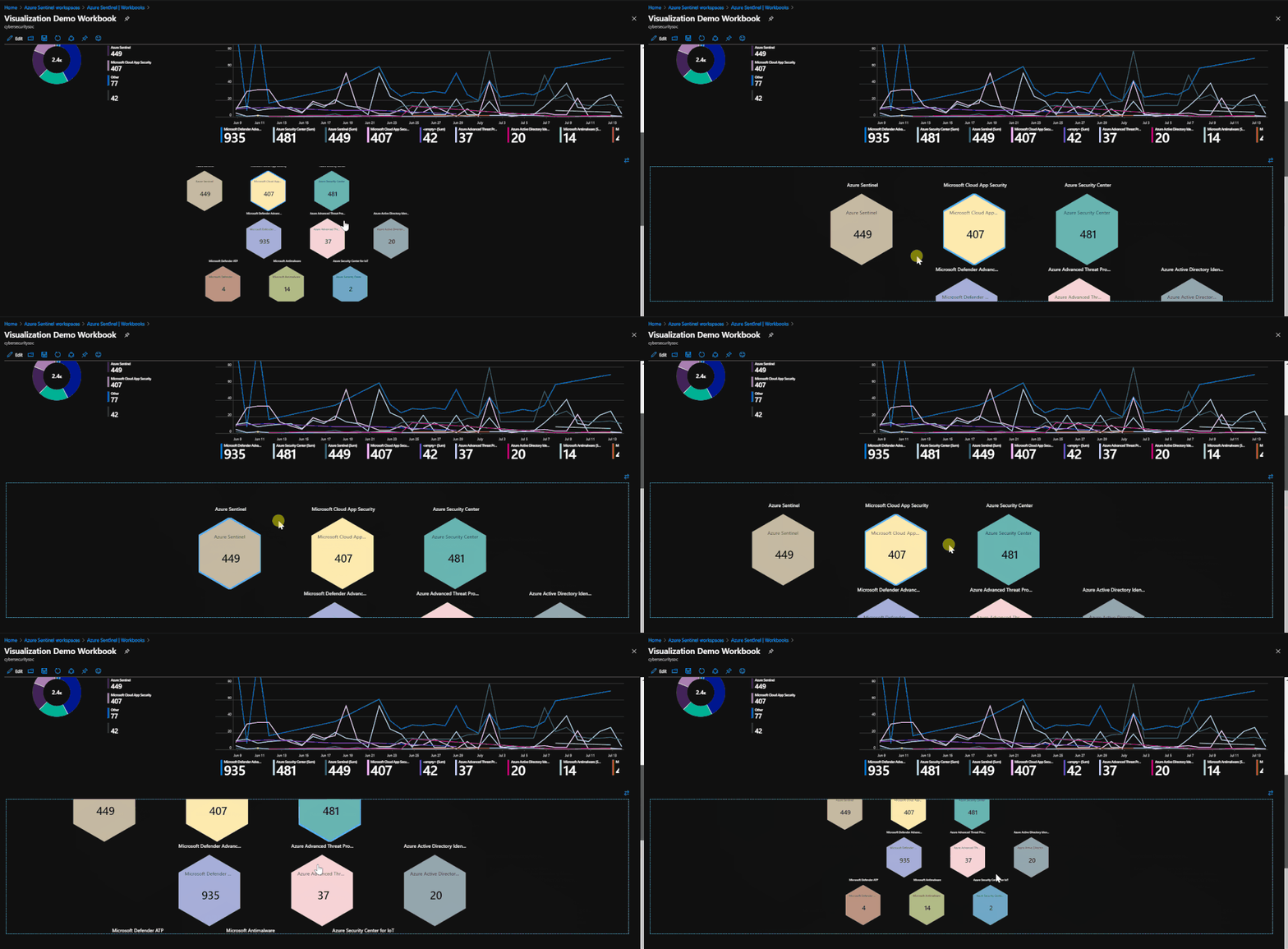
Hives utilize a new visual feature that is in preview within Workbooks. Hives allow you to use a graphical interface that can be moved or modified while presenting data in a compact, hive layout. This new graphing feature, outside of hives, allows for a more interactive graphing/mapping functionality.
To deploy hives:
- Click ‘Add’.
- Choose ‘Query’.
- Enter your query.
- Under visualize, choose ‘Graph’.
- Choose ‘Graph Settings’.
- Under layout settings, choose ‘Hive Clusters’.
- Set your remaining settings for size and color.
- Click ‘Save and Close’.
Dynamic Content
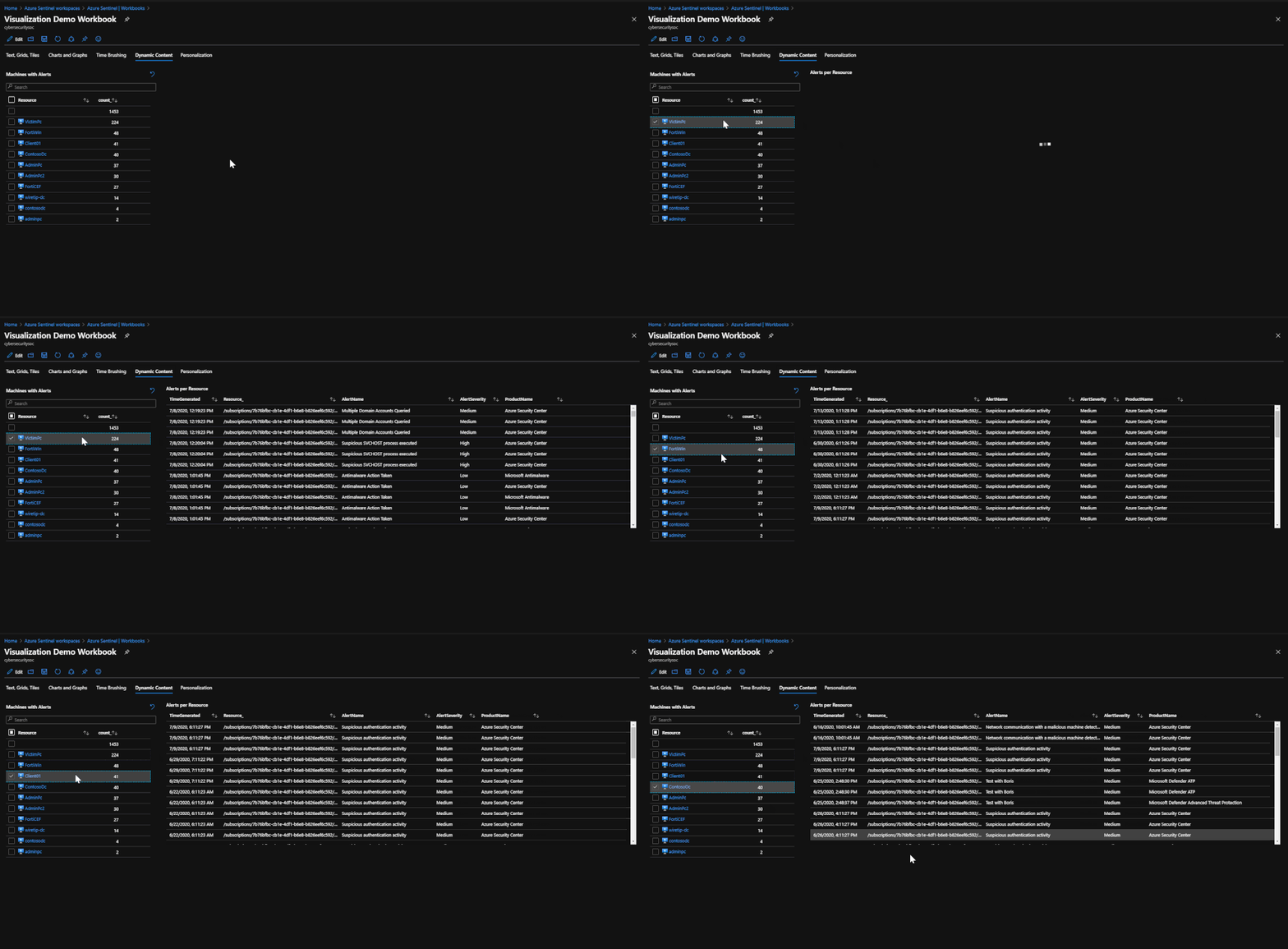 The content will not appear until a resource is chosen.
Dynamic content allows you to export a selected variable to other parts of the Workbook. An example of this is selecting one machine from a list of machines and the other logs and charts throughout the Workbook now pertain to data for only that one machine. This is useful for narrowing down potentially compromised machines or machines of interest for anomalies.
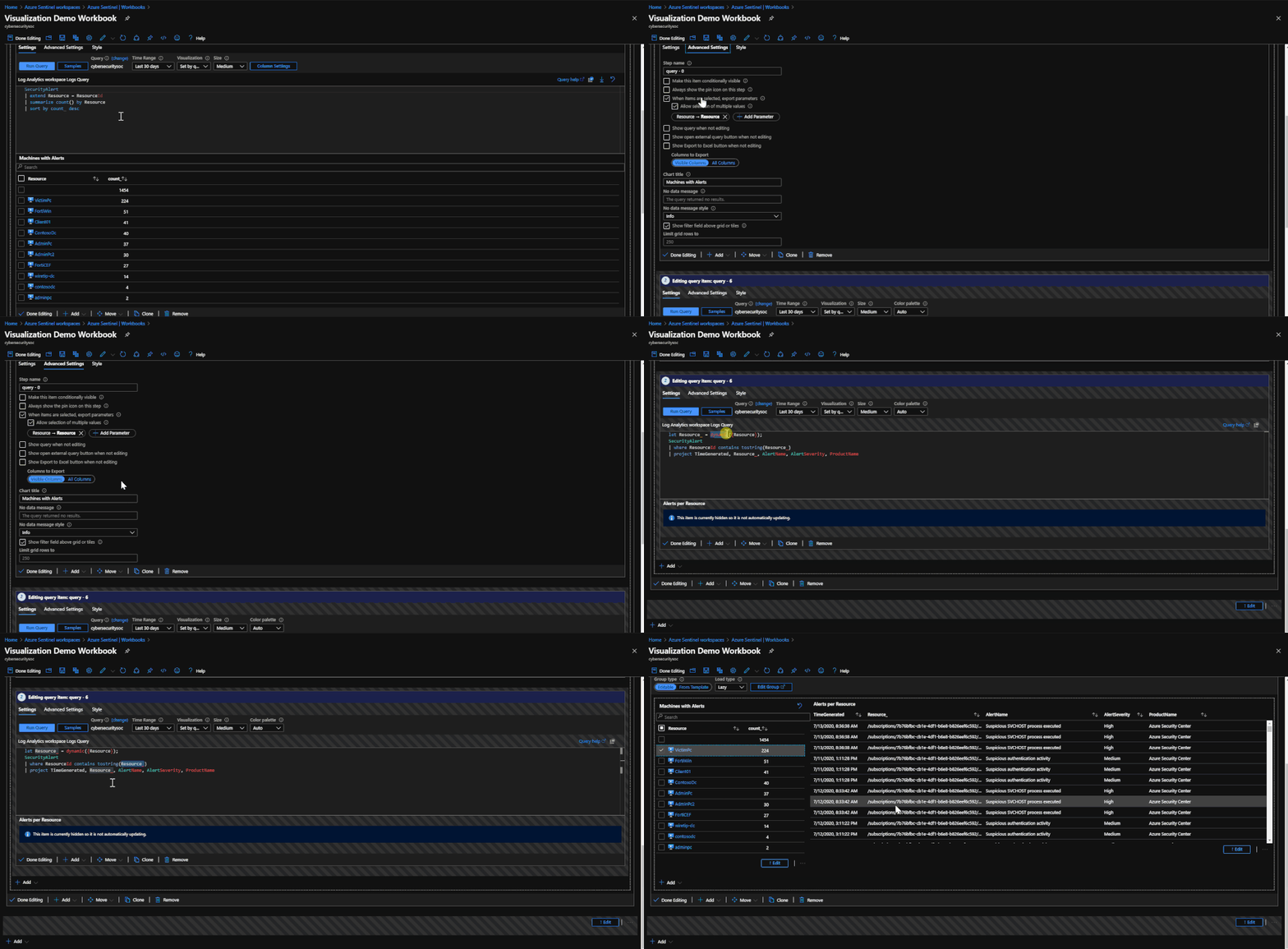
To configure dynamic content:
- Set up a grid that contains results for which you would like to focus on.
- In the advanced settings for the grid, select the option ‘When items are selected, export parameters’.
- Give the item a name.
- Make sure to establish the item in the query that you are running so that it has a value for exporting.
- Set up a second grid or object that you would like to inherit the value from the selected resource in the first grid.
- Establish a variable to inherit the value from the item.
- Use the ‘dynamic’ operator to call the item you established in the first grid as this is how the second grid will see the exported value of the item.
- Establish a clause in the query in the second grid to limit the results to the information that is tied to the variable with the inherited value.
*Set up the variable to take on a value*

SecurityAlert
| extend Resource = ResourceId
| summarize count() by Resource
| sort by count_ desc

*Set up a variable to inherit the exported value of the selected object*

let Resource_ = dynamic({Resource});
SecurityAlert
| where ResourceId contains tostring(Resource_)
| project TimeGenerated, Resource_, AlertName, AlertSeverity, ProductName
Personalization:
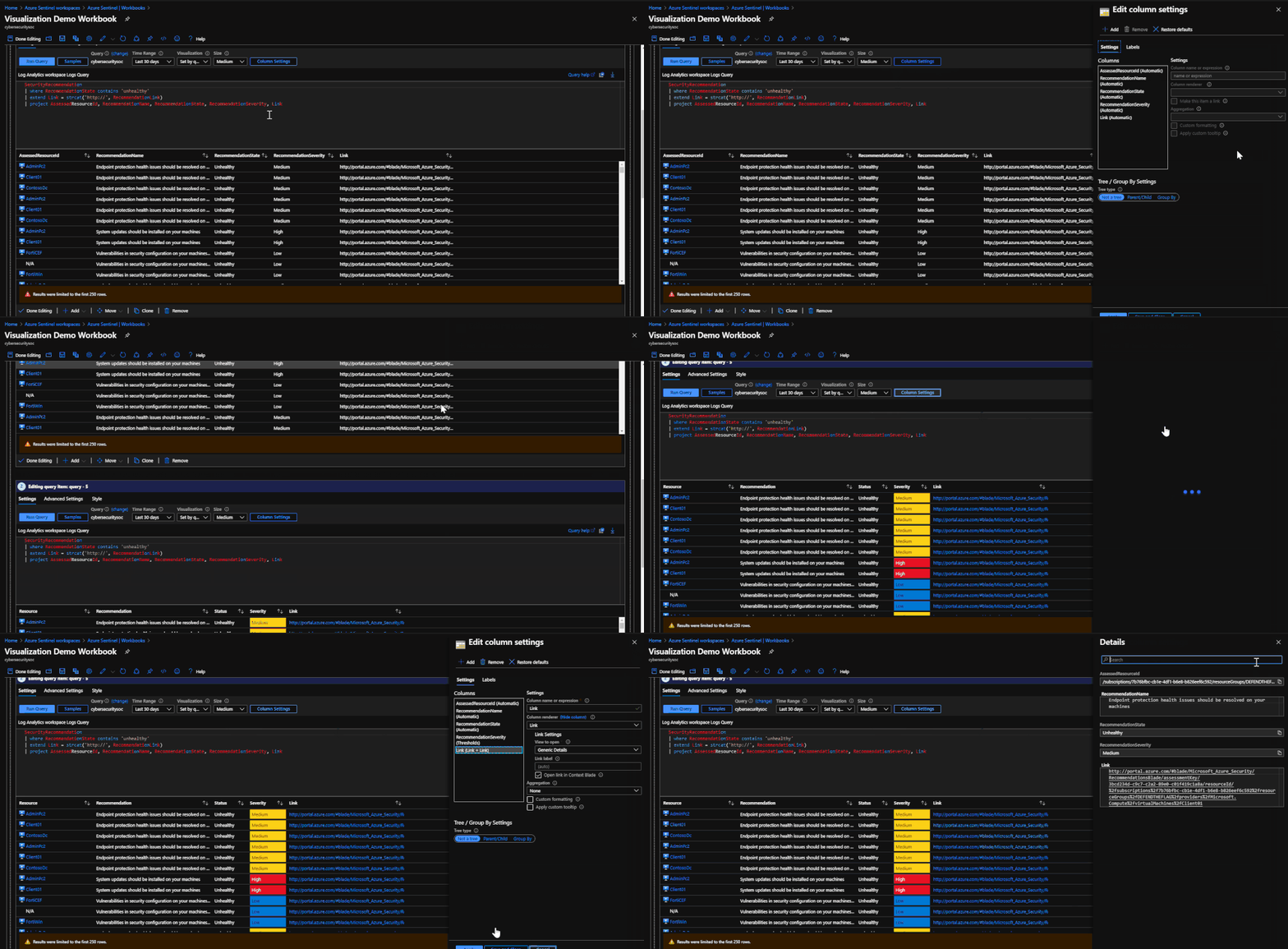
Personalization allows users to modify the results and look of grids and charts to suit their use cases, as well as improve the Workbook experience. An example of a Workbook personalization would be to add color coding for severity of alerts in grids or charts (i.e. red for high severity, green for low severity), or changing a URL link from text to being a clickable URL.
To personalize a Workbook:
- Find a grid or chart that you would like to modify.
- Click ‘Edit’.
- Go to ‘Column Settings’.
- Look over all of the settings to see what there is to change and test how it will look.
- Click ‘Save’.
Power BI
An alternative to using Azure Sentinel workbooks is to use Power BI. This is Microsoft service that allows you to export queries and results from Log Analytics to Power BI for reporting purposes. You may already be using Power BI for reporting in other parts of your business, as it supports reporting from a wide number of sources.
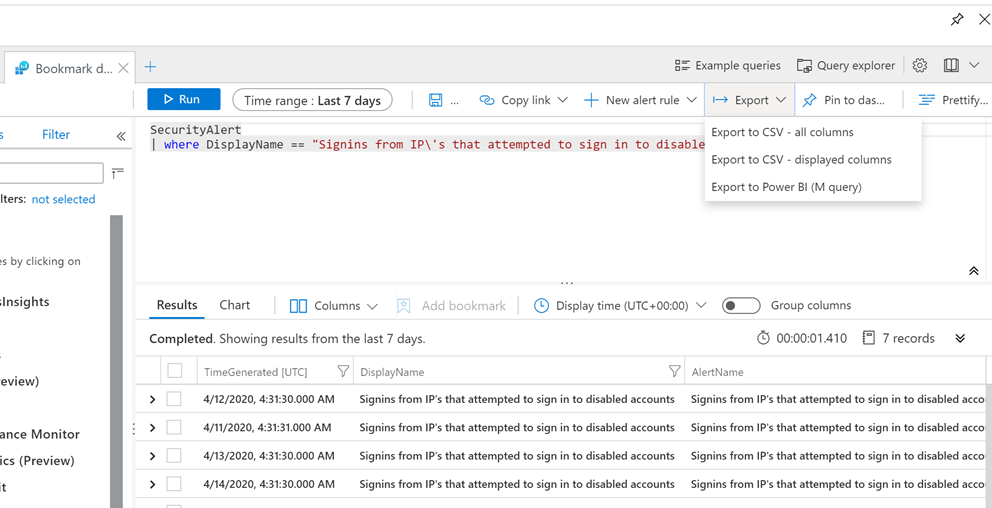
To use Power BI, it must be done from the Log Analytics workspace:
- Choose a query that would like to export and run it.
- In the top right, choose ‘Export’ and choose ‘Export to Power BI (m query)’.
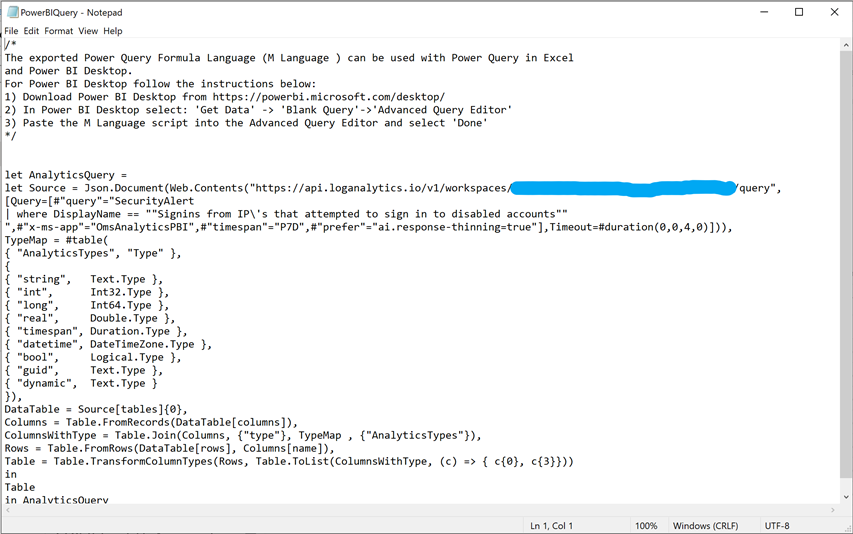
- A file will be generated for Power BI, use the query in the file in Power BI for reporting in the Power BI portal.
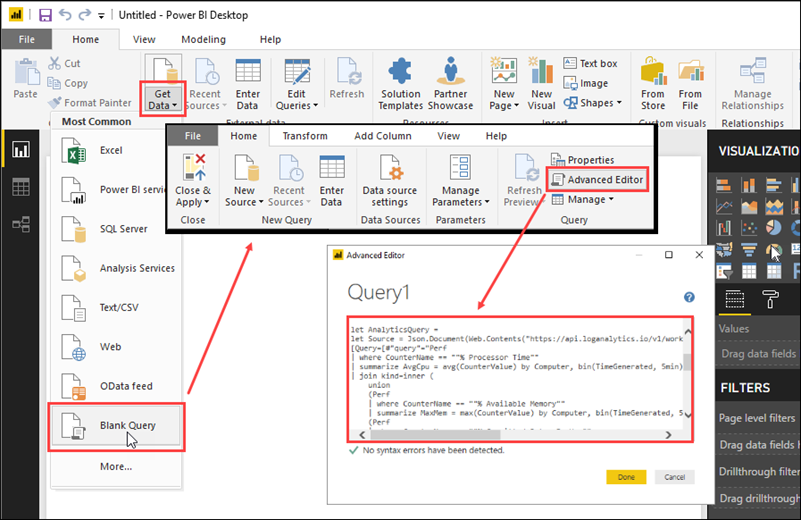
- Within the Power BI portal, choose ‘Get Data’ and select ‘Blank Query’.
- Select ‘Advanced Editor’.
- Paste the query from the text file in the editor.
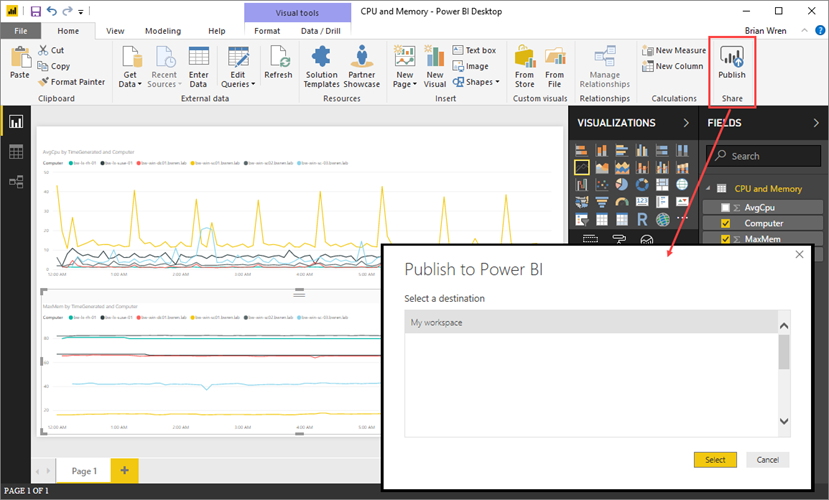
- Publish to Power BI.
What’s next?
We have prepared a sample Workbook that displays each item that was covered in this blog. The purpose of this Workbook is to assist users in seeing examples of each item, how they are configured, and how they operate. The goal is for users to use this Workbook to learn and practice advanced topics with Workbooks that will contribute to new custom Workbooks.
To deploy the template:
- Access the template in GitHub.
- Go to the Azure Portal.
- Go to Azure Sentinel.
- Go to Workbooks.
- Click ‘Add new’.
- Click ‘Edit’.
- Go to the advanced editor.
- Paste the template code.
- Click ‘Apply’.
by Scott Muniz | Jul 16, 2020 | Uncategorized
This article is contributed. See the original author and article here.
Security baseline for Microsoft Edge version 84
We are pleased to announce the enterprise-ready release of the security baseline for Microsoft Edge version 84!
We have reviewed the new settings in Microsoft Edge version 84 and determined that there are no additional security settings that require enforcement. The recommended settings from Microsoft Edge version 80 continue to be our recommended settings for Microsoft Edge version 84. That baseline package can be downloaded from the Security Compliance Toolkit.
Microsoft Edge version 84 introduced 18 new computer settings and 15 new user settings. We have attached a spreadsheet listing the new settings to make it easier for you to find them.
We are still seeking feedback on how often we should update the baseline package on the Download Center for Microsoft Edge if new security settings have not been added. Your feedback so far has been extremely helpful, and we are taking all that feedback into account.
As a friendly reminder, all available settings for Microsoft Edge are documented here, and all available settings for Microsoft Edge Update are documented here.
Please continue to give us feedback through the Security Baselines Discussion site and via this post!
by Scott Muniz | Jul 16, 2020 | Azure, Microsoft, Technology, Uncategorized
This article is contributed. See the original author and article here.
I’m happy to announce that our friends (and AMS ninjas) over at SOUTHWORKS recently completed a comprehensive suite of Azure Media Services interoperability tests for Video.js and Shaka player, two of the most popular alternatives to the Azure Media Player (AMP) for live and on-demand streaming of hosted video.
We’ve released the resources, tests scripts and the results in a GitHub repository here –https://github.com/Azure-Samples/media-services-3rdparty-player-samples
The project repository contains:
- A platform/browser feature table for video.js and Shaka player frameworks for both HLS and MPEG-DASH delivery from Azure Media Services (AMS) that covers virtually every playback function, including popular DRM and Media Services live transcription service (using IMSC1 in MPEG part 30).
- The PowerShell setup scripts and full documentation needed to generate content (VOD and Live) in Media Services along with the tools SOUTHWORKS used to test the video.js and Shaka players in a myriad of different combination of features, streaming formats, and content protection from Azure Media Services.
- Sample implementations of the video.js and Shaka player ready to use with captioning and content protection (DRM and Encryption) already configured.
- Documentation on how to implement your own players
In the following video, Julian Faiad (GitHub: juliMatFa-SOUTHWORKS) of SOUTHWORKS provides an overview of how to use the project, setting up and testing the players.
We hope you find the test results, documentation, and player samples useful. We are making plans to test other 3rd party players in the near future, and we are open to contributions from developers of other player frameworks (commercial or open source) that would like to test their content with Media Services and validate it against the same test criteria. Please let us know what you’d like to see tested next.
John Deutscher
by Scott Muniz | Jul 16, 2020 | Uncategorized
This article is contributed. See the original author and article here.
Follow me on Twitter , happy to take your suggestions on topics or improvements /Chris
> This article is for you that is either completely new to ASP .NET Core or is currently storing your secrets in config files that you may or may not check in by mistake. Keep secrets separate, store them using the Secret management tool in dev mode, and look into services like Azure KeyVault for production.
Let’s talk about app secrets and configuration and why we need a tool to manage it. There are a few reasons why this is something that needs to be managed and preferably by a tool:
- Separate config/secrets from source code, your configuration is sensitive, configuration strings may contain passwords or API keys or other secrets. Having this information exposed may leave your system vulnerable. You want to avoid storing any of the data in source code as your source code will most likely end up in a repo on GitHub or a similar place. Even though it’s a private repo it may be exposed. Better to store this elsewhere.
- Values are different on different environments, the values you use for DEV, Staging and Prod are hopefully different when it comes to connecting to a database or API. You need to acknowledge what’s different so you can separate this out as configuration that needs to be replaced per environment.
- Operating systems are different, you might think that it’s enough to make all secrets into environment variables, and you are done. However, you might have so much configuration that you need to organize it in a hierarchy like so “api:<apitype>:<apikey>”. One problem though, : isn’t supported on all OSs but other characters are like ___. The point being is that you want an abstraction layer to organize your secrets/config.
References
Secrets management
Configuration API
Secret manager tool
When you install .NET Core you get a built-in tool to help you managing configuration and secrets. It addresses a lot of the concerns that we covered in the last section. However, there are some things you should know before we continue:
- The tool is great for local dev, The secret manager tool is great for local development but that’s where it should stay.
- Environment variables are not safe, your machine might be compromised and Environment Variables are plain text and not encrypted. So even though it’s tempting to rely on Environment Variables and store those in AppSetting in Azure you want to look into more safe ways of handling secrets like
Azure KeyVault
The secret manager tool is a command-line tool that stores your secrets in a JSON file. Once you **initialize** the tool for a specific project it generates a `Secrets Id` and creates a JSON file in a place that’s OS-dependent:
~/.microsoft/usersecrets/<user_secrets_id>/secrets.json
For Windows
%APPDATA%MicrosoftUserSecrets<user_secrets_id>secrets.json
The idea is that you *initialize* in the root of an ASP .NET Core project and the `Secrets Id` is placed in the project file. It then works with .NET Core and some provider code to make it easy to retrieve and store secrets through code.
DEMO manage secrets
Let’s try to cover the following areas:
- Initialization, this is how you generate an id and creates a file that will contain your secrets
- Setting a value, this is about setting a value, either from a terminal or from code.
- Accessing a value, this can be done from both terminal and code.
- Removing a value, it’s good to know how to remove a value when you no longer need it.
Initialization
- Type the following command:
dotnet user-secrets init
The terminal should give you an output like so:
Set UserSecretsId to '<secret-id>' for MSBuild project '/path/to/your/project/project.csproj'.
- Open up your project file that ends in .csproj.
Locate an entry under `PropertyGroup` looking like so:
<UserSecretsId>secret-id</UserSecretsId>
This UserSecretsId is how the secrets JSON file is connected to your app.
Setting a value
Before we create a secret lets learn how to list the secrets we currently have (there should be none at this point). Type the following command in the terminal:
dotnet user-secrets list
You should get the following output:
No secrets configured for this application.
Next, let’s create a secret.
- In the terminal type the following:
dotnet user-secrets set "ApiKey" "12345"
- List the content of the secret store again:
dotnet user-secrets list
Now you get the following output:
You can also create a namespace with secrets for when you want to group things that go together like:
ProductsUrl
ProductsApiKey
- Type the following command to create *grouped* secrets:
dotnet user-secrets set "Products:Url" "http://path/to/product/url"
dotnet user-secrets set "Products:ApiKey" "123abc"
You should get the following output:
Successfully saved Products:Url = http://path/to/product/url to the secret store.
Successfully saved Products:ApiKey = 123abc to the secret store.
- List the content of your secret:
Products:Url = http://path/to/product/url
Products:ApiKey = 123abc
ApiKey = 12345
The above might look exactly like when you stored ApiKey but there is a difference when accessing. Let’s try to access next.
Accessing a value
The `Configuration` API will help us retrieve our secrets in source code. It’s a powerful API that is capable of reading data from various sources like appsettings.json, environment variables, KeyVault, Command-line, and much more, with the help of dedicated providers that can be added at startup. It’s worth stressing this API helps us only in development mode when it comes to reading secrets. The secret management tool is only meant for development so that works for us.
- Open up `Startup.cs` and note how the constructor already inject it like so:
public Startup(IConfiguration configuration) {}
- Locate ConfigureServices() method and add the following code to retrieve and display the secret:
public void ConfigureServices(IServiceCollection services)
{
ApiKey = Configuration["Products:Url"];
Console.WriteLine(ApiKey);
services.AddControllers();
}
Build and run your project by running the following commands:
dotnet build && dotnet run
You should get the following output at the top:
http://path/to/product/url
Great our secret is listed where it should be. What if we want to access these values from somewhere else other than Startup.cs, like from a controller or a service? Yea we can do that, by using the built-in dependency injection.
- We are about to register a singleton, this is something we can use and inject it into a service or controller. The singleton will contain the API keys or other secrets we might need to access.
- Create a file AppConfiguration.cs and give it the following content:
namespace webapi_secret
{
public class AppConfiguration
{
public string ApiKey { get; set; }
public Product Product { get; set; }
}
}v
- Go back to Startup.cs, locate the ConfigureServices() method, and add the following lines:
var config = new AppConfiguration();
config.ApiKey = Configuration["Products:Url"];
services.AddSingleton<AppConfiguration>(config);
Now we have a singleton we can use anywhere :)
- Create a ProductsController.cs and ensure it looks like so:
using Microsoft.AspNetCore.Mvc;

namespace webapi_secret.Controllers
{
  [ApiController]
  [Route("[controller]")]
  public class ProductsController : ControllerBase
  {
    AppConfiguration _config;
    public ProductsController(AppConfiguration config)
    {
      this._config = config;
    }

    [HttpGet]
     public string Get()
     {
       return this._config.ApiKey;
     }
   }
 }
Note how we inject AppConfiguration in the constructor and assign the instance this._config = config;. Note also how we construct a method Get() and return config key:
[HttpGet]
public string Get()
{
  return this._config.ApiKey;
}
- Build and run this with the following command:
dotnet build && dotnet run
This should print out the ApiKey.
Note, you can do it like this and have a configuration singleton that you use where you need it or you can create your services and register them to the DI container with the config passed through the constructor, like so:
- Create a file HttpService.cs and give it the following content:
namespace webapi_secret
{
  public class HttpService
  {
    private string _apiKey;
    public HttpService(string apiKey)
    {
      this._apiKey = apiKey;
    }

    public string ApiKey { get { return _apiKey; } }
  }
}
- Go to the file `Startup.cs` and locate the ConfigureService() method and the following line:
services.AddSingleton<HttpService>(new HttpService(Configuration["ApiKey"]));
Now you can inject `HttpService` wherever you need it and know that it is configured with an API key.
Whether you want a configuration instance that you inject or if you want services created with the necessary keys is up to you.
> Wait, what those keys we created Products::ApiKey, all that talk of a namespace?
Yea we can deal with those in a very elegant way.
- Create a file ProductConfiguration.cs and give it the following content:
public class ProductConfiguration
{
  public string Url { get; set; }
  public string ApiKey { get; set; }
}
- Go to Startup.cs and add the following code to ConfigureServices():
var productConfig = Configuration.GetSection("Products")
                          .Get<ProductConfiguration>();
services.AddSingleton<ProductConfiguration>(productConfig);
The GetSection() method allows us to grab a namespace and then map everything on that namespace and map it into a type. This is great now we can have dedicated parts of our secrets mapped to dedicated configuration classes
Just like with AppConfiguration we can inject this where we please. Update ProductsController.cs to look like so:
using Microsoft.AspNetCore.Mvc;

    namespace webapi_secret.Controllers
    {
      [ApiController]
      [Route("[controller]")]
      public class ProductsController : ControllerBase
      {
        AppConfiguration _config;
        ProductConfiguration _productConfig;
        public ProductsController(AppConfiguration config, ProductConfiguration productConfiguration)
        {
          this._config = config;
          this._productConfig = productConfiguration;
        }

        [HttpGet]
        public string Get()
        {
          // return this._config.ApiKey;
          return this._productConfig.ApiKey;
        }
      }
    }
Removing a value
Lastly, how do we clean up? Use the command remove and give it the name of the key, like so:
dotnet user-secrets remove "ApiKey"
There’s also a clear command that removes all keys, be careful with that one though:
dotnet user-secret clear
Summary
We discussed why it’s a bad idea to have secrets in your source code, i.e you can check it in by mistake. Additionally, we talked about how the secret manager tool can help you while developing to keep track of your secrets. Then we showed how to *manage* secrets and thus covering:
- Adding secrets
- Reading secrets from command-line and from code
- Configure DI instances to be populated by secrets
- Remove secrets
I hope this was helpful.
by Scott Muniz | Jul 16, 2020 | Uncategorized
This article is contributed. See the original author and article here.
Project Edison
Project Edison is a Safety Notification and Response Platform that leverages the Internet of Things (IoT) to communicate to a community during emergency events. It’s an open sourced Microsoft 3rd party solution accelerator (3PSA) on Github that was invented by me, became an intrapreneurial start-up project I cofounded with Clark Ennis and upon receiving funding was built by our partner Insight Digital Innovation.
Guest blog by Sarah Maston, Senior Solution Architect at Microsoft and Inventor of Project Edison
What the idea behind Edison?
So back in April 2018, two emergency events happened to Sarah Maston, Senior Solution Architect at Microsoft, within the span of a two day period that led to an “A-ha” moment for Sarah.
Event 1.
The first thing that happened is that at my apartment building I saw a lot of smoke and ran in to save my cats. The bells hadn’t come on yet, so I took to the stairs so I didn’t get stuck in the elevator. Running the stairs to the top floor, grabbing some confused cats, running back down.
Now, running into a perceived burning building to save my cats is a topic for a different discussion… but that’s what I did. It turned out to be a false alarm. My cat Thomas was not amused.
Event 2.
The next day I was at the bar and the head of my building’s security was there. He said that the fire had been out for 20 minutes by the time I saw that smoke and it was as far away as possible but the firepeople had used a fan and blown the smoke across the garage and that is what I saw. I said, “what?!? I could have broken my neck on the stairs… my cats were traumatized… There needs to be a system that has a map and tells me where the fire was and that it was already out!!.” His response was, “You’re the one that makes that stuff.”
Two days later I was in a meeting room in Building 20 on Microsoft campus when the news alert came about the event on YouTube’s campus. I got to thinking. If that had happened on my campus, the Microsoft campus is huge. It’s a whole zip code. I could be safe and all I needed to do was calmly walk outside and get in my car to evacuate the campus. But there was no system in place that would tell me that. Everyone I know would want to text me to ask if I was okay. I would panic and the stress of not knowing where it was would be awful. I historically do very badly with stress. To get information, I’d only have a hashtag to find out what was going on. I left my meeting with an idea to go back to my desk to draw it. I made a phone call to Clark, “I have an idea. I’m drawing it.” To which he said, “Let’s meet tomorrow.”
Why is it named Project Edison?
When Clark and I first met I showed him my vision. In a simple use case, we can geofence where smart devices are and if we knew were an event had occurred we could light up indicators different colors. In the campus case, if something happened in Building 900 (not a real building) an indicator would light up yellow in Building 20 and that would tell me that something had happened “near me” but that I was safe and to get more instructions. If it turned red, it would mean the emergency was on top of me and I needed to act quickly. It could have a communication hub that security can talk to a community directly and then we wouldn’t need to check social media. We could be told what to do quickly and efficiently. We could be told when it was over. We could hook up different kinds of sensors, e.g., auditory, to turn the indicator red faster than anyone surviving a crisis and then calling 911 to tell them.
Clark said, “An indicator that lights up… do you mean a light bulb?”
“Yes, a light bulb.” – me.
And Project Edison was born.
How did you pick the Logo?
We met with the design firm and it was a difficult day to present the idea as the Santa Fe school shooting was in the morning. But we all dug in. We have a problem to solve and we are going to attempt to help. So the assignment for the logo was, I told them, “Something hopeful.”
They gave us a set of six possible designs that were all pretty wonderful.
The final logo was picked by my friend’s 8 year old daughter. We named her pick, the fox, Thomas. I was really glad that was the one she liked best! We, the adults over at Microsoft, had all landed on the fox with a group vote too. From some internet researching I learned the fox symbolizes “getting out of dangerous situations using intelligence.” As a kid-developer-in-training, she wears her Project Edison hoodie proudly. #girlsWhoCode
Thomas, serendipitously, is the name of one of my cats I ran in to save.
How did you get it to the world?
Clark and I went through the same process anyone needs to go through if they have an idea they believe in. We created a short four slide pitch deck and started to socialize our idea. There are programs at Microsoft that are used to accelerate our partners ideas and we knew we had a special situation that the idea was coming from inside the house, but that this idea could be given to our partner eco-system to build interesting safety solutions. In our off-hours we met and created our PoC use case that we started socializing and pitching to our management. We gained support and got good news that it would be funded to be built by one of our partners. We then selected Insight Digital Innovation to build the solution.
It’s free on Github?!?
Yep. We have a whole class of solutions here that are called “Solution Accelerators” and they are 80% solutions that our customers and partners can use to speed up their time to market. Project Edison is a Safety Notification & Response Solution Accelerator.
How did Microsoft support you to do this?
My role as an IoT Solution Architect is to help our partner eco-system create powerful IoT Solutions on Azure. So when Clark and I created our business plan for our intrapreneurial start up project we had very specific goals around getting this idea out to all our partners to be able to leverage for any security or safety project. We proposed we could do that by making it a Solution Accelerator. Clark and I sit on different teams and our management was incredibly supportive. We started this project in our spare time getting more and more support as we socialized it. Sometimes by “cold emailing” different parts of the company to gain insight and opinions, especially from experts in the field of public safety. We have a saying here, “One Microsoft,” and this was definitely brought to life from the support of everyone. It’s a difficult topic to talk about in the US but we found talking about how Project Edison would cut down on stress in an emergency was creating a feeling of hope from everyone we collaborated with.
Upon receiving funding, we and our partner Insight Digital Innovation got to work to design and build out Project Edison. By putting it out on Github, we made that idea available to any partner that wants to use it. Whether for an integration project with various safety systems already in play or integrating into an existing app with the Project Edison API or adding communication to an existing system by leveraging the Project Edison app framework, it’s all out there for them.
Microsoft is extremely supportive of new ideas from everyone that works here. Satya created a week long company hackathon, OneWeek, where some of the most amazing ideas become reality. One of the most important inventions, in my opinion, is the adaptive controller for Xbox that was just released this year. That started as a passion project, just like Project Edison.
What Project Edison based solutions are coming out? How do I get more info?
I look forward to the next ideas that Project Edison inspires!
You see the lite blub resources at https://github.com/litebulb/ProjectEdison


Recent Comments