by Scott Muniz | Jul 17, 2020 | Uncategorized
This article is contributed. See the original author and article here.
By: Shanthi Thillairajah | PM | Microsoft Endpoint Manager – Intune
NOTE: This feature is in the latest build, but the UI is rolling out. We’ll update this post when it’s fully available to use!
Microsoft Endpoint Manager – Intune support for Android Enterprise corporate-owned devices with a work profile is now in public preview! You can start enrolling devices here in the Microsoft Endpoint Manager admin center. Corporate-owned devices with a work profile is one of the corporate management scenarios in the Android Enterprise solution set. This corporate-owned, personally-enabled (COPE) scenario offers separation between work and personal profiles, similar to that offered for personally–owned work profile devices, while giving admins more device-level control. IT admins can see, control, and configure the work accounts, applications, and data in the work profile, while end users are guaranteed that admins will have no visibility into the data and applications in the personal profile. This scenario is targeted at organizations that wish to enable personal use on corporate-owned single-user devices that they have provided for work. This management scenario is available for Android 8+ (Oreo and higher) devices.
What is available in the first preview release?
This preview release is intended to demonstrate the corporate-owned work profile capabilities that we have built so far. We hope to gather feedback and iterate on the design and functionality before the end-to-end scenario becomes generally available in the Microsoft Endpoint Manager admin center. The following features are included in today’s preview:
- Enrollment: Create multiple enrollment profiles with unique tokens that do not expire. This includes device enrollment using NFC, token entry, QR code, Zero Touch, or Knox Mobile Enrollment.
- Device Configuration: A subset of the existing settings for fully managed and dedicated devices.
- App Management: App assignments, app configuration, and associated reporting capabilities. Support for app protection policies will be added in a subsequent preview update.
- Device Compliance: The compliance policies that are currently available for fully managed devices.
- Device Action: Delete device (factory reset), reboot device, and lock device are available.
- Conditional Access: The conditional access capabilities that are currently available for fully managed devices.
- Resource Access: Certs, Wi-Fi, and VPN. Support for PFX Create is not available in this preview.
- MTD Support: Admins can push MTD apps to the work profile.
What features are in development?
We are continuing to develop several other features while we collect feedback on this preview. We anticipate adding in the features below in subsequent preview updates prior to general availability. This post will be updated when these features are available in public preview:
- Support for app protection policies (APP, also known as MAM).
- Personal usage policies – these settings will configure the personal side of the device, including disabling camera and screen capture on the personal side.
- Work profile password configuration – these settings will create requirements for the work profile password. Device password configuration will be available in the initial preview release.
- Password reset device action for the work profile.
- Filter fully managed, dedicated, and corporate-owned work profile devices separately.
Device Enrollment
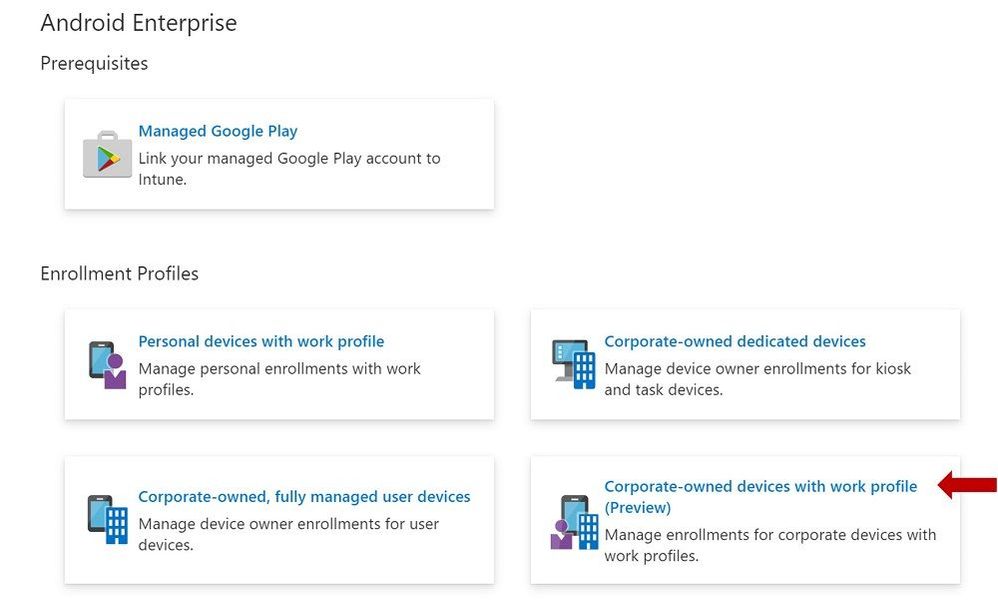
Intune admins can enable enrollment for this scenario by selecting the “corporate-owned devices with a work profile” enrollment tile (indicated with the red arrow below). Admins can create multiple enrollment profiles with unique tokens that do not expire.
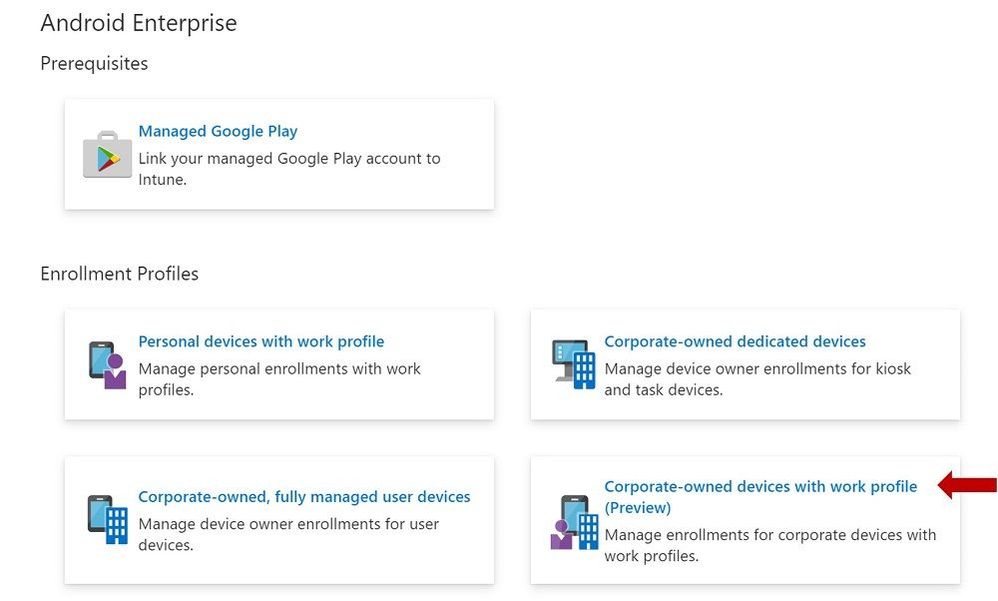 Enrollment Profiles | Corporate-owned devices with work profile (Preview)
End User Enrollment
There are new screens in the end user enrollment flow that help inform the user about the functionality of the work profile and personal profile on the device. Here are some examples of the screens:
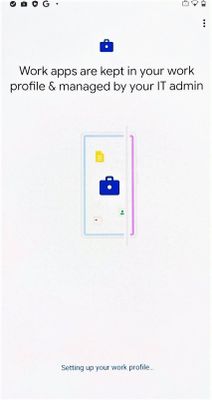 Figure 1. Setting up your work profile
 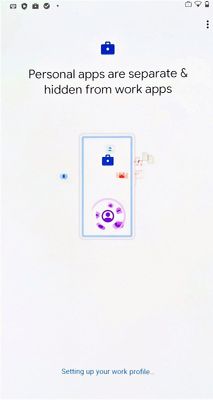 Figure 2. Setting up your work profile
Next, there are screens that will guide your end user through setting up admin requirements like creating a device password, installing work applications, and registering the device. After a successful enrollment, the user should see two sections labeled work and personal after they swipe up to see their full application list.
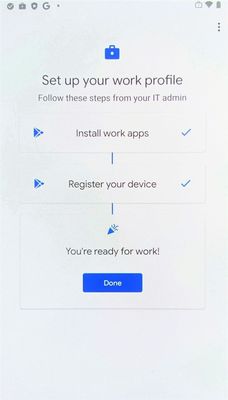 Figure 3. Setting up your work profile
 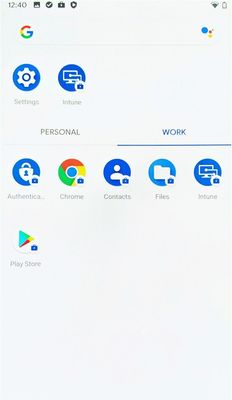 Successful enrollment
Device Configuration
You can create device configuration profiles to assign to corporate-owned devices with a work profile to disable device features, assign certificates, or configure VPN.
To create a device configuration profile, select a profile under the “Fully Managed, Dedicated, and Corporate-Owned Work Profile” category shown below. Device configuration profiles in this category can be applied to fully managed, dedicated, and corporate-owned work profile devices.
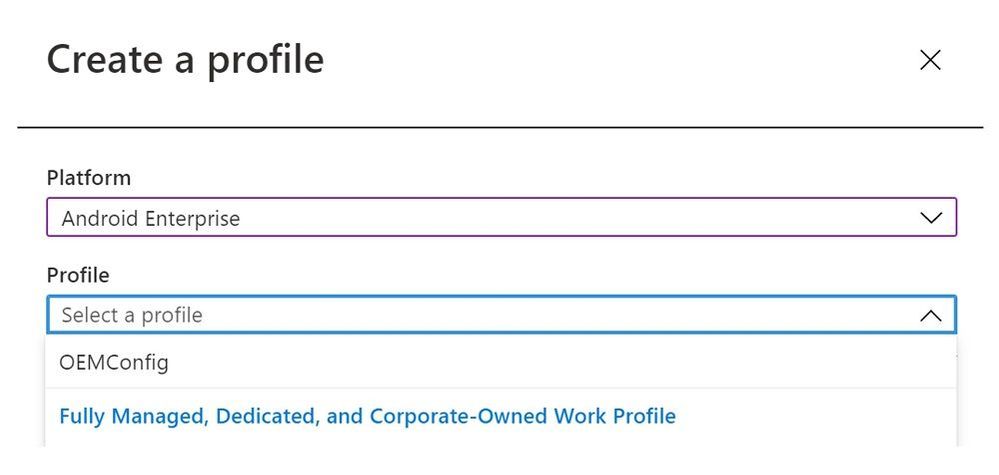 Create a profile – Device configuration profile
Some of the settings in the Device Restrictions profile do not apply to corporate-owned devices with a work profile; however, there are headers under each setting category that indicate which device types a particular setting can be applied to. Below is an example of these headers used in the Users and Accounts category.
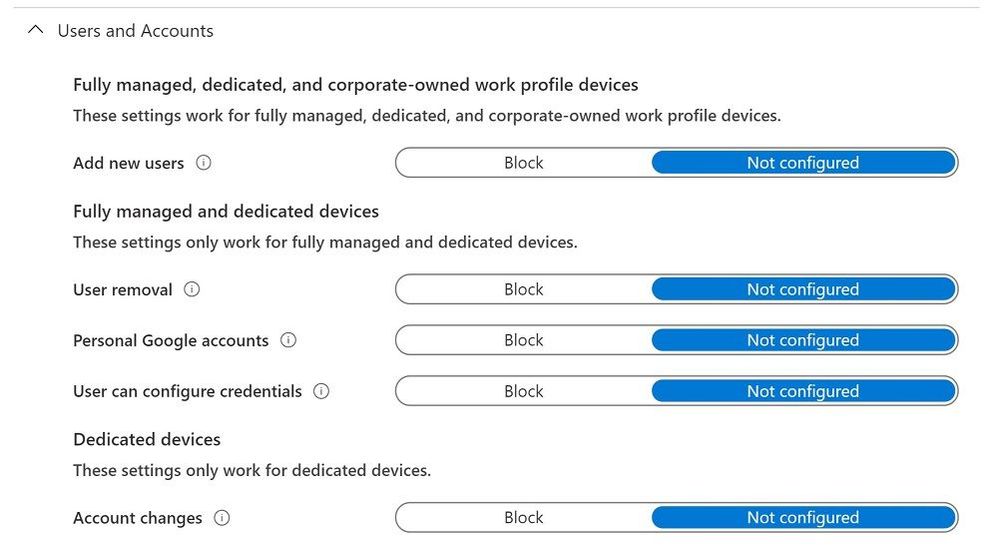 Device restrictions profile – Users and Accounts
Some settings only apply at the work-profile level for corporate-owned devices with a work profile. These settings still apply device-wide for fully managed and dedicated devices. They are marked with the “work profile-level” descriptor in the setting name, as shown in the example below.
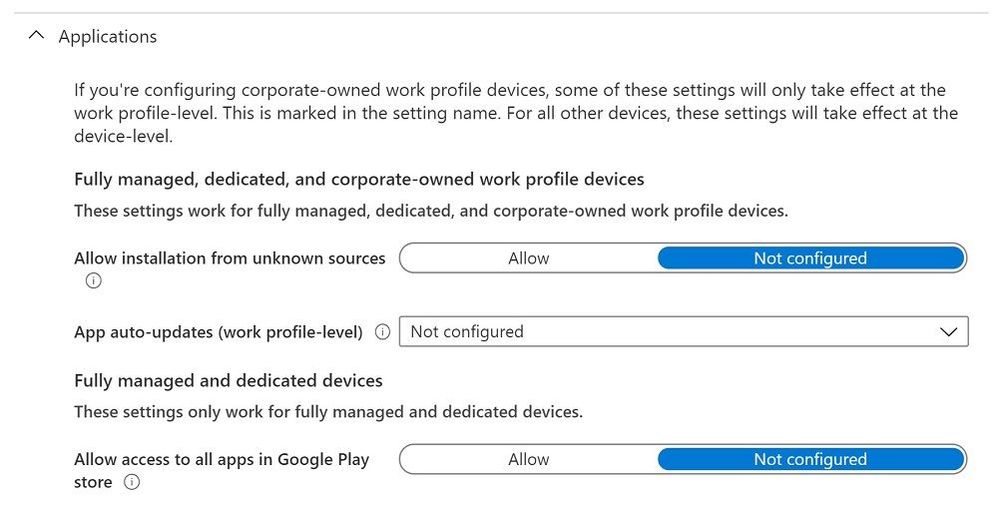 Device restrictions profile – Applications
Device Compliance
The compliance settings that are available for fully managed and dedicated devices will be applicable to corporate-owned devices with a work profile for this preview. To create a compliance policy, admins should select “Android Enterprise” as the platform and “Fully managed, dedicated, and corporate-owned work profile” as the policy type.
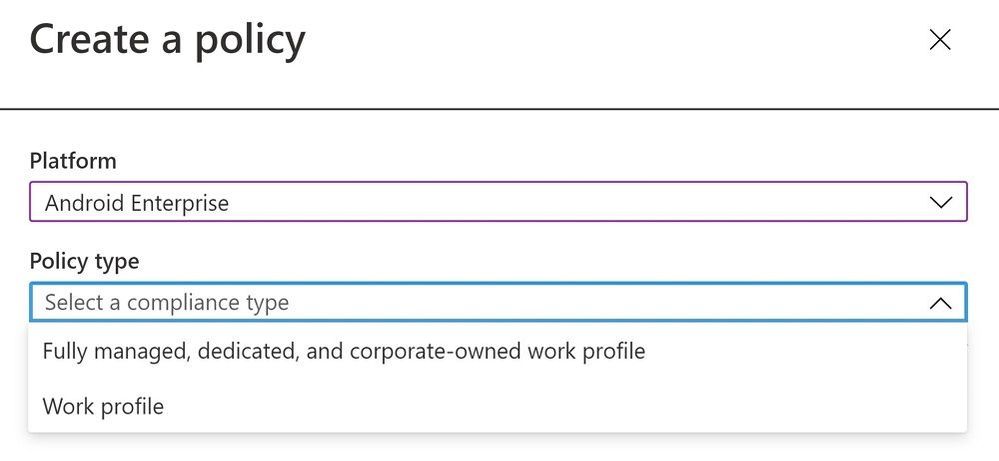 Create a policy – Device compliance policy
App Management
IT admins can deploy apps and utilize app configuration for corporate-owned devices with a work profile as a part of this preview release. To create an app configuration policy for managed devices, admins should select “Android Enterprise” for the platform and “Fully Managed, Dedicated, and Corporate-Owned Work Profile” for the profile type.
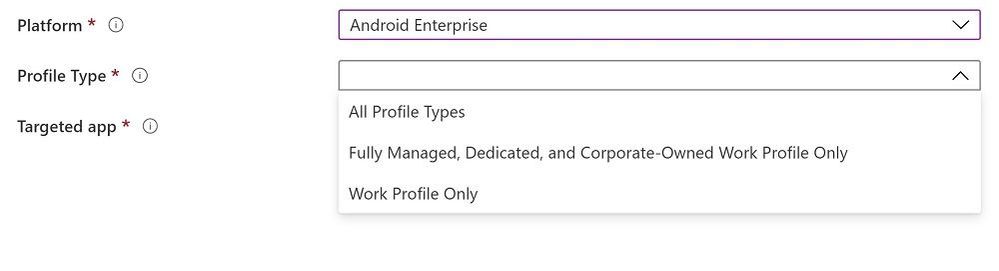 Create a policy – App configuration policy
As referenced above, there is no support for app protection policies (APP, also known as MAM) in this preview release.
Customer Support for This Preview
The available preview features are fully supported through our Intune support channels.
Known Issues
There is a known issue with being able to enforce a device-wide password. End users have the ability to get around device password requirements on corporate-owned devices with a work profile, regardless of admin policy. This happens when a user turns off the “use one lock” setting on their device which enables setting separate work profile and device passwords. This effectively allows the user to turn off device password and only use a work profile password with the requirements that the admin set for device password. We are working to address this issue in an upcoming release.
How Can You Reach Us?
As you validate and build out the Android Enterprise corporate-owned devices with a work profile preview scenarios, we would appreciate your feedback on IT admin’s device configuration and end-user’s device enrollment experiences. Keep us posted on your Android experience through comments on this blog post, through Twitter (@IntuneSuppTeam), and request any new features on UserVoice.
Android Enterprises Resources
For information about the new privacy protections on company-owned devices, refer to Google’s blog post.
Documentation
by Scott Muniz | Jul 17, 2020 | Azure, Microsoft, Technology, Uncategorized
This article is contributed. See the original author and article here.
Initial Update: Friday, 17 July 2020 20:14 UTC
We are aware of issues within Application Insights and are actively investigating. Some customers with Application Insights resources in South Central US 2 geographical region may experience intermittent metrics data gaps and incorrect alert activation.
- Work Around: None
- Next Update: Before 07/17 22:30 UTC
We are working hard to resolve this issue and apologize for any inconvenience.
-Sindhu
by Scott Muniz | Jul 17, 2020 | Azure, Microsoft, Technology, Uncategorized
This article is contributed. See the original author and article here.
Final Update: Friday, 17 July 2020 21:11 UTC
We’ve confirmed that all systems are back to normal as of 07/17, 20:30 UTC. Our logs show the incident started on 07/17, 19:20 UTC and that during the 1 hour and 10 minutes that it took to resolve the issue some customers with Application Insights resources in South Central US geographical region may have experienced intermittent metrics data gaps and incorrect alert activation.
- Root Cause: The failure was due to an issue in one of our dependent services.
- Incident Timeline: 1 hour and 10 minutes – 07/17, 19:20 UTC through 07/17, 20:30 UTC
We understand that customers rely on Application Insights as a critical service and apologize for any impact this incident caused.
-Sindhu
Initial Update: Friday, 17 July 2020 20:14 UTC
We are aware of issues within Application Insights and are actively investigating. Some customers with Application Insights resources in South Central US geographical region may experience intermittent metrics data gaps and incorrect alert activation.
- Work Around: None
- Next Update: Before 07/17 22:30 UTC
We are working hard to resolve this issue and apologize for any inconvenience.
-Sindhu
by Scott Muniz | Jul 17, 2020 | Uncategorized
This article is contributed. See the original author and article here.
“Challenges are the biggest opportunity that will help you learn and grow,” says Alagunila Meganathan, a 4-time MVP awardee for Azure.
Alagunila hails from the remote village of Rasipuram – whose name originates from Rasi which means “constellation” in many Indian languages – about 350 kilometres from Chennai (Madras) in the southern state of Tamil Nadu in India. And from that constellation emerged a bright tech star glowing with aspirations to empower thousands of young women to follow their tech passions.
Alagunila, who is fondly known as Nila, started her career as a college professor in the Department of Master of Computer Applications. A dual postgraduate degree holder in Computer Engineering and Computer Applications, Nila understands the difficulties of overcoming remote locations more than most.
India is a melting pot of geological terrains and languages where the landscape and linguistics change every 100 kilometres. Yet, the urge for knowledge and empowerment couldn’t keep this MVP from emerging as a community leader and inspiring others to adapt to the challenges successfully.
Nila has since become an idol for the budding female tech aspirants in the community she influences. She started her journey by spreading awareness about hackathons, bootcamps, meetups and other national and international tech events. Nila, in working to spread the experience of such activities, soon connected with other like-minded MVPs to support college girls to attend events in cities like Delhi, Pune, Mumbai, Hyderabad, Cochin, Trivandrum, Bangalore and Chennai.
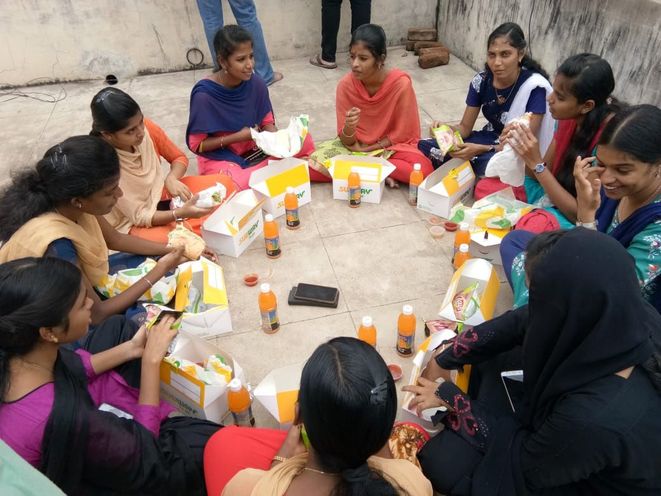
Travelling to such events would involve multiple days of transit across various modes of public transport, meaning hopefuls would need to cover their expenses as well as accommodation and food. Added to this was the cultural nuances of allowing young girls to travel alone with strangers away from their homes for the sake of imbibing knowledge and experience. Sometimes, families sometimes simply could not afford the expenses nor the risk involved.
So, Nila and team assisted some girls by sponsoring part of their expenses as well as exposing the tech aspirants to the opportunities of being a part of the industry. This, along with the mentorship given in speaking and writing, provided immense confidence for the girls entering the industry and during early employment.
In view of the challenges, Nila with the help of fellow MVPs set up a dedicated community Microsoft DEV. Geeks (part of the Global AI Community) for students from rural locations. The sessions were delivered in the local language to help better understanding of the concepts and build familiarity and warmth within the community.
To overcome the challenge of finding a central venue for the meetups, the team collaborated with companies to provide convenient venues which were easily accessible by public transport. This initiative started with 35 participants and slowly grew to more than 100. Soon running out of available space, the young students would stand outside the venue or employ makeshift chairs to ensure they could continue their learning journey.
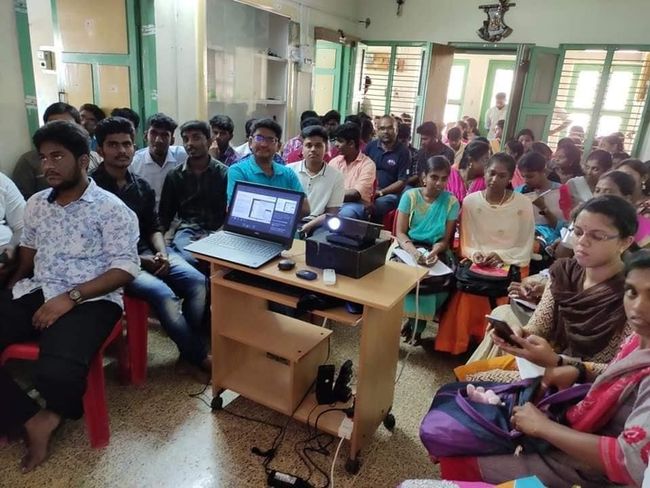
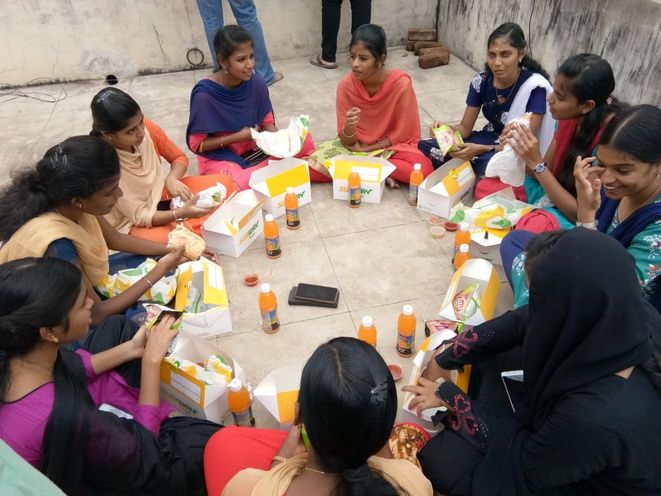
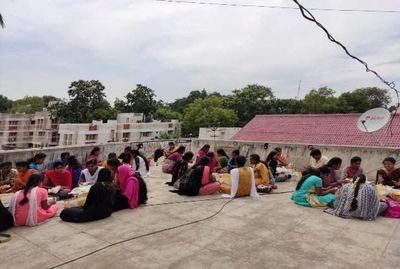
Following the sessions, the experts then joined the students for lunch on the roof. This post-session exercise became an integral part of the learning process with Lunch & Learn with Microsoft MVPs. The team continued to encourage participation with multi-language sessions, social media interaction, student feedback integration, and event invitation through the Global AI Community groups page.
Not to be deterred by the pandemic, Nila and seven other MVPs – hailing predominantly from cities like Coimbatore, Cochin, Madurai, Salem, Thiruvananthapuram, Ooty and others – started a webinar series of rural upskilling called Learn with Microsoft MVPs.
Between them, the MVPs use their expertise in Azure, Developer Technologies, and Office Applications & Development to teach students not only in India but from countries like Italy and Australia.
Online and offline, Nila believes in knowledge being the true metric of success. Therefore, she continues to follow her pursuit of knowledge by sharing more and meeting new people.
Nila advises young graduates by using her own journey of challenges and successes as an example.
A true community leader, Nila mentors young aspirants to find their preferred tech platform and continue their journey as a ‘techie’ in any city of their choice. Location, as evidenced by Nila, is secondary – the most important part is finding your passion and pursuing it.

by Scott Muniz | Jul 17, 2020 | Azure, Microsoft, Technology, Uncategorized
This article is contributed. See the original author and article here.

This week we held POWERful DEVs Conference, the first virtual conference of its kind. There was a showcase of how developers can leverage the Power Platform to build applications faster and with far less effort. Checkout the link above to the conference agenda and head over to the Microsoft Channel 9/Microsoft Developer You Tube channel to see all of the content on demand.
Content Round Up
How to Run Custom Scripts on Azure Arc Enabled Servers
Thomas Maurer
With the latest update for Azure Arc for Servers, you are now able to deploy and use extensions with your Azure Arc enabled servers. With the Custom Script extension, you can run scripts on Azure Arc enabled servers and works similar to the custom script extension for Azure virtual machines (VMs). There is an extension for Windows and Linux servers, which is a tool that can be used to launch and execute machine customization tasks post configuration automatically.
Creating Custom Connector from Azure Functions with Swagger
Justin Yoo
This post shows how to create a custom connector from Swagger document, automatically generated from Azure Functions instance on-the-fly, and how to apply the custom connector to Power Automate and Power Apps.
Manage Hyper-V VMs using PowerShell Direct
Thomas Maurer
PowerShell Direct lets you remotely connect to a Virtual Machine running on a Hyper-V host, without any network connection inside the Virtual Machine. PowerShell Direct uses the Hyper-V VMBus to connect inside the Virtual Machine. This feature is convenient if you need it for automation and configuration for Virtual Machines or if you, for example, messed up network configuration inside the virtual machine, and you don’t have console access.
Instagram Content Analysis Code Sample using Cognitive Services
Dmitry Soshnikov
In this example, we try to figure out what makes people like pictures on Instagram more. To do so, we use Cognitive Services Vision API, and some Python and Machine Learning Magic. You can easily run this sample for yourself by opening code in Visual Studio Codespaces.
Studying for AI-900
Sarah Lean
Now Artificial Intelligence, Machine Learning, is absolutely not my area of expertise, I am very much a infrastructure gal. However, I love to learn new things and stretch myself every now and again, and sitting the AI-900 exam and passing it is firmly in my sights, and I thought I’d share some of the resources I have bookmarked and am using for my study.
PowerShell Basics: How to Delete Microsoft Teams Cache for All Users
Anthony Bartolo
Sometimes there is a need to delete Microsoft Teams cache to quicken the adoption of an in-band policy change or simply troubleshoot an issue. The challenge here is that the cache for Microsoft Teams is in multiple directories. This can be done manually but would result in a slow and tedious process. Again, we turn to PowerShell to automate this process and this time it’s a one-liner that addresses this opportunity.
Azure Log Analytics for Azure Arc Enabled Servers
Thomas Maurer
In this blog post, we are going to have a quick look at how you can access Azure Log Analytics data using Azure Arc for Servers. The Azure Log Analytics agent was developed for management across virtual machines in any cloud, on-premises machines, and those monitored by System Center Operations Manager. The Windows and Linux agents send collected data from different sources to your Log Analytics workspace in Azure Monitor, as well as any unique logs or metrics as defined in a monitoring solution. When you want to access these logs and run queries against these logs, you will need to have access to the Azure Log Analytics workspace. However, in many cases, you don’t want everyone having access to the full workspace. Azure Arc for Servers provides RBAC access to log data collected by the Log Analytics agent, stored in the Log Analytics workspace the machine is registered.
Let people try your query in Microsoft Graph Explorer
Ayca Bas
Microsoft Graph Explorer is a wonderful learning space for the ones who are looking for testing Microsoft Graph APIs and reviewing the responses quickly. It provides the simple authentication where you can login, then see the response preview with your own tenant data.
Today, we will explore one of the most practical features of Graph Explorer: “Share Query“.
Manage Azure Event Hubs with Azure Service Operator on Kubernetes
Abhishek Gupta
Azure Service Operator is an open source project to help you provision and manage Azure services using Kubernetes. In this blog post, you will get a high level overview of Azure Service Operator, how to set it up, use it to provision Azure Event Hubs and deploy apps to Kubernetes which use the Azure Event Hubs cluster
Getting Started with GraphQL on Azure – Part 1
Aaron Powell
This is the first part of my GraphQL on Azure series and we look at the different ways to host a GraphQL server on Azure, and some recommendations on why different options work for different reasons.
Improving CollectionView Scrolling
Brandon Minnick
Sometimes scrolling a Xamarin.Forms.CollectionView (especially on Android) can be choppy. This post shows how to fix it!
Xamarin Podcast – July Edition
Matt Soucoup
Xamarin.Forms 4.7 is out and the Inverter Converter is all the rage!! … well … multi-value bindings are all the rage – but that doesn’t have quite the ring of Inverter Converter. This month James and Matt run down the rest of the great features in Xamarin.Forms 4.7 including how it helps you manage light and dark themes, eliminates the need for James’ image circle plug-in, and makes writing Grid row and column definitions so, so, so much easier.


Recent Comments