by Scott Muniz | Jul 28, 2020 | Uncategorized
This article is contributed. See the original author and article here.
To support evolving industry security standards, and continue to keep you protected and productive, Microsoft will retire content that is Windows-signed for Secure Hash Algorithm 1 (SHA-1) from the Microsoft Download Center on August 3, 2020. This is the next step in our continued efforts to adopt Secure Hash Algorithm 2 (SHA-2), which better meets modern security requirements and offers added protections from common attack vectors.
SHA-1 is a legacy cryptographic hash that many in the security community believe is no longer secure. Using the SHA-1 hashing algorithm in digital certificates could allow an attacker to spoof content, perform phishing attacks, or perform man-in-the-middle attacks.
Microsoft no longer uses SHA-1 to authenticate Windows operating system updates due to security concerns associated with the algorithm, and has provided the appropriate updates to move customers to SHA-2 as previously announced. Accordingly, beginning in August 2019, devices without SHA-2 support have not received Windows updates. If you are still reliant upon SHA-1, we recommend that you move to a currently supported version of Windows and to stronger alternatives, such as SHA-2.
by Scott Muniz | Jul 28, 2020 | Uncategorized
This article is contributed. See the original author and article here.
At SWOOP Analytics, a Microsoft Partner, we’ve benchmarked hundreds of organizations using Yammer and Microsoft Teams, and millions of interactions world-wide, to know exactly what “good” looks like. We have the data to see what makes a highly productive team on Teams and a collaborative organization on Yammer.
Our Teams benchmarking found the best performing, and highly productive teams use Microsoft Teams for their day-to-day work, for collaborating within their own team, when you know the people you’re working with.
But what happens when you need to reach outside your team? When you need answers, knowledge or inspiration from a wider group?
Chances are, someone in your organization has the answer to your issue, someone has encountered the same thing and if you can find that person and tap into the knowledge, your job could be done in a fraction of the time, probably at a fraction of the cost.
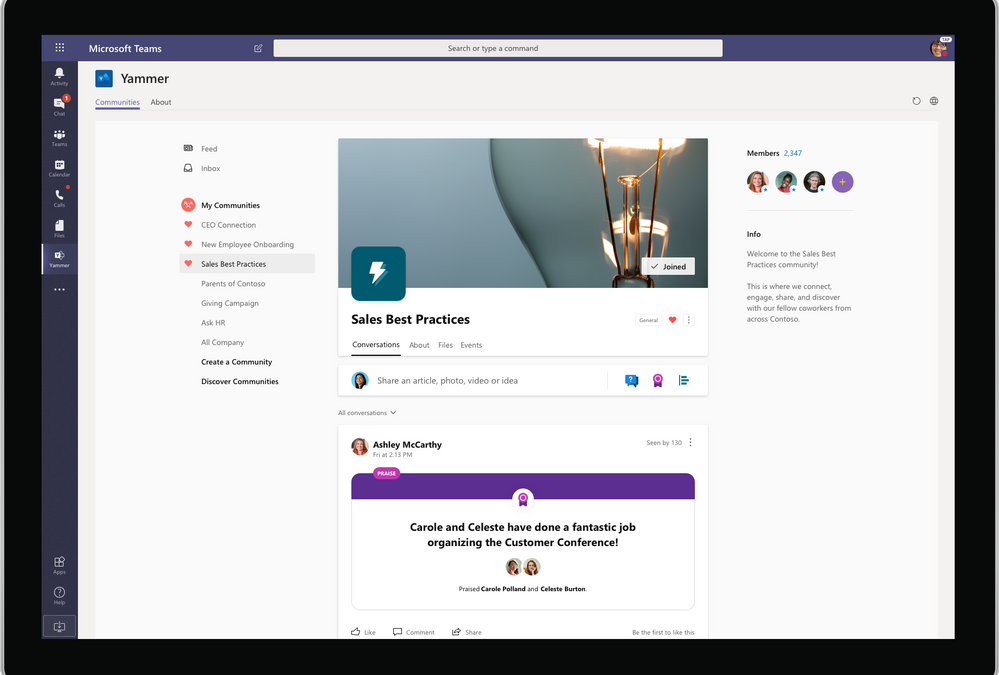
Microsoft has just made it so much easier to find the people and the knowledge you’re looking for, without interrupting your day-to-day work, by introducing the Communities app to Microsoft Teams.
When the Communities app is installed on Teams, it delivers Yammer inside Teams. You can navigate to all the Communities in your Yammer network and participate in conversations, join communities, watch live events, share announcements, pin conversations and mark best answers just as you would in Yammer.
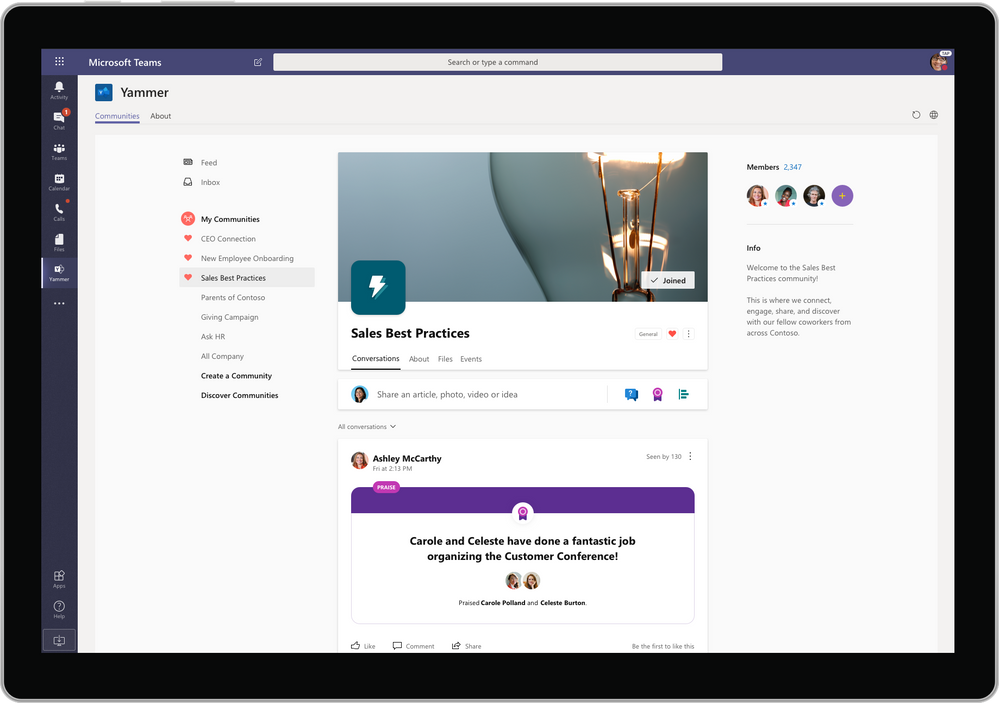
Yammer and Teams – better together
Yammer is for open knowledge sharing. A place to ask questions and find answers, to access knowledge across the entire organization, not just within your team.
Combining Microsoft Teams and Yammer with the Communities app means there is no more toggling between apps or confusion about where to post. Just add the Communities app to your Teams page by searching for “Communities” in Apps on the left-hand menu bar. You’ll start discovering communities, knowledge and conversations alongside your projects, chat and meetings.
“Collaboration always involves interacting with people you know, like the people in your team,” said SWOOP Analytics CEO Cai Kjaer.
“This is the core value proposition for Teams. But often you need to reach outside your core team to find answers. In this case, it’s all about collaborating with people you don’t yet know and this is one of Yammer’s superpowers.
“Together, Teams and Yammer are a formidable ally for business performance, and since most of our daily work is happening within a team, it makes a lot of sense to make Yammer available in the Teams mobile app.”
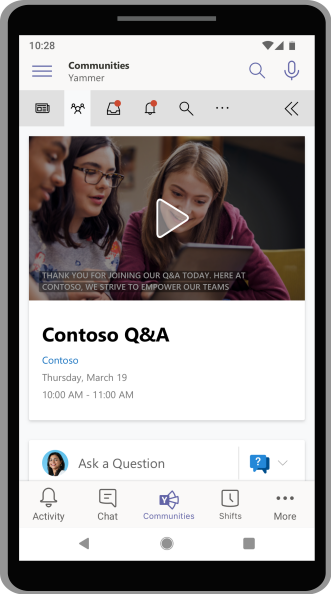
Communities app in Teams allows instant all-company communication
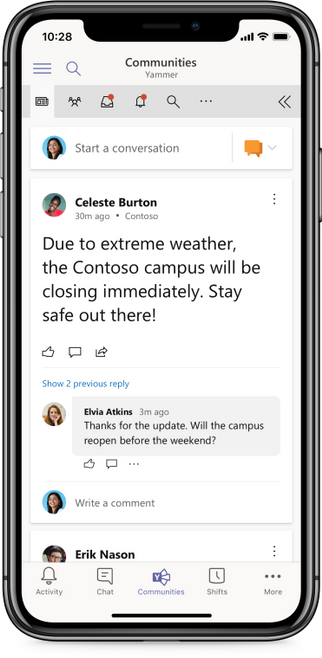
If teams are to truly perform online, their size should be limited to less than 10 members, says SWOOP’s Chief Scientist Dr Laurence Lock Lee. Following this rule, which is backed by decades of research, Microsoft Teams becomes the primary place where staff log in when they come to work. By adding the Communities app to Teams it allows teams to operate while remaining connected to the entire organization, something that’s become even more important during times of crisis when leaders need quick and clear communication with all staff.
And now with the Communities app in Teams mobile app, it allows employees to put out a call for assistance in Yammer during their day-to-day work, without fear of losing their place in their regular workflow.
Do you behave differently on Teams and Yammer?
SWOOP Analytics conducted research using real-time data to explore whether the increased use of Teams resulted in a drop in Yammer usage.
In terms of activity, we found a high correlation between individual activity levels on Yammer and Teams, showing if you are highly active on Yammer, you will also be highly active on Teams and vice versa. Overall, our research found more collaboration is happening overall when both tools are utilised.
With the data to prove using Teams and Yammer together increases collaboration, it seems the most logical step to make the Yammer Community app easily accessible in Teams. SWOOP is also following Microsoft’s lead by integrating SWOOP for Yammer and SWOOP for Teams into a single navigable dashboard, which can also be accessed as an app within Microsoft Teams.
The new-look Yammer has also changed the name of “Groups” to “Communities”, something Kjaer says is a better reflection of the purpose of Yammer.
“Yammer was always about connecting people from across the enterprise, and re-framing groups as communities now makes that purpose even more clear,” he said.
The new-look Yammer clearly demonstrates Microsoft’s commitment to the Yammer platform and the importance of an enterprise social network to run alongside day-to-day team work in Teams.
The ability to embed the new-look Yammer in Teams and respond to a post via Outlook on your phone or your tablet shows Microsoft’s commitment to make collaboration adaptable, flexible and focused by breaking down the barriers between apps.
About SWOOP
SWOOP provides collaboration analytics for Microsoft Teams and Yammer to give you insights to measure and improve your digital workplace relationships. SWOOP analyses the content and relationships in Teams and Yammer to help you adapt behaviours to reach better business outcomes and make informed decisions about collaboration effectiveness.

by Scott Muniz | Jul 28, 2020 | Uncategorized
This article is contributed. See the original author and article here.
Today, we are excited to announce that the Microsoft Family Safety app, designed to help you protect your family’s digital and physical safety, is available to download on iOS and Android.
The post Now available: Microsoft Family Safety app—helping you protect what matters most appeared first on Microsoft 365 Blog.
Brought to you by Dr. Ware, Microsoft Office 365 Silver Partner, Charleston SC.
by Scott Muniz | Jul 28, 2020 | Uncategorized
This article is contributed. See the original author and article here.
This blog post was co-authored by Aditya Joshi, Senior Software Engineer, Enterprise Protection and Detection.
The Security Center team is excited to share that the Fileless Attack Detection for Linux Preview, which we announced earlier this year, is expanding to include all Azure VMs and non-Azure machines enrolled in Azure Security Center Standard and Standard Trial pricing tiers. This solution periodically scans your machine and extracts insights directly from the memory of processes. Automated memory forensic techniques identify fileless attack toolkits, techniques, and behaviors. This detection capability identifies attacker payloads that persist within the memory of compromised processes and perform malicious activities.
See below for an example fileless attack from our preview program, a description of detection capabilities, and an overview of the onboarding process.
Real-world attack pattern from our preview program
We continue to see the exploitation of vulnerabilities and multi-staged attack payloads with shellcode and dynamic code visible only in memory. In this example, a customer’s VM is running shellcode-based malware and a cryptominer as root within a compromised docker container.
Here are the steps of the attack:
- The attacker uses an unauthenticated network facing service running inside a docker container to achieve code execution as root inside the container.
- The attacker downloads and executes a file and deletes the file to deter disk-based detection, leaving only the in-memory payload.
- The attacker achieves persistence by adding a crontab task to run a bash shell script to download a 2nd stage payload. The 2nd stage payload is a packed file containing the XMRIG cryptocurrency miner.
- The attacker unpacks and runs XMRIG within the container. XMRIG persists in memory and connects to a miner pool to start crypto mining.
- The attacker deletes the on-disk packed file so that the crypto mining activity is only observable in-memory.
Detecting the attack
In the attack above, fileless attack detection, running on the docker host, uncovers the compromise via in-memory analysis. It starts by identifying dynamically allocated code segments, then scanning each code segment for specific behaviors and indicators.
The first payload’s code segment contains shellcode with references to syscalls used for creating new tasks, getting process information and process control. Subset of detected syscalls include: fork, getpid, gettid and rt_sigaction.
The second payload’s code segment contains an injected executable consisting of a well-known crypto mining toolkit: XMRIG. Additionally, fileless attack detection identifies the active network connection to the crypto mining pool.
Fileless attack detection preview capabilities
For the preview program, fileless attack detection scans the memory of all processes for shellcode, malicious injected ELF executables, and well-known toolkits. Toolkits include crypto mining software such as the one mentioned above.
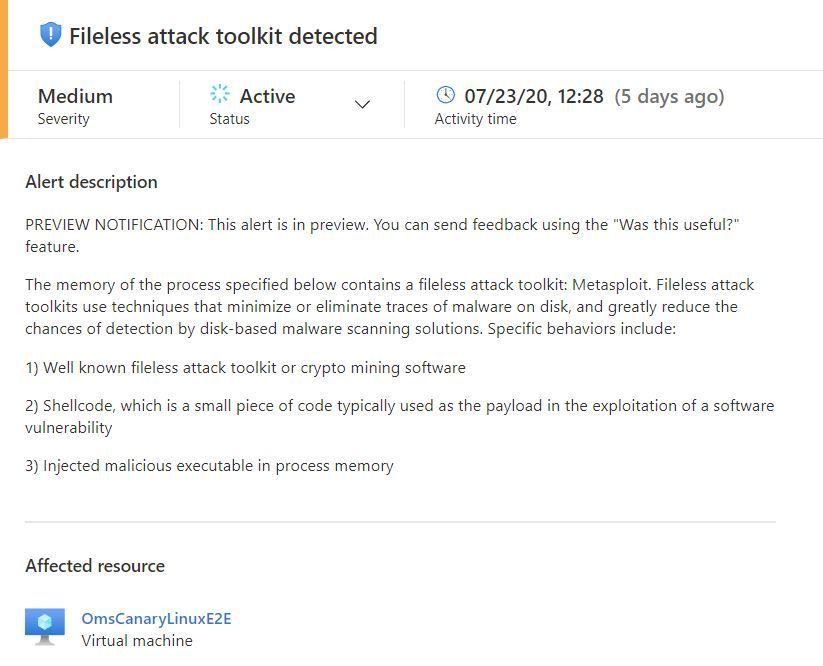
At the start of the preview program, we will emit alerts for well-known toolkits:
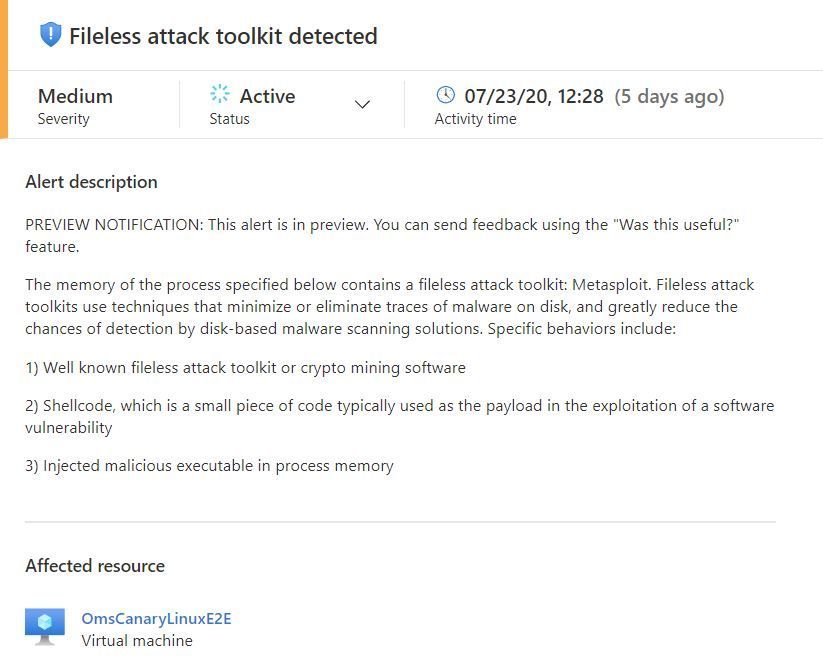
The alerts contain information to assist with triaging and correlation activities, which include process metadata:
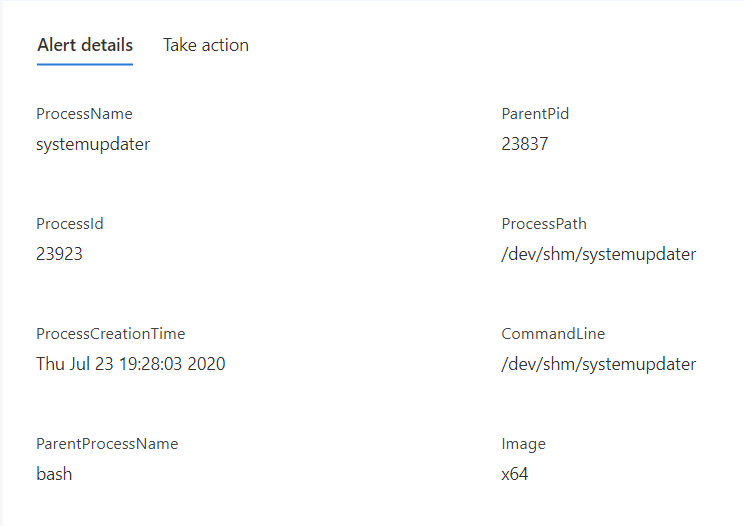
Alert details also include the toolkit name, capabilities of the detected payload, and network endpoints.
We plan to add and refine alert capabilities over time. Additional alert types will be documented here.
Process memory scanning is non-invasive and does not affect the other processes on the system. Most scans run in less than five seconds. The privacy of your data is protected throughout this procedure as all memory analysis is performed on the host itself. Scan results contain only security-relevant metadata and details of suspicious payloads.
Onboarding details
We will be onboarding customer machines in phases to ensure the smoothest possible customer experience. Deployment begins on July 28th and completes by September 3rd. This capability is automatically deployed to your Linux machines as an extension to the Log Analytics Agent for Linux (also known as the OMS Agent). This agent supports the Linux OS distributions described in this document. Azure VMs and non-Azure machines must be enrolled in Standard or Standard Trial pricing tier to benefit from this detection capability.
To learn more about Azure Security Center, visit the Azure Security Center page.
by Scott Muniz | Jul 28, 2020 | Uncategorized
This article is contributed. See the original author and article here.
By Priya Ravichandran | Sr. PM – Microsoft Endpoint Manager – Intune
The Android OS is ubiquitous and a popular choice for purpose-built device manufacturers. However, not all purpose-built devices will ship with Google Mobile Services (GMS). These purpose-built devices enable organizations to accomplish critical tasks in a more streamlined manner and provide the ability to connect remotely while remaining productive. Purpose-built devices have become even more essential with the current shift to remote work during COVID-19. An example of this includes the Teams integrated RealWear devices which deliver purpose-built experiences for field service in safety-critical environments. OEMs such as Lenovo, Facebook, and Vuzix have also shipped Android (non-GMS) purpose-built devices for enterprises.
Most purpose-built devices are based on the Android platform, without integration with GMS. Microsoft Endpoint Manager’s Android Enterprise management options are dependent on GMS, which introduces challenges for managing these types of devices today. However, these devices are critical assets an organization will expect to manage alongside the rest of their device estate.
In this blog, we will review the current options for managing these Android (non-GMS) devices via Microsoft Endpoint Manager – Intune.
Leveraging device administrator to manage non-GMS Android devices
Today Intune supports two options to manage Android devices – Android Enterprise or device administrator.
Android Enterprise is the industry standard that Google is driving to enable a consistent management experience across Android devices, independent of device OEM. However, Android Enterprise requires the devices be integrated with GMS – something many purpose-built specialty devices do not ship with.
Device administrator is the other management mode that Intune currently supports. While Google is decreasing support for device administrator from Android 10, device administrator is still a viable and supported option to manage devices on earlier versions of Android and will be able to address the management needs for these purpose-built devices.
Managing your non-GMS purpose-built devices with Intune
Prerequisites
Before starting enrollment, ensure that the following pre-requisites are met:
- The device has met all the necessary requirements – as defined by the OEM – to be successfully managed.
- The Intune tenant is provisioned, and device administrator management is enabled.
- The Microsoft Intune Company Portal app .apk is downloaded. The Company Portal app .apk can be downloaded here.
Onboarding non-GMS devices
Management of your devices starts with the enrollment workflow. For device administrator, the enrollment workflow requires the Microsoft Intune Company Portal app to be installed onto the device. Once the Intune Company Portal app has been installed, the enrollment workflow begins when the user launches the app and completes the steps presented.
Once enrolled, all the applicable device administrator policies would be available for the management of these devices. The only exceptions are policies that are dependent on GMS.
Key things to note
- Device administrator enrollment must be permitted on your tenant for these device enrollments to succeed. If device administrator enrollments are blocked via the enrollment restrictions, the enrollments on these devices will fail.
- If multi-factor authentication (MFA) is enabled for the organization, a user will be expected to complete the MFA challenge when enrolling the device.
- App protection policies (APP) that have been deployed in the organization will also be equally enforced for apps provisioned on these devices as they will be considered part of the applicable Android device landscape. An example of this would be requiring a PIN to access Teams on a RealWear device.
Looking ahead
We are aware that support for management using Device Administration mode is moving out of support within the Android platform starting with Android 10. Microsoft Endpoint Manager has been guiding customers to migrate the management of their Android devices to Android Enterprise.
These purpose-built devices are an exception to this guidance because they do not have GMS support. Additionally, most of the major OEMs building these purpose-built devices are using Android versions below Android 10. Thus, device administrator management capabilities are available and supported for these devices.
Looking ahead, the Microsoft Endpoint Manager team is investigating long term options to provide an alternative to device administrator to ensure continuity of management on these devices as their platforms also progress to later Android versions.
Customer support
Managing purpose-built specialty devices without GMS with device administrator mode in Intune is considered a fully supported scenario. As such, this scenario will be supported through our usual Intune support channels.
Additional resources


Recent Comments