
by Contributed | Jul 26, 2021 | Technology
This article is contributed. See the original author and article here.
This is the next installment of our blog series highlighting Microsoft Learn Student Ambassadors who achieved the Gold milestone and have recently graduated from university. Each blog in the series features a different student and highlights their accomplishments, their experience with the Student Ambassadors community, and what they’re up to now.
Today we’d like to introduce Khushboo Verma who is from India and graduated in May from the Indira Gandhi Delhi Technical University for Women with a degree in Computer Science Engineering.
Responses have been edited for clarity and length.
When you joined the Student Ambassador community in 2018, did you have specific goals you wanted to reach, such as a particular skill or quality? What were they? Did you achieve them? How has the program impacted you in general?
My aim behind joining was to connect with a community beyond my campus to be able to bring opportunities and resources to my local community. I wanted to learn valuable skills – both technical and interpersonal – so that I can uplift those around me. The Student Ambassador program helped me grow above and beyond my initial goal. It truly empowered me by providing me an opportunity to connect with passionate student developers from all over the world. It helped me understand what an inclusive and diverse community looks like and also helped me discover my true potential.
I vividly remember my first event as a Student Ambassador when I delivered a talk on Azure in a room full of developers, some of them having many years of industry experience. That talk helped me realize my passion for tech communities and for public speaking. It opened a sea of opportunities for me. From that day to the present day, I have grown immensely. I’ve gained confidence and skills; it has been possible because of the support I’ve continuously received from the program. It has helped me build a personal brand for myself, and it also provided inspiration we receive from mentors like Pablo Veramendi, the Microsoft Learn Student Ambassadors Global Program Director, who are so passionate to empower the community and do their best everyday to bring the best out of us. I’ve witnessed the community grow exponentially ever since I’ve joined, and I feel super proud to be a part of a community that is literally transforming lives.
What are the accomplishments that you’re the proudest of and why?
I’ve organized multiple events as a Student Ambassador, and I’ve impacted more than 2000 student developers, but I’m most proud of the “Microsoft Student HackDay” I organized on my campus. The idea behind the hackathon was to introduce the women on my campus to the cloud computing landscape. I’m from an all-women university, and only a handful of my peers were aware about cloud computing and had never tried it hands-on. With the support of Arkodyuti Saha, Developer Relations Program Manager at Microsoft, I organized a 2-day hackathon on campus in which 80 women participated in a beginner workshop on chatbots in Azure. At the end of the hackathon, we were surprised to see that the participants had built amazing projects even though some of them learned about Azure and chatbots for the first time during the workshop. That event made me believe that women can achieve incredible heights if they receive the right guidance.
Another accomplishment I’m really proud of is that as a Gold Ambassador, I was selected to speak at international conferences like Microsoft Build 2020 as part of a panel discussion titled “Learn how to succeed in Hackathons” and Microsoft Ignite 2020 (“Intro to GitHub”). It helped me boost my confidence and provided me the platform to showcase my skills to a much wider audience.
What do you have planned after graduation?
I am really passionate about technology and communities. I did a summer internship at Microsoft India as a software engineering intern. During that internship, I got to learn a lot about software engineering, interacted with senior leaders from Microsoft, and fell in love with Microsoft’s culture. I received a pre-placement offer after my internship, and I’ll be joining Microsoft India full time as a software engineer after graduation. I’m really excited for this upcoming chapter of my life.
If you could redo your time as a Student Ambassador, is there anything you would have done differently?
If I could start all over again, I would network with more people. The Microsoft Student Learn Ambassador program brings together students from varied backgrounds from all over the world and provides us a platform to interact, learn, and lead together. Initially, I was afraid of reaching out to new people because of imposter syndrome but eventually, I realized everyone was really helpful and supportive. Each Student Ambassador has something amazing to teach to the community, and the more I interact with them, the more I learn. So one thing that I would have done differently would be to interact and collaborate with more people.
If you were to describe the community to a student who is interested in joining, what would you say about it to convince him or her to join?
This is a program for every student out there who has a passion to learn, share, and connect with others. If you’re passionate about technology and have a desire to create an exponential impact in the world, then come and join our amazing community. You’ll not only get wonderful opportunities, but you’ll also learn great technical and interpersonal skills, you’ll build long lasting connections, and you’ll become a better leader and a better individual. The community is welcoming, honors diversity and inclusion, and values your ideas.
What advice would you give to new Student Ambassadors?
My advice to all the new Student Ambassadors would be to take initiatives and push yourself to transform your ideas into reality. Network and collaborate with as many people as you can – you’ll get to learn a lot. Help and uplift your community. And lastly, don’t doubt your own capabilities, and don’t be afraid to ask questions, as no question is ever stupid.
What is your motto in life, your guiding principle?
I’d like to share one of my favorite quotes that acts as a guiding principle for me: “As long as you’ve got passion, faith, and are willing to work hard, you can do anything you want in this life.” At the end of the day, I want to be happy with whatever I do, and I want my life to be meaningful, impactful and fulfilling.
What is one random fact about you that few people are aware of?
One random fact about me is that I can’t go without listening to music even for a single day. Music runs in my veins, haha.
Good luck to you in your journey, Khushboo!

by Contributed | Jul 26, 2021 | Dynamics 365, Microsoft 365, Technology
This article is contributed. See the original author and article here.
Forecasting revenue and tracking progress in alignment with your organization’s fiscal calendar is crucial for accurate projections and results. To easily meet this need, your sales team can use the custom fiscal calendar feature in Dynamics 365 Sales.
Unexpected revenue fluctuations can occur for numerous reasons, ranging from a holiday season, to weekend spending, to weather conditions. As a result, organizations often adopt a unique fiscal calendar to standardize reporting periods. Unfortunately, organizations tracking their forecasts in a spreadsheet can have difficulty making these normalized comparisons from period to period.
Dynamics 365 Sales helps solve the issue with a configuration setting that allows administrative users to build a forecast to match their organization’s customized fiscal calendar. No more neglecting revenue fluctuations in financial reviews or painstakingly factoring in revenue seasonality via a spreadsheet.
The standard Gregorian calendar works for most businesses and industries, but there are several examples where the standard calendar does not apply. For instance, the commercial broadcast sector has a custom, industry-specific calendar used primarily for the planning and purchase of radio and television programs and advertising.
Adding to the scheduling complexity, broadcast calendar years will have either 52 or 53 weeks. A broadcast calendar will contain 53 weeks in a leap year if January 1 falls on a Saturday or Sunday or, in a non-leap year, if January 1 falls on a Sunday. And just to add another difficult-to-solve wrinkle, a day in the broadcast industry does not typically begin at midnight, but at 5 a.m.
As you can see, this can present a headache when trying to compare period over period. But now Dynamics 365 Sales eliminates the pain with built-in logic to automatically allow sales teams to create a custom fiscal calendar. With this feature, sales teams have the capability to select a custom fiscal period to match that of their business, including a broadcast calendar, calendar patterns with 13-week quarters (such as the 4-4-5 template) and 4-week periods (such as the 3-3-3-4 template), and other variations. In addition, sales forecast administrators have the flexibility needed to set an extra week at the end of any period to account for leap years.
This support for custom fiscal periods improves the accuracy of forecast comparisons so that sales teams have better visibility into their revenue targets and sales progress.
Next steps
To learn more about how to configure your organization’s forecast schedule, check out the documentation.
The post Tracking forecasts to your company’s fiscal calendar just got easier appeared first on Microsoft Dynamics 365 Blog.
Brought to you by Dr. Ware, Microsoft Office 365 Silver Partner, Charleston SC.
by Contributed | Jul 23, 2021 | Technology
This article is contributed. See the original author and article here.
Final Update: Friday, 23 July 2021 21:47 UTC
We’ve confirmed that all systems are back to normal with no customer impact as of 7/23, 21:50 UTC. Our logs show the incident started on 7/23, 21:00 UTC and that during the incident customers may have experienced data latency leading to delayed or missed alerts.
- Root Cause: The failure was due to a networking issue in one of our data centers. Networking team was able to resolve connectivity issues allowing Application Insights and Log Analytics to ingest data.
- Incident Timeline: 50 minutes – 7/23, 21:00 UTC through 7/23, 21:50 UTC
We understand that customers rely on Application Insights and Log Analytics are critical services and apologize for any impact this incident caused.
-Ian
Initial Update: Friday, 23 July 2021 21:31 UTC
We are aware of issues within Application Insights and Log Analytics in Brazil South and are actively investigating. This is caused by a networking issue in one of our data centers. Some customers may experience delayed data which could cause delayed or missed alerts.
- Work Around: none
- Next Update: Before 07/24 00:00 UTC
We are working hard to resolve this issue and apologize for any inconvenience.
-Ian
by Contributed | Jul 23, 2021 | Technology
This article is contributed. See the original author and article here.
Both tools below – ProcDump and DebugDiag – work similarly: they can attach themselves as debuggers to a process, then, when the machine is on high-CPU, collect one or more memory dump(s) from that specific process.
Note that the tools won’t “know” what process is consuming the CPU unless we dig deeper in the performance counters. If using ProcDump, it easier if we are sure ahead of time what’s the culprit – the process that is “eating” much CPU.
Both tools need administrative rights to be run.
DebugDiag is the preferred tool, since it automates some steps, adds more explicit context, and includes automated memory dump analysis capabilities too.
Using the command-line ProcDump
ProcDump does not require installation. But one needs to be specific about the PID to which it is attaching. That PID needs to be determined prior to starting ProcDump. Debug Diag is able to determine the PID itself, if the Application Pool is specified.
- Download the tool and copy it on a disk folder, for example D:Temp-Dumps
https://docs.microsoft.com/en-us/sysinternals/downloads/procdump
- Open an administrative console, from where to run commands.
Navigate to where the ProcDump tool was placed (D:Temp-Dumps).
- Find the process ID, the PID, of the IIS w3wp.exe worker process executing your application.
From the administrative console, you can use AppCmd IIS tool to list processes for application pools:
C:WindowsSystem32InetSrvappcmd.exe list wp
- In the administrative console, start the following command to collect dumps (but don’t hit enter yet).
D:Temp-Dumps> procdump.exe -accepteula -ma -c 85 -n 3 -s 7 [PID]
You may want to redirect the console output of ProcDump to a file, to persist the recording of the encountered exceptions:
D:Temp-Dumps> procdump.exe -accepteula -ma -c 85 -n 3 -s 7 [PID] > Monitoring-log.txt
Replace [PID] with the actual Process ID integer number identified at the step 2.
Please make sure that there is enough disk space on the drive where dumps are collected. Each process dump will take space in the disk approximately the same size the process uses in memory (column Commit Size in Task Manager). For example, if the w3wp.exe process memory usage is ~1 GB, then the size of a dump file will be around 1 GB.
- Start reproducing the problem: issue requests that would render the process to consume CPU; or leave the command running until the high-CPU occurs.
- Please wait until all the dumps are written and then compress the files before uploading the dumps to the workspace.
Using the UI tool DebugDiag, Debug Diagnostics Collection
DebugDiag requires installation, but it is able to determine itself the whatever process instance – PID – happens to execute for an application pool at some point in time; even when that process may occasionally crash or be recycled, hence restarted with different PID.
#1.
Download Debug Diagnostic and install it on IIS machine:
https://www.microsoft.com/en-us/download/details.aspx?id=49924 v2.2 (if 32-bit system)
https://www.microsoft.com/en-us/download/details.aspx?id=102635 v2.3.1 (only supports 64-bit OS)
#2.
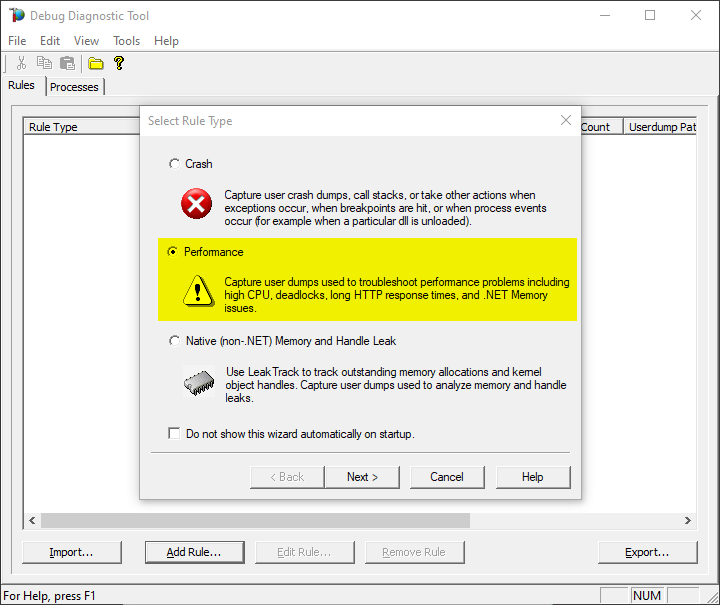
Create a new rule selecting Performance and then clicking on “Next” next button.
You also can create the rule by right-click and selecting “Add rule”, or clicking the “Add rule” button at the bottom.
#3.
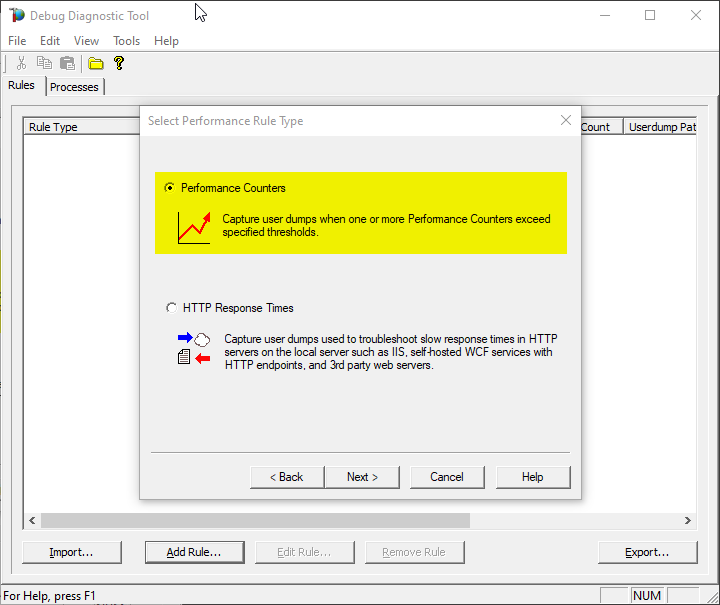
Select the second option “Performance Counters” and then “Next”.
#4.
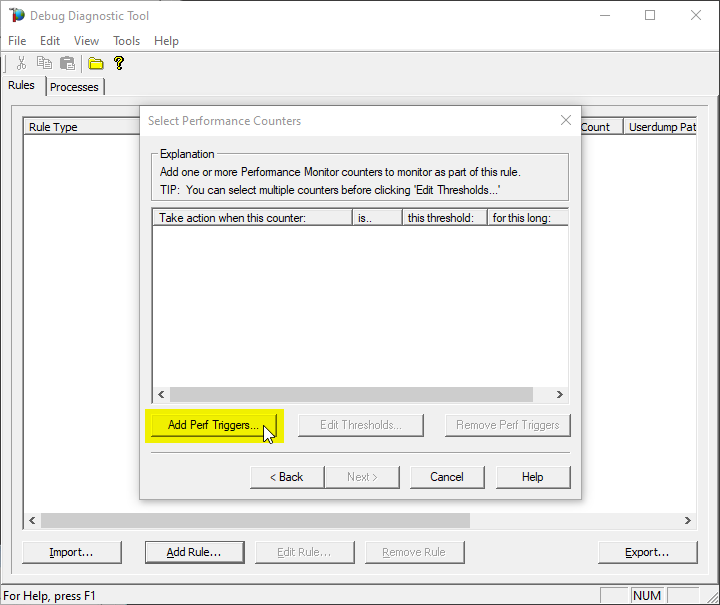
Click on Add Perf Triggers…
#5.
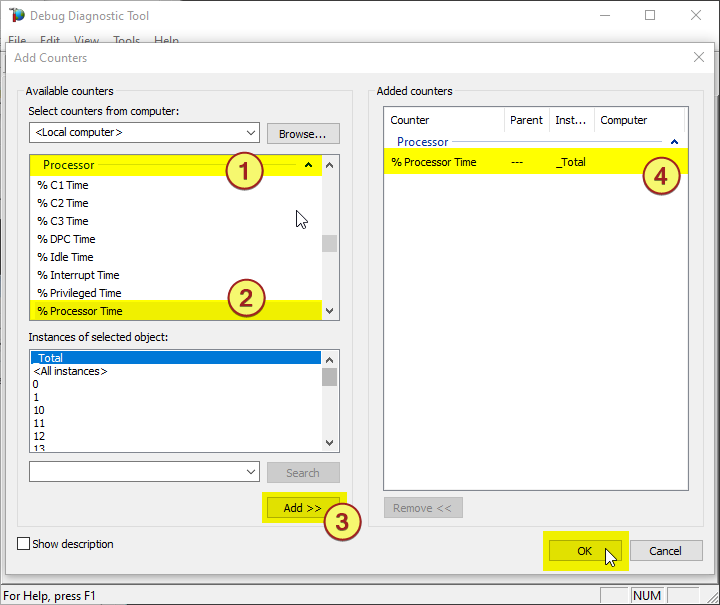
The select %Processor Time from the Processor category and select the _Total instance
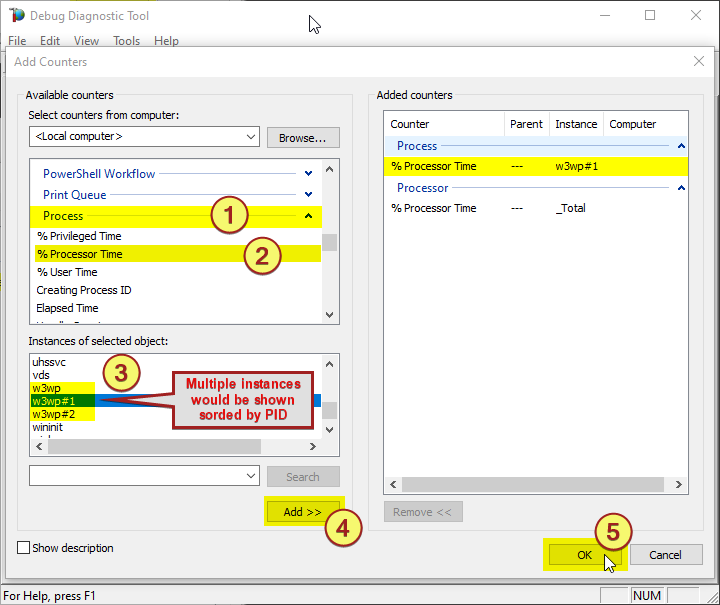
Note:
You might need to determine the w3wp.exe#N instance by looking into the Task Manager, sorting by w3wp.exe PID.
Or use one of the following commands in an administrative command-line console, to find out the PIDs:
> C:WindowsSystem32InetSrvappcmd.exe list wp
> TaskList.exe | find “w3wp.exe” /i
> TaskList.exe /FI “IMAGENAME eq w3wp.exe”
#6.
Select the action click on Edit Thresholds
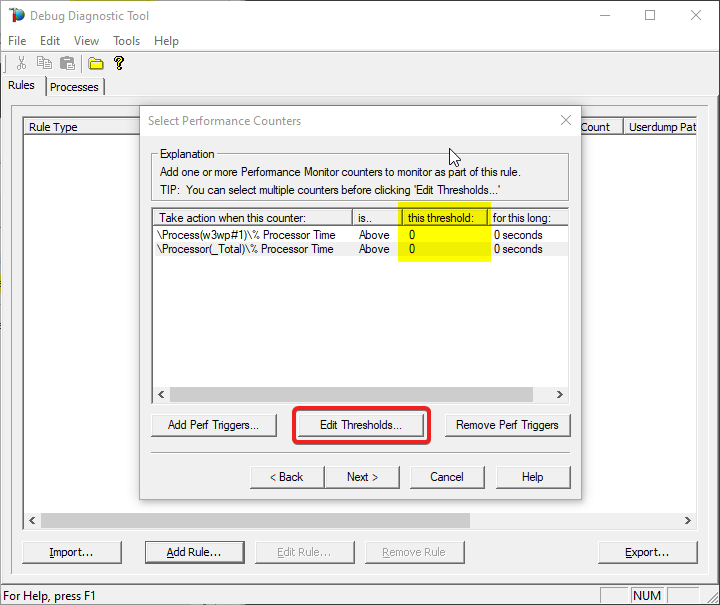
#7.
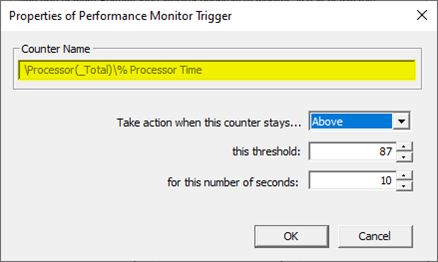
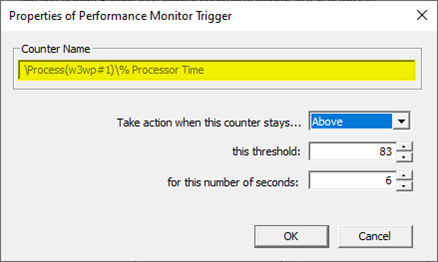
Select Above, set 80 as this threshold and 5 in for this number of seconds
You might need to adjust the threshold value to what you’re seeing on your system. You should know better how you define “High-CPU” (maybe, in your case, High-CPU means anything above 60%; your experience or expectations matter here).
#8.
Click on Next
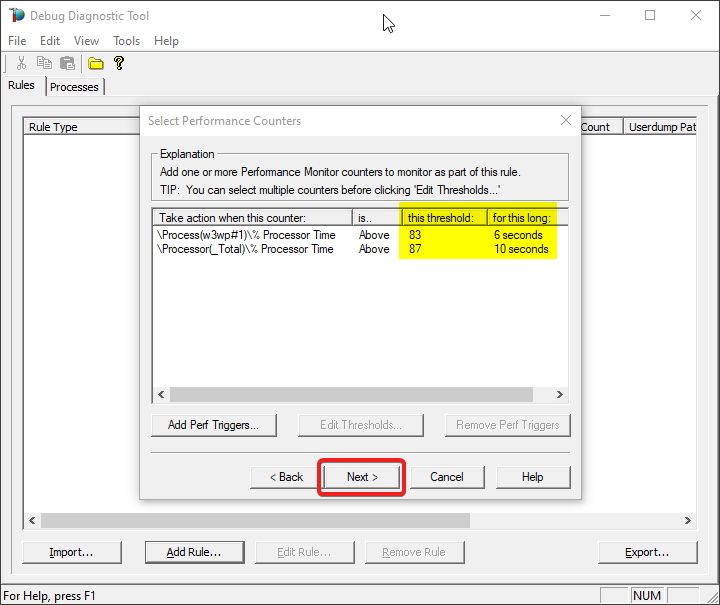
#9.
Click on Add Dump Target
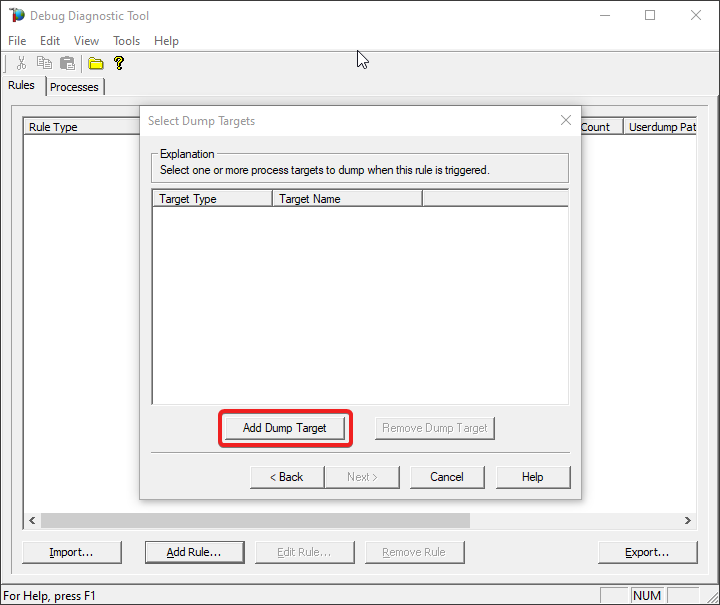
#10.
Select Web application pool as Target type and select the application pool
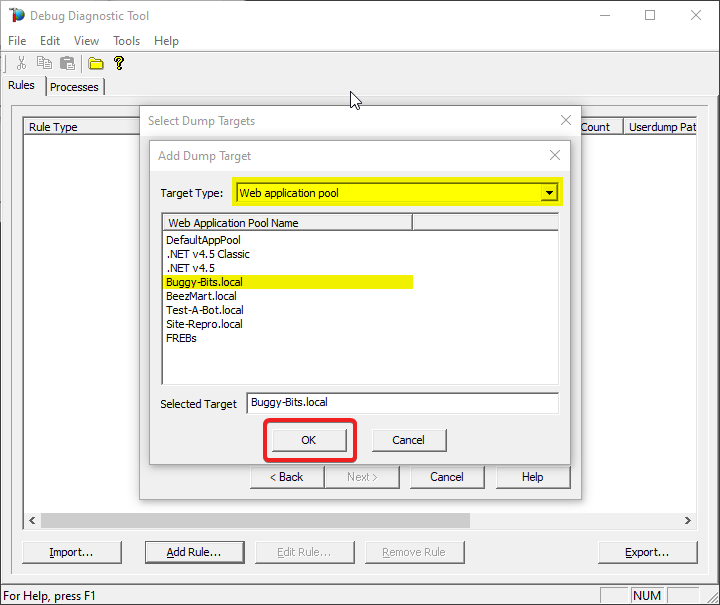
#11.
Click on Next
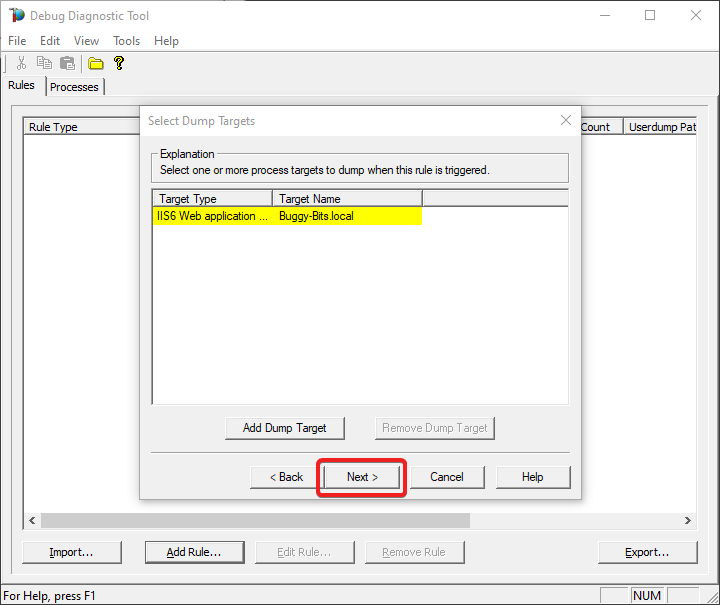
#12.
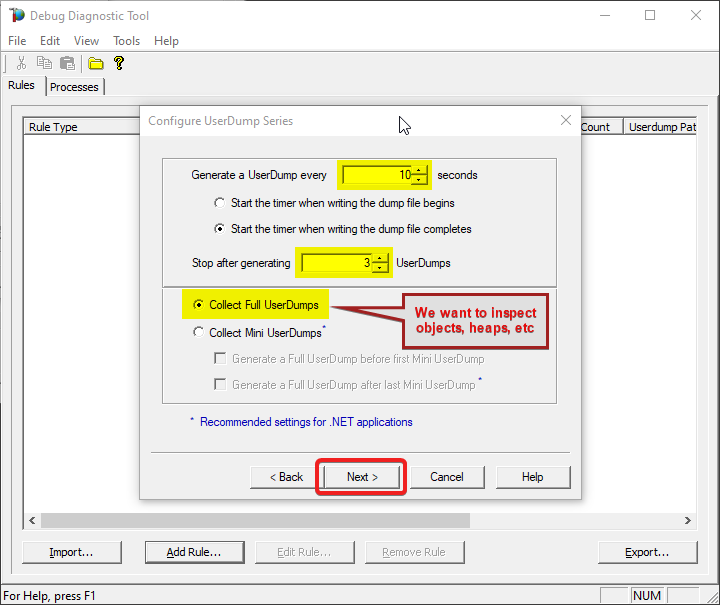
Set 10 seconds at Generate a UserDump every…
Set 3 at Stop after Generating…
Select Collect Full UserDumps.
#13.
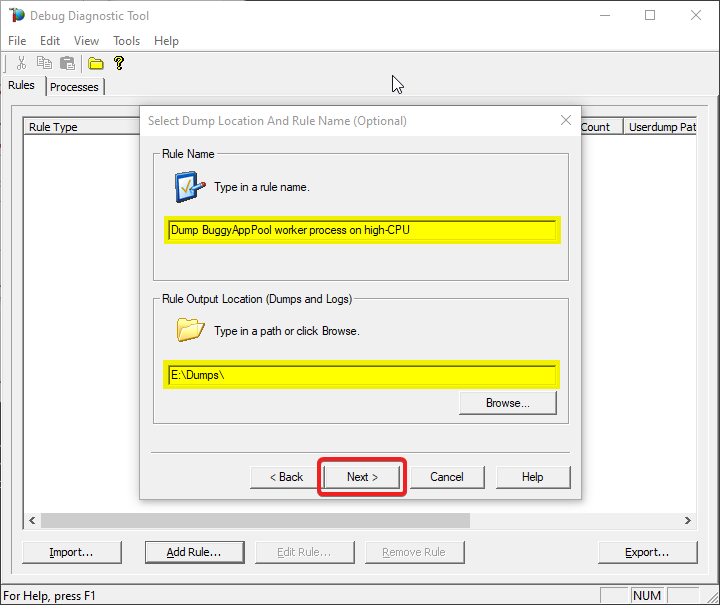
Type down a descriptive name, i.e. “My App eats a lot of CPU” and select the dump files path.
Keep in mind you’re collecting 4 dumps. Please make sure that there is enough disk space on the drive where dumps are collected. Each process dump will take space in the disk approximately the same size the process uses in memory (column Commit Size in Task Manager). For example, if the w3wp.exe process memory usage is ~2 GB, then the size of each dump file will be around 2 GB.
Do not choose a disk in network/UNC; choose a local disk.
#14.
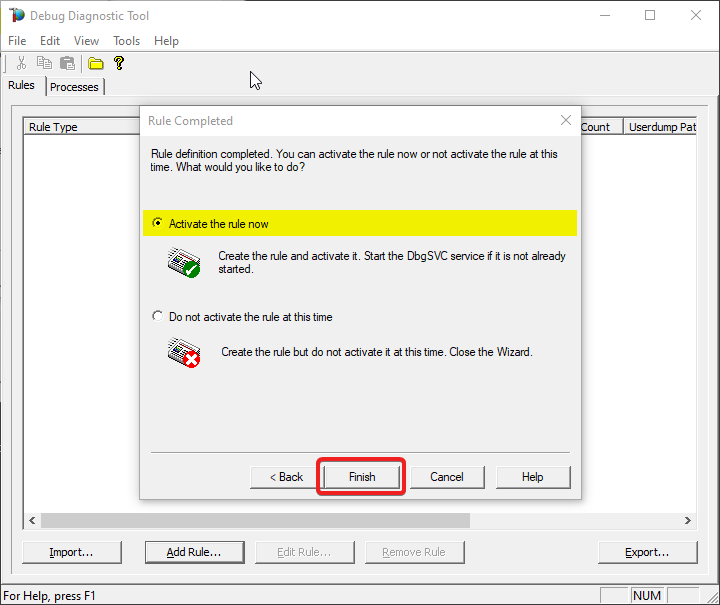
Select “Activate rule now” option and click on “Finish”
#15.
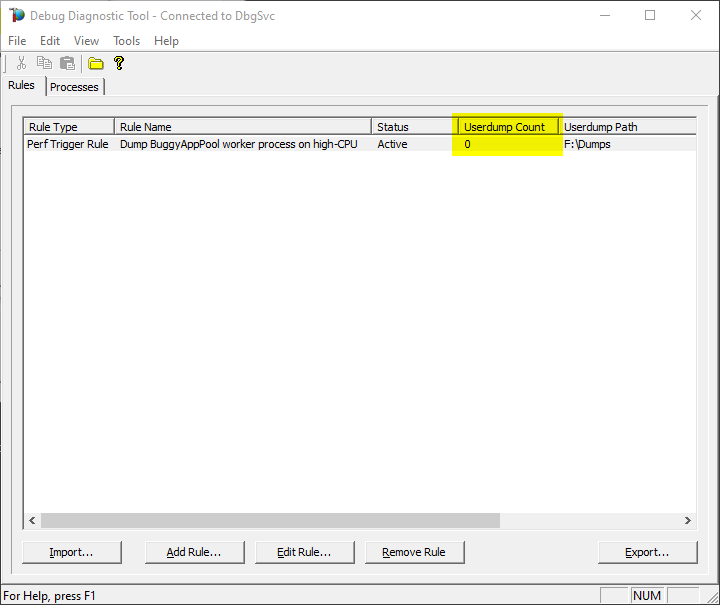
Watch the rule in DebugDiag; it should tell you how many dumps are collected (present in the selected dumps folder).
#16.
Once the memory dumps are collected and fully written on disk…
Archive each dump file in its own ZIP and prepare to hand over to the support engineer; upload in a secure file transfer space.
Remember my article about how exceptions are handled and how to collect memory dumps to study them. We can double check if a crash occurred or not: read about w3wp.exe crashes.
Aside: Just in case you are wondering what I use to capture screenshots for illustrating my articles, check out this little ShareX application in Windows Store.
by Contributed | Jul 23, 2021 | Technology
This article is contributed. See the original author and article here.
Collect series of memory dumps for memory leak analysis of a process using the steps below.
With such series of memory dumps we can later analyze the consumption trends:
- Objects accumulating in the .NET heaps and not being removed by Garbage Collection;
- Managed modules that are being created and taking up space.
- Too many threads with rather large call stacks, etc.
#1: Have tool installed
Download Debug Diagnostic and install it on IIS machine:
https://www.microsoft.com/en-us/download/details.aspx?id=49924 v2.2 (if 32-bit system)
https://www.microsoft.com/en-us/download/details.aspx?id=102635 v2.3.1 (only supports 64-bit OS)
#2: Start collection rule
Run Debug Diagnostics Collection. Open the tool with admin rights.
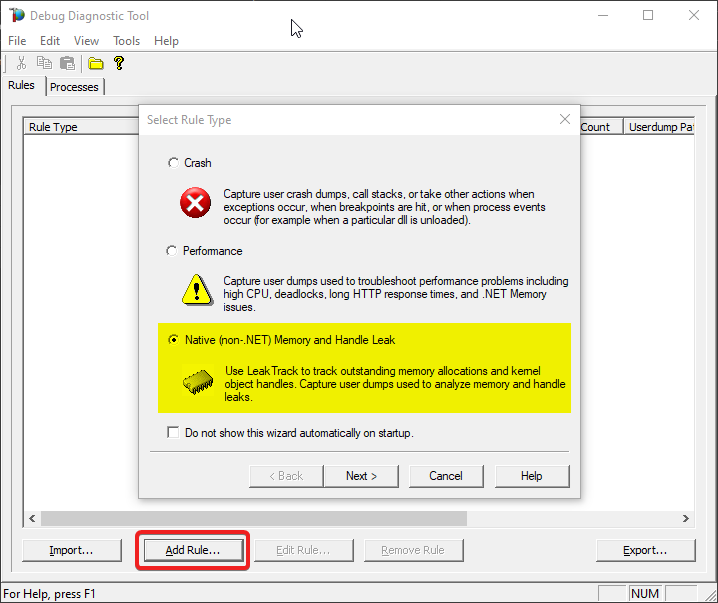
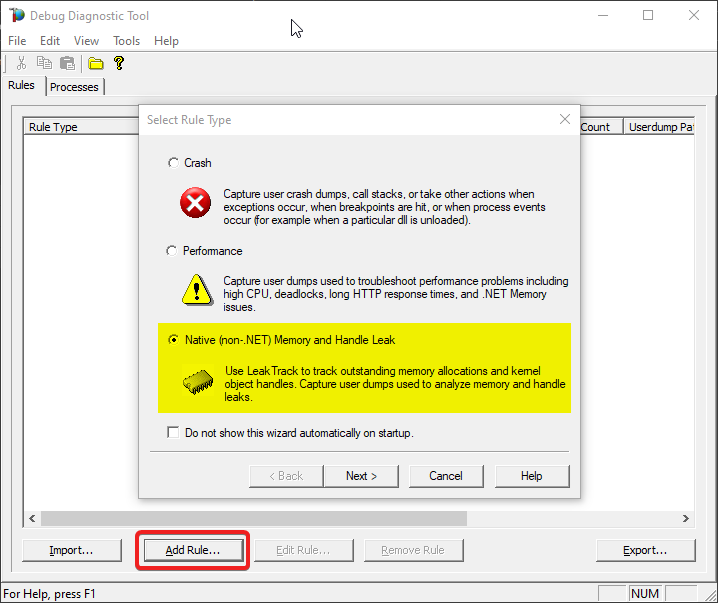
And a pop-up will come, to create a rule for dump collection. Select Memory and Handle Leak, then Next.
#3: Select process by PID
You should see the list of processes now: please select the worker process from the list which you’re having the memory problem. Press Next.
If you have multiple worker processes, you can use command-line utility appcmd.exe from an administrative console to see the list of worker processes with associated application pools.
> C:WindowsSystem32inetsrvappcmd.exe list wp
#4: Configure
On the next window:
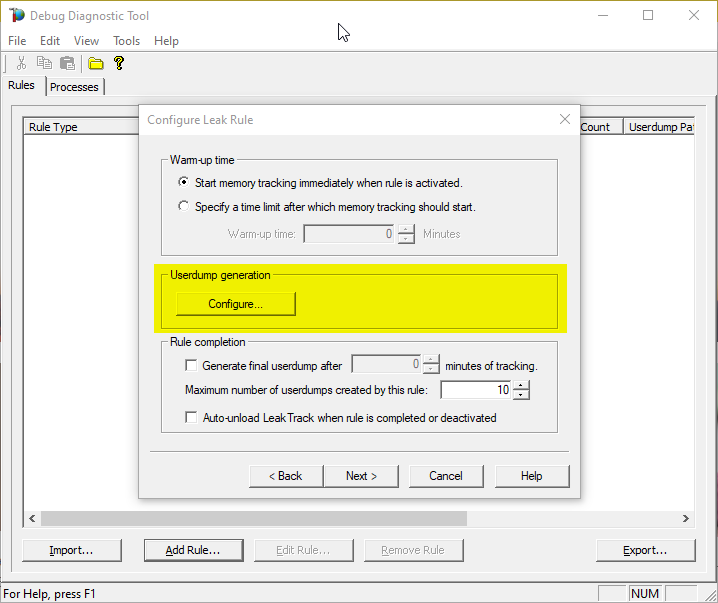
Select the maximum number of dumps you would collect (you’ll have the chance to set it later too). A minimum of 3 dumps would be needed for an analysis.
Then press Configure on Userdump generation section.
#5: First dump in series
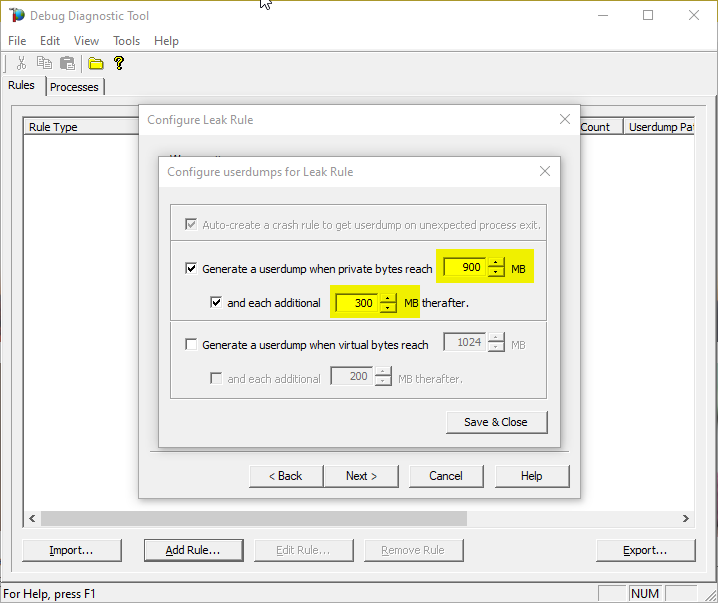
Select Generate userdump when private bytes reach option and set the value to whatever you know it should be the normal consumption – let’s say 900 MB.
#6: Next dumps in series
Set the and each additional … MB threafter option to – let’s say – 300 MB and finally Save & Close.
This will collect dump when memory consumption goes up to 900 Megs and will continue to take dump for each additional 300 Megs
(until the maximum number of dumps is reached, set in the previous/parent window).
#7: Cleanup investigated process
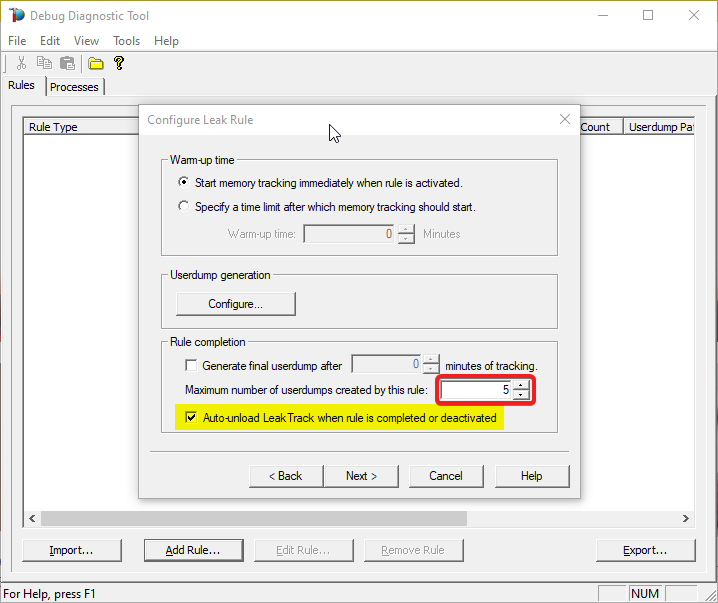
Select Auto-unload Leak Track when rule is completed or deactivated on Rule completion section.
(DebugDiag injects a module in worker process to do its job; we shouldn’t leave the module there.)
#8: Place cap on dumps count
Set Maximum number of userdumps created by this rule to at least 3 (10 is the default).
The more, the better; but mind the space on disk.
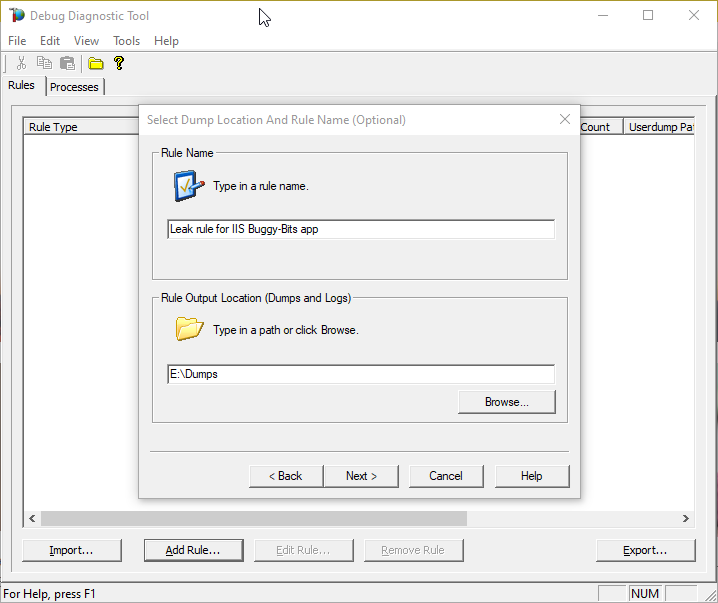
#9: Dumps location
After selecting Next, you will set the location where the dumps will be written.
Please make sure that there is enough disk space on the drive where dumps are collected. Each process dump will take space in the disk approximately the same size the process uses in memory (column Commit Size in Task Manager). For example, if the w3wp.exe process memory usage is ~2 GB, then the size of each dump file will be around 2 GB.
Please do not choose a disk in network/UNC; choose a local disk.
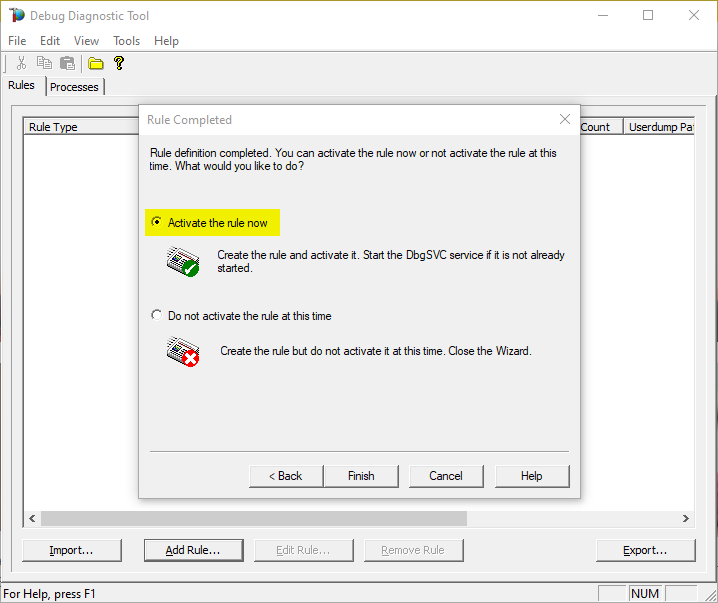
#10: Go!
Finally activate the rule
#11: Make sure we do get dumps
After that observe the dump count in the main DebugDiag window.
You need to re-create the leak definition if the PID/Process ID changes in the Task Manager for the worker process.
You can tweak the memory tracking values differently based on your observations.
Eg. Start from 1.5 GB and take additional dump for every additional 500 MB etc.
#12: Upload
Archive each dump file in its own ZIP and prepare to hand over to the support engineer; upload in a secure file transfer space.
Remember my article about how exceptions are handled and how to collect memory dumps to study them. We can double check if a crash occurred or not: read about w3wp.exe crashes.
Aside: Just in case you are wondering what I use to capture screenshots for illustrating my articles, check out this little ShareX application in Windows Store.


Recent Comments