
by Contributed | Feb 24, 2022 | Dynamics 365, Microsoft 365, Technology
This article is contributed. See the original author and article here.
With briefcases and suitcases in tow, business-to-business (B2B) sellers have always traveled the distance to meet buyers wherever they are. Buyers are going digital in a big way, so sellers can put away their bags (at least part of the time) and step into digital or hybrid selling. This dramatic shift in B2B buyingmore digital, more self-servicehas led to a steady decrease in the amount of time buyers spend with sellers. To adapt to this new omnichannel reality, sales teams are reinventing their go-to-market strategies.
B2B selling has truly changed much faster and more dramatically than anyone could have imagined. Buyers now use routinely use up to 10 different channelsup from just five in 2016.1 A “rule of thirds” has emerged: buyers employ a roughly even mix of remote (e.g. videoconferencing and phone conversations), self-service (e.g. e-commerce and digital portals), and traditional sales (e.g. in-person meetings, trade-shows, conferences) at each stage of the sales process.1 The rule of thirds is universal. It describes responses from B2B decision makers across all major industries, at all company sizes, in every country.
Although digital interactions, both remote and self-serve, are here to stay, in-person selling still plays an important role. Buyers aren’t ready to give up face-to-face visits entirely. Buyers view in-person interactions as a sign of how much a supplier values a relationship and can play an especially pivotal part in establishing or re-establishing a relationship. Today’s B2B organizations require a new set of digital-first solutions to navigate the complex and unfamiliar terrain. Microsoft Dynamics 365 Customer Insights can help.
Omnichannel presents new challenges
Increased opportunities to engage involve increased complexity. First, data ends up scattered across many different systems like customer relationship management (CRM), partner relationship management (PRM), e-commerce, web analytics, trials and demos, online chat, mobile, email, event management, and social networking. Assembling those pieces into a complete picture of a buyer or account is a complicated task that few B2B organizations and their existing systems can handle. Second, customer experiences are becoming increasingly fragmented as organizations struggle to maintain consistency from one touchpoint to the next. This issue is particularly acute for sellers when they don’t have critical context like previous interactions conducted on other channels such as content viewed, product trials initiated, online transactions, and product issues. Giving sellers visibility to the data is a start, but that would still require sellers to digest huge amounts of data to make sense of it all, hampering swift action.
But there are new possibilities
To deliver seamless omnichannel experiences, B2B organizations need a customer data platform (CDP) like Dynamics 365 Customer Insights that’s designed to maintain a persistent and unified view of the buyer across channels. The enterprise-grade CDP creates an adaptive profile of each buyer and account, so organizations can rapidly orchestrate cohesive experiences throughout the journey. Leading B2B organizations rely on unified data as a single source of truth as well as to unlock actionable insights that increase sales alignment and conversion, including account targeting, opportunity scoring, recommended products, dynamic pricing, and churn prevention. For example, sales teams can proactively prioritize accounts based on predictive scoring that takes into account firmographics and all past transactional data as well as behavioral insights like trial usage across all contacts at the account. Or a seller knows it’s the right time to engage since a buyer has just signaled high intent through website activities like viewing multiple pieces of content. Insights like these widen the gap between omnichannel sales leaders and the rest of the field.
The profiles and resulting analytics from Dynamics 365 Customer Insights can be leveraged across every function and systemsincluding sales force automation (SFA), account-based management (ABM), and e-commerce platforms, so that every person and system that the buyer engages with has the context to provide proactive and personalized experiences at precisely the right moment. This flexible design enables sales organizations to stay agile and future-proof their data foundation even when new sales tools are inevitably added to the mix.
Importantly, sales organizations can ensure that consent is core to every engagement. Privacy and compliance are crucial when it comes to customer data. In this new privacy-first world, consent funnels are as important as purchase funnels. It’s no longer only about collecting and unifying data. When companies build targeted and personalized experiences, customer consent must be infused across all workflows that use customer data. Dynamics 365 Customer Insights is designed from the ground up to be consent-enabled, allowing sales organizations to automatically honor customer consent and privacy, and build trust, across the entire journey.
The next normal for B2B sales is here, and there’s no looking back. The buyer’s move to omnichannel isn’t as simple as shifting all transactions online. Omnichannel with e-commerce, videoconference, and face-to-face are all a necessary part of the buyer’s journey. What B2B buyers want is nuanced, and so are their views about the most effective way to engage. B2B organizations must continue to adapt to meet this new omnichannel reality. To learn how a CDP can help delight your customers while helping your sales team navigate omnichannel selling to lower the cost of selling, extend reach, and improve sales effectiveness, visit Dynamics 365 Customer Insights.
Sources:
1- “B2B sales: Omnichannel everywhere, every time”, McKinsey & Company, December 15, 2021.
The post Achieving successful B2B selling in the digital era appeared first on Microsoft Dynamics 365 Blog.
Brought to you by Dr. Ware, Microsoft Office 365 Silver Partner, Charleston SC.
by Contributed | Feb 23, 2022 | Technology
This article is contributed. See the original author and article here.
Note: Thank you to @Yaniv Shasha , @Sreedhar_Ande , @JulianGonzalez , and @Ben Nick for helping deliver this preview.
We are excited to announce a new suite of features entering into public preview for Microsoft Sentinel. This suite of features will contain:
- Basic ingestion tier: new pricing tier for Azure Log Analytics that allows for logs to be ingested at a lower cost. This data is only retained in the workspace for 8 days total.
- Archive tier: Azure Log Analytics has expanded its retention capability from 2 years to 7 years. With that, this new tier for data will allow for the data to be retained up to 7 years in a low-cost archived state.
- Search jobs: search tasks that run limited KQL in order to find and return all relevant logs to what is searched. These jobs search data across the analytics tier, basic tier. and archived data.
- Data restoration: new feature that allows users to pick a data table and a time range in order to restore data to the workspace via restore table.
Basic Ingestion Tier:
The basic log ingestion tier will allow users to pick and choose which data tables should be enrolled in the tier and ingest data for less cost. This tier is meant for data sources that are high in volume, low in priority, and are required for ingestion. Rather than pay full price for these logs, they can be configured for basic ingestion pricing and move to archive after the 8 days. As mentioned above, the data ingested will only be retained in the workspace for 8 days and will support basic KQL queries. The following will be supported at launch:
- where
- extend
- project – including all its variants (project-away, project-rename, etc.)
- parse and parse-where
Note: this data will not be available for analytic rules or log alerts.
During public preview, basic logs will support the following log types:
- Custom logs enrolled in version 2
- ContainerLogs and ContainerLogsv2
- AppTraces
Note: More sources will be supported over time.
Archive Tier:
The archive tier will allow users to configure individual tables to be retained for up to 7 years. This introduces a few new retention policies to keep track of:
- retentionInDays: the number of days that data is kept within the Microsoft Sentinel workspace.
- totalRetentionInDays: the total number of days that data should be retained within Azure Log Analytics.
- archiveRetention: the number of days that the data should be kept in archive. This is set by taking the totalRetentionInDays and subtracting the workspace retention.
Data tables that are configured for archival will automatically roll over into the archive tier after they expire from the workspace. Additionally, if data is configured for archival and the workspace retention (say 180 days) is lowered (say 90 days), the data between the original and new retention settings will automatically be rolled over into archive in order to avoid data loss.
Configuring Basic and Archive Tiers:
In order to configure tables to be in the basic ingestion tier, the table must be supported and configured for custom logs version 2. For steps to configure this, please follow this document. Archive does not require this but it is still recommended.
Currently there are 3 ways to configure tables for basic and archive:
- REST API call
- PowerShell script
- Microsoft Sentinel workbook (uses the API calls)
REST API
The API supports GET, PUT and PATCH methods. It is recommended to use PUT when configuring a table for the first time. PATCH can be used after that. The URI for the call is:
https://management.azure.com/subscriptions/<subscriptionId>/resourcegroups/<resourceGroupName>/providers/Microsoft.OperationalInsights/workspaces/<workspaceName>/tables/<tableName>?api-version=2021-12-01-preview
This URI works for both basic and archive. The main difference will be the body of the request:
Analytics tier to Basic tier
{
    "properties": {
        "plan": "Basic"
    }
}
Basic tier to Analytics tier
{
    "properties": {
        "plan": "Analytics"
    }
}
Archive
{
    "properties": {
        "retentionInDays": null,
        "totalRetentionInDays": 730
    }
}
Note: null is used when telling the API to not change the current retention setting on the workspace.
PowerShell
A PowerShell script was developed to allow users to monitor and configure multiple tables at once for both basic ingestion and archive. The scripts can be found here and here.
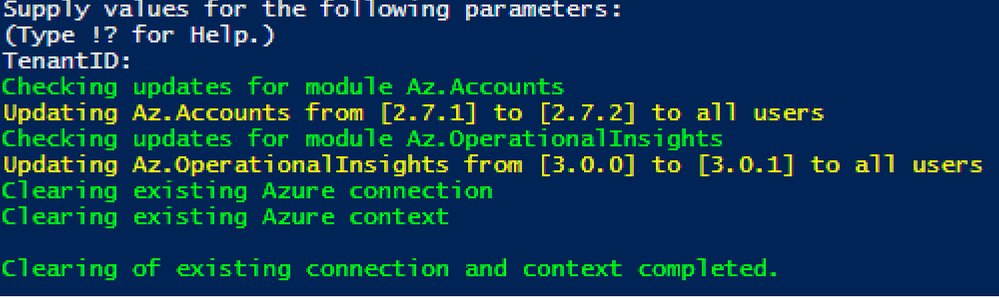
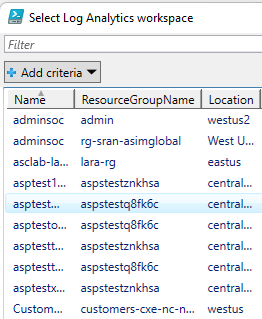
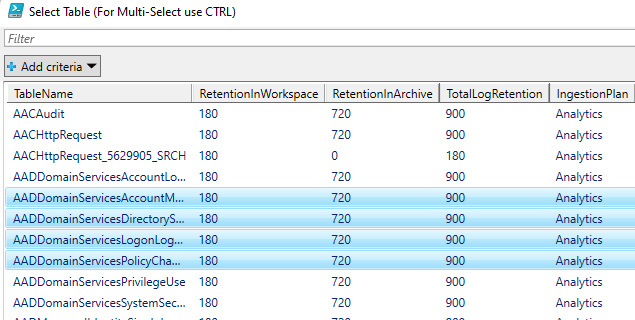
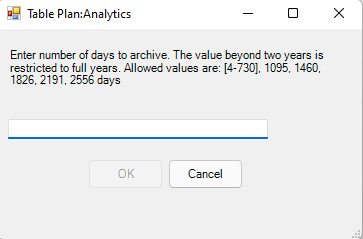
To configure tables with the script, a user just needs to:
- Run the script.
- Authenticate to Azure.
- Select the subscription/workspace that Microsoft Sentinel resides in.
- Select one or more tables to configure for basic or archive.
- Enter the desired change.

Workbook
A workbook has been created that can be deployed to a Microsoft Sentinel environment. This workbook allows for users to view current configurations and configure individual tables for basic ingestion and archive. The workbook uses the same REST API calls as listed above but does not require authentication tokens as it will use the permissions of the current user. The user must have write permissions on the Microsoft Sentinel workspace.
To configure tables with the workbook, a user needs to:
- Go to the Microsoft Sentinel GitHub Repo to fetch the JSON for the workbook.
- Click ‘raw’ and copy the JSON.
- Go to Microsoft Sentinel in the Azure portal.
- Go to Workbooks.
- Click ‘add workbook’.
- Clicl ‘edit’.
- Click ‘advanced editor’.
- Paste the copied JSON.
- Click save and name the workbook.
- Choose which tab to operate in (Archive or Basic)
- Click on a table that should be configured.
- Review the current configuration.
- Set the changes to be made in the JSON body.
- Click run update.
The workbook will run the API call and will provide a message if it was successful or not. The changes made can be seen after refreshing the workbook.
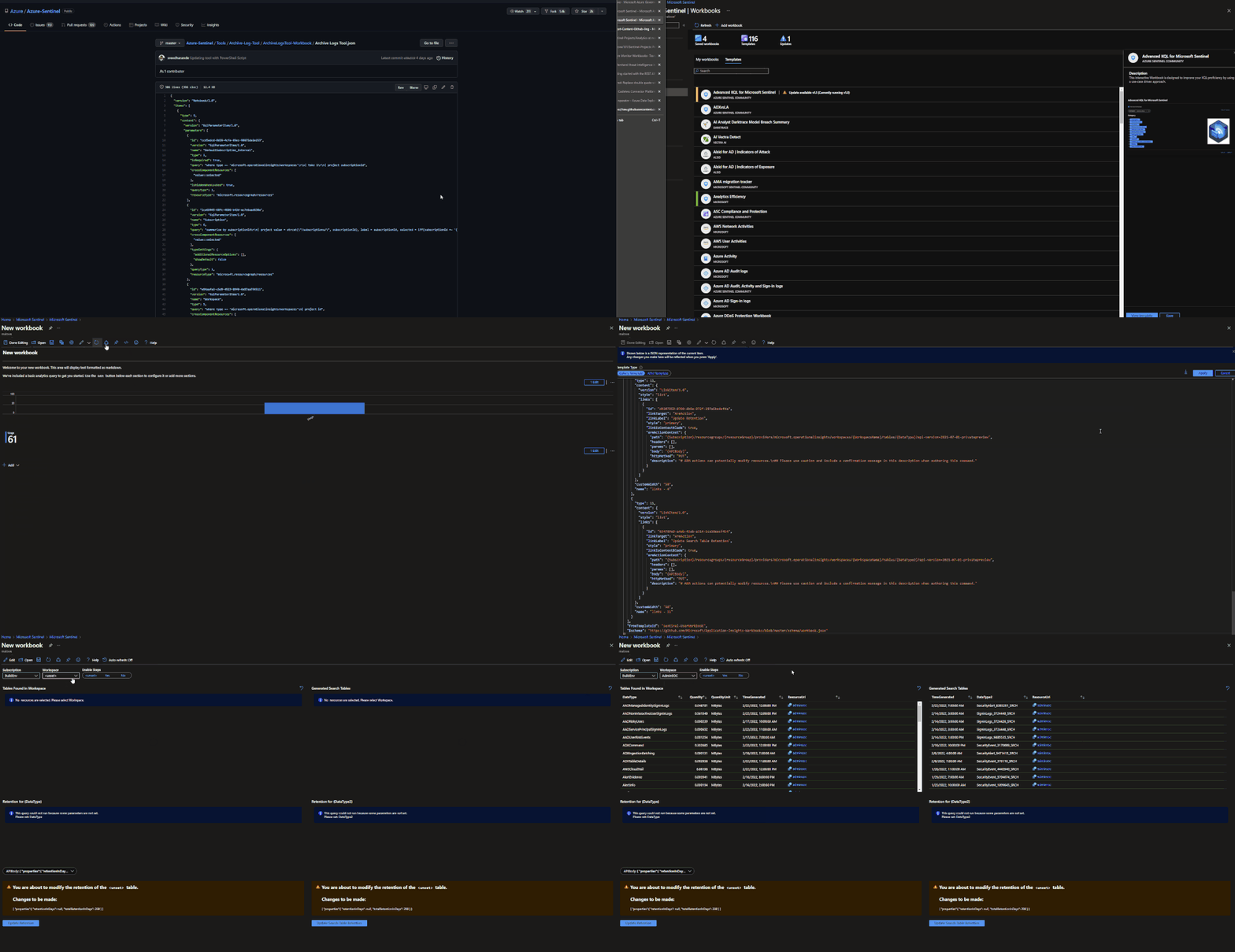
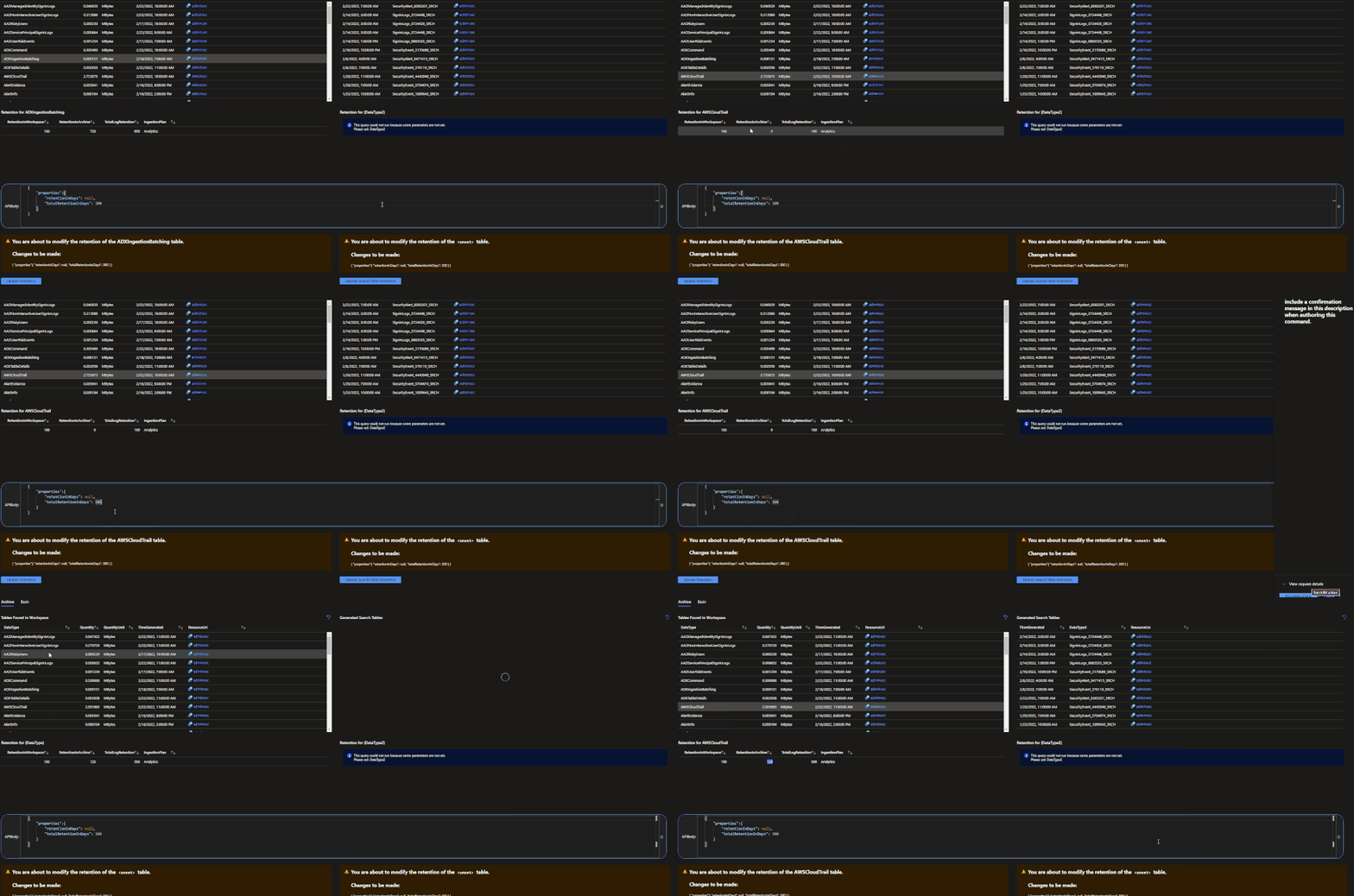
Both the PowerShell script and the Workbook can be found in the Microsoft Sentinel GitHub repository.
Search Jobs:
Search jobs allow users to specify a data table, a time period, and a key item to search for the in the data. As of now, Search jobs use simple KQL, which will support more complex KQL over time. In terms of what separates Search jobs from regular queries, as of today a standard query using KQL will return a maximum of 30,000 results and will time out at 10 minutes of running. For users with large amounts of data, this can be an issue. This is where search jobs come into play. Search jobs run independently from usual queries, allowing them to return up to 1,000,000 results and up to 24 hours. When a Search job is completed, the results found are placed in a temporary table. This allows users to go back to reference the data without losing it and being able to transform the data as needed.
Search jobs will run on data that is within the analytics tier, basic tier, and also archive. This makes it a great option for bringing up historical data in a pinch when needed. An example of this would be in the event of a widespread compromise that has been found that stems back over 3 months. With Search, users are able to run a query on any IoC found in the compromise in order to see if they have been hit. Another example would be if a machine is compromised and is a common player in several raised incidents. Search will allow users to bring up historical data from the past int the event that the attack initially took place outside of the workspace’s retention.
When results are brought in, the table name will be structured as so:
- Table searched
- Number ID
- SRCH suffix
Example: SecurityEvents_12345_SRCH
Data Restoration:
Similar to Search, data restoration allows users to pick a table and a time period in order to move data out of archive and back into the analytics tier for a period of time. This allows users to retrieve a bulk of data instead of just results for a single item. This can be useful during an investigation where a compromise took place months ago that contains multiple entities and a user would like to bring relevant events from the incident time back for the investigation. The user would be able to check all involved entities by bringing back the bulk of the data vs. running a search job on each entity within the incident.
When results are brought in, the results are placed into a temporary table similar to how Search does it. The table will take a similar naming scheme as well:
- Table restored
- Number ID
- RST suffix
Example: SecurityEvent_12345_RST
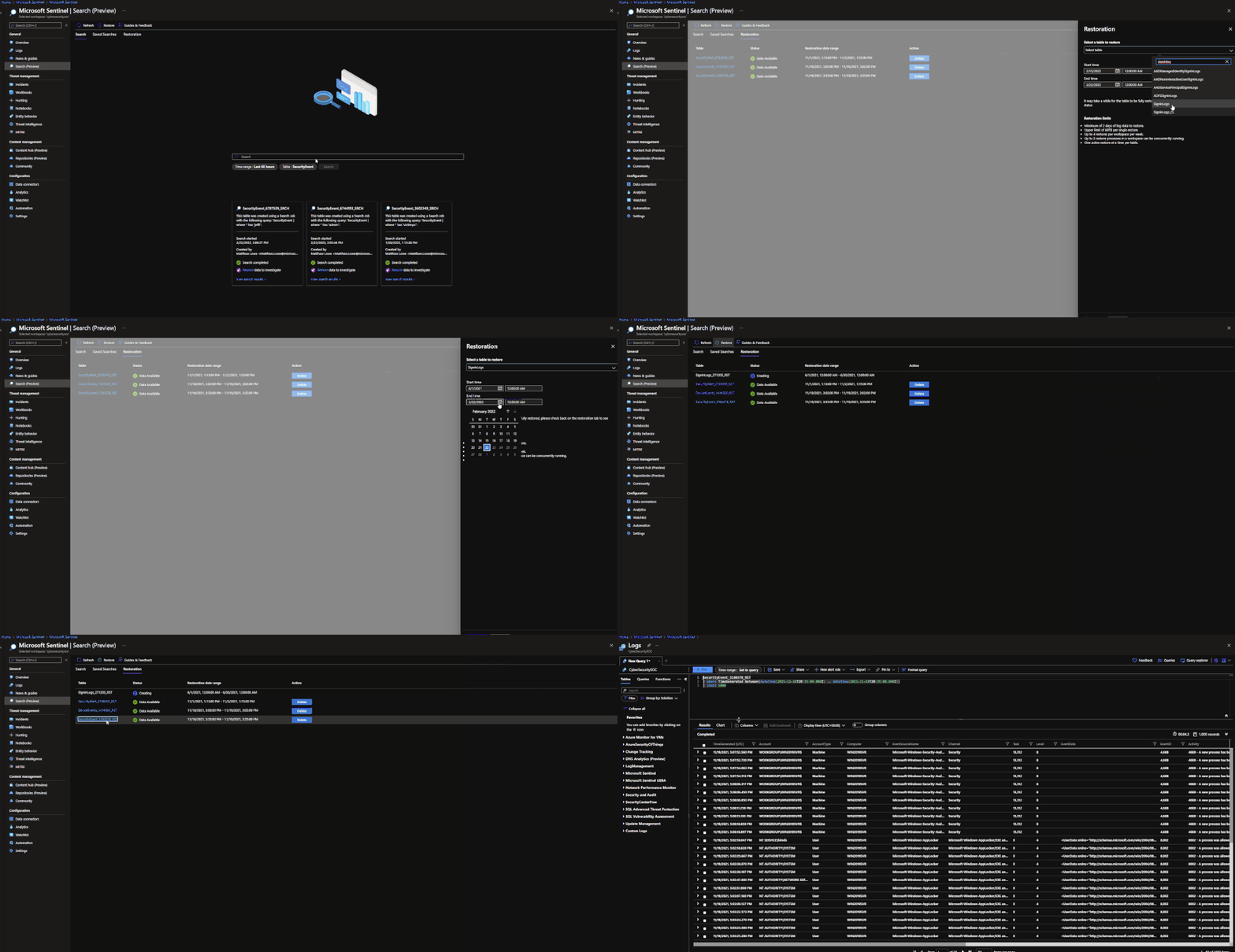
Performing a Search and Restoration Job:
Search
Users can perform Seach jobs by doing the following:
- Go to the Microsoft Sentinel dashboard in the Azure Portal.
- Go to the Search blade.
- Specify a data table to search and a time period it should review.
- In the search bar, enter a key term to search for within the data.
Once this has been performed, a new Search job will be created. The user can leave and come back without impacting the progress of the job. Once it is done, it will show up under saved searches for future reference.
Note: Currently Search will use the following KQL to perform the Search: TableName | where * has ‘KEY TERM ENTERED’
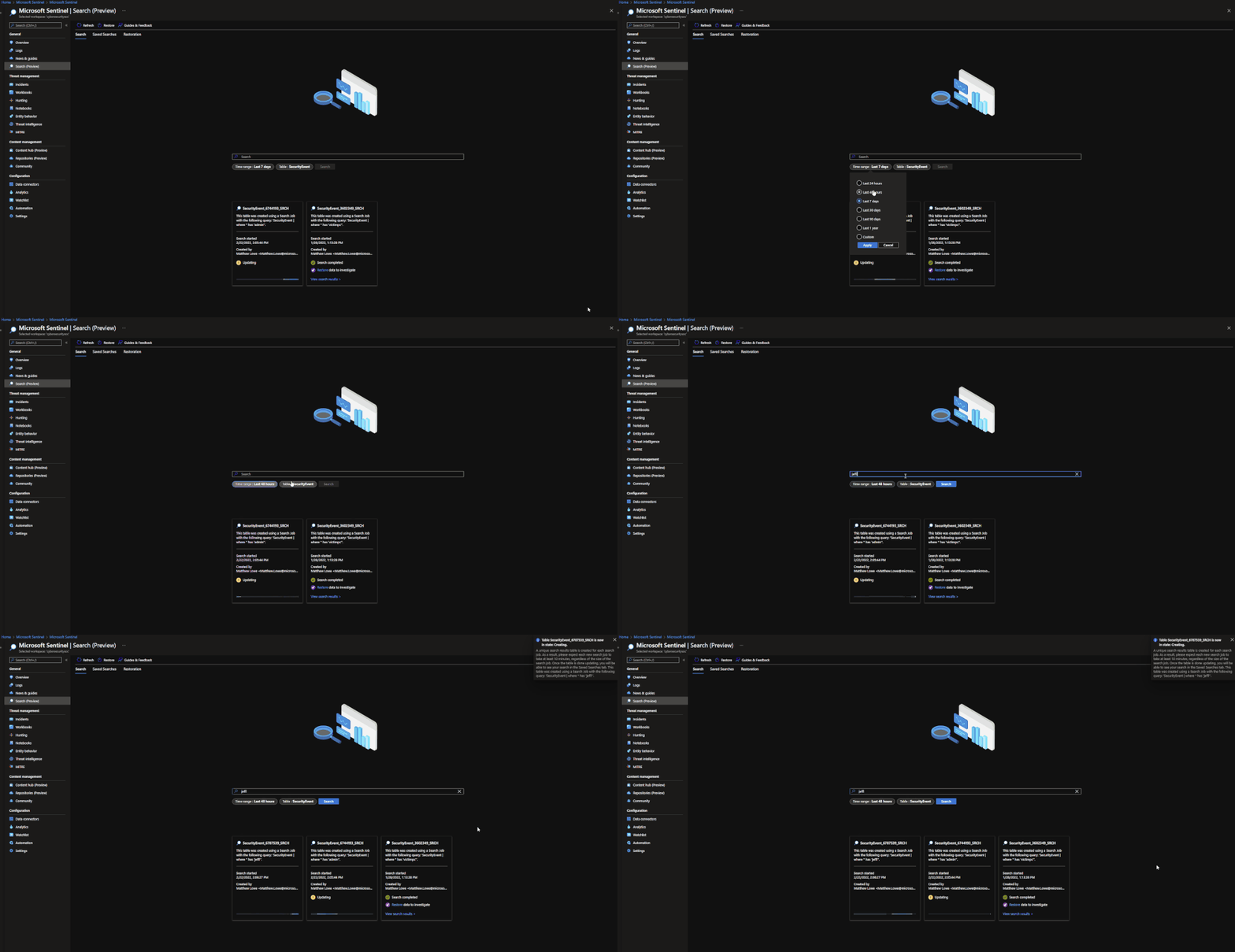
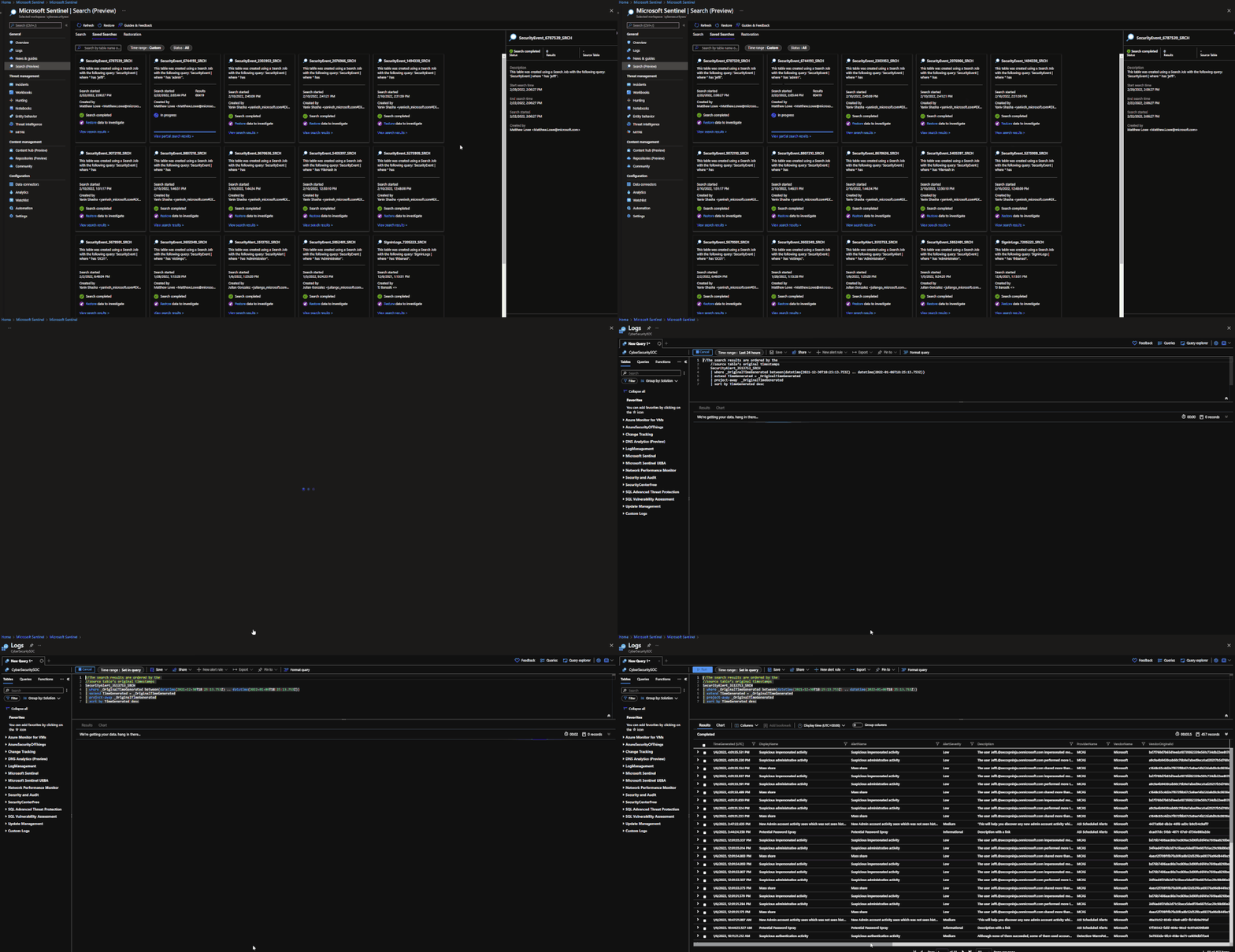
Restore
Restore is a similar process to Search. To perform a restoration job, users need to do the following:
- Go to the Microsoft Sentinel dashboard in the Azure Portal.
- Go to the Search blade.
- Click on ‘restore’.
- Choose a data table and the time period to restore.
- Click ‘restore’ to start the process.
Pricing
Pricing details can be found here:
While Search, Basic, Archive, and Restore are in public preview, there will not be any cost generated. This means that users can begin using these features today without the worry of cost. As listed on the Azure Monitor pricing document, billing will not begin until April 1st, 2022.
Search
Search will generate cost only when Search jobs are performed. The cost will be generated per GB scanned (data within the workspace retention does not add to the amount of GB scanned). Currently the price will be $0.005 per GB scanned.
Restore
Restore will generate cost only when a Restore job is performed. The cost will be generated per GB restored/per day that the table is kept within the workspace. Currently the cost will be $.10 per GB restored per day that it is active. To avoid the recurring cost, remove Restore tables once they are no longer needed.
Basic
Basic log ingestion will work similar to how the current model works. It will generate cost per GB ingested into Azure Log Analytics and also Microsoft Sentinel if it is on the workspace. The new billing addition for basic log ingestion will be a query charge for GB scanned for the query. Data ingested into the Basic tier will not count towards commitment tiers. Currently the price will be $.50 per GB ingested in Azure Log Analytics and $.50 per GB ingested into Microsoft Sentinel.
Archive
Archive will generate a cost per GB/month stored. Currently the price will be $.02 per GB per month.
Learn More:
Documentation is now available for each of these features. Please refer to the links below:
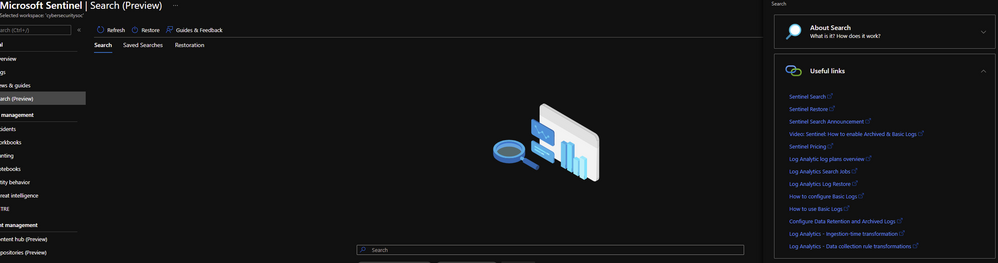
Additionally, helpful documents can be found in the portal by going to ‘Guides and Feedback’.
Manage and transform your data with this suite of new features today!



Recent Comments