This article is contributed. See the original author and article here.
Earlier this year, Microsoft launched our Azure Data Community initiative, with assets such as a landing page for the community, a support network for local Community Groups, and Microsoft Teams subscriptions for Community Group leaders. We are following through on our commitment that community should be “Community-Owned, Microsoft-Empowered”.
To drive this initiative, we’ve chosen various recognized Community experts from all over the globe to act as an advisory board to Microsoft on community needs. The current members of the Azure Data Advisory Board are Annette Allen, Steve Jones, Wolfgang Strasser, Tillmann Eitelberg, Randolph West, Kevin Kline, Gaston Cruz, Pio Balistoy and Monica Rathbun.
These technical professionals are well known for their commitment to the community, getting things done, and being problem solvers. They are speakers, leaders, organizers, advocates and represent user groups and conferences of all shapes and sizes. We’re asking them to advise Microsoft on what the data community needs and how we can help.
Since these folks can’t do this job alone, they’ll be tasked with selecting and establishing a larger, diverse advisory committee to collaborate. Together they’ll decide the guide lines for the board and committee, such as who should be on the advisory board, when to step down from the role, how a replacement is selected, how often they meet, and other general logistics.
But it isn’t all just advising. There’s work to do. These folks will be among the first people and groups onboarded to the Community Teams Tenant. They will be pairing up with other groups to help them onboard and to speed up the roll out, just as other user groups will be asked to do the same. This is a community driven effort. And Microsoft is listening. Make sure you reach out to them with ideas, especially if you are a local Community Group leader.
This group isn’t advising the Azure Data Community – that’s something the community itself should decide on. We will be holding an Azure Data Community group leaders meeting soon on the Teams channel to discuss community and share best practices with each other. We’re looking forward to seeing the amazing things you do and how you help each other learn and grow.
This article is contributed. See the original author and article here.
Pssst! You may notice the Round Up looks different – we’re rolling out a new, concise way to show you what’s been going on in the Tech Community week by week.
This article is contributed. See the original author and article here.
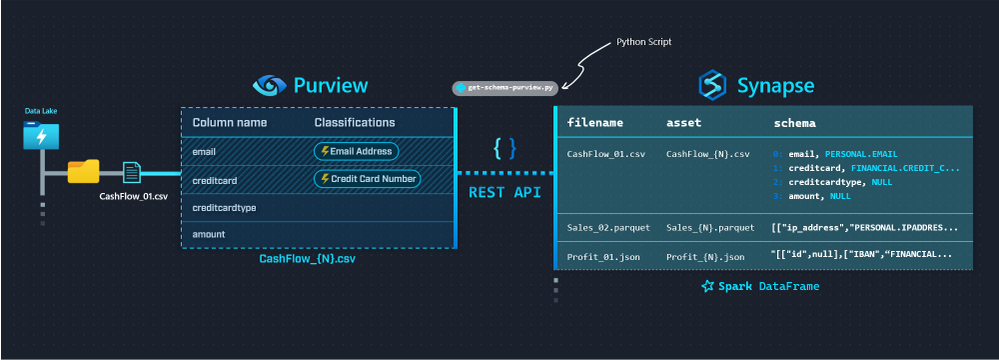
We use a combination of the Purview REST API (via JMESPath), and theClientobject to achieve getting the full list of Assets from Purview, and iterating to populate the corresponding metadata per Asset.
Extracting metadata from Purview with Synapse Spark Pools using Python
Let’s look at the relevant components from the script.
The first functionazuread_authis straightforward and not Purview specific – it simply allows us to authenticate to Azure AD using our Service Principal and the Resource URL we want to navigate (in this case, Purview:https://purview.azure.net:(
def azuread_auth(tenant_id: str, client_id: str, client_secret: str, resource_url: str):
    """
    Authenticates Service Principal to the provided Resource URL, and returns the OAuth Access Token
    """
    url = f"https://login.microsoftonline.com/{tenant_id}/oauth2/token"
    payload= f'grant_type=client_credentials&client_id={client_id}&client_secret={client_secret}&resource={resource_url}'
    headers = {
    'Content-Type': 'application/x-www-form-urlencoded'
    }
    response = requests.request("POST", url, headers=headers, data=payload)
    access_token = json.loads(response.text)['access_token']
    return access_token
We’re going to be passing around theaccess_tokenreturned above every time we make a call to Purview’s REST API.
Next, we leverage PyApacheAtlas to return aclientusingpurview_auth:
Once we have our proof of authentication (access_tokenandclient) – we’re ready to programmatically access the Purview REST API.
We useget_all_adls_assetsto recursively retrieve all scanned assets from our Data Lake from the Purview REST API.
Note: this function intentionally traverses the tree structure until only assets remain (i.e. no folders are returned, only files).
The function below applies the simple recursion techniques I outlined inthis articleagainst our Data Lake and Purview API to retrieve asset names and schemas.
While this is fine for exploration, due diligence (i.e. implementing a more optimal, piecemeal approach) should be applied for Production implementations on a case-by-case basis to avoid long-running jobs.
The API parameter used to determine whether we hit the end isisLeaf:
def get_all_adls_assets(path: str, data_catalog_name: str, azuread_access_token: str, max_depth=1):
    """
    Retrieves all scanned assets for the specified ADLS Storage Account Container.

    Note: this function intentionally recursively traverses until only assets remain (i.e. no folders are returned, only files).
    """

    # List all files in path
    url = f"https://{data_catalog_name}.catalog.purview.azure.com/api/browse"

    headers = {
            'Authorization': f'Bearer {azuread_access_token}',
            'Content-Type': 'application/json'
            }

    payload="""{"limit": 100,
                "offset": null,
                "path": "%s"
                }""" % (path)

    response = requests.request("POST", url, headers=headers, data=payload)

    li = json.loads(response.text)

    # Return all files
    for x in jmespath.search("value", li):
        if jmespath.search("isLeaf", x):
            yield x

    # If the max_depth has not been reached, start
    # listing files and folders in subdirectories
    if max_depth > 1:
        for x in jmespath.search("value", li):
            if jmespath.search("isLeaf", x):
                continue
            for y in get_all_adls_assets(jmespath.search("path", x), data_catalog_name, azuread_access_token, max_depth - 1):
                yield y

    # If max_depth has been reached,
    # return the folders
    else:
        for x in jmespath.search("value", li):
            if jmespath.search("!isLeaf", x):
                yield x
Note a couple points regarding this function:
We can further expand the implementation by abstracting away the data source and makingsource_typeinto a parameter (i.e. besides ADLS, we can query metadata aboutother sourcessupported on Purview – e.g. SQL DB, Cosmos DB etc.).
We’ll just need to deal with curating thepayloadon a case-by-case basis, but the basic premise remains the same.
Note thelimit: 100parameter is there because I didn’t want to deal withAPI Pagination logic(the demo Data Lake is small).
This parameter can be increased for larger implementations up until we hit the upper limit defined by the API – at which point we need to implement pagination best practices into our script logic (no different than other Azure/non-Azure APIs).
For deeper folder structures,max_depthcan be increased as desired
Once we have a list of all our assets, we can iterate through the list and retrieve the Schema and Classification from Purview inline:
Where we use theclientobject we defined earlier to callget_adls_asset_schema:
def get_adls_asset_schema(assets_all: list, asset: str, purview_client: str):
    """
    Returns the asset schema and classifications from Purview
    """
    # Filter response for our asset of interest
    assets_list = list(filter(lambda i: i['name'] == asset, assets_all))

    # Find the guid for the asset to retrieve the tabular_schema or attachedSchema (based on the asset type)
    match_id = ""
    for entry in assets_list:
        # Retrieve the asset definition from the Atlas Client
        response = purview_client.get_entity(entry['id'])

        # API response is different based on the asset
        if asset.split('.', 1)[-1] == "json":
            filtered_response = jmespath.search("entities[?source=='DataScan'].[relationshipAttributes.attachedSchema[0].guid]", response)
        else:
            filtered_response = jmespath.search("entities[?source=='DataScan'].[relationshipAttributes.tabular_schema.guid]", response)

        # Update match_id if source is DataScan
        if filtered_response:
            match_id = filtered_response[0][0]

    # Retrieve the schema based on the guid match
    response = purview_client.get_entity(match_id)
    asset_schema = jmespath.search("[referredEntities.*.[attributes.name, classifications[0].[typeName][0]]]", response)[0]

    return asset_schema
Note a couple takeaways from here:
JMESPath is awesome
The Atlas API response is slightly different based on the filetype (e.g.jsonvscsv), hence we deal with it case-by-case.
This makes sense, sincejsontechnically hasattachedSchema(i.e. Schema that comes as a part of the object itself), whereascsvis of typetabular_schema(i.e. Schema that Purview had to infer)
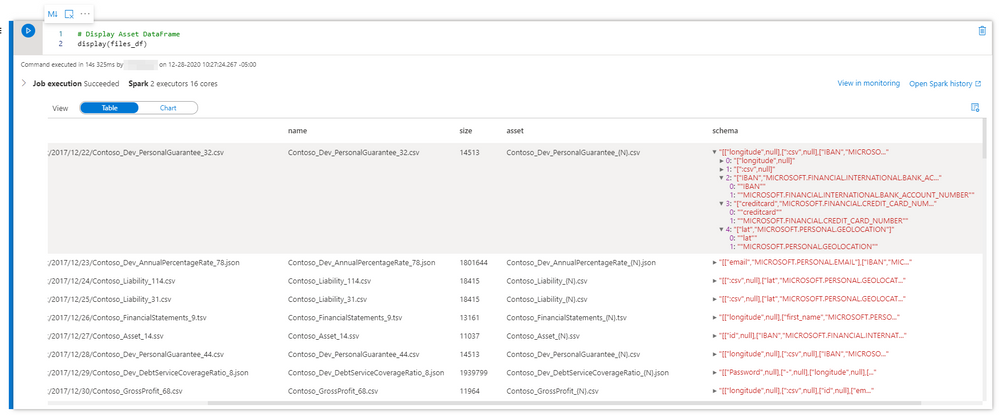
Finally, once the functions are done calling the API, we can call adisplay(files_df)on our DataFrame to get back the final output:
Final Output
Note: files_dfis a Pandas DataFrame, but we can easily convert to Spark withfiles_df = spark.createDataFrame(files_df).
Shouldn’t make a difference for our purposes since the DataFrame is small.
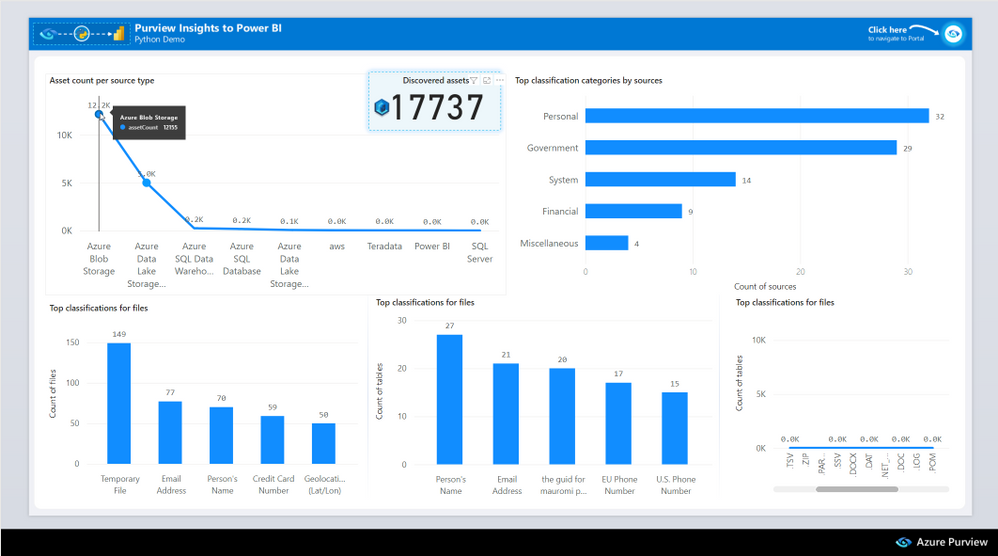
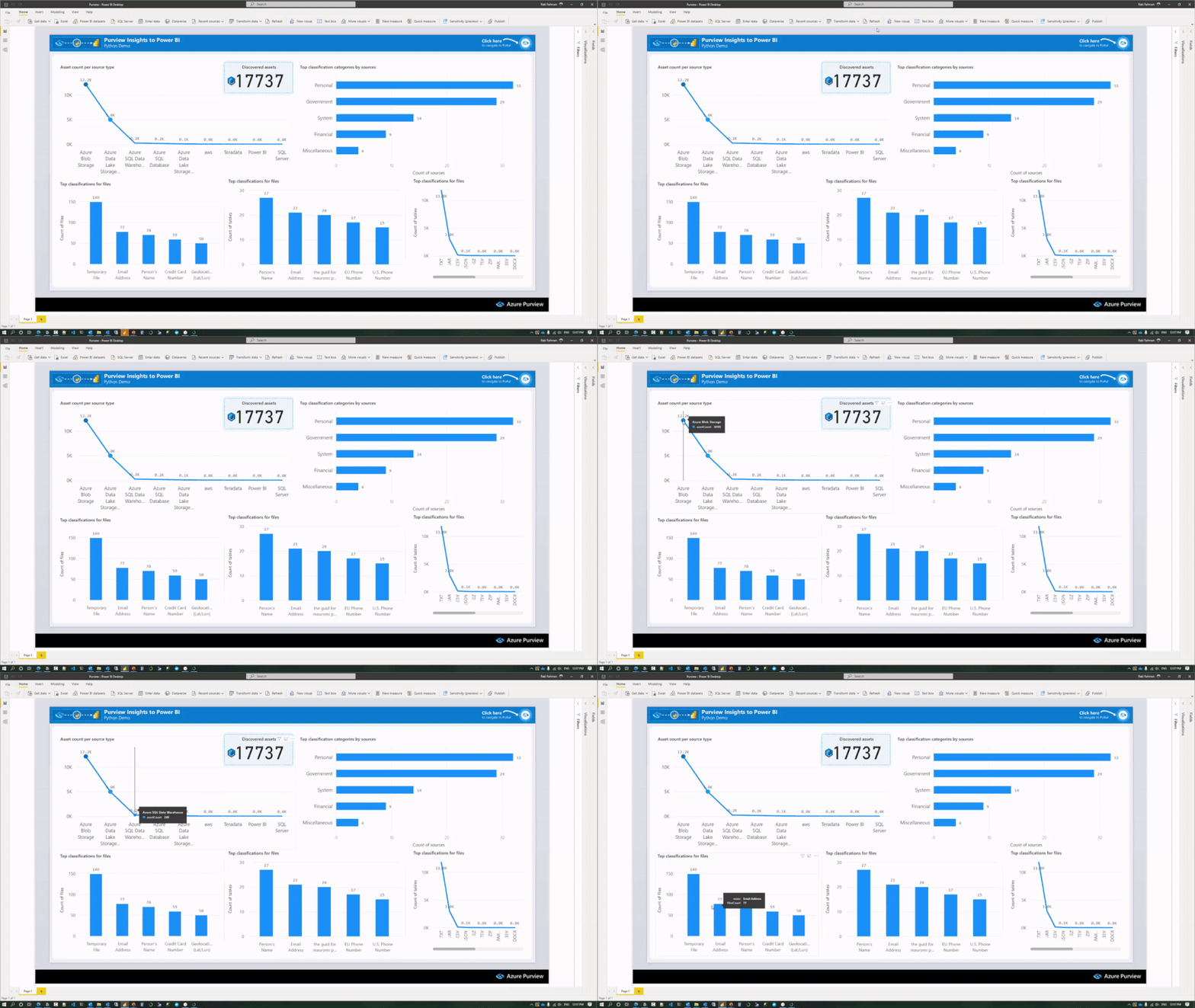
Our goal is to create this Power BI Report – which provides us with the same data that Purview Studio makes visually available to us. The idea here is for us to be able to leverage the ability of Power BI to create Custom Reports:
Demo Power BI Report generated from Purview Insights data
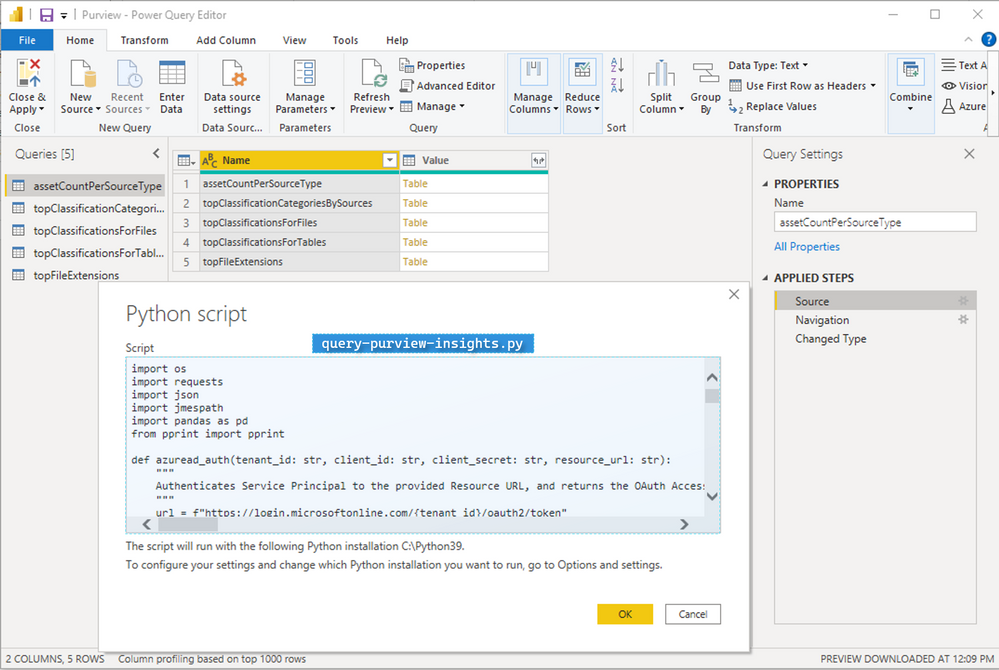
We simply specify the script as a Python Data source – where the script is structured such that it queries Purview’s APIs to produce Pandas Dataframes:
Using the Python Script as a Power BI Data Source
Note: We acknowledge that this method of data extraction is experimental in nature, and is definitely not suitable for ingesting a large amount of data into Power BI.
In our case, since the Insights data is pre-computed by the Purview Engine already, this serves the end goal of creating simple Custom Reports (i.e. our Python script doesn’t have to work very hard to extract this data).
Finally, we can refresh this Power BI report as needed, to ingest the latest data points from Purview:
Refreshing the Power BI dataset, which executes the underlying Python query
Wrap Up
We explored how to call the Purview REST API with Python to programmatically obtain Purview Asset Metadata – i.e. Schema and Classifications into Synapse as a DataFrame. We also looked at how we can apply the same techniques to ingest data from Purview Insights, and create custom Power BI dashboards with ease.
This article is contributed. See the original author and article here.
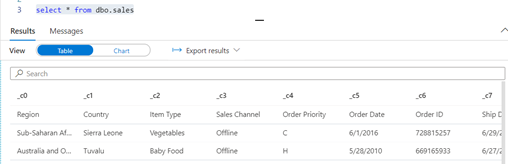
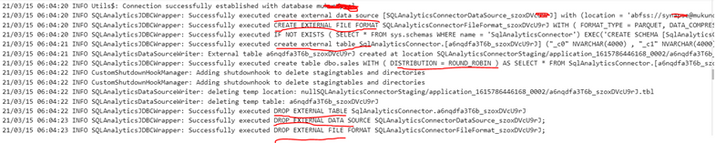
In this article, I would be talking about how can we write data from ADLS to Azure Synapse dedicated pool using AAD . We will be looking at direct sample code that can help us achieve that.
1. First step would be to import the libraries for Synapse connector. This is an optional statement.
2. Next step is to initialize variable to create/read data frames
Note : Above step can also be written in below format :
This article is contributed. See the original author and article here.
As mobile usage becomes more prevalent in your organizations, so does the need to protect against data leaks. App protection policies (APP, also known as MAM) help protect work or school account data through data protection, access requirements, and conditional launch settings. For more information, see App protection policies overview.
Conditional launch settings validate aspects of the app and device prior to allowing the user to access work or school account data, or if necessary, remove the work or school account data. Based on your feedback, we’ve updated an existing conditional launch setting, and are introducing four new management settings.
Jailbroken/rooted devices
Status: Jailbroken/rooted devices conditional launch setting was updated in February 2021 and works with both iOS and Android Microsoft apps.
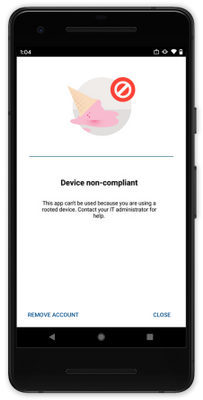
To improve the overall security of devices accessing work or school account data using apps with App Protection Policies, the Jailbroken/rooted devices conditional launch setting can no longer be deleted and defaults to block access. Organizations now only have two options for jailbroken or rooted devices:
Block access – When the Intune SDK has detected the device is jailbroken or rooted, the app blocks access to work or school data.
Wipe data – When the Intune SDK has detected the device is jailbroken or rooted, the app will perform a selective wipe of the users’ work or school account and data.
For organizations that had previously removed the Jailbroken/rooted devices conditional launch setting, this is now enforced in the Intune SDK automatically. If users had been using a jailbroken or rooted device prior to this change, those devices would be blocked.
Disabled account
Status: The Disabled account conditional launch setting was released in Q4 2020 and works with both iOS and Android Microsoft apps.
When a user account is disabled in Azure Active Directory (Azure AD), customers have an expectation that work or school account data being managed by an APP is removed. Prior to this conditional launch setting, customers had to rely on the Offline grace period timer to remove the data after the token expired.
The Disabled account conditional launch setting works by having the Intune SDK check the state of the user account in Azure Active Directory when the app cannot acquire a new token for the user. If the account is disabled, then the Intune SDK will perform the following based on the policy configuration:
Block access – When Intune has confirmed the user has been disabled in Azure Active Directory, the app blocks access to work or school data.
Wipe data – When Intune has confirmed the user has been disabled in Azure Active Directory, the app will perform a selective wipe of the users’ work or school account and data.
If Disabled account is not configured, then no action is taken. The user continues to access the data in an offline manner until the Offline grace period wipe timer has expired with data access being wiped after 90 days (assuming default settings).
Important: The Disabled account setting does not detect account deletions. If an account is deleted, the user continues to access data in an offline manner until the Offline Grace Period wipe timer has expired.
The time taken between disabling an Azure Active Directory user account and the Intune SDK wiping the data varies. There are several components that impact the time to initiate the data wipe:
[Max time to wipe] = [Azure AD connect sync time] + [APP access token lifetime] + [APP check-in time]
The selective wipe will be executed the next time that the app is active after the max time to wipe has passed.
Max OS version
Status: The Max OS version conditional launch is supported with the March 2021 (Company Portal version 5.0.5084.0) release for Android Microsoft apps and the Intune SDK will be available for consumption by iOS Microsoft apps in April 2021.
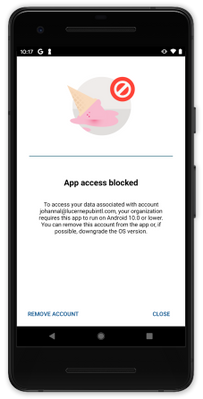
The Max OS version conditional launch setting operates like the Min OS version setting. When the app launches, the operating system version is checked. The primary use case for the Max OS version conditional launch setting is to ensure that users don’t use unsupported operating system versions to access work or school account data. An unsupported version could be beta versions of next generation operating systems, or versions that you have not tested.
If the operating system version is greater than the value specified in the Max OS version, then the Intune SDK will perform the following based on the policy configuration:
Warn – The user sees a dismissible notification if the operating system version on the device doesn’t meet the requirement.
Block access – The user is blocked from accessing work or school account data if the operating system version on the device doesn’t meet the requirement.
Wipe data – The app performs a selective wipe of the users’ work or school account and data if the operating system version doesn’t meet the requirement.
Figure 1: Access is blocked due to OS version
Require device lock
Status: The Require device lock Android conditional launch setting was released in January 2021 and works with Android Microsoft apps.
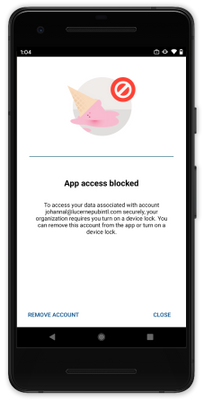
The Require device lock conditional launch setting determines if the Android device has a device PIN, password, or pattern set. It cannot distinguish between the lock options or complexity, for that, device enrollment is required. If the device lock is not enabled on the device, then the Intune SDK will perform the following based on the policy configuration:
Warn – The user sees a dismissible notification if the device lock is not enabled.
Block access – The user is blocked from accessing work or school account data if the device lock is not enabled.
Wipe data – The app performs a selective wipe of the users’ work or school account and data if the device lock is not enabled.
Figure 2: Access is blocked until device lock is enabled
With this conditional launch setting, there is parity both mobile operating system platforms whereby app protection policies can enforce a device PIN (on iOS, device lock is required when encryption is required) on devices that are not enrolled.
SafetyNet Hardware Backed Attestation
Status: The SafetyNet hardware backed attestation conditional launch setting for Android will be supported in Q2 2021.
App protection policies provide the capability for admins to require end-user devices to pass Google’s SafetyNet Attestation for Android devices. Administrators can validate the integrity of the device (which blocks rooted devices, emulators, virtual devices, and tampered devices), as well as require that unmodified devices that have been certified by Google. Within APP, this is configured by setting SafetyNet device attestation to either Check basic integrity or Check basic integrity & certified devices.
Hardware backed attestation enhances the existing SafetyNet attestation service check by leveraging a new evaluation type called Hardware Backed, providing a more robust root detection in response to newer types of rooting tools and methods, such as Magisk, that cannot always be reliably detected by a software only solution. Within APP, hardware attestation will be enabled by setting Required SafetyNet evaluation type to Hardware-backed key once SafetyNet device attestation is configured.
As its name implies, hardware backed attestation leverages a hardware-based component which shipped with devices installed with Android 8.1 and later. Devices that were upgraded from an older version of Android to Android 8.1 are unlikely to have the hardware-based components necessary for hardware backed attestation. While this setting should be widely supported starting with devices that shipped with Android 8.1, Microsoft strongly recommends testing devices individually before enabling this policy setting broadly.
Important: Devices that do not support this evaluation type will be blocked or wiped based on the SafetyNet device attestation action. Organizations wishing to use this functionality will need to ensure users have supported devices. For more information on Google’s recommended devices, see Android Enterprise Recommended requirements.
If the device fails the attestation query, then the Intune SDK will perform the following based on the policy configuration:
Warn – The user sees a dismissible notification if the device does not meet Google’s SafetyNet Attestation scan based on the value configured.
Block access – The user is blocked from accessing work or school account data if the device does not meet Google’s SafetyNet Attestation scan based on the value configured.
Wipe data – The app performs a selective wipe of the users’ work or school account and data.
Figure 3: Access is blocked with a rooted device
We hope you find these enhancements to our Conditional launch capabilities useful. The Data Protection Framework has been updated for the settings that have been released and changes will be introduced as the new settings are released in the future.
Ross Smith IV Principal Program Manager Customer Experience Engineering





Recent Comments