QUICK LINKS:
01:56 — Self-service
03:40 — How to ensure quality of customer experience
06:03 — Field technician’s experience: Field service mobile app
07:16 — Remote assist
07:50 — Self service IVA setup
08:52 — Voice control setup
09:50 — Phone number setup
10:52 — Smart assist setup
11:55 — Field technician setup
12:48 — Wrap up
Link References:
Watch our Dynamics 365 series with Vanessa Fournier at https://aka.ms/Dynamics365forIT
Set up the Dynamics 365 modules and configure Dynamics 365 with Azure IoT at https://aka.ms/DynamicsAlwaysConnected
Check out our shows on PVA creation at https://aka.ms/PVAmechanics
Unfamiliar with Microsoft Mechanics?
We are Microsoft’s official video series for IT. You can watch and share valuable content and demos of current and upcoming tech from the people who build it at Microsoft.
Video Transcript:
– Up next, as part of our series on Dynamics 365, we’re joined by expert Deanna Sparks to show you how you can set up a proactive and always connected service organization from self-service automated actions using intelligent and conversational chatbots and IoT, all the way through to high-touch customer agent and frontline technician support. So, Deanna, welcome to Microsoft Mechanics.
– Thanks for having me on the show.
– And thanks for joining us today. So, this is a really topical show. Over the past year in particular, most customer facing businesses have had to adapt to more agile ways of engaging with their customers. You know, self-service online is now often the first contact-free point of engagement to be able to respond to customers fast, and at scale. And how well that experience goes can be the difference between keeping or losing business.
– That’s true, Jeremy, and creating that experience is not easy for service organizations. Today’s customers don’t just engage in one way anymore. It’s often multiple ways, such as phone, web, and their preferred social channels. So, to get this experience right, it can often involve multiple tools and a lot of integration work. That’s really the whole premise of Dynamics 365. We take away all of that complexity with modular applications that natively work together. And a lot of this can be automated to provide your customers with self-service options, wherever they choose to engage. For example, if your customer prefers to solve an issue on their own, they can, by enabling intelligent virtual agents using our Power Platform, extending even further when you enable connected devices with Azure IoT. Or you can build intelligent escalation paths to hand off to the right person. From there, you can pull in expert support with seamless collaboration tools. And if an on-site expert is needed, since everything is connected, it’s easy to provide your customers with experienced frontline workers. These turnkey applications and services can be configured for your organization. And today, it’s a lot easier to set up than you might think.
– So, can we see it in action?
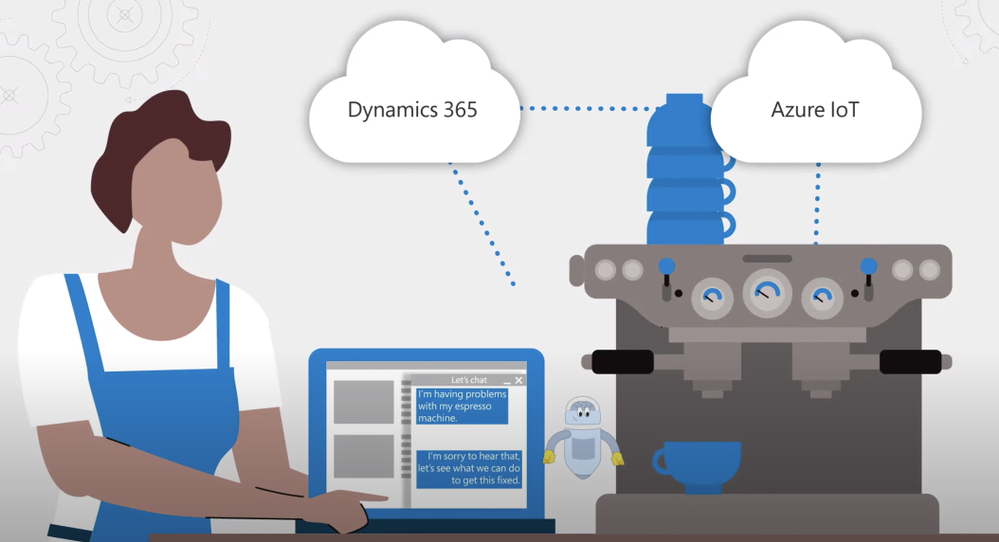
– So, let’s start with the self-service experience. I’m on the Contoso Coffee website and I want to report an issue with the espresso machine my coffee shop has purchased. It’s connected to Contoso Coffee via Dynamics 365 and Azure IoT. Now, most of us are familiar with text-based chat, but this takes things to the next level with voice assistance. I can dial a 1–800 number and I’ll be greeted by a virtual agent.
– [Agent] Hello, Fourth Coffee, thanks for calling Contoso Coffee support. Who am I speaking with?
– This is Deanna from the Bellevue location.
– [Agent] How can I help you today, Deanna?
– We have a two group coffee machine that we purchased from you, and we’ve noticed that it’s slow to respond to commands.
– [Agent] Okay, let me check on a few things.
– Okay, so while the bot is doing that, let me explain what is happening behind the scenes. You can see here in the PVA flow, that it is instructed to check on the device. It’s tapping into the device readings in IoT and Dynamics 365, and it recognizes that the firmware is out of date. The virtual agent was able to see the history of the device controller and that an update was needed. And by the way, because the IoT is surfaced through field service, it’s accessible to others in the organization. So, the virtual agent can now respond to me.
– [Agent] Thanks for waiting. It looks like your machine’s firmware is out of date. Can I get your permission to update it?
– Yes.
– [Agent] Thanks. This will take a few moments. We will update your machine’s controller.
– Thank you. So now, behind the scenes, the virtual agent is interfacing with field service and the command gets pushed down through the IoT hub to my espresso machine to update the firmware.
– Right, and this really feels like a high-touch experience because of the voice and intelligence that’s baked into the interaction that really allows the bot then to figure out the situation and take action. That said, though, how do you ensure the quality of the customer experience for things that might be outside of the realm of the bot’s diagnostic and kind of configuration power?
– Exactly, not every issue can or should be fixed by software and automated responses. Let’s say the machine is not performing consistently. Maybe the water isn’t flowing properly. A lot of different variables could cause this. So, here’s a standard text-based exchange. In this case, the virtual agent has identified the store as well as the equipment available to troubleshoot. The virtual agent is asking the customer to describe the issue. The customer is concerned about the inconsistent water flow. Now, behind the scenes intelligent routing uses AI models and rules to assess incoming service requests. This ensures that all customer interactions are routed to the correct customer service agent without constant queue supervision. Switching to the customer service agent’s point of view, they accept the incoming chat requests. This loads the previous virtual assistant conversation with associated cases and customer information. A benefit here is that it is the same agent experience whether the customer is reaching out from the web, email, social channels or phone. Before the agent greets the customer, highlighted on the left, the virtual agent suggests what to investigate first. In this scenario, it’s the water quality issue in the area. The agent uses quick replies to easily respond to the personalized greeting. Now, as the agent reviews, built-in AI has already linked the conversation to the proper case, tracking the root cause. In this scenario, it’s the King County water quality impact case. While the conversation continues on the left, on the right, Smart Assist suggests related knowledge articles. The top ranked article provides guidance on how Contoso should handle issues related to water quality and mineral content. The agent clicks on the article. There are recommendations of actions to take, including in this scenario sending a technician to install a water filtration system to fix the issue permanently. As a premium customer, they have access to a one-day SLA to provide onsite maintenance, and now the agent can notify the customer a technician will be sent. Next, an automated process creates the work order. And intelligence scheduling can pick a time and date within the SLA for when an appropriate technician can be onsite.
– So, now the appointment is all scheduled, but what does the field technician’s experience then look like?
– The main experience for a frontline worker is primarily surfaced through the field service mobile app. They can see complete information about their day in a familiar calendar view, similar to Outlook. When selecting a work order, the customer’s information and location are available. Once on site, frontline workers can follow the predefined guided tasks based off of the type of service they’re performing. Here, I’ve already completed the first two service tasks. But let’s say I want to follow along the third service task, which includes the inspection to ensure the successful installation of the water filtration system. This predefined checklist makes it easy for the technician to perform their work. In our case, we select the root cause of the installation as the county water supply. I mark that Fourth Coffee’s installation is covered under SLA. As I follow the precise installation process, I mark each step complete. When I finish the installation, I ensure the water is flowing well through the filter system and make sure there are no leaks. I move the progress to 100% and indicate the inspection as passed. Now that all of the tasks are done, I scroll up and save my work. Then at this point, I can go to the notes tab and capture a signature from the customer directly from my device.
– So now, the technician’s work is done, but what happens then if the customer has a question that really falls outside the expertise of the worker that’s on site? For example, what if they want to know if their coffee is pouring right?
– Well, that’s a great use case for remote assist. Not all technicians will know what the perfect cup of coffee looks like. To avoid sending another technician onsite, frontline workers can immediately connect with the Contoso Coffee Brewmasters. So, we’ll launch the remote assist experience. This connects to a remote expert that the field tech can share video with. Then, we’ll check the pour of the coffee and the remote expert can see things like the speed and color of the pour to say if everything looks good.
– This all looks pretty awesome. But what does it take then to set the experience up and why don’t we start with the self-service IVA?
– So, for the self-service experience, you need two things outside of core customer service and field service apps, the Omnichannel add-in, and your Power Virtual Agent. Once you have acquired the license for Omnichannel, the application appears in your Power Platform admin center under D365 apps. You’ll select the environment and which Omnichannel needs to be set up and select Manage. This takes you to the Omnichannel page and the Dynamics 365 admin center. We provide a guided experience to set up your different customer communication channels and additional settings. The second thing you need is to create the Virtual Agent flow. Here on the Power Virtual Agent author in Canvas, you can see the flow of what I just showed. You can see there’s logic and conditional branching and the prebuilt connectors make it easy to connect to Azure IoT for device readings.
– Right, and by the way, we’ve also recently done several shows on Power Virtual Agents, which you can check out at aka.ms/PVAMechanics. So, how do you get all this to work with the voice control that we saw?
– Actually, that’s the new part. To do that, you need to follow the previous setup experience for our new voice channel and link it to a preexisting Virtual Agent, just like you saw. So, starting in the Omnichannel admin center, click Set up voice demo. This will kick off an automated process to set up the work stream, acquire a phone number, set up your voice channel, create a queue service and wire up the Power Virtual Agent services. Once these automatic processes are complete, you can instantly try it by clicking on Open voice demo. At this point, you can test out the voice-to-agent escalation by calling the number and opening the agent experience. Since we just got this configured, you’ll land on a fresh agent dashboard. Now, you’ll see the call is coming in, so, I’ll accept the call. Accepting the call opens the ongoing conversation page. Notice the live voice-to-text transcript happening in real time. And you can even determine your customer’s mood by looking at the customer sentiment at the top of the conversation.
– What happens if I want to have a different phone number, or maybe I want to bring in my own phone number to the service?
– You can either acquire a different phone number, or bring your existing one into the service. You can do that from the new Omnichannel admin center, just click Set up voice. And from there, you can configure your phone number or get a new one.
– Okay, so once that’s configured, your call center is now set up, but how does the routing work then to get to the right agent?
– So, that’s out-of-the-box, so, it’s also pretty easy. We actually showed that earlier in our example. Still in the Omnichannel admin center, I’ll click into the work distribution. These settings define how conversations should be allocated to agents within a queue. And now, we’re ready to add our Virtual Agent, the same one that I showed you earlier. To do that, I’ll select Add Bot, and from the dropdown list, I’ll select my Power Virtual Agent. Now, my phone number is linked to my Power Virtual Agent, and it’s ready to go.
– One thing to note here is that behind the scenes, we’re actually using Azure Communication Services that leverages the same enterprise-grade foundation for Microsoft Teams that brings in voice and PSTN calling and integration with Power Virtual Agents. Moving on further into our setup experience, another pivotal part of the experience that you showed was that escalation to the customer service agent from the bot and how they have the knowledge articles that they needed to troubleshoot further with the help of Smart Assist. How do you get all that working?
– Again, this is pretty easy to enable in the same admin center. Here, if I click into the Analytics and insights setting, you’ll see that I’ve already enabled Omnichannel historical analytics and topic clustering. Historical analytics gives you a complete view of your service organization with things such as caseload volume by channel, escalation rate, sentiment, and CSAT, just to name a few. And topic clustering uses natural language understanding to synthesize the root causes for why your customers are calling. And to get the matching Smart Assist knowledge articles to appear, you need to enable premium AI, which I’ll do by simply clicking into Manage. All I need to do to leverage Microsoft’s powerful machine learning models is to enable similar cases and knowledge article suggestions. I also have the option to update the data mapping to tailor results to how my organization collects data, but I’ll leave that for later and click Save and Close.
– Let’s switch gears to the field technician. What did you have to do to set up the mobile app? Was that easy to configure as well?
– There are just a couple steps to get that configured. With the latest update to field service, the mobile app will appear automatically in your tenant. So, here in the apps menu, from the Field Service Mobile app tile, we’ll select Manage roles, then choose all of the field service roles here, admin, dispatcher, inventory, resource manager, and save it. This will give anyone with the right permissions to access the application, using their existing field service login credentials. Now, we’ll open it in the app designer, and this is just like customizing any other power app. You just select the components you want to display, and those will be available to anyone who uses the app with appropriate permissions.
– And this is really an awesome example of how you can combine automation and intelligence and live personnel engagement to take customer support to the next level. But what would you recommend for the folks watching who want to learn more?
– So, in the interest of time, we showed you the core experience and setup, but we have much more detailed guidance on everything that I showed you, from setting up Dynamics 365 modules to configuring Dynamics 365 with Azure IoT, available at aka.ms/DynamicsAlwaysConnected.
– Thanks, Deanna, this is amazing stuff. And to get familiar with all of what’s possible with Dynamics 365, I really recommend that you check out our series with Vanessa Fournier at aka.ms/Dynamics365forIT. Be sure to subscribe to Mechanics if you haven’t already yet. Thanks for watching, we’ll see you next time.


Recent Comments