by Contributed | Mar 22, 2021 | Technology
This article is contributed. See the original author and article here.
The Azure SQL team is running a survey that is aimed at gathering feedback from customers, to inspire product development and future strategy. This is an opportunity for you to connect with our team and influence the products you use!
Interested in helping shape the future of Azure SQL? Complete our survey and tell us what you think: https://aka.ms/AzureSQLSurvey.
by Contributed | Mar 22, 2021 | Technology
This article is contributed. See the original author and article here.
Written in collaboration with @Mohit_Kumar (Senior PM CxE Azure Network Security Team)
Current challenges
Recent attacks are a great reminder that security hygiene should be your number one priority. To implement security hygiene, you need visibility across different workloads, and network is a critical area for any infrastructure. Azure Security Center can help you to improve your security hygiene by providing a comprehensive cloud security posture management platform for Azure and Non-Azure workloads. Although Azure Security Center always had network security recommendations and capabilities, it was still not possible to have a centralized visibility of Azure firewall coverage and policies. At Ignite 2021 we announced a new integration with Azure Firewall Manager that enables you to see Azure Firewall coverage status across all networks and to centrally manage Azure Firewall policies.
What’s New?
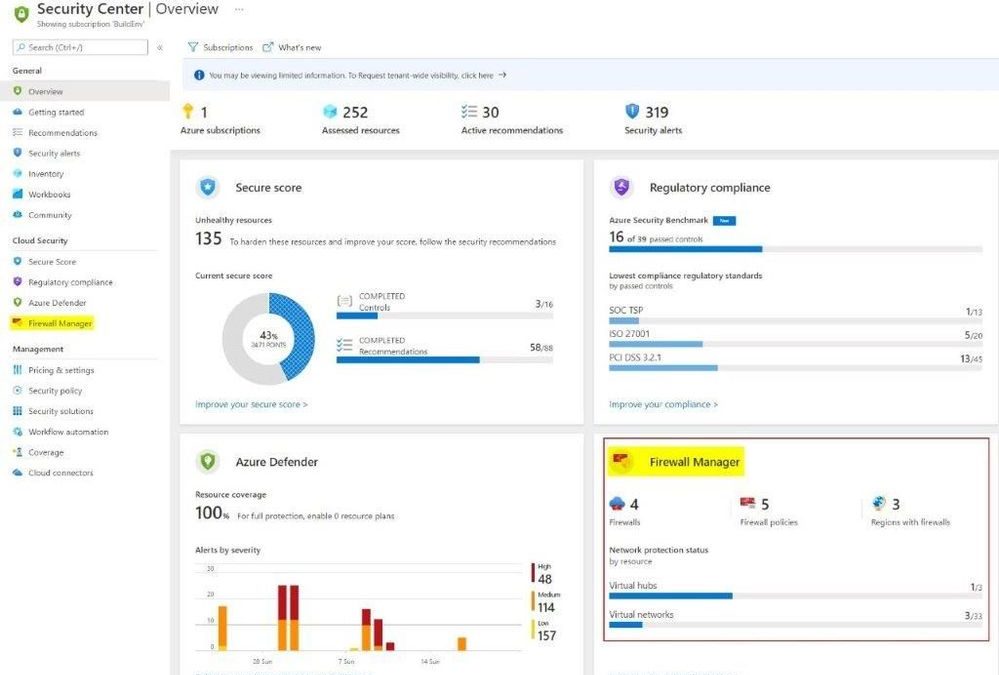
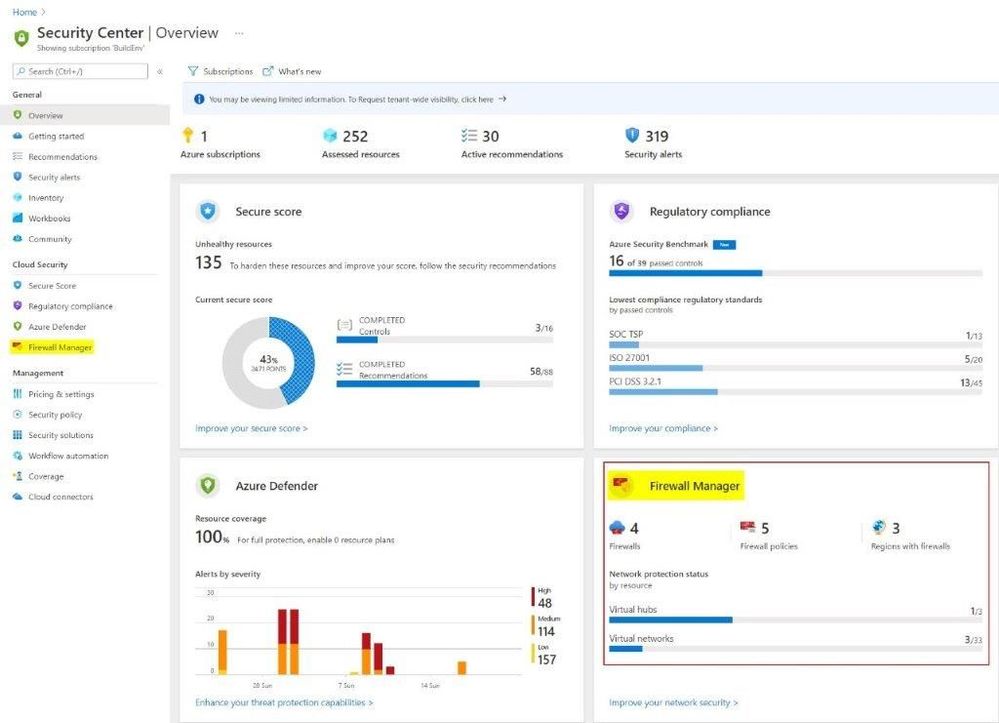
With the integration of Azure Firewall Manager with the Azure Security Center, you can now visualize all-up status of their infrastructure and network security in one place. The Firewall Manager tile in Azure Security Center dashboard, under the Overview blade provides an all-up status of Azure Network Security across all Virtual Networks and Virtual Hubs spread across different regions in Azure. With a single glance, you can see the number of Azure Firewalls, Firewall Policies and Azure regions where Azure Firewalls are deployed.
With a single click on the Firewall Manager tile or on the left-hand navigation pane in the ASC dashboard, you can get to the familiar Azure Firewall Manager dashboard to drill down deeper into different aspects of Network Security.
Advantages of this Integration
Prior to this integration, to determine which Virtual Networks (VNETs) and Virtual Hubs had an Azure Firewall deployed or which VNETs were peered with another VNET with an Azure Firewall in it or to find out the number of Firewall Policies they had, you had to look through multiple dashboards/blades in the Azure Firewall Manager.
With the integration of Azure Firewall Manager with Azure Security Center, you will now have a single pane of glass view of their infrastructure and network security. You will be able to see the status of Network Security from the Azure Security Center directly. You no longer have to go into 2 different dashboards: in ASC for infrastructure security and in Firewall Manager for network security.
Additional Resources
To learn more about Azure Firewall Manager, visit: https://docs.microsoft.com/en-us/azure/firewall-manager
To learn more about Azure Security Center, visit: https://aka.ms/ascninja
Watch a demonstration of Azure Security Center integration with Azure Firewall Manager in this episode of Azure Security Center in the Field – Out of Band Edition
by Contributed | Mar 22, 2021 | Technology
This article is contributed. See the original author and article here.
In line with our commitment to rapidly expand Microsoft Defender for Endpoint cross-platform capabilities, we are preparing a set of enhancements to further reduce organizational exposure attributed to common end user activities. Today we are thrilled to announce the public preview of USB storage device control for Mac!
Preventing threats and securing your organization takes a multi-layered approach. Many users will plug in USB removable storage devices without considering their potential security risk. Enabling removable device control policies reduces the attack surface on user’s machines and protects organizations against malware and data loss in these scenarios.
What level of USB device control comes with this new capability?
USB storage device control for Mac is designed to regulate the level of access given to external USB storage devices (including SD cards). The access level is controlled through custom policies.
- The capability supports Audit and Block enforcement levels.
- USB device access can be set to Read, Write, Execute, No access.
- To achieve a high degree of granularity, USB access level can be specified for Product ID, Vendor ID, and Serial Number.
- The custom policy allows customization of the URL where user is redirected to when interacting with an end user facing “device restricted” notification.
The USB device control policy is hierarchical. At the top of the hierarchy are vendors. For each vendor, there are products. Finally, for each product there are serial numbers denoting specific USB devices.
The policy is evaluated from the most specific entry to the most general one. When a USB device does not match any of the nested entries, the access level for this device defaults to the top-level permission.
|– policy top level
|– vendor 1
|– product 1
|– serial number 1
…
|– serial number N
…
|– product N
…
|– vendor N
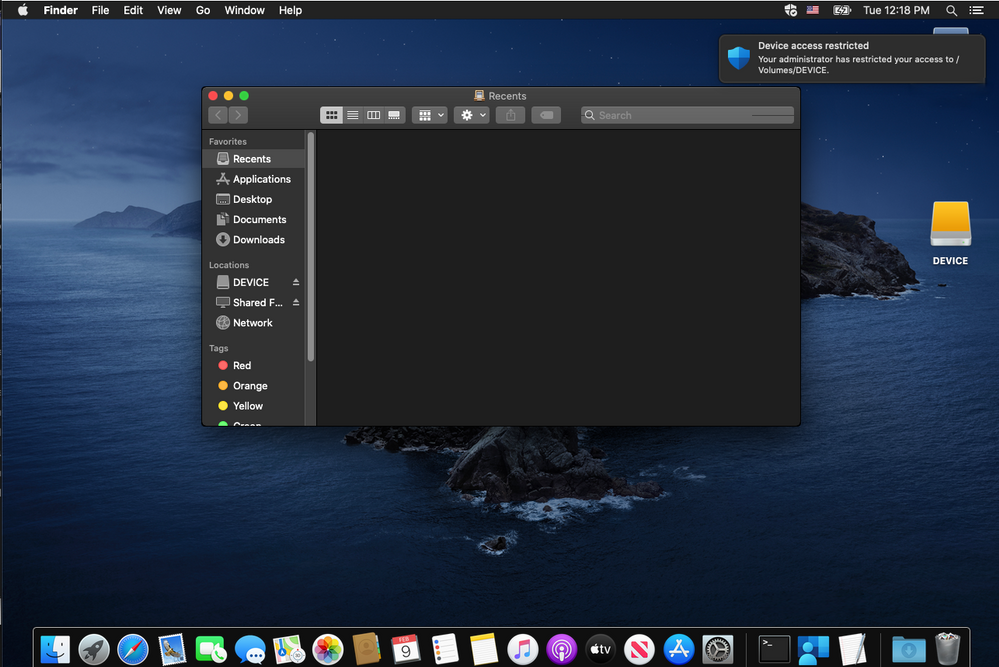
In cases when the USB device control policy restricts Mac end user actions, a notification appears informing the end user about the restriction imposed by the organization:
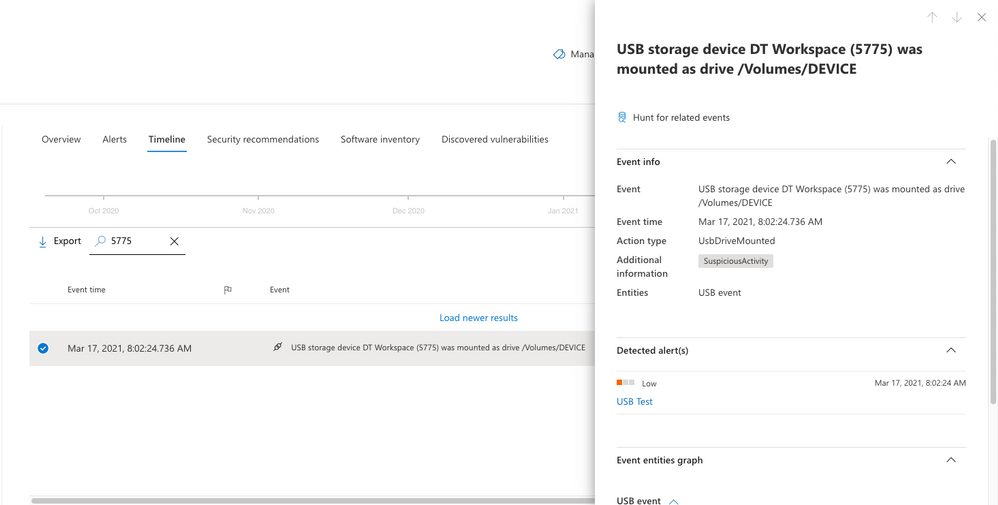
Security teams have visibility into instances of restricted actions involving USB storage devices in the Microsoft Defender Security Center:
USB device control events can also be explored using advanced hunting queries. For example:
DeviceEvents
| where ActionType == “UsbDriveMount” or ActionType == “UsbDriveUnmount” or ActionType == “UsbDriveDriveLetterChanged”
| where DeviceId == “<device ID>”
What are the available options to deploy USB storage device control policies for Mac?
USB device control policies can be deployed using , Intune, and manual deployment. For more information, read the Mac USB storage device control documentation [LINK] for detailed guidance on policy deployment (including examples of USB device control configurations).
What are the preview prerequisites for USB storage device control for Mac?
To experience the USB storage device control for Mac capability in public preview, you’ll need to have preview features turned on in the Microsoft Defender Security Center. If you have not yet opted into previews, we encourage you to turn on preview features in the Microsoft Defender Security Center today.
Ensure the following requirements are fulfilled:
- This new capability is supported on devices running macOS Catalina 10.15.4+
- Participating devices must be running with system extensions (this is the default on macOS 11 Big Sur)
- Participating devices must be registered for the InsiderFast Microsoft AutoUpdate channel
- Minimum client version for Microsoft Defender for Endpoint for this capability is 101.24.59
For more information, see the Mac USB device control documentation for additional details on setting and checking the aforementioned prerequisites on participating devices.
We welcome your feedback and look forward to hearing from you!
You can submit feedback by opening Microsoft Defender for Endpoint application on your Mac device and navigating to Help > Send feedback. Another option is to submit feedback via the Microsoft Defender Security Center.
Monitor the What’s new in Microsoft Defender for Endpoint on Mac page for upcoming announcements (including general availability of Mac USB storage device control).
If you’re not yet taking advantage of Microsoft’s industry leading optics and detection capabilities, sign up for free trial of Microsoft Defender for Endpoint today.
Microsoft Defender for Endpoint team
by Contributed | Mar 22, 2021 | Technology
This article is contributed. See the original author and article here.
If you’ve ever wondered how news anchors or public speakers can stay on point and present their topics in a crisp and concise way, within a limited timeframe, chances are they are using a teleprompter.
In today’s work-from-home tip, Jeremy Chapman, from the Microsoft 365 team, will show you how you can use Microsoft Word to easily convert any document into something that works perfectly as a teleprompter. Then we’ll show you how to use Microsoft Teams as a way to project this teleprompter screen to a remote presenter or a second device like a phone screen.
Jeremy’s camera and prompter setup:
- Sony A7 II camera with F1.8 55mm lens
- Elgato Cam Link 4k USB 3.0 HDMI capture device
- Padcaster Parrot Teleprompter Kit
- Microsoft Surface Dial to scroll prompter text
- Feelworld FW568 5.5 inch 1080p HDMI Camera Field Monitor
- Shure MV7 microphone
- Blue Compass microphone boom arm
QUICK LINKS:
00:51 — Converting a Word document for teleprompter use
03:00 — Positioning the prompter screen for eye contact to the camera
03:54 — Using a Microsoft Teams meeting on a phone to send the prompter screen
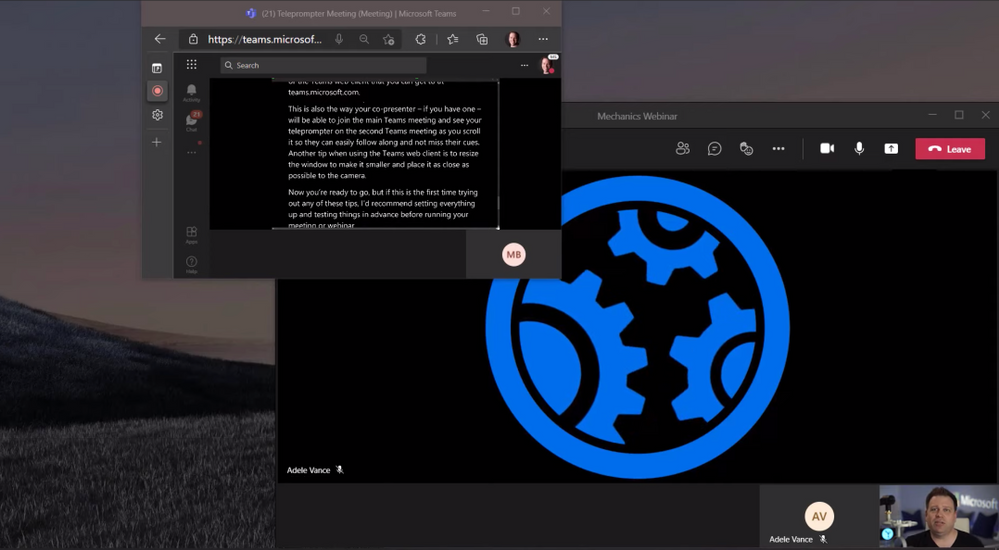
04:52 — Using the Microsoft Teams web app to join a second meeting to view the prompter for in-person or remote co-presenters
05:41 — Closing remarks
Link References:
Use Microsoft Teams on the web to join a second meeting for sharing the teleprompter feed at https://teams.microsoft.com
Find more shows in our work from home series at https://aka.ms/WFHmechanics
Unfamiliar with Microsoft Mechanics?
We are Microsoft’s official video series for IT. You can watch and share valuable content and demos of current and upcoming tech from the people who build it at Microsoft.
Video Transcript:
If you’ve ever wondered how news anchors or public speakers can stay on point and present their topics in a crisp and concise way all within a limited timeframe, the chances are they’re using a teleprompter. Now, if you’re not used to using a teleprompter, with a little practice reading into your camera a teleprompter can help get your presentations or speeches to the next level.
So in today’s work from home tip, I’ll show you how you can use Microsoft Word to easily convert any document into something that works perfectly as a teleprompter and I’ll show you how you can use Microsoft Teams as a way to project this teleprompter screen to a remote presenter or a second device, like a phone screen, that can be placed directly under your camera so that your eyes stay close to the camera lens.
So in my case, I’m using Microsoft Word and what I’ll demonstrate today works more or less the same way whether you’re on a PC or Mac. Here I have a script that I’m presenting from right now and the first thing that you’ll want to do in the View tab is change the view from Print Layout to Web Layout. Now, this ensures that you can use the full width of the page and not need to scroll past page breaks, which can often appear mid-sentence.
Now, the next thing that you’ll want to do is disable the ruler at the top of the screen by unchecking this box. You can leave the page background white like mine is now, which is helpful if you’re using the screen to help with your camera’s lighting, but depending on your screen brightness or setup, the white background can also make your face too bright, or if you’re using an actual teleprompter device on your camera that works like a two-way mirror effectively, the white background sometimes can cause the image to look a little foggy or milky and to counter these effects you can easily change the background to black.
Now, to change the background color, first you’ll want to select all of your text by using Control + A. Then go to the Home tab and make sure that you font color is set to Automatic. Now, this ensures that your font color will flip to white once we change the page color to black. And to do that, just search in Word in the search box for page color, then set it to black. Now our document is looking much more like a teleprompter but the font is still pretty small and if your camera’s far away or you’re going to project this onto a small screen then you’ll want to make the font larger and you can do that easily by using the zoom control in the bottom-right corner to get a comfortable font size.
Now, the last thing, and a very key step that you’ll want to do in Word, is to switch on focus mode. Now, this will full-screen Word and make it so it looks like a teleprompter and now it’s ready to go. But let’s say we want to use this for a two-person presentation and want to get the attention of each speaker or punch up various parts of the script. Now, for that, you can use highlighting in Word to help grab attention. So, for example, if I’m presenting with Megan, I can mark her name, change the highlight, and my name, also change the highlight, and with those different colors I can grab attention of the different presenters. Or I can bold and underline the text if I really want to land a point.
Okay, so now I have my prompter complete, but another key aspect of doing this well is getting the screen with Word to be as close as possible to your camera. And if you’re just using the camera on top of your laptop or your monitor, you’ll be looking pretty far down to read your text. So in my case, I actually have a device called a Padcaster that’s attached to my Sony DSLR camera lens and under it there’s a 5 1/2-inch field monitor used as a second display over HDMI attached to my PC with the display flipped so that the text reads the correct way and the text is directly in front of the lens. So this is how you would use Word if you were in a studio environment, maybe with a second person driving the teleprompter under the display on a larger teleprompter. Now, chances are you don’t have that setup at home, but if you want something like that, I’ve put all the links in the description below to everything that I’m using to record this particular video.
Now, something that you probably do have is a mobile phone that can run Microsoft Teams or Skype and you can use screensharing to project your script inward to both your phone if you’re presenting solo as well as to a remote co-presenter using their phone or monitor to display your script in real time to them even as you scroll. Now, the phone screen has two benefits. It’s not too wide or too tall in its landscape orientation, so your eyes won’t be visibly moving too much left to right, and you can mount it either just below or behind your camera so that your eyes stay with the audience. Now, to mount your phone, the best option is really to use a mini tripod with a phone holder or you can tape it just below your camera to your monitor and that also works in a pinch.
Now, let’s say this is a larger presentation, though, that’s running live and you’re presenting over Microsoft Teams and you don’t want people who are not presenting to see your teleprompter screen or to know that you’re reading from it. But a nice trick that you can use here is to join the main meeting or webinar using the Teams app that’s running on your PC or Mac and use a second meeting from the teleprompter using Teams on the mobile app on your phone or the Teams web client that you can get to at teams.microsoft.com. Now, this way, also your co-presenter if you have one will be able to join the main Teams meeting and also see your teleprompter on a second Teams meeting as you scroll so they can easily follow along and not miss their cues.
Now, another tip when using the Teams web client is to resize the window and make it smaller and place it as close as possible to the camera. So now you’re ready to go. But if this is the first time trying any of these tips out, I’d recommend setting everything up and testing things in advance before running your meeting or webinar. So those are just two tips that you can use when every word matters, whether you’re presenting on your own or to record a video like this one or on a larger Teams call or webinar.
To find more tips like this on Microsoft Mechanics, check out aka.ms/WFHMechanics. Subscribe to our channel if you haven’t already, and thanks for watching.




Recent Comments