by Scott Muniz | Aug 5, 2020 | Uncategorized
This article is contributed. See the original author and article here.
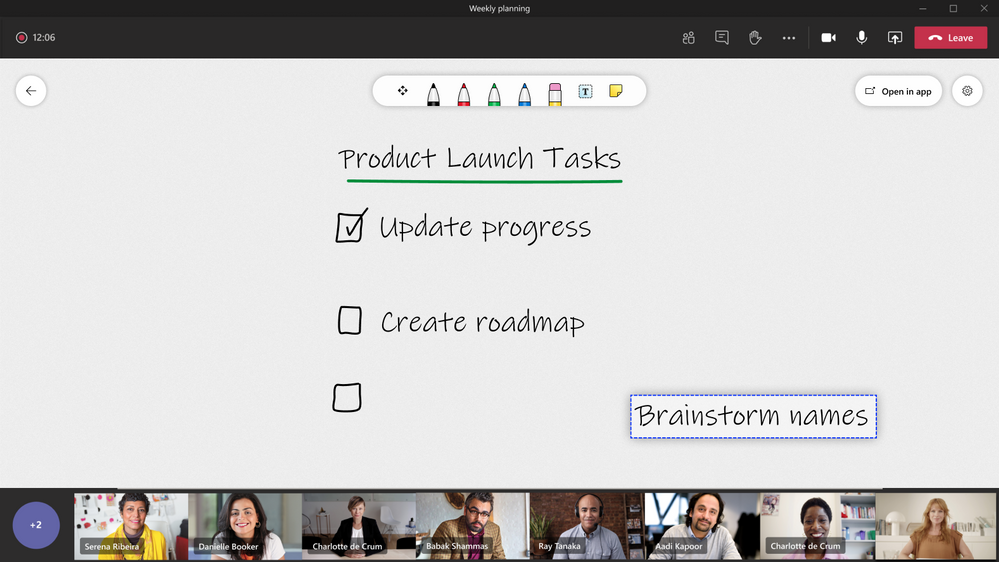
Whether you’re working remotely or in the office, your team can use Whiteboard to run effective meetings, brainstorm, plan and think creatively.
We’re excited to announce that some of the most loved Microsoft Whiteboard features on Windows 10 and iOS are now available to use in Teams and Whiteboard on the Web.
These new features make it easier than ever to keep the creative process moving forward virtually with your team or class.
Let’s go through each of these features to give you a better understanding of the use cases for both Enterprise and Education.
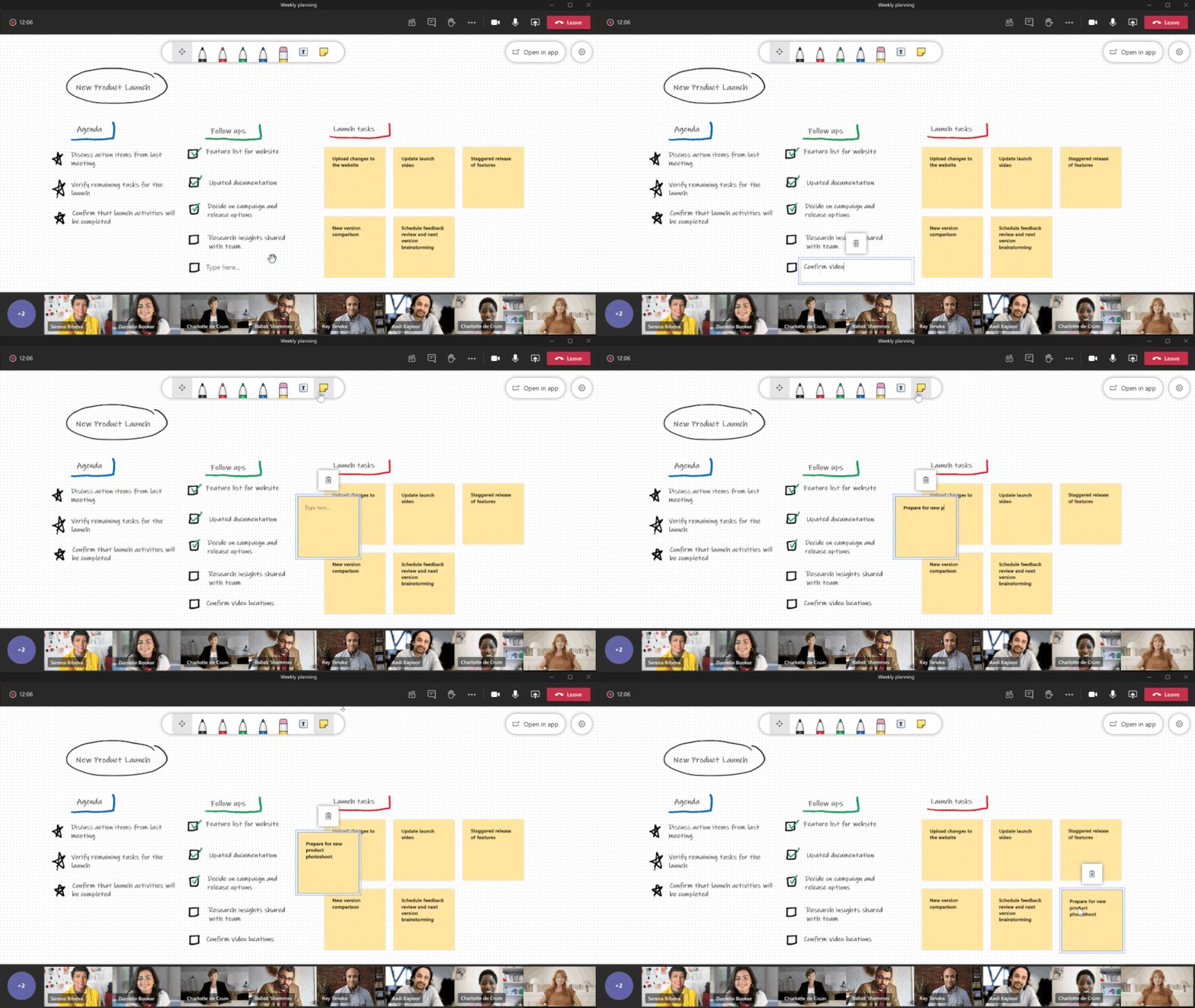
Sticky notes
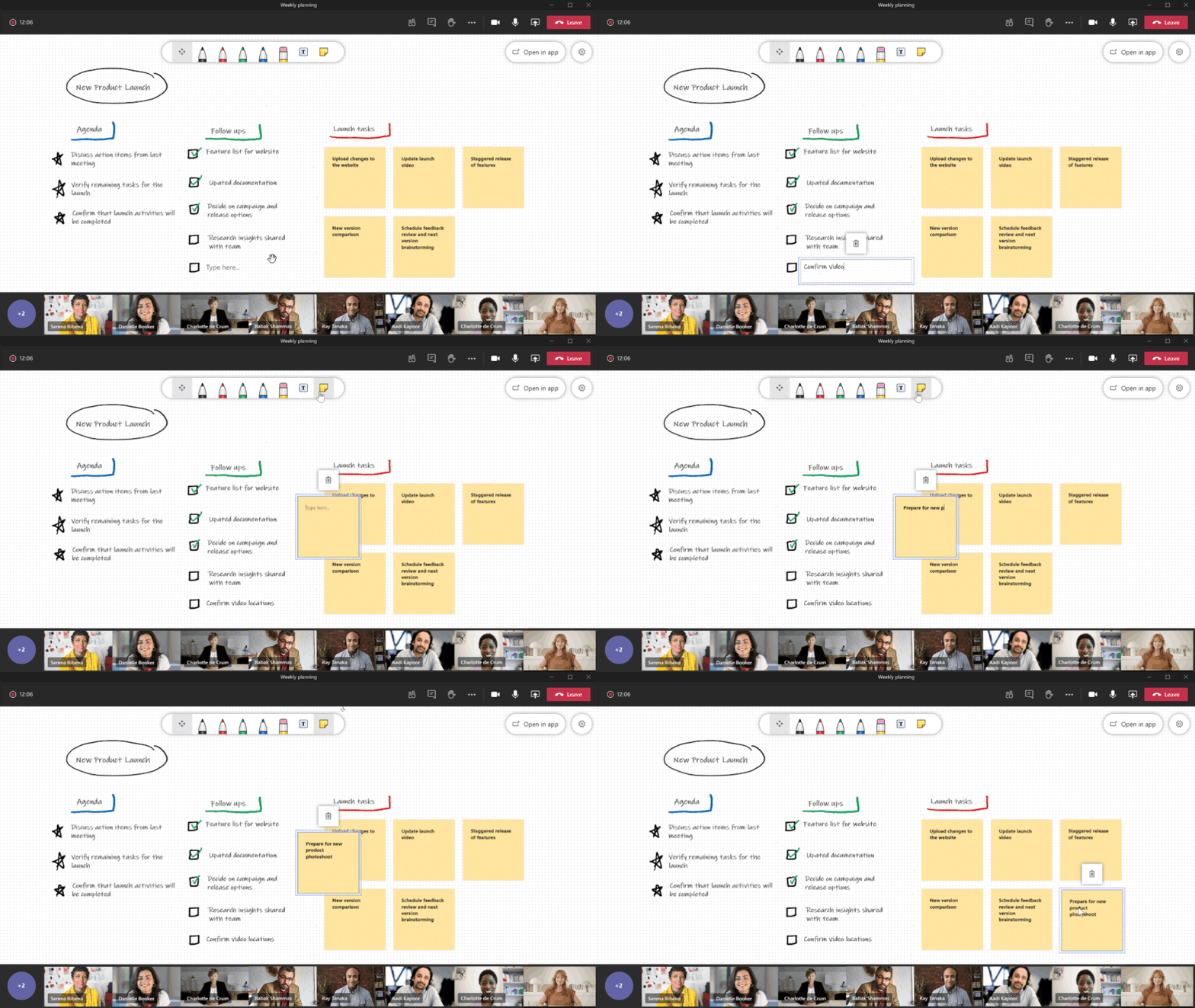
Sticky notes let you quickly add ideas and feedback to the canvas, especially if you’re using a device without a digital pen.
Sticky notes can be added through the toolbar or by right-clicking on the canvas to insert one in a specific place.
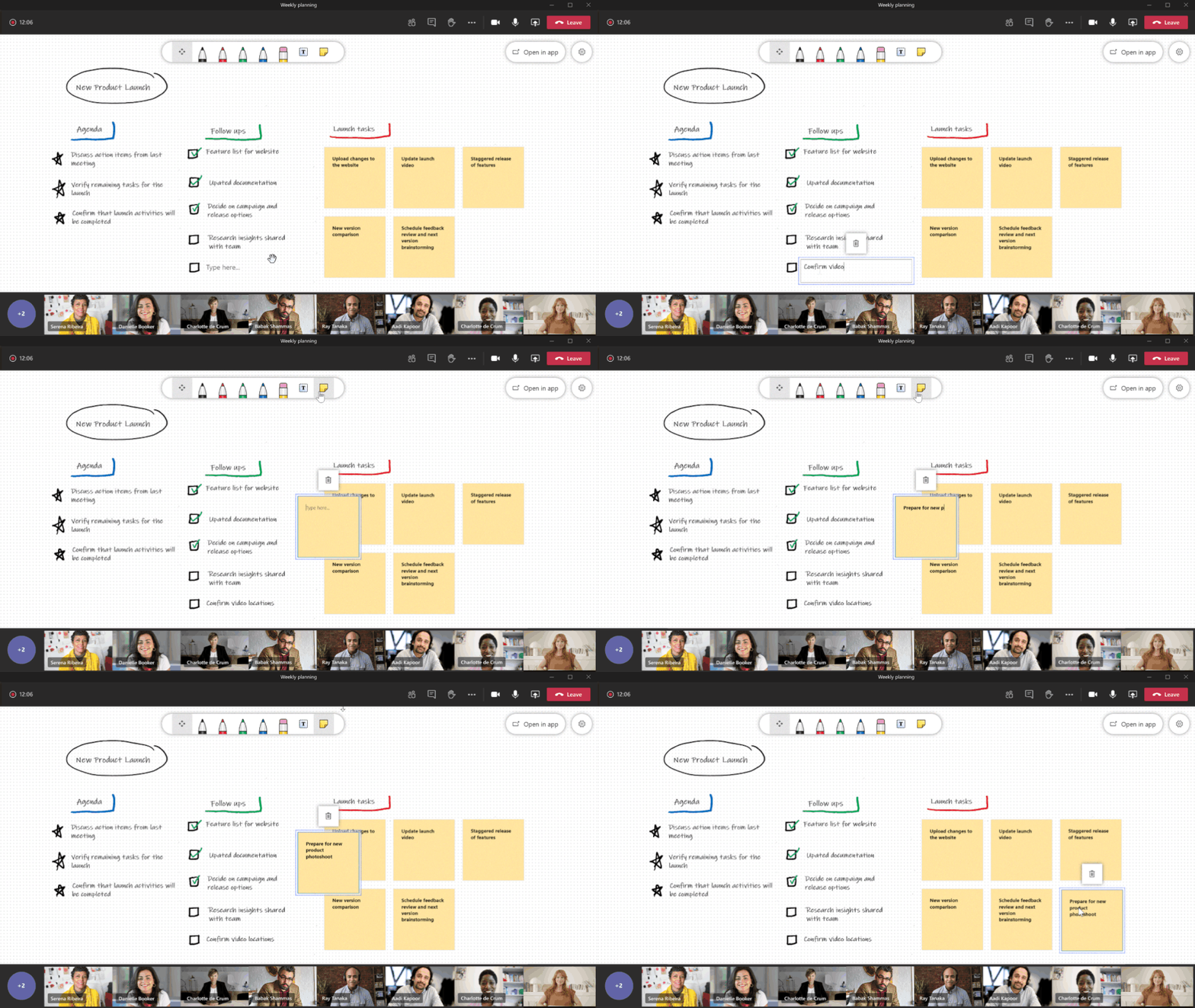
Text
Text objects are a great way to add structure to the canvas, such as adding an agenda or details.
Text objects can be added through the toolbar or by right-clicking on the canvas to insert one in a specific place.
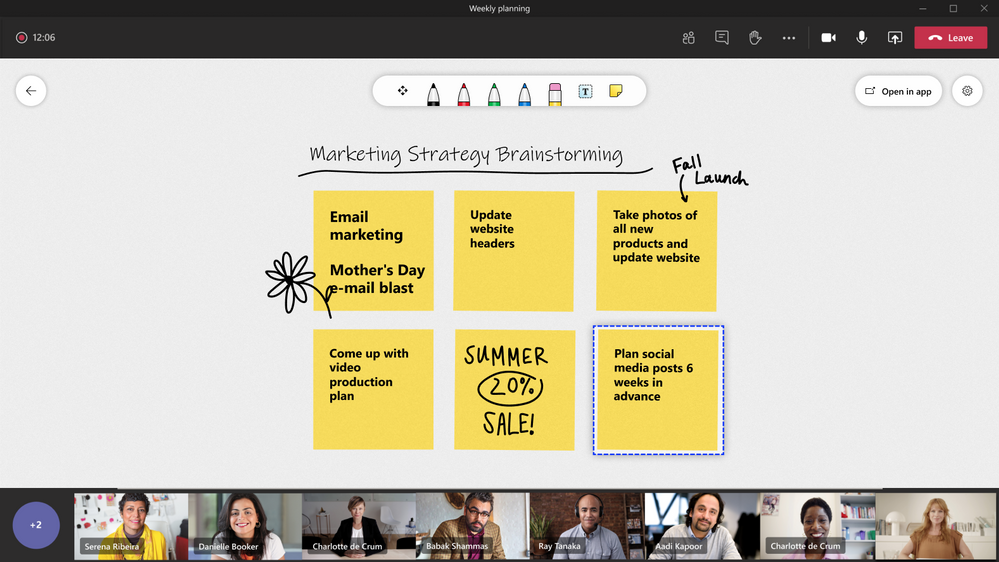
Select and move objects
You can move and re-order objects when organizing ideas, tasks or other content on the canvas.
Whiteboard’s Improved Performance
To support these new capabilities the Whiteboard web app has been completely rebuilt and is now faster than ever. This new foundation will allow us to bring more capabilities to Teams and the web, like the ones offered today on Windows 10 and iOS. And you can use the Whiteboard web app on any of your devices including PCs, Macs, Android and iOS devices by visiting http://whiteboard.microsoft.com.
Now let’s put it all together and go through some use cases across school and work:
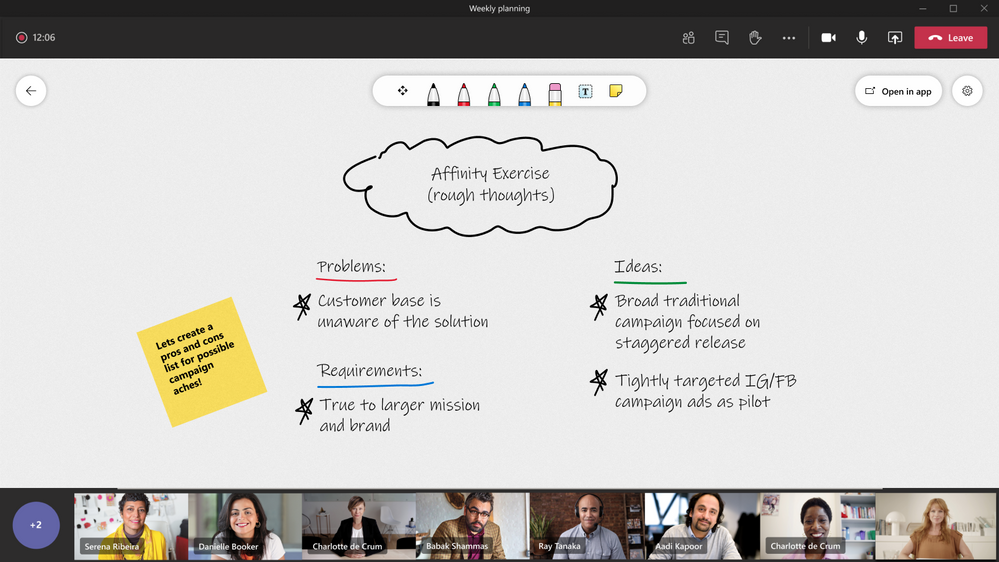
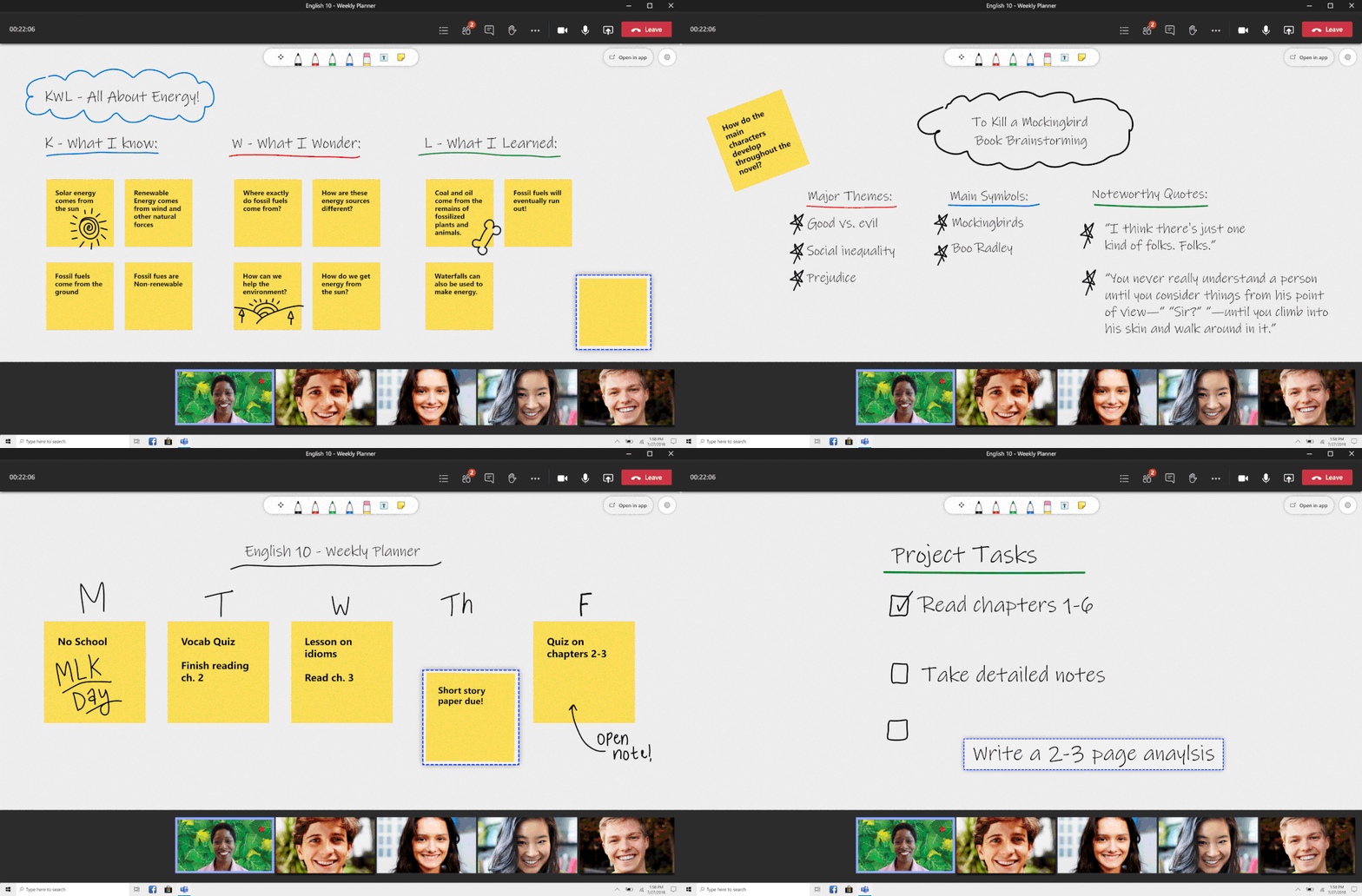
Educational Institutions: Real-time visual collaboration in online classes, with control over when students can add to the Whiteboard
Visual collaboration tools can make meetings and teaching environments more effective and inclusive. Our updated Whiteboard features in Teams enable students who don’t have access to a touch or pen device to participate in whiteboarding sessions during Teams meetings. Plus, educators will also have the option to present the digital whiteboard without students having access to drawing on the board during class.
Enterprise Use Cases: Inclusive collaboration in the hybrid workplace
We are all in a new norm of working in a hybrid workplace. Though teams are not physically in person these days, there is still a need to be inclusive and collaborate via brainstorming and creative thinking sessions. We all have been in a meeting where we are using a dry erase board, adding sticky notes to a wall, and taking pictures of the material we write, draw, and discuss. We have brought the physical board to you via Whiteboard in Teams.
Additional Capabilities:
We are excited for you to start collaborating on Teams and Whiteboard on the Web! For more information on additional capabilities we have coming to Whiteboard, please see our Microsoft 365 Roadmap.
Please remember – you can continue to access all of Whiteboard’s feature-rich experiences – such as templates and hyperlinks – on the Windows 10 app and iOS app.
by Scott Muniz | Aug 5, 2020 | Uncategorized
This article is contributed. See the original author and article here.
Do-it-yourself is now a reality for all Power Users with Microsoft Power Platform and Microsoft Teams. The Maker Culture is here to empower all users in a business so that they can create low-cost solutions to all the problems or issues in their businesses.
The development of technical solutions has changed recently. We are facing important changes in this paradigm. Nowadays, we have tools to secure and guarantee the controlled access to information that should be available only for allowed users from each company. One of these tools is Microsoft 365, that not only secures information, but also empowers our users by providing them with a platform where they can create their own solutions without depending on the IT Department.
The Maker Culture is based on the DIY (Do It Yourself) Concept. By adding all the technical components of the Power Platform, you can allow yourself and your colleagues to automate all those time-consuming processes. Imagine all the solutions that can become a reality by automizing all those repetitive processes that you have to do every day in your department.
Historically, the IT Department has focused its efforts and budget on the operations of the IT systems by guaranteeing infrastructure and software availability for everyone in the company; as well as, coordinating the adoption and execution of new tools, or creating tailored applications as needed, most of which impact directly on their business community. However, some of the processes are not a priority for the IT Department, because such processes are too long and very expensive for the company; yet they are extremely time consuming for the direct users. That is the reason why automation and low-cost solutions created by Power Users become so important for all the staff. If every user in the company has a tool that allows them to automate their daily and repetitive activities, the company and their staff will be able to have more time to do anything else.
Power Platform has come to reduce the time you and your team spend on repetitive tasks. Just imagine that in only one click you are capable of saving all the relevant information about a sale. Furthermore, you can also notify all the members of your team about every detail in just one message through Microsoft Teams and, moreover, you can create a special channel for this purpose so that you can give a follow up to your customers and keep them in the loop. Once again, imagine that everybody is updated in just one click. Wouldn’t that be great?
Power Platform is made up of a set of independent tools that you can combine as it fits, according to your needs. These tools are Power BI, Power Apps, Power Automate, and Power Virtual Agents. They are so easy to use and intuitive that they become very friendly to end-users.
Accurate Reports with Power BI
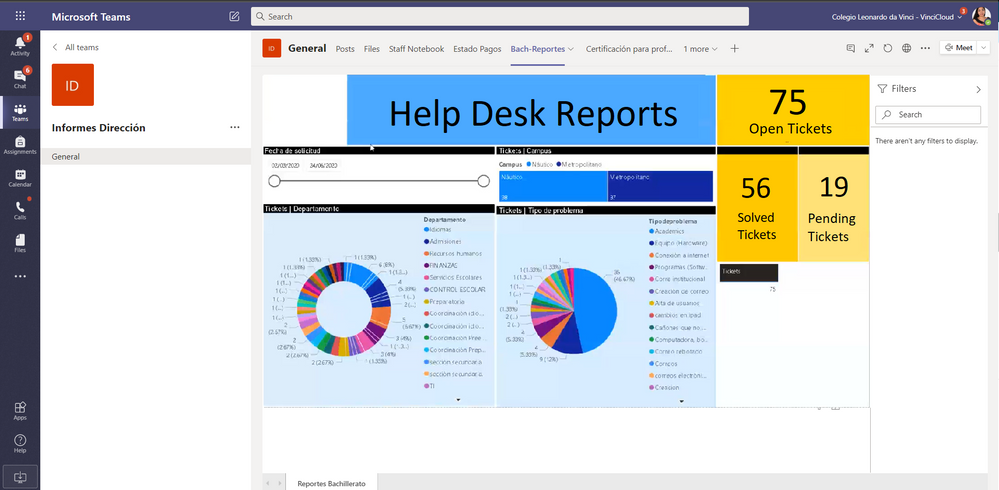
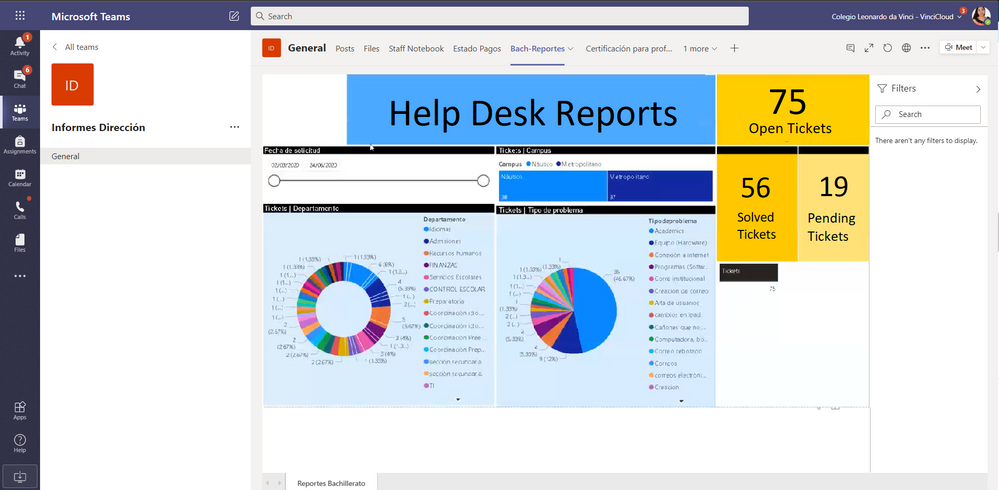
Power BI is a great tool where you can perform Data Analysis and create not only reports, but also dashboards very easily. By integrating Power BI with Microsoft Teams, you can share a Power BI report with your colleagues just by adding a new tab in the channel inside Microsoft Teams.
We all know how important it is to have accurate, updated and 100% reliable data right there in our hands. Not counting on such data, at the precise moment could complicate, or even jeopardize the company strategy. Microsoft Teams and Power BI will keep everything up to date for you and your co-workers.
Creating Mobile Applications Is Faster Than Ever
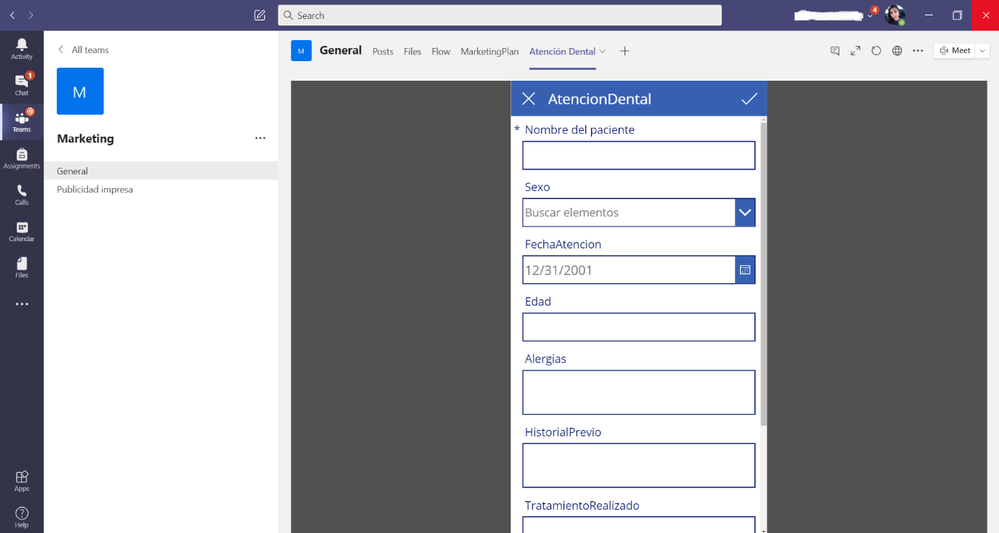
Power Apps is a tool that enables you to create personalized applications that you can use in both, mobile devices, and desktops. You do not need to write a single line of code, nor to be a programmer to create these applications. The creators of these apps can publish them in the Teams Application Library in an easy way. By doing this, these apps are immediately available among all your collaborators.
The Power of Simplifying Processes
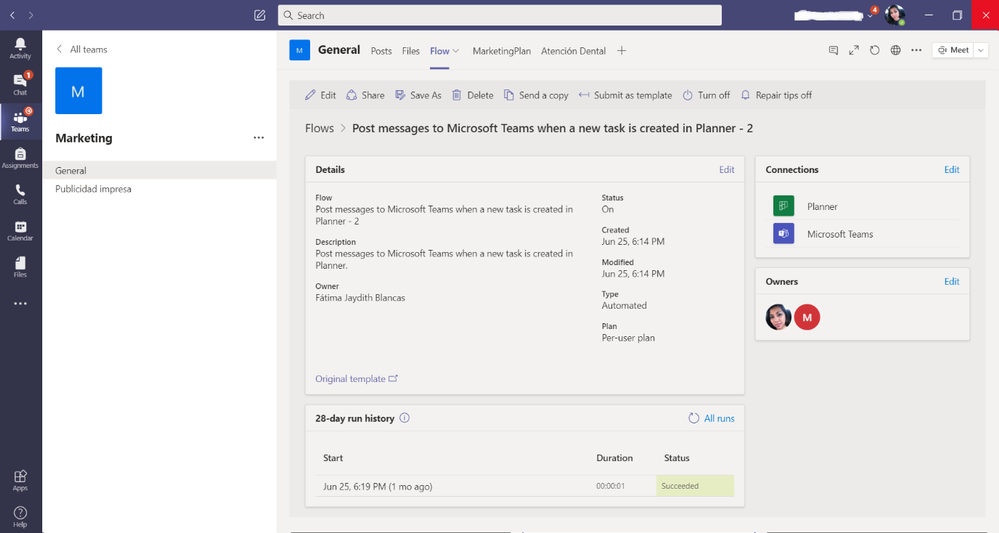
To reduce the time devoted to getting down to the repetitive actions, you can create workflows with Power Automate. You can either use the different types of flows that are already created and based on templates, or create a brand-new flow starting from zero. You can also integrate applications from other third-party developers. By using this tool, you will be able to draw the attention of all of the people involved in each process to their goal-oriented task.
Communication and Closeness for Users
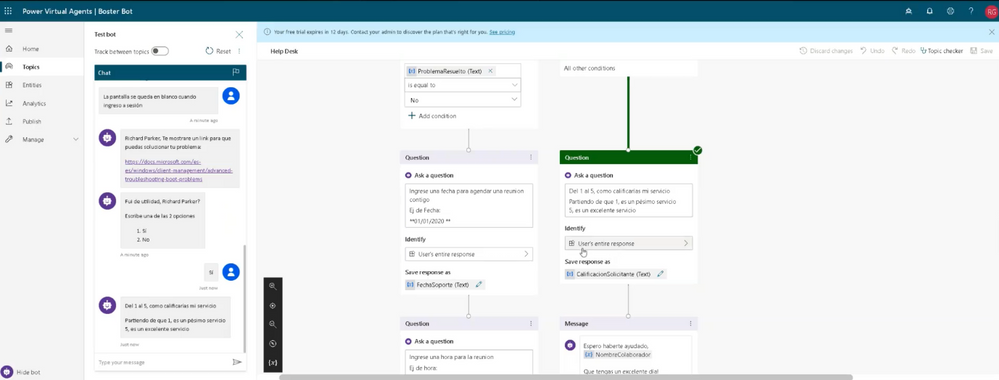
Power Virtual Agents will allow you to integrate powerful chat-bots in very little time. With this application, you will be able to offer a natural conversation to all the users in your organization. Imagine how much precious time it can help your Help Desk Team save when responding to frequently-asked-questions (FAQ) by completing this task in an automated way, using a bot that you created with no code, in a graphical interface, and without needing to have a data scientist or developer right there to help you.
With Power Virtual Agents you can empower your team by allowing them to quickly build bots in minutes, based on natural conversations. These bots can be easily integrated with services and back-end systems out-of-the-box, or through hundreds of custom connectors using Power Automate. This makes it simple to create a bot that does not only respond to the users, but that also takes actions to solve their issues.
Templates Are A Good Beginning
Should you have in mind many of the solutions that you could create, but you do not know where to begin yet, do not worry. In the Power Platform, you will find a huge number of templates that can help you take your first steps into this task. Many of these templates, which are available into Power Platform, were created by other Power users around the world to allow future Power Users benefit from them. This is part of the “Maker Culture”.
Users around the world generously contribute with their experience and knowledge by uploading their templates because they know that there are millions of other users out there searching for the same solution.
You should start sharing your ideas with the world and be part of the “Maker Culture”.
CONCLUSION
As you can see, to become a Power User, it is not necessary to have any sort of deep technical knowledge, nor sophisticated equipment. What matters here is being able to transform your capabilities, combine your knowledge and share the love you have for creating things.
So, take the Power Platform and build up the solutions that you need. Power Platform and the Maker Culture have the potential to change a company because they facilitate innovation. What really matters here is enjoying the process of being creative.
by Scott Muniz | Aug 5, 2020 | Alerts, Microsoft, Technology, Uncategorized
This article is contributed. See the original author and article here.
Database backups are an essential part of any business continuity and disaster recovery strategy, because they protect your data from corruption or deletion. In Azure SQL Managed Instance there are two types of automated backups that customers can use for restoring their databases:
- Short-term backups used for point-in-time restores (PITR) or geo-restores, keeping backup data for up to 35 days
- Long-term backups used for configuring longer retentions, keeping backup data for up to 10 years
To protect backup data from planned and unplanned events, including transient hardware failures, network or power outages, and massive natural disasters, backup storage is being replicated to another storage. By default, storage is geo-replicated to a paired region using RA-GRS strategy.
As many applications have regulatory, compliance, or other business requirements for data residency control, geo-redundancy is not good fit for every customer. To overcome this, option for configuring backup storage redundancy has been introduced. It allows customers to choose replication strategy for their backup storages and define if geo-redundancy (RA-GRS), zone-redundancy (ZRS), or local-redundancy (LRS) will be used.
What are the differences in storage redundancy?
Backup storage redundancy relies on Azure Storage redundancy:
- Locally redundant storage (LRS)
- Design characteristics: replicates your data three times within a single physical location in the primary region. LRS provides at least 99.999999999% (11 9’s) durability of objects over a given year. LRS protects your data against server rack and drive failures. However, if a disaster such as fire or flooding occurs within the data center, all replicas of a storage account using LRS may be lost or unrecoverable.
- Best for: LRS keeps your data in the same region and provides capability of data residency and helping you to stay compliant with regulatory requirements. In addition, LRS is the lowest-cost redundancy option (but offering the least durability compared to other options) which is good fit for dev/test scenarios.
- Zone-redundant storage (ZRS)
- Design characteristics: replicates your Azure Storage data synchronously across three Azure availability zones in the primary region. Each availability zone is a separate physical location with independent power, cooling, and networking. ZRS offers durability for Azure Storage data objects of at least 99.9999999999% (12 9’s) over a given year.
- Best for: ZRS also provides capability of data residency but offers higher durability due to data replicated across availability zones. It is good fit for production scenarios that are cost sensitive.
- Geo-redundant storage (RA-GRS) – RECOMMENDED (DEFAULT)
- Design characteristics: replicates your data synchronously three times within a single physical location in the primary region using LRS. It then copies your data asynchronously to a single physical location in a secondary region that is hundreds of miles away from the primary region. RA-GRS offers durability for Azure Storage data objects of at least 99.99999999999999% (16 9’s) over a given year.
- Best for: RA-GRS is best disaster recovery option which gives highest durability. In addition, geo-redundant backup storage enables Geo-restore capability – a cheap and economically efficient disaster recovery option. This is default configuration value and if there is no need for data residency compliance, it is recommended to use RA-GRS backup storage for all production workloads.
While LRS and GRS are available in all regions, ZRS is available only in specified regions. Detailed pricing information can be found on Azure SQL Managed Instance pricing page.
Feature capabilities
Backup storage redundancy option is in Preview phase. Main capabilities are following:
- Redundancy can be configured only during managed instance creation using REST API, ARM template or Azure Portal and cannot be changed later
- Available redundancy options are LRS, ZRS and RA-GRS
- When configured redundancy is applied for both PITR and LTR backups
- Redundancy is applied at instance level and cannot be configured per individual managed database
- Geo-Restore functionality is available only for instances with configured RA-GRS backup storage redundancy
How can I configure backup storage redundancy?
Backup storage redundancy can be configured during managed instance creation when request is submitted using REST API, ARM template or Azure Portal. In official documentation page, you can find instructions on how to select backup storage redundancy.
How can I change backup storage redundancy for existing instances?
It is not possible to update backup storage redundancy for existing instances. However, there is workaround which relies on process of creating new managed instance with different redundancy and moving your databases from old to the new instance.
Steps:
- Create new managed instance and select desired backup redundancy
- Use cross-instance point-in-time restore, transactional replication or use .bacpac files to backup and restore your data using SSMS
- Delete old managed instance
How long are backups kept on deleted managed instance?
Backups are kept until retention period set for each database expires + 7 days. For more details visit Backup storage consumption on Managed Instance explained. If you have need for immediate removal of backup data stored on old instance before deleting it you can:
- For LTR delete all backups taken and turn off LTR settings (learn how-to)
- For short-term backups reduce retention of active databases to 1 day and deleted databases to 0 days (learn how-to)
These two actions will ensure that all your data is removed from the old managed instance in up to 8 days.
by Scott Muniz | Aug 5, 2020 | Alerts, Microsoft, Technology, Uncategorized
This article is contributed. See the original author and article here.
As you know Azure Arc for servers is currently in preview and allows you to manage your Windows and Linux machines hosted outside of Azure on your corporate network or other cloud providers, similar to how you manage native Azure virtual machines. With the new extensions which were introduced a couple of weeks ago, you can now also use Azure Monitor to not only monitor your servers in Azure but also servers running on-premises or at other cloud providers. This will provide you with cloud-native management for your Linux and Windows servers.
Now you can use the different Azure Monitor features and use RBAC to provide access to these features directly within the Azure Portal.
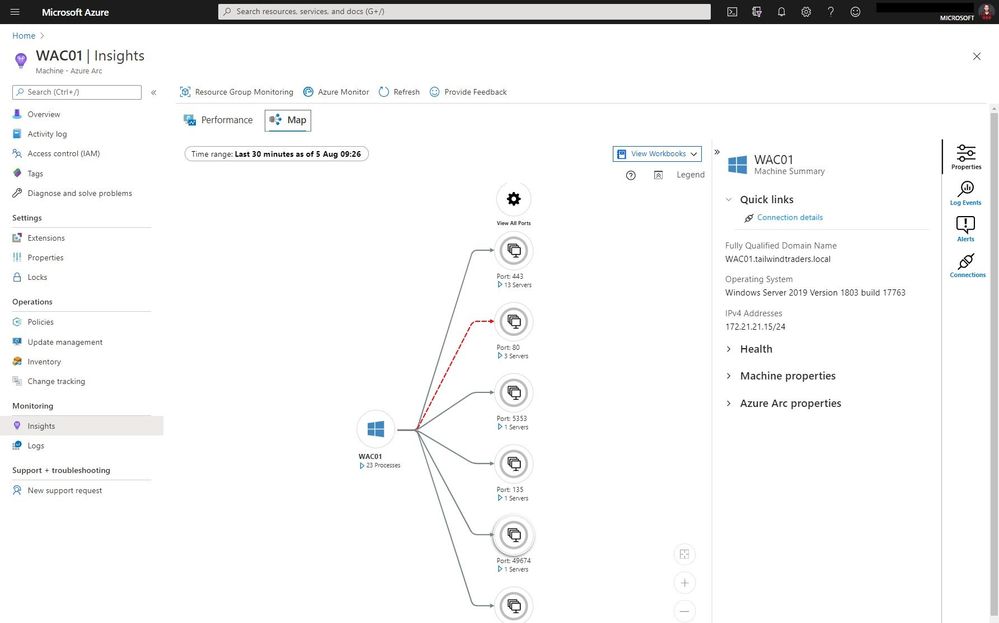
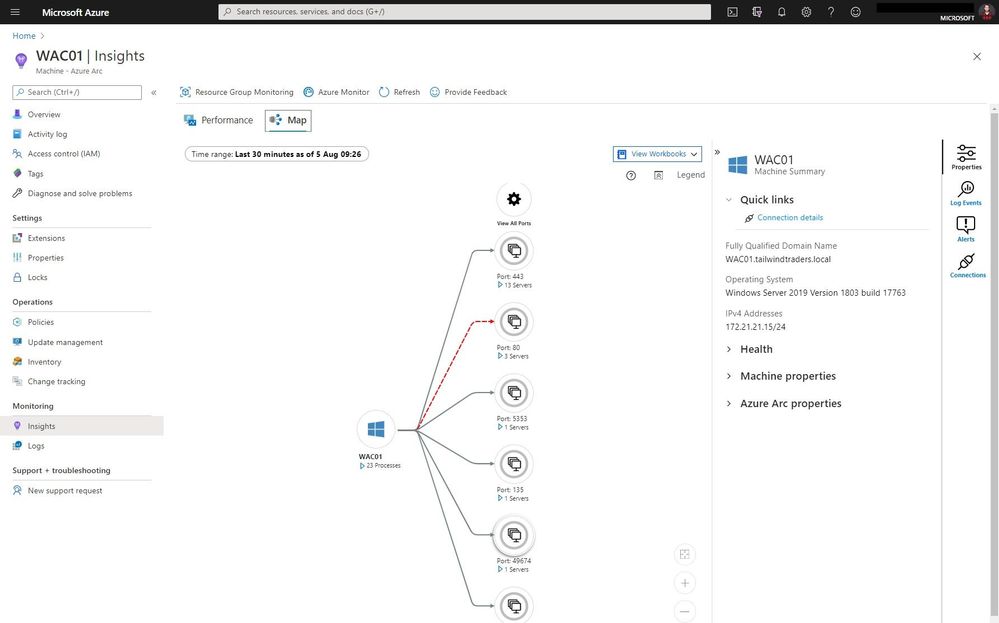
With the map view of Azure Monitor on an Azure Arc enabled server, you can see the connection and endpoints the machine connects too. It can also highlight failed connections, which can be super helpful in troubleshooting or migration scenarios.
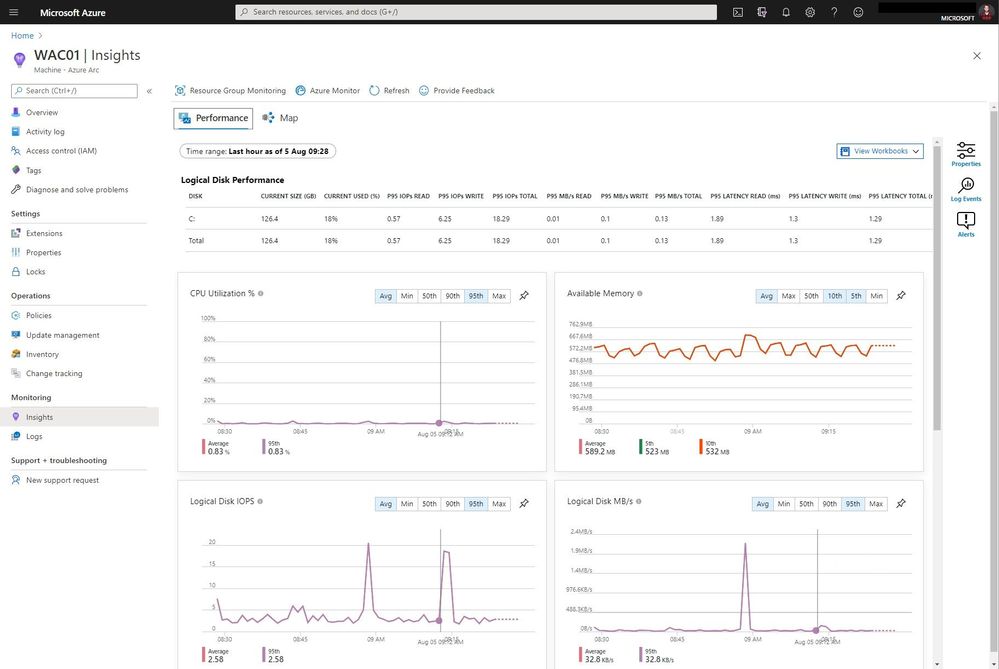
But you can also the performance view to have a look at different metrics such as CPU utilization and much more.
You will also find these servers in the centralized portal view of Azure Monitor, where you can find your Azure virtual machines and your Azure Arc enabled servers side-by-side.
If you want to learn more about Azure Arc enabled Servers, check out my overview video about the different extensions, and check out the full blog post of Auston Li on Azure.com.
I hope this provided you with a brief overview about this new Azure Monitor feature for Azure Arc enabled servers. If you have any questions, feel free to leave a comment.

by Scott Muniz | Aug 5, 2020 | Uncategorized
This article is contributed. See the original author and article here.
Hello everyone and welcome to our mind-blowing series of blogs we have lined up to show you the significant impact of the Azure Active Directory Security Features had for one of our SMC customer.
This blog is a cumulative effort from the Mission Critical Team (Altug, Morne, Nibin & Zoheb).
We will be showcasing in detail what efforts our Identity experts in the Mission Critical Team have gone through for one of our customers in MEA. As a result, we achieved an immense overall improvement in their identity security posture.
Let us start first by introducing ourselves:
Morne: I am an Identity Customer Engineer and have been in Microsoft for 2 years. My primary focus is enablement of the Microsoft hybrid cloud and securing Cloud identities along with the optimization and production remediation of Directory Services. I work as a Designated Support Engineer for this customer.
Zoheb: I am an Azure/Identity Solution Engineer and have been in Microsoft for 7 years in different roles (Microsoft Support, PFE & presently SMC) and working as a SMC lead for this customer.
Nibin: I am an Azure/Identity Sr Solution Engineer and have been in Microsoft for 13 years in different roles (Microsoft Support, PFE & presently SMC) and working as a SMC lead for this customer.
Altug: I am a Sr Solution Engineer specializing in the Manageability and Operations realm. I have been in Microsoft for almost 15 years in different roles (Microsoft Support, PFE & presently SMC).
Before we go in more details, we would like to share some Background on the Microsoft Mission Critical methodology that will enable you to better understand this blog series and the way we work.
|
Microsoft SMC (Support for Mission Critical) Team is the ultimate personalized support experience from Microsoft. Each SMC customer will have designated team that:
· Knows you and knows what your solution means to your enterprise
· Works relentlessly to find every efficiency to help you get ahead and stay ahead
· Advocates for you and helps ensure get you the precise guidance you need 24×7.

|
How the Microsoft Mission Critical team helped secure AAD
To come back to our valuable SMC customer. This customer has an environment of about 25,000 users, was new to Azure Active Directory and ultimately was in the process of exploring as many new features as possible.
The ‘What’
Historically they had to deal with various Security incidents in their environment, which resulted in Identity compromise, phishing, malware attacks etc. They had challenges to Protect, Detect and Respond proactively to these varying levels of compromise.
As our customer’s footprint grew in AzureAD they started observing many similar attack trends in AAD like described below:
- Hundreds of Risky Sign ins reported every day
- More than 1 million incorrect username and password attempts in a month (Password Spray attacks)
- M365 team were detected many phishing emails
- Many impossible travel alerts detected
- Many attempts detected from legacy Browser using weak authentication
The ‘How’
Being part of the Microsoft Solution team, we always go above and beyond to support our customers. The first step is always to quickly resolve the reactive issue, subsequently identify the Root Cause, and finally through our Proactive Delivery Methodology making sure this does not happen again.
Below you will now find the chronological flow of our approach to fix some of the issues over a period.
Each topic described will have a separate blog as all these Individual topics require in depth discussion.
- Risky Sign in’s Process Improvements : We observed that there are hundreds of Risky Sign ins reported every day and our customer wanted to add restrictions which could help secure their users’ Identity.
- Force MFA by Location: All the users were located only in 1 country but were receiving Authentication attempts from across the globe. Considering this risk, we forced MFA for any authentication attempts for Non-Trusted IP users. (Blog link will be updated once posted)
- Eliminating weak passwords for organization: They received more than 1 million bad password attempts in a month. We wanted to protect them against this and one of the remediations we followed was to implement Azure AD Password Protection.
Before enforcing this, they wanted to evaluate the impact, for which we created a custom dashboard that helped them to analyze weak passwords usage in the environment. (Blog link will be updated once posted)
- Reduction in Privileged Identity Users: This is a basic for any Identity platform to implement the least privilege administration model. We reduced the numbers of High Privileged users from 30 to 9, this will further be improved post implementation of PIM. (Blog link will be updated once posted).
- MFA Registration for all users: One of the core pillars of our strategy for Identity protection was MFA, we enrolled all users for MFA in quick time which helped us further strengthen the policies. It was critical to ensure that MFA registration happens only from trusted IP’s. (Blog link will be updated once posted)
- Reducing number of Users synced to AAD: They had more than 60,000 users synced with AAD comparing to the active users which were less than 25,000. This was mainly due to Inactive/Disabled accounts in the On-Premises AD. We collaborated with customers Messaging & Identity team to identify and clean many stale accounts. (Blog link will be updated once posted)
- PIM for Azure Identity roles: PIM enables you to manage, control, and monitor access to important resources in your organization. We used PIM to Provide just-in-time approvals for privileged access to the Azure AD. (Blog link will be updated once posted)
- Enabling Internal Application access through Supported Platforms only: We found that legacy browsers were being used to exploit vulnerabilities and to use weak Authentication methods.
In order to mitigate this concern, we restricted company applications access only through supported Browsers/Apps. (Blog link will be updated once posted)
NOTE: The features and guidelines implemented in this case was specific to this customers requirements and environment, so this is not a “General” guideline to enable any of the mentioned features.
Hope this helps,
Altug, Morne, Nibin & Zoheb


Recent Comments